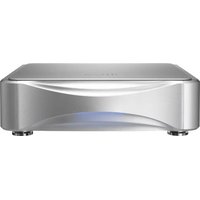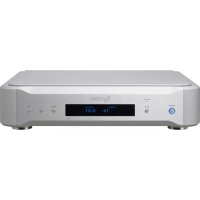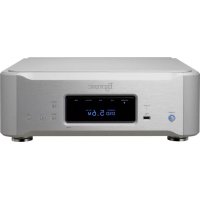
N01 - Music receiver Esoteric - Free user manual and instructions
Find the device manual for free N01 Esoteric in PDF.



| Product Type | Network Music Receiver / High-End DAC |
| Brand / Model | Esoteric N-01 |
| Dimensions (W × H × D) | 445 × 162 × 403 mm |
| Power Supply | AC 220-240 V, 50/60 Hz (European model) |
| Power Consumption | 33 W |
| Digital Inputs | XLR (AES/EBU), RCA coaxial, optical (TOSLINK), USB type B, Ethernet 1000BASE-T |
| Clock Input | BNC (44.1 kHz – 10 MHz) |
| Analog Outputs | XLR (balanced) and RCA (unbalanced) – 1 pair each |
| Supported PCM Formats | Up to 768 kHz / 32 bit (USB); 384 kHz / 32 bit (Ethernet, converted to 192 kHz/24 bit) |
| Supported DSD Formats | Up to 22.5 MHz (USB); up to 5.6 MHz (Ethernet) |
| Audio File Formats | FLAC, ALAC, WAV, AIFF, DSF, DSDIFF (DFF), DoP, MP3, AAC |
| D/A Converter (DAC) | ESOTERIC proprietary technology, upsampling up to 768 kHz or DSD 22.5 MHz |
| ES-LINK Analog Output | Current transmission via XLR, compatible with Grandioso F1 amplifiers |
| Output Impedance | XLR: 20 Ω; RCA: 23.5 Ω |
| Maximum Output Level | XLR: 5.0 Vrms; RCA: 2.5 Vrms (into 10 kΩ) |
| Signal-to-Noise Ratio | 120 dB |
| Harmonic Distortion | 0.0007% (1 kHz) |
| Frequency Response | 5 Hz – 70 kHz (-3 dB) |
| Control – Required App | Free ESOTERIC app for tablet/smartphone (iOS/Android) |
| Included Accessories | Power cord, felt pads ×4, instruction manual, warranty card |
| Care and Cleaning | Soft dry cloth; unplug before cleaning. Avoid chemical products. |
| Safety | Do not open the casing; do not expose to rain/humidity; follow ventilation instructions. |
Frequently Asked Questions - N01 Esoteric
User questions about N01 Esoteric
0 question about this device. Answer the ones you know or ask your own.
Ask a new question about this device
Download the instructions for your Music receiver in PDF format for free! Find your manual N01 - Esoteric and take your electronic device back in hand. On this page are published all the documents necessary for the use of your device. N01 by Esoteric.
USER MANUAL N01 Esoteric
Network Audio Player
OWNER'S MANUAL....3
MODE D'EMPLOI......23
MANUAL DEL USUARIO......43
CAUTION
RISK OF ELECTRIC SHOCK DO NOT OPEN

CAUTION: TO REDUCE THE RISK OF ELECTRIC SHOCK, DO NOT REMOVE COVER (OR BACK). NO USER-SERVICEABLE PARTS INSIDE. REFER SERVICING TO QUALIFIED SERVICE PERSONNEL.

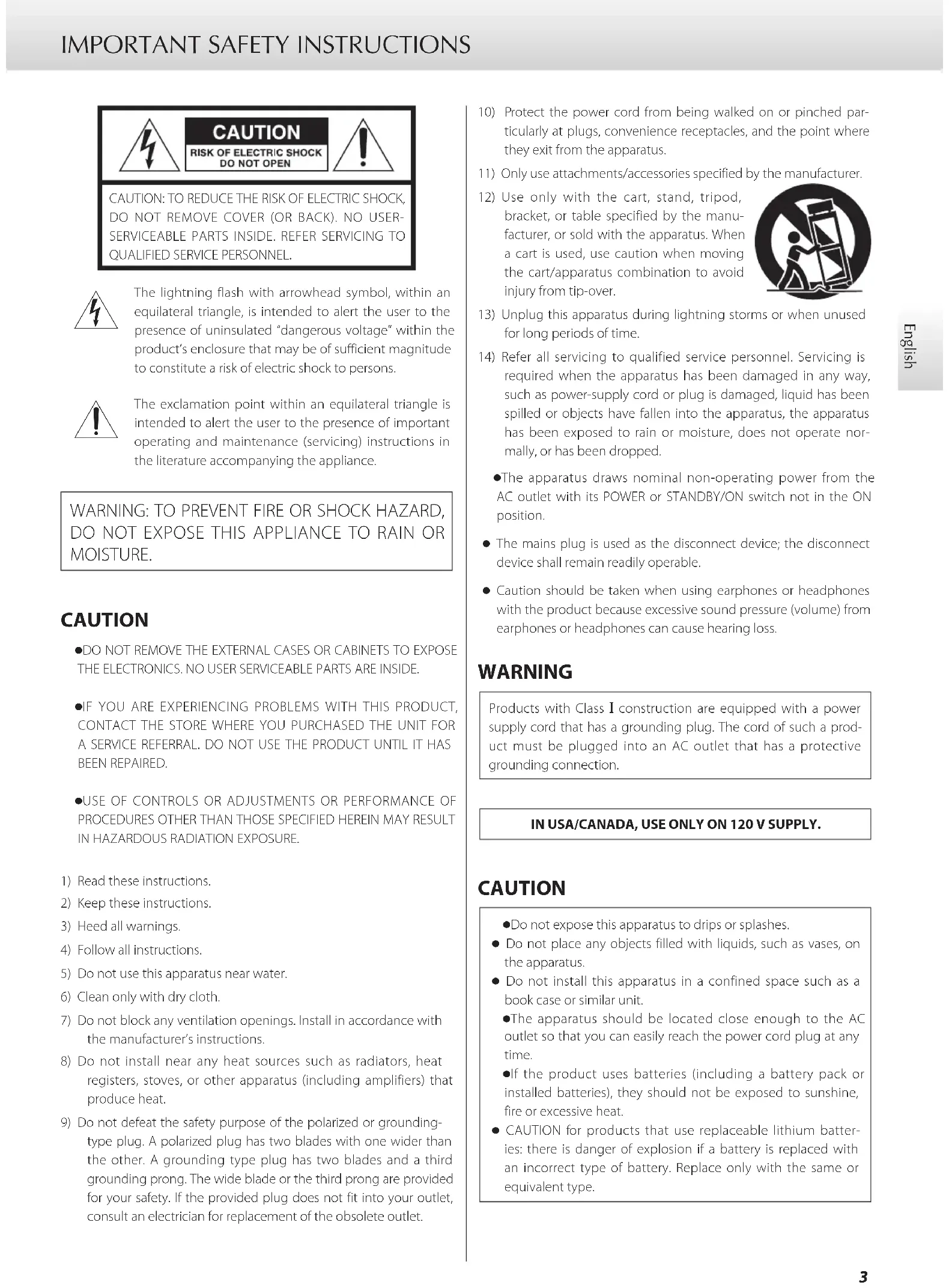
The lightning flash with arrowhead symbol, within an equilateral triangle, is intended to alert the user to the presence of uninsulated "dangerous voltage" within the product's enclosure that may be of sufficient magnitude to constitute a risk of electric shock to persons.

The exclamation point within an equilateral triangle is intended to alert the user to the presence of important operating and maintenance (servicing) instructions in the literature accompanying the appliance.
WARNING: TO PREVENT FIRE OR SHOCK HAZARD, DO NOT EXPOSE THIS APPLIANCE TO RAIN OR MOISTURE.
CAUTION
●DO NOT REMOVE THE EXTERNAL CASES OR CABINETS TO EXPOSE THE ELECTRONICS. NO USER SERVICEABLE PARTS ARE INSIDE.
- IF YOU ARE EXPERIENCING PROBLEMS WITH THIS PRODUCT, CONTACT THE STORE WHERE YOU PURCHASED THE UNIT FOR A SERVICE REFERRAL. DO NOT USE THE PRODUCT UNTIL IT HAS BEEN REPAIRED.
- USE OF CONTROLS OR ADJUSTMENTS OR PERFORMANCE OF PROCEDURES OTHER THAN THOSE SPECIFIED HEREIN MAY RESULT IN HAZARDOUS RADIATION EXPOSURE.
1) Read these instructions.
2) Keep these instructions.
3) Heed all warnings.
4) Follow all instructions.
5) Do not use this apparatus near water.
6) Clean only with dry cloth.
7) Do not block any ventilation openings. Install in accordance with the manufacturer's instructions.
8) Do not install near any heat sources such as radiators, heat registers, stoves, or other apparatus (including amplifiers) that produce heat.
9) Do not defeat the safety purpose of the polarized or grounding-type plug. A polarized plug has two blades with one wider than the other. A grounding type plug has two blades and a third grounding prong. The wide blade or the third prong are provided for your safety. If the provided plug does not fit into your outlet, consult an electrician for replacement of the obsolete outlet.
10) Protect the power cord from being walked on or pinched particularly at plugs, convenience receptacles, and the point where they exit from the apparatus.
11) Only use attachments/accessories specified by the manufacturer.
12) Use only with the cart, stand, tripod, bracket, or table specified by the manufacturer, or sold with the apparatus. When a cart is used, use caution when moving the cart/apparatus combination to avoid injury from tip-over.

13) Unplug this apparatus during lightning storms or when unused for long periods of time.
14) Refer all servicing to qualified service personnel. Servicing is required when the apparatus has been damaged in any way, such as power-supply cord or plug is damaged, liquid has been spilled or objects have fallen into the apparatus, the apparatus has been exposed to rain or moisture, does not operate normally, or has been dropped.
●The apparatus draws nominal non-operating power from the AC outlet with its POWER or STANDBY/ON switch not in the ON position.
- The mains plug is used as the disconnect device; the disconnect device shall remain readily operable.
- Caution should be taken when using earphones or headphones with the product because excessive sound pressure (volume) from earphones or headphones can cause hearing loss.
WARNING
Products with Class I construction are equipped with a power supply cord that has a grounding plug. The cord of such a product must be plugged into an AC outlet that has a protective grounding connection.
IN USA/CANADA, USE ONLY ON 120 V SUPPLY.
CAUTION
- Do not expose this apparatus to drips or splashes.
- Do not place any objects filled with liquids, such as vases, on the apparatus.
- Do not install this apparatus in a confined space such as a book case or similar unit.
●The apparatus should be located close enough to the AC outlet so that you can easily reach the power cord plug at any time.
- If the product uses batteries (including a battery pack or installed batteries), they should not be exposed to sunshine, fire or excessive heat.
- CAUTION for products that use replaceable lithium batteries: there is danger of explosion if a battery is replaced with an incorrect type of battery. Replace only with the same or equivalent type.
Model for USA
This device complies with part 15 of the FCC Rules. Operation is subject to the following two conditions: (1) This device may not cause harmful interference, and (2) this device must accept any interference received, including interference that may cause undesired operation.
This equipment has been tested and found to comply with the limits for a Class B digital device, pursuant to Part 15 of the FCC Rules. These limits are designed to provide reasonable protection against harmful interference in a residential installation. This equipment generates, uses, and can radiate radio frequency energy and, if not installed and used in accordance with the instructions, may cause harmful interference to radio communications. However, there is no guarantee that interference will not occur in a particular installation. If this equipment does cause harmful interference to radio or television reception, which can be determined by turning the equipment off and on, the user is encouraged to try to correct the interference by one or more of the following measures:
- Reorient or relocate the equipment and/or the receiving antenna.
- Increase the separation between the equipment and receiver.
- Connect the equipment into an outlet on a circuit different from that to which the receiver is connected.
- Consult the dealer or an experienced radio/TV technician for help.
Model for Canada
Industry Canada's Compliance Statement:
This Class B digital apparatus complies with Canadian ICES-003.
Model for Europe

This product complies with the European Directives request, and the other Commission Regulations.
CAUTION
Changes or modifications not expressly approved by the party responsible for compliance could void the user's authority to operate the equipment.
For European Customers
Disposal of electrical and electronic equipment and batteries and/or accumulators
a) All electrical/electronic equipment and waste batteries/accumulators should be disposed of separately from the municipal waste stream via collection facilities designated by the government or local authorities.
b) By disposing of electrical/electronic equipment and waste batteries/accumulators correctly, you will help save valuable resources and prevent any potential negative effects on human health and the environment.
c) Improper disposal of waste electrical/electronic equipment and batteries/accumulators can have serious effects on the environment and human health because of the presence of hazardous substances in the equipment.
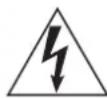
d) The Waste Electrical and Electronic Equipment (WEEE) symbols, which show wheeled bins that have been crossed out, indicate that electrical/electronic equipment and batteries/accumulators must be collected and disposed of separately from household waste.
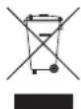
If a battery or accumulator contains more than the specified values of lead (Pb), mercury (Hg), and/or cadmium (Cd) as defined in the Battery Directive (2006/66/EC), then the chemical symbols for those elements will be indicated beneath the WEEE symbol.
e) Return and collection systems are available to end users. For more detailed information about the disposal of old electrical/electronic equipment and waste batteries/accumulators, please contact your city office, waste disposal service or the shop where you purchased the equipment.
Contents
ATTENTION
This unit only outputs analog signals from the one selected type of connector.
Set the analog output to XLR2, XLR3, RCA or ESLA before use.
See "Setting mode" on page 15 and "Output setting" on page 17.
Thank you for purchasing this ESOTERIC product.
Read this manual carefully to get the best performance from this product. After reading it, keep it in a safe place with the warranty card for future reference.
The Owner's Manual can be downloaded from the ESOTERIC website (http://www.esoteric.jp/indexe.html).
To use this unit, you must also use a tablet or smartphone that has the dedicated app (free) installed and connect it to the same network as the unit.
"DSD" is a registered trademark.
Microsoft and Windows are either registered trademarks or trademarks of Microsoft Corporation in the United States and/or other countries.
Apple, Mac, OS X and macOS are trademarks of Apple Inc.
App Store is a service mark of Apple Inc.
Wi-Fi is a trademark or registered trademark of Wi-Fi Alliance.
MEXCEL is a registered trademark of Mitsubishi Cable Industries, Ltd. in Japan and other countries.
ESOTERIC is a trademark of TEAC CORPORATION, registered in the U.S. and other countries.
Other company names, product names and logos in this document are the trademarks or registered trademarks of their respective owners.
Information about copyrights and licensing related to open-source software is provided in the separate "Important Notice Regarding Software" document.
IMPORTANT SAFETY INSTRUCTIONS 3
Before use....6
Precautions for use 6
Network connections....7
Making connections....8
Names and functions of parts (main unit)....11
Downloading the remote app 12
Changing the input source 12
Using the USB DAC function....13
Setting mode....15
Setting items and their options 16
Troubleshooting....19
Specifications....21
Dimensional drawings....22
What's in the box
Check to be sure the box includes all the supplied accessories shown below. Please contact the store where you purchased this unit if any of these accessories are missing or have been damaged during transportation.
Power cord × 1
Felt pads × 4
Owner's manual (this document) × 1
Warranty card × 1
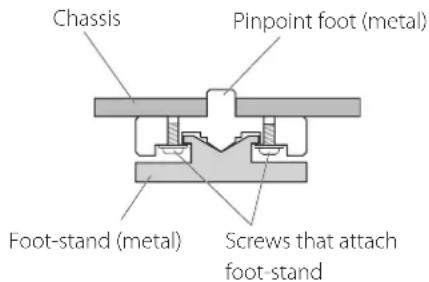
Note about pinpoint feet
High-precision metal pinpoint feet are attached firmly to the bottom plate of this unit.
The stands for these feet are loose, but when the unit is placed in position, it is supported by these pinpoint feet, which will effectively disperse vibrations.
text_image
Chassis Pinpoint foot (metal) Foot-stand (metal) Screws that attach foot-stand- Apply the included felt pads to the bottoms of the foot-stands to avoid scratching the surface where the unit is placed.
Maintenance
Use a soft dry cloth to wipe the surface of the unit clean.
For stubborn smudges, use a damp cloth that has been thoroughly wrung out to remove excess moisture.
For safety, disconnect the power plug from the outlet before wiping the unit.
●Never spray liquid directly on this unit.
- Do not use chemically-treated wipes, thinner or similar substances because they could damage the surface of the unit.
- Avoid allowing rubber or plastic materials to touch the unit for long periods of time because they could damage the cabinet.
Precautions for use
- Do not place anything on top of the unit.
- In order to enable good heat dissipation, leave at least 20 cm (8") between this unit and walls and other equipment when installing it. If you put it in a rack, take precautions to prevent overheating by leaving at least 5 cm (2") open above the top of the unit and at least 10 cm (4") open behind the unit.
Failure to provide these gaps could cause heat to build up inside and result in fire.
- Place the unit in a stable location.
-
Do not move the unit during use.
-
Be careful to avoid injury when moving the unit due to its weight. Have someone help you move it if necessary.
- The voltage supplied to the unit should match the voltage printed on the rear panel. If you are in any doubt regarding this matter, consult an electrician.
- Do not open the body of the unit as this might result in damage to the circuitry or cause electric shock. If a foreign object should get into the unit, contact your dealer.
- When removing the power plug from the wall outlet, always pull directly on the plug; never yank on the cord.
text_image
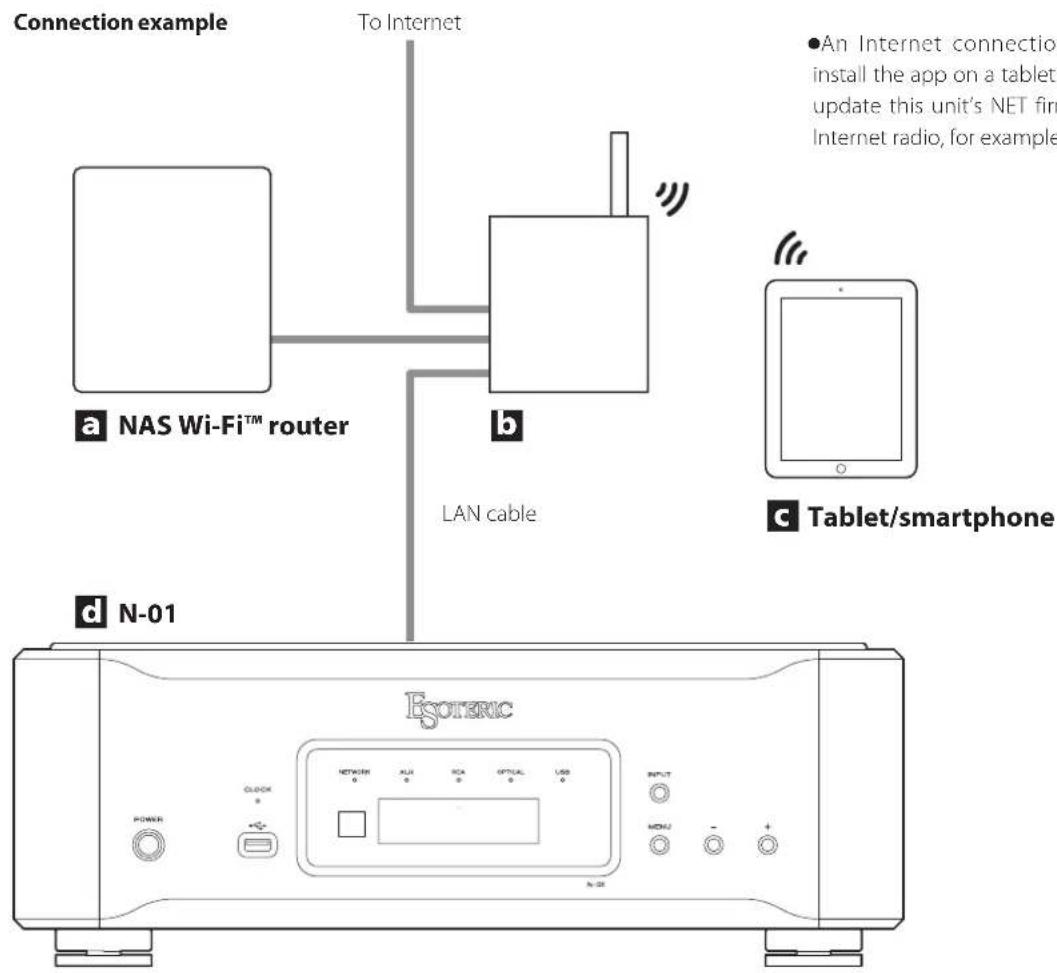
Connection example To Internet a NAS Wi-Fi™ router b LAN cable c Tablet/smartphone d N-01 Esoteric N-02 ●An Internet connection install the app on a tablet update this unit's NET firm Internet radio, for examplea NAS (network-attached storage)
Use to store audio files.
Operation as a UPnP server is necessary to use it as a media server.
b Wi-Fi™ router
Use Wi-Fi to connect the tablet or smartphone to this unit and the NAS.
C Tablet/smartphone
Install the app to control this unit.
d N-01
This unit.
Precautions when making connections
● After completing all other connections, plug the power plug into a power outlet.
- Read the owner's manuals of all devices that will be connected, and follow their instructions.
flowchart
graph TD
    A["Stereo amplifier"] --> B["Audio input (LINE IN, etc.)"]
    B --> C["Device that outputs clock signal (G-01X, G-02X etc.)"]
    C --> D["CLOCK OUT"]
    D --> E["Computer"]
    E --> F["USB cable"]
    F --> G["Device with a set of cables of one type or the other."]
    G --> H["USB flash drive"]
    H --> I["Digital OUT (OPTICAL)"]
    I --> J["Digital OUT (COAXIAL)"]
    J --> K["Digital OUT (XLR)"]
    K --> L["Device with digital audio output"]
    style A fill:#f9f,stroke:#333
    style B fill:#ccf,stroke:#333
    style C fill:#cfc,stroke:#333
    style D fill:#fcc,stroke:#333
    style E fill:#cff,stroke:#333
    style F fill:#ffc,stroke:#333
    style G fill:#cfc,stroke:#333
    style H fill:#fcc,stroke:#333
    style I fill:#cfc,stroke:#333
    style J fill:#cfc,stroke:#333
    style K fill:#cfc,stroke:#333
    style L fill:#cfc,stroke:#333
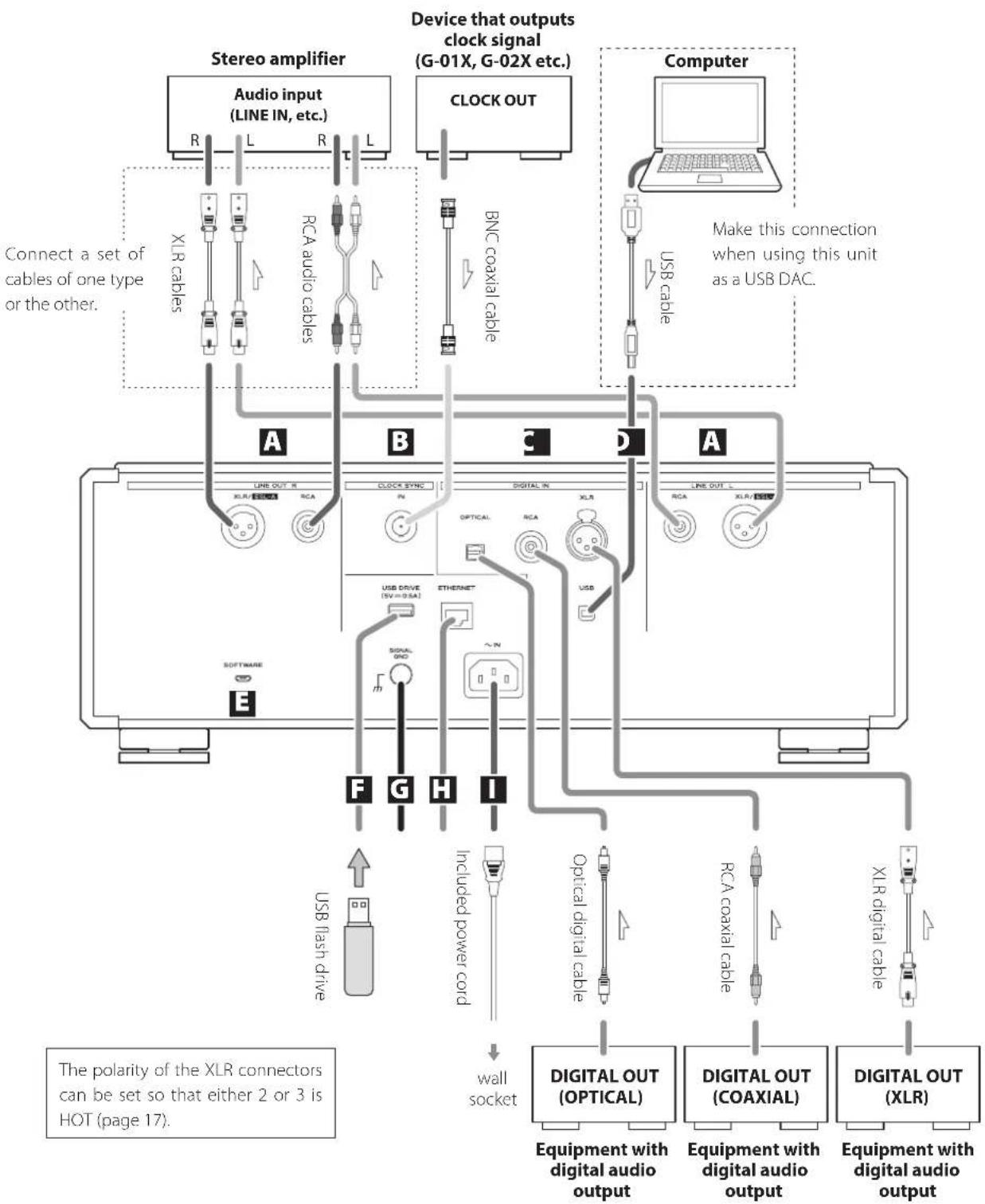
A Analog audio output (LINE OUT) connectors
These output 2 channels of analog audio. Connect the XLR or RCA connectors to an amplifier.
Use commercially-available cables for connections.
XLR, ESL-A: balanced XLR cables
RCA: RCA audio cables
Connect this unit's R connector to the R connector of the amplifier and its L connector to the L connector of the amplifier.
●Analog audio output can be set to either the RCA or XLR connectors (the XLR polarity can be set for pin 2 or 3 HOT) (page 17). Moreover, the XLR connectors also support ES-LINK Analog (page 10).
B CLOCK SYNC IN connector
Use this to input clock synchronization signals.
When using a master clock generator, connect its clock output connector to this unit's CLOCK SYNC IN connector.
Use a commercially available BNC coaxial cable for connection.
C Digital audio input (DIGITAL IN) connectors
Use these to input digital audio. They can be connected to the digital output connectors of appropriate audio devices.
They can receive signals with sampling frequencies of 32–192 kHz and bit depths up to 24-bit.
Use commercially-available cables for connections.
OPTICAL: optical digital cable (TOS)
RCA: RCA coaxial digital cable
XLR: XLR digital cable
D USB port
Use to input digital audio from a computer. Connect it to a computer's USB port.
Use a commercially-available USB cable for connection.
● Before connecting, read pages 13 to 14.
E Maintenance (SOFTWARE) port
This is used for maintenance. Do not connect anything to this port unless instructed to do so by our service department.
F USB DRIVE port
Connect USB flash drives that contain music files here.
G SIGNAL GND grounding terminal
The audio quality might be improved by connecting this grounding terminal to an amplifier or other device that is connected to this unit.
●This is not an electrical safety ground.
H ETHERNET port
Use a LAN cable to connect to a network.
Use a commercially-available LAN cable for connection.
I AC power inlet (\~IN)
Connect the included AC power cord to this socket.
After completing all other connections, plug the power plug into a power outlet.
Use only a genuine ESOTERIC power cord. Use of other power cords could result in fire or electric shock.
Disconnect the power plug from the outlet if you will not use the unit for a long time.
Use a BNC coaxial cable with 50Ω or 75Ω impedance.
At ESOTERIC, we use ESOTERIC MEXCEL stressfree cables for reference.
For detailed information, access the following website.
http://www.esoteric.jp/products/esoteric/accessory/indexe.html
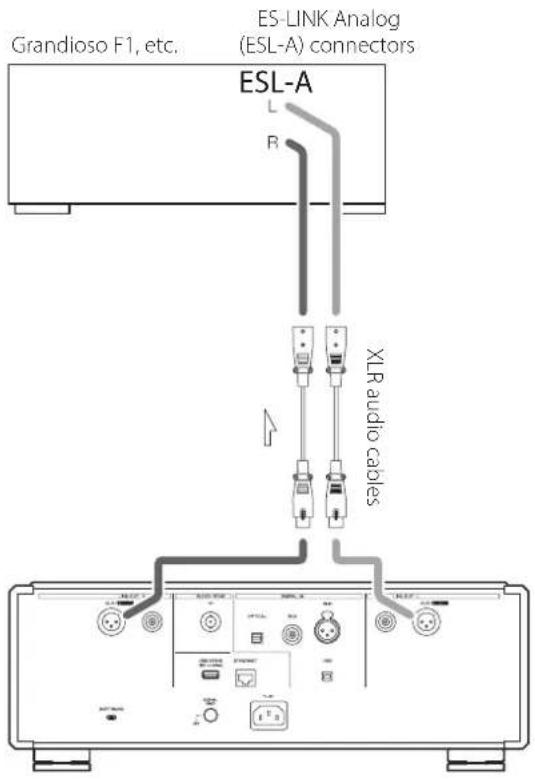
Connecting to an amplifier using ESL-A
text_image
Grandioso F1, etc. ES-LINK Analog (ESL-A) connectors ESL-A L R XLR audio cablesUse XLR audio cables to connect the analog audio output (XLR/ESL-A) connectors on this unit to a Grandioso F1 or other amplifier that has ES-LINK Analog (ESL-A) connectors.
- Set this unit's analog output (OUT) to ESLA.
- You can also connect to the Grandioso F1 using XLR or RCA connectors. Select the connection type that provides the audio quality you prefer.
ES-LINK Analog overview
Using a current transmission method that utilizes the high-performance of an HCLD buffer circuit, which boasts the ability to supply strong current at high speed, the effects of impedance on the signal path are suppressed and transmitting signals purely and powerfully is possible.
- Ordinary balanced cables (with XLR connectors) are used for connection. These connectors can only be used with compatible devices, however, because the transmission format is unique.
text_image
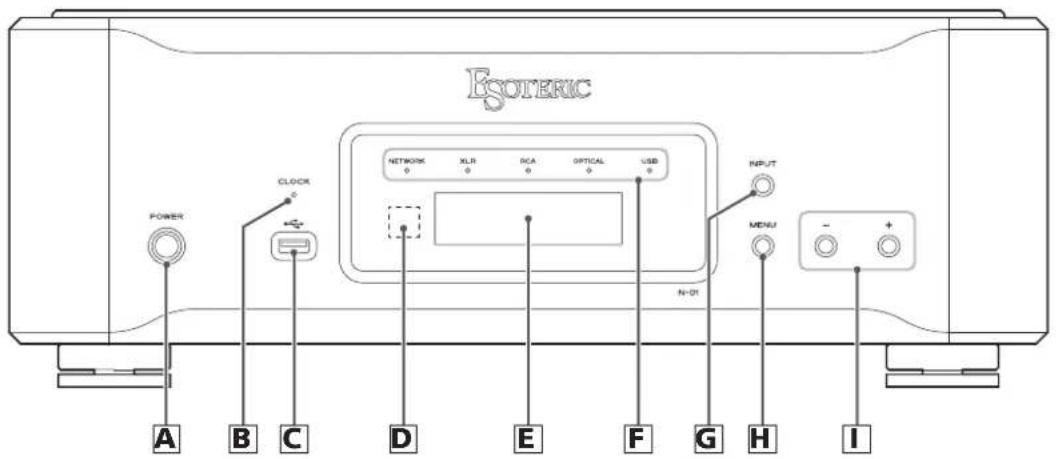
Esoteric NETWORK XLR PCA OPTICAL USB N-01 POWER CLOCK MENU A B C D E F G H IA POWER button
Use to turn the unit on and off.
When the unit is on, the ring around this button lights blue.
When the unit is off, it is unlit.
When not using the unit, turn it off.
B CLOCK indicator
This shows the clock synchronization status.
The indicator blinks when a signal is input through the CLOCK SYNC IN connector, and it lights when the unit is locked to the signal.
C USB drive port ( )
Connect USB flash drives that contain music files here.
D Remote control signal receiver
This receives signals from the remote control. When using the remote control, point the end of it toward this receiver panel.
●This unit does not include a remote control.
- The dimmer of this unit can be adjusted using a remote control included with another ESOTERIC product.
E Display
This shows playback time, sampling frequency and other information.
F Input indicators
The indicator for the selected digital input lights.
G INPUT button
Use to change the digital input. Select a connector that has a digital device connected. If no digital signal is being input, the display will blink.
H MENU button
Press to enter setting mode.
I Setting adjustment (+/-) buttons
Use to change values when in setting mode.
●You cannot change the volume with this unit.
+ button
When NETWORK is selected, this switches between showing the playback time and the sampling frequency on the display.
Downloading the remote app
To use the ETHERNET connector or USB drive (DRIVE and ) ports, you must also use a tablet or smartphone that has the dedicated app (free) installed and connect it to the same network as the unit.
By installing the app on a tablet or smartphone, you can use it over a wireless network to operate the unit.
●You can download and use the app for free.

text_image
ESOTERICFinding the tablet/smartphone app
Search for "ESOTERIC" in the App Store.
Changing the input source
text_image
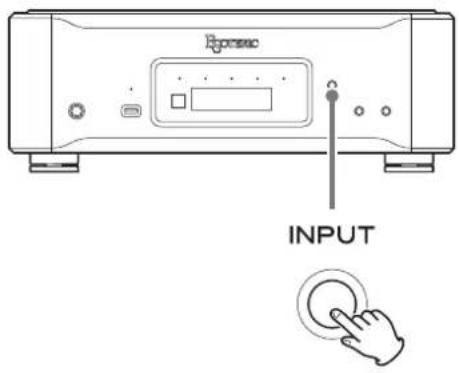
Epsonc INPUTEach time you press the INPUT button, the active input changes in the following order and is shown on the display.
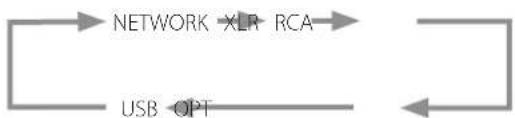
flowchart
graph LR
    A["NETWORK"] --> B["XLR"]
    B --> C["RCA"]
    C --> D["USB"]
    D --> E["OPT"]
    E --> A
(USB input for computers) (Optical digital input)
- When NETWORK is selected and DISP>Fs is set, or when an external digital input other than NETWORK is selected, the name and sampling frequency of the selected input appear on the display. If there is no input signal or the unit is not locked to the input signal, the input sampling frequency is not shown.
- When NETWORK is selected and DISP>TIME is set, the elapsed time of the song playing back is shown.
- If the digital input is not a digital audio signal or is an audio signal format that is not supported by this unit, such as Dolby Digital or DTS, “—” will appear in the sampling frequency display area. Set the digital output setting of the connected device to PCM audio output.
Installing the driver
This unit can be connected by USB and used with a computer running one of the following operating systems.
Operation with other operating systems cannot be assured (as of July 2017).
When using Mac
OS X Lion (10.7)
OS X Mountain Lion (10.8)
OS X Mavericks (10.9)
OS X Yosemite (10.10)
OS X El Capitan (10.11)
macOS Sierra (10.12)
- This unit will work with the standard operating system driver, so there is no need to install a special driver.
When using Windows
The driver works with the following versions.
Windows 7 (32-bit, 64-bit)
Windows 8 (32-bit, 64-bit)
Windows 8.1 (32-bit, 64-bit)
Windows 10 (32-bit, 64-bit)
Installing the driver on a computer
Before you can use this unit to play files on a computer, you must first download the dedicated driver from the following ESOTERIC download page and install it on your computer.
Driver software download page
http://www.esoteric.jp/products/esoteric/usb/usb_driver_e.html
Install the dedicated driver software after downloading it from the above page.
IMPORTANT NOTICE
You must install the dedicated driver software before connecting this unit with a computer using a USB cable.
If you connect the unit to the computer by USB before installing the driver, it will not function properly.
For details about driver installation, see the instructions on the ESOTERIC download page.
Depending on the composition of the computer hardware and software, operation might not be possible even with the above operating systems.
Note about transmission mode
This unit connects using asynchronous HIGH SPEED mode.
The sampling frequencies that can be used for transmission are 44.1, 48, 88.2, 96, 176.4, 192, 352.8, 384, 705.6 and 768 kHz as well as DSD at 2.8, 5.6, 11.2 and 22.5 MHz.
●Even though there is no dedicated driver software for Mac, please use the latest version of ESOTERIC HR Audio Player to play 22.5MHz DSD sources.
- Use the latest version of the dedicated driver to play 22.5MHz DSD sources on Windows.
When connected correctly, you will be able to select "ESOTERIC USB AUDIO DEVICE" as the audio output for the operating system.
In asynchronous mode, the audio data transmitted from the computer will be processed using this unit's clock, enabling it to reduce jitter caused during data transmission.
Playing audio files
You can use ESOTERIC HR Audio Player to play audio files on a computer. Please download this free application from the following URL.
http://www.esoteric.jp/products/esoteric/hr_audio/indexe.html
ESOTERIC HR Audio Player software for Windows and Mac supports high-resolution audio source files and high-fidelity playback. You can use it to enjoy the high-quality playback of high-resolution audio sources, including DSD, without needing to make complicated settings.
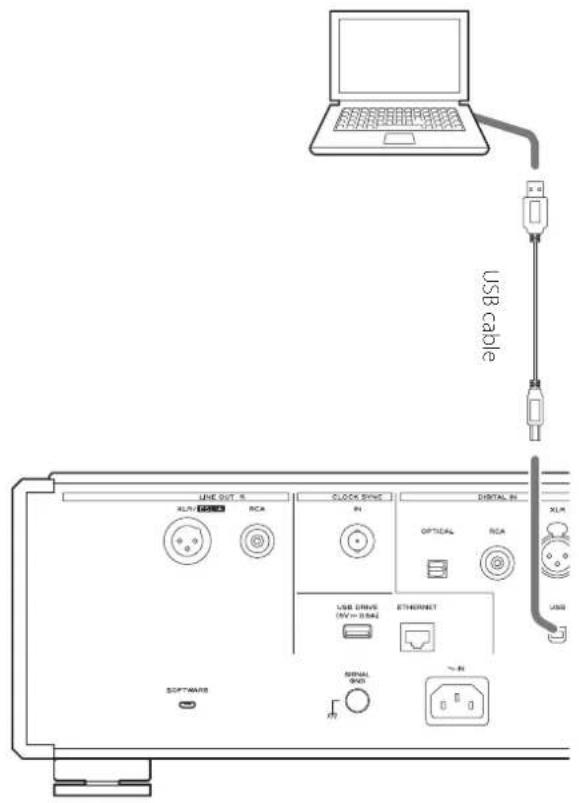
1 Connect this unit to the computer using a USB cable.
Use a commercially-available USB cable with a connector that matches that of this unit.
text_image
USB cable LINE OUT 5 XLM/SPRING RCA CLOCK SYNC PH DIGITAL IN OPTICAL RCA USB DRIVE (RM=20mA) ETHERNET USB SIMUL SOD N Software XLM2 Turn the computer on.
Confirm that the operating system has started properly.
3 Press the POWER button to turn the unit on.
POWER

4 Press the INPUT button to select USB (page 12).
INPUT

5 Start playback of an audio file on the computer.
For better audio quality, set the computer volume to its maximum and adjust the volume of the amplifier connected to this unit. Set the amplifier volume to the minimum when you start playback and gradually increase it.
- The computer cannot be used to control this unit, nor can this unit be used to control the computer.
●This unit cannot transmit audio files to the computer by USB.
- Do not do any of the following when playing back audio files over the USB connection. Doing so could cause the computer to malfunction. Always quit the audio playback software before conducting any of these operations.
●Unplug the USB cable
●Turn this unit off
- Change the input
- Computer operation sounds will also be transmitted when playing back audio files over the USB connection. To avoid outputting these sounds, make the necessary settings on your computer.
- If you connect this unit with the computer or change its input to USB after starting the music playback software, audio files might not play back correctly. If this occurs, restart the audio playback software or restart the computer.
text_image
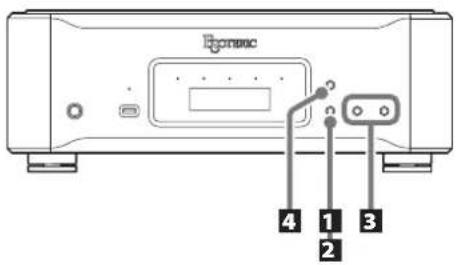
Econitic 4 1 3 2Changing settings
1 When stopped or during playback, press the MENU button.

2 Press the MENU button repeatedly to select the item to change.
Each time you press the MENU button, the item shown on the display changes.
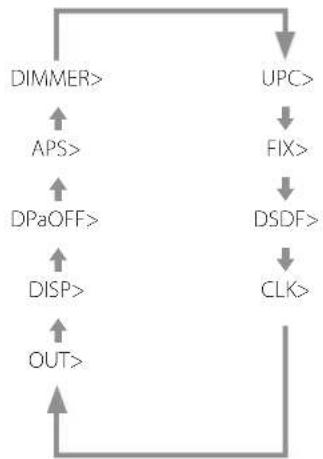
flowchart
graph TD
    A["DIMMER>"] --> B["APS>"]
    B --> C["DPaOFF>"]
    C --> D["DISP>"]
    D --> E["OUT>"]
    F["UPC>"] --> G["FIX>"]
    G --> H["DSDF>"]
    H --> I["CLK>"]
    I --> E
●Some items might not be shown depending on the selected source or operation status.
●FIX will be shown only when UPC> is set to FIX.
- If you do nothing for ten or more seconds, setting mode will end and ordinary display will resume.
3 Use the setting adjustment (+/-) buttons to change the settings.
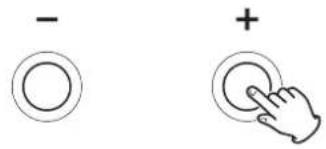
text_image
- + ◯To change multiple items, repeat steps 2 and 3
4 Press the INPUT button to complete the setting.
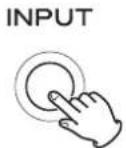
If you do nothing for ten or more seconds, setting mode will end and ordinary display will resume.
●Settings are retained even if the power plug is disconnected.
Upconversion setting
UPC>\*\*\*
●This setting can be made for each input.
ORG (original)
The original input signal is sent directly to the D/A converter without upconversion.
2Fs
The sampling frequency of the input source signal will be upconverted by a factor of 2 from 32, 44.1 or 48 kHz to 64, 88.2 or 96 kHz.
4Fs
The sampling frequency of the input source signal will be upconverted by a factor of 4 from 32, 44.1 or 48 kHz (or 2 from 88.2 or 96 kHz) to 128, 176.4 or 192 kHz.
8Fs
The sampling frequency of the input source signal will be upconverted from 32, 44.1, 48, 88.2, 96, 176.4 or 192 kHz (by a factor of 2, 4 or 8) to 256, 352.8 or 384 kHz.
16Fs
The sampling frequency of the input source signal will be upconverted from 32, 44.1, 48, 88.2, 96, 176.4, 192, 352.8 or 384 kHz (by a factor of 2, 4, 8 or 16) to 512, 705.6 or 768 kHz.
DSD
The PCM source signal will be upconverted to 22.5792/24.576MHz DSD.
DSD source signals cannot be upconverted.
FIX
The output format is fixed in this mode.
Regardless of changes to the input source signal, audio signals will always be upconverted or downconverted to the format set by the next item (FIX>) and sent to the D/A converter.
FIX output format setting
FIX>\*\*\*
●This will be shown only when UPC> is set to FIX.
PCM 44
D/A conversion occurs at 44.1 kHz.
PCM 48
D/A conversion occurs at 48 kHz.
PCM 88
D/A conversion occurs at 88.2 kHz.
PCM 96
D/A conversion occurs at 96 kHz.
PCM176
D/A conversion occurs at 176.4 kHz.
PCM192
D/A conversion occurs at 192 kHz.
PCM352
D/A conversion occurs at 352.8 kHz.
PCM384
D/A conversion occurs at 384 kHz.
PCM705
D/A conversion occurs at 705.6 kHz.
PCM768
D/A conversion occurs at 768 kHz.
DSD2.8M
D/A conversion occurs at 2.8224MHz DSD.
DSD5.6M
D/A conversion occurs at 5.6448MHz DSD.
DSD11M
D/A conversion occurs at 11.2896MHz DSD.
DSD22M
D/A conversion occurs at 22.5792MHz DSD.
Digital filter setting during DSD playback
DSDF>\*\*\*
●This setting can be made for each input.
OFF
The digital filter that cuts high-frequency harmonic content from the DSD signal is not used.
- If the volume is adjusted (to a value other than 100) using the app when the DSD filter is set to OFF, the unit itself will turn it ON and adjust the audio output. This setting, however, will not be changed.
If the volume is reset to maximum (100) using the app, the unit will turn the DSD filter off again.
ON
The digital filter that cuts high-frequency harmonic content from the DSD signal is used.
- In NETWORK mode, this is automatically turned on when the app is used to adjust the volume (0–99).
Clock sync mode setting
CLK>\*\*\*
●This setting can be made for each input.
- During XLR, RCA or OPT input, input a clock that is synchronized with the input source. If the source device does not support clock input, set this to OFF.
- During NETWORK and USB input, the clock frequencies that can be input depend on whether the playback file is 44.1 or 48 kHz. 10MHz clock can be input for any type of playback file.
OFF
Clock is not synchronized.
IN
This unit's master clock is synchronized to the clock signal (44.1 kHz, 48 kHz, 88.2 kHz, 96 kHz, 176.4 kHz, 192 kHz or 10 MHz) input through the CLOCK SYNC IN connector and used for operation.
MCK
The 22.5792MHz/24.576MHz signal input through the CLOCK SYNC IN connector is used as the master clock.
Output setting
OUT>\*\*\*
XLR2
Analog audio signals are output through the XLR connectors with pin 2 HOT.
XLR3
Analog audio signals are output through the XLR connectors with pin 3 HOT.
RCA
Analog audio signals are output through the RCA connectors.
ESLA
Analog audio signals are output as ES-LINK Analog through the XLR connectors.
ATTENTION
This unit will not output audio from the unselected analog audio output connectors.
Network display setting
DISP>\*\*\*
Fs
This shows the sampling frequency being input. If there is no input signal or the unit is not locked to the input signal, the input sampling frequency is not shown.
TIME
This shows the elapsed time of the song being played.
Automatic display darkening setting
DPaOFF>\*\*\*
You can set the display to darken automatically after a set amount of time has elapsed.
●By default, the setting is ON.
ON
The display will automatically darken after 10 minutes elapse without any operation or change in the information shown.
OFF
The display will not automatically darken, but if nothing changes for 10 minutes, its brightness will be lowered to the level of DIMMER>1 to reduce long-term display fading.
- We recommend setting this to ON because brightness irregularities might occur if the same information is shown without change on the display for a long time.
Automatic power saving setting
APS>\*\*\*
●By default, the setting is 30m.
When the input source is XLR, RCA, OPTICAL or USB, the unit will turn off automatically if the set amount of time passes without being able to lock an input signal from the selected input source.
- The input sources that are not selected have no effect on automatic power saving.
30m
30 minutes
60m
60 minutes
90m
90 minutes
120m
120 minutes
OFF
The automatic power saving function is disabled.
Dimmer setting
DIMMER>\*\*\*
You can adjust the brightness of this unit's display and indicators.
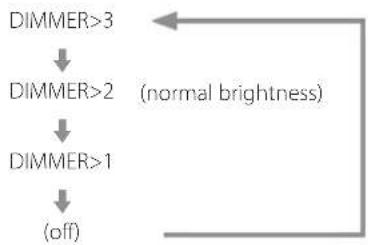
flowchart
graph TD
    A["DIMMER>3"] --> B["DIMMER>2"]
    B --> C["DIMMER>1"]
    C --> D["(off)"]
    D --> E["(normal brightness)"]
- The dimmer of this unit can be adjusted using the DIMMER button of a remote control included with another ESOTERIC product.
- Even when set to DIMMER>1 or off, a brighter setting will be used when displaying error messages and setting menus.
If you experience a problem with this unit, please take a moment to review the following information before requesting service. Moreover, the problem might be caused by something other than this unit. Please also check the operation of the connected units. If this product still does not operate correctly, contact the retailer where you purchased it.
General
The unit does not turn on.
→Insert the power plug into an outlet.
→Check the connection of the power cord to this unit.
The unit automatically turns off.
→This is because the automatic power saving function turned the unit off.
Press the POWER button on the main unit to turn it on.
Change the automatic power saving setting if necessary (page 18).
The unit does not respond when buttons are pressed.
→ Multiple button presses without pause can cause the unit to stop responding. After pressing a button, wait momentarily for the unit to respond.
There is noise.
→ Place the unit as far away as possible from TVs and other devices that have strong magnetism.
No sound is output from the speakers. The sound is distorted.
→Check the connections with the amp and the speakers (page 8).
→Adjust the volume of the amplifier and other devices.
→No sound is output when playback is paused. Use the app to resume ordinary playback.
→Check the analog output setting (page 17).
Clock sync
The CLOCK indicator does not stop blinking.
→ Set clock sync mode to OFF when not using it.
→A clock signal with which the unit cannot be synchronized might be being input. Check the connection of the CLOCK SYNC IN connector and the settings of the connected device.
A beeping noise is output at a regular interval.
If a beeping noise is output at a regular interval when the unit is in clock sync mode, the connected device might not also be in clock sync mode. Check the connection of the CLOCK SYNC IN connector and the clock sync mode setting of the connected device.
An audio file cannot be played back (correctly).
Different media servers (NAS) support different types of files. Check the specifications of the media server (NAS) too.
The sound breaks up during playback.
If MP3s and other files with low bit rates play back normally, but files at 384 kHz and other high bit rates break up, the ETHERNET speed might be too slow. The audio data is transmitted from the NAS through the router. For this reason, using LAN cables to connect the NAS to the router and the router to this unit is preferable.
USB connections with a computer
Computer does not recognize this unit.
→ See page 13 for information about supported operating systems. Operation with unsupported operating systems is not guaranteed.
There is noise.
Starting other applications during playback of an audio file may interrupt playback or cause noise. Do not start other applications during playback.
When the unit is connected to a computer via a USB hub, for example, noise might be heard. If this occurs, connect the unit directly to the computer.
Audio files cannot be played back.
Connect the computer with this unit and switch to USB before starting the audio playback software and audio file playback. Audio data might not play back correctly if you connect this unit with the computer or change its input to USB after starting the audio playback software.
Since this unit uses a microcontroller, external noise and other interference can cause the unit to malfunction. In such a case, turn the unit off and wait about one minute before restarting operation from the beginning.
Restoring factory settings
text_image
Power MENU

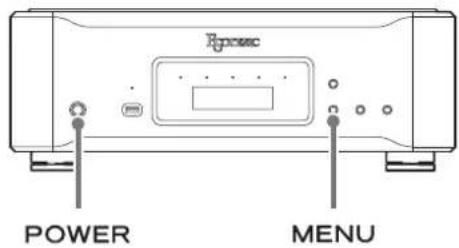
Settings are retained even if the power plug is disconnected. Follow these procedures to restore all settings to their factory defaults and clear the unit's memory.
1 Turn the unit off.
If the unit is on, press the POWER button to turn it off and wait for more than 30 seconds.
2 Press the POWER button while holding down the MENU button.
When "Setup CLR" (clear settings) appears on the display, release the MENU button.
Note about condensation
If this unit is brought from a cold outdoor environment into a warm room, or the heater has just been turned on in the room where it is located, for example, condensation might occur, resulting in improper operation. If this occurs, leave the unit on and wait 1–2 hours. This should enable normal playback.
Digital audio inputs
XLR connector....1
Input level 5.0 Vp-p
Input impedance 110 Ω
Input signal format Linear PCM....32–192 kHz 16/24 bit (AES/EBU) DSD....2.8 MHz (ES-LINK1, ES-LINK2, DoP)
RCA connector 1
Input level 0.5 Vp-p
Input impedance 75 Ω
Input signal format Linear PCM .... 32–192 kHz 16/24 bit (IEC60958) DSD.... 2.8 MHz (DoP)
Optical digital connector 1
Input level ....-24.0 dBm to -14.5 dBm peak
Input signal format Linear PCM.... 32–192 kHz 16/24 bit (IEC60958) DSD.... 2.8 MHz (DoP)
USB port.... 1 (Type B)
Input signal format Linear PCM....44.1–768 kHz 16/24/32 bit DSD....2.8 MHz, 5.6 MHz, 11.2 MHz, 22.5 MHz
ETHERNET port....1000BASE-T
Input signal format Linear PCM....44.1–384 kHz (stereo) 16/24/32 bit
- 384kHz/32-bit signals will be downconverted to 192kHz/24-bit when played back.
DSD....2.8 MHz, 5.6 MHz (stereo)
Supported file formats PCM lossless .... FLAC, Apple Lossless (ALAC), WAV, AIFF DSD lossless.... DSF, DSDIFF (DFF), DoP Compressed audio.... MP3, AAC (m4a container)
USB drive ports.... FAT32 and NTFS Single partition, USB 2.0 or higher recommended, 0.5A maximum current supply
Clock sync input
BNC connector....1
Frequencies that can be input (±10 ppm) 44.1 kHz, 48 kHz, 88.2 kHz, 96 kHz 176.4 kHz, 192 kHz, 10 MHz, 22.5792 MHz, 24.576 MHz
Input impedance.... 50 Ω
Input level....Rectangle wave: equivalent to TTL levels Sine wave: 0.5 to 1.0 Vrms
Analog audio outputs
XLR connectors.... 1 pair (L/R)
RCA connectors.... 1 pair (L/R)
Output impedance XLR....20 Ω RCA....23.5 Ω
Maximum output level (at 1kHz, 10kΩ load) XLR....5.0 Vrms RCA....2.5 Vrms
Frequency response 5 Hz - 70 kHz (-3 dB)
S/N ratio.... 120 dB
Distortion 0.0007% (1 kHz)
General
Power supply Model for Europe.... AC 220–240 V, 50/60 Hz Model for USA/Canada.... AC 120 V, 60 Hz Model for Korea.... AC 220 V, 60 Hz
Power consumption 33 W
External dimensions (W × H × D, including protrusions) 445 × 162 × 438 mm (17 5/8" × 6 1/2" × 17 1/4")
Weight 25.7 kg (56 3/4 lb)
Operating temperature....+5°C to +35°C
Operating humidity 5% to 85% (no condensation)
Storage temperature -20^ to +55^
Included accessories
Power cord × 1 Felt pads × 4 Owner's manual (this document) × 1 Warranty card × 1
●Design and specifications are subject to change without notice.
●Weight and dimensions are approximate.
● Illustrations in this manual might differ slightly from production models.
Dimensional drawings
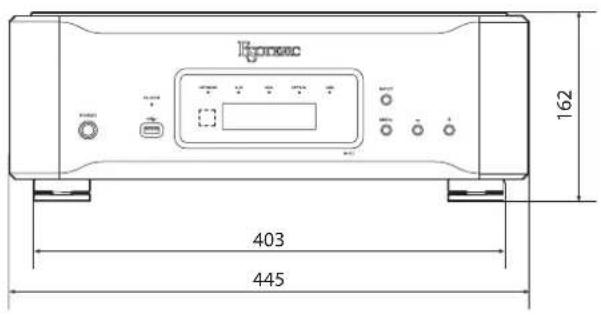
text_image
100000 162 403 445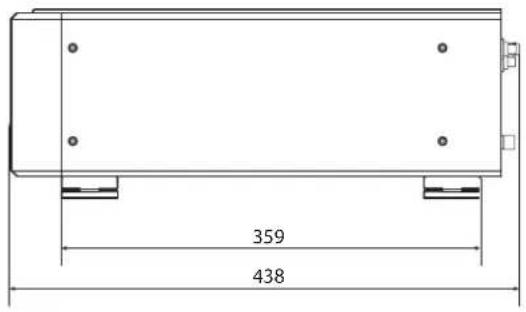
text_image
359 438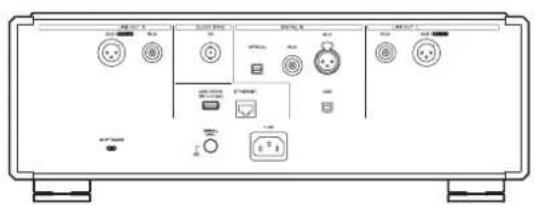
text_image
Front panel of an electronic device with labeled ports and control buttons, including display and indicator lights.Dimensions in millimeters (mm)
CAUTION
RISK OF ELECTRIC SHOCK DO NOT OPEN

ATTENTION : POUR RÉDUIRE LE RISQUE D'ÉLECTROCUTION, NE RETIREZ PAS LE CAPOT (OU L'ARRIÈRE). AUCUNE PIÈCE INTERNE N'EST RÉPARABLE PAR L'UTILISATEUR. CONFIEZ TOUTE RÉPARATION À UN SERVICE APRÈS-VENTE QUALIFIÉ.

“DSD” is a registered trademark.
Microsoft and Windows are either registered trademarks or trademarks of Microsoft Corporation in the United States and/or other countries.
Apple, Mac, OS X and macOS are trademarks of Apple Inc.
App Store is a service mark of Apple Inc.
Wi-Fi is a trademark or registered trademark of Wi-Fi Alliance.
MEXCEL is a registered trademark of Mitsubishi Cable Industries, Ltd. in Japan and other countries.
ESOTERIC is a trademark of TEAC CORPORATION, registered in the U.S. and other countries.
text_image
Grandioso F1, etc. Prises ES-LINK Analog (ESL-A) ESL-A L R Cables audio XLRWindows 7 (32 bits, 64 bits)
Windows 8 (32 bits, 64 bits)
Windows 8.1 (32 bits, 64 bits)
Windows 10 (32 bits, 64 bits)
22,5792 MHz, 24,576 MHz
Dimensions externes (L × H × P, saillies incluses) .. 445 × 162 × 438 mm Poids .... 25,7 kg
text_image
Front panel of an electronic device with labeled ports and control buttons, including display and indicator lights.natural_image
Symbolic icon of a person pushing a ladder inside a circle (no text or symbols)AVISO
"DSD" is a registered trademark.
Microsoft and Windows are either registered trademarks or trademarks of Microsoft Corporation in the United States and/or other countries.
Apple, Mac, OS X and macOS are trademarks of Apple Inc.
App Store is a service mark of Apple Inc.
Wi-Fi is a trademark or registered trademark of Wi-Fi Alliance.
MEXCEL is a registered trademark of Mitsubishi Cable Industries, Ltd. in Japan and other countries.
ESOTERIC is a trademark of TEAC CORPORATION, registered in the U.S. and other countries.
natural_image
Simple line drawing of a tablet with wireless signal icon above (no text or symbols)XLR, ESL-A: cables XLR balanceados
RCA: cables de audio RCA
XLR: cable digital XLR
D Puerto USB
text_image
Agocatic INPUTWindows 7 (32 bits, 64 bits)
Windows 8 (32 bits, 64 bits)
Windows 8.1 (32 bits, 64 bits)
Windows 10 (32 bits, 64 bits)
Lineal PCM....32–192 kHz
16/24 bits
(AES/EBU)
DSD.... 2,8 MHz
(ES-LINK1, ES-LINK2, DoP)
Terminal RCA....1
Lineal PCM....32–192 kHz
16/24 bits
(IEC60958)
DSD....2,8 MHz
(DoP)
Terminal digital óptico....1
Nivel de entrada .....de -24 dBm a -14,5 dBm en picos
Lineal PCM 44,1–768 kHz
16/24/32 bits
22,5792 MHz, 24,576 MHz
text_image
Front panel of an electronic device with labeled ports and control buttons, including display and indicator lights.This product has a serial number located on the rear panel. Please write it here and retain this for your records.
Model name: N-01 Serial number