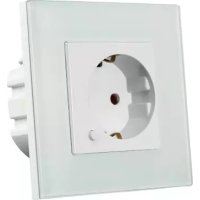
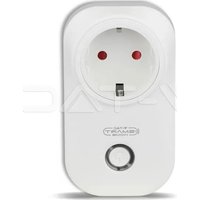
VT5134 - Wall socket V-TAC - Free user manual and instructions
Find the device manual for free VT5134 V-TAC in PDF.



| Product Type | Smart Plug |
| Brand | V-TAC |
| Model | VT5134 |
| Dimensions (estimated) | Approximately 60 x 60 x 30 mm |
| Weight (estimated) | Approximately 70 g |
| Power supply | 230 V AC, 50 Hz |
| Rated current | 10 A |
| Maximum power | 2300 W |
| Connectivity | Wi-Fi 2.4 GHz |
| Compatibility | Amazon Alexa, Google Home |
| App | V-TAC Smart Home (iOS/Android) |
| Main functions | Remote control, scheduling, timer, sharing, scenarios |
| LED indicator | Yes, blinks in pairing mode |
| Care and cleaning | Unplug before cleaning; use a soft dry cloth |
| Operating temperature | -10 °C to 40 °C |
| Operating humidity | < 80 % (non-condensing) |
| Housing material | Flame-retardant plastic |
| Safety | Overload protection, double insulation |
| Spare parts and repairability | Not user-repairable; contact after-sales service |
| Warranty | 2 years (manufacturing defects) |
| Package contents | 1 wall plug, 1 user manual |
Frequently Asked Questions - VT5134 V-TAC
User questions about VT5134 V-TAC
0 question about this device. Answer the ones you know or ask your own.
Ask a new question about this device
Download the instructions for your Wall socket in PDF format for free! Find your manual VT5134 - V-TAC and take your electronic device back in hand. On this page are published all the documents necessary for the use of your device. VT5134 by V-TAC.
USER MANUAL VT5134 V-TAC

works with amazon alexa
works with the Google Assistant
INTRODUCTION & WARRANTY
2 YEAR WARRANTY*
Thank you for selecting and buying V-TAC Product. V-TAC will serve you the best. Please read these instructions carefully before starting the installation and keep this manual handy for future reference. If you have any other query, please contact our dealer or local vendor from whom you have purchased the product. They are trained and ready to serve you at the best.
The warranty is valid for 2 years from the date of purchase. The warranty does not apply to damage caused by incorrect installation or abnormal wear and tear. The company gives no warranty against damage to any surface due to incorrect removal and installation of the product.
(FR) INTRODUCTION & GARANTIE
(PL) WSTEP I GWARANCJAD
(RO) INTRODUCERE, GARANTIA
Download V-TAC SMART HOME APP by via APP Store Google Play Store (OR) Scan the below QR code to download the V-TAC SMART HOME APP, FAQ

GOOGLE PLAY

IOS

FAQ

MULTI-LANGUAGE MANUAL
INSTALLATION
WARNING!
- Please make sure to turn off the power before starting the installation.
- Must be installed by professional electrician.

This marking indicates that this product should not be disposed of with other household wastes.
WIRING INSTALLATION:
1) Cut Off the Power.
2) USe Screw driver to open the screws.
3) Connect the wires correctly
4) Install and power it up

Caution, risk of electric shock.
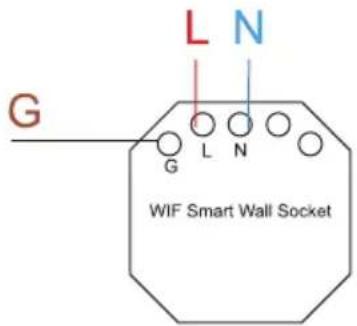
EU Wall Socket
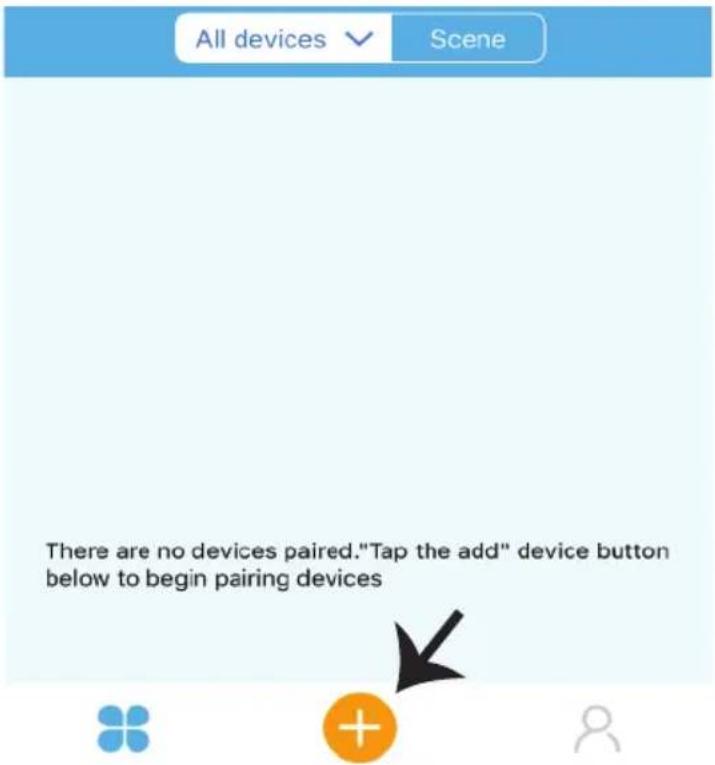
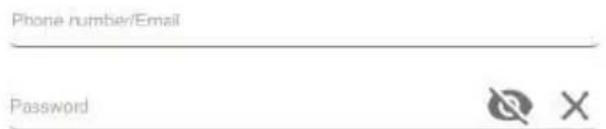
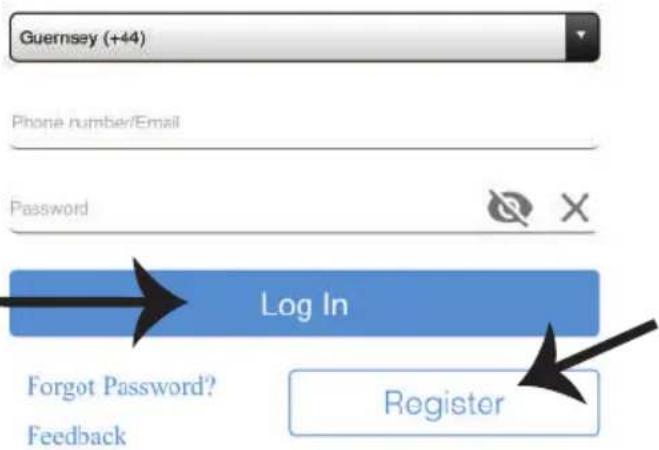
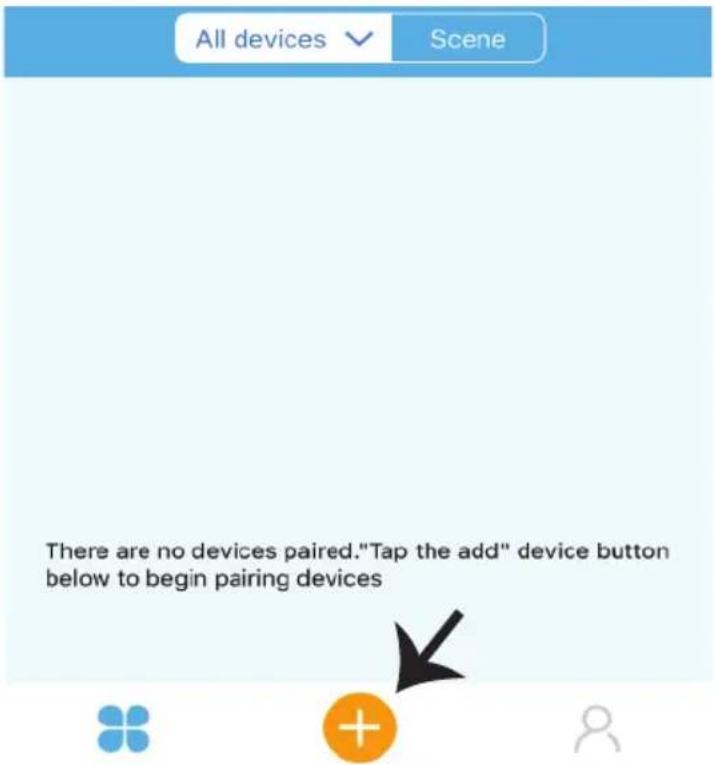
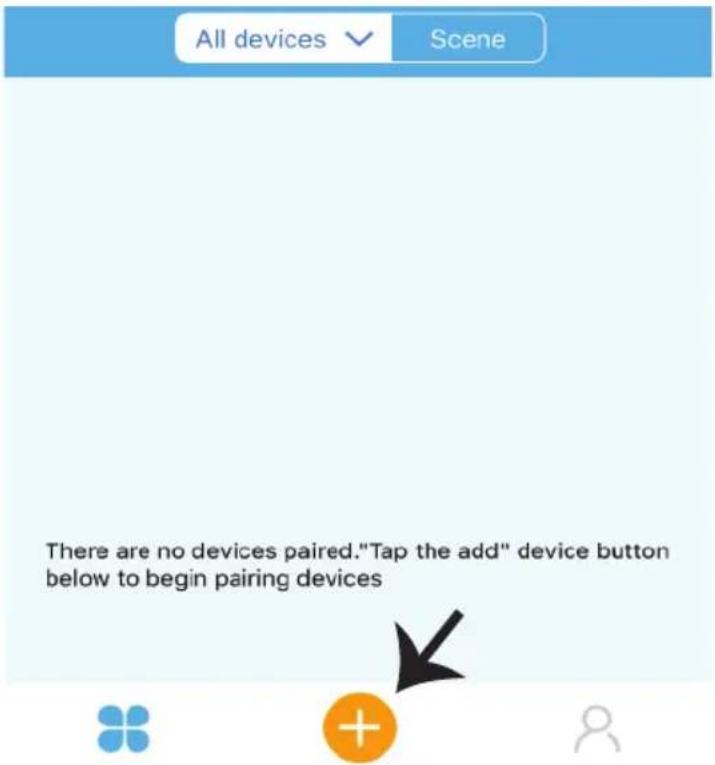
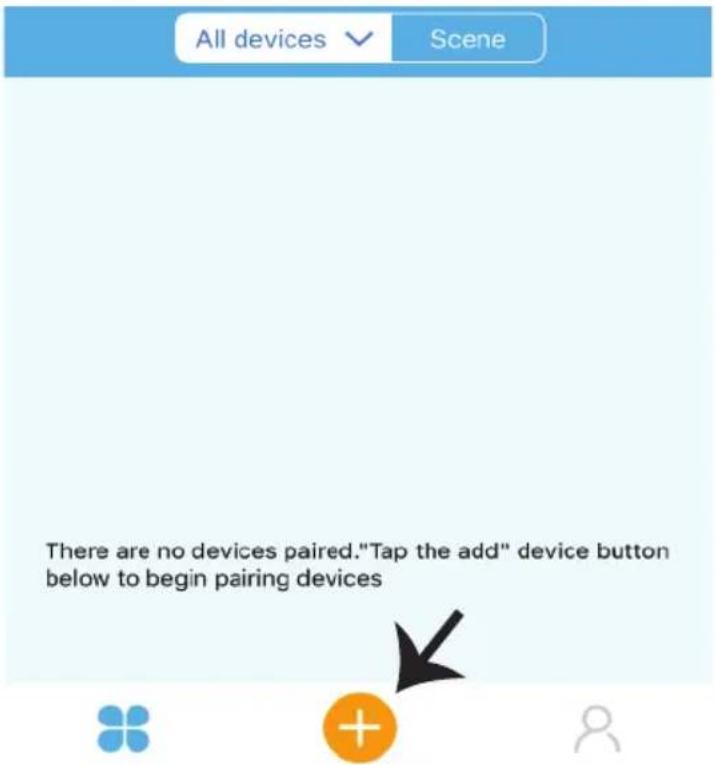
Step 1: Open the V-TAC Smart Home App and register. If you already have an existing account with V-TAC Smart Home, please proceed to logging in.
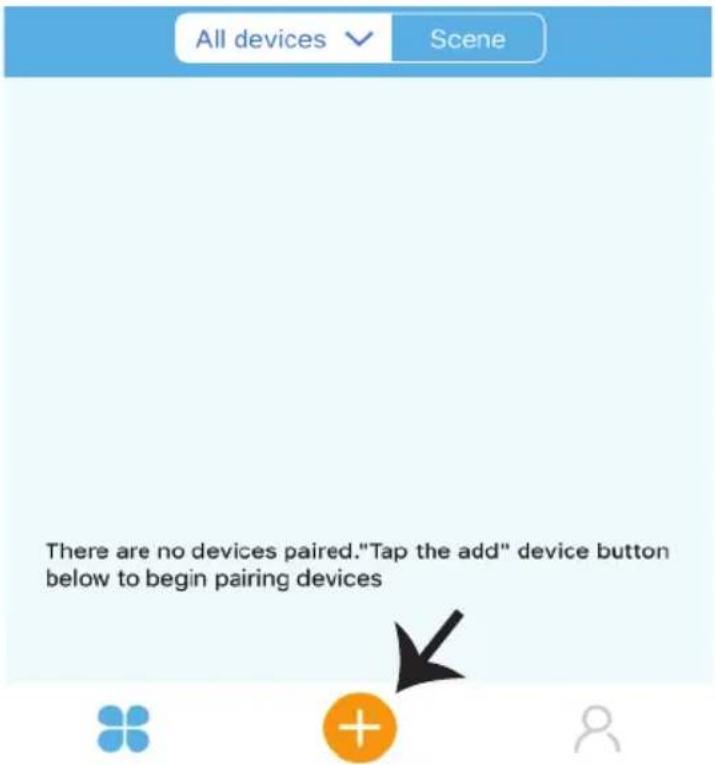
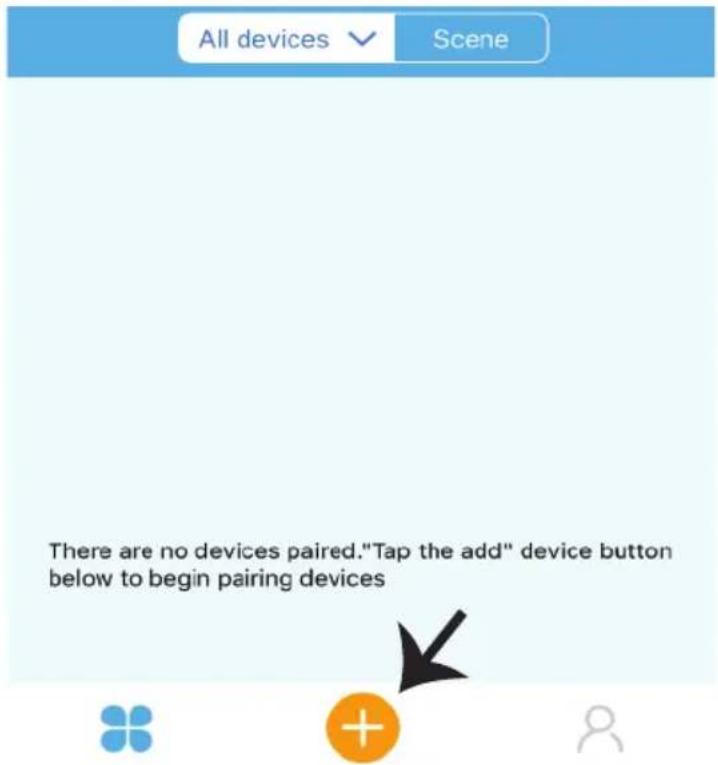
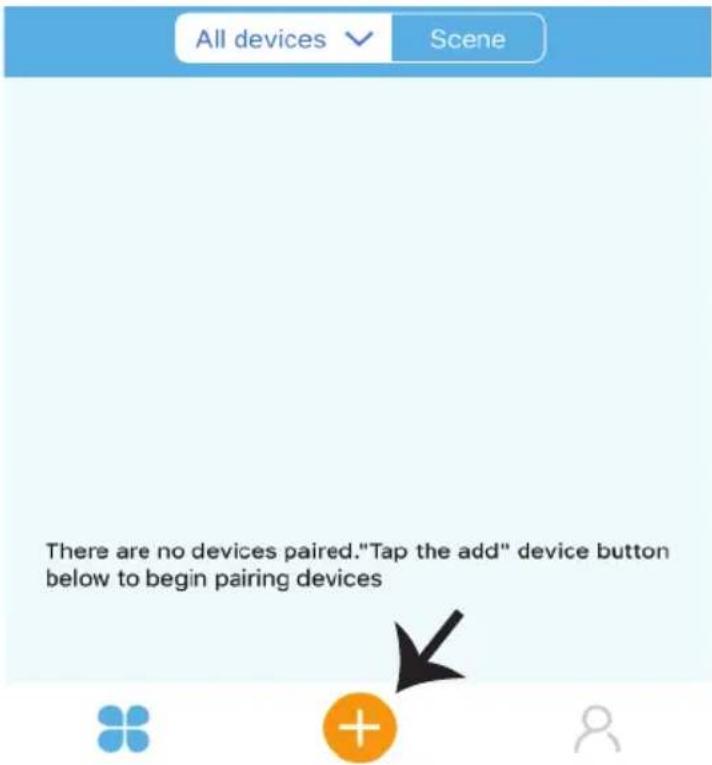
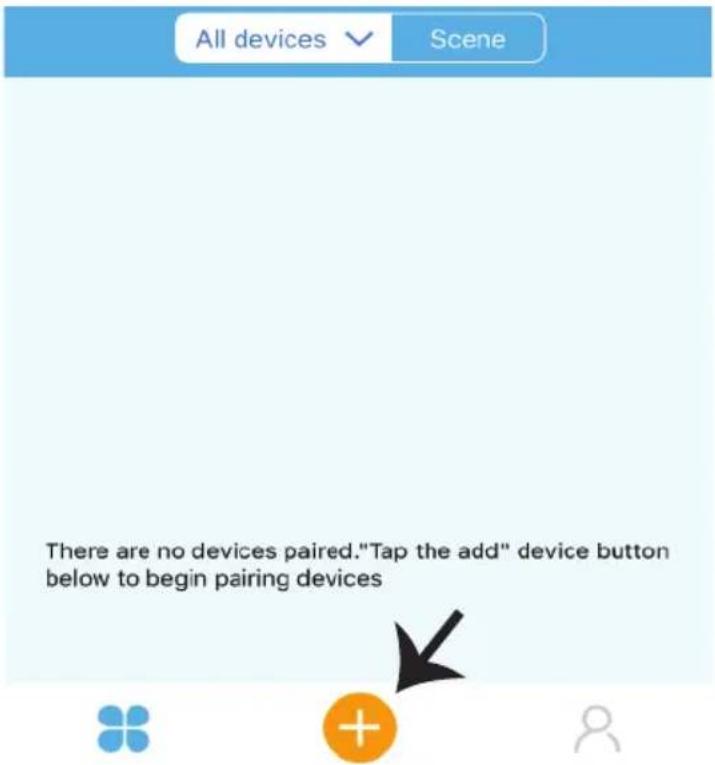
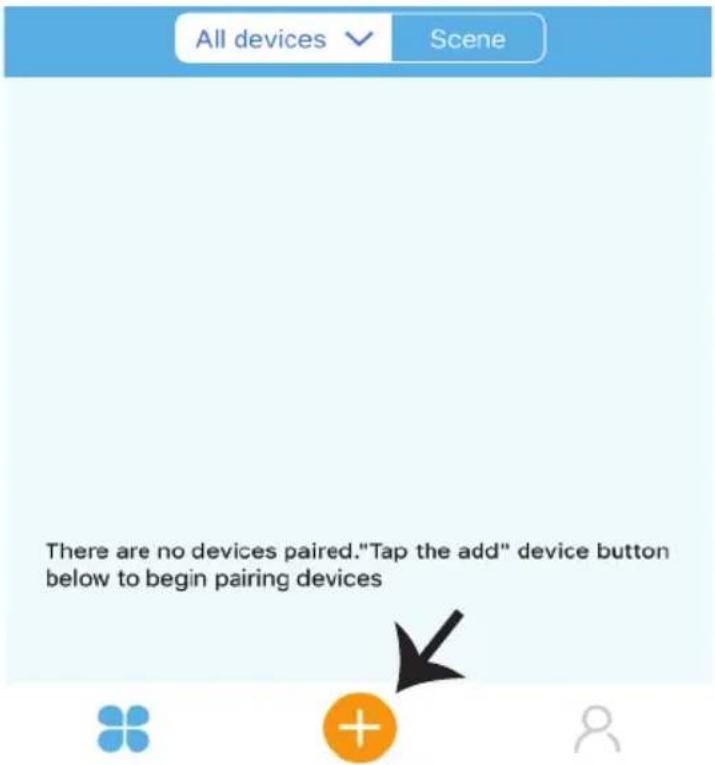
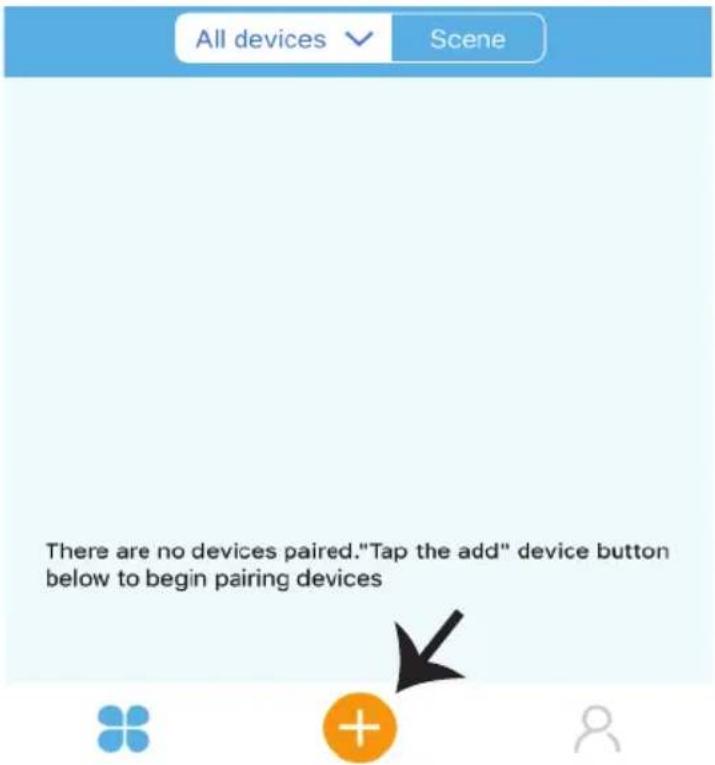
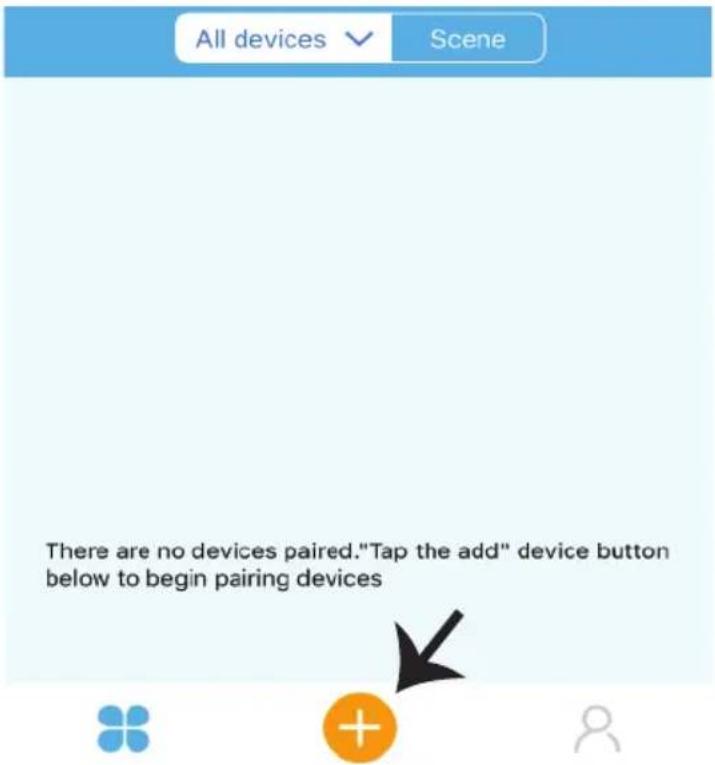
Step 2: To Add a New device tap on the “+” sign(as shown)

V-TAC smart home
Please select a region

Phone number or email address
Password
Login
Reset Password

Register
Step 3: Make sure your Smart device is powered ON
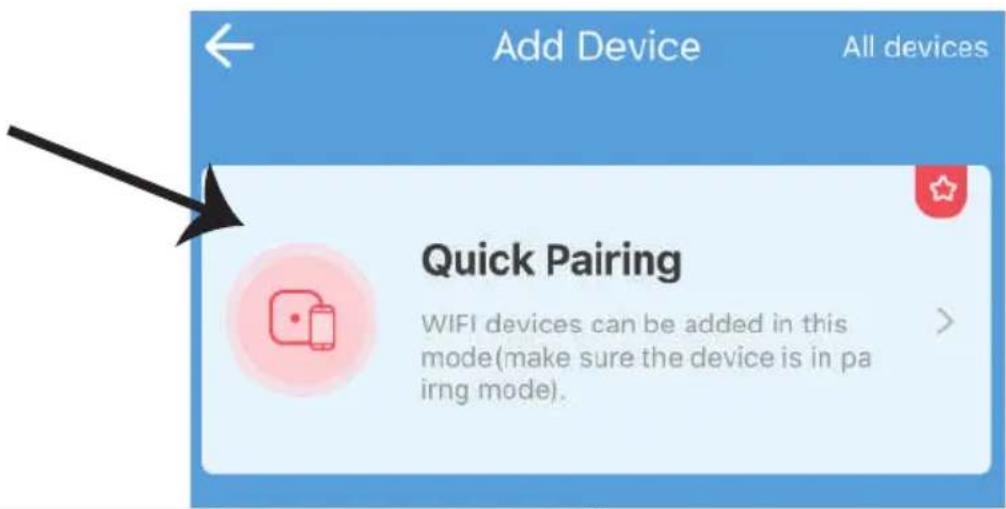
1) Tap and hold on the power button for 5 seconds to make the device available in pairing mode. Once in pairing mode the LED will start blinking 3 times repeatedly.
2) Tap on Next to start the pairing of device with the app. (Shown in the image)
Note: If you are facing any trouble while pairing in Quick Pairing mode please try to pair the device in Compatible Pairing Mode (Click on the link as shown on the image).
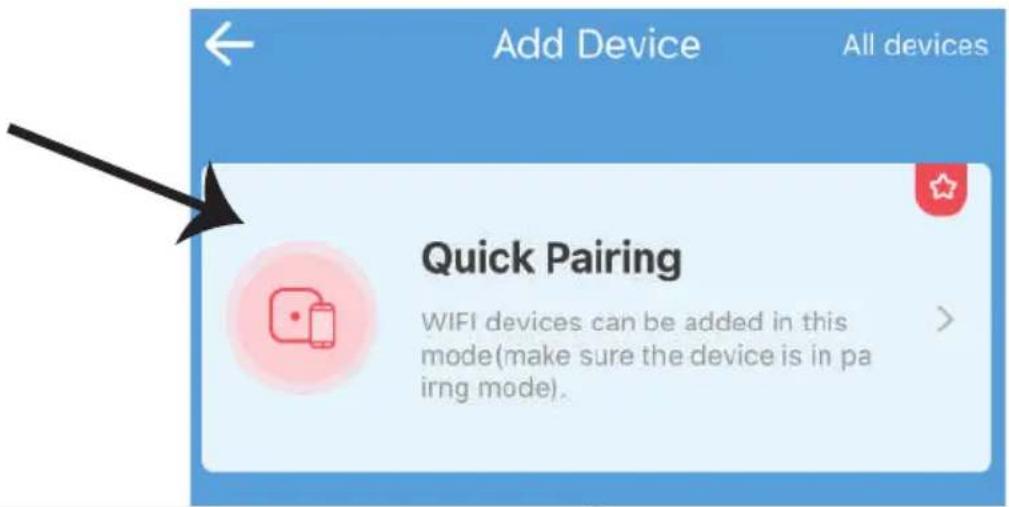
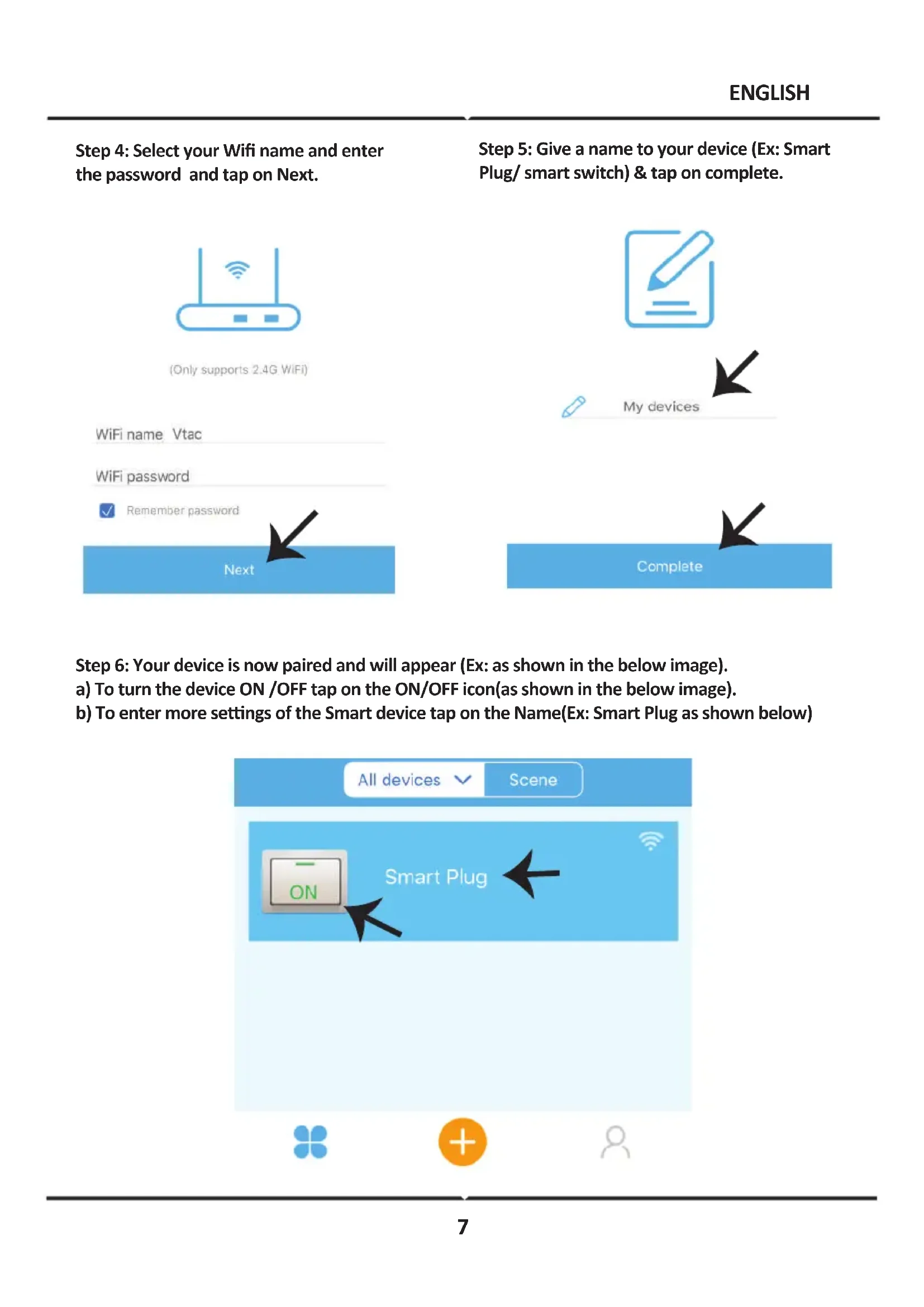
Step 4: Select your Wifi name and enter the password and tap on Next.
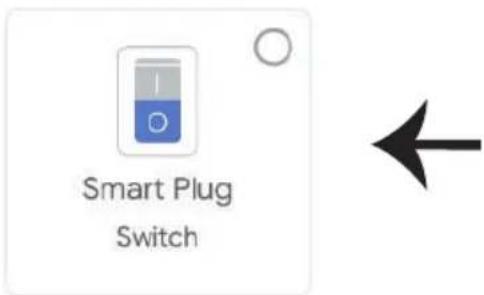
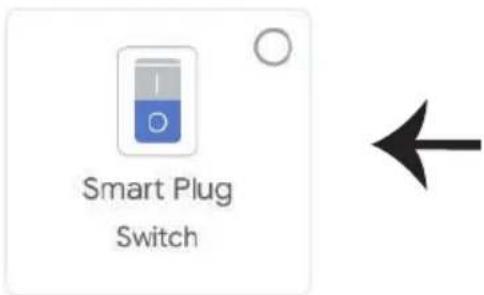
Step 5: Give a name to your device (Ex: Smart Plug/ smart switch) & tap on complete.
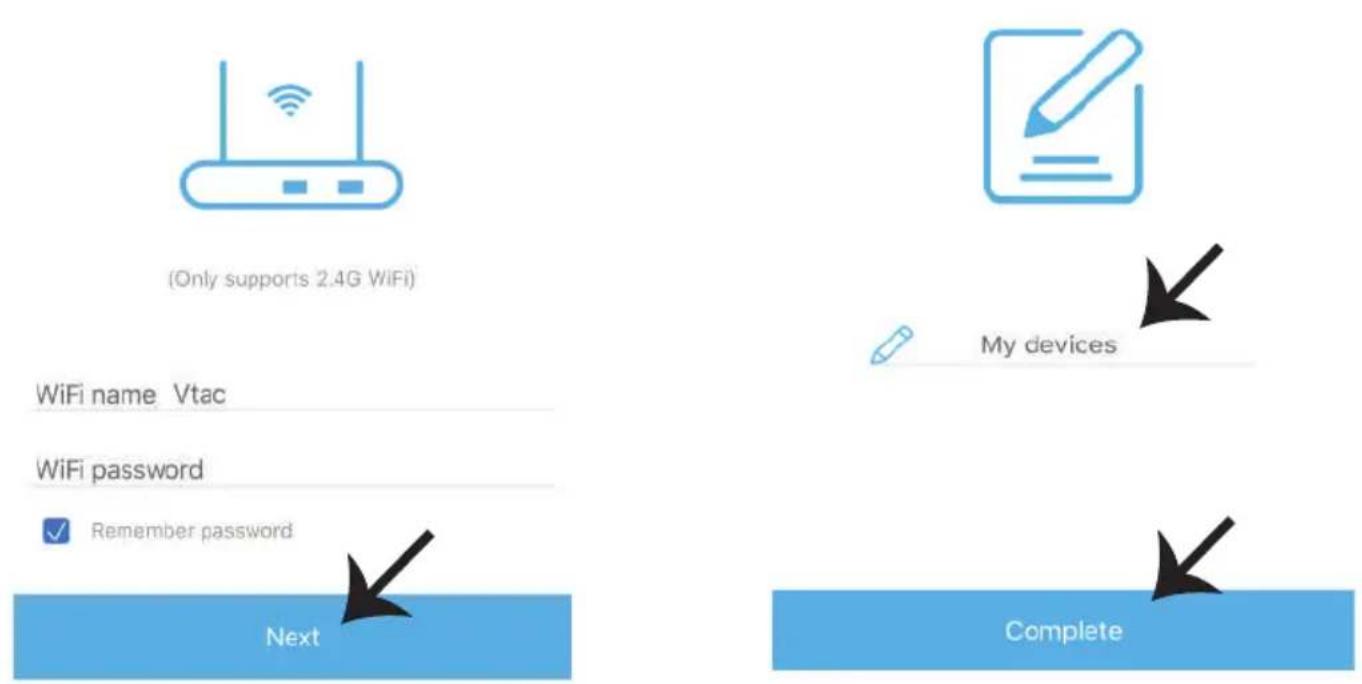
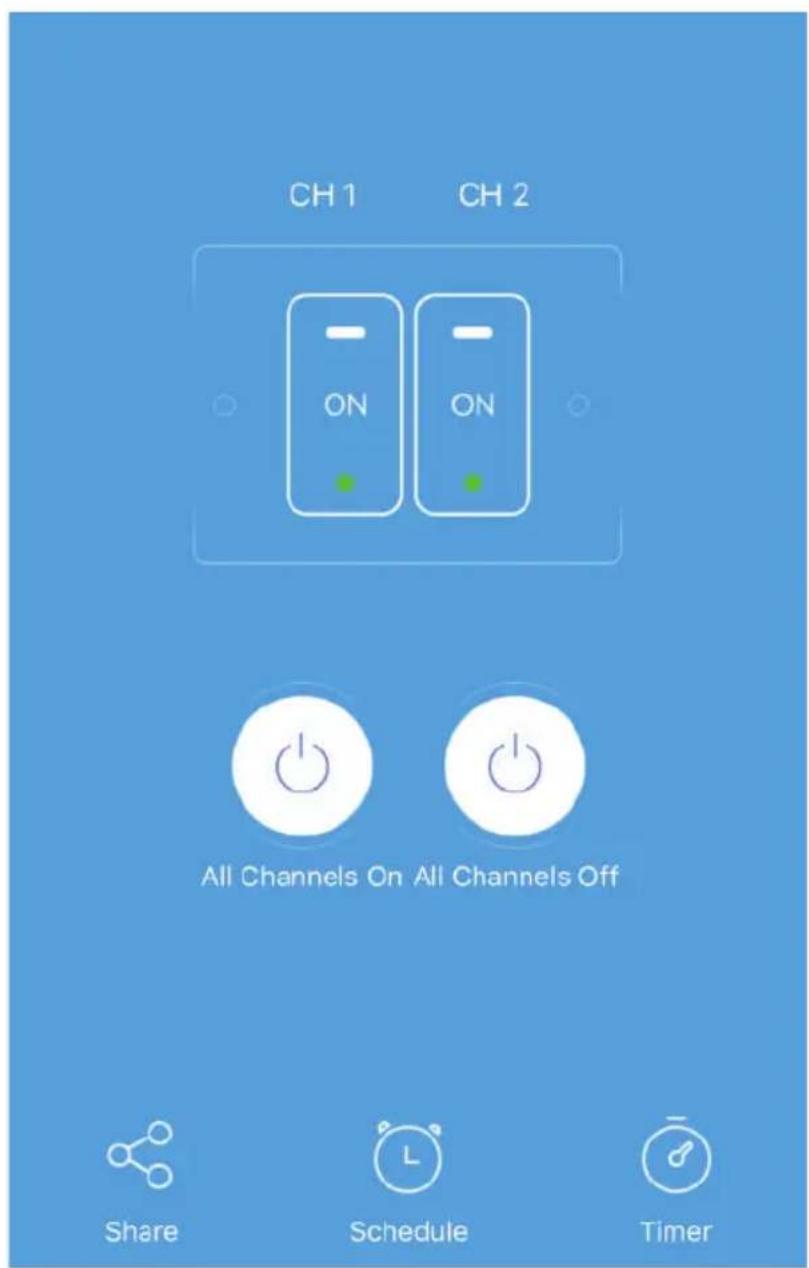
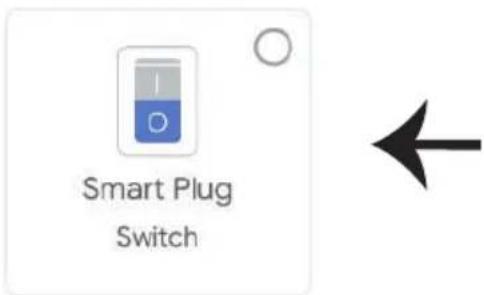
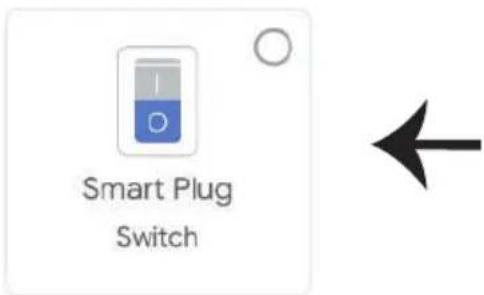
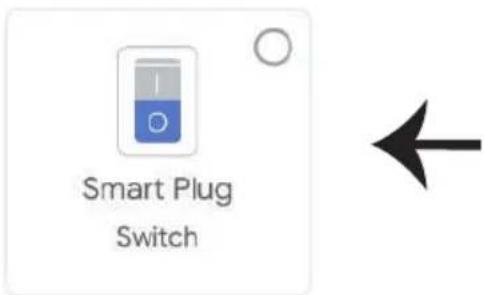
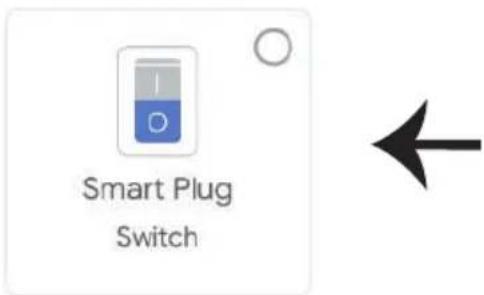
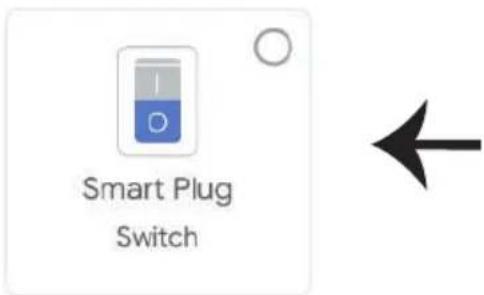
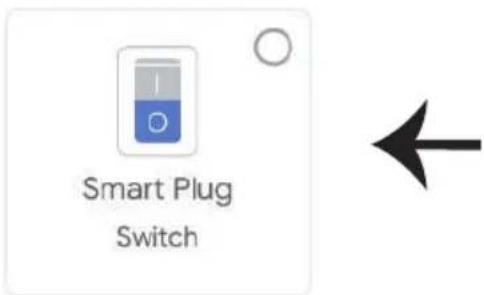
Step 6: Your device is now paired and will appear (Ex: as shown in the below image).
a) To turn the device ON/OFF tap on the ON/OFF icon(as shown in the below image).
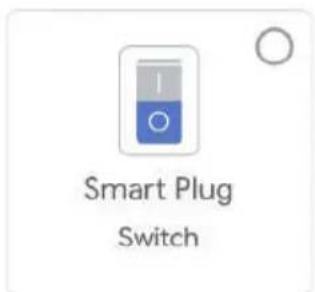
b) To enter more settings of the Smart device tap on the Name(Ex: Smart Plug as shown below)

Step 7: V-TAC SMART HOME offers multiple features such as;
a) Share - This function allows you to share the access with another user.
b) Schedule: Schedule timer allows you to turn the device ON/OFF with flexibility of choosing date and time. This feature also allows Repeat mode using which you can set the desired configuration to daily OR any day of the week.
c) Timer : Timer function allows you to set "day-hour-minute" using which you can schedule the device to Turn ON/OFF
ALEXA SETTINGS
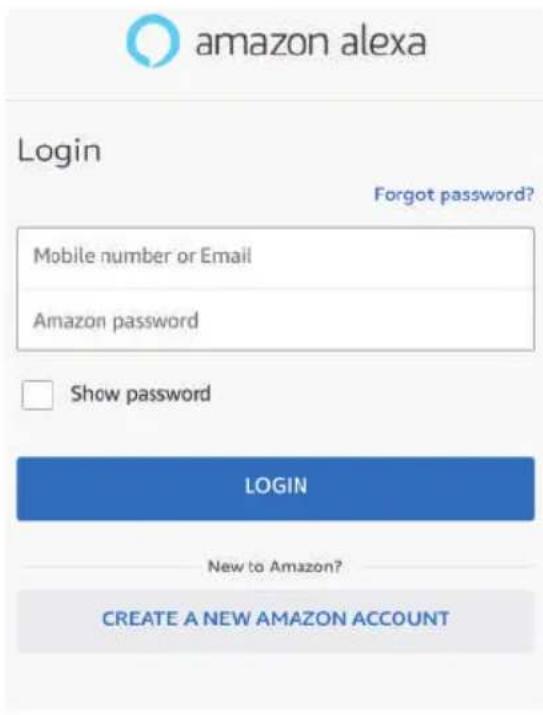
Step 1: Install the Amazon Alexa app via the App Store (iOS) or the Play Store (Android) and register. If you already have an existing account with Amazon Alexa, please proceed to logging in.
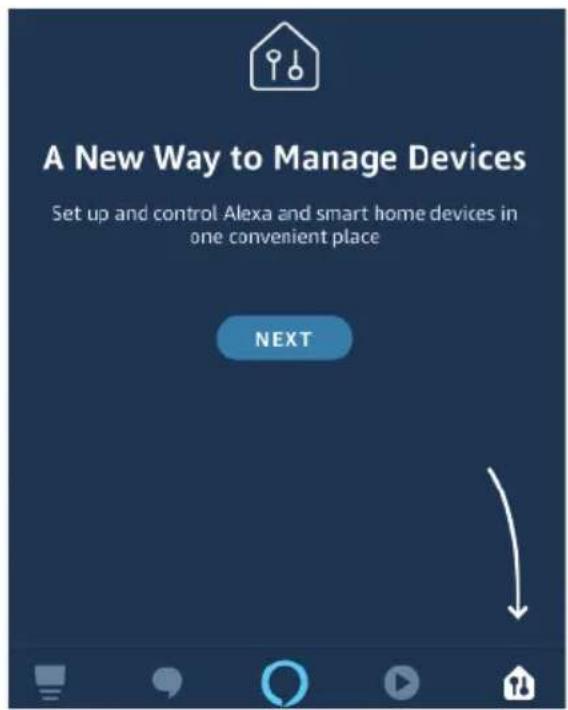
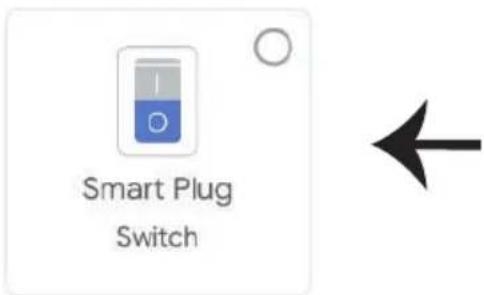
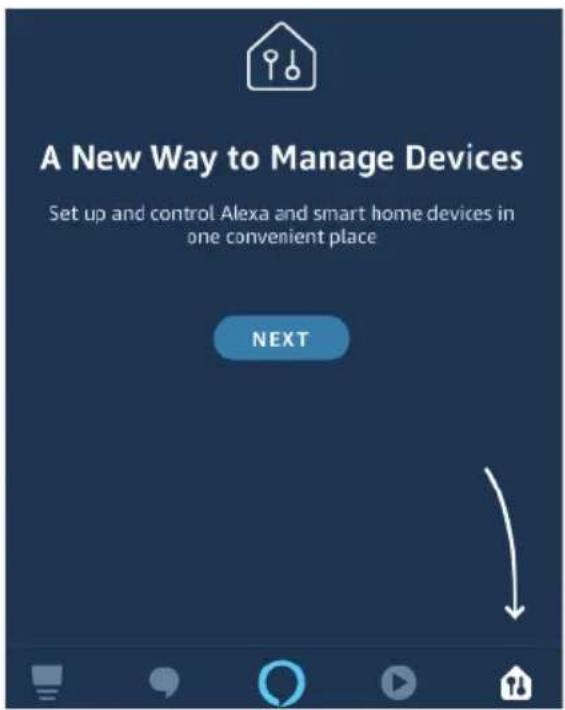
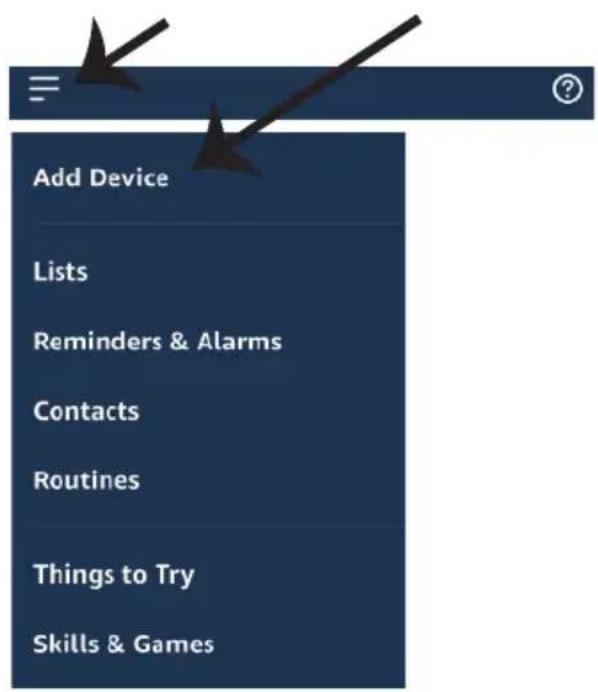
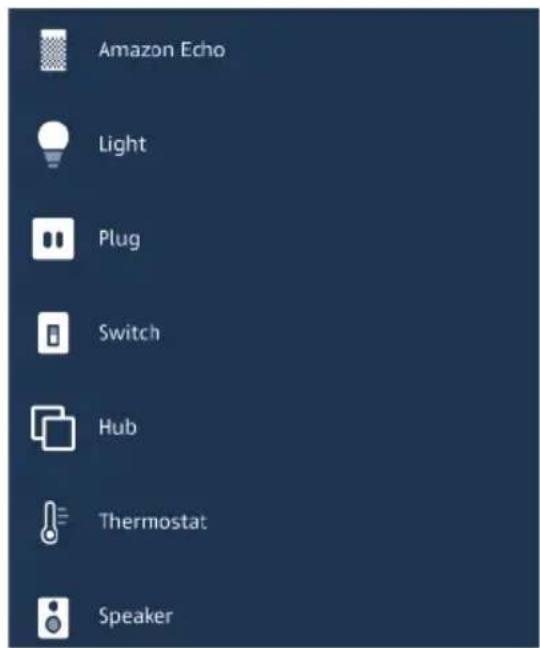
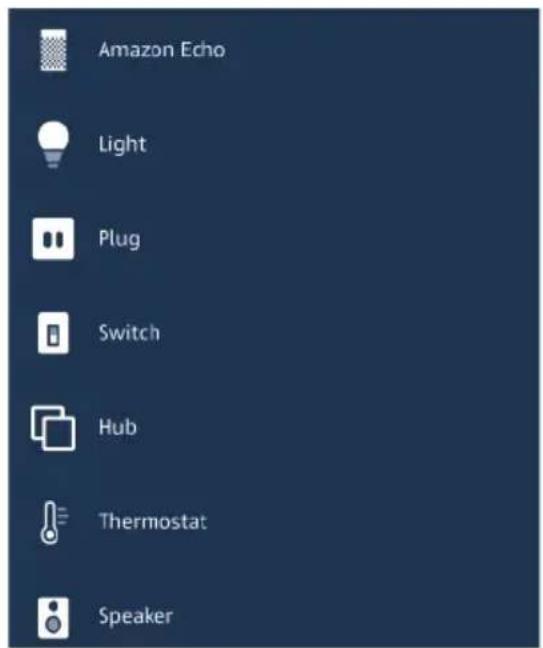
Step 3: On the Home page of Amazon Alexa App, Tap on the icon as shown on the image below.

natural_image
Blue background with a black arrow pointing diagonally down-right (no text or symbols)Step 2: Once you are on the Amazon Alexa home page, tap on the lower right icon — where the arrow is pointed— to add a new device and Enable Skills.
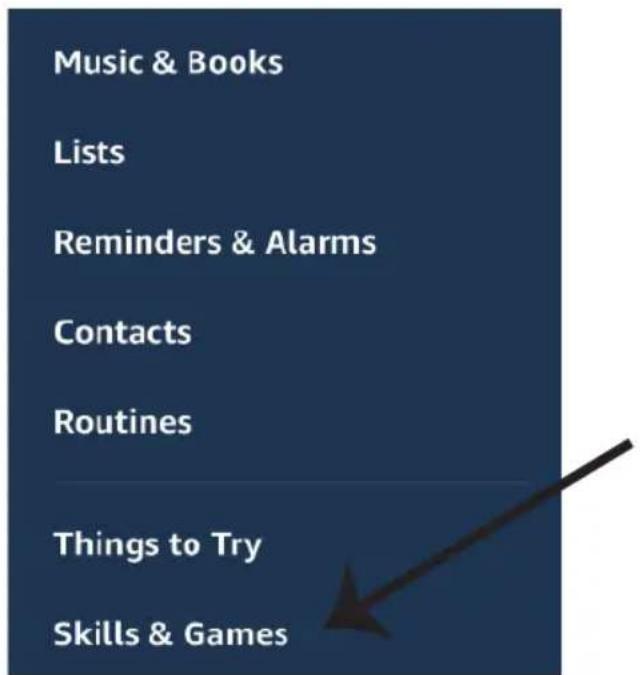
Step 4: Tap on "Skills & Games" as show below
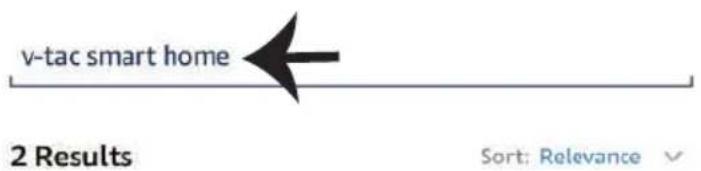
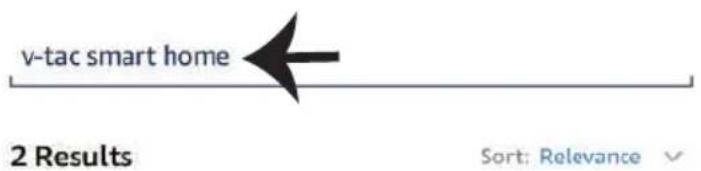
Step 5: On the Search bar as shown type "V-TAC Smart Home" and tap on the V-TAC Smart Home skill as shown on the below image.
Step 6: Tap on "ENABLE TO USE" to link V-TAC Smart Home skill with Amazon Alexa app.
Search

V-TAC Smart Home
Smart Home

V-TAC Smart Home
V-TAC Technologies
Rated: Guidance Suggested



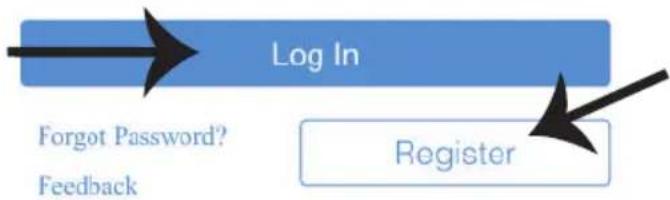
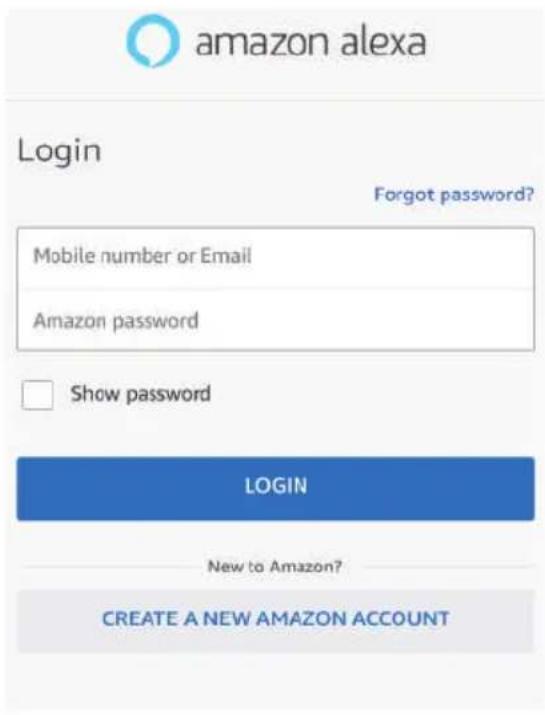
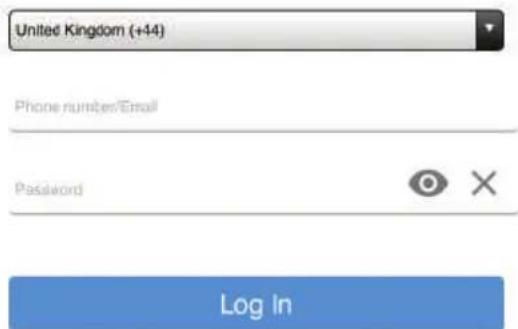
Step 7: Enter Login credentials of V-TAC Smart Home and then tap on Log In. If you do not have a existing account please register by tapping on the register.
Step 8: a) Once you have successfully linked V-TAC Skill close the window & (b) tap on Discover device. Make sure Smart device is paired with V-TAC Smart Home app.


flowchart
graph TD
    A["Log In"] --> B["Register"]
    style A fill:#333,stroke:#fff,color:#fff
    note1["Forgot Password?"]
    note2["Feedback"]
a)


V-TAC has been successfully linked.
What to do next:
→ Close this window to discover smart-home devices you can control with Alexa.

b)
Discover Devices

Smart Home devices must be discovered before they can be used with Alexa.

Step 9: Discover your smart device on Alexa. Once you have enabled the skill
A) You can use voice command "Alexa discover devices" to the Alexa device which you have.
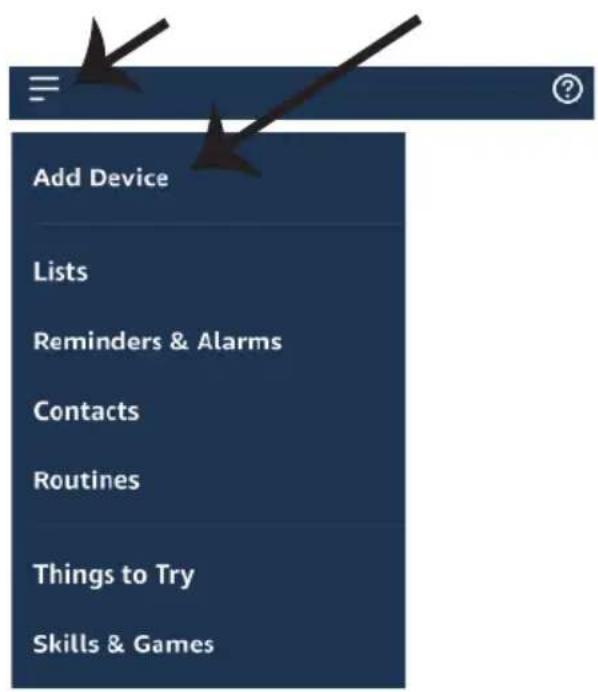
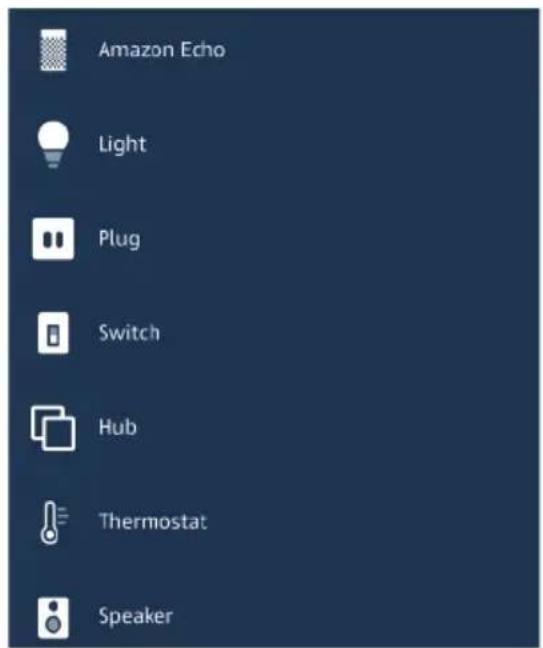
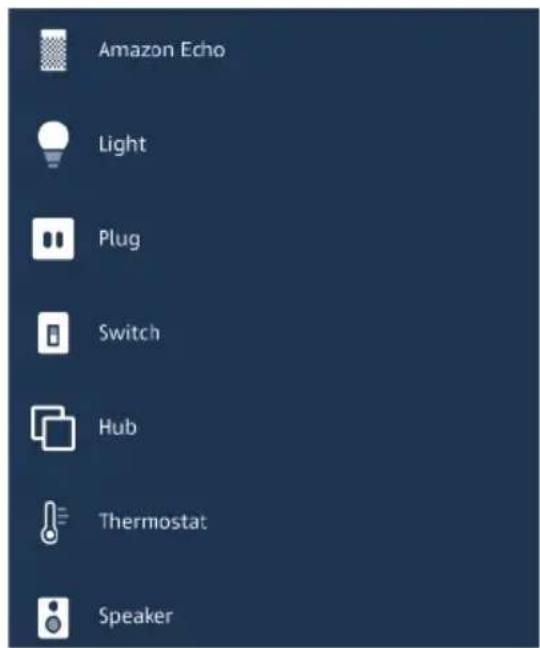
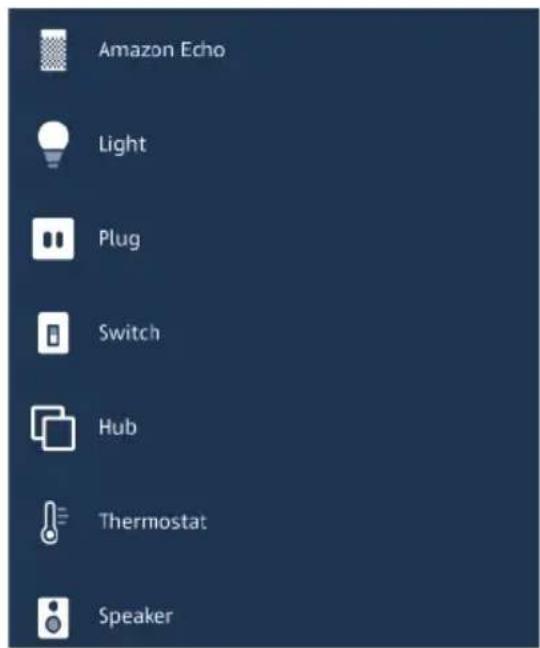
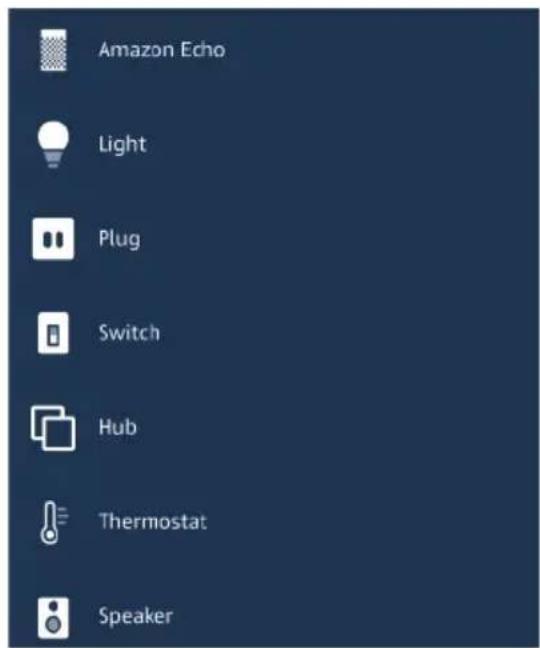
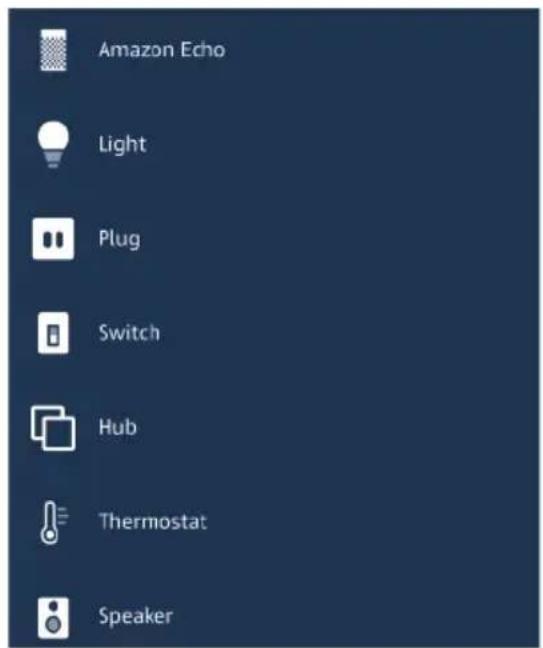
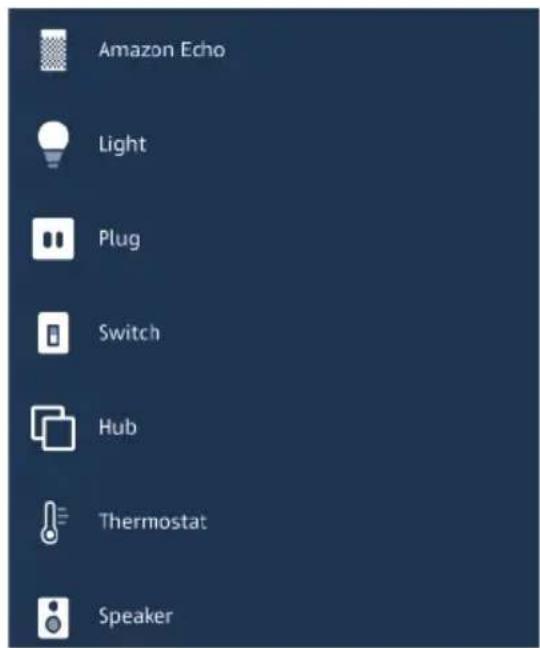
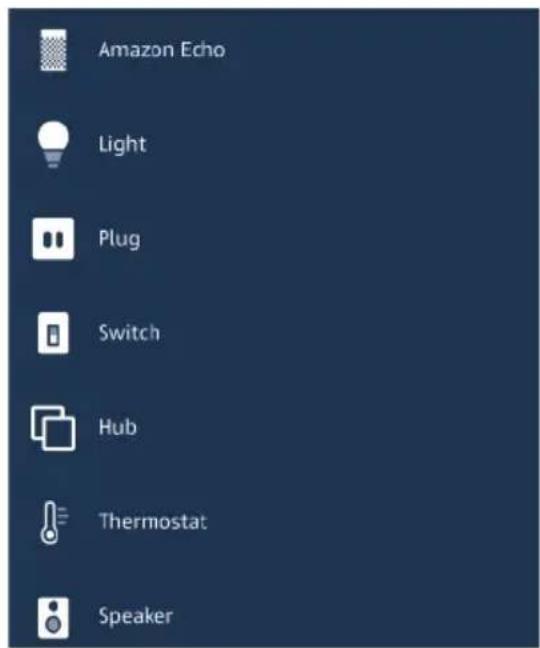
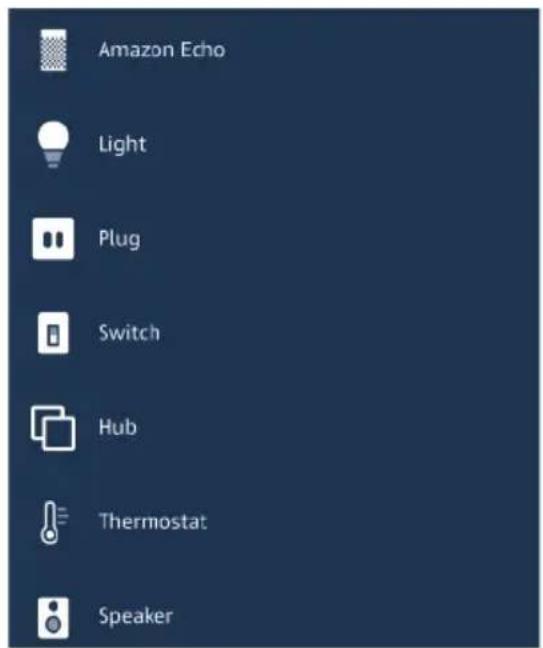
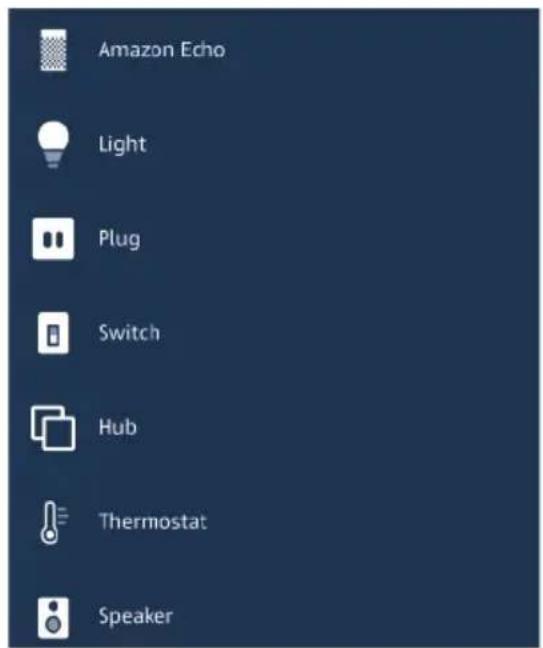
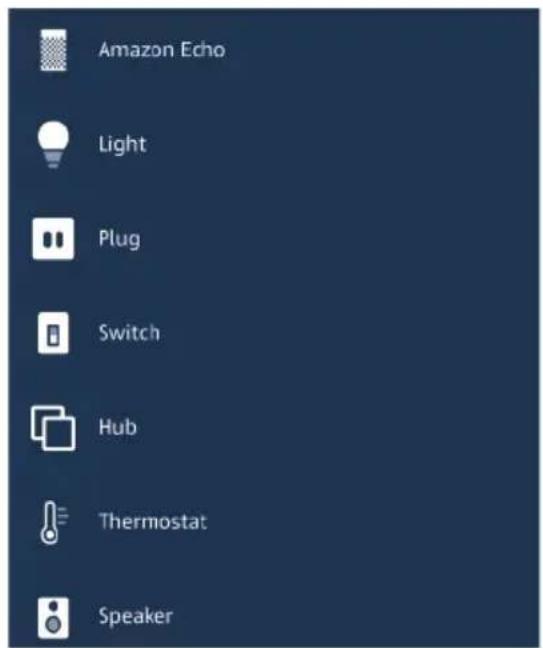
B) To add device manually on home page tap on and tap on Add device, select the device which you are adding and tap on discover device. (Ref Image B)
Note: Discovering the device must be done every time the device's name is changed on the app.
ALEXA Commands
Now, you can control your smart device using voice commands on Alexa. Below are few example commands on how to use Alexa device:
➢! Alexa, turn ON Smart Plug
➢! Alexa, turn OFF Smart Plug
THINGS TO REMEMBER BEFORE STARTING INSTALLATION:
- V-TAC Smart Home App & Amazon Alexa App
- Make sure you have Amazon Alexa Device(including Echo, Echo Tap, or Echo Dot)
- Smart Home Device
- Stable Wifi network
GOOGLE HOME SETTINGS
Step 1:
a&b) Install the Google Home app via the App Store (iOS) or the Play Store (Android) and register. If you already have an existing account with Google Home, please proceed to logging in. c) Create a New Home/choose from the existing home if any. d) Power ON the Google Home device and connect it to the App. (Then Proceed to step 2)
a. Welcome home
Your content and devices all in one place
b. Choose account
This account will be used to personalize your experience
d. Plug in your device
Make sure your device is nearby and connected to power, then try again

natural_image
Abstract geometric shapes including squares, circles, and triangles (no text or symbols)GET STARTED >
c. Choose a home
You will be able to control the devices and services in this home.


Create another home
Step 2: Once you are on the Google home page, tap on the Add "+" icon—to add a new device and skill. And then tap on set up device as shown in below image.
a.

Play
Office

Broadcast


Add

Settings
Office
1 device

Office Speaker
Pause
b.

Add to Home

Set up device

Add home member

Create speaker group

Create new home
Add services

Music and audio

Videos and photos
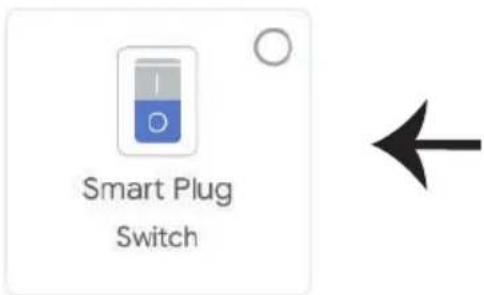
Step 3: Make sure the Smart device is paired with V-TAC Smart Home app before starting step 3. Tap on the arrow section as highlighted in the below image.
Set up
Set up new devices or add existing devices and services to your home
New devices

Set up new devices
Google Home, smart displays and devices labelled 'Made for Google' such as C by GE smart bulbs
Works with Google

Have something already set up?
Link your smart home services such as Philips Hue and TP-Link

Step 5: Sign In with your V-TAC Smart Home Login credentials to Link the Smart Home device

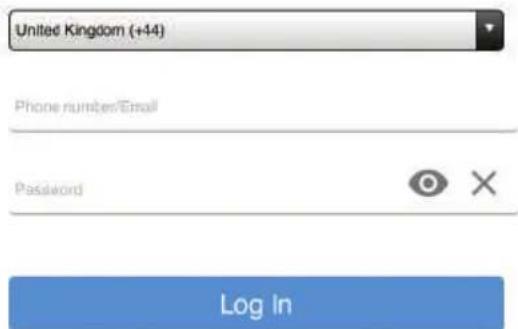
Step 4: Type "Vtac" on the search bar and tap on V-TAC Smart Home icon from the drop down options as shown below.

Vtac

Linked
Add new

VTAC Smart Home


VTAC Smart Light
Step 6:
a. Account will now be linked, please stay on the page you will be redirected in few seconds to select the device to add to your home. b. Select the device and tap on Next as show in image(b)
a. Done

assistant.google.com

Account is now Linked
b. ×
Choose device
Step 7: Select the Home where you would like to add the Smart Device under. (Or) you can create a New home in order to add the Smart Device to it.
Step 8: You have successfully added V-TAC Smart device to your Google home App.
Choose a home
You will be able to control the devices and services in this home.

Smart-Home

Office

Smart Home

Create another home
Smart-Home

Add

Settings
Master bedroom
1 device
Smart Plug

Off

On
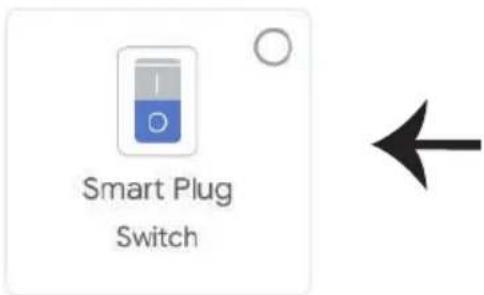
Step 9: You can turn the device On/OFF by taping On/Off options as shown below. (OR) You can tap on the name(Ex:Smart Plug as shown below) to redirect to new page.
Smart-Home

Add

Settings
Master bedroom
1 device

Smart Plug
Off

On

Smart Plug
Master bedroom
On
Google Commands:
Now, you can control your smart device using voice commands on Google Home. Below are a few example voice commands on how to use Google Home device:
➢! OK Google, turn ON Smart Plug
➢! OK Google, turn OFF Smart Plug
THINGS TO REMEMBER BEFORE STARTING INSTALLATION:
- V-TAC Smart Home App & Google Home App
- Make sure you have Google Home Device
- Smart Home Device
- Stable Wifi network
In case of any query/issue with the product please reach out to us at support@vtacexports.com
V-TAC EUROPE LTD, Bulgaria, Plovdiv 4000, bul.L.Karavelow 9B
Please select a region

Phone number or email address
Password
Login
Reset Password

Register
RÉGLAGES ALEXA
natural_image
Blue background with a black arrow pointing diagonally down-right (no text or symbols)Rated: Guidance Suggested



V-TAC has been successfully linked.
What to do next:
→ Close this window to discover smart-home devices you can control with Alexa.

b)
Discover Devices

Smart Home devices must be discovered before they can be used with Alexa.

Your content and devices all in one place
b. Choose account
This account will be used to personalize your experience
d. Plug in your device
Make sure your device is nearby and connected to power, then try again

natural_image
Abstract geometric shapes including squares, circles, and triangles (no text or symbols)GET STARTED >
c. Choose a home
You will be able to control the devices and services in this home.

Office
1 device

Office Speaker
Pause
b.

Add to Home

Set up device

Add home member

Create speaker group

Create new home
Add services

Music and audio

Videos and photos
Set up new devices or add existing devices and services to your home
New devices

Set up new devices
Google Home, smart displays and devices labelled 'Made for Google' such as C by GE smart bulbs
Works with Google

Have something already set up?
Link your smart home services such as Philips Hue and TP-Link

Account is now Linked
b. ×
Choose device
Commandes Google:
In case of any query/issue with the product please reach out to us at support@vtacexports.com
V-TAC EUROPE LTD, Bulgaria, Plovdiv 4000, bul.L.Karavelow 9B
Please select a region

Phone number or email address
Password
Login
Reset Password

Register
natural_image
Simple line icon of a wireless router with Wi-Fi symbol (no text or labels)(Only supports 2.4G WiFi)
WiFi name Vtac
WiFi password

Remember password

Next


My devices


Complete
ALEXA-EINSTELLUNGEN
natural_image
Blue background with a black arrow pointing diagonally down-left and a small white line above it (no text or symbols)V-TAC Technologies Rated: Guidance Suggested



V-TAC has been successfully linked.
What to do next:
→ Close this window to discover smart-home devices you can control with Alexa.

b)
Discover Devices

Smart Home devices must be discovered before they can be used with Alexa.

Your content and devices all in one place
b. Choose account
This account will be used to personalize your experience
d. Plug in your device
Make sure your device is nearby and connected to power, then try again

natural_image
Abstract geometric shapes including squares, circles, and triangles (no text or symbols)GET STARTED >
c. Choose a home
You will be able to control the devices and services in this home.


Create another home
Office
1 device

Office Speaker
Pause
b.

Add to Home

Set up device

Add home member

Create speaker group

Create new home
Add services

Music and audio

Videos and photos
Set up new devices or add existing devices and services to your home
New devices

Set up new devices
Google Home, smart displays and devices labelled 'Made for Google' such as C by GE smart bulbs
Works with Google

Have something already set up?
Link your smart home services such as Philips Hue and TP-Link

Account is now Linked
b.

Choose device

You will be able to control the devices and services in this home.

Smart-Home

Office

Smart Home

Create another home
NEXT >
Please select a region

Phone number or email address
Password
Login
Reset Password

Register
There are no devices paired."Tap the add" device button below to begin pairing devices

(Only supports 2.4G WiFi)



My devices
WiFi name Vtac
WiFi password

Remember password

Next

Complete
НАСТРОЙКИ НА ALEXA
natural_image
Blue rectangular background with a black arrow pointing diagonally down-right (no text or symbols)Rated: Guidance Suggested



V-TAC has been successfully linked.
What to do next:
→ Close this window to discover smart-home devices you can control with Alexa.

b)
Discover Devices

Smart Home devices must be discovered before they can be used with Alexa.

Your content and devices all in one place
b. Choose account
This account will be used to personalize your experience
d. Plug in your device
Make sure your device is nearby and connected to power, then try again

natural_image
Abstract geometric shapes including squares, circles, and triangles (no text or symbols)GET STARTED >
c. Choose a home
You will be able to control the devices and services in this home.


Create another home
Office
1 device

Office Speaker
Pause
b.

Add to Home

Set up device

Add home member

Create speaker group

Create new home
Add services

Music and audio

Videos and photos
Set up new devices or add existing devices and services to your home
New devices

Set up new devices
Google Home, smart displays and devices labelled 'Made for Google' such as C by GE smart bulbs
Works with Google

Have something already set up?
Link your smart home services such as Philips Hue and TP-Link
Account is now Linked
b. ×
Choose device
You will be able to control the devices and services in this home.

Smart-Home

Office

Smart Home

Create another home
NEXT >
In case of any query/issue with the product please reach out to us at support@vtacexports.com
V-TAC EUROPE LTD, Bulgaria, Plovdiv 4000, bul.L.Karavelow 9B
Korak 1: Otvorite aplikaciju V-TAC Smart Home App i registrirajte se. Ako već imate otvoren račun za V-TAC Smart Home, jednostavno se prijavite.
Please select a region

Phone number or email address
Password
Login
Reset Password

Register
Korak 3: Provjerite da li je Vaš pametni uređaj napunjen.
1) Pritisnite i zadržite gumb Power na 5 sekundi da biste uključili uređaj u Režim za uparivanje. Kada je režim za uparivanje uključen, LED će početi svjetlucati 3 puta uzastopno.
2) Kliknite Quick pairing da biste započeli uparivanje uređaja s aplikacijom.
Napomena: Ako imate bilo kakvih problema za vrijeme uparivanja u režimu Brzog uparivanja (Quick Pairing), molimo pokušajte upariti uređaj u režimu Kompatibilnog uparivanja (Compatible Pairing) (Pritisnite na vezu kao što je ukazano na slici).
natural_image
Simple line icon of a wireless router with Wi-Fi symbol (no text or labels)(Only supports 2.4G WiFi)



My devices
WiFi name Vtac
WiFi password

Remember password

Next

Complete
POSTAVKE ZA ALEXA
Korak 1: Instalirajte aplikaciju Amazon Alexa s App Store-a (iOS) ili s Play Store-a (Android) i registrirajte ju. Ako već imate otvoren račun kod Amazon Alexa, jednostavno se prijavite.
Korak 3: Na domaćoj stranici aplikacije Amazon Alexa, pritisnite na ikonu na način prikazan na slici ispod.

natural_image
Blue background with a black arrow pointing diagonally down-right (no text or symbols)Korak 2: Kada ste na domaćoj stranici Amazon Alexa, kliknite na ikonu dolje desno — kuda ukazuje strelica — za dodavanje novog uređaja i vještina.
Korak 5: Na traci za pretraživanje, kao što je prikazano, upišite "V-TAC [p9Smart Home" i kliknite V-TAC Smart Home, kao što je prikazano na donjoj slici.
Search

V-TAC Smart Home
Smart Home

Korak 7: Unesite vjerodajnice za V-TAC Smart Home, zatim kliknite na Prijavu (Log In). Ako nemate otvoren račun, registrirajte se na "Registracija" (Register).

Korak 6: Kliknite "ENABLE TO USE" da biste povezali V-TAC Smart Home s aplikacijom Amazon Alexa.
V-TAC Smart Home
V-TAC Technologies
Rated: Guidance Suggested



Korak 8: a) Kada ste uspješno povezali V-TAC vještinu, zatvorite prozor te & (b) kliknite na Pronađi uređaj. Provjerite da li je pametni uređaj uparen s V-TAC Smart Home aplikacijom.
a)


V-TAC has been successfully linked.
What to do next:
→ Close this window to discover smart-home devices you can control with Alexa.

b)
Discover Devices

Smart Home devices must be discovered before they can be used with Alexa.

Korak 9: Otkrijte svoj pametni uređaj u aplikaciji Alexa. Nakon aktiviranja opcije:
A) Možete uputiti glasovnu naredbu "Alexa discover devices" svom uređaju Alexa.
B) Da biste ručno dodali uređaj na početnu stranicu, kliknite Add device, odaberite uređaj koji želite dodati i kliknite Discover device.
Your content and devices all in one place
b. Choose account
This account will be used to personalize your experience
d. Plug in your device
Make sure your device is nearby and connected to power, then try again

natural_image
Abstract geometric shapes including squares, circles, and triangles (no text or symbols)GET STARTED >
c. Choose a home
You will be able to control the devices and services in this home.


Create another home
Korak 2: Kada uđete u Googlovu domaću stranicu, kliknite na ikonu Dodaj “+”— za dodavanje novog uređaja i vještine. Zatim pritisnite Postavi uređaj kao što je prikazano na slici ispod.
a.

Play
Office

Broadcast


Add

Settings
Office
1 device

Office Speaker
Pause
b.

Add to Home

Set up device

Add home member

Create speaker group

Create new home
Add services

Music and audio

Videos and photos
Korak 3: Provjerite da li je Smart Device uparen s aplikacijom V-TAC Smart Homeprije nego što napravite korak 3. Kliknite na strelicu kao što je ukazano na slici ispod.
Set up
Set up new devices or add existing devices and services to your home
New devices

Set up new devices
Google Home, smart displays and devices labelled 'Made for Google' such as C by GE smart bulbs
Works with Google

Have something already set up?
Link your smart home services such as Philips Hue and TP-Link

Korak 5: Prijavite se sa svojim V-TAC Smart Home Login vjerodajnicama da biste povezali Smart Home uređaj.

- Etapa: U traku za pretraživanje upišite "Vtac" i kliknite ikonu V-TAC Smart Home na padajućem izborniku opcija, kao što je prikazano u nastavku:

Vtac

Linked
Add new

VTAC Smart Home


VTAC Smart Light
Korak 6:
Account is now Linked
b. ×
Choose device
You will be able to control the devices and services in this home.

Smart-Home

Office

Smart Home

Create another home
Smart-Home

Add

Settings
Master bedroom
1 device
Smart Plug

NEXT >
Off

On
In case of any query/issue with the product please reach out to us at support@vtacexports.com
V-TAC EUROPE LTD, Bulgaria, Plovdiv 4000, bul.L.Karavelow 9B
Please select a region

Phone number or email address
Password
Login
Reset Password

Register
CONFIGURAÇÕES PARA ALEXA
natural_image
Blue background with a black arrow pointing diagonally down-right (no text or symbols)V-TAC has been successfully linked.
What to do next:
→ Close this window to discover smart-home devices you can control with Alexa.

b)
Discover Devices

Smart Home devices must be discovered before they can be used with Alexa.

Your content and devices all in one place
b. Choose account
This account will be used to personalize your experience
d. Plug in your device
Make sure your device is nearby and connected to power, then try again

natural_image
Abstract geometric shapes including squares, circles, and triangles (no text or symbols)GET STARTED >
c. Choose a home
You will be able to control the devices and services in this home.

Office
1 device

Office Speaker
Pause
b.

Add to Home

Set up device

Add home member

Create speaker group

Create new home
Add services

Music and audio

Videos and photos
Set up new devices or add existing devices and services to your home
New devices

Set up new devices
Google Home, smart displays and devices labelled 'Made for Google' such as C by GE smart bulbs
Works with Google

Have something already set up?
Link your smart home services such as Philips Hue and TP-Link

Account is now Linked
b. ×
Choose device
Log In
You will be able to control the devices and services in this home.

Smart-Home

Office

Smart Home

Create another home
Smart-Home

Add

Settings
Master bedroom
1 device
Smart Plug

NEXT >
Off
。
On
In case of any query/issue with the product please reach out to us at support@vtacexports.com
V-TAC EUROPE LTD, Bulgaria, Plovdiv 4000, bul.L.Karavelow 9B
Please select a region

Phone number or email address
Password
Login
Reset Password

Register
natural_image
Blue rectangular background with a black arrow pointing diagonally down-right (no text or symbols)Rated: Guidance Suggested



V-TAC has been successfully linked.
What to do next:
→ Close this window to discover smart-home devices you can control with Alexa.

b)
Discover Devices

Smart Home devices must be discovered before they can be used with Alexa.

Your content and devices all in one place
b. Choose account
This account will be used to personalize your experience
d. Plug in your device
Make sure your device is nearby and connected to power, then try again

natural_image
Abstract geometric shapes including squares, circles, and triangles (no text or symbols)GET STARTED >
c. Choose a home
You will be able to control the devices and services in this home.

Office
1 device

Office Speaker
Pause
b.

Add to Home

Set up device

Add home member

Create speaker group

Create new home
Add services

Music and audio

Videos and photos
Set up new devices or add existing devices and services to your home
New devices

Set up new devices
Google Home, smart displays and devices labelled 'Made for Google' such as C by GE smart bulbs
Works with Google

Have something already set up?
Link your smart home services such as Philips Hue and TP-Link

Account is now Linked
b. ×
Choose device
Comandos de Google:
In case of any query/issue with the product please reach out to us at support@vtacexports.com
V-TAC EUROPE LTD, Bulgaria, Plovdiv 4000, bul.L.Karavelow 9B
Please select a region

Phone number or email address
Password
Login
Reset Password

Register
ALEXA BEÁLLÍTÁSAI
natural_image
Blue background with a black arrow pointing diagonally down-left and a small symbol above it (no text or symbols present)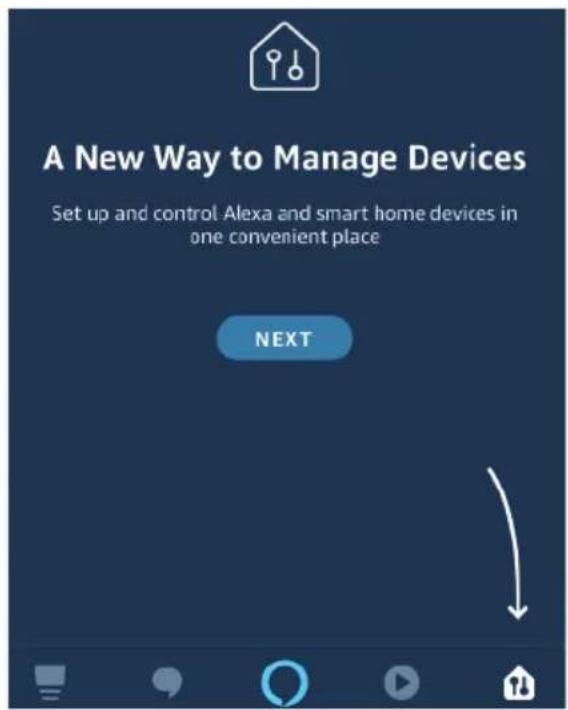
V-TAC has been successfully linked.
What to do next:
→ Close this window to discover smart-home devices you can control with Alexa.

b)
Discover Devices

Smart Home devices must be discovered before they can be used with Alexa.

Your content and devices all in one place
b. Choose account
This account will be used to personalize your experience
d. Plug in your device
Make sure your device is nearby and connected to power, then try again

natural_image
Abstract geometric shapes including squares, circles, and triangles (no text or symbols)GET STARTED >
c. Choose a home
You will be able to control the devices and services in this home.


Create another home
Office
1 device

Office Speaker
Pause
b.

Add to Home

Set up device

Add home member

Create speaker group

Create new home
Add services

Music and audio

Videos and photos
Set up new devices or add existing devices and services to your home
New devices

Set up new devices
Google Home, smart displays and devices labelled 'Made for Google' such as C by GE smart bulbs
Works with Google

Have something already set up?
Link your smart home services such as Philips Hue and TP-Link

Account is now Linked
b. ×
Choose device
Log In
You will be able to control the devices and services in this home.

Smart-Home

Office

Smart Home

Create another home
Smart-Home

Add

Settings
Master bedroom
1 device
Smart Plug

Off

On
In case of any query/issue with the product please reach out to us at support@vtacexports.com
V-TAC EUROPE LTD, Bulgaria, Plovdiv 4000, bul.L.Karavelow 9B
Please select a region

Phone number or email address
Password
Login
Reset Password

Register
natural_image
Blue background with a black arrow pointing diagonally down-left and a small white line above it (no text or symbols)Rated: Guidance Suggested



V-TAC has been successfully linked.
What to do next:
→ Close this window to discover smart-home devices you can control with Alexa.

b)
Discover Devices

Smart Home devices must be discovered before they can be used with Alexa.

Your content and devices all in one place
b. Choose account
This account will be used to personalize your experience
d. Plug in your device
Make sure your device is nearby and connected to power, then try again

natural_image
Abstract geometric shapes including squares, circles, and triangles (no text or symbols)GET STARTED >
c. Choose a home
You will be able to control the devices and services in this home.


Create another home
1 device

Office Speaker
Pause
b.

Add to Home

Set up device

Add home member

Create speaker group

Create new home
Add services

Music and audio

Videos and photos
Set up new devices or add existing devices and services to your home
New devices

Set up new devices
Google Home, smart displays and devices labelled 'Made for Google' such as C by GE smart bulbs
Works with Google

Have something already set up?
Link your smart home services such as Philips Hue and TP-Link

Account is now Linked
b. ×
Choose device
You will be able to control the devices and services in this home.

Smart-Home

Office

Smart Home

Create another home
Smart-Home

Add

Settings
Master bedroom
1 device
Smart Plug

NEXT >
Off

On
In case of any query/issue with the product please reach out to us at support@vtacexports.com
V-TAC EUROPE LTD, Bulgaria, Plovdiv 4000, bul.L.Karavelow 9B
Please select a region

Phone number or email address
Password
Login
Reset Password

Register
USTAWIENIA ALEXA
Rated: Guidance Suggested



V-TAC has been successfully linked.
What to do next:
→ Close this window to discover smart-home devices you can control with Alexa.

b)
Discover Devices

Smart Home devices must be discovered before they can be used with Alexa.

Your content and devices all in one place
b. Choose account
This account will be used to personalize your experience
d. Plug in your device
Make sure your device is nearby and connected to power, then try again

natural_image
Abstract geometric shapes including squares, circles, and triangles (no text or symbols)GET STARTED >
c. Choose a home
You will be able to control the devices and services in this home.


Create another home
b.

Add to Home

Set up device

Add home member

Create speaker group

Create new home
Add services

Music and audio

Videos and photos
Set up new devices or add existing devices and services to your home
New devices

Set up new devices
Google Home, smart displays and devices labelled 'Made for Google' such as C by GE smart bulbs
Works with Google

Have something already set up?
Link your smart home services such as Philips Hue and TP-Link

Account is now Linked
b. ×
Choose device
You will be able to control the devices and services in this home.

Smart-Home

Office

Smart Home

Create another home
Smart-Home

Add

Settings
Master bedroom
1 device
Smart Plug

NEXT >
Off

On
In case of any query/issue with the product please reach out to us at support@vtacexports.com
V-TAC EUROPE LTD, Bulgaria, Plovdiv 4000, bul.L.Karavelow 9B
Please select a region

Phone number or email address
Password
Login
Reset Password

Register
PYOMISEIIS THΣ ALEXA
natural_image
Blue background with a black arrow pointing diagonally down-right (no text or symbols)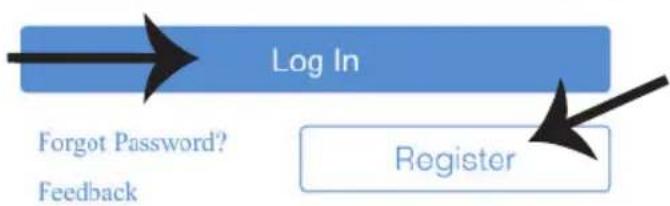
flowchart
graph TD
    A["Log In"] --> B["Register"]
    style A fill:#333,stroke:#fff,color:#fff
    note1["Forgot Password?"]
    note2["Feedback"]
Rated: Guidance Suggested


V-TAC has been successfully linked.
What to do next:
→ Close this window to discover smart-home devices you can control with Alexa.

b)
Discover Devices

Smart Home devices must be discovered before they can be used with Alexa.

Your content and devices all in one place
b. Choose account
This account will be used to personalize your experience
d. Plug in your device
Make sure your device is nearby and connected to power, then try again

natural_image
Abstract geometric shapes including squares, circles, and triangles (no text or symbols)GET STARTED >
c. Choose a home
You will be able to control the devices and services in this home.

Office
1 device

Office Speaker
Pause
b.

Add to Home

Set up device

Add home member

Create speaker group

Create new home
Add services

Music and audio

Videos and photos
Set up new devices or add existing devices and services to your home
New devices

Set up new devices
Google Home, smart displays and devices labelled 'Made for Google' such as C by GE smart bulbs
Works with Google

Have something already set up?
Link your smart home services such as Philips Hue and TP-Link

Account is now Linked
b. ×
Choose device
Google εντολές:
In case of any query/issue with the product please reach out to us at support@vtacexports.com
V-TAC EUROPE LTD, Bulgaria, Plovdiv 4000, bul.L.Karavelow 9B
Please select a region

Phone number or email address
Password
Login
Reset Password

Register
natural_image
Simple line icon of a wireless router with Wi-Fi symbol (no text or labels)(Only supports 2.4G WiFi)
WiFi name Vtac
WiFi password

Remember password

Next


My devices


Complete
SETĂRILE ALEXA
natural_image
Blue rectangular background with a black arrow pointing diagonally down-right (no text or symbols)V-TAC Smart Home
V-TAC Technologies
Rated: Guidance Suggested



V-TAC has been successfully linked.
What to do next:
→ Close this window to discover smart-home devices you can control with Alexa.

b)
Discover Devices

Smart Home devices must be discovered before they can be used with Alexa.

Your content and devices all in one place
b. Choose account
This account will be used to personalize your experience
d. Plug in your device
Make sure your device is nearby and connected to power, then try again

natural_image
Abstract geometric shapes including squares, circles, and triangles (no text or symbols)GET STARTED >
c. Choose a home
You will be able to control the devices and services in this home.

Office
1 device

Office Speaker
Pause
b.

Add to Home

Set up device

Add home member

Create speaker group

Create new home
Add services

Music and audio

Videos and photos
Set up new devices or add existing devices and services to your home
New devices

Set up new devices
Google Home, smart displays and devices labelled 'Made for Google' such as C by GE smart bulbs
Works with Google

Have something already set up?
Link your smart home services such as Philips Hue and TP-Link

Account is now Linked
b. ×
Choose device
You will be able to control the devices and services in this home.

Smart-Home

Office

Smart Home

Create another home
Smart-Home

Add

Settings
Master bedroom
1 device
Smart Plug

NEXT >
Off

On
In case of any query/issue with the product please reach out to us at support@vtacexports.com
V-TAC EUROPE LTD, Bulgaria, Plovdiv 4000, bul.L.Karavelow 9B
Please select a region

Phone number or email address
Password
Login
Reset Password

Register
There are no devices paired."Tap the add" device button below to begin pairing devices



natural_image
Simple line icon of a wireless router with Wi-Fi symbol (no text or labels)(Only supports 2.4G WiFi)


My devices

WiFi name Vtac
WiFi password

Remember password

Next

Complete
NASTAVENÍ APLIKACE ALEXA
natural_image
Blue rectangular background with a black arrow pointing diagonally down-right (no text or symbols)Rated: Guidance Suggested



V-TAC has been successfully linked.
What to do next:
→ Close this window to discover smart-home devices you can control with Alexa.

b)
Discover Devices

Smart Home devices must be discovered before they can be used with Alexa.

Your content and devices all in one place
b. Choose account
This account will be used to personalize your experience
d. Plug in your device
Make sure your device is nearby and connected to power, then try again

natural_image
Abstract geometric shapes including squares, circles, and triangles (no text or symbols)GET STARTED >
c. Choose a home
You will be able to control the devices and services in this home.


Create another home
Office
1 device

Office Speaker
Pause
b.

Add to Home

Set up device

Add home member

Create speaker group

Create new home
Add services

Music and audio

Videos and photos
Set up new devices or add existing devices and services to your home
New devices

Set up new devices
Google Home, smart displays and devices labelled 'Made for Google' such as C by GE smart bulbs
Works with Google

Have something already set up?
Link your smart home services such as Philips Hue and TP-Link

Account is now Linked
b. ×
Choose device
You will be able to control the devices and services in this home.

Smart-Home

Office

Smart Home

Create another home
Smart-Home

Add

Settings
Master bedroom
1 device
Smart Plug

NEXT >
Off

On

- (FR) INTRODUCTION & GARANTIE
- (PL) WSTEP I GWARANCJAD
- (RO) INTRODUCERE, GARANTIA
- INSTALLATION
- WARNING!
- WIRING INSTALLATION:
- ALEXA SETTINGS
- ALEXA Commands
- THINGS TO REMEMBER BEFORE STARTING INSTALLATION:
- GOOGLE HOME SETTINGS
- Step 1:
- a. Welcome home
- b. Choose account
- d. Plug in your device
- c. Choose a home
- Set up
- New devices
- Works with Google
- Linked
- Add new
- Step 6:
- Choose a home
- Smart-Home
- Master bedroom
- Smart Plug
- Google Commands:
- RÉGLAGES ALEXA
- Commandes Google:
- ALEXA-EINSTELLUNGEN
- НАСТРОЙКИ НА ALEXA
- POSTAVKE ZA ALEXA
- Korak 6:
- CONFIGURAÇÕES PARA ALEXA
- Comandos de Google:
- ALEXA BEÁLLÍTÁSAI
- USTAWIENIA ALEXA
- PYOMISEIIS THΣ ALEXA
- Google εντολές:
- SETĂRILE ALEXA
- NASTAVENÍ APLIKACE ALEXA
Brand : V-TAC
Model : VT5134
Category : Wall socket