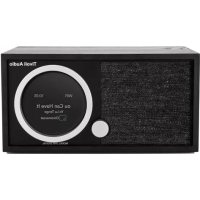
Model One Digital Generation 2 - Radio TIVOLI AUDIO - Free user manual and instructions
Find the device manual for free Model One Digital Generation 2 TIVOLI AUDIO in PDF.


| Product type | Wi-Fi / DAB+ / FM / Bluetooth connected radio |
| Brand | Tivoli Audio |
| Model | Model One Digital Generation 2 |
| Power supply | External AC adapter included (DC) |
| Connectivity | Wi-Fi, Bluetooth, AirPlay 2, Chromecast built-in, Spotify Connect, Aux input (3.5 mm) |
| Radio reception | FM, DAB+ (depending on country), Wi-Fi (internet streaming) |
| Main functions | Alarm, sleep timer, clock setting, station presets (remote and dial), automatic firmware update via Wi-Fi |
| Remote control | Yes, included |
| Maintenance and cleaning | Dry cloth for wooden cabinet, adhesive brush for front fabric. Do not expose to water. |
| Safety | Compliant with ICES-003 (B) / NMB-003 (B); RF exposure: minimum distance 20 cm from body |
| Spare parts and repairability | Service port reserved for authorized centers; do not open yourself |
| Warranty | 2 years in the European Union, 1 year in the United States (subject to conditions) |
| Included accessories | AC adapter, pre-installed telescopic FM/DAB antenna, remote control |
Frequently Asked Questions - Model One Digital Generation 2 TIVOLI AUDIO
User questions about Model One Digital Generation 2 TIVOLI AUDIO
0 question about this device. Answer the ones you know or ask your own.
Ask a new question about this device
Download the instructions for your Radio in PDF format for free! Find your manual Model One Digital Generation 2 - TIVOLI AUDIO and take your electronic device back in hand. On this page are published all the documents necessary for the use of your device. Model One Digital Generation 2 by TIVOLI AUDIO.
USER MANUAL Model One Digital Generation 2 TIVOLI AUDIO
Declaration of Conformity....258
Welcome
Thank you for your choosing Tivoli Audio!
Model One Digital - Generation 2
Wi-Fi / DAB+* / FM / Bluetooth® Radio
The Model One Digital Generation 2 allows you to easily connect to Wi-Fi and your favorite app based streaming services through Airplay 2 and Google Chromecast. Enjoy something a little closer to home with local radio broadcasts on FM or DAB (where available). With all these listening options and room filling sound, the Model One Digital is a brilliant way to enjoy music and style with the latest technology built in.
Please take a moment to read this owner's manual and the safety instructions. If you have any questions, please do not hesitate to contact your dealer or Tivoli Audio.
*DAB is only available in supported countries.
Packed with your Model One Digital you should find:
(1) External Power Supply
(1) Pre-installed FM/DAB Telescopic Antenna
(1) Remote
Please contact your dealer or Tivoli Audio if any of these items are missing.
Guide to Features
flowchart
graph TD
    A["Component 1"] --> B["3"]
    A --> C["4"]
    A --> D["5"]
    A --> E["6"]
    A --> F["7"]
    G["Component 2"] --> H["4"]
    G --> I["5"]
    G --> J["6"]
    G --> K["7"]
    L["Component 3"] --> M["4"]
    L --> N["5"]
    L --> O["6"]
    L --> P["7"]
    Q["Component 4"] --> R["5"]
    Q --> S["6"]
    Q --> T["7"]
    U["Component 5"] --> V["6"]
    U --> W["7"]
    X["Tivoli Audio Model One Digital"] --> Y["Generation 1"]
    Y --> Z["Engaged by Tivoli Audio in Boston, VA. Produced in China"]
Front Panel
-
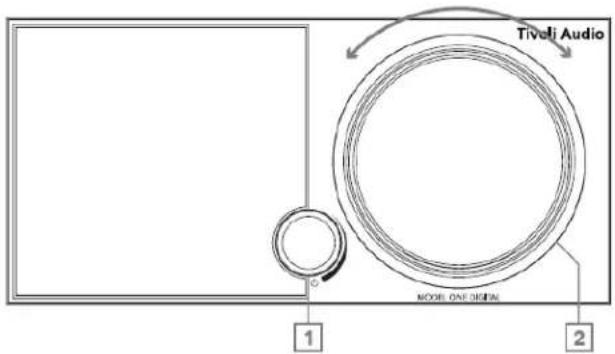
POWER/SOURCE/VOLUME KNOB: Push and hold to turn the unit on or off. Short press to cycle between WiFi, FM, DAB (if available), Bluetooth, and Auxiliary. Rotate right to increase volume, rotate left to decrease volume.
-
BEZEL CONTROL
In FM/DAB mode: Turn left to tune down. Turn right to tune up. Short press to add a station to your presets. Double press to reload DAB station list or go to next FM station.
In Bluetooth mode: Turn left to go to previous track. Turn right to go to next track. Short press to play/pause. Push and hold to enter Bluetooth pairing mode.
In WiFi Streaming mode: Turn left to go to previous track. Turn right to go to next track. Short press to play/pause.
Rear Panel
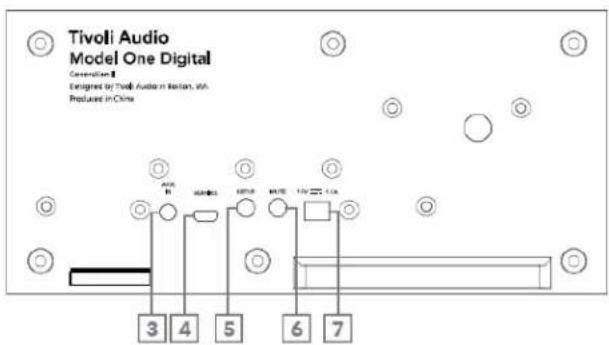
- AUX IN: Plug in audio directly for a standalone experience.
- SERVICE: Service port. Only for use by an Authorized Tivoli service center.
- SETUP: Tap to enable your speaker to be connected to your home network.
- MUTE: Select to mute the volume of your Model One Digital.
- DC Power: Plug in the provided Tivoli Audio power adapter to power your Model One Digital.
Remote Control
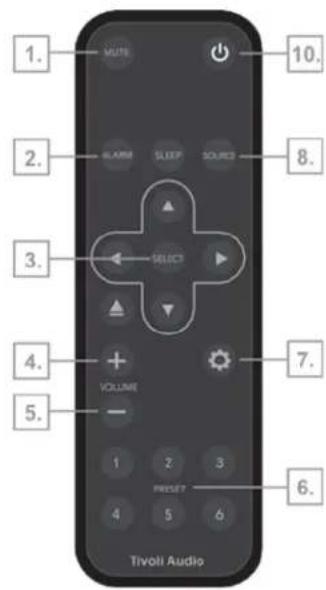
- MUTE: Mutes the radio.
- ALARM: Press to set the radio alarm.
- NAVIGATION ARROWS/SELECT: Use the arrows to navigate the on-screen options and confirm options with the SELECT button.
- VOLUME UP: Press to raise the volume.
- VOLUME DOWN: Press to lower the volume.
- PRESET BUTTONS: Press to recall a saved radio station, hold to save a new radio station.
- SETTINGS: Press to enter the full settings menu.
- SOURCE: Press to change the radio source.
- SLEEP: Press to set the sleep timer.
- POWER: Press to turn the radio on and off.
WARNING: DO NOT INGEST BATTERY, CHEMICAL BURN HAZARD. The remote control supplied with this product contains a coin/button cell battery. If the coin/button cell battery is swallowed, it can cause severe internal burns in just 2 hours and can lead to death. Keep new and used batteries away from children. If the battery compartment

does not close securely, stop using the product and keep it away from children. If you think batteries might have been swallowed or placed inside any part of the body, seek immediate medical attention.
WiFi Mode
Setting up your Model One Digital on WiFi with Google Home
- Turn on your unit by short pressing the power knob.
- On your radio, short press the power knob until the screen on the Model One Digital says "WiFi". Wait for the screen on the unit to show "WiFi Setup Enabled".
- Install the Google Home app by downloading the Google Home app on your Chromecast enabled smart phone/tablet.
- Make sure to connect your smart phone/tablet to the same network that you intend to use to set up your Model One Digital with Chromecast built-in™.
- Open the Google Home app by tapping the app icon on your smart phone/tablet.
-
Tap Get Started or the "+" sign in the corner.
-
Tap "Set up device".
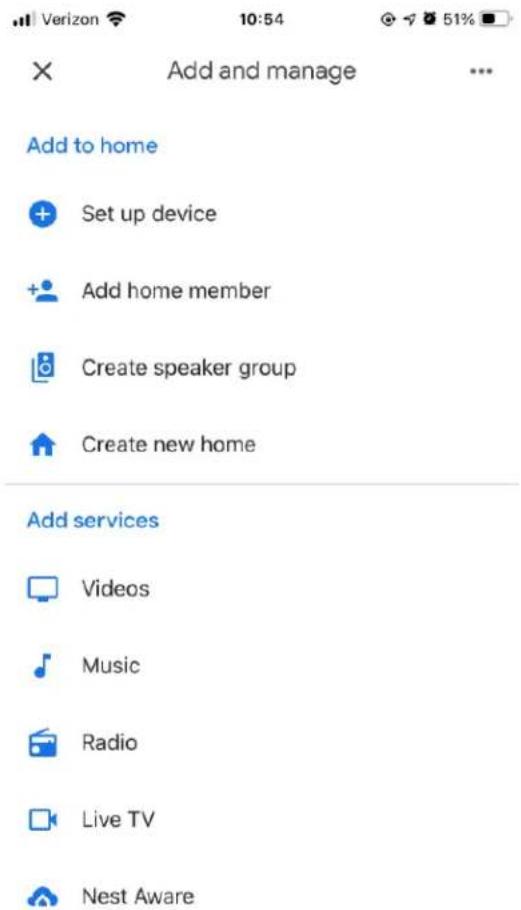
- Tap "Set up new devices in your home".

Set up
Set up new devices or add existing devices and services to your home
New devices

Set up new devices
Google Home, Chromecast, Smart Displays, devices labeled Made for Google like C by GE smart bulbs, and Philips Hue Bluetooth (without Hue Bridge)
Works with Google

Have something already set up?
Link your smart home services like Philips Hue (with Hue Bridge) and TP-Link
- Tap "Home" or if you have other homes, the Home on the screen you wish to add your Model One Digital to. Tap "Next".

Choose a home
You'll be able to control the devices and services in this home.

Tivoli
218 Newbury St, Boston, MA 02116, USA

Create another home

-
If you haven't already done so, turn on your phone's Bluetooth connection. This allows your WiFi information to be sent reliably to the speaker.
-
You should see "Tivoli Audio Model One Digital" found on the screen. Tap "Yes".

Nearby devices
Choose the device you would like to set up

Tivoli Audio Music System Home MSYH_14E938

Tivoli Audio Model One Digital Office speaker

Set up a different device
Not Now

- Select "Yes" when you hear the sound from the speaker.

Did you hear the sound?
This lets you know you're connected to the right Tivoli Audio Music System Home

natural_image
Abstract blue curved logo on white background (no text or symbols)Try Again

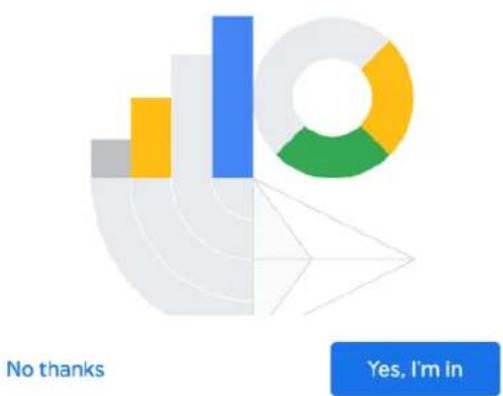
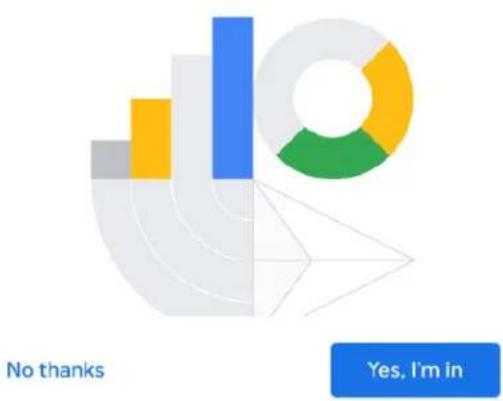
- Decide whether or not you would like to opt into Google's crash reports. There is no wrong answer!

Help improve Tivoli Audio Music System Home
Do you want to help improve everyone's experience by sharing device stats and crash reports with Google? Learn more
pie
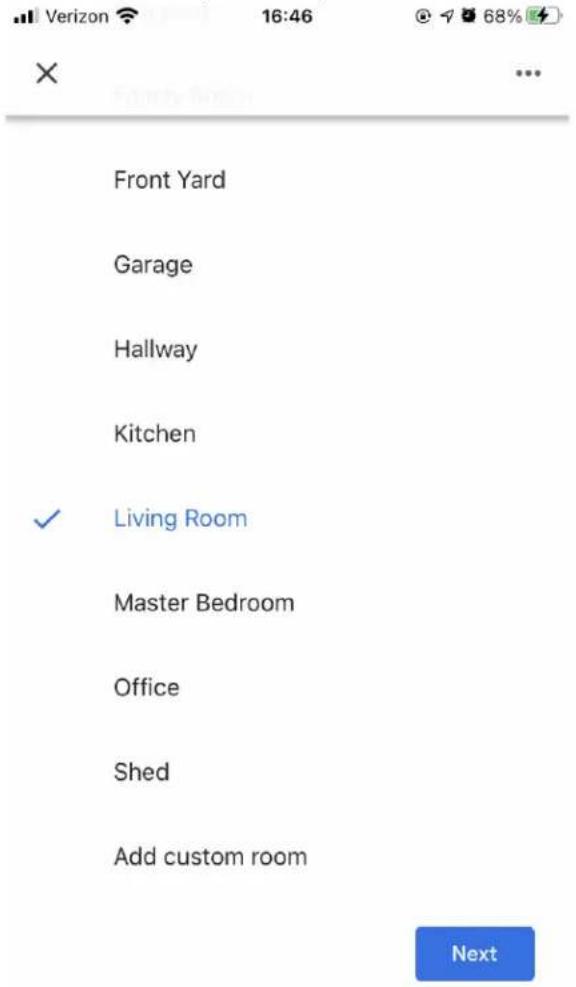
| Category | Value | |---|---| | Blue Bar | 100 | | Yellow Segment | 50 | | Green Segment | 40 | | Gray Segment | 30 | No thanks Yes, I'm in- Choose a location for your device, for example "Living Room". Select "Next".
-
Name your device whatever you would like to name it, and select "Next".
-
Select the WiFi network you would like your speaker to be on, and select "Next".

Connect to Wi-Fi
Choose the Wi-Fi network you'd like to use with your Tivoli Audio Music System Home.
Cancel
Next
- Wait while your Model One Digital connects to your WiFi network, until you briefly see "Connected" on your device's screen as well as "Connected" on the Model One Digital's screen.

Connected

natural_image
Abstract icon of a human figure composed of three colored shapes (yellow diamond, red semicircle, blue circle) stacked vertically (no text or symbols)- If you would like to link your Google account to your Model One Digital, you can choose to do so on this screen.
- After reading the disclaimers about Google Assistant, select "Next".
- If you wish to link any music services, can do so at this screen. If not, select "Not now".
- Your Model One Digital is ready to play music! Hit "Next", and then "Continue".
Once connected, stream the entertainment you love from your phone, tablet or laptop to your speaker.
Setting up your Model One Digital on WiFi with Apple AirPlay2
Requires an iPhone, iPad, or iPod touch with iOS 11.4 or later or Mac with iTunes 12.8 or later
- Turn on your unit by short pressing the power knob.
- On your radio, short press the power knob until the screen on the Model One Digital says "WiFi". Wait for the screen on the unit to show "WiFi Setup Enabled".
- On your iOS device, go to WiFi Settings. Make sure to connect your iOS device to the network that you intend to use your Model One Digital.
- Scroll down to "Set Up New AirPlay Speaker...", and select "M1D_XXXXXX".
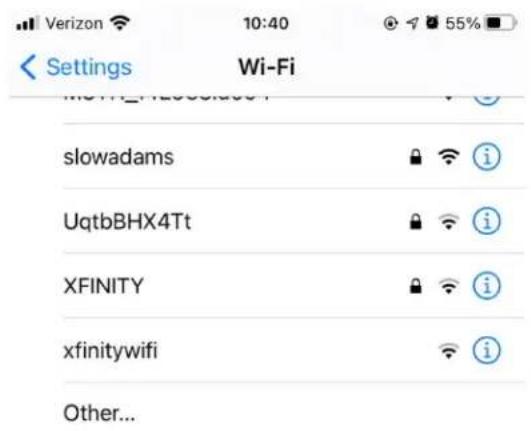
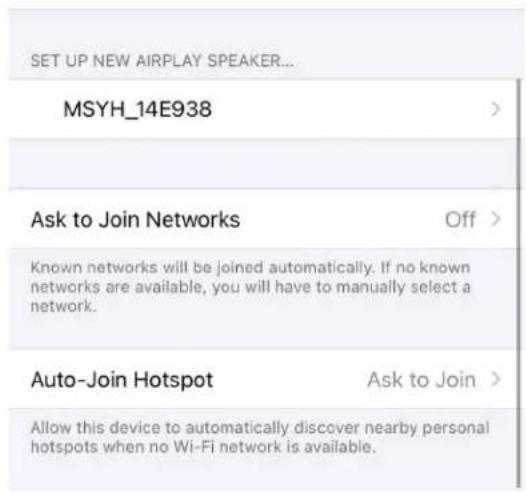
- Rename your speaker (recommended), and create a password (optional).
- Select "Next" and wait for the connection.
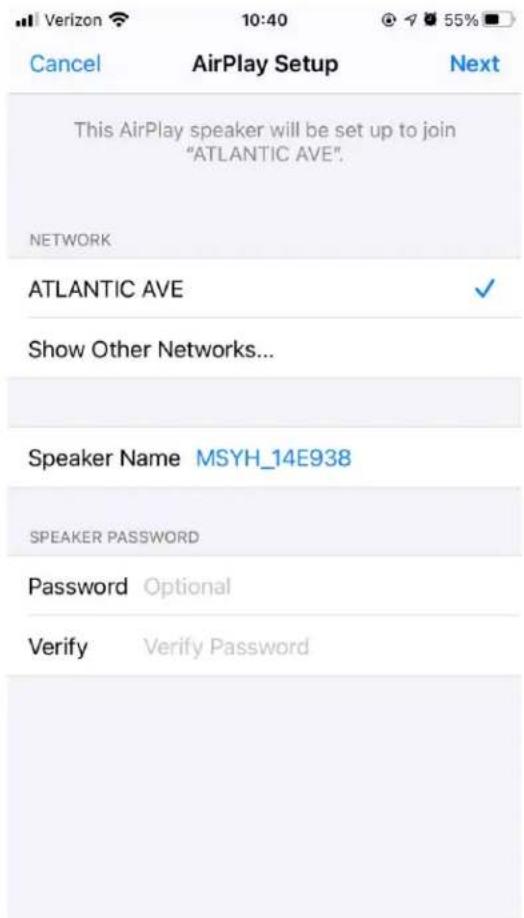
- Wait for the connection confirmation, select "Done".
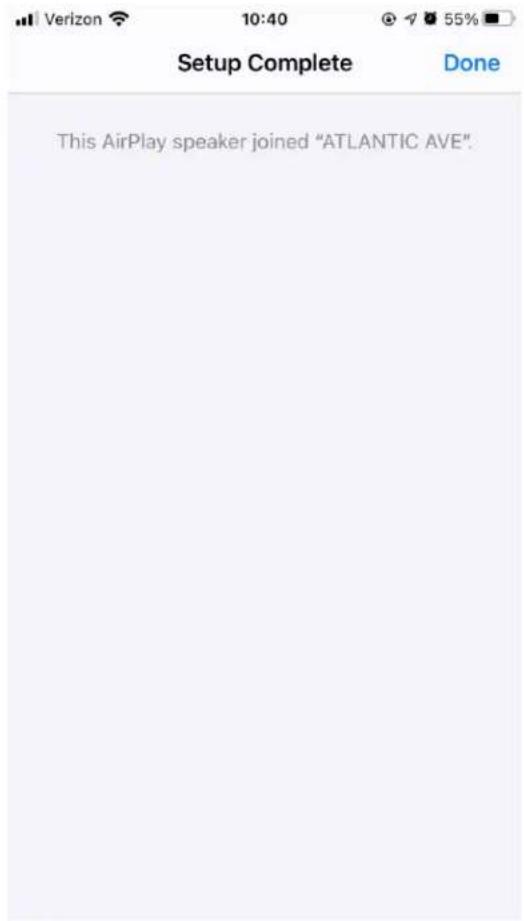
- Your speaker is now ready to use with AirPlay2. With AirPlay2, you're in control of your audio.
For additional support, please visit support.apple.com
How to use Chromecast built-in™:
- Open any Chromecast-enabled app.
- Select the CAST button in the app.
- Select the Model One Digital.
- Press the PLAY button in the app.
For additional support, please visit support.google.com/chromecast
How to use AirPlay 2:
- Connect your iOS device to the same network as your Model One Digital.
- On your iOS device, open the Control Center.
- Press and hold the audio card in the upper-right corner, then tap the AirPlay logo.
- Select your Model One Digital from the list of available AirPlay devices, and start playing.
For additional support, please visit support.apple.com
How to use Spotify Connect:
- Use your phone, tablet or computer as a remote control for Spotify. Go to spotify.com/connect to learn how.
Add a Spotify playlist to your presets: Use your remote to add a playlist to your saved presets. Simply press and hold the number preset you would like to use and wait for the on-screen confirmation. To delete the preset, hold down the number preset button on the remote control.
*The Model One Digital will need to be set up on WiFi using AirPlay2 or Google Home in order for Spotify Connect to operate. Spotify Connect may require a premium subscription account.
Bezel Control
While streaming any music source over WiFi, the Bezel wheel does the following:
Play/Pause: To play or pause music, short press the Bezel
Next Track: To go to the next track in an album or playlist, rotate the bezel right.
Previous Track: To go to the previous track in an album or playlist, rotate the bezel left.
Bluetooth Mode
Pairing
Your Model One Digital can act as a standalone Bluetooth speaker.
- On your radio, short press the POWER/SOURCE/VOLUME KNOB until the screen on the Model One Digital says "Bluetooth" in the upper left-hand corner.
- On your radio, hold the BEZEL until the screen on the Model One Digital says "Pairing Enabled" in the center.
- Go to the Bluetooth settings screen on your phone or tablet.
- Select the device that has a name similar to "M1D_XXXXX".
- Once the radio displays "Pairing Success" on its screen, you are paired to the radio.
- You can begin playing your music via Bluetooth.
Bezel Control
While streaming any music source over Bluetooth, the Bezel wheel does the following:
Play/Pause: To play or pause music, short press the Bezel
Next Track: To go to the next track in an album or playlist, rotate the bezel right.
Previous Track: To go to the previous track in an album or playlist, rotate the bezel left.
Enable Pairing: To enable pairing, press and hold the Bezel until screen displays "Pairing Enabled".
Auxiliary Mode
Your Model One Digital can be used as a standalone speaker. Simply use an 1/8" stereo cable to attach any line or headphone level source into the AUX input on the back of your radio. You can control the volume of the speaker using the volume control on the Model One Digital or with the volume control of your audio source.
FM/AM Mode
Bezel Control
Manual Tune Up: To manually tune up to a higher frequency station, rotate the bezel to the right.
Manual Tune Down: To manually tune down to a lower frequency station, rotate the bezel to the left.
Autoscan Up: To autoscan to a higher frequency, quickly double press the bezel.
Add a station to your preset stations: To add a station to your saved preset stations, press the bezel once. It is also possible to add presets by using your remote. Simply hold the number preset you would like to use and wait for on-screen confirmation. To delete the preset, either hold down the button on the remote or long press on the bezel control.
DAB/DAB+/DMB Mode
Bezel Control
Manual Tune Up: To manually tune up to a higher frequency station, rotate the bezel to the right.
Manual Tune Down: To manually tune down to a lower frequency station, rotate the bezel to the left.
Rescan: To rescan for all DAB stations, quickly double press the bezel.
Add a station to your preset stations: To add a station to your saved preset stations, press the bezel once.
Once added, you may access it using the remote. It is also possible to add presets by using your remote.
Simply hold the number preset you would like to use and wait for on-screen confirmation. To delete the preset, either hold down the button on the remote or long press on the bezel control.
Settings
Note: All of these functions are available through the remote using the ⚙️ option on the remote.
Clock Set
Manual Time Set: Press the ⚙️ on the remote, then use the navigation arrows until "Manual Time Set" appears onscreen.
Push the SELECT button. Select the hour by using the navigation arrows, and press SELECT to confirm. Do this again to select the minute, meridian, day, month, and year. To confirm, select YES then press the SELECT button.
Auto Time Enable: To allow your Model One Digital to update the time via WiFi, FM, or DAB, set to "Enable". Selecting "Disable" will require you to manually set the time.
Alarm Set
Press the ⚙️ on the remote, then use the navigation arrows until "Alarm Set" appears onscreen. Push the SELECT button on the remote. Select the hour by using the navigation arrows, and press SELECT to confirm. Do this again to select the minute, and whether you would like the alarm to be active. To confirm, select YES then press the SELECT button on the remote.
Sleep Time Set
Press the ⚙️ on the remote, then turn it until "Sleep Time Set" appears onscreen. Press the SELECT button on the remote. Select the hour by using the navigation arrows, and press SELECT to confirm. Do this again to select the minute. To confirm, select YES then press the SELECT button.
FM Scan Strength
In FM Mode, press the ⚙️ on the remote, then use the navigation arrows until “FM Scan Strength” appears onscreen. Press the SELECT button on the remote. Select the desired scan strength with the navigation arrows, then press the SELECT button to confirm.
FM Tuning Step
In FM Mode, press the ⚙️ on the remote, then use the navigation arrows until "FM Tuning Step" appears onscreen. Press the SELECT button on the remote. Select the desired tuning step for your region with the navigation arrows, then press the SELECT button to confirm.
RDS Data
In FM Mode, press the ⚙️ on the remote, then use the navigation arrows until “RDS Data” appears onscreen. Press the SELECT button on the remote. Select a setting by using the navigation arrows, then press the SELECT button to confirm.
Firmware Version
Press the ⚙️ on the remote, then use the navigation arrows until "FW Version" appears onscreen. Press SELECT to view the current firmware version.
Display Contrast Settings
Press the ⚙️ on the remote, then use the navigation arrows until “Contrast” appears onscreen. Push the SELECT button on the remote. Use the navigation arrows until the desired Contrast is achieved, then press the SELECT button to confirm.
Factory Reset
A Factory Reset will restore all features on Model One Digital to their default settings. Press the ⚙️ on the remote, then use the navigation arrows until "Factory Reset" appears onscreen. Push the SELECT button on the remote. Use the navigation arrows until the confirmation appears, then press the SELECT button to confirm.
Auto Power Off
This allows your Model One Digital to shut itself off if it is idle for a period of time. Press the 📋 on the remote, then use the navigation arrows until "Auto Power Off" appears onscreen. Press the SELECT button on the remote. Use the navigation arrows until the confirmation appears, then press the SELECT button to confirm. "Enable" will set the model to turn off after it is idle for a period of time. "Disable" will turn this feature off and your unit will always stay on until you manually power it off.
Bluetooth Info
Select this to view the Bluetooth firmware information of your unit.
Other Information
Firmware Updates
Your Model One Digital will have periodic software updates about every 4 months (and also possibly when you first use the product). The speaker will automatically update itself when it is connected to WiFi. No need to do anything!
Care
A dry cloth is recommended to clean the back and wooden cabinet of your Model One Digital. A lint roller can be used to clean the fabric on the front. Do not expose to water.
Limited Warranty
Tivoli Audio manufactures its products to very high standards and we are confident our products will perform well. Accordingly, we warranty our products against manufacturing defects in material and workmanship to the original owner, for a period of one year in the United States and two years in the European Union from the original date of purchase. For countries where minimum warranty terms are determined by statute, the warranty term is the statutory period required. In all other locations, the warranty term is one year.
This warranty does not extend to damage caused by improper installation, faulty ancillary equipment, modifications, unauthorized repair, shipping damage or loss, abuse, accidents, use on improper voltage/current, lightning or other acts of God, normal wear and tear, commercial use, or purchase from unauthorized dealers. Proof of purchase as evidence the unit was purchased from an authorized dealer within the warranty period may be required for warranty service. Should service be necessary, please do NOT return the product without first contacting your dealer or Tivoli Audio.
This warranty is non-transferable. Tivoli Audio will not pay for loss of time, inconvenience, loss of use of the product, or damages caused by this product.
This warranty gives you specific legal rights and you may also have other rights which vary from state to state. Some states do not allow limitations on implied warranties or the exclusion of consequential damages, therefore, these restrictions may not apply to you.
For more warranty information please visit us at www.tivoliaudio.com For European warranty information please visit www.tivoliaudio.eu
Licences
Google, Google Home and Chromecast built-in are trademarks of Google LLC.
Use of the Works with Apple badge means that an accessory has been designed to work specifically with the technology identified in the badge and has been certified by the developer to meet Apple performance standards.
The Spotify Software is subject to third party licenses found here: https://www.spotify.com/connect/third-party-licenses.
The Bluetooth® word mark and logos are registered trademarks owned by Bluetooth SIG, Inc. and any use of such marks by Tivoli Audio, Inc is under license. Other trademarks and trade names are those of their respective owners.
The Wi-Fi CERTIFIED™ Logo is a registered trademark of Wi-Fi Alliance®.
Willkommen
Vorderseite
Set up
Set up new devices or add existing devices and services to your home
New devices

Set up new devices
Google Home, Chromecast, Smart Displays, devices labeled Made for Google like C by GE smart bulbs, and Philips Hue Bluetooth (without Hue Bridge)
Works with Google

Have something already set up?
Link your smart home services like Philips Hue (with Hue Bridge) and TP-Link
Choose a home
You'll be able to control the devices and services in this home.

Tivoli
218 Newbury St, Boston, MA 02116, USA

Create another home

Nearby devices
Choose the device you would like to set up

Tivoli Audio Music System Home MSYH_14E938

Tivoli Audio Model One Digital Office speaker

Set up a different device
Not Now

Did you hear the sound?
This lets you know you're connected to the right Tivoli Audio Music System Home

natural_image
Abstract blue curved shape on white background with two gray dots (no text or symbols)Try Again

Help improve Tivoli Audio Music System Home
Do you want to help improve everyone's experience by sharing device stats and crash reports with Google? Learn more
Connect to Wi-Fi
Choose the Wi-Fi network you'd like to use with your Tivoli Audio Music System Home.
(
Cancel
Next
Connected

natural_image
Abstract icon of a human figure composed of three colored shapes (yellow diamond, red semicircle, blue circle) stacked vertically at the base (no text or symbols)Google, Google Home and Chromecast built-in are trademarks of Google LLC.
Use of the Works with Apple badge means that an accessory has been designed to work specifically with the technology identified in the badge and has been certified by the developer to meet Apple performance standards.
The Spotify Software is subject to third party licenses found here: https://www.spotify.com/connect/third-party-licenses.
The Bluetooth® word mark and logos are registered trademarks owned by Bluetooth SIG, Inc. and any use of such marks by Tivoli Audio, Inc is under license. Other trademarks and trade names are those of their respective owners.
The Wi-Fi CERTIFIED™ Logo is a registered trademark of Wi-Fi Alliance®.
Bienvenido
Panel Frontal
- Toca "Set up new devices in your home".

Set up
Set up new devices or add existing devices and services to your home
New devices

Set up new devices
Google Home, Chromecast, Smart Displays, devices labeled Made for Google like C by GE smart bulbs, and Philips Hue Bluetooth (without Hue Bridge)
Works with Google

Have something already set up?
Link your smart home services like Philips Hue (with Hue Bridge) and TP-Link
Choose a home
You'll be able to control the devices and services in this home.

Tivoli
218 Newbury St, Boston, MA 02116, USA

Create another home

Nearby devices
Choose the device you would like to set up

Tivoli Audio Music System Home MSYH_14E938

Tivoli Audio Model One Digital Office speaker

Set up a different device
Not Now

Did you hear the sound?
This lets you know you're connected to the right Tivoli Audio Music System Home

natural_image
Abstract blue curved logo on white background with two gray dots (no text or symbols)Try Again

Help improve Tivoli Audio Music System Home
Do you want to help improve everyone's experience by sharing device stats and crash reports with Google? Learn more
pie
No thanks Yes, I'm inConnect to Wi-Fi
Choose the Wi-Fi network you'd like to use with your Tivoli Audio Music System Home.
Cancel
Next
Connected

natural_image
Abstract geometric composition of three stacked colored shapes (yellow diamond, blue circle, green arch) with no text or symbolsGoogle, Google Home and Chromecast built-in are trademarks of Google LLC.
Use of the Works with Apple badge means that an accessory has been designed to work specifically with the technology identified in the badge and has been certified by the developer to meet Apple performance standards.
The Spotify Software is subject to third party licenses found here: https://www.spotify.com/connect/third-party-licenses.
The Bluetooth® word mark and logos are registered trademarks owned by Bluetooth SIG, Inc. and any use of such marks by Tivoli Audio, Inc is under license. Other trademarks and trade names are those of their respective owners.
The Wi-Fi CERTIFIED™ Logo is a registered trademark of Wi-Fi Alliance®.
Bienvenu
Panneau Avant
Set up
Set up new devices or add existing devices and services to your home
New devices

Set up new devices
Google Home, Chromecast, Smart Displays, devices labeled Made for Google like C by GE smart bulbs, and Philips Hue Bluetooth (without Hue Bridge)
Works with Google

Have something already set up?
Link your smart home services like Philips Hue (with Hue Bridge) and TP-Link
Choose a home
You'll be able to control the devices and services in this home.

Tivoli
218 Newbury St, Boston, MA 02116, USA

Create another home

Nearby devices
Choose the device you would like to set up

Tivoli Audio Music System Home MSYH_14E938

Tivoli Audio Model One Digital Office speaker

Set up a different device
Not Now

Did you hear the sound?
This lets you know you're connected to the right Tivoli Audio Music System Home

natural_image
Abstract blue curved logo on white background (no text or symbols)Try Again

Help improve Tivoli Audio Music System Home
Do you want to help improve everyone's experience by sharing device stats and crash reports with Google? Learn more
pie
No thanks Yes, I'm inConnect to Wi-Fi
Choose the Wi-Fi network you'd like to use with your Tivoli Audio Music System Home.
(
Cancel
Next
Connected

natural_image
Abstract geometric composition of three stacked colored shapes (yellow diamond, blue circle, green arch) with no text or symbolsGoogle, Google Home and Chromecast built-in are trademarks of Google LLC.
Use of the Works with Apple badge means that an accessory has been designed to work specifically with the technology identified in the badge and has been certified by the developer to meet Apple performance standards.
The Spotify Software is subject to third party licenses found here: https://www.spotify.com/connect/third-party-licenses.
The Bluetooth® word mark and logos are registered trademarks owned by Bluetooth SIG, Inc. and any use of such marks by Tivoli Audio, Inc is under license. Other trademarks and trade names are those of their respective owners.
The Wi-Fi CERTIFIED™ Logo is a registered trademark of Wi-Fi Alliance®.
Benvenuto
Pannello frontale
Set up
Set up new devices or add existing devices and services to your home
New devices

Set up new devices
Google Home, Chromecast, Smart Displays, devices labeled Made for Google like C by GE smart bulbs, and Philips Hue Bluetooth (without Hue Bridge)
Works with Google

Have something already set up?
Link your smart home services like Philips Hue (with Hue Bridge) and TP-Link
Choose a home
You'll be able to control the devices and services in this home.

Tivoli
218 Newbury St, Boston, MA 02116, USA

Create another home

Nearby devices
Choose the device you would like to set up

Tivoli Audio Music System Home MSYH_14E938

Tivoli Audio Model One Digital Office speaker

Set up a different device
Not Now

Did you hear the sound?
This lets you know you're connected to the right Tivoli Audio Music System Home

natural_image
Abstract blue curved shape on white background with two gray dots (no text or symbols)Try Again

Help improve Tivoli Audio Music System Home
Do you want to help improve everyone's experience by sharing device stats and crash reports with Google? Learn more

natural_image
Abstract geometric composition with colored bars and a donut shape (no text or symbols)No thanks
Yes, I'm in
Connect to Wi-Fi
Choose the Wi-Fi network you'd like to use with your Tivoli Audio Music System Home.
Cancel
Next
Connected

natural_image
Abstract icon of a human figure composed of three colored circles (yellow diamond, red semicircle, blue circle) stacked vertically at the base (no text or symbols)Google, Google Home and Chromecast built-in is a trademark of Google LLC.
Use of the Works with Apple badge means that an accessory has been designed to work specifically with the technology identified in the badge and has been certified by the developer to meet Apple performance standards.
The Spotify Software is subject to third party licenses found here: https://www.spotify.com/connect/third-party-licenses.
The Bluetooth® word mark and logos are registered trademarks owned by Bluetooth SIG, Inc. and any use of such marks by Tivoli Audio, Inc is under license. Other trademarks and trade names are those of their respective owners.
The Wi-Fi CERTIFIED™ Logo is a registered trademark of Wi-Fi Alliance®.
Welkom
Voorpaneel
Set up
Set up new devices or add existing devices and services to your home
New devices

Set up new devices
Google Home, Chromecast, Smart Displays, devices labeled Made for Google like C by GE smart bulbs, and Philips Hue Bluetooth (without Hue Bridge)
Works with Google

Have something already set up?
Link your smart home services like Philips Hue (with Hue Bridge) and TP-Link
Choose a home
You'll be able to control the devices and services in this home.

Tivoli
218 Newbury St, Boston, MA 02116, USA

Create another home

Nearby devices
Choose the device you would like to set up

Tivoli Audio Music System Home MSYH_14E938

Tivoli Audio Model One Digital Office speaker

Set up a different device
Not Now

Did you hear the sound?
This lets you know you're connected to the right Tivoli Audio Music System Home

natural_image
Abstract blue curved shape on white background with two gray dots (no text or symbols)Try Again

Help improve Tivoli Audio Music System Home
Do you want to help improve everyone's experience by sharing device stats and crash reports with Google? Learn more
pie
| Category | Value | |---|---| | Blue Bar | 100 | | Yellow Bar | 50 | | Green Circle | 30 | | Gray Bar | 20 | | No thanks | Yes, I'm in |Connect to Wi-Fi
Choose the Wi-Fi network you'd like to use with your Tivoli Audio Music System Home.
Cancel
Next
Connected

natural_image
Abstract icon of a human figure composed of three colored shapes (yellow diamond, blue circle, red semicircle) stacked vertically at the top (no text or symbols)Google, Google Home and Chromecast built-in are trademarks of Google LLC.
Use of the Works with Apple badge means that an accessory has been designed to work specifically with the technology identified in the badge and has been certified by the developer to meet Apple performance standards.
The Spotify Software is subject to third party licenses found here:https://www.spotify.com/connect/third-party-licenses.
The Bluetooth® word mark and logos are registered trademarks owned by Bluetooth SIG, Inc. and any use of such marks by Tivoli Audio, Inc is under license. Other trademarks and trade names are those of their respective owners.
The Wi-Fi CERTIFIED™ Logo is a registered trademark of Wi-Fi Alliance®.
Velkommen
Set up
Set up new devices or add existing devices and services to your home
New devices

Set up new devices
Google Home, Chromecast, Smart Displays, devices labeled Made for Google like C by GE smart bulbs, and Philips Hue Bluetooth (without Hue Bridge)
Works with Google

Have something already set up?
Link your smart home services like Philips Hue (with Hue Bridge) and TP-Link
Choose a home
You'll be able to control the devices and services in this home.

Tivoli
218 Newbury St, Boston, MA 02116, USA

Create another home

Nearby devices
Choose the device you would like to set up

Tivoli Audio Music System Home MSYH_14E938

Tivoli Audio Model One Digital Office speaker

Set up a different device
Not Now

Did you hear the sound?
This lets you know you're connected to the right Tivoli Audio Music System Home

natural_image
Abstract blue curved shape on white background with two gray dots (no text or symbols)Try Again

Help improve Tivoli Audio Music System Home
Do you want to help improve everyone's experience by sharing device stats and crash reports with Google? Learn more
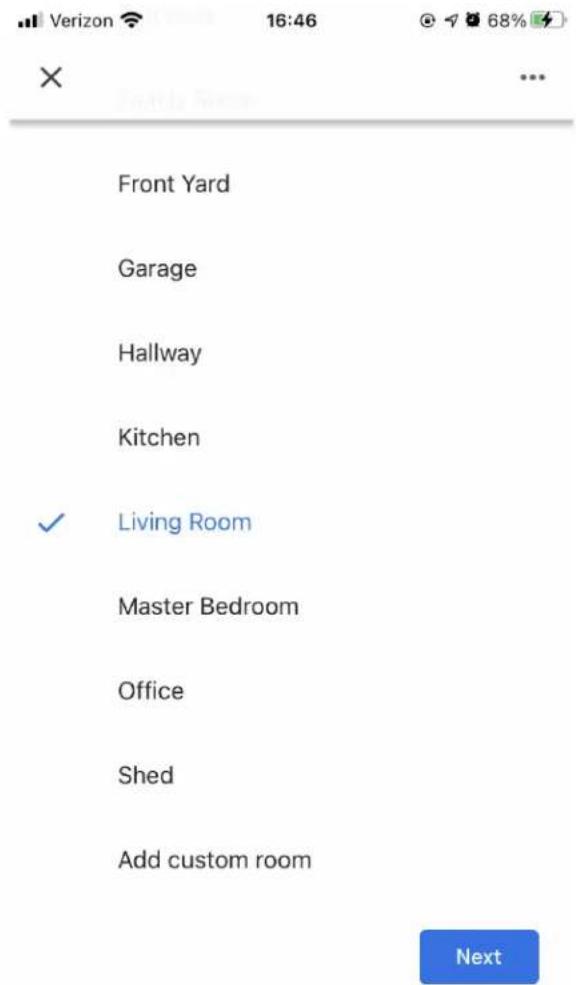
- Velg et sted for enheten din, for eksempel "Living Room". Velg "Neste".
Connect to Wi-Fi
Choose the Wi-Fi network you'd like to use with your Tivoli Audio Music System Home.
Cancel
Next
Connected

natural_image
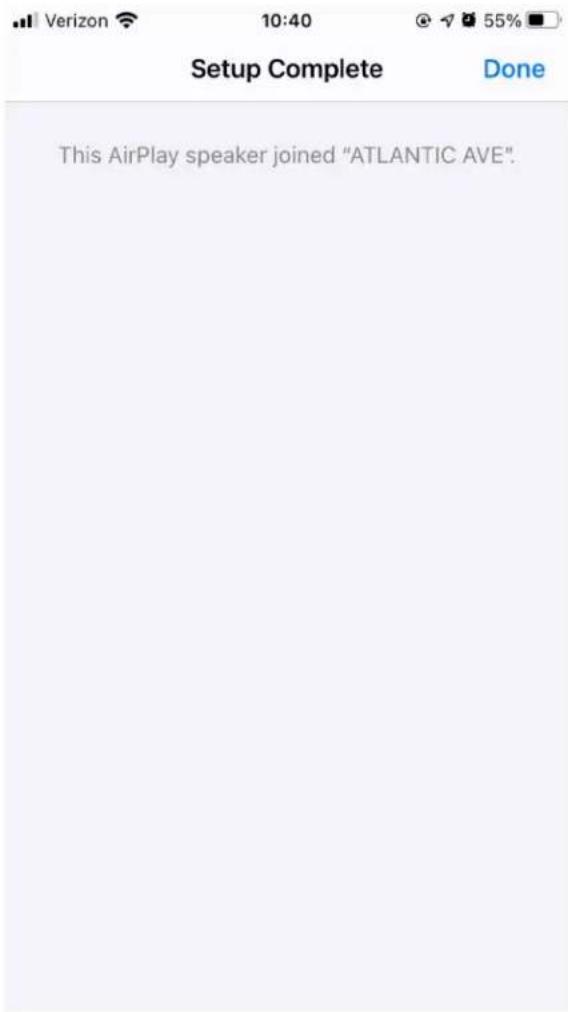
Abstract icon of a human figure composed of three colored circles (yellow diamond, red semicircle, blue circle) stacked vertically at the base (no text or symbols)- Vent på tilkoblingsbekreftelsen, velg "Ferdig".
Google, Google Home and Chromecast built-in are trademarks of Google LLC.
Use of the Works with Apple badge means that an accessory has been designed to work specifically with the technology identified in the badge and has been certified by the developer to meet Apple performance standards.
The Spotify Software is subject to third party licenses found here: https://www.spotify.com/connect/third-party-licenses.
The Bluetooth® word mark and logos are registered trademarks owned by Bluetooth SIG, Inc. and any use of such marks by Tivoli Audio, Inc is under license. Other trademarks and trade names are those of their respective owners.
The Wi-Fi CERTIFIED™ Logo is a registered trademark of Wi-Fi Alliance®.
Tervetuloa
Kiitos valinnastasi Tivoli Audio!
Model One Digital - Generation 2
Wi-Fi / DAB + * / FM / Bluetooth®-radio
X Add and manage ...
Add to home
+ Set up device
+ Add home member
Create speaker group
Create new home
Add services
Videos
Music
Radio
Live TV
Nest Aware
Set up
Set up new devices or add existing devices and services to your home
New devices

Set up new devices
Google Home, Chromecast, Smart Displays, devices labeled Made for Google like C by GE smart bulbs, and Philips Hue Bluetooth (without Hue Bridge)
Works with Google

Have something already set up?
Link your smart home services like Philips Hue (with Hue Bridge) and TP-Link
Choose a home
You'll be able to control the devices and services in this home.

Tivoli
218 Newbury St, Boston, MA 02116, USA

Create another home

Nearby devices
Choose the device you would like to set up

Tivoli Audio Music System Home MSYH_14E938

Tivoli Audio Model One Digital Office speaker

Set up a different device
Not Now

Did you hear the sound?
This lets you know you're connected to the right Tivoli Audio Music System Home

natural_image
Abstract blue curved shape on white background with two gray dots (no text or symbols)Try Again

Help improve Tivoli Audio Music System Home
Do you want to help improve everyone's experience by sharing device stats and crash reports with Google? Learn more

natural_image
Abstract geometric composition with colored bars and a donut shape (no text or symbols)No thanks
Yes, I'm in
Connect to Wi-Fi
Choose the Wi-Fi network you'd like to use with your Tivoli Audio Music System Home.
Cancel
Next
Connected

natural_image
Abstract icon of a human figure composed of three colored shapes (yellow diamond, red semicircle, blue circle) stacked vertically at the base (no text or symbols)Google, Google Home and Chromecast built-in are trademarks of Google LLC.
Use of the Works with Apple badge means that an accessory has been designed to work specifically with the technology identified in the badge and has been certified by the developer to meet Apple performance standards.
The Spotify Software is subject to third party licenses found here: https://www.spotify.com/connect/third-party-licenses.
The Bluetooth® word mark and logos are registered trademarks owned by Bluetooth SIG, Inc. and any use of such marks by Tivoli Audio, Inc is under license. Other trademarks and trade names are those of their respective owners.
The Wi-Fi CERTIFIED™ Logo is a registered trademark of Wi-Fi Alliance®.
Välkommen
X Add and manage ...
Add to home
+ Set up device
+ Add home member
Create speaker group
Create new home
Add services
Videos
Music
Radio
Live TV
Nest Aware
Set up
Set up new devices or add existing devices and services to your home
New devices

Set up new devices
Google Home, Chromecast, Smart Displays, devices labeled Made for Google like C by GE smart bulbs, and Philips Hue Bluetooth (without Hue Bridge)
Works with Google

Have something already set up?
Link your smart home services like Philips Hue (with Hue Bridge) and TP-Link
Choose a home
You'll be able to control the devices and services in this home.

Tivoli
218 Newbury St, Boston, MA 02116, USA

Create another home

Nearby devices
Choose the device you would like to set up

Tivoli Audio Music System Home MSYH_14E938

Tivoli Audio Model One Digital Office speaker

Set up a different device
Not Now

Did you hear the sound?
This lets you know you're connected to the right Tivoli Audio Music System Home

natural_image
Abstract blue curved shape on white background with two gray dots (no text or symbols)Try Again

Help improve Tivoli Audio Music System Home
Do you want to help improve everyone's experience by sharing device stats and crash reports with Google? Learn more

natural_image
Abstract geometric composition with colored bars and a donut shape (no text or symbols)No thanks
Yes, I'm in
Connect to Wi-Fi
Choose the Wi-Fi network you'd like to use with your Tivoli Audio Music System Home.
Cancel
Next
Connected

natural_image
Abstract icon of a human figure composed of three colored shapes (yellow diamond, red semicircle, blue circle) stacked vertically at the base (no text or symbols)Bluetooth-information
Google, Google Home and Chromecast built-in are trademarks of Google LLC.
Use of the Works with Apple badge means that an accessory has been designed to work specifically with the technology identified in the badge and has been certified by the developer to meet Apple performance standards.
The Spotify Software is subject to third party licenses found here: https://www.spotify.com/connect/third-party-licenses.
The Bluetooth® word mark and logos are registered trademarks owned by Bluetooth SIG, Inc. and any use of such marks by Tivoli Audio, Inc is under license. Other trademarks and trade names are those of their respective owners.
The Wi-Fi CERTIFIED™ Logo is a registered trademark of Wi-Fi Alliance®.
安全上のご注意は必ずお守りください
前面
Add to home
+ Set up device
+ Add home member
Create speaker group
Create new home
Add services
Videos
Music
Radio
Live TV
Nest Aware
Choose a home
You'll be able to control the devices and services in this home.

Tivoli
218 Newbury St, Boston, MA 02116, USA

Create another home

Nearby devices
Choose the device you would like to set up

Tivoli Audio Music System Home MSYH_14E938

Tivoli Audio Model One Digital Office speaker

Set up a different device
Not Now

Did you hear the sound?
This lets you know you're connected to the right Tivoli Audio Music System Home

natural_image
Abstract blue curved logo on white background with two gray dots (no text or symbols)Try Again

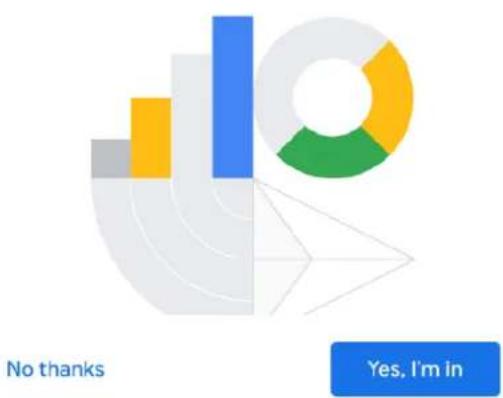
Help improve Tivoli Audio Music System Home
Do you want to help improve everyone's experience by sharing device stats and crash reports with Google? Learn more
pie
| Category | Value | |---|---| | Blue Bar | 100 | | Yellow Bar | 50 | | Green Circle | 75 | | White Circle | 25 |Connect to Wi-Fi
Choose the Wi-Fi network you'd like to use with your Tivoli Audio Music System Home.
Cancel
Next
- 接続確認後、「完了」を選択します。

https://www.spotify.com/connect/third-party-licenses.
전면 패널
Set up new devices or add existing devices and services to your home
New devices

Set up new devices
Google Home, Chromecast, Smart Displays, devices labeled Made for Google like C by GE smart bulbs, and Philips Hue Bluetooth (without Hue Bridge)
Works with Google

Have something already set up?
Link your smart home services like Philips Hue (with Hue Bridge) and TP-Link
Choose a home
You'll be able to control the devices and services in this home.

Tivoli
218 Newbury St, Boston, MA 02116, USA

Create another home
Next
Choose the device you would like to set up

Tivoli Audio Music System Home MSYH_14E938

Tivoli Audio Model One Digital Office speaker

Set up a different device
Not Now
Next
Did you hear the sound?
This lets you know you're connected to the right Tivoli Audio Music System Home

natural_image
Abstract blue curved logo on white background (no text or symbols)Try Again

Help improve Tivoli Audio Music System Home
Do you want to help improve everyone's experience by sharing device stats and crash reports with Google? Learn more

natural_image
Abstract graphic with geometric shapes and color-coded segments (no text or symbols)No thanks
Yes, I'm in
Connect to Wi-Fi
Choose the Wi-Fi network you'd like to use with your Tivoli Audio Music System Home.

Cancel
Next
Connected

natural_image
Abstract icon of a human figure composed of three colored shapes (yellow diamond, red semicircle, blue circle) stacked vertically at the base (no text or symbols)Google, Google Home and Chromecast built-in are trademarks of Google LLC.
Use of the Works with Apple badge means that an accessory has been designed to work specifically with the technology identified in the badge and has been certified by the developer to meet Apple performance standards.
The Spotify Software is subject to third party licenses found here:https://www.spotify.com/connect/third-party-licenses.
The Bluetooth® word mark and logos are registered trademarks owned by Bluetooth SIG, Inc. and any use of such marks by Tivoli Audio, Inc is under license. Other trademarks and trade names are those of their respective owners.
The Wi-Fi CERTIFIED™ Logo is a registered trademark of Wi-Fi Alliance®.
欢迎
感谢阁下惠顾 Tivoli Audio!
Model One Digital - Generation 2
Wi-Fi / DAB+* / FM / Bluetooth® Radio
前面板
- 点击“Set up new devices in your home”(家庭设置)

Set up
Set up new devices or add existing devices and services to your home
New devices

Set up new devices
Google Home, Chromecast, Smart Displays, devices labeled Made for Google like C by GE smart bulbs, and Philips Hue Bluetooth (without Hue Bridge)
Works with Google

Have something already set up?
Link your smart home services like Philips Hue (with Hue Bridge) and TP-Link
Choose a home
You'll be able to control the devices and services in this home.

Tivoli
218 Newbury St, Boston, MA 02116, USA

Create another home
Next
Nearby devices
Choose the device you would like to set up

Tivoli Audio Music System Home MSYH_14E938

Tivoli Audio Model One Digital Office speaker

Set up a different device
Not Now

Did you hear the sound?
This lets you know you're connected to the right Tivoli Audio Music System Home

natural_image
Abstract blue curved logo on white background (no text or symbols)Try Again

Help improve Tivoli Audio Music System Home
Do you want to help improve everyone's experience by sharing device stats and crash reports with Google? Learn more

natural_image
Abstract geometric design with colored bars and a donut chart (no text or symbols)No thanks
Yes, I'm in
Connect to Wi-Fi
Choose the Wi-Fi network you'd like to use with your Tivoli Audio Music System Home.
Cancel
Next
Connected

natural_image
Abstract icon of a human figure composed of three colored shapes (yellow diamond, red semicircle, blue circle) stacked vertically at the base (no text or symbols)SET UP NEW AIRPLAY SPEAKER...
MSYH_14E938
Ask to Join Networks
Off >
Known networks will be joined automatically. If no known networks are available, you will have to manually select a network.
Auto-Join Hotspot
Ask to Join >
Allow this device to automatically discover nearby personal hotspots when no Wi-Fi network is available.
- 等待连接确认·选择“完成”。

Google, Google Home and Chromecast built-in are trademarks of Google LLC.
Use of the Works with Apple badge means that an accessory has been designed to work specifically with the technology identified in the badge and has been certified by the developer to meet Apple performance standards.
The Spotify Software is subject to third party licenses found here: https://www.spotify.com/connect/third-party-licenses.
The Bluetooth ^® word mark and logos are registered trademarks owned by Bluetooth SIG, Inc. and any use of such marks by Tivoli Audio, Inc is under license. Other trademarks and trade names are those of their respective owners.
The Wi-Fi CERTIFIED™ Logo is a registered trademark of Wi-Fi Alliance®.
EU Declaration of Conformity
Manufacturer's Name: Tivoli Audio, Inc
Manufacturer's Address: 28 Atlantic Ave, Suite 133
Boston, MA 02110
United States of America
Declares under the sole responsibility that the
Product Name: Model One Digital Generation 2
Product Model Number: M1D2 / M1DP2
The product herewith complies with the essential requirements of the Radio Equipment Directive 2014/53/EU when installed and used in accordance with the manufacturer's instructions.
The Model One Digital Generation 2 complies with the following directives:
EMC
EN 55032: 2015/AC: 2016
EN 55035: 2017
EN 301 489 - 1 V2.2.3
EN 301 489 - 3 V2.1.1
EN 301 489 - 17 V3.2.3
Health
EN 62311:2008
Spectrum
EN 303 345 - 1 V1.1.1
EN 303 345 - 3 V1.1.0
EN 303 345 - 4 V1.1.0
EN 300 328 V2.2.2
EN 301 893 V2.1.1
EN 300 440 V2.2.1
Safety
EN 62368-1: 2014+A11: 2017

FCC Regulatory Conformance
This device complies with Part 15 of the FCC Rules. Operation is subject to the following two conditions:
(1) This device may not cause harmful interference.
(2) This device must accept any interference received, including interference that may cause undesired operation.
NOTE: This equipment has been tested and found to comply with the limits for a Class B digital device, pursuant to part 15 of the FCC Rules. These limits are designed to provide reasonable protection against harmful interference in a residential installation.
This equipment generates uses and can radiate radio frequency energy and, if not installed and used in accordance with the instructions, may cause harmful interference to radio communications. However, there is no guarantee that interference will not occur in a particular installation. If this equipment does cause harmful interference to radio or television reception, which can be determined by turning the equipment off and on, the user is encouraged to try to correct the interference by one or more of the following measures:
- Reorient or relocate the receiving antenna.
- Increase the separation between the equipment and receiver.
-Connect the equipment into an outlet on a circuit different from that to which the receiver is connected.
-Consult the dealer or an experienced radio/TV technician for help
NOTE: The manufacturer is not responsible for any radio or TV interference caused by unauthorized modifications to this equipment. Such modifications could void the user's authority to operate the equipment.
RF Exposure
This equipment complies with FCC radiation exposure limits set forth for an uncontrolled environment. This equipment should be installed and operated with minimum distance of 20 cm between the radiator and your body. This transmitter must not be co-located or operating in conjunction with any other antenna or transmitter.
IC Regulatory Conformance
This device complies with CAN ICES-003 (B)/NMB-003(B).
This device contains licence-exempt transmitter(s)/receiver(s) that comply with Innovation, Science and Economic Development Canada's licence-exempt RSS(s). Operation is subject to the following two conditions:
(1) This device may not cause interference.
(2) This device must accept any interference, including interference that may cause undesired operation of the device.
This equipment complies with IC radiation exposure limits set forth for an uncontrolled environment. This equipment should be installed and operated with minimum distance of 20 cm between the radiator and your body. This transmitter must not be co-located or operating in conjunction with any other antenna or transmitter.