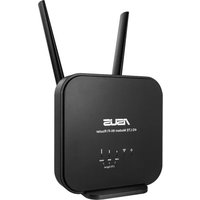
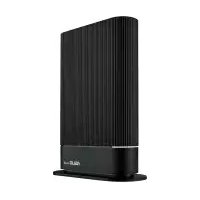
4GAX56 - Wireless Router ASUS - Free user manual and instructions
Find the device manual for free 4GAX56 ASUS in PDF.
User questions about 4GAX56 ASUS
0 question about this device. Answer the ones you know or ask your own.
Ask a new question about this device
Download the instructions for your Wireless Router in PDF format for free! Find your manual 4GAX56 - ASUS and take your electronic device back in hand. On this page are published all the documents necessary for the use of your device. 4GAX56 by ASUS.
USER MANUAL 4GAX56 ASUS
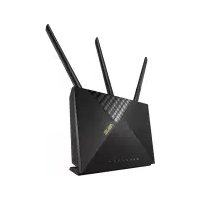
natural_image
Exterior view of a wireless router with three antennas and a checkered pattern on the cover (no visible text or symbols)F19878
Première Édition
Mars 2022
3.3 AiProtection....27
4.7 Administration....76
text_image
Technical diagram showing four steps of a car air conditioning or cooling system with labeled components and directional arrows.text_image
ASUS 4G-AX56 Skip Setup Wizard Quick Internet Setup Check Connection Internet Setup Router Setup Welcome to the ASUS Networking Family! ASUS 4G-AX56 • Experience the Fastnet 4G Performance • Built-in 4G LTE and Gigabit Ethernet dual-WAN connection for flexible home and office connectivity • High Performance Gigabit Switch with Turbo NAT • High level current usage for superior download, gaming performance and multi client connections. Manual Setting GOtext_image
Sign In 4G-AX56 Sign in with your ASUS router account Sign Intext_image
Back main page Quick Internet Setup Check Connection Internet Setup Router Setup Automatic IP connection setup Host Name(optional): 1 MAC Address(optional) 1 MAC Clone MAC (Media Access Control) address is a unique identifier that identifies your computer or device in the network. ISP's monitor the MAC addresses of devices that connect to their services, and would disallow internet connection for new MAC addresses. To fix this issue, you can do either of the following: • Contact your ISP and request to update the MAC address associated with your ISP subscription. Once this is done, you can run the router's setup wizard again. • Clone or change the MAC address of the new device to match the MAC address of the original device. If you just replaced an old router, you will find the old router's MAC address from its label. If you previously connected your computer to the modems, you will need to enter your computer's MAC address or click "MAC Clone" to done your computer's MAC address. Previous Nexttext_image
Skip Setup Wizard Quick Internet Setup Check Connection Internet Setup Router Setup Please refer to your ISP setting, and input the related information. Connect to DNS Server automatically ○ Yes ● No DNS Server1 7 DNS Server2 7 Previous Nexttext_image
Account Settings User Name Password Show password MAC Address(optional) MAC Clone Obtain the account name and password from your ISP. Previous Nexttext_image
Skip Setup Wizard Detecting your connection type Quick Internet Setup Check Connection Internet Setup Router Setup Please input the PIN code obtained from the internet service provider. PIN code Save My PIN Remaining Altampb. 3 OK
text_image
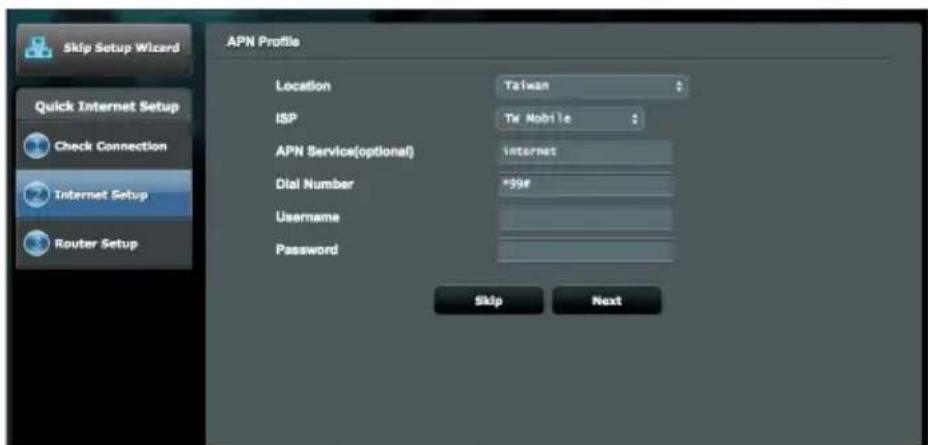
Skip Setup Wizard Quick Internet Setup Check Connection Internet Setup Router Setup APN Profile Location Taiwan ISP Tel Mobile APN Service(optional) Internet Dial Number *39# Username Password Skip NextEthernet WAN and mobile broadband (4G) Connection Status

Successfully connected to the Ethernet WAN network.
Notes: If you want to connect to the internet service via "mobile broadband (4G)", click "Configure Another WAN". The following process will guide you to complete the setting of the mobile broadband (4G).
Next
Ethernet WAN and mobile broadband (4G) Connection Status

Successfully connected to the mobile (4G) network.
Note: If you want to connect to the internet service via "Ethernet WAN", click "Configure Another WAN". The following process will guide you to complete the setting of the Ethernet WAN.
Next
-Do you want to use the previous wireless security settings? Yes No
Assign a unique name or SSID (Service Set Identifier) to help identify your wireless network.
2.4 GHz - Security
Network Name (SSID)
Password



5 GHz - Security
Network Name (SSID)
Password



Enter a network key between 8 and 63 characters/letters, numbers or a combination) or 54 hex digits. The default wireless security setting is WPA2-Personal AES. If you do not want to set the network security, leave the security key field blank, but this exposes your network to unauthorized access.
Apply
text_image
ASUS 4G-AX56 Skip Setup Wizard Quick Internet Setup Check Connection Internet Setup Router Setup Wireless Setting Do you want to use the previous wireless security settings? Yes No Assign a unique name or SSID (Service Set Identifier) to help identify your wireless network. 2.4 GHz - Security Network Name (SSID) Select/Select/USB Password ******** 6 Grids - Security Network Name (SSID) Select/Select/USB, PC Password ******** Enter a network key between B and S3 characterletters, numbers or a combination) or 64 hex digits. The default wireless security setting is WPA3-Personal AES. If you do not want to set the network security, leave the security key field blank, but this exposes your network to unauthorized access. Applytext_image
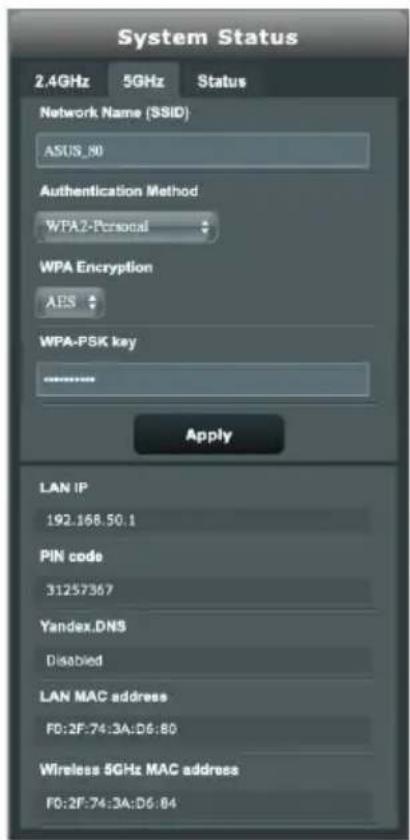
System Status 2.4GHz 5GHz Status Network Name (SSID) ASUS_80 Authentication Method WPA2-Personal WPA Encryption AES WPA-PSK key ****** Apply LAN IP 192.168.50.1 PIN code 31257362 Yandex.DNS Disabled LAN MAC address F0:2F;74:3A:D6:80 Wireless 2.4GHz MAC address F0:2F;74:3A:D6:80
text_image
System Status 2.4GHz 5GHz Status Network Name (SSID) ASUS_80 Authentication Method WPA2-Personal WPA Encryption AES WPA-PSK key Apply LAN IP 192.168.50.1 PIN code 31257367 Yandex.DNS Disabled LAN MAC address FD:2F:74:3A:D6:80 Wireless 5GHz MAC address FD:2F:74:3A:D6:84text_image
Guest Network Free Wi-Fi Captive Portal Guest Network The Guest Network provides internet connection for guests but restricts access to your local network. 2.4GHz Network Name (SSID) Authentication Method Network Key Enable Enable Enable Time Remaining Default setting by Alexa Access Intranet 5GHz Network Name (SSID) Authentication Method Network Key Enable Enable Enable Time Remaining Default setting by Alexa Access Intranettext_image
Guest Network The Guest Network provides internet connection for guests but restricts access to your local network. Guest Network Index Hide SSID Yes No Network Name (SSID) ASUS_90_2G_Guest Authentication Method WPA2_Personal WPA Encryption ABS WPA Pre-Shared Key beows_4739 Access time 0 days hour(s) minute(s) Unlimited access Bandwidth Limber Yes No Access Intranet Disable Enable MAC Filter Disable Cancel Applytext_image
ASUS 4G-AX56 Logost Reboot English Operation Mode: Wireless router: Firmware Version: 1.0.0.4.187_41285 SSID: 000000000003366 00000000005168_16 Network Protection Malicious Sites Blocking Infected Device Prevention and Blocking Parental Controls AIProtection Network Protection with Trend Micro protects against network exploits to secure your network from unwanted access. AIProtection FAQ Enabled AIProtection OFF Router Security Assessment Scan your router to find vulnerabilities and offer available options to enhance your device protection. Scan Danger Malicious Sites Blocking Restricted access to known malicious websites to protect your network from malware, phishing, spem, adverse, hacking, and ransomware attacks. ON Protection Infected Device Prevention and Blocking This feature prevents infected devices from being enslaved by botinets or zombie attacks which might steal your personal information or attack other devices. ON Protection Alert Preference TREND TREND Help & Support Manual | Utility | Product Registration | Feedback FAQ 2020 ASUStak Computer Inc. All rights reserved.text_image
ASUS 4G-AX56 Operation Mode: Wireless router. Firmware Version: 3.0.0.4.382.41285 SSID: 00000000005566 00000000005566.56 Network Protection Malicious Sites Blocking Infected Device Prevention and Blocking Parental Controls AIProtection Network Protection with Trend Micro protects against network exploits to secure your network from unwanted access. AIProtection FAQ Enabled AIProtection OFF Router Security Assessment Scan your router to find vulnerabilities and offer available options to enhance your devices protection Scan Danger Malicious Sites Blocking Restrict access to known malicious websites to protect your network from malware, phishing, spam, adware, hacking, and ransomware attacks. On Protection Infected Device Prevention and Blocking This feature prevents infected devices from being enslaved by botnets or zombe attacks which might steal your personal information or attack other devices. On Protection Alert Preference TREND ITEMS Help & Support Manual | Utility Product Registration Feedback FAQtext_image
Router Security Assessment Default router login username and password changed - No Wireless password strength check - Very Weak Wireless encryption enabled - Weak WPS disabled - Yes UPnP service disabled - No Web access from WAN disabled - Yes PING from WAN disabled - Yes DMZ disabled - Yes Port trigger disabled - Yes Port forwarding disabled - Yes Anonymous login to FTP share disabled - Yes Disable guest login for Network Place Share - Yes Malicious Website Blocking enabled - No Vulnerability Protection enabled - No Infected Device Prevention and Blocking - No Close Secure Your Routertext_image
ASUS 4G-AX56 Layout Reboot English Operation Mode: Wireless router. Firmware Version: 1.0.0.4.382_41283 SSID: 000000000005566 000000000005566_5G Network Protection Maintenance Sites Blocking Selected Device Prevention and Blocking Parental Controls AIProtection - Time Scheduling Time Scheduling allows you to set up time limits for a specific client's network usage: 1. In the [Clients Name] column, select the client whose network usage you want to control. You may also key in the clients MAC address in the [Clients MAC Address] column. 2. In the [Add / Delete] column, click the plus(+) icon to add the client. 3. In the [Time Management] column, click the edit icon to edit the Active Schedule. 4. Select your time slot with a click. You can hold and drag to extend the duration. 5. Click [OK] to save the settings made. Note: 1. Clients that are added to Parental Controls will have their internet access restricted by default. 2. Please disable NAT Acceleration for more precise scheduling control. Enable Time Scheduling ON System Time Mon, Jan 17 18:15:42 2022 Client List (Max Limit : 16) Select all Client Name (MAC Address) Time Management Add / Delete TIEO - + No data in table Apply Help & Support Manual | Utility Product Registration Feedback FAQPlanification horaire
text_image
ASUS 4G-AX56 Logout Reboot English Operation Mode: Wireless router Firmware Version: 1.0.0.4.382.41285 SSID: 0000000000556E 0000000000556E 5G QoS - Traffic Manager Traffic Manager - QoS Quality of Service (QoS) ensures bandwidth for prioritized tasks and applications • Traditional QoS ensures inbound and outbound bandwidth on both wired and wireless connections for prioritized applications and tasks via manual user-defined parameters. • Bandwidth Limiter lets you set limits on download and upload speeds. To enable QoS function, click the QoS side switch and fill in the upload and download. QoS FAQ Enable QoS ON QoS Type Traditional QoS Bandwidth Limiter Bandwidth Setting Automatic Setting Manual Setting Applytext_image
ASUS 4G-AX56 Logout Reboot English Operation Mode: Wireless router. Firmware Version: 1.0.0.4.382.412KB SSID: 00000000005166 00000000005166.Sc QoS Traffic Monitor Traffic Monitor Real-time Traffic Monitor allows you to monitor the incoming or outgoing packets of the following: Internet Wizard Wireless Receipts Recurring foreign packets Recurring packets from wireless referral Recurring packets from wireless network Transmission Outgoing foreign packets Outgoing packets to wireless network Scale KB NOTE: Packets from the Internet are overly transmitted to the wind and wireless devices. Traffic Monitor FAQ Internet Connection (WAN) Wired Wireless 17.50 KB/s WAN Max 06:15 pm / 37.50 KB/s 26.25 KB/s 18.75 KB/s 9.38 KB/s Current Average Maximum Total 7.71 KB/s 0.31 KB/s 11.50 KB/s 180.48 KB 1.73 KB/s 0.03 KB/s 4.37 KB/s 19.78 KB Help & Support Manual | Utility | Product Registration | Feedback FAQtext_image
General WPS WOS Wireless MAC Filter RADIUS Setting Professional Wireless - General Set up the wireless related information below. Band 2.4GHz SSID ASUS Hide SSID Yes No Wireless Mode Auto big Protection Channel bandwidth 40 MHz Control Channel 3 Extension Channel Above Authentication Method WPA2-Personal WPA Encryption AES WPA Pro-Shared Key 99999999 Network Key Rotation Interval 3600 Applytext_image
General WPS WDS Wireless MAC Filter RADIUS Setting Professional Wireless - WPS WPS (Wi-Fi Protected Setup) provides easy and secure establishment of a wireless network. You can configure WPS here via the PIN code or the WPS button. Enable WPS OFF Current Frequency 2.4GHz Switch Frequency Connection Status Not used Configured Yes AP PIN Code 31257367 Wireless - WPS WPS (Wi-Fi Protected Setup) provides easy and secure establishment of a wireless network. You can configure WPS here via the PIN code or the WPS button. Enable WPS OFF Current Frequency 5GHz Switch Frequency Connection Status Not used Configured Yes AP PIN Code 31257367text_image
General WPS WDS Wireless MAC Filter RADIUS Setting Professional Wireless - Bridge Bridge (or named WDS - Wireless Distribution System) function allows your 4G-AC55U to connect to an access point wirelessly. WDS may also be considered a repeater mode. But with this method, the devices connected to the access point will only be able to use half of the access point's original wireless speed. Note: The function only support [Open System/NONE, Open System/WEP] security authentication method. To enable WDS to extend the wireless signal, please follow these steps : 1. Select [WDS Only] or [Hybrid] mode and add MAC address of APs in Remote AP List. 2. Ensure that this wireless router and the AP you want to connect to use the same channel. 3. Key in the remote AP mac in the remote AP list and open the remote AP's WDS management interface, key in the this router's MAC address. 4. To get the best performance, please go to Advanced Settings > Wireless > General and assign the same channel bandwidth, control channel, and extension channel to every router in the network. Basic Config 2.4GHz MAC AC:9E:17:56:6F:48 5GHz MAC AC:9E:17:56:6F:4C Band 2.4GHz ; AP Mode AP Only ; Connect to APs In List Yes No Remote AP List (Max Limit : 4) Remote AP List Add / Delete No data in table. Applytext_image
General WPS WDS Wireless MAC Filter RADIUS Setting Professional Wireless - Wireless MAC Filter Wireless MAC filter allows you to control packets from devices with specified MAC address in your Wireless LAN. Basic Config Band 2.4GHz Enable MAC Filter Yes No MAC Filter Mode Accept MAC filter list (Max Limit : 64) MAC filter list Add / Delete No data in table. Applytext_image
General WPS WDS Wireless MAC Filter RADIUS Setting Professional Wireless - RADIUS Setting This section allows you to set up additional parameters for authorizing wireless clients through RADIUS server, it is required while you select "Authentication Method" in "Wireless - General" as "WPA-Enterprise/ WPA2-Enterprise/ Radius with 802.1x". Band 2.4GHz $ Server IP Address Server Port: 1812 Connection Secret Applytext_image
General WPS WDS Wireless MAC Filter RADIUS Setting Professional Wireless - Professional Wireless Professional Setting allows you to set up additional parameters for wireless. But default values are recommended. * Reminder: The System time zone is different from your scale setting. Band SOLTs Enable Radio Yes No Enable wireless scheduler Yes No Set AP Isolated Yes No Enable ICMP Snooping Disable Multicast Rate(Mbps) Auto Preamble Type Long RTS Threshold 24T DTIM Interval 1 Beacon Interval 100 Enable TX Burbling Disable Enable Packet Aggregation Enable Enable WMM Enable Enable WMM No-Acknowledgement Disable Enable WMM APSD Enable Enable WMM DLS Disable Airtime Fairness Disable Multi-User MIMO Enable 802.1Mac Beamforming Enable Universal Beamforming Disable Tx power adjustment Performance Applytext_image
Logout Reboot Operation Mode: Wireless router Firmware Version: 3.0.0.4.378.2516 SSID: A915 A915 SG-1 A915 SG-2 LAN IP DHCP Server Route IPTV Switch control LAN - LAN IP Configure the LAN setting of 4G-AX56. IP Address 192.168.1.1 Subnet Mask 255.755.255.0 Applytext_image
ASUS 4G-AX56 Logout Reboot English Operation Mode: Wireless Router. Firmware Version: 3.0.0.4.187.41285 SSID: 00000000005568 00000000005568_5G LAN IP DHCP Server Route IPTV Switch Control LAN - DHCP Server DHCP (Dynamic Host Configuration Protocol) is a protocol for the automatic configuration used on IP networks. The DHCP server can assign each client an IP address and informs the client of the DNS server: IP and default gateway IP: 4G-AX56 supports up to 255 IP addresses for your local network. Manually Assigned IP around the DHCP list FAQ Basic Config Enable the DHCP Server Yes No 4G-AX56's Domain Name IP Pool Starting Address 192.168.1.2 IP Pool Ending Address 192.168.1.254 Lease time 49400 Default Gateway DNS and WINS Server Setting ONS Server WINS Server Manual Assignment Enable Manual Assignment Yes No Manually Assigned IP around the DHCP list (Max Limit : 64) Client Name (MAC Address) IP Address DNS Server (Optional) Add / Delete data in table. Apply Help & Support Manual | Utility | Product Registration | Feedback FAQtext_image
LAN IP DHCP Server Route IPTV Switch Control LAN - Route This function allows you to add routing rules into 4G-AX56. It is useful if you connect several routers behind 4G-AX56 to share the same connection to the Internet. Basic Config Enable static routes Yes No Static Route List (Max Limit : 32) Network/Host IP Network Gateway Metric Interface Add / Delete LAN No data in table. Applytext_image
LAN IP DHCP Server Route IPTV Switch Control LAN - IPTV To watch IPTV, the WAN port must be connected to the Internet. Please go to WAN - Dual WAN to confirm that WAN port is assigned to primary WAN. Port Select ISP Profile None Choose IPTV STB Port None Special Applications Use DHCP routes Microsoft Enable multicast routing (IGMP Proxy) Disable Enable efficient multicast forwarding (IGMP Snooping) Disable UDP Proxy (Udpxy) 0 Applytext_image
LAN IP DHCP Server Route IPTV Switch Control LAN - Switch Control Setting 4G-AX56 switch control Jumbo Frame Enable NAT Acceleration Autotext_image
Internet Connection Dual WAN Port Trigger Virtual Server / Port Forwarding DMZ DDNS NAT Passthrough WAN - Mobile Broadband 4G-AX56 can establish Internet connection via Ethernet WAN, Mobile Broadband or LAN as WAN. Select the interface for your Internet connection from the WAN Interface dropdown list. You can enable the dual WAN connection and change the priorities of the WAN interfaces from the [Dual WAN] tab. WAN Index WAN Interface Mobile Broadband Enable Mobile Broadband Enable Mobile Broadband Modem Information Modem software version 16121.1000.00.01.01.32 Reset Modem Reboot Modem IMEI 86335040013027 Configure the Mobile Broadband settings of 4G-AX56. SIM PIN Management USIM Card Status Failed to read the SIM card Applytext_image
APN Profile APN Configuration Auto APN Service(optional) Gent Dial Number *99# Username Password Authentication None
text_image
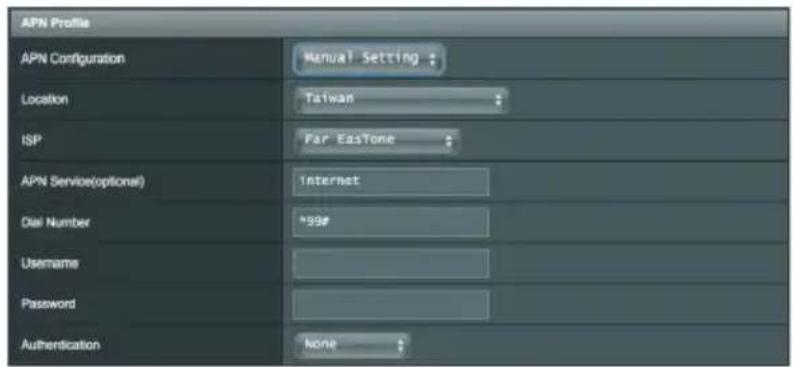
APN Profile APN Configuration Manual Setting : Location Taiwan ISP Far Eastone APN Service(optional) Internet Dial Number *99# Username Password Authentication none6. Configuration APN
text_image
SIM PIN Management USIM Card Status SIM card is ready. PIN Verification Disable:text_image
SIM PIN Management USIM Card Status PIN code is required. 1234 Save My PIN OK PIN code Remaining Attempts: 3text_image
SIM PIN Management USIM Card Status SIM card is ready. PIN Verification Enable PIN Modification Modify
text_image
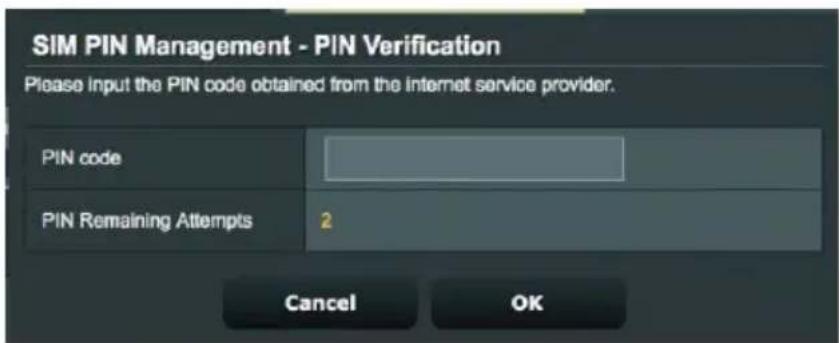
SIM PIN Management - PIN Verification Please input the PIN code obtained from the internet service provider. PIN code PIN Remaining Attempts 2 Cancel OKtext_image
Internet Connection Connection status Connected Network Type Auto POP Type IPv4 LTE Band Auto Rooming Disabletext_image
ASUS 4G-AX56 Logout Reboot English Operation Mode: Wireless router: Firmware Version: 3.0.0.4.587_41281 SSID: 00000000005566 00000000005566L56 Internet Connection Dual WAN Port Trigger Virtual Server / Port Forwarding DMZ DONS NAT Postthrough WAN - Mobile Broadband eQ-AX56 can establish Internet connection via Ethernet WAN, Mobile Broadband or LAN as WAN. Select the Interface for your Internet connection from the WAN interface dropdown list. You can enable the dual WAN connection and change the priorities of WAN - Mobile Connection Status This page displays basic device information, internet connection status and internet usage. Product Information Model Name 4G-AX56 RMSI ROCD Phone Number +000975016935 Windows Status Call ID 4C0D420 Connection Type LTE Band 3.0 RSRP 50 dikes RSIRQ 23 dikes LAG 3685 Internet Usage Connection Status Connecting SIM Provider Network Provider LTE Data Usage Data Sent Data Received Connection Time 9 days (4 hours) (1 second) 0 seconds. Close Username: Password: Authentication: None SIM PIN Management USB Card Status SIM card a copy. PIN Verification Enable Applytext_image
ASUS 4G-AX56 Logout Reboot English Operation Mode: Wireless router: Firmware Version: 3.0.0.4.382_41283 SSID: 00000000003166 00000000003169_36 Internet Connection Dual WAN Port Trigger Virtual Server / Port Forwarding CRC DURS NAT ReadThrough WAN - Dual WAN 4G-AX56 provides Dual WAN support. Select Follower mode to use a secondary WAN for backup network access. Select Load Balance mode to optimize bandwidth, maximize throughput, minimize response time, and prevent data overload for both WAN connectors. Dual WAN FAQ Basic Config Enable Dual WAN ON Primary WAN Mobile Broadband Secondary WAN WAN Dual WAN Mode Fail Over ▼ Area feedback Hot Connectivity Disable Audio Network Detection Detailed replacement are available on Per AUSB Support Fee FAQ which may help you use the function efficiency Detect Interval Every 1 search Follower Trigger Condition When the current WAN fails 12 continuous times, Delivered to Secondary WAN Network Monitoring DNS Query ▼ Ping Apply Help & Support Manual Utility Product Registration Feedback FAQtext_image
Network Monitoring DNS Query Ping Resolve Hostname dns.esFtncs1.com Resolved IP Addresses 131.107.255.255 112.4.20.71 fdJe:4f5a:5b81::1text_image
Network Monitoring DINS Query Ping Ping Target www, Facebook .comtext_image
Internet Connection Dusl WAN Port Trigger Virtual Server / Port Forwarding DMZ DDNS NAT Passthrough WAN - Port Trigger Port Trigger allows you to temporarily open data ports when LAN devices require unrestricted access to the Internet. There are two methods for opening incoming data ports: port forwarding and port trigger. Port forwarding opens the specified data ports all the time and devices must use static IP addresses. Port trigger only opens the incoming port when a LAN device requests access to the trigger port. Unlike port forwarding, port trigger does not require static IP addresses for LAN devices. Port forwarding allows multiple devices to share a single open port and port trigger only allows one client at a time to access the open port. Port Trigger FAQ Basic Config Enable Port Trigger Yes No Well-Known Applications Please select Trigger Port List (Max Limit : 32) Description Trigger Port Protocol Incoming Port Protocol Add / Delete TCP: No data in table. Applytext_image
Internet Connection Dual WAN Port Trigger Virtual Server / Port Forwarding DMZ DONS NAT Passthrough WAN - Virtual Server / Port Forwarding Virtual Server / Port forwarding allows remote computers to connect to a specific computer or service within a private local area network (LAN). For a faster connection, some P2P applications (such as BitTorrent), may also require that you set the port forwarding setting. Please refer to the P2P application's user manual for details. You can open the multiple port or a range of ports in router and redirect data through those ports to a single client on your network. If you want to specify a Port Range for clients on the same network, enter the Service Name, the Port Range (e.g. 10200:10300), the LAN IP address, and leave the Local Port empty. • When your network's firewall is disabled and you set 80 as the HTTP server's port range for your WAN setup, then your http server/web server would be in conflict with 4G-AC55U's web user interface. • When you set 20:21 as your FTP server's port range for your WAN setup, then your FTP server would be in conflict with 4G-AC55U's native FTP server. Virtual Server / Port Forwarding FAQ Basic Config Enable Port Forwarding Yes No Famous Server List Please select : Famous Game List Please select : FTP Server Port 2021 Port Forwarding List (Max Limit : 32) Service Name Port Range Local IP Local Port Protocol Add / Delete TCP No data in table. Apply- Local IP (Adresse IP locale): Adresse IP locale du client.
text_image
Internet Connection Dual WAN Port Trigger Virtual Server / Port Forwarding DMZ DDNS NAT Passthrough WAN - DMZ Virtual DMZ allows you to expose one computer to the Internet, so that all the inbound pockets will be redirected to the computer you set. It is useful while you run some applications that use uncertained incoming ports. Please use it carefully. Special Applications: Some applications require special handler against NAT. These special handlers are disabled in default DMZ_FAQ Enable DMZ ● Yes ● No IP Address of Exposed Station Applytext_image
Internet Connection Dual WAN Port Trigger Virtual Server / Port Forwarding DMZ DONS NAT Passthrough WAN - DDNS DDNS (Dynamic Domain Name System) is a service that allows network clients to connect to the wireless router, even with a dynamic public IP address, through its registered domain name. The wireless router is embedded with the ASUS DDNS service and other DDNS services. The wireless router currently uses a private WAN IP address (192.168.xx, 10.xx,x, or 172.16.xx). This router may be in the multiple-NAT environment and DDNS service cannot work in this environment. Enable the DDNS Client Yes No Server WIN.ASUS.COM Host Name Key in the name asuscomm.com Apply4.3.8 NAT Passthrough
text_image
Internet Connection Dual WAN Port Trigger Virtual Server / Port Forwarding DMZ DDNS NAT Passthrough WAN - NAT Passthrough Enable NAT Passthrough to allow a Virtual Private Network (VPN) connection to pass through the router to the network clients. PPTP Passthrough Enable L2TP Passthrough Enable IPSec Passthrough Enable RTSP Passthrough Enable H.323 Passthrough Enable SIP Passthrough Enable PPPoE Relay Disable FTP_ALG Port 2021 Apply4.4 IPv6 (Protocole IPv6)
text_image
ASUS 4G-AX56 Quick Internet Setup General Network Map Guest Network AirProtection Traffic Manager SMS Advanced Settings Wireless LAN WAN Amazon Alexa IPv6 VPN Firewall Administration System Log Legend Reboot English Operation Mode: wireless_rester: Firefox Version: 3.0.0.4.387.41285 SSID: 00000000005346 00000000005346_5G VPN Server VPN Client VPN Server - PPTP The wireless router currently uses a private WAN IP address (192.198.x.x, 10.x.x.x or 172.198.x.x). Please refer to the FAQ and set up the port forwarding. Basic Config Enable PPTP VPN Server ON VPN Options Central 1 Network Price (Symbol) Support Open Web The VPN server allows you to access your home network anytime, anywhere. To use the VPN server. Please follow these steps. (1) Enable the PPTP VPN server (2) Set the IP port for client IP (Maximum 10 clients) (3) Set up the username and password for VPN client (4) Open the VPN connection program on your computer or smartphone (5) Add a new PPTP VPN connection and the VPN server address to 192.198.123.128 (6) If your WAN IP address is dynamic, please click here to set the BIOS. (7) If you cannot use ASUS ODNS services, please go to http://eEtoolus.anss.com/msToolus.ahg to reach your Internet IP address to use the service. • VPN Server - FAQ Username and Password (Max Limit : 16) Connection Status Username Password Add / Delete Edit to data in table. Applytext_image
Operation Mode: System Firmware Upgrade Restore/Save/Upload Setting Feedback Privacy Administration - Operation Mode 4G-AX56 supports several operation modes to meet different requirements. Please select the mode that match your situation. ● Wireless router mode (Default) ● Access Point(AP) mode In wireless router/ IP sharing mode, 4G-AX56 connects to the Internet via PPPoE, DHCP, PPTP, L2TP, or Static IP and shares the wireless network to LAN clients or devices. In this mode, NAT, firewall, and DHCP server are enabled by default. UPnP and Dynamic DNS are supported for SOHO and home users. Select this mode if you are a first-time user or you are not currently using any wired/worstless routers. Savetext_image
Operation Mode System Firmware Upgrade Restore/Save/Upload Setting Feedback Privacy Administration - System Change the router login password, time zone, and NTP server settings. Change the router login password Router Login Name admin New password Rotype Password Show password Enable Login Captcha Yes No Basic Config Time Zone (GMT) Greenwich Mean Time * Reminder: The System time zone is different from your locale setting. NTP Server poolarp.org NTP Link Network Monitoring DNS Query Ping Auto Logout 30 minute(s) (Disable : 0) Enable WAN down browser redirect notice Yes No WPS Button behavior Activate WPS Toggle Radio Turn LED On'Off Enable Reboot Scheduler Yes No Service Enable Telnet Yes No * Due to security concerns, we suggest using SSH Instead of Telnet. SSH provides an encrypted network communication. Enable SSH No Idle Timeout 35 minute(s) (Disable : 0) Local Access Config Authentication Method HTTP Remote Access Config Enable Web Access from WAN Yes No Enable Access Restrictions Yes No Applytext_image
Operation Mode System Firmware Upgrade Restore/Save/Upload Setting Feedback Privacy Administration - Firmware Upgrade Note: 1. The latest firmware version includes updates from the previous version. 2. Configuration parameters will keep their settings during the firmware update process. 3. In case the upgrade process fails, 4G-AX56 enters the emergency mode automatically. The LED signals at the front of 4G-AX56 will indicate such a situation. Please visit ASUS Download Center to download ASUS Device Discovery utility. 4. Get the latest firmware version from the ASUS Support site: https://www.asus.com/support/ Firmware Version Product ID 4G-AX56 Signature version 2.272 Check Firmware Version 3.0.0.4.382_41285-gb1e1170 Check New Firmware File 选择推荐 无选择任何框架 Upload 4G Modem Firmware Modem Firmware Version 16121.1000.00.01.01.32 New Modem Firmware 选择推荐 无选择任何框架 Uploadtext_image
Logout Reboot Operation Mode: wireless router Firmware Version: 3.0.0.4.382_41285 SSID: 000000000005566 00000000005566_5G Operation Mode System Firmware Upgrade Restore/Save/Upload Setting Feedback Privacy Administration - Restore/Save/Upload Setting This function allows you to save current settings of 4G-AX56 to a file, or load settings from a file. Factory default Restore Initialize all the settings, and clear all the data in AProtection, Traffic Analyzer, and Web History Save setting Save setting Click on this checkbox if you want to share the config file for debugging. Since the original password in the config file will be removed, please do not import the file into your router. Restore setting Uploadtext_image
General Log Wireless Log DHCP leases IPv6 Routing Table Port Forwarding Connections System Log - General Log This page shows the detailed system's activities. System Time Tue, Mar 16 10:59:11 2021 Uptime 0 days 0 hour(s) 49 minute(s) 58 seconds Remote Log Server 514 * The default port is 514. If you reconfigured the port number, please make sure that the remote log server or IoT devices' settings match your current configuration. Apply Mar 16 10:24:29 kernel: [ 926.1551820] MtCndChannelSwitch: control_chl = 9,control_ch2=0, central_chl = 9 DBCCIdx May 16 10:24:29 kernel: [ 926.160873] SW = 0,FXStream = 4, AXStream = 4, scan(1) May 16 10:24:29 kernel: [ 926.707743] MtCndChannelSwitch: control_chl = 10,control_ch2=0, central_chl = 10 DBCCI May 16 10:24:29 kernel: [ 926.719283] SW = 0,FXStream = 4, AXStream = 4, scan(1) May 16 10:24:29 kernel: [ 926.867727] MtCndChannelSwitch: control_chl = 11,control_ch2=0, central_chl = 11 DBCCI May 16 10:24:29 kernel: [ 926.876353] SW = 0,FXStream = 4, AXStream = 4, scan(1) May 16 10:24:30 kernel: [ 927.022715] MtCndChannelSwitch: control_chl = 12,control_ch2=0, central_chl = 12 DBCCI May 16 10:24:30 kernel: [ 927.032866] SW = 0,FXStream = 4, AXStream = 4, scan(1) May 16 10:24:30 kernel: [ 927.179716] MtCndChannelSwitch: control_chl = 13,control_ch2=0, central_chl = 13 DBCCI May 16 10:24:30 kernel: [ 927.189880] SW = 0,FXStream = 4, AXStream = 4, scan(1) May 16 10:24:30 kernel: [ 927.335788] acan_ch_restore : restore channel done in non-offchannel scan path May 16 10:24:30 kernel: [ 927.344990] MtCndChannelSwitch: control_chl = 8,central_ch2=0, central_chl = 10 DBCCidc May 16 10:24:30 kernel: [ 927.353592] SW = 1,FXStream = 4, AXStream = 4, scan(0) May 16 10:24:30 kernel: [ 927.363366] [QoQoNormalStart] Normal start. Enable MAC TX May 16 10:32:30 re_service; https://www.netistry.net/ncnty.net/ncnty.net/ncnty.net/ncnty.net/ncnty.net/ncnty.net/ncnty.net/ncnty.net/ncnty.net/ncnty.net/ncnty.net/ncnty.net/ncnty.net/ncnty.net/ncnty.net/ncnty.net/ncnty.net/ncnty.net/ncnty.net/ncnty.net/ncntv May 16 10:41:10 kernel: [ 927.437055] acan_ch_restore,central ob=10,bw=1 May 16 10:41:10 kernel: [ 927.437055] TN May 16 10:43:28 kernel: [ 2053.828778] entry void I QoQMapSupport=O May 16 10:43:28 kernel: [ 2053.764733] AP SSTBZVS DOGS - AXMSeq-WRA2-Personal, PairwineCipher-AES, GroupCipher-All May 16 10:43:28 kernel: [ 2053.764733] May 16 10:43:28 kernel: [ 2053.778081] PTR:97lac4E19E7eeefeccl?bde5dcr7683ac?7f93cal8d4d5d5d5d5d5d5d5d5d5d5d5d5d5d5d5d5d5d5d5d5d5d5d5d5d5d5d5d5d5d5d5d5d5d5d5d5d5d5d5d5d5d5d5d5d5d5d5d5d5d5d May 16 10:43:28 kernel: [ 2053.867104] Rcv Mcid[1] AddAReq May 16 10:43:28 kernel: [ 2053.867358] Start seq = 0@00000# Mar 16 10:43:32 dmsnseq[2091]: failed to execute /abin/dmcpc_lease; No such file or directory Mar 16 10:43:43 kernel: [ 2070.435804] Rcv Mcid[1] AddAReq Mar 16 10:43:43 kernel: [ 2070.455109] Start seq = 0@00000# Clear Savetext_image
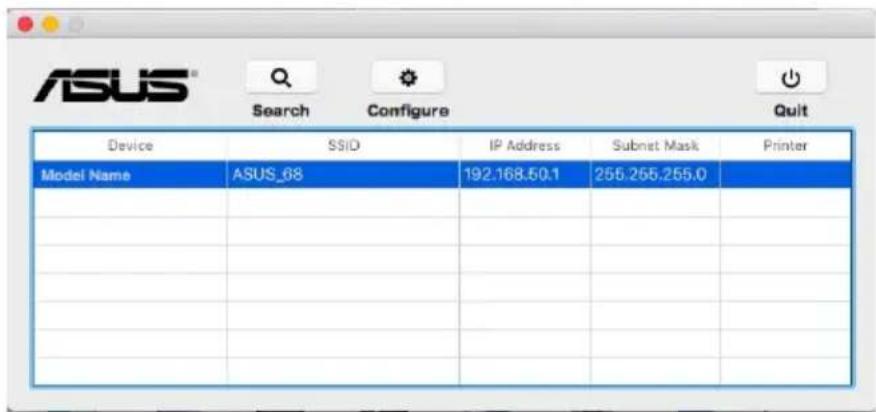
ASUS Device SSID IP Address Subnet Mask Printer Model Name ASUS_68 192.168.50.1 255.255.255.0 Configure Search Exit Number of devices found: 1Mac OS:

text_image
ASUS Search Configure Quit Device SSID IP Address Subnet Mask Printer Model Name ASUS_68 192.168.50.1 255.255.255.0text_image
Firmware Restoration Filename: Browse... Status After locating the firmware file, click Upload. Upload CloseMac OS:

text_image
ASUS Firmware Restoration Tutorial How to rescue your router? [Important] Before you get started 1. Check the model name and hardware version from the label. Please confirm the label at the bottom of your router model shows H/W Version, different hardware version needs different firmware version to process restoration. Model BT-AC600.BT Input: 19V mm W/Phenix-AC 17.50 Dual Band Gigabit Bt Com DA 0 DB 2. Download firmware from ASUS support site. Status Drag firmware here or Choose Uploadtext_image
Operation Mode System Firmware Upgrade Restore/Save/Upload Setting Feedback Privacy Administration - Firmware Upgrade Note: 1. The latest firmware version includes previous updates. 2. For a configuration parameter existing both in the old and new firmware, its setting will be kept during the upgrade process. 3. When the upgrade fails, ASUS router will enter the emergency mode automatically. The LED in front of router will show corresponding signals. Please visit ASUS Download Center to download ASUS Device Discovery utility. 4. Got the latest firmware version from ASUS Support site at https://www.asus.com/support/ Firmware Version Product ID Modal Name Firmware Version 3.0.0.4.362_51700-g6b46700 Check New Firmware File 选择档案 未配置任何档案 Uploadtext_image
Internet Options General Security Privacy Content Connections Programs Advanced Home page To create home page tabs, type each address on its own line. https://www.msn.com/?PC=UFC1 Use current Use default Use new tab Startup Start with tabs from the last session Start with home page Tabs Change how webpages are displayed in tabs. Tabs Browsing history Delete temporary files, history, cookies, saved passwords, and web form information. Delete browsing history on exit Delete... Settings Appearance Colors Languages Fonts Accessibility OK Cancel ApplyREMARQUES :
text_image
Internet Options General Security Privacy Content Connections Programs Advanced To set up an Internet connection, click Setup. Setup Dial-up and Virtual Private network settings Access RD Network Resources - Go to vpn as Add... Add VPN... Remove... Settings Choose Settings if you need to configure a proxy server for a connection. Never dial a connection Dial whenever a network connection is not present Always dial my default connection Current None Set default Local Area Network (LAN) settings LAN Settings do not apply to dial-up connections Choose Settings above for dial-up settings. LAN settings OK Cancel Applytext_image
Local Area Network (LAN) Settings Automatic configuration Automatic configuration may override manual settings. To ensure the use of manual settings, disable automatic configuration. □ Automatically detect settings □ Use automatic configuration script Address: Proxy server □ Use a proxy server for your LAN (These settings will not apply to dial-up or VPN connections). Address: Port 80 Advanced □ Bypass proxy server for local addresses OK CancelSous MAC OS
text_image
Network Show All Displays Sound Network Startup Disk Location:Automatic Show:Built-in Ethernet TCP/IP PPPoE AppleTalk Proxies Ethernet Select a proxy server to configure: FTP Proxy Web Proxy (HTTP) Secure Web Proxy (HTTPS) Streaming Proxy (RTSP) SOCKS Proxy Gopher Proxy Bypass proxy settings for these Hosts & Domains: Use Passive FTP Mode (PASV) Click the lock to prevent further changes. Apply Nowtext_image
Control Panel Home Change adapter settings Change advanced sharing settings View your basic network information and set up connections View your active networks corpnet.asus Domain network Access type: Internet Connections: Ethernet Change your networking settings Set up a new connection or network Set up a broadband, dial-up, or VPN connection; or set up a router or access point. Troubleshoot problems Diagnose and repair network problems, or get troubleshooting information.text_image
Ethernet Status General Connection IPv4 Connectivity: Internet IPv6 Connectivity: No network access Media State: Enabled Duration: 03:29:31 Speed: 1.0 Gbps Details... Activity Sent — Received Bytes: 71,424,646 | 70,727,241 Properties Disable Diagnosetext_image
Ethernet Properties Networking Authentication Connect using: Intel(R) Ethernet Connection (2) I219-V Configure... This connection uses the following items: OpS Packet Scheduler Internet Protocol Version 4 (TCP/IPv4) Microsoft Network Adapter Multiplier Protocol Microsoft LLDP Protocol Driver Internet Protocol Version 6 (TCP/IPv6) Link-Layer Topology Discovery Reponder Link-Layer Topology Discovery Mapper I/O Driver Install... Uninstall... Properties Desorption Transmission Control Protocol/Internet Protocol. The default wide area network protocol that provides communication across diverse interconnected networks.text_image
Internet Protocol Version 4 (TCP/IPv4) Properties General Alternate Configuration You can get IP settings assigned automatically if your network supports this capability. Otherwise, you need to ask your network administrator for the appropriate IP settings. Obtain an IP address automatically Use the following IP address: IP address: .... Submit mask: .... Default gateway: .... Obtain DNS server address automatically Use the following DNS server addresses: Preferred DNS server: .... Alternate DNS server: .... Validate settings upon exit Advanced... OK CancelSous MAC OS
text_image
Internet Options General Security Privacy Contents Connections Programs Advanced To set up an Internet connection, click Setup. Setup Dial-up and Virtual Private Network settings Access RD Network Resources - Go to vpn.as Add... Add VPN... Remove... Choose Settings if you need to configure a proxy server for a connection. Settings Never dial a connection Dial whenever a network connection is not present Always dial my default connection Current None Set default Local Area Network (LAN) settings LAN Settings do not apply to dial-up connections. Choose Settings above for dial-up settings. LAN settings OK Cancel ApplyGNU General Public License
Licensing information
This product includes copyrighted third-party software licensed under the terms of the GNU General Public License. Please see The GNU General Public License for the exact terms and conditions of this license. We include a copy of the GPL with every CD shipped with our product. All future firmware updates will also be accompanied with their respective source code. Please visit our web site for updated information. Note that we do not offer direct support for the distribution.
GNU GENERAL PUBLIC LICENSE
Version 2, June 1991
Copyright (C) 1989, 1991 Free Software Foundation, Inc.
59 Temple Place, Suite 330, Boston, MA 02111-1307 USA
Everyone is permitted to copy and distribute verbatim copies of this license document, but changing it is not allowed.
Preamble
The licenses for most software are designed to take away your freedom to share and change it. By contrast, the GNU General Public License is intended to guarantee your freedom to share and change free software--to make sure the software is free for all its users.
This General Public License applies to most of the Free Software Foundation's software and to any other program whose authors commit to using it. (Some other Free Software Foundation software is covered by the GNU Library General Public License instead.) You can apply it to your programs, too.
When we speak of free software, we are referring to freedom, not price. Our General Public Licenses are designed to make sure that you have the freedom to distribute copies of free software (and charge for this service if you wish), that you receive source code or can get it if you want it, that you can change the software or use
pieces of it in new free programs; and that you know you can do these things.
To protect your rights, we need to make restrictions that forbid anyone to deny you these rights or to ask you to surrender the rights. These restrictions translate to certain responsibilities for you if you distribute copies of the software, or if you modify it.
For example, if you distribute copies of such a program, whether gratis or for a fee, you must give the recipients all the rights that you have. You must make sure that they, too, receive or can get the source code. And you must show them these terms so they know their rights.
We protect your rights with two steps: (1) copyright the software, and (2) offer you this license which gives you legal permission to copy, distribute and/or modify the software.
Also, for each author's protection and ours, we want to make certain that everyone understands that there is no warranty for this free software. If the software is modified by someone else and passed on, we want its recipients to know that what they have is not the original, so that any problems introduced by others will not reflect on the original authors' reputations.
Finally, any free program is threatened constantly by software patents. We wish to avoid the danger that redistributors of a free program will individually obtain patent licenses, in effect making the program proprietary. To prevent this, we have made it clear that any patent must be licensed for everyone's free use or not licensed at all.
The precise terms and conditions for copying, distribution and modification follow.
Terms & conditions for copying, distribution, & modification
- This License applies to any program or other work which contains a notice placed by the copyright holder saying it may be distributed under the terms of this General Public License. The "Program", below, refers to any such program or work, and
a “work based on the Program” means either the Program or any derivative work under copyright law: that is to say, a work containing the Program or a portion of it, either verbatim or with modifications and/or translated into another language. (Hereinafter, translation is included without limitation in the term “modification”.) Each licensee is addressed as “you”.
Activities other than copying, distribution and modification are not covered by this License; they are outside its scope. The act of running the Program is not restricted, and the output from the Program is covered only if its contents constitute a work based on the Program (independent of having been made by running the Program). Whether that is true depends on what the Program does.
- You may copy and distribute verbatim copies of the Program's source code as you receive it, in any medium, provided that you conspicuously and appropriately publish on each copy an appropriate copyright notice and disclaimer of warranty; keep intact all the notices that refer to this License and to the absence of any warranty; and give any other recipients of the Program a copy of this License along with the Program.
You may charge a fee for the physical act of transferring a copy, and you may at your option offer warranty protection in exchange for a fee.
- You may modify your copy or copies of the Program or any portion of it, thus forming a work based on the Program, and copy and distribute such modifications or work under the terms of Section 1 above, provided that you also meet all of these conditions:
a) You must cause the modified files to carry prominent notices stating that you changed the files and the date of any change.
b) You must cause any work that you distribute or publish, that in whole or in part contains or is derived from the Program or any part thereof, to be licensed as a whole at no charge to all third parties under the terms of this License.
c) If the modified program normally reads commands interactively when run, you must cause it, when started running for such interactive use in the most ordinary way, to
print or display an announcement including an appropriate copyright notice and a notice that there is no warranty (or else, saying that you provide a warranty) and that users may redistribute the program under these conditions, and telling the user how to view a copy of this License. (Exception: if the Program itself is interactive but does not normally print such an announcement, your work based on the Program is not required to print an announcement.)
These requirements apply to the modified work as a whole. If identifiable sections of that work are not derived from the Program, and can be reasonably considered independent and separate works in themselves, then this License, and its terms, do not apply to those sections when you distribute them as separate works. But when you distribute the same sections as part of a whole which is a work based on the Program, the distribution of the whole must be on the terms of this License, whose permissions for other licensees extend to the entire whole, and thus to each and every part regardless of who wrote it.
Thus, it is not the intent of this section to claim rights or contest your rights to work written entirely by you; rather, the intent is to exercise the right to control the distribution of derivative or collective works based on the Program.
In addition, mere aggregation of another work not based on the Program with the Program (or with a work based on the Program) on a volume of a storage or distribution medium does not bring the other work under the scope of this License.
- You may copy and distribute the Program (or a work based on it, under Section 2) in object code or executable form under the terms of Sections 1 and 2 above provided that you also do one of the following:
a) Accompany it with the complete corresponding machine-readable source code, which must be distributed under the terms of Sections 1 and 2 above on a medium customarily used for software interchange; or,
b) Accompany it with a written offer, valid for at least three years, to give any third party, for a charge no more than your cost of physically performing source distribution, a complete
machine-readable copy of the corresponding source code, to be distributed under the terms of Sections 1 and 2 above on a medium customarily used for software interchange; or,
c) Accompany it with the information you received as to the offer to distribute corresponding source code. (This alternative is allowed only for noncommercial distribution and only if you received the program in object code or executable form with such an offer, in accord with Subsection b above.)
The source code for a work means the preferred form of the work for making modifications to it. For an executable work, complete source code means all the source code for all modules it contains, plus any associated interface definition files, plus the scripts used to control compilation and installation of the executable. However, as a special exception, the source code distributed need not include anything that is normally distributed (in either source or binary form) with the major components (compiler, kernel, and so on) of the operating system on which the executable runs, unless that component itself accompanies the executable.
If distribution of executable or object code is made by offering access to copy from a designated place, then offering equivalent access to copy the source code from the same place counts as distribution of the source code, even though third parties are not compelled to copy the source along with the object code.
-
You may not copy, modify, sublicense, or distribute the Program except as expressly provided under this License. Any attempt otherwise to copy, modify, sublicense or distribute the Program is void, and will automatically terminate your rights under this License. However, parties who have received copies, or rights, from you under this License will not have their licenses terminated so long as such parties remain in full compliance.
-
You are not required to accept this License, since you have not signed it. However, nothing else grants you permission to modify or distribute the Program or its derivative works. These actions are prohibited by law if you do not accept this License.
Therefore, by modifying or distributing the Program (or any work based on the Program), you indicate your acceptance
of this License to do so, and all its terms and conditions for copying, distributing or modifying the Program or works based on it.
-
Each time you redistribute the Program (or any work based on the Program), the recipient automatically receives a license from the original licensor to copy, distribute or modify the Program subject to these terms and conditions. You may not impose any further restrictions on the recipients' exercise of the rights granted herein. You are not responsible for enforcing compliance by third parties to this License.
-
If, as a consequence of a court judgment or allegation of patent infringement or for any other reason (not limited to patent issues), conditions are imposed on you (whether by court order, agreement or otherwise) that contradict the conditions of this License, they do not excuse you from the conditions of this License. If you cannot distribute so as to satisfy simultaneously your obligations under this License and any other pertinent obligations, then as a consequence you may not distribute the Program at all. For example, if a patent license would not permit royalty-free redistribution of the Program by all those who receive copies directly or indirectly through you, then the only way you could satisfy both it and this License would be to refrain entirely from distribution of the Program.
If any portion of this section is held invalid or unenforceable under any particular circumstance, the balance of the section is intended to apply and the section as a whole is intended to apply in other circumstances.
It is not the purpose of this section to induce you to infringe any patents or other property right claims or to contest validity of any such claims; this section has the sole purpose of protecting the integrity of the free software distribution system, which is implemented by public license practices. Many people have made generous contributions to the wide range of software distributed through that system in reliance on consistent application of that system; it is up to the author/ donor to decide if he or she is willing to distribute software through any other system and a licensee cannot impose that choice.
This section is intended to make thoroughly clear what is believed to be a consequence of the rest of this License.
-
If the distribution and/or use of the Program is restricted in certain countries either by patents or by copyrighted interfaces, the original copyright holder who places the Program under this License may add an explicit geographical distribution limitation excluding those countries, so that distribution is permitted only in or among countries not thus excluded. In such case, this License incorporates the limitation as if written in the body of this License.
-
The Free Software Foundation may publish revised and/or new versions of the General Public License from time to time. Such new versions will be similar in spirit to the present version, but may differ in detail to address new problems or concerns.
Each version is given a distinguishing version number. If the Program specifies a version number of this License which applies to it and “any later version”, you have the option of following the terms and conditions either of that version or of any later version published by the Free Software Foundation. If the Program does not specify a version number of this License, you may choose any version ever published by the Free Software Foundation.
- If you wish to incorporate parts of the Program into other free programs whose distribution conditions are different, write to the author to ask for permission.
For software which is copyrighted by the Free Software Foundation, write to the Free Software Foundation; we sometimes make exceptions for this. Our decision will be guided by the two goals of preserving the free status of all derivatives of our free software and of promoting the sharing and reuse of software generally.
NO WARRANTY
11 BECAUSE THE PROGRAM IS LICENSED FREE OF CHARGE, THERE IS NO WARRANTY FOR THE PROGRAM, TO THE EXTENT PERMITTED BY APPLICABLE LAW. EXCEPT WHEN OTHERWISE STATED IN WRITING THE COPYRIGHT HOLDERS AND/OR OTHER PARTIES PROVIDE THE PROGRAM "AS IS" WITHOUT WARRANTY
OF ANY KIND, EITHER EXPRESSED OR IMPLIED, INCLUDING, BUT NOT LIMITED TO, THE IMPLIED WARRANTIES OF MERCHANTABILITY AND FITNESS FOR A PARTICULAR PURPOSE. THE ENTIRE RISK AS TO THE QUALITY AND PERFORMANCE OF THE PROGRAM IS WITH YOU. SHOULD THE PROGRAM PROVE DEFECTIVE, YOU ASSUME THE COST OF ALL NECESSARY SERVICING, REPAIR OR CORRECTION.
12 IN NO EVENT UNLESS REQUIRED BY APPLICABLE LAW OR AGREED TO IN WRITING WILL ANY COPYRIGHT HOLDER, OR ANY OTHER PARTY WHO MAY MODIFY AND/OR REDISTRIBUTE THE PROGRAM AS PERMITTED ABOVE, BE LIABLE TO YOU FOR DAMAGES, INCLUDING ANY GENERAL, SPECIAL, INCIDENTAL OR CONSEQUENTIAL DAMAGES ARISING OUT OF THE USE OR INABILITY TO USE THE PROGRAM (INCLUDING BUT NOT LIMITED TO LOSS OF DATA OR DATA BEING RENDERED INACCURATE OR LOSSES SUSTAINED BY YOU OR THIRD PARTIES OR A FAILURE OF THE PROGRAM TO OPERATE WITH ANY OTHER PROGRAMS), EVEN IF SUCH HOLDER OR OTHER PARTY HAS BEEN ADVISED OF THE POSSIBILITY OF SUCH DAMAGES.
END OF TERMS AND CONDITIONS