B002DP1AC4N4 - Switch Tripp Lite - Free user manual and instructions
Find the device manual for free B002DP1AC4N4 Tripp Lite in PDF.



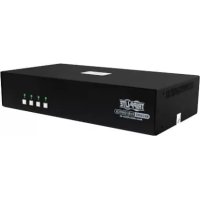
| Product Type | Secure KVM Switch |
| Brand | Tripp Lite |
| Model | B002DP1AC4N4 |
| Category | KVM Switch |
| Number of Input Ports (Computers) | 4 |
| Number of Video Outputs (Monitors) | 1 |
| Video Interface | DisplayPort |
| Maximum Video Resolution | 3840 x 2160 at 30 Hz |
| Power Supply | External 12V DC, 3A |
| Security Certification | NIAP / Common Criteria PP4.0 |
| Tamper Protection | Enclosure opening detectors, disables device |
| USB Isolation | Opto-isolators for electrical isolation of channels |
| EDID Emulation | Secure: learning and emulation, prevents leakage via DDC |
| Keyboard Buffer Clearing | Automatic after transmission |
| Switching Method | Push-buttons only (no OSD or shortcuts) |
| CAC Support | Yes, dedicated port for smart card reader |
| Audio Connectors | 3.5 mm stereo input/output |
| Supported Operating Systems | All major systems |
| Maintenance and Cleaning | Unplug, clean with a damp cloth. Do not use liquid or aerosol cleaners. |
| Warranty | Limited 3 years |
| Included Accessories | External power supply, user manual, plug kit (NEMA, Schuko, BS, AS/NZS) |
Frequently Asked Questions - B002DP1AC4N4 Tripp Lite
User questions about B002DP1AC4N4 Tripp Lite
0 question about this device. Answer the ones you know or ask your own.
Ask a new question about this device
Download the instructions for your Switch in PDF format for free! Find your manual B002DP1AC4N4 - Tripp Lite and take your electronic device back in hand. On this page are published all the documents necessary for the use of your device. B002DP1AC4N4 by Tripp Lite.
USER MANUAL B002DP1AC4N4 Tripp Lite
Secure KVM Switches, NIAP Protection Profile Version 4.0
DisplayPort Models:
B002-DP1AC2-N4, B002-DP2AC2-N4, B002-DP1AC4-N4,
B002-DP2AC4-N4, B002-DP1AC8-N4
HDMI Models:
B002-H1AC2-N4, B002-H2AC2-N4, B002-H1AC4-N4, B002-H2AC4-N4
DP to HDMI Models:
B002-HD1AC2-N4, B002-HD2AC2-N4, B002-HD1AC4-N4,
B002-HD2AC4-N4
DVI:
B002-DV1AC2-N4, B002-DV2AC2-N4, B002-DV1AC4-N4,
B002-DV2AC4-N4, B002-DV1AC8-N4
Español 17
Français 33
Deutsch 49
Italiano 65

text_image
TRIPP·LITETrippLite.Eaton.com/support
Copyright © 2024 Tripp Lite. All rights reserved.
Table of Contents
Package Includes 3
Optional Accessories 3
System Requirements 4
Features 4
Important Safety Instructions 6
Installation 8
KVM LEDs 10
Port-Selection LEDs....10
Push-Button LEDs....10
Port-Selection and Push-Button LEDs....10
Console Video Port LED 10
Console CAC Port LED 10
Miscellaneous KVM Functionality....11
Disabling CAC Functionality.... 11
Enabling CAC Functionality 11
CAC Port Configuration.... 11
AUDITING: Dumping the Event Log....13
RESET: Restore Factory Defaults 14
Power Up Self-Test 15
Warranty....16
Package Includes
• B002-Series Secure KVM Switch
• 12V 3A External Power Supply*
- Owner's Manual
*Includes NEMA 1-15P (North America), CEE 7/16 Schuko (Europe), BS 1363 (UK) and AS/NZS 3112 (Australia) plugs.
Optional Accessories
• P312-Series 3.5 mm Stereo Audio Cables
• P569-XXX-CERT Premium High-Speed HDMI Cables
• P782-XXX-HA HDMI/USB KVM Cable Kit
• P782-XXX-DH HDMI/DVI/USB KVM Cable Kit
• P783-Series DisplayPort KVM Cable Kit
• P580-Series DisplayPort Cables
• U022-Series USB 2.0 A/B Device Cables
*XXX refers to length (e.g. 006 = 6 ft., 010 = 10 ft., and so on)
System Requirements
• DisplayPort, DVI or HDMI monitor
Note: The number of displays needed can be determined from the model name. The number directly preceding the "A" in the model name indicates how many monitors can be connected to the KVM switch.
- Wired USB mouse and keyboard without internal hub or composite device functions*
• Computer with a DisplayPort, DVI or HDMI port
- Computer with an available USB port (USB 2.0 required for Common Access Card [CAC] support)
- Computer with an available 3.5 mm stereo audio port
- Speakers with a 3.5 mm stereo audio port
- Authorized User authentication devices: USB devices identified as user authentication (base class 0Bh, e.g. Smart-card reader, PIV/CAC reader, Token, or Biometric reader)
- Compatible with all major operating systems
*Wireless keyboard and mouse are not supported
Features
• Certified to NIAP / Common Criteria Protection Profile for Peripheral Sharing Switches, Version 4.0.
- Safely switch between computers (up to 8) with varying security levels.
- Select models support connection of Common Access Cards (CAC), biometric readers and other smart card readers.
- DisplayPort models support video resolutions up to 3840 x 2160 @ 30 Hz. HDMI models support resolutions up to 3840 x 2160 @ 60 Hz.
- Anti-Tampering Protection – Internal Anti-Tamper switches disable the KVM if the housing is opened, causing it to become inoperable. When disabled, the front-panel LEDs will flash repeatedly and the internal buzzer will sound repeatedly. This is also caused by the exhaustion of the internal battery, which has a life rating of over 10 years. Opening the housing will disable the unit and void the warranty.
Features
- Tamper-Evident Seals – The enclosure of the unit is protected with tamper-evident seals to provide visual evidence if the unit has been tampered with or compromised. Removing these labels will void the warranty.
- Protected Firmware – The unit features special protection that prevents reprogramming or reading firmware, protecting against attempts to alter the logic of the KVM.
- High Isolation on USB Channels – Opto-isolators are used to keep USB data paths electrically isolated from each other, preventing data leakage between ports.
- Secure EDID Emulation – Secure EDID learning and emulation prevents unwanted and unsecure data from being transmitted through the DDC line.
- Automatic Keyboard Buffer Clearing – The keyboard buffer is automatically cleared after data transmission, so no information is left stored in the switch.
- No Memory Buffer – The only way to access connected computers is via push button. Port switching methods such as On-Screen Display (OSD) and Hotkey Commands have been excluded to further ensure data integrity.
Important Safety Instructions
- Read all instructions and save them for future reference.
- Follow all warnings and instructions marked on the device.
- Do not place the device on any unstable surface (cart, stand, table, etc.). If the device falls, serious damage will result.
- Do not use the device near water.
- Do not place the device near, or over, radiators or heat registers. The device cabinet contains slots and openings to allow for adequate ventilation. To ensure reliable operation and to protect against overheating, these openings must never be blocked or covered.
- The device should never be placed on a soft surface (bed, sofa, rug, etc.) as this will block its ventilation openings. Likewise, the device should not be placed in a built-in enclosure unless adequate ventilation has been provided.
- Never spill liquid of any kind on the device.
- Unplug the device from the wall outlet before cleaning. Do not use liquid or aerosol cleaners. Use a damp cloth for cleaning.
- The device should be operated from the power source type as indicated on the marking label. If you are not sure of the type of power available, consult your dealer or local power utility.
- Do not allow anything to rest on the power cord or cables. Route the power cord and cables so that they cannot be stepped on or tripped over.
- If an extension cord is used with this device, make sure the total ampere rating of all products used on the cord does not exceed the extension cord ampere rating. Make sure the total rating of all products plugged into the wall outlet does not exceed 15 amperes.
- Position system cables and power cables carefully. Make sure nothing rests on any cables.
- To help protect your system from sudden transient increases and decreases in electrical power, it is recommended you plug your devices into a Surge Protector, Line Conditioner or Uninterruptible Power Supply (UPS).
- When connecting or disconnecting power to hot-pluggable power supplies, observe the following guidelines:
o Install the power supply before connecting the power cable to the power supply.
Important Safety Instructions
o Unplug the power cable before removing the power supply.
o If the system has multiple power sources, disconnect power from the system by unplugging all power cables from the power supplies.
- Never push objects of any kind into or through cabinet slots. They may touch dangerous voltage points or short out parts, resulting in a risk of electrical shock or fire.
- If the following conditions occur, unplug the device from the wall outlet and bring it to qualified service personnel for repair.
o The power cord or plug has become damaged or frayed.
o Liquid has been spilled into the device.
o The device has been exposed to rain or water.
o The device has been dropped or the cabinet has been damaged.
o The device exhibits a distinct change in performance, indicating a need for service.
o The device does not operate normally when the operating instructions are followed.
- Only adjust those controls that are covered in the operating instructions. Improper adjustment of other controls may result in damage that will require extensive work by a qualified technician to repair.
- This device is designed for IT power distribution systems with up to 230V phase-to-phase voltage.
- To prevent damage to your installation, it is important that all devices are properly grounded.
- This device is equipped with a three-wire grounding-type plug. This is a safety feature. If you are unable to insert the plug into the outlet, contact an electrician to replace your outlet with one that will accept this type of plug. Do not attempt to defeat the purpose of the grounding-type plug. Always follow your local/national wiring codes.
- Warning! There is a risk of explosion if the battery is replaced with an incorrect battery type. Do not attempt to service the device yourself. Refer all servicing to qualified service personnel.
Installation
Note: Before proceeding with installation, make sure all devices being connected to the KVM switch are turned off.
- Using audio/video cables appropriate for your switch model, connect the video output port of each computer you are adding to the video input ports of the KVM Switch.
Note: Models with Dual Monitor capability require two available video ports per computer. - Using USB A/B device cables, connect a USB port on each computer being added to the USB input port of the KVM Switch. Additional USB A/B cables are needed for the CAC (Common Access Card) connections as there are separate USB ports on the KVM Switch for CAC and K/M connections.
- Using 3.5 mm stereo audio cables, connect the audio output of each computer you are adding to the audio input ports of the KVM Switch.
- Using the appropriate audio/video cable, connect a monitor appropriate for your switch model to the console video output port of the KVM switch.
- Connect a wired USB keyboard and mouse to the console USB keyboard and mouse ports of the KVM Switch.
Note: Keyboards and mice with internal USB hub or composite device functions are not supported. Wireless keyboards and mice are not supported.
- Connect a set of speakers to the console audio output port of the KVM Switch using a 3.5 mm stereo audio cable.
Note: Microphones or headsets with microphones are not supported.
- Connect a CAC reader to the console CAC port of the KVM Switch.
Note: CAC readers with external power sources are not supported. The KVM will terminate an open session upon the removal of the connected CAC reader or Authentication device.
- Power on the KVM by connecting the included external power supply and plugging it into a Surge Protector, Power Distribution Unit (PDU) or Uninterruptible Power Supply (UPS).
Installation
- Power on all connected computers and monitor. The front-panel LEDs will begin to flash.
Note: The computer connected to port 1 will always be selected by default after power-up.
- To switch among the connected computers, simply push the desired input button on the front panel of the KVM. If an input port is selected, the LED of that port will turn on.
Note: The KVM will terminate an open session upon switching to a different computer.
KVM LEDs
Port-Selection LEDs
- When the LED is off, the corresponding port is not currently selected.
- When the LED is on, the corresponding port is currently selected.
- When the LED is flashing, the EDID Learn process is occurring.
Push-Button LEDs
- When the push-button LED of a non-selected port is off, the corresponding port is not currently selected.
- When the push-button LED of the selected port is off, CAC functionality has been disabled for the corresponding port.
- When the push-button LED is on, the corresponding port is currently selected and CAC functionality is enabled.
- When the push-button LED is flashing, the EDID Learn process is occurring.
Port-Selection and Push-Button LEDs
- When all Port-Selection and Push-Button LEDs are flashing simultaneously, the USB peripheral connected to the console keyboard or mouse port has been rejected.
Console Video Port LED
- When the LED is off, a monitor is not connected.
- When the LED is illuminated, a monitor is connected.
- When the LED is flashing, there is a problem with EDID. Reseat the power of the KVM to resolve these issues.
Console CAC Port LED
- When the LED is off, a CAC device is not connected.
- When the LED is on, an authorized and functional CAC device is connected.
- When the LED is flashing, a non-CAC peripheral is connected.
Miscellaneous KVM Functionality
Note: The following steps are intended for the system administrator only.
Disabling CAC Functionality
To disable CAC for any port on the KVM switch (all CAC ports are enabled as default), use the front-panel push buttons to switch the KVM to the port whose CAC mode you wish to change. Once selected, the push-button LED for the selected port will illuminate blue to indicate CAC functionality is enabled. Press and hold the button for 3 seconds until the blue push-button LED turns off. CAC functionality for the port is now disabled.
Enabling CAC Functionality
To enable CAC for any port on the KVM switch, use the front-panel push buttons to switch the KVM to the port whose CAC mode you wish to change. Once selected, the push-button LED for this specific channel should be off to indicate CAC functionality is disabled. Press and hold the button for 3 seconds until the blue push-button LED turns on. CAC functionality for the port is now enabled.
CAC Port Configuration
Note: The following steps are intended for the system administrator.
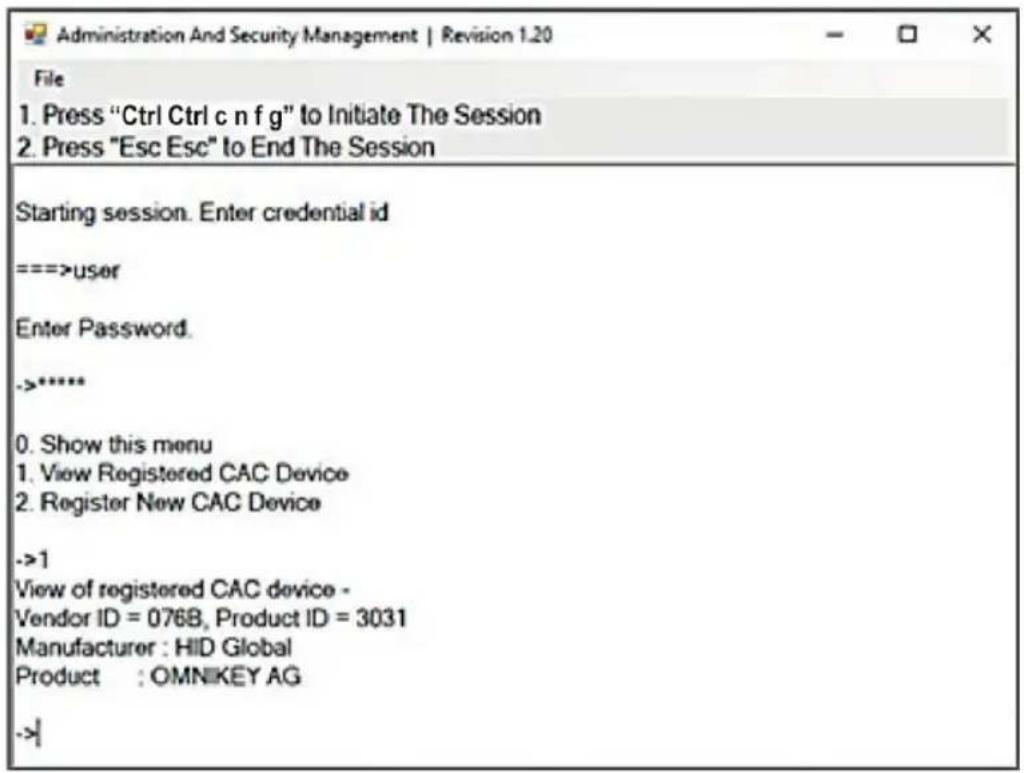
CAC port configuration is an optional feature, allowing registration of any USB peripheral to operate with the KVM. Only one peripheral can be registered at a time, and only the registered peripheral will be able to operate with the KVM. If a peripheral other than the registered peripheral is plugged in to the USB-A CAC port, it will not work. When no peripheral is registered, the KVM will default to operate with any CAC Reader. To configure the USB-A CAC port, follow the instructions below.
Note: Only one computer connected to port 1 is required for this operation.
-
From the connected computer, download the Administration and Security Management Tool from TrippLite.Eaton.com/support.
-
Once downloaded, run the Administration and Security Management Tool executable file. The Administration and Security Management screen will appear.
Miscellaneous KVM Functionality
- Initiate the session by pressing the following hotkey command, one key after another.
[Ctrl][Ctrl][c][n][f][g]
- Upon completing the command, the mouse connected to the KVM will stop functioning. A prompt will appear to enter the Credential ID.
- Log in by entering the default username "admin" and pressing Enter.
- Enter the default password "12345" and press Enter.
- Select option 2 from the menu on your screen and press Enter.
- Connect the USB peripheral device to be registered to the console USB-A CAC port on the KVM. Wait until the KVM is reading the new peripheral information.
- When registration is completed, the KVM will list the information of the newly configured peripheral on the screen and vibrate 3 times.
Note: The open session will be immediately terminated upon the removal of the registered CAC device.
text_image
Administration And Security Management | Revision 1.20 File 1. Press "Ctrl Ctrl c n f g" to Initiate The Session 2. Press "Esc Esc" to End The Session Starting session. Enter credential id ===>user Enter Password. ->**** 0. Show this menu 1. View Registered CAC Device 2. Register New CAC Device ->1 View of registered CAC device - Vendor ID = 076B, Product ID = 3031 Manufacturer : HID Global Product : OMNIKEY AG ->|Miscellaneous KVM Functionality
AUDITING: Dumping the Event Log
Note: The following steps are intended for the system administrator.
The Event Log is a detailed report of critical activities stored in the KVM or KVM memory. To view or dump the Event Log, follow the instructions below.
Note: Only one computer connected to port 1 is required for this operation.
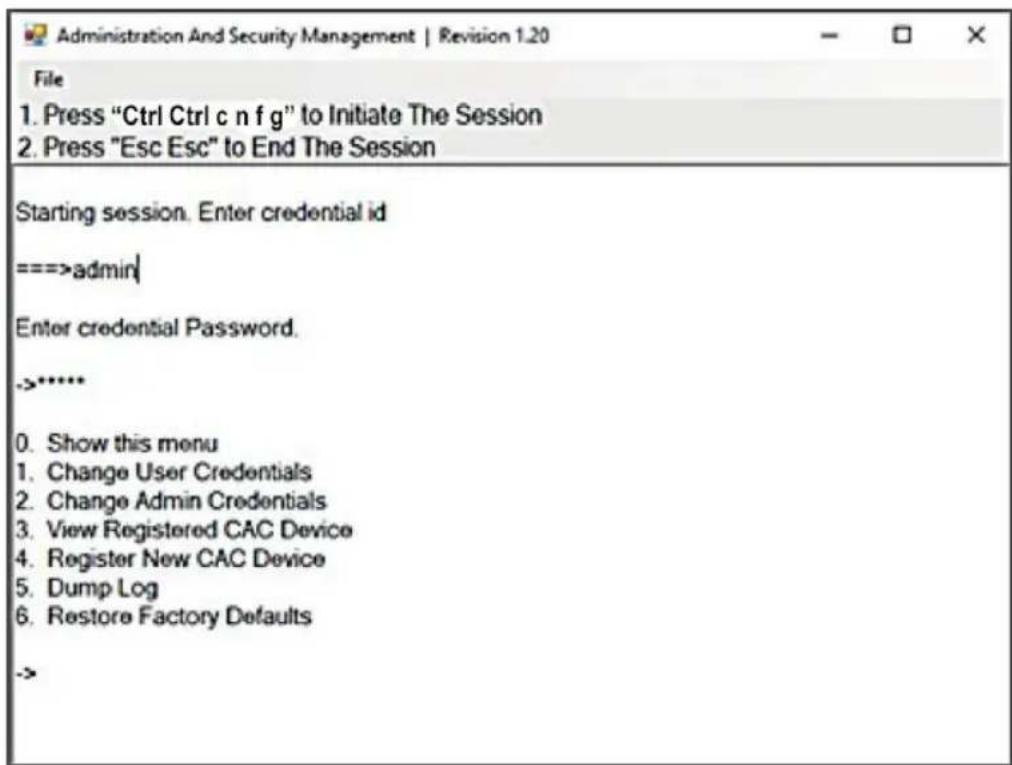
- Open the Administration and Security Management Program (see the EDID Learn section for download instructions). The Administration and Security Management screen will appear.
- Initiate the session by pressing the following hotkey command. Hit each key one after another.
[Ctrl][Ctrl][c][n][f][g]
- Upon completing the command, the mouse connected to the KVM will stop functioning. A prompt will appear to enter the Credential ID.
- Log in by entering the default username "admin" and pressing Enter.
- Enter the default password "12345" and press Enter.
- Request a Log Dump by selecting option 5 in the menu.
text_image
Administration And Security Management | Revision 1.20 File 1. Press "Ctrl Ctrl c n f g" to Initiate The Session 2. Press "Esc Esc" to End The Session Starting session. Enter credential id ===>admin| Enter credential Password. ->***** 0. Show this menu 1. Change User Credentials 2. Change Admin Credentials 3. View Registered CAC Device 4. Register New CAC Device 5. Dump Log 6. Restore Factory Defaults ->Miscellaneous KVM Functionality
RESET: Restore Factory Defaults
Note: The following steps are intended for the system administrator. Restore Factory Defaults will reset all settings on the KVM to their original state:
• CAC port registration will be removed
• KVM settings will be reset to factory defaults
To restore Factory Defaults, follow the steps below.
Note: Only one computer connected to port 1 is required for this operation.
- Open the Administration and Security Management Program (see the CAC Port Configuration section for download instructions). The Administration and Security Management screen will appear.
- Initiate the session by pressing the following hotkey command, one key after another.
$$ [ \text { Ctrl } ] [ \text { Ctrl } ] [ c ] [ n ] [ f ] [ g ] $$
-
Upon completing the command, the mouse connected to the KVM will stop functioning. A prompt will appear to enter the Credential ID.
-
Log in by entering the default username "admin" and pressing Enter.
-
Enter the default password "12345" and press Enter.
-
Select "Restore Factory Default" option from the menu and press Enter.
Note: A comprehensive feature list and instructions for the Administration and Security Management Utility can be found in the Administrator's Guide available at TrippLite.Eaton.com/support.
Miscellaneous KVM Functionality
Power Up Self-Test
If all front-panel LEDs are on and not flashing, the Power Up Self-Test failed and all functions are disabled. Check if any of the front-panel power selection buttons are jammed. In this case, release the jammed button and recycle power. If Power Up Self-Test continues to fail, contact Technical Support at TrippLite.Eaton.com/support.
Front Panel Control
To switch to an input port, simply push the desired input button on the front panel of the KVM. If an input port is selected, the LED of that port will turn on. An open session is terminated upon switching to a different computer.
Warranty
3-Year Limited Warranty
TRIPP LITE warrants its products to be free from defects in materials and workmanship for a period of three (3) years from the date of initial purchase. TRIPP LITE's obligation under this warranty is limited to repairing or replacing (at its sole option) any such defective products. To obtain service under this warranty, you must obtain a Returned Material Authorization (RMA) number from TRIPP LITE or an authorized TRIPP LITE service center. Products must be returned to TRIPP LITE or an authorized TRIPP LITE service center with transportation charges prepaid and must be accompanied by a brief description of the problem encountered and proof of date and place of purchase. This warranty does not apply to equipment which has been damaged by accident, negligence or misapplication or has been altered or modified in any way.
EXCEPT AS PROVIDED HEREIN, TRIPP LITE MAKES NO WARRANTIES, EXPRESS OR IMPLIED, INCLUDING WARRANTIES OF MERCHANTABILITY AND FITNESS FOR A PARTICULAR PURPOSE. Some states do not permit limitation or exclusion of implied warranties; therefore, the aforesaid limitation(s) or exclusion(s) may not apply to the purchaser.
Tripp Lite has a policy of continuous improvement. Specifications are subject to change without notice.

text_image
TRIPP·LITETrippLite.Eaton.com/support