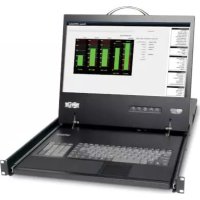
B07000819 - Switch Tripp Lite - Free user manual and instructions
Find the device manual for free B07000819 Tripp Lite in PDF.



| Product Type | KVM Switch with Integrated Console - 19" LCD, Keyboard, and Touchpad |
| Model | B070-008-19 (8 ports) / B070-016-19 (16 ports) |
| Number of Ports | 8 or 16 RJ45 ports for computers |
| Cascade Expansion | Up to 256 computers with additional KVM switches |
| Display Resolution | 1366 x 768 pixels |
| Transmission Distance | Up to 30.5 m (100 ft) via Cat5e/6 cable |
| Platform Compatibility | Windows, Mac, Linux, UNIX, DOS |
| Computer Connection Types | PS/2 or USB via Server Interface Units (SIU) B078-101-PS2 or B078-101-USB |
| Dimensions (L x W x H) | 71.2 x 48.3 x 3.3 cm |
| Weight | 16.3 kg |
| Power | 100-240 VAC, 50/60 Hz (internal) |
| Rack Mounting | 1U, mounting kit included |
| Port Selection Methods | On-Screen Display (OSD), keyboard shortcuts (Shift+[+]/[-]) |
| Auto-Scan Function | Yes, with adjustable interval |
| Password Security | Three levels: administrator, supervisor, user |
| Additional Ports | RJ11 serial port for firmware updates, VGA/PS/2 console ports |
| Optional Accessory | IP Remote Access Module B051-000 |
| Warranty | 1 year |
| Maintenance | Maintain good ventilation; clean the screen with a soft, dry cloth |
Frequently Asked Questions - B07000819 Tripp Lite
User questions about B07000819 Tripp Lite
0 question about this device. Answer the ones you know or ask your own.
Ask a new question about this device
Download the instructions for your Switch in PDF format for free! Find your manual B07000819 - Tripp Lite and take your electronic device back in hand. On this page are published all the documents necessary for the use of your device. B07000819 by Tripp Lite.
USER MANUAL B07000819 Tripp Lite
Register your product for quicker service and ultimate peace of mind.
You could also win an ISOBAR6ULTRA surge protector—a $100 value!

www.triplite.com/warranty


Manufacturing Excellence.
1111 W. 35th Street, Chicago, IL 60609 USA • www.triplite.com/support
Note: Follow these instructions and operating procedures to ensure correct performance and prevent damage to this unit or its connected devices.
Copyright © 2017 Tripp Lite. All rights reserved. All trademarks are the property of their respective owners.
Table of Contents
1 Features. 3
2 Package Contents 3
3 Accessories 3
4 Configuration 4
Front View. 4
Rear View 5
5 Installation. 5
Pre-Installation Guidelines 5
Connecting the NetCommander KVM System. 5
NetCommander Server Interface Unit (SIU) 6
Connecting the Power Supply. 7
Resetting the KVM Switch. 7
Rackmount Considerations 8
Rackmounting the NetCommander KVM 8
Cascading NetCommander KVM Switches 9
Connecting a B051-000 IP Remote Access Unit to the KVM. 9
Connecting an External VGA Monitor, PS/2 Keyboard and PS/2 Mouse............ 10
6 Operation 10
Basic Operation 10
Keyboard Hotkeys 10
On-Screen Display 11
Navigating the OSD. 11
Selecting a Computer 11
OSD Settings (F2) 11
General Settings 12
Reset OSD General Settings Menu to Defaults (F7) 14
Port Settings 14
Time Settings 15
Security 16
Security Settings. 17
OSD Help Window (F1) 17
Scanning Computers (F4) 17
Tuning (F5) 18
Moving the Label (F6) 18
7 Firmware Upgrade 18
Firmware Upgrade System Requirements 18
Upgrading the KVM Firmware 18
KVM Switch/SIU Reset. 21
8 Troubleshooting 22
9 USB/SUN Combo Keys 23
10 Specifications 23
11 Warranty and Product Registration 24
Espanol 25
Françis 51
1 Features
- 8-port or 16-port KVM switch with built-in 19" LCD, keyboard and touch pad
- Access and control numerous multi-platform computers from a single console
- Hot-swappable: disconnect and reconnect USB computers without rebooting
- Auto-scan with variable time interval
- Compact design: 1U rack mountable
- Easy port selection using (1) On-Screen Display (OSD), (2) keyboard hotkeys key sequences
- Expandable: control up to 256 computers by adding additional KVM switches
- Simple cable management: use standard Cat5e patch cord (maximum distance 100 ft) to connect to each computer
Built-in monitor supports resolutions up to 1366 x 768 - Multi-platform: supports PS/2 and USB computers/server
- Compatible with Windows®, Mac®, Linux®, UNIX and DOS
- Optional Tripp Lite B051-000 IP Remote Access Unit to access the KVM via LAN, WAN or the Internet
2 Package Contents
B070-008-19 or B070-016-19 19" Cat5 Console KVM Switch
C13 to 5-15P Power Cord
- RJ11 to DB9 Firmware Upgrade Cable
- Rackmount Hardware
- Jumper Cable (to connect the KVM console ports to the integrated console ports*)
- The included jumper must be connected for the unit to function.
3 Accessories
B072-008-1 or B072-016-1 Cat5 Rackmount KVM Switch
B078-101-PS2 Server Interface Unit; PS/2
B078-101-USB Server Interface Unit; USB
- N001-Series Snagless Cat5e Patch Cables
- N002-Series Cat5e Patch Cables
N201-Series Cat6 Snagless Patch Cables
B051-000 IP Remote Access Unit
4 Configuration
Front View
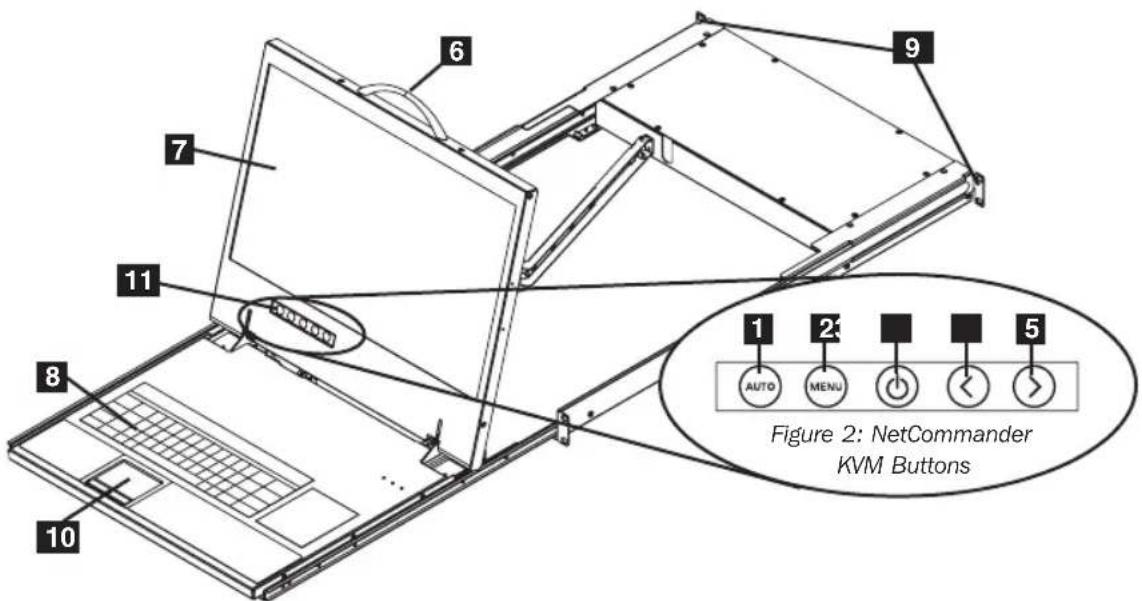
Figure 1: NetCommander KVM front panel
1 Auto: When the LCD Menu is closed, pressing the AUTO button will perform an Auto Adjust on the monitor screen. When the LCD Menu is open, pressing the AUTO button will return to the previous screen/selection. If the LCD Menu cannot go back any further, the AUTO button will close down the menu.
2 Menu: When the LCD Menu is closed, pressing the MENU button will open it. When the LCD Menu is open, pressing the MENU button will select a highlighted option.
3 On/Off Button: Pressing this button will turn the monitor screen on or off.
4 <: When the LCD Menu is open, pressing the < button will move the highlight bar to the left. When modifying a selected option, pressing the < button will decrease the option.
5 >: When the LCD Menu is open, pressing the > button will move the highlight bar to the right. When modifying a selected option, pressing the > button will increase the option.
6 Handle: Pull to slide the module out; push to slide the module in.
7 19" LCD Monitor: After sliding the module out, flip up the cover to access the LCD monitor, keyboard and touch pad.
8 Keyboard
9 Rackmounting Brackets: There are rackmount brackets to secure the chassis to a system rack located at each corner of the unit.
10 2-Button Touch Pad: Left button is left click, right is right click.
11 LCD Controls: The LCD OSD controls located here control the position and picture settings of the LCD. See 1 - 5 for details.
4 Configuration
Rear View

Figure 3 NetCommander KVM rear panel
1 Power Socket: The power cord plugs in here from the AC power source.
2 On/Off Switch: Turns the KVM Switch on and off.
3 Firmware Upgrade Port: Plug included firmware upgrade cable into this port to download firmware upgrade data.
CPU Port Section: Plug the Cat5e cables from each PC or server into these ports.
5 KVM Console Ports
6 Integrated Console Ports
- The included Jumper Cable connects the Integrated Console Ports to the KVM Console Ports. This cable must be connected for the unit to function. Do not remove the Jumper Cable unless you are installing a Tripp Lite B051-000 IP Remote Access Unit or external VGA monitor, PS/2 keyboard and/or PS/2 mouse. See Connecting a B051-000 IP Remote Access Unit to the KVM and Connecting an External VGA Monitor, PS/2 Keyboard and PS/2 Mouse for details.
7 User Convenience Ground
5 Installation
Pre-Installation Guidelines
- Switch off all computers.*
- The included Jumper Cable connects the Integrated Console Ports to the KVM Console Ports. This cable must be connected for the unit to function. Do not remove the Jumper Cable unless you are installing a Tripp Lite B051-000 IP Remote Access Unit or external VGA monitor, PS/2 keyboard and/or PS/2 mouse. See Connecting a B051-000 IP Remote Access Unit to the KVM and Connecting an External VGA Monitor, PS/2 Keyboard and PS/2 Mouse for details.
- Ensure the cables are not near any sources of electrical noise interference such as fluorescent lights, HVAC systems or motors.
- Ensure the distance between any computer and the KVM switch does not exceed 100 ft.
- PS/2 computers require the Keyboard and Mouse connectors to be installed before they are turned on. If you plug the Keyboard and Mouse connectors into an active PS/2 computer, it may not recognize them, rendering them inoperable.
Connecting the NetCommander KVM System
Connect each computer to the KVM switch using a Tripp Lite B078-101-PS2 or B078-101-USB Server Interface Unit (SIU) and a Cat5e patch cable.
- Cat5 cable should be no longer than 100 ft.
5 Installation
NetCommander Server Interface Unit (SIU)
The Server Interface Unit receives its power from the connected computer. In the case of the NetCommander PS/2 Server Interface Unit (B078-101-PS2), the power is drawn from the keyboard port. In the case of the NetCommander USB Server Interface Unit (B078-101-USB), the power is drawn from the USB port. When connected and receiving power, the green LED on the SIU will illuminate. When connected to the active port on the KVM, the orange LED will illuminate.
Connecting a NetCommander PS/2 Server Interface Unit (Model # B078-101-PS2)
- Shut down the computer being connected to the B078-101-PS2 (SIU).
- Connect the B078-101-PS2 VGA connector to the computer's VGA port.
- Connect the B078-101-PS2 PS/2 Keyboard connector to the computer's PS/2 Keyboard port.
- Connect the B078-101-PS2 PS/2 Mouse connector to the computer's PS/2 Mouse port.
- Connect one end of the Cat5 patch cable to the RJ45 port on the B078-101-PS2*.
- Connect the other end of the Cat5 patch cable to the desired RJ45 port on the Console KVM.* The green LED will illuminate when connected and receiving power.
- Repeat these steps for each additional PS/2 computer/server you are connecting to the Console KVM.
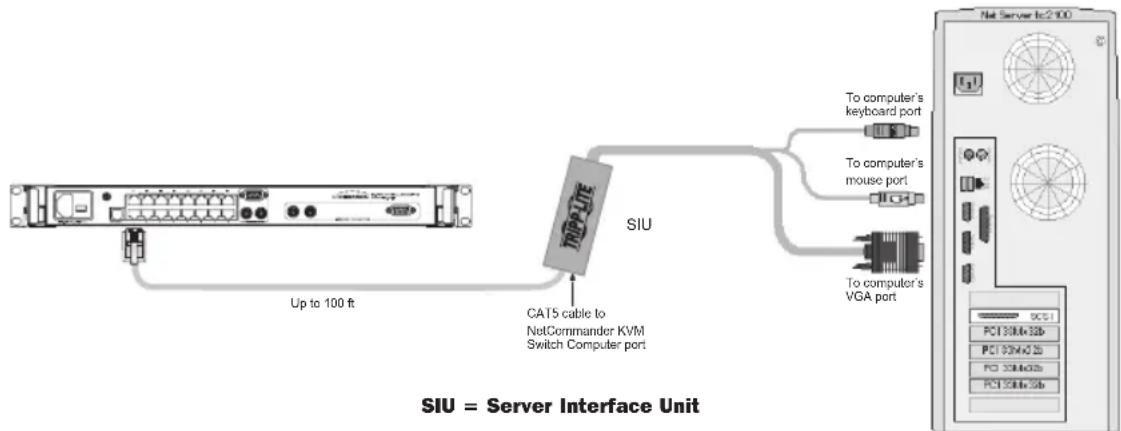
Figure 4:NetCommander PS/2 Server Interface Unit
5 Installation
Connecting a NetCommander USB Server Interface Unit (Model # B078-101-USB)
- Connect the B078-101-USB VGA connector to the computer's VGA port.
- Connect the B078-101-USB USB connector to the computer's USB port.
- Connect one end of the Cat5 patch cable to the RJ45 port on the B078-101-USB*.
- Connect the other end of the Cat5 patch cable to the desired RJ45 port on the Console KVM.* The green LED will illuminate when the SIU is connected and receiving power.
-
Repeat these steps for each additional USB computer/server you are connecting to the Console KVM.
-
Cat5 cable should be no longer than 100 ft.
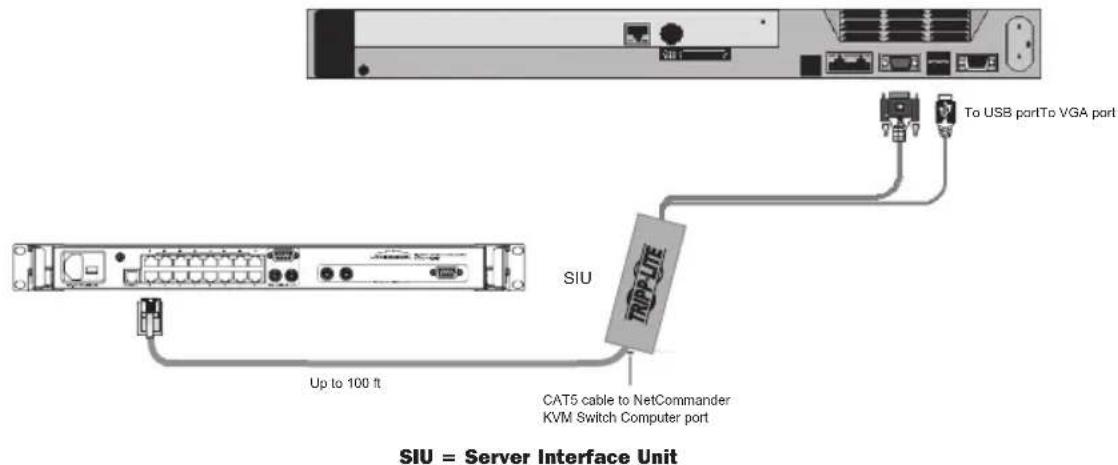
Figure 5:NetCommander USB Server Interface Unit
Connecting the Power Supply
- Plug in the KVM using only the power cord supplied with the unit.
- Switch ON the Console KVM.
Resetting the KVM Switch
To reset the KVM switch, use the power switch on the back to turn the unit off, then back on. The Server Interface Units are unaffected by this reset.
5 Installation
Rackmount Considerations
Ambient Operating Temperature
The ambient operating temperature in the rack may be an issue and is dependent upon the rack load and ventilation. When installing in a closed or multi-unit rack assembly, make sure not to exceed the maximum rated ambient temperature (32^ to 104^)
Airflow
Ensure the airflow within the rack is not compromised.
Circuit Overloading
When connecting the equipment to the supply circuit, consider the effect circuit overload might have on over-current protection and supply wiring.
Reliable grounding of rack-mounted equipment should be maintained.
To protect against circuit overloading, connect your Console KVM and attached computers/servers to a Tripp Lite SmartPro® or SmartOnline® UPS System.
Rackmounting the NetCommander KVM
The NetCommander Console KVM is designed for mounting in a 1U rack system. For convenience, a rack mounting kit is included for quick installation. The various mounting options are explained following sections.
Standard Rackmounting
The standard rackmounting brackets that come attached to the console allow the unit to be installed in standard 1U racks by a single individual.
1 Slide out the rear mounting brackets from the console and mount both brackets (separate from the console) to the inside rear of a standard 1U rack system using user-supplied screws.
Take the console and gently slide it into the two rear-mounted brackets in the rack and secure the console in place by inserting user-supplied screws.
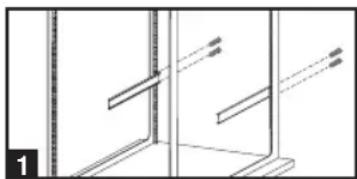
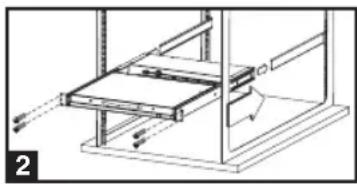
2-Post Rackmounting
The Console KVM can also be mounted in a 2-post rack installation using the optional 2-Post Rackmount Kit (model #: B019-000). The mounting hardware allows the console to be opened with the drawer in any position. Heavy-duty 14-gauge steel provides stability and prevents the console frame from twisting. See the B019-000 owner's manual for detailed mounting instructions.
5 Installation
Cascading NetCommander KVM Switches
To cascade two or more NetCommander KVM switches, follow the instructions below. Connect up to 256 computers* using any combination of B072-008-1 and B072-016-1 KVM switches. You can only cascade 1 extra level of KVM switches onto the Console KVM.
- When all 16 ports of a B070-016-19 have a B072-016-1 cascaded from them. Setting the different OSD display hotkeys for cascaded KVMs is explained in Adding/ Changing a Hotkey (HKEY) for Cascaded KVM Switches.
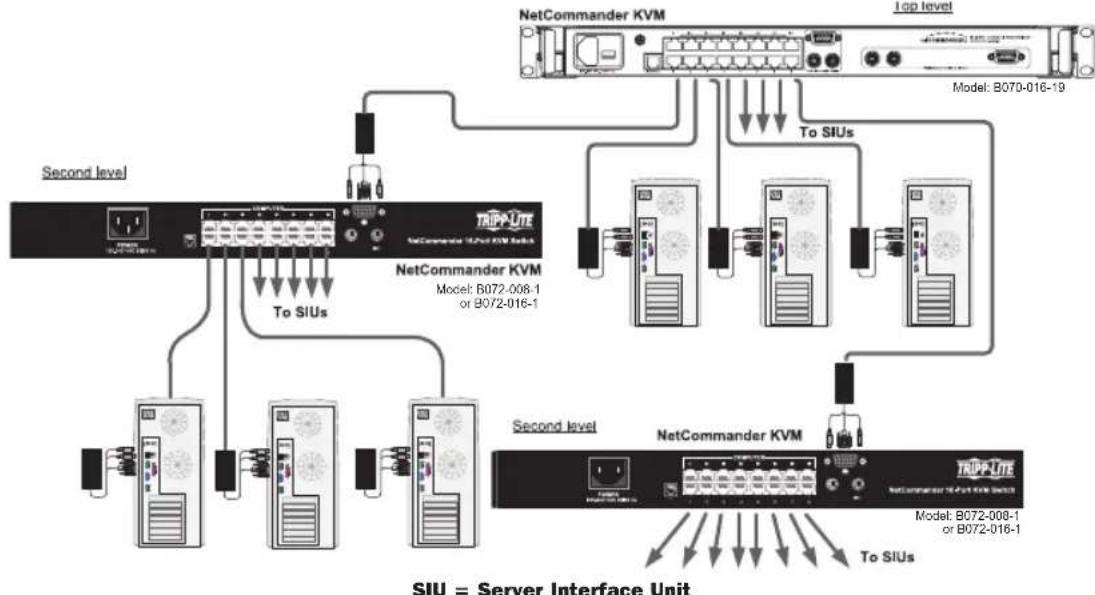
Figure 6: Cascading NetCommander KVM switches
Connecting a B051-000 IP Remote Access Unit to the KVM
1.Disconnect the Jumper Cable Console Connectors plugged into the KVM Console Ports.
2. Plug the end of the Jumper Cable you just disconnected into the Local Console Ports of the IP Remote Access Unit.
3. Plug the PS/2 and VGA connectors from the IP Remote Access Unit into the KVM Console Ports.
4. For further setup instructions for the B051-000 IP Remote Access Unit, refer to the Owner's Manual included with the unit.
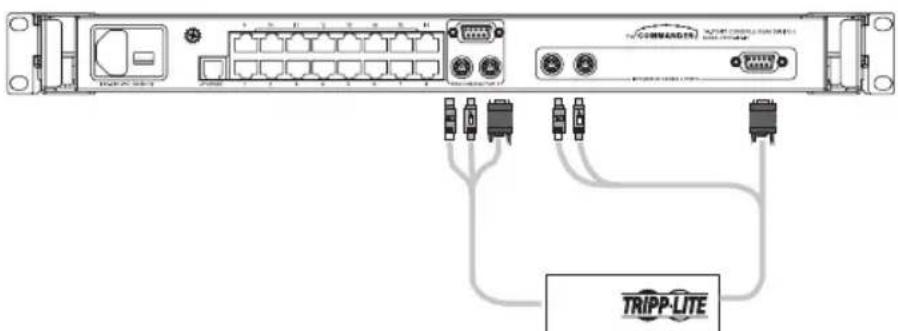
Figure 7: Connecting a B051-000 IP Remote Access Unit
5 Installation
Connecting an External VGA Monitor, PS/2 Keyboard and PS/2 Mouse
- Disconnect only the jumper cable connections from the KVM console ports you want to connect an external device to. If connecting an external monitor, keyboard and mouse, completely remove the jumper cable from the KVM.
- Connect your external VGA monitor to the VGA KVM console port.
- Connect your PS/2 keyboard and mouse to the PS/2 keyboard and mouse KVM console ports.
6 Operation
Basic Operation
Switch between the connected computers using any of the following methods:
The OSD (On-Screen Display)
- Keyboard hotkey commands
The OSD is also used to adjust various settings.
A confirmation label at the top of your monitor screen identifies which computer is currently selected.
Keyboard Hotkeys
To switch to the next computer, press and release the [Shift] key, then press the [+] key.
To switch to the previous computer, press and release the [Shift] key, then press the [-] key.
Note: You can use the [+] key of the alphanumeric section or of the numeric keypad on a US English keyboard. With a Non-US English keyboard, use the [+] key of the numeric keypad only.
6 Operation
On-Screen Display
To open the OSD:
Press and release the [Shift] key twice to open the OSD Main Menu. Lines with blue text represent ports that have a computer/server connected to them, which is currently turned on. Lines with gray text represent ports that either have a computer/server connected to them, which is turned off; or they have no computer/server connected at all. The TYPE column indicates whether a computer/server (C) is connected to the port or a KVM Switch (S) is connected to the port. For the TYPE column to display S, the user must change the Hotkey setting for the cascaded KVM. (See Adding/Changing a Hotkey (HKEY) for Cascaded KVM Switches for details.)
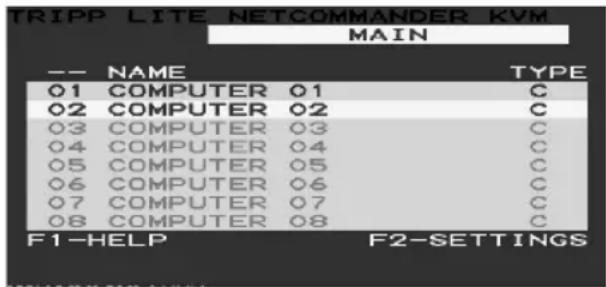
Figure 8: OSD Main Window
Navigating the OSD
To move up and down, use the [] and [] arrow keys.
To jump from one column to the next (when relevant), use the [Tab] key.
To exit the OSD or to return to the previous OSD window, press [Esc].
Selecting a Computer
To select a computer:
- Move to the desired computer line.
- Press the Enter key. The selected computer will be accessed and the OSD screen will close.
Note: While the OSD Screen is active, the Keyboard Hotkey Commands and Mouse will be deactivated.
OSD Settings (F2)
Press [F2] to open the OSD Settings window (see Figure 9).
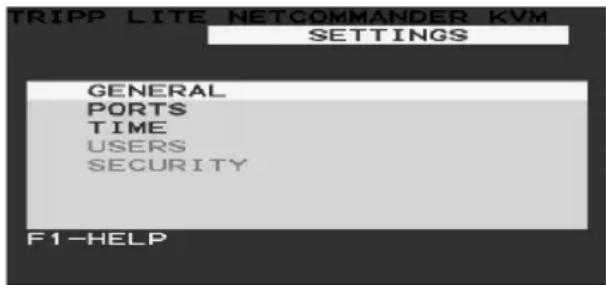
Figure 9: Settings Window
Note: If the OSD is password protected, only the Administrator will be able to access the F2 settings window by using the appropriate password.
6 Operation
General Settings
With the highlight line on the word GENERAL, press [Enter]. The General Settings window appears (see Figure 10).
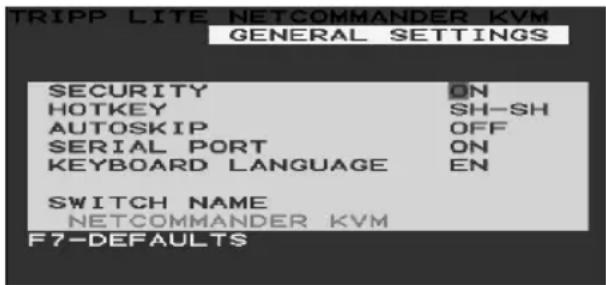
Figure 10: General Settings Window
Security
The Security option in the OSD General Settings Menu allows you to activate or deactivate Password Security. By default, Password Security is set to Off. Only the Administrator will be able to activate/deactivate Password Security.
To activate/deactivate Password Security:
- Highlight the Security option in the OSD General Settings Menu
- Press the space bar to change Password Security On/Off
- Pressing the space bar will display a prompt requiring you to enter the Security Password (Security Password defaults as 'Admin').
- Once you've typed in the correct password and pressed [Enter], the Password Security status will be changed.
Note: Once Password Security is activated, Hotkey Commands will be deactivated, leaving you limited to the OSD Menu as your only way to select a port. Once you leave the OSD Menu, you will need to press the [Shift], [Shift] command to access the OSD Menu and select another port. You will be required to enter your password each time you enter the OSD Menu.
- See the main Security section for more information on Security features.
Changing the OSD Hotkey
By default the primary Hotkey is the [Shift] key. You have the ability to replace the Shift key with one of 4 different choices in the OSD General Settings Menu.
(SH-SH): This represents the Shift key. To access the OSD Menu you press [Shift],
[Shift]. To access the next KVM in line press [Shift], [+] . To access the previous KVM in line hit [Shift], [-] .
(CL-CL): This represents the Ctrl key. To access the OSD Menu you can either press the Left [Ctrl] key 2 times or you can press the Right [Ctrl] key once, then the Left Ctrl key. You can press either [Ctrl] key once and the [+] key to access the next KVM in line.
You can press either [Ctrl] key once and the [-] key to access the previous KVM in line.
(CLF11): This represents the Ctrl key and the F11 key. To access the OSD Menu press either [Ctrl] key and then [F11]. You can press either [Ctrl] key once and the [+] key to access the next KVM in line. You can press either [Ctrl] key once and the [-] key to access the previous KVM in line.
(PRSCR): This represents the Print Screen key. To access the OSD Menu press the [PrtScn] key once. When you select Print Screen as your hotkey, the port selection Hotkey commands are deactivated, leaving the OSD Main Menu as the only way to switch to another port.
6 Operation
When you have cascaded KVM switches, a lower level Switch must have a different OSD display Hotkey than a higher level switch.
To change the top-level switch hotkey:
- Highlight the Hotkey option in the OSD General Settings Menu.
- Press the space bar to toggle through the various options.
- When you've selected the desired hotkey, simply exit the OSD. Pressing the [Enter] key is not required to activate your selection.
To change a lower level Hotkey:
- Connect a keyboard and monitor to the lower level switch.
- Press [Shift], [Shift] to open the OSD Menu.
- Press [F2] to open the General Settings Menu and highlight the Hotkey option.
- Press the space bar to toggle through the various hotkeys.
- When you've selected the desired hotkey, simply exit the OSD Menu. Pressing the [Enter] key is not required to activate your selection.
- Follow the instructions in Ports Settings to update the Port Settings menu in the top-level KVMs OSD to reflect the lower-level KVMs new hotkey.
Note: When Password Security is activated, all port selection hotkey commands are deactivated, leaving the OSD Main Menu as the only way to switch to another port.
Auto Skip
The Auto Skip option allows you to choose whether you want Inactive ports to be selectable or not. If the Auto Skip option is turned on, Inactive ports will not be accessible via the OSD Main Menu or the Port Selection Hotkey Commands. If the Auto Skip option is turned off, you will be able to access Inactive ports using either the OSD Main Menu or the Port Selection Hotkey Commands.
To change the Auto Skip setting:
- Highlight the Auto Skip option in the OSD General Settings Menu.
- Press the space bar to turn the Auto Skip option On/Off.
Serial Port
The Serial port is used for the Firmware upgrade. Serial port On means the program can be used.
To change the Serial port setting:
- Highlight the Serial Port option in the OSD General Settings Menu.
- Press the space bar to turn the Serial Port option On/Off.
Changing the Keyboard Language
The keyboard is preset to English (US). It can be changed to French (FR) or German (DE) by doing the following:
- Highlight the Keyboard language option in the OSD General Settings Menu
- Press the space bar to toggle through the various options.
- When you've selected the desired language, simply exit the OSD. Pressing the [Enter] key is not required to activate your selection.
6 Operation
Editing the Switch Name
The KVM Switch Name appears at the bottom of the OSD General Settings Menu, and can be changed to whatever you want. When cascading, it is necessary to access the cascaded KVMs OSD using its own hotkey. Giving cascaded KVMs OSDs unique names makes it easier when accessing them to verify which switch's OSD you are accessing. To change this name, simply type over the existing letters. You can create a name up to 18 characters in length, with spaces counting as characters.
Reset OSD General Settings Menu to Defaults (F7)
When in the OSD General Settings Menu, you can reset all of the options to the original default settings, erasing any changes you have made. If you have changed the Security Passwords, they will be reset to their defaults as well.
Ports Settings
In the OSD Settings Menu (access by pressing [F2] in the OSD Main Menu), highlight the Ports option and press enter.
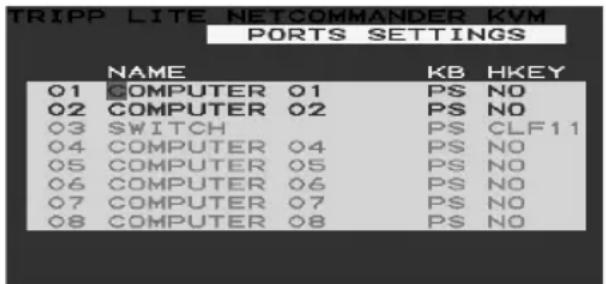
Figure 11: Ports Settings Window
Editing the Computer Name
By default, each port is named 'Computer 01', 'Computer 02', etc. To personalize these names for each computer, highlight the desired port and type directly over the text that's already there. Each name has a maximum of 15 characters, each space counting as one character. To delete a character, simply highlight it and press the space bar.
Editing the Keyboard (KB) Column
The KVM operates with Windows, Linux, HP UX, Alpha UNIX, SGI, DOS, Novell, MAC, USB or Open VMS. By default, the Keyboard Mode is set to PS for Intel-based computers. For a different keyboard mode, highlight the desired port and press the [Tab] key to highlight the KB column. Press the space bar to toggle through the following options:
U1 - HP UX
U2 - Alpha UNIX, SGI or Open VMS
U3-IBM AIX
Adding/Changing a Hotkey (HKEY) for Cascaded KVM Switches
When a KVM Switch is cascaded to the Console KVM, it is necessary to select a hotkey in this field. This is required so the top-level KVM knows that when the Cascaded KVM Port is selected and you hit the selected OSD Hotkey Command, it is supposed to pull up the OSD Main Menu for that KVM switch. If a Hotkey is not selected for a cascaded KVM, you will not be able to access the cascaded KVMs OSD. For connected computers/server this field should have "NO" selected.
6 Operation
To add/change a hotkey:
- Highlight the desired port and press the [Tab] key until the HKEY column is highlighted.
- Press the space bar to toggle through the various choices.
- When you've selected the desired hotkey, simply exit the OSD. Pressing the [Enter] key is not required to activate your selection.
Time Settings
In the Settings window navigate to the Time line and press [Enter]. The Time settings window appears (see Figure 12).
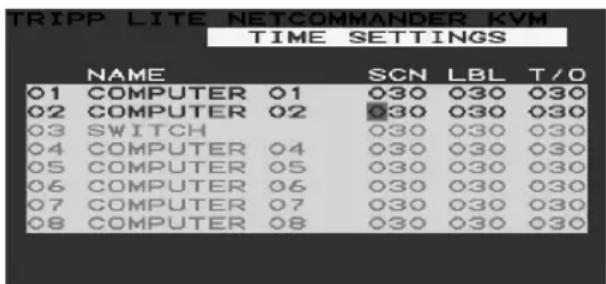
Figure 12: Time Settings Window
SCN - Sets the amount of time spent on the selected computer when Auto Scanning.
LBL - Sets the amount of time the OSD label that shows which computer is currently accessed is displayed.
T/O - When password protection is activated, you can automatically disable the Keyboard, Mouse and Monitor after a set amount of inactive time, requiring a password to be entered to regain access to the KVM switch. When Timed Out, press the [Shift], [Shift] OSD Hotkey Command to pull up the password prompt, which will return to the OSD Main Menu once you enter your password.
To set the above periods:
- On the desired line, press [Tab] to jump to the desired column.
- Place the cursor over one of the 3 digits and type a new number. Enter a leading zero where necessary. For example, type 030 for 30 seconds.
Type 999 in the LBL column to have the label displayed continuously. Enter 000 if you do not want the label to appear.
Type 999 in the T/O column to disable the Timeout function.
Type 000 if you want the Timeout function to work immediately.*
- This will cause the Timeout function to begin the instant a computer port is selected. This will essentially freeze access to the KVM, not allowing the user enough time to hit the OSD Hotkey Command to pull up the password prompt. It is recommended that you always keep the T/O set to 5 seconds or higher. If you set the T/O at 000 and get locked out of the KVM, turn the Console KVM Off and then back On.
This will reset the KVM, leaving a blank screen on the monitor. Hit the [Shift], [Shift] OSD Hotkey Command to pull up the password prompt. Once you type in your password, you will again have access to the OSD Main Menu.
Type 999 in the SCN column to display the screen for 999 seconds.
Type 000 to skip the computer screen.
6 Operation
Security
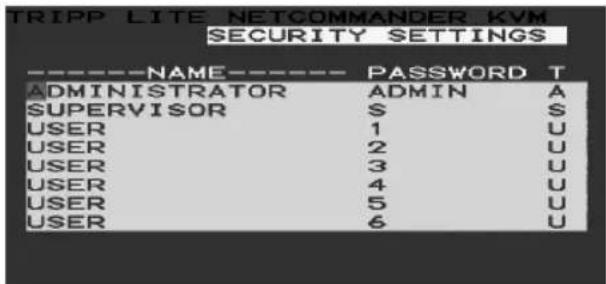
Figure 13: The Security Settings Window
The OSD offers an advanced password security system comprised of three different security levels, each having its own access rights.
Administrator (Status A): The Administrator has access to all features of the KVM, allowing them to Set/Modify all Passwords and Security Profiles, gain full access to any computer connected to the KVM and usage of all OSD features.
Supervisor (Status S): The supervisor has full access to all computers connected to the KVM and can use the Auto Scan (F4), Tuning (F5) and Confirmation Label Moving (F6) functions in the OSD. The Supervisor cannot change any of the OSD Settings or Security Settings.
User (Status U): There can be up to 6 Users set up by the Administrator for access to the KVM. Users are able to use the OSD Main Menu to access a connected computer and can use the Auto Scan (F4), Tuning (F5) and Confirmation Label Moving (F6) functions in the OSD. Users do not have the ability to use any other OSD features. The Administrator will choose which computers they have access to and which they do not. There are 3 levels of access the Administrator can give a User:
Y - This gives the user full access to a connected computer.
V - This gives the user view only access to a computer. Keyboard and mouse functionality are not available.
N - This means a user is not allowed to access a connected computer. If the User attempts to access a computer they are not allowed to, a blank screen will appear.
Security Settings
When Password Security is set to on, only the administrator can change the Security Settings of the KVM switch.
Security Settings
-
Highlight the Security option in the OSD Settings Menu and press the [Enter] key.
-
To change the name of the Administrator, Supervisor or User, highlight the desired name and simply type over what's already there. Any letters left over can be deleted by pressing the space bar.
-
To change the password, press the [Tab] key to highlight the Password column of the desired person and type in the new password.
-
The last column (T) refers to the level of access; Administrator (A), Supervisor (S) or User (U). You can change these if you want, but there can only be 1 Administrator, 1 Supervisor and 6 Users.
6 Operation
User Settings
- Highlight the Users option in the OSD Settings Menu and press the [Enter] key.
- The Users will be represented in the 6 columns on the right side of the screen. To change the access for a given computer, highlight the desired computer and press the [Tab] key until the desired user is highlighted.
- Press the space bar to toggle between the 3 access options (Y, V or N). See the main Security section for details on these 3 options.
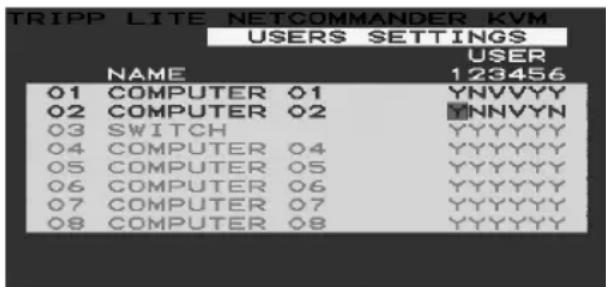
Figure 14: The Users Settings Window
OSD HELP Window (F1)
To access the HELP window, press [F1]. The HELP window is displayed (see Figure 15).
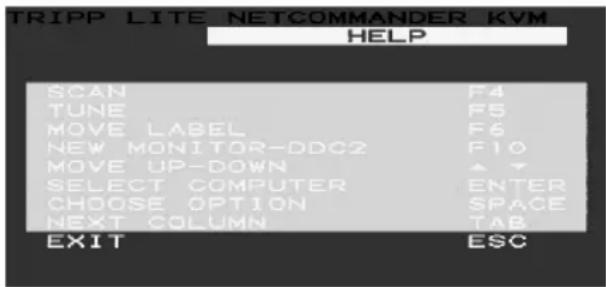
Figure 15 The HELP Window
Please note! All the functions in the Help window are performed from the OSD Main Menu. The Help window only serves as a reminder of the OSD function keys.
Scanning Computers (F4)
The amount of time spent on a computer when Auto Scanning is adjustable. See Time Settings for details.
To activate scanning:
- Press the [Shift] key twice to activate the OSD.
- Press the [F4] key.
Each active computer will be displayed in sequence. A Scan label appears in the top left corner.
To deactivate scanning:
Press [F4].
6 Operation
Tuning (F5)
You can tune the image of any remote computer screen.
To adjust the screen image:
- In the OSD Main Menu, highlight the computer you want to adjust.
- Press the [F5] key. The screen image of the selected computer is displayed, along with the Image Tuning label.
- Adjust the image by using the Right and Left Arrow keys.
- When the image is satisfactory, press [Esc].
Note: Distance affects picture quality. The further away a remote computer is from the KVM, the lower the image quality and the more tuning needed. Therefore, put any higher resolution computers closer to the KVM.
Moving the Label (F6)
You can position the OSD label anywhere on the screen.
To position the label from the Main window:
- Move to the desired computer using the [ ] and [ ] arrow keys.
- Press the [F6] key. The selected screen image and Identification label are displayed.
- Use the arrow keys to move the label to the desired position.
- Press [Esc] to save and exit.
7 Firmware Upgrade
Firmware Upgrade System Requirements
- Windows 2000 or higher operating system
- Pentium 166 or higher with 16MB RAM and 10MB free hard drive space
Available DB9 serial port
Upgrading the KVM Firmware
The NetCommander KVM Firmware Upgrade Utility allows you to upgrade both the KVM and Server Interface Units (SIUs). Each KVM in a cascade installation must be upgraded individually. When done upgrading the first KVM in the installation, perform the upgrade procedure on each subsequent KVM. To upgrade your firmware, follow the steps below:
- Make sure the Serial Port setting in the OSD General Settings menu is set to On. This makes the serial port on the back of the KVM switch available for use in a firmware upgrade.
- Using the included RJ11 to DB9 firmware upgrade cable, connect the upgrade port on the back of the unit to an available serial port on a computer that is not connected to the KVM.
7 Firmware Upgrade
- On the upgrade computer (the computer connected to the KVM via the firmware upgrade cable), go to the Tripp Lite website and download the NetCommander Firmware Upgrade Utility .exe file, Firmware Upgrade .tfp file and Firmware Upgrade information .doc file.
Note: The firmware upgrade information document will list the latest firmware for all Tripp Lite NetCommander KVM switches and SIUs, which you will need to reference when determining if your device has the latest firmware. The .tfp firmware upgrade file contains firmware for both the KVM and SIUs.
- Run the NetCommander Firmware Upgrade Utility .exe file, and follow the instructions to install the utility on the upgrade computer.
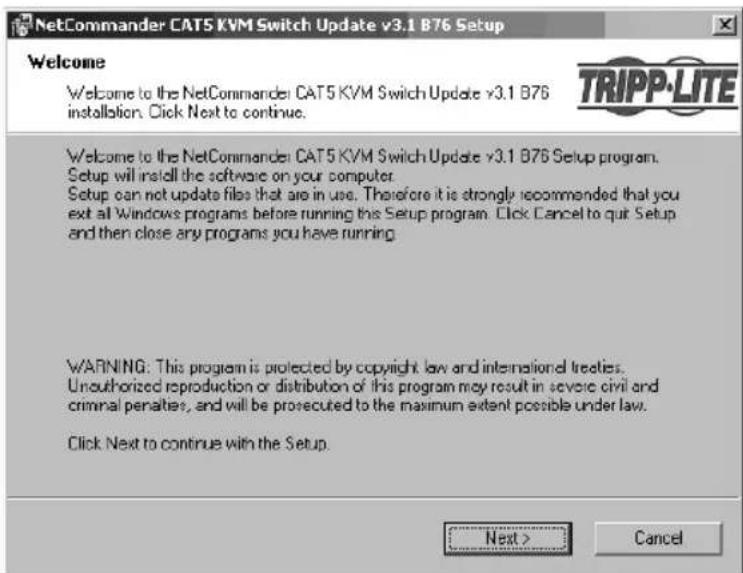
- Once installed on the upgrade computer, open the NetCommander Firmware Upgrade Utility.
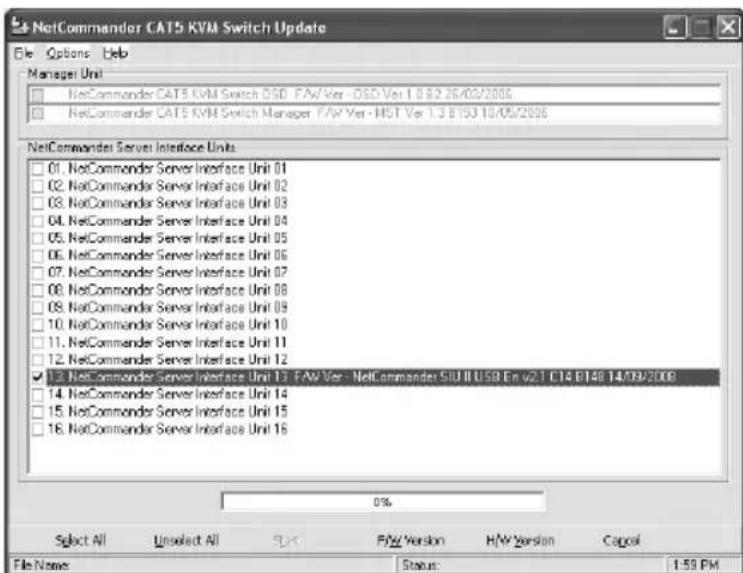
7 Firmware Upgrade
- Check the firmware versions of the KVM (Switch Manager), KVM OSD (Switch OSD) and SIUs by clicking on the boxes next to them and pressing the F/W Version button.
Note: To select a device, you must first unselect any boxes that have already been checked. To select or unselect all SIUs at once, simply click on the Select All or Unselect All button at the bottom of the upgrade utility. - Compare the firmware versions of your devices to that of the firmware version listed in the document from the Tripp Lite website. If your version is the same or newer than that found on the Tripp Lite website, you do not need to upgrade your firmware. If your version is older, proceed to the next step.
- Click on the box next to the KVM OSD (Switch OSD), KVM (Switch Manager) or SIU(s).
- In the File menu at the top of the upgrade utility screen, select the Open option and navigate to the .tfp firmware upgrade file you downloaded from the Tripp Lite website.
- In the Options menu at the top of the upgrade utility screen, select the Com Port option, and choose the Com Port of the upgrade computer that the firmware upgrade cable is connected to.
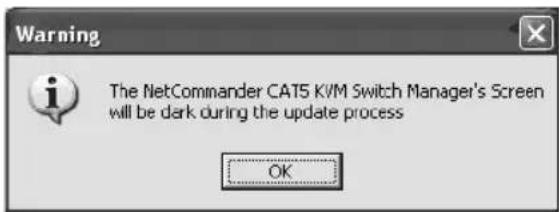
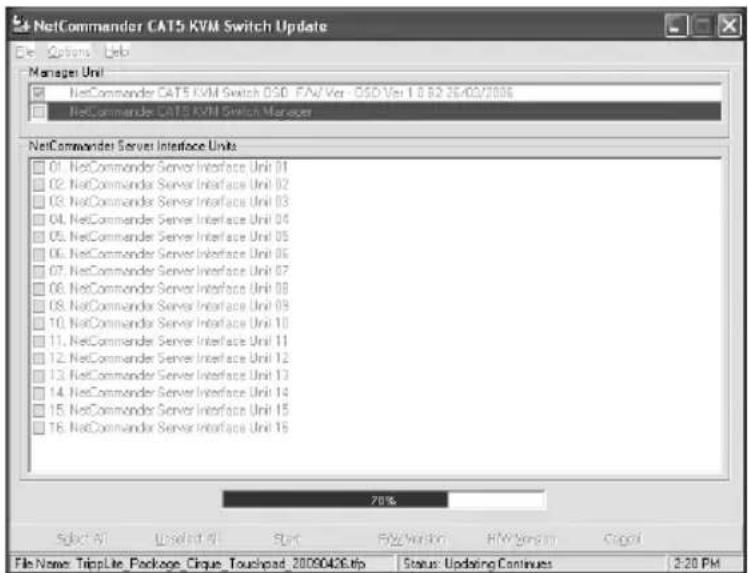
- Click on the Start button at the bottom of the upgrade utility to begin the upgrade. A prompt will appear to warn you that the KVM screen will be dark during the upgrade process. Click on the OK button to proceed with the upgrade.
7 Firmware Upgrade
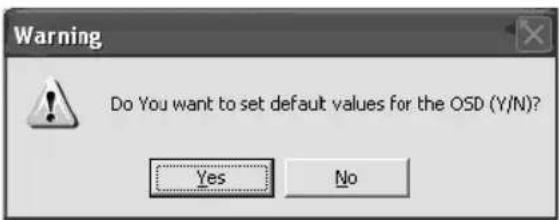
- Towards the end of the firmware upgrade, a prompt will appear asking you if you want to set the OSD to its default settings. If yes, click the Yes button. If no, click the No button. The upgrade will continue.
- Upon completion, the new firmware version will display next to the upgraded unit in the upgrade utility, and the KVM screen will no longer be blacked out.
Note: A firmware upgrade generates one log file per session that displays a chronological list of actions. You can read the log file in any ASCII text editor. The log file is located in the Windows directory.
KVM Switch/SIU Reset
In the event the KVM switch or SIU(s) lockup during the firmware upgrade process, or the consoles mouse and keyboard are not working, you can reset the KVM or SIU(s) using the upgrade utility. To perform a reset, follow these steps:
Note: This will not affect any of the settings on the KVM switch or SIU(s).
- Open the upgrade utility and check the checkbox next to the device you want to reset.
- In the Options menu at the top of the screen, select the Advanced/Reset option. This will perform the reset of the selected device.
8 Troubleshooting

Disconnect device from AC mains before service operation!
When using Firmware Update software you may at times get a Communication Error message.
If a Communication Error message does appear during the update procedure, do the following:
- Ensure the RS-232 Serial cable's RS-232 connector is connected to the Switch's Communication port.
- Ensure the RS-232 Serial cable's DB9 female connector is connected to the DB9 male Serial port on the CPU's rear panel.
- Restart the download process.
Electricity Failure
If the electricity fails during an update to the KVM firmware, do the following:
- If the electricity fails while the switch firmware is updating, a Communication Error message will appear. Simply resume the firmware update by opening the folder that contains the firmware update file and continue from there.
- If the electricity fails while the Server Interface Unit firmware is updating, a Not Responding or Upgrade Error message will appear. Restart the upgrade from the beginning.
Monitor Screen Failure
In the event that one of the connected computers does not display an image on the console monitor (your monitor may display an error message 'Unable to Display Video Mode'), you may need to update the DDC Information from the console monitor. To do this, follow these steps:
- Remove the SIU VGA Connectors from all connected computers. Leave the USB or PS/2 connectors attached.
- Open the OSD Main Menu and press the F10 key. The OSD will flash the message 'Please Wait.' When that message stops, the update has taken place.
- Reconnect the SIU VGA Connectors of all the attached computers. You should now be able to display video from all computers.
9 USB/SUN Combo Keys
The connected PS/2 keyboard does not have a special SUN keypad to perform special functions in the SUN Operating System environment. When a B078-101-USB (SIU) is connected to a SUN computer, the SIU emulates these SUN keys using a set of key combinations called Combo Keys. See the table below.
SUN key Combb key
| Stop | Left [Ctrl] + [Alt] + [F1] |
| Props | Left [Ctrl] + [Alt] + [F3] |
| Front | Left [Ctrl] + [Alt] + [F5] |
| Open | Left [Ctrl] + [Alt] + [F7] |
| Find | Left [Ctrl] + [Alt] + [F9] |
| Again | Left [Ctrl] + [Alt] + [F2] |
| Undo | Left [Ctrl] + [Alt] + [F4] |
| Copy | Left [Ctrl] + [Alt] + [F6] |
| Paste | Left [Ctrl] + [Alt] + [F8] |
| Cut | Left [Ctrl] + [Alt] + [F10] |
| Help | Left [Ctrl] + [Alt] + [F11] |
SUN key Combo key
| Compose Application key or | |
| Left [Ctrl] + [Alt] + Keypad* | |
| Crescent | [Scroll Lock] |
| Volume Up | Left [Ctrl] + [Alt] + Keypad - |
| Volume Down | Left [Ctrl] + [Alt] + Keypad + |
| Mute | Left [Ctrl] + [Alt] + [F12] |
| Sun Left ◆ key | Left [Windows] key |
| Sun Right ◆ key | Right [Windows] key |
| Alt-Graph | Right [Alt] or [Alt Gr] |
| Stop A | Left [Ctrl] + [Alt] + 1 |
10 Specifications
| Operating Systems operating systems | DOS, Windows, LINUX, UNIX, Mac and all other major | |
| Optional External Mouse PS/2, Wheel mouse, Intellimouse, 5-button mouse | ||
| Resolution 1366 x 768 | ||
| Transmission distance Up to 100 ft. | ||
| NetCommander KVM Switch Model B070-016-19 or B070-008-19 | ||
| Dimensions 28" x 19" x 1.7" (L x W x H) | ||
| Weight 36 lbs. | ||
| Power supply Internal switching 100-240 VAC 50 / 60 Hz | ||
| Connections | ||
| System RJ45 | ||
| Serial RJ11 | ||
| Monitor | HD15 | |
| Keyboard | MiniDin6 | |
| Mouse | MiniDin6 | |
| Operating / Recommended ambient temperature | 32°F to 104°F | |
| Storage temperature | -40°F to 158°F | |
| Humidity | 80% non-condensing relative humidity | |
| NetCommander Server Interface Units | Model B078-101-PS2 | Model B078-101-USB |
| Connections | ||
| VGA | HD15 | HD15 |
| Keyboard/Mouse | MiniDin6 | USB |
| System | RJ45 | RJ45 |
| Power | From Keyboard port From USB port | |
Cascadeable KVM Switches B072-016-1 or B072-008-1
11 Warranty and Product Registration
1-Year Limited Warranty
TRIPP LITE warrants its products to be free from defects in materials and workmanship for a period of one (1) year from the date of initial purchase. TRIPP LITE's obligation under this warranty is limited to repairing or replacing (at its sole option) any such defective products. To obtain service under this warranty, you must obtain a Returned Material Authorization (RMA) number from TRIPP LITE or an authorized TRIPP LITE service center. Products must be returned to TRIPP LITE or an authorized TRIPP LITE service center with transportation charges prepaid and must be accompanied by a brief description of the problem encountered and proof of date and place of purchase. This warranty does not apply to equipment, which has been damaged by accident, negligence or misapplication or has been altered or modified in any way.
EXCEPT AS PROVIDED HEREIN, TRIPP LITE MAKES NO WARRANTYES, EXPRESS OR IMPLIED, INCLUDING WARRANTYES OF MERCHANTABILITY AND FITNESS FOR A PARTICULAR PURPOSE. Some states do not permit limitation or exclusion of implied warranties; therefore, the aforesaid limitation(s) or exclusion(s) may not apply to the purchaser.
EXCEPT AS PROVIDED ABOVE, IN NO EVENT WILL TRIPP LITE BE LIABLE FOR DIRECT, INDIRECT, SPECIAL, INCIDENTAL OR CONSEQUENTIAL DAMAGES ARISING OUT OF THE USE OF THIS PRODUCT, EVEN IF ADVISED OF THE POSSIBILITY OF SUCH DAMAGE. Specifically, TRIPP LITE is not liable for any costs, such as lost profits or revenue, loss of equipment, loss of use of equipment, loss of software, loss of data, costs of substitutes, claims by third parties, or otherwise.
Product Registration
Visit www.triplite.com/warranty today to register your new Tripp Lite product. You'll be automatically entered into a drawing for a chance to win a FREE Tripp Lite product!*
- No purchase necessary. Void where prohibited. Some restrictions apply. See website for details.
FCC Notice, Class A
This device complies with part 15 of the FCC Rules. Operation is subject to the following two conditions: (1) This device may not cause harmful interference, and (2) this device must accept any interference received, including interference that may cause undesired operation.
Note: This equipment has been tested and found to comply with the limits for a Class A digital device, pursuant to part 15 of the FCC Rules. These limits are designed to provide reasonable protection against harmful interference when the equipment is operated in a commercial environment. This equipment generates, uses, and can radiate radio frequency energy and, if not installed and used in accordance with the instruction manual, may cause harmful interference to radio communications. Operation of this equipment in a residential area is likely to cause harmful interference in which case the user will be required to correct the interference at his own expense. The user must use shielded cables and connectors with this equipment. Any changes or modifications to this equipment not expressly approved by Tripp Lite could void the user's authority to operate this equipment.
WEEE Compliance Information for Tripp Lite Customers and Recyclers (European Union)

Under the Waste Electrical and Electronic Equipment (WEEE) Directive and implementing regulations, when customers buy new electrical and electronic equipment from Tripp Lite they are entitled to:
- Send old equipment for recycling on a one-for-one, like-for-like basis (this varies depending on the country)
- Send the new equipment back for recycling when this ultimately becomes waste
Use of this equipment in life support applications where failure of this equipment can reasonably be expected to cause the failure of the life support equipment or to significantly affect its safety or effectiveness is not recommended.
Tripp Lite has a policy of continuous improvement. Specifications are subject to change without notice.


1111 W. 35th Street, Chicago, IL 60609 USA • www.triplite.com/support
1111 W. 35th Street, Chicago, IL 60609 USA • www.triplite.com/support
Manufacturing Excellence.
1111 W. 35th Street, Chicago, IL 60609 USA • www.triplite.com/support
1111 W. 35th Street, Chicago, IL 60609 USA • www.triplite.com/support


- Table of Contents
- Features
- Package Contents
- Accessories
- Configuration
- Front View
- Rear View
- Installation
- Pre-Installation Guidelines
- Connecting the NetCommander KVM System
- NetCommander Server Interface Unit (SIU)
- Connecting a NetCommander PS/2 Server Interface Unit (Model # B078-101-PS2)
- Connecting a NetCommander USB Server Interface Unit (Model # B078-101-USB)
- Connecting the Power Supply
- Resetting the KVM Switch
- Rackmount Considerations
- Ambient Operating Temperature
- Airflow
- Circuit Overloading
- Rackmounting the NetCommander KVM
- Standard Rackmounting
- 2-Post Rackmounting
- Cascading NetCommander KVM Switches
- Connecting a B051-000 IP Remote Access Unit to the KVM
- Connecting an External VGA Monitor, PS/2 Keyboard and PS/2 Mouse
- Operation
- Basic Operation
- Keyboard Hotkeys
- On-Screen Display
- Navigating the OSD
- Selecting a Computer
- OSD Settings (F2)
- General Settings
- Security
- Changing the OSD Hotkey
- Auto Skip
- Serial Port
- Changing the Keyboard Language
- Editing the Switch Name
- Reset OSD General Settings Menu to Defaults (F7)
- Ports Settings
- Editing the Computer Name
- Editing the Keyboard (KB) Column
- Adding/Changing a Hotkey (HKEY) for Cascaded KVM Switches
- Time Settings
- Security Settings
- User Settings
- OSD HELP Window (F1)
- Scanning Computers (F4)
- Tuning (F5)
- Moving the Label (F6)
- Firmware Upgrade
- Firmware Upgrade System Requirements
- Upgrading the KVM Firmware
- KVM Switch/SIU Reset
- Troubleshooting
- Disconnect device from AC mains before service operation!
- Electricity Failure
- Monitor Screen Failure
- USB/SUN Combo Keys
- Specifications
- Warranty and Product Registration
- 1-Year Limited Warranty
- Product Registration
- FCC Notice, Class A
- WEEE Compliance Information for Tripp Lite Customers and Recyclers (European Union)
Brand : Tripp Lite
Model : B07000819
Category : Switch