
OFFICEJET 4500 G510A - Multifunction Printer HP - Free user manual and instructions
Find the device manual for free OFFICEJET 4500 G510A HP in PDF.
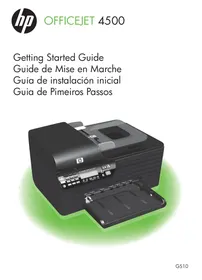


Pick your language and provide your email: we'll send you a specifically translated version.
| Product type | Multifunction inkjet printer |
| Functions | Print, scan, copy, fax |
| Print resolution | Up to 4800 x 1200 dpi (optimized) |
| Scan resolution | Up to 1200 x 1200 dpi |
| Copy resolution | Up to 600 x 600 dpi |
| Print speed Black (A4) | Up to 23 ppm (draft) |
| Print speed Color (A4) | Up to 22 ppm (draft) |
| Copy speed Black (A4) | Up to 23 cpm (draft) |
| Input tray | Up to 100 sheets |
| Output tray | Up to 50 sheets |
| Paper sizes | A4, A5, B5, envelopes, cards |
| Connectivity | USB 2.0, Wi-Fi 802.11b/g/n, Ethernet |
| Display | 2-line LCD screen |
| Dimensions (W x D x H) | 45.0 x 36.0 x 20.4 cm |
| Weight | 5.5 kg |
| Power | 100-240 V AC, 50/60 Hz |
| Power consumption | 10 W (printing), 3 W (standby), 0.5 W (off) |
| Ink cartridges | HP 60 Black (CH561WN) and HP 60 Tri-color (CH562WN) |
| Monthly duty cycle | Up to 3000 pages (recommended 600-800) |
| Warranty | 1 year parts and labor |
Frequently Asked Questions - OFFICEJET 4500 G510A HP
How to install the HP Officejet 4500 G510a printer?
Remove the printer from the packaging, remove the adhesive tapes, install the ink cartridges, load paper, plug in the power and turn on the device. Insert the installation CD or download the drivers from the HP website. Follow the on-screen instructions to complete the installation.
How to replace the ink cartridges?
Open the front cover, wait for the carriage to position. Press the used cartridge to release it and remove it. Take the new cartridge out of its packaging, remove the orange adhesive tape, insert it into the carriage until it clicks. Close the cover. The printer will initialize.
How to scan a document?
Place the document face down on the scanner glass or in the document feeder. On the printer screen, select Scan. Choose the destination (computer, email, etc.) and settings. Start the scan.
How to connect the printer to Wi-Fi?
On the printer screen, go to Network > Wireless > Setup Wizard. Select your network and enter the password. Once connected, install the HP software on your computer and choose the wireless connection.
How to clear a paper jam?
Open the rear cover and the output tray to access the paper path. Gently remove any jammed paper by pulling in the direction of the feed. Close the covers. If the jam persists, check the input tray.
The printer shows 'offline', what to do?
Check that the printer is turned on and connected to the same network. On your computer, go to Settings > Devices > Printers, right-click on the printer and uncheck 'Use printer offline'. Restart the printer and router if necessary.
How to print from a smartphone?
Download the HP Smart app on your smartphone. Make sure the phone and printer are on the same Wi-Fi network. Open the app, select the printer, then choose a document or photo to print.
How to set up fax?
Plug a telephone line into the 'LINE' port of the printer. On the screen, go to Setup > Fax > Basic Setup. Enter your fax number and answer settings. Perform a send and receive test.
How to clean the print heads?
From the control panel, go to Setup > Tools > Clean Printheads. Follow the instructions. You can also use the HP software on your computer: open HP Toolbox, Print Services tab, then Head Cleaning.
What to do if print quality is poor?
Check the ink level. Run a print head cleaning. Perform a cartridge alignment (Setup > Tools > Align Printheads). Use good quality paper. If the problem persists, replace the cartridges.
User questions about OFFICEJET 4500 G510A HP
0 question about this device. Answer the ones you know or ask your own.
Ask a new question about this device
No questions yet. Be the first to ask one.
Download the instructions for your Multifunction Printer in PDF format for free! Find your manual OFFICEJET 4500 G510A - HP and take your electronic device back in hand. On this page are published all the documents necessary for the use of your device. OFFICEJET 4500 G510A by HP.
USER MANUAL OFFICEJET 4500 G510A HP
Manual assistant
Powered by Anthropic
Waiting for your message
Product information
Brand : HP
Model : OFFICEJET 4500 G510A
Category : Multifunction Printer