
OFFICEJET - Multifunction Printer HP - Free user manual and instructions
Find the device manual for free OFFICEJET HP in PDF.


| Product Type | Multifunction inkjet printer |
| Brand | HP |
| Model | Officejet |
| Main functions | Print, scan, copy, fax |
| Connectivity | Wi-Fi 802.11, Ethernet, USB 2.0 |
| Power supply | External AC adapter (100-240 V AC) |
| Dimensions (approx.) | 45 x 38 x 20 cm |
| Weight (approx.) | 8 kg |
| Cartridge type | Specific HP ink cartridges (black, color) |
| Print head | User-replaceable |
| Input tray capacity | Up to 100 sheets |
| Duplex printing | Manual |
| Scanning | Color scanning, resolution up to 1200 dpi |
| Copying | Reduce/enlarge, multiple copies |
| Faxing | Built-in modem, fax memory |
| Maintenance | Software-based head cleaning, cartridge replacement |
| Safety | Use grounded outlet, do not expose to water, unplug before cleaning |
| Warranty | 1 year, cartridges until ink depletion |
| Repairability | Consumables (cartridges, print head) user-replaceable; technical maintenance to be performed by a professional |
Frequently Asked Questions - OFFICEJET HP
User questions about OFFICEJET HP
0 question about this device. Answer the ones you know or ask your own.
Ask a new question about this device
Download the instructions for your Multifunction Printer in PDF format for free! Find your manual OFFICEJET - HP and take your electronic device back in hand. On this page are published all the documents necessary for the use of your device. OFFICEJET by HP.
USER MANUAL OFFICEJET HP
Wireless Getting Started Guide
natural_image
Symbolic icon of a wireless key with signal waves, representing wireless communication (no text or labels)Copyright Information
© 2009 Copyright Hewlett-Packard Development Company, L.P.
Edition 2, 2/2009
Reproduction, adaptation or translation without prior written permission is prohibited, except as allowed under the copyright laws.
The information contained herein is subject to change without notice.
The only warranties for HP products and services are set forth in the express warranty statements accompanying such products and services. Nothing herein should be construed as constituting an additional warranty. HP shall not be liable for technical or editorial errors or omissions contained herein.
Trademark credits
Microsoft ^® and Windows ^® are U.S. registered trademarks of Microsoft Corporation.
© 2009 Copyright Hewlett-Packard Development Company, L.P.
Édition 2, 2/2009
Set up Wireless (802.11) communication.... 4
Step 1: Obtain required information and equipment.... 4
Step 2: Install software for your HP Officejet/Officejet Pro device 5
Step 3: Test the connection....6
Solving wireless (802.11) problems....6
Basic troubleshooting....6
Advanced troubleshooting....7
Change the connection method.... 10
Change from a USB connection 10
Change from an Ethernet connection 11
Connect the HP Officejet/Officejet Pro device using an ad hoc
wireless network connection 11
Method 1.... 11
Method 2 (Windows only) 11
Configure your firewall to work with HP devices.... 12
Advanced firewall information.... 12
Add hardware addresses to a wireless router.... 13
About wireless communication 13
Communication mode.... 13
Network name (SSID) 13
Security.... 13
Hewlett-Packard limited warranty statement 14
Safety Information

Always follow basic safety precautions when using this product to reduce risk of injury from fire or electric shock.
-
Read and understand all instructions in the documentation that comes with the device.
-
Use only a grounded electrical outlet when connecting this product to a power source. If you do not know whether the outlet is grounded, check with a qualified electrician.
-
Observe all warnings and instructions marked on the product.
-
Unplug this product from wall outlets before cleaning.
-
Do not install or use this product near water, or when you are wet.
-
Install the product securely on a stable surface.
-
Install the product in a protected location where no one can step on or trip over the line cord, and the line cord cannot be damaged.
-
If the product does not operate normally, see Maintain and troubleshoot.
-
There are no user-serviceable parts inside. Refer servicing to qualified service personnel.
-
Use only the external power adapter/battery provided with the device.
Note: Ink from the cartridges is used in the printing process in a number of different ways, including in the initialization process, which prepares the device and cartridges for printing, and in printhead servicing, which keeps print nozzles clear and ink flowing smoothly. In addition, some residual ink is left in the cartridge after it is used. For more information see www.hp.com/go/inkusage.
Set up Wireless (802.11) communication

Your HP Officejet/Officejet Pro device can connect wirelessly to an existing wireless network.
For more information, including the version of communication supported by the HP device, see the
electronic User Guide available on your computer after you install the software—either from the HP Solution Center Software (Windows) or the Help Viewer (Mac OS). (The user guide is also available online at www.hp.com/support.)
NOTE: Other methods of establishing a wireless connection might be available for your HP device, such as using the device's control panel or embedded Web server. For more information, see the electronic User Guide available on your computer after you install the software.
Step 1: Obtain required information and equipment
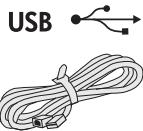
IMPORTANT: Do not connect the USB wireless setup cable until prompted by the software.
Before you can set up the HP Officejet/Officejet Pro device to use wireless communication, you must have the following:
- A USB wireless setup cable, included in the box
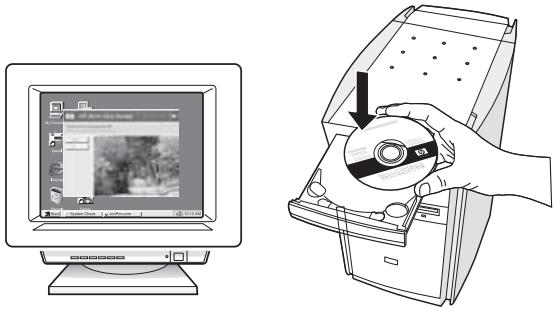
- The Starter CD that came with the HP device
- An active, wireless network that uses a wireless router (such as a Linksys wireless router or Apple AirPort Base Station)
- A wireless-enabled computer connected to your network. You will also need to know the following information about your wireless network:
- Your Network Name (SSID)
- Your Wi-Fi Protected Access (WPA) key or Wired Equivalent Privacy (WEP) passphrase (if needed)
NOTE: The Network Name (SSID) and WPA key or WEP passphrase are sometimes located on the back or side of the wireless router. If you cannot find this information, contact your network administrator or the person who set up the wireless network.
For more information about the network connections types, the SSID, and the WEP key/WPA Passphrase, see "About wireless communication" on page 13.

If your wireless network does not use a wireless router, you can connect the HP Officejet/Officejet Pro device directly to
your computer using a wireless connection (known as an "ad hoc" wireless connection). For information about connecting the HP device using an ad hoc wireless network connection, see "Connect the HP Officejet/Officejet Pro device using an ad hoc wireless network connection" on page 11.
IMPORTANT: You must have the network information available to continue with your wireless setup. For computers running Windows, HP provides a web-based tool called the Wireless Network Assistant [URL: www.hp.com/go/networksetup (English only)] that can help retrieve this information for some systems. If the Wireless Network Assistant is unable to retrieve your network information, you must consult the documentation for your wireless router, the router manufacturer, or the person who originally setup your wireless network.
Step 2: Install software for your HP Officejet/Officejet Pro device
You must run the installation program from the Starter CD. The installation program installs the software and creates a wireless connection.
Windows
IMPORTANT: Do not connect the USB wireless setup cable until prompted by the software.
- Save any open documents. Close any applications that are running on your computer.
- Place the Starter CD into the computer.
- On the CD menu, click Install Network/Wireless Device, and then follow the onscreen instructions.
NOTE: If the firewall software on your computer displays any messages during the installation, select the "always permit/allow" option in the messages. Selecting this option allows the software to install successfully on your computer.
- The installation program attempts to find the printer. After it finishes the search, click Next.
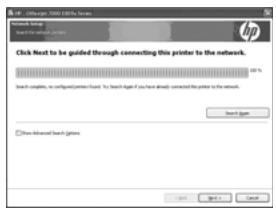
- When prompted, temporarily connect the USB wireless setup cable.
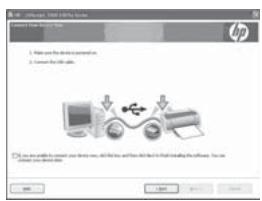
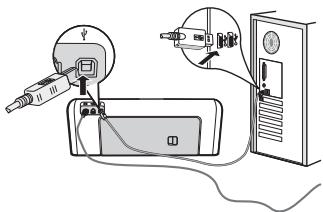
- Follow the onscreen instructions to complete the installation.
- Disconnect the USB wireless setup cable when prompted.
Mac OS
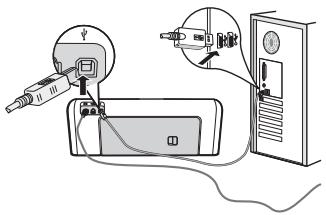
- Connect a USB wireless setup cable to the port on the back of the HP device and then to any USB port on the computer.
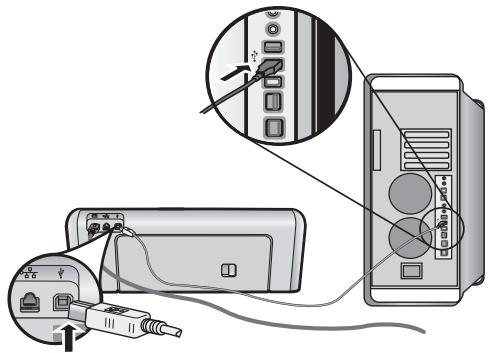
- Place the Starter CD into the computer.
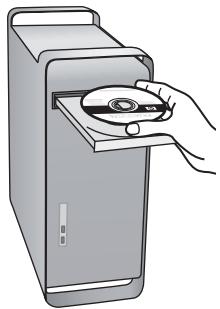
natural_image
Illustration of a hand inserting a CD into a desktop computer case (no text or symbols)- Double-click the HP Installer icon on the Starter CD, and then follow the onscreen instructions.
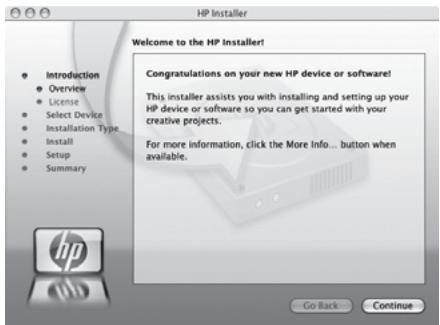
- Disconnect the USB wireless setup cable when prompted.
Step 3: Test the connection
Open a file on your computer and try printing the document. If you have problems, see "Solving wireless (802.11) problems" on page 6.
Solving wireless (802.11) problems
The following sections provide assistance if you are encountering problems connecting the HP Officejet/Officejet Pro device to your wireless network. First, follow the suggestions provided in the Basic troubleshooting section. If you are still encountering problems, follow the suggestions provided in the Advanced troubleshooting section.
After you resolve any problems and have connected the HP device to your wireless network, complete the following steps:
Windows
Place the Starter CD into the computer and run the software installation program again. If you are using a computer running Windows, select either Install Network/Wireless Device or Add a Device when prompted.
Mac OS
Open the HP Device Manager, located in the Dock. (HP Device Manager is also located in the Hewlett-Packard folder in the Applications folder on your computer.) Select Setup Assistant or Network Setup Assistant from the Information and Settings list, and then follow the onscreen instructions.
Basic troubleshooting
If you are encountering problems using your HP Officejet/Officejet Pro device over a network, try the following suggestions in the order listed:
1. Make sure the wireless (802.11) light is turned on
If the blue light near the HP device's control panel is not lit, wireless capabilities might not have been turned on. To turn on wireless, press the wireless button (located near the wireless light) once to turn on wireless capabilities. Or press the Setup (✗) button on the HP device's control panel, select Network, select Wireless Radio, and then select On.
NOTE: If your HP device supports Ethernet networking, make sure that an Ethernet cable has not been connected to the device. Connecting an Ethernet cable turns off the HP device's wireless capabilities.
2. Check the wireless signal strength
If the strength of the signal for your wireless network or computer is weak or if there is interference on the wireless network, the HP device might not be able to detect the signal. To determine the strength of the wireless signal, print a Wireless Network Test from the HP device control panel. (For more information, see "Run the Wireless Network Test" on page 7).
If the Wireless Network Test indicates the signal is weak, try moving the HP device closer to the wireless router.
The following tips might help reduce the chances for interference in a wireless network:
- Keep the wireless devices away from large metal objects, such as filing cabinets, and other electromagnetic devices, such as microwaves and cordless telephones, as these objects can disrupt radio signals.
- Keep the wireless devices away from large masonry structures and other building structures as these objects can absorb radio waves and lower signal strength.
3. Restart components of the wireless network
Turn off the router and the HP device, and then turn them back on in this order: router first, and then the HP device. If you still are unable to connect, turn off the router, HP device, and your computer, and then turn them back on in this order: router first, then the HP device, and finally the computer. Sometimes, turning off the power and then turning it back on will recover a network communication issue.
4. Run the Wireless Network Test
For wireless networking issues, run the Wireless Network Test from the HP device control panel:
| HP Officejet 6000 Printer Series | On the HP device's control panel, press and hold the (☐) Wireless button, press (☐) Resume button two times, and then release all buttons. |
| HP Officejet 6500 All-in-One Series | a. On the HP device's control panel, press the Setup (☐) button.b. Select Network Setup, and then select Wireless Network Test. |
| HP Officejet Pro 8000 Printer Series | On the HP device's control panel, press and hold the (☐) Wireless button, press (☐) Resume button two times, and then release all buttons. |
If a problem is detected, the printed test report will include recommendations that might help solve the problem.
5. Run the Network Diagnostic Tool (Windows)
If the previous steps do not solve the problem and you have successfully installed the HP Solution Center software on your computer, run the Network Diagnostic tool.
NOTE: The diagnostic test might prompt you to connect a USB cable between the product and your computer. Position the product and computer near each other and have a USB cable readily accessible.
To run the Network Diagnostic tool, complete the following steps:
- Open the HP Solution Center software.
- Click Settings, click Other Settings, and then click Network Toolbox.
- On the Utilities tab, click Run Network Diagnostics.
- Follow the onscreen instructions.
Advanced troubleshooting
If you have tried the suggestions provided in the Basic troubleshooting section and are still unable to connect your HP Officejet/Officejet Pro device to the wireless network, try the following suggestions in the order listed:
- Make sure that the computer is connected to your network (page 7)
- Make sure that the HP Officejet/Officejet Pro device is connected to your network (page 8)
- Check to see if the firewall software is blocking communication (page 9)
- Make sure the HP Officejet/Officejet Pro device is online and ready (page 9)
- Make sure the wireless version of the HP Officejet/Officejet Pro device is set as the default printer driver (Windows only) (page 10)
- Make sure the HP Network Devices Support service is running (Windows only) (page 10)
1. Make sure that the computer is connected to your network
To check a wired (Ethernet) connection
Many computers have indicator lights beside the port where the Ethernet cable from the router connects to your computer. Usually there are two indicator lights, one that is on and another that blinks. If your computer has indicator lights, check to see if the indicator lights are on. If the lights are not on, try reconnecting the Ethernet cable to the computer and the router. If you still do not see lights, there might be a problem with the router, the Ethernet cable, or your computer.
NOTE: Macintosh computers do not have indicator lights. To check the Ethernet connection on a Macintosh computer, click System Preferences in the Dock, and then click Network. If the Ethernet connection is working correctly, Built-In Ethernet appears in the list of connections, along with the IP address and other status information. If Built-in Ethernet does not appear in the list, there might be a problem with the router, the Ethernet cable, or your computer. For more information, click the Help button in the window.
To check a wireless connection
- Make sure that your computer's wireless has been turned on. (For more information, see the documentation available with your computer.)
- If you are not using a unique network name (SSID), then it is possible that your wireless computer could be connected to a nearby network that is not yours. The following steps can help you determine if your computer is connected to your network.
Windows
a. Click Start, point to Settings, click Control Panel, double-click Network Connections, click the View menu, and then select Details.
- Or -
Click Start, click Control Panel, point to Network Connections, and then click View Network Status and Tasks.
Leave the network dialog box open while you continue to the next step.
b. Disconnect the power cord from the wireless router. The connection status of your computer should change to Not Connected.
c. Reconnect the power cord to the wireless router. The connection status should change to Connected.
Mac OS
a. Click the AirPort icon in the menu bar at the top of the screen. From the menu that appears, you can determine if the AirPort is turned on and which wireless network your computer is connected to.
NOTE: For more detailed information about your AirPort connection, click System Preferences in the Dock, and then click Network. If the wireless connection is working correctly, a green dot appears next to AirPort in the list of connections. For more information, click the Help button in the window.
If you are unable to get your computer connected to your network, contact the person who set up your network or the router manufacturer as there might be a hardware issue with either your router or computer.
If you are able to access the Internet and are using a computer running Windows, you can also access the HP Network Assistant at http://www.hp.com/sbso/wireless/tools-setup.html?jumpid=reg_R1002_USEN for help in setting up a network. (This Web site is only available in English.)
B. Check to see if you can access the embedded Web server (EWS)
2. Make sure that the HP Officejet/Officejet Pro device is connected to your network
If your device is not connected to the same network as your computer, you will not be able to use the HP device over the network. Follow the steps described in this section to find out if your device is actively connected to the correct network.
A. Make sure the HP Officejet/Officejet Pro device is on the network
- If the HP Officejet/Officejet Pro device supports Ethernet networking and is connected to an Ethernet network, check the two Ethernet indicator lights on the top and bottom of the Ethernet port on the back of the HP device. The lights indicate the following:
- Top light: If the light is lit solid green, the HP device is connected to the network, and communications have been established. If the light is off, there is no network connection.
- Bottom light: If the yellow light flashes, data is being sent or received by the HP device over the network.
- If the HP device is connected to a wireless network, print the device's Network Configuration Page:
| HP Officejet 6000 Printer Series | Press ( ) Wireless button. |
| HP Officejet 6500 All-in-One Series | a. On the HP device’s control panel, press the Setup ( 📁 ) button.b. Select Print Report, and then select Network Config Page. |
| HP Officejet Pro 8000 Printer Series | Press ( ) Wireless button. |
After the page has been printed, check the Network Status and URL:
| Network Status | If the Network Status is Ready, the HP device is actively connected to a network.If the Network Status is Offline, the HP device is not connected to a network.Run the Wireless Network Test (using the instructions at the beginning of this section) and follow any recommendations. |
| URL | The URL shown here is the network address assigned to the HP device by your router. You will need this address for step B. |
After you establish that the computer and the HP device both have active connections to a network, you can
verify if they are on the same network by accessing the device's embedded Web server (EWS). For more information on the EWS, see the electronic User Guide available on your computer after you install the software.
To access the EWS
On your computer, open the Web browser you normally use to access the Internet (for example, Internet Explorer or Safari). In the address box, type the URL of the HP device as it was shown on the Network Configuration Page (for example, http://192.168.1.101).
NOTE: If you are using a proxy server in your browser, you might need to disable it to access the EWS.
If you can access the EWS, try using the HP device over the network (such as to scan or print) to see if your network setup was successful.
If you cannot access the EWS or are still having problems using the HP device over the network, continue to the next section regarding firewalls.
3. Check to see if the firewall software is blocking communication
If you cannot access the EWS and are sure both the computer and HP device have active connections to the same network, the firewall security software might be blocking communication. Temporarily turn off any firewall security software running on your computer and then try to access the EWS again. If you can access the EWS, try using the HP device (for printing or scanning).
If you are able to access the EWS and use your HP device with the firewall turned off, you will need to reconfigure your firewall settings to allow the computer and HP Officejet/Officejet Pro device to communicate with each other over the network. For more information, see “Configure your firewall to work with HP devices” on page 12.
If you are able to access the EWS but are still unable to use the HP device even with the firewall turned off, try enabling the firewall software to recognize the HP device. For more information, see "Configure your firewall to work with HP devices" on page 12.
If you still encounter problems after configuring the firewall, go to sections 4 and 5.
4. Make sure the HP Officejet/Officejet Pro device is online and ready
If you have the HP software installed, you can check the HP device's status from your computer to see if the device is paused or offline, preventing you from using it. To check the HP device's status, complete the following steps:
Windows
- Click Start, point to Settings, and then click Printers or Printers and Faxes.
- Or -
Click Start, click Control Panel, and then double-click Printers.
- If the printers on your computer are not being displayed in Details view, click the View menu, and then click Details.
-
Do one of the following, depending on the printer status:
-
If the HP device is Offline, right-click the device and click Use Printer Online.
-
If the HP device is Paused, right-click the device and click Resume Printing.
-
Try using the HP device over the network.
Mac OS
- Click System Preferences in the Dock, and then click Print & Fax.
- Select the HP device, and the click Print Queue.
- If Jobs Stopped appears in the window that appears, click Start Jobs.
If you can use the HP device after performing the steps above but find that the symptoms persist as you continue to use the device, your firewall might be interfering. For more information see “Configure your firewall to work with HP devices” on page 12. If you still cannot use the HP device over the network, continue to the next section for additional troubleshooting help.
5. Make sure the wireless version of the HP Officejet/Officejet Pro device is set as the default printer driver (Windows only)
If you install the software again, the installer might create a second version of the printer driver in your Printers or Printers and Faxes folder. If you have difficulties printing or connecting to the HP device, make sure the correct version of the printer driver is set as the default.
- Click Start, point to Settings, and then click Printers or Printers and Faxes.
- Or -
Click Start, click Control Panel, and then double-click Printers.
- Determine if the version of the printer driver in the Printers or Printers and Faxes folder is connected wirelessly:
a. Right-click the printer icon, and then click Properties, Document Defaults, or Printing Preferences.
b. On the Ports tab, look for a port in the list with a checkmark. The version of the printer driver that is connected wirelessly has Standard TCP/IP Port as the Port description, next to the checkmark.
- Right-click the printer icon for the version of the printer driver that is connected wirelessly and select Set as Default Printer.
NOTE: If there is more than one icon in the folder for the HP device, right-click the printer icon for the version of the printer driver that is connected wirelessly and select Set as Default Printer.
6. Make sure the HP Network Devices Support service is running (Windows only)
To restart the HP Network Device Support service
- Delete any print jobs currently in the print queue.
- On the desktop, right-click My Computer or Computer, and then click Manage.
- Double-click Services and Applications, and then click Services.
- Scroll down the list of services, right click HP Network Devices Support, and then click Restart.
- After the service restarts, try using the HP device over the network again.
If you are able to use the HP device over the network, your network setup was successful.
If you still cannot use the HP device over the network or if you have to periodically perform this step in order to use your device over the network, your firewall might be interfering. For more information see “Configure your firewall to work with HP devices” on page 12.
If this still does not work, there might be a problem with your network configuration or router. Contact the person who set up your network or the router manufacturer for help.
Change the connection method
If you have installed the software and connected your HP Officejet/Officejet Pro device using a USB or Ethernet cable, you can change to a wireless connection any time you want.
Change from a USB connection
Use the following instructions to change from a USB to a wireless connection.
Windows
- On the Windows taskbar, click Start, select Programs or All Programs, select HP, select the folder for the device, and then select Reconfigure Wireless Settings.
- Follow the onscreen instructions and remove the USB wireless setup cable when prompted.
Mac OS
- Click the HP Device Manager icon on the Dock or in the Hewlett Packard folder in the Applications folder.
- From the Information and Settings list, select Network Printer Setup Utility.
- Follow the onscreen instructions to configure the network settings.
Change from an Ethernet connection
Use the following instructions to change from an Ethernet connection to a wireless connection.
NOTE: For Ethernet-enabled HP devices only.
-
Open the embedded Web server (EWS). For more information on the EWS, see the electronic User Guide available on your computer after you install the software.
-
Click the Networking tab, and then click Wireless (802.11) in the left pane.
- On the Wireless Setup tab, press Start Wizard.
- Follow the onscreen instructions to change from an Ethernet connection to a wireless connection.
- After you finish changing the settings, disconnect the Ethernet cable.
Connect the HP Officejet/Officejet Pro device using an ad hoc wireless network connection
Method 1
- Turn on wireless in your computer and in the HP device.
- On your computer, connect to the network name (SSID) "hpsetup". (This network name is the default, ad hoc network created by the HP device.)
If your HP device was previously configured for a different network, you can restore the network defaults to enable the device to use "hpsetup". To restore the network defaults complete the following steps:
| HP Officejet 6000 Printer Series | On the HP device’s control panel, press and hold ( ) Wireless button, press ( ) Resume button three times, and then release ( ) Wireless button.The Power light blinks for a few seconds. |
| HP Officejet 6500 All-in-One Series | a. On the HP device’s control panel, press the Setup ( ) button.b. Select Network Setup, and then select Restore Network Defaults. |
| HP Officejet Pro 8000 Printer Series | On the HP device’s control panel, press and hold ( ) Wireless button, press ( ) Resume button three times, and then release ( ) Wireless button.The Power light blinks for a few seconds. |
Method 2 (Windows only)
- Make sure your computer has an ad hoc network profile. For more information, see the documentation available with your operating system.
- Follow the instructions in "Install software for your HP Officejet/Officejet Pro device" on page 5 and select the network that corresponds to the ad hoc network profile for your computer.
Configure your firewall to work with HP devices
A personal firewall, which is security software running on your computer, can block network communication between your HP device and your computer.
If you are having problems such as:
• Printer not found when installing HP software
- Unable to print, print job stuck in queue or printer goes offline
- Scan communication errors or scanner busy messages
- Unable to see printer status on your computer
The firewall might be preventing your HP device from notifying computers on your network where it can be found. If the HP software cannot find the HP device during installation (and you know the HP device is on the network), or you have already successfully installed HP software and experience problems, try the following:
- If you are using a computer running Windows, in the firewall configuration utility, look for an option to trust computers on the local subnet (sometimes called the "scope" or "zone"). By trusting all computers on the local subnet, computers and devices in your home or office can communicate with each other while still being protected from the internet. This is the easiest approach to use.
- If you do not have the option to trust computers on the local subnet, add incoming UDP port 427 to your firewall's list of allowed ports.
NOTE: Not all firewalls require you to differentiate between incoming and outgoing ports, but some do.
Another common problem is that HP software is not set as a trusted software by your firewall to access the network. This can happen if you answered "block" to any firewall dialog boxes that appeared when you installed the HP software.
If this occurs, and if you are using a computer running Windows, check that the following programs are in your firewall's list of trusted applications; add any that are missing.
- hpqkygrp.exe, located in C:\program files\HP\digital imaging\bin
- hpqscnvw.exe, located in C:\program files\HP\digital imaging\bin
- hpqste08.exe, located in C:\program files\HP\digital imaging\bin
- hpqtra08.exe, located in C:\program files\HP\digital imaging\bin
- hpqthb08.exe, located in C:\program files\HP\digital imaging\bin
NOTE: Refer to your firewall documentation on how to configure the firewall port settings and how to add HP files to the "trusted" list.
Advanced firewall information
The following ports are also used by your HP device and might need to be opened on your firewall configuration. Incoming ports (UDP) are destination ports on the computer while outgoing ports (TCP) are destination ports on the HP device.
• Incoming (UDP) ports: 137, 138, 161, 427
• Outgoing (TCP) ports: 137, 139, 427, 9100, 9220, 9500
The ports are used for the following functions:
Printing
• UDP ports: 427, 137, 161
- TCP port: 9100
Photo card upload
• UDP ports: 137, 138, 427
- TCP port: 139
Scanning
- UDP port: 427
• TCP ports: 9220, 9500
HP device status
UDP port: 161
Faxing
- UDP port: 427
- TCP port: 9220
HP device installation
UDP port: 427
Add hardware addresses to a wireless router
MAC filtering is a security feature in which a wireless router is configured with a list of MAC addresses (also called "hardware addresses") of devices that are allowed to gain access to the network.
If the router does not have the hardware address of a device attempting to access the network, the router denies the device access to the network:
- Locate the MAC address for the HP Officejet/Officejet Pro device. This address is printed on the
serial number label (typically located on the back of the HP device), and this address is also printed on the Network Configuration Page. For more information about printing the Network Configuration Page, see "Make sure the HP Officejet/Officejet Pro device is on the network" on page 8.
- Open the router's configuration utility, and add the device's wireless hardware address to the list of accepted MAC addresses.
About wireless communication
802.11 wireless technology allows you to wirelessly connect to your HP Officejet/Officejet Pro device and a computer without requiring a direct line of sight between the devices.
Communication mode
There are two communication mode options:
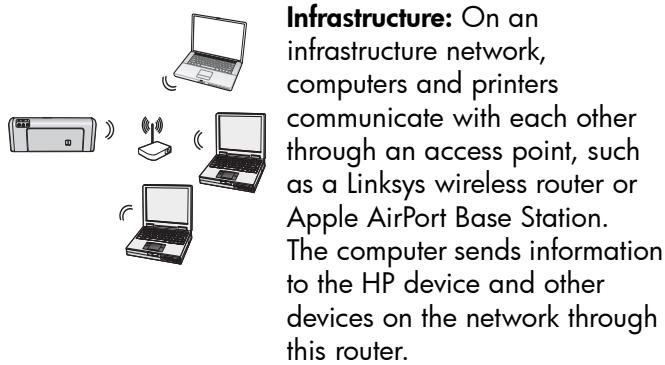
Once the HP device is successfully connected to the network, all the computers on the network that have the HP software installed can send information to the HP device through the wireless router.
natural_image
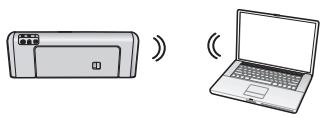
Illustration of a desktop computer and a laptop with wireless signal icons (no text or symbols)Ad hoc: On an ad hoc network, the computer sends information directly to the HP device without the
use of a wireless router. Ad hoc networks are typically small and simple (for example, two wireless computers or a wireless computer and a wireless printer).
Though ad hoc networks may be secured with a WEP passphrase, they cannot be secured with a WAP key. Also, the performance of the network might not be as good as an infrastructure network.
The HP device is pre-configured by the factory to connect to an ad-hoc network with the SSID "hpsetup".
NOTE: If you reset the network settings from the control panel at any point, the SSID will be reset to "hpsetup".
Network name (SSID)
The network name provides a basic connection to a wireless network. All devices trying to communicate with each other must have the same SSID and security settings.
CAUTION: To prevent other users from accessing your wireless network, HP strongly recommends using a password or passphrase (WPA or WEP security) and a unique network name (Service set identifier (SSID)) for your wireless router. Your wireless router might have been shipped with a default network name, which is typically the manufacturer name. If you use the default network name, your network can be easily accessed by other users using the same default network name (SSID). It also means that the HP device might accidentally connect to a different wireless network in your area which uses the same network name. If this happens you will not be able to access the HP device. For more information on how to change the network name, see the documentation that came with your wireless router.
Security
The HP Officejet/Officejet Pro supports WEP, WPA, and WPA2 security methods. For more information, see the electronic User Guide available on your computer after you install the software.
Hewlett-Packard limited warranty statement
| HP product | Duration of limited warranty |
| Software Media | 90 days |
| Printer | 1 year |
| Print or Ink cartridges | Until the HP ink is depleted or the “end of warranty” date printed on the cartridge has been reached, whichever occurs first. This warranty does not cover HP ink products that have been refilled, remanufactured, refurbished, misused, or tampered with. |
| Printheads (only applies to products with customer replaceable printheads) | 1 year |
| Accessories | 1 year unless otherwise stated |
A. Extent of limited warranty
- Hewlett-Packard (HP) warrants to the end-user customer that the HP products specified above will be free from defects in materials and workmanship for the duration specified above, which duration begins on the date of purchase by the customer.
- For software products, HP's limited warranty applies only to a failure to execute programming instructions. HP does not warrant that the operation of any product will be interrupted or error free.
- HP's limited warranty covers only those defects that arise as a result of normal use of the product, and does not cover any other problems, including those that arise as a result of:
a. Improper maintenance or modification;
b. Software, media, parts, or supplies not provided or supported by HP;
c. Operation outside the product's specifications;
d. Unauthorized modification or misuse.
-
For HP printer products, the use of a non-HP cartridge or a refilled cartridge does not affect either the warranty to the customer or any HP support contract with the customer. However, if printer failure or damage is attributable to the use of a non-HP or refilled cartridge or an expired ink cartridge, HP will charge its standard time and materials charges to service the printer for the particular failure or damage.
-
If HP receives, during the applicable warranty period, notice of a defect in any product which is covered by HP's warranty, HP shall either repair or replace the product, at HP's option.
-
If HP is unable to repair or replace, as applicable, a defective product which is covered by HP's warranty, HP shall, within a reasonable time after being notified of the defect, refund the purchase price for the product.
-
HP shall have no obligation to repair, replace, or refund until the customer returns the defective product to HP.
-
Any replacement product may be either new or like-new, provided that it has functionality at least equal to that of the product being replaced.
-
HP products may contain remanufactured parts, components, or materials equivalent to new in performance.
-
HP's Limited Warranty Statement is valid in any country where the covered HP product is distributed by HP. Contracts for additional warranty services, such as on-site service, may be available from any authorized HP service facility in countries where the product is distributed by HP or by an authorized importer.
B. Limitations of warranty
TO THE EXTENT ALLOWED BY LOCAL LAW, NEITHER HP NOR ITS THIRD PARTY SUPPLIERS MAKES ANY OTHER WARRANTY OR CONDITION OF ANY KIND, WHETHER EXPRESS OR IMPLIED WARRANTIES OR CONDITIONS OF MERCHANTABILITY, SATISFACTORY QUALITY, AND FITNESS FOR A PARTICULAR PURPOSE.
C. Limitations of liability
-
To the extent allowed by local law, the remedies provided in this Warranty Statement are the customer's sole and exclusive remedies.
-
TO THE EXTENT ALLOWED BY LOCAL LAW, EXCEPT FOR THE OBLIGATIONS SPECIFICALLY SET FORTH IN THIS WARRANTY STATEMENT, IN NO EVENT SHALL HP OR ITS THIRD PARTY SUPPLIERS BE LIABLE FOR DIRECT, INDIRECT, SPECIAL, INCIDENTAL, OR CONSEQUENTIAL DAMAGES, WHETHER BASED ON CONTRACT, TORT, OR ANY OTHER LEGAL THEORY AND WHETHER ADVISED OF THE POSSIBILITY OF SUCH DAMAGES.
D. Local law
-
This Warranty Statement gives the customer specific legal rights. The customer may also have other rights which vary from state to state in the United States, from province to province in Canada, and from country to country elsewhere in the world.
-
To the extent that this Warranty Statement is inconsistent with local law, this Warranty Statement shall be deemed modified to be consistent with such local law. Under such local law, certain disclaimers and limitations of this Warranty Statement may not apply to the customer. For example, some states in the United States, as well as some governments outside the United States (including provinces in Canada), may:
a. Preclude the disclaimers and limitations in this Warranty Statement from limiting the statutory rights of a consumer (e.g., the United Kingdom);
b. Otherwise restrict the ability of a manufacturer to enforce such disclaimers or limitations; or
c. Grant the customer additional warranty rights, specify the duration of implied warranties which the manufacturer cannot disclaim, or allow limitations on the duration of implied warranties.
- THE TERMS IN THIS WARRANTY STATEMENT, EXCEPT TO THE EXTENT LAWFULLY PERMITTED, DO NOT EXCLUDE, RESTRICT, OR MODIFY, AND ARE IN ADDITION TO, THE MANDATORY STATUTORY RIGHTS APPLICABLE TO THE SALE OF THE HP PRODUCTS TO SUCH CUSTOMERS.
HP Limited Warranty
Dear Customer,
You will find below the name and address of the HP entity responsible for the performance of the HP Limited Warranty in your country.
You may have additional statutory rights against the seller based on your purchase agreement. Those rights are not in any way affected by this HP Limited Warranty.
Ireland: Hewlett-Packard Ireland Limited, 63-74 Sir John Rogerson's Quay, Dublin 2
United Kingdom: Hewlett-Packard Ltd, Cain Road, Bracknell, GB-Berks RG12 1HN
Malta: Hewlett Packard International Trade BV, Branch 48, Sqaq Nru 2, Triq ix-Xatt, Pieta MSD08, Malta
South Africa: Hewlett-Packard South Africa Ltd, 12 Autumn Street, Rivonia, Sandton, 2128, Republic of South Africa
Contenu
Installation Communication sans fil (802.11) 16
natural_image
Illustration of a hand inserting a CD into a desktop computer case (no text or symbols visible)natural_image
Illustration of a printer and a laptop with wireless signal icons (no text or symbols)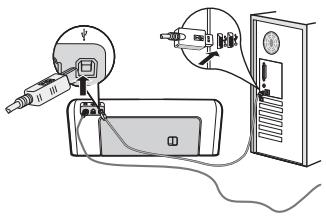
natural_image
Illustration of a hand inserting a CD into a computer case (no text or symbols)natural_image
Illustration of a printer and a laptop with wireless signal icons (no text or symbols)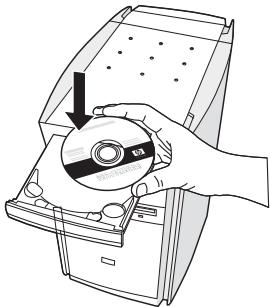
natural_image
Illustration of a hand holding a CD inside an open disc, with a black arrow pointing to the disc (no text or symbols present)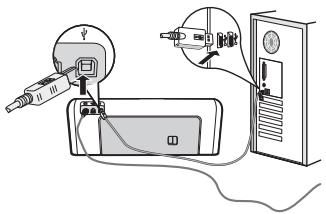
natural_image
Illustration of a hand inserting a CD into a computer case (no text or symbols)natural_image
Illustration of four different devices: a printer, a laptop, a switch, and a laptop with wireless signal icons (no text or symbols)
- Copyright Information
- Trademark credits
- Safety Information
- Set up Wireless (802.11) communication
- Step 1: Obtain required information and equipment
- Step 2: Install software for your HP Officejet/Officejet Pro device
- Windows
- Mac OS
- Step 3: Test the connection
- Solving wireless (802.11) problems
- Basic troubleshooting
- Make sure the wireless (802.11) light is turned on
- Check the wireless signal strength
- Restart components of the wireless network
- Run the Wireless Network Test
- Run the Network Diagnostic Tool (Windows)
- Advanced troubleshooting
- Make sure that the computer is connected to your network
- To check a wired (Ethernet) connection
- To check a wireless connection
- Make sure that the HP Officejet/Officejet Pro device is connected to your network
- Make sure the HP Officejet/Officejet Pro device is on the network
- To access the EWS
- Check to see if the firewall software is blocking communication
- Make sure the HP Officejet/Officejet Pro device is online and ready
- Make sure the wireless version of the HP Officejet/Officejet Pro device is set as the default printer driver (Windows only)
- Make sure the HP Network Devices Support service is running (Windows only)
- To restart the HP Network Device Support service
- Change the connection method
- Change from a USB connection
- Change from an Ethernet connection
- Connect the HP Officejet/Officejet Pro device using an ad hoc wireless network connection
- Method 1
- Method 2 (Windows only)
- Configure your firewall to work with HP devices
- Advanced firewall information
- The ports are used for the following functions:
- Printing
- Photo card upload
- Scanning
- HP device status
- Faxing
- HP device installation
- Add hardware addresses to a wireless router
- About wireless communication
- Communication mode
- Network name (SSID)
- Security
- Hewlett-Packard limited warranty statement
- Extent of limited warranty
- Limitations of warranty
- Limitations of liability
- Local law
- HP Limited Warranty
- Dear Customer,
- Contenu
Brand : HP
Model : OFFICEJET
Category : Multifunction Printer