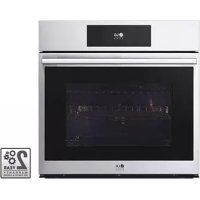
WSES4728F - Built-in oven LG - Free user manual and instructions
Find the device manual for free WSES4728F LG in PDF.


| Product Type | Built-in Oven |
| Brand | LG |
| Model | WSES4728F |
| Power Supply | 240 V, 60 Hz, 30 A (estimated) |
| Maximum Power | Approximately 5,000 W (estimated) |
| Cooking Modes | Bake, Convection, Roast, Broil, Warm, Bread Proof, Air Fry, Steam, Sous-vide, Auto Cook, Favorite Recipes |
| Smart Features | Wi-Fi, Remote Start, Smart Diagnosis, LG ThinQ, Software Update |
| Display | Color LCD touchscreen with time, mode and settings display |
| InstaView | Yes – knock twice to illuminate interior without opening the door |
| Temperature Probe | Yes – measures internal food temperature |
| Air Fry | Yes – oil-free frying with dedicated tray |
| Steam Cook | Yes – built-in steam supply tank |
| Sous-vide Cooking | Yes – low-temperature slow cooking in a water bath |
| Cleaning System | EasyClean (light cleaning) and Self Clean (pyrolysis) |
| Child Lock | Yes – control lock |
| Sabbath Mode | Yes – for religious use |
| Interior Light | Halogen lamp, controlled by screen or InstaView |
| Number of Grids Provided | 2 sturdy standard grids + 1 sliding grid |
| Included Accessories | Broiler pan, grill, Air Fry tray, temperature probe, steam tank, EasyClean pad |
| Warranty | 2 years parts and labor (Canada) – see manual for details |
Frequently Asked Questions - WSES4728F LG
User questions about WSES4728F LG
0 question about this device. Answer the ones you know or ask your own.
Ask a new question about this device
Download the instructions for your Built-in oven in PDF format for free! Find your manual WSES4728F - LG and take your electronic device back in hand. On this page are published all the documents necessary for the use of your device. WSES4728F by LG.
USER MANUAL WSES4728F LG
Read this owner's manual thoroughly before operating the appliance and keep it handy for reference at all times.
ENGLISH
WSES4728F
TABLE OF CONTENTS
4 IMPORTANT SAFETY INSTRUCTIONS
4 READ ALL INSTRUCTIONS BEFORE USE
4 Safety Messages
4 WARNING
4 Installation
5 Operation
5 Maintenance
6 Risk of Fire and
6 C A U T I O N
6 Operation
7 Maintenance
8 PRODUCT OVERVIEW
8 Product Features
8 Exterior / Interior
8 Accessories
10 OPERATION
10 Operating Control Panel
10 Control Panel Features
11 Energy Saving Tips
11 Changing Settings
11 Getting Started
11 Settings
11 Lockout
12 Date & Time
12 Clock Themes
12 Sabbath Mode
13 Wi-Fi
13 Remote Start
13 Brightness
13 Display
13 Convection Auto Conversion
14 Language Selection
14 Volume
14 Preheat Alarm Light
14 Temperature Adjustment
15 Temperature Units
15 Smart Diagnosis ^TM
15 Program Update
15 Demo Mode
15 Factory Data Reset
16 Open Source License
16 Oven Cooling
16 Timer
16 Operating the Oven
16 Before Using the Oven
17 Using Standard Oven Racks
17 Using Gliding Oven Racks
18 Instaview
Flammable Material Convection Bake and Roast Mode
19 Bake Mode
20 Recommended Baking Guide
21 Broil Mode
22 Recommended Broiling Guide
24 Warm Mode
25 Proof Mode
25 Air Fry
27 Recommended Air Frying Guide
28 Probe Mode
29 Recommended Probe Guide
31 Favorite Mode
31 Auto Cook Mode
33 Auto Cook Guide
36 Steam Function
37 Steam Bake Mode
38 Sous Vide
39 Sous Vide Cooking Guide
39 Remote Start Mode
40 SMART FUNCTIONS
40 LG ThinQ Application
40 LG ThinQ Application Features
40 Before Using LG ThinQ Application
41 Installing the LG ThinQ Application
41 Connecting to Wi-Fi
41 Wireless LAN Module Specifications
41 Industry Canada Statement
41 Open Source Software Notice Information
41 Smart Diagnosis ^TM Feature
42 Using LG ThinQ to Diagnose Issues
42 Using Audible Diagnosis to Diagnose Issues
43 MAINTENANCE
43 Cleaning
43 General Cleaning Tips
43 Exterior
44 EasyClean
46 Self Clean
48 Cleaning the Steam Feeder Tank
49 Cleaning Scale on Oven Bottom
49 Drying the Oven Interior
49 Using Evaporation Function
49 Periodic Maintenance
49 Changing the Oven Light
51 TROUBLESHOOTING
51 FAQs
51 Frequently Asked Questions
54 Before Calling for Service
54 Cooking
56 Parts & Features
57 Noises
57 Wi-Fi
58 LIMITED WARRANTY
58 CANADA
58 TERMS AND CONDITIONS
59 THIS LIMITED WARRANTY DOES NOT COVER
59 PROCEDURE FOR RESOLVING DISPUTES
IMPORTANT SAFETY INSTRUCTIONS
READ ALL INSTRUCTIONS BEFORE USE
Safety Messages
Your safety and the safety of others are very important.
We have provided many important safety messages in this manual and on your appliance. Always read and follow all safety messages.

This is the safety alert symbol.
This symbol alerts you to potential hazards that can kill or injure you and others. All safety messages will follow the safety alert symbol and either the word WARNING or CAUTION.
These words mean:

WARNING
You may be killed or seriously injured if you do not follow instructions.

CAUTION
You may be injured or cause damage to the product if you do not follow instructions.
All safety messages will tell you what the potential hazard is, tell you how to reduce the chance of injury, and tell you what may happen if the instructions are not followed.
WARNING

WARNING
- To reduce the risk of explosion, fire, death, electric shock, injury or scalding to persons when using this product, follow basic precautions, including the following:
Installation
- Never allow anyone to climb, sit, stand or hang on the oven door. Injury might result from contact with hot food or the oven itself.
- Do not line the oven walls, racks, bottom, or any other part of the oven with aluminum foil or any other material. Doing so will disrupt heat distribution, produce poor baking results and cause permanent damage to the oven interior (aluminum foil will melt to the interior surface of the oven).
- Do not use aluminum foil or any other material to line the oven bottom. Improper installation of oven liners may result in a risk of electric shock or fire.
- Make sure your appliance is properly installed and grounded by a qualified installer, according to the installation instructions. Any adjustment and service should be performed only by qualified installers or service technicians.
- Be certain that all packing materials are removed from the appliance before operating. Keep plastic, clothes, paper, and other flammable materials away from parts of the appliance that may become hot.
- The electrical power must be shut off while the electrical connections are being made.
- Improper connection of aluminum house wiring to copper leads can result in an electrical hazard or fire. Use only connectors designed for joining copper to aluminum and follow the manufacturer's recommended procedure closely.
Operation
- DO NOT TOUCH HEATING ELEMENTS OR INTERIOR SURFACES OF OVEN. Heating elements may be hot even though they are dark in color. Interior surfaces of an oven become hot enough to cause burns. During and after use, do not touch or let clothing or other flammable materials contact heating elements or interior surfaces of oven until they have had sufficient time to cool. Other surfaces, such as oven vent openings and surfaces near these openings, oven doors, and windows of oven doors, also get hot and may cause burns if not allowed to cool.
- Use care when opening door. The hot air and steam that escape can cause burns to hands, face and eyes. Let hot air or steam escape from the oven before removing or replacing food in the oven.
- Do not use plastic to cover food. Use foil or oven-safe lids only.
- Never attempt to dry a pet in the oven.
- Never use your appliance for warming or heating the room.
- Always use pot holders or oven mitts when removing food from the oven or the surface element. Cookware will be hot. Use only dry pot holders. Moist or damp pot holders on hot surfaces may result in burns from steam. Do not let the pot holder touch hot heating elements. Do not use a towel or other bulky cloth to remove food.
- Do not heat unopened food containers. Pressure in the containers may cause them to burst which may result in injury.
- Do not allow aluminum foil or the temperature probe to contact heating elements.
- Do not touch the oven racks while they are hot.
- If a rack must be moved while the oven is hot, do not let the pot holder contact the hot heating element in the oven.
- Pull the oven rack to the stop-lock position when loading and unloading food from the oven. This helps prevent burns caused by touching hot surfaces of the door and oven walls.
- Do not use the oven if a heating element develops a glowing spot during use or shows other signs of damage. A glowing spot indicates the heating element may fail and present a potential burn, fire, or shock hazard. Turn the oven off immediately and have the heating element replaced by a qualified service technician.
- Do not leave children alone or unsupervised near the appliance when it is in use or is still hot. Children should never be allowed to sit or stand on any part of the appliance as they could be injured or burned.
- DO NOT block the oven vent during operation. This can damage the electric parts of the oven. Air must be able to move freely. The bottom vent trim should be properly assembled on the front bottom of oven before installing the oven door.
- Do not put large, heavy items such as whole turkeys on the open oven door.
• Take care when the door is open to avoid injury. - If the door or door seals are damaged, the oven must not be operated until it has been repaired by a competent person.
- Do not allow children to crawl into the oven.
- Do not put your hand under the controller or between the door and bottom vent trim during operation. The outside of the oven can become very hot to the touch.
Maintenance
- Do not store items of interest to children in cabinets above an oven or on the back guard of an oven. Children climbing on the oven to reach items could be seriously injured.
- Let hot cookware and utensils cool in a safe place, out of reach of small children.
- If the door glass, surface, or oven heating unit of the appliance are damaged, discontinue use of the appliance and call for service.
-
Always disconnect power from the appliance before servicing.
-
Before replacing the oven light, switch off the electrical power to the oven at the main fuse or circuit breaker panel.
- Never pour cold water over a hot oven for cleaning purposes.
- Do not clean with metal scouring pads. Pieces can burn off the pad and touch electrical parts causing a risk of electric shock.
- Do not store any materials, other than manufacturer's recommended accessories, in this oven when not in use.
- Do not cover racks or any other part of the oven with metal foil. This will cause overheating of the oven.
- If the self-cleaning mode malfunction light goes on, or if the audible signal sounds, turn off or disconnect the appliance from the power supply and have it serviced by a qualified technician.
- If the oven is heavily soiled with oil, self-clean the oven before using the oven again. The oil could cause a fire.
- If there is a fire in the oven during self-clean, turn the oven off and wait for the fire to go out. Do not force the door open. Introduction of fresh air at self-clean temperatures may lead to a burst of flame from the oven. Failure to follow this instruction may result in severe burns.
- If your oven is dropped or damaged, have it thoroughly checked by a qualified service technician before using it.
Risk of Fire and Flammable Materials
- Do not store or use flammable material in or near the oven. Flammable materials include paper, plastic, pot holders, linens, wall coverings, curtains, and gasoline or other flammable vapors and liquids such as grease or cooking oil. These materials can be ignited when the oven is in use.
- Use extreme caution when moving or disposing of hot grease.
- Wear proper apparel. Do not wear loose-fitting or hanging garments, which may ignite if they contact hot surfaces, and cause severe burns.
- Do not use the oven for drying clothes. Only use the oven for its intended purpose.
- If cabinet storage is provided directly above the oven, use it to store items that are not frequently used and can be safely stored in an area subjected to heat. Temperatures may be unsafe for volatile items such as flammable liquids, cleaners or aerosol sprays.
- Do not use water on grease fires. Should an oven fire occur, leave the oven door closed and turn the oven off. If the fire continues, throw baking soda on the fire or use a fire extinguisher. Do not put water or flour on the fire. Flour may be explosive and water can spread a grease fire and cause personal injury.
CAUTION

CAUTION
- To reduce the risk of minor injury to persons, malfunction, or damage to the product or property when using this product, follow basic precautions, including the following:
Operation
• Always heat fat slowly, and watch as it heats.
- If frying combinations of oils and fats, stir them together before heating.
- Use a deep fat thermometer, if possible, to prevent overheating fat beyond the smoking point.
- Use the least possible amount of fat for effective shallow or deep-fat frying. Filling the pan with too much fat can cause spillovers when food is added.
- Accessible parts may become hot when the grill is in use.
- Do not place food or cookware on the bottom of the oven cavity. Doing so will cause permanent damage to the oven bottom finish.
- When using cooking or roasting bags in the oven, follow the manufacturer's directions.
-
To protect against food-borne illnesses, cook meat and poultry thoroughly. The USDA has indicated the following as safe minimum internal temperatures for consumption:
-
Ground beef: 160 °F (71 °C)
- Poultry: 165 °F (74 °C)
- Beef, veal, pork, or lamb: 145 °F (68 °C)
- Fish/seafood: 145 °F (68 °C)
- Do not use this oven for commercial purposes. It is made for household use only.
- The door or the outer surface may get hot when the appliance is operating.
- Do not use this oven for purposes other than cooking.
- Use caution if opening the door when the oven is operating. Hot surfaces can cause serious burns.
Maintenance
- Do not repair or replace any part of the appliance unless specifically recommended in the manual. All other servicing should be performed by a qualified technician.
- Do not use harsh etching, abrasive cleaners or sharp metal scrapers to clean the oven door glass since they can scratch the surface. Scratches may cause the glass to shatter.
- Make sure oven lights are cool before cleaning.
- Do not clean the door gasket. The door gasket is essential for a good seal. Care should be taken not to rub, damage, or move the gasket.
- Never keep pet birds in the kitchen. The health of birds is extremely sensitive to the fumes released during an oven self-clean cycle. Fumes may be harmful or fatal to birds. Move birds to a well-ventilated room.
- Do not rinse trays and racks by placing them in water just after cooking. This may cause breakage or damage.
- The oven should be cleaned regularly and any food deposits should be removed. Failure to maintain the oven in a clean condition could lead to deterioration of the surface that could shorten the life of the appliance and possibly result in a hazardous situation.
- Clean in the self-clean cycle only parts listed in this manual. Before self-cleaning the oven, remove the broiler pan, all oven racks, the meat probe and any utensils or food from the oven.
PRODUCT OVERVIEW
Product Features
The appearance and specifications listed in this manual may vary due to constant product improvements.
Exterior / Interior
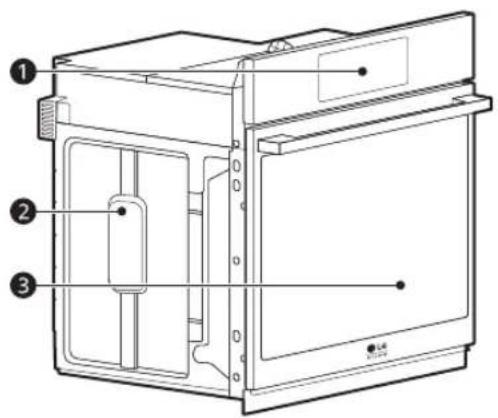
text_image
Technical diagram of a refrigerator with numbered parts and labeled mounting points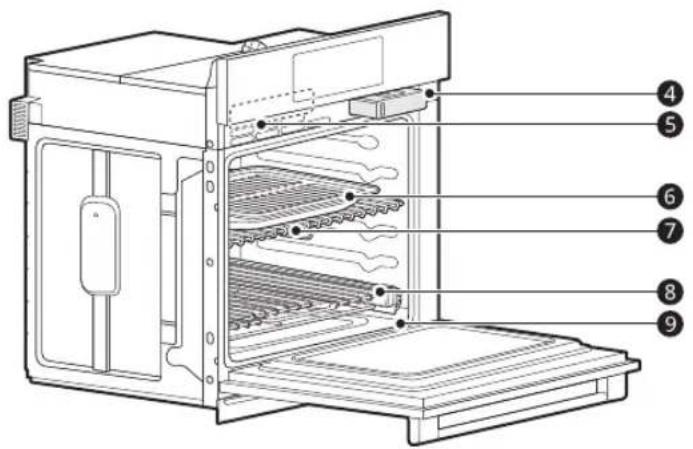
text_image
Technical diagram of an oven with numbered labels pointing to internal structure| 1 | Oven controller | 6 | Broiler pan and grid |
| 2 | Spacer (2ea) | 7 | Standard racks |
| 3 | Oven door | 8 | Gliding rack |
| 4 | Steam feeder tank | 9 | Gasket |
| 5 | Rating label, model and serial number plate |
NOTE
- The model and serial number can be verified at the rating label.
Accessories
Accessories for Cooking
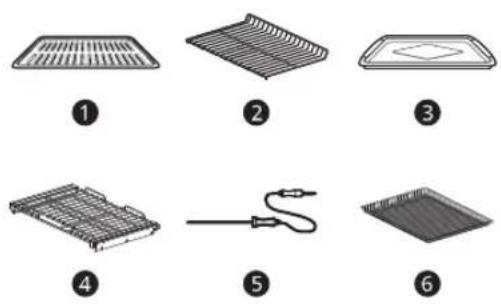
natural_image
Six labeled diagrams of household appliances or fixtures, including grilles, trays, and a power tool (no text or symbols present)④Gliding rack (1ea)
⑤Meat probe
⑥Air Fry tray
①Grid
②Heavy duty standard rack (2ea)
③Broiler pan
9PRODU
Accessories for Installation
• The manufacturer is not responsible for product malfunction or accidents caused by the use of separately purchased, unauthorized components or parts.
• The images in this guide may be different from the actual components and accessories, which are subject to change by the manufacturer without prior notice for product improvement purposes.
ENGLISH
a 4X14 6 wood screws for mounting (2 needed for installation and 4 extras)
b 4X24 6 wood screws for mounting (for flush installation)
c 4X22 2 self-tapping screws for cover bracket
d 2 cover brackets for flush installation
e 4X10 2 screws for bottom decorative trim
f Bottom decorative trim
Accessories for EasyClean
a Non-scratch scouring pad (1ea)
Manuals
OPERATION
Operating Control Panel
Control Panel Features
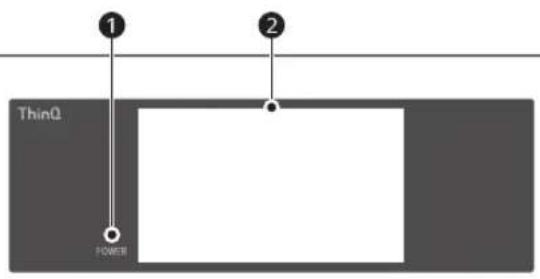
text_image
1 ThinQ POWER 2① LCD Display On/Off
② LCD Touchscreen for Oven
Display Icons
Icons appear in display when activated.
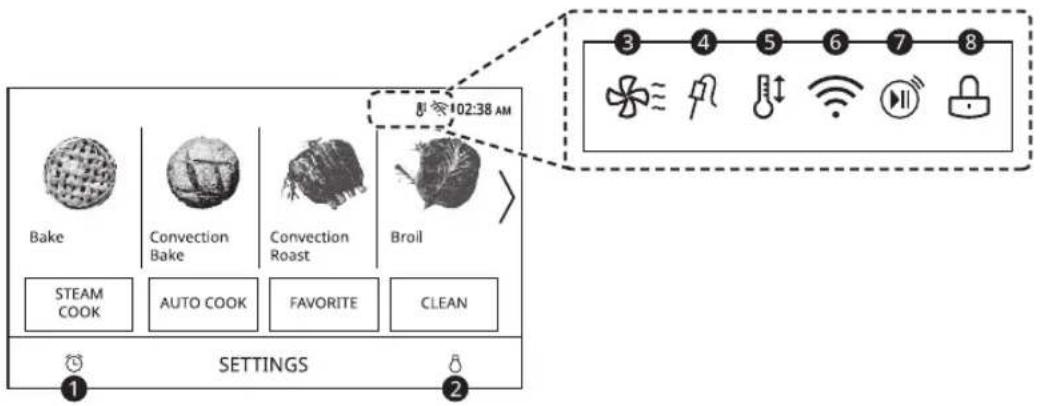
text_image
Bake Convection Bake Convection Roast Broil STEAM COOK AUTO COOK FAVORITE CLEAN 102:38 AM SETTINGS 2 3 4 5 6 7 8| 1 Timer IconTouch to set a timer | |
| 2 Lamp IconTouch to turn light on/off | |
| 3 Oven Cooling IconAppears during or after oven operation to indicate cooling fan is running in oven | |
| 4 Probe IconAppears when probe is connected | |
| 5 Auto Conversion IconAppears when Convection Auto Conversion is turned on | |
| 6 Wi-Fi Icon• Appears when oven is connected to Wi-Fi• Appears when oven is disconnected from Wi-Fi or is not registered | |
| 7 Remote Start IconAppears when Remote Start is active | |
| [34.20] | 8 Lock IconAppears when Lockout is on |
Energy Saving Tips
- Multiple-rack cooking saves time and energy. Whenever possible, cook foods requiring the same cooking temperature together in one oven.
- For optimal performance and energy savings, follow the guides for proper rack and pan placement.
- Reduce energy use by cleaning light oven soil with the EasyClean feature instead of self-clean.
- Avoid opening the oven door more than necessary during use. This helps the oven maintain temperature, prevents unnecessary heat loss, and saves on energy use.
Changing Settings
Getting Started
After turning on the oven for the first time, adjust the settings to suit your preferences.
1 Touch POWER on the LCD display.
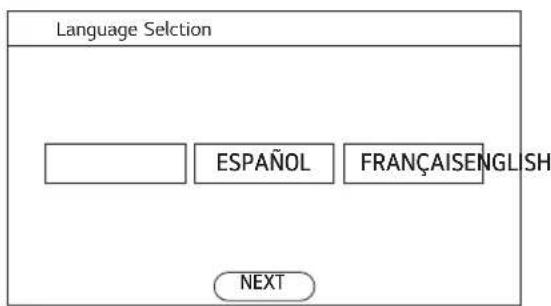
text_image
Language Selection ESPAÑOL FRANÇAISENGLISH NEXT2 After the startup animation, select the desired language and touch NEXT.
3 Scroll the fields up or down to set the correct date, and touch NEXT.
4 Set the correct time of day and choose between a 12-hour or 24-hour time format. Then touch NEXT.
5 If desired, change the default clock theme by swiping through the examples. Then touch NEXT.
6 Read through the application guide in the display and touch DONE.
7 The mode screen appears in the display.
Settings
To adjust settings after the initial setup, touch the display to open the Main screen. Touch Settings at the bottom center of the Main screen.
Swipe the screen or touch the <> arrow keys to navigate through the Settings screens.
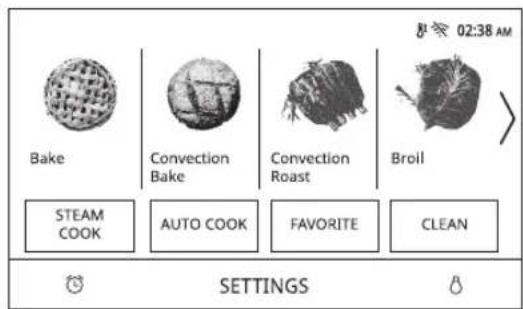
text_image
Bake Convection Bake Convection Roast Broil STEAM COOK AUTO COOK FAVORITE CLEAN SETTINGS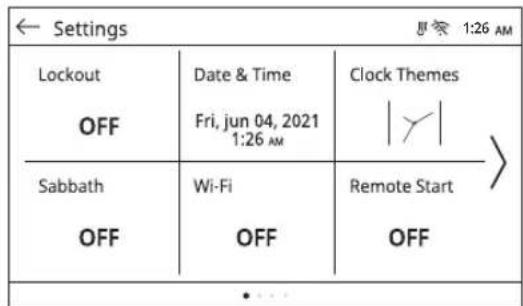
text_image
Settings OFF Date & Time Fri, jun 04, 2021 1:26 AM Clock Themes | Y | Sabbath Wi-Fi Remote Start OFF OFF OFFLocation of Settings
• Page 1: Lockout, Date & Time, Clock Themes, Sabbath Mode, Wi-Fi Setup, Remote Start
• Page 2: Brightness, Display, Convection Auto Conversion, Language Selection, Volume, Preheat Alarm Light
• Page 3: Temperature Adjustment, Temperature Units, Smart Diagnosis™, Program Update, Demo Mode, Factory Data Reset
• Page 4: Open Source License
Lockout
The Lockout feature automatically prevents most oven controls from being turned on. It does not disable the clock, timer and the interior oven light.
Lock
1 Touch Settings at the center bottom of the Main screen.
2 Touch Lockout on the first Settings screen.
3 When Lockout is turned on, the lock icon 🔊 appears at the top of the display.
Unlock
1 Touch any part of screen while Lockout is on.
2 A popup screen appears. Touch Unlock for 3 seconds.
3 The lock icon disappears from the top of the display.
Date & Time
The date and time show in the LCD display when the ovens are not in use.
Setting Date
1 Touch Settings at the center bottom of the Main screen. Then touch Date & Time on the Settings screen.
2 Touch Date, and scroll to set the correct date.
3 Touch OK.
Setting Time of Day
1 Touch Settings at the center bottom of the Main screen. Then touch Date & Time on the Settings screen.
2 Touch Time, and scroll to set the correct hour and minutes. You can also touch the number pad icon and enter the desired numbers.
| Number pad icon |
3 Select either a 12-hour or 24-hour clock mode (12H/24H).
4 Touch OK.
Clock Themes
There are six different clock themes available, including several analog and digital clocks.
1 Touch Settings at the center bottom of the Main screen.
2 Touch Clock Themes on the first Settings screen and swipe to browse through the clock themes.
3 Select a clock theme and touch OK.
Sabbath Mode
Sabbath mode is used on the Jewish Sabbath and Holidays.
While the oven is in Sabbath mode, the temperature cannot be changed and the timer, light, and alarm functions are disabled. Only the cooking mode and set temperature appear in the display.
NOTE
- If the oven light is turned ON and the SABBATH mode is active, the oven light will stay ON. If the oven light needs to be OFF, be sure to turn the oven light OFF before activating the SABBATH mode. SABBATH mode can only be used in Bake mode.
Setting Sabbath Mode
1 Disconnect the probe. The Probe function is not available in Sabbath mode.
2 Touch Settings at the center bottom of the Main screen, and touch Sabbath in the first Settings screen.
3 Set the desired temperature and cook time. Any cook time can be set from 1 minute to 73 hours 59 minutes. If only using one oven, touch START.
4 To stop Sabbath mode, press POWER on the LCD display.
NOTE
- If a cook time is set, the oven turns off automatically at the end of the cook time, without chiming. The oven remains in Sabbath mode, but is turned off.
- If no cook time is set, the oven will not automatically turn off.
• After a power failure, the display will turn back on in Sabbath mode, but the oven will be off.
Wi-Fi
Connect the appliance to a home Wi-Fi network to use Remote Start and other smart functions. See the Smart Functions section for more details.
Setting Up Wi-Fi
1 Touch Settings at the center bottom of the Main screen, and touch Wi-Fi in the first Settings screen.
2 Follow the instructions in the Wi-Fi Guide in the display.
3 Select ON, OFF, or RESET and touch OK.
4 If ON is selected, the Wi-Fi icon 📋 appears at the top of the display.
5 Selecting RESET initializes the IP address.
Remote Start
Remotely starts or stops the preheating function of the appliance. The appliance must be registered on a home Wi-Fi network to use Remote Start.
Setting Remote Start
1 Touch Settings at the center bottom of the Main screen, and touch Remote Start in the first Settings screen.
2 Select On or Off and touch OK.
3 If ON is selected, the Remote Start icon appears at the top of the display.
Remote Start icon

Brightness
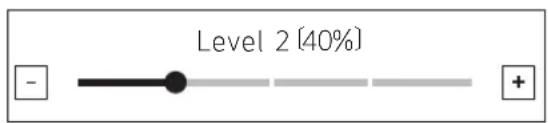
Adjust the brightness of the LCD display from 20 % to 100 % in increments of 20 %.
Setting Display Brightness
1 Touch Settings at the center bottom of the Main screen, swipe to the second Settings screen, and touch Brightness.
2 Adjust the display brightness by touching and dragging the dot across the bar, by tapping anywhere on the bar, or by touching + or -.
3 Touch OK.
text_image
Level 2 (40%)Display
Set the length of time before the display sleeps. There are three options you can select.
- ON : Always on
- OFF: Automatically turns off if idle for 30 minutes.
• Night OFF : Turns off from 10:00 PM to 5:00 AM.
Setting Display Option
1 Touch Settings at the center bottom of the Main screen, swipe to the second Settings screen, and touch Display.
2 Select the desired option.
3 Touch OK.
Convection Auto Conversion
There is no need to remember to convert standard recipe temperatures for convection cooking.
Convection Auto Conversion automatically subtracts 25 °F / 14 °C from the set temperature when a convection cooking mode is selected. The converted temperature appears in the display once preheating is finished.
For example, select Convection Bake and enter 350 °F. The temperature will auto-convert to 325 °F and display the converted temperature.
Convection Auto Conversion is turned ON by default.
Turning Convection Auto Conversion On/Off
1 Touch Settings at the center bottom of the Main screen, swipe to the second Settings screen, and touch Convection Auto Conversion.
2 Select ON or OFF.
3 When Convection Auto Conversion is ON, the icon appears at the top of the display.
Convection auto conversion icon

NOTE
- If Convection Auto Conversion is ON, the icon flashes in the display while cooking in a convection mode.
Language Selection
Set the display language to English, Spanish, or French.
Selecting a Language
1 Touch Settings at the center bottom of the Main screen, swipe to the second Settings screen, and touch Language Selection.
2 Select the desired language.
3 Touch OK.
Volume
Adjust the volume of the oven controls.
Setting the Volume
1 Touch Settings at the center bottom of the Main screen, swipe to the second Settings screen, and touch Volume.
2 Select Mute, Low, or High.
3 Touch OK.
Preheat Alarm Light
When the oven reaches its set-temperature, the preheating alarm light flashes 5 times or until the oven door is opened.
You can turn the preheat alarm light on or off.
Setting the Preheat Alarm
1 Touch Settings at the center bottom of the Main screen, swipe to the second Settings screen, and touch Preheat Alarm Light.
2 Select ON or OFF.
3 Touch OK.
Temperature Adjustment
Your new oven may cook differently than the one it replaced. Use your new oven for a few weeks to become more familiar with it before changing the temperature settings. If after familiarizing yourself with the new oven, you still think that it is too hot or too cold, you can adjust the oven temperature yourself.
NOTE
- To begin, either raise or lower the thermostat 15 °F (8 °C). Try the oven with the new setting. If the oven still needs adjustment, raise or lower the thermostat again, using the first adjustment as a gauge. For example, if the adjustment was too much, raise or lower the thermostat 10 °F (5 °C). If the adjustment was not enough, raise or lower the thermostat 20 °F (12 °C). Proceed in this way until the oven is adjusted to your satisfaction.
Adjusting the Thermostat
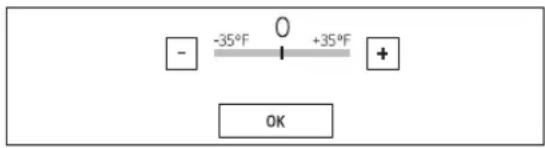
1 Touch Settings at the center bottom of the Main screen, swipe to the third Settings screen, and touch Temperature Adjustment.
2 To make large adjustments, drag the central indicator toward the + or — ends of the scale or tap a location on the scale. To make small adjustments, tap + or — to raise or lower the thermostat in 1-degree increments. Tap and hold + or — to scroll up or down the scale.
3 When the desired change appears above the range, touch OK.
text_image
- -35°F 0 +35°F + OKTemperature Units
Set the oven temperature display to show either Fahrenheit or Celsius units.
The oven defaults to Fahrenheit unless changed by the user.
Setting Temperature Units
1 Touch Settings at the center bottom of the Main screen, swipe to the third Settings screen, and touch Temperature Units.
2 Select °F or °C.
3 Touch OK.
Smart Diagnosis™
Smart Diagnosis ^TM can be run through a smartphone application or by calling for support. Place your smartphone's mouthpiece near the top left corner of the screen. See "Smart Diagnosis Function" in the Smart Functions section for detailed instructions.
1 Touch Settings at the center bottom of the Main screen, swipe to the third Settings screen, and touch Smart Diagnosis.
2 Touch START to start the diagnostic tone.
Program Update
Once the appliance is connected to a home Wi-Fi network, use this setting to check for available programming updates and install them.
1 Touch Settings at the center bottom of the Main screen, swipe to the third Settings screen, and touch Program Update.
2 The display shows available programming updates. Touch UPDATE to download and install the new version.
Demo Mode
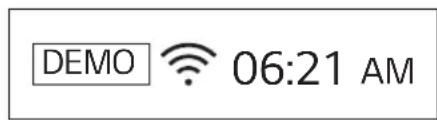
Demo Mode for showroom use only. The oven will not heat up.
1 Touch Settings at the center bottom of the Main screen, swipe to the third Settings screen, and touch Demo Mode.
2 Select either the ON or OFF mode.
3 Touch OK.
text_image
DEMO 06:21 AMNOTE
- When Demo Mode is on, the appliance will not heat up.
- The oven Demo Mode icon appears in the display if the Demo Mode is on.
Factory Data Reset
This function returns all settings to the factory defaults.
CAUTION
- All stored data will be deleted.
1 Touch Settings at the center bottom of the Main screen, swipe to the third Settings screen, and touch Factory Data Reset.
2 If you want to reset data to the factory defaults, touch RESET and then OK.
Open Source License
This screen displays a list of the open source software contained in this product. Refer to the indicated licenses for the terms and conditions of their use.
1 Touch Settings at the center bottom of the Main screen and swipe to the fourth Settings screen.
2 Touch Open Source License.
Oven Cooling
The oven cooling icon appears in the display if the temperature inside the oven is high during or after operation. The icon disappears if the oven temperature is below 210 °F (100 °C).


10:25 AM
Timer
The oven timers don't affect oven operation or cooking time. Use them as extra kitchen timers. Once the time runs out, the oven chimes and "Timer 1 or 2 finished" appears in the display.
Setting the Timer
1 Touch either clock icon at the bottom of the display.
| Clock icon |
2 Scroll through the numbers in the popup until the desired time appears in the display, or touch the number pad icon to enter the numbers directly, and touch OK.
| Number pad icon |
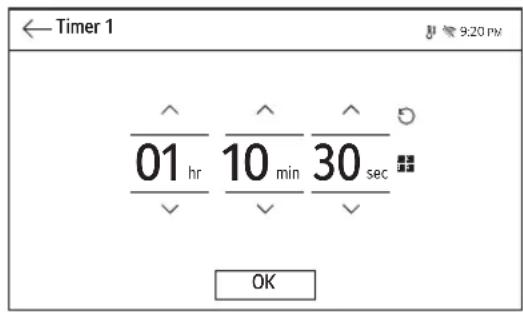
text_image
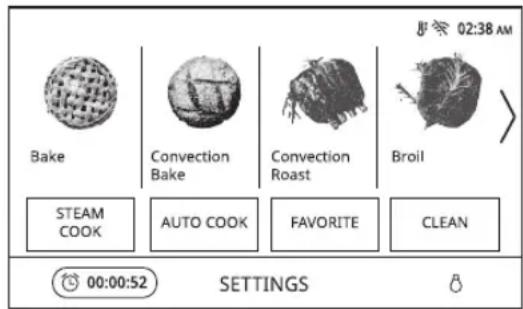
← Timer 1 01 hr 10 min 30 sec OK3 The time remaining appears next to the clock icon in the display.
text_image
Bake Convection Bake Convection Roast Broil STEAM COOK AUTO COOK FAVORITE CLEAN 00:00:52 SETTINGSAdjusting or Cancelling the Timer
1 Touch the remaining time next to the clock icon in the display.
2 To cancel the timer, touch the Reset icon in the popup. Then touch OK.
| Reset icon |
3 To adjust the time, scroll the numbers in the popup until the desired time appears. Then touch OK.
4 The remaining time in the display is adjusted.
Operating the Oven
Before Using the Oven
NOTE
- Because the oven temperature cycles, an oven thermometer placed in the oven cavity may not show the same temperature that is set on the oven.
-
It is normal for the convection fan to run while preheating during a regular bake cycle.
-
The convection fan motor may run periodically during a regular bake cycle.
- The heat turns off if the door is left open during baking. If the door is left open for longer than 30 seconds during baking, the heat turns off. The heat turns back on automatically once the door is closed.
- Avoid opening the oven door more than necessary during use. This helps the oven maintain temperature, prevents unnecessary heat loss, and saves on energy use.
Oven Vent
Areas near the vent may become hot during operation and may cause burns. Avoid placing plastics near the vent as heat may distort or melt the plastic.
It is normal for steam to be visible when cooking foods with high moisture content.

WARNING
- Do not block the vent opening at the bottom of the oven.
Using Standard Oven Racks
The racks have a turned-up back edge that prevents them from being pulled out of the oven cavity.

CAUTION
- Replace oven racks before turning the oven on to prevent burns.
- Do not cover the racks with aluminum foil, or any other material, or place anything on the bottom of the oven. Doing so will result in poor baking and may damage the oven bottom.
- Only arrange oven racks when the oven is cool.
Removing Racks
1 Pull the rack straight out until it stops.
2 Lift up the front of the rack and pull it out.
Replacing Racks
1 Place the end of the rack on the support.
2 Tilt the front end up and push the rack in.
Using Gliding Oven Racks
The gliding racks slide in and out on a frame. This keeps heavy cookware level and prevents it from sliding forward when the rack is completely extended.

CAUTION
- Place oven racks in the desired location before turning on the oven to avoid burns.
- Do not cover the racks with aluminum foil, or any other material, or place anything on the bottom of the oven. Doing so will result in poor baking and may damage the oven bottom.
Installing Gliding Racks
1 Start with the rack in the closed position. Hold the rack with one hand at the center front and the other hand at the back right corner.
2 Carefully insert the rack between the rack guides, and slide it back until the shelf drops into place.
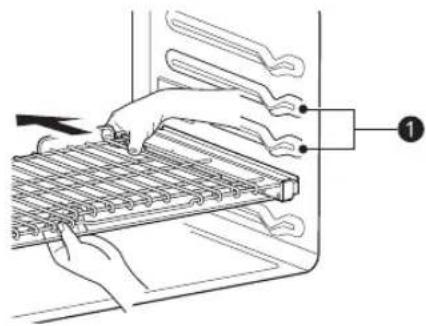
text_image
Diagram showing hands installing or adjusting a grid device with labeled components, including a numbered annotation '1'①Rack guides
3 Once the rack is secured in the back, pull the entire rack forward until the rack locks into place.
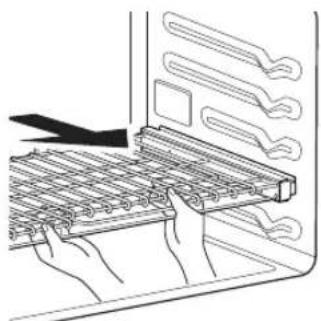
natural_image
Illustration of hands installing or adjusting a grid-like device with multiple slots (no text or symbols visible)Removing Gliding Racks
1 With the rack in the closed position, grasp the front of the rack and frame and lift up. Slowly
push the rack towards the back wall until it is free of the rack stop.
2 After disengaging the rack stop, lift the back of the rack and pull the rack and frame out between the rack guides.
Instaview
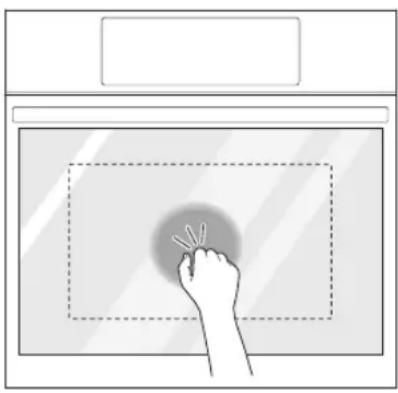
Knock twice on the center of the glass panel to reveal the contents of the oven without opening the door.
natural_image
Illustration of a hand touching a screen with a pointer, no text or symbols present
CAUTION
- Do not hit the glass door panel with excessive force. Do not allow hard objects like cookware or glass bottles to hit the glass door panel. The glass could break, resulting in a risk of personal injury.
NOTE
- Knocking twice on the glass panel turns the interior light on or off.
- The light turns off automatically after 150 seconds.
- The InstaView function is disabled when the oven door is opened and for one second after closing the door.
- The InstaView function is disabled during Self Clean, Lockout, Sabbath Mode and initial power input (on some models only).
- Tapping the edges of the glass panel may not activate the InstaView function.
- The taps on the glass panel must be hard enough to be audible.
- Loud noises near the oven may activate the InstaView function.
Convection Bake and Roast Mode
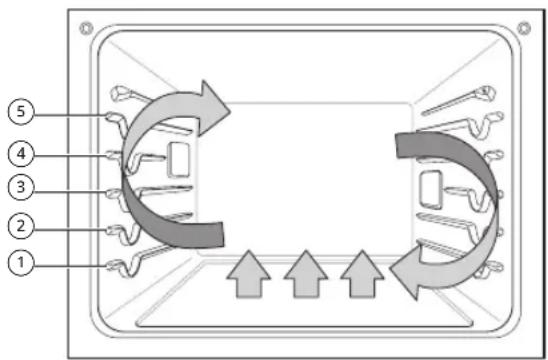
The convection system uses a fan to circulate the heat evenly within the oven. Improved heat distribution allows for even cooking and excellent results while cooking with single or multiple racks.
The oven can be programmed to bake at any temperature from 170 °F (80 °C) to 550 °F (285 °C). The default temperature is 350 °F (175 °C).
text_image
Diagram of a device interior with numbered components and directional arrows indicating flow or movement.Using Convection
1 Touch Convection Bake or Convection Roast in the cooking mode screen.
2 Set the temperature. Scroll through the numbers on the display or touch the number pad icon to enter the numbers directly.
| Number pad icon |
3 If desired, set the cook time and delayed start time using the same method. Touch the arrow key on the right side of the display to see the delayed start time settings.
4 Touch Start. The oven starts to preheat.
5 If the cook time is set, the remaining time appears in the display. If a delayed start time is set, the start time appears in the display.
6 A chime sounds once preheating is complete.
7 A chime sounds at the end of the set cook time and a notification appears in the display. Open the oven door and remove the food.
NOTE
- If no cook time is set, the oven turns off automatically after 12 hours.
- The heating elements and fan turn off immediately when the door is opened. They turn on again approximately 1 second after the door is closed.
- Touch Stop in the display to cancel Convection Bake and Convection Roast at any time.
- When preparing meats for roasting, use the broiler pan and grid. The broiler pan catches grease spills and the grid helps prevent grease splatters.
- The oven fan runs while convection baking and convection roasting. The fan stops when the door is opened. In some cases, the fan may shut off during a convection bake cycle.
Changing the Cook Settings
1 Touch Edit in the display to bring up the Cook Settings screen.
2 Adjust the settings using the number pad or scroll function.
3 Touch Start.
To Stop Cooking
1 Touch Stop in the display, and select Yes.
Tips for Convection Baking
- Use Convection Bake for faster and more even multiple-rack cooking of pastries, cookies, muffins, biscuits, and breads of all kinds.
- Bake cookies and biscuits on pans with no sides or very low sides to allow heated air to circulate around the food. Food baked on pans with a dark finish will cook faster.
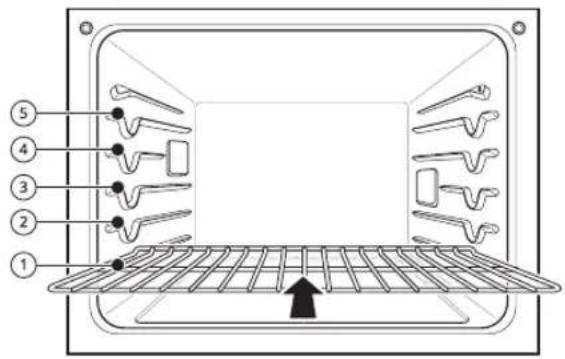
- When using Convection Bake with a single rack, place oven rack in position ③. If cooking on multiple racks, place the oven racks in positions ② and ④.
- Multiple oven rack cooking may slightly increase cook times for some foods.
- Cakes, cookies and muffins have better results when using multiple racks.
The Convection Roast feature is designed to give optimum roasting performance. Convection Roast combines cooking with the convection fan to roast meats and poultry. The heated air circulates around the food from all sides, sealing in juices and flavors. Foods are crispy brown on the outside while staying moist on the inside. Convection roasting is especially good for large tender cuts of meat, uncovered.
Tips for Convection Roasting
Use a broiler pan and grid when preparing meats for convection roasting. The broiler pan catches grease spills and the grid helps prevent grease splatters.
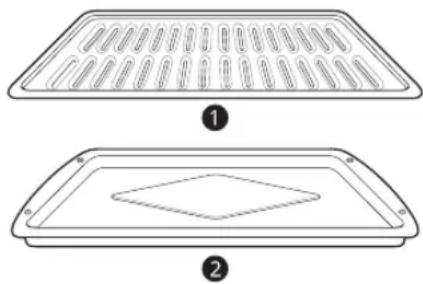
1 Place the oven rack in position ① or ②.
2 Place the grid ① in the broiler pan ②.
natural_image
Two technical line drawings of a rectangular tray with internal compartments and a diamond-shaped inner cavity, labeled ① and ② (no text or symbols on the diagrams themselves)3 Place the broiler pan on the oven rack.
CAUTION
- Do not use a broiler pan without a grid.
- Do not cover the grid with aluminum foil.
- Position food (fat side up) on the grid.
Bake Mode
Bake is used to prepare foods such as pastries, breads and casseroles.
The oven can be programmed to bake at any temperature from 170 °F (80 °C) to 550 °F (285 °C). The default temperature is 350 °F (175 °C).
Setting the Bake Function
1 Touch Bake in the cooking mode screen.
2 Set the oven temperature. Scroll through the numbers on the display or touch the number pad icon to enter the numbers directly.
| Number pad icon |
3 If desired, set the cook time and delayed start time using the same method. Touch the arrow key on the right side of the display to see the delayed start time settings.
4 Touch Start. The oven starts to preheat.
5 If the cook time is set, the remaining time appears in the display. If a delayed start time is set, the start time appears in the display.
6 A chime sounds once preheating is complete.
7 A chime sounds at the end of the set cook time and a notification appears in the display. Open the oven door and remove the food.
NOTE
- If no cook time is set, the oven turns off automatically after 12 hours.
Changing the Cook Settings
1 Touch Edit in the display to bring up the Cook Settings screen.
2 Adjust the settings using the number pad or scroll function.
3 Touch Start.
To Stop Cooking
Touch Stop in the display, and select Yes.
NOTE
- It is normal for the convection fan to operate periodically throughout a normal bake cycle in the oven. This is to ensure even baking results.
Baking Tips
- For best results, food should be placed on a single rack with at least 1" to 1 1/2" of air space between the pans and oven walls.
- Baking time and temperature will vary depending on the characteristics, size, and shape of the baking pan used.
- Check for food doneness at the minimum recipe time.
- Use metal bakeware (with or without a nonstick finish), heatproof glass-ceramic, ceramic or other bakeware recommended for oven use.
- Dark metal pans or nonstick coatings will cook food faster with more browning. Insulated
bakeware will slightly lengthen the cooking time for most foods.
- The oven bottom has a porcelain-enamel finish. To make cleaning easier, protect the oven bottom from excessive spillovers by placing a cookie sheet on the rack below the rack you are cooking on. This is particularly important when baking a fruit pie or other foods with a high acid content. Hot fruit fillings or other foods that are highly acidic may cause pitting and damage to the porcelain-enamel surface and should be wiped up immediately.
Recommended Baking Guide
Rack and Pan Placement
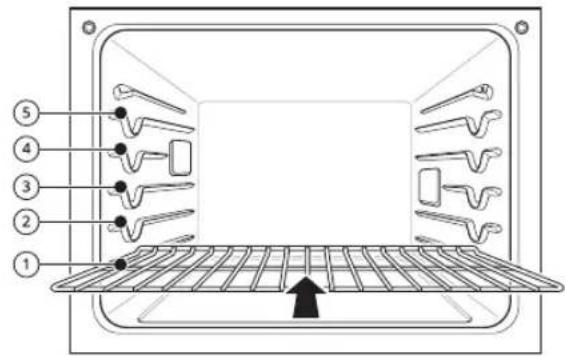
Baking results will be better if baking pans are centered in the oven as much as possible. If cooking on multiple racks, place the oven racks in the positions shown.
Multiple-rack cooking saves time and energy. Whenever possible, cook foods requiring the same cooking temperature together in one oven.
If baking with more than one pan, place the pans so that each one has at least 1" to 1 12 " of air space around them.
text_image
Technical diagram of a device interior with numbered components and a directional arrow indicating flow or movement.Multiple Rack
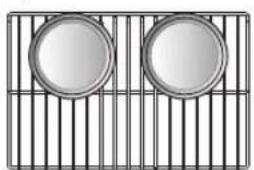
natural_image
Grid-patterned image showing two circular metallic panels on a metal frame (no text or symbols)②
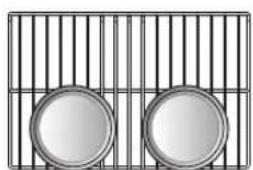
natural_image
Two circular objects on a grid background, no text or symbols visible④
Standard Rack (Position ②)
Standard Rack (Position ④)
Single Rack
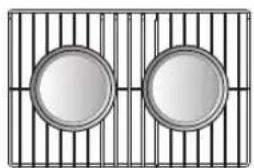
natural_image
Two circular metallic panels placed on a grid background (no text or symbols)Baking Rack Guide
| Type of Food | Rack Position |
| Angel food cake, frozen pies | 3 |
| Bundt or pound cakes | 2 |
| Biscuits, muffins, brownies, cookies, cupcakes, layer cakes, pies | 3 |
| Casseroles | 2 |
| Turkey, roasts, or ham | 1 |
| Frozen pizza | 3 |
| Roast chicken | 2 |
NOTE
- When baking cakes and cookies on multiple racks, use the Convection Bake mode and place racks in positions ② and ④.
Broil Mode
Setting the Oven to Broil
Broiling uses an intense, radiant heat to cook food. Both the inner and outer broil elements heat during full broiling. Only the inner broil element heats during center broiling. The element(s) cycle on and off at intervals to maintain the oven temperature. The meat probe cannot be used with this mode.
Keep the oven door closed while broiling. Let the oven preheat for approximately 5 minutes before cooking food.

CAUTION
- Do not use a broiler pan without a grid. Oil can cause a grease fire.
- Do not cover the grid and broiler pan with aluminum foil. Doing so will cause a fire.
• Always use a broiler pan and grid for excess fat and grease drainage. This will help to reduce splatter, smoke, and flare-ups. - Should an oven fire occur, leave the oven door closed and turn the oven off. If the fire continues, throw baking soda on the fire or use a fire extinguisher.
-
DO NOT put water or flour on the fire. Flour may be explosive and water can cause a grease fire to spread and cause personal injury.
-
When using your broiler, the temperature inside the oven will be extremely high. Take care to avoid possible burns by:
- Keeping the door closed when broiling
- Always wearing oven mitts when inserting or removing food items
NOTE
- This appliance is designed for closed-door broiling. Close the door to set the Broil function. If the door is open, the Broil function cannot be set and DOOR OPEN appears on the display. Close the door and reset the Broil function. If the door is opened during broiling, the broil burner turns off after five seconds. The broiler turns back on automatically once the door is closed.
1 Place the food on the broiler pan grid.
2 Touch Broil in the cooking mode screen.
3 Scroll to set the desired temperature: Low, Medium, or High. If desired, scroll to set a cook time.
4 Touch Start.
5 Let the oven preheat for approximately 5 minutes before cooking the food.
6 If the cook time is set, the remaining time appears in the display. If a delayed start time is set, the start time appears in the display.
7 Touch Stop to cancel at any time or when cooking is complete.
NOTE
- If the cook time is not set, the oven automatically turns off after 3 hours.
- The heating element(s) turn off immediately when the door is opened. They turn on again approximately 1 second after the door is closed.
- Touch Stop in the display to cancel Broil at any time.
Changing the Broil Settings
1 Touch Edit in the display to bring up the Cook Settings screen.
2 Adjust the settings.
3 Touch Start.
To Stop Broiling
Touch Stop in the display, and select Yes.
Tips for Reducing Smoke
Due to the intense heat associated with broiling, it is normal to experience smoke during the cooking process. This smoke is a natural byproduct of searing and should not cause you to worry. If you are experiencing more smoke than you are comfortable with, use the following tips to reduce the amount of smoke in your oven.
• Always use a broiler pan. Do not use saute pans or regular baking sheets for safety reasons.
- The broiler pan should always be thoroughly cleaned and at room temperature at the beginning of cooking.
- ALWAYS run your cooktop ventilation system or vent hood during broiling.
- Keep the interior of your oven as clean as possible. Leftover debris from prior meals can burn or catch fire.
- Avoid fatty marinades and sugary glazes. Both of these will increase the amount of smoke you experience. If you would like to use a glaze, apply it at the very end of cooking.
-
If you are experiencing significant smoke with any food item, consider:
-
Lowering the broiler to the LO setting.
- Lowering the rack position to cook the food farther away from the broiler.
- Using the HI broil setting to achieve the level of searing you desire, and then either switching to the LO broil setting, or switching to the Bake function.
- As a rule, fattier cuts of meat and fish will produce more smoke than leaner items.
- Adhere to the guidelines in the Recommended Broiling Guide section whenever possible.
Recommended Broiling Guide
Recommended Broiling Guide
The size, weight, thickness, starting temperature, and your preference of doneness will affect broiling times.
This guide is based on meats at refrigerator temperature. For best results when broiling, use a pan designed for broiling.
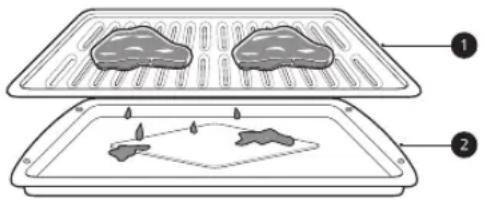
text_image
Diagram showing two food preparation steps with labeled components①Grid
②Broiler pan
text_image
Technical diagram of a microwave oven with numbered components and a grid pattern indicating airflow or ventilation.| Food | Quantity and/or Thickness | Rack Position | First Side Time (min.) | Second Side Time (min.) | Comments | |
| Ground Beef | 1 lb (9 patties)1/2 to 3/4" thick | 5 | 4-6 3-4 | Space evenly. Up to 9 patties may be broiled at once. | ||
| Beef Steaks | 1" thick1 to 1 ^1/_2 lbs. | Rare | 4 | 6 | 2-3 | Steaks less than 1" thick cook through before browning.Pan frying is recommended. Slash fat. |
| Medium | 4 | 7 | 2-3 | |||
| Well done | 4 | 8 | 3-4 | |||
| 1 ^1/_2 " thick2 to 2 ^1/_2 lbs | Rare | 4 | 10 4-6 | |||
| Medium | 4 | 12 6-8 | ||||
| Well done | 4 | 14 8-10 | ||||
| Chicken | 1 whole, 2 to 2 ^1/_2 lbs., split lengthwise | 3 | 20 6-8 | Broil skin-side-down first. | ||
| 2 Breasts | 3 | 20 6-10 | ||||
| Lobster Tails | 2-410 to 12 oz each | 3 | 12-14 | Do not turn over. | Cut through back of shell. Spread open.Brush with melted butter before broiling and after half of broiling time. | |
| Fish Fillets | ^1/_4 to ^1/_2 " thick | 4 or 5 | 5-6 3-4 | Handle and turn very carefully. Brush with lemon butter before and during cooking, if desired. | ||
| Ham Slices(precooked) | ^1/_2 " thick | 4 | 5 | 3-5 | Increase time 5 to 10 minutes per side for 1 1/2" thick or home-cured ham. | |
| Pork ChopsWell done | 2 ( ^1/_2 " thick) | 4 or 5 | 7 | 6-8 | Slash fat. | |
| 2 (1" thick) about 1lb. | 4 or 5 | 9-10 7-9 | ||||
| Lamb Chops | 2 (1" thick) about 10 to 12 oz | Medium | 4 | 6 | 4-6 | Slash fat. |
| Well done | 4 | 8 | 7-9 | |||
| 2 (1 1/2" thick) about 1lb | Medium | 4 | 11 | 9 | ||
| Well done | 4 | 13 9-11 | ||||
| Salmon Steaks | 2 (1" thick) | 4 or 5 | 8 | 3-4 | Grease pan. Brush steaks with melted butter. | |
| 4 (1" thick) about 1 lb | 4 or 5 | 9 | 4-6 | |||
- This guide is only for reference. Adjust cook time according to your preference.
NOTE
- The USDA advises that consuming raw or undercooked fish, meat, or poultry can increase your risk of food-borne illness.
-
The USDA has indicated the following as safe minimum internal temperatures for consumption:
-
Ground beef: 160 °F (71.1 °C)
- Poultry: 165 °F (73.9 °C)
- Beef, veal, pork, or lamb: 145 °F (62.8 °C)
- Fish / Seafood: 145 °F (62.8 °C)
Tips for Broiling
Beef
- Steaks and chops should always be allowed to rest for five minutes before being cut into and eaten. This allows the heat to distribute evenly through the food and creates a more tender and juicy result.
- Pieces of meat that are thicker than two inches should be removed from the refrigerator 30 minutes prior to cooking. This will help them cook more quickly and evenly, and will produce less smoke when broiling. Cooking times will likely be shorter than the times indicated in the Broiling Chart.
- For bone-in steaks or chops that have been frenched (all meat removed from around the bone), wrap the exposed sections of bone in foil to reduce burning.
Seafood
- When broiling skin-on fish, always use the Lo broil setting and always broil the skin side last.
- Seafood is best consumed immediately after cooking. Allowing seafood to rest after cooking can cause the food to dry out.
- It is a good idea to rub a thin coating of oil on the surface of the broiling pan before cooking to reduce sticking, especially with fish and seafood. You can also use a light coating of non-stick pan spray.
Vegetables
Toss your vegetables lightly in oil before cooking to improve browning.
Warm Mode
This function will maintain an oven temperature of
less than 200 °F ( 93.3 °C ). It will keep cooked food warm for serving up to 3 hours after cooking has finished.
Setting the Warm Mode
1 Touch Warm in the cooking mode screen.
2 Scroll to set the desired temperature: Low, Medium, or High. If desired, scroll to set a run time.
• High: 200 °F (93.3 °C)
• Medium: 170 °F (76.7 °C)
- Low: 140 °F (60 °C)
3 Touch Start. If the run time was set, the remaining time appears in the display.
Changing the Warm Settings
1 Touch Edit in the display to bring up the Cook Settings screen.
2 Adjust the settings as desired.
3 Touch Start.
Canceling the Warm Function
Touch Stop in the display, and select Yes.
NOTE
- The Warm function is intended to keep food warm. Do not use it to cool food down.
Proof Mode
This feature maintains a warm oven for rising yeast-leavened products before baking.
Setting the Proof Mode
1 Touch Proof in the cooking mode screen.
2 Read the instruction and touch the arrow key on the right side of the display.
3 Scroll through the numbers to set a proofing time or touch the number pad icon to enter the numbers directly.
Number pad icon
12 34
4 Touch Start. The remaining proofing time appears in the display.
NOTE
- If the proofing time is not set, the oven automatically turns off after 12 hours.
Canceling the Proof Function
Touch Stop in the display, and select Yes.
NOTE
- To avoid lowering the oven temperature and lengthening proofing time, do not open the oven door unnecessarily. Check bread products early to avoid over proofing.
- Do not use the Proofing mode for warming food or keeping food hot. The proofing oven temperature is not hot enough to keep foods at safe temperatures. Use the Warm feature to keep food warm. Proofing does not operate when the oven is above 125 °F. OVEN IS HOT shows in the display.
- It is normal for the fan to operate during the Proof function.
- The proof feature automatically provides the optimum temperature for the proofing process, and therefore does not have a temperature adjustment.
- For best results, cover the dough with a cloth or with plastic wrap. (The plastic may need to be anchored underneath the container so the oven fan does not blow it off.)
Air Fry
This feature automatically increases the entered temperature by 45 °F for optimal performance when using Air Fry.
The Air Fry mode can be programmed to cook at any temperature from 300 °F (150 °C) to 500 °F (260 °C). The default temperature is 400 °F (205 °C).
The Air Fry function is specially designed for oil-free frying.
Setting the Air Fry Mode
1 Touch Air Fry in the cooking mode screen.
2 Set the oven temperature. Scroll through the numbers on the display or touch the number pad icon to enter the numbers directly.
| Number pad icon |
3 If desired, set the cook time and delayed start time using the same method. Touch the arrow key on the right side of the display to see the delayed start time settings.
4 Touch Start.
5 If the cook time is set, the remaining time appears in the display. If a delayed start time is set, the start time appears in the display.
Changing the Cook Settings
1 Touch Edit in the display to bring up the Cook Settings screen.
2 Adjust the settings using the number pad or scroll function.
3 Touch Start.
To Stop Cooking
Touch Stop in the display, and select Yes.
NOTE
- No preheating is required when using the Air Fry mode.
- If cooking multiple batches, the later batches may take less time to cook.
- Wet batters and coatings will not crisp or set when using the Air Fry mode.
Tips for Air Fry
- For best results, use the provided air fry tray.
- The mesh section of the air fry tray can be cleaned in a dishwasher.
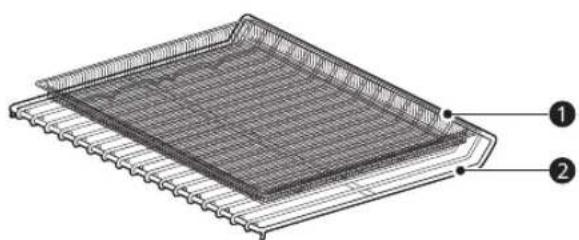
natural_image
Technical illustration of a grid-patterned rack or conveyor system with two labeled components (1 and 2), no text or symbols present.①Air Fry Tray
②Heavy Duty Standard Rack
- If you don't have the air fry tray, place food on a wire rack inside a foil-lined broiler pan.
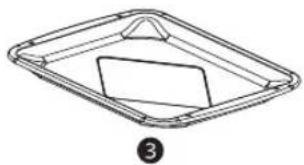
natural_image
Simple line drawing of a rectangular tray with a triangular top and a smaller rectangular slot, labeled with number 3 (no text or symbols on the tray itself)③ Broiler Pan
- For best results, cook food on a single rack placed in positions suggested in the chart in this manual.
- Spread the food out evenly in a single layer.
- Use either the optional air fry tray available from LG or a dark baking tray with no sides or short sides that does not cover the entire rack. This allows for better air circulation.
- If desired, spray the baking tray or air fry tray with a pan spray. Use an oil that can be heated to a high temperature before smoking, such as avocado, grapeseed, peanut or sunflower oil.
- Place a foil-lined baking tray on a rack in position 1 to catch the oil falling from the food. For high-fat foods like chicken wings, add a few sheets of parchment paper to absorb the fat.
- Check food often and shake it or turn it over for crisper results.
• Prepared frozen foods may cook faster with the Air Fry mode than stated on the package. Reduce the cooking time by about 20 percent, check food early, and adjust cooking time as needed. - Use a food thermometer to make sure food has reached a safe temperature for consumption. Eating undercooked meats can increase your risk of food-borne illness.
- For the crispiest results, dredge fresh chicken wings or tenders in seasoned flour. Use 1/3 cup flour for 2 pounds of chicken.
Recommendations When Air Frying High-Fat Foods
Foods high in fat will smoke when using the Air Fry mode. For best results, follow these recommendations when air frying foods that are high in fat, such as chicken wings, bacon, sausage, hot dogs, turkey legs, lamb chops, ribs, pork loin, duck breasts, or some plant-based proteins.

CAUTION
- Never cover slots, holes, or passages in the oven bottom or cover entire racks with materials such
as aluminum foil. Doing so blocks airflow through the oven and can result in carbon monoxide poisoning. Aluminum foil can also trap heat, causing a fire hazard or poor oven performance.
- Turn on your exhaust hood at a high fan setting before you start Air Fry and leave it on for 15 minutes after you're done.
- Open a window or sliding glass door, if possible, to make sure the kitchen is well-ventilated.
-
Clean the grease filters on your exhaust hood regularly.
-
Keep the oven free from grease buildup. Wipe down the interior of the oven before and after air frying (once the oven has cooled).
- Run oven cleaning cycles (Easy Clean or SelfClean) regularly, depending on how often and what types of food you Air Fry.
- Avoid opening the oven door more than necessary to help maintain the oven temperature, prevent heat loss, and save energy.
- Air-frying fresh chicken pieces such as wings or drumsticks with the skin left on can produce smoke as the fat renders at high temperatures. If the smoke is excessive, use the Convection Roast mode instead of Air Fry.
Recommended Air Frying Guide
- Arrange food evenly in a single layer.
- Flip food over during cooking to avoid burning it.
- Put a foil-lined baking pan on a rack in position ② to catch drips. If needed, add parchment paper to absorb oil and reduce smoking.
† High-fat items may produce more smoke when cooked using Air Fry. For less smoke, cook using Convection Roast mode.
| Recommended Items | Quantity (oz) | Temp. (°F) | Rack Position | Time Guide | |
| POTATOES-Frozen | |||||
| Frozen French Fries (Shoestring) | 20 425 | 3 | 15-25 | ||
| Frozen French Fries (Crinkle cut, 10x10 mm) | 35 400 | 3 | 18-28 | ||
| Frozen Sweet Potato Fries | 25 400 | 3 | 15-25 | ||
| Frozen Tater Tots 50 425 | 3 | 18-28 | |||
| Frozen Hash Browns 40 425 | 3 | 18-28 | |||
| POTATOES-Fresh/Homemade | |||||
| Homemade French Fries (10x10 mm) | 25 425 | 3 | 20-30 Cut the potatoes and soak for 30 minutes in hot tap water. Drain and pat dry.Brush or lightly spray with 3 tbsp. of oil. Add salt and pepper to taste. | ||
| Homemade Potato Wedges | 60 425 | 3 | 30-40 | ||
| CHICKEN-Frozen | |||||
| Frozen Chicken Nuggets, Crispy | 30 400 | 3 | 15-25 | ||
| Frozen Chicken Strips 35 400 | 3 | 25-35 | |||
| Frozen Hot Wings, Bone-in | 50 400 | 3 | 25-35 | ||
| CHICKEN-Fresh, Skin on | |||||
| Fresh Chicken Wings† | 40 450 | 3 | 25-35 B | rush or lightly spray with 1 tbsp. of oil. Add salt and pepper to taste. | |
| Fresh Chicken Drumsticks† | 70 450 | 3 | 30-40 | ||
| Thighs 40 450 | 3 | 25-35 | |||
| Breasts 40 450 | 3 | 25-35 | |||
| OTHER | |||||
| Frozen Onion Rings, Breaded | 20 400 | 3 | 15-25 | ||
| Frozen Spring Rolls (0.7 oz each) | 45 400 | 3 | 15-25 | ||
| Thin Sausage (2.5 oz each, diameter 0.8") | 90 400 | 3 | 15-25 | ||
| Frozen Coconut Shrimp 25 | 400 | 3 | 15-25 B | rush or lightly spray the surface of food with oil. | |
| Fresh Scallops on the half shell (35.3 oz) | 35 400 | 3 | 15-25 M | Melt 4 tbsp. of butter and brush on scallops. Mix 1/2 cup bread crumbs, 1 tbsp. minced garlic, 1/4 cup grated parmesan cheese and season to taste. Sprinkle mixture over scallops. | |
| Fresh Shrimp 50 400 | 3 | 15-25 | |||
| Mixed Vegetables 35 425 | 3 | 13-23 B | rush or lightly spray with 4 tbsp. of olive oil. Add salt and pepper to taste. | ||
Probe Mode
The probe accurately measures the internal temperature of meat, poultry and casseroles. Always unplug and remove the probe from the oven before removing food. Before using, insert the probe into the center of the thickest part of meat or into the inner thigh or breast of poultry, away from fat or bone. Place food in the oven and connect the meat probe to the jack. Keep the probe as far away from heat sources as possible.
- The probe cannot be used in the Broil, Sous Vide, Steam Maintenance, Self Clean, EasyClean, Warm or Proof modes.
- For thin cuts of meat, insert probe in thickest side of meat.
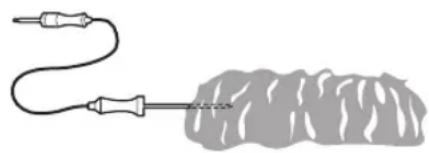
natural_image
Illustration of a medical or laboratory setup with two probes connected to a textured surface (no text or symbols)Using the Meat Probe Feature

CAUTION
• Always use an oven mitt to remove the temperature probe. Do NOT touch the broil
element. Failure to follow this warning can result in severe personal injury.
- To avoid damage to the meat probe, do not use tongs to pull on the probe when removing it.
- Do not store the meat probe in the oven.
1 Insert the probe into the food.
2 Connect the probe to the jack in the oven. "Probe is connected" pops up in the display and the probe icon appears at the top of the display.
| Probe icon | (3TH6) |
3 Touch an appropriate cooking mode.
4 Set the oven temperature and the probe temperature. Scroll through the numbers on the display or touch the number pad icon to enter the numbers directly.
- The default probe temperature is 150 °F (65 °C), but can be changed to any temperature between 80 °F (27 °C) and 210 °F (100 °C).
| Number pad icon |
5 If desired, set the delayed start time using the same method. Touch the arrow key on the right side of the display to see the additional settings.
6 Touch Start. If a delayed start time has been set, the start time appears in the display.
7 When the set probe temperature is reached, the oven shuts off automatically.
NOTE
- Calculating a total cooking time by weight is no longer necessary using this feature. See the Recommended Probe Temperature Chart to set the probe temperature.
Changing the Probe Temperature while Cooking
1 Touch Edit in the display to bring up the Cook Settings screen.
2 Adjust the settings as desired.
3 Touch Start.
To Stop Cooking
Touch Stop in the display, and select Yes.
NOTE
- Touch Stop in the display at any time to cancel a cooking operation.
- To avoid breaking the probe, make sure food is completely defrosted before inserting.
- While the meat probe mode is running, EasyClean does not respond.
Recommended Probe Guide
Recommended Probe Placement Chart
| Category Examples of | Food Probe Placement | |
| Ground Meat & Meat Mixtures | Meatloaf | Insert in the thickest part |
| Meatballs | ||
| Fresh Beef, Veal, Lamb Steaks, Roasts | Chops | Insert in the thickest part, away from bone, fat and gristle |
| Category Examples of Food Probe Placement | ||
| Poultry | Whole Chicken or Turkey | Insert in the thickest part of thigh, avoiding bone |
| Poultry Breasts or Roasts | ||
| Duck, Goose, Pheasant | ||
| Stuffing (Alone or in Bird) | Insert in the thickest part of the dish | |
| Pork & Ham | Fresh Pork | Insert in the thickest part, away from bone, fat and gristle |
| Fresh Ham (Raw) | ||
| Precooked Ham (Reheat & Serve) | ||
| Leftovers & Casseroles | Leftovers | Insert in the thickest part of the dish |
| Casseroles | ||
| Seafood | Whole Fish | Insert in the thickest part of the fish |
| Fish Fillet (Side of Fish) | ||
| Fish Steaks or Portions | ||
Recommended Probe Temperature Chart
| Category Examples of Food | Target Internal Temp. | Desired Doneness | |
| Ground Meat & Meat Mixtures | Meatloaf | 160 °F (71 °C) | |
| Meatballs | 165 °F (74 °C) | ||
| Fresh Beef, Veal, Lamb | Roasts | 145 °F (63 °C) | Rare: 120 °F (49 °C)Medium rare: 125 °F (52 °C)Medium: 130 °F (54 °C)Medium well done: 135 °F (57 °C)Well done: 140 °F (60 °C) |
| Poultry | Whole Chicken or Turkey | 165 °F (74 °C) | |
| Poultry Breasts or Roasts | |||
| Duck, Goose, Pheasant | |||
| Stuffing (Alone or in Bird) | |||
| Pork & Ham | Fresh Pork | 145 °F (63 °C) | Well done: 170 °F (77 °C) |
| Fresh Ham (Raw) | Well done: 160 °F (71 °C) | ||
| Precooked Ham (Reheat & Serve) | 140 °F (60 °C) | ||
| Leftovers & Casseroles | Leftovers | 165 °F (74 °C) | |
| Casseroles | |||
| Seafood Whole Fish | 145 °F (62.8 °C) | ||
| Fish Fillet (Side of Fish) | |||
| Fish Steaks or Portions | |||
Favorite Mode
For frequently used cooking menus, you can combine up to three different temperatures and cooking modes into one hot key.
Creating a Favorite
- When combining two or more cooking modes, a cooking time or probe temperature must be set before selecting an additional cooking mode.
- The Probe function cannot be used with the Broil, Sous Vide, Steam Maintenance, Warm, or Proof modes.
1 Touch Favorite in the Cooking Modes screen.
2 Touch Create to make a new hot key.
3 Select a cook mode listed in the display and set the desired cook temperature.
4 Touch Set Cook Time or Set Probe.
5 If there are no additional cooking stages, touch Done. To add another cooking stage, set a cooking time or probe temperature for the previous stage. Then touch Add Cook Stage.
6 Repeat steps 3-5 until all desired cooking stages have been entered. Then touch Done.
7 Enter a name for your recipe using the keyboard and touch Save.
8 The recipe name is added to the Favorite menu.
NOTE
- If the probe was inserted in the oven jack to add a probe temperature, remember to remove it.
- After the steam mode is used for 8 hours, a reminder to descale the product appears in the display the next time the steam mode is selected. You will not be able to use the steam mode until the Descaling function is run. To avoid this delay, run the Descaling function after every 2-3 uses of the steam mode.
- If the descaling reminder appears, press OK to run the Descaling function.
- Proofing doesn't operate when the oven is above 125 °F (52 °C).
- If using Proof after cooking, wait for the oven to cool first.
- The Proof mode can only be set as a single stage, not as part of multi-stage cooking.
Editing a Favorite
- The Edit function cannot add or remove cooking stages to a recipe. Only the oven temperature, probe temperature and cook time can be changed.
1 Touch Favorite in the Cooking Modes screen.
2 Select the recipe to edit then touch the pencil icon at the bottom left of the screen.
3 Edit the settings for the first cooking stage and touch Done to proceed to the next cooking stage, if any.
4 Edit the next cooking stage, touch Done, and proceed through all cooking stages in the same way.
5 Once the last cooking stage has been edited, enter a new name for the recipe or keep the previous name. Then touch Save.
Deleting Favorite
1 Touch Favorite in the Cooking Modes screen.
2 Select the recipe and touch the trash can icon at the bottom left of the screen.
3 Touch Yes.
Auto Cook Mode
The Auto Cook function provides guidance for cooking foods or dishes that may be unfamiliar. It contains preset programs for cooking many popular food items, with information on recommended preheating, accessories, and rack position for optimal results.
Setting Auto Cook Mode
1 Touch Auto Cook in the Cooking Modes screen.
2 Touch a category to filter the options.
3 Scroll through or tap the letters to find and select an item.
4 Follow the recommendations in the display regarding accessories and rack position.
5 Touch Start.
Auto Cook Guide
- Preheat oven first for most items.
- Preheat for 5 minutes when broiling.
- If using probe, insert after preheating.
NOTE
- When cooking thin cuts of meat, insert the probe into the thickest part of the meat. If the probe is inserted incorrectly, the oven could turn off too soon. See the Probe section for instructions.
| Menu | Accessories/ Cookware | Shelf Position | Cooking time in min. | ||
| Beef | Beef Tenderloin | Rare | Grid on broiler pan | 2 | 30~60 |
| Medium rare | 2 | 35~65 | |||
| Medium | 2 | 40~70 | |||
| Medium well done | 2 | 45~75 | |||
| Well done | 2 | 50~80 | |||
| Pot Roast | Ovenproof pot with cover | 2 | 50~80 | ||
| Roast Beef | Rare | Grid on broiler pan | 2 | 40~70 | |
| Medium rare | 2 | 45~75 | |||
| Medium | 2 | 50~80 | |||
| Medium well done | 2 | 55~85 | |||
| Well done | 2 | 60~90 | |||
| London Broil | Rare | 5 | 3~10 + 3~10 | ||
| Medium rare | 5 | 5~15 + 3~10 | |||
| Medium | 5 | 5~15 + 5~10 | |||
| Medium well done | 5 | 8~15 + 5~10 | |||
| Well done | 5 | 10~15 + 8~15 | |||
| Steak | Rare | 5 | 3~10 + 3~10 | ||
| Medium rare | 5 | 5~15 + 3~10 | |||
| Medium | 5 | 5~15 + 5~10 | |||
| Medium | 5 | 8~15 + 5~10 | |||
| Well done | 5 | 10~15 + 8~15 | |||
| Beef Marinade | 3 | 20~50 | |||
| Meat Loaf Loaf pan | 2 | 40~60 | |||
| Pork | Pork Butt Casserole dish | 2 | 60~90 | ||
| Pork Chops | Grid on broiler pan | 4 | 30~50 | ||
| Pork Loin | 2 | 50~80 | |||
| Pork Tenderloin | 2 | 20~40 | |||
| Lamb | Rack | 2 | 10~30 | ||
| Bone-in Leg of Lamb | 4 | 20~40 | |||
| Veal | Veal Top Sirloin | 2 | 80~100 | ||
| Veal Chops | 5 | 4~15 + 3~10 | |||
| Veal Rolled Roast | 2 | 50~70 | |||
| Veal Rib Roast | 2 | 50~80 | |||
| Veal Tenderloin | 2 | 50~80 | |||
| Fish | Fish Fillet | Baking dish | 4 | 10~15 | |
| Whole | 4 | 15~30 | |||
| Shrimp | Grid on broiler pan | 5 | 5~15 | ||
| Lobster Tails | 4 | 20~30 | |||
| Salmon Steak | Rare | Baking dish | 4 | 15~20 | |
| Medium rare | 4 | 20~25 | |||
| Well done | 4 | 15~30 | |||
| Poultry | Chicken | Legs & Thighs | 4 | 20~40 | |
| Wings (Fresh) | Grid on broiler pan | 5 | 8~20 | ||
| Wings (Frozen) | 4 | 20~40 | |||
| Breasts Baking dish | 4 | 20~40 | |||
| Cutlet Casserole dish | 4 | 20~30 | |||
| Whole | Grid on broiler pan | 2 | 60~80 | ||
| Whole Turkey | 2 | 150~240 | |||
| Casserole Lasagna (Fresh) Baking dish | 3 | 50~70 | |||
| Pizza | Frozen Thin Crust | Directly on rack | 3 | 10~20 | |
| On pizza pan | 3 | 10~20 | |||
| On pizza stone | 3 | 10~20 | |||
| Frozen Rising Crust | Directly on rack | 3 | 10~20 | ||
| On pizza pan | 3 | 10~20 | |||
| On pizza stone | 3 | 10~20 | |||
| From Scratch/Homemade | Directly on rack | 3 | 10~20 | ||
| On pizza pan | 3 | 10~20 | |||
| On pizza stone | 3 | 10~20 | |||
| Desserts | Brownies Baking dish | 3 | 30~40 | ||
| Cheesecake Cake pan | 3 | 60~70 | |||
| Fruit pie | Whole Pie | Pie pan | 3 | 25~45 | |
| Par Bake Bottom Crust Only | 3 | 20~40 | |||
| Fruit tart Tart pan | 3 | 20~40 | |||
| Cakes | Layer Cake | Cake pan | 3 | 25~45 | |
| Angel Food Cake | 3 | 30~40 | |||
| Muffins/Cupcakes Muffin pan | 3 | 20~30 | |||
| Puff Pastry | Baking sheet | 3 | 20~40 | ||
| Cookies | Single Tray | 3 | 15~20 | ||
| Multiple Tray | 2+4 | 20~28 | |||
| Biscuits/Scones | 3 | 10~20 | |||
| Souffle Souffle dish | 2 | 60~80 | |||
| Miscellaneous | Proof | Ovenproof bowl with cover | 3 | 30~40 | |
| Drying/Dehydrating (Fruit or Vegetable) | Baking sheet | 3 | 120~480 | ||
| Slow Roasting Grid on broiler pan | 2 | 120~240 | |||
| Bread (Steam) | White Bread | Homemade | Loaf pan | 3 | 20~50 |
| Frozen | 3 | 20~50 | |||
| Par Baked | 3 | 20~50 | |||
| Baguette | Homemade | Perforated baguette pan | 3 | 15~35 | |
| Frozen | 3 | 15~35 | |||
| Par Baked | 3 | 15~35 | |||
| Cinnamon Raisin Bread Loaf pan | 3 | 20~40 | |||
| Walnut Bread | Loaf pan or perforated tray | 3 | 40~50 | ||
| Whole Grain Bread | Homemade | Loaf pan | 3 | 25~45 | |
| Frozen | 3 | 25~45 | |||
| Par Baked | 3 | 25~45 | |||
| Banana Bread Homemade | 3 | 25~50 | |||

CAUTION
• Take care when opening the oven door during or after steam cooking. Hot steam can cause scalding.
• After any steam cooking cycle, the drying function will run automatically. It is normal to hear the steam pump running during the drying function.
Steam Function
Steam cooking uses the moist heat of steam to cook food. This is an ideal cooking method for delicate food items such as seafood, which can lose nutrients when boiled.
The oven provides 2 methods of steam cooking: Steam Bake and Sous Vide.

CAUTION
• Take care when opening the oven door during or after steam cooking. Hot steam can cause scalding.
• After any steam cooking cycle, the drying function will run automatically. It is normal to hear the steam pump running during the drying function.
Using the Steam Feeder Tank
The steam feeder tank is located over the oven cavity.
1 Gently push the front of the steam feeder tank to slide it out.
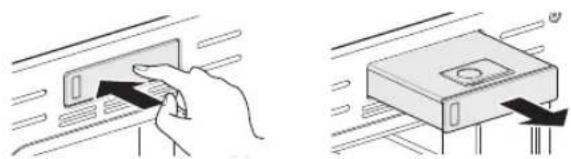
natural_image
Illustration showing a hand inserting a card into a device, with no visible text or symbols2 Remove the tank and place it on a flat surface.
3 Remove the tank cover or flip open the fill lid at the front of the tank cover.
4 Fill the tank to the max line located at the front of the tank. Use softened, filtered water, if possible. Hard water may clog the steam generator more quickly with scale buildup.
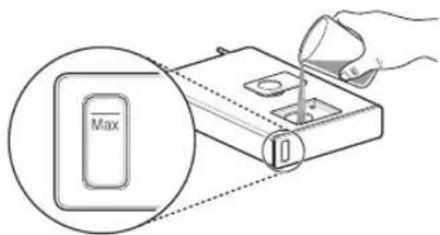
text_image
Max5 Assemble the cover or snap closed the fill lid.
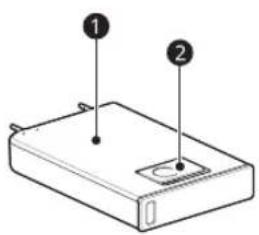
natural_image
Diagram of a rectangular electronic device with two labeled points (1 and 2), showing internal structure without any text or symbols.①Tank cover
②Fill lid
CAUTION
- Make sure the steam feeder tank cover and fill lid are closed before putting the tank in the oven.
- Use potable water only.
- Do not fill the steam feeder tank with any fluid or mixture other than water.
- Do not fill the steam feeder tank with hot water.
- Fill the steam feeder tank up to the line indicated on the front.
- Do not tilt the steam feeder tank while it is full.
- Discard any remaining water and clean the steam feeder tank after cooking.
- Use the steam feeder tank only for its intended purpose of providing water for steam cooking.
- Monitor the water level in the tank and refill as needed for steam cooking. Use oven mitts to avoid burns when handling the hot tank.
6 Carefully insert the tank into the steam feeder slot, making sure to keep the tank level while carrying it. If the tank is not kept level, water will drain out of the tubes in the back.
7 Slide the tank into the slot until it clicks into place.
Steam Bake Mode
The Steam Bake mode heats food gradually, using both the oven heating elements and moist steam heat. The oven can be programmed to cook at any temperature from 210 °F (100 °C) to 550 °F (285 °C). Preset temperature options start at 350 °F (175 °C).
Setting Steam Bake Mode
1 Touch Steam Cook in the Cooking Modes screen.
2 Touch Steam Bake in the display.
3 Select the desired temperature and steam level: Low, Medium, or High.
4 If desired, scroll to set the cook time and delayed start time. Touch the arrow key on the right side of the display to see the delayed start time settings.
5 Touch Start.
6 Once cooking is finished, allow the oven to cool completely. Then wipe up any water left on the oven interior.
NOTE
- Once Steam Bake cooking is started, an indicator on the display shows the status of the steam function.
- Make sure the steam feeder tank is filled with water before starting the Steam Bake mode. If the water in the tank runs out during cooking, a chime sounds and a popup appears in the display. The oven continues to cook without steam.
- Remember to drain the steam feeder tank after use.
- When the temperature rises in the oven, steam may not be visible.
- It is normal to hear the sound of boiling water from the steam generator while running the steam functions.
Changing the Steam Cook Settings
1 Touch Edit in the display to bring up the Cook Settings screen.
2 Adjust the settings as desired.
3 Touch Start.
To Stop Steam Cooking
Touch Stop in the display, and select Yes.
Sous Vide
Sous vide cooking uses steam to cook foods "low and slow." Use it to cook meat, fish, seafood, poultry or vegetables. Food must be vacuum packed in pouches.
It is not necessary to preheat the oven when using sous vide.
Refer to the cooking guide for recommended sous vide settings.
Benefits of Sous Vide
The lower temperatures and long cooking times used in sous vide cooking provide many benefits.
- Healthier
Compared to other cooking methods, sous vide retains most of the original nutrients in food.
- Safe and Convenient
The long cooking times used in sous vide cooking allow food to be pasteurized. Because food is vacuum packed before cooking, the unopened pouches can be quickly chilled then easily stored after cooking.
- Crisp and Moist Results
The fine temperature control of sous vide cooking is an excellent way to achieve the perfect texture when cooking meat and poultry. The low temperatures used retain more of the moisture in food than conventional cooking methods. After cooking, a final sear in a frying pan adds the perfect crisp finish.
Setting Sous Vide Mode
1 Fill the tank with water up to the max line located at the front of the tank.
2 Place the standard rack in position ③ and place the sealed food bag on it.
3 Touch Steam Cook in the Cooking Modes screen.
4 Touch Sous vide in the display.
5 Select the desired temperature.
6 If desired, scroll to set the cook time and delayed start time. Touch the arrow key on the right side of the display to see the delayed start time settings.
7 Touch Start.
8 Once cooking is finished, allow the oven to cool completely. Then wipe up any water left on the oven interior.
Changing the Sous Vide Settings
1 Touch Edit in the display to bring up the cook settings screen.
2 Adjust the settings as desired.
3 Touch Start.
To Stop Cooking
Touch Stop in the display, and select Yes.
NOTE
- As the temperature in the oven rises, steam may not be visible.
Sous Vide Cooking Guide
The size, weight, thickness, starting temperature, and your personal preferences will affect operating times. This guide is only for reference. Adjust cook time according to your preference.
| Food | Quantity (oz) | Temp. (°F) | Time | ||
| Min Target | Max | ||||
| Beef Steak (Medium rare) | 1" thick 14.1-17.6 oz | 135 - 2.5 hr. | 3 hr. | ||
| Chicken breast | 4.2-5.3 oz 149 - 2.5 hr. | 3 hr. | |||
| Salmon 1" thick | 7 oz | 140 - 2 hr. | 2.5 hr. | ||
| Asparagus 2.8 oz / 6 ea | 5.6 oz / 12 ea | 185 | 20 min. | 30 min. | 45 min. |
- Cook 30 mins. or 1 hour more if you use meats thicker than 1".
- If you use larger cuts of meat, cut to match the recommended weight. Be careful not to put pieces of meat too close together.
Remote Start Mode
If the appliance is registered on a home Wi-Fi network, the preheating function of the oven can be started or stopped using the LG ThinQ smartphone app.
Preparing the Oven for a Remote Start
1 Open the oven door to make sure the oven is empty and ready for preheating. Do not place food in the oven. Close the oven door. Remote Start can only be set when the oven door is closed.
2 Touch SETTINGS, located at the center bottom of the display. Touch Remote Start on the first Settings screen, and then select On. Follow the instructions on the popup that opens in the display.
3 Follow the instructions in the LG ThinQ smartphone app for using the Remote Start function.
NOTE
- Remote Start is disconnected in the following situations:
- Remote Start is never set up in the smartphone app.
- The Remote Start status is "ready".
- Remote Start experiences a problem during operation.
- The Wi-Fi icon on the display shows the status of the appliance's network connection. If the Wi-Fi icon is not lit, use the smartphone app to select the Wi-Fi network or register the product again.
- A faulty Wi-Fi connection could delay the Remote Start function.
- Disconnect the probe if attached.
SMART FUNCTIONS
LG ThinQ Application
This feature is only available on models with Wi-Fi.
The LG ThinQ application allows you to communicate with the appliance using a smartphone.
LG ThinQ Application Features
- EasyClean
- Allows you to set EasyClean alerts, read the instruction guide, and simulate and compare energy consumption when using EasyClean versus self clean cycles.
- Settings
- Allows you to set various options on the oven and in the application.
- Smart Diagnosis ^TM
- This function provides useful information for diagnosing and solving issues with the appliance based on the pattern of use.
- Monitoring
- This function helps you check the current status, remaining time, cook settings and end time in one place.
• Product Notifications
- Turn on the Push Alerts to receive appliance status notifications. The notifications are triggered even if the LG ThinQ application is not open.
- Timer
- You can set the timer from the application.
- Firmware Update
- Keep the appliance updated.
NOTE
- If you change your wireless router, Internet service provider, or password, delete the connected appliance from the LG ThinQ application and connect it again.
- This information is current at the time of publication. The application is subject to change for product improvement purposes without notice to users.
Before Using LG ThinQ Application
1 Use a smartphone to check the strength of the wireless router (Wi-Fi network) near the appliance.
- If the appliance is too far from the wireless router, the signal becomes weak. It may take a long time to connect or fail to install the application.
2 Turn off the Mobile data or Cellular Data on your smartphone.
text_image
Diagram showing hand gesture pointing to two circular icons with directional arrows, indicating movement or direction change.3 Connect your smartphone to the wireless router.
text_image
Diagram showing a hand interacting with a Wi-Fi icon and a Wi-Fi symbol, indicating wireless signal interaction.NOTE
- To verify the Wi-Fi connection, check that the 📤 icon on the control panel is lit.
- The appliance supports 2.4 GHz Wi-Fi networks only. To check your network frequency, contact your Internet service provider or refer to your wireless router manual.
- LG ThinQ is not responsible for any network connection problems or any faults, malfunctions, or errors caused by network connection.
- The surrounding wireless environment can make the wireless network service run slowly.
- If the appliance is having trouble connecting to the Wi-Fi network, it may be too far from the router. Purchase a Wi-Fi repeater (range extender) to improve the Wi-Fi signal strength.
- The network connection may not work properly depending on the Internet service provider.
- The Wi-Fi may not connect or the connection may be interrupted because of the home network environment.
- If the appliance cannot be connected due to problems with the wireless signal transmission,
unplug the appliance and wait about a minute before trying again.
- If the firewall on your wireless router is enabled, disable the firewall or add an exception to it.
- The wireless network name (SSID) should be a combination of English letters and numbers. (Do not use special characters.)
- Smartphone user interface (UI) may vary depending on the mobile operating system (OS) and the manufacturer.
- If the security protocol of the router is set to WEP, network setup may fail. Change the security protocol (WPA2 is recommended), and connect the product again.
Installing the LG ThinQ Application
Search for the LG ThinQ application from the Google Play Store or Apple App Store on a smartphone. Follow instructions to download and install the application.
Connecting to Wi-Fi
The Wi-Fi button, when used with the LG ThinQ application, allows the appliance to connect to a home Wi-Fi network. The 📋 icon shows the status of the appliance's network connection. The icon illuminates when the appliance is connected to the Wi-Fi network.
- Initial Appliance Connection
Run the LG ThinQ application and follow the instructions in the application to connect the appliance.
- Reconnecting the Appliance or Connecting Another User
Press and hold the Wi-Fi button for 3 seconds. Run the LG ThinQ application and follow the instructions in the application to connect the appliance.
Wireless LAN Module Specifications
| Frequency Range | 2412 - 2462 MHz |
| Output Power (Max) | < 30 dBm |
Industry Canada Statement
This device contains licence-exempt transmitter(s)/receiver(s) that comply with Innovation, Science and Economic Development Canada's licence-exempt RSS(s). Operation is subject to the following two conditions:
(1) This device may not cause interference.
(2) This device must accept any interference, including interference that may cause undesired operation of the device.
IC Radiation Exposure Statement
This equipment complies with IC radiation exposure limits set forth for an uncontrolled environment.
This equipment should be installed and operated with a minimum distance of 20 cm (7.8 inches) between the antenna and your body.
NOTE
- THE MANUFACTURER IS NOT RESPONSIBLE FOR ANY RADIO OR TV INTERFERENCE CAUSED BY UNAUTHORIZED MODIFICATIONS TO THIS EQUIPMENT. SUCH MODIFICATIONS COULD VOID THE USER'S AUTHORITY TO OPERATE THE EQUIPMENT.
Open Source Software Notice Information
To obtain the source code under GPL, LGPL, MPL, and other open source licenses that have the obligations to disclose source code, that is contained in this product, and to access all referred license terms, copyright notices and other relevant documents please visit https://opensource.lge.com.
LG Electronics will also provide open source code to you on CD-ROM for a charge covering the cost of performing such distribution (such as the cost of media, shipping, and handling) upon email request to opensource@lge.com.
This offer is valid to anyone in receipt of this information for a period of three years after our last shipment of this product.
Smart Diagnosis™ Feature
This feature is only available on models with the ⚙ or ⚙ logo.
Use this feature to help you diagnose and solve problems with your appliance.
NOTE
- For reasons not attributable to LGE's negligence, the service may not operate due to external factors such as, but not limited to, Wi-Fi unavailability, Wi-Fi disconnection, local app store policy, or app unavailability.
- The feature may be subject to change without prior notice and may have a different form depending on where you are located.
Using LG ThinQ to Diagnose Issues
If you experience a problem with your Wi-Fi equipped appliance, it can transmit troubleshooting data to a smartphone using the LG ThinQ application.
- Launch the LG ThinQ application and select the Smart Diagnosis feature in the menu. Follow the instructions provided in the LG ThinQ application.
Using Audible Diagnosis to Diagnose Issues
Follow the instructions below to use the audible diagnosis method.
- Launch the LG ThinQ application and select the Smart Diagnosis feature in the menu. Follow the instructions for audible diagnosis provided in the LG ThinQ application.
1 Place your phone's mouthpiece near the top left corner of the screen.
2 Touch the START button.
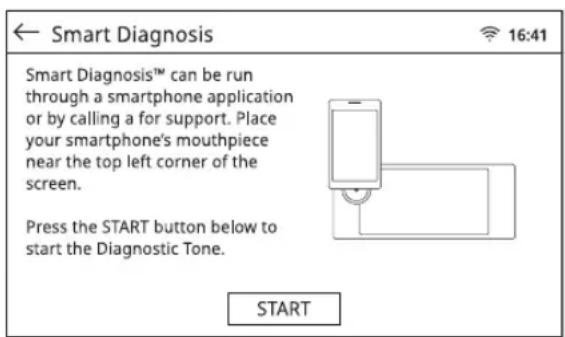
text_image
Smart Diagnosis Smart Diagnosis™ can be run through a smartphone application or by calling a for support. Place your smartphone's mouthpiece near the top left corner of the screen. Press the START button below to start the Diagnostic Tone. START3 Keep the phone in place until the tone transmission has finished. The application will count down the time. Once the countdown is over and the tones have stopped, the diagnosis will be displayed in the application.
NOTE
- For best results, do not move the phone while the tones are being transmitted.
MAINTENANCE
Cleaning
General Cleaning Tips
- A plastic spatula can be used as a scraper to scrape off any chunks or debris before and during oven cleaning.
- Using the rough side of a non-scratch scouring pad may help to take off burnt-on stains better than a soft sponge or towel.
- Certain non-scratch scrubbing sponges, such as those made of melamine foam, available at your local stores, can also help improve cleaning.
Exterior
Painted and Decorative Trim
For general cleaning, use a cloth with hot soapy water. For more difficult soils and built-up grease, apply a liquid detergent directly onto the soil. Leave it on for 30 to 60 minutes. Rinse with a damp cloth and dry. Do not use abrasive cleaners.
Stainless Steel Surfaces
To avoid scratches, do not use steel wool pads.
1 Place a small amount of stainless steel appliance cleaner or polish on a damp cloth or paper towel.
2 Clean a small area, rubbing with the grain of the stainless steel if applicable.
3 Dry and buff with a clean, dry paper towel or soft cloth.
4 Repeat as necessary.
NOTE
- To clean the stainless steel surface, use warm sudsy water or a stainless steel cleaner or polish.
- Always wipe in the direction of the metal surface finish.
- Stainless steel appliance cleaner or polish can be purchased online or from most retailers of appliances or home goods.
Oven Cavity
DO NOT use oven cleaners.
NEVER wipe a warm or hot porcelain surface with a damp sponge; it may cause chipping or crazing (tiny hairlike cracks). Food spills should be cleaned when the oven cools. At high temperature, foods react with porcelain and a permanent dull spot can result. When cleaning a spot, use only non-abrasive cleaners or scrubbers.
Oven Door

CAUTION
- Do not use harsh cleaners or harsh abrasive cleaning materials on the outside of the oven door. Doing so can cause damage.
- Use soapy water to thoroughly clean the oven door. Rinse well. Do not immerse the door in water.
- You may use a glass cleaner on the outside glass of the oven door. Do not spray water or glass cleaner on the door vents.
- Do not use oven cleaners, cleaning powders, or harsh abrasive cleaning materials on the outside of the oven door.
- Do not clean the oven door gasket. The oven door gasket is made of a woven material that is essential for a good seal. Care should be taken not to rub, damage, or remove this gasket.
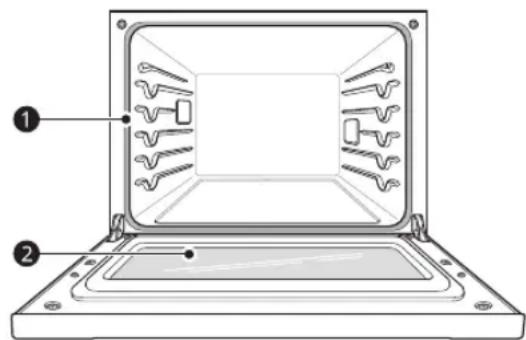
text_image
Labeled diagram of a laptop showing internal components with numbered annotations① Don't hand clean oven door gasket
②Do hand clean door
Broiler Pan and Grid
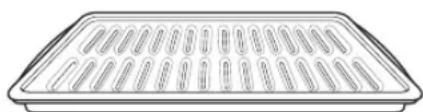
natural_image
Line drawing of a rectangular tray with evenly spaced oval cutouts (no text or symbols)- Do not store a soiled broiler pan or grid anywhere in the appliance.
- Do not clean the broiler pan or grid in a self cleaning mode. (Available on some models)
- Remove the grid from the pan. Carefully pour out the grease from the pan into a proper container.
- Wash and rinse the broiler pan and grid in hot water with a soap-filled or plastic scouring pad.
- If food has burned on, sprinkle the grid with cleaner while hot and cover with wet paper towels or a dishcloth. Soaking the pan will remove burned-on foods.
- Both the broiler pan and grid may be cleaned with a commercial oven cleaner or in the dishwasher.
Oven Racks
Remove the oven racks before operating the Self Clean cycle and EasyClean.
1 Clean with a mild, abrasive cleaner.
- Food spilled into the tracks could cause the racks to become stuck.
2 Rinse with clean water and dry.
NOTE
If the racks are cleaned using the Self Clean cycle (not recommended), the color will turn slightly blue and the finish will become dull. After the Self Clean cycle is complete, and the oven has cooled, rub the sides of the racks with wax paper or a cloth containing a small amount of vegetable oil. This will make the racks glide more easily into the rack tracks.
EasyClean
LG's EasyClean enamel technology provides two cleaning options for the inside of the oven. The EasyClean feature takes advantage of LG's new enamel to help lift soils without harsh chemicals, and it runs using ONLY WATER for just 10 minutes in low temperatures to help loosen LIGHT soils before hand cleaning.
While EasyClean is quick and effective for small and LIGHT soils, the Self Clean feature can be used to remove HEAVY, built up soils. The intensity and high heat of the Self Clean cycle may result in smoke which will require the opening up of windows to provide ventilation. Compared to the more intense Self Clean process, your LG oven gives you the option of cleaning with LESS HEAT, LESS TIME, and virtually NO SMOKE OR FUMES. You can reduce energy use by cleaning light oven soils with the EasyClean feature instead of Self Clean.
When needed, the oven still provides the Self Clean option for longer, more thorough oven cleaning for heavier, built up soils.
- For hard to reach areas such as the back surface of the oven, it is better to use the Self Clean cycle.
Benefits of EasyClean
- Helps loosen light soils before hand-cleaning
- EasyClean only uses water; no chemical cleaners
- Makes for a better Self Clean experience.
- Delays the need for a Self Clean cycle
- Minimizes smoke and odors
- Can allow shorter Self Clean time
When to Use EasyClean
• Example of oven soiling
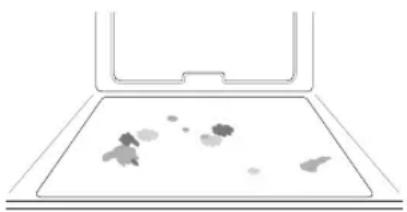
natural_image
Simple line drawing of a laptop with a blank screen and abstract shapes on the screen (no text or symbols)Case 1
- Soil pattern: Small drops or spots
- Types of soils: Cheese or other ingredients
- Common food items that can soil your oven: Pizza
Case 2
- Soil pattern: Light splatter
- Types of soils: Fat/grease
- Common food items that can soil your oven: Steaks, broiled / Fish, broiled / Meat roasted at low temperatures
EasyClean Instruction Guide
NOTE
- Allow the oven to cool to room temperature before using the EasyClean cycle. If your oven cavity is above 150 °F (65 °C), the EasyClean cycle will not be activated until the oven cavity cools down.
- The oven should be level to ensure that the bottom surface of the oven cavity is entirely
covered by water at the beginning of the EasyClean cycle.
- For best results, use distilled or filtered water. Tap water may leave mineral deposits on the oven bottom.
- Soil baked on through several cooking cycles will be more difficult to remove with the EasyClean cycle.
- Do not open the oven door during the EasyClean cycle. Water will not get hot enough if the door is opened during the cycle.
1 Remove oven racks and accessories from the oven.
2 Scrape off and remove any burnt-on debris with a plastic scraper.
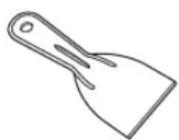
• Suggested plastic scrapers:
- Hard plastic spatula
- Plastic pan scraper
- Plastic paint scraper
- Old credit card
3 Fill a spray bottle (10 oz or 300 ml) with water and use the spray bottle to thoroughly spray the inside surfaces of the oven.
4 Use at least 1/5 (2 oz or 60 ml) of the water in the bottle to completely saturate the soil on both the walls and in the corners of the oven.
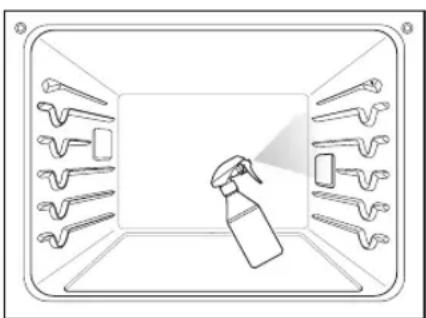
natural_image
Diagram of a spray bottle spraying through a rectangular enclosure with multiple tool holders (no text or symbols)5 Spray or pour the remaining water (8 oz or 240 ml) onto the bottom center of the oven cavity. The indentation on the oven bottom should be fully covered to submerge all soils. Add water if necessary.
NOTE
- If cleaning multiple ovens, use an entire bottle of water to clean each oven. Do not spray water directly on the door. Doing so will result in water dripping to the floor.
6 Touch Clean in the Cooking Modes screen. Touch EasyClean in the display.
7 Touch Start. The remaining time appears in the display.
CAUTION
- Some surfaces may be hot after the EasyClean cycle. Wear rubber gloves while cleaning to prevent burns.
- During the EasyClean cycle, the oven becomes hot enough to cause burns. Wait until the cycle is over before wiping the inside surface of the oven. Failure to do so may result in burns.
- Avoid leaning or resting on the oven door glass while cleaning the oven cavity.
8 A tone will sound at the end of the 10 minute cycle. Touch End of the Cleaning in the display to end the EasyClean mode and the tone.
9 After the cleaning cycle and during hand-cleaning, enough water should remain on the oven bottom to completely submerge all soils. Add water if necessary. Place a towel on the floor in front of the oven to capture any water that may spill out during hand-cleaning.
10 Clean the oven cavity immediately after the EasyClean cycle by scrubbing with a wet, non-scratch scouring sponge or pad. (The scouring side will not scratch the finish.) Some water may spill into the bottom vents while cleaning, but it will be captured in a pan under the oven cavity and will not hurt the burner.
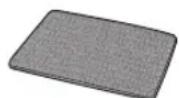
NOTE
- Do not use any steel scouring pads, abrasive pads or cleaners as these materials can permanently damage the oven surface.
11 Once the oven cavity is cleaned, wipe any excess water with a clean dry towel. Replace racks and any other accessories.
12 If some light soils remain, repeat the above steps, making sure to thoroughly soak the soiled areas.
- If stubborn soils remain after multiple EasyClean cycles, run the Self Clean cycle. Be sure that the oven cavity is empty of oven racks and other accessories, and that the oven cavity surface is dry before running the Self Clean cycle. Consult the Self Clean section of your owner's manual for further details.
NOTE
- The cavity gasket may be wet when the EasyClean cycle finishes. This is normal. Do not clean the gasket.
- If mineral deposits remain on the oven bottom after cleaning, use a cloth or sponge soaked in vinegar to remove them.
- It is normal for the fan to operate during the EasyClean cycle.
- Using commercial oven cleaners or bleach to clean the oven is not recommended. Instead, use a mild liquid cleanser with a pH value below 12.7 to avoid discoloring the enamel.
Self Clean
The Self Clean cycle uses extremely hot temperatures to clean the oven cavity. While running the Self Clean cycle, you may notice smoking or an odor. This is normal, especially if the oven is heavily soiled. During Self Clean, the kitchen should be well ventilated to minimize the odors from cleaning.
Before Starting Self Clean
- Clean only parts listed in manual. Remove the water tank, oven racks, broiler pan, broiler grid,
all cookware, aluminum foil or any other material from the oven.
- If oven racks are left in the oven cavity during the Self Clean cycle, they will discolor and become difficult to slide in and out.
- If you don't remove the water tank from the oven, a beep sounds and the Self Clean cycle does not start.
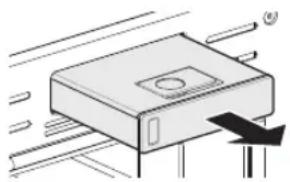
natural_image
Illustration of a device with airflow lines and a black arrow indicating direction (no text or symbols)- The kitchen should be well ventilated to minimize the odors from cleaning. Open a window or turn on a ventilation fan or hood before self-cleaning.
- Wipe any heavy spillovers on the bottom of the oven.
- Make sure that the oven light cover is in place and the oven light is off.
- Clean the frame of the oven and door with hot soapy water. Rinse well.

WARNING
- If the oven is heavily soiled with oil, self-clean the oven before using the oven again. The oil could cause a fire.
- If there is a fire in the oven during self-clean, turn the oven off and wait for the fire to go out. Do not force the door open. Introduction of fresh air at self-clean temperatures may lead to a burst of flame from the oven. Failure to follow this instruction may result in severe burns.

CAUTION
- Do not use oven cleaners. Commercial oven cleaner or oven liner protective coating of any kind should not be used in or around any part of the oven.
- The oven displays an F error code and sounds three long beeps during the self-cleaning process if it malfunctions in the self-clean mode. Switch off the electrical power to the main fuse or breaker and have the oven serviced by a qualified technician.
- If the self cleaning mode malfunctions, turn the oven off and disconnect the power supply. Have it serviced by a qualified technician.
-
It is normal for parts of the oven to become hot during a Self Clean cycle. Avoid touching the door, window or oven vent area during a Self Clean cycle.
-
Do not leave small children unattended near the appliance. During the Self Clean cycle, the outside of the oven can become very hot to the touch.
- If you have pet birds, move well-ventilated room. The health of some birds is extremely sensitive to the fumes given off during the Self Clean cycle of any oven.
- Do not line the oven walls, racks, bottom or any other part of the oven with aluminum foil or any other material. Doing so will destroy heat distribution, produce poor baking results and cause permanent damage to the oven interior (aluminum foil will melt to the interior surface of the oven).
- Do not force the door open. This can damage the automatic door locking system. Use care when opening the oven door after the Self Clean cycle. Stand to the side of the oven when opening the door to allow hot air or steam to escape. The oven may still be VERY HOT.
NOTE
- The oven light cannot be turned on during a Self Clean cycle. The oven light cannot be turned on until the oven temperature has cooled below 500 °F (260 °C) after a Self Clean cycle is complete.
- Clean the frame of the oven and door with hot soapy water. Rinse well.
- Do not clean the gasket. The fiberglass material of the oven door gasket cannot withstand abrasion. It is essential for the gasket to remain intact. If you notice it becoming worn or frayed, replace it.
- It is normal for the fan to operate during the Self Clean cycle.
- As the oven heats, you may hear sounds of metal parts expanding and contracting. This is normal and will not damage the oven.
- You may notice some white ash in the oven. Wipe it off with a damp cloth or a soap-filled steel wool pad after the oven cools. If the oven is not clean after one Self Clean cycle, repeat the cycle.
- If oven racks were left in the oven and do not slide smoothly after a Self Clean cycle, wipe racks and rack supports with a small amount of vegetable oil to make them glide more easily.
-
After a Self Clean cycle, fine lines may appear the porcelain because it went through heating and cooling. This is normal and will not affect performance.
-
The Self Clean cycle cannot be started if the Lock Out feature is active.
- Once the Self Clean cycle is set, the oven door locks automatically. You will not be able to open m the ovenedoor until the oven is cooled. The lock releases automatically.
- Once the door has been locked, the lock 📁 indicator light stops flashing and remains on. Allow about 15 seconds for the oven door lock to activate.
- If the clock is set for a 12-hour display (default) the Delayed Self Clean can never be set to start more than 12 hours in advance.
• After the oven is turned off, the convection fan keeps operating until the oven has cooled down.
When to Use Self Clean
• Example of oven soiling
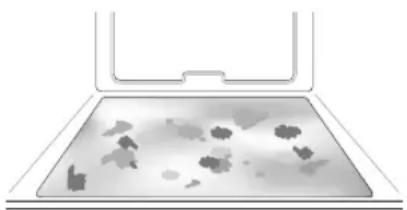
natural_image
Illustration of a laptop with a blank screen and abstract leaf-like patterns on the screen (no text or symbols)Case 1
- Soil pattern: Medium to heavy splatter
- Types of soils: Fat/grease
- Common food items that can soil your oven: Meat roasted at high temperatures
Case 2
- Soil pattern: Drops or spots
- Types of soils: Filling or sugar based soils
- Common food items that can soil your oven: Pies
Case 3
- Soil pattern: Drops or spots
- Types of soils: Cream or tomato sauce
- Common food items that can soil your oven: Casseroles
NOTE
- The Self Clean cycle can be used for soil that has inbeen built up over time.
Setting Self Clean
The Self Clean function has cycle times of 3, 4, or 5 hours.
Self Clean Soil Guide
| Soil Level Cycle Setting | |
| Lightly Soiled Oven Cavity | 3-Hour |
| Moderately Soiled Oven Cavity | 4-Hour |
| Heavily Soiled Oven Cavity | 5-Hour |
1 Remove all racks and accessories from the oven.
2 Touch Clean, Self Clean in that order. The oven defaults to the recommended four-hour self clean for a moderately soiled oven.
3 Select the desired cycle time.
4 If desired, scroll to set a delayed start time or touch the number pad icon to enter the start time directly.
| Number pad icon |
5 Touch Start. The remaining time or the delayed start time appears in the display.
6 Once the self-clean cycle is set, the oven door locks automatically and the lock icon displays.
- You will not be able to open the oven door until the oven has cooled. The lock releases automatically when the oven has cooled.

CAUTION
- Do not force the oven door open when the lock icon is displayed. The oven door remains locked until the oven temperature has cooled. Forcing the door open will damage the door.
- It may become necessary to cancel or interrupt a Self Clean cycle due to excessive smoke or fire in the oven. To cancel the Self Clean function, touch Stop in the display.
During Self Clean
- The Self Clean cycle uses extremely hot temperatures to clean the oven cavity. While running the Self Clean cycle, you may notice smoking or an odor. This is normal, especially if the oven is heavily soiled.
- As the oven heats, you may hear sounds of metal parts expanding and contracting. This is normal and will not damage the oven.
- Do not force the oven door open when the lock is displayed. The oven door remains locked until the oven temperature has cooled. Forcing the door open will damage the door.
After the Self Clean Cycle
- The oven door remains locked until the oven temperature has cooled.
- You may notice some white ash in the oven. Wipe it off with a damp cloth or a soap-filled pad after the oven cools. If the oven is not clean after one self-clean cycle, repeat the cycle.
- If oven racks were left in the oven and do not slide smoothly after a self-clean cycle, wipe racks and rack supports with a small amount of vegetable oil to make them glide more easily.
- Fine lines may appear in the porcelain because it went through heating and cooling. This is normal and will not affect performance.
Cleaning the Steam Feeder Tank
The steam feeder tank is used during the steam cooking functions. Use filtered, softened water if possible.
NOTE
• After using the steam function, the steam feeder tank should be drained. To avoid bacteria or odors, clean and dry the steam feeder tank after every use.
- Do not clean in a dishwasher.
- If the steam feeder tank does not slide in as smoothly as it should, clean the bottom of the tank.
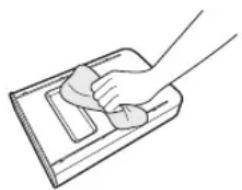
natural_image
Line drawing of a hand using a tool to clean or wash a rectangular object (no text or symbols)If hard water is used in the steam feeder tank, the steam generator may become clogged with hard water scale. In areas with hard water, run the Descaling function frequently or use softened water.
Cleaning Scale on Oven Bottom
To remove mineral deposits that remain on the oven bottom after using the steam mode, use a cloth or sponge soaked in vinegar or a weak citric acid solution. For more stubborn or extensive scaling, use the Descaling function.
Descaling
Use this function to remove the white deposits that form after the steam generator is used for a long period.
The Descaling function runs for 1 hour 43 minutes. Water will come out of the steam generator while it is being cleaned.
For instructions on removing and filling the steam feeder tank, see "Using the Steam Feeder Tank."
Setting Descaling
1 Fill the steam feeder tank with a 20:1 mixture of water and citric acid. For example, use 4 tsp of citric acid in 4 1/4 cups water (20 g citric acid in 1000 ml water).
2 Insert the steam feeder tank into the slot over the oven cavity and push it in until it clicks into place.
3 Touch Clean in the Cooking Modes screen. Touch Steam Maintenance and Descaling in that order.
4 After 1 hour 43 minutes of descaling, a popup will appear in the display. Following the instructions, drain the tank and fill it with clean water.
5 Insert the tank and start the Rinsing function.
6 Once the Rinsing function is complete, dry the inside of the oven with a soft cloth. Leave the oven door open and allow the oven to dry completely.
NOTE
- The Rinsing function must be completed even if the Descaling function is canceled.
- If water remains on the oven bottom after descaling, it can leave a residue after the oven is used. To remove the residue, see the instructions under "Cleaning Scale on Oven Bottom."
- After running the Descaling function, clean the steam feeder tank.
Drying the Oven Interior
The Drying function removes residual water inside the steam generator. The function takes a little over 1 minute and runs automatically after any steam cooking cycle. The Drying function can also be started manually, if needed.
Setting Drying
1 Make sure that the steam feeder tank is empty.
2 Touch Clean in the Cooking Modes screen.
3 Touch Start to begin Drying. The remaining time appears in the display.
Using Evaporation Function
Use the Evaporation function to dry the oven cavity after a steam cooking cycle. Evaporation runs for 12 minutes.
Setting Evaporation
1 Touch Clean in the Cooking Modes screen. Touch Steam Maintenance and Evaporation in that order.
2 Touch Start to begin Evaporation. The remaining time appears in the display.
Periodic Maintenance
Changing the Oven Light
The oven light is a standard 25-watt halogen bulb for ovens.

WARNING
- Make sure that the oven and bulb are cool.
- Disconnect the electrical power to the appliance at the main fuse or circuit breaker panel. Failure to do so can result in severe personal injury, death, or electrical shock.
- Wear gloves while changing the oven light. Glass fragments from broken bulbs can cause risk of injury.
• Gently twist the screwdriver blade while changing the oven light. If you apply force, the glass or oven may crack.
1 Unplug the oven or disconnect power.
2 Remove the oven racks.
3 Slide a flat blade screwdriver ① between the housing and the glass light cover ②.
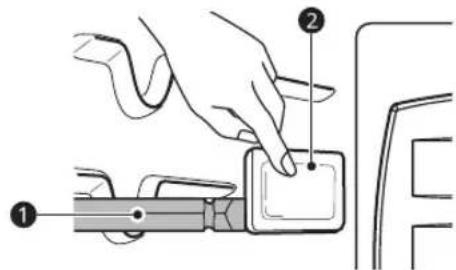
text_image
Diagram showing a hand using a switch to adjust a component, labeled with parts 1 and 2.4 Support the glass light cover with two fingers to prevent the cover from falling to the bottom of the oven.
5 Gently twist the screwdriver blade to loosen the glass light cover ③.
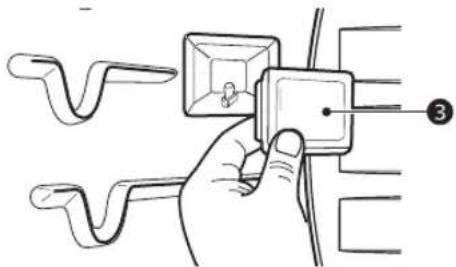
text_image
Diagram showing a hand holding a small component with labeled parts, possibly illustrating a mechanical or electrical assembly.6 Remove the bulb from the socket.
7 Replace the bulb, and reassemble the light cover by snapping it back into place.
8 Plug in the oven or reconnect power.
TROUBLESHOOTING
FAQs
Frequently Asked Questions
Q: My new oven doesn't cook like my old one. Is there something wrong with the temperature settings?
A: No. Your oven has been factory tested and calibrated. For the first few uses, follow your recipe times and temperatures carefully. If you still think your new oven is too hot or too cold, you can adjust the oven temperature yourself to meet your specific cooking needs. Refer to the Changing Settings section in this manual for easy instructions on how to adjust your thermostat.
Q: Is it normal to hear a clicking noise coming from the back of my oven when I am using it?
A: Your new appliance is designed to maintain a tighter control over your oven's temperature. You may hear your oven's heating elements click on and off more frequently on your new oven. This is NORMAL.
Q: During convection cooking the fan stops when I open the door. Is that normal?
A: Yes, this is normal. When the door is opened, the convection fan will stop until the door is closed.
Q: Can I use aluminum foil to catch drippings in my oven cavity?
A: Never use aluminum foil to line the bottom or sides of the oven. The foil will melt and stick to the bottom surface of the oven and will not be removable. Use a foil-lined sheet pan placed on a lower oven rack to catch drippings instead. (If foil has already melted onto the bottom of the oven, it will not interfere with the oven's performance.)
Q: Can I use aluminum foil on the racks?
A: Do not cover racks with aluminum foil. Covering entire racks with foil restricts air flow, leading to poor cooking results. Use a sheet pan lined with foil under fruit pies or other acidic or sugary foods to prevent spillovers from damaging the oven finish.

CAUTION
- Foil may be used to wrap food in the oven, but do not allow the foil to come into contact with the exposed heating/broiling elements in the oven. The foil could melt or ignite, causing smoke, fire, or injury.
Q: Can I leave my racks in the oven when running a Self Clean cycle?
A: No. Although it will not damage the racks, it will discolor them and may make them hard to slide in and out during use. Remove all items from the oven before starting a Self Clean cycle.
Q: What should I do if my racks are sticky and have become hard to slide in and out?
A: Over time, the racks may become hard to slide in and out. Apply a small amount of olive oil to the sides of the racks. This will work as a lubricant for easier gliding.
Q: Should I broil with the door open or closed?
A: Your oven isn't designed for open door broiling. If you broil with the oven door open, it can damage the display.
Q: Why aren't the function buttons working?
A: Make sure that the appliance is not in Lock Out mode. The lock 📋 will show in the display if Lock Out is activated. To deactivate Lock Out, refer to the Lockout Feature section. The unlock melody sounds and Loc appears in the display until the controls are unlocked.
Q: My appliance is still dirty after running the EasyClean cycle. What else should I do?
A: The EasyClean cycle only helps to loosen light soils in your appliance to assist in hand-cleaning of your oven. It does not automatically remove all soils after the cycle. Some scrubbing of your appliance is required after running the EasyClean cycle.
Q: I tried scrubbing my oven after running EasyClean, but some soils still remain. What can I do?
A: The EasyClean feature works best when the soils are fully soaked and submerged in water before running the cycle and during hand-cleaning. If soils are not sufficiently soaked in water, it can negatively affect the cleaning performance. Repeat the EasyClean process using sufficient water. Sugar-based and certain greasy soils are especially hard to clean. If some stubborn soils remain, use the Self Clean feature to thoroughly clean your oven.
Q: Soils on my oven walls are not coming off. How can I get the oven walls clean?
A: Soils on the side and rear walls of your appliance may be more difficult to fully soak with water. Try repeating the EasyClean process with more than the 14 cup (2 oz or 60 ml) of spray recommended.
Q: Will EasyClean get all of the soils and stains out completely?
A: It depends on the soil type. Sugar-based and certain grease stains are especially hard to clean. Also, if stains are not sufficiently soaked in water, this can negatively affect cleaning performance. If stubborn or built-up stains remain, use the Self Clean feature. Refer to the Self Clean section of your owner's manual.
Q: Are there any tricks to getting some of the stubborn soils out?
A: Scraping the soils with a plastic scraper before and during hand-cleaning is recommended. Fully saturating soils with water is also recommended. However, certain types of soils are harder to clean than others. For these stubborn soils, the Self Clean cycle is recommended. Consult the Self Clean section of your owner's manual for details.
Q: Is it safe for my convection fan or heater element to get wet during EasyClean?
A: Yes. The convection fan or heater element may get a little wet during cleaning. However, direct spray onto the broil burner and heater elements is not necessary because these are self-cleaning during regular use.
Q: Do I need to use all 1 ¼ cups (10 oz or 300 ml) of water for EasyClean?
A: Yes. It is highly recommended that 1 cup (8 oz or 240 ml) of water be sprayed or poured on the bottom and an additional 14 cup (2 oz or 60 ml) of water be sprayed on walls and other soiled areas to fully saturate the soils for better cleaning performance.
Q: I see smoke coming out of my appliance's vents during EasyClean. Is this normal?
A: This is normal. This is not smoke. It is actually water vapor (steam) from the water in the oven cavity. As the oven heats briefly during EasyClean, the water in the cavity evaporates and escapes through the oven vents.
Q: How often should I use EasyClean?
A: EasyClean can be performed as often as you wish. EasyClean works best when your oven is LIGHTLY soiled from such things as LIGHT grease splatter and small drops of cheese. Please refer to the EasyClean section in your owner's manual for more information.
Q: What is required for EasyClean?
A: A spray bottle filled with 1¼ cups (10 oz or 300 ml) of water, a plastic scraper, a non-scratch scrubbing pad and a towel. You should not use abrasive scrubbers such as heavy-duty scouring pads or steel wool. Except for a towel, all of the materials you need are included in a special cleaning kit with your new appliance.
Before Calling for Service
Review this section before calling for service; doing so will save you both time and money.
Cooking
| Problem Possible | Cause & Solution |
| Oven will not work Plug | on appliance is not completely inserted in the electrical outlet.·Make sure electrical plug is plugged into a live, properly grounded outlet. |
| A fuse in your home may be blown or the circuit breaker tripped.·Replace the fuse or reset the circuit breaker. | |
| Oven controls improperly set.·See the "Operating the Oven" section in the Operation chapter. | |
| Oven too hot.·Allow the oven to cool to below locking temperature. | |
| Steam is exhausted through the oven vent. | Cooking foods with high moisture produces steam.·This is normal. |
| Appliance does not operate. | Cord is not plugged in correctly.·Make sure cord is plugged correctly into outlet. Check circuit breakers. |
| Service wiring is not complete.·Contact your electrician for assistance. | |
| Power outage.·Check house lights to be sure. Call your local electric company for service. | |
| Oven smokes excessively during broiling. | Control not set properly.·Follow instructions under Setting Oven Controls. |
| Meat too close to the element.·Reposition the rack to provide proper clearance between the meat and the element. Preheat broil element for searing. | |
| Meat not properly prepared.·Remove excess fat from meat. Cut remaining fatty edges to prevent curling. | |
| Insert on broiler pan wrong side up and grease not draining.·Always place the grid on the broiler pan with ribs up and slots down to allow grease to drip into the pan. | |
| Grease has built up on oven surfaces. Old grease or food spatters cause excessive smoking.·Regular cleaning is necessary when broiling frequently. | |
| Food does not bake or roast properly | Oven controls improperly set.·See the "Operating the Oven" section in the Operation chapter. |
| Rack position is incorrect or the rack is not level.·See the "Operating the Oven" section in the Operation chapter. | |
| Incorrect cookware or cookware of improper size being used.·See the "Operating the Oven" section in the Operation chapter. | |
| Oven sensor needs to be adjusted.·See the "Adjusting the Oven Temperature" section in the Operation chapter. | |
| Problem Possible Clause & Solution | |
| Food does not broil properly | Oven controls improperly set.• Make sure you select the Broil mode properly. |
| Improper rack position being used.• See the Broiling Guide. | |
| Cookware not suited for broiling.• Use broiling pan and grid. | |
| Aluminum foil used on the broiling pan and grid has not been fitted properly and slit as recommended.• See the "Operating the Oven" section in the Operation chapter. | |
| In some areas the power voltage may be low.• Preheat the broil element for 5-7 minutes. See the Broiling Guide. | |
| Oven temperature too hot or too cold | Oven sensor needs to be adjusted.• See the "Temperature Adjustment" section in the Operation chapter. |
| Excessive smoking during a Self Clean cycle | Excessive soil.• Turn off the Self Clean function. Open the windows to rid the room of smoke. Wait until the Self Clean mode is cancelled. Wipe up the excess soil and reset the clean. |
| Burning or oily odor emitting from the vent | This is normal in a new oven.• This will disappear in time. To speed the process, set a Self Clean cycle for a minimum of 3 hours. See the Self Clean section. (On some models) |
| Moisture collects on oven window or steam comes from oven vent | This happens when cooking foods high in moisture.• This is normal. |
| Excessive moisture was used when cleaning the window.• Do not use excessive moisture when cleaning the window. | |
| Warm air venting into kitchen after oven has been turned off. | Warm air exhaust is needed to maintain and cool down oven temperatures. It turns off automatically when the heat cools to a safe temperature.• This is normal. |
| Oven will not steam cook | Improper assembly• Make sure to slide the tank into the slot until it clicks into place. |
| The drain in the water tank may be clogged with hard water scale.• If this happens, the descaling function must be run before the steam function can be used. | |
| Water pools in the bottom of the oven during or after steam cooking | During steam cooking, the water in the water tank is transferred to the bottom of the oven.• It is normal for water to fill the bottom of the oven during or after the Steam mode.• If the water leaves mineral deposits on the oven bottom, remove the deposits with a cloth or sponge soaked in vinegar. |
| White residue appears on the oven bottom after steam cooking | Using hard water in the water tank can result in hard water scale on the oven bottom.• To remove mineral deposits that remain on the oven bottom, use a cloth or sponge soaked in vinegar or a weak citric acid solution. |
| The sous vide module beeps during operation | This alert sounds when the sous vide module is operated without water in the steam feeder tank.• Fill the steam feeder tank to the recommended level before using. |
Parts & Features
| Problem Possible | Cause & Solution |
| Oven control beeps and displays any F code error. | Electronic control has detected a fault condition.Turn off the oven function you are using to clear the display and stop beeping. Reprogram oven. If fault recurs, record fault number and contact a service agent.- Code: F-19Cause: Oven not heating |
| is on in the display when you want to cook | The oven door is locked because the temperature inside the oven has not dropped below the locking temperature.Press the STOP button. Allow the oven to cool. |
| Oven light does not work. | It is time to replace the bulb or the bulb is loose.Replace or tighten bulb. See "Changing the Oven Light" section in this Owner's Manual. |
| Cooling fan continues to run after oven is turned off. | The fan turns off automatically when the electronic components have cooled sufficiently.This is normal. |
| Oven will not Self Clean. | The oven temperature is too high to set a Self Clean operation.Allow the appliance to cool and reset the controls. |
| Oven controls improperly set.See the Self Clean section. | |
| A Self Clean cycle cannot be started if oven door is open.Close the oven door. | |
| Oven door does not open after a Self Clean cycle | Oven is too hot.Allow the oven to cool below locking temperature. |
| The control and door may be locked.Allow about one hour for the oven to cool after the completion of a Self Clean cycle. The door can be opened when the lock is no longer displayed. | |
| The oven is not clean after a Self Clean cycle | Oven controls not properly set.See the Self Clean section. |
| Oven was heavily soiled.Clean up heavy spillovers before starting the clean cycle. Heavily soiled ovens may need to Self Clean again or for a longer period of time. | |
| Convection fan stops (On some models) | Convection fan stops during a convection bake cycle. It is done to allow for more even heating during the cycle.This is not a failure of the range and should be considered normal operation. |
| Displayed Time is flashing (On some models) | This means that the product has just been plugged in, or that it has experienced a power interruption.Touch the Clock key and reset the time, or touch any key to stop the flashing. |
| Oven racks are difficult to slide (On some models) | The shiny, silver-colored racks were cleaned in a Self Clean cycle.Apply a small amount of vegetable oil to a paper towel and wipe the edges of the oven racks with the paper towel. |
Noises
| Problem Possible | Cause & Solution |
| “Crackling” or “popping” sound | This is the sound of the metal heating and cooling during both the cooking and Self Clean functions.· This is normal. |
| Fan noise A convection | fan may automatically turn on and off.· This is normal. |
Wi-Fi
| Problem Possible Cause & Solution | |
| Trouble connecting appliance and smartphone to Wi-Fi network | The password for the Wi-Fi network was entered incorrectly.· Delete your home Wi-Fi network and begin the connection process again. |
| Mobile data for your smartphone is turned on.· Turn off the Mobile data on your smartphone before connecting the appliance. | |
| The wireless network name (SSID) is set incorrectly.· The wireless network name (SSID) should be a combination of English letters and numbers. (Do not use special characters.) | |
| The router frequency is not 2.4 GHz.· Only a 2.4 GHz router frequency is supported. Set the wireless router to 2.4 GHz and connect the appliance to the wireless router. To check the router frequency, check with your Internet service provider or the router manufacturer. | |
| The appliance is too far from the router.· If the appliance is too far from the router, the signal may be weak and the connection may not be configured correctly. Move the router closer to the appliance or purchase and install a Wi-Fi repeater. | |
| During Wi-Fi setup, the app is requesting a password to connect to the product (on certain phones).· Locate the network name which starts with "LG" under Settings > Networks. Note the last part of the network name.- If the network name looks like LGE_Appliance_XX-XX-XX, enter lge12345.- If the network name looks like LGE_Appliance_XXXX, enter XXXX twice as your password. For example, if the network name appears as LGE_Appliance_8b92, then you would enter 8b928b92 as your password. In this instance, the password is case sensitive and the last 4 characters are unique to your appliance. | |
LIMITED WARRANTY
CANADA
TERMS AND CONDITIONS
ARBITRATION NOTICE: THIS LIMITED WARRANTY CONTAINS AN ARBITRATION PROVISION THAT REQUIRES YOU AND LG TO RESOLVE DISPUTES BY BINDING ARBITRATION INSTEAD OF IN COURT, UNLESS THE LAWS OF YOUR PROVINCE OR TERRITORY DO NOT PERMIT THAT, OR, IN OTHER JURISDICTIONS, IF YOU CHOOSE TO OPT OUT. IN ARBITRATION, CLASS ACTIONS AND JURY TRIALS ARE NOT PERMITTED. PLEASE SEE THE SECTION TITLED "PROCEDURE FOR RESOLVING DISPUTES" BELOW.
Should your LG Electric Oven ("Product") fail due to a defect in materials or workmanship under normal and proper use, during the warranty period set forth below, LG Electronics Canada, Inc. ("LGECI") will, at its option, repair or replace the Product upon receipt of proof of the original retail purchase. This limited warranty is valid only to the original retail purchaser of the Product and applies only to a Product distributed, purchased and used within Canada, as determined at the sole discretion of LGECI.
| WARRANTY PERIOD: (Note: If the original date of purchase can not be verified, the warranty will begin sixty (60) days from the date of manufacture). | |
| Electric Oven | Extended Component Warranty (Parts Only)(Consumer will be charged for Labor after Two (2) years from the date of purchase) |
| Two (2) years from the date of original retail purchase | Ninety (90) days from the date of original retail purchase |
| Parts and Labor (internal/functional parts only) | Cosmetic warranty (Scratches and dents) |
- Replacement products and parts are warranted for the remaining portion of the original warranty period or ninety (90) days, whichever is greater.
- Replacement products and parts may be new, reconditioned, refurbished, or otherwise factory remanufactured, all at the sole discretion of LGECI.
- Proof of original retail purchase specifying the Product model and date of purchase is required to obtain warranty service under this limited warranty.
LGECI'S SOLE LIABILITY IS LIMITED TO THE LIMITED WARRANTY SET OUT ABOVE. EXCEPT AS EXPRESSLY PROVIDED ABOVE, LGECI MAKES NO, AND HEREBY DISCLAIMS, ALL OTHER WARRANTIES AND CONDITIONS RESPECTING THE PRODUCT, WHETHER EXPRESS OR IMPLIED, INCLUDING BUT NOT LIMITED TO, ANY IMPLIED WARRANTY OR CONDITION OF MERCHANTABILITY OR FITNESS FOR A PARTICULAR PURPOSE, AND NO REPRESENTATIONS SHALL BE BINDING ON LGECI. LGECI DOES NOT AUTHORIZE ANY PERSON TO CREATE OR ASSUME FOR IT ANY OTHER WARRANTY OBLIGATION OR LIABILITY IN CONNECTION WITH THE PRODUCT. TO THE EXTENT THAT ANY WARRANTY OR CONDITION IS IMPLIED BY LAW, IT IS LIMITED TO THE WARRANTY PERIOD SET OUT ABOVE. UNDER NO CIRCUMSTANCES SHALL LGECI, THE MANUFACTURER OR DISTRIBUTOR OF THE PRODUCT, BE LIABLE FOR ANY INCIDENTAL, CONSEQUENTIAL, SPECIAL, DIRECT, INDIRECT, PUNITIVE OR EXEMPLARY DAMAGES, INCLUDING, WITHOUT LIMITATION, LOSS OF GOODWILL, LOST PROFITS, LOSS OF ANTICIPATED PROFITS, LOST REVENUE, LOSS OF USE, OR ANY OTHER DAMAGE, WHETHER ARISING DIRECTLY OR INDIRECTLY FROM ANY CONTRACTUAL BREACH, FUNDAMENTAL BREACH, TORT OR OTHERWISE, OR FROM ANY ACTS OR OMISSIONS. LGECI'S TOTAL LIABILITY, IF ANY, SHALL NOT EXCEED THE PURCHASE PRICE PAID BY YOU FOR THE PRODUCT.
This Limited Warranty gives you specific legal rights. You may also have other rights that vary from province to province depending on applicable provincial laws. Any term of this Limited Warranty that negates or varies any implied condition or warranty under provincial law is severable where it conflicts with such provincial law without affecting the remainder of this warranty's terms.
THIS LIMITED WARRANTY DOES NOT COVER
- Service trips to i) deliver, pick up, or install or; educate on how to operate the Product; ii) correct wiring or plumbing; or iii) correct unauthorized repairs or installations of the Product;
- Damage or failure of the Product to perform during power failures and interrupted or inadequate electrical service;
- Damage or failure resulting from operating the Product in a corrosive atmosphere or contrary to the instructions outlined in the Product's owner's manual;
- Damage or failure to the Product caused by accidents, pests and vermin, lightning, wind, fire, floods, acts of God, or any other causes beyond the control of LGECI or the manufacturer;
- Damage or failure resulting from misuse, abuse, improper installation, repair, or maintenance of the Product. Improper repair includes use of parts not authorized or specified by LGECI. Improper installation or maintenance includes installation or maintenance contrary to the Product's owner's manual;
- Damage or failure caused by unauthorized modification or alteration of the Product, or if used for other than the intended household purpose/use of the Product, or damage or failure resulting from any water leakage due to improper installation of the Product;
- Damage or failure caused by incorrect electrical current, voltage or plumbing codes;
- Damage or failure caused by use that is other than normal household use, including, without limitation, commercial or industrial use, including use in commercial offices or recreational facilities, or as otherwise outlined in the Product's owner's manual;
- Damage or failure caused by transportation and handling, including scratches, dents, chips and/or other damage to the finish of the Product, unless such damage results from defects in materials or workmanship and is reported to LGECI within one (1) week of delivery of the Products;
- Damage or missing items to any display, open box, refurbished or discounted Product;
- Refurbished Product or any Product sold "As Is", "Where Is", "With all Faults", or any similar disclaimer;
- Products with original serial numbers that have been removed, altered or cannot be readily determined at the discretion of LGECI;
- Increases in utility costs and additional utility expenses in any way associated with the Product;
- Any noises associated with normal operation of the Product;
- Replacement of light bulbs, filters, fuses or any other consumable parts;
- Replacement of any part that was not originally included with the Product;
- Costs associated with removal and/or reinstallation of the Product for repairs; and
- Shelves, drawers, handle and accessories to the Product, except for internal/functional parts covered under this Limited Warranty.
- Coverage for “in Home” repairs, for products in-warranty, will be provided if the Product is within a 150 km radius from the nearest authorized service center (ASC), as determined by LG Canada. If your Product is located outside a 150 km radius from a ASC, as determined by LG Canada, it will be your responsibility to bring the Product, at your sole expense, to the ASC for in-warranty repair.
The cost of repair or replacement under the above excluded circumstances shall be borne by the consumer.
TO OBTAIN WARRANTY SERVICE AND ADDITIONAL INFORMATION
Call 1-888-542-2623 (7 A.M. to 12 A.M., 365 days a year) and select the appropriate option from the menu.
Or visit our website at http://www.lg.com
PROCEDURE FOR RESOLVING DISPUTES
EXCEPT WHERE PROHIBITED AT LAW, ALL DISPUTES BETWEEN YOU AND LG ARISING OUT OF OR RELATING IN ANY WAY TO THIS LIMITED WARRANTY OR THE PRODUCT SHALL BE RESOLVED EXCLUSIVELY THROUGH BINDING ARBITRATION, AND NOT IN A COURT OF GENERAL JURISDICTION. EXCEPT WHERE PROHIBITED
AT LAW, YOU AND LG BOTH IRREVOCABLY AGREE TO WAIVE THE RIGHT TO A JURY TRIAL AND TO BRING OR PARTICIPATE IN A CLASS ACTION.
Definitions. For the purposes of this section, references to "LG" mean LG Electronics Canada, Inc., its parents, subsidiaries and affiliates, and each of their officers, directors, employees, agents, beneficiaries, predecessors in interest, successors, assigns and suppliers; references to "dispute" or "claim" shall include any dispute, claim or controversy of any kind whatsoever (whether based in contract, tort, statute, regulation, ordinance, fraud, misrepresentation or any other legal or equitable theory) arising out of or relating in any way to the sale, condition or performance of the product or this Limited Warranty.
Notice of Dispute. In the event you intend to commence an arbitration proceeding, you must first notify LG in writing at least 30 days in advance of initiating the arbitration by sending a letter to LGECI Legal Team at 20 Norelco Drive, North York, Ontario, Canada M9L 2X6 (the "Notice of Dispute"). You and LG agree to engage in good faith discussions in an attempt to amicably resolve your claim. The notice must provide your name, address, and telephone number; identify the product that is the subject of the claim; and describe the nature of the claim and the relief being sought. If you and LG are unable to resolve the dispute within 30 days of LG's receipt of the Notice of Dispute, the dispute shall be resolved by binding arbitration in accordance with the procedure set out herein. You and LG both agree that, during the arbitration proceeding, the terms (including any amount) of any settlement offer made by either you or LG will not be disclosed to the arbitrator until the arbitrator determines the dispute.
Agreement to Binding Arbitration and Class Action Waiver. Upon failure to resolve the dispute during the 30 day period after LG's receipt of the Notice of Dispute, you and LG agree to resolve any claims between you and LG only by binding arbitration on an individual basis, unless you opt out as provided below, or you reside in a jurisdiction that prevents full application of this clause in the circumstances of the claims at issue (in which case if you are a consumer, this clause will only apply if you expressly agree to the arbitration). To the extent permitted by applicable law, any dispute between you and LG shall not be combined or consolidated with a dispute involving any other person's or entity's product or claim. More specifically, without limitation of the foregoing, except to the extent such a prohibition is not permitted at law, any dispute between you and LG shall not under any circumstances proceed as part of a class or representative action. Instead of arbitration, either party may bring an individual action in small claims court, but that small claims court action may not be brought on a class or representative basis except to the extent this prohibition is not permitted at law in your province or territory of jurisdiction as it relates to the claims at issue between you and LG.
Arbitration Rules and Procedures. To begin arbitration of a claim, either you or LG must make a written demand for arbitration. The arbitration will be private and confidential, and conducted on a simplified and expedited basis before a single arbitrator chosen by the parties under the provincial or territorial commercial arbitration law and rules of the province or territory of your residence. You must also send a copy of your written demand to LG at LG Electronics, Canada, Inc., Attn: Legal Department- Arbitration, 20 Norelco Drive, North York, Ontario M9L 2X6. This arbitration provision is governed by your applicable provincial or territorial commercial arbitration legislation. Judgment may be entered on the arbitrator's award in any court of competent jurisdiction. All issues are for the arbitrator to decide, except that, issues relating to the scope and enforceability of the arbitration provision and to the arbitrability of the dispute are for the court to decide. The arbitrator is bound by the terms of this provision.
Governing Law. The law of the province or territory of your purchase shall govern this Limited Warranty and any disputes between you and LG except to the extent that such law is preempted by or inconsistent with applicable federal or provincial/territorial law. Should arbitration not be permitted for any claim, action, dispute or controversy between you and LG, you and LG attorn to the exclusive jurisdiction of the courts of the province or territory of your purchase for the resolution of the claim, action, dispute or controversy between you and LG.
Fees/Costs. You do not need to pay any fee to begin an arbitration. Upon receipt of your written demand for arbitration, LG will promptly pay all arbitration filing fees unless you seek more than \$25,000 in damages, in which case the payment of these fees will be governed by the applicable arbitration rules. Except as otherwise provided for herein, LG will pay all filing, administration and arbitrator fees for any arbitration initiated in accordance with the applicable arbitration rules and this arbitration provision. If you prevail in the arbitration, LG will pay your attorneys' fees and expenses as long as they are reasonable, by considering factors including, but not limited to, the purchase amount and claim amount. Notwithstanding the foregoing, if applicable law allows for an award of reasonable attorneys' fees and expenses, an arbitrator can award them to the same extent that a court would. If the arbitrator finds either the substance of your claim or the relief sought in the demand is frivolous or brought for an improper purpose
(as measured by the applicable laws), then the payment of all arbitration fees will be governed by the applicable arbitration rules. In such a situation, you agree to reimburse LG for all monies previously disbursed by it that are otherwise your obligation to pay under the applicable arbitration rules. Except as otherwise provided for, LG waives any rights it may have to seek attorneys' fees and expenses from you if LG prevails in the arbitration.
Hearings and Location. If your claim is for \25,000 or less, you may choose to have the arbitration conducted solely (1) on the basis of documents submitted to the arbitrator, (2) through a telephonic hearing, or (3) by an in-person hearing as established by the applicable arbitration rules. If your claim exceeds \25,000, the right to a hearing will be determined by the applicable arbitration rules. Any in-person arbitration hearings will be held at the nearest, most mutually-convenient arbitration location available within the province or territory in which you reside unless you and LG both agree to another location or agree to a telephonic arbitration.
Severability and Waiver. If any portion of this Limited Warranty (including these arbitration procedures) is unenforceable, the remaining provisions will continue in full force and effect to the maximum extent permitted by applicable law. Should LG fail to enforce strict performance of any provision of this Limited Warranty (including these arbitration procedures), it does not mean that LG intends to waive or has waived any provision or part of this Limited Warranty.
Opt Out. You may opt out of this dispute resolution procedure. If you opt out, neither you nor LG can require the other to participate in an arbitration proceeding. To opt out, you must send notice to LG no later than 30 calendar days from the date of the first consumer purchaser's purchase of the product by either (i) sending an e-mail to optout@lge.com, with the subject line: "Arbitration Opt Out;" or (ii) calling 1-800-980-2973. You must include in the opt out e-mail or provide by telephone: (a) your name and address; (b) the date on which the product was purchased; (c) the product model name or model number; and (d) the serial number (the serial number can be found (i) on the product; or (ii) online by accessing https://www.lg.com/ca_en/support/repair-service/schedule-repair and clicking on "Find My Model & Serial Number").
In the event that you "Opt Out", the law of the province or territory of your residence shall govern this Limited Warranty and any disputes between you and LG except to the extent that such law is preempted by or inconsistent with applicable federal or provincial/territorial law. Should arbitration not be permitted for any claim, action, dispute or controversy between you and LG, you and LG agree to attorn to the exclusive jurisdiction of the courts of the province or territory of your residence for the resolution of the claim, action, dispute or controversy between you and LG.
You may only opt out of the dispute resolution procedure in the manner described above (that is, by e-mail or telephone); no other form of notice will be effective to opt out of this dispute resolution procedure. Opting out of this dispute resolution procedure will not affect the coverage of the Limited Warranty in any way, and you will continue to enjoy the full benefits of the Limited Warranty. If you keep this product and do not opt out, then you accept all terms and conditions of the arbitration provision described above.
Conflict of Terms. In the event of a conflict or inconsistency between the terms of this Limited Warranty and the End User License Agreement ("EULA") in regards to dispute resolution, the terms of this Limited Warranty shall control and govern the rights and obligations of the parties and shall take precedence over the EULA.
MANUEL D'UTILISATION
FOUR MURAL
text_image
Technical diagram of a washing machine with numbered components and labeled parts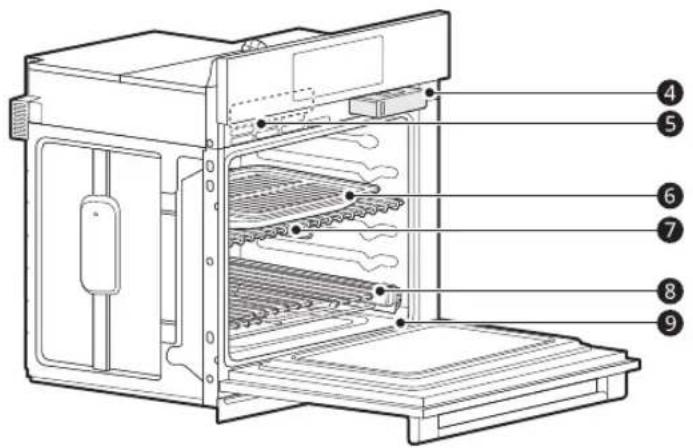
text_image
Technical diagram of an oven with numbered labels pointing to internal structuretext_image
Six labeled diagrams of household appliances or fixtures, numbered 1 to 6, including grating, tray, and electrical plug.text_image
Illustration showing six different types of screw and pin components labeled 1 through 6.natural_image
Two simple line drawings of rectangular and diamond shapes, labeled ① and ② (no text or symbols on the shapes themselves)text_image
Bake Convection Bake Convection Roast Broil STEAM COOK AUTO COOK FAVORITE CLEAN SETTINGS| ← Settings | 1:26 AM | ||
| Lockout | Date & Time | Clock Themes | |
| OFF | Fri, jun 04, 20211:26 AM | |Y| | |
| Sabbath | Wi-Fi | Remote Start | |
| OFF | OFF | OFF | |
text_image
Level 2 (40%)Affichage
text_image
DEMO 06:21 AMREMARQUE
text_image
02:38 AM Bake Convection Bake Convection Roast Broil STEAM COOK AUTO COOK FAVORITE CLEAN 00:00:52 SETTINGStext_image
Diagram showing hands installing or adjusting a grid device with labeled components, including a tool and numbered marker 1.①Guides de la grille
natural_image
Illustration of hands using a computer to interact with a keyboard (no text or symbols visible)natural_image
Illustration of a hand pressing a button on a screen, with no text or symbols present.
MISE EN GARDE
text_image
Diagram of a device interior with numbered components and directional arrows indicating flow or movement.natural_image
Two technical line drawings of a perforated tray with internal slots and a diamond-shaped cutout (no text or symbols)text_image
Technical diagram of a microwave oven with numbered components and airflow direction indicatorPlusieurs grilles
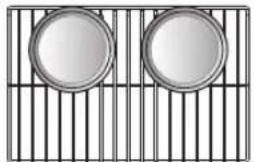
natural_image
Grid pattern with two circular objects on opposite sides, no text or symbols present②
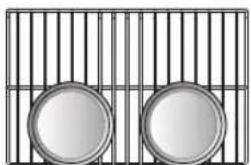
natural_image
Two circular objects on a metal grid background, no text or symbols visible④
Grille standard (position ②)
Grille standard (position ④)
Une grille
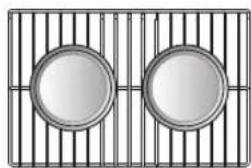
natural_image
Two circular metallic panels placed on a grid background, no text or symbols visibletext_image
Diagram showing two food items inside a tray, labeled with numbers 1 and 2 indicating parts of the tray.①Grille
②Lèchefrite
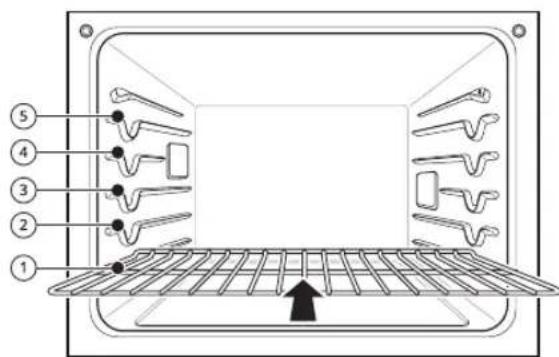
text_image
Diagram of a microwave oven with numbered components and a central rack, showing internal structure and airflow direction.natural_image
Technical diagram of a mesh-coated metal tray with labeled components (no text or symbols present)natural_image
Simple line drawing of a rectangular tray with a triangular top and a small rectangular slot inside (no text or symbols)③ Lèchefrite
natural_image
Diagram of a medical or laboratory setup with two probes connected to a textured surface (no text or symbols)natural_image
Illustration showing a hand inserting a card into a device, with no visible text or symbolstext_image
Diagram of a computer drive with labeled components, showing two numbered parts and a central button.Application LG ThinQ
text_image
Diagram showing hand gesture pointing to two circular icons with directional arrows, indicating movement or direction.text_image
Diagram showing a hand interacting with wireless signals to form a Wi-Fi symbol, indicating wireless signal input or interaction.REMARQUE
text_image
Smart Diagnosis Smart Diagnosis™ can be run through a smartphone application or by calling a for support. Place your smartphone's mouthpiece near the top left corner of the screen. Press the START button below to start the Diagnostic Tone. STARTtext_image
Labeled diagram of a laptop interior showing internal components and parts with numbered annotationsnatural_image
Line drawing of a rectangular tray with evenly spaced oval cutouts (no text or symbols)natural_image
Simple line drawing of a laptop with a tray and scattered objects (no text or symbols)Cas 1
natural_image
Diagram of a spray bottle spraying through a rectangular chamber with multiple tool holders (no text or symbols)natural_image
Diagram of a device with an arrow indicating direction, no text or symbols presentnatural_image
Illustration of a laptop with a tray showing various leaf-like shapes (no text or symbols)Cas 1
natural_image
Line drawing of a hand using a tool to clean or wash a rectangular object (no text or symbols)Tartre d'eau dure
text_image
Diagram showing a hand pressing a button on a car seatbelt, labeled with parts 1 and 2.text_image
Diagram showing a hand holding a small object with a numbered label '3' pointing to it, surrounded by curved lines.For inquiries or comments, visit www.lg.com or call:
1-800-243-0000
U.S.A.
1-888-542-2623
CANADA
Register your product Online!
www.lg.com