SmartPad MX 7 HD - Tablet Mediacom - Free user manual and instructions
Find the device manual for free SmartPad MX 7 HD Mediacom in PDF.


| Product Type | Tablet |
| Brand | Mediacom |
| Model | SmartPad MX 7 HD |
| Screen Size | 7 inches |
| Screen Resolution | HD (1280 x 720 pixels) |
| Dimensions (L x l x H) | Approximately 190 x 110 x 10 mm |
| Weight | Approximately 300 g |
| Power Supply | DC-in power adapter (5V, 2A) |
| Battery | Lithium-ion 3000 mAh (rechargeable) |
| Wi-Fi Connectivity | Wi-Fi 802.11 b/g/n |
| Bluetooth Connectivity | Yes |
| 3G Connectivity | Optional (via SIM card) |
| Ports | USB (OTG), 3.5 mm headphone jack, DC-in |
| Internal Storage | 8 GB (expandable via microSD card up to 32 GB) |
| RAM | 1 GB |
| Processor | Quad-core 1.2 GHz |
| Operating System | Android |
| Rear Camera | 2 MP (estimated) |
| Front Camera | 0.3 MP (estimated) |
| Speakers | Integrated |
| Sensors | Accelerometer |
| Main Functions | Internet browsing, multimedia playback, Android apps, games |
| Maintenance and Cleaning | Use a soft, dry cloth. Avoid liquids and chemical cleaners. |
| Safety | Do not expose to extreme temperatures, humidity, dust. Do not disassemble yourself. Use compatible charger and battery. |
| Spare Parts and Repairability | Technical service by qualified specialist. |
| General Information | User manual available free of charge in PDF format. |
Frequently Asked Questions - SmartPad MX 7 HD Mediacom
User questions about SmartPad MX 7 HD Mediacom
0 question about this device. Answer the ones you know or ask your own.
Ask a new question about this device
Download the instructions for your Tablet in PDF format for free! Find your manual SmartPad MX 7 HD - Mediacom and take your electronic device back in hand. On this page are published all the documents necessary for the use of your device. SmartPad MX 7 HD by Mediacom.
USER MANUAL SmartPad MX 7 HD Mediacom
Picture 3
SMARTPAD
Quick Start Guide Safety precautions
For safe and efficient operation of your Tablet PC, please observe the following rules:
- Keep the Tablet away from extreme heat, cold, moisture and dust.
- Do not spill any liquids on the Tablet PC as it may damage the device or cause a fire.
- Do not use liquids and chemical cleaners for cleaning the Tablet PC.
- Do not insert any objects in the Tablet air vents or other slots.
- Do not keep the device near magnetic sources, heaters, microwave ovens, heating up kitchen appliances, or in high pressure containers, as it may cause the battery leaking, the device overheating and inflammation.
- Do not disassemble the Tablet PC, only a certified service technician should perform repairs on your computer.
- Use only the AC adapters, power cords and batteries that are approved for use with this device. Use of another type of battery or AC adapter may cause fire or explosion.
Note: The device pictures, as well as data on the device appearance, color and design features are given in the manual for reference only. Mediacom reserves the right to change the appearance and technical parameters of its products without prior notice.
About your device (Picture 1)
Power button1.
Volume Bottoms2.
USB port – connecting 3.
your computer
4.5.SIM card slot (optional)
Micro SD card slot6.
Speaker 7.
Earphone port8.
Reset port (if available)9.
Rear camera (optional)10.
-
Front camera
-
DC-in (if available)
-
Microphone (if available)
-
Back (if available)
Switching on/off
To switch on the Tablet PC, press and hold the Power button. When startup window appears, release the button. The system initialization may take several minutes. Please wait patiently.
To switch off the tablet PC, press and hold the Power button. When "Power off" message appears, release the button. Touch the message, then press OK.
Recommendation: To save the battery charge, the device is set to sleep mode: the screen is locked and sensor functions become inactive (in accordance with the settings of screen lock time). To “wake up” the device, short press the power button.
Unlocking the screen (Picture 2)
If you do not use the screen during certain period of time, the screen will be locked. To unlock the screen, press the power button once and drag "Lock" image right.
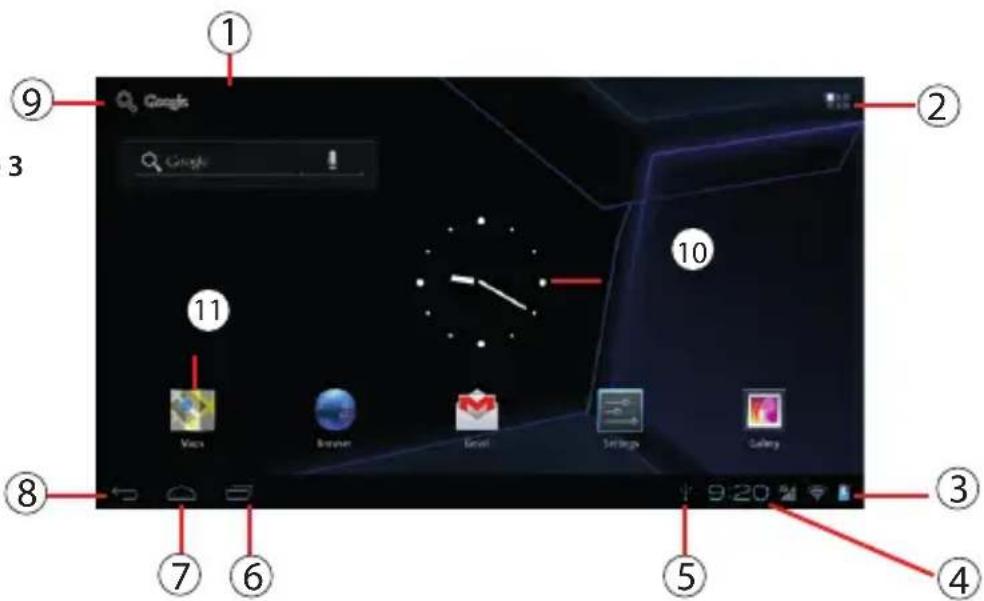
Main screen (Picture 3)
Voice search (if available)
1.
Application menu2.
Battery charge indicator3.
Time4.
Connected to PC 5.
Recently used applications6.
Home7.
Back 8.
Google search9.
Clock10.
- Standard application button
Restarting the device
If the screen does not response to key press or tap, press the reset button (located in the hole) using any thin object (paper clip, pin, etc.) to restart your Tablet PC or keep power button for long time
Factory reset
To delete all data and restore your Tablet PC to factory defaults, touch Settings > > Recovery and reset; touch menu item Reset > Reset to factory defaults.
Contents
Tablet, USB Cable, OTG Cable (optional), Power adapter AC / DC, Quick Guide
Charging the battery
Device is provided with built in rechargeable battery There is no need of supplemental batteries. Important: The battery must be charged before using it for the first time. When related Icon or warning message alerts you please charge the battery using porper adapter (do not use diefferent adapter from original one).
Wireless networks
Prior to starting an Internet-application, activate Wi-Fi connection and set up Wi-Fi network.
Touch the icon "Applications" > "Settings" > "Wireless connections".1. Select Wi-Fi item and set the switch to On position.
- The device will automatically start searching for available networks and will display them on the right panel.
Select any network from the list and press "Connect". If the network 3.
you selected i s protected by WEP-protocol, type the security key, then press "Connect" button.
When the connection is successfully created, "Connected to" (Network name) message will appear on the screen.
3G networks (Optional)
Note that your Tablet PC will only have signal if you are in an area covered by your 3G provider's 3G or EDGE network.
Before inserting a SIM card, you must turn off the device.
A Pin number may be requested. Enter the SIM card pin number.
Your device will attempt to connect to the 3G network of your provider.
NOTE: If your device does not connect to your 3G provider's network
Contact your 3G provider to obtain the connection parameters.1.
On your device, tap the Menu icon, then settings.2.
Select Wireless & networks > Mobile networks > Select your operator.3. In Access Point Names, select the correct access point name and enter the exact connection parameters.
Bluetooth (Optional)
Tap "Settings" > Select "Wireless connections/Bluetooth" > Tap "On" to switch on the Bluetooth function. The device will automatically search for available Bluetooth device.
Select the Bluetooth device and start data transmission.
Imported and distributed by Datamatic S.p.A.
Via Agordat, 34 - 20127 - Milano - Italy
www.mediacomeurope.it


Brand : Mediacom
Model : SmartPad MX 7 HD
Category : Tablet