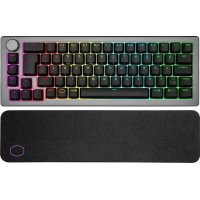
USER MANUAL CK721 COOLER MASTER
CK721 WIRELESS SETUP GUIDE
EN
IMPORTANT
Please charge your new keyboard for at least 2 hours before using for the first time.
A. USING BLUETOOTH - AN OVERVIEW


B. MANUALLY PAIRING DEVICES
TO THE KEYBOARD

C. SWITCH PAIRED DEVICES

A. USING 2.4 GHZ - AN OVERVIEW

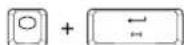
B. MANUALLY PAIRING 2.4 GHZ DONGLE
TO THE KEYBOARD
BLUETOOTH MODE
- Isolate the pharyngeal switch on the side of
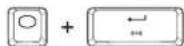
- Press and hold FN + DEL/PGUP/PGDN for 5 seconds to enter pairing mode. The Indicator & DEL/PGUP/PGDN key will rapidly flash BLUE 3 times one every second to confirm you are in Pairing Mode.
- If pairing is successful, the indicator & DEL/PGUP/PGDN key will light up with a solid GREEN light for 3 seconds. If unsuccessful, the keyboard will enter Sleep Mode after 30 seconds. In Sleep Mode, all the keyboard lighting will be turned off.
Turning On Bluetooth After the First Time
-
When the Bluetooth mode is activated, the keyboard will connect to the previous
-
If successfully connected, the Indicator & DEL/PGUP/PGDN key will light up with a solid GREEN light for 3 seconds. If unsuccessful, the keyboard will enter Sleep Mode and turn off the LED. The LED will then turn on again.
-
To connect to a specific paired device, press FN + DEL/PSUP/PGDN after activating Bluetooth mode to connect to the corresponding device. The keyboard will connect to the device if successful and enter sleep mode after 30 seconds if device is not found or fails to connect.
-
Toggle the physical switch on the side of the keyboard to enter Bluetooth Mode. 2. Press and hold FN + DEL/PGUPU/PCDN for 5 seconds to enter pairing mode. The Indicator & DEL/PGUPU/PCDN key will rapidly flash BLUE 3 times one every second to confirm you are in pairing mode.
-
If passing is successful, the indicator & DH/PEG/UPGON key will light up with a green light and the keyboard will turn off. The indicator & DH/PEG/UPGON key will turn off after 30 seconds. In Sleep Mode, all the keyboard lighting will be turned off.
-
Press FN + DEL/PGUP/PGDN to switch to the corresponding paired device
2.4 GHz MODE
- Toggle the physical switch on the side of the keyboard to enter 2.4 GHz Mode. The Indicator & Enter key will continuously flash a BLUE light one every second to confirm it is trying to connect to a device.
- Plug the included dongie into the desired device. The keyboard will automatically send the dongie to the device.
- If successfully connected, the Indicator & Enter key will light up with a solid GREEN light for 3 seconds. If unsuccessful, the keyboard will enter Sleep Mode after 30 seconds. In Sleep Mode, all the keyboard lighting will be turned off.
- To pair with other devices, simply unplug the dongle and re-plug into another device. If pairing is successful, the Indicator & Enter key will light up with a solid GREEN light for 3 seconds. If unsuccessful, the LED will turn off and the device will be turned off in seconds. In Sleep Mode, all the keyboard lighting will be turned off.
- Toggle the physical switch on the side of the keyboard to enter 2.4 Glitz Mode. Press and hold PN + Enter for 5 seconds to enter pairing mode. The indicator & Enter key will rapidly flash BLUE 3 times one every second to confirm you are in Pairing Mode.
- Plug the Included dongle into the desired device, The keyboard should automatically connect to the device.
- If pairing is successful, the indicator & Enter key will light up with a solid GREEN light for 3 seconds. If unsuccessful, the keyboard will enter Sleep Mode after 30 seconds. In Sleep Mode, all the keyboard lighting will be turned off.
SWITCHING TO WIRED MODE

CHARGING THE KEYBOARD
A. CAPSLK Indicator
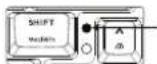
B.Wireless Mode
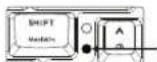
C. Low Battery Scenario
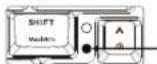
D. Indicator on DEL/PGUP/PGDN

WIRED MODE
If the physical switch is toggled to Bluetooth or 2.4 GHz Mode The keyboard will switch to Wired Mode automatically as the physical switch is toggled to Wired and it is connected to a PC or laptop.
If the physical switch is toggled to Wired Mode
The keyboard will switch to Wired Mode automatically as it is connected to a PC or laptop.
CHARGING
If the physical switch is toggled to Bluetooth or 2.4 GHz Mode The keyboard will remain connected to the wireless device and begin charging when it is plugged into a PC, laptop, or power source. When charging, the indicator light will be RED and the keyboard will light up with RED BREATHING lights then switch back to the GREEN mode. When the battery level is full, the Indicator light will change to GREEN and the keyboard will light up with GREEN BREATHING five times.
If the physical switch is toggled to Wired Mode
The keyboard will begin charging when it is plugged into a PC, laptop, or power source. When charging, the indicator light will be RED and the keyboard will light up with RED BREATHING five times then switch back to light mode.
When the battery level is full, the indicator light will change to GREEN for 3 seconds then turn off and the keyboard will light up with GREEN BREATHING five times.
INDICATOR LIGHT RULE
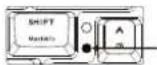
The CAPSLK indicator will light up with a solid WHITE light when turn on CAPSLK key, and turn off when turn off CAPSLK key.
-
In Paing Mode, the Indicator & DEL/PGUP/PSDN key will rapidly flash BLUE 3 times one every second.
-
In Connecting Mode, the indicator & DEL/PGUP/PGON key will continuously flash a BLUE light once every second.
-
If Connecting / Connecting is successful, the indicator & DEL/PGUP/PGDN key will light up with a solid GREEN light for 3 seconds.
-
When the battery level falls below 15%, the keyboard will enter Low Power Mode and the keyboard backlight will be turned off. The indicator will repeatedly flash RED light 3 times every 20 seconds until the keyboard enters Sleep Mode or is connected to the PC, laptop or power source.
The Low Power Mode percentage can be customized via Cooler Master software.
- When the battery level falls below 5% , the keyboard will go into Deep Sleep Mode. All lighting will be turned off - including the indicator.
Press FN will show the pairing status of each location (DEL, PGUP or PGDN) with WHITE light.
WICHITG
© 2021Cooler Master Technology Inc. All Rights Reserved. All trademarks are registered to their respective owners. Ver 1.0: 2021/02 512004490-GP