
Wireless Keyboard Ultraslim - Graphic tablet SBS - Free user manual and instructions
Find the device manual for free Wireless Keyboard Ultraslim SBS in PDF.



| Brand | SBS |
| Model | Wireless Keyboard Ultraslim |
| Product type | Bluetooth wireless keyboard for tablet |
| Connectivity | Bluetooth |
| Power supply | Rechargeable battery via USB Type-C port |
| Recommended charging time | At least 2 hours |
| Backlight | Yes, monochrome with brightness adjustment and color change |
| Touchpad | Yes, multi-finger gestures (1 to 4 fingers) |
| System compatibility | iOS 13 or later |
| LED indicators | On/off, low battery, charging, caps lock, Bluetooth |
| Sleep mode | Automatic after 15 minutes of inactivity |
| Wake-up | Press any key, wait 3 seconds |
| Function keys | iOS shortcuts: brightness, volume, search, screen lock, etc. |
| Cleaning | With water, alcohol, or alcohol-based disinfectant |
| Maintenance | Turn off the keyboard if not used for a long time to preserve battery |
Frequently Asked Questions - Wireless Keyboard Ultraslim SBS
User questions about Wireless Keyboard Ultraslim SBS
0 question about this device. Answer the ones you know or ask your own.
Ask a new question about this device
Download the instructions for your Graphic tablet in PDF format for free! Find your manual Wireless Keyboard Ultraslim - SBS and take your electronic device back in hand. On this page are published all the documents necessary for the use of your device. Wireless Keyboard Ultraslim by SBS.
USER MANUAL Wireless Keyboard Ultraslim SBS
Case with Touchpad Keyboard
Designed for iPad 10.9" and iPad 11"
SPECIFICATION
QWERTY Italian layout Frequency 2.4 GHz
Input: 5 V D.C. 0,5 A max Working current: < 8 mA
Standby current: 0.3 mA Sleeping current: < 40 µA
Working distance: 10 meters
Battery 500mAh
Charging time: 2-3 hours
Prf: max 3 mW
UK User Manual 4
IT Manuale di istruzioni 8
F Mode d'emploi 12
D Bedienungsanleitung 16
ES Manual de instrucciones 18
UK USER MANUAL
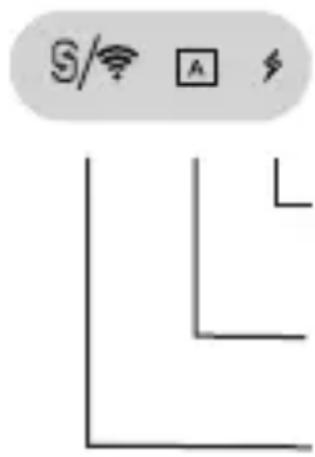
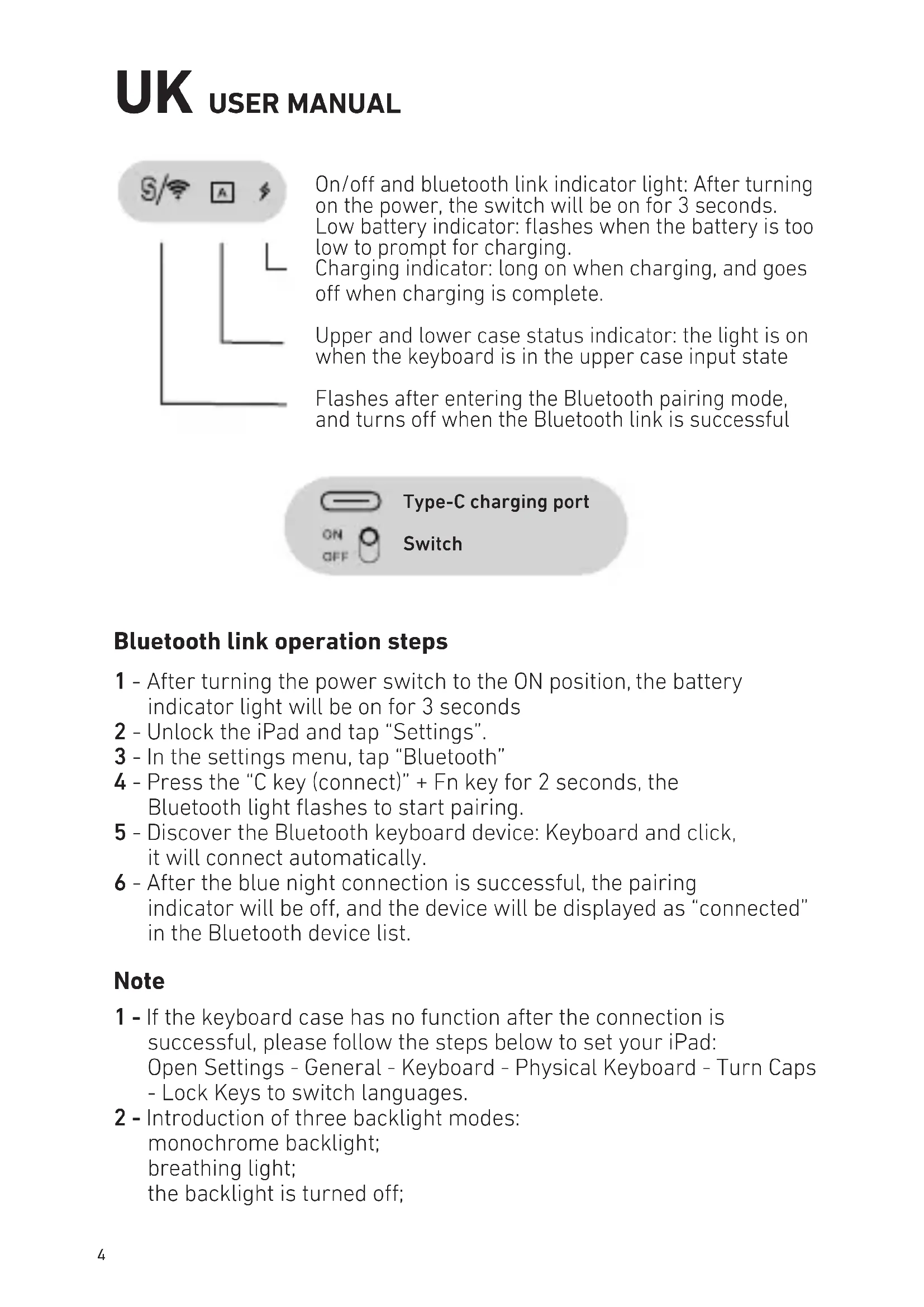
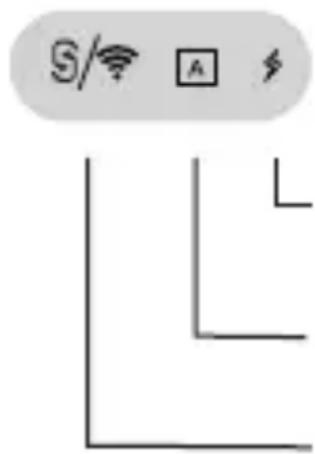
On/off and bluetooth link indicator light: After turning on the power, the switch will be on for 3 seconds.
Low battery indicator: flashes when the battery is too low to prompt for charging.
Charging indicator: long on when charging, and goes off when charging is complete.
Upper and lower case status indicator: the light is on when the keyboard is in the upper case input state
Flashes after entering the Bluetooth pairing mode, and turns off when the Bluetooth link is successful
Bluetooth link operation steps
1 - After turning the power switch to the ON position, the battery indicator light will be on for 3 seconds
2 - Unlock the iPad and tap "Settings".
3 - In the settings menu, tap "Bluetooth"
4 - Press the "C key (connect)" + Fn key for 2 seconds, the Bluetooth light flashes to start pairing.
5 - Discover the Bluetooth keyboard device: Keyboard and click, it will connect automatically.
6 - After the blue night connection is successful, the pairing indicator will be off, and the device will be displayed as "connected" in the Bluetooth device list.
Note
1 - If the keyboard case has no function after the connection is successful, please follow the steps below to set your iPad: Open Settings - General - Keyboard - Physical Keyboard - Turn Caps - Lock Keys to switch languages.
2 - Introduction of three backlight modes: monochrome backlight; breathing light; the backlight is turned off;
Keyboard shortcuts
| Back to main interface | Brightness decrease | Brightness Plus | |||
| Search | On-screen keyboard | Language switch | |||
| Previous song | Play/Pause | Next song | |||
| Connect | Bluetooth pairing + FN | Volume down | Volume up | ||
| Select all | Copy | Paste | |||
| Touch panel on/off | Backlight brightness adjustment | Lock screen | |||
| Fn | Fn composite function | Light color conversion |
I0S13 system touchpad gestures
Single-finger operation
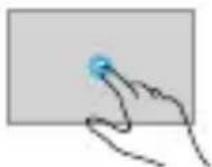
Left mouse button (customizable)
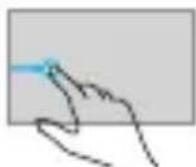
Switch the App to the right: swipe from the left edge to the right
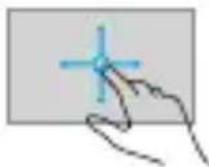
Cursor movement, single finger movement
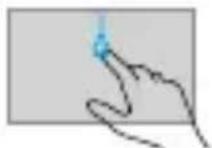
Open the APP
switcher: swipe down from the top edge
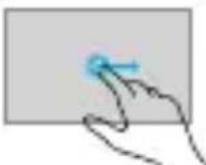
Drag the item: double-tap with one finger to keep moving

Open the program: swipe up from the bottom edge
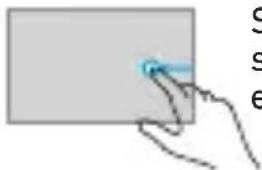
Switch APP to the left: swipe from the right edge to the left
Two-finger operation
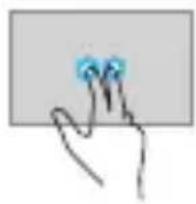
Right mouse button (customizable)

Scroll left and right: Double horizontal movement
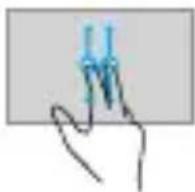
Scroll up and down, two-finger scroll vertically
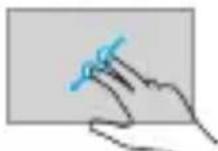
Zoom in (for browsers)
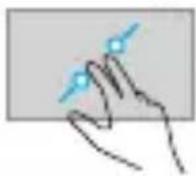
Zoom out (for browsers)
Three-finger operation
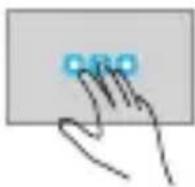
Middle mouse button (customizable)
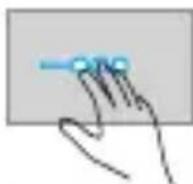
Switch APP to the left (task bar mode): Three fingers move left
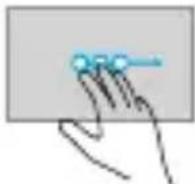
Switch APP to the right (task bar mode): Three fingers move right
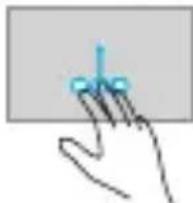
Return to the home screen: swipe up with three fingers
Four-finger operation
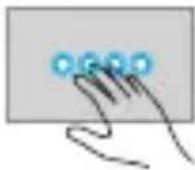
Screenshot: Four-finger tap
Notice
1 - When not in use for a long time, it is recommended to turn off the keyboard to prolong the life of the battery.
2 - h order to obtain a longer battery life, it is recommended to charge the keyboard only when the power light is flashing, and the charging time is preferably not less than 2 hours.
Power saving sleep mode:
When there is no operation on the keyboard for 15 minutes, it will automatically enter the sleep mode, and all LEDs will be turned off. When you need to use it, just press any key and wait for about 3 seconds, the keyboard will wake up and automatically connect to Bluetooth, and you can operate normally work.
Troubleshooting
1 - Make sure the movie is turned on
2 - Make sure the keyboard is within an operable distance
3 - Make sure the battery has energy
4 - Make sure your tablet's Bluetooth settings are turned on
5 - Determine the wireless keyboard and bluetooth link
6 - Make sure the wireless keyboard and Bluetooth are paired
Clean
Clean the keyboard with water, alcohol, or an alcohol-like sanitizer.
Charge
When the battery is low, the low-battery indicator will flash continuously, and the keyboard needs to be charged at this time.
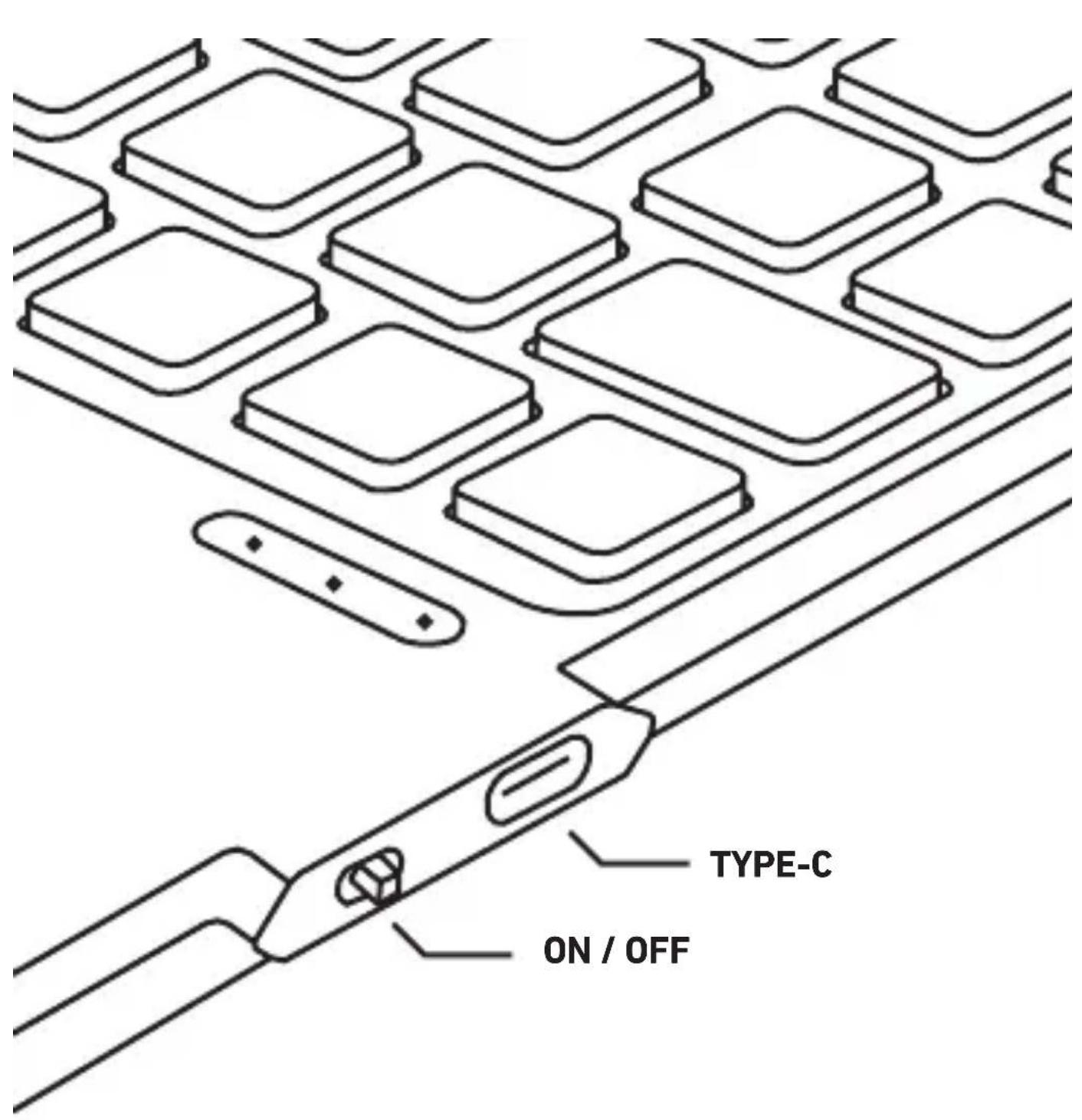
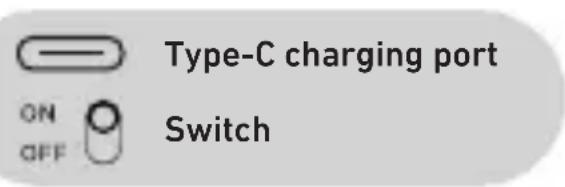
1 - Connect the Type-c end of the original accessory USB cable to the Type-c charging port on the keyboard.
2 - Connect the A end of the USB cable to the power adapter or the USB port of the computer (the power adapter is not included).
3 - During the charging process of the keyboard, the charging indicator light will be on for a long time, and it will automatically turn off when fully charged.
If you can't find the setting content you need, please search directly in the setting top without the search box.
Switch between Chinese and English capitalization:
Settings - General - Physical keyboard - Turn on the use of caps lock key switching - Press the Caps lock key on the keyboard during subsequent use to switch between Chinese and English capitalization.
iPad keyboard cover screen:
settings - display and brightness - open lock / unlock - then close the keyboard cover to automatically screen off.
How to turn on the touch pad - settings - accessibility - assistive touch-set to on to turn on the keyboard touch pad.
The above functions require 10S13 or above system
IT USER MANUAL
- Case with Touchpad Keyboard
- SPECIFICATION
- UK USER MANUAL
- Bluetooth link operation steps
- Note
- Keyboard shortcuts
- I0S13 system touchpad gestures
- Single-finger operation
- Two-finger operation
- Three-finger operation
- Four-finger operation
- Notice
- Power saving sleep mode:
- Troubleshooting
- Clean
- Charge
- IT USER MANUAL
Brand : SBS
Model : Wireless Keyboard Ultraslim
Category : Graphic tablet