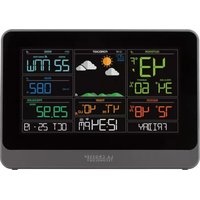
CA79103V2 - Weather Station LA CROSSE TECHNOLOGY - Free user manual and instructions
Find the device manual for free CA79103V2 LA CROSSE TECHNOLOGY in PDF.


User questions about CA79103V2 LA CROSSE TECHNOLOGY
0 question about this device. Answer the ones you know or ask your own.
Ask a new question about this device
Download the instructions for your Weather Station in PDF format for free! Find your manual CA79103V2 - LA CROSSE TECHNOLOGY and take your electronic device back in hand. On this page are published all the documents necessary for the use of your device. CA79103V2 by LA CROSSE TECHNOLOGY.
USER MANUAL CA79103V2 LA CROSSE TECHNOLOGY
LA CROSSE TECHNOLOGY
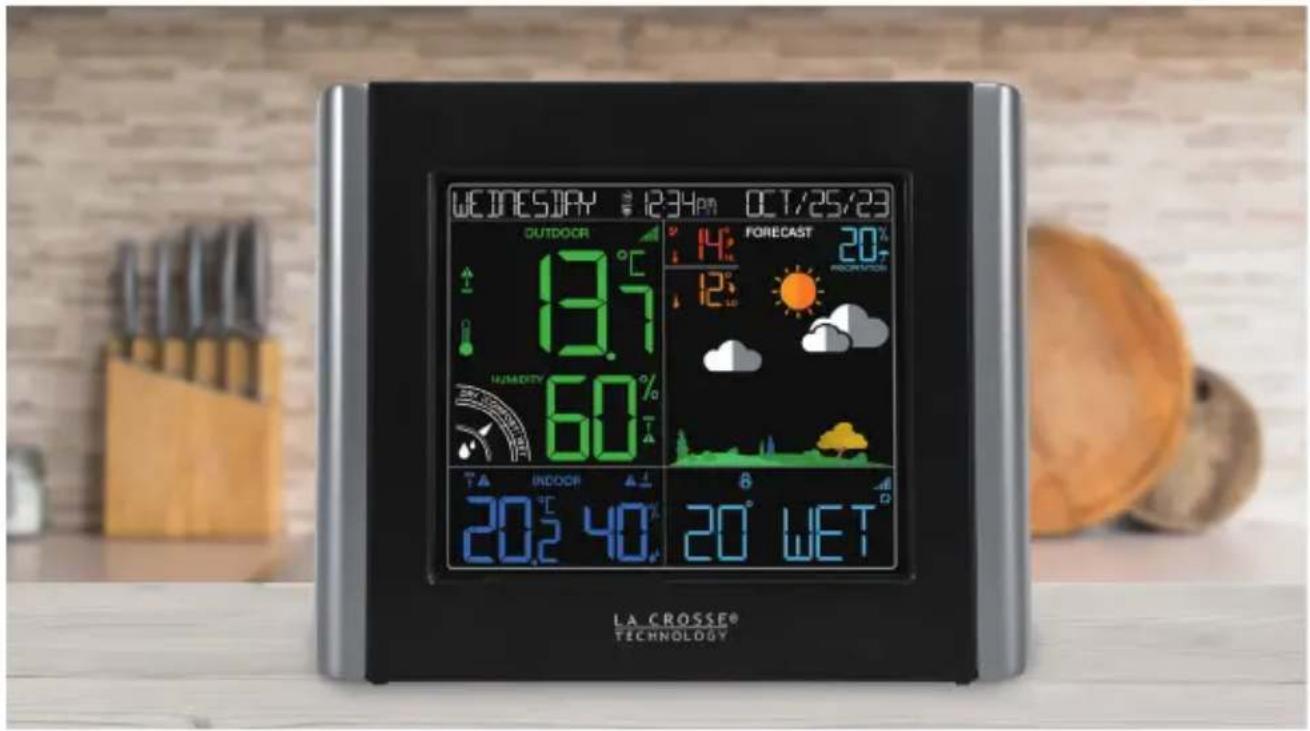
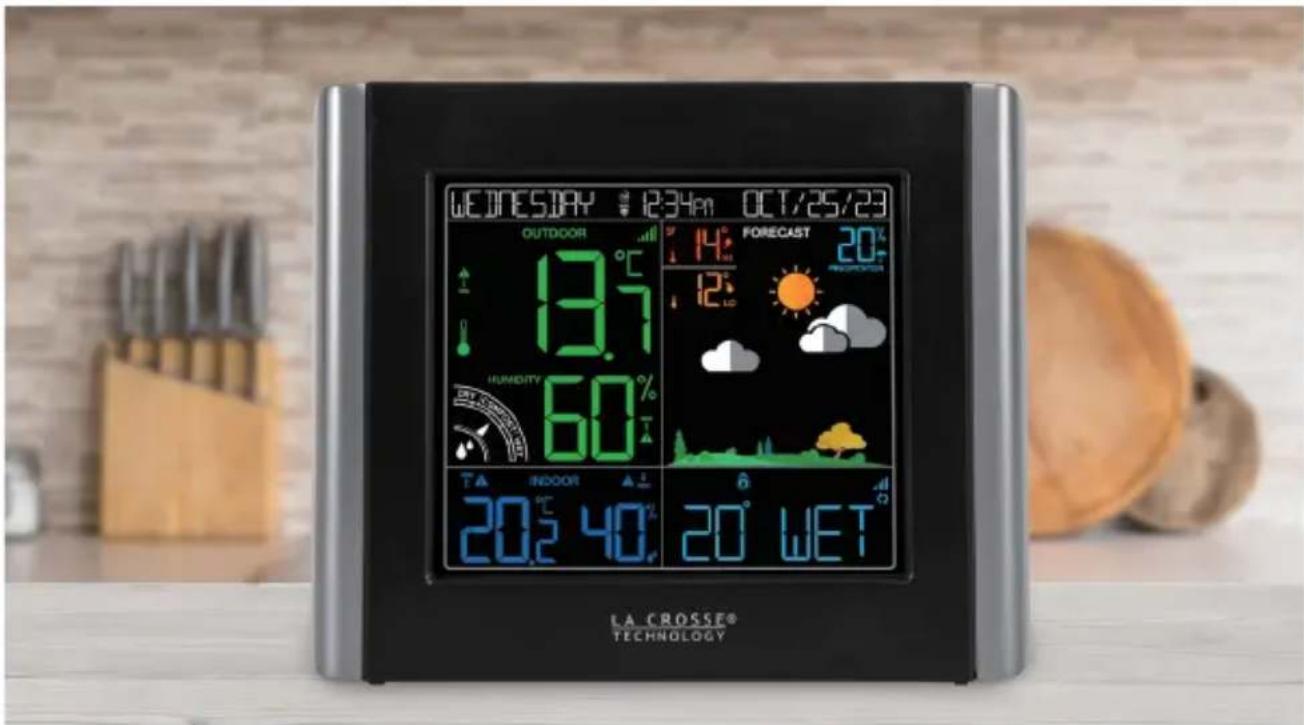
Wi-Fi COLOR FORECAST STATION
SET UP GUIDE
MODEL NUMBER CA79103v2 / V11
Table of Contents
BASICS LA CROSSE VIEW
Initial Setup 02
Station Settings 07
Buttons 08
LCD Display Brightness 09
Auto-Dim Settings 09
Time and Calendar 10
FORECAST PRESSURE
Viewing Your Forecast Data 15
Seasonal Trees 15
Standalone Forecast Icons 16
Enhanced Forecast Data 16
Daily/Hourly Forecast 17
APPENDIX
Specifications 21
Cautions/Statements 21-23
Warranty 21
Recycling & Disposal 22
Connecting to the App 03
Connecting Your Station 04
Add Your Sensors to the 05
App 18
Add-On Sensor Info 20
Relative Pressure 18
TEMP. AND HUMIDITY
Viewing Your TH Data 11-12
History Records 13
Outdoor Comfort Meter 13
Temp. & Humidity Alerts 14
SENSORS
Water Leak Sensor 18-19
Mounting Your TH Sensor 19
Add-On Sensor Info 18,20
Adding an Extra Sensor 20
BASICS
Initial Setup
Power Up
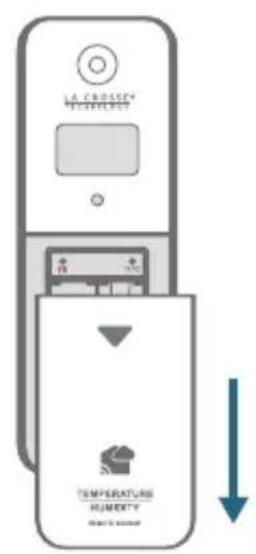
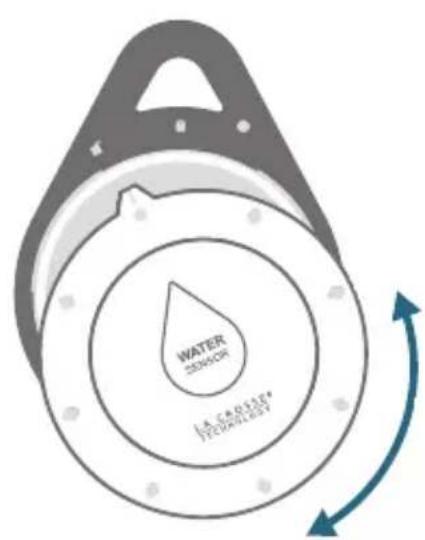
Weather Station
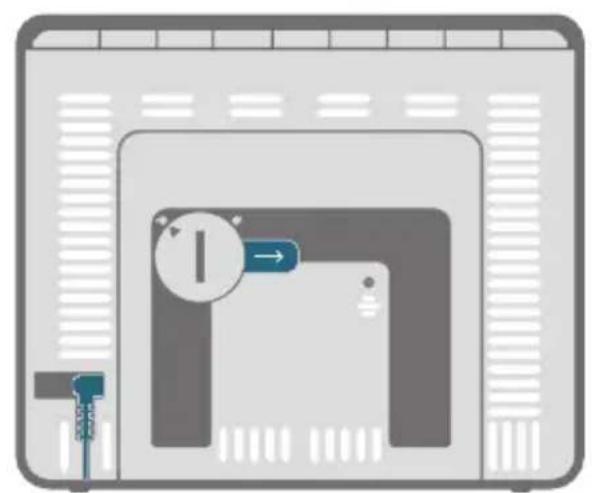
Insert the 5V Power Adapter into an outlet, and then plug it into the Power Jack on the back of the station. Next, remove the Insulation Tab from the Station's Battery Compartment.
Thermo-Hygro Sensor
Install 2 fresh "AA" batteries according to polarity and replace battery cover. The blue LED light will flash when transmitting.
Water Leak Sensor
Remove the front cover by twisting counter-clockwise to the unlock position. Install 2 fresh "AA" batteries according to the polarity markings. The LED light will flash blue when batteries are inserted. Replace front cover and turn clockwise to locked position.
LA CROSSE VIEW
Connecting to the App

La Crosse View.
Stay connected to your home anytime, anywhere with the La Crosse View app.
Monitor home conditions and set alerts so your home can get ahold of you when something seems off.
Connecting your station is optional and the display will function as a standalone unit without the Wi-Fi connection. However, we recommend connecting during the initial setup, as it will save you time and unlock all of the advanced features right away.
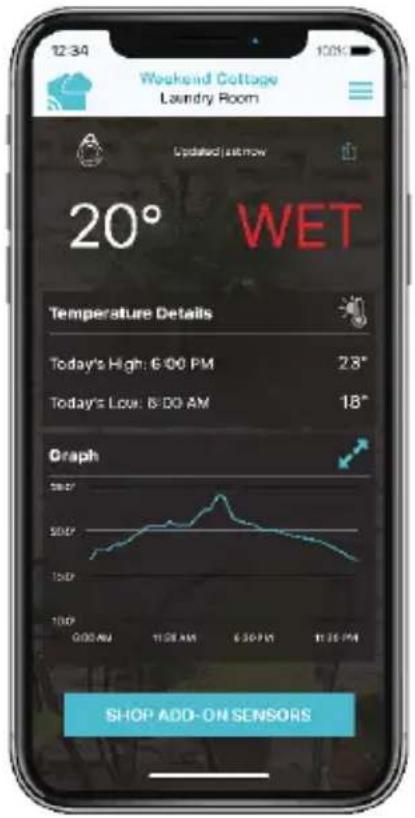
Download the La Crosse View App
Visit the App Store or Google Play Store to download the free La Crosse View app onto your mobile device.
Launch the App
Open the La Crosse View app and follow the on-screen setup instructions.
For more information, scan the QR code or visit:
www.lacrossetechnology.com/view
LA CROSSE VIEW
Connecting Your Station
Now that you've created your La Crosse View account, it's time to connect your station to your home router using the La Crosse View app.
Connecting to Your Wi-Fi Network
- The La Crosse View app is required to connect your station to the Wi-Fi network. Download and install the app first.
- The app will provide detailed instructions and inform you what buttons to press while connecting the display to your Wi-Fi network.
Initial Setup of a New Station: If this is a new station and is not added to your account yet, tap "Add Device" in the app and follow the instructions on your mobile device to add the station to your account and connect to Wi-Fi.
Reconnecting to Wi-Fi: If the station is already in your account and you would like to reconnect to Wi-Fi, tap "Connect Wi-Fi" in the app and follow the instructions on your mobile device to connect to Wi-Fi.
When connected, the indicator on the display will become solid. 3.
Checking Your Station's Wi-Fi Status
Press the button on the top of the station to view your Wi-Fi Status.
ALL OK 1234PN CONNECTED
ALL OK CONNECTED: Your station is connected to your Wi-Fi and its data should be available on the station and in the app.
SEE APP TO CONNECT
SEE APP TO CONNECT: Check your La Crosse View app for notifications.
NO WEATHER SERVICE
NO WEATHER SERVICE: Your Internet weather and time services are not connecting. These should resolve on their own, please be patient.
LOST WIFI
LOST WIFI: Check your router and network connections.
LA CROSSE VIEW
Having Trouble Connecting to Wi-Fi?
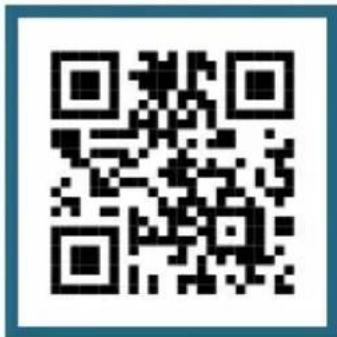
The app should guide you through the best method for your Wi-Fi network and router. However, if you have trouble connecting, please go to: bit.ly/wifiquestions or scan the QR code. This will explain additional connectivity options, including connecting by WPS or contacting our technical support team for further assistance.
Add Your Sensors to the App
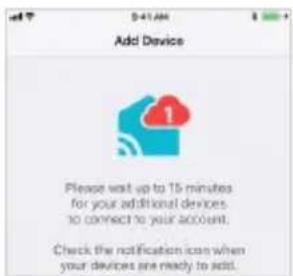
Upon getting the station connected to your Wi-Fi network, the next app screen will explain how your connected sensor(s) should be brought in. Within the next 15 minutes, you should receive an Add Device notification in your app. This is indicated by the Red Cloud and the numbers inside of it. Tap this icon to begin adding your sensor(s) into the app.
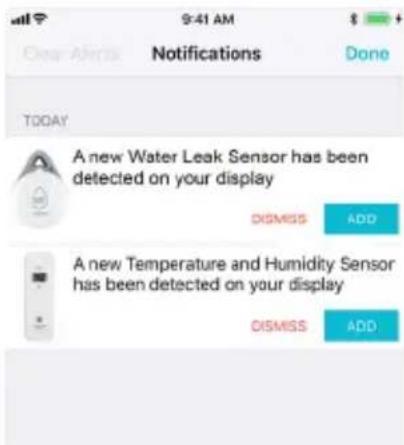
ADD button: Press ADD to add the sensor to your app. Within 10 minutes each sensor reading will show on their own app page.
DISMISS button: Select DISMISS if you do not want the sensor to send readings to your app.
Note: If DISMISS is selected, you can scan the barcode on your sensor at any time to add it to your app if desired.
Instructions on scanning the barcode to add your sensor is on the next page.
Manually Add Sensor Into the App*
- Open your La Crosse View app. On the Main Menu, go to ADD/EDIT and select DEVICES.
- On the Devices page, select the ADD DEVICE or PLUS (+) button.
- Scan the Barcode on your Breeze Pro Sensor or type in the Device ID manually.
- Confirm the sensor image and Device ID and add a Device Name and Location Name. Select DONE.
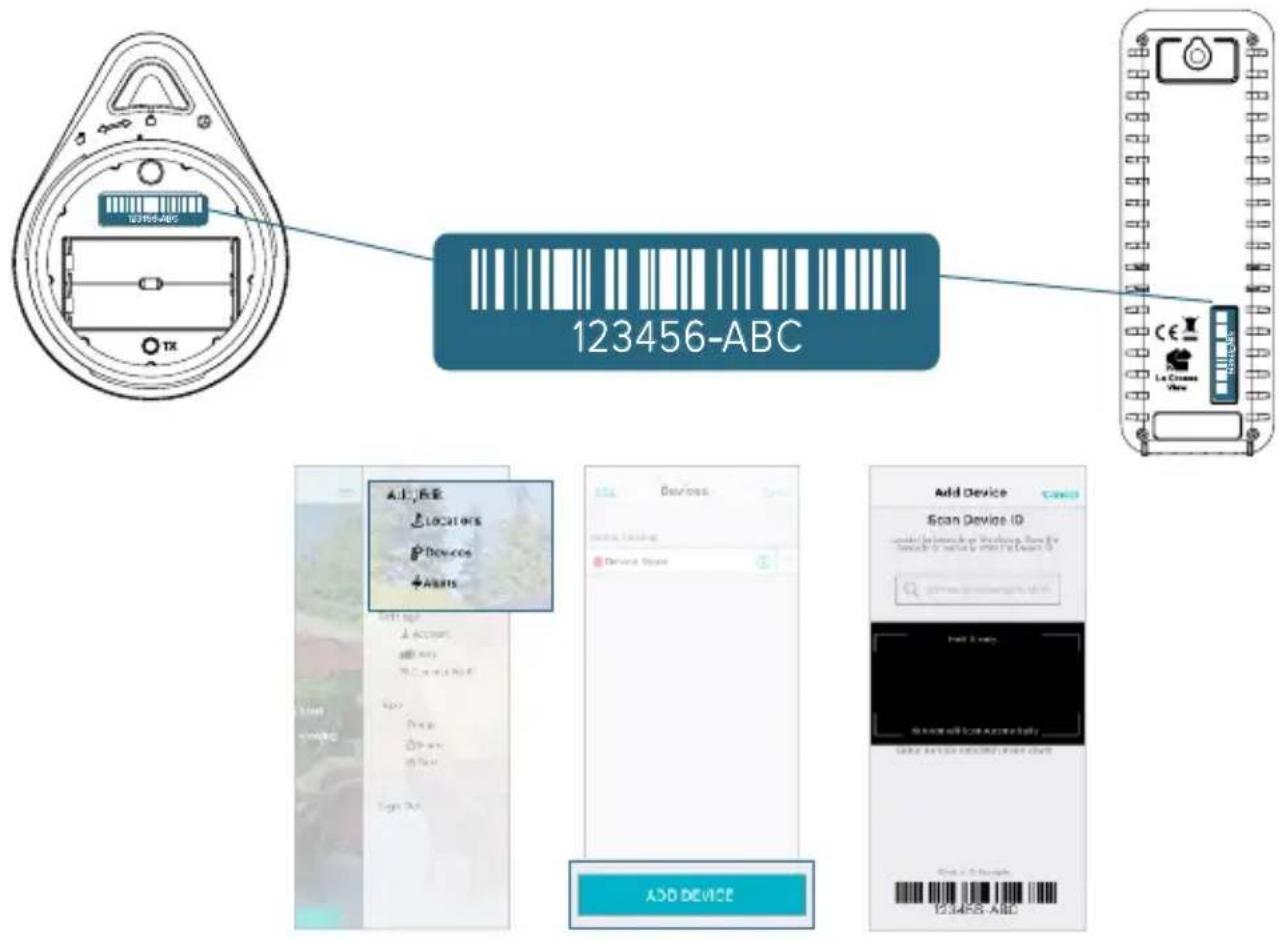
- This step is only required if you do not receive the Add Device notification within the app.
Prior to connecting to Wi-Fi and mounting your sensor, make sure your station is receiving sensor data.
BASICS
Station Settings
- When the station is first powered on, it will search for the sensors which will connect within 10 minutes.
Note: The Water Leak sensor will show in place of the Pressure reading. - To manually set your language, time, date and other settings, hold the button to enter the Settings Menu.
Settings Menu Order
Greeting • Language • Beep ON/OFF • 12/24 Hour Time
Hour • Minute • Year • Month • Date • Calendar Order
(Month/Date or Date/Month) • Celsius/Fahrenheit
Pressure Units (hPa/InHg) • Pressure Number Setting
Notes
Important: Language and units of measure seen on you station are not controlled in the app. Please use the Settings Menu to adjust.
- When a language is selected, the following instructions and weekday will be presented in that language.
- Weekday will set automatically after year, month, and date settings are adjusted.
- When in 24 hour time format, seconds will show in place of AM/PM.
- If you're connected to the Wi-Fi, the time and date will automatically update from the Internet. See pages 3-4 for more information.
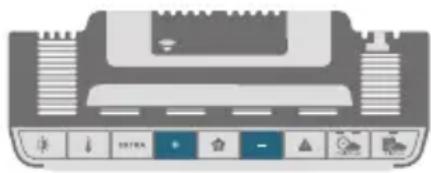
Use the + / - buttons on the top of the station to adjust the values.
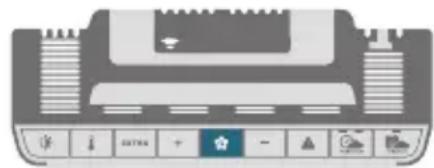
Press the button to confirm selection and move to next step.
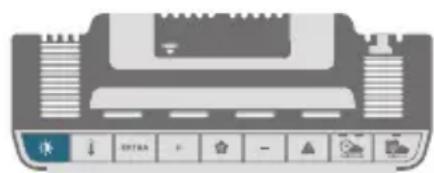
You may exit the Settings Menu at any time by pressing the button.
BASICS Buttons
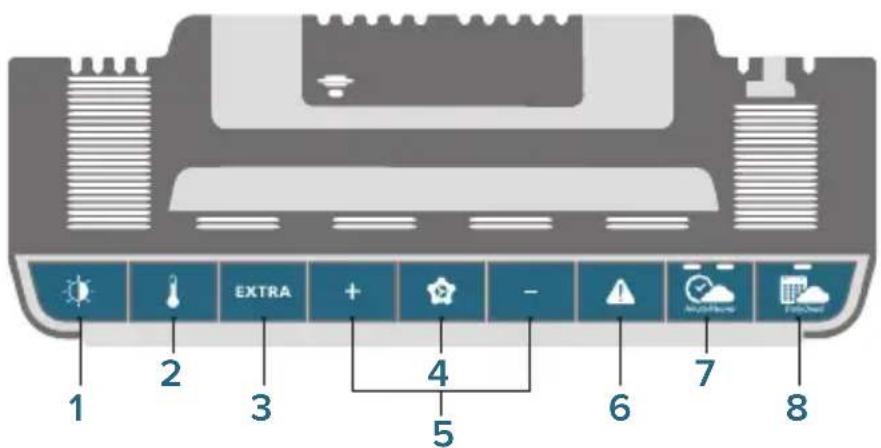
1. LIGHT ( )
Press to adjust backlight. Hold to enter Auto-Dim settings.
4. SET()
Press to view Wi-Fi status. Hold to enter Settings Menu.
Press to see Hourly Forecast*
2. TEMPERATURE (1)
Press to view Temperature and Humidity History. While viewing, hold MINUS button to delete the history reading.
5. PLUS/MINUS (+/-)
Use to adjust values. In Alert Settings, press to turn Alert(s) on/off. Hold both together to search for Wi-Fi signal.
8.DAILYFORECAST
Press to see Daily Forecast*
- Your display must be connected to Wi-Fi to receive Hourly/Daily forecast information.
3. EXTRA
Press to toggle through extra sensors and pressure. Hold to add sensors. While viewing, hold the MINUS button delete the sensor.
6. ALERTS
Hold to enter Alert Settings. While in Alert Settings, press to move to next Alert.
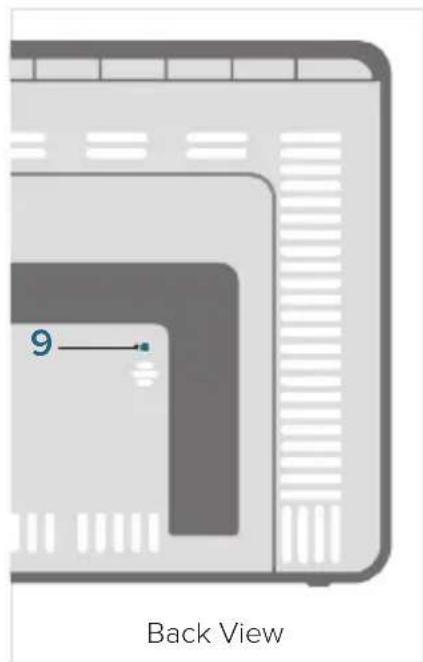
9.WIFI
Press to search for Wi-Fi signal. Hold to delete the currently saved network sign-on information and search for a new Wi-Fi signal.

LCD Display Brightness
Adjusting the LCD Display Brightness
Press the button to adjust the backlight intensity. There are 4 brightness levels, plus an off option.
Auto-Dim Settings
Program your display to automatically dim during preselected times.
- Hold the button to enter the Auto-Dim Settings Menu.
- Press the +/- buttons to turn the Auto-Dim feature on or off. Press to confirm.
- Press the +/- buttons to adjust the starting hour. Press to confirm.
- Press the +/- buttons to adjust the stopping hour. Press to confirm and exit.

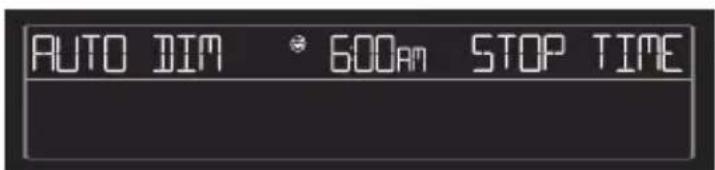
The icon will appear on the LCD when the Auto-Dim feature is activated.
BASICS
Time and Calendar Display
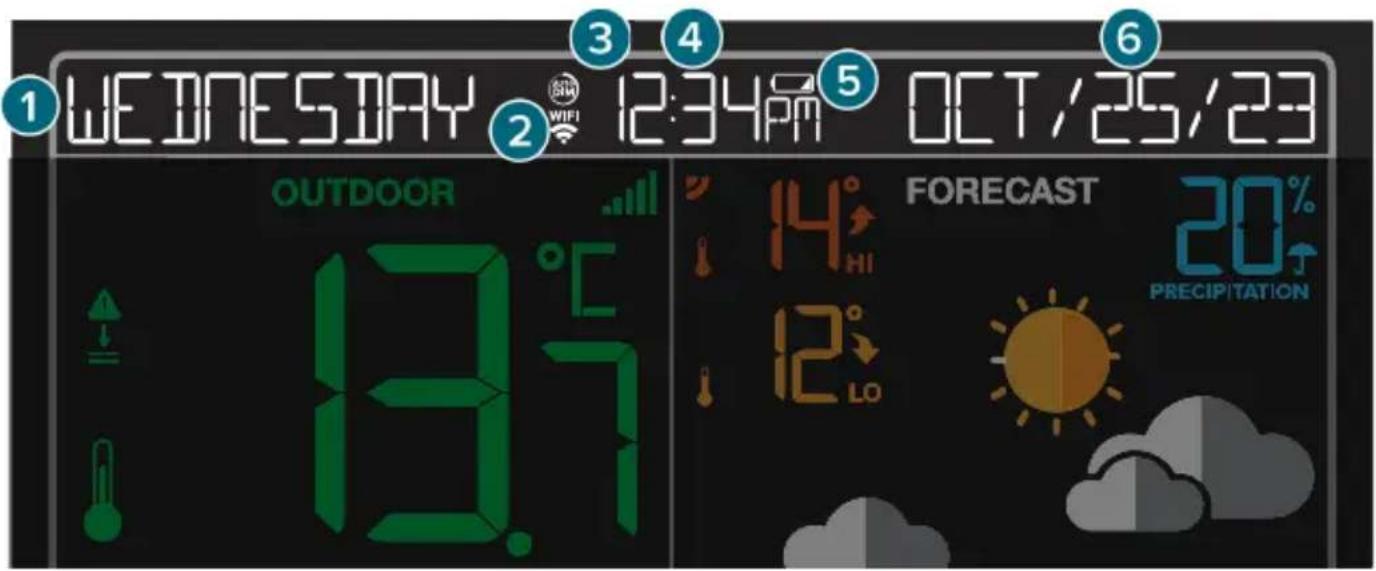
1. DAY OF THE WEEK
Select from English, Spanish, or French in the settings menu
4. 12/24 HOUR TIME DISPLAY
Time will automatically update when connected to Wi-Fi
2. WI-FI ICON (
Indicates active Wi-Fi connection*
5. LOW BATTERY INDICATOR FOR STATION (□)
Appears when station battery needs to be replaced
3. AUTO-DIM ICON (
Indicates active auto-dim setting
6.CALENDAR
Select calendar order (Month/Date or Date/Month) in the settings menu
Viewing Your Temperature and Humidity Data
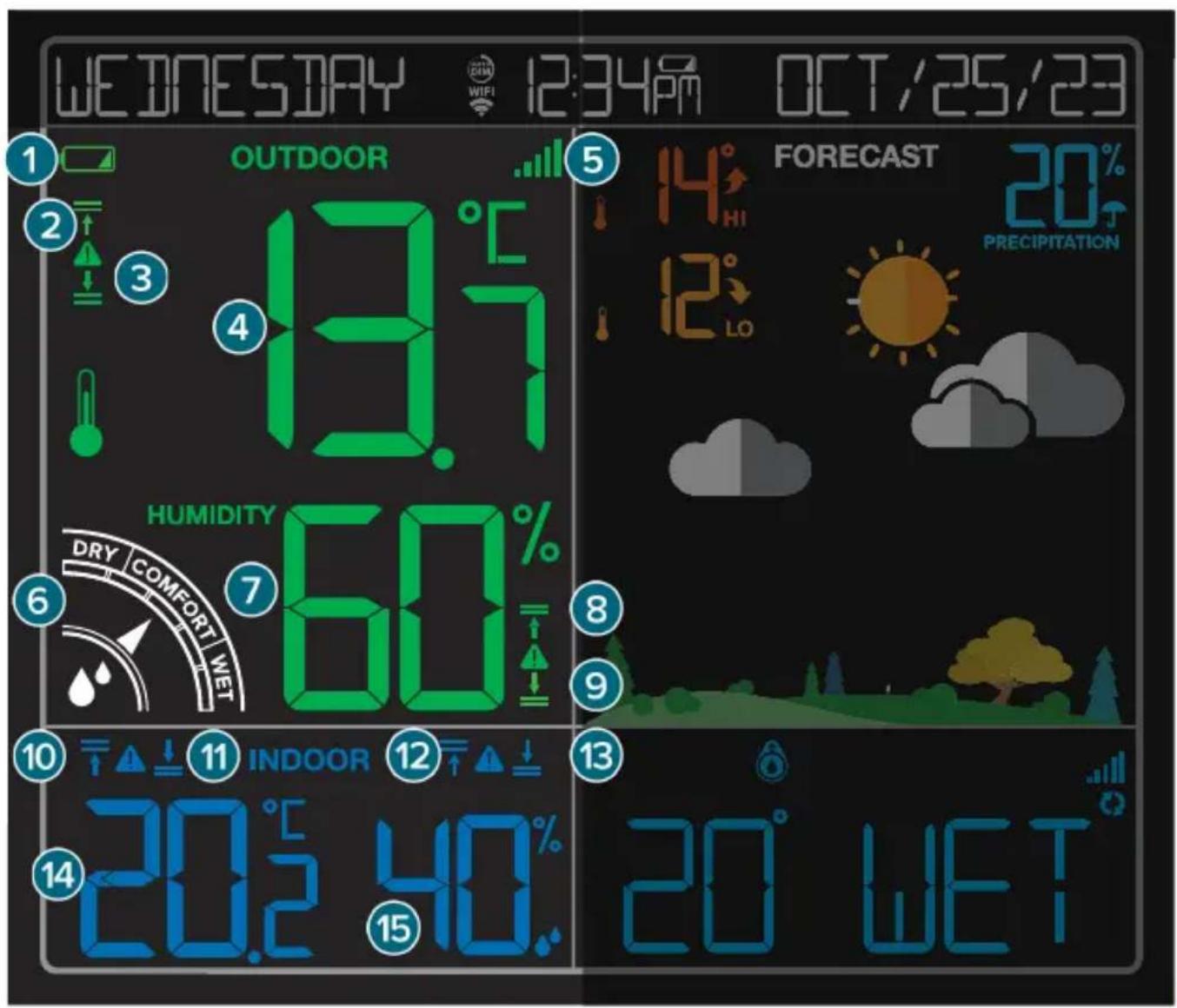
Viewing Your Temperature and Humidity Data
- LOW BATTERY ICON FOR THERMO-HYGRO SENSOR (
Indicates thermo-hygro sensor battery needs to be replaced
- OUTDOOR HIGH TEMPERATURE ALERT ICON (
Appears if a high temperature alert is set and active
- OUTDOOR LOW TEMPERATURE ALERT ICON (
Appears if a low temperature alert is set and active
- OUTDOORTEMPERATURE
Current outdoor temperature
- SENSOR RECEPTION INDICATOR (
Indicates if the station is receiving data from the thermo-hygro sensor
- OUTDOOR COMFORT METER
Represents current outdoor comfort level
- OUTDOOR HUMIDITY
Current outdoor humidity
- OUTDOOR HIGH HUMIDITY ALERT ICON (
Appears if a high humidity alert is set and active
- OUTDOOR LOW HUMIDITY ALERT ICON (
Appears if a low humidity alert is set and active
Appears if a high temperature alert is set and active
INDOOR LOW TEMPERATURE ALERT ICON (
Appears if a low temperature alert is set and active
12.INDOOR HIGH HUMIDITY ALERT ICON ()
Appears if a high humidity alert is set and active
- HUMIDITY ALERT ICON
Appears if a low humidity alert is set and active
- INDOORREMUNERATURE
Current indoor temperature
- INDOOR LOW
Current indoor humidity
Viewing Your Temperature and Humidity Data
Viewing Records
Press the button to toggle through indoor/outdoor temperature & humidity history records with time and date stamps.
Records Viewing Order
Outdoor High Temperature · Outdoor Low Temperature · Outdoor High Humidity · Outdoor Low Humidity · Indoor High Temperature · Indoor Low Temperature · Indoor High Humidity · Indoor Low Humidity · Heat Index · Dew Point
Resetting Individual Temperature and Humidity Records
- Press the button to view the individual values you'd like to reset.
Next, hold the MINUS (-) button until dashes appear on the LCD.
This reading is now reset to your current temperature or humidity value.
Outdoor Comfort Meter
The arrow indicates outdoor comfort level based on current relative humidity.
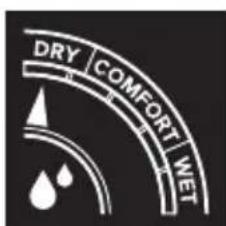
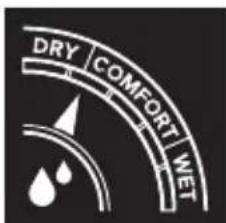
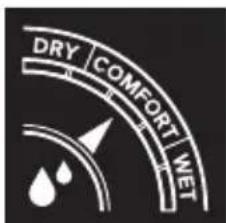
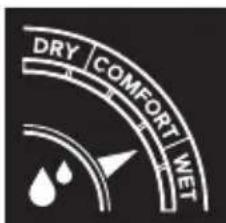
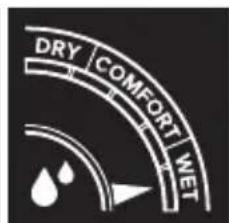
1%RH to 25%RH 84%RH to 99%RH26%RH to 39%RH 40%RH to 75%RH 76%RH to 83%RH
Temperature and Humidity Alerts
Setting Temperature and Humidity Alerts
- Hold the button for to enter the Alert Settings Menu.
- Use the +/- buttons adjust alerts settings. Press to confirm your selection.
- Your programmed alerts are active when the and / icon(s) appear on the LCD.
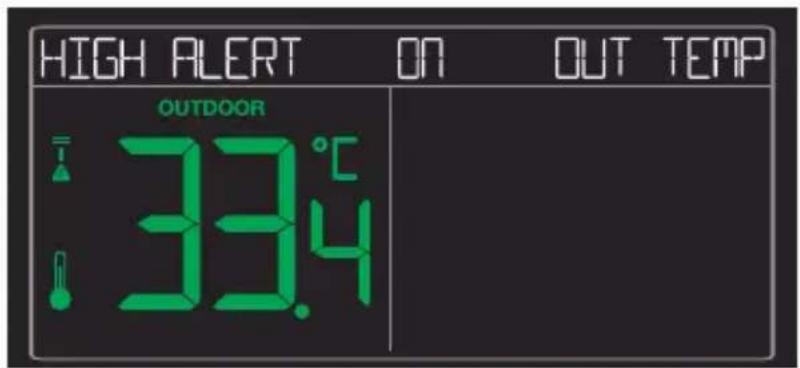
Alerts Setting Order
Outdoor Low Temperature · Outdoor High Temperature · Outdoor Low Humidity · Outdoor High Humidity · Indoor Low Temperature · Indoor High Temperature · Indoor Low Humidity · Indoor High Humidity
Activate/Deactivate Alerts Important Notes:
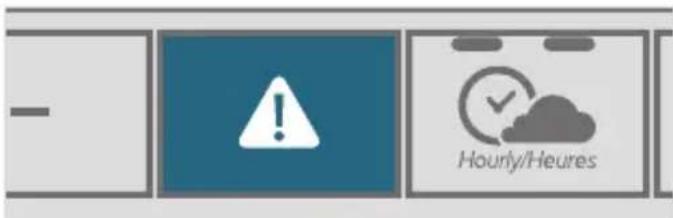
Press and release the button to activate/deactivate the alerts.
The alert is defaulted to be off.
- When the armed alert value is reached, the station will beep and the icon will flash. Press any button to stop the alert sound.
The Alert Icon will remain flashing until out of the alert range.
- This alert is for the station only and will not affect the app.
FORECAST
Viewing Your Forecast Data
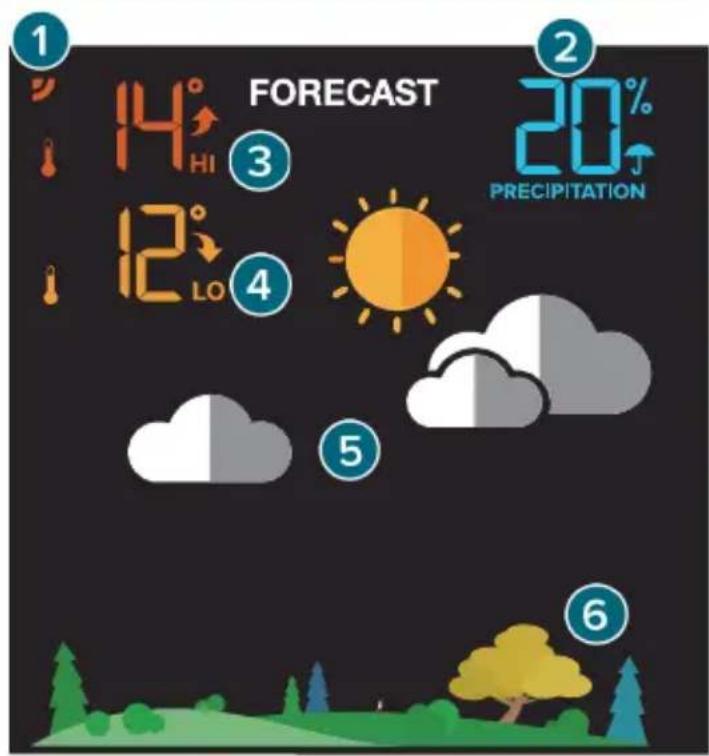
1.INTERNET ICON (
Indicates the station is connected and receiving AccuWeather forecasts*
2. CHANCE OF PRECIPITATION
Percent chance of precipitation in the 12 hours*
3. DAILY FORECASTED HIGH TEMPERATURE
Forecasted high temperature in the next 12 hours*
4. DAILY FORECASTED LOW TEMPERATURE
Forecasted low temperature in the next 12 hours*
5. FORECAST ICONS
Predicts weather conditions in the next 12 hours**
6. SEASONAL TREES
Foliage scene changes seasonally
Your display must be connected to Wi-Fi to receive AccuWeather forecast data.
*When connected, your station will display 6 additional forecast icons.

Spring (March 20th to June 20th)

Summer (June 21st to Sept. 20th)

Fall (Sept. 21) to Dec. 20

Winter (Dec. 21st to March 19th)
Seasonal Trees
The foliage scene in the forecast section changes seasonally. The dates are pre-programmed.
FORECAST
Viewing Your Forecast Data
Forecast Icons
When using as a standalone station, the display will use changes in barometric pressure to predict your weather to come in the next 12 hours. This is represented by 6 forecast scenes (sunny, partly sunny, clouds, rain, t-storm, and snow).
Please Note: The Forecast Icons may not represent your current weather. They are a future prediction of the weather to come over the next 12 hours.
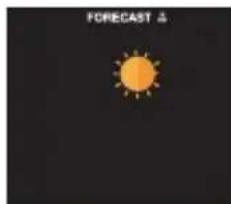
Sunny Clouds
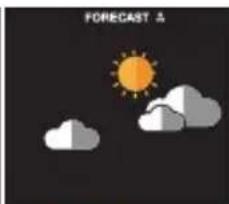
Partly Sunny
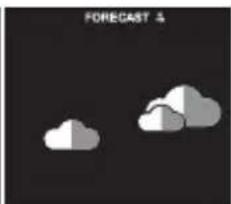
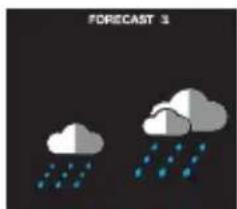
Rain Snow
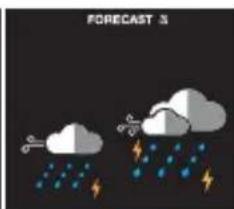
T-Storm
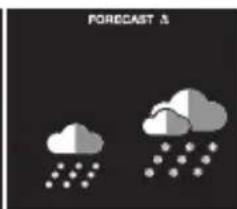

AccuWeather
When connected to Wi-Fi, the station will receive additional weather icons, chance of precipitation values, and future forecast information. These enhanced Internet features are powered by AccuWeather. Additional forecast scenes include:
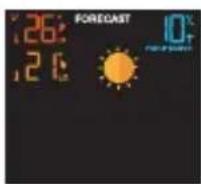
Sunny
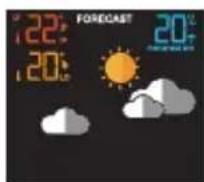
Partly Sunny
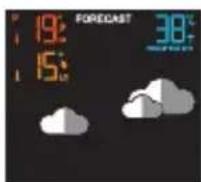
Clouds
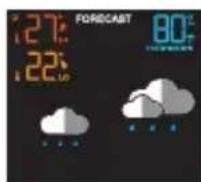
Light Rain
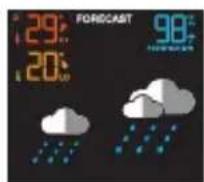
Rain
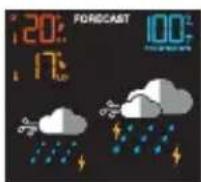
T-Storm
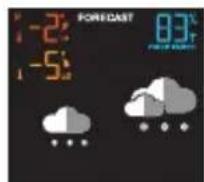
Light Snow
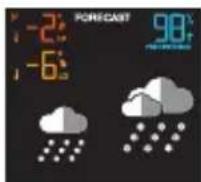
Snow
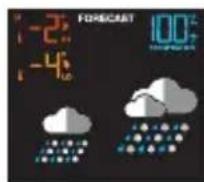
Wintry Mix
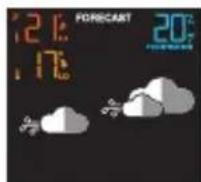
Windy
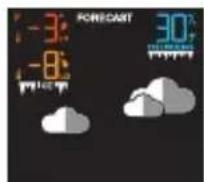
Ice
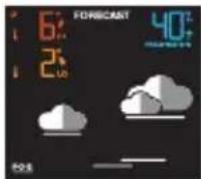
Fog
Tip: The icon will appear in the top right corner of the forecast section when your display is connected and receiving AccuWeather forecasts.
FORECAST
Viewing Your Forecast Data
Daily and Hourly Forecast Buttons
When connected to Wi-Fi, use the daily forecast ( ) and hourly forecast ( ) buttons on the top of the station to view future forecast information.
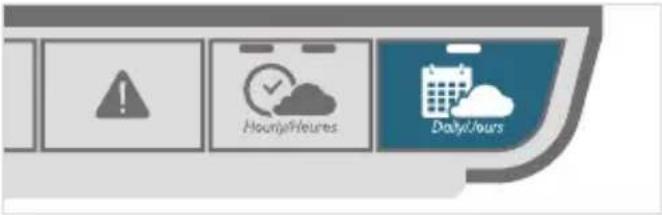
Daily Forecast
- Hold the button to scroll through all 7 days of future forecasts. When scrolling, press the button to stop the scroll and return to main display.
- Press and release the button to view each day individually.

Hourly Forecast
- Hold the button to scroll through all 12 hours of future forecasts. When scrolling, press the button to stop the scroll and return to main display.
- Press and release the button to view each hour individually.
Day/Night Forecast
When connected, the sun icon will show in daylight hours and the moon icon will show during nighttime hours if the forecast is for sunny or partly sunny.
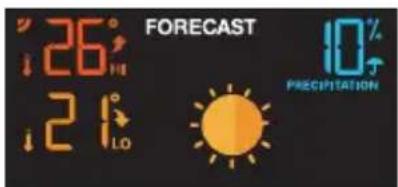
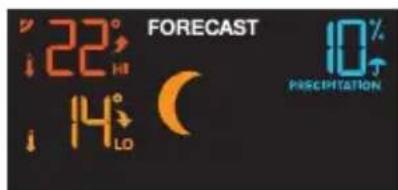
Sun Icon (7:00am to 7:00pm) Moon Icon (7:00pm to 7:00am)
- The times the sun and moon icons appear are pre-programmed and cannot be adjusted.
- The station must be connected Wi-Fi to activate the day/night forecast feature.
PRESSURE
Relative Pressure
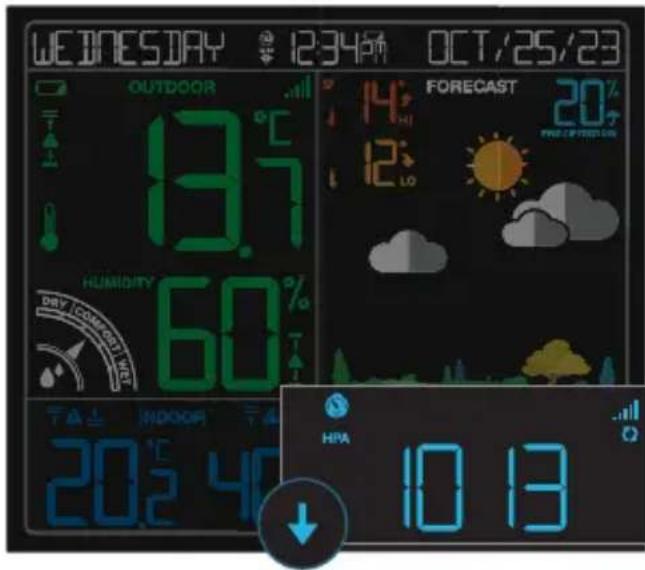
- Your Relative Pressure reading will come from your station's internal barometer.
- Please allow up to 10 days for automatic calibration, or program your local pressure value in the Settings Menu.
The arrows located to the left of the values represents Pressure Tendency ( / ) . - Select your desired unit of measurement (hPa or InHg) in the Settings Menu. You can also set a specific pressure number setting if desired.
Note: The default pressure reading is 1013 hPa (29.92 INHg). The station will acclimate on it's own if the pressure number is not set.
Spot Water Leak Sensor
Your Water Leak Sensor data shares the same display area as the pressure readings.
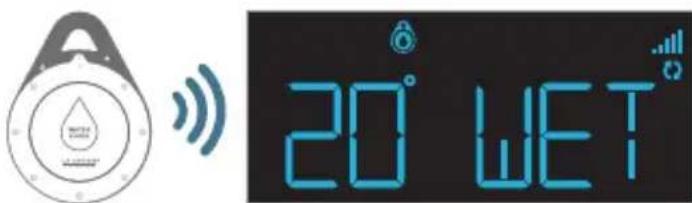
How to View Additional Data in the Extra Sensor Field
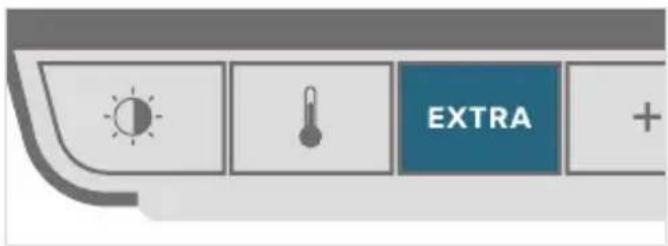
Press the EXTRA button on the top of the station to view Water Leak, Pressure, other add-on sensors data (see page 18), or select Auto Scroll to toggle through all of available readings.
When the Auto-Scroll feature is active, the Auto Scroll icon () will appear in the Extra Sensor field. Each reading will show for 6 seconds and the sensor icon will blink every 2 seconds.
SENSORS
Sensor Placement and Mounting
Positioning Your Water Leak Sensor
- The sensor will work best when simply placed on a floor. It will begin to detect water at 0.787mm (0.031 inches).
If sensor is placed vertically (i.e. hung inside a sump pump) the depth of the water needs to be at least 6.35mm (0.25 inches) high to trigger the sensor.
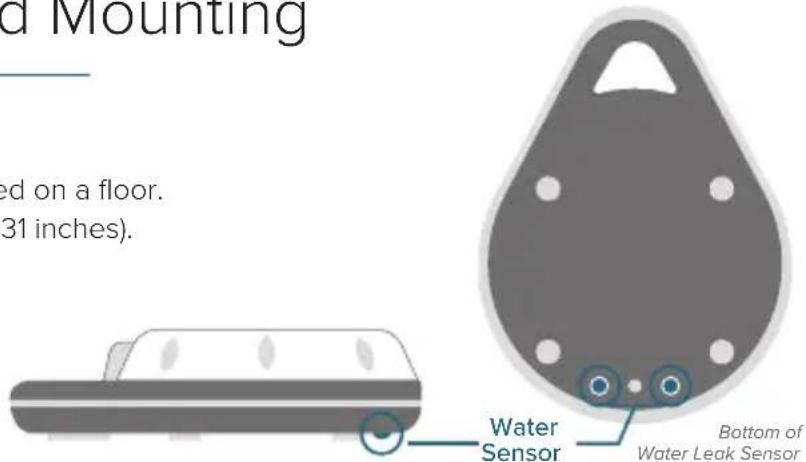
IMPORTANT:
The metal contacts on the sensor should not be in contact with other metal.
This will cause false WET readings and may damage the sensor.
Water Leak Sensor LED Light
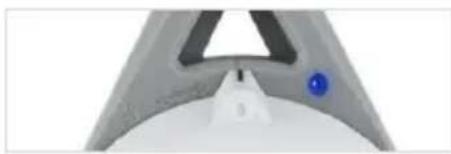
Blue Light: Normal Transmission
The light will occasionally flash blue, indicating it is still transmitting correctly and no water has been detected.
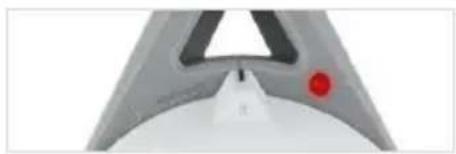
Red Light: Water Detected
The LED light will flash red twice every 5 seconds until dry.
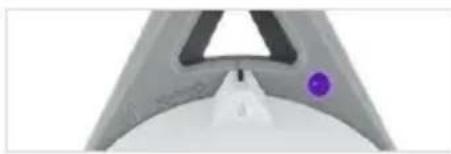
Purple Light: Low Battery
Indicates the sensor batteries need to be replaced.
Mounting Your Thermo-Hygro Sensor
- Use the hole at the top to hang your sensor from the back using a nail. Or, insert one mounting screw through the front of your sensor.
-
Mount your sensor on a north-facing wall or in any shaded area. Under an eave or deck rail is preferred to avoid inaccurate readings from the sun.
-
The maximum wireless transmission range to the station is up to 121 meters (400 feet) in open air, not including walls or floors.
- Be sure your sensor is mounted vertically, to allow moisture to drain out properly.
SENSORS
Additional Add-On Sensors
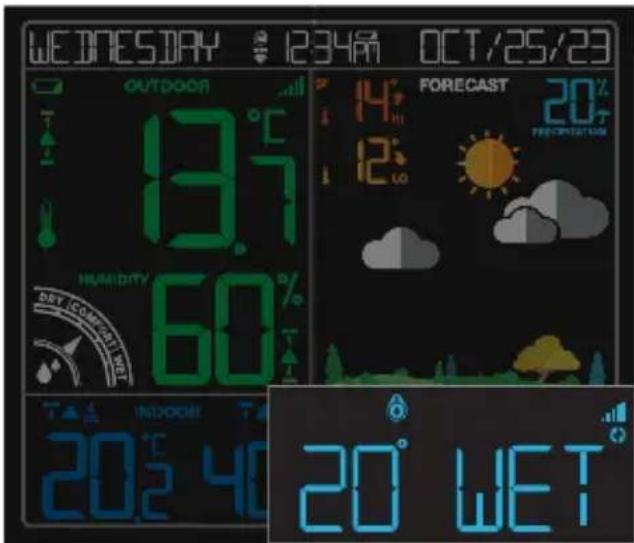
Whether you choose to connect with the La Crosse View app or not, this station can display data for up to 4 extra sensors. This data will appear in the blue Extra Sensor field and in your La Crosse View app if connected.
Adding Sensors to Your Station
- Hold the EXTRA button until you see the Sensor Reception Indicator start to animate.
- Install batteries into your sensor. If the sensor has a TX button, press it to force a transmission signal. This button is usually located in or near the sensor's battery compartment. The LED light on the sensor will flash once.
- Your sensor should connect within the next 3 minutes, briefly displaying its ID and type on the LCD. The Sensor Reception Indicator will show solid on the screen when a sensor is connected.
- Press the EXTRA button to cycle through the data you'd like displayed on the LCD. The Auto Scroll Icon ( ) will appear if activated.
Note: When first powering up, or after a factory reset, extra sensors should automatically connect to your station.
APPENDIX
Specifications
Wi-Fi NETWORK REQUIREMENTS
- Broadcast Frequency: 2.4GHz (802.11 b/g/n)
Network Name/Password: Must Not Exceed 45 Characters
Network Speed: Must Be Greater than 1 Mbps
Please Note: If you have multiple band router, this device will connect to the 2.4GHz band when connecting to Wi-Fi.
MOBILE REQUIREMENTS
- Apple phones require iOS with cellular or Wi-Fi service.
- Android phones require Android OS with cellular or Wi-Fi service.
STATION SPECIFICATIONS
- Indoor Temperature Range: 0^ to 50^ (32°F to 122°F)
- Indoor Humidity Range: 10 to 99% RH
- Relative Pressure Range: 800 to 1100 hPa (23.62 to 32.48 InHg)
- Power Requirements:
Primary Power: 5.0V Adapter (included)
- Battery Backup: 1 "CR2032" Coin Cell Battery (included)
-
Station Dimensions: 19.81 cm L × 3.12 cm W × 16.35 cm H (7.80 in. L × 1.23 in. W × 6.44 in. H)
-
LCD Brightness: 4 Intensity Levels + OFF (Programmable Auto-Dim Backlight Option)
Language Options: English, Spanish, and French (Translation Available for Menus & Calendar)
THERMO-HYGRO SENSOR SPECIFICATIONS
- Outdoor Temperature Range: -40°C to 60°C (-40°F to 140°F)
- Outdoor Humidity Range: 10 to 99% RH
Transmission Range: 121 Meters (400 feet) open air - Power Requirements: 2 "AA" Batteries (not included)
- Sensor Dimensions: 5.0cm L × 1.91 cm W × 14.55 cm H (1.97 in. L × 0.75 in. W × 5.73 in. H)
This product operates on alkaline batteries.
However, it is suggested to use lithium batteries in areas where the temperatures is consistently below -30^ (-22^)
WATER LEAK SENSOR SPECIFICATIONS
- Ambient Temperature Range: -40^ to 60^ (-40°F to 140°F)
Transmission Range: 121 Meters (400 feet) open air - Power Requirements: 2 "AA" Batteries (not included)
- Sensor Dimensions: 8.89cm L × 3.18 cm W × 12.07 cm H (3.50 in. L × 1.25 in. W × 4.75 in. H)
Warranty
Springfield warrants this instrument to be free from defects in workmanship and material for a period of one year from date of purchase, and will repair or replace it at our option, without charge.
For warranty issues, please contact Springfield Instruments, Inc.:
Phone: 1-844-687-4040
Email: info@springfieldinstruments.com
Address: Springfield Instruments inc. 104 Barr Street, Saint-Laurent, QC H4T 1Y4
APPENDIX
WARNING
- This product contains a button battery.
- If swallowed, it could cause severe injury or death in just 2 hours.
- Seek medical attention immediately.
WARNING: KEEP BATTERIES OUT OF REACH OF CHILDREN
- Swallowing may lead to serious injury in as little as 2 hours or death, due to chemical burns and potential perforation of the esophagus.
- If you suspect your child has swallowed or inserted a button battery, immediately seek urgent medical assistance.
- Examine devices and make sure the battery compartment is correctly secured, e.g. that the screw or other mechanical fastener is tightened.
- Do not use if compartment is not secure.
- Dispose of used button batteries immediately and safely. Flat batteries can still be dangerous.
- Tell others about the risk associated with button batteries and how to keep their children safe.
Replace the Coin Cell Battery
- Use a coin to turn the battery cover to the left to remove it.
- Pull back the metal pin and gently remove the battery.
- Insert a fresh CR2032 battery with the + side up and snap into place.
- Replace the battery cover and use the coin to turn it to the right to lock.
Adapter Warning
The plug on the power adapter is intended to serve as the disconnect device, the socket-outlet shall be installed near the equipment and shall be easily accessible.
Care and Maintenance
Battery replacement instruction:
When batteries of different brand or type are used together, or new and old batteries are used together, some batteries may be over-discharged due to a difference of voltage or capacity. This can result in venting, leakage, and rupture and may cause personal injury.
Always purchase the correct size and grade of battery most suitable for the intended use.
Always replace the whole set of batteries at one time, taking care not to mix old and new ones, or batteries of different types.
- Clean the battery contacts and those of the device prior to battery installation.
- Ensure the batteries are installed correctly with regard to polarity (+ and -).
- Remove batteries from product during periods of non-use. Battery leakage can cause corrosion and damage to this product.
- Remove used batteries promptly.
- For recycling and disposal of batteries, and to protect the environment please check the internet or your local phone directory for local recycling centers and/ or follow local government regulations.
Recycling and Disposal
Please consider the environment when deciding to dispose of this product. Although household electronics are generally safe to use on a daily basis, incorrect disposal can cause negative and potentially irreversible impacts on our environment.
Check with local donation centers to see if your product can be donated for future use. If disposal is the only option, federal agencies, local governments, and certified retailers may have electronic recycling programs in place. Programs may vary based on location.
APPENDIX
Canada Statement
This device contains licence-exempt transmitter(s)/receiver(s) that comply with Innovation, Science and Economic
Development Canada's licence-exempt RSS(s). Operation is subject to the following two conditions:
(1) This device may not cause interference.
(2) This device must accept any interference, including interference that may cause undesired operation of the device.
The device meets the exemption from the routine evaluation limits in section 2.5 of RSS 102 and compliance with RSS-102 RF exposure, users can obtain Canadian information on RF exposure and compliance.
This transmitter must not be co-located or operating in conjunction with any other antenna or transmitter. This equipment should be installed and operated with a minimum distance of 10 centimeters between the radiator and your body.
Caution!
The manufacturer is not responsible for any radio or TV interference caused by unauthorized changes or modifications to this equipment. Such changes or modifications could void the user authority to operate the equipment.
All rights reserved. This manual may not be reproduced in any form, even in part, or duplicated or processed using electronic, mechanical or chemical process without the written permission of the publisher.
This booklet may contain errors or misprints. The information it contains is regularly checked and corrections are included in subsequent editions. We disclaim any responsibility for any technical error or printing error, or their consequences. All trademarks and patents are recognized.
Factory Reset
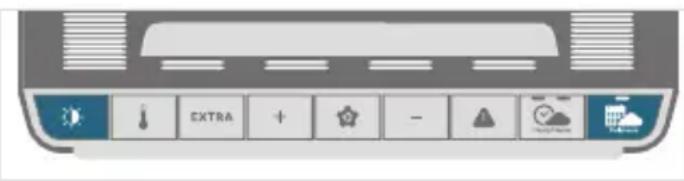
If you're still experiencing issues, press and hold the and buttons down together until the display beeps. You do not need to remove the button cell battery to restart the station.
Trademarks
Apple and the Apple logo are trademarks of Apple Inc., registered in the U.S. and other countries. App Store is a service mark of Apple Inc.
Google Play and the Google Play logo are trademarks of Google Inc.
LA CROSSE TECHNOLOGY
STATION DE PREVISION COULEUR Wi-Fi
GUIDE D'UTILISATION
NUMERO DE MODELE CA79103v2 / V11
Table des matieres
FONCTIONS DE BASE LA C
AC DSSEVIEW
Réglage initial
02 Connexion a Application
03
Réglage de la station
15 Pression relative
ANNEXE
Arbes en seion
15 CAPTEURS
Garapli.
2
1%HR to 25%HR 84%HR to 99%HR 26%HR to 39%HR 40%HR to 75%HR 76%HR to B3%HR
TEMPÉRATURE ET HUMIDITÉ
5.0cm1x1.9cmWx14.55cmH 6.97m1x0.75in.Wx5.73in
SPÉCIFICATIONS DU CAPTEUR DE FUITE D'EAU
-
Plaque de temperature ambiente: -40°C à 60°C (40°F à 140°F)
-
Porte de transmission : jusqu'à 121 metres (400 pigt en champ libre, RF 95G M-Iz
- Exigences d'alimentation: 2 ples (AA) (non incluses)
- Dimensions: 3.89 cm L x 3.16 cm W x 12.07 cm H (3.5 pp x 1.25 pp W x 4.75 pp H)
- Exigences d'alimentation: 2 piles «AA» (non incluses)