KXTG8100FX - Cordless phone PANASONIC - Free user manual and instructions
Find the device manual for free KXTG8100FX PANASONIC in PDF.


User questions about KXTG8100FX PANASONIC
0 question about this device. Answer the ones you know or ask your own.
Ask a new question about this device
Download the instructions for your Cordless phone in PDF format for free! Find your manual KXTG8100FX - PANASONIC and take your electronic device back in hand. On this page are published all the documents necessary for the use of your device. KXTG8100FX by PANASONIC.
USER MANUAL KXTG8100FX PANASONIC
Operating Instructions
Digital Cordless Phone
Model No. KX-TG8100FX
Digital Cordless Answering System
Model No. KX-TG8120FX
This unit is compatible with Caller ID and SMS. To use these features, you must subscribe to the appropriate service of your service provider/telephone company.
Charge the batteries for about 7 hours before initial use.
Please read these operating instructions before using the unit and save them for future reference.
To use this product in Czech or Slovakia, change the unit's region setting (page 24) to match your country. Change the unit's display language as needed (page 11).
(For Czech and Slovakia)
This cordless telephone is possible to use according to General licence No.: VO-R/8/08.2005-23 (for Czech), VPR-7/2001 (for Slovakia).
Introduction
Introduction
Thank you for purchasing a new Panasonic digital cordless phone.
For your future reference
Attach or keep original receipt to assist with any repair under warranty.
Serial No. (found on the bottom of the base unit)
Date of purchase
Name and address of dealer
Note:
- In the event of problems, you should contact your equipment supplier in the first instance.
Declaration of Conformity:
- Panasonic Communications Co., Ltd. declares that this equipment is in compliance with the essential requirements and other relevant provisions of Radio & Telecommunications Terminal Equipment (R&TTE) Directive 1999/5/EC.
Declarations of Conformity for the relevant Panasonic products described in this manual are available for download by visiting:
http://www.doc.panasonic.de
Contact:
Panasonic Services Europe
a Division of Panasonic Marketing Europe GmbH
Panasonic Testing Centre
Winsberging 15, 22525 Hamburg, Germany
Table of Contents
Preparation
Accessory information 4
Important information 5
Controls 6
Displays 7
Connections 9
Battery installation/replacement. 9
Battery charge 9
Screen saver mode 10
Turning the power on/off. 10
Symbols used in these operating
instructions 11
Region settings. 11
Display language 11
Dialling mode (tone/pulse) 11
Date and time 11

Making/Answering Calls
Making calls 13
Answering calls 15

Phonebook
Handset phonebook. 16
Chain dial 17

Handset Settings
Handset settings. 19
Time settings 21
Ringer setup. 21

Base Unit Settings
Base unit settings 23
Call options. 24

Caller ID Service
Using Caller ID service. 25
Caller list. 26
Voice mail service. 26

SMS (Short Message Service)
Using SMS (Short Message Service). .27
Turning SMS on/off 27
Storing/changing SMS message centre numbers 27
Sending a message 27
Receiving a message. 28
SMS settings 29

Answering System
Features (KX-TG8120 only)
Answering system 31
Turning the answering system on/off . . .31
Greeting message 31
Listening to messages 32
Direct command operation using the handset 33
Remote operation. 33
Answering system settings. 35
Multi-unit Operation
Operating additional units 37
Registering a handset to a base unit . .37
Intercom between handsets. 39
Transferring calls between handsets, conference calls 39
Copying phonebook entries 39
Useful Information
Character entry 41
Error messages 44
Troubleshooting 44
Specifications 49
Conditions for usage (For Czech) .50
Declaration of conformity form (For Czech and Slovakia). 5
Index
Index 53
Preparation
Accessory information
Included accessories
| No. | Accessory items | Quantity |
| ① | AC adaptor for base unit (Part No. PQLV207CE) | 1 |
| ② | Telephone line cord | 1 |
| ③ | Rechargeable batteries AAA (R03) size (Part No. HHR-55AAAB or HHR-4EPT) | 2 |
| ④ | Handset cover*1 | 1 |
*1 The handset cover comes attached to the handset.
①

(2)

(3)

(4)

Additional/replacement accessories
Please contact your nearest Panasonic dealer for sales information.
| No. | Model No. | Description |
| ① | KX-TGA810FX | Additional Digital Cordless Handset |
| ② | KX-TCA717EX | Wall-Mounting Adaptor |
| ③ | KX-TCA718EX | Belt Clip |
| ④ | KX-TCA94EX | Headset |
| ⑤ | KX-A272 | DECT repeater |
(2)

(3)
(4)


Note:
- When replacing the batteries, use only 2 rechargeable AAA (R03) size nickel metal hydride (Ni-MH) batteries of capacity up to 750mAh . We recommend using Panasonic rechargeable batteries (Model No. P03P).
- We cannot be responsible for any damage to the unit or degradation of performance which may occur from using non-Panasonic rechargeable batteries.
Important information
General
- Use only the AC adaptor included with this product, noted on page 4.
- Do not connect the AC adaptor to any AC outlet other than a standard 220–240 V AC outlet.
-
This product is unable to make calls when: - the portable handset battery(ies) need recharging or have failed.
-
there is a power failure.
-
the key lock feature is turned on.
-
Do not open the base unit, charger, or handset other than to replace the battery(ies).
- This product should not be used near emergency/intensive care medical equipment and should not be used by people with pacemakers.
- Care should be taken that objects do not fall onto, and liquids are not spilled into, the unit. Do not subject this product to excessive smoke, dust, mechanical vibration or shock.
Environment
- Do not use this product near water.
- This product should be kept away from heat sources such as radiators, cookers, etc. It should also not be placed in rooms where the temperature is less than 5^ C or greater than 40^ C .
- The AC adaptor is used as the main disconnect device. Ensure that the AC outlet is installed near the unit and is easily accessible.
Warning:
-
To prevent the risk of electrical shock, do not expose this product to rain or any other type of moisture.
-
Unplug this unit from power outlets if it emits smoke, an abnormal smell or makes unusual noise. These conditions can cause fire or electric shock. Confirm that smoke has stopped and contact an authorised service centre.
Battery caution
- We recommend using the battery(ies) noted on page 4. Use only rechargeable battery(ies).
- Do not mix old and new batteries.
- Do not dispose of the battery(ies) in a fire, as they may explode. Check local waste management codes for special disposal instructions.
- Do not open or mutilate the battery(ies). Released electrolyte from the battery(ies) is corrosive and may cause burns or injury to the eyes or skin. The electrolyte may be toxic if swallowed.
- Exercise care when handling the battery(ies). Do not allow conductive materials such as rings, brackets or keys to touch the battery(ies), otherwise a short circuit may cause the battery(ies) and/or the conductive material to overheat and cause burns.
- Charge the battery(ies) in accordance with the information provided in these operating instructions.
- Only use the included base unit (or charger) to charge the battery(ies). Do not tamper with the base unit (or charger). Failure to follow these instructions may cause the battery(ies) to swell or explode.
Preparation
Information on Disposal for Users of Waste Electrical & Electronic Equipment (private households)


This symbol on the products and/or accompanying documents means that used electrical and electronic products should not be mixed with general household waste. For proper treatment, recovery and recycling, please take these products to designated collection points, where they will be accepted on a free of charge basis.
Alternatively, in some countries you may be able to return your products to your local retailer upon the purchase of an equivalent new product.
Disposing of this product correctly will help to save valuable resources and prevent any potential negative effects on human health and the environment which could otherwise arise from inappropriate waste handling.
Please contact your local authority for further details of your nearest designated collection point.
Penalties may be applicable for incorrect disposal of this waste, in accordance with national legislation.
For business users in the European Union
If you wish to discard electrical and electronic equipment, please contact your dealer or supplier for further information.
Information on Disposal in other Countries outside the European Union This symbol is only valid in the European Union.
If you wish to discard this product, please contact your local authorities or dealer and ask for the correct method of disposal.
Controls
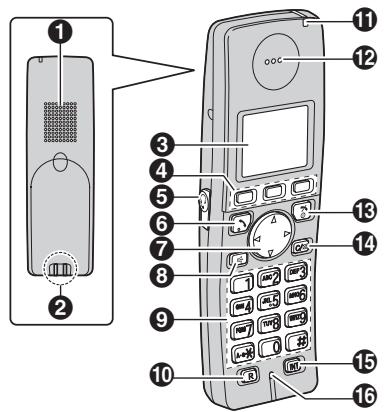
Handset
Speaker
Charge contact
3 Display
4 Soft keys
⑤ Headset jack
6【Talk)
7 Navigator key ([ ] / [ ] / [>] / [<])
3 [4] (Speakerphone)
Dial keypad
10 [R] (Recall)
Charge indicator/Ringer indicator/ Message indicator
12 Receiver
[70] (Off/Power)
14 [C/☑] (Clear/Mute)
[INT] (Intercom)
16 Microphone
Base unit (KX-TG8100)
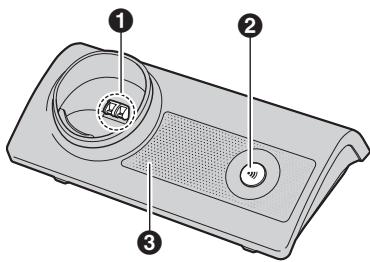
Charge contact
2 [·]) (Page)
Ringer
Base unit (KX-TG8120)
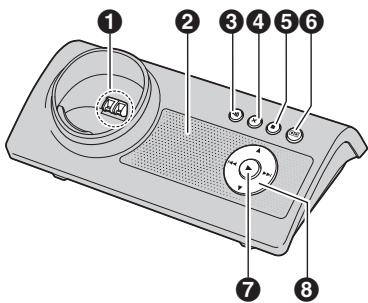
Charge contact
2 Speaker
3 【】(Page)
4 [X] (Erase)
5 【■】 (Stop)
6 [0] (Answer on)/Answer on indicator
7 [▶] (Play)/Message indicator
3 Navigator key ([ ] / [ ] / [ ] / [1 1])
Displays
Display icons
| Display icon | Meaning |
| Y | Within range of a base unit ● When flashing: Handset is searching for base unit. (out of range of base unit, handset is not registered to base unit, no power on base unit) |
| ••• | Handset is accessing base unit. (intercom, paging, changing base unit settings, etc.) |
| - | Handset is on an outside call. |
| → | Missed call*1 (page 25) |
| ○ | Answering system is on (page 31) and/or new messages have been recorded. *2 (page 32) |
| ○ | Answering system is full. *2 |
| ↔ | Answering system answers calls with a greeting message and caller message are not recorded. *2 (page 35) |
| ○ | Batteries are charging. |
| ○○ | Battery strength |
| ○ | Alarm is on. (page 21) |
| ○ | Voice enhancer is set to high or low tone. (page 14) |
| × | Ringer volume is off. (page 19) |
| ○ | Night mode is on. (page 21) |
| [2] | Handset number (standby display setting, page 19) |
Preparation
| Display icon | Meaning |
| -2- | Base unit number (standby display setting, page 19) |
| ◇ | New SMS message received*3 (page 28) |
| ◇ | Your written SMS message is over 160 characters. *3 (page 27) |
| ⊗ | SMS memory is full. *3 |
| IN USE | • Line is being used by another handset. • Answering system is being used by another handset or the base unit. *2 |
1 Caller ID subscribers only
2 KX-TG8120 only
*3 SMS users only
Menu icons
When in standby mode, pressing the middle soft key reveals the handset's main menu. From here you can access various features and settings.
| Menu icon | Menu/feature |
| Caller List | |
| SMS (Short Message Service) | |
| Time Settings (KX-TG8100 only) | |
| Answer System (KX-TG8120 only) | |
| Handset Setup | |
| Base Unit Setup | |
| Display Setup |
Soft keys
The handset features 3 soft keys. By pressing a soft key, you can select the feature or operation indicated by the soft key icon shown directly above it.
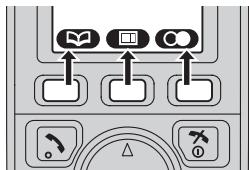
Soft key icons
| Soft key icon | Action |
| Returns to the previous screen. | |
| Displays the menu. | |
| OK | Accepts the current selection. |
| Displays a previously dialled phone number. | |
| Opens the handset phonebook. | |
| Displays the phonebook search menu. | |
| Turns the key lock feature off. (page 14) | |
| 1/1? | Displayed when adding or editing a phonebook entry, or when writing an SMS message. |
| Stops recording or playback. (KX-TG8120 only) | |
| P | Inserts a dialling pause. (page 14) |
| × | Erases the selected item. |
| Displayed when the soft key has no function. |
Connections
When connecting the AC adaptor to the base unit, a short beep will be heard. If it is not heard, check the connections.
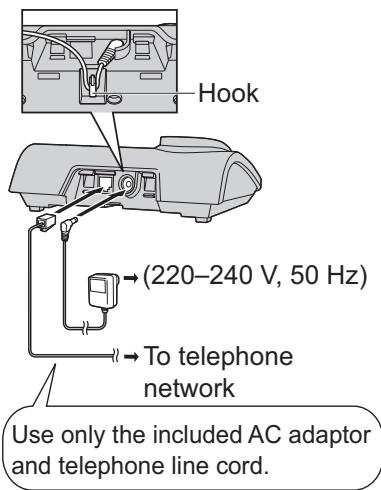
Note:
- Never install telephone wiring during a lightning storm.
- The AC adaptor must remain connected at all times. (It is normal for the adaptor to feel warm during use.)
- The AC adaptor should be connected to a vertically oriented or floor-mounted AC outlet. Do not connect the AC adaptor to a ceiling-mounted AC outlet, as the weight of the adaptor may cause it to become disconnected.
Location
- For maximum distance and noise-free operation, place your base unit:
away from electrical appliances such as TVs, radios, personal computers or other phones.
- in a convenient, high and central location.
Battery installation/replacement
Important:
- Use only the included rechargeable batteries noted on page 4, 5.
- When replacing batteries, we recommend using the Panasonic rechargeable batteries noted on page 4, 5.
1 Press the notch on the handset cover firmly and slide it in the direction of the arrow.
- When replacing batteries, remove the old batteries positive () terminal first.
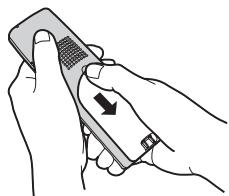
2 Insert the batteries negative (Θ) terminal first. Close the handset cover.

Battery charge
Place the handset on the base unit for about 7 hours before initial use.
When charging, and battery strength icon are alternately shown on the display. When the batteries are fully charged, remains on the display.
- The charge indicator lights up when the handset is placed on the base unit.
Preparation
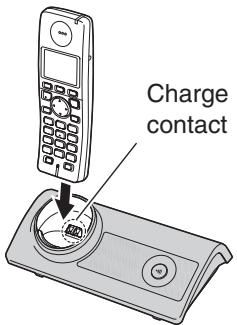
*The pictured model is KX-TG8100.
Note:
- It is normal for the handset to feel warm during charging.
- If you want to use the unit immediately, charge the batteries for at least 15 minutes.
- Clean the charge contacts of the handset and base unit with a soft, dry cloth once a month, otherwise the batteries may not charge properly. Clean more often if the unit is exposed to grease, dust or high humidity.
Battery strength
| Battery icon | Battery strength |
| High | |
| Medium | |
| Low When flashing: Needs to be charged. |
Panasonic Ni-MH battery performance (included batteries)
| Operation | Operating time |
| In continuous use | 12 hours max. |
| In continuous standby mode | 150 hours max. |
Note:
- It is normal for batteries not to reach full capacity at the initial charge. Maximum
battery performance is reached after a few complete cycles of charge/discharge (use).
- Actual battery performance depends on a combination of how often the handset is in use and how often it is not in use (standby).
- Battery operating time may be shortened over time depending on usage conditions and ambient temperature.
- Even after the handset is fully charged, the handset can be left on the base unit without any ill effect on the batteries.
- The battery strength may not be displayed correctly after you replace the batteries. In this case, place the handset on the base unit and charge for at least 7 hours.
Screen saver mode
The backlight will turn off completely after 1 minute of inactivity if the handset is not on the base unit.
To use the handset when it is in screen saver mode, first press [×○] to turn the display on again.
Turning the power on/off
Power on
Press【×0】for about 1 second.
Power off
Press [空0] for about 2 seconds.
Preparation
Symbols used in these operating instructions
| Symbol | Meaning |
| 田 | Press田 (middle soft key). |
| → | Proceed to the next operation. |
| OK | Press OK (middle soft key). |
| Select the mentioned handset menu icon (page 8). Example: (handset setup menu icon) Select by pressing [▲], [▼], [←], or [▶]. | |
| “” | Select the words in quotations shown on the display (e.g., “Time Settings”) by pressing [▲] or [▼]. |
*1 KX-TG8100 only
*2 KX-TG8120 only
Region settings
You can set the unit to use settings that match your country (page 24). The display language and other settings will change accordingly.
Display language
16 display languages are available.
You can select "Deutsch", "English".
“LIETUVISKAI”, “LatvieŠu”,
"Romānā", "БBJITAPCKN", "Srpski",
1 [× 0] (middle soft key)
2 Select by pressing [A], [V], [A], or [B]. OK (middle soft key)
3 Press [A] or [v] to select "Display Setup". OK
4 Press [A] or [V] to select "Select Language". OK
5 Press [▲] or [▼] to select the desired language.→OK →【×○】
Note:
- If you select a language you cannot read, press [×○], press [▼], press OK, press [▼] 2 times, press OK, press [▼] 3 times, press OK, select the desired language, then press OK. Press [×○].
Dialling mode (tone/pulse)
Change the dialling mode depending on your telephone line service.
"Bone": Select when you have a touch tone service.
"Pulse": Select when you have rotary or pulse service.
1 (middle soft key)
2 Select by pressing [▲], [▼], [←], or [▶]. → OK (middle soft key)
3 Press [▲] or [▼] to select "Call Options". → OK
4 Press [] or [] to select "Dial Mode". → OK
5 Press [▲] or [▼] to select the desired setting. → OK → [×○]
Date and time
1 (middle soft key)
2 Select by pressing [A], [V], [A], or [A]. OK (middle soft key)
Preparation
3 Press [] or [] to select "Time Settings". → OK
4 Press [] or [] to select "Set Date & Time". → OK
5 Enter the current day, month, and year. Example: 17 May, 2006 [1][7][0][5][0][6]
6 Enter the current hour and minute. Example: 3:30 PM [0][3][3][0] Press [×] until "03:30 PM" is displayed.
7 0k [,0]
Note:
- To correct a digit, press [] or [] to move the cursor, then make the correction.
- The date and time may be incorrect after a power failure. In this case, set the date and time again.
Making calls
1 Lift the handset and dial the phone number.
- To correct a digit, press [C / X] , then enter the correct number.
2 【~】
3 When finished talking, press [x0] or place the handset on the base unit.
Speakerphone
1 During a conversation, press [4] to turn on the speakerphone.
- Speak alternately with the caller.
2 When finished talking, press [空0] .
Note:
- For best performance, use the speakerphone in a quiet environment.
- To switch back to the receiver, press 【】.
To adjust the receiver or speaker volume Press [ ] or [ ] while on a call.
Redial feature
Previously dialled phone numbers (each 24 digits max.) can be redialled.
To make a call using the radial list
The last 10 phone numbers dialled are stored in the radial list.
1 (right soft key)
2 Press [▲] or [▼] to select the desired number.
3 【/【
- If [] is pressed and the other party's line is engaged, the unit will automatically redial up to 11 more times. While the handset is waiting to redial, the ringer indicator will flash. To cancel, press [× 0] .
To edit a number in the radial list before calling it
1 (right soft key)
2 Press [▲] or [▼] to select the desired number. →
3 "Edit and Call" OK
4 Press [] or [] to move the cursor. Edit the number.
- Place the cursor on the number you wish to erase, then press C / x
- Place the cursor to the right of where you want to insert a number, then press the appropriate dial key.
5 【 一 1/【 一 1/OK
To erase numbers in the radial list
1 (right soft key)
2 Press [] or [] to select the desired number. →
3 "Erase" OK
- If you want to erase all numbers in the list, select "Erase All", then press OK.
4 “Yes”→OK→[70]
To store a number from the radial list into the handset phonebook
1 (right soft key)
2 Press [] or [] to select the desired number. →
3 "Add Phonebook" OK
4 Enter a name (16 characters max.; page 41). OK
5 Edit the phone number if necessary. OK
6 Select the desired category (page 16). OK
7 "Save" OK [X0]
Making/Answering Calls
Other features
Voice enhancer
You can change the tone quality of the receiver while you are on a call.
1 Press during a call.
- For KX-TG8120 users, select "Voice Enhancer", then press OK.
2 "High Tone" Or "Low Tone" OK
is displayed.
Mute
While mute is turned on, you will be able to hear the other party, but the other party will not be able to hear you.
To mute your voice, press [C / x] .
To return to the conversation, press C / x again.
Key lock
The handset can be locked so that no calls or settings can be made. Incoming calls can be answered, but all other functions are disabled while key lock is on.
To turn key lock on, press (middle soft key) for about 2 seconds.
- _0 is displayed.
To turn key lock off, press (middle soft key) for about 2 seconds.
R button (to use the recall feature)
[R] is used to access optional telephone services. Contact your service provider/telephone company for details.
Note:
- If your unit is connected to a PBX (private branch exchange), pressing [R] can allow you to access certain features of your host PBX such as transferring an extension call. Consult your PBX dealer for details.
- You can change the recall time (page 23).
Pause button (for PBX/long distance service users)
A pause is sometimes required when making calls using a PBX or long distance service.
Example: If you have to dial [0] before dialling outside numbers manually, you will probably need to pause after dialling [0] until you hear a dial tone.
1 [0]→P
2 Dial the phone number. [ ]/ [ ]
Note:
- A 3 second pause is inserted each time P is pressed. Press repeatedly to insert longer pauses.
Temporary tone dialling (for rotary or pulse service users)
You can temporarily switch the dialling mode to tone when you need to access touch tone services (e.g., telephone banking services).
1 Make a call.
2 Press [ ] when prompted to enter your code or PIN, then press the appropriate dial keys.
Note:
- The dialling mode will return to pulse when you hang up.
Recording a telephone conversation (KX-TG8120 only)
Important:
- Before recording a conversation, you should inform the other party that the conversation will be recorded.
1 Press during an outside call.
2 "Record Call" OK
3 To stop recording, press .
Note:
- To listen to the recorded conversation, see page 32.
Answering calls
1 Lift the handset and press [or] when the unit rings.
- You can also answer a call by pressing any dial key from [0] to [9], [×], [#], or [INT]. (Any key answer feature)
2 When finished talking, press [x0] or place the handset on the base unit.
Auto talk feature
You can answer calls simply by lifting the handset off the base unit. You do not need to press [ ] .To turn this feature on, see page 20.
To adjust the handset ringer volume when receiving a call
Press [A] or [V].
Handset locator
Using this feature, you can locate the handset if it has been misplaced.
1 Press [ ] on the base unit.
2 To stop paging, press [ ] on the base unit or press [ ] on the handset.
Phonebook
Handset phonebook
The handset phonebook allows you to make calls without having to dial manually. You can add 200 names and phone numbers to the handset phonebook, assign each handset phonebook entry to the desired category.
Adding entries to the handset phonebook
1 (left soft key)
2 "New Entry" OK
3 Enter the party's name (16 characters max.; page 41). OK
4 Enter the party's phone number (24 digits max.). OK
5 Select the desired category. OK
6 "Save" OK [X0]
Categories
Categories can help you find entries in the handset phonebook quickly and easily. When adding an entry to the handset phonebook you can assign it to the desired category. You can change the names of categories assigned for handset phonebook entries ("Friends", "Family", etc.) and then search for handset phonebook entries by category. Additional category features are available for Caller ID subscribers (page 25).
Changing category names
1 (left soft key)
2 "Category" OK
3 Select the desired category. OK
4 "Category Name" OK
5 Edit the name (10 characters max.; page 41). OK 【 × 0】
Finding and calling a handset phonebook entry
Handset phonebook entries can be searched for by first character, by category, or by scrolling through all handset phonebook entries.
When you have found the desired entry, press [ ]
Scrolling through all entries
1 (left soft key)
2 Press [▲] or [▼] to display the desired entry.
Searching by first character (index search)
1 (left soft key)
2 Press the dial key ([0] to [9]) which contains the character you are searching for (page 41).
- Press the same dial key repeatedly to display the first entry corresponding to each letter located on that dial key.
- If there is no entry corresponding to the letter you selected, the next entry will be displayed.
- To change the character entry mode:
"Index Search" OK
Select the character entry mode.
OK
3 Press [▲] or [▼] to scroll through the phonebook if necessary.
Searching by category
1 (left soft key)
2 "Category Search" OK
3 Select the category you want to search. OK
- If you select "A11", the unit will end the category search.
4 Press [A] or [v] to scroll through the phonebook if necessary.
Editing entries in the handset phonebook
Changing a name, phone number, category
1 Find the desired entry (page 16).
2 "Edit" OK
3 Edit the name if necessary (16 characters max.; page 41). OK
4 Edit the phone number if necessary (24 digits max.). OK
5 Select the desired category. OK
6 "Save" OK [X0]
Erasing entries from the handset phonebook
Erasing an entry
1 Find the desired entry (page 16).
2 "Erase" OK
3 “Yes”→OK→[70]
Erasing all entries
1 (left soft key)
2 "Erase All" OK
3 "Yes" OK
4 “Yes”→OK→[70]
One touch dial
Assigning an entry in the handset phonebook to a one touch dial key
Dial keys [1] to [9] can each be used as a one touch dial key, allowing you to dial a
number from the handset phonebook by simply pressing a dial key.
1 Find the desired entry (page 16).
2 "One Touch Dial" OK
3 Press [] or [] to select the desired dial key number. OK
- When the dial key is already used as a one touch dial key, “*” is displayed next to the dial key number. If you select this dial key, you can overwrite the previous assignment.
4 "Save" OK [X0]
Making a call using a one touch dial key
1 Press and hold the desired one touch dial key ([1] to [9]).
- You can view other one touch dial assignments by pressing [▲] or [▼].
2 【/【
Erasing a one touch dial assignment
1 Press and hold the desired one touch dial key ([1] to [9]).
2 "Erase" OK
3 “Yes”→OK→[x0]
Note:
- The corresponding handset phonebook entry is not erased.
Chain dial
This feature allows you to dial phone numbers in the handset phonebook while you are on a call. This feature can be used, for example, to dial a calling card access number or bank account PIN that you have stored in the handset phonebook, without having to dial manually.
1 While on a call, press
Phonebook
2 Press [▲] or [▼] to select the desired entry.
- To search by first character (index search), see page 16. To search by category, see page 16.
3 Press OK to dial the number.
Handset settings
- When customising the handset, the current item or setting is highlighted.
To customise the handset:
1 (middle soft key)
2 Select ±b by pressing [A], [V], [A], or [A]. OK (middle soft key)
3 Press [A] or [V] to select the desired item in the handset settings menu. OK
4 Press [A] or [v] to select the desired item in the sub-menu. OK
- In some cases, you may need to select from a second sub menu. OK
5 Press [▲] or [▼] to select the desired setting then press OK or follow the instruction in the "Feature" column of the chart.
To exit the operation, press 水 0
| Handset settings menu | Sub-menu | Sub-menu 2 | Feature (default setting) |
| Time Settings | Set Date & Time | — | Date and time: page 11 |
| Alarm | — | Set the alarm: page 21 | |
| Ringer Setup | Ringer Volume | — | Handset ringer volume (Maximum)*1 |
| Ext. Ringtone | — | Ringtones for outside calls (“Ringtone 1”)*2 | |
| Int. Ringtone | — | Ringtones for intercom calls (“Ringtone 3”)*3 | |
| Night Mode | Start/End | (23:00/06:00): page 21 | |
| On/Off | (“Off”: page 21 | ||
| Ring Delay | (“60 sec.”): page 21 | ||
| Select Category | page 22 | ||
| Display Setup | Wallpaper | — | (“Wallpaper1”) |
| Display Colour | — | (“Colour1”) | |
| Standby Display | — | Standby mode display (“Off”)*4 | |
| Select Language | — | Display language (“English”)*5: page 11 | |
| Contrast | — | Display contrast (“Contrast 3”) | |
| Registration | Register H.set | — | page 37 |
| Select Base | — | — | Select a base unit (“Auto”: page 38 |
Handset Settings
| Handset settings menu | Sub-menu | Sub-menu 2 | Feature (default setting) |
| Other Options | New Msg. Alert | — | New message alert (“Off”)6 |
| Keytones | — | Keytones on/off (“On”) | |
| Auto Talk | — | Auto talk on/off (“Off”)7 |
*1 When the ringer volume is turned off, is displayed.
When the ringer is turned off, the handset will ring:
-
at the minimum level for alarm and intercom calls
-
at the maximum level for paging
2 If you select one of the melody ringtones, the ringtone will continue to sound for several seconds if the caller hangs up before you answer. You may hear a dial tone or no one on the line when you answer a call.
The preset melodies in this product are used with permission of © 2004 M-ZoNE Co., Ltd.
3 The preset melodies in this product are used with permission of © 2004 M-ZoNE Co., Ltd.
*4 If "off" is selected, only current date and time are displayed.
If "Handset Number" is selected and the current handset number is 2, "[2]" is displayed.
If "Base Number" is selected and the current base unit number is 2, "-2-" is displayed.
*5 The default display language will be as follows if you select the following regional codes when changing the unit's region setting (page 24):
"CZ"="CeStina"
"SK"="slovensky"
*6 This feature alerts you when new messages have been received or recorded:
- SMS (page 27)
- Answering system (KX-TG8120 only; page 31)
The message indicator on the handset flashes until you have read or listened to all new messages.
While message alert is on, battery operating time is shortened (page 10).
*7 Auto talk feature allows you to answer calls simply by lifting the handset off the base unit. You do not need to press [ ]
Handset Settings
Time settings
Alarm
An alarm will sound for 3 minutes at the set time once or daily. Set the date and time beforehand (page 11).
1 (middle soft key) OK
2 "Time Settings" OK
3 "Alarm" OK 2 times
4 Select an alarm mode. OK
| Off | Turns alarm off. Press OK again, then press [×○] to finish. |
| Once | The alarm sounds once at the set time. Enter the desired day and month. |
| Daily | An alarm sounds daily at the set time. |
5 Enter the desired hour and minute. OK
6 Select the desired ringtone. OK
7 "Save" OK [X0]
- When the alarm is set, is displayed.
Note:
- To stop the alarm, press any dial key.
- When in talk or intercom mode, the alarm will not sound until the call has ended.
- If you select "Once", the setting will change to "off" after the alarm sounds.
Ringer setup
Night mode
Night mode allows you to select a block of time during which the handset will not ring for outside calls. This feature is useful for
times when you do not want to be disturbed, for example, while sleeping. Using the handset phonebook's category feature (page 16), you can also select categories of callers whose calls will override night mode and ring the handset (Caller ID subscribers only). Set the date and time beforehand (page 11).
Note:
- We recommend turning the base unit ringer off (page 23) in addition to turning the night mode feature on.
Setting the start and end time for night mode
1 (middle soft key) OK
2 "Ringer Setup" OK
3 "Night Mode" OK
4 "Start/End" OK
5 Enter the desired hour and minute you wish to start this feature.
6 Enter the desired hour and minute you wish to end this feature.
7 0K [_]
Turning night mode on/off
1 (middle soft key) (OK)
2 "Ringer Setup" OK
3 "Night Mode" OK
4 "On/off" OK
5 “On” or “Off” → OK → {×①}
- When the night mode is set, 是 is displayed.
Setting the ring delay for night mode This setting allows the handset to ring during night mode if the caller waits long enough. After the selected amount of time passes, the handset will ring. If you select "No Ringing", the handset will not ring during night mode.
1 (middle soft key) OK
Handset Settings
2 "Ringer Setup" OK
3 "Night Mode" OK
4 "Ring Delay" OK
5 Select the desired setting. OK 【 × 0 】
Note:
- When the answering system answers the call, this feature does not work (KX-TG8120 only).
Selecting categories to bypass night mode
1 (middle soft key) (OK)
2 "Ringer Setup" OK
3 "Night Mode" OK
4 "Select Category" OK
5 Press the desired category numbers. OK
- The selected category number will flash.
- To cancel a selected category number, press the number again. The number will stop flashing.
6 \ ① .
Base unit settings
- Use the handset to customise the base unit.
- When customising the base unit, the current item or setting is highlighted.
To customise the base unit:
1 (middle soft key)
2 Select by pressing [], [], [] , or [] OK (middle soft key)
3 Press [▲] or [▼] to select the desired item in the base unit settings menu. → OK
4 Press [A] or [v] to select the desired item in the sub-menu. OK
5 Press [▲] or [▼] to select the desired setting then press OK or follow the instruction in the "Feature" column of the chart.
To exit the operation, press 水 0
| Base unit settings menu | Sub-menu | Feature (default setting) |
| Ringer Volume | — | Base unit ringer volume (Medium) |
| Call Options | Dial Mode | ("Tone"): page 11 |
| Recall/Flash | Change the recall time*1 ("600 msec.)*2). | |
| Call Restrict | page 24 | |
| Other Options | Base Unit PIN | Change base unit PIN ("0000").*3 - Enter the current 4-digit base unit PIN. → Enter the new 4-digit base unit PIN. → OK |
| Repeater Mode | ("Off"): page 39 | |
| Country | Change the unit's region setting ("EG"): page 24 |
*1 Change the recall time, if necessary, depending on the requirements of your service provider/telephone company or PBX.
*2 The default setting will be as follows if you select the following regional codes when changing the unit's region setting (page 24):
CZ=100 msec.
SK=100 msec.
*3 If you change the PIN, please make note of your new PIN. The unit will not reveal the PIN to you. If you forget your PIN, consult your nearest Panasonic service centre.

Base Unit Settings
Call options
Setting call restriction
You can restrict selected handsets from dialling certain numbers. You can assign up to 6 phone numbers to be restricted, and select which handsets will be restricted. Storing area codes here will prevent the restricted handsets from dialling any phone number in that area code.
1 (middle soft key) OK
2 "Call Options" OK
3 "Call Restrict" OK
4 Enter the base unit PIN (default: "0000").
5 Set which handsets will be restricted by pressing the desired handset number.
- All the registered handset numbers will be displayed.
- Flashing numbers indicate call restriction is turned on for the corresponding handset.
- To turn call restriction off for a handset, press the number again. The number will stop flashing.
6 OK
7 Select a memory location. OK
8 Enter the phone number or area code to be restricted (8 digits max.). OK →【 心 0 】
To erase a restricted number, press C / 且 .
Changing the unit's region setting/Resetting the base unit
1 (middle soft key) OK
2 "Other Options" OK
3 "Country" OK
4 Select the desired country. OK
"EG"=countries except Czech and
Slovakia
“cz”=Czech
"SK" = Slovakia
5 “Yes”→OK→【7①】
Note:
-
The following items will be deleted or reset to their default settings:
-
Settings listed on page 23, 29, 35
- All SMS messages
- Caller list
The following items will be retained:
- Date and time
- Repeater mode
-
Recordings, including your greeting message, caller messages, and recorded conversations (KX-TG8120 only)
-
If you select the desired country in step 4, the following default settings will be changed for the selected country's default settings:
-
Message centre 1 and 2 (page 29)
- Recall time (page 23)
- Language (page 19)
-
SMS on/off (page 29)
Language used for answering system announcements (KX-TG8120 only) -
After changing the unit's region setting/resetting the base unit, Y will flash on the handset momentarily. This is normal. The handset can be used once Y stops flashing.
Using Caller ID service
Important:
- This unit is Caller ID compatible. To use Caller ID features (such as displaying caller phone numbers), you must subscribe to Caller ID service. Consult your service provider/telephone company for details.
Caller ID features
When an outside call is received, the caller's phone number will be displayed.
- Phone numbers of the last 50 callers will be logged in the caller list.
- While listening to a message recorded by the answering system using the handset, you can call back the caller without having to dial the phone number (KX-TG8120 only; page 33).
-
When caller information is received and it matches a phone number stored in the unit's phonebook:
-
The stored name will be displayed and logged in the caller list.
-
The handset will use the display colour and ringtone assigned to the caller's category.
-
If the unit is connected to a PBX system, you may not receive the caller information
- When the caller dialled from an area which does not provide Caller ID service, "Out of Area" will be displayed.
- When the caller requested not to send caller information, either no information or "Private Caller" will be displayed.
Missed calls
If a call is not answered, the unit treats the call as a missed call. and the number of missed calls are shown on the display. This lets you know if you should view the caller list to see who called while you were out.
Category features for handset phonebook
Categories can help you identify who is calling by using different ringtones and display colours for different categories of callers. When adding an entry to the handset phonebook you can assign it to the desired category (page 16). When a call is received from a caller assigned to a category, the category's display colour and ringtone you selected are used.
Changing category ringtones
If you select "Ext. Ringtone", the unit will use the external ringtone you set on page 19 when calls from this category are received. The default setting is "Ext.
Ringtone".
1 (left soft key)
2 "Category" OK
3 Select a category. OK
4 Select the current setting of the category ringtone. OK
5 Select the desired ringtone. OK 【70】
Changing category display colours
If you select "Display Colour", the unit will use the display colour you set on page 19 when calls from this category are received. The default setting is "Display Colour".
1 (left soft key)
2 "Category" OK
3 Select a category. OK
4 Select the current setting of the category colour. OK
5 Select the desired colour. OK → 【×①】
Caller ID Service
Caller list
Viewing the caller list and calling back
1 (middle soft key) OK
2 Press [v] to search from the most recent call, or press [A] to search from the oldest call.
- If the item has already been viewed or answered, “ ” is displayed, even if it was viewed or answered using another handset.
To erase the item, press . "Yes" OK
3 【/【
Editing a caller's phone number before calling back
1 (middle soft key) OK
2 Press [▲] or [▼] to display the desired entry.
3 1 "Edit and Call" OK
4 Edit the number.
- Press dial key ([0] to [9]) to add, [C/☑] to delete.
5 【 一 1/【 一 1/OK
Erasing caller information
1 (middle soft key) OK
2 Press [A] or [V] to display the desired entry.
3 "Erase" OK
To erase all entries, select "Erase All". OK
4 “Yes”→OK→{0}
Storing caller information into the handset phonebook
1 (middle soft key) OK
2 Press [A] or [V] to display the desired entry.
3 "Add Phonebook" OK
4 Continue from step 3, "Adding entries to the handset phonebook", page 16.
Voice mail service
Voice mail is an automatic answering service offered by your service provider/telephone company. If you subscribe to this service, your service provider/telephone company's voice mail system will answer calls for you when you are unavailable to answer the phone or when your line is busy. Messages are recorded by your service provider/telephone company, not your telephone. Please consult your service provider/telephone company for details of this service.
Note:
- For more information on using the unit's answering system and your service provider/telephone company's voice mail service, see page 35. (KX-TG8120 only)



Using SMS (Short Message Service)
SMS allows you to send and receive text messages between other fixed-line and mobile phones that support compatible SMS networks and features.
Important:
To use SMS features, you must:
- subscribe to the Caller ID and/or appropriate service
- confirm SMS is turned on
- confirm the correct message centre numbers are stored
Consult your service provider/telephone company for details and availability.
Note:
- A total of 47 messages (at 160 characters/message) can be saved. Total number may be more than 47 if length of messages is less than 160 characters/message.
- If the unit is connected to a PBX system, you may not be able to use SMS features.
Turning SMS on/off
1 (middle soft key) OK
2 "Settings" OK
3 "SMS On/Off" OK
4 “On” or “Off” → OK → {x0}
Storing/changing SMS message centre numbers
SMS message centre telephone numbers must be stored in order to send and receive SMS messages.
For Czech:
The message centre numbers (used for SMS services provided by Czech Telecom) are preprogrammed in this unit. You can change them if necessary.
For Slovakia:
The message centre numbers (used for SMS service provided by Slovak Telecom) are preprogrammed in this unit. You can change them if necessary.
- Consult your service provider/telephone company for more information.
1 (middle soft key) OK
2 "Settings" OK
3 "Message Centre1" or "Message Centre2" OK
4 Enter/edit the numbers. OK
5 "Save" OK [X0]
Note:
- If your phone is connected to a PBX, you need to add the PBX line access number and a dialling pause to the beginning of the Message Centre 1 phone number. (For Czech and Slovakia only)
For Message Centre 2, store the Message Centre 1 phone number as is, without adding a line access number or dialling pause.
Sending a message
Writing and sending a new message
1 (middle soft key) OK
2 "Create" OK
- If “▲Use Last Text?” is displayed, you can use the text from the last message you created by pressing [▲].
3 Enter the message (page 41). OK
SMS (Short Message Service)
4 Enter the destination phone number (20 digits max.). OK
- Using the handset phonebook:
[ \rightarrow ] Select the handset phonebook entry. → OK 2 times
Using the caller list: Press [A] or [V] to select the party. OK 2 times
Using the radial list: Press repeatedly to select the phone number. OK 2 times
5 To save the message, select "Yes". OK
6 To send the message, press OK. -To cancel sending, press 【 70
Note:
- This unit supports SMS messages of up to 612 characters, however, the maximum number of characters you can send or receive may be limited by your SMS service provider/telephone company. Consult your SMS service provider/telephone company for details.
- If your message contains over 160 characters, the message is a long message and l is displayed. Your service provider/telephone company may treat long messages differently from other messages. Consult your service provider/telephone company for details.
- If your phone is connected to a PBX, store the PBX line access number (page 29).
Sending a saved message
1 (middle soft key) OK
2 "Send List" OK
3 To read a saved message, press [▲] or [▼] to select the message. → OK
4 To send the message, press 1 . "Send" OK
5 Press and hold [C / ] to erase all numbers, then continue from step 4,
"Writing and sending a new message", page 27.
Editing and sending a saved message
1 (middle soft key) OK
2 "Send List" OK
3 Press [A] or [V] to select the message. OK
4 "Edit Message" OK Continue from step 3, "Writing and sending a new message", page 27.
Erasing saved messages
1 (middle soft key) OK
2 "Send List" OK
3 Press [A] or [v] to select the message. OK
4 0 →“Erase”→OK
To erase all messages, select "Erase All". OK
5 “Yes”→OK →【×①】
Receiving a message
When an SMS message is received:
- a tone is heard (if the handset ringer is turned on)
-
"Receiving SMS Message" is displayed
-
~~一~ is displayed
- the message indicator on the handset flashes if the message alert feature (page 20) has been turned on
- the total number of new (unread) SMS messages is displayed next to
Reading a received message
1 (middle soft key) OK
2 "Receive List" OK
3 Press [A] or [V] to select a message.
- Messages which have already been read are indicated by a “ ”, even if they were read using another handset.
To erase a message, press . "Yes" OK
4 Press OK to read the message content.
Note:
To call the message sender, press [] or [\&] .
Replying to a message
1 While reading a received message, press
2 "Reply" OK
3 Enter a message (page 41). OK
4 Edit the destination phone number and/or press OK.
5 Continue from step 5, "Writing and sending a new message", page 27.
Editing/forwarding a message
1 While reading a received message, press l
2 "Edit Message" OK
3 Continue from step 3, "Writing and sending a new message", page 27.
Erasing received messages
1 While reading a received message, press
2 "Erase" OK
To erase all messages, select "Erase All". OK
3 “Yes”→OK→[x0]
Storing the sender's number in the handset phonebook
1 While reading a received message, press
2 "Add Phonebook" OK
3 Continue from step 3, "Adding entries to the handset phonebook", page 16.
Editing the sender's number before calling back
1 While reading a received message, press
2 "Edit and Call" OK
3 Edit the number. [ ]/ [ ]
SMS settings
If the base unit is reset to its default settings (page 24), the following SMS-related settings will be reset. The contents of the receive and send lists will be erased.
| SMS settings | Page |
| SMS on/off (default: “Off”)*1 | page 27 |
| Message Centre 1 | page 27 |
| Message Centre 2 | page 27 |
| PBX line access number (default: “Off”) | page 29 |
*1 If you set the unit's region setting (page 24) to "cz" or "sk", the default setting is "On".
Storing the PBX line access number (for PBX users only)
Store your PBX line access number (4 digits max.) so that SMS messages are sent properly. When sending SMS messages to entries in the handset phonebook or radial
SMS (Short Message Service)
list, the PBX line access number will be deleted.
1 (middle soft key) OK
2 "Settings" OK
3 "PBX Access No." OK
4 "on" OK
5 Enter your PBX line access code and a dialling pause, if necessary. OK
6 "Save" OK [70]
Answering System Features (KX-TG8120 only)
Answering system
The KX-TG8120 contains an answering system which can answer and record calls for you when you are unavailable to answer the phone. You can also record phone conversations (page 14).
Important:
- Only 1 person can access the answering system (listen to messages, record a greeting message, etc.) at a time.
- When callers leave messages, the unit records the day and time of each message. Make sure the date and time have been set (page 11).
Memory capacity
The total recording capacity (including your greeting message, caller messages, and recorded conversations) is about 40 minutes. A maximum of 64 messages can be recorded.
Note:
-
If message memory becomes full:
-
"Answer Sys. Full" is shown on the handset display
-【co】on the base unit flashes rapidly
Turning the answering system on/off
Using the base unit
Press【】to turn on/off the answering system.
- When the answering system is turned on, 【】 lights up.
Using the handset
1 (middle soft key) OK
2 "Answer On" OR "Answer Off" OK [x①]
Note:
- When the answering system is turned on, is displayed next to the battery icon.
Greeting message
When the unit answers a call, callers are greeted by a greeting message. You can record your own greeting message or use a prerecorded greeting message.
Recording a greeting message
You can record your own greeting message (50 seconds max.).
1 (middle soft key) OK
2 "Record Greeting" OK
- Hold the handset about 20 ~cm away and speak clearly into the microphone.
3 Press to stop recording. →【×①】
Using a prerecorded greeting message
If you erase or do not record your own greeting message, the unit will play a prerecorded greeting message for callers and ask them to leave messages. If the message recording time (page 35) is set to "Greeting Only", caller messages will not be recorded and the unit will play a different prerecorded greeting message asking callers to call again.
Playing back the greeting message
1 (middle soft key) OK
2 "Play Greeting" OK 【 × 0 】

Answering System Features (KX-TG8120 only)
Erasing the greeting message
If you erase your own greeting message, the unit will play a prerecorded greeting message for callers.
1 (middle soft key) 0K
2 "Erase Message" OK
3 "Erase Greeting" OK
4 “Yes”→OK→{0}
Listening to messages
Messages are stored and played back chronologically, from oldest message to newest.
Listening to new/all messages
When you have new messages:
-【▶】on the base unit flashes
- the message indicator on the handset flashes if the message alert feature (page 20) has been turned on
- is displayed
- the total number of new messages is displayed next to
Note:
To adjust the speaker volume during playback, press [A] or [V].
Using the base unit
Press [▶].
- If new messages have been recorded, the base unit plays back new messages.
- If there are no new messages, the base unit plays back all messages.
Note:
- After playing back all of the new messages, [ ] will stop flashing but [ ] will remain lit up when the answering system is turned on.
Using the handset
1 (middle soft key) OK
2 "Play New Msg." Or "Play All Msg." OK
Repeating, skipping, stopping, erasing a message during playback
To repeat a message during playback:
- for the base unit, press [1]
- for the handset, press [←]
If pressed within the first 5 seconds of a message, the previous message will be played.
To skip a message during playback:
- for the base unit, press [ ]
-
for the handset, press [▶]
-
To stop a message during playback:
-
for the base unit, press [■]
- for the handset, press
To erase a message during playback:
- for the base unit, press [X]
- for the handset, press . → “Yes”
$$ \rightarrow \mathbf {O K} $$
Erasing all messages
Using the base unit
Press [X] 2 times.
Using the handset
1 (middle soft key) OK
2 "Erase Message" OK
3 "Erase All" OK
4 “Yes”→OK→{0}

Answering System Features (KX-TG8120 only)
Calling back (Caller ID subscribers only)
If caller information was received for the call, you can call the caller back while listening to a message.
1 Press during playback.
2 "Call Back" OK
Editing the number before calling back
1 Press during playback.
2 "Edit and Call" OK
3 Edit the number. OK
Direct command operation using the handset
You can operate the answering system by pressing dial keys, rather than navigating through the menus. To use the following commands, press (middle soft key). OK
| Key | Direct commands |
| [1] | Repeat message (during playback)*1 |
| [2] | Skip message (during playback) |
| [3] | Enter the “Settings” menu |
| [4] | Play new messages |
| [5] | Play all messages |
| [6] | Play greeting message |
| [7][6] | Record greeting message |
| [8] | Turn answering system on |
| [9] | Stop (recording, playback) |
| [0] | Turn answering system off |
| [*][4] | Erase this message (during playback) |
| Key | Direct commands |
| [∗][5] | Erase all messages |
| [∗][6] | Erase greeting message |
*1 If pressed within the first 5 seconds of a message, the previous message will be played.
Remote operation
Using a touch tone phone, you can call your phone number from outside and access the unit to listen to messages or change answering system settings.
Important:
- In order to operate the answering system remotely, you must first turn on remote operation by setting a remote access code. This code must be entered each time you operate the answering system remotely.
Turning remote operation on
A 3-digit remote access code must be entered when operating the answering system remotely. This code prevents unauthorized parties from listening to your messages remotely. After you store your remote access code, remote operation is possible.
1 (middle soft key) OK
2 "Settings" OK
3 "Remote Code" OK
4 To turn on remote operation, enter a 3-digit remote access code.
To turn off remote operation, press [ ]
5 0K [_]

Answering System Features (KX-TG8120 only)
Note:
- If you have stored the remote access code, you can turn on answering system by calling the unit even when it is turned off. This call may be answered before the ring delay feature of the night mode (page 21) activates. You need to select “30 sec.” for activating the ring delay feature.
Using the answering system remotely
1 Dial your phone number from a touch tone phone.
2 After the greeting message starts, enter your remote access code.
- The unit will announce the number of new messages.
3 Enter remote commands.
Note:
- You can hang up at any time.
- If less than 5 minutes of recording time is available, the unit will announce the remaining recording time after the last message is played back.
Remote commands
| Key | Remote command |
| [1] | Repeat message (during playback)*1 |
| [2] | Skip message (during playback) |
| [4] | Play new messages |
| [5] | Play all messages |
| [6] | Play greeting message |
| [7] | Record greeting message |
| [9] | Stop (recording, playback) |
| [0] | Turn answering system off |
| [*][4] | Erase this message (during playback) |
| [*][5] | Erase all messages |
| [*][6] | Erase greeting message (during greeting message playback) |
| [*][#] | End remote operation (or hang up) |
*1 If pressed within the first 5 seconds of a message, the previous message will be played.
Turning on the answering system remotely
If the answering system is off, you can turn it on remotely.
1 Dial your phone number from a touch tone phone.
2 Let the phone ring 9 times.
A long beep will be heard.
3 Enter your remote access code within 10 seconds after the long beep.
- The greeting message is played back.
Answering System Features (KX-TG8120 only)
- You can hang up, or enter your remote access code again and begin remote operation.
Answering system settings
If the base unit is reset to its default settings (page 24), the following answering system-related settings will be reset.
| Answering system setting | Default setting | Page |
| Answering system on/off | Answer On | page 31 |
| Remote access code | — | page 33 |
| Number of rings | 4 Rings | page 35 |
| Caller's recording time | 3 Minutes | page 35 |
| Call screening | On | page 35 |
Changing the number of rings
You can change the number of times the phone rings before the unit answers calls. You can select 2 to 6 rings, or "Auto". "Auto": The unit answers after 2 rings when new messages have been recorded, and after 5 rings when there are no new messages. If you call your phone from outside to listen to new messages (page 34), you will know that there are no new messages when the phone rings for the 3rd time. You can then hang up without being charged for the call.
1 (middle soft key) OK
2 "Settings" OK
3 "Number of Rings" OK
4 Select the desired setting. OK → 【×①】
For voice mail service subscribers Please note the following:
- To receive messages correctly with your voice mail service, we recommend that you do not use the unit's answering system. Make sure that the answering system is turned off (page 31).
- If you would rather use the unit's answering system than the voice mail service provided by your service provider/telephone company, ask your service provider/telephone company to deactivate your voice mail service. If your service provider/telephone company cannot do this, set this unit's "Number of Rings" setting so that this unit's answering system answers calls before your service provider/telephone company's voice mail service tries to answer your calls. It is necessary to check the number of rings required to activate the voice mail service provided by your service provider/telephone company before changing this setting.
Selecting the caller's recording time
You can change the maximum message recording time allotted to each caller, or set the unit to greet callers but not record messages.
1 (middle soft key) OK
2 "Settings" OK
3 "Recording Time" OK
4 Select the desired setting. OK → 【×①】
Turning call screening on/off
While a caller is leaving a message, you can screen the call through the handset speaker.
Answering System Features (KX-TG8120 only)
1 (middle soft key) OK
2 "Settings" OK
3 "Call Screening" OK
4 "On" or "Off" OK [X0]
Operating additional units
Additional handsets
Up to 6 handsets can be registered to a single base unit. Additional handsets will give you the freedom to, for example, have an intercom call with another handset while a third handset is on an outside call. See page 4 for information on ordering additional handsets.
Important:
- The additional handset model recommended for use with this unit is noted on page 4. If other model handset is used, certain operations (handset settings, base unit settings, etc.) may not be available.
Additional base units
Handsets can be registered to up to 4 base units, allowing you to add additional base units and extend the area in which your handset(s) can be used. If a handset moves out of range of its base unit when "Auto" is selected on base unit selection (page 38), it will look for another base unit to make or receive calls. A base unit and the handsets it communicates with is called a "radio cell".
Note:
- Calls will be disconnected when the handset moves from one radio cell to another.
Registering a handset to a base unit
The included handset and base unit are preregistered. If for some reason the handset is not registered to the base unit (for example, flashes even when the handset
is near the base unit), register the handset manually (page 37).
To register an additional handset to a base unit (easy registration)
After purchasing an additional handset, register it to the base unit. Ensure that the additional handset is switched on. If it is not on, press and hold [×○] for few seconds to turn the handset on.
1 Lift the additional handset and press 0 to put the handset in standby mode.
2 Press and hold []) on the base unit for about 3 seconds, until the registration tone sounds.
3 Place the additional handset on the base unit. The registration tone continues to sound. With the handset still on the base unit, wait until a confirmation tone sounds and stops flashing.
Note:
- If an error tone sounds, or if is still flashing, register the handset manually (manual registration; page 37).
- If all registered handsets start ringing in step 2, press [] to stop. Start again from step 1.
- Charge the batteries of your additional handset for about 7 hours before initial use.
- This registration method cannot be used for handsets that have already been registered to a base unit. Register the handset manually (manual registration; page 37).
To register a handset to an additional base unit (manual registration)
You can register a handset to a base unit manually using the following method.
1 (middle soft key) OK
2 "Registration" OK
Multi-unit Operation
3 "Register H.set" OK
4 Select a base unit number. OK
- This number is used by the handset as a reference only.
5 Press and hold []) on the base unit for about 3 seconds, until the registration tone sounds.
- If all registered handsets start ringing, press [] to stop, then repeat this step.
- After pressing []) , the rest of this procedure must be completed within 1 minute.
6 Wait until “Enter Base PIN” is displayed, then enter the base unit PIN (default: “0000”), then press OK.
- When the handset has been registered successfully, will stop flashing. If keytones are turned on (page 20), a confirmation tone will be heard.
Selecting a base unit
When "Auto" is selected, the handset will automatically use any available base unit it is registered to. When a specific base unit is selected, the handset will make and receive calls using that base unit only. If the handset is out of range of that base unit, no calls can be made.
1 (middle soft key) OK
2 "Select Base" OK
3 Select the desired base unit number, or "Auto". OK
- The handset starts searching for the base unit.
Cancelling a handset
A maximum of 6 handsets can be registered to a base unit. A handset can cancel its own registration (or the registration of another handset) that is stored in the base unit. This
will allow the base unit to "forget" the handset.
1 (middle soft key) OK
2 Enter "335".
3 "Cancel Handset" OK
- The numbers of all handsets registered to the base unit are displayed.
4 Select the handset(s) you want to cancel, by pressing the desired handset number. OK
5 “Yes”→OK→【×①】
Cancelling a base unit
A handset can be registered to a maximum of 4 base units. A handset can cancel a base unit that it is registered to. This allows the handset to "forget" the base unit.
1 (middle soft key) (OK)
2 "Registration" OK
3 Enter "335".
4 "Cancel Base" OK
5 Select the base unit(s) you want to cancel, by pressing the desired base unit number. OK
6 “Yes”→OK→【70】
Note:
- To register the handset to another base unit or to the same base unit again, see manual registration (page 37).
Increasing the range of the base unit
You can increase the signal range of the base unit by using a DECT repeater. Please use only the Panasonic DECT repeater noted on page 4. Consult your Panasonic dealer for details.
Multi-unit Operation
Important:
- Before registering the repeater to this base unit, you must turn the repeater mode on.
- Do not use more than one repeater at a time.
Setting the repeater mode
1 (middle soft key) OK
2 "Other Options" OK
3 "Repeater Mode" OK
4 "On" or "Off" OK 【 × 0 】
Note:
After turning repeater mode on or off, Y will flash on the handset momentarily. This is normal. The handset can be used once Y stops flashing.
Intercom between handsets
Intercom calls can be made between handsets in the same radio cell.
Example: When handset 1 calls handset 2
1 Handset 1:
[ \text{INT} \longrightarrow \text{Press [2]} ] (desired handset number).
2 Handset 2:
Press【】/【】to answer.
3 When finished talking, press [× 0] .
Transferring calls between handsets, conference calls
Outside calls can be transferred between 2 people in the same radio cell. 2 people in the same radio cell can have a conference call with an outside party.
Example: When handset 1 transfers a call to handset 2
1 Handset 1:
During an outside call, press [INT]. Press [2] (desired handset number).
- The outside call will be put on hold.
- If there is no answer, press [INT] to return to the outside call.
2 Handset 2:
Press [ ] / [ ] to answer the page.
- Handset 2 can talk with handset 1.
3 Handset 1:
To complete the call transfer, press 0 .
To establish a conference call, press [3].
Transferring a call without speaking to the other handset user
1 During an outside call, press [INT]. Press the desired handset number.
- flashes to indicate the outside call is on hold.
2 (大 0)
- The outside call rings at the other handset.
Note:
- If the other handset user does not answer the call within 1 minute, the call will ring at your handset again.
Copying phonebook entries
You can copy handset phonebook entries to the handset phonebook of another compatible Panasonic handset.
Copying one entry
1 Find the desired handset phonebook entry (page 16).
Multi-unit Operation
2 "Copy" OK
3 Enter the handset number you wish to send the handset phonebook entry to.
- When an entry has been copied, "Completed" is displayed.
- To continue copying another entry: "Yes" → OK → Find the desired handset phonebook entry. → OK
4 【×①】
Copying all entries
1 (left soft key)
2 "Copy All" OK
3 Enter the handset number you wish to send the handset phonebook entry to.
- When all entries have been copied, "Completed" is displayed.
4 [x0]
Character entry
The dial keys are used to enter characters and numbers. Each dial key has multiple characters assigned to it. The available character entry modes are Alphabet (ABC), Numeric (0-9), Greek (ABΓ), Extended 1 (AÄÄ), Extended 2 (SÈŠ), and Cyrillic (AБВ). For SMS messages, Alphabet (ABC), Numeric (0-9), Greek (ABΓ), and Extended (AÄÄ) modes are available. When in these entry modes except Numeric, you can select which character is entered by pressing a dial key repeatedly.
- Press [] or [] to move the cursor.
- Press dial keys to enter characters and numbers.
- Press C / to erase the character or number highlighted by the cursor. Press and hold C / to erase all characters or numbers.
- Press [] to switch between uppercase and lowercase.
- To enter another character located on the same dial key, press [] to move the cursor to the next space, then press the appropriate dial key.
Character entry modes
Several character entry modes can be used when entering text. The characters that can be entered depend on the entry mode.
Characters available in each character entry mode
When the unit displays the character entry screen:
(1) (right soft key) → Select a character entry mode. → OK
Note:
- For character entry when writing SMS messages, see page 43.
Alphabet character table (ABC)
| 0 | 1 | ABC2 | DEF3 | GHI4 | JKL5 | MNO6 | PQRS7 | TUV8 | WXYZ9 |
| Space 0 | Space # & '() * , - . / 1 | A B C 2 | D E F 3 | G H I 4 | J K L 5 | M N O 6 | P Q R S 7 | T U V 8 | W X Y Z 9 |
| a b c 2 | d e f 3 | g h i 4 | j k l 5 | m n o 6 | p q r s 7 | t u v 8 | w x y z 9 |
Numeric entry table (0-9)
| 0 | 1 | ABC2 | DEF3 | GHI4 | JKL5 | MNO6 | PQRS7 | TUV8 | WXYZ9 |
| 0 | 1 | 2 | 3 | 4 | 5 | 6 | 7 | 8 | 9 |
Greek character table (ABΓ)
| 0 | 1 | ABC2 | DEF3 | GHI4 | JKL5 | MNO6 | PQRS7 | TUV8 | WXYZ9 |
| Space 0 | Space # &'( ) *, - . / 1 | A B Γ 2 | Δ E Z 3 | H Θ I 4 | K ∧ M 5 | N Ξ O 6 | Π P Σ 7 | T Y Φ 8 | X Ψ Ω Χ 9 |
Useful Information
Extended 1 character table (AÄÄ)
| 0 | 1 | ABC2 | DEF3 | GHI4 | JKL5 | MNO6 | PQRS7 | TUV8 | WXYZ9 |
| Space 0 | Space # & '() *, - . / 1 | A A A A A A A A / E B C C 2 | D E E E E E E F 3 | G G H I I I I I I I I 4 | J K L 5 | M N N O O O O O O O 0 6 | P Q R S S B 7 | T U U U U U V 8 | W W X Y y Z 9 |
| a a a a a a a a a b c c 2 | d e e e e e e f 3 | g g h i i i i i i i i 4 | j k l 5 | m n n o o o o o o 6 | p q r s S B 7 | t u u u u u v 8 | w W x y y z 9 |
- The following are used for both uppercase and lowercase:
Extended 2 character table (SSS)
| 0 | 1 | ABC2 | DEF3 | GHI4 | JKL5 | MNO6 | PQRS7 | TUV8 | WXYZ9 |
| Space 0 | Space # & '() *, -. / 1 | A A A A B C C' C 2 | D D E E E F 3 | G H I 14 | J K L L L' 5 | M N N N O O O 6 | P Q R R S S S 7 | T T U U U U V 8 | W X Y y Y Z Z Z Z 9 |
| a a a A b c C' C 2 | d d e é E e f 3 | g h i j 4 | j k l k L' 5 | m n N n o o 6 | p q r R r s S S 7 | t t u u u u v 8 | w x y y y z z Z Z Z 9 |
- The following are used for both uppercase and lowercase:
$$ A C C E L L N R S S \hat {u} \hat {y} \hat {z} \hat {z} $$
Cyrillic character table (A8B)
| 0 | 1 | ABC2 | DEF3 | GHI4 | JKL5 | MNO6 | PQRS7 | TUV8 | WXYZ9 |
| Space 0' ∈ I' | Space # & ' ) * , - . / 1 | A B B Γ 2 | ДЕЖ 3 3 | Ий К П 4 | Мно Ⅱ 5 | Р СТ Y 6 | Фхц Y 7 | Ш сь bbl 8 | БЭЮЯ 9 |
When writing SMS messages
Alphabet character table (ABC)
| 0 | 1 | ABC2 | DEF3 | GHI4 | JKL5 | MNO6 | PQRS7 | TUV8 | WXYZ9 |
| Space 0 | Space . @ / : ; * # + - 1 " , ! ; ? € £ $ ¥() [ ] { } & % \ ^ ~ ! < > = □ S | A B C 2 | D E F 3 | G H I 4 | J K L 5 | M N O 6 | P Q R S 7 | T UV 8 | WXYZ 9 |
| a b c 2 | d e f 3 | g h i 4 | j k l 5 | m n o 6 | p q r s 7 | t u v 8 | WXYZ 9 |
Numeric entry table (0-9)
| 0 | 1 | ABC2 | DEF3 | GHI4 | JKL5 | MNO6 | PQRS7 | TUV8 | WXYZ9 |
| 0 | 1 | 2 | 3 | 4 | 5 | 6 | 7 | 8 | 9 |
Greek character table (ABΓ)
| 0 | 1 | ABC2 | DEF3 | GHI4 | JKL5 | MNO6 | PQRS7 | TUV8 | WXYZ9 |
| Space 0 | Space . @ / : ; * # + - 1 " , ! ; ? € _ £ ¥()[] & % ^ ~ ! < > = □ | A B Γ 2 | Δ E Z 3 | H Θ I 4 | K ∧ M 5 | N Ε O 6 | Π P Σ 7 | T Y Φ 8 | X Ψ Ω 9 |
Extended character table (AÄÄ)
| 0 | 1 | ABC2 | DEF3 | GHI4 | JKL5 | MNO6 | PQRS7 | TUV8 | WXYZ9 |
| Space 0 | Space . @ / ; *# + - 1 " , ! ; ? ñ € £ $ ¥() [ ] { } & % \ ^ ~ ! < > = ₱ § | A à À Å Å Å A /è B C C 2 | D E É É E E F 3 | G G H i i i i i i i i 4 | J K L 5 | M N N O O O O O O O 6 | P Q R S β 7 | T U U ï U U Ü V 8 | W X Y Z 9 |
| a a à ā ā ā ā ā e b c c 2 | d e e é e ā f 3 | g g h i i i i i i i 4 | j k l 5 | m n ñ o o ñ o o ñ 6 | p q r s β 7 | t u u ñ u ñ v 8 | w x y z 9 |
The following are used for both uppercase and lowercase: S
Useful Information
Error messages
| Error message | Cause & solution |
| Answer Sys. Full*1 | ● Erase unnecessary messages (page 32). |
| Error*1 | ● Recording was too short. Try again. |
| Failed | ● Phonebook copy failed. Confirm the other handset (the receiver) is in standby mode and try again. |
| Incomplete | ● The receiver's phonebook memory is full. Erase the unnecessary phonebook entries from the other handset (the receiver) and try again. |
| Invalid Number | ● You tried to send an SMS message to a phone number saved in the handset phonebook, caller list, or radial list that is over 20 digits long. |
| Memory Full | ● The handset's phonebook memory is full. Erase unnecessary entries (page 17).● Message memory becomes full. Erase unnecessary messages (page 32).*1 |
| SMS Full | ● Erase unnecessary messages (page 28, 29). |
| You must first subscribe to Caller ID. | ● You must subscribe to Caller ID service. Once you receive caller information after subscribing to Caller ID service, this message will not be displayed. |
*1 KX-TG8120 only
Troubleshooting
If you still have difficulties after following the instructions in this section, disconnect the AC adaptor and turn off the handset, then reconnect the AC adaptor and turn on the handset.
Telephone
| Problem | Cause & solution |
| Y is flashing. | • The handset is not registered to the base unit. Register it (page 37). • The handset is too far from the base unit. Move closer. • The AC adaptor is not connected. Check the connections. • You are using the handset or base unit in an area with high electrical interference. Place the handset and base unit away from interference sources, such as antennas and mobile phones. |
Useful Information
| Problem | Cause & solution |
| The handset display is blank. | ·The handset is in screen saver mode (page 10).Press【×○】to activate the handset display again. ·The handset is not turned on. Turn the power on (page 10). |
| The handset will not turn on. | ·Make sure that the batteries are installed correctly (page 9). ·Fully charge the batteries (page 9). ·Clean the charge contacts and charge again (page 9). |
| I have changed the display language to a language I cannot read. | ·Change the display language (page 11). |
| I cannot make or receive calls. | ·The AC adaptor or telephone line cord is not connected. Check the connections. ·If you are using a splitter to connect the unit, remove the splitter and connect the unit to the wall socket directly. If the unit operates properly, check the splitter. ·Disconnect the base unit from the telephone line and connect the line to a known working telephone. If the working telephone operates properly, contact our service personnel to have the unit repaired. If the working telephone does not operate properly, contact your service provider/telephone company. ·The dialling mode setting is incorrect. Set to “Tone” or “Pulse” as needed (page 11). ·You dialled a call restricted number (page 24). ·The key lock feature is turned on. Turn it off (page 14). |
| The unit does not ring. | ·The ringer volume is turned off. Adjust the ringer volume (page 19, 23). ·The night mode feature is turned on. Turn it off (page 21). |
| The batteries should be charging but the battery icon does not change. | ·Clean the charge contacts and charge again (page 9). |
| A busy tone is heard when【×】is pressed. | ·The handset is too far from the base unit. Move closer and try again. ·Another handset is in use or the answering system is being used. Wait and try again later. |
Useful Information
| Problem | Cause & solution |
| Static is heard, sound cuts in and out. Interference from other electrical units. | • Place the handset and the base unit away from other electrical appliances. • Move closer to the base unit. • If your unit is connected to a telephone line with DSL service, the DSL service may be interfering with your telephone service. We recommend connecting a filter to the telephone line between the base unit and the telephone line jack. Contact your DSL service provider for more information. |
| Noise is heard during a call. | • You are using the handset or base unit in an area with high electrical interference. Place the handset and base unit away from interference sources, such as antennas and mobile phones. |
| The handset/base unit stops working while being used. | • Disconnect the AC adaptor and turn off the handset. Connect the AC adaptor, turn on the handset and try again. |
| Pressing Ⓞ does not display/dial the last number dialled. | • The redialled number was more than 24 digits long. Redial the number manually. |
| Mute does not turn off after the line is connected. | • Press [C/⊗]. |
| The handset beeps intermittently and/or Ⓞ flashes. | • Fully charge the batteries (page 9). |
| I fully charged the batteries, but Ⓞ still flashes. | • Clean the charge contacts and charge again (page 9). • It is time to replace the batteries (page 9). |
| Caller information is not displayed. | • You must subscribe to Caller ID service. • Consult your service provider/telephone company. • If your unit is connected to a telephone line with DSL service, the DSL service may be interfering with your telephone service. We recommend connecting a filter to the telephone line between the base unit and the telephone line jack. Contact your DSL service provider for more information. |
| While viewing caller information, the display returns to standby mode. | • Do not pause for over 1 minute while searching. |
Useful Information
| Problem | Cause & solution |
| I cannot register a handset to a base unit. | The maximum number of base units (4) are already registered to the handset. Cancel unused base unit registrations from the handset (page 38). The maximum number of handsets (6) are already registered to the base unit. Cancel unused handset registrations from the base unit (page 38). You entered the wrong PIN number. If you forget your PIN, consult your nearest Panasonic service centre. Place the handset and the base unit away from other electrical appliances. |
SMS (Short Message Service)
| Problem | Cause & solution |
| I cannot send or receive SMS messages. | ● You have not subscribed to the appropriate service. Consult your service provider/telephone company. ● The SMS message centre number(s) are not stored or are incorrect. Store the correct numbers (page 27). ● Message transmission was interrupted. Wait until the message has been sent before using other telephone functions. ● If your unit is connected to a telephone line with DSL service, the DSL service may be interfering with your telephone service. We recommend connecting a filter to the telephone line between the base unit and the telephone line jack. Contact your DSL service provider for more information. |
| The SMS message centre number is logged in the caller list and the message is not received. | ● Someone tried to send you a message while SMS is turned off. |
| “FD” is displayed. | ● The unit could not connect to the SMS message centre. Confirm that the correct SMS message centre numbers are stored (page 27). Confirm that SMS is turned on (page 27). |
| “FE” is displayed. | ● An error occurred while sending the message. Try again. |
| “E0” is displayed. | ● Your phone number is permanently withheld or you have not subscribed to the appropriate service. Consult your service provider/telephone company. |
| “✓” is not displayed after I read a message. | ● When an error code (“FD”, “FE”, or “E0”) is displayed, “✓” will not be displayed even if you have read the message. |
Useful Information
Answering system (KX-TG8120 only)
| Problem | Cause & solution |
| The unit does not record new messages. | ·The answering system is turned off. Turn it on (page 31). ·The recording time is set to “Greeting Only”. Select “1 Minute” or “3 Minutes” (page 35). ·If you subscribe to the voice mail service, messages are recorded by your service provider/telephone company not your telephone. Change the unit’s “Number of Rings” setting so that the unit’s answering system can answer the call before the voice mail service or consult your service provider/telephone company (page 35). |
| The other party complains that they cannot leave a message. | ·The recording time is set to “Greeting Only”. Select “1 Minute” or “3 Minutes” (page 35). |
| I cannot operate the answering system with the handset. | ·The base unit or another handset is being used. Wait for the other user to finish. ·A caller is leaving a message. Wait for the caller to finish. ·The handset is too far from the base unit. Move closer. |
| When I try to operate the answering system with the base unit, 【←→】flashes for a few seconds and I cannot operate the answering system. | ·Another handset is being used. Wait for the other user to finish. ·A caller is leaving a message. Wait for the caller to finish. |
| I cannot operate the answering system remotely. | ·You are entering the wrong remote access code. If you forget the remote access code, store a new remote access code again (page 33). ·You are pressing the dial keys too quickly. Press each key firmly. ·The answering system is turned off. Turn it on (page 34). ·You are using a pulse telephone. Try again using a touch tone phone. |
| While recording a greeting message or listening to messages, the unit rings and recording stops. | ·A call is being received. Answer the call and try again later. |
Useful Information
Specifications
Standard:
DECT (Digital Enhanced Cordless
Telecommunications),
GAP (Generic Access Profile)
Number of channels:
120 Duplex Channels
Frequency range:
1.88 GHz to 1.9 GHz
Duplex procedure:
TDMA (Time Division Multiple Access)
Channel spacing:
1,728 kHz
Bit rate:
1,152 kbit/s
Modulation:
GFSK (Gaussian Frequency Shift Keying)
RF transmission power:
Approx. 250mW
Voice coding (KX-TG8120 only):
ADPCM 32 kbit/s
Power source:
220-240V,50Hz
Power consumption:
Base unit:
Standby: Approx. 1.9 W
Maximum: Approx. 6.8 W
Operating conditions:
5 °C–40 °C, 20 %–80 % relative air humidity (dry)
Dimensions:
Base unit: Approx. 63mm× 173mm× 99 mm
Handset: Approx. 155mm× 48mm× 34 mm
Mass (weight):
Base unit: Approx. 210g (KX-TG8100)
Base unit: Approx. 250g (KX-TG8120)
Handset: Approx. 140g
Note:
-
Specifications are subject to change.
-
The illustrations used in these operating instructions may differ slightly from the actual product.
Connections:
- The unit will not work during a power failure. We recommend you connect a standard telephone on the same line for power protection.
Useful Information
Conditions for usage (For Czech)
Declaration of conformity form (For Czech and Slovakia)
Panasonic
Panasonic Communications Co., Ltd.
1-62, 4-chome, Minoshima, Hakata-ku, Fukuoka 812-8531 Japan
Declaration of Conformity
012211
Document No. PCTP-060025
(Issuer's name & address)
Panasonic Communications Co., Ltd.
Hakata-ku, Fukuoka, Japan
(Object of the declaration)
(Product) : Digital Enhanced Cordless Telephone
(Trade Name) : Panasonic
(ModelNr.):
Base Unit : KX-TG8100E, KX-TG8100FR, KX-TG8100G, KX-TG8100GR
KX-TG8100JT, KX-TG8100NE, KX-TG8100SL, KX-TG8100SP, KX-TG8100FX,
AC Adaptor : PQLV207E, PQLV207CE, PQLV209E, PQLV209CE
Additional Handset: KX-TGA810E, KX-TGA810EX, KX-TGA810FX
Charger Unit : PQLV30045ZA
(Country of Origin): China
The object of the declaration described above is in conformity with the requirements of the following EU legislations and harmonized standards:
(Council Directive) : 1999/5/EC
(Harmonized Standards) : EN301 489-01 V1.4.1 (08-2002),
EN301 489-06 V.1.8.1 (08-2002), EN60950-1: 2001;
EN301 406 V1.5.1 (07-2003), EN50385: 2002, EN 50360: 2001
Signed for and on behalf of :
Printed Name
Title
Date of issue
Contact:
Panasonic Services Europe
a Division of Panasonic Marketing Europe GmbH
Panasonic Testing Centre
Winsberging 15, 22525 Hamburg, Germany
(Signature)
(Printed Name)
(Date)
The object of the declaration described above
Panasonic
Panasonic Communications Co., Ltd.
1-62, 4-chome, Minoshima, Hakata-ku, Fukuoka 812-8531 Japan
Declaration of Conformity 012212
Document No. PCTP-060026
(Issuer's name & address)
Panasonic Communications Co., Ltd.
Hakata-ku, Fukuoka, Japan
(Object of the declaration)
(Product) : Digital Enhanced Cordless Telephone
(Trade Name) : Panasonic
(Model Nr.):
Base Unit : KX-TG8120E,KX-TG8120FR,KX-TG8120FX,KX-TG8120G,
KX-TG8120GR, KX-TG8120JT, KX-TG8120NE, KX-TG8120NL, KX-TG8120PD,
KX-TG8120TR
Portable Unit : KX-TGA810E, KX-TGA810EX, KX-TGA810FX
AC Adaptor : PQLV207E, PQLV207CE, PQLV209E, PQLV209CE
Additional Handset: KX-TGA810E, KX-TGA810EX, KX-TGA810FX
Charger Unit : PQLV30045ZA
(Country of Origin): China
The object of the declaration described above is in conformity with the requirements of the following EU legislations and harmonized standards:
(Council Directive) : 1999/5/EC
(Harmonized Standards) : EN301 489-01 V1.4.1 (08-2002),
EN301 489-06 V.1.8.1 (08-2002), EN60950-1: 2001;
EN301 406 V1.5.1 (07-2003), EN50385: 2002, EN 50360: 2001
Signed for and on behalf of :
Printed Name
Title
Date of issue
Contact:
Panasonic Services Europe
a Division of Panasonic Marketing Europe GmbH
Panasonic Testing Centre
Winsberging 15, 22525 Hamburg, Germany
(Signature)
(Printed Name)
(Date)
The object of the declaration described above
Index
Index
A Additional base units: 37
Additional handsets: 37
Alarm: 21
Answering calls: 15
Answering system: 31
Listening to messages: 32
Remote operation: 33
Turning on/off: 31
Auto talk: 15, 20
B Base unit
Cancelling: 38
Resetting: 24
Selecting: 38
Settings: 23
Battery
Charge: 9
Installation: 9
Performance: 10
Replacement: 9
Strength: 10
C Caller ID service: 25
Call restriction: 24
Category: 16
Display colours: 25
Ringtones: 25
Chain dial: 17
Character entry: 41
Conference calls: 39
Connections: 9
Copy
Phonebook: 39
D Date and time: 11
Dialling mode: 11
Display
Colour: 19
Contrast: 19
Icons: 7
Language: 11
Standby mode: 19
Wallpaper: 19
H Handset
Cancelling: 38
Locator: 15
Power on/off: 10
Registration: 37
Settings: 19
Intercom: 39
K Key lock: 14
Keytones: 20
M Making calls: 13
Message alert: 20
Missed calls: 25
Mute: 14
N Night mode
Handset: 21
One touch dial: 17
P Pause: 14
Phonebook
Handset phonebook: 16
Phonebook copy: 39
PIN
Base unit: 23
Power on/off: 10
R Recall: 14, 23
Recording
Greeting message: 31
Telephone conversations: 14
Redalling: 13
Redial list: 13
Region settings: 11
Registration: 37
Repeater: 38
Ringtones: 19
S Screen saver mode: 10
SMS feature: 27
Speakerphone: 13
T Temporary tone dialling: 14
Transfer calls: 39
V Voice enhancer: 14
Voice mail: 26
Volume
Receiver: 13
Ringer (Base unit): 23
Ringer (Handset): 19
Speakerphone: 13
Notes

Notes


€0436
1999/5/EC
Sales Department:
VO-R/8/08.2005-23 (for Czech)
Panasonic Czech Republic, s.r.o.
Križíkova 237/36A (Palác Karlin)
186 00 Praha 8
telefon: +420-236 032 511
VPR-7/2001 (for Slovakia)
Panasonic Slovakia, s.r.o.
Stúrova 11, 811 02 BRATISLAVA,
Slovenská republika
Tel. cisló:+421-2-5292-1423
Fax: +421-2-5292-1411
e-mail: sales@panasonic.sk
web: www.panasonic.sk
Panasonic Communications Zhuhai Co., Ltd.
3 Ping Xi 8 Lu, Nanping Keji Gongye Yuan, Zhuhai, Guangdong, China 519060
Copyright:
This material is copyrighted by Panasonic Communications Co., Ltd., and may be reproduced for internal use only. All other reproduction, in whole or in part, is prohibited without the written consent of Panasonic Communications Co., Ltd.
© 2006 Panasonic Communications Co., Ltd. All Rights Reserved.

TG8100FX
PQQX15275YA
CC0406DT2086
FX-2/3