
KX-TD7580CE - Phone PANASONIC - Free user manual and instructions
Find the device manual for free KX-TD7580CE PANASONIC in PDF.



| Product Type | DECT Cordless Phone |
| Brand | Panasonic |
| Model | KX-TD7580CE |
| Dimensions (handset) | Approx. 160 x 50 x 30 mm (estimate) |
| Weight (handset) | Approx. 130 g (estimate) |
| Power Supply | AC adapter (KX-TCA1, KX-TCA1AL, KX-TCA1CE, KX-TCA1E) + 2 rechargeable Ni-MH batteries (Panasonic P-6P or BYD PQHHR120AA12) |
| Standby Time | Up to 120 hours |
| Talk Time | Up to 15 hours |
| Initial Charging Time | Approx. 15 hours |
| Range | Varies by environment, up to 50 m indoors, 300 m outdoors (estimate) |
| Phonebook | Up to 100 names and numbers |
| Main Functions | Internal/external calls, pre-dialing, recall, call transfer, phonebook, personal categories, one-touch dialing, keypad lock, ringer off |
| Display | Backlit LCD with color selection (green, orange, red) |
| Ringer | 20 ringer types, adjustable volume (6 levels + off) |
| Speakerphone | Yes |
| Display Languages | 12 languages (including French, English, German, Dutch, Swedish) |
| Maintenance and Cleaning | Clean the handset and charger contacts with a soft dry cloth once a month |
| Safety | Do not expose to water or humidity, do not disassemble, use only specified batteries |
| Spare Parts | AC adapter KX-TCA1, KX-TCA1AL, KX-TCA1CE, KX-TCA1E; batteries Panasonic P-6P or BYD PQHHR120AA12; charger |
| Repairability | Have it serviced by an authorized technician; do not attempt to repair yourself |
| General Information | Compatible with Panasonic KX-TD816/KX-TD1232 systems; DECT standard (1880-1900 MHz); CE certification |
Frequently Asked Questions - KX-TD7580CE PANASONIC
User questions about KX-TD7580CE PANASONIC
0 question about this device. Answer the ones you know or ask your own.
Ask a new question about this device
Download the instructions for your Phone in PDF format for free! Find your manual KX-TD7580CE - PANASONIC and take your electronic device back in hand. On this page are published all the documents necessary for the use of your device. KX-TD7580CE by PANASONIC.
USER MANUAL KX-TD7580CE PANASONIC
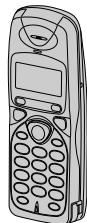
DECT Portable Station
Operating Instructions
Model KX-TD7580
Contents
Setting Up. 2
Before Operation. 3
Operation. 4
Using the Phonebook. 6
Handset Programming 11
Important Information. 13
Specifications. 16
English. 1-16
Deutsch. 17-32
Francais 33-48
Nederlands. 49-64
Svenska. 65-80
Accessories (included)
□ACAdaptor*
□Charger
Batteries
(Panasonic P-6P or BYD PQHHR120AA12)
□Operating Instructions
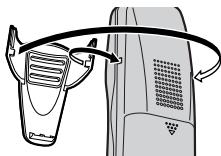
□ Belt Clip

To attach
- Thank you for purchasing a DECT Handset (= Portable Station).
- Charge the battery for about 15 hours before initial use.
- This manual is designed to be used with your Handset and a Panasonic KX-TD816/KX-TD1232 system.
- In this manual, the last letter of each model number is omitted.
- Available AC Adaptors: KX-TCA1, KX-TCA1AL, KX-TCA1CE and KX-TCA1E. The part number is different from each country. Refer to the number on the label on the AC Adaptor.
The handset supports the single line telephone (SLT) features. Please refer to the appropriate section in the User Manual for the KX-TD816/1232 system to operate the handset. Some of the features are not available.
Handset
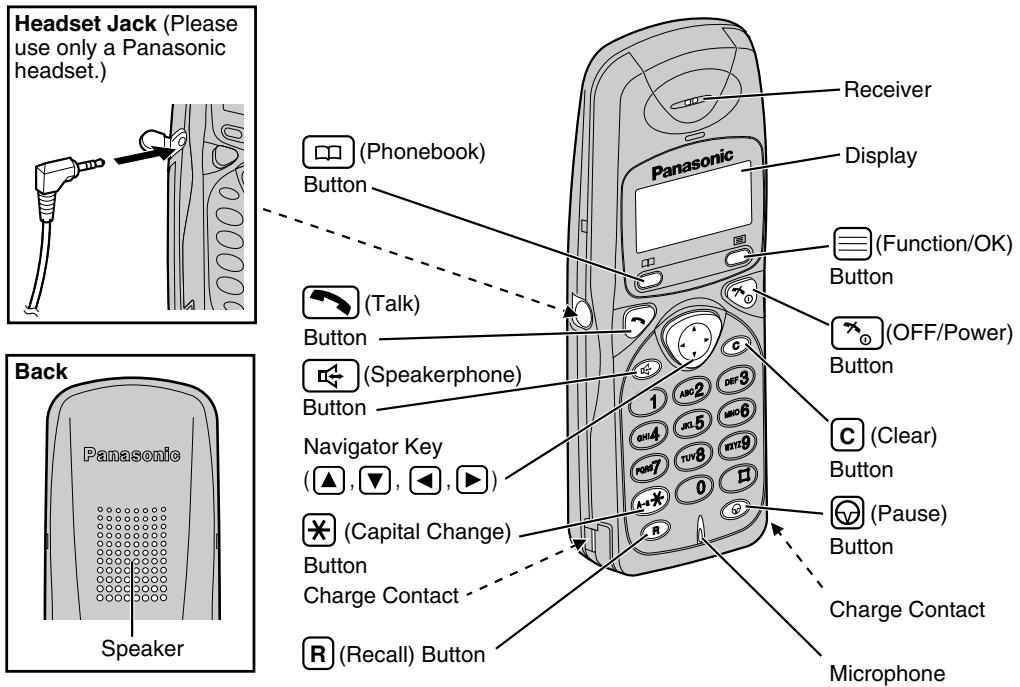
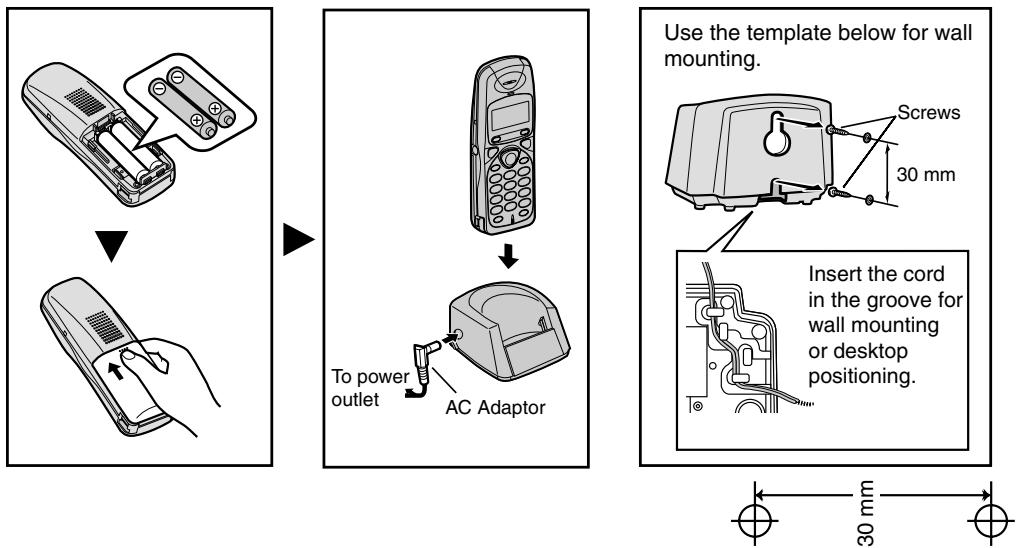
Insert and charge the batteries for about 15 hours as shown below.
Before Operation
To turn the power ON, press and hold x_0 .

- To turn the power OFF, press and hold _ until a beep sounds.
To change the display language, see page 12.
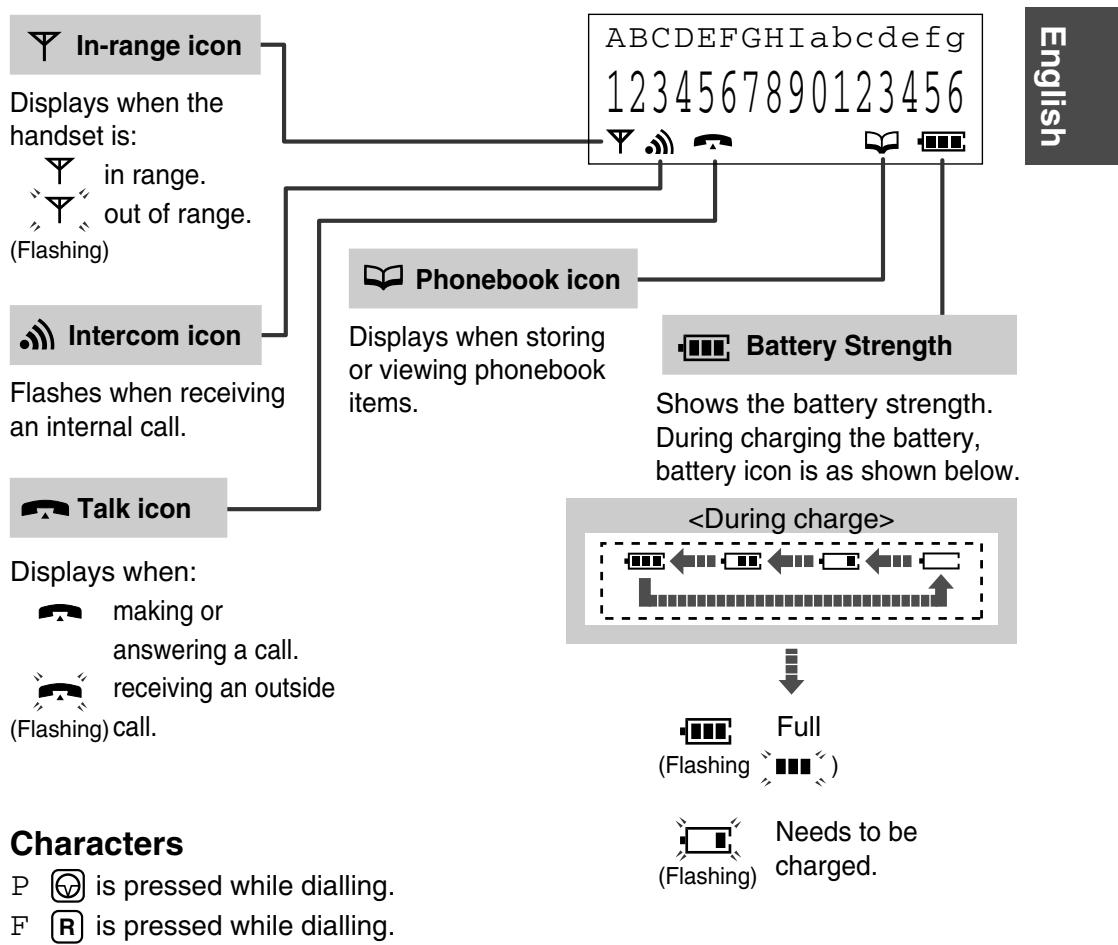
Operation
Basic Calling

- While talking, you can switch back and forth between the hands-free operation and the receiver.
- Predialling: You can dial first, and then go off-hook.
Note
- If you misdial, press . To cancel, press and hold or press _ .
Redialling
To redial the last number

Select "Redial."
To radial using the radial list

Select the radial number.

Receiving Calls

- When receiving an outside call from a caller registered in the phonebook, the caller's name and phone number will appear on the display.
Transferring Calls
While talking

Note
- You can also hang up by placing the handset on the charger.
Tone Signalling
During an outside call or while dialling, you can transmit tone signals automatically using the keypad (e.g., to control answering system remotely).


Select "TONE."
Clearing the Number in the Redial Memory


Select the radial number.
To clear the selected number

Select "Clear."
To clear all numbers

Select "All Clear."


Select "YES."
Adjusting the Receiver/Speaker Volume
While talking

(to increase)

(to decrease)
Turning the Handset Ringer off Temporarily
While ringing

(press and hold.)
- The ringer will turn back on for the next call.
- This function will not work when the handset is on the charger.
Setting the Key Lock
You can lock the handset dialling buttons. Only incoming calls are accepted until the key lock is cancelled. While locked, "[X]" will be shown on the display.
To set

(press and hold.)
To cancel

(press and hold.)
- The key lock will also be cancelled when the power is turned OFF (p. 3).
Using the Phonebook
You can store up to 100 names and extension/outside numbers in the phonebook. All phonebook items are sorted in alphabetical order. Using the phonebook, you can make a call by selecting a name on the display.
- We recommend you insert access code (p. 12).
- If the phonebook is locked (p. 12), enter the 4-digit handset PIN to go to the phonebook list.
- You can exit the phonebook setting mode anytime by pressing _
- When programming is completed, a beep sounds.
Using the Private Category Feature
You can assign the caller's information to one of 8 private categories (1-8), "OFF" and "INT." When storing an extension number in the phonebook, you must select "INT."; otherwise, you cannot make an internal call from the phonebook. (If both extension/outside numbers are the same, do not store the extension number in "INT." in the phonebook.)
For each private category 1-8, you can select the display backlight colour and ring type (p.11-12). When receiving an outside call, you can easily figure out who has called. (For example, Category 1 for family, Category 2 for friends and Category 8 for business.) If you do not assign an item to any private category number, the handset will ring in the preset ring type and light in the preset colour when receiving an outside call.
For "INT," you cannot select the ringer type and the display backlight colour.
Storing Names and Numbers in the Phonebook
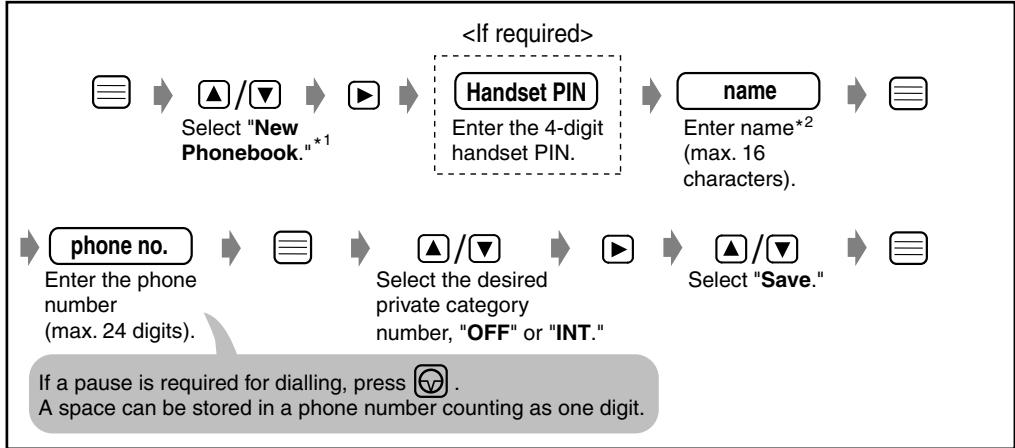
1 If the display shows "Memory Full," the display will return to the standby mode. Clear other stored items in the phonebook (p. 9).
2 See the steps for entering names and symbols (p. 7).
Storing a Redial or Predial Number
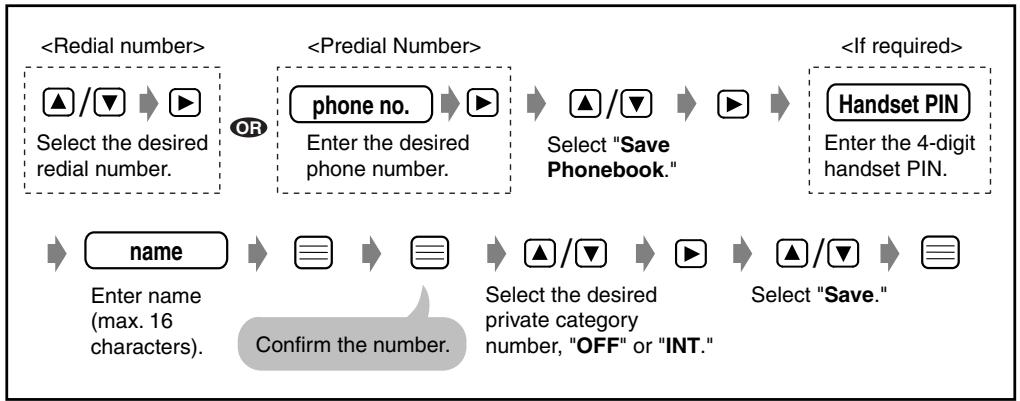
Entering Characters
The dialling buttons can be used to enter letters and character symbols. The letters are printed on the dialling buttons.
Selecting the Character Mode
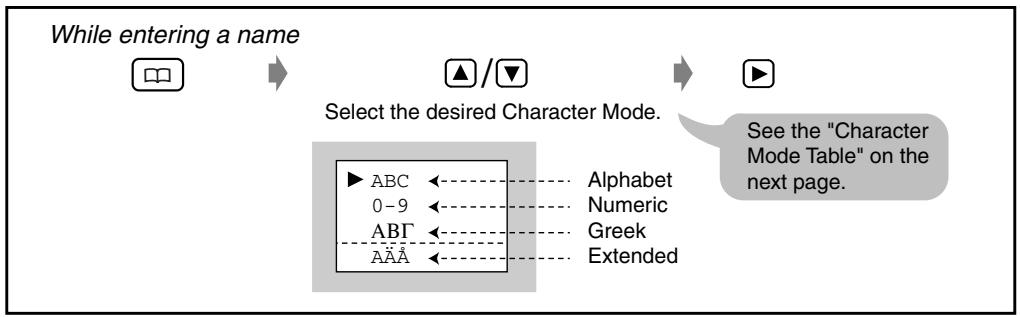
For example, to enter "Anne23":
| A | n | n | e | 2 | 3 |
| 2 | 6 | 6 | 3 | 2 | 3 |
Character Mode Table
| Buttons | ABC (Alphabet) | 0-9 (Numeric) | ABΓ (Greek) | AABB (Extended) |
| 1 | # & '() *, -./ | 1 | # & '() *, -./ | # & '() *, -./ |
| # & '() *, -./ | 1 | # & '() *, -./ | # & '() *, -./ | |
| 2 | A B C | 2 | ABΓ | A A A A A A A A E B C C |
| a b c | 2 | ABΓ | a a a a a a a a a b c c | |
| 3 | D E F | 3 | ΔEZ | D E E E E E E F |
| d e f | 3 | ΔEZ | d e e e e e e f | |
| 4 | G H I | 4 | HΘI | G G H i i i i i i |
| g h i | 4 | HΘI | g g h i i i i i i | |
| 5 | J K L | 5 | KΛM | J K L |
| j k l | 5 | KΛM | j k l | |
| 6 | M N O | 6 | NΞO | M N ΣΟ O O O O O Φ |
| m n o | 6 | NΞO | m n Ν o o o o o θ | |
| 7 | P Q R S | 7 | ΠΡΣ | P Q R S Ε |
| p q r s | 7 | ΠΡΣ | p q r s Ε | |
| 8 | T U V | 8 | TYΦ | T U U U U U U V |
| t u v | 8 | TYΦ | t u u u u u v | |
| 9 | W X Y Z | 9 | XΨΩχ | W X Y Z |
| w x y z | 9 | XΨΩχ | w x y z | |
| 0 | blank | 0 | blank | blank |
| blank | 0 | blank | blank | |
| → | To move the cursor to the left. | |||
| → | To move the cursor to the right. (To enter another character using the same dialling button, move the cursor to the next space.) | |||
| C | To erase the character. To erase all characters, press and hold. | |||
| × | To shift from capital to lower case, press ×. Each time you press ×, the mode will change. | |||

Finding Items in the Phonebook
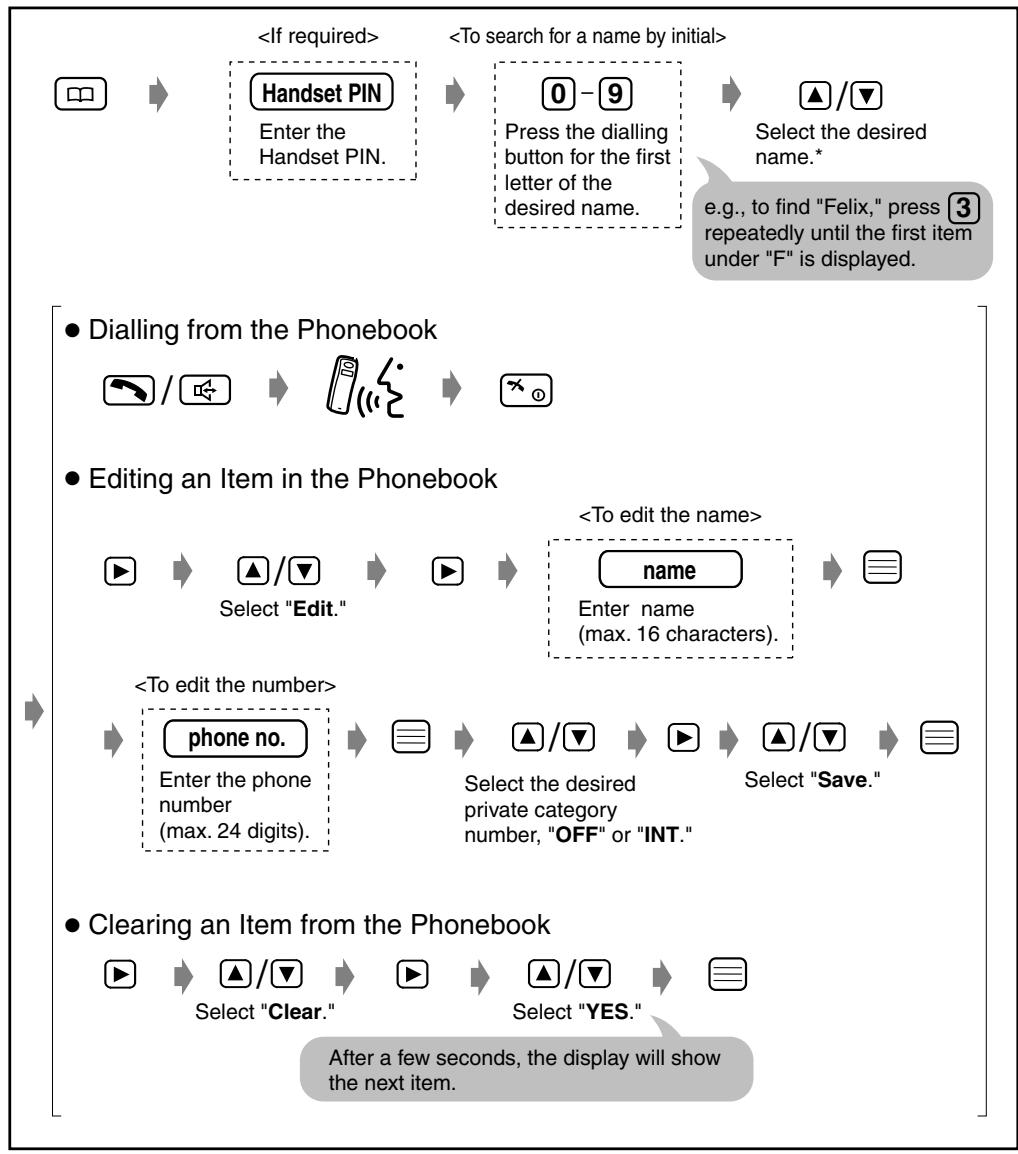
- All phonebook items are sorted in the following order:
Character Symbol Number
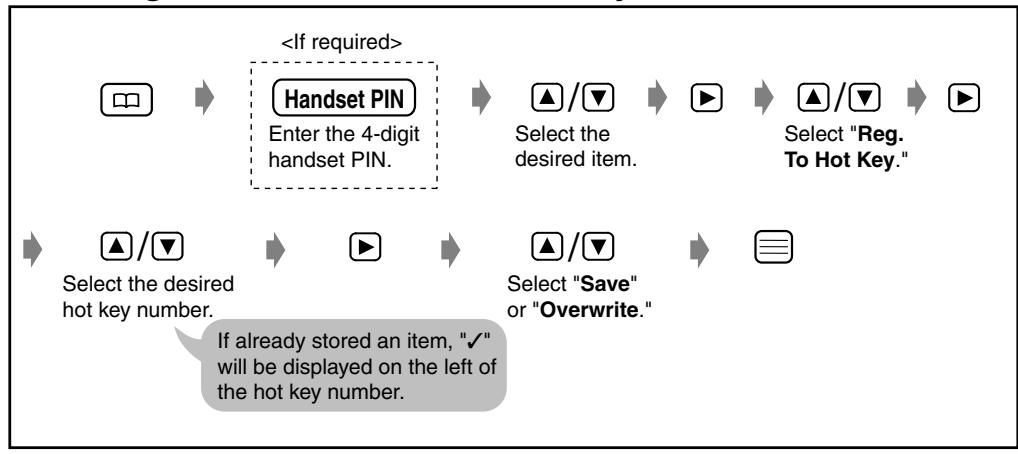
Using the Hot Key Dial Feature
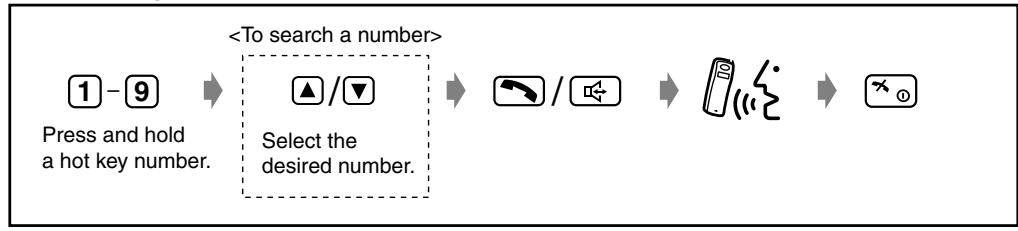
The dialling buttons (1-9) function as one-touch dials. You can assign up to 9 phone numbers from the phonebook items into dialling buttons as hot key dials.
Storing Phonebook Items as Hot Key Dials
Dialling a Stored Number
Clearing an Item in the Hot Key Dial
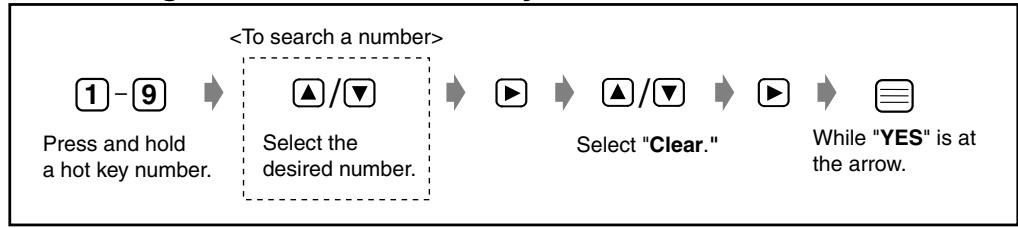
Locking the Phonebook
See page 12.
Handset Programming
You can programme the handset according to your needs. The display shows the instructions. After selecting "Setting Handset," the main menu is displayed. Most items in the main menu have a sub-menu. The sub-menu is shown after selecting the item in the main menu.
While Programming:
- You can press 三 to go to the next menu of the function menu instead of pressing .
- To return to the previous step during programming, press or .
- You can exit the programming mode any time by pressing _0 .
- When programming is completed, a beep sounds.
To Change the Initial Settings
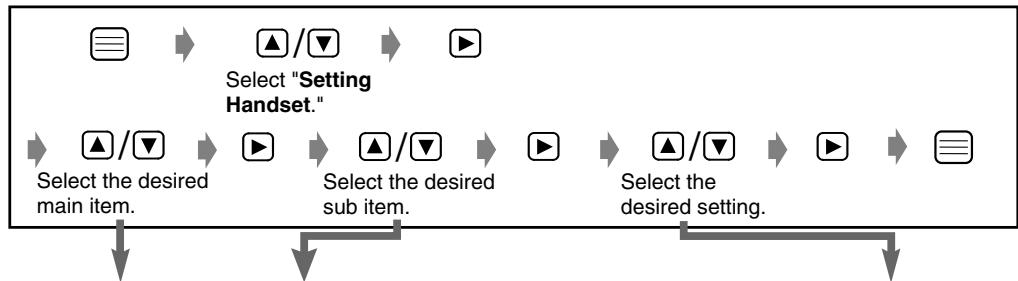
| Main Item | Sub Item | Description | Setting*1 |
| Ringer Option | Ringer Volume | 6 levels are available. When set to OFF, the handset will not ring. | ☐ Level |
| ☐ Level 3 | |||
| ☐ OFF | |||
| Ring Outside | You can set the ring type for the calls from an outside line. 20 ring types are available. | ☐ Ringer no. | |
| ☐ Ringer 1 | |||
| Ring Internal | You can set the ring type for the calls from an extension. 20 ring types are available. | ☐ Ringer no. | |
| ☐ Ringer 3 | |||
| Private Ringer | You can set the handset ring type (20 types) for each private category.*2 | ☐ Ringer no. | |
| ☐ Ringer 1 | |||
| Tone Option | Key Tone ON/OFF | You can turn on/off the handset key sound (key tone, confirmation tone, error tone). | ☐ ON |
| ☐ OFF | |||
| Range Alarm | You can turn on/off the range warning alarm. | ☐ ON | |
| ☐ OFF | |||
| Display Option | Standby Display | You can choose whether to display the currently connected base unit number, extension number or no display while in the standby mode. | ☐ Base Number☐ Extn Number☐ OFF |
| Select Language | You can choose one of 12 display languages. | ☐ Language☐ English | |
| Backlight Color | You can set the display backlight colour to green, orange, or red. | ☐ Green☐ Orange☐ Red | |
| Private Color | You can select the display backlight colour (red, orange, or green) for each private category.*2 | ☐ Green☐ Orange☐ Red | |
| LCD Contrast | You can select the display contrast level from 1 to 3. | ☐ 1☐ 2☐ 3 | |
| Call Option | Base AccessCode | You can avoid adding the line access code to the outside numbers in the phonebook, by setting the base access code (max. 8 digits). | |
| Phonebook Lock | You can prohibit anyone from entering the phonebook.*3When locked, you cannot dial from the phonebook. | ☐ ON☐ OFF | |
| Other Option | Change Hset PIN | You can programme a 4-digit handset PIN (Personal Identification Number). See the next page to set the PIN. | |
| Quick Answer | You can answer a call by lifting the handset off the charger without pressing a button. | ☐ ON☐ OFF | |
| Registration | Cancel BaseRegister H/Set | For details, consult your dealer. | |
| Select Base | |||
| Memory Clear | You can clear the settings on the handset. When selected, Handset Programming settings will return to their initial settings.*3 You can also clear Handset receiver volume and Redial memory. | ☐ YES☐ NO | |
1 The initial setting is in gray.
3 You must enter the handset PIN.
*2 You must choose the desired private category.
Setting the PIN
In the "Setting Handset" mode

Select "Other Option."


Select "Change Hset PIN."


old PIN
Enter the current 4-digit handset PIN.

new PIN
Enter the new 4-digit PIN TWICE.
Important Information
Battery Information
After your batteries are fully charged:
| Operation | Approx. Ni-MH battery life |
| While in use (Talk) | Up to about 15 hours |
| While not in use (Standby) | Up to about 120 hours |
- Battery life may be shortened depending on usage conditions, such as: -when talking in speakerphone mode, using headset and ambient temperat
- Clean the handset and the charger contacts with a soft, dry cloth once a month. Clean more often if the unit is subject to grease, dust or high humidity. Otherwise the batteries may not charge properly.
The batteries cannot be overcharged. - Read "Important Notice Concerning the Correct Use and Charging of Ni-MH Batteries."

Replacing the Batteries
If "□" flashes after a few telephone calls even when the handset batteries have been fully charged, it is time to replace the batteries with new ones (p. 2).
Before replacing the batteries, turn the power off to prevent memory loss (p. 3). Make sure you charge the new batteries for about 15 hours in order to display the battery strength prompt correctly.

Caution:
To reduce the risk of fire or injury to persons, read and follow these instructions.
- Use only the batteries specified.
- Do not use non-rechargeable batteries.
- Do not mix old and new batteries.
- Do not dispose of the batteries in a fire. They may explode. Check with local waste management codes for special disposal instructions.
- Do not open or mutilate the battery. Released electrolyte is corrosive and may cause burns or injury to the eyes or skin. The electrolyte may be toxic if swallowed.
- Exercise care in handling the batteries in order not to short the batteries with conductive materials such as rings, bracelets, and keys. The batteries and/or conductor may overheat and cause burns.
- Charge the batteries provided with or identified for use with this product only in accordance with the instructions and limitations specified in this manual.
Important Notice Concerning the Correct Use and Charging of Ni-MH Batteries
Batteries, due to their construction, undergo some wear and tear. The lifetime of a battery also depends on correct maintenance. Charging and discharging are the most important factors. You should take notice of the following to maintain the life of the battery as long as possible.
Ni-MH batteries have a kind of memory, the "memory effect." If fully charged batteries are used several times only for 15 minutes in the handset and then recharged, the capacity of the batteries will be reduced to 15 minutes due to the memory effect. Therefore you should discharge the batteries completely, i.e. use them in the handset until "■" on the display starts flashing. Then recharge them as described in the manual. After the memory effect has occurred, it is possible to achieve almost complete capacity of the Ni-MH batteries by charging and discharging several times one after another.
Ni-MH batteries can also self-discharge. This self-discharge depends on the ambient temperature. At temperatures under 0^ , the self-discharge will be the lowest. High humidity and high temperatures support the self-discharge. Also long-term storage will lead to self-discharge. A dead Ni-MH battery should not be disposed of normally. They contain toxic heavy metal hydride and therefore should be recycled.
Pay special attention to the safety suggestions listed below.
Safety
1) Power source: The AC adaptor should be connected to a power supply only of the type as marked on the AC adaptor.
2) Non use periods: When the Handset is not being used, turn the power off. When left unused for a long period of time, the charger should be unplugged from the household AC outlet.
Installation
Environment
1) Water and moisture: Do not use the Handset, the charger and the AC Adaptor near water—for example, near a bathtub, washbowl, sink, etc. Damp basements should also be avoided.
2) Heat: The Handset, the charger and the AC Adaptor should be kept away from heat sources such as radiators, kitchen ranges, etc. They also should not be placed in rooms where the temperature is less than 5^ or greater than 40^ .
Placement
1) Stacking: Do not place heavy objects above the Handset and the charger.
2) Foreign material: Care should be taken so that objects do not fall onto and liquids are not spilled into the Handset and charger. Do not subject the Handset and charger to excessive smoke, dust, mechanical vibration, or shock.
3) Surface: Place the charger on a flat surface. If the charger is mounted on the wall, install it straight.
For Best Performance
Operating Range
1) The range of operation depends on the topography of your office, weather or usage conditions, because signals are transmitted between the Cell Station (CS) and the Handset by radio waves.
2) Normally, you will get greater range outdoors than indoors. If there are obstacles such as walls, noise may interfere with your telephone calls. In particular, high metal shelves or reinforced concrete walls will shorten your operating range.
3) A Handset may not work when it is too far from the CS depending on the structure of the building.
Noise
Occasional noise or interference may occur due to other sources of electromagnetic radiation, such as refrigerators, microwave ovens, faxes, TVs, radios, or personal computers. If noise disturbs your telephone calls, keep the Handset away from other electrical appliances.
WARNING:
TO PREVENT FIRE OR ELECTRICAL SHOCK, DO NOT EXPOSE THIS UNIT TO RAIN OR MOISTURE.
TO REDUCE THE RISK OF ELECTRIC SHOCK, DO NOT DISASSEMBLE THIS UNIT. TAKE THE UNIT TO AN AUTHORISED SERVICE CENTER WHEN SERVICE IS REQUIRED.
Specifications
Radio Access Method: Multi Carrier TDMA-TDD
Frequency Band: 1880-1900 MHz
Number of Carriers: 10
Carrier Spacing: 1728 kHz
Bit rate: 1 152 kbps
Carrier Multiplex: TDMA, 24 (T×12, R×12) slots per frame
Frame Length: 10 ms
Modulation: GFSK
Voice Coding: 32 kbps ADPCM (CCITT G.721)
Transmission Output: Max. 250 mW
- Specifications are subject to change.
- The illustrations used in this manual may slightly differ from the original device.
€0682
This device is a DECT Portable Station operating in the frequency band of 1880 MHz to 1900 MHz.
This device complies with the requirements of the directive 1999/5/EC.
The usage of this device is generally allowed in all the EU countries.
Kyushu Matsushita Electric (U.K.) Limited hereby declare that this product is in conformity with the essential requirements and other relevant provisions of the R&TTE directive, 1999/5/EC.
A copy of the manufacturers declaration of conformity to the essential requirements of the R&TTE directive is available at the following web address: http://doc.panasonic-tc.de
Panasonic
Mobilteil
Bedienungsanleitung
Modell KX-TD7580
Inhalt
Accessoires (inclus)
Pour receivevoir des appeals


Specifications techniques
Handset programming 59
□ AC adapter (wisselstroomadapter)*
□Batterijen
(Panasonic P-6P of BYD PQHHR120AA12)
□Oplader
Kyushu Matsushita Electric (U.K.) Ltd.
Pencarn Way, Duffryn, Newport, South Wales, NP10 8YE, United Kingdom
© 2001 Kyushu Matsushita Electric Co., Ltd. All Rights Reserved.
- Operating Instructions
- Contents
- Accessories (included)
- Handset
- Before Operation
- To turn the power ON, press and hold x_0 .
- Operation
- Basic Calling
- Note
- Redialling
- Receiving Calls
- Transferring Calls
- Tone Signalling
- Clearing the Number in the Redial Memory
- Adjusting the Receiver/Speaker Volume
- Turning the Handset Ringer off Temporarily
- Setting the Key Lock
- Using the Phonebook
- Using the Private Category Feature
- Storing Names and Numbers in the Phonebook
- Storing a Redial or Predial Number
- Entering Characters
- Selecting the Character Mode
- Character Mode Table
- Finding Items in the Phonebook
- Using the Hot Key Dial Feature
- Storing Phonebook Items as Hot Key Dials
- Dialling a Stored Number
- Clearing an Item in the Hot Key Dial
- Locking the Phonebook
- Handset Programming
- While Programming:
- To Change the Initial Settings
- Setting the PIN
- Important Information
- Battery Information
- Replacing the Batteries
- Caution:
- Important Notice Concerning the Correct Use and Charging of Ni-MH Batteries
- Pay special attention to the safety suggestions listed below.
- Safety
- Installation
- Environment
- Placement
- For Best Performance
- Operating Range
- Noise
- WARNING:
- Specifications
- €0682
- Panasonic
- Bedienungsanleitung
- Inhalt
- Accessoires (inclus)
- Pour receivevoir des appeals
- Specifications techniques
Brand : PANASONIC
Model : KX-TD7580CE
Category : Phone