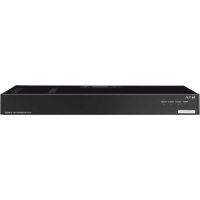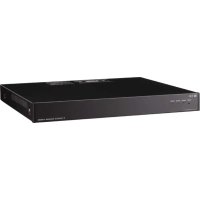
N8010EX - Intercom TOA - Free user manual and instructions
Find the device manual for free N8010EX TOA in PDF.


| Product type | Telephone exchange for IP network intercom system |
| Model | N-8010EX |
| Brand | TOA |
| Station capacity | Up to 16 stations per exchange, 1280 stations maximum (80 exchanges) |
| Internal lines | 1 pair |
| External lines | 2 pairs |
| PA notification output | No |
| Power supply | 100-240 V AC, 50/60 Hz (power adapter supplied) |
| Dimensions (W x H x D) | 210 x 44 x 300 mm (approximate) |
| Weight | Approximately 1.5 kg |
| Mounting | In 19-inch rack, on desk or wall |
| Network | LAN/WAN connectivity, fiber optic compatible |
| Main features | Hands-free duplex conversation, echo cancellation, notifications, PC supervision |
| Maintenance and cleaning | Disconnect before cleaning, use a soft dry cloth. Do not use chemical products. |
| Safety | Do not expose to water, do not open the case, respect the specified voltage, disconnect if abnormality occurs |
| Spare parts and repairability | Contact an authorized TOA dealer for any repairs. Spare parts available on request. |
| General information | Class A product, may cause radio interference in domestic environments |
Frequently Asked Questions - N8010EX TOA
User questions about N8010EX TOA
0 question about this device. Answer the ones you know or ask your own.
Ask a new question about this device
Download the instructions for your Intercom in PDF format for free! Find your manual N8010EX - TOA and take your electronic device back in hand. On this page are published all the documents necessary for the use of your device. N8010EX by TOA.
USER MANUAL N8010EX TOA
- NOMENCLATURE AND FUNCTIONS 9
Front 9
Rear 9
- INSTALLATION 10
7.1.Rack Mounting 10
7.1.1.Setting space 10
7.1.2. Caution when installing the unit 11
7.1.3. Mounting on the rack 11
7.2. Desk-Top Installation 12
7.3.Wall Mounting 12
8.WIRING 14
8.1. Connection Diagram 14
8.2.Type of Cable 16
8.3. Relations Between Core Diameter of Cable and Maximum Cable Length 16
8.4. Connector Connection 17
8.4.1. Mini-clamp connector connection 17
8.4.2.Removable terminal plug connection 18
8.5.E-7000TB Terminal Board Wiring 19
9 ACCESSORIES 20
9.1.N-8000EX 20
9.2.N-8010EX 20
1. SAFETY PRECAUTIONS
- Before installation or use, be sure to carefully read all the instructions in this section for correct and safe operation.
- Be sure to follow all the precautionary instructions in this section, which contain important warnings and/or cautions regarding safety.
After reading, keep this manual handy for future reference.
Safety Symbol and Message Conventions
Safety symbols and messages described below are used in this manual to prevent bodily injury and property damage which could result from mishandling. Before operating your product, read this manual first and understand the safety symbols and messages so you are thoroughly aware of the potential safety hazards.

WARNING
Indicates a potentially hazardous situation which, if mishandled, could result in death or serious personal injury.

CAUTION
Indicates a potentially hazardous situation which, if mishandled, could result in moderate or minor personal injury, and/or property damage.

WARNING
When Installing the Unit
- Do not expose the unit to rain or an environment where it may be splashed by water or other liquids, as doing so may result in fire or electric shock.
- Use the unit only with the voltage specified on the unit. Using a voltage higher than that which is specified may result in fire or electric shock.
- Do not cut, kink, otherwise damage nor modify the power supply cord. In addition, avoid using the power cord in close proximity to heaters, and never place heavy objects -- including the unit itself -- on the power cord, as doing so may result in fire or electric shock.
- Avoid installing or mounting the unit in unstable locations, such as on a rickety table or a slanted surface. Doing so may result in the unit falling down and causing personal injury and/or property damage.
- Install the unit only in a location that can structurally support the weight of the unit and the mounting bracket. Doing otherwise may result in the unit falling down and causing personal injury and/or property damage.
When the Unit is in Use
- Should the following irregularity be found during use, immediately disconnect the power supply plug from the AC outlet and contact your nearest TOA dealer. Make no further attempt to operate the unit in this condition as this may cause fire or electric shock.
If you detect smoke or a strange smell coming from the unit
If water or any metallic object gets into the unit
- If the power supply cord is damaged (exposure of the core, disconnection, etc.)
- If it is malfunctioning (no tone sounds.)
- To prevent a fire or electric shock, never open nor remove the unit case as there are high voltage components inside the unit. Refer all servicing to your nearest TOA dealer.
- Do not insert nor drop metallic objects or flammable materials in the ventilation slots of the unit's cover, as this may result in fire or electric shock.
- Do not touch a plug during thunder and lightning, as this may result in electric shock.

CAUTION
When Installing the Unit
- Never plug in nor remove the power supply plug with wet hands, as doing so may cause electric shock.
- When unplugging the power supply cord, be sure to grasp the power supply plug; never pull on the cord itself. Operating the unit with a damaged power supply cord may cause a fire or electric shock.
-
Do not block the fan exhaust vent on the unit's rear. Doing so may cause heat to build up inside the unit and result in fire.
-
Be sure to follow the instructions below when rackmounting the unit. Failure to do so may cause a fire or personal injury.
-
Install the equipment rack on a stable, hard floor. Fix it with anchor bolts or take other arrangements to prevent it from falling down.
- To mount the unit on the TOA equipment rack, use the rack mounting hardware supplied with the unit.
- When connecting the unit's power cord to an AC outlet, use the AC outlet with current capacity allowable to the unit.
When the Unit is in Use
- Do not place heavy objects on the unit as this may cause it to fall or break which may result in personal injury and/or property damage. In addition, the object itself may fall off and cause injury and/or damage.
- Do not stand or sit on, nor hang down from the unit as this may cause it to fall down or drop, resulting in personal injury and/or property damage.
This device is a Class I product.
Connect the supplied power cord only to the AC outlet with a ground terminal. Doing otherwise may result in electric shock.
CONSEILS DE SECURITE
TOA's N-8000EX and N-8010EX are exchanges used for the N-8000 Series Packet Intercom System (IP network compatible intercom) employing packet audio technology*1. By connecting IP intercom exchanges (which permit connection of up to 16 stations per exchange) to a network (LAN or WAN), an optimal system for in-house or wide area information communications, such as duplex conversations between stations and paging broadcasts, can be constructed. Since up to 80 exchanges can be combined, systems of up to a total of 1,280 stations can be realized. The system's "echo cancellation"*2 feature makes hands-free duplex conversation possible (conversations made without using a handset at both parties) between stations.
1 Technology related to audio transmission over a network.
2 A circuit that prevents acoustic feedback or echo generated when the voice output from the station's internal speaker enters the microphone.
Warning
This is a class A product. In a domestic environment this product may cause radio interference in which case the user may be required to take adequate measures.
DESCRIPTION GÉNÉRALE
- Exchanges can be distributed over a data communications network.
- Can be connected to an existing local area network (LAN) or wide-area network (WAN). The system can also be easily connected to fiber-optic networks without restrictions on operating distance.
- The dedicated software program enables centralized control with a personal computer.
- System maintenance (verifying operation log and Line supervision) can also be performed with a personal computer and Internet browser.
- Both types of exchanges differ in the following points. N-8000EX: 4 pairs of internal call, 8 pairs of external call, with PA paging output N-8010EX: 1 pair of internal call, 2 pairs of external call, without PA paging output
CHARACTERISTIQUES
Speech Link Capacity
N-8000EX
(Internal):
(External):
Maximum 80
Maximum 1,280 (80 Exchanges x 16 stations per Exchange)
4 links
- Speech Link: maximum 8 links, Multicast paging Link: maximum 4 links, Unicast paging: 1 link (simultaneous access capacity)
N-8010EX
(Internal):
(External):
1 link
- Speech Link: maximum 2 links, Multicast paging Link: maximum 2 links, Unicast paging: 1 link (simultaneous access capacity)
Paging Zones Capacity:
Maximum 160 (With 80 Exchanges)
Paging Zone:
Maximum 79 (Multicast paging), Maximum 16 (Unicast paging)
System Settings:
Personal computer setting using a dedicated software program (over LAN)
(Network Related)
Voice delay time:
80 or 320 ms, selectable
Usage bandwidth:
Maximum 2.08 Mbps (one way) when 16 Unicast postings are made
Maximum 130 kbps (two-way) per call
5. SYSTEM CONFIGURATION EXAMPLE
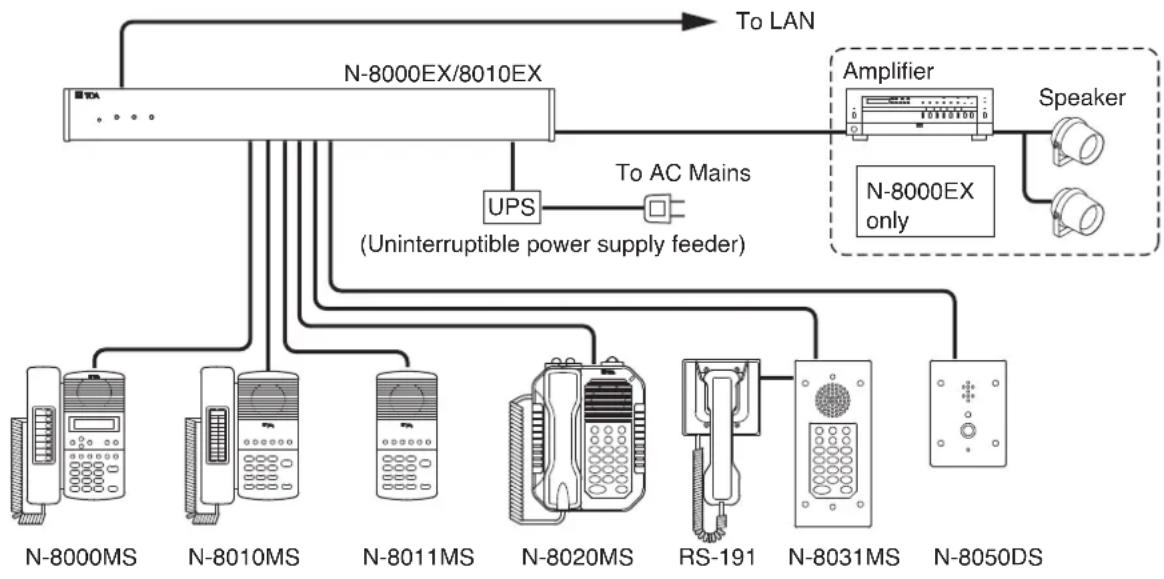
[Exchange]
N-8000EX: IP Intercom Exchange
N-8010EX:IP Intercom Exchange
[Stations]
N-8000MS: Multifunctional Master Station
N-8010MS: Standard Master Station
N-8011MS: Standard Hands-Free Master Station
N-8020MS: Industrial-Use Master Station
N-8031MS: Flush-Mount Master Station
RS-191: Option Handset
N-8050DS: Door Station
[Others]
YC-280: Wall mounting bracket for the N-8000MS/8010MS/8020MS
YC-290: Wall mounting bracket for the N-8011M S
YC-241: Back box for the N-8031MS
YC-251: Wall-mount box for the N-8031MS
YC-150: Back box for the N-8050DS
YS-13A: Wall-mount box for the N-8050DS
E-7000TB: 40-Station Terminal Board
CR-273: Equipment Rack
CR-413: Equipment Rack
6. NOMENCLATURE AND FUNCTIONS
[Front]
![TOA N8010EX - [Front] - 1](/content/2026/03/564725/images/c8901a5c7cd2dde749c78638d209585e17848de22cec620f22566907e564fc29.jpg)
This figure represents the N-8000EX.
1. Reset key [RESET]
Pressing this key reactivates the exchange.
2. LNK/ACT indicator [LNK/ACT] (Green)
Lights when connected to a network, and flashes while transmitting or receiving data.
3. Status indicator [STATUS] (Red)
Continuously lights while data is written to an internal storage medium (FlashMemory), and flashes to indicate such exchange malfunctions as cooling fan failure.
4. Power indicator [POWER] (Green)
Lights when power is supplied to the exchange.
5. MAC address
This is the address* used by the exchange. Since the relationship of each exchange location to its MAC address is established when setting the network attributes, keep track of this relationship for later use.
- The inherent address assigned to each network component, expressed in 12-digit hexadecimal notation.
[Rear]
![TOA N8010EX - [Rear] - 1](/content/2026/03/564725/images/81be9acb9b6a801f951998bb4248aee3040c51391e076678d0316a0dc2070bd6.jpg)
This figure represents the N-8000EX.
6. Functional earth terminal [SIGNAL GND]
Ground this terminal.
Note: This terminal is not a safety ground.
7. Cooling fan

CAUTION
Do not block the fan exhaust vent. Doing so may cause heat to build up inside the unit and result in fire.
8. AC inlet
Connects the supplied power cord.
Note
If there is a danger of lightning strikes, insert an appropriate surge arrester into the power line.
9. Cord clamp
Pass the power cord through this clamp to ensure that the plug cannot be pulled out when the unit is mounted to a wall. (Refer to p. 13)
10. Line connection terminal [LINE]
Connect the station to each terminal using a mini-clamp connector. (Refer to p. 17)
11. Paging output terminals
[PAGING OUT 1/2, AUDIO/CONTROL]
N-8000EX only
Includes audio outputs (0 dB*, 600 Ω, balanced) and contact outputs (no-voltage make, 24 V DC, 0.5 A MAX).
Connect using a removable terminal plug.
(Refer to p. 18)
12. Network connection terminal [10/100M]
Connects a 10BASE-T- or 100BASE-TX
compatible network. (Ethernet RJ45 jack)
^*0dB = 1V
7. INSTALLATION
The exchange can be installed in any of three ways: Equipment rack mounting, Desk-top installation, and Wall mounting.
7.1.Rack Mounting
The Exchange can be mounted on the CR-273 or CR-413 or standard EIA 19" Equipment rack.
These racks, when fully equipped with exchanges, can provide the following capacity of stations: 128 stations for one CR-273, 192 stations for one CR-413, and 1,280 stations for seven CR-413s.
For the CR-273 and CR-413 Equipment rack assembly or BU-412 Blower unit installation, read the installation manual supplied with the rack.
Note
When installing the blower units, terminal boards, and exchanges, lay the equipment rack down face-up to do installation work safely. Since the blower unit is installed from the inside of the rack, be sure to install it first, before mounting the other components.
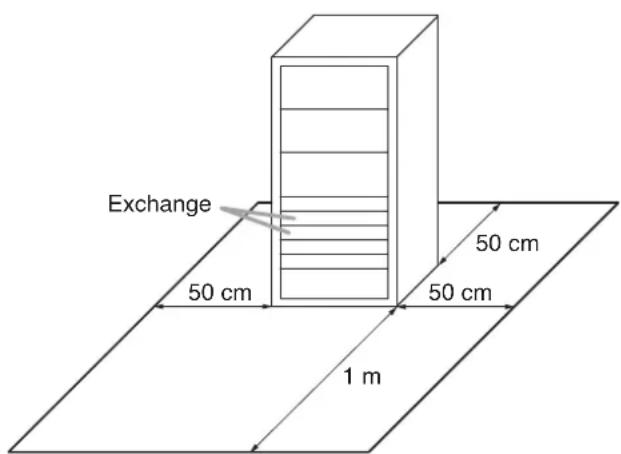
7.1.1. Setting space
For maintenance works, allow much space between the wall and Equipment rack.
7.1.2. Caution when installing the unit

CAUTION
Do not block the fan exhaust vent.
Doing so may cause heat to build up inside the unit and result in fire.
Do not stack up 3 Exchanges or more. If 2 or more Exchanges are mounted in the Equipment rack, be sure to mount the perforated panel of 1 U size (PF-013B) or more above and below every 2 Exchanges.
Using the supplied rack mounting screws, install the terminal board in a location that facilitates wiring and maintenance work, taking into consideration the direction of cable entry into the rack.
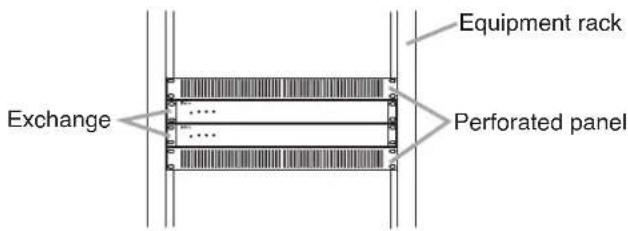
7.1.3. Mounting on the rack Montage en bati
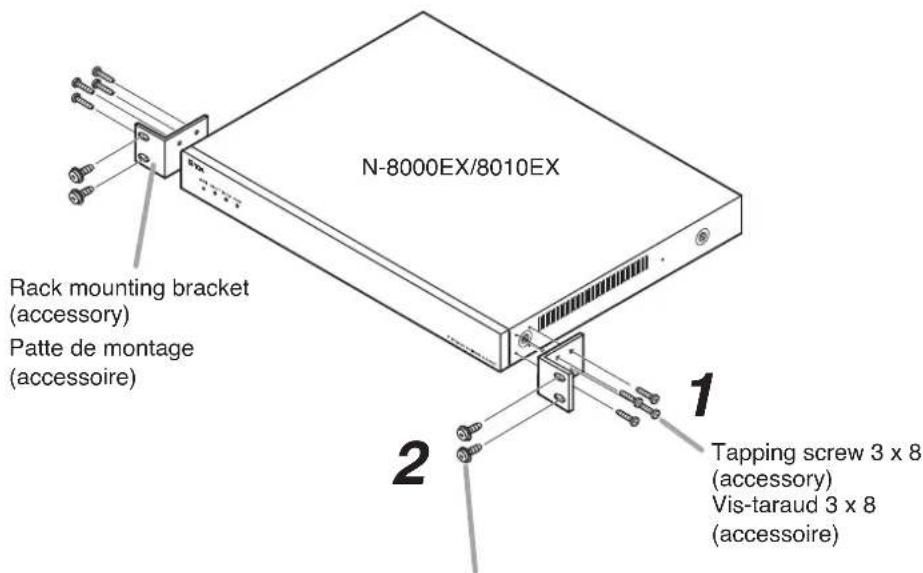
Step 1. Install the rack-mounting bracket to the Exchange.
Rack mounting screw 5 × 12 with plain washer (accessory)
Step 2. Mount the Exchange on the Equipment rack.
When installing the Exchange on a desk, secure the supplied plastic feet to bottom surface of the Exchange using the supplied machine screws.
Step 1. Install the supplied wall-mounting bracket to the Exchange using each 2 supplied screws and removed screws from the case.
Step 2. Mount the Exchange on the wall.
Notes
- Use appropriate screws for the construction of wall.
- Wood screws 3.5 × 20 are supplied with the N-8000EX/8010EX.
- The socket-outlet shall be installed near the equipment and shall be easily accessible.
8.1. Connection Diagram
N-8000EX/8010EX Exchange
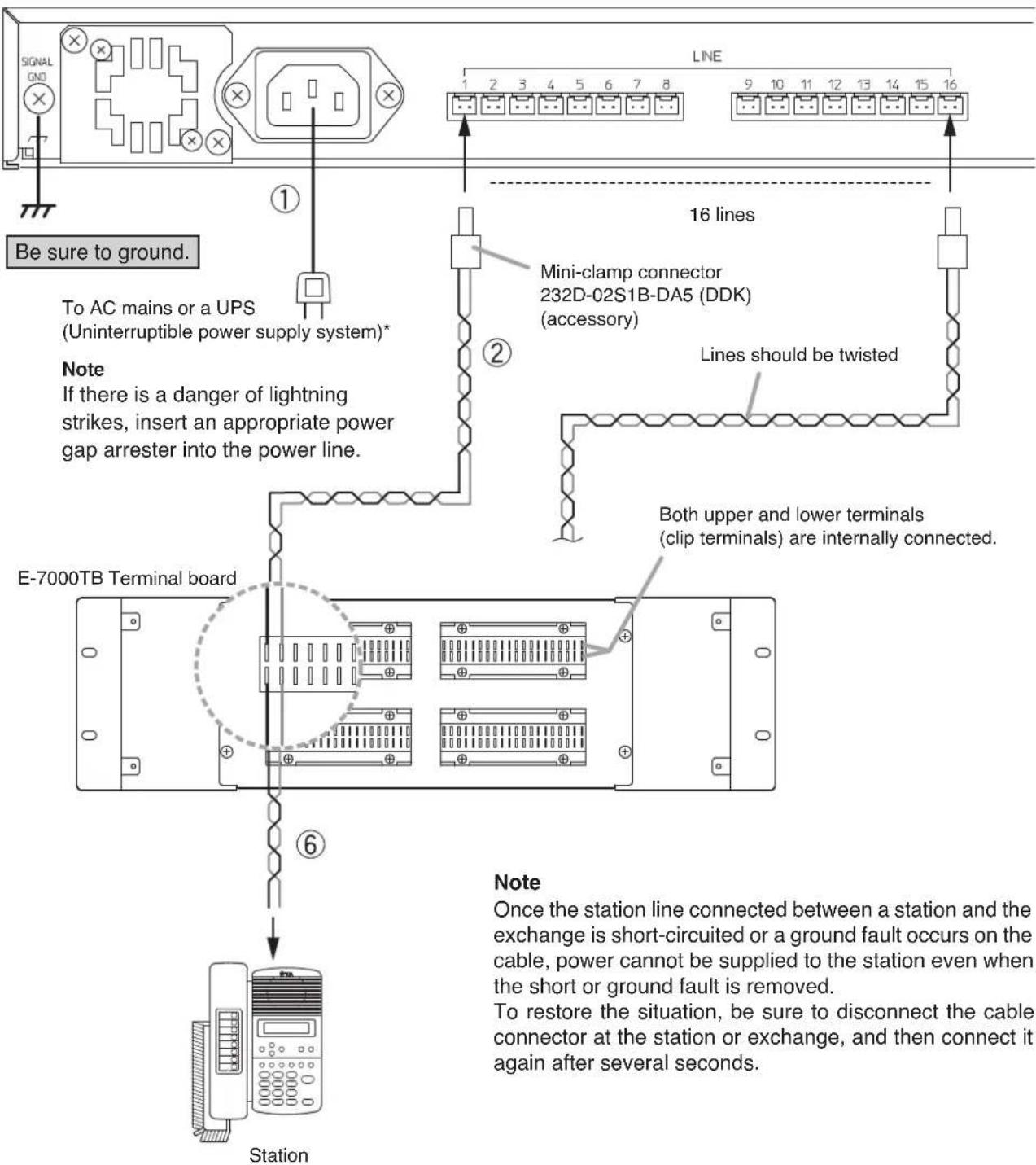
* Select an appropriate UPS taking into consideration the total power consumption of all system components and the required backup time, and also the requirement that the UPS should employ the on-line power system.
Reference
Exchange: Maximum 50 W.
8-Port 10M/100M Switching Hub: 10 W (Differs depending on products.)
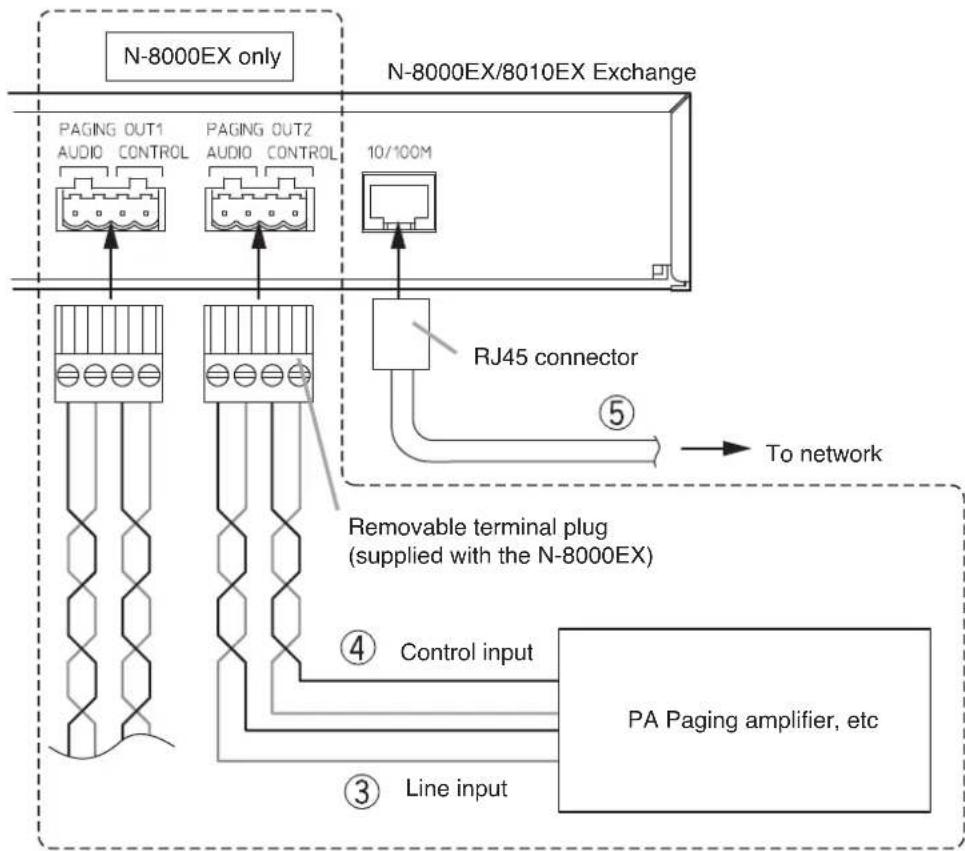
[General description of connection]
For cables, refer to p. 16.
1. Power supply connection
Connect the supplied power supply cord to AC Mains or a UPS (Uninterruptible power supply feeder).
About power supply cord handling
The supplied power supply cord is designed for exclusive use with the N-8000EX/8010EX. Use the supplied power supply cord only with the Exchange.
2. Line terminal connection
The line terminals have no polarity. (Refer to p. 17, "Connector Connection.")
3. Paging audio output terminal connection
N-8000EX only
Paging audio output terminals have no polarity. (Refer to p. 18, "Removable terminal plug connection.")
[Specification of paging audio output] 0 dB*, 600 Ω, balanced
4. Paging contact output terminal connection
N-8000EX only
Paging contact output terminals have no polarity. (Refer to p. 18, "Removable terminal plug connection.")
[Specification of paging contact output]
No voltage make contact output Withstand voltage:Max.24VDC Control current:Max.0.5A
5. Network connection
Can be connected to a network of 10BASE-T/100BASE-TX in auto-sensing.
Use a UTP category 5 straight-through cable for this connection.
6. Station connection
The connection method differs depending on types of stations.
For details, refer to the instruction manual supplied with each station.
^*0dB = 1V
8.2.Type of Cable
The types of cables are to be determined according to the following conditions.
- Twisted pair wires (such as those used for electronic push-button telephone) are to be used for wiring between the Exchange and the stations in principle.
- UTP category 5 Straight through cables with RJ45 connector are to be used for connecting to IP network.
- The number of cables pairs laid should be determined considering the possibility of future expansion of the system.
- Outdoor wires should be used where wiring passes through inaccessible areas such as ceilings or under floors where the maintenance is not performed. Indoor wires may also be used, however, in case where there is no risk of deterioration due to exposure to heat, etc.
Note
Specifications related to each junction are as follows.
Mini-clamp connector (N-8000EX/8010EX line terminal)
Conductor diameter: 0.4 - 0.65mm (AWG22-26), Solid wire
Outside diameter: 0.1.05mm or below
Clip terminal (E-7000TB)
Conductor diameter: 0.4 - 0.8mm (AWG20-26), Solid wire
Outside diameter: 0.15mm or below
Removable terminal plug (N-8000EX Paging output)
Conductor diameter: 0.5 - 2mm (AWG12-24), Solid wire/Stranded wire
8.3. Relations Between Core Diameter of Cable and Maximum Cable Length
Refer to the following table as guidelines when designing the distance between the Exchange and stations so that loop resistance value becomes 170 or less.
| Conductor diameter (mm) | Loop resistance (Ω/km) | Maximum cable length between the Exchange and station. (Assuming that the loop resistance is 170 Ω) |
| ø 0.4 295 570 m | ||
| ø 0.5 187 900 m | ||
| ø 0.65 113 1.5 km | ||
| ø 0.9 | 58 2.9 km |
8.4. Connector Connection
The N-8000EX comes with mini-clamp connectors for line terminals and detachable terminal plugs for paging output terminal, while the N-8010EX comes with mini-clamp connectors for line terminals. Perform each connector connection as follows.
8.4.1. Mini-clamp connector connection
Connect the mini-clamp connector supplied with the N-8000EX to a cable using a commercially available tool (pliers).
Step 1. Cut off two-cable ends in equal length, and insert them securely to a cover section (transparent side) of the mini-clamp connector.
Note
Insert the cable without stripping the cable jacket. For cables, refer to p. 16, "Type of Cable."
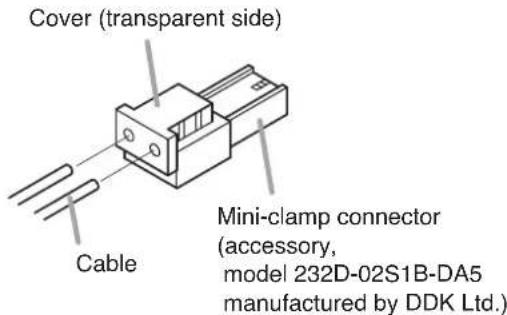
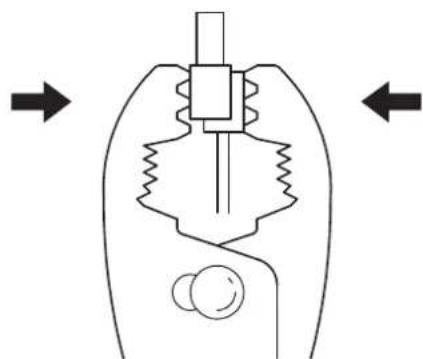
Step 2. With a pair of pliers, lightly pinch the mini-clamp cover and, after ensuring that the cable is securely inserted, firmly squeeze on the cover.
Note
Squeeze on the mini-clamp cover until it is correctly locked.
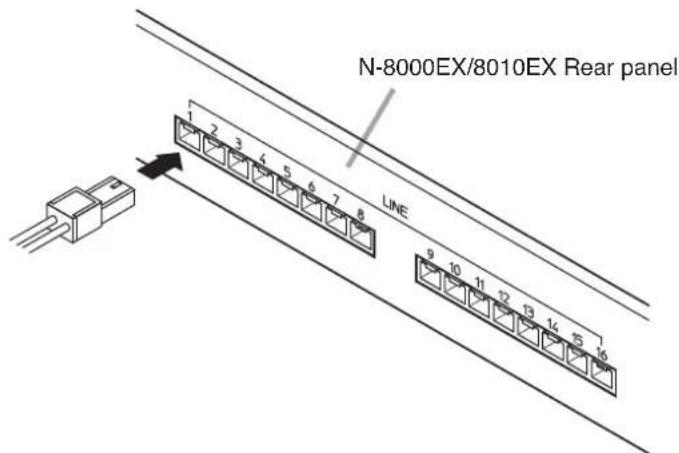
Step 3. Insert the wired connector (plug) into the exchange's connector (socket) until it locks into place.
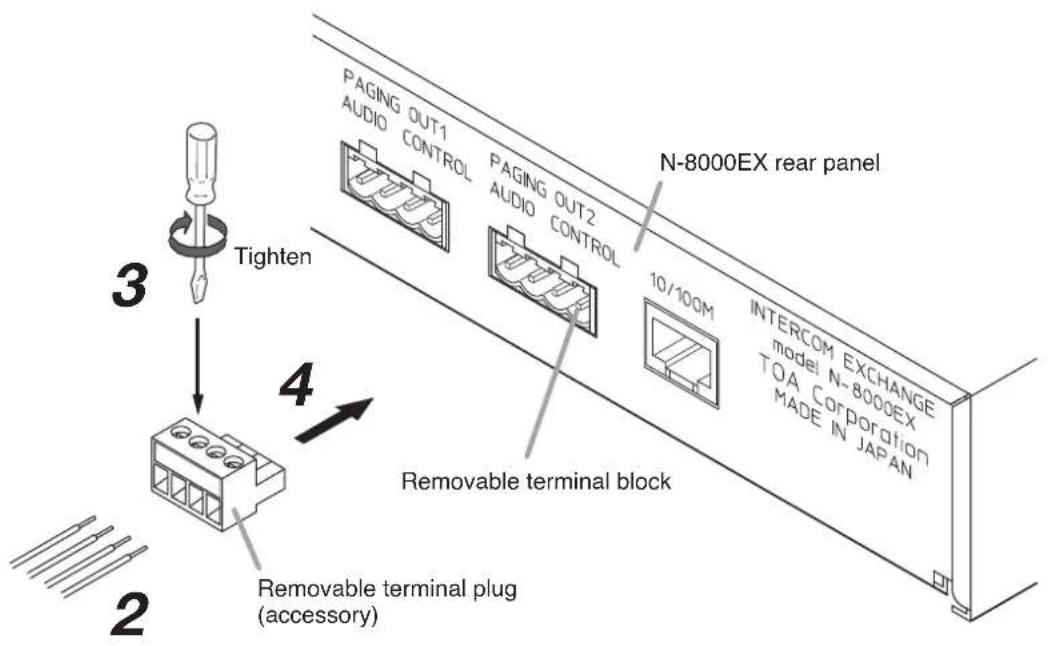
8.4.2. Removable terminal plug connection N-8000EX only
Step 1. Strip a cable jacket of approx. 7mm to expose inner cable.
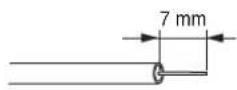
For cables, refer to p. 16, "Type of Cable."
Note
Do not solder plate on exposed inner cables when using a stranded wire.
Step 2. Loosen the terminal screws and insert the cables.
Step 3. Tighten the terminal screws securely. Notes
- Tug lightly on the cable to be sure that it does not pull free. If the cable pulls free, loosen the terminal screw again and reconnect from Step 2.
- Use the screwdriver appropriate to the screws tightened into the terminal plug.
Step 4. Insert the wired terminal plug into the terminal block of the N-8000EX.
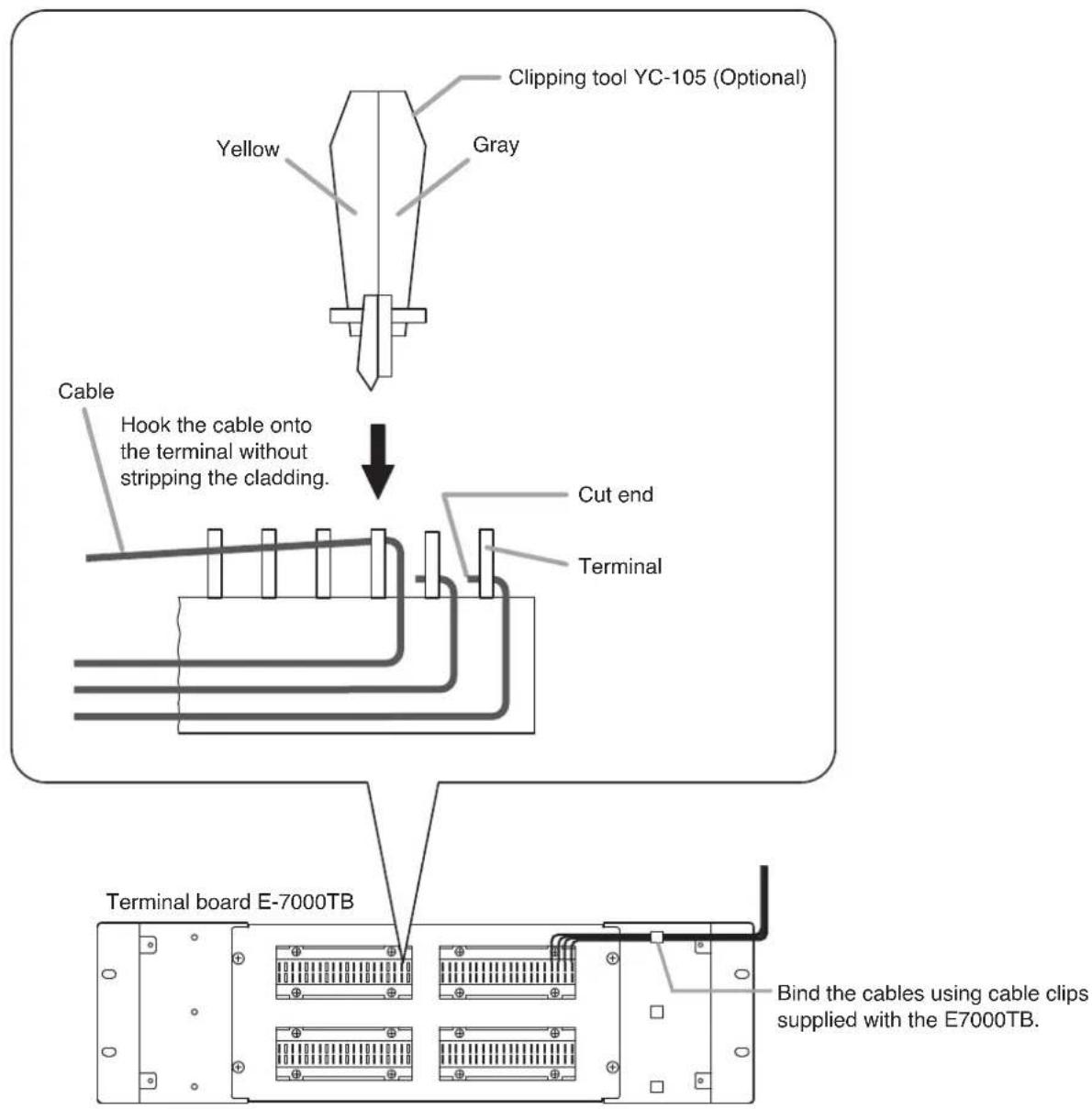
8.5.E-7000TB Terminal Board Wiring
For cable connection to the E-7000TB Terminal Board use the optional YC-105, clipping tool.
Hook the end of the cable onto the terminal and, with the cable end in hand, press the YC-105 Dedicated Tool down onto the terminal from above. Pressing down the YC-105 tool cuts off the excess cable end, securing the connection.
For cables, refer to p. 16, "Type of Cable."
9. ACCESSORIES
9.1. N-8000EX
Power supply cord (2 m) 1
CD* 1
Removable terminal plug (4P) 2
Mini-clamp connector (2P) 20
Plastic foot 4
Machine screw M4 x 20 4
Rack mounting bracket 2
Tapping screw 3× 8 8
Rack mounting screw 5 × 12
with plain washer 4
Wall mounting bracket 2
Wood screw 3.5× 20 4
9.2. N-8010EX
Power supply cord (2 m) 1
CD* 1
Mini-clamp connector (2P) 20
Plastic foot 4
Machine screw M4 x 20 4
Rack mounting bracket 2
Tapping screw 3× 8 8
Rack mounting screw 5 × 12
with plain washer 4
Wall mounting bracket 2
Wood screw 3.5× 20 4
- Contains the N-8000 setting software program and the N-8000 series instruction manual. The Setup Launcher is automatically started when the supplied CD-ROM is inserted into the PC's drive.
Note
If your PC's CD drive is not compatible with the AutoRun function, the setup guide is not automatically started even when the CD is inserted. Use either "Explorer" or "My Computer" to execute the following files, or use [Start Run] in the Task Bar and enter the following command.
For example, when placing the CD in the "d" drive, -d:\index.html
Version update information
- Download our TOA Products Data, web site (https://www.toa-products.com/international/) to get the up-to-date version for N-8000 software, firmware, and Instruction manuals.
- The software version number can be confirmed using the Help menu.
- The current firmware version can be confirmed on the system management screen displayed when the browser establishes the connection to the Exchange.
- The instruction manual version number can be confirmed by checking the preparation date (month and year) shown at the lower right corner of the last page.
Example: Prepared in November 2004: 200411