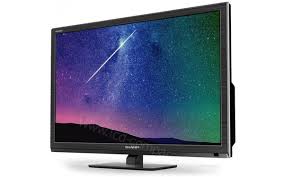
LC-22DFE4011E - Television SHARP - Free user manual and instructions
Find the device manual for free LC-22DFE4011E SHARP in PDF.


User questions about LC-22DFE4011E SHARP
0 question about this device. Answer the ones you know or ask your own.
Ask a new question about this device
Download the instructions for your Television in PDF format for free! Find your manual LC-22DFE4011E - SHARP and take your electronic device back in hand. On this page are published all the documents necessary for the use of your device. LC-22DFE4011E by SHARP.
USER MANUAL LC-22DFE4011E SHARP
Important safety instructions

Please, read these safety instructions and respect the following warnings before the appliance is operated:
In order to prevent fire always keep candles and other open flames away from this product.

- TV's with the weight of more than 20kg must be lifted and carried by at least two people.
- This TV does not contain any parts which could be repaired by the user. In case of a fault, contact the manufacturer or the authorised service agent. Contact with certain parts inside the TV might endanger your life. The guarantee does not extend to faults caused by repairs carried out by unauthorized third parties.
- Do not remove the rear part of the appliance.
- This appliance is designed for the receiving and reproduction of video and sound signals. Any other use is strictly forbidden.
- Do not expose the TV to dripping or splashing liquid.
- If the supply cord is damaged, it must be replaced by the manufacturer, a service agent or similarly qualified persons in order to avoid a hazard.
- The ideal distance to watch TV is approximately five times longer than the diagonal of the screen. Reflections on the screen from other light sources can make the quality of the picture worse.
- Ensure the TV has sufficient ventilation and is not close to other appliances and other pieces of furniture.
- Install the product at least 5cm from the wall for ventilation.
- Ensure that the ventilation openings are clear of items such as newspapers, table-cloths, curtains, etc.
- The TV set is designed to be used in a moderate climate.
- The TV set is designed exclusively for operation in a dry place. When using the TV outside, please, make sure it is protected against moisture (rain, splashing water). Never expose to moisture.
- Do not place any containers with water on the TV, such as vases, etc. These containers might get pushed over, which would endanger electric safety. Place the TV exclusively on flat and stable surfaces. Do not place any objects such as newspaper or blankets, etc. on or under the TV.
- Make sure the appliance does not stand on any power cables as they might get damaged. Mobile phones and other devices such as WLAN adapters, monitoring cameras with wireless signal transmission, etc. might cause electromagnetic interference and they should not be placed near the appliance.
- Do not place the appliance near heating elements or in a place with direct sunlight as it has a negative effect on cooling of the appliance. Heat storage is dangerous and it can seriously reduce the lifetime of the appliance. In order to ensure the safety, ask a qualified person to remove the dirt from the appliance.
- Try to prevent damage to the mains cable or mains adapter. The appliance can only be connected with the supplied mains cable/adapter.
-
Storms are dangerous for all electric appliances. If the mains or aerial wiring is struck by lightening the appliance might get damaged, even if it is turned off. You should disconnect all the cables and connectors of the appliance before a storm.
-
To clean the screen of the appliance use only a damp and soft cloth. Use only clean water, never detergents and in no case use solvents.
- Position the TV close to the wall to avoid the possibility of it falling when pushed.
- The instructions shown below are a safer way to set up the TV, by fixing it to the wall and will avoid the possibility of it falling forwards and causing injury and damage.
- This method is also useful the TV is placed on a glass surface or you do not wish to screw anything into your furniture. Ensure that children do not climb or hang onto the TV.
- For this type of installation you will need a fastening cord A) Using one/both of the top wall-mounting holes and screws (the screws are already supplied in the wall mounting holes) fasten one end of the fastening chord/s to the TV.
B) Secure the other end of the fastening chord/s to your wall.
- The software on your TV and the OSD layout can be changed without notice.
Warning:
- Never connect any external devices to a live appliance. Switch off not only the TV but also the devices which are being connected! Plug the TV plug into the wall socket after connecting any external devices and the aerial!
Always make sure there is free access to the TV mains plug. - The appliance is not designed for a use in a workplace fitted with monitors.
- The systematic use of headphones at high volume might lead to irreversible hearing damage.
- Ensure environmental disposal of this appliance and any components including batteries. When in doubt, please, contact your local authority for details of recycling.
- While installing the appliance, do not forget that furniture surfaces are treated with various varnishes, plastics, etc. or they might be polished. The chemicals contained in these products might have a reaction with the TV stand. This could result in bits of the material sticking to the furniture surface, which are difficult to remove, if not impossible.
- The screen of your TV has been produced under top quality conditions and was checked in detail for faulty pixels several times. Due to the technological properties of the manufacturing process, it is not possible to eliminate the existence of a small number of faulty points on the screen (even with maximum care while in production). These faulty pixels are not considered faults in terms of guarantee conditions, if their extent is not greater than the boundaries defined by DIN norm.
- The manufacturer cannot be held responsible, or be liable, for customer service-related issues related to the third party content or services. Any questions, comments or service-related inquiries relating to the third party content or service should be made directly to the applicable content or service provider.
- There are a variety of reasons you may be unable to access content or services from the device unrelated to the device itself, including, but not limited to, power failure, the Internet connection, or failure to configure your device correctly. Universal Media Corporation, its directors, officers, employees, agents, contractors and affiliates shall not be liable to you or any third party with respect to such failures or maintenance outages, regardless of cause or whether or not it could have been avoided.
- All third party content or services accessible via this device is provided to you on an "as-is" and "as available" basis and Universal Media Corporation and its affiliates make no warranty or representation of any kind to you, either express or implied, including, without limitation, any warranties of merchantability, non-infringement, fitness for a particular purpose or any warranties of suitability, availability, accuracy, completeness, security, title, usefulness, lack of negligence or error-free or uninterrupted operation or use of the content or services provided to you or that the content or services will meet your requirements or expectations.
- 'Universal Media Corporation' is not an agent of and assumes no responsibility for the acts or omissions of third party content or service
providers, nor any aspect of the content or service related to such third party providers.
- In no event will 'Universal Media Corporation' and/or its affiliates be liable to you or any third party for any direct, indirect, special, incidental, punitive, consequential or other damages, whether the theory of liability is based on contract, tort, negligence, breach of warranty, strict liability or otherwise and whether or not Universal Media Corporation and/or its affiliates have been advised of the possibility of such damages.
Important information regarding use of video games, computers, captions and other fixed image displays.
- The extended use of fixed image program material can cause a permanent "shadow image" on the LCD screen (this is sometimes incorrectly referred to as "burnout to the screen"). This shadow image is then permanently visible on the screen in the background. It is irreversible damage. You can avoid such a damage by following instructions below:
- Reduce the brightness/contrast setting to a minimum viewing level.
- Do not display the fixed image for a long period of time. Avoid displaying of:
» Teletext time and charts,
TV/DVD menu, e.g. DVD contents,
» In the „Pause“ mode (hold): Do not use this mode for a long time, e.g. while watching a DVD or a video.
» Turn off the appliance if you are not using it.
Batteries
- Observe the correct polarity when inserting the batteries.
- Do not expose batteries to high temperatures and do not place them on locations where the temperature might increase quickly, e.g. near the fire or on the direct sunshine.
- Do not expose batteries to excessive radiant heat, do not throw them into the fire, do not disassemble them and do not try to recharge un-rechargeable batteries. They could leak or explode.

Cd
Never use different batteries together or mix new and old ones.
» Dispose of batteries in an environmentally friendly way.
» Most of the EU countries regulate the disposal of batteries by law.
Disposal
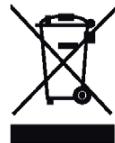
- Do not dispose of this TV as unsorted municipal waste. Return it to a designated collection point for the recycling of WEEE. By doing so, you will help to conserve resources and protect the environment. Contact your retailer or local authorities for more information.
Trademarks
- The terms HDMI and HDMI High-Definition Multimedia Interface, and the HDMI Logo are trademarks or registered trademarks of HDMI Licensing, LLC in the United States and other countries.
- The "HDTV" Logo is a trademark of DIGITALEUROPE.
The "HDTV 1080p" Logo is a trademark of DIGITALEUROPE. - The DVB logo is the registered trademark of the Digital Video Broadcasting - DVB - project.
Manufactured under license from Dolby Laboratories. - Dolby and the double-D symbol are trademarks of Dolby Laboratories.
- Manufactured under license under U.S. Patent Nos: 5,956,674; 5,974,380; 6,487,535 & other U.S. and worldwide patents issued & pending. DTS, the Symbol, & DTS and the Symbol together are registered trademarks & DTS 2.0+Digital Out is a trademark of DTS, Inc. Product includes software. © DTS, Inc. All Rights Reserved.
What is included in the box
Supply of this TV includes following parts:
| • 1x TV | • 1x User guide |
| • 1x Remote control | • 1x RF cable |
| • 2x AAA batteries | • 1x TV stand installation packet |
| • 1x Mini Component adapter cable * | • 1x Mini Composit adapter cable * |
-
- Only for models with DVB-T2 tuner
Attaching the Stand
Please follow the instructions on last page of this user manual.
Getting started - initial set up
- Using the RF cable supplied, connect the TV to the TV Aerial wall socket. Connect the power cable to the Electrical outlet.
- Insert the batteries supplied into the Remote control and press the Standby button to power on the TV.
- You will be now welcomed with the First Time Installation screen. If it does not appear, on the remote control, please press [MENU] then 8-8-8-8 and the menu will appear. If you wish to make changes to any of the default settings, use the scroll / / buttons. To exit this menu at anytime, press [EXIT] button.
- Please set desired settings in FIRST TIME INSTALLATION screen. DVB Antenna - You can choose between Terrestrial (DVB-T), Cable (DVB-C) or Satellite (DVB-S)*.
Language - Set the TV Menu language.
Country - Set the desired country.
Tunning Mode - Choose if you want to tune only Digital (DTV) Analogue (ATV) or both Digital and Analogue (DTV + ATV)
Operator - Select Cable provider. If your cable operator is not listed select Others. (Available only if DVB Antenna is set to CABLE)
Environment - Select the location of TV.
For home use, please select Home Mode. For shop demonstration mode, set Store Mode.
Sorting by LCN - Set LCN to ON if you want to arrange channels by provider preferences (only applies to DVB-T and DVB-C channels).
- Press [Auto Tuning] button to start the tuning process.
- Optional channel presets DVB-C:
Keep all default settings as recommended.
If DVB-C channels are not found, contact your network provider for the valid "Network ID". Then perform a new search. Press the [MENU], select "Network ID" and enter the network ID.
- Optional channel presets DVB-S2*: Select "Satellite" in the "DVB
Antenna" in the menu for the optional channel presets. Here you can choose between the various satellites. Since selection completed, then the channel list of the exact satellite will be available to be imported into your TV system.
Confirm with [OK] button on the remote control, to start scanning.
TIP: If you are missing channels, the reason for this is likely to be signal strength, you should consider connecting signal booster and re-tuning the TV.
-
- Available only for TVs with DVB-S tuner
Remote control
Refer to remote control picture on the second page of this user manual.
- STANDBY - Switch on TV when in standby or vice versa.
- MUTE - Mute the sound or vice versa.
- DTV - Switch to digital TV source.
- RADIO - Switch to Digital and switch between TV and radio in Digital mode.
- USB - Switch to USB source.
- DVD - no function
- 0-9-to select a TV channel directly.
- TV GUIDE - Opens the 7 Day TV Guide (Digital mode).
- ^ -To return to the previous channel viewed.
- VOL ▲/▼ - To increase / decrease the sound level.
- S.MODE - Scrolls through sound mode options.
- P.MODE - Scrolls through picture mode options.
- FAV - To display favourites menu.
- CH / - To increase or decrease the channel being watched.
- ( / / / / OK) - Allows you to navigate the on-screen menus and adjust the system settings to your preference.
- MENU - To display OSD menu.
- EXIT - To exit all menus.
- SOURCE - To display the input/source menu.
- INFO - Press once for now/next channel information. Press twice for programme information about current programme.
- ASPECT - To switch the screen between the different picture formats.
- SLEEP - Press repeatedly to cycle through the sleep options.
- AUDIO - To change the audio language (if available).
- SUBTITLE - To switch the dialogue at the bottom of the screen (on/off).
- TEXT - Teletext mode - To enter Teletext
- TEXT HOLD - Teletext mode - Hold current page which is displayed
- ZOOM - To zoom in
- DISPLAY - To switch off the screen when listening to radio
- Rec1-PVR Record
- Rec List1 - Opens the list of recordings.
-
- To restart the current chapter
-
- To advance forward to the next chapter
- / - To stop the playback / To EJECT the disc press/hold the button for 4 seconds.
- -To play in fast rewind mode.
-
- To play in fast forward mode.
35.▶-To play/pause
- To play in fast forward mode.
- COLOUR BUTTONS - Additional teletext and OSD functions
1 - available only with PVR function
TV buttons & Source menu
Vol+ Volume up and menu right
Vol- Volume down and menu left
CH+Programme/Channel up and menu up
CH-Programme/Channel down and menu down
MENUDisplaysMenu/OSD
SOURCE Displays the input source menu
STANDBY Standby Power On/Off
Choosing Mode Input/Source
To switch between the different input/connections.
a) Using the buttons on the remote control:
- Press [SOURCE/ AV] - The source menu will appear.
- Press [] or [] to select the input you require.
- Press [OK].
b) Using the buttons on the Television:
- Press [SOURCE].
- Scroll up / down using CH+/ CH- buttons to the input/source you require.
- Press Vol+ to change input/source to the one selected.
Connections
Please see the table for connector types for different models available on the page 92.


USB
USB-Input 1


HDMI 1,2 in
HDMI-Input 1,2


R/L - Video & YPbPr audio In *
Component / Video audio input


Video (CVBS) *
VIDEO input


Mini AV*
Video Input & Component / Video audio input


Component / YPbPr *
Component HD Input


Mini YPbPr *
Mini Component HD Input

SCART
SCART-Input

CI Card IN
CI input


RF In
RF / TV Aerial Input


Sat In*
Satellite Input

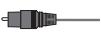
Digital Optical Audio Out *
Digital optical output


RJ45*
Ethernet


HEADPHONES
3.5mm Headphone output
-
- Only on supported devices
TV Menu navigation
To access this menu, press [MENU] button on the remote control. To enter a menu press [OK]. If you wish to make changes to any of the default settings, use the scroll ( / / ) buttons. To confirm any settings press [OK] button. To exit this menu at anytime, press [EXIT] button.
Picture
Picture Mode - Choose from the following presets.
- Standard - Default settings
- Dynamic - Recommended settings for fast moving pictures
- Mild - Set to be lighter in colour and less bright
- Personal - Lets you manually alter all the settings
- Eco - Consume 15% less energy.
Contrast - Switch the balance between black and white.
Brightness - Increase or decrease the brightness of the picture.
Tint - Lets you increase or decrease the level of tint within the picture (for NTSC signal only)
Colour - Increases the colour from black and white.
Sharpness - Increase or decrease the sharpness of the picture.
Colour Temperature - Choose from the following presets.
- Normal - Default settings
- Warm - Increases red within the picture
- Cold-Increases blue within the picture
Aspect Ratio - Picture format varies depending on the channel/broadcast. There are a number of different options to best meet your needs.
- Auto-Automatically displays the best picture format. So the picture is in the correct position. May have black lines at the top/bottom and/or sides.
- 4:3 - Displays the 4:3 picture in its original size. Side bars are shown to fill the 16:9 screen.
- 16:9 - Fills the screen with a regular 16:9 signal.
- Zoom 1/2 - The picture is the correct proportion but zoomed in to fill the screen.
- Dot by Dot (HDMI) - Will display the picture in its original resolution without any change.
- Full Screen - Stretch signal to fill the screen.
Noise Reduction - Switch noise reduction on/off.
Sound
Sound Mode - Choose from the following presets
Standard-Default settings
- Music - Emphasises music over voices
- Movie
- Provides live and full sound for movies
- Personal - Selects your personal sound settings
Sports - Emphasises sound for sports
Tip: Treble and bass levels can only be adjusted when the sound mode 'Personal' is selected.
Treble - To adjust the level of high frequency within the sound.
Bass-To adjust the level of low frequency within the sound.
Balance - To switch the sound between the left and right speakers.
Auto Volume Level (AVL) - When 'on' is selected, the volume will stay at a constant level regardless of input/source.
Surround Sound/DTS TruSurround - Allows you to turn surround sound effect ON or OFF.
Digital Output - This is the digital Audio output. Choose from the following options:
-Off-Off
- Auto - Selects the best settings automatically
- PCM- Select this option if you are connecting to a Stereo Hi-fi via digital cable (Pulse-code modulation (PCM) is a digital representation of an analogue signal)
Audio Description - Additional sound track for visually impaired. Available only on selected DTV shows.
AD Volume - to adjust volume of Audio Description sound track
Audio Delay (ms) - Enables the user to adjust sound setting to sync picture and audio for TV speakers.
SPDIF Delay (ms) - Enables the user to adjust sound setting to sync picture and audio for external speakers connected via digital audio output.
PC
Auto Adjust - Lets you automatically configure the television to be used as a computer monitor.
H Offset - Changes the horizontal position of the picture.
V Offset - Changes the vertical position of the picture.
Size - increase picture size.
Phase - To adjust delay time of phase in order to reduce the noise of picture
TIP: If the computer is left in-active for a period of time, the television will switch into a 'sleep' state (the screen will power off to save power). To switch back on press the standby button.
TIP: If you do not press any buttons for 10 seconds, the menu will automatically exit. You can change the length of time before the menu exits automatically - see 'OSD Timer' section.
Channel
DVB Antenna* - Set the type of DTV signal
- Terrestrial - Terrestrial (DVB-T)
- Cable-Cable (DVB-C)
Auto Tuning - Allows you to retune the television for all digital channels, digital radio stations and analogue channels.
Analogue Manual Tuning - Allows you to manually tune your analogue signal.
Digital Manual Tuning - Allows you to manually tune your digital signal.
Channel Edit - Allows you to delete, skip and add favourite channels.
Signal Information - Information about DVB signal.
CI Information - Pay per view services require a "smartcard" to be inserted into the TV. If you subscribe to a pay per view service the provider will issue you with a 'CAM' and a "smartcard". The CAM can then be inserted into the COMMON INTERFACE PORT (CI Card In).
Recorded list - List of recorded TV shows.
Schedule List - Lists your programme reminders.
Dish Setup - This menu is only available in DVB-S2 mode. You can select the type of satellite, your transponder and your LNB type, etc.
* - Only for models with DVB-T2 tuner
- Only for models with DVB-S tuner
Lock
System Lock - Allows you to lock or unlock the menu. You will be asked to enter a 4 digit password. Use the button to quit the password input. Use the button to clear. Default password is 0000.
Set Password - Change the default password.
Channel lock - Lock specific TV channels.
Parental Guidance - Lock TV channels based on age restriction.
Key Lock - Lock the TV buttons.
- Off - All TV buttons are unlocked
- Partial - Only Standby button is unlocked
- Full - All TV buttons are locked
Time
Clock - Set the date and time. Date and time is set up automatically in DVB mode.
Off Time - Allows you to set a specific time for your TV to turn off.
On Time - Allows you to set a specific time for your TV to turn on, the channel it will then display, the source it will be on and also the volume. This function can then be toggled to repeat every day or a certain day.
Sleep Timer - Lets you set the sleep timer so the television automatically switches off after a set amount of time. Off -> 10min -> 20min -> 30min -> 60min -> 90min -> 120min -> 180min -> 240min.
OSD Timer - Lets you adjust the amount of time the On Screen Menu stays on the screen before disappearing.
Auto standby - Adjustment for the auto standby in hourly increments: Off -> 3h -> 4h -> 5h.
Time Zone - Change your current time zone.
Network*
IP config - LAN network connection settings
- Auto - Will automatically connect the TV to your home network (this is the default setting and is highly recommended)
- Manual - Allows you to manually change the IP, Netmask, Gateway and DNS information.
Network info - Information about network settings
Network test - Network connection test
-
- The LAN/Ethernet port is used only for DVB-T2 services. It is not intended to be used for internet/network use.
Settings
Language - Allows you to change the language of the menu.
Audio Languages - Allows you to change audio language on selected DVB channels.
Subtitle Language - Allows you to change subtitles language on selected DVB channels.
Hearing Impaired - If signal provides support for the hearing impaired, the subtitles can be played by pressing the "Subtitle". If you set Hearing Impaired ON and switch to a channel with supports for hearing impaired subtitles will be activated automatically.
Blue Screen - Changes the background when there is no input between transparent and a blue background (Only available on some sources).
PVR File System - PVR Recording options
- Select disk - Select USB port and disk partition
- TimeShift Size - Set size time of shift buffer.
- Format Start - You can format connected USB storage device to FAT 32 file system.
WARNING: ALL DATA ON THE USB DEVICE WILL BE DELETED
- Speed check - Tests write speed of connected USB storage devices.
First Time Installation - Starts the first time installation.
Software Update (USB) - From time to time we may release new firmware to improve the operation of the television (available to download). This menu lets you install the new software/firmware onto the television. Further details of how to do this will be issued with the firmware. Contact the helpline or refer to the 'www.birth.eu' website.
Reset TV - This resets the menus to factory settings.
HDMI CEC* - Allows you to operate devices connected via HDMI with TV remote control.
- Auto standby - Automatically turn on/off connected devices via HDMI CEC
Device list - Allows you to access devices menu and operate the menu using TV remote control. -
HDMI ARC* - Sends audio signal from terrestrial/satellite broadcast via HDMI to the AV receiver without using any additional audio cables, this functions is available only on HDMI 2 output.
-
- HDMI CEC must be supported by connected device.
LED Status - Allows the user to switch the LED Power indicator light ON or OFF, when the TV is being operated. (When this option is set to OFF the LED Power indicator light will flash when the remote control is used)
Version Info - shows version of TV software
Store Mode* - switch ON/OFF shop demonstration mode
-
- available only if store mode was selected during first time installation
7 Day TV Guide
TV Guide is available in Digital TV mode. It provides information about forthcoming programmes (where supported by the Digital channel). You can view the start and end time of all programmes and on all channels for the next 7 days and set reminders.
- Press [TV GUIDE]. The following 7 Day TV Guide will appear.
- Navigate through the menu using / / .
You can now:
Record selected TV channel and TV show by pressing the RED button.* Set a reminder by pressing GREEN.
View a previous day by pressing YELLOW.
View the next day by pressing BLUE. [INFO] shows detailed information about the selected post
-
Press [EXIT] to exit the 7 day TV Guide.
-
- only for models with recording function
USB mode / Media player
USB mode offers playback of various different types of content that you have saved on your USB Memory Stick. On switching to USB source the USB mode menu screen will appear. The content will be divided into Photo, Music, Movie and Text based on file type.
- You can navigate through the menus using the scroll
/ / / buttons. To confirm the item you wish to play/view press [OK] button. - Select the drive you require. (If your drive only has 1 partition you will only see 1 item).
- You can now access the item. Press OK to view.
- While viewing you may control the item playback modes by using the remote control buttons or by invoking playback navigation menu and selecting on-screen buttons / / / and [OK]
NOTE: USB extension cables are not recommended as they can cause a reduction in picture/audio quality and stoppages during play back of USB content.
USB Record - Digital mode*
Built into this television is a USB record facility. This function is available in Digital mode when used in conjunction with a compatible USB memory stick or USB Hard drive. The benefits of this are as follows:
- Pause live TV and then playback, fast forward and rewind (up to live TV).
- One button record, if you decide you want to record the current programme.
- Easy programmable recording from the 7 day TV Guide
Due to the nature of the product, it is necessary to use a high speed USB memory stick (as the TV reads from and writes to the memory stick at the same time, some memory sticks may not be suitable).
Minimum Specification - USB Memory Stick
- Read Speed - 20 MB/s (Mega Byte Per Second)
Write Speed - 6 MB/s (Mega Byte Per Second)
Pause Live TV (Time Shift) *
Pausing Live TV is very simple.
- Press the play/pause button and the television will pause and the live content will be recorded. To resume watching press play/pause again.
-
Press fast forward to go forward in a recording (i.e. to skip adverts).
-
Press fast rewind to go back in a recor (i.e. if you fast forwarded too far).
TIP: When you switch the TV to standby or change channel the Time Shift memory is wiped. To restart time shift you must press play/pause button.
One Button Record
At any point in time you may decide to record the current channel that you are watching. To do this you need to press the [REC] button.
TIP: This television contains one TV tuner, therefore it can
only record the channel you are watching or record one
channel while the television is in standby mode.
NOTE: USB record function is only available in Digital TV mode.
Due to copyright laws and illegal copying/recording it is not
possible to record to/from any other input/output source.
-
- only for devices with built in PVR function
Product fiche
| Trademark | SHARP | |||
| Model | LC-22CFE4000E LC-22CFE4000ES LC-22CFE4000EW | LC-22CFE4012E LC-22CFE4012ES LC-22CFE4012EW | LC-24CHE4000E LC-24CHE4000ES LC-24CHE4000EW | LC-24CHE4012E LC-24CHE4012ES LC-24CHE4012EW |
| Energy efficiency class | A | A | ||
| Visible screen size (diagonal) | 22" / 55cm | 24" / 60cm | ||
| On-mode power consumption | 20,0 W | 25,0 W | ||
| Annual energy consumption* | 30 kWh | 37 kWh | ||
| Standby power consumption** | <0,50 W | <0,50 W | ||
| Off mode power consumption | N/A | |||
| Screen resolution | 1920 (H) x 1080 (V) | 1366 (H) x 768 (V) | ||
-
- Energy consumption XYZ kWh per year, based on the power consumption of the television operating 4 hours per day for 365 days. The actual energy consumption will depend on how the television is used.
- *- when the TV is turned off with the remote control and no function is active
Compatible files in USB Mode
| Media | File Ext. | Codec | Remark | |
| Video | Audio | |||
| Movie | .mpg | MPEG-1, MPEG-2 | MP3, WMA, AAC, AC3 | Max Resolution: 1920x1080 Max Data rate: 40 Mbps |
| .avi | Xvid, MJPEG, MPEG-4 SP/ASP, H.264 | Max Resolution: 1920x1080 Max Data rate: 20 Mbps | ||
| .ts | MPEG-2, H.264 | |||
| ".mov/ .mkv" | MPEG-4 SP/ASP, H.264 | |||
| .dat | MPEG-1 | |||
| .mp4 | MPEG-4 SP/ASP, H.264 | |||
| MPEG-1, MPEG-2 | Max Resolution: 720x576 Max Data rate: 40 Mbps | |||
| .vob | MPEG-2 | |||
| Music | .mp3 | - | MP3 | Sample Rate 8K-48KHz Bit rate: 32K - 320Kbps Channel: Mono/Stereo |
| .wma | - | WMA | ||
| ".m4a/ .aac" | - | AAC | Sample Rate 16K-48KHz Bit rate: 32K ~ 442Kbps Channel: Mono/Stereo | |
| Photo | ".jpg/ .jpeg" | Progressive JPEG | Max Resolution: 1024x768 | |
| Baseline JPEG | Max Resolution: 8192x8192 | |||
| .bmp | BMP | Max Resolution: 6500x6500 Pixel Depth 1/4/8/16/24/32 bpp | ||
| .png | Non-Interlaced | Max Resolution: 3000x3000 | ||
| Interlaced | Max Resolution: 1500x1500 | |||
Sedmidenni TV program
Surround Sound/DTS truSurround - Zapnutie/
Mod USB/Player media
I3BexKahe oTeKcnNoaTaua
He n3xBbPnIte To3n TeNeBn3Op Hapec d npyrnte 6nTOBn OTnAbuC. BbPheTe ro B hKoI OT onpeJeHnTe ceHTPOBe 3a peuKnIpaHe cBflacHo DnpeKTNBaTa 3a NYEEO. IIO TO3n NaHn NpIOMarate 3ana3BaHeTo Ha pecypcn i 3aunTabe OkONHaTa CpeDa. 3a nobuey INΦopMaZnCe CBpbXeTe C na-6n3knjo Do Bac TbproBEc nn C MeCTHnTe Blactn.

TbproBcKn MapKn
- TepmunHte HDMI, HDMI High-Definition Multimedia Interface, KaKTo n Iloroto HDMI ca TBproBCKn MapKn nn pernctpupaHn TBproBCKn MapKn Ha HDMI Licensing, LLC B CAU n dpyru cTpaHn.
- Лoronto "HD TV" e Тьproвска Марka на DIGITALEUROPE.
- Jloroto "HD TV 1080p" e TBPROBka Mapka Ha DIGITALEUROPE.
-
Логото DVBе ретистрара Тьрювская марka на пpoекта Digital Video Broadcasting /LИнфобов Вдюе п dedаванe/ - DVB.
-
Пюпзвени по лименни Dolby Laboratories
- Dolbyи симьолът Довино "D" ca PerinctpupaHи TbproBckи Марки на Dolby Laboratories.
- Понибени по Лицени пат entни homepa на CAU; 5,956,674; 5,974,380; 6,487,535, кakto и дуги nizadelenи удашио оюбөне amepuikaнски и севовни пат entn. DTS, CmboJbT, kakto и DTS и CmboJbT 3aeHNo ca perinctprapani tbyrobckn Mapkn. DTS 2.0+Digital Out e tbyrobcka марka на DTS, Inc. ПрodуктВ BKluOvBa coФтуер. © DTS, Inc. Bcunkn npaba 3ana3eHn.
KaKBO e BKNJIOyeHO B NaKeTa
При закунице на Този телевизор, по лучтеследнITE elementent:
Vol+ yBéniucaBaHe Ha CnlaTa Ha 3Byka N IpemnHaBaHe KbM MEHIO TO BJACHO
Vol- HamaJIyBaHe Ha CnJaTa Ha 3ByKa I npEmuHaBaHe KbM MEHHTO BJRABO
CH+ nporpama/kaHan Harope n npemHaBaHe KbM MeHIO tope
CH- nporpama/KaHaJI NaDoIy I npemHnBaHe KbM MeHIOTo DoJy
MENUPOKa3BaMeHIO/OSD
SOURCE NOKa3BaHe Ha MeHIO 3a I3TOUHnKa Ha BXOeH CInHaI.
STANDBY BKJIIOUcBaHe/U3KJIIOUcBaHe Ha TeJIeBn3Opa,ДOKaTO eВ peJIM Ha rOTOBHOCT.
I36op Ha pexnM 3a BXoJeH cnrHaJ/ I3TOUHMK
IpeBkIIOUBaHe MeJxy pa3JIuHHTe BXoHN CIRHaJI/N CBbP3BaHnA.
a. Ynotpe6a Ha 6ytoHInTe Ha dncTaHcNoHHoTo ynpabJeHne:
- HatncheTe 6yToH [SOURCE/ AV] - n3BexKa ce MeHIOTo 3a n3TOUHN Ka CnHAn.
- CnE ToBa HATncHeTe [▼] nIi [▲], 3a da n36epeTe npednoHTaHnO T BAc BXoDeH cUrHaI.
- HatncheTe [OK].
b. Ynotpe6a Ha 6yToHInTe Ha TeleBn3Opa:
- HatncheTe 6yToH [SOURCE].
- Правпесунode сююпа на 6утонite CH+/CH-,да доctиг themselves Oжелань ов bac niztoчник ha BXothen Cunhajn.
- HaTnchete Vol+, 3a da npomeHnte BXoHnna CnHaJI/n3ToUHnka KbM TO3N, KOJTO CTe n36pAnN.
Cbbp3BaHe
B Ta6nntaMoKeTe da Bnnte BnOBeTe KOHeKToPn 3a pa3nHnTe MoJeN (ctp.92.)


USB
USB BxoD1


HDMI 1, 2 in
BxOДЗaHDMI1,2


R/L - Video & YPbPr audio In *
KOMnoHeHTe / BvIeO ayIIO BXoI


Video (CVBS) *
BUNEO BxOa
LbT- yBeneuaba ZBeTOBeTe OT UePHo N 6aNo.
Octpota - yBeneucaBa NIN HaMaIaBa OCTpoTaHa KapTInHaTa.
CBeTOba TemnepaTypa - n36epeTe HЯкоT O T cIeHnTe npEdbapntHeNo 3aJaDeHn HaCTpoiKn.
- HopmaHa - Φa6pHNo 3aJaDeHn HaCTpoiKN
- Tonna - yBéniucaBa YepBHeNIA ZBRT B KapTInHaTa
- Ctydeha - yBelenuBaCINHnZBtB KApTnHaTa
TeLeBn3NoHn npOpOpZnn - φOpMaTbT Ha KapTInHaTa MoKe Da BapNpaB 3aBNCIMoCt OT KaHana/U3NbUbaHeTo. CbIeCTByBaT rOJIaM 6poipa3JIuHn OOnuH, KOInTO da OTROBaprT Na-Do6pe Ha HJxKnTe Bn.
- ABTomaTnUHO - aBOMaTnUHO Bb3IpOn3BvEJaHe Ha Hau-Do6pna fOpMaT Ha KapTuHaTa. KapTuHaTa e B ONTMaHHTO cN pONJKeHne. Bb3MoXHo e da Ima cepHN
JIINHINBROPHaTa/DOJHATAyactN/IIINCTpaHInTe.
- 4:3 - nokaBaHe Ha KapTnHa c fOpMat 4:3 B oprHnHaJIHHn
- pa3Mep. NokaBAt ce cepHn JeHTn, KOnTO 3aIbIbAT
- octTaTbKa OT ekpHa BA BB fOpMat 16:9.
- 16:9 - ekpaHbT ce 3aIbIbA npn HopMaJIeH cnHrHan 16:9.
-Zoom/ybelenuhen/1/2-KapTnHaTaeBnpaBnHaTApnpo npOpucn,HOeyBelenuHema,3a da6bJe n3PbLnHeEkpaHa. - Tocka no toka (HDMI) - noka3BaHe Ha KapTuHaTa BOpunHaHaTAt nepe3oJIoZu86eI pOmeHi.
-Пьен ekpan - pa3TЯне Ha n3o6paЖeHnETo 3a 3anblaHe ha ekpaHa.
HamaJaBaHe Ha shyMa - BKJIIOUBAHe/IN3KJIIOUBAHe
HaФyHKUЯTa3aHaMaJIYaBaHe HaIyMa.
3Byk
3ByKOB pexm -ИЗберет HeЯкоТ OТ cleHnte npedBapuTeHNo 3aJaAeHn HacTpoKn
- CtanhapTeH -фбрчHo 3aJaDeHn HaCTpoKn
- My3nka - IOUePTaba My3nKaTa HAD IlaCOBeTe
-ФИIMN -прEOCTaBЯЖИ N ПьЛeн 3ВКЗгДаHHe HФИIMN - Nepcohanen - n36epeTe liuHnTe cn HacTpoKn 3a 3ByK
Cnopt-noUpeTpHa 3ByK 3a rIeJaHe Ha Cnopt
IORCHEHNE: Hbama Ha bucokume u Huckume Yecmou MOZam da 6bdam pezynlupaHu eDunCmbEno, kozamo e u3bpaN 38ykoB pexum 'IpecoHaJIen'
Bucokn YecToTn -HaCTpoBbHe Ha HNBaTa Ha BUCOKITE YecToTn B3Byka.
Hnckn YecToN - HacTpoBnBaHe Ha HnBaTa Ha HnCKnTe YecToN B 3Byka.
BalaHc - npeBkIIOUBaHe Ha 3ByKa MekJy JeBnTe N DeCHnTe ROBOpNTeN.
ABTO. HNBO Ha cnlaTa Ha 3Byka - KOraTo Ta3n ΦyHKuIe BKJIIOUeHa, CNlaTa Ha 3Byka Ie OCTaHe Ha NOCTOHHNOHBO, He3aBUNMO OT BXODHnCnHnI/N3TOHnKA.
3BykOB cbpayd/DTS TruSurround - no3BovJaBa Bn da BKliouBaTeиИЗКlIOUBaTe eΦeKtza 3a cБpayHn Ha 3Byka.
UΦOB u3XoD -uΦpOBO ayDIO u3XoD. U36epTe HAKOOT CLEHNTE OuIN:
- N3Kn.- N3KJIIOUeHO
- ABTomatnuyho - abTomatnueH n36op Ha haN-do6pnte HacTPOJKN
-PCM -изберета таи опця akо с CBьрЗВATE Кьм Hi Ftckepoуpe3 zuфов ka6eн (IMmnylCHO-KODOBaTa Modylaця (PCM)npedctablaBa zuфpoBO npedctabYHe naHaNoROb cnHnA]
3BykoBO OINcAHne -ДОпьнHTeJIeH OINcaTeJIeH KaHaJI,прднaЗHAчЕн 3a 3pITeN C yBpeJeo 3peHne.ДocтБпeн eINHCTBeHO 3a ИЗбpaHи ZIΦPobN TeteBn3IOHn ПрдЯBaHЯ.
AD Volume - NaCTpOIBaHe Ha cINlata Ha 3ByKa Ha ayDIO OINcAHneTO.
Aydno 3akbchenne (ms) - no3BOLJIbBa Ha nOTpe6nTeIa da peryIInpa 3ByKOBInTE HacTPOJKN TaKa, Ye KapTINHaTa n aydINOTo OT ROBOpTeJIte Ha TeJeBn3Opa Da 6bDat CnHxPoHN3nPaHn.
SPDIF 3aKbCHeHne (ms) -no3BOJLaBa Ha nOte6nTeIa da peryIina 3ByKOBIne HacTPOJKn TaKa, Ye KapTINHaTa n ayDNOT O T BbHsHn ROBOpTeI Na 6bDat CnHxPoHN3npaHn.
PC
A B T O M A T N U H A N C H P O I K A - N O 3 B O L A B A A B T O M A T N U H O K O H Φ I G P R I P A H E H A T E L E B N I 3 O P A 3 a N 3 N O L 3 B A H E O M Y K A T O M O H I T O P.
Xopn3oHTaIeH oocet -npomHe XOpn3oHTaIHOTO nIOJKeHne Ha KapTuHaTa.
BepTKaJIeH oocet - IpomHeBepTKaJIHOTo NIOJKeHne Ha KapTInHaTa.
Pa3Mep - yBéNiuHaBa pa3Mepa Ha KapTnHaTa.
Φa3a - peγιnpaHe Na Φa3OBOTo 3aKbCSHne Cζεν HamaJBaHe Ha χyMa O KαρτιHaTa.
IORCHEHNE: Ako komniompbm e Heakmuehen 3a u3becmen nepuod om 8peme, meenebu3opbm ue npemue 8 cbcmohue 'cbn' (ekpanb m ue ce u3k10cu, 3a da ce cbxpanu ehepzur). 3a da zo eklioume omnobo, hamucheme 6ymoHa 3a pexum Ha zomobHocm.
IPORCHEHNE: Ako He Hamucheme HnKo om 6ymohume 8 pa3cmOHaue Ha 10 cekyHdu, meleBuzOpb m aBmomamuHno ue u3Je3e om MeHIO. MoXe da npOMEHume 8pememo 3a aBmomamUeuH u3xOd om MeHIO npu heakmuHocm -UnfopMaua 3a moBa moXe de Hamepume 8 pa3deN 'OSD taHmeP.
KaHaJ
UΦpoB Tn* - 3aDaBaHe Ha BVda UΦpoB TeJebuHNoHeh CnHaI
- Ha3eMeH - Ha3eMeH (DVB-T)
- Ka6eJen - Ka6eJen (DVB-C)
AbTomatnuHa hactpoJa -no3BoJyBa Bn da hactponTe OTHOBe TeneBn3Opa 3a BCNUKn CnΦpOBu KaHaJI, CnΦpOBu paIIO CTaNtUIN aHaIANOGBu KaHaJI.
AhaIorObo pbUHO cKaHnPahe - nO3BOLaBa Bn da HacTPOIne pbUHO aHaIorOBnCnHaI.
UΦpOBo pBHyO cKaHnpaHe - P03B0JIyBa Bn da NaCTponTe pBHyO UΦpOBuRcunHaJ.
Pepakunha KaHann -no3Bolra Bn da n3tpBaTe, npcekaate nn do6abte JIO6mnn KaHann.
HΦopmaqna 3a cnrHaJa - HΦopMaqna 3a cnΦpOBN TteBn3NoHeN CnRHaJ.
CINHΦopmaJn -IaTeHnTE yCnyr n3NCKBt B TeJeBn3Opa da 6bJe noCTabHeA "cMapTkapTa".Ako ce a6oHnape 3a IpaTeHa ycLyra, 1ocTaubKbT 9e Bu n3daJe 'CAM' n "cMapTkapTa". CAM moze da 6bJe noCTabHeBA OBUIN HHTEPFENIECEH IOPT (CI Card In).
Cnncbck cbc 3auncn -cnncbk cbc 3auncaHn TeleBnOHH npedabaHna. Cnncbk c rpafo n -cnncbucn C Baunte HanomHnHa nporpamn.
CateInTha KOHfUgpauny** -TOBa MeHIO e JOcTbIHO eINHCTBeHO B pexIM DVB-S2. MojTe Da n36epTe BnuHa ha caTeInTa, Ba7nI TpaHcNtOHep, BnuHa Ba7nI LNB u T.H.
-
- Eduncmbeho npu modenu c DVB-T2 myhep
**- Edunchmbeno npu modenu c DVB-S myhep
3aKlIOUbaHe
CnCTeMHO 3aKIOUbaHe - nO3BOJRA Ba Ida 3aKIOUHTe IIN OTKIOUHTe MEHIO. 1Ie 6bJeTe npKaHeHn I da BBeTe napOla ot 4 cIMBOJa. IV3PON3BaIte 6yTOH , 3a I ppeCTaHOBtE BvBExJaHTo Ha napOla. IV3PON3BaIte 6yTOH , 3a da I3YnCTHte. Fa6pNHO 3aJaDeHaTa napOla e 0000.
3aabahe Ha napola - npomHa Ha a6puHo 3aadeHaTa napola.
3aklouBaHe Na KaHaJI - 3aKlUoyBaHe Ha ONpeJeHn TeJeBn3IOHH KaHaJI.
PodnteNcKoHTpO -3aKJIIOUVAHe Ha TeJIeBn3IOHNN KaHaJIbB3 OCHOBA Ha Bb3paCTOBO OrpaHnueHne.
3aKJIIOUBAHe Ha 6yToHnTe -3aKJIIOUBaHe Ha 6yToHnTe Ha TeJIeBUNOpa.
- N3KJIIOUeHO - BCNUCKI 6yTOHn Ha TeLEBNI3Opa ca OTKJIIOUeHN
- YactnHc - EunHCTBeHo 6yToH Standby e otKnIOueH
- Пыно - BCчки 6утони телевизора с залочени
Bpeme
YacobnK-BbBeTe Ta n uac. DaTaTa u acbT ca ABtOMaTHNO 3aJaDeHn B pexim DVB.
Bpeme 3a n3KJIuOVAbe -IOZBOJRABa Bn da 3aJaTeOpneJeNo Bpeme 3a n3KJIuOVAbe Ha TeNeBu3Opa.
Bpeme 3a BkIIOUbahe -no3BOJRA Ba n da 3aJaIae Te onpeJeHo Bpeme 3a BkIIOUbaHe Ha TeLeBu3Opa, da I36peTe KaHa, KoITo 1e 6bIe NOKa3An, KaKTo I IN3TOUHnKa Ha Bb3POnI3BeXJda He i CInlata Ha 3Byka. Ta3n fynHKuM OMe Ja 6bJe ppeBkIIOUeHa Taka, ye da Ce NOBTapra BCEKn DeH nn In B onpeJeH DeH.
Taimep3a 3acnBahe -no3Bolra Bn da hactponTe taimepa 3a
3acnBaHe TaKa, ye TeLeBn3OpbT da ce n3KIOUba ABOTMaTHO CneI
onpeJeH nepoJOn OT BpeMe. Off /IN3KIOUeH/ -> 10MHN -> 20MHN
-> 30MHN -> 60MHN -> 90MHN -> 120MHN -> 180MHN -> 240MHN.
OSD taimep -no3Bolra Bn da perylnapte nepoJa OTo BpeMe,
3a KOEtO MeHOTO OCTaBA Ha ekPaHa npedn da IN3ue3He.
Auto standby /ABTomATNuHO NOCTABAHBE pexmHa
rotOBHocT/ -perylnapaHe Ha ABtOMaTHNHT peXIM Ha rotOBHOCT
B cAcobn CTbKn: Off /IN3KIOUeHo/ -> 3u -> 4u -> 5u.
Yacoba 3oHa -npomHa Ha Tekyuata Bn Yacoba 3oHa.
Mpexka*
KoHnHynpaHa IP - NaCTPOI KI Ha IOKaJIHaTa MpeXOBA Bp3Ka
- ABTomatnH0 - aBTOMaTnH0 CbBp3BaHe Ha TeIeBn3opa KbM DomaunHa T Bmmpexa (TOBa eΦa6pnuHo 3aDaJeHaTa NaCTpoKa n cINHO npenOpbUnTeJIHa)
- PbUHO -noZBoJIaBA Bn da npomeHte pUHO IP aIpeca,mpexkoBa tama, uio3a n DNS uHOpMaunra.
HΦopMaζηa 3a MpeXaT-a HΦopMaζηa 3a MpeXoBιte NaCTpOικn
N3nITBaHe Ha MpeXaTa - N3nITBaHe Ha MpeXoBaTa Bpb3Ka
* - nopmbm 3a LAN/Emephem ce u3non38a eduhcmbeHo 3a DVB-T2
ycnyu. Tou He npedha3hauen 3a u3non38ane 3a VHmephem/mpeka.
Hactpoyn
E3nK - NO3BOJRA Bn Da npomHeTe e3nKa Ha MeHIOTo.
Ayno e3nui -no3BovBa Bn da npomeHte ayn o3nnte ha n36paHn cNΦpOv KaHAn.
E3nK ha cy6TnTpTe - nO3BOJraBn Da npomeHrte e3nKa Ha cy6TnTpTe Ha n36paHn cNΦpOBN kaHaII.
3a xopa c ybpehen cnyx - PnHnHaIyHe Ha cy6Tntpn 3a xopa c ybpehen cnyx B onpehenen KaHann, nocleHnTe MoarTa da 6bDat NOKa3BaHn Upe3 HATNCKaHe Ha 6byoN "Subtitle"/Cy6Tntpn/. AKO BKNIOUHTe fynKcIpyTa "Hearing Impaired" n ppeBKnIOUHTe Ha KaHAn, 3a KOINTO T e noDlbpKaHa, cy6TntPte ige 6bDat NOKa3BaHn ABTomAtuHo.
CnH ekpan - npi nnnca Ha BXOeH cnHnI npomeH aHa npo3paueH nI CNH (naHnueH cAmO npn HkONn3TOHnI).
Фаилова сизема на PVR - onци 3a 3ancahe c PVR
-ИЗбор ha дск-ИЗбор ha USB noprtи дисковян.
- Pa3mep Ha TimeShift -3aDaBaHe Ha pa3mep Ha 6ypepa 3a BpemeOTMeCTBaHe.
-Форматиразе-mожeteдаформатурateсвьрзанOTUUSB yctpoiuctBO3a cxbxaheHneHaфайюba ciCTemaFAT32.BHIMAHHE:цЯJIATAИнФOPMALUNA BbPXYФOPMATICAHOTO YCTPOICTBOISEbDEIN3TPITA
- Ckopoct: -и3nITbHa He Na ckOpocTtHa 3aIINcBaHe Ha CBbp3aHIne USB yctpOiCtBa 3a cbxpaHene.
Пьрвонан ha nHCTaIauZn - cTAPnPaHe Na nbpBoHaunHaTa nHCTaJIauZn.
Akyaun3aunha cooftyepa (USB)- nepnoDnHOn n3daBame HOB _b ymepc zen noD6pahe pa6oTaHa hTeBUN3opa (hAnuehen 3a n3ternahe).Toba meHIO Bu nO3BOJBA da uNCTaInpate HOBIN COfTyep/foBpmyep B TEeBUN3opa. JOnbInHTeHNn pOdp6HocTN OTHOCHnIBLHeHnTo Ha TOBa ige 6bDat NOKa3aHn 3aeHNO C _b ymepa.MoXete Da no3BbHnTe Ha TenefoHHata JInHnra 3a nomoui nn da OTBOpTE ha7nye6 caiT'www.sharp.eu'.
Reset TV/Bb3ctahOBBAhe Ha a6pnuHO 3aJaDeHIne HacTpoKn/ -deiCTBnETo Ⅲe Bb3ctAHOBm MeHOTATA Do a6pnuHO 3aJaDeHnI Mm BVd. HDMI CEC* -no3BOJRA Ba Da pa6OITne c yCTPOINCTBa, CbP3aHn Upe3 HDMI c nomoUta Ha nCtAHuONHTO ynpabJeHne Ha TeJIbN3Opa.
- Auto standby /ABytOMaTnUHO NoCTaBHe B pexmHa roTOBHOCT/* - aBTOMaTnUHO BKJIIOUBAHe/U3KJIIOUBAHe yCtpoJcTBaTa, CBbP3aHn Upe3 HDMI CEC.
CnncbckcyctpoictBa*-no3B0JIaBA BnIOCTbIy npabLeHne Ha MeHOTata Ha yctpoICTbTa Ype3 dNCTAHUOHHOTo ynpabLeHne Ha TeneBu3opa.
-HDMIARC*-n3npa7aayno cnghanOT Ha3emHO/caTeJIHTHO n3IbUbaHe ype3HDMI KbM ayINO BInDeo npneMHnka 6e3 NOMOHTaHaONbJIHNTEJHn ayINO Ka6eTI. Ta3n YHKsueEOCTbNHa eINHCTBeHO 3a n3xOJ HDMI 2.
* -HDMI CEC mpr6ea da ce noodbpxa om cebp3anomo ycmpoucmbo.
LED ctaTyc -no3BOJbBa Ha NOTpe6HtIe Ia BkIIOUyBa IINn I3KIOUBy CBeTIINHHy LED INHdNKatOp 3a 3axpaHbAHeTo, DOKaTO TeneBn3OpBT pa6Ot. (KOrato Ta3n OIcIe e IN3KIOUyeHa, CBETNIHHNRT LED INHdNKatOp Ⅲe npemrBa pnp IN3NoI3BaHe Ha dInCTaHcIOHnHOY UnpaBNeHne)
Surround zvuk/DTS TruSurround - omogucujc
n anevepeyonoinon (OFF) tou epe nou surround.
English: To assemble the base stand to the TV you will need a cross head screwdriver. To avoid damage to the TV screen during assembly ensure the TV is placed on a soft flat surface with the LCD screen facing downwards.
UMC Poland sp. z o.o.
Ostaszewo 57B, 87-148 Lysomice, Poland
Assembled in Europe
This is Why
www.sharp.eu
SHARP

C E
SHA-MAN-0004