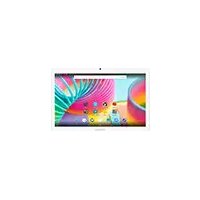
Junior Tab - Graphic tablet ARCHOS - Free user manual and instructions
Find the device manual for free Junior Tab ARCHOS in PDF.


| Product type | Graphics tablet |
| Brand | ARCHOS |
| Model | Junior Tab (ARCHOS Access 101 3G) |
| Operating system | Android 7.0 (Nougat) |
| Display | 10.1 inches (estimated diagonal) |
| Dimensions | Approximately 240 x 170 x 10 mm (estimated) |
| Weight | Approximately 500 g (estimated) |
| Power | Rechargeable lithium-ion battery, charging via micro-USB port |
| Battery capacity | Approximately 5000 mAh (estimated) |
| Connectivity | WiFi 802.11 b/g/n, Bluetooth 4.0, GSM/UMTS (3G), GPS (estimated) |
| Sensors | Accelerometer, ambient light sensor (estimated) |
| Storage | 16 GB internal (estimated), expandable via microSD |
| RAM | 1 GB (estimated) |
| Processor | Quad-core 1.3 GHz (estimated) |
| Camera | Front and rear (estimated, not specified) |
| Care and cleaning | Clean with a soft, dry cloth. Do not use abrasive products. |
| Safety | Body SAR: 1.88 W/kg (10g). Locking by code, pattern or password. |
| Spare parts and repairability | Removable back cover, access to battery (not recommended), accessible SIM and microSD slots. |
| General information | Manual available in multiple languages on the ARCHOS website. OTA updates possible. |
Frequently Asked Questions - Junior Tab ARCHOS
User questions about Junior Tab ARCHOS
0 question about this device. Answer the ones you know or ask your own.
Ask a new question about this device
Download the instructions for your Graphic tablet in PDF format for free! Find your manual Junior Tab - ARCHOS and take your electronic device back in hand. On this page are published all the documents necessary for the use of your device. Junior Tab by ARCHOS.
USER MANUAL Junior Tab ARCHOS
Congratulations for the purchase of an ARCHOS device! This quick start guide helps you to start using your device properly. If you have more questions concerning the use of your device, visit us at:

twitter.com/archos

www.facebook.com/archos
Blog
https://blog.archos.com/

http://faq.archos.com/

www.archos.com, click Support > After-sales support

www.archos.com, click Support > Downloads > Declaration of conformity
WARRANTY LEGAL AND SAFETY NOTICES www.archos.com/support/warranty.html
As we are often updating and improving our products, your device's software may have a slightly different appearance or modified functionality than presented in this quick start guide.


Unboxing
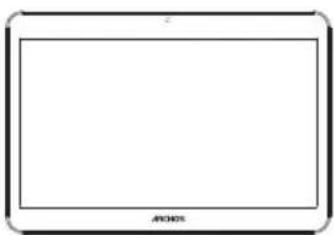
ARCHOS Access 1013G

Charger adapter
Quick start guide
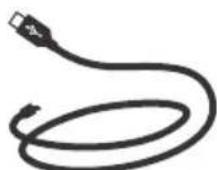
Charging cable
Describing your device
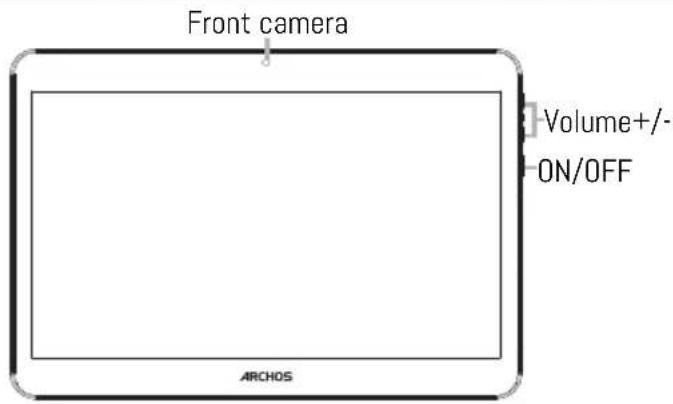
Your device is running Android 7.0 operating system. Updates could be offered to improve the device's performance. To check if any update is available, go to: Settings > About tablet > Check for update.
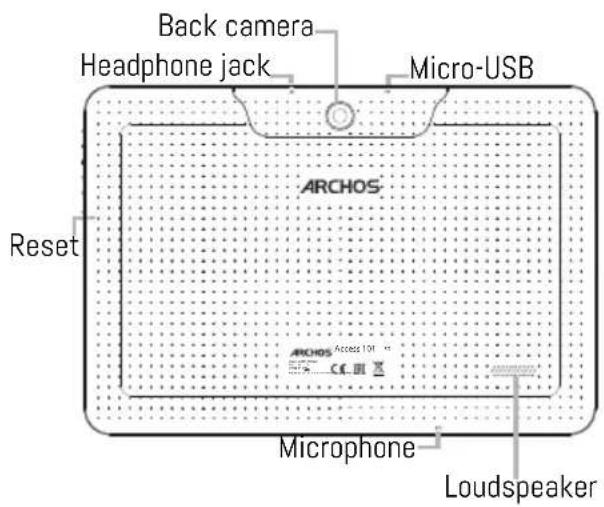

Starting up
Charging your battery completely
Plug the charging cable in the Micro-USB port and the adapter in a power outlet.
Leave the device until the battery is fully charged.
Turning ON
- Press and hold the ON/OFF button to turn on the device.
- Follow the instructions to set up your device: language, WiFi, copy your data, enter your name, set up email, protect your phone, notifications to be shown, Google services, third party apps.
NOTE: You can skip some steps and define them later from the Settings app.
Moving a home screen item: Touch and hold your finger onto it until the positioning gridlines appear, then slide it to the desired location, and release your finger.
Removing a home screen item: Touch and hold it, slide your finger towards the top of the screen and drop it over the Remove icon.
Uninstalling an item: From the All apps screens, touch and hold it, slide your finger towards the top of the screen and drop it over Uninstall bin.
Creating application folders: Drop one app icon over another on a home screen and the two icons will be combined.
Changing your wallpaper: Hold your finger on a home screen at an empty location, then choose from the list: Wallpaper.
Hints & tips

Widgets: Hold your finger on a home screen at an empty location, then choose from the list: Widgets.
Securing your device: Define a lock screen to protect your privacy. Select the Settings app, then Security. Choose a screen lock.
Android device manager: When your device is lost, you can use the android device manager page (https:// www.google.com/android/devicemanager) to erase all your contents, to lock the device, to locate the device or to make it ring.
Scheduled power on&off: Schedule power on & off to set when the device turns off and turn on. For example, you can set it for sleep time.
Inserting SIM & Micro-SD cards
WARNING: Make sure to turn off your device before inserting the SIM & memory cards.
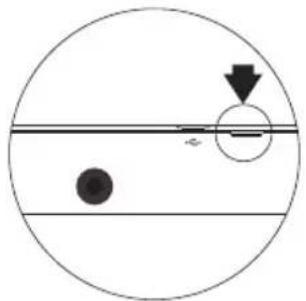
Opening: Use the notch to remove the back cover.
Do not bend or twist the back cover excessively. Doing so may damage the cover.
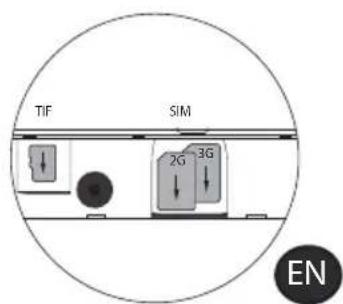
Inserting a SIM card: For your SIM card, slide it facing downwards in the slot.
Inserting a Memory card: Slide it facing downwards in the slot micro-SD
Closing: Replace the back cover clicking it back into position.

Troubleshooting
- If your device is frozen:
Press the ON/OFF button for 10 seconds or use the reset button.
-
If your device doesn't turn on:
-
Charge your device.
-
Press the ON/OFF button for 10 seconds.
-
If your device functioning is too slow:
Close all apps which are not currently used.
- If your WiFi reception is too low:
Make sure you are not far from the WiFi hotspot.
Reset and redefine your connection parameters.
Contact your WiFi connection provider.
- If your device has dysfunctions:
Reinitialize your device. Go to Settings > Backup & reset > Factory data reset. If you can't have access to the settings for any reason, consult our FAQs about the reinitialization process.
For more answers about your technical difficulties, do not hesitate to visit: faq.archos.com
EN
Contactez-nous

www.archos.com, click Support > After-sales support

COBETbI NO IcNoJIb3OBAHnIO

BbI6epnte n3 cncska:Wallpaper (OHOBOBn pncyHOK).
BnJKeTb: ydePknBaTe naneu Ha rnaBHOM 3KpaHe B nyCTOM MeCTe, 3aTeM Bbl6epnte n3 cnNCKa: Widgets (BnJKeTb).
3aunTa yctpoiCTBa:akTNbpyuTe 6LOKnpOBky 3kpaHa dIy 3aunTbI KOHnneHuaJIbHOCTN. 3anyCTnTe npInoJxHe Settings (HacTpoKn), 3aTeM bbl6epnte Security (Be3onacHocTb).
Bb6epnte 6nokupOBky kpaHa.
YdaenHoe ynpablene Android: ecn Baue yctpoCTBO yTepaHO, Bbl MoKeTe BOCNoB3OBaTbCSTpaHneydaenHoro ynpablenra Android (https://www.google.com/android/ devicemanger), uTo6bI cTepeTb C Hero BCE COePXMoe, 3a6JIOKInPOBaTb yCTPOCTBO, HauTn erO MeCTOnoJooXeHne NII 3aCTaBNTb yCTPOCTBO 3BOHHTb.
BkIIOUeHne n BbIKIOUeHne no pacnncanHIO: 3aJaTe paCnncanHe BKIOUeHnN I BbIKIOUeHnN, yTO6bl yCTpoiCTBO BbIKIOUaOcB n BKIOUaOcB b Ha3HaueHHoe BpeM. HApPIMep, MoXHO 3aJIpaHnpOBaTb BbIKIOUeHne yCTpoiCTBa Ha BpeM cHa.
BCTaBka SIM-kapT & BCTaBka KapTbI namrTu
I PPEyIpyE:OTKIOHTe nITaHne nepeI npoeypO
OTkpblTne:ChnMnte 3aHIOU KpbIuKy.
He n3r6aITe n He cKpyuBaIe KpbIuKy cnIshKom CnIbHo. 3To MoKeT npNBecTu Ke ee NOBpeXdEHHIO.
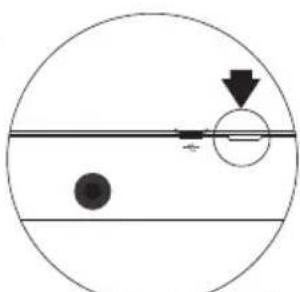
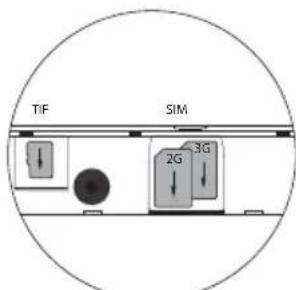
BCTaBAk SIM-Kapr:YTo6bl yctahOBnTB SIM-KapTy, BCTaBbTe ee JIueBOB CTOpOH BHN3 BRhe3do SIM
Bctabka Kaptbi namrtn:pepeatauite kapty namrtn B cnot micro-SD.
3aKpbItne:YctahOBNTe KpbIbKy aKKymyIaTopa, TaK YTO6bI OHa CO UeJyKOM CTaJa Ha MecTo.

Ponck nyctpaHene HeNCnpaBHOCTeI
- Ecnn yctpoiCTBO 3aBucNo:
HaKmTe KhONky BKJI./BblKJI. Ha 10 ceKyHd IInn nCnoB3yIe KhoNky c6poca.
- EcIn yctpoiCTBO He BKIOUaETcA:
1.3apraIte yctpoinCTBO.
2. Haxmte KhoNky BKJ./BbIKJ. Ha 10 ceKyHd.
- Ecnn yctpoiCTBO pa6oTaet cnNkOM MeJleHNo:
3aKoIe npInOxEHHa, KOtOpbIe He IcNoJIb3yIOTcB DaHhbIMOMeHT.
- Ecnn KaueCTBO CBa3n Wi-Fi cInuKOM Hn3Koe:
Y6eIITecb,HTO BbI He HaxoIITecb CnIkwOM daIeKO oT TouKn IocTyna Wi-Fi.
C6pocbTe n 3aJaTe 3aHOBO npaMeTpbl NODKIOUeHnA.
CbXnTebc npoBaIepom noKlioueHn Wi-Fi.
- Ecnn yctpoiCTBO fYHKUOHNpye HnpaBnblHo:
BbInonHnTe NOBTOpy INHcuaJIaI3aIuO yCTpoIcTba. IpeyInTe B Settings > Backup & reset > Factory data reset (Hactpoyn > C6poc N BOCCTaHOBJeHne > C6poc K 3aBOJCKIM HAcTpoiKaM).
Ecn no KaKIM-ln6o npuHnAm doctyna K hAcTpoiKaM HeT, cm. OncaHne npoucecca NOBTOPOHn HnuaI3aun B pa3dene qacto 3adabaembIX BONpOCOB nOTBeTOB.
GWARANCJA INFORMACJE PRAWNE I BEZPIECZENSTWA www.archos.com/support/warranty.html
He 3rHaIe Ta He cKpyuYTe 3aHIO KpNkY HaMipHO.
Lc moKe npNBecTn Do II NowkoJxehHr.
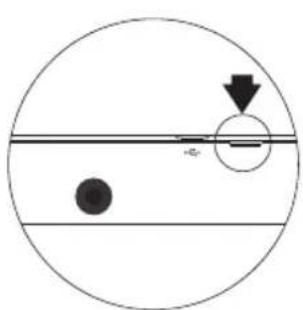
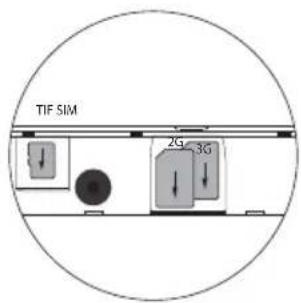
BctaHOBHeHHaSIM-kapTb BCTaHOBtTa nocyHbTe ii NIOBOO CTOPHOO BHN3 B CNOT. BcTaHOBHeHHaKapTn Nam'ari: BcTaBte KapTy NIOBOO CTOPHOO BHN3 B Cnot MIKPO-SD 3akpnbAHHa: BcTaHOBtB 3aHIO KpiuKy npITNCHyBUni Ha3ad y BuxiDne NOJoxeHHa.


IouykiucyuHHeHHeCnpaBHOCTe
-Якwoваипстpi"3aBnc":
HaTnChiTb Ta yTpmyTe KnaBiIy BBIMKHeHHa/BmKHeHHa npncTroIO Ha 10 cekyHd a6o BnKOpNCtaIte KnaBiIy Ipe3aBaHTaXeHHa npncTroIO.
-ЯкwoBaaw npucpii He BMnKaETbca:
1.3apraitbBaunpnctri.
2. HatncihItb Ta yTpmyte KnaBiIy BBIMKHeHHBumKHeHH npnCTpoH ha 10 cekyHd.
-ЯкцовашпострийфункioHye дужne nobinbHo:
3aKpniTe Bci DoaTKn, Aki Bu Ha daHn MOMeHT He BUKOpNCTOByeTe.
-Якwo nepedaya daHnx che3 WiFi duke nobinbHa:
IpekeKaHaTeCra,IOBn3HaxOaNTecb He NyKe daNeKO BiD ToKn DoCTynyWiFi.
3knHbTe Ta npeBn3HaUte npaMeTpN 3'EnHaHH.
3B'jxitbc3 nocataaJIbHnKOM nocnyr WiFi 3'eHaHH.
-Якwo npicpii Mae kicb dincfyHKii:
BiΦopMaTyIe npncpti. IpeenDbB po3dHanaTuBaHHa> Pe3epBHe konioBaHHa i CkndaHHa > CkndaHHa HanaTuBaHb. RaIO Bn He MoKeTe OTpMaTn DOCTyn Do HanaTuBaHb 3a 6ydb-koipuHH, 3BepHiTcBdo FAQ y po3dIn CkndaHHa HanaTuBaHb.
IIO6 OTPIMATN BIIbIE BIDIOBIDEI CTOCOBHO TEXHUYNX IINTAHb BIDBIIAITE FAQ. ARCHOS.COM

National restrictions
This device is intended for home and office use in all EU countries (and other countries following the EU directive 2014/53/EU) without any limitation except for the countries mentioned below:
| Country | Restriction | Reason/remark |
| Bulgaria | None | General authorization required for outdoor use and public service |
| Italy | None | If used outside of own premises, general authorization is required. |
| Luxembourg | None | General authorization required for network and service supply (not for spectrum) |
| Norway Implemented | This subsection does not apply for the geographical aera within a radius of 20 km from the centre of Ny-Alesund | |
| Russian Federation | None | Only for indoor applications |
Archos company (Contact address : ARCHOS SA 12 Rue Ampère 91430 Igny France) declares that this tablet ARCHOS Access 101 3G is in compliance with the essential requirements and other relevant provisions of Directive 2014/53/EU: https://www.archos.com/products/conformity.html
https://www.archos.com/products/conformity.html
CE
SAR
After the laboratory measurements, the SAR values for this tablet is:
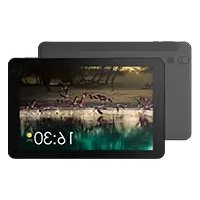
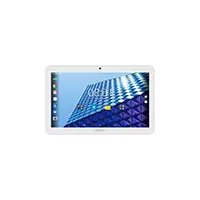
Brand : ARCHOS
Model : Junior Tab
Category : Graphic tablet