DRM880WP - Remote control Monacor - Free user manual and instructions
Find the device manual for free DRM880WP Monacor in PDF.



| Product type | Wall-mounted remote control for DRM-880LAN signal router |
| Brand | Monacor |
| Model | DRM-880WP |
| Dimensions (W x H x D) | 86 × 86 × 30 mm |
| Weight | 0.1 kg |
| Power supply | 5 V DC, 20 mA |
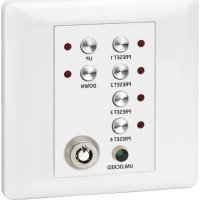
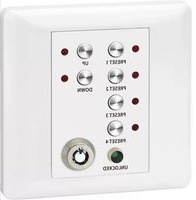
| Main functions | Recall of the first 4 presets (PRESET 1-4), general volume adjustment (UP/DOWN buttons), lock via key switch |
| LED indicators | Control LED for each PRESET button, UNLOCKED LED (operation enabled), flashing LED in case of connection issue |
| Connection interface | RS-485 (terminals 485+ and 485-, +5V, DGND) for connection to the router |
| Mounting | Wall-mounted (screw fixing), remove front frame to access holes |
| Operating temperature | 0 – 40 °C |
| Maintenance and cleaning | Clean with a dry, soft cloth, without chemicals or water |
| Safety | Key switch to lock against unauthorized use |
| Spare parts and repairability | No removable parts planned; in case of defect, contact a qualified technician |
| General information | Optional accessory for the DRM-880LAN; requires prior configuration (ID=1, RS-485 interface) |
Frequently Asked Questions - DRM880WP Monacor
User questions about DRM880WP Monacor
0 question about this device. Answer the ones you know or ask your own.
Ask a new question about this device
Download the instructions for your Remote control in PDF format for free! Find your manual DRM880WP - Monacor and take your electronic device back in hand. On this page are published all the documents necessary for the use of your device. DRM880WP by Monacor.
USER MANUAL DRM880WP Monacor
Before switching on ...
We wish you much pleasure with your new "img Stage Line" unit. Please read these operating instructions carefully prior to operating the unit. Thus, you will get to know all functions of the unit, operating errors will be prevented, and yourself and the unit will be protected against any damage caused by improper use. Please keep the operating instructions for later use.
The English text starts on page 16.
--- Out Switch Setup ---
System Lock PC Connection
oder
System Lock ne Device ID [01]
System Lock IP:192.168.001.101
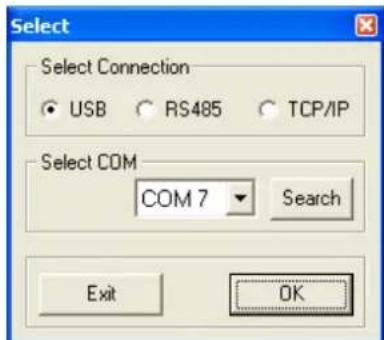
11 Fenster,Select Connection" - USB
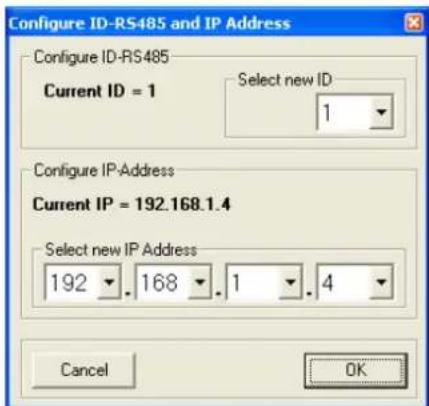
12 Fenster, Configure ID-RS485 and IP Address"
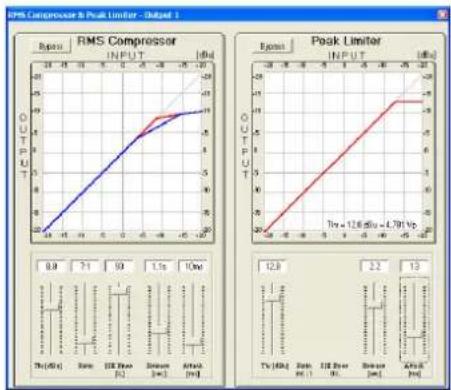
19 Fenster, RMS Compressor & Peak Limiter
6.5.6 Verständung
1 Operating Elements and Connections 16
1.1 Front panel 16
1.2 Rear panel 16
1.3 Control panel DRM-880WP . 17
2 Safety Notes 17
3 Applications 17
4 Setting up and Connecting the Unit 17
4.1 Signal sources 17
4.2 Amplifiers or other units 17
4.3 External switching signals 17
4.4 Units to be controlled 17
4.5 Control panel DRM-880WP 17
4.6 Computer 17
4.7 Mains connection 18
5 Operation 18
5.1 Switching on/off 18
5.2 Selecting a configuration 18
5.3 System settings 18
5.3.1 Setting the IP address 18
5.3.2 Selecting an interface 18
5.3.3 Unit number for RS-485 18
5.3.4 Retrieving switching combinations 18
5.3.5 Linking switching combinations to configurations 19
5.4 Status LEDs 19
5.5 Operation via DRM-880WP 19
5.5.1 Setting up the control panel 19
6 Remote Control via a Computer 19
6.1 Installing PC software 19
6.1.1 Installing an interface driver 19
6.2 Starting the PC software 19
6.2.1 Adding units 19
6.2.2 Connecting or disconnecting units 20
6.2.3 Naming a unit 20
6.2.4 Calling up the configuration window .. 20
6.2.5 Removing units 20
6.2.6 Saving a unit constellation 20
6.2.7 Loading a unit constellation 20
6.2.8 Changing the interface 20
6.2.9 Setting the ID number or the IP address 20
6.2.10 Exiting the program 21
6.3 Views 21
6.3.1 Unit for signal delay 21
6.4 Configuring inputs 21
6.4.1 Selecting the signal level 21
6.4.2 Selecting the signal transmission type 21
6.4.3 Phantom power supply 21
6.4.4 Gain 21
6.4.4.1 Main control "Master Input Gain". 21
6.4.5 Equalization (EQ) 21
6.4.5.1 Frequency response 22
6.4.6 Feedback suppression (FBK) 22
6.4.7 Phase reversal 22
6.5 Configuring outputs 22
6.5.1Assigning/Mixing input signals 22
6.5.2 Signal delay 22
6.5.3 High pass filter and low pass filter 22
6.5.4 Equalization 22
6.5.4.1 Frequency response 23
6.5.5 Compressor 23
6.5.6 Gain 23
6.5.7 Limiter 23
6.5.8 Phase reversal 24
6.5.9 Main control 24
6.6 Status display 24
6.7 Muting 24
6.8 Linking channels 24
6.9 Copying adjustments 24
6.9.1 Copying adjustments of an input 24
6.9.2 Copying adjustments of an output .24
6.10 Renaming inputs and outputs 24
6.11 Managing configurations 24
6.11.1 Saving configurations on the computer 24
6.11.2 Loading configurations from the computer 25
6.11.3 Saving configurations on the unit 25
6.11.4 Loading configurations from the unit . 25
6.11.5 Extra configurations 25
6.12 Switching outputs 25
6.12.1 Renaming switching outputs 25
6.12.2 Saving a switching combination on the unit 25
6.12.3 Saving a switching combination on the computer 25
6.12.4 Loading a switching combination from the computer 26
6.13 Switching inputs 26
6.13.1 Enabling or disabling inputs 26
6.13.2 Selecting the logic type (high/low) .. 26
6.13.3 Selecting priorities 26
6.14 Selecting the interface mode 26
6.15 Exiting a configuration window 26
7 Specifications 27
All operating elements and connections described can be found on the fold-out page 3.
1 Operating Elements and Connections
1.1 Front panel
1 LED PHANTOM POWER; lights up when the phantom power supply for the microphone inputs is switched on
2 LC display
3 Buttons PRESET 1-6 for retrieving the configurations previously saved To call up the system setting menu, keep button 5 pressed for several seconds. The functions of the system setting buttons are described in chapter 5.3.
4 Status LEDs for the input/output channels CH1-CH8
LIMITER - limiter or compressor active
CLIP - input overloaded (after EQ)
SIGNAL - signal for output signal available
FBK - feedback suppression active
MIC - input for microphone
LINE - input for line signal source
5 USB jack, type B, to connect a computer for remote control and for configuration of the DRM-880LAN
1.2 Rear panel
6 POWER switch
7 Mains jack for connection to a socket (230 V~/50 Hz) via the mains cable supplied
8 Support for the mains fuse; always replace a blown fuse by a fuse of the same type
9 RJ45 jack TCP/IP to connect a computer for remote-controlled operation of the DRM880LAN via Ethernet; the two LEDs above the jack indicate that the connection is being established or that data is being transferred
10 RJ45 jack RS485 IN to connect a computer for remote-controlled operation or to connect the remote-control panel DRM-880WP (fig. 3)
11 RJ45 jack RS485 OUT to connect an additional unit to be remote-controlled by the computer that is connected to jack RS485 IN (10)
12 Switching outputs S1 - S4 as screw terminals
13 Switching inputs S1 - S4 as screw terminals to retrieve the extra configurations previously saved
14 Balanced audio signal outputs CH1-CH8 as screw terminals*
15 Balanced audio signal inputs CH 1 - CH 8 as screw terminals
For easier connection, the entire terminal block may be removed from the unit.
1.3 Control panel DRM-880WP
16 Buttons PRESET 1 - 4 with indicating LEDs for retrieving the first four configurations
17 Status LED UNLOCKED for the key switch (19); lights up when the key switch is unlocked
18 Buttons UP and DOWN with LED indicators for changing the overall volume
19 Key switch for protecting the system against operation by unauthorized personnel
2 Safety Notes
This unit corresponds to all relevant directives of the EU and is therefore marked with C€.
WARNING

The unit uses dangerous mains voltage. Leave servicing to skilled personnel only and do not insert anything into the air vents! Inexpert handling of the unit may result in electric shock.
Please observe the following items in any case:
The unit is suitable for indoor use only. Protect it against dripping water and splash water, high air humidity and heat (admissible ambient temperature range: 0 - 40ircC ).
- Do not place any vessel filled with liquid on the unit, e. g. a drinking glass.
The heat generated inside the unit must be dissipated by air circulation; never cover the air vents of the housing.
- Do not operate the unit and immediately disconnect the mains plug from the socket
- if the unit or the mains cable is visibly damaged,
- if a defect might have occurred after the unit was dropped or suffered a similar accident,
- if malfunctions occur.
In any case the unit must be repaired by skilled personnel.
- Never pull the mains cable to disconnect the mains plug from the socket; always seize the plug.
- For cleaning only use a dry, soft cloth; never use water or chemicals.
- No guarantee claims for the unit and no liability for any resulting personal damage or material damage will be accepted if the unit is used for other purposes than originally intended, if it is not correctly connected or operated, or if it is not repaired in an expert way.

If the unit is to be put out of operation definitively, take it to a local recycling plant for a disposal which is not harmful to the environment.
3 Applications
The DRM-880LAN is a digital audio matrix router with eight analog inputs. The signals of the inputs can be mixed to eight analog outputs as desired. The DRM-880LAN can be used in a wide range of applications, e.g. as a link between different signal sources and the amplifiers of a PA system, for multi-zone PA applications or in rooms with varying PA situations. Various DSP functions such as equalizers, delays, feedback suppression, compressors and limiters are available. In the control of multi-way speaker systems, the DRM-800LAN can assume the tasks of the crossover networks.
Ten configurations may be saved on the unit and be retrieved when required: six via the buttons on the unit, four by external control via the switching inputs. In addition, four all-purpose switching outputs are available.
The software supplied with the unit allows the user to comfortably set up the DRM-880LAN via a computer and to operate it by remote control. The computer is connected via the USB interface, Ethernet or a RS-485 data bus. With the RS-485 data bus, up to 64 units can be controlled; and with Ethernet even considerably more.
The control panel DRM-880WP for wallmounting is separately available. It allows the user to switch over between the first four configurations and to change the overall volume.
The following adjustments can be made for each input channel:
gain with 0 dB bypass option
-microphone/lines switchover
signal type balanced/ unbalanced
feedback suppression (frequency shift feedback eliminator)
- parametric equalizer with 3 filters (for each filter, 3 filter types are available)
phase reversal
-muting
The following adjustments can be made for each output channel:
- assignment to one input signal or to the mixed signal of multiple inputs
-
high pass filter and low pass filter with 8 filter characteristics of different slopes, e. g. for creating crossover networks
-
parametric equalizer with 5 filters (for each filter, 3 filter types are available)
delay [max. 381 ms], to be entered as time (ms) or distance (m)
- compressor
-gain[-127...+18dB]with0dBbypassoption
- peak limiter [-12...+18 dBu]
-phase reversal
-muting
4 Setting up and Connecting the Unit
The DRM-880LAN is provided for rack mounting (482 mm/19") but it can also be used as a tabletop unit. For rack installation, 1 rs is required (rs = rack space = 44.45 mm).
Prior to connecting or changing existing connections, switch off the DRM-880LAN and the units to be connected.
4.1 Signal sources
Connect line-level signal sources, e.g. the output of a preamplifier or of a mixer, to the screw terminals* INPUTS CH1-CH8 (15). The connections are provided for balanced signals. To connect unbalanced signal sources, connect the contacts “-” and
Alternatively, connect microphones to these terminal screws. Use the computer to configure the respective input as a microphone or line input (e3 chapter 6.4.1).
This procedure can also be used to provide all microphone inputs with a phantom power supply of 48V (33 chapter 6.4.3). In this case, only microphones with balanced signal outputs can be connected. Microphones with unbalanced outputs may be damaged by the phantom power supply.
4.2 Amplifiers or other units
Connect the amplifiers, monitoring systems or other units for further signal processing to the screw terminals* LINE OUTPUTS CH1-CH8 (14).
4.3 External switching signals
Use the four switching inputs to retrieve special configurations (extra programs). Connect the units that are to be used as switching units to the screw terminals* INPUT PORT "S1" to "S4" and the corresponding ground terminals
A switching voltage of +5V is required. The logic type and the priority between the four inputs can be configured via the computer (33 chapter6.13.2/3).
4.4 Units to be controlled
Four switching outputs with a switching voltage of +5V are available for controlling other units. Connect the switching inputs of these units to the screw terminals* OUTPUT PORT "S1" to "S4" and the corresponding ground terminals
4.5 Control panel DRM-880WP
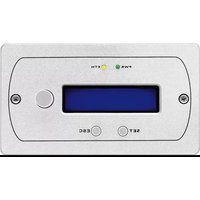
The wall-mount control panel DRM-880WP (separately available as an option) allows users to operate the DRM-880LAN by remote control: the first four configurations saved on the router can be retrieved, and the overall volume can be changed as well.
Connect the terminals "485+ and 485- located on the rear side of the operating panel to the appropriate contacts of the jack RS-485 IN (10); the pin configuration is shown in figure 2. To supply power to the control panel, connect the terminals +5V and DGND to a regulated, unearthy DC voltage source of 5V (observe the correct polarity!).
Note: In order to enable the control panel to establish a data connection to the DRM-880LAN, only switch on the power supply for the control panel when the DRM-880LAN has already been switched on.
For mounting the control panel, remove the cover frame. Behind the cover frame, two mounting holes are located that can be used to mount the panel on the wall with screws.
4.6 Computer
To operate the DRM-880LAN by remote control via a computer, connect the computer to the jack (5), using a USB cable.
Alternatively, the unit may also be controlled via the RS-485 interface (provided the interface is not to be used for connecting the control panel DRM-880WP) or Ethernet. To control the DRM880LAN via the RS-485 interface, connect the RS-485 output of the computer to the jack RS485 IN (10); the pin configuration is shown in figure 2. The output jack RS-485 OUT (11) may be connected to the jack RS-485 IN of an additional DRM-880LAN. Thus, up to 64 units to be controlled may be connected in a chain. If multiple units are connected and if longer control lines are used, the control output of the last unit in the chain should be equipped with a terminal resistor (120Ω) resistor between pin 1 and pin 2 of the connection) to prevent interference while signals are transmitted.
To operate the DRM-880LAN by remote control via Ethernet, the jack TCP/IP (9) may be used to connect the DRM-880LAN to an individual computer, a local computer network or, e.g. via a router, to larger computer networks (Internet). Network technology expertise is indispensable for the correct installation of the connection.

Note: For a direct Ethernet connection to the computer, a crossover cable is required.
To control multiple DRM-880LANs via RS-485 or Ethernet, an individual IP address or ID number must be assigned to each unit. To assign the addresses or numbers via a computer, each unit must first be connected to the computer using a USB cable (13 chapter 6.2.9). Alternatively, the IP address and the ID number can be directly set at the unit by means of the system menu (14 chapter 5.3).
4.7 Mains connection
Connect the supplied mains cable to the mains jack (7) and the mains plug to a socket (230V /50Hz)
5 Operation
5.1 Switching on/off
Prior to switching on the units connected to the outputs and the power supply of the control panel DRM-880WP, switch on the DRM-880LAN by means of the POWER switch (6). The firmware version (e.g. v1.3) is briefly shown on the display, then the configuration that was used when the unit was switched off is loaded and its name appears on the display (2).
After usage, first switch off the units connected to the outputs, and then switch off the DRM-880LAN by means of the POWER switch.
5.2 Selecting a configuration
Press one of PRESET buttons 1 - 6 (3) to change between the configurations (programs) saved. While the new configuration is being loaded, the following is shown on the display (2):
Please Wait...
Loading new Program...
The name of the new configuration will then appear on the display.
If the settings of the unit have been appropriately defined, the switching outputs will also be changed (13) chapter 6.12 or chapter 5.3.5).
5.3 System settings
To call up the system setting menu, keep the button PRESET 5 (3) pressed for more than 5 seconds. The following will then be shown on the display (2):
SYSTEMSETUP TCF/IF Setup
Use the PRESET buttons to change the settings in the menu.
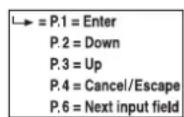
The buttons have the following functions:
PRESET1
To call up a submenu or confirm user input
PRESET2
To select the previous option or menu item or reduce an input value
PRESET3
To select the next option or menu item or increase an input value
PRESET4
To reject an input, exit a menu or submenu
PRESET6
To go to the next input field
The menu structure is shown in figure 6.
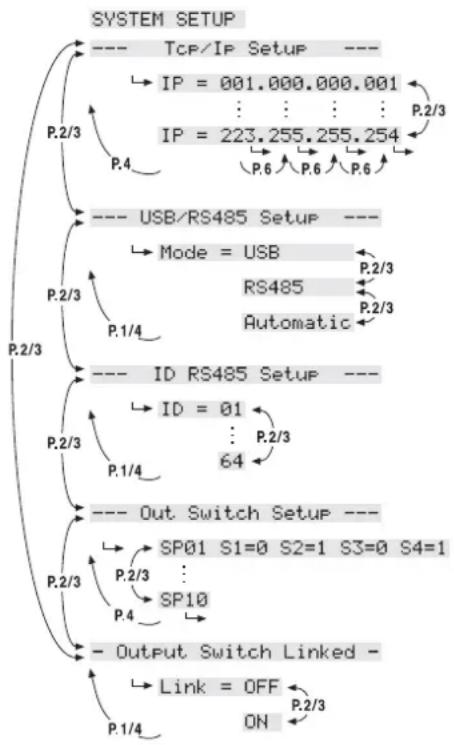
⑥ Menu SYSTEM SETUP
To exit the menu, press the button PRESET 4 (if required several times).
Note: As long as the system setting menu is called up, the DRM-880LAN cannot be operated by remote control via a computer or the control panel DRM-880WP.
5.3.1 Setting the IP address
The unit requires an IP address to be operated by remote control via Ethernet. If multiple units are connected to the PC at the same time, the units must have been assigned different IP addresses for identification.
To set the IP address:
1) Call up the menu. The required submenu is already selected:
--- TCP/IP Setup
2) Use the button PRESET 1 to call up the submenu. The display shows, for example, the following:
IP = 192.168.000.101
The first input field flashes.
3) Use the button PRESET 2 and the button PRESET 3 to set the desired values in the four fields and confirm each selection by means of the button PRESET 1. To go to the next input field without making any changes to the current input field, press the button PRESET 6.
4) Use the button PRESET 4 to exit the submenu.
Depending on the IP address set, the network mask is automatically created in accordance with the network class.
IP = 1.0.0.1 to IP = 126.255.255.255
network mask = FF000000h (class A)
IP = 127.0.0.1 to IP = 191.255.255.255
network mask = FFFF0000h (class B)
IP = 192.0.0.1 to IP = 223.255.255.255
network mask = FFFFFFF00h (class C)
5.3.2 Selecting an interface
The interfaces USB and RS-485 cannot be used at the same time. To select the interface:
1) Call up the menu. The following menu item is selected:
TCP/IP Setup
2) Use the button PRESET 3 to select the following menu item:
USB/RS485 Setup
3) Use the button PRESET 1 to call up the submenu. The display shows, for example, the following:
Mode = USB
4) Use the buttons PRESET 2 and PRESET 3 to select the interface desired: USB, RS485 or Automatic (if the interface used is to be recognized automatically).
5) Use the button PRESET 1 to exit the submenu or use the button PRESET 4 to exit the submenu without making any changes to the setting.
After the menu has been exited, the interface currently selected is indicated on the upper right of the display:
=USB
F.RS-485
= Automatic interface recognition
5.3.3 Unit number for RS-485
If multiple units are connected to the PC via the RS-485 interface at the same time, the units must have been assigned different unit IDs so that they can be identified.
To set the unit number:
1) Call up the menu. The following menu item is selected:
TCP/IP Setup
2) Use the button PRESET 3 to select the following menu item:
ID RS485 Setup
3) Use the button PRESET 1 to call up the submenu. The display shows, for example, the following:
ID = 01
4) Use the buttons PRESET 2 and PRESET 3 to select the unit ID desired (1-64).
5) Use the button PRESET 1 to exit the submenu or the button PRESET 4 to exit the submenu without making any changes to the setting.
5.3.4 Retrieving switching combinations
The switching combinations (switch presets) may also be retrieved by means of the menu (63 chapter 6.12.2):
1) Call up the menu. The following menu item is selected:
Top/IF Setup
2) Use the button PRESET 3 to select the following menu item:
Out Switch Setup
3) Use the button PRESET 1 to call up the submenu. The display shows, for example, the following:
SP02 S1=0 S2=1 S3=0 S4=0
In this example, switching configuration 2 with the following switching statuses has been selected: switching output 2 = on ,switching outputs 1,3,4 = off.
4) Use the buttons PRESET 2 and PRESET 3 to select the switching combination desired (1 - 10). The number of the switching combination selected flashes initially.
5) Press the button PRESET 1 to go to the combination selected.
6) Use the button PRESET 4 to exit the submenu.
Note: If the switching combinations are linked to configurations (E35 chapter 5.3.5), the unit will automatically change to the current configuration defined in the switching combination after the system menu has been exited.
5.3.5 Linking switching combinations to configurations
To link the switching combinations to configurations, i.e. to retrieve the corresponding switching combination when selecting a configuration:
1) Call up the menu. The following menu item is selected:
- - - T _ CP / IP Setup - - -
2) Use the button PRESET 3 to select the following menu item:
- CoutPutSwitchLinked -
3) Use the button PRESET 1 to call up the submenu. The display shows, for example, the following:
Link = OFF
4) Use the button PRESET 2 or PRESET 3 to define if the switching combinations are to be linked with the configurations (ON) or not (OFF).
Each of the switching combinations 1 to 6 is linked to the configuration of the same number. The switching combinations 7 to 10 are linked to extra configurations 1 to 4 (u chapter 6.11.5), i.e. they are retrieved via the switching inputs INPUT PORT (13).
5) Use the button PRESET 1 to exit the submenu or the button PRESET 4 to exit the submenu without making any changes to the setting.
5.4 Status LEDs
The LED PHANTOM POWER (1) lights up when the phantom power supply for the microphone inputs has been switched on.
In addition, the following eight LED groups (4) with the following functions are available:
LIMITER - indicates that the level limiter or the compressor of the corresponding output is active CLIP - indicates that the corresponding output is overloaded after equalization
SIGNAL - indicates for an output that a signal is present at an input that is assigned to this output FBK - indicates that feedback suppression has been selected for the microphone input
MIC - indicates that the input has been configured as a microphone input
LINE - indicates that the input has been configured for line-level signals
5.5 Operation via DRM-880WP
The control panel DRM-880WP may be used to retrieve the first four configurations (programs) of the DRM-880LAN. In addition, the volume of all outputs can be changed.
If the two LEDs next to the buttons UP and DOWN (18) flash, connection problems may have occurred, e. g. the power supply of the control panel may have been switched on before the DRM-880LAN was switched on.
Note: For operating the DRM-880LAN via the control panel DRM-880WP, the control panel must have been set to the DRM-880LAN (C3 chapter 5.5.1). In addition, the DRM-880LAN must have been set to the correct interface type (RS-485 or automatic interface recogni
tion) and the unit number (ID) must be 1 (chapters 5.3.2 and 5.3.3).
1) If the LED UNLOCKED (17) does not light up, unlock the control panel. To do so, insert the supplied key into the lock (19), then turn the key 90 degrees to the right and back so that the LED UNLOCKED lights up.
2) To retrieve the configuration 1, 2, 3 or 4, press the appropriate PRESET button (16). The LED next to the button pressed first flashes rapidly, then flashes slowly and finally lights up continually.
3) Use the buttons UP and DOWN (18) to stepwise increase or reduce the volume of all outputs. For a continuous change, keep a button pressed.
4) If desired, use the key switch to protect the control panel against operation by unauthorized personnel. To do so, insert the key into the lock, then turn the key by 90 degrees to the right and back so that the LED UNLOCKED extinguishes.
5.5.1 Setting up the control panel
To set the control panel to the DRM-880LAN:
1) Disconnect the control panel from the power supply.
2) Keep the buttons UP and DOWN (18) pressed and connect the power supply.
3) When the LEDs next to the buttons UP and DOWN light up, release the buttons.
4) Keep the buttons PRESET 3 and PRESET 4 pressed at the same time until the LEDs next to the buttons light up.
5) Disconnect the control panel from the power supply and then connect it again.
6 Remote Control via a Computer
The computer software supplied can be used to operate the DRM-880LAN by remote control. Thus, the unit may also be configured for operation without a computer. The configurations created may be saved on the unit or on the computer.
Note: If the DRM-880LAN is connected to the control panel DRM-880WP, make sure that the control panel is not operated while the DRM-880LAN is remote-controlled via a computer [e.g. use the key switch (19) to lock the control panel]. Otherwise, connection conflicts might occur.
6.1 Installing PC Software
The installation of the control program supplied requires a PC equipped with the Windows XP operating system (SP2) or later, a memory of at
least 512 MB, 10 MB free hard-disk space and a USB, Ethernet or RS-485 interface. The screen resolution should be at least 1024 × 768 pixels. To install the PC software, start the installation program "SETUP.EXE" on the CD supplied and follow the instructions of the installation program.
Windows is a registered trademark of Microsoft Corporation in the United States and other countries.
6.1.1 Installing an interface driver
The connection via the USB interface or the Ethernet interface requires a special driver which is included on the CD supplied. Call up the file USB[...]SETUP.EXE to install the driver automatically. The driver will simulate a serial interface for the operating software.
6.2 Starting the PC software
Start the control program DRM-880LAN Vx.x.EXE on the PC. The main window (fig. 7) appears, showing the units that were most recently connected. For each unit, a separate window is provided: the header shows information with regard to the interface as well as the connection status.
6.2.1 Adding units
To add a(nother) unit, click the button "Add Device".
If USB is selected as the current interface type (the text on the button on the upper left is "USB-COMx"), the following unit window will be displayed:

⑧ USB unit window
After that, it is not possible to add further units.
If RS-485 is selected as the current interface type (the text on the button on the upper left is "RS485-COMx"), the following dialog window will initially be displayed:
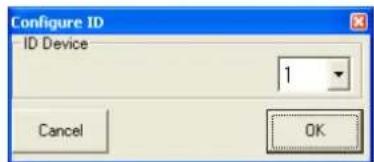
9 Selection of unit number (ID)
Select the unit number (ID) of the unit desired and then press "OK" to confirm (setting the ID of a unit chapter 6.2.9 or chapter 5.3.3).
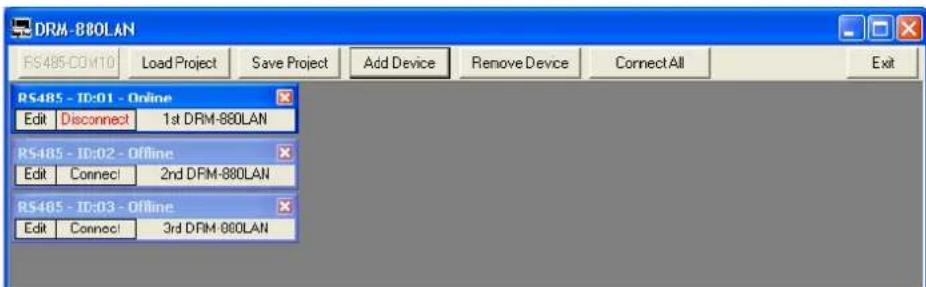
⑦ Main window

If Ethernet is selected as the current interface type (the text on the button on the upper left is "TCP/IP"), the following dialog window will initially be displayed:
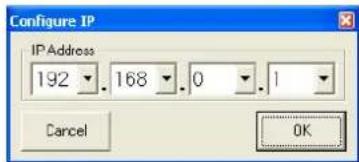
10 Selection of IP address
Enter the IP address of the unit desired and then press "OK" to confirm (setting the IP address of a unit chapter 6.2.9 or chapter 5.3.1).
For each unit, a separate window is added.
6.2.2 Connecting or disconnecting units
To establish a data connection to the unit, click the button "Connect" in the window of the unit desired (cf. fig. 8). Instead of the unit name or "no-name" (if no name was assigned to the unit), a status bar is shown indicating the progress of the connection establishment. Once the connection has been established, the button "Connect" is replaced by the button "Disconnect".
To connect all units, use the button "Connect All" located in the upper button bar of the main window.
If a connection establishment fails and an error message is displayed (e.g. "COM not found", "Devices disconnected" or "IP address: x.x.x.x not found"), this may be due to the following reasons:
a wrong unit number/ IP address has been set (u3 chapter 5.3.3, chapter 5.3.1 or chapter 6.2.9)
- a cable connection is defective
- a unit is not switched on or its system menu is called up (53) chapter 5.3)
- the wrong interface has been selected in the system menu (v3 chapter 5.3.2)
- the network settings on the computer are not correct (for connection via Ethernet)
The display of a connected unit shows the following (example):
System Lock
PC Connection
or
System Lock
Online Device ID [01]
or, if controlled via Ethernet
System Lock
IP: 192.168.001.101
The unit cannot be directly operated as long as the connection exists.
To disconnect the data connection, click the button "Disconnect" in the window of the unit desired and then confirm the confirmation message. Then, the DRM-880LAN can directly be operated again.
It is not possible to disconnect the connection while the configuration window of a unit is still open.
6.2.3 Naming a unit
The units may be named for easier identification in the main window. The default name is "name". To change a unit name, double-click the current name. A dialog window appears. Overwrite the old name with the new name (max. 16 characters) and then click "OK" to confirm your changes or "Cancel" to cancel.
6.2.4 Calling up the configuration window
To operate a connected unit by remote control and to change its configuration, click the button "Edit" in the window of the unit (cf. fig. 8). The configuration window for the unit is displayed (fig. 13). The operating options provided by the configuration window are described in detail from chapter 6.3 onwards.
The configuration window may also be opened when the unit is not connected. Thus, it is possible, for example, to view and edit configurations saved on the computer without the need of a unit. To connect the unit, first exit the configuration window (6 chapter 6.15).
6.2.5 Removing units
To remove a unit from the constellation, close the corresponding unit window (☑) and then confirm the confirmation message.
To remove all units, click the button "Remove Device" located in the upper button bar of the main window. Then confirm the confirmation message.
6.2.6 Saving a unit constellation
The unit constellation currently created in the main window along with the unit names and the interface type may be saved as a "project" on the computer.
1) Click the button "Save Project". The dialog window "Save As" is displayed.
2) Enter the file name desired, select the location where the file is to be saved and then save the file.
By default, the subfolder "Project" is selected which was automatically created during program installation. The file extension *.p88 is automatically appended to the file name entered.
6.2.7 Loading a unit constellation
To load a unit constellation that has been saved on the computer:
1) Click the button "Load Project" located on the upper right of the window. The dialog window "Open" is displayed.
2) Select the file desired and then confirm your selection.
If the interface used by the constellation selected is different from the interface currently set, a warning message will appear. To go to the interface of the constellation, confirm the message.
6.2.8 Changing the interface
To change to one of the other interface types supported, first remove all units from the main window (w3 chapter 6.2.5).
1) Click the button on the upper left. Depending on the interface currently selected, the text on the button is "USB-COMx", "RS485-COMx" or "TCP/IP".
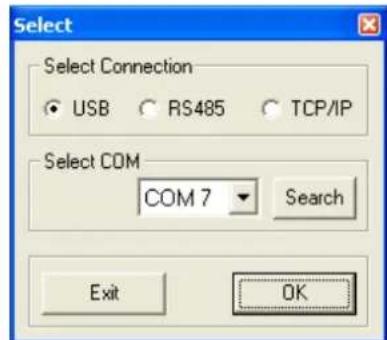
The following dialog window is displayed:
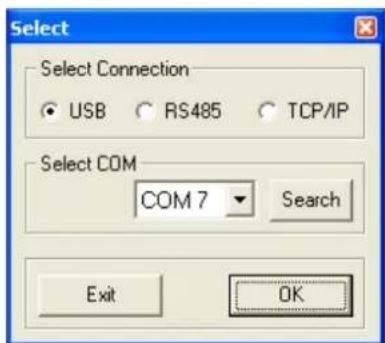
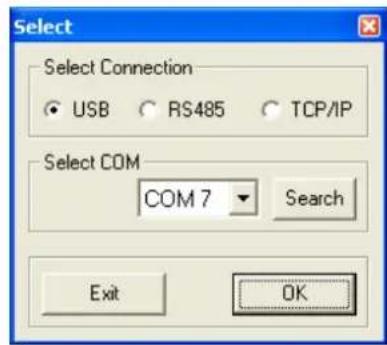
11 Window "Select Connection" - USB
2) Under "Select Connection", select the interface desired ("USB", "RS485" or "TCP/IP").
3) For "RS485", the number of the port used for this interface must be selected under "Select COM". For "USB" (fig. 11), the serial interface that simulates the driver for this software must be selected under "Select COM". Check the settings of the operating system for the appropriate COM interface or use the button "Search" to have it determined automatically.
The respective settings of the operating system can for example be found under: Control Panel System Properties (Hardware) Device Manager Ports COM and LPT).
There, the following is shown (example):

USB Serial Port (COM7)
If there are conflicts with other units, the number of the COM interface may be changed here (e.g. via Properties Port Settings Advanced...).
Note: To avoid communication problems, it is recommended to manually change the COM numbers 10 and higher that are automatically assigned by the computer to the COM numbers 1 to 9.
6.2.9 Setting the ID number or the IP address
To operate multiple routers DRM-880LAN by remote control via RS-485 or TCP/IP, a separate ID number or IP address must be assigned to each unit prior to their first simultaneous operation. This may be done in the system menu (see chapter 5.3.1 or 5.3.3) or, as described in the following, via the computer.
Connect the units one after another to the PC, using the USB interface, and make the following settings for each unit:
1) If the USB interface is not being selected, use the main window to go to the USB interface (35 chapter 6.2.8).
2) Add a unit (button "Add device", 6.2.1).
3) Connect the unit (button "Connect", chape-ter 6.2.2).
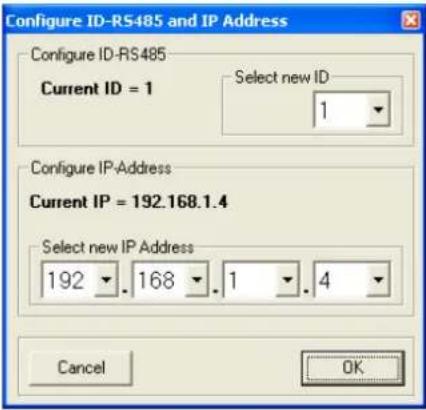
4) Click the button "ID & IP" that is now available. The following dialog window is displayed:
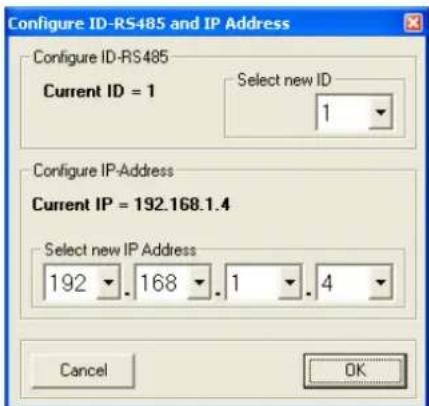
12 Window "Configure ID-RS485 and IP Address"
5) For remote control via RS-485, select an ID number (1-64) under "Select new ID".
Note: For enabling remote control of the DRM-880LAN via DRM-880WP, the ID must be = 1.
For remote control via Ethernet, define an IP address under "Select new IP Address". A network mask will automatically be generated (Chapter 5.3.1).
6) Click "OK" to confirm or "Cancel" to cancel.
7) Use the button "Disconnect" to disconnect the data connection and then confirm the confirmation message. If desired, connect another DRM-880LAN to the USB port of the computer and continue with step 3.
Then go to the interface desired for controlling and configuring the units (6.2.8).
6.2.10 Exiting the program
Use the button "Exit" or the icon in the upper right corner to exit the program. Then confirm the confirmation message.
6.3 Views
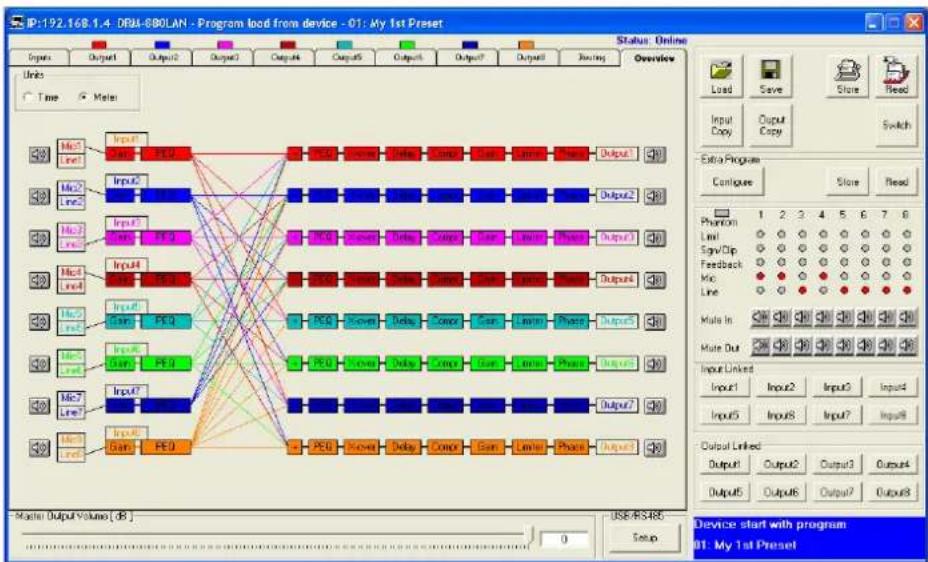
In the configuration window of a unit, the user can switch between the views that are represented by tabs: "Overview", "Routing", "Inputs" and the settings for each output channel. When a unit window is opened, the view "Overview" (fig. 13) is initially displayed. It provides a quick overview of the configuration: the left-hand side shows the eight input channels, and the right-hand side shows the eight output channels. The lines in between represent the assignment of the outputs to the inputs. Click one of the function blocks in the diagram to go to the corresponding view.
The icon indicates that the respective input channel or output channel has been muted.
6.3.1 Unit for signal delay
The signals of all inputs and outputs can be individually delayed. This is useful, e.g. when speakers are not equally distant from the listener. To balance the different sound delay times that arise from the different distances, the signal of the speaker located close to the listener is delayed so that it will not reach the listener earlier than the sound of the more distant speaker.
The user does not need to calculate the sound delay time, i.e. the user can enter the distance instead of the delay time. The calculations performed by the system are based on a speed-of-sound value of 340m / s .
In the view "Overview" (fig. 13), under "Units" (upper left of the view), define if the delay is to be entered as a time value (Time) or a distance value (Meter). The setting defined will apply to all outputs and may be changed at any time.
6.4 Configuring inputs
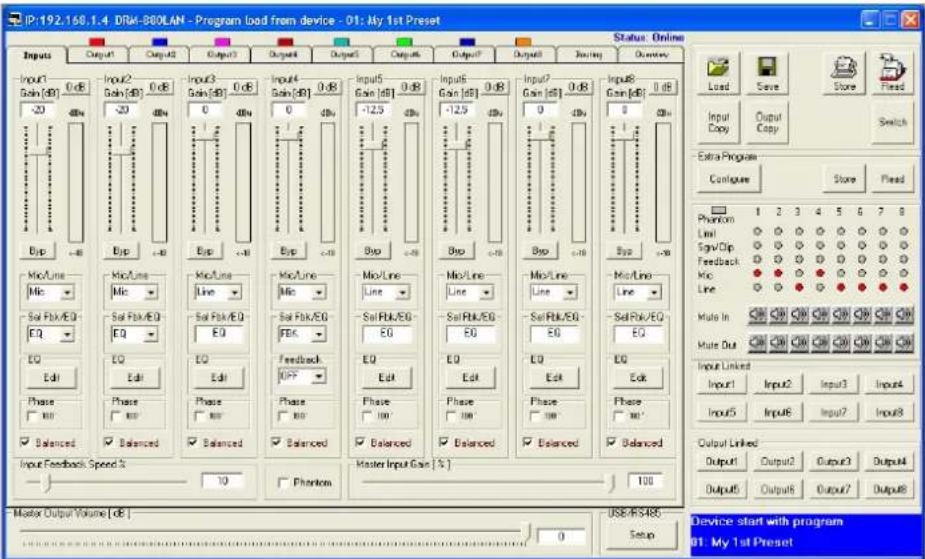
The signals of the inputs may already be processed before they are actually split to the outputs. While being processed, the signals take the processing path shown in figure 4. To configure the inputs, select the view "Inputs" (fig. 14) which provides a clearly arranged overview of the most important parameters of all inputs.
Inputs may be linked (68) chapter 6.8) so that multiple inputs can simultaneously be set to the same values.
6.4.1 Selecting the signal level
Use the list field "Mic / Line" to define if the signal source provides a microphone level (Mic) or a line level (Line).
6.4.2 Selecting the signal transmission type
A tick in the box "Balanced" indicates that a balanced signal is present at the corresponding input. For an unbalanced signal, click the tick to remove it. The signal level will then be increased by 6 dB.
6.4.3 Phantom power supply
Tick the box "Phantom" to supply all inputs defined as microphone inputs (6.4.1)
(13) View “Overview”
View of the input channels "Inputs"
with a phantom power of 48 V. Some microphones require this phantom power supply for operation.
CAUTION Signal sources with unbalanced signal outputs may be damaged by the phantom power supply. Make sure that no phantom power is supplied to inputs with unbalanced signals (e.g. by inadvertent switchover to another configuration).
6.4.4 Gain
The input gain can be adjusted to values between -127 and +12 dB. To change the gain, move the slider under "Gain" by means of the mouse, or (with the slider selected) use the arrow keys or the "Pg Up" or "Pg Down" keys on the keyboard. To quickly reset the gain to 0 dB, click the button "0 dB" above the slider. To temporarily adjust the gain to 0 dB, click the button "Byp", the button will appear in red. To reset the gain to the value that has been adjusted by means of the slider, click the button again.
6.4.4.1 Main control "Master Input Gain"
To change the input gain of all inputs at the same time, adjust the control "Master Input Gain". Unlike the adjustment made for linked inputs
(6 chapter 6.8), this will not adjust all controls to the same values - only the gain values will be proportionately reduced in accordance with the adjustment of the main control.
If the signal level "Mic" was selected for an input, the option "EQ" must be selected under "Sel Fbk/EQ" so that the equalization function can be used.
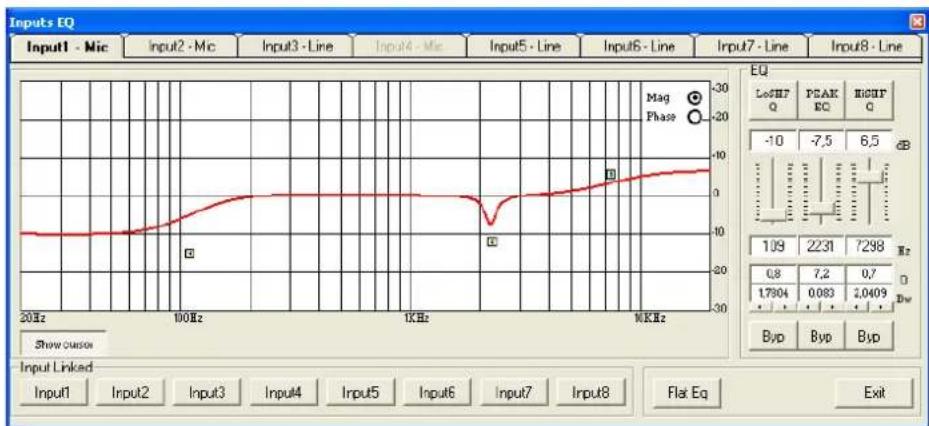
To adjust the equalization, click the button "Edit" under "EQ". The window "Inputs EQ" (fig. 15) is displayed, indicating the sound adjustments for the input selected. Use the tabs in the upper section of the window to select other inputs.
Under "EQ", the 3 independent filters of the input channel can be adjusted (fig. 16). The following filter types are available:
Peaking_Eq / PEAK EQ (Peaking Equalizer) Filter with bell characteristic with adjustable gain/attenuation (dB), center frequency (Hz) and quality factor (Q)
Hi-Shelv_Q / HiSHF_Q (High Shelving Filter Q) Symmetric high frequency filter with shelving characteristic
For the adjustable cut-off frequency (Hz), the level is half of the gain/attenuation adjusted

15 Window of the input equalization "Inputs EQ"
(dB); the slope depends on the adjustable quality factor (Q).
Lo-Shelv_Q / LoSHF_Q (Low Shelving Filter Q) Symmetric low frequency filter with shelving characteristic
For the adjustable cut-off frequency (Hz) the level is half of the gain/attenuation adjusted (dB); the slope depends on the adjustable quality factor (Q).
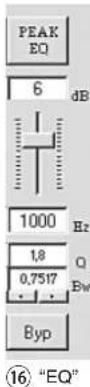
1) Use the upper button (here, "PEAK EQ") to call up a dialog window, and then select the filter type.
2) Use the slider to adjust the level boosting or the level attenuation.
3) In the field "Hz" beneath the slider, enter the filter frequency.
4) Enter the filter quality factor (Q) or the relative bandwidth value (Bw) in the corresponding field or set them by clicking the arrows beneath the fields. Numbers entered will be rounded to the nearest value possible.
5) To deactivate individual filters, click the button "Byp". The button will appear in red. To activate the filter, click the button again.
6) To reset the gain values (0 dB) of all filters of the input, click the button "Flat Eq". In the dialog window "Flat Eq - Are you sure?" that appears, confirm or cancel the procedure.
7) Use the button "Exit" to exit the equalization function.
Note: Alternatively, the level boosting/attenuation and the filter frequency can also be adjusted graphically (65° chapter 6.4.5.1).
6.4.5.1 Frequency response
The diagram indicates the frequency response of the input channel, depending on the equalization adjustment.
In the upper right of the diagram, the type of representation can be selected: magnitude frequency response ("Mag") or phase frequency response ("Phase").
Click the button "Show cursor" to show a graphical reference point (D, D) next to the curve for each filter (fig. 15). Use the mouse to move the reference points and thus to graphically adjust the frequency and the level boosting/level attenuation of the filters.
Click the button "Show cursor" again to hide the reference points.
6.4.6 Feedback suppression (FBK)
If the signal level "Mic" has been selected for an input, the function "FBK" under "Sel Fbk/ EQ" may be used (fig. 14) instead of the equalization function. The function "FBK" is an effective algo
rhythm based on a frequency shift for feedback suppression that allows users to adjust higher volumes for speech applications without having any interfering howling sounds.
Use the slider "Input Feedback Speed %" to adjust the level of the frequency shift: the higher the value, the more effective the feedback suppression.
6.4.7 Phase reversal
The signal of the input can be reversed. This may, for example, counteract phase cancellations that occur when two microphones are located in different directions to/ distances from the same sound source. A tick in the box "Phase 180irc " indicates that the signal is reversed. Click the box to deactivate the phase reversal function.
6.5 Configuring outputs
The signals of all outputs take the processing path shown in figure 5. The view "Routing" is used to assign the input signals to the outputs; the other settings of the outputs, however, are defined in a separate view for each output channel.
Outputs may be linked (6.8) so that multiple outputs can simultaneously be set to the same values.
6.5.1Assigning/Mixing input signals
1) To assign the desired input signals to each output and to define their mixing ratio, select the view "Routing" (fig. 17).
2) Use the matrix "Output Routing" to select the input signals that are to be assigned to an output channel. Each row of the matrix represents an input channel, and each column represents an output channel. Click a node to assign an input to an output (the square located at the node will appear in red) or to remove the assignment.
3) Use the slider under "Editing mix routing" to attenuate the level for each assigned input signal by up to 30 dB (the attenuation will only apply to this output channel). Thus, different signal mixing ratios for the outputs can be defined. Clicking a node in the matrix will automatically select the control group of the corresponding output; alternatively, the output may also be selected by means of the buttons "Output Selected".
4) To remove all assignments, click the button "Reset" and then confirm the confirmation message.
Colour lines in the view "Overview" (fig. 13) indicate the channel assignments.
6.5.2 Signal delay
Each output signal may be delayed by up to 380.998 ms. Thus, different sound delay times due to different speaker distances may be balanced.
In the view of an output (e.g. "Output1", fig. 18), under "Delay", set the delay for the output signal. The unit (meter or milliseconds) can be changed in the view "Overview" (33 chapter 6.3.1).
To change the delay value, click the arrows next to the input field. Use the arrows above "Adj" for a coarse adjustment and the arrows above "Fine" for a fine adjustment. Alternatively, enter the value in the field. The value entered will be rounded to the nearest value possible.
Use the button "Bypass" beneath the value field to temporarily deactivate the delay; the button will appear in red. To activate the delay, click the button again.
6.5.3 High pass filter and low pass filter
Each output is provided with a high pass filter and a low pass filter that, in combination, may assume the function of a crossover network (for frequency-dependent splitting of an input signal to two or more output channels).
In the view of an output (e.g. "Output1", fig. 18), under "High Pass Filter" and "Low Pass Filter", set the high pass filter and low pass filter desired.
1) Under "High Pass Filter", in the field "Slope", select one of the eight filter characteristics or "Bypass" to bypass the high pass filter. The following filter characteristics are available:
Buttw-6dB
Butterworth filter of first order with a slope of 6dB/octave
Buttw-12dB
Butterworth filter of second order with a slope of 12dB/octave
L Riley -12dB
Linkwitz-Riley filter of second order with a slope of 12 dB / octave
Bessel -12dB
Bessel filter of second order with a slope of 12dB/octave
Buttw-18dB
Butterworth filter of third order with a slope of 18dB/occta
Buttw-24dB
Butterworth filter of fourth order with a slope of24dB/octave
LRiley-24dB
Linkwitz-Riley filter of fourth order with a slope of 24 dB / octave
Bessel -24dB
Bessel filter of fourth order with a slope of 24dB/octave
2) Under "Low Pass Filter", in the field "Slope", select one of the eight filter characteristics or "Bypass" to bypass the low pass filter.
3) In the fields "Frequency [Hz]", enter the cutoff frequency desired.
The settings are also reflected in the frequency diagram (13) chapter 6.5.4.1).
6.5.4 Equalization
For the equalization of the individual outputs, five independent filters are provided. These filters can be set in the view of an output (e.g. "Output1", fig. 18, under "EQ"). The procedure for setting the equalization filters is identical to that for setting the input channel filters (6.4.5).
6.5.4.1 Frequency response
The diagram in the upper section of the window indicates the frequency response of the output channel, depending on the equalization and gain (63 chapter 6.5.6) that have been set.
In the upper right of the diagram, the type of representation can be selected: magnitude frequency response ("Mag") or phase frequency response ("Phase"). If "Mag" is selected, the field beneath "Step dB" may be used to select the scaling and the field beneath "Offset dB" to select the vertical shift of the diagram. To change a value, click the up or down arrow buttons next to the field.
For graphical adjustment of the filters, the reference points (, , , , ) may be shown [identical to the procedure for the equalization filters of the inputs (chapter 6.4.5.1)].
6.5.5 Compressor
The compressor reduces the dynamic range and attenuates the level above an adjustable threshold. This is necessary if the dynamic range of the audio signal is higher than allowed by the amplifier system or the listening situation (e.g. in case of background music). It is also possible to reduce level differences (e.g. for changing microphone distances) or to attenuate signal peaks in order to allow a higher gain setting and thus obtain a higher average volume.
The compressor responds to the effective value (RMS) of the signal. The activity of the compressor is indicated by the LED LIMITER (4) for each output channel.
In the view of an output (e.g. "Output1", fig. 18), under "RMS Compressor", set the parameters for the compressor. To change a parameter, move the corresponding slider by means of the mouse, or (with the slider selected) use the arrow keys or the "Pg Up" or "Pg Down" keys on the keyboard.
1) Use the slider "Thr [dBu]" to adjust the threshold value. If this threshold value is exceeded, the gain will be reduced.
2) Use the slider "Ratio" to adjust the compression ratio. For example, a compression ratio of 10:1 means that with an input level increase of 20 dB above the threshold value, the output level will only be increased by 2 dB.
3) Use the slider "Attack [ms]" to adjust the attack time.
4) Use the slider "Release [sec]" to adjust the release time, i.e. the time it takes for the gain to reach its original value after the signal level has fallen below the threshold value.
5) Use the slider "S / H Knee [%]" to define if the change to the compression is to be made abruptly (0 % = Hard Knee) or with a transition range (100 % = Soft Knee). The value defines the size of the transition range.
6) To bypass the compressor, click the button "Bypass". The button will appear in red. To activate the compressor, click the button again.
Click the button "RMS Compressor" to call up the window "RMS Compressor & Peak Limiter ..." (fig. 19). This window provides the same sliders for adjusting the parameters and the button "Bypass" for bypassing the compressor. In addition, it includes graphics that represent the signal level of the compressor input and compressor output, depending on the compressor adjustments. Any changes to the parameters "Threshold", "Ratio" or "Soft/ Hard Knee" will be instantly reflected in the graphics.
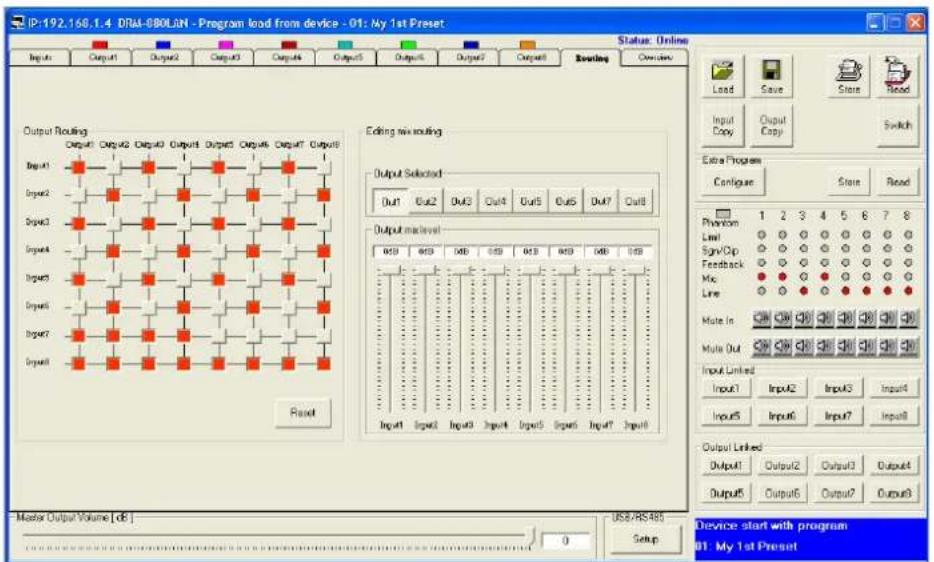
⑦ View“Routing”
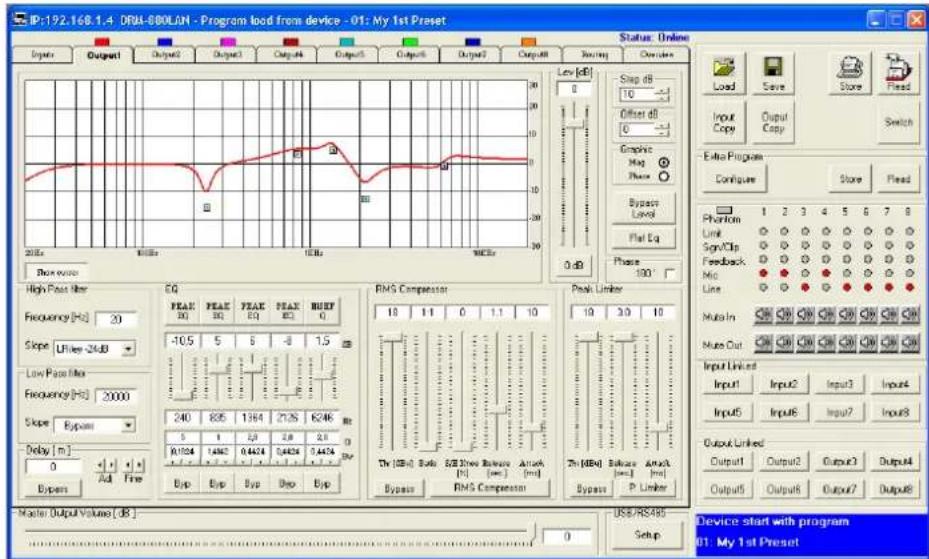
18 View of output channel "Output1"
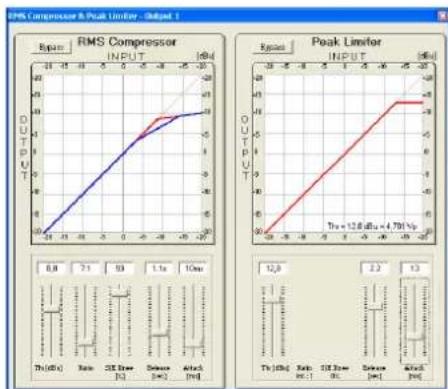
19 Window "RMS Compressor & Peak Limiter"
6.5.6 Gain
In the view of an output (e.g. "Output1", fig. 18), under "Lev [dB]", set the gain, i.e. the output level (between -127 and +18 dB). To change the gain, move the slider by means of the mouse, or (with the slider selected) use the arrow keys or the "Pg Up" or "Pg Down" keys on the keyboard. To quickly reset the gain to 0 dB, click the button "0 dB" beneath the slider.
To temporarily adjust the gain to 0 dB, click the button "Bypass Level"; the button will appear
in red. To reset the gain to the value that has been adjusted by means of the slider, click the button again.
6.5.7 Limiter
The limiter allows the user to quickly limit the signal to an adjusted level. This prevents overloads in subsequent units (e.g. power amplifiers) and protects the speakers against damage. The limiter operates similar to the compressor described above. However, while the compressor still allows an increase of the output level above the threshold value depending on the compression rate adjusted, the threshold value of the limiter defines the definite upper limit of the output signal (compression ratio = ∞:1 ).
The limiter responds to the peak values of the signal. The activity of the limiter is indicated by the LED LIMITER (4).
In the view of an output (e.g. "Output1", fig. 18), under "Peak Limiter", adjust the parameters for the limiter. To change a parameter, move the slider by means of the mouse, or (with the slider selected) use the arrow keys or the "Pg Up" or "Pg Down" keys on the keyboard.
1) Use the slider "Thr [dBu]" to adjust the threshold value, i.e. maximum output level. If this threshold value is exceeded, the gain will be reduced.

2) Use the slider "Attack [ms]" to adjust the attack time.
3) Use the slider "Release [sec]" to adjust the release time, i.e. the time it takes for the gain to reach its original value after the signal level has fallen below the threshold value.
4) To bypass the limiter, click the button "Bypass". The button will appear in red. To activate the limiter, click the button again.
Click the button "P. Limiter" to call up the window "RMS Compressor & Peak Limiter ..." (fig. 19). This window provides the same sliders for adjusting the parameters and the button "Bypass" for bypassing the limiter. In addition, it includes graphics that represent the signal level of the limiter input and the limiter output, depending on the limiter adjustments. Any changes to the parameter "Threshold" will be instantly reflected in the graphics. Beneath the curve, the maximum level [dBu] adjusted by means of the button "Threshold" and the corresponding peak voltage [Vp] are shown.
6.5.8 Phase reversal
The signal of an output can be reversed, e.g. to balance a reverse polarity when connecting the speakers. A tick in the box "Phase 180irc " indicates that the signal is reversed. Click the box to deactivate the phase reversal function.
6.5.9 Main control
To change the output levels of all output channels proportionately, use the slider "Master Output Volume [dB]" located at the bottom of the dialog window.
6.6 Status display
Regardless of the view selected, the indicators and controls on the right-hand side of the window are always available. They show the status and adjustments of the channels (fig. 20) just like the status LEDs (4) on the unit (15-3 chapter 5.4).
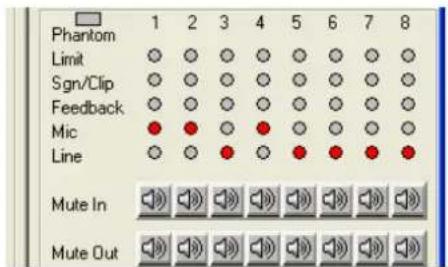
20 Status displays and muting
6.7 Muting
Use the buttons "Mute In" to mute the inputs, and use the buttons "Mute Out" to mute the outputs (fig. 20). To mute or unmute a channel, click the appropriate button of the respective channel. When a channel is muted, the corresponding button appears in red and the icon shown in the view "Overview" (fig. 13) for this channel.
6.8 Linking channels
If specific parameters for multiple outputs or inputs are to be simultaneously adjusted to the same values, the inputs or outputs may be linked while the adjustments are being made. Thus, the parameters changed for one output will be adjusted accordingly for all outputs linked. Likewise, any changes made to one input will apply
to all input channels linked. Only the parameters changed while the linkage was active are adopted by the other channels. All individual adjustments of the inputs or outputs are maintained.
To link input channels:
1) On the right-hand side of the window, under "Input Linked" (fig. 21), click the buttons of all the inputs whose parameters are to be adjusted to the same value. The buttons appear to be "pressed" and the colour of their marking changes to blue.
These buttons are also available in the window "Inputs EQ" for input equalization.
2) To remove the link for an input, click the button of this input again.
To link output channels:
1) On the right-hand side of the window, under "Output Linked" (fig. 21), click the buttons of all the outputs whose parameters are to be adjusted to the same value. If a view for a specific output (fig. 18) is being displayed, click the button for this output as well. The buttons appear to be "pressed" and the colour of their marking changes to blue.
The linkage will be maintained even when another view is selected.
2) To remove the link for an output, click the button of this output again.
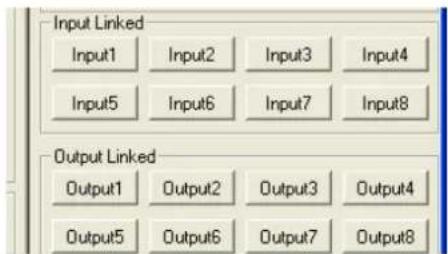
21 Linkage of inputs or outputs
Linking will have no effect on the following functions: "Mute In", "Mute Out", and the channel assignments "Output Routing" and "Output Mix Level" or "Balanced" (input signal).
6.9 Copying adjustments
In contrast to channel linking which only synchronizes the parameters changed while the channels are linked, the copy function copies all adjustments of a channel to another channel. The copy function does not apply to the following adjustments: "Mute In", "Mute Out" and the channel assignments "Output Routing" and "Output Mix Level" or "Balanced" (input signal).
6.9.1 Copying adjustments of an input
1) Click the button "Input Copy". The dialog window "Input Copy" is displayed.
2) Under "Input Source", select the input whose adjustments are to be copied.
3) Under "Input Destination", select the input that is to adopt the adjustments to be copied.
4) Click "Confirm" to confirm the procedure or "Cancel" to cancel it.
5) In the dialog window "Copy Input - Are you sure?", confirm or cancel the procedure.
6.9.2 Copying adjustments of an output
1) Click the button "Output Copy". The dialog window "Output Copy" is displayed.
2) Under "Output Source", select the output whose adjustments are to be copied.
3) Under "Output Destination", select the output that is to adopt the adjustments to be copied.
4) Click "Confirm" to confirm the procedure or "Cancel" to cancel it.
5) In the dialog window "Copy Output - Are you sure?", confirm or cancel the procedure.
6.10 Renaming inputs and outputs
The names of the inputs are factory-set to "Input1" to "Input8"; the names of the outputs are factory-set to "Output1" to "Output8". These names may be changed for each configuration, e.g. to indicate the type of the signal source or the location or function of the speaker system.
1) In the view "Inputs" or in the view of an output, double-click a tab. The dialog window "Edit Names" (fig. 22) is displayed.
2) Overwrite the names of the desired inputs and outputs in the corresponding input fields (max. 8 characters).
3) Click "OK" to confirm the procedure or click "Cancel" to cancel it.
4) In the dialog window "Edit Names - Are you sure?", confirm or cancel the procedure.
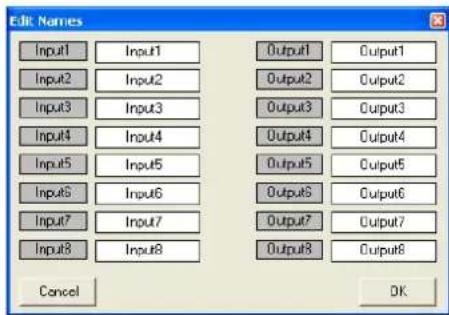
22 Window "Edit Names"
6.11 Managing configurations
The configurations created by means of the control program may be permanently saved as "programs" on six storage locations of the DRM-880LAN. These configurations can be retrieved by means of the six buttons PRESET (3) at the unit. Four additional configurations may be saved as "extra programs" on the unit. These configurations can be retrieved via switching signals at the inputs INPUT PORT (13) [R chapter 6.13].
All configurations may be additionally saved on the computer.
6.11.1 Saving configurations on the computer
To save the current configuration on the computer:
1) On the upper right of the configuration window, click the button "Save". The dialog window "Save As" is displayed.
2) Enter the file name desired, select the location where the file is to be saved and then save the file.
By default, the subfolder "Preset" is selected which was automatically created during program installation. The file extension *.M88 is automatically appended to the file name entered.
6.11.2 Loading configurations from the computer
CAUTION Prior to loading a configuration, check if it corresponds to the units connected. As the DRM-880LAN provides flexible configuration options, the inputs and outputs may assume most diverse functions.
An inadvertent change between configurations may result in an overload of the components connected.
To load a configuration that has been saved on the computer:
1) On the upper right of the window, click the button "Load". The dialog window "Open" is displayed.
2) Select the file desired and confirm your selection.
6.11.3 Saving configurations on the unit
To save the current configuration on the DRM-880LAN:
1) On the upper right of the window, click the button "Store". The dialog window "Store Program" is displayed (fig. 23).
2) To select the storage location, use the field "Select Position" or click an entry in the list under "Memory Program". Select a free storage location ("Program Empty") or select a storage location already assigned that you want to overwrite.
3) In the field "Edit Name", enter the name for the configuration. The length of the name may not exceed 16 characters. Special (language-specific) characters (e.g. ä , ö , ü , b , , ö , i, , n , µ ) should not be used, as they will not appear correctly on the display of the DRM-880LAN.
4) Click the button "Store" to save the configuration or click "Cancel" to cancel the procedure.
5) In the dialog window "Store Program - Are you sure?", confirm or cancel the procedure. After the saving procedure has been completed, the window "Store Program" disappears.
The configurations that have been saved in the unit by means of this procedure can be directly retrieved via the buttons PRESET 1-6 (3) after the connection to the computer has been disconnected.
6.11.4 Loading configurations from the unit
To retrieve a configuration saved on the DRM880LAN and to load it onto the computer:
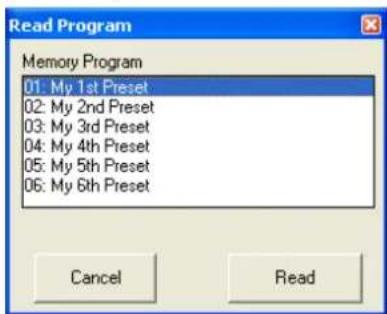
1) On the upper right of the window, click the button "Read". The dialog window "Read Program" is displayed (fig. 24).
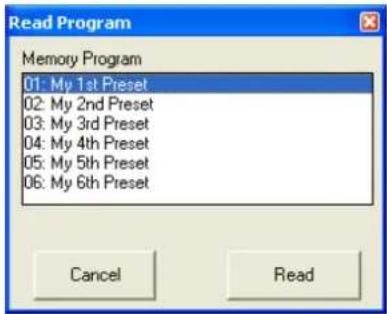
24 Window "Read Program"
2) Select a configuration from the list under "Memory Program".
3) Click the button "Read" to load the configuration selected or click "Cancel" to cancel the procedure.
If a free storage location ("Program Empty") is selected, an error message will appear.
4) In the dialog window "Read Program - Overwrite current editing, are you sure?", confirm or cancel the procedure.
After the loading procedure has been completed, the window "Read Program" disappears.
6.11.5 Extra configurations
Four additional configurations ("extra configurations") may be saved on the DRM-880LAN. They can be retrieved via switching signals at the inputs INPUT PORT (13) [6] chapter 6.13].
The procedures for saving the extra configurations on the unit and loading them from the unit are identical to those described in the two previous chapters; however, the buttons "Store" and "Read" in the section "Extra Program" are used.
6.12 Switching outputs
To set the switching outputs, click the button "Switch" located on the upper right of the configuration window. The dialog window "Switch" (fig. 25) is displayed. The upper section of this dialog window indicates the switching status of the four switching outputs. A tick in the box next to the name of a switching output indicates that the switching output is activated. To change the switching status, click the corresponding box.
The second section of the dialog window provides the buttons 1-10 that allow the user to switch between the ten savable switch presets. A tick in the box next to "Link Switch preset to Audio preset" will link the switching combination saved on the unit with the corresponding unit configuration (program). If, for example, a configuration is retrieved by button PRESET 3, the unit will automatically switch to switching combination 3.
The switching combinations 7 to 10 are linked to the extra configurations 1 to 4 (63 chapter 6.11.5), i.e. they are retrieved via the switching inputs INPUT PORT (13).
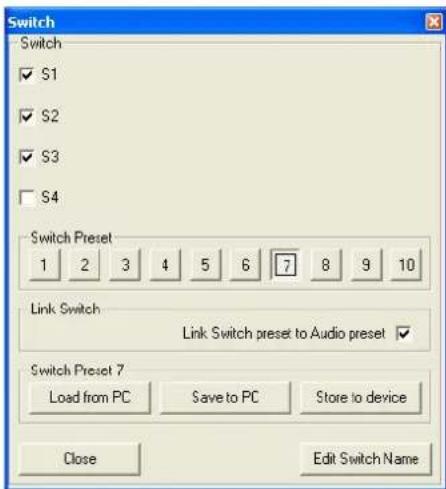
(25) Window "Switch"

6.12.1 Renaming switching outputs
The names of the switching outputs are factory-set to "S1" to "S4". These names may be changed, e.g. to indicate the function of the units controlled. To change the names of the switching outputs:
1) Click the button "Edit Switch Name". The dialog window "Edit Switch Name" is displayed (fig. 26).
2) Overwrite the names of the desired switching outputs in the corresponding input fields (max. 16 characters).
3) Click "Confirm" to confirm the procedure or click "Cancel" to cancel it.
The names entered will be saved on the computer.
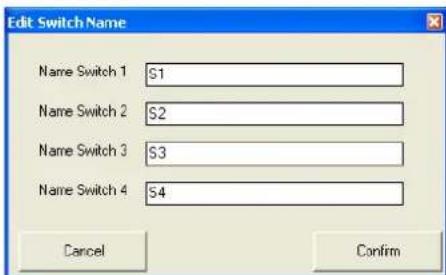
26 Window "Edit Switch Name"
6.12.2 Saving a switching combination on the unit
1) Use the buttons [1] to select the switching combination to be saved.
2) Under "Switch", click the boxes to switch on/off the switching outputs as desired
3) Click the button "Store to device".
A message appears confirming that the switching combination has been saved on the selected storage location of the DRM-880LAN.
6.12.3 Saving a switching combination on the computer
1) Use the buttons 1- to select the switching combination to be saved.
2) Click the button "Save to PC". The dialog window "Save As" is displayed.
3) Enter the file name desired, select the location where the file is to be saved and then save the file.
By default, the subfolder "Preset" is selected which was automatically created during program installation. The file extension *.swc is automatically appended to the file name entered.
Note: Only the switching statuses are saved and not the numbers of the combination, i. e. the switching statuses saved can later be loaded into another switch preset.
6.12.4 Loading a switching combination from a computer
1) Use the buttons 1 - 10 to select the switching combination for which saved switching statuses are to be loaded from the computer.
2) Click the button "Load from PC". The dialog window "Open" is displayed.
3) Select the file desired and then confirm your selection.
The switching outputs will adopt the switching statuses saved in the file.
6.13 Switching inputs
The four extra configurations saved on the unit may be retrieved via external switching signals. In addition, different priorities can be assigned to the switching inputs.
1) To configure the switching inputs, click the button "Configure" located on the right-hand side of the window (under "Extra Program"). The dialog window "Configure External Signal" (fig. 27) is displayed.
2) After the settings described in chapters 6.13.1 to 6.13.3 have been made, click the button "Confirm" to confirm your changes.
3) In the dialog window "Configure - Are you sure?", confirm or cancel the procedure.
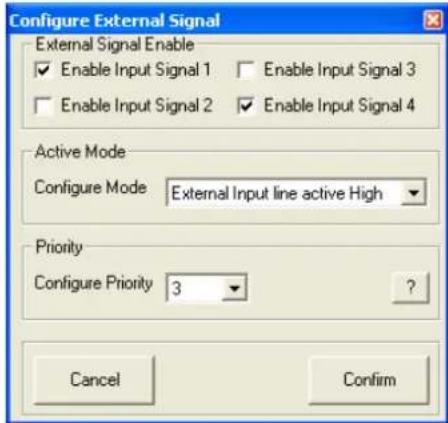
27 Window "Configure External Signal"
6.13.1 Enabling or disabling inputs
Under "External Signal Enable", select the switching signals that are to be enabled for switching over the connections INPUT PORT (13). A tick in the box indicates that the corresponding input will be included in the switchover procedure.
6.13.2 Selecting the logic type (high / low)
Under "Active Mode", define if the switchover is to be triggered by high level ["External Input line active High" (+5V)] or low level ["External Input line active Low" (0V)] .
6.13.3 Selecting priorities
Under "Priority", select the priority to be used for the switching inputs during switchover. Click the button "?" to call up a table (fig. 28) providing information on the actual meaning of the number entered in the field "Configure Priority". For each number, the table lists, in descending order, the priorities that are assigned to the individual inputs.
Example:
All inputs have been enabled for switchover. The logic type is "active High" and the value in the field "Configure Priority" has been set to 3, i.e., according to the table, the order of the inputs is S1, S4, S3, S2. This means:
If switching input 1 is on high level (+5V are present between terminal "S1" and the 1st extra configuration will be retrieved (consequently, the other inputs will be of no relevance).
If switching input 1 is on low level (0 V are present between terminal "S1" and and if switching input 4 is on high level, the 4th extra configuration will be retrieved.
If the switching inputs 1 and 4 are on low level and if switching input 3 is on high level, the 3rd extra configuration will be retrieved.
If switching inputs 1, 3 and 4 are on low level and if switching input 2 is on high level, the 2ndextra configuration will be retrieved.
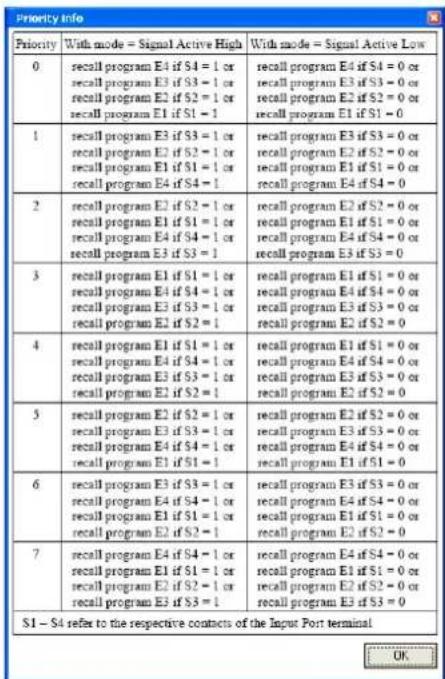
28 Window "Priority info"
6.14 Selecting the interface mode
Similar to the procedure in the system menu, it is possible to define if one of the interfaces USB or RS 485 is to be set manually or to be recognized automatically by the unit.
1) In the configuration window, under "USB/RS 485", click the button "Setup". The dialog window "USB/RS 485 Setup" is displayed.
2) From the list field, define if the switchover is to be performed automatically ("USB/RS 485 Automatic") or if the USB or RS-485 interface most recently set by means of the system menu (13 chapter 5.3.2) is to be used ("USB/RS 485 Manual").
3) Click "OK" to confirm your selection or click "Cancel" to cancel it.
6.15 Exiting a configuration window
To exit a configuration window, click the button located in the upper right corner. Then confirm the confirmation message.
7 Specifications

DRM-880LAN
Frequency range: 20 - 20 000 Hz ±1 dB
Audio inputs
Input voltage: 6.2 V (max.)
Impedance: 10 kΩ
Connections: . . . . . . . . . . . . . . . . . . . . . . . . . . . . . . . . . . . . . . . . . . . . . . . . . . . . . . . . . . . . . . . . . . . . . . . . . . . . . . . . . . . . . . . . . . . . . . . . . . . .. Screw terminals,
balanced
Phantom power supply: +48 V, switchable
Audio outputs
Output voltage: 6.2 V (max.)
Impedance: 50 Ω
Connections: . . . . . . Screw terminals,
balanced
S/N ratio (A-weighted)
Microphone: 9
Line: >104 dB
THD: < 0.005 %
A/D and D/A converters
Quantization: 24 bit
Sampling rate: 48 kHz
Signal processor
DSP type: SAM3716
Data format: 24 bit (data)
× 96 bit (coeffi
cients)
Switching inputs: 0-5V (TTL level)
Switching outputs: .0-5 V (TTL level), 150 mA (max.)
Power supply: 230 V~/50 Hz
Power consumption: 20 VA (max.)
Ambient temperature: .0-40°C
Dimensions (W× H× D) .. 482× 44× 250mm 1 RS (rack space)
Weight: 2.5 kg
DRM-880WP
Dimensions (W× H) ..86x86 mm
Mounting depth: 30 mm
Power supply: 5 V--/20mA
Subject to technical modification.
F
Table des matieres
B CH
- - - SYSTENSETUP TCP / IPSetup
IP = 1 9 2. 1 6 8. 0 0 0. 1 9 1
System Lock PC Connection
ou
System Lock nDeviceID[
11 Fenetre "Select Connection" - USB
24 Fenetre "Read Program"
| Priority | With mode = Signal Active High | With mode = Signal Active Low |
| 0 | recall program E4 if S4 = 1 or recall program E3 if S3 = 1 or recall program E2 if S2 = 1 or recall program E1 if S1 = 1 | recall program E4 if S4 = 0 or recall program E3 if S3 = 0 or recall program E2 if S2 = 0 or recall program E1 if S1 = 0 |
| 1 | recall program E3 if S3 = 1 or recall program E2 if S2 = 1 or recall program E1 if S1 = 1 or recall program E4 if S4 = 1 | recall program E3 if S3 = 0 or recall program E2 if S2 = 0 or recall program E1 if S1 = 0 or recall program E4 if S4 = 0 |
| 2 | recall program E2 if S2 = 1 or recall program E1 if S1 = 1 or recall program E4 if S4 = 1 or recall program E3 if S3 = 1 | recall program E2 if S2 = 0 or recall program E1 if S1 = 0 or recall program E4 if S4 = 0 or recall program E3 if S3 = 0 |
| 3 | recall program E1 if S1 = 1 or recall program E4 if S4 = 1 or recall program E3 if S3 = 1 or recall program E2 if S2 = 1 | recall program E1 if S1 = 0 or recall program E4 if S4 = 0 or recall program E3 if S3 = 0 or recall program E2 if S2 = 0 |
| 4 | recall program E1 if S1 = 1 or recall program E4 if S4 = 1 or recall program E3 if S3 = 1 or recall program E2 if S2 = 1 | recall program E1 if S1 = 0 or recall program E4 if S4 = 0 or recall program E3 if S3 = 0 or recall program E2 if S2 = 0 |
| 5 | recall program E2 if S2 = 1 or recall program E3 if S3 = 1 or recall program E4 if S4 = 1 or recall program E1 if S1 = 1 | recall program E2 if S2 = 0 or recall program E3 if S3 = 0 or recall program E4 if S4 = 0 or recall program E1 if S1 = 0 |
| 6 | recall program E3 if S3 = 1 or recall program E4 if S4 = 1 or recall program E1 if S1 = 1 or recall program E2 if S2 = 1 | recall program E3 if S3 = 0 or recall program E4 if S4 = 0 or recall program E1 if S1 = 0 or recall program E2 if S2 = 0 |
| 7 | recall program E4 if S4 = 1 or recall program E1 if S1 = 1 or recall program E2 if S2 = 1 or recall program E3 if S3 = 1 | recall program E4 if S4 = 0 or recall program E1 if S1 = 0 or recall program E2 if S2 = 0 or recall program E3 if S3 = 0 |
Quantification: 24 bits
Out Switch Setup ---
11 Finestra "Select Connection" - USB
12 Finestra "Configure ID-RS485 and IP Address"
| Priority | With mode = Signal Active High | With mode = Signal Active Low |
| 0 | recall program E4 if S4 = 1 or recall program E3 if S3 = 1 or recall program E2 if S2 = 1 or recall program E1 if S1 = 1 | recall program E4 if S4 = 0 or recall program E3 if S3 = 0 or recall program E2 if S2 = 0 or recall program E1 if S1 = 0 |
| 1 | recall program E3 if S3 = 1 or recall program E2 if S2 = 1 or recall program E1 if S1 = 1 or recall program E4 if S4 = 1 | recall program E3 if S3 = 0 or recall program E2 if S2 = 0 or recall program E1 if S1 = 0 or recall program E4 if S4 = 0 |
| 2 | recall program E2 if S2 = 1 or recall program E1 if S1 = 1 or recall program E4 if S4 = 1 or recall program E3 if S3 = 1 | recall program E2 if S2 = 0 or recall program E1 if S1 = 0 or recall program E4 if S4 = 0 or recall program E3 if S3 = 0 |
| 3 | recall program E1 if S1 = 1 or recall program E4 if S4 = 1 or recall program E3 if S3 = 1 or recall program E2 if S2 = 1 | recall program E1 if S1 = 0 or recall program E4 if S4 = 0 or recall program E3 if S3 = 0 or recall program E2 if S2 = 0 |
| 4 | recall program E1 if S1 = 1 or recall program E4 if S4 = 1 or recall program E3 if S3 = 1 or recall program E2 if S2 = 1 | recall program E1 if S1 = 0 or recall program E4 if S4 = 0 or recall program E3 if S3 = 0 or recall program E2 if S2 = 0 |
| 5 | recall program E2 if S2 = 1 or recall program E3 if S3 = 1 or recall program E4 if S4 = 1 or recall program E1 if S1 = 1 | recall program E2 if S2 = 0 or recall program E3 if S3 = 0 or recall program E4 if S4 = 0 or recall program E1 if S1 = 0 |
| 6 | recall program E3 if S3 = 1 or recall program E4 if S4 = 1 or recall program E1 if S1 = 1 or recall program E2 if S2 = 1 | recall program E3 if S3 = 0 or recall program E4 if S4 = 0 or recall program E1 if S1 = 0 or recall program E2 if S2 = 0 |
| 7 | recall program E4 if S4 = 1 or recall program E1 if S1 = 1 or recall program E2 if S2 = 1 or recall program E3 if S3 = 1 | recall program E4 if S4 = 0 or recall program E1 if S1 = 0 or recall program E2 if S2 = 0 or recall program E3 if S3 = 0 |
28 Finestra "Priority info"
- Before switching on ...
- Verständung
- Operating Elements and Connections
- Front panel
- Rear panel
- Control panel DRM-880WP
- Safety Notes
- WARNING
- Applications
- Setting up and Connecting the Unit
- Signal sources
- Amplifiers or other units
- External switching signals
- Units to be controlled
- Control panel DRM-880WP
- Computer
- Mains connection
- Operation
- Switching on/off
- Selecting a configuration
- System settings
- Setting the IP address
- Selecting an interface
- Unit number for RS-485
- Retrieving switching combinations
- Linking switching combinations to configurations
- Status LEDs
- Operation via DRM-880WP
- Setting up the control panel
- Remote Control via a Computer
- Installing PC Software
- Installing an interface driver
- Starting the PC software
- Adding units
- Connecting or disconnecting units
- Naming a unit
- Calling up the configuration window
- Removing units
- Saving a unit constellation
- Loading a unit constellation
- Changing the interface
- Setting the ID number or the IP address
- Exiting the program
- Views
- Unit for signal delay
- Configuring inputs
- Selecting the signal level
- Selecting the signal transmission type
- Phantom power supply
- Gain
- Main control "Master Input Gain"
- Frequency response
- Feedback suppression (FBK)
- Phase reversal
- Configuring outputs
- 6.5.1Assigning/Mixing input signals
- Signal delay
- High pass filter and low pass filter
- Equalization
- Frequency response
- Compressor
- Gain
- Limiter
- Phase reversal
- Main control
- Status display
- Muting
- Linking channels
- Copying adjustments
- Copying adjustments of an input
- Copying adjustments of an output
- Renaming inputs and outputs
- Managing configurations
- Saving configurations on the computer
- Loading configurations from the computer
- Saving configurations on the unit
- Loading configurations from the unit
- Extra configurations
- Switching outputs
- Renaming switching outputs
- Saving a switching combination on the unit
- Saving a switching combination on the computer
- Loading a switching combination from a computer
- Switching inputs
- Enabling or disabling inputs
- Selecting the logic type (high / low)
- Selecting priorities
- Example:
- Selecting the interface mode
- Exiting a configuration window
- Specifications
- DRM-880LAN
- DRM-880WP
- Table des matieres
- System Lock PC Connection
- System Lock nDeviceID[
Brand : Monacor
Model : DRM880WP
Category : Remote control