PW LINK - Wireless Speaker Paradigm - Free user manual and instructions
Find the device manual for free PW LINK Paradigm in PDF.


| Product Type | Wireless Streaming Preamplifier |
| Brand | Paradigm |
| Model | PW LINK |
| Wireless Connectivity | Wi-Fi 2.4 GHz and 5 GHz, 802.11 g/n |
| Inputs | Analog RCA (stereo), Optical digital, Ethernet 10/100 |
| Outputs | Analog RCA (stereo), Optical digital, 3.5 mm trigger |
| Room Correction | Anthem Room Correction (ARC) with calibrated microphone included |
| Power Supply | External AC adapter: input 100-240 V ~ 50/60 Hz, output 12 Vdc / 0.75 A |
| Dimensions (H x W x D) | 7.9 cm x 14.6 cm x 19.6 cm |
| Finish | Black |
| Streaming Protocol | DTS Play-Fi |
| System Compatibility | Android 2.2+, iOS 6.0+, Windows 7/8/8.1/10 |
| Box Contents | PW LINK preamplifier, 1.8 m Ethernet cable, ARC microphone, 2 m USB cable, AC adapter with 4 plug adapters |
| Warranty | 1 year (limited, defects in materials and workmanship) |
| Care and Cleaning | Use a dry cloth; do not expose to water or moisture |
| Safety | Follow safety instructions: do not open, risk of electric shock, do not expose to rain, unplug during thunderstorms |
| Spare Parts and Repairability | Repairs must be done by an authorized Paradigm dealer; unauthorized opening voids warranty |
| General Information | Complies with FCC Part 15 and Industry Canada RSS standards; Class B electromagnetic compatibility |
Frequently Asked Questions - PW LINK Paradigm
User questions about PW LINK Paradigm
0 question about this device. Answer the ones you know or ask your own.
Ask a new question about this device
Download the instructions for your Wireless Speaker in PDF format for free! Find your manual PW LINK - Paradigm and take your electronic device back in hand. On this page are published all the documents necessary for the use of your device. PW LINK by Paradigm.
USER MANUAL PW LINK Paradigm
Paradigm®
PREMIUM
WIRELESS series
natural_image
Black digital device with 'P' logo and Wi-Fi button, no visible text or symbols beyond brandingdts Play-Fi music is home

PW LINK
OWNER'S MANUAL

RECYCLING AND REUSE GUIDELINES FOR EUROPE
In accordance with the European Union WEEE (Waste Electrical and Electronic Equipment) directive effective August 13, 2005, we would like to notify you that this product may contain regulated materials which, upon disposal, according to the
WEEE directive, require special reuse and recycling processing. For this reason Paradigm Electronics Inc. (manufacturers of Paradigm speakers and Anthem Electronics) has arranged with our distributors in European Union member nations to collect and recycle this product at no cost to you. To find your local distributor please contact the dealer from whom you purchased this product or go to our website at paradigm.com. Please note that the product only falls under the WEEE directive. When disposing of packing and other shipping material we encourage you to recycle through the normal channels.

PW LINK: FCC ID: 2AAWQ-CAPRICA2L and IC ID: 11138A-CAPRICA2L
This device complies with Part 15 of the FCC Rules. Operation is subject to the following two conditions:
[1] This device may not cause harmful interference, and [2] This device must accept any interference received, including information that may cause undesired operation. Changes or modifications not expressly approved by the party responsible for compliance could void the user's authority to operate the equipment.
This product has been tested and found to comply with the limits for a Class B digital device, pursuant to Part 15 of the FCC Rules. These limits are designed to provide reasonable protection against harmful interference in a residential installation. This product generates, uses, and can radiate radio frequency energy and, if not installed and used in accordance with the instructions, may cause harmful interference to radio communications. However, there is no guarantee that interference will not occur in a particular installation. If this product does cause harmful interference to radio or television reception, which can be determined by turning the equipment off and on, the user is encouraged to try to correct the interference by one or more of the following measures:
- Reorient or relocate the receiving antenna.
- Increase the separation between the equipment and receiver.
- Connect the equipment into an outlet on a circuit different from that to which the receiver is connected.
- Consult the dealer or an experienced radio/TV technician for help.
This device complies with Industry Canada licence-exempt RSS standard(s). Operation is subject to the following two conditions:
(1) this device may not cause interference, and
[2] this device must accept any interference, including interference that may cause undesired operation of the device.
WIRELESS TRANSMITTER COMPLIANCE INFORMATION
The term "IC" before the radio certification number only signifies that Industry Canada technical specifications were met. This equipment complies with FCC and IC radiation exposure limits set forth for an uncontrolled environment. This equipment should be installed and operated with minimum distance 20 cm between the radiator and your body. This transmitter must not be co-located or operating in conjunction with any other antenna or transmitter. To reduce potential radio interference to other users, the antenna type and its gain should be so chosen that the equivalent isotropically radiated power (e.i.r.p.) is not more than that permitted for successful communication.
PARADIGM ELECTRONICS RESERVES THE RIGHT TO CHANGE SPECIFICATIONS AND/OR FEATURES WITHOUT NOTICE AS DESIGN IMPROVEMENTS ARE INCORPORATED.
PARADIGM and ANTHEM are registered trademarks of Paradigm Electronics Inc. PW LINK, ARC are trademarks of Paradigm Electronics Inc. Copyright © Paradigm Electronics Inc. All rights reserved. All other products and services mentioned may be trademarks or service marks of their respective owner(s).
Apple and the Apple logo are trademarks of Apple Inc., registered in the U.S. and other countries. App Store is a service mark of Apple Inc.
Windows ^® is a registered trademark of Microsoft Corporation in the United States and other countries.
Amazon, Kindle, Fire, and all related logos are trademarks of Amazon.com, Inc. or its affiliates.
Google Play is a trademark of Google Inc.
The Spotify software is subject to third party licenses found here: www.spotify.com/connect/third-party-licenses
For DTS patents, see http://patents.dts.com. Manufactured under license from DTS Licensing Limited. DTS, Play-Fi, the Symbol, and Play-Fi together in combination with the Symbol are trademarks of DTS, Inc. DTS and Play-Fi are registered trademarks of DTS, Inc. © DTS, Inc. All Rights Reserved.

Adapter:
Manufacturer:
Dongguan Dongsong Electronic Co. Ltd.
Model: DYS612-120075V-K
Input: 100-240 V \~ 50/60 Hz, 0.4 A MAX
Output: 12 Vdc, D.75 A
Rev. 060816
Paradigm PW LINK Owner's Manual
TABLE OF CONTENTS
Congratulations! 1
Important Safety Instructions....2
Important Safety Information 3
What's In The Box 4
Network Requirements 5
System Requirements 5
Features & Functions: 6
Controls & Connections 7
Connecting PW LINK....8
Play Music & Connect Multiple PW Series Products....9
Anthem Room Correction (ARC ^TM )...... 10
Updates....11
Reboot (Power Cycle) & Factory Reset 11
Enable/Disable Auto Input Mode 11
Device Usage Guide.... 12
Basic Troubleshooting 13
Technical Specifications.... 16
Limited Warranty....17
CONGRATULATIONS!
Thank you for purchasing this Paradigm® PW LINK.
Paradigm® and its sister company, Anthem® have leveraged over 30 years in groundbreaking loudspeaker and amplifier design to create the Paradigm® Premium Wireless Series of wireless speakers, preamplifier and powerful amplifier.
The inclusion of DTS Play-Fi® technology to Paradigm's technology platforms means you can enjoy high fidelity, lossless music streamed from your Android device, iOS device, or PC – to a premium Paradigm speaker, preamplifier, or amplifier. Using your home Wi-Fi network, you can stream music to individual speakers, or play the same music to all Paradigm® Premium Wireless Series devices you have installed – all with crystal clear clarity.
IMPORTANT SAFETY INSTRUCTIONS
- Read these instructions.
- Keep these instructions.
- Heed all warnings.
- Follow all instructions.
- Do not use this apparatus near water.
- Clean only with dry cloth.
- Do not block any ventilation openings. Install in accordance with the manufacturer's instructions.
- Do not install near any heat sources such as radiators, heat registers, stoves, or other apparatus (including amplifiers) that produce heat.
- Do not defeat the safety purpose of the polarized or grounding-type plug. A polarized plug has two blades with one wider than the other. A grounding type plug has two blades and a third grounding prong. The wide blade or the third prong are provided for your safety. If the provided plug does not fit into your outlet, consult an electrician for replacement of the obsolete outlet.
-
Protect the power cord from being walked on or pinched particularly at plugs, convenience receptacles, and the point where they exit from the apparatus.
-
Only use attachments/accessories specified by the manufacturer.
-
Usually with the cart, stand, tripod, bracket, or table specified by the manufacturer, or sold with the apparatus. When a cart is used, use caution when moving the cart/ apparatus combination to avoid injury from tip-over.
-
Unplug this apparatus during lightning storms or when unused for long periods of time.
-
Refer all servicing to qualified service personnel. Servicing is required when the apparatus has been damaged in any way, such as power-supply cord or plug is damaged, liquid has been spilled or objects have fallen into the apparatus, the apparatus has been exposed to rain or moisture, does not operate normally, or has been dropped.
-
The apparatus shall not be exposed to dripping or splashing and that objects filled with liquids, such as vases, shall not be placed on apparatus.
-
The apparatus should be connected to a mains socket outlet with a protective earthing connection.
IMPORTANT SAFETY INFORMATION
Paradigm PW LINK Owner's Manual

The lightning bolt flash with arrowhead symbol, within an equilateral triangle, is intended to alert the user to the presence of uninsulated “dangerous voltage” within the product’s enclosure that may be of sufficient magnitude to constitute a risk of electric shock.

The exclamation point within an equilateral triangle is intended to alert the user to the presence of important operating and maintenance (servicing) instructions in the literature accompanying the appliance.

WARNING! Do not use your Paradigm PW LINK(s) outside of the country of original sale—voltage requirements vary by country. Improper voltage can cause damage that will be potentially expensive to repair. Paradigm PW LINKs are shipped to authorized Paradigm distributors with the correct power supply for use in the country of intended sale. A list of authorized distributors can be accessed at www.paradigm.com or by emailing info@paradigm.com.

WARNING!
RISK OF ELECTRIC SHOCK DO NOT OPEN


WARNING: TO REDUCE THE RISK OF FIRE OR ELECTRIC SHOCK, DO NOT EXPOSE THIS APPARATUS TO RAIN OR MOISTURE AND OBJECTS FILLED WITH LIQUIDS, SUCH AS VASES, SHOULD NOT BE PLACED ON THIS APPARATUS.
• TO COMPLETELY DISCONNECT THIS APPARATUS FROM THE AC MAINS, DISCONNECT THE POWER SUPPLY CORD PLUG FROM THE AC RECEPTACLE.
- THE MAINS PLUG OF THE POWER SUPPLY CORD SHALL REMAIN READILY ACCESSIBLE.
WHAT'S IN THE BOX ...
PW LINK Premium Wireless Preamplifier
- Paradigm PW LINK
- 6' (1.8 m) Ethernet Cable
- 6.5' (2 m) ARC ^™ Microphone USB Cable
-
ARC ^™ Microphone
-
AC Power Adapter and Four Interchangeable AC Wall Plug Adapters
- Owner's Manual and Setup Guides

natural_image
Line drawing of a rectangular electronic device with a grid-patterned top and control buttons (no text or symbols)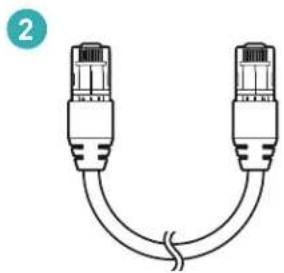
natural_image
Diagram of two USB connectors with a coiled cable, no text or symbols present
natural_image
Simple line drawing of two USB connectors with a curved cable (no text or symbols)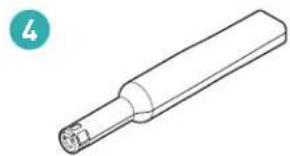
natural_image
Line drawing of a cylindrical mechanical component with a protruding shaft (no text or symbols)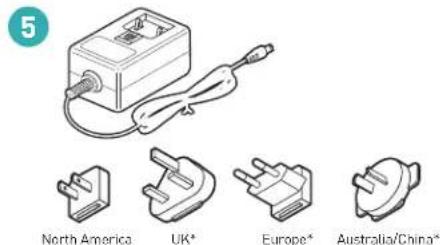
text_image
5 North America UK* Europe* Australia/China*
text_image
6 P PARADigm PREMIUM WIRELESS Play-Fi P P1.500 OWNER'S MANUAL* Note: Only 240 V models include Interchangeable AC Wall Plug Adapters for the UK, Europe and Australia/China.
NETWORK REQUIREMENTS
You must have the following to connect your Paradigm PW LINK to your network:
- A high-speed DSL/Cable modem or a fiber-to-the-home broadband connection for reliable playback of music services based on the internet. Note: Satellite internet services are prone to playback issues due to fluctuating download rates.
- If your modem is not a modem/router combination you must purchase and install a router into your home network before proceeding.
- If you plan to use the DTS Play-Fi® App on an Android™ or iOS device or you are setting up a Paradigm PW LINK for Wi-Fi streaming, you will need a wireless router.
- Have your network password ready before connecting the Paradigm PW LINK to your network.
NOTE: To make the quickest connection, use a dual-band router and connect your Paradigm PW LINK to the 5 GHz network instead of the 2.4 GHz Network.
Paradigm PW LINK Owner's Manual
NOTE: If your wireless connectivity is weak or not available, connect your Paradigm PW LINK to your router with the supplied ethernet cable.
TIP! Paradigm Premium Wireless Series products communicate with wireless networks that support 802.11 g/n wireless technology. For the fastest streaming performance, a network that supports 802.11 n wireless technology is recommended. A network supporting 802.11b may be used, but it will effectively stream to only one device equipped with DTS Play-Fi ^® .
TIP! For superior performance connect your PC or NAS (Network-Attached Storage) drive that holds your personal music library to your network router using the provided Ethernet cable.
SYSTEM REQUIREMENTS
- An Android device running Android 2.2 or later.
- An iOS device running iOS 6.0 or later.
- A Windows ^ PC running Windows ^ 7, 8, 8.1, or 10 (32 and 64 bit).
FEATURES & FUNCTIONS
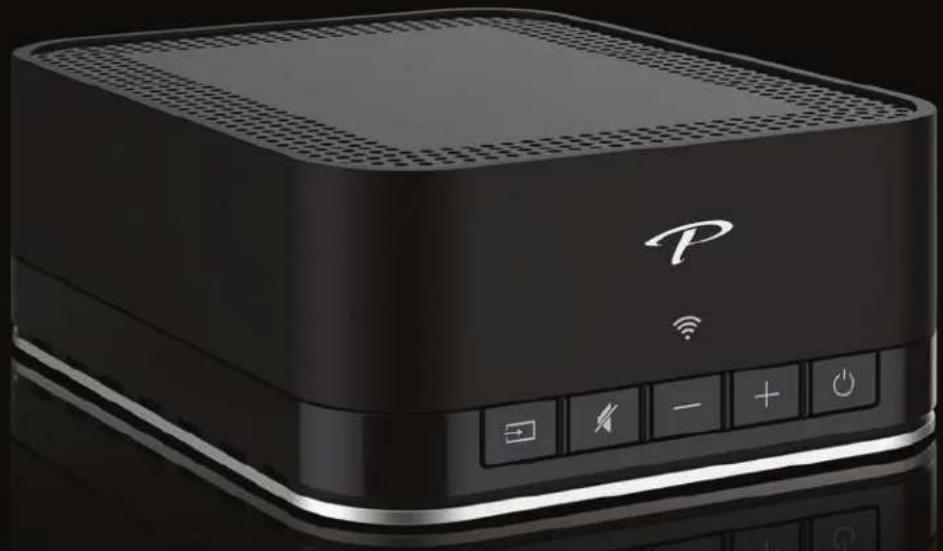
Power Button ( ⏻ ):
- Press ⏻ to power on/off. If no signal is received for 20 minutes, unit will be in standby.
- Press ⏻ to reboot (power cycle) or Factory Reset your Paradigm PW LINK (see page 11).
Volume Up/Down Buttons (+ / +):
- Press + to increase the volume level. Press - to decrease the volume level.
- Press and hold either +/to ramp the volume level up or down.
Mute Button (✗):
- Press ¼ to mute the audio. The Mute button (¼) will illuminate WHITE when the mute function is active.
- The Mute Button ( 14 ) also switches on/off ARC ^™ Settings
- To setup ARC ^TM and to learn how it corrects room deficiencies see page 10.
- To switch off ARC™ settings: PRESS and HOLD ¼ for 5 seconds. Upon releasing the button, a "negative tone" will sound verifying ARC™ settings are switched off.
- Repeat the process to switch on ARC ^TM settings. You will hear a "positive tone" when ARC ^TM settings are switched on.
Input Button (→):
- PRESS and RELEASE → to toggle between Wireless/Wired Network Streaming Mode AND Rear Input Mode.
- The Input button (☐) illuminates WHITE when Wireless/Wired Network Streaming Mode is enabled and BLUE when the Rear Input Mode is enabled.
- Your Paradigm PW LINK has the following rear inputs: RCA analog inputs, digital optical input, and Ethernet 10/100.
- Wireless/Wired Network Streaming Mode is the default input mode. If your Paradigm PW LINK is set to Rear Input Mode and music is streamed, by default your Paradigm PW LINK will switch to Wireless/Wired Network Streaming Mode.
- Enable/disable Auto Input Mode (see page 11).
Wi-Fi Setup Button:
- Initiates Wi-Fi setup for both Wi-Fi Protected Setup (WPS) and Standard Wi-Fi Setup.
Wi-Fi Indicator ( 📋 ):
The Wi-Fi Indicator (💡) tells you what your Paradigm PW LINK is doing:
- Fast Blinking – Your Paradigm product is booting up.
- Blinking – Your Paradigm PW LINK is attempting to connect to a wireless router.
- Slow Pulse - Setup Mode.
- Two Blinks > Pause - WPS Mode.
- Solid - Connected to router.
- Off – Connected to a router using a wired connection.
CONTROLS & CONNECTIONS
PW LINK Premium Wireless Preamplifier

text_image
Wi-Fi Indicator Input Mute Volume Down Volume Up PowerParadigm PW LINK Owner's Manual
text_image
Paradigm PLW LINK RCA Analog Outputs DC Power Input Paradigm PLW LINK Analog In L Analog Out L Digital Optical Input Digital In R R Digital Out Digital Analog Inputs Digital Optical Output Digital Setup Button Wi-Fi Setup Mini USB (factory use only) Update LAN USB Trigger Output Ethernet Input USB (factory use only)CONNECTING PW LINK
- There are four AC wall plug adaptors included with the PW LINK; assemble the AC power adapter using the correct AC wall plug adaptor for your country (see page 4).
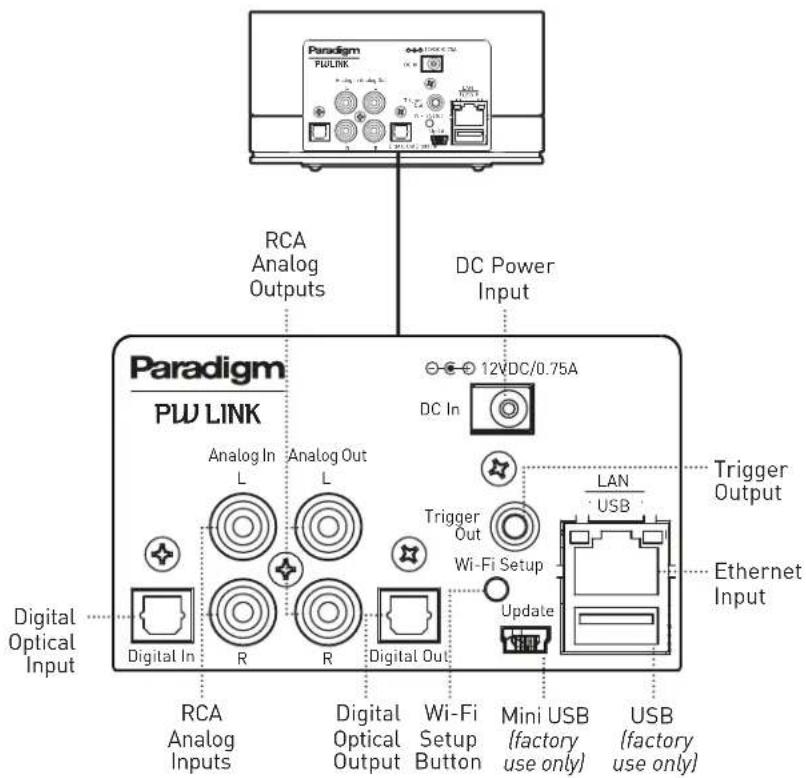
- Connect the AC Power Adapter cable to the input labeled "DC In" on the rear of the PW LINK; connect the opposite end of the cable to an AC wall outlet.
- Choose your connection to connect to an existing preamplifier, receiver or amplifier:
RCA Cable Connection: Connect RCA cables (not supplied) to the left and right "Analog Out" jacks on the back of the PW LINK. Connect the opposite end of your RCA cables to the RCA Input jacks on your existing preamplifier, receiver or amplifier inputs.
Digital Cable Connection: Connect a Digital Optical cable (not supplied) to the "Digital Out" jack on the back of the PW LINK. Connect the opposite end of the Digital Optical Cable to a Digital Optical Input jack on your existing preamplifier, receiver or amplifier inputs.
- Choose your connection for connecting to a CD player, Turntable, etc.:
RCA Cable Connection: Connect RCA cables (not supplied) to the left and right "Analog In" jacks on the back of the PW LINK. Connect the opposite end of your RCA cables to the RCA Output jacks on a CD player, turntable, etc.
Digital Cable Connection: Connect a Digital Optical cable (not supplied) to the "Digital In" on the back of the PW LINK. Connect the opposite end of the Digital Optical cable to a Digital Optical Output jack on a CD player, turntable, etc.
- If your amplifier has a Trigger Input, you can connect it to the Trigger Output on your PW LINK with a 3.5 mm Mono Male-to-Male cable. The Trigger Output can be used to power on your preamplifier.
PLAY MUSIC & CONNECT MULTIPLE PW SERIES PRODUCTS
Once your Paradigm PW LINK is connected to your home network, you can start playing music anytime.
- Activate the DTS Play-Fi ^® App on your mobile device or PC. If you have setup more than one Paradigm Premium Wireless Series product, select which one you want to stream music to.
- Select your music source – personal music library or any subscription-based music service contained on your mobile device or PC, Internet Radio, or from select online music services such as Deezer, Songza, etc. (visit our website at paradigm.com to view a full list of available music services).
How to Connect Multiple Paradigm Premium Wireless Series products:
- To connect additional Paradigm Premium Wireless Series products to your network, open the DTS Play-Fi® App and select "Setting".
- Select, "Add Play-Fi Device"
- Follow the instructions to add each Paradigm Premium Wireless Series product.
Primary/Secondary Zones:
When using the DTS Play-Fi® App on your device, you will notice when streaming music to your Paradigm Premium Wireless Series product that there are two groups: Primary and secondary zones. The DTS Play-Fi® module within your Paradigm Premium Wireless Series product requires that a primary speaker be selected to create a new listening session or zone. The purpose of this is to eliminate any echo, found on other ecosystems, and to maximize synchronization down to 1 millisecond.
We suggest that you select the Paradigm Premium Wireless Series product with the strongest signal strength as your primary device. It should be noted that secondary speakers are connected to your primary speaker, so if you disable your primary speaker for any reason, your secondary speaker will be temporarily unavailable until a primary speaker is selected again.
ANTHEM ROOM CORRECTION (ARC ^TM )
Even when the finest speakers are perfectly positioned, the room itself still has a dramatic impact on any system's sound, an impact more profound than that of any individual component. Various solutions have fallen in and out of favor over the years, but none has solved the problem of "the room." Until ARC.
Using proprietary processes and the power of your PC, the ARC system analyzes each speaker's in-room sound, then computes the required correction to yield optimal performance from every speaker. It's a process that takes approximately 15 minutes. Anthem's approach is a true audiophile solution to the problems of the room.
IMPORTANT! The listening space must be silent while performing ARC. A noisy computer fan, a dishwasher or microwave running, etc. can negatively affect ARC's measurements.
How to Correct Room Deficiencies using ARC Technology :
- Ensure that your Paradigm PW LINK is already connected on your home network and is powered "on".
- Download the ARC software from paradigm.com/support and install it. Once the drivers are installed, follow the on-screen instructions.
- Using the 6.5' (2 m) USB cable, connect the ARC microphone to a Windows® PC running Windows® 7, 8, 8.1, ou 10 (32 and 64 bit).
-
Look for the icon on your desktop and launch the ARC ^™ program. Follow the prompts on your computer screen to successfully run the ARC ^™ software; the entire process should take approximately 15 minutes.
-
Hold the ARC microphone with your arm fully extended, the ARC microphone tip must point towards the ceiling and it must be positioned at ear level. Refer to the diagram below.
- For best results, hold the microphone in 5 different positions around the room.
TIP! Once the ARC process is complete, the corrected listening curves will be stored and music will be played back reflecting these corrections each time you stream music to your Paradigm PW LINK. To toggle back and forth between pre and post ARC correction, or to disable ARC refer to the "Mute Button (4)" section on page 6.

text_image
ARC Microphone Ear LevelUPDATES
DTS Play-Fi® App Update:
If the DTS Play-Fi® app on your device requires an update, the app will notify you that an update is available and guide you through the update process.
Paradigm Firmware Update:
At Paradigm we constantly strive to improve the performance and functionality of your system, as a result from time to time your Paradigm PW LINK will require firmware updates. Please regularly check our website at www.paradigm.com for the latest firmware updates.
REBOOT (POWER CYCLE) & FACTORY RESET
Reboot (Power Cycle):
PRESS and HOLD the Power button (☐) for 3 seconds. The Mute button (☐) will start blinking once a refresh has been achieved; upon releasing the button a tone will verify a refresh.
Factory Reset:
PRESS and HOLD the Power button (☐) for 10 seconds (at 3 seconds the Mute button (☐ will start blinking); once you hear a tone (at 10 seconds) to verify a reset, immediately release the reset button.
ENABLE/DISABLE AUTO INPUT MODE
The Paradigm PW LINK can be configured to automatically select the AUX input when the DTS Play-Fi® app is turned off. This mode can be useful when using the PW LINK to improve TV audio, for
example, through the AUX input when wireless music streaming is not in use. To enable auto input mode, hold the input button for five seconds. Hold it again for five seconds again to cancel.
DEVICE USAGE GUIDE
| App | ContentDevice | Multi-Room | |
| Apple iOS | Play-Fi | Select music servicesiTunes - music stored on device | Up to eightMultiple simultaneous usersSpeakers can be zoned |
| Android | Play-Fi | Select music servicesMusic stored on device | Up to eightMultiple simultaneous usersSpeakers can be zoned |
| Windows PC | Play-Fi | All audio content | Up to eightMultiple simultaneous usersSpeakers can be zoned |
BASIC TROUBLESHOOTING
Paradigm PW LINK Owner's Manual

CAUTION: Warning: Do not open the product. Under no circumstances should the product be repaired by anyone other than an authorized Paradigm Dealer, as this will invalidate the warranty. Please contact Paradigm Customer Support for more information.
If a problem occurs, you can try the troubleshooting suggestions listed below. If one of these doesn't remedy the problem, or you are not sure how to proceed, please contact the Paradigm Customer Support team at support@paradigm.com. Alternatively, visit our website at paradigm.com/support for detailed troubleshooting solutions.
Problem Possible Solutions
I am unable to connect the Paradigm Premium Wireless Series product to my Wi-Fi network.
- Verify that your Wi-Fi network is functioning.
- Your router's Wi-Fi signal may be weak or your Paradigm PW LINK may be out of range of your router's Wi-Fi network. Move the Paradigm PW LINK closer to the router.
- Before connecting to your network, verify that your Paradigm PW LINK's Input button (☐) is illuminated in WHITE, this indicates the Wireless/Wired Network Streaming Mode. If the Input button (☐) is illuminated in BLUE, this indicates the Rear Input Mode; press the Input button (☐) select the Wireless/Wired Network Streaming Mode for a wireless input connection.
- Reboot your Paradigm PW LINK (see page 11).
- Reset your Paradigm PW LINK to factory settings (see page 11).
BASIC TROUBLESHOOTING (cont'd ...)
| Problem Possible Solutions | |
| The DTS Play-Fi® App cannot find my Paradigm Premium Wireless Series product. | Verify that the following are true:1. The Paradigm product is fully powered on and in Discovery Mode Wi-Fi Indicator (💡) is pulsing slowly).2. You are within the recommended range of your router.3. Your device has its Wi-Fi enabled.4. There are no other apps on your device that are currently running that are impeding wireless connectivity to your network.Restart your phone, tablet or PC (refer to the Owner’s Manual for further details).If you still can’t find the Paradigm product on your network, and are in an office environment, verify with your network administrator that no special permissions are enabled that would prevent external wireless devices from broadcasting within the network.If the Paradigm product remains unfound, perform a Reboot (Power Cycle) (see page 11) on the offending unit and redownload the DTS Play-Fi® App.If the Paradigm product remains unfound, perform a Factory Reset (see page 11) on the offending unit and re-download the DTS Play-Fi® App. |
Problem Possible Solutions
The DTS Play-Fi® App says "Play-Fi Devices Lost."
If you see this message, it could mean one or more things:
• The connection to your network is very weak.
• There is heavy network traffic.
- You have moved out of your personal network's coverage range.
- You have lost your network connection.
- You have connected to a network other than the one your Paradigm product(s) are on.
- Your device's wireless streaming has been taken over by another app.
- Your device lost power in the middle of communication.
Make sure the following are true:
- Verify that your network setting and that your devices are connected to the same network.
- Ensure that your device has not left the range of your router.
- Verify that your device is on the same network as your Paradigm PW LINK.
Finally, exit and then restart the DTS Play-Fi App. It should now find all of your Paradigm PW LINK(s). If you are still unable to find the Paradigm PW LINK(s), perform a Reset (see page 11) on the offending unit and re-download the DTS Play-Fi App.
TECHNICAL SPECIFICATIONS
Paradigm PW LINK Owner's Manual
PW LINK Premium Wireless Preamplifier
| Design | Wireless Streaming Preamplifier |
| Wireless Connectivity | 2.4 GHz and 5.0 GHz; 802.11 g/n |
| Inputs | RCA analog inputs, optical input, Ethernet 10/100 |
| Outputs | RCA analog outputs, optical output, trigger output |
| Room Correction | Anthem Room Correction – ARC ^TM , with included calibrated microphone |
| Dimensions (h x w x d) | 3-1/8" x 5-3/4" x 7-3/4" (7.9 cm x 14.6 cm x 19.6 cm) |
| Finish | Black |
LIMITED WARRANTY
The Paradigm ^® PW LINK covered in this manual is warranted to be and remain free of manufacturing and/or material defects for a period of one (1) year from the date of original purchase.
Within the time periods specified, repair, replacement or adjustment of parts for manufacturing and/or material defects will be free of charge to the original owner.
Thermal Or Mechanical Abuse/Misuse Is Not Covered Under Warranty.
Limitations:
- Warranty begins on date of original retail purchase. It is not transferable;
- Warranty applies to product in normal home use only. If product is subjected to any of the conditions outlined in the next section, warranty is void;
- Warranty does not apply if the product is used in professional or commercial applications.
Warranty is Void if:
- The product has been abused (intentionally or accidentally);
- The product has been used in conjunction with unsuitable or faulty equipment;
-
The product has been subjected to damaging signals, derangement in transport, mechanical damage or any abnormal conditions;
-
The product (including cabinet) has been tampered with or damaged by an unauthorized service facility;
- The serial number has been removed or defaced.
Owner Responsibilities:
- Provide normal/reasonable operating care and maintenance;
- Provide or pay for transportation charges for product to service facility;
- Provide proof of purchase (your sales receipt given at time of purchase must be retained for proof-of-purchase date).
Should servicing be required, contact us using the information below, to arrange, bring in or ship prepaid, any defective unit. Visit paradigm.com for more information.
Paradigm Electronics Inc. reserves the right to improve the design of any product without assuming any obligation to modify any product previously manufactured.
This warranty is in lieu of all other warranties expressed or implied, of merchantability, fitness for any particular purpose and may not be extended or enlarged by anyone. In no event shall Paradigm Electronics Inc., their agents or representatives be responsible for any incidental or consequential damages. Some jurisdictions do not allow limitation of incidental or consequential damages, so this exclusion may not apply to you.
LIMITED WARRANTY (cont'd ...)
Retain this manual and your sales receipt for proof of warranty term and proof of purchase.
For additional product support, email us at service@paradigm.com
Paradigm PW LINK Owner's Manual
License Information for the Software Used in this Product
This product contains one or more free or open source software programs originating from third parties. This free and open source software is subject to the terms of the GNU General Public License, GNU Library/Lesser General Public License, or other different and/or additional copyright licenses, notices, and disclaimers. To understand your rights under these licenses, please refer to the specific terms of the licenses, notices, and disclaimers, which are provided in the links following.
To receive a copy of the source code for the open source software programs included in this product, please contact the Paradigm Customer Support team at support@paradigm.com.
Paradigm Electronics Inc. will distribute such source code to you on a disc for a charge covering the cost of performing such distribution, such as the cost of media, shipping and handling. All of the above referenced licenses, notices, and disclaimers are reproduced and available with such source code. However, note that we make no guarantees concerning the source code and we do not offer support for the contents of the source code. This offer is valid for a period of three (3) years following the date of distribution of this product by Paradigm Electronics Inc.
This section describes software licenses used for this unit. To maintain the correct content, the original (English) is used.
BSD License
Libupnp: http://pupnp.sourceforge.net/ Opus codec: http://www.opus-codec.org/
GPL (GNU-General Public License)
LinuxKernel 2.6.29: https://kernel.org/ libao: http://www.xiph.org/ao/ bridge-utils: http://www.linuxfoundation.org/collaborate/workgroups/networking/bridge busybox: http://www.busybox.net/ Ebtables: http://ebtables.netfilter.org/ Wget: http://www.gnu.org/software/wget/
LGPL (GNU Lesser General Public License) License
LIVE555: http://www.live555.com/mpg123: http://mpg123.de/ffmpeg: http://www.ffmpeg.org/avahi: http://www.avahi.org/
MIT/X Derivate License
CURL: http://curl.haxx.se/
Academic Free License (AFL)
dbus: http://www.freedesktop.org/wiki/
OpenSSL License
OpenSSL: https://www.openssl.org/
MIT License
LibXML2: http://www.xmlsoft.org/
Others
https://github.com/abrasive/shairport/blob/master/LICENSES Abrasive: https://github.com/abrasive/shairport
NOTES
Paradigm
PREMIUM
WIRELESS series

natural_image
Black square electronic device with 'P' logo and Wi-Fi signal buttons (no readable text beyond branding)dts Play-Fi music is home

PW LINK
MODE D'EMPLOI

DIRECTIVES SUR LE RECYCLAGE ET LA RÉUTILISATION POUR L'EUROPE
Dongguan Dongsong Electronic Co. Ltd.
natural_image
Isometric line drawing of a rectangular electronic device with a grid-patterned top and control buttons (no text or symbols)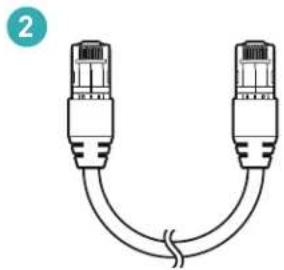
natural_image
Diagram of two Ethernet connectors with a coiled cable (no text or symbols)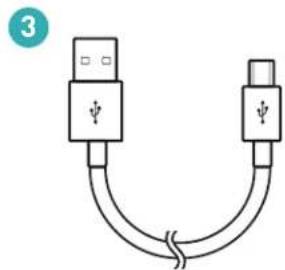
natural_image
Diagram of two USB connectors with a curved cable, no text or symbols present
natural_image
Line drawing of a cylindrical mechanical component with a protruding end (no text or symbols)
natural_image
Illustration of a power adapter with three separate plug connectors (no text or symbols)
text_image
6 P PARADigm PREMIUM & WIRELESSS T Play-Fi MODE STAPURtext_image
Microphone ARCMISES À JOUR
GPL (GNU-General Public License)
LinuxKernel 2.6.29: https://kernel.org/ libao: http://www.xiph.org/ao/ bridge-utils: http://www.linuxfoundation.org/collaborate/workgroups/networking/bridge busybox: http://www.busybox.net/ Ebtables: http://ebtables.netfilter.org/ Wget: http://www.gnu.org/software/wget/
LGPL (GNU Lesser General Public License)
LIVE555: http://www.live555.com/
mpg123: http://mpg123.de/
ffmpeg: http://www.ffmpeg.org/
avahi: http://www.avahi.org/
MIT/X derivate license
CURL: http://curl.haxx.se/
Academic Free License (AFL)
dbus: http://www.freedesktop.org/wiki/
OpenSSL License
OpenSSL: https://www.openssl.org/
MIT License
LibXML2: http://www.xmlsoft.org/
Others
https://github.com/abrasive/shairport/blob/master/LICENSES
Abrasive: https://github.com/abrasive/shairport
NOTES