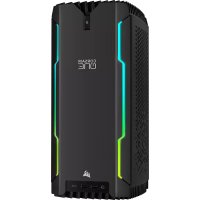
One - Desktop computer CORSAIR - Free user manual and instructions
Find the device manual for free One CORSAIR in PDF.



| Product type | Compact gaming desktop |
| Brand | Corsair |
| Model | One |
| Dimensions (W x D x H) | 200 x 176 x 380 mm |
| Weight | 7 kg |
| Power supply | Internal, 600 W |
| Front ports | 2x USB 3.1 Gen1, 1x HDMI, 1x Headphone/microphone combo jack |
| Rear ports | 1x USB 3.1 Gen2 Type-C, 4x USB 3.1 Gen1, 1x USB 3.1 Gen2 Type-A, 2x RJ45 Ethernet, 3x DisplayPort, 1x Optical audio output, 1x Audio group |
| Wireless connectivity | Wi-Fi and Bluetooth (antennas included) |
| Storage | M.2 NVMe SSD (variable capacity) |
| RAM memory | Up to 32 GB DDR4 |
| Processor | Intel Core i7 or i9 |
| Graphics card | NVIDIA GeForce RTX |
| Operating system | Windows 10 or 11 |
| Main features | 4K gaming, VR Ready, compact and quiet design |
| Maintenance | Driver updates via Corsair website, upgrades possible without losing warranty |
| Cleaning | Regular dusting of ventilation grilles |
| Security | On/off switch, Clear CMOS button |
| Spare parts | Standard components (RAM, SSD, etc.) replaceable |
| Repairability | 2-year warranty, RMA via Corsair support |
| Environment | Operating temperature 10-35°C, humidity 20-80% |
Frequently Asked Questions - One CORSAIR
User questions about One CORSAIR
0 question about this device. Answer the ones you know or ask your own.
Ask a new question about this device
Download the instructions for your Desktop computer in PDF format for free! Find your manual One - CORSAIR and take your electronic device back in hand. On this page are published all the documents necessary for the use of your device. One by CORSAIR.
USER MANUAL One CORSAIR
Introduction....1
CORSAIR ONE Contents ....2
SETTING UP CORSAIR ONE
Front Ports ....3
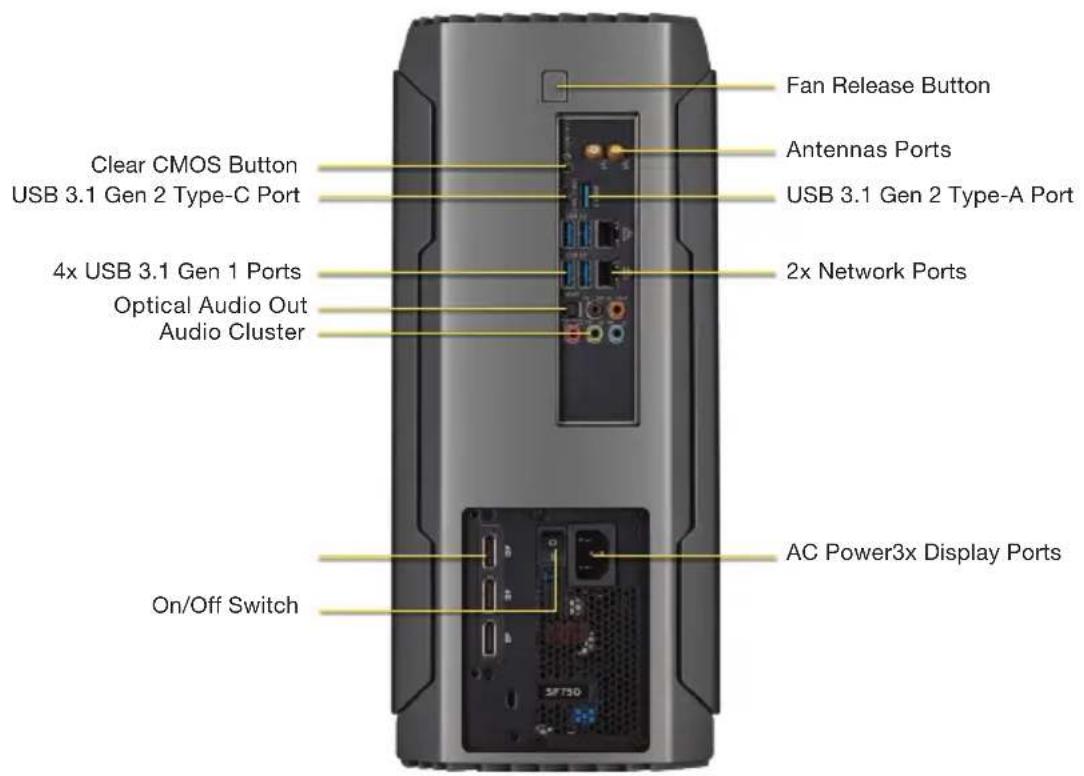
Rear Ports ....3
Installing Wireless Antennas....4
Connecting Power Cable ....4
Connecting Keyboard and Mouse ....5
Connecting Monitor(s)....5
Connecting Speakers (optional)....6
Connecting Network (optional) ....7
Connecting VR Headset (optional)....7
SERVICE
Updating Drivers and Software....8
Upgrading CORSAIR ONE 8
FAQ and Troubleshooting....9
Warranty Information .... 10
CORSAIR ONE
THANK YOU FOR PURCHASING THE CORSAIR ONE!
The CORSAIR ONE takes fast, quiet, small, and beautiful PCs to a previously impossible level. Packed with cutting edge and fully custom CORSAIR technology, the CORSAIR ONE is designed specifically to deliver true 4K and VR gaming to your desktop, living room, and den.
CORSAIR ONE CONTENTS
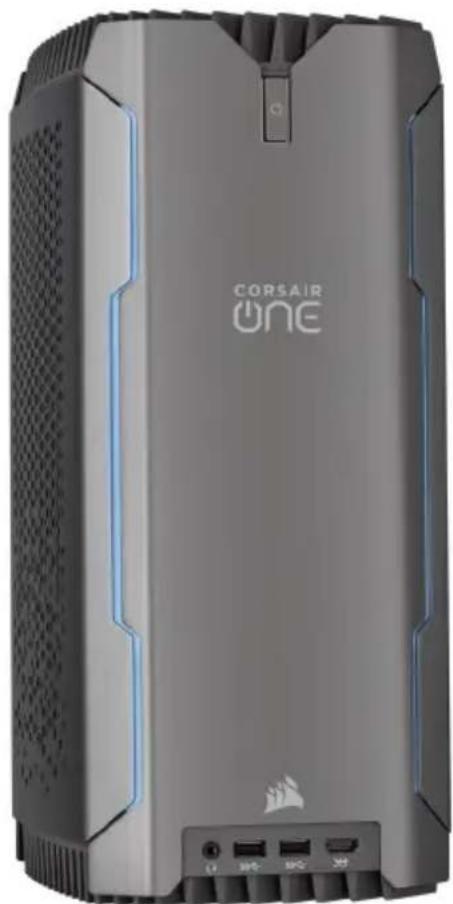
A CORSAIR ONE System
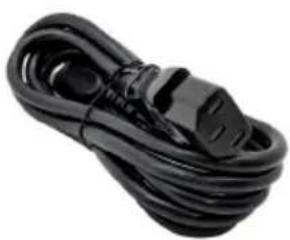
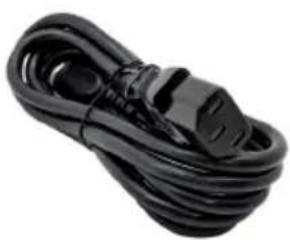
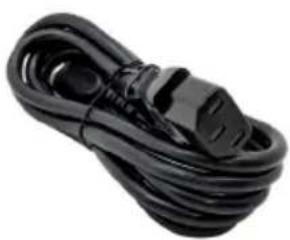
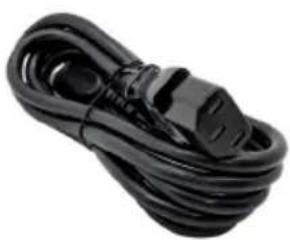
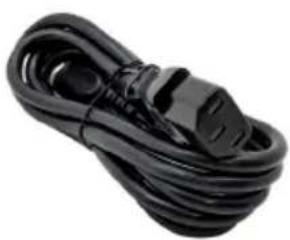
B Power Cable
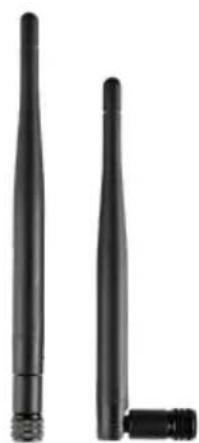
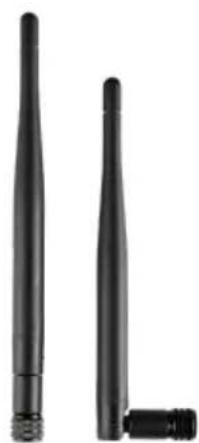
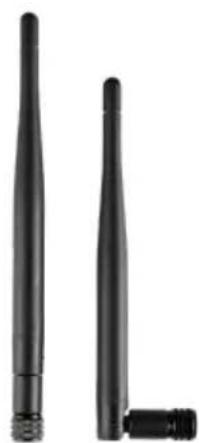
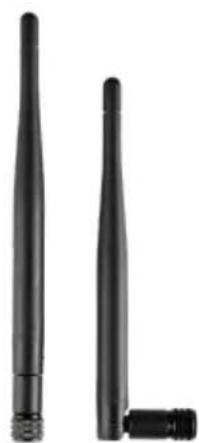
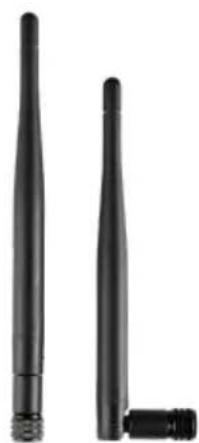
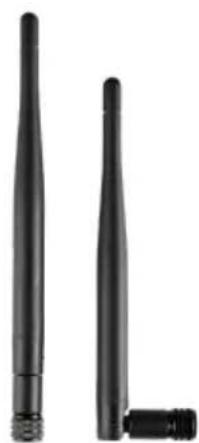
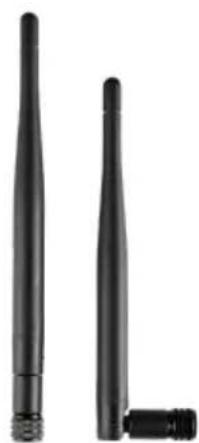
C Wireless Antennas
D Instruction Manual
A
natural_image
Exterior view of a Corsair ONE-branded electronic device (no visible text or symbols beyond branding)The image is too blurry to recognize any text content.
natural_image
Black cable with a U-shaped connector, isolated on white background (no text or symbols)The image is too blurry to recognize any text content.

natural_image
Two black antenna devices with metallic leads, no visible text or symbolsD
text_image
CORSAIR ONE INSTRUCTION MANUALSETTING UP CORSAIR ONE
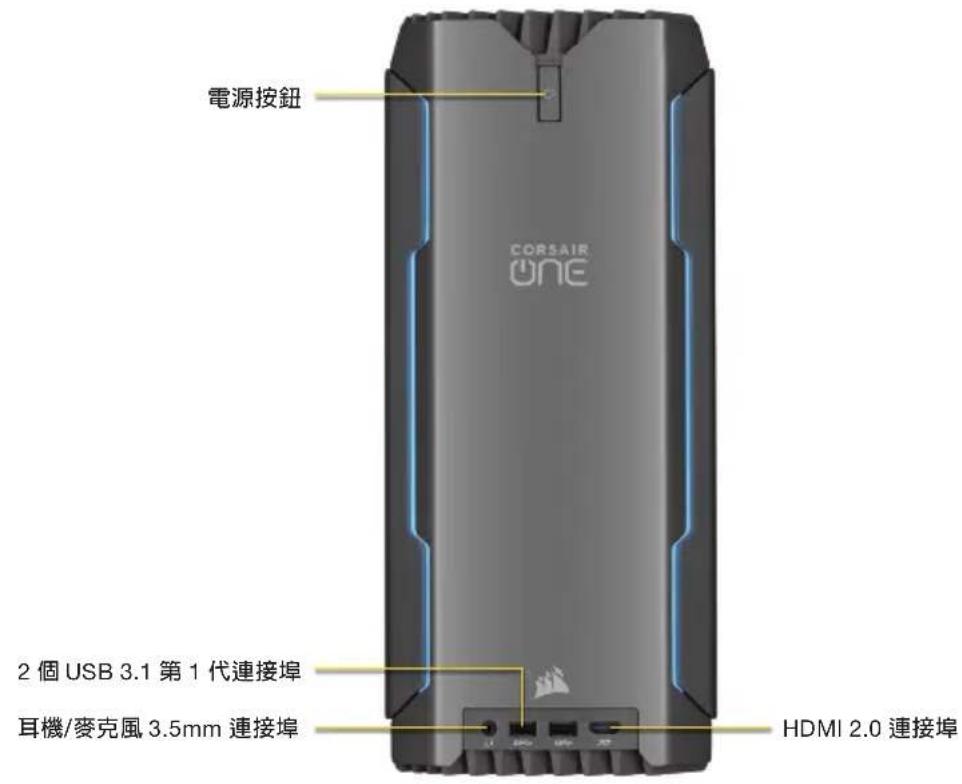
Front Ports and Power Button

text_image
Power Button CORSAIR ONE 2x USB 3.1 Gen 1 Ports Headset/Mic 3.5mm Port HDMI 2.9-PortRear Ports
text_image
Fan Release Button Clear CMOS Button USB 3.1 Gen 2 Type-C Port Antennas Ports USB 3.1 Gen 2 Type-A Port 4x USB 3.1 Gen 1 Ports Optical Audio Out Audio Cluster 2x Network Ports On/Off Switch AC Power3x Display PortsINSTALLING WIRELESS ANTENNAS
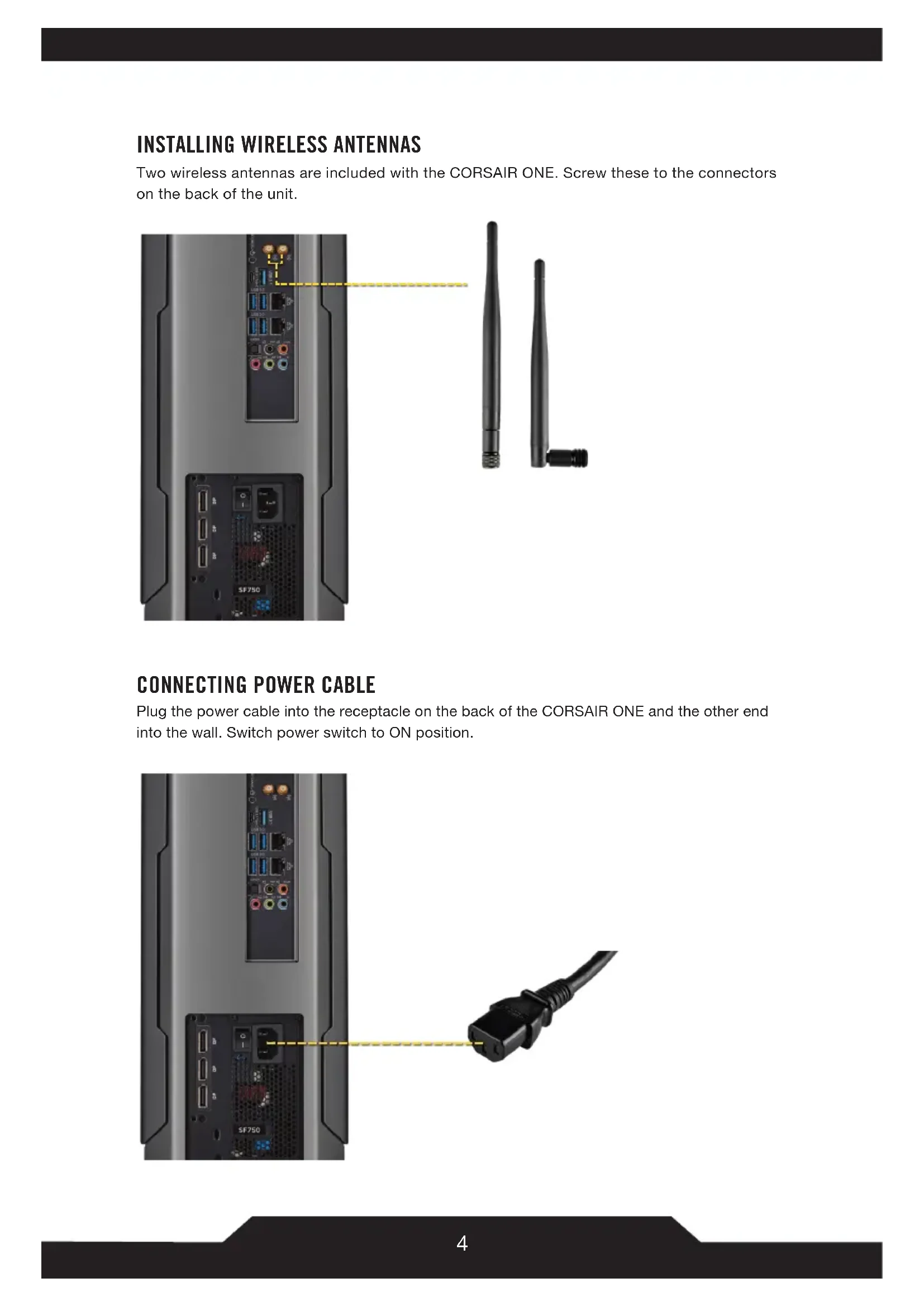
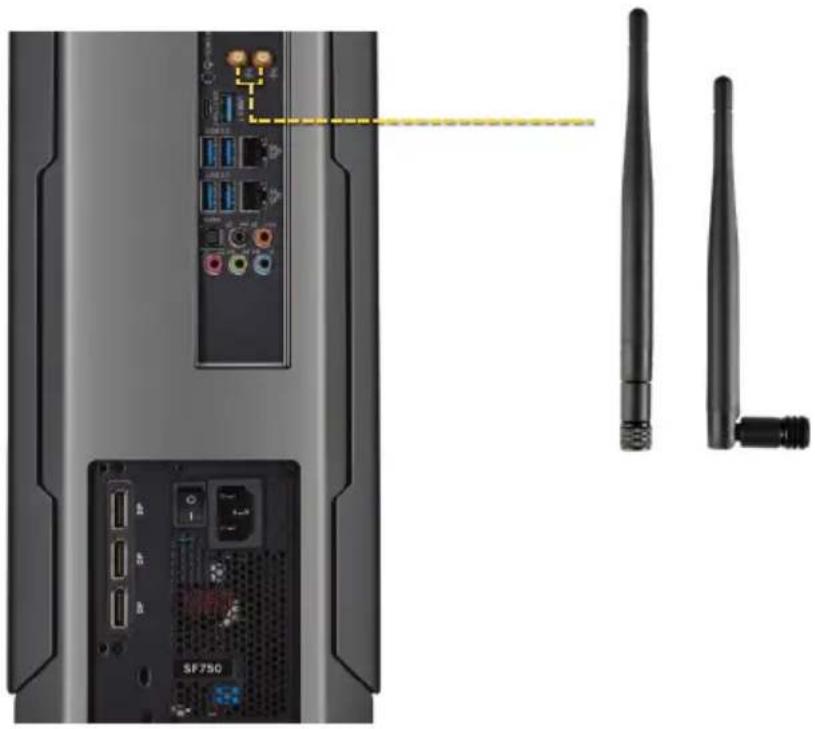
Two wireless antennas are included with the CORSAIR ONE. Screw these to the connectors on the back of the unit.
natural_image
Back view of a server tower with internal components and two external antennas (no text or symbols visible)CONNECTING POWER CABLE
Plug the power cable into the receptacle on the back of the CORSAIR ONE and the other end into the wall. Switch power switch to ON position.

natural_image
Back view of a TV tower with internal components and a black cable connector, no visible text or symbolsCONNECTING KEYBOARD AND MOUSE
Plug the USB cables from your keyboard and mouse into the USB ports on the back of the CORSAIR ONE.

text_image
Diagram showing connections between a computer tower, USB cable, mouse, and keyboard with visible color-coded keysCONNECTING MONITOR(S)
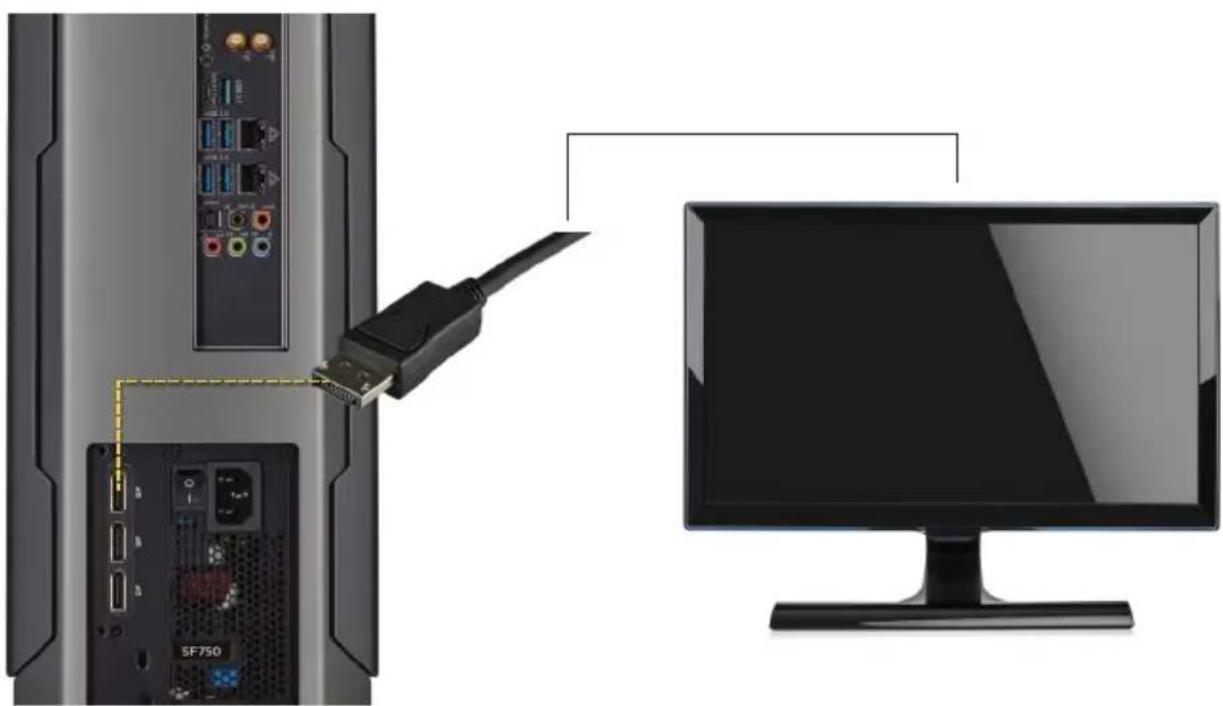
Connect the DisplayPort cable(s) from your monitor(s) to the DisplayPort port on the back of the CORSAIR ONE.
natural_image
Diagram showing a computer monitor connected to a USB cable via a connector, with an internal server rack and SFS750 port (no text or symbols on the diagram itself)CONNECTING SPEAKERS (OPTIONAL)
Depending on your speaker set up, connect your speakers to the audio ports on the back of the CORSAIR ONE based on the diagram below.

text_image
AUDIO PORTS CENTER/Subwoofer Out Rear Speaker Out Line-In/Side Speaker Out Line-Out/Front Speaker Out Mic-In CHANNEL 2 4 6 8( = connected, Blank = empty)
CONNECTING NETWORK (OPTIONAL)
If you're going to use a wired connection to your network instead of a wireless connection, connect the Ethernet cable from your modem or router to the network port on the back of the CORSAIR ONE.

natural_image
Back view of a server rack with an attached network cable showing port connections (no text or symbols visible)CONNECTING VR HEADSET (OPTIONAL)
CORSAIR ONE is designed to make connecting to VR hardware easy. Connect the HDMI cable from your VR headset to the front or rear HDMI port of the unit, then connect the USB cable(s) from your VR headset or breakout box to the front or rear USB ports.
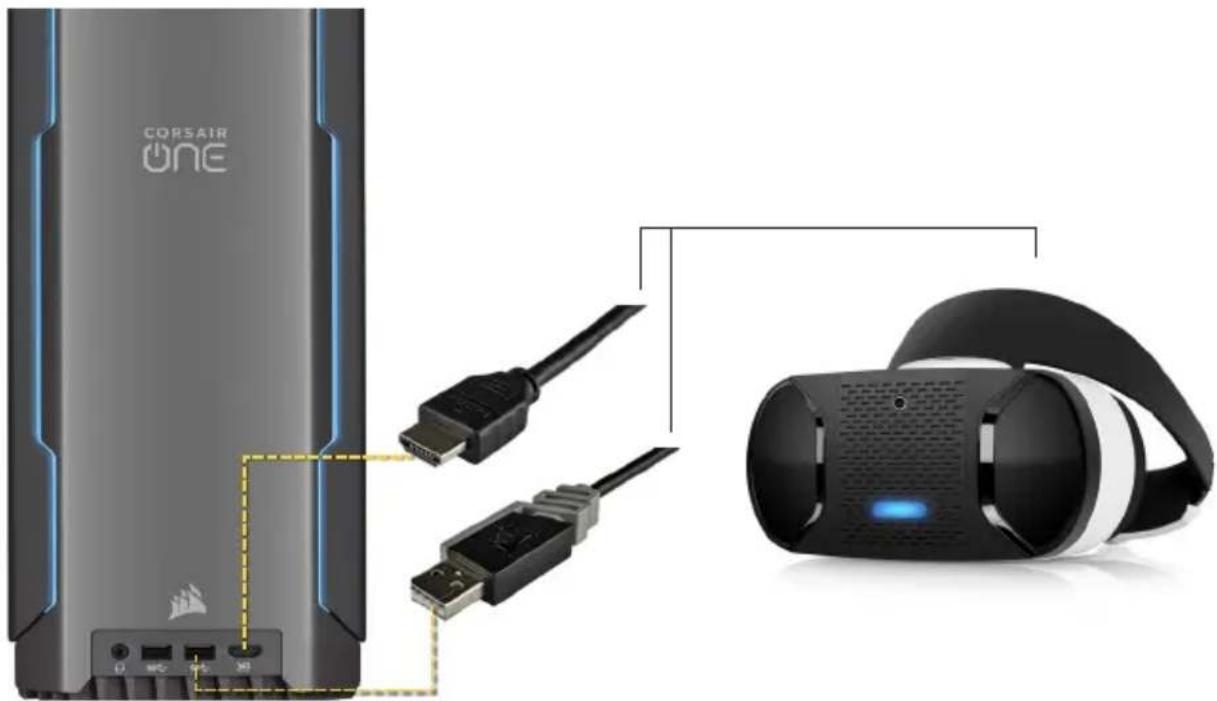
natural_image
Product diagram showing a Corsair ONE device connected to a VR headset via USB and USB cable (no text or symbols on components)SERVICE
Updated Drivers and Software
CORSAIR ONE comes with all of the necessary drivers and software for operation preinstalled. New versions of drivers and software are available at:
http://www.corsair.com/downloads
UPGRADING CORSAIR ONE
Advanced users who want to upgrade their CORSAIR ONE can do so without voiding their warranty. Video and written instructions on how to do so can be found at:
http://www.corsair.com/corsair-one-upgrade
FAQ/TROUBLESHOOTING
Q: My CORSAIR ONE will not boot.
A: Disconnect all cables from the CORSAIR ONE and hold the power button for 5 seconds. Then reconnect the cables and attempt to power it on. If the unit still does not boot, disconnect all cables from the CORSAIR ONE again and hold the Clear CMOS button on the back of the unit for 15 seconds. Afterwards, reconnect the cables and try to power on the system again.
Q: My CORSAIR ONE does not display a picture over DisplayPort.
A: Check the connection between the CORSAIR ONE and your monitor or monitor(s). Also ensure that your display is on the correct input and the cable you are using is DisplayPort certified.
Q: My CORSAIR ONE does not display a picture over HDMI, or motion in the image is choppy.
A: Check the connection between the CORSAIR ONE and your monitor or monitor(s). Also ensure that your display is on the correct input. Finally, try connecting with a different cable. To ensure the best quality image, use an HDMI cable certified for HDMI 2.0 operation at 18Gbps.
Q: The Diagnostic Tool hangs.
A: Turn off any system scanning tools, including antiviral software, then open the Diagnostic Tool again.
Q: Wi-Fi and/or Bluetooth is/are not working.
A: Make sure that the antennas on the back of the unit are connected and fully screwed on. If they are attached properly and you still are not able to use Wi-Fi and/or Bluetooth connectivity, contact CORSAIR customer support.
Q: Do I have to connect my keyboard and mouse in the 2 USB ports with the keyboard and mouse icons?
A: No. You can connect your keyboard and mouse to any USB ports.
CORSAIR ONE Systems Limited Warranty
CORSAIR provides a non-transferable warranty to the purchaser of CORSAIR ONE product purchased from an authorized CORSAIR reseller. CORSAIR warrants that the product will be free from defects in material and workmanship for a specified period commencing on the date of purchase. The warranty period for CORSAIR ONE is 2 years, as identified in your user documentation, on the product package. In the event, any of these warranty periods differ, the longest specified warranty period will apply.
Except where prohibited by applicable local law, this warranty is limited to the original purchaser and is non-transferable.
This warranty provides you with specific legal rights, and you may have additional rights that vary under local laws.
In general, this warranty means your CORSAIR ONE product will operate in accordance with published technical specifications, as specified by its datasheet, and in the operating environment for which it was intended for the length of the warranty period.
Remedies
CORSAIR's entire liability and your exclusive remedy for CORSAIR ONE product that is not operating in accordance with its published technical specifications is at CORSAIR's discretion: 1) to repair or replace the product at CORSAIR's expense. This warranty obligation is conditioned upon the hardware being returned to the original place of purchase, or another place as directed by CORSAIR, with the original sales receipt attached. You may be required to pay shipping and handling charges, as well as any applicable tariffs, duties, taxes, or other fees. CORSAIR may, at its discretion, provide new or refurbished product.
Any replaced CORSAIR ONE will be warranted for the remainder of the original warranty period or thirty (30) days, whichever is greater, or for the period of time required by local statute.
Obsolete or Discontinued Products
An obsolete or discontinued product will be replaced with the same product if available. If CORSAIR is unable to replace your obsolete or discontinued CORSAIR ONE product with the same product, CORSAIR will replace the obsolete or discontinued CORSAIR ONE product, in its sole discretion, with a CORSAIR ONE product having similar function and capacity.
Exclusions
This warranty does not cover problems or damage resulting from, but not limited to, any of the following:
- Wear and tear associated with normal use.
- Any modification, abuse, accident, disassembly, misapplication, or unauthorized repair.
- Removal of serial number or regulatory labels.
- Any improper operation, including any use not in accordance with any supplied product instructions.
- Connection to any improper voltage supply.
- Any other cause which does not relate to a product defect in materials or workmanship.
Also, excluded from this warranty are counterfeit CORSAIR ONE products; that is, products that CORSAIR, at its sole discretion, determines were not manufactured by CORSAIR or any of its authorized manufacturing partners.
Limitation of Liability
CORSAIR SHALL NOT BE LIABLE FOR ANY SPECIAL, INCIDENTAL, INDIRECT, OR CONSEQUENTIAL DAMAGES WHATSOEVER, INCLUDING BUT NOT LIMITED TO LOSS OF PROFITS, REVENUE, OR DATA (WHETHER DIRECT OR INDIRECT) OR COMMERCIAL LOSS FOR BREACH OF ANY EXPRESS OR IMPLIED WARRANTY ON YOUR PRODUCT EVEN IF CORSAIR HAS BEEN ADVISED PREVIOUSLY OF THE POSSIBILITY OF SUCH DAMAGES. Some local laws do not allow the exclusion or limitation of special, indirect, incidental or consequential damages, so this limitation or exclusion may not apply in your jurisdiction.
Exclusion of Implied Warranties
EXCEPT AS PROHIBITED BY APPLICABLE LAW, ANY IMPLIED WARRANTY OR CONDITION OF MERCHANTABILITY OR FITNESS FOR A PARTICULAR PURPOSE ON THIS HARDWARE PRODUCT IS EXPRESSLY DISCLAIMED. Some local laws do not allow limitations on how long an implied warranty may last, so this limitation may not apply in your jurisdiction.
Data Recovery
In the event of data loss using CORSAIR ONE product. CORSAIR is not responsible for backing up or recovering any data that you may have lost.
No Other Warranties
No CORSAIR employee, dealer, or other agent is authorized to make any modification, extension, or addition to this warranty.
How to Make a Warranty Claim
Before submitting a warranty claim, please contact our technical support group and visit http://support.corsair.com and review the support section for technical assistance.
Returning Your Product for Repair
You can submit your RMA request on-line at http://support.corsair.com. Upon repair authorization of your CORSAIR ONE, by CORSAIR Technical Support, we will provide you with a Return Merchandise Authorization Number (RMA# as well as return instructions. A valid proof of purchase is required for RMA processing (i.e. receipt, invoice, copy of credit card statement).
Do not return your product without prior approval from CORSAIR. Any product returned without a valid, unique RMA# will be refused and returned to the sender at the sender's expense. To avoid problems at the time of receipt, clearly write your RMA# on the outside of the package and include a copy of your RMA confirmation e-mail within the package.
Preparing your system for shipment:
Prior to shipping the system for repair, back up all data and remove all confidential, proprietary and personal information from the unit. Remove any external add-on equipment or removable media such as, flash drives, CDs, etc.
CORSAIR is not responsible for any of your confidential, proprietary, or personal information; lost or corrupted data; or damaged or lost removable media.
If your system is password protected, please kindly disable the password prior to shipping your device.
As a part of the repair process, all software on the system will be reset to original specifications. CORSAIR is not responsible for loss suffered by you because of any data left on your system that is shipped to CORSAIR for repair, and CORSAIR will not be responsible for restoration or reinstallation of any programs or data.
CORSAIR ONE RMA Return Addresses
We have multiple RMA Repair locations worldwide. Your CORSAIR ONE RMA confirmation will specify the specific return address you must use when sending your RMA package. This will be your standard return location and should not be changed without prior approval from CORSAIR. Any packages received at an unauthorized location may be refused and returned to the sender at the sender's expense.
CORSAIR ONE Return Shipping
At no cost, CORSAIR will mail to you a return shipping package with a return shipping label. The packaging material includes a box, protective foam and a polyethylene bag. Detailed packaging instructions are provided. A CORSAIR logistics partner will provide shipping of the product from you to the repair center and back to you at no cost. All packages that arrive with any external damage and appear will be assessed during the repair process. CORSAIR is not responsible for damage incurred during shipping to our RMA receiving locations if the unit is not properly packed.
CORSAIR ONE Warranty Periods
CORSAIR ONE comes with a 2-year hardware warranty
CORSAIR offers a 1-year hardware warranty for certified refurbished CORSAIR ONE products.
TABLE DES MATIÈRES
Introduction....13
CORSAIR ONE : Contenu....14
CONFIGURATION DU CORSAIR ONE
natural_image
Exterior view of a Corsair ONE device with ventilation grilles and ports (no readable text beyond branding)The image is too blurry to recognize any text content.

natural_image
Black cable with a U-shaped connector, isolated on white background (no text or symbols)The image is too blurry to recognize any text content.
natural_image
Two black antenna devices with metallic leads, no visible text or symbolsD

text_image
CORSAIR ONE INSTRUCTION MANUALCONFIGURATION DU CORSAIR ONE
natural_image
Back view of a server tower with internal components and two external antennas (no text or symbols visible)CONNEXION DU CÂBLE D'ALIMENTATION
natural_image
Back panel of a TV tower connected to a black cable with a yellow dashed line indicating connection (no text or symbols visible)CONNEXION DU CLAVIER ET DE LA SOURIS
text_image
Diagram showing connections between a computer tower, USB cable, mouse, and keyboard with visible color-coded keysCONNEXION DE L'ÉCRAN/DES ÉCRANS
natural_image
Diagram showing a computer monitor connected to a USB cable via a connector, with an internal server rack and SFS750 port (no text or symbols on the diagram itself)CONNEXION DES HAUT-PARLEURS (FACULTATIF)
(● = connecté, Vierge = vide)
CONNEXION RÉSEAU (FACULTATIF)
natural_image
Back view of a server rack with an attached network cable showing the connector (no text or symbols visible)CONNEXION DU CASQUE VR (FACULTATIF)
natural_image
Product diagram showing a Corsair ONE device connected to a VR headset via USB and USB cable (no text or symbols on components)MAINTENANCE
http://www.corsair.com/downloads
MISE À NIVEAU DU CORSAIR ONE
http://www.corsair.com/corsair-one-upgrade
FAQ/RÉSOLUTION DES PROBLÈMES
natural_image
Exterior view of a Corsair ONE-branded electronic device (no visible text or symbols beyond branding)The image is too blurry to recognize any text content.
natural_image
Black cable with a U-shaped connector, isolated on white background (no text or symbols)The image is too blurry to recognize any text content.
natural_image
Two black antenna devices with metallic leads, no visible text or symbolsD

text_image
CORSAIR ONE INSTRUCTION MANUALnatural_image
Back view of a server tower with internal components and two external antennas (no text or symbols visible)natural_image
Back panel of a TV tower connected to a black cable with a yellow dashed line indicating connection (no text or symbols visible)text_image
Diagram showing connections between a computer tower, USB cable, mouse, and keyboard with visible color-coded keysnatural_image
Diagram showing a computer monitor connected to a USB cable via a connector, with an internal server rack and SFS750 port (no text or symbols on the diagram itself)ANSCHLUSS VON LAUTSPRECHERN (OPTIONAL)
natural_image
Back view of a server rack with an attached network cable showing port connections (no text or symbols visible)ANSCHLUSS VON VR-HEADSETS (OPTIONAL)
natural_image
Product diagram showing a Corsair ONE device connected to a VR headset via USB and USB cable (no text or symbols on components)SERVICE
http://www.corsair.com/downloads
AUFRÜSTEN DES CORSAIR ONE
http://www.corsair.com/corsair-one-upgrade
FAQ/FEHLERBEHEBUNG
natural_image
Exterior view of a Corsair ONE-branded electronic device (no visible text or symbols beyond branding)The image is too blurry to recognize any text content.

natural_image
Black cable with a U-shaped connector, isolated on white background (no text or symbols)The image is too blurry to recognize any text content.
natural_image
Two black antenna devices with metallic leads, no visible text or symbolsD

text_image
CORSAIR ONE INSTRUCTION MANUALnatural_image
Back view of a server tower with internal components and two external antennas (no visible text or symbols)natural_image
Back view of a TV tower with internal components and a black cable connector, no visible text or symbolsCOLLEGAMENTO TASTIERA E MOUSE
text_image
Diagram showing connections between a computer tower, USB cable, mouse, and keyboard with visible color-coded keysnatural_image
Diagram showing a computer monitor connected to a USB cable via a connector, with an internal network device labeled SF750 (no text or symbols on the diagram itself)natural_image
Back view of a server rack with an attached network cable showing the connector (no text or symbols visible)COLLEGAMENTO CUFFIA CON MICROFONO VR (OPZIONALE)
natural_image
Product diagram showing a Corsair ONE device connected to a VR headset via USB and USB cable (no text or symbols on components)MANUTENZIONE
http://www.corsair.com/downloads
http://www.corsair.com/corsair-one-upgrade
DOMANDE FREQUENTI/RISOLUZIONE DEI PROBLEMI
natural_image
Exterior view of a Corsair ONE-branded electronic device (no visible text or symbols beyond branding)The image is too blurry to recognize any text content.
natural_image
Black cable with a U-shaped connector, isolated on white background (no text or symbols)The image is too blurry to recognize any text content.
natural_image
Two black antenna devices with metallic leads, no visible text or symbolsD

text_image
CORSAIR ONE INSTRUCTION MANUALnatural_image
Back view of a server tower with internal components and two external antennas (no text or symbols visible)natural_image
Back panel of a TV tower connected to a black cable with a yellow dashed line indicating connection (no text or symbols visible)text_image
Diagram showing connections between a computer tower, USB cable, mouse, and keyboard with visible color-coded keysnatural_image
Diagram showing a computer monitor connected to a USB cable via a connector, with an internal server rack and SFS750 port (no text or symbols on the diagram itself)natural_image
Back view of a server rack with an attached network cable showing the connector (no text or symbols visible)natural_image
Product diagram showing a Corsair ONE device connected to a VR headset via USB and USB cable (no text or symbols on components)SERVICIO
http://www.corsair.com/downloads
MEJORA DE CORSAIR ONE
http://www.corsair.com/corsair-one-upgrade
natural_image
Exterior view of a Corsair ONE-branded electronic device (no visible text or symbols beyond branding)

text_image
CORSAIR ONE INSTRUCTION MANUALKONFIGUROWANIE KOMPUTERA CORSAIR ONE
natural_image
Back view of a server tower with internal components and two external antennas (no visible text or symbols)PODŁĄCZANIE PRZEWODU ZASILAJĄCEGO
natural_image
Back panel of a TV tower connected to a black cable via a yellow dashed line, showing ports and connectors (no text or symbols on main subject)PODŁĄCZANIE KŁAWIATURY I MYSZY
text_image
Diagram showing connections between a computer tower, USB cable, mouse, and keyboard with visible color-coded keysPODŁĄCZANIE MONITORÓW
natural_image
Diagram showing connection between a server rack and a computer monitor via USB cable (no text or symbols present)PODŁĄCZANIE GŁOŚNIKÓW (OPCJONALNIE)
natural_image
Back view of a server rack with an attached network cable showing the connector (no text or symbols visible)PODŁĄCZANIE GOGLI VR (OPCJONALNIE)
natural_image
Product diagram showing a Corsair ONE device connected to a VR headset via USB and USB cable (no text or symbols on components)CZYNNOŚCI SERWISOWE
http://www.corsair.com/downloads
MODERNIZACJA I ROZBUDOWA KOMPUTERA CORSAIR ONE
http://www.corsair.com/corsair-one-upgrade
CZĘSTO ZADAWANE PYTANIA I ROZWIĄZYWANIE PROBLEMÓW
natural_image
Exterior view of a Corsair ONE-branded electronic device (no visible text or symbols beyond branding)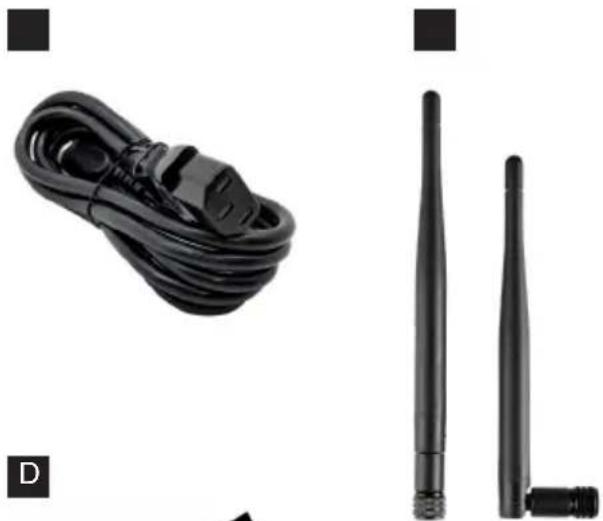

text_image
CORSAIR ONE INSTRUCTION MANUALНАСТРОЙКА CORSAIR ONE
natural_image
Back view of a server tower with internal components and two external antennas (no text or symbols visible)natural_image
Back view of a TV tower with internal components and a black cable connector, no visible text or symbolstext_image
Diagram showing connections between a computer tower, USB cable, mouse, and keyboard with visible color-coded keysnatural_image
Diagram showing connection between a server rack and a computer monitor, with a USB cable inserted from the port (no text or symbols present)natural_image
Back view of a server rack with an attached network cable showing the port and connector (no text or symbols visible)natural_image
Product diagram showing a Corsair ONE device connected to a VR headset via USB and USB cable (no text or symbols visible)ОБСЛУЖИВАНИЕ
http://www.corsair.com/downloads
http://www.corsair.com/corsair-one-upgrade
natural_image
Exterior view of a Corsair ONE-branded electronic device (no visible text or symbols beyond branding)The image is too blurry to recognize any text content.

natural_image
Black cable with a U-shaped connector, isolated on white background (no text or symbols)The image is too blurry to recognize any text content.
natural_image
Two black antenna devices with metallic leads, no visible text or symbolsD

text_image
CORSAIR ONE INSTRUCTION MANUALnatural_image
Back view of a server tower with internal components and two external antennas (no text or symbols visible)電源ケーブルの接続
natural_image
Back panel of a TV tower connected to a black cable with a yellow dashed line indicating connection (no text or symbols visible)キーボードとマウスの接続
text_image
Diagram showing connections between a computer tower, USB cable, mouse, and keyboard with visible color-coded keysモニターの接続
natural_image
Diagram showing a computer monitor connected to a USB cable via a connector, with an internal server rack and SFS750 port (no text or symbols on the diagram itself)スピーカーの接続(任意)
natural_image
Back view of a server rack with an attached network cable showing the connector (no text or symbols visible)VR ヘッドセットの接続 (任意)
natural_image
Product diagram showing a Corsair One device connected to a VR headset via USB and USB cable (no text or symbols on components)サービス
http://www.corsair.com/downloads
http://www.corsair.com/corsair-one-upgrade
FAQ/トラブルシューティング
natural_image
Exterior view of a Corsair ONE-branded electronic device (no visible text or symbols beyond branding)The image is too blurry to recognize any text content.
natural_image
Black cable with a U-shaped connector, isolated on white background (no text or symbols)The image is too blurry to recognize any text content.
natural_image
Two black wireless antennas with antenna shafts and a connector pin (no text or symbols visible)D

text_image
CORSAIR ONE INSTRUCTION MANUAL設定 CORSAIR ONE
正面連接埠和電源按鈕
natural_image
Back view of a server tower with internal components and two external antennas (no text or symbols visible)連接電源線
natural_image
Back view of a TV tower with internal components and a black cable connector, no visible text or symbols連接鍵盤和滑鼠
text_image
Diagram showing connections between a computer tower, USB cable, mouse, and keyboard with visible color-coded keys連接顯示器
natural_image
Diagram showing connection between a server rack and a computer monitor via USB cable (no text or symbols present)連接喇叭 (選用)
natural_image
Back view of a server rack with an attached network cable showing the connector (no text or symbols visible)連接 VR 耳機 (選用)
natural_image
Product diagram showing a Corsair ONE device connected to a VR headset via USB and USB cable (no text or symbols on components)服務
已更新驅動程式和軟體
http://www.corsair.com/downloads
升級 CORSAIR ONE
http://www.corsair.com/corsair-one-upgrade
常見問題/疑難排解
natural_image
Exterior view of a Corsair ONE-branded electronic device (no visible text or symbols beyond branding)The image is too blurry to recognize any text content.
natural_image
Black cable with a U-shaped connector, isolated on white background (no text or symbols)The image is too blurry to recognize any text content.
natural_image
Two black antenna devices with metallic leads, no visible text or symbolsD

text_image
CORSAIR ONE INSTRUCTION MANUALCORSAIR ONE 설정
전면 포트 및 전원 버튼

natural_image
Back view of a server tower with internal components and two external antennas (no visible text or symbols)전원 케이블 연결
natural_image
Back view of a TV tower with internal components and a black cable connector, no visible text or symbols키보드 및 마우스 연결
text_image
Diagram showing connections between a computer tower, USB cable, mouse, and keyboard with visible color-coded keys모니터 연결
natural_image
Diagram showing connection between a computer monitor and a server rack with an Ethernet cable (no text or symbols present)스피커 연결(선택 사항)
natural_image
Back view of a server rack with an attached network cable showing the connector (no text or symbols visible)VR 헤드셋 연결(선택 사항)
natural_image
Product diagram showing a Corsair One device connected to a VR headset via USB and USB cable (no text or symbols on components)서비스
업데이트된 드라이버 및 소프트웨어
http://www.corsair.com/downloads
CORSAIR ONE 업그레이드
http://www.corsair.com/corsair-one-upgrade
자주 묻는 질문/문제 해결
BLOG: corsair.com/blog
FORUM: forum.corsair.com
YOUTUBE: youtube.com/corsairhowto
© 2016–2018 CORSAIR MEMORY, INC. All rights reserved. CORSAIR and the sails logo are registered trademarks in the United States and/or other countries. All other trademarks are the property of their respective owners. Product may vary slightly from those pictured. 49-001814 AA