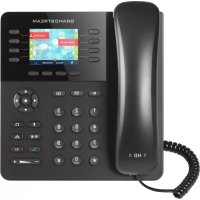
GXP2135 - Phone GRANDSTREAM - Free user manual and instructions
Find the device manual for free GXP2135 GRANDSTREAM in PDF.


| Product Type | IP Phone for Enterprises |
| Brand | Grandstream |
| Model | GXP2135 |
| Screen | 2.8-inch Color TFT Screen |
| Line Keys | Up to 8 dual-color keys (programmable up to 32 BLF/speed dial keys) |
| Soft Keys | 4 programmable keys |
| Network Ports | 2 Gigabit Ethernet ports (10/100/1000 Mbps) |
| Power | 12V DC power adapter included, PoE compatible |
| Bluetooth | Integrated |
| Audio Quality | HD (High Definition) |
| Conference | Up to 5 participants |
| EHS | Electronic hook switch for wireless headset |
| Security | Advanced encryption, do not restart during firmware update |
| Dimensions (approx.) | 200 x 200 x 100 mm |
| Weight (approx.) | 0.9 kg |
| Package Contents | Device, handset, 12V adapter, Ethernet cable, telephone cable, desktop stand, wall mount bracket, installation guide |
| Installation | Wall mount or desktop placement |
| Configuration | Via web browser (IP address) or telephone keypad |
| Maintenance | Clean with a soft, dry cloth |
| Spare Parts | Handset, cables, adapter (available from the manufacturer) |
| Repairability | For repairs, contact Grandstream after-sales service |
| General Information | Multi-line IP phone for enterprises, interoperable with SIP/NGN/IMS platforms |
Frequently Asked Questions - GXP2135 GRANDSTREAM
User questions about GXP2135 GRANDSTREAM
0 question about this device. Answer the ones you know or ask your own.
Ask a new question about this device
Download the instructions for your Phone in PDF format for free! Find your manual GXP2135 - GRANDSTREAM and take your electronic device back in hand. On this page are published all the documents necessary for the use of your device. GXP2135 by GRANDSTREAM.
USER MANUAL GXP2135 GRANDSTREAM
Grandstream Networks, Inc.
126 Brookline Ave, 3rd Floor
Boston, MA 02215 USA
Voice: (617) 566-9300
Fax: (617) 249-1987
www.grandstream.com

For Warranty and RMA information, please visit www.grandstream.com
EU Agent:
Picus Advisors Ltd
Taivalmaki 9F1-02200 Espoo, FINLAND https://www.picus.fi
Note: For European Union only
natural_image
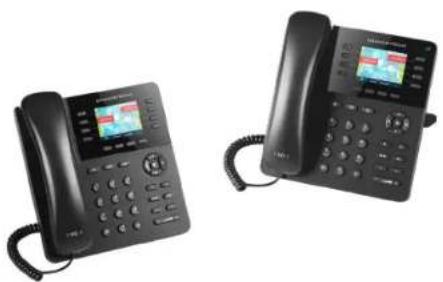
Two black OPPOs with attached cables, one displaying a screen and the other showing a red card (no visible text or symbols)GXP2135 Enterprise IP Phone Quick Installation Guide
Content
English....1
简体中文....7
Español....13
Français....19
Deutsch....25
Italiano....31
Русский....37
Português.... 43
Polski....49
The GXP2135 is not pre-configured to support or carry emergency calls to any type of hospital, law enforcement agency, medical care unit ("Emergency Service(s)") or any other kind of Emergency Service. You must make additional arrangements to access Emergency Services. It is Your responsibility to purchase SIP-compliant Internet telephone service, properly configure the GXP2135 to use that service, and periodically test your configuration to confirm that it works as You expect. If You do not do so, it is Your responsibility to purchase traditional wireless or landline telephone services to access Emergency Services.
GRANDSTREAM DOES NOT PROVIDE CONNECTIONS TO EMERGENCY SERVICES VIA THE GXP2135. NEITHER GRANDSTREAM NOR ITS OFFICERS, EMPLOYEES OR AFFILIATES MAY BE HELD LIABLE FOR ANY CLAIM, DAMAGE, OR LOSS, AND YOU HEREBY WAIVE ANY AND ALL SUCH CLAIMS OR CAUSES OF ACTION ARISING FROM OR RELATING TO YOUR INABILITY TO USE THE GXP2135 TO CONTACT EMERGENCY SERVICES, AND YOUR FAILURE TO MAKE ADDITIONAL ARRANGEMENTS TO ACCESS EMERGENCY SERVICES IN ACCORDANCE WITH THE IMMEDIATELY PRECEDING PARAGRAPH
PRECAUTIONS:
WARNING: Please DO NOT power cycle the GXP2135 during system boot up or firmware upgrade. You may corrupt firmware images and cause the unit to malfunction.
WARNING: Use only the power adapter included in the GXP2135 package. Using an alternative non-qualified power adapter may possibly damage the unit.
OVERVIEW:
GXP2135 is a next generation enterprise IP Phone featuring 8 dual-color line keys (can be digitally programmed as up to 32 provisionable BLF/fast-dial keys), 2.8 inch TFT color LCD, 4 programmable context-sensitive soft keys, dual Gigabit network ports, integrated PoE and Bluetooth, 5-way conference, and Electronic Hook Switch(EHS). The GXP2135 delivers superior HD audio quality on the handset and speakerphone, rich and leading edge telephony features, personalized information and customizable application service, automated provisioning for easy deployment, advanced security protection for privacy, and broad interoperability with most 3rd party SIP devices and leading SIP/NGN/IMS platforms.
PACKAGE CONTENTS:
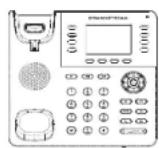
1 x Phone Main Case

1 x Handset

1 x 12V Power adapter
1 x Ethernet Cable
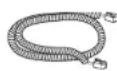
1 x Phone Cord

1 x High Stand
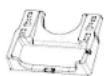
1 x Wall Mount

1 x Quick Installation Guide/
1 x GPL license
PHONE SETUP:
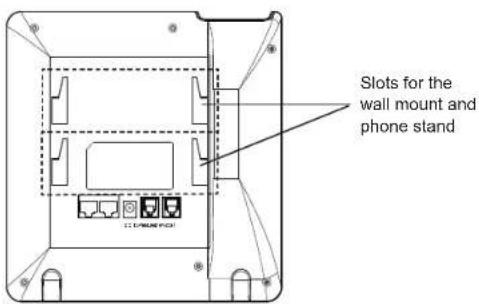
Installing the phone (Wall Mount):
- Attach the wall mount spacers to the slot for wall mount spacers on the back of the phone.
- Attach the phone to the wall via the wall mount hole.
- Pull out the tab from the handset cradle (See figure below).
- Rotate the tab and plug it back into the slot with the extension up to hold the handset while the phone is mounted on the wall (See figure below).
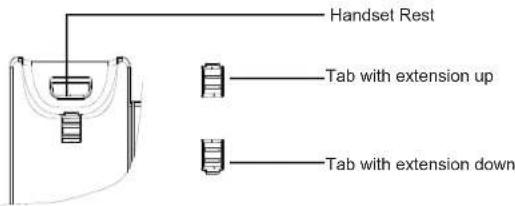
Installing the phone (Phone Stand) :
For installing the phone on the table with the phone stand, attach the phone stand to the bottom of the phone where there is a slot for the phone stand. (Upper half, bottom part).
CONNECTING THE PHONE:
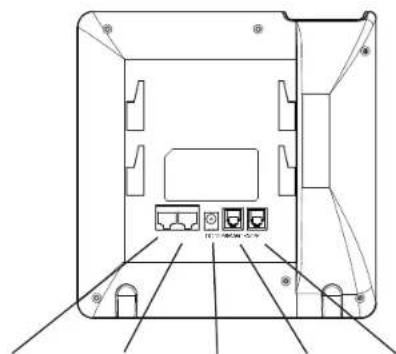
natural_image
Technical line drawing of a device rear panel with labeled ports and connectors (no text or symbols)PC Port LAN Port Power Headset Port Handset Port
To setup the GXP2135, follow the steps below:
- Connect the handset and main phone case with the phone cord.
- Connect the LAN port of the phone to the RJ-45 socket of a hub/switch or a router (LAN side of the router) using the Ethernet cable.
- Connect the 12V DC output plug to the power jack on the phone; plug the power adapter into an electrical outlet.
- The LCD will display provisioning or firmware upgrade information. Before continuing, please wait for the date/time display to show up.
- Using the phone embedded web server or keypad configuration menu, you can further configure the phone using either a static IP or DHCP.
Tips For Using the Keypad:
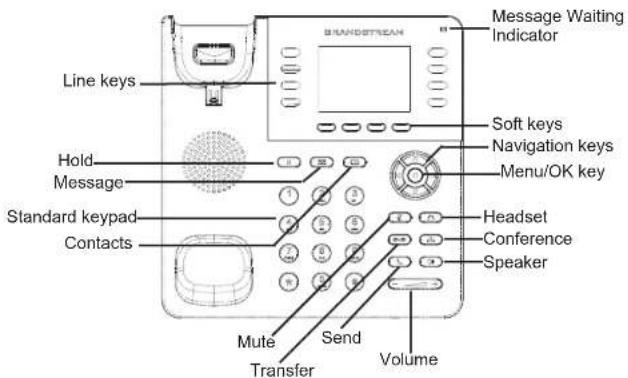
- To access the MENU, press the round MENU button.
- Navigate the menu by using the UP/DOWN and LEFT/RIGHT buttons.
- Press the round MENU button to confirm a menu selection.
- The phone automatically exits MENU mode when there is an incoming call, the phone goes off-hook or when the MENU mode is left idle for 60 seconds.
PHONE CONFIGURATION:
Configure the GXP2135 using a Web Browser:
- Ensure your phone is powered up and connected to the Internet.
- Press the UP button to see the IP address.
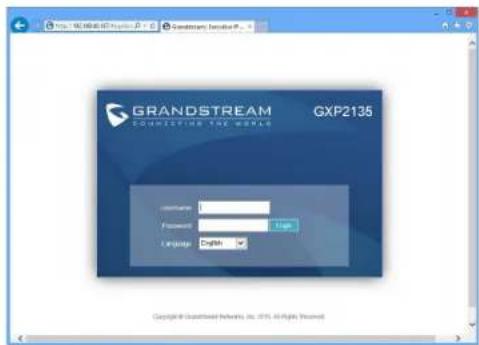
- Type the phone's IP address in your PC browser. (See Figure in next page)
- The default administrator username and password are "admin"; the default end-user username is "user" and the password is "123".
Configure the GXP2135 using the Keypad:
- Make sure the phone is idle.
- Press the MENU button to access the keypad MENU to configure the phone.
- Select MENU-> Phone-> SIP-> Account to configure settings for SIP Proxy, Outbound Proxy, SIP User ID, SIP Auth ID and SIP Password.
- Follow MENU options to configure the basic features of the phone. For example: the IP address if using a static IP. For details, please check GXP2135 User Manual.
- Please contact your ITSP for additional settings that may be necessary to configure the phone.
Note: For the detailed user manual, please download from: http://www.grandstream.com/support
This product is covered by one or more of the U.S. patents (and any foreign patent counterparts thereto) identified at www.cmspatents.com.
ZH
natural_image
Line drawings of three different landline telephones: a digital keypad, a telephone handset, and a cable cord (no text or symbols visible)natural_image
Three technical illustrations of hoses and connectors: a coiled hose, a coiled hose with connectors, and a mechanical bracket (no text or symbols)KONFIGURATION DES TELEFONS ÜBER DAS TASTENFELD:
natural_image
Technical line drawing of a device rear panel with labeled ports and connectors (no text or symbols)Porta PC Porta LAN Corrente Porta Headset Porta Handset
Configurar o GXP2135 utilizando o teclado:

- Content
- PRECAUTIONS:
- OVERVIEW:
- PACKAGE CONTENTS:
- PHONE SETUP:
- Installing the phone (Wall Mount):
- Installing the phone (Phone Stand) :
- CONNECTING THE PHONE:
- Tips For Using the Keypad:
- PHONE CONFIGURATION:
- Configure the GXP2135 using a Web Browser:
- ZH
- KONFIGURATION DES TELEFONS ÜBER DAS TASTENFELD:
- Configurar o GXP2135 utilizando o teclado:
Brand : GRANDSTREAM
Model : GXP2135
Category : Phone