G Watch Buddy - Smartwatch LG - Free user manual and instructions
Find the device manual for free G Watch Buddy LG in PDF.


| Product type | Smartwatch |
| Brand | LG |
| Model | G Watch Buddy (LG-W100) |
| Operating system | Android Wear |
| Display | ACL IPS 1.65 inch (280 x 280 px) |
| Dimensions | 37.9 x 46.5 x 9.95 mm |
| Weight | 63 g |
| Battery | 400 mAh (typical autonomy of about 1 day) |
| Processor | 1.2 GHz |
| Memory | 4 GB internal storage, 512 MB RAM |
| Connectivity | Bluetooth 4.0 |
| Sensors | 9-axis (accelerometer, compass, gyroscope) |
| Charging | Via charging cradle with pogo pins (power adapter included) |
| Compatibility | Android phone 4.3 or later |
| Main functions | Notifications, voice commands, activity tracking (steps), alarms, timer, stopwatch, navigation, calendar |
| Sound | No speaker, vibration notifications |
| Water resistance | Not waterproof (avoid any contact with water) |
| Maintenance | Clean with a soft, dry cloth |
| Package contents | Watch, charging cradle, power adapter, quick start guide, health and safety booklet |
Frequently Asked Questions - G Watch Buddy LG
User questions about G Watch Buddy LG
0 question about this device. Answer the ones you know or ask your own.
Ask a new question about this device
Download the instructions for your Smartwatch in PDF format for free! Find your manual G Watch Buddy - LG and take your electronic device back in hand. On this page are published all the documents necessary for the use of your device. G Watch Buddy by LG.
USER MANUAL G Watch Buddy LG
natural_image
Line drawing of a smartwatch case with display and control panel (no text or symbols)Notice: Open Source Software
To obtain the corresponding source code under GPL, LGPL, MPL and other open source licences, please visit http://opensource.lge.com/
All referred licence terms, disclaimers and notices are available for download with the source code.
Table of contents
LG G Watch tech specs 6
Charge your LG G Watch 7
What comes with LG G Watch......8
Turn LG G Watch on or off 9
Pair your watch with your phone 10
Features you should turn on 10
Different ways to pair your watch....11
Get to know your watch 11
Useful info when you need it through cards ...11
Ask questions & do everyday tasks with voice 12
Use apps already on your phone 12
Choose what shows up on your watch .....12
Getting around on your watch 12
-
Start on your watch face (where you see the time) 12
-
See useful info through cards 13
-
See card details and take action 13
-
Swipe away cards when you're done......13
-
Ask questions & do everyday tasks .....13
-
See a menu of things you can do .....14
Watch navigation tips....14
What you can do with Android Wear 16
Get stuff done....16
Read & reply to messages 16
Travel 16
Get quick answers 16
Keep track of your fitness 17
START USING ANDROID WEAR......18
What you can do with Android Wear .....18
Get stuff done with reminders, alarms, notes &
more....18
Set reminders & take notes .....18
Set alarms and timers....19
Check your schedule....21
Track packages....21
Enjoy your music....21
Read & reply to messages....22
Read & reply to emails 22
Read and reply to texts & messages......23
See calls 24
Get directions, traffic, flight info & more .....24
Get quick answers on weather, sports & more.26
Track your fitness....29
Show or hide Fit cards....30
See an estimate of how many steps you've taken today ....30
Set goals for daily steps 30
Android Wear tips & tricks....31
Dim the screen with your palm 31
Stop your watch from vibrating with one swipe ....31
Stop specific apps from showing notifications on your watch 31
Silence your phone automatically when using your watch 31
Speak to get to Settings ....31
Speak to do simple tasks 32
Google apps that work with Android Wear .....32
Use Google Now with Android Wear....32
Customize your Google Now cards ....32
Google Now cards that work with Android Wear ....33
Use Hangouts with Android Wear 33
Use Gmail with Android Wear....33
SETTINGS ....34
Manage notifications ....34
How notifications work 34
Mute notifications on your watch 34
Turn off watch notifications for specific apps ..34
Turn off phone sounds when using your watch 35
Manage battery life 35
Check remaining battery life 35
Tips to save battery life 35
Display settings (watch face, brightness)......35
Change your watch face 35
Change the apps you use for voice actions.....38
Turn airplane mode on or off 38
What still works when the watch isn't paired ..39
Restart your watch....39
Reset your watch to factory settings......40
TROUBLESHOOT ANDROID WEAR ....41
My watch won't pair with my phone 41
"Cannot connect to Internet" error....42
ABOUT ANDROID WEAR
New to Android Wear FAQs
Here are answers to some questions you may have about your new watch.
Do I need to download apps on my watch?
No, your favourite apps on your phone will work with Android Wear automatically. You do not need to download a whole new set of apps.
Do I need to install new apps on my phone for it to work with my watch?
You'll just install the Android Wear app on your phone to connect it to your watch and manage your watch's settings.
What phones work with Android Wear?
You need an Android phone running Android 4.3 or higher that supports Bluetooth.
To find out whether your phone supports Android Wear, visit g.co/WearCheck from your phone.
How far can my watch be from my phone?
Keep your watch within a few feet of your phone. The exact distance will vary by phone and watch.
Does the watch make any sounds? Will the watch speak back to me?
Your watch won't make any sounds or speak back to you.
Your watch may vibrate for notifications, and it uses the notification settings you have for each app on your phone. If your phone vibrates or makes a sound for a notification, your watch will vibrate. If your phone doesn't make a sound or vibrate, you'll still see a card on your watch without a vibration.
You can always mute your watch to turn off vibrations for all notifications. Learn more about managing your notifications.
How do I control the cards that show up on my watch?
You can choose which cards and notifications show up on your watch by changing your notification settings and Google Now settings.
Why do I need a phone to use my watch?
Your watch gets access to the Internet through your phone or tablet. Without being paired, you won't be able to use most of Android Wear's features.
It's also easier to manage many settings for your watch on your phone.
What can my watch do if I'm not near my phone?
If you step away from your phone, you can still use some features on your watch. Learn about what works when your watch isn't paired.
What happens when I remove a notification or card on my watch? Will it still show up on my phone?
If you remove a card on your watch, the same card or notification will be dismissed on your phone. If you remove a notification from your phone, it will be dismissed on your watch.
Can I visit websites on the watch?
You won't be able to visit websites on your watch. Instead, you'll see an option to open on your phone.
Can I type on the watch?
No. You'll use your voice to reply, search, or do tasks.
Can I use my watch with a tablet?
Yes, you can pair your watch with a tablet, but phones are recommended.
Phones & tablets that work with Android Wear
You need an Android phone running Android 4.3 or higher that supports Bluetooth. You can pair your watch with a tablet that meets the same requirements, but phones are recommended.
To find out whether your phone supports Android Wear, visit g.co/WearCheck from your phone.
LG G Watch Hardware
Here's a guide to the hardware features of the LG G Watch.
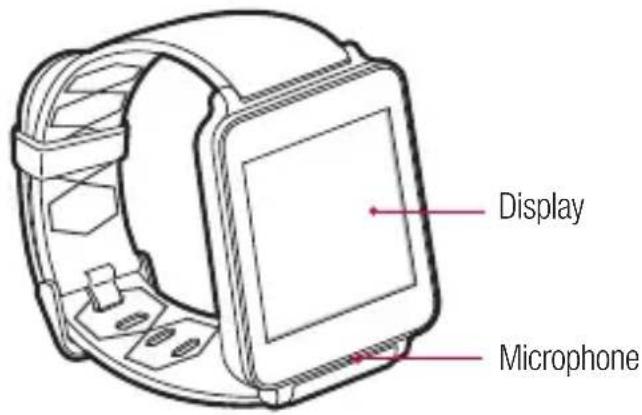
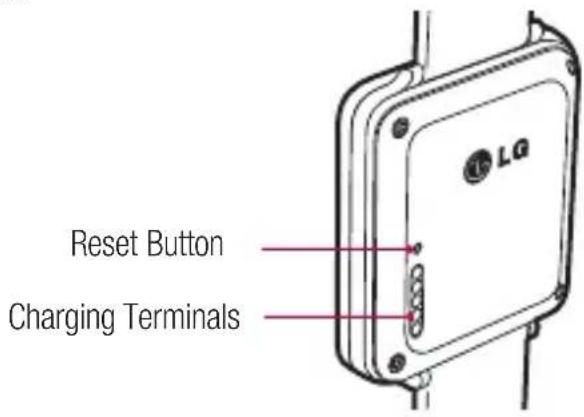
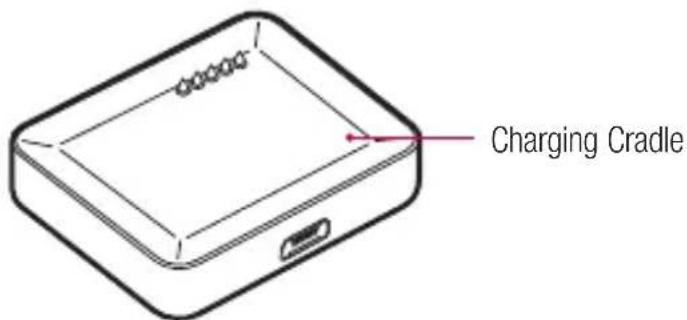
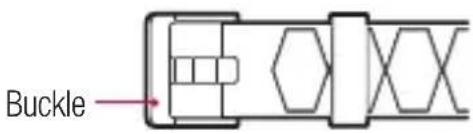
LG G Watch tech specs
OS Android Wear
Screen 1.65" 280 x 280 IPS LCD
Dimensions 37.9 x 46.5 x 9.95 mm
Weight 63 g
Battery 400 mAh
Processor CPU 1.2 GHz
Wireless BT 4.0
Memory 4 GB internal storage with 512 MB RAM
Ports and Connectors USB (pogo pin) on G Watch, Micro USB on Charging Cradle
Sensors 9 Axis (Accelerometer/Compass/Gyro)
Charge your LG G Watch
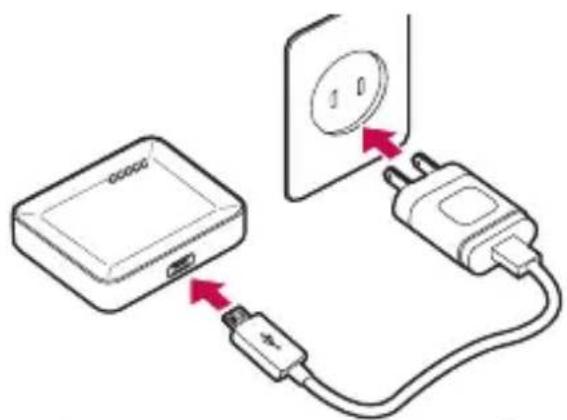
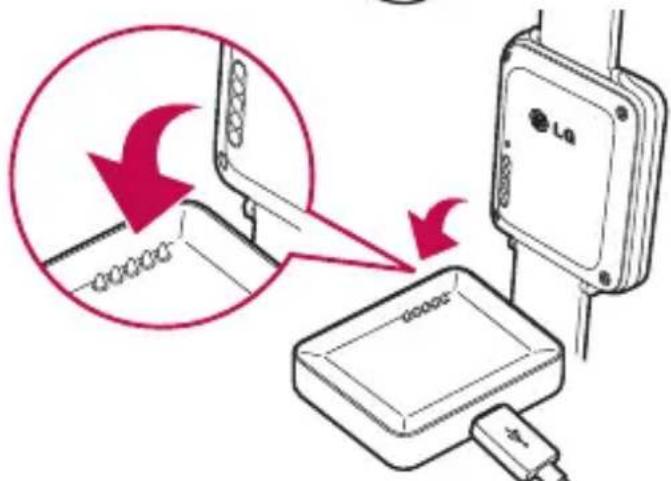
Place the LG G Watch on the charging cradle, matching each charging terminal (line up the gold pins). Make sure the cradle is connected to a power outlet.
1.
natural_image
Diagram showing connection between a device and an electrical outlet, with no visible text or symbols.2.
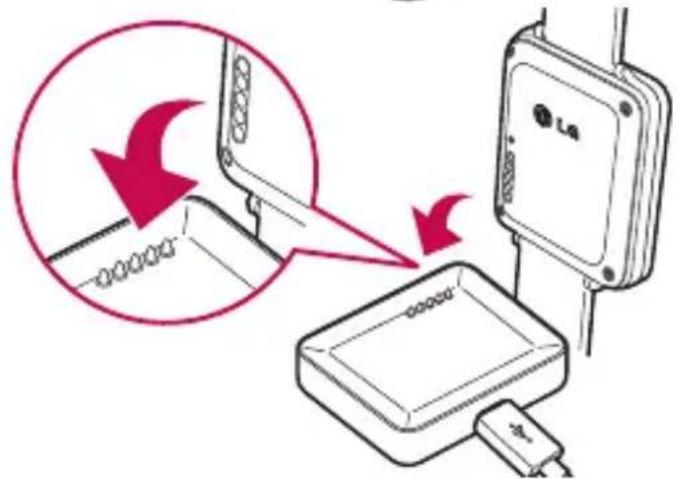
• The power adapter varies by country or region.
- Use only the approved cradle, power adapter and micro USB cable that come with your G Watch. Using a different power adapter or cable may damage your watch.
- The input voltage range between the wall outlet and this power adapter is AC 100V–240V, and the power adapter's output voltage is DC 5V, 0.85A.
- Charging G Watch through a USB cable attached to another device, such as a laptop computer, takes the same charging time as with the power adapter.
- G Watch's battery can't be removed. Don't attempt to open the watch.
LG G Watch Hardware
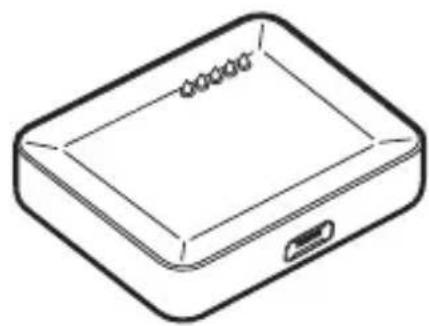
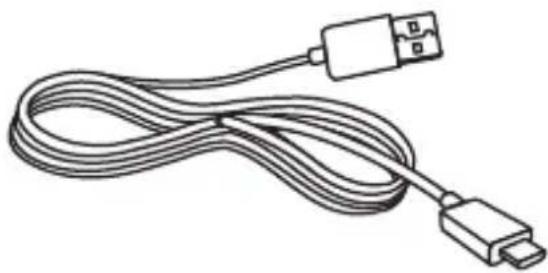
What comes with LG G Watch
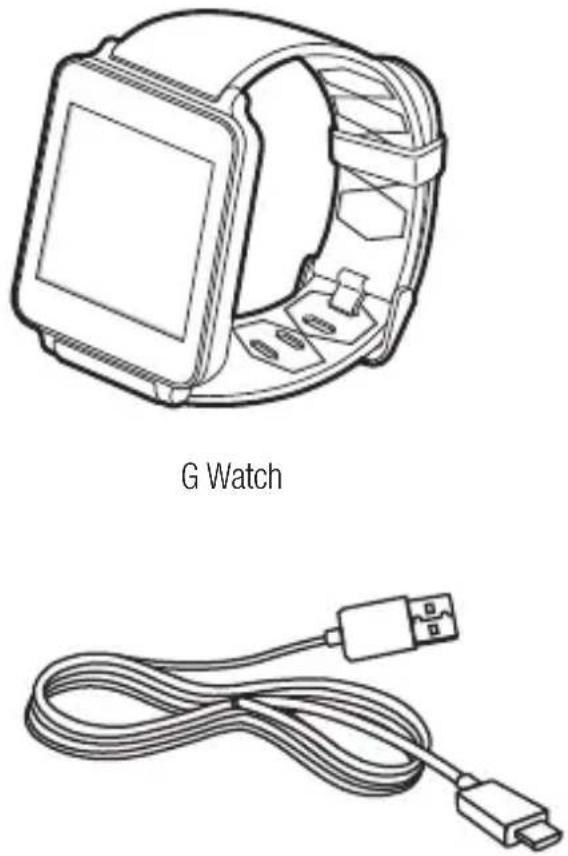
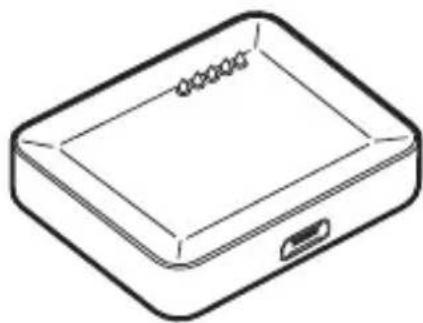
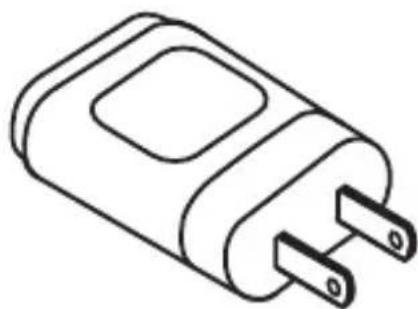
The LG G Watch comes with the following:
natural_image
Line drawing of a rectangular electronic device with a spiral top and base (no text or symbols)Charging cradle
Micro USB cable
natural_image
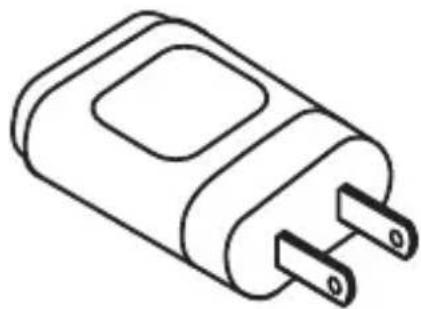
Line drawing of a two-pin electrical plug (no text or symbols)Power adapter
A Quick Start Guide and Safety & Warranty booklet are also included.
If any item is damaged or missing, contact the place where you purchased the watch.
Use only approved accessories. Accessories may vary by country or region.
Turn LG G Watch on or off
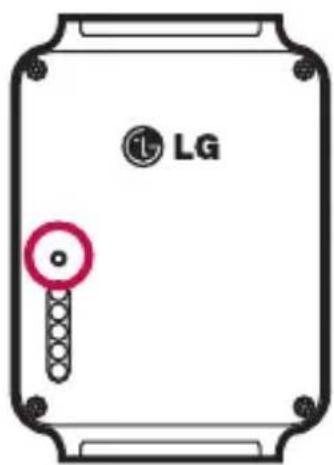
Turn the watch on
Connect the charging cradle to a power outlet and place the G Watch on it. The device will turn on automatically. You can also press the reset button using a pen or paperclip. Press and hold the button for 2 seconds.
Turn the watch off
1 If your screen is dim, touch the screen to wake up the watch.
2 Touch anywhere on the background of the screen. You'll see a white screen with a red "g."
3 Touch again anywhere on the screen to see a menu of things you can do.
4 Scroll down to the bottom of the menu.
5 Touch Settings
6 Scroll until you see Power off ⏻.
7 Touch Power off
You can also use the reset button to turn the watch off:
1 Press the reset button very quickly, for about half a second.
2 This will take you to Settings ⚙.
3 Scroll until you see Power off ⏻.
4 Touch Power off
Restart the watch
Press & hold the reset button for about 8 seconds, using a pen or paperclip.
You can also restart through settings.
SET UP ANDROID WEAR
Pair your watch with your phone
Your watch is meant to work together with your Android phone, so you'll need to pair them.
If you're pairing your watch for the first time, make sure your phone is connected to mobile data or Wi-Fi. You need a data connection to complete setup. You should also keep the watch connected to power during setup.
Here's how to pair:
1 Turn on your watch, and make sure it is within a few feet of your phone.
2 Download and install the Android Wear app on your phone.
- You can also search for "Android Wear" on Google Play.
3 Open the Android Wear app 📄 on your phone and follow the onscreen instructions. You'll be able to turn on Bluetooth during set up, if it isn't already on.
4 On your phone, you'll see a list of nearby devices. Touch your watch's name.
• You can check the name of your watch on its screen.
5 You'll see a pairing code on your phone and watch. Check that the codes match.
6 Touch Pair on your phone, then touch Pair on your watch. Make sure to touch both screens. You'll see a confirmation message once your watch is paired. This can take a few minutes, so please be patient.
- Possible software update: Depending on when you bought your watch, your watch may automatically download and install an update after you pair with a phone for the first time. Your watch will automatically restart after updating itself.
7 On your phone, follow the onscreen instructions to turn on watch notifications.
8 You're all done, but we recommend turning on Google Now & Location to have the best Android Wear experience. See more details below.
Follow the tutorial on your watch to get started, or learn how to get around your watch.
Features you should turn on
To have the best Android Wear experience, we recommend turning on Google Now and Location. You need to turn on these features using your phone or tablet, if they aren't already on. For the best experience, we also recommend keeping contact recognition turned on. This feature was turned on when you set up the Android Wear app. You can always turn contact recognition off through the Google Search app.
- Turn on Google Now for info when you need it without searching. For example, see today's weather, check your flight status, and find out if there's traffic on the way to work.
- Turn on Location for navigation, local suggestions (like restaurants and traffic), and more.
- Turn on contact recognition to call, text, or email contacts.
Different ways to pair your watch
You can pair your watch with only one phone or tablet at a time. If you have more than one phone or tablet you want to pair your watch with, or if you have more than one watch, here are some things to keep in mind:
If you have one watch and multiple phones or tablets:
- You can't pair one watch with multiple phones or tablets at the same time.
- You can switch which phone or tablet your watch is paired with, but you need to reset your watch to factory settings first. Then you can pair your watch to the new phone or tablet.
If you have multiple watches and one phone or tablet:
- Your phone or tablet can be paired with different watches, but only one at a time.
- You can use your Android Wear app to change the watch that's paired. To switch watches:
1 Make sure the watch you're pairing with is powered on.
2 On your phone, open the Android Wear app
3 On the top right of the screen, touch menu > Pair with a new wearable.
4 Touch the name of the watch you'd like to pair.
Get to know your watch
On your watch, you'll see cards that give you useful information when you need it. You can also get answers to questions and do everyday tasks using your voice.
Useful info when you need it through cards
The information you need will conveniently appear as cards on your watch. Wondering about your morning commute? Just check your watch. Your friend just texted you? You'll see the message. Curious how much you've walked today? You'll see your daily step count. You can scroll through the cards, see more details, and dismiss cards when you're done.
SET UP ANDROID WEAR
Ask questions & do everyday tasks with voice
You can also search and do a variety of tasks on your watch using just your voice. Just say “Ok Google” or touch the watch face, and you can ask questions (“How tall is the Empire State Building?”), set reminders (“Remind me to call mom tonight”), and more.
Use apps already on your phone
You'll need to download the Android Wear app to connect your watch and phone, and to manage your watch's settings.
Once you've done this, your favourite apps will work with Android Wear automatically, and you won't need to download a whole new set of apps.
Choose what shows up on your watch
You can choose which cards and notifications show up on your watch by changing your notification settings and Google Now settings.
Getting around on your watch
Get started using your watch by navigating cards and using your voice to get answers and to do everyday tasks. Here's how:
1. Start on your watch face (where you see the time)
Start by waking up your watch. If your watch's screen is dimmed, you can wake up the watch by:
- Touching the screen.
• Turning your wrist so your watch face is upright. - Pressing a button on the watch (if it has one).
Quickly dim the screen: Press your palm onto the screen until it vibrates. This will bring you back to the watch face.
Change the watch face: Touch and hold anywhere on the background of the home screen for two seconds. Swipe to the right or left to browse the designs, then touch to choose one.
2. See useful info through cards
You'll see cards peeking out from the bottom of your screen throughout the day. You'll have cards for notifications like text messages and reminders, and for useful information like traffic and weather. The most important cards will show up first.
To view cards, swipe up from the bottom of your screen. Touch a card to see more info. To see more cards, keep swiping up from the bottom of the screen.
If your watch is muted, cards won't peek out from the bottom of the screen and you'll need to swipe up to see them, and your watch won't vibrate for notifications.
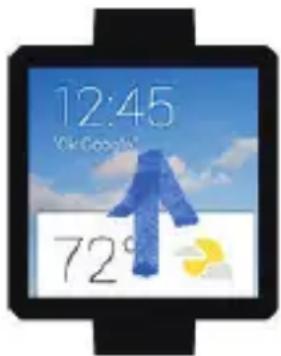
3. See card details and take action
Some cards provide more details or have actions you can take.
For example, on a weather card, you'll see a 4-day forecast. On a Gmail card, you'll see options to archive, reply, or open Gmail on your phone.
To see more details, swipe the card from ←right to left.
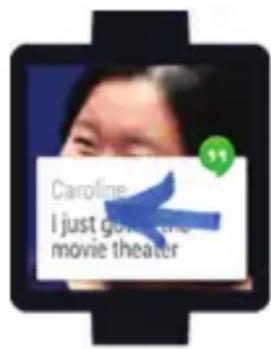
4. Swipe away cards when you're done
Once you're done looking at a card, you can get rid of it.
To remove a card, swipe from left to right.
Cards will automatically come back when there's new info to share.
If you remove a card on your watch, the same card or notification will be dismissed on your phone. If you remove a notification from your phone, it won't show up on your watch.
5. Ask questions & do everyday tasks
Follow these steps to start using your voice on your watch:
1 If your screen is dim, touch the screen to wake up the watch.
2 Say "Ok Google" or touch anywhere on the background of the screen. You'll see a white screen with a red "g."
SET UP ANDROID WEAR
3 Say your question or task.
Try saying: "How do you say hello in French?" or "Remind me to buy milk when I get home."
Learn more about questions and tasks that work with Android Wear.
6. See a menu of things you can do
You can also see a menu of things you can do, right on your watch:
1 If your screen is dim, touch the screen to wake up the watch.
3 Touch again anywhere on the screen to see a menu of things you can do.
4 Swipe up to see different options.
5 To choose an option, just touch it.
2 Say "Ok Google" or touch anywhere on the background of the screen. You'll see a white screen with a red "g."
Watch navigation tips
Here's some helpful info on how to get around your watch:
| What you’d like to do Action | |
| Wake the home screen | Touch the screenTurn your wrist towards youPress a button on the watch (if it has one) |
| View cards | ↑ Swipe up from the bottom of the screen |
| See more details | ← Swipe from right to left |
| Swipe cards away | → Swipe from left to right |
| Use your voice | Say “Ok Google” or touch anywhere on the background of the screen, then say your question or task |
| What you'd like to do Action | |
| See a menu of things you can do | 1. Say “Ok Google” or touch anywhere on the background of the screen. You'll see a white screen with a red “g.”2. Touch again anywhere on the screen to see a menu of things you can do.3. Scroll to see different options. |
| Dim the screen Press your palm onto | the screen until it vibrates |
| See your remaining battery or the date | ↓ Swipe down halfway from the top of the screen |
| Mute or unmute watch notifications | ↓ Swipe down all the way from the top of the screen. The watch will vibrate and you'll see “mute” or “unmute” |
| Change watch face | 1. Touch and hold anywhere on the background of the screen for two seconds.2. Swipe to the right or left to browse the designs.3. Touch to choose a new design.You can also change your watch face in Settings. |
| View Settings | 1. Say “Ok Google” or touch anywhere on the background of the screen. You'll see a white screen with a red “g.”2. Touch again anywhere on the screen to see a menu of things you can do.3. Scroll until you see Settings 4. Touch Settings For another way to get to Settings, say “Ok Google, Settings” from your active watch face. |
SET UP ANDROID WEAR
What you can do with Android Wear
Here's some helpful info on how to get around your watch:
Get stuff done
- Set reminders
Take notes - Set alarms & timers
- Use the stopwatch
- Check your schedule
- Control music
Learn more about getting stuff done.
Read & reply to messages
- Read and reply to texts & messages
- Read and reply to emails
• See incoming calls - Send pre-written text messages if you can't answer an incoming call
Learn more about reading and replying to messages.
Travel
• Get turn-by-turn navigation
- Get traffic info
• Find a place or business
• Find business info
• Check your flight or hotel reservations
Learn more about travel.
Get quick answers
• Get sports scores and schedules
- Check the weather
• See the time in other time zones
• Translate words or phrases
• Get calories counts
- Look up words
- Check stocks
- Convert between units
- Solve math problems
• Find out about events - Look up random facts
Learn more about getting quick answers.
Keep track of your fitness
• See how many steps you take each day
- Set simple goals for steps
Learn more about tracking your fitness.
START USING ANDROID WEAR
What you can do with Android Wear
Get stuff done with reminders, alarms, notes & more
You can set reminders and alarms, take notes, check your schedule, and more, all from your watch. Check out the examples below to learn about some of the things Android Wear can do for you.
Language availability for voice tips
Most of the tips below work if your language is set to English, French, German, Italian, Japanese, Korean, Russian, Spanish, or Brazilian Portuguese. Some voice actions are not available in all languages and countries.
Set reminders & take notes
Set a reminder
You can speak to your watch to set a reminder. You can set reminders to do something at a certain time or location.
Once you set a reminder, you'll see a card when your reminder goes off.
Speak to set reminder
1 Make sure the watch is awake.
2 Say "Ok Google." You'll see a white screen with a red "g."
3 Say the following:
• "Remind me to call John at 6 PM."
- "Remind me to empty the litter box when I get home."
Take or view a note
You can speak to your watch to create a note or view existing notes using Android apps like Google Keep. You can also view and edit lists in Google Keep.
Speak to take or view a note
1 Make sure the watch is awake.
2 Say "Ok Google." You'll see a white screen with a red "g."
3 Say the following: "Take a note: Try the new restaurant on Main Street."
Set alarms and timers
Set an alarm
You can speak to your watch to set an alarm. You can also set an alarm on your watch through the onscreen menu.
Your watch and phone alarms are separate. When you add an alarm on your watch, it won't show up on your phone, and the other way around.
When an alarm goes off, your watch will vibrate and display a card.
- Turn off: Drag the Awake icon from left to right.
- Snooze: Drag the Snooze icon z^z^s to from right to left.
Speak to set alarm
1 Make sure the watch is awake.
2 Say "Ok Google." You'll see a white screen with a red "g."
3 Say the following: "Set an alarm for 6PM."
Use menu to set alarm
1 Make sure the watch is awake.
2 Touch anywhere on the background of the screen. You'll see a white screen with a red "g."
3 Touch again anywhere on the screen to see a menu of things you can do.
4 Scroll and touch Set an alarm 📋 Then select your time.
See current alarms
1 Make sure the watch is awake.
2 Touch anywhere on the background of the screen. You'll see a white screen with a red "g."
3 Touch again anywhere on the screen to see a menu of things you can do.
4 Scroll and touch Show alarms
Set a timer
You can speak to your watch to set a timer. You can also set a timer on your watch through the onscreen menu.
Once you set a timer, you'll have a new card with the countdown. On the card, touch the pause button to stop and start the timer.
When you set a timer on your watch, it won't show up on your phone, and the other way around.
START USING ANDROID WEAR
Speak to set timer
1 Make sure the watch is awake.
2 Say "Ok Google." You'll see a white screen with a red "g."
3 Say the following: "Set a timer for 25 minutes."
Use menu to set timer
1 Make sure the watch is awake.
2 Touch anywhere on the background of the screen. You'll see a white screen with a red "g."
3 Touch again anywhere on the screen to see a menu of things you can do.
4 Scroll and touch Set a timer .8
5 Swipe up and down to see different times. Touch to select the amount of time you'd like.
Dismiss timer
When your timer goes off, dismiss by swiping from - left to right on your screen.
Use the stopwatch
You can speak to your watch to start the stopwatch. You can also start the stopwatch through the onscreen menu.
Once you start the stopwatch, you'll have a new card. Touch the button to stop and start the stopwatch.
Speak to start stopwatch
1 Make sure the watch is awake.
2 Say "Ok Google." You'll see a white screen with a red "g."
3 Say the following: "Start stopwatch."
Use menu to start stopwatch
1 Make sure the watch is awake.
2 Touch anywhere on the background of the screen. You'll see a white screen with a red "g."
3 Touch again anywhere on the screen to see a menu of things you can do.
4 Scroll and touch Start stopwatch 🔒.
Check your schedule
Check your schedule
Your upcoming events will show up automatically as a card. You can also speak to your watch or use the onscreen menu to pull up your calendar.
Speak to see schedule
1 Make sure the watch is awake.
2 Say "Ok Google." You'll see a white screen with a red "g."
3 Say the following:
• "What does my day look like tomorrow?"
- "When's my next meeting?"
- "What does my day look like tomorrow?"
- "When's my next meeting?"
Use menu to see schedule
1 Make sure the watch is awake.
2 Touch anywhere on the background of the screen. You'll see a white screen with a red "g."
3 Touch again anywhere on the screen to see a menu of things you can do.
4 Scroll and touch Agenda

You'll see your calendar card.
Track packages
Track a package
The status of your packages will show up automatically as a card if you have an order confirmation in Gmail.
Enjoy your music
Control your music
When music is playing on your phone, you'll see a music card on your watch. You can pause, play, and skip tracks.
Any app that shows play, pause and skip on your lock screen, like Google Play Music, will show up on your watch.
START USING ANDROID WEAR
Read & reply to messages
You can read and reply to texts and emails, see who's calling, and more. Check out the examples below to learn about some of the things Android Wear can do for you.
Language availability for voice tips
Most of the tips below work if your language is set to English, French, German, Italian, Japanese, Korean, Russian, Spanish, or Brazilian Portuguese. Some voice actions are not available in all languages and countries.
Read & reply to emails
You can use your favorite email apps with Android Wear, including Gmail. Learn more about how to use Gmail with Android Wear.
Read email
Your new email will show up as a card. You'll get email cards if you get email notifications on your phone. When you swipe from <right to left you can take different actions such as archive or reply. If you'd like to get email notifications on your phone, but not your watch, you can stop your email app from sending notifications to your watch. If you are using Gmail, you can learn more about how Gmail works with Android Wear.
Send an email
You can speak to your watch to send an email to a contact, or say the email address.
Speak to send an email
1 Make sure the watch is awake.
2 Say "Ok Google." You'll see a white screen with a red "g."
3 Say the following: "Send email to Alex Jones that I'm looking forward to dinner tomorrow."
If you are using Gmail, you can learn more about how Gmail works with Android Wear.
Reply to an email
Your email will show up as a card. When you swipe from <right to left you can take different actions such as archive or reply. If you are using Gmail, you can learn more about how Gmail works with Android Wear.
Read and reply to texts & messages
You can use your your favorite messaging apps with Android Wear, including Hangouts. Learn more about how to use Hangouts with Android Wear.
Read a text or message
Your new texts or messages will show up as a card. You'll see cards if you get message notifications on your phone.
When you swipe from <right to left you can take different actions such as reply. If you'd like to get notifications on your phone, but not your watch, you can stop specific apps from sending notifications to your watch. If you are using Hangouts, learn how Hangouts works with Android Wear.
Text a friend
You can speak to your watch to text your contacts by saying a name. This sends an SMS message.
Speak to send a text
1 Make sure the watch is awake.
2 Say "Ok Google." You'll see a white screen with a red "g."
3 Say the following:
• "Text Steve I'm running 5 minutes late."
- “Send Kirsten a message that I’m going to pick up dinner.”
Keep in mind that when you say “send a message,” you’ll send a text message.
If you are using Hangouts, learn how Hangouts works with Android Wear.
Reply to a text
Your text will show up as a card. When you swipe from <right to left you'll see an option to reply. Touch reply, then say your message. If you are using Hangouts, learn how Hangouts works with Android Wear.
START USING ANDROID WEAR
See calls
See incoming calls
Incoming calls will show up on your watch.
To answer:
1 Swipe the green button from <right to left, towards the center of the screen.
2 Use your phone to speak with the caller.
To send the caller to voicemail: Swipe the red button from → left to right, towards the center of the screen.
To reply with a pre-written message: Swipe the arrow from the bottom to the top of the screen, then touch a message.
Get directions, traffic, flight info & more
You can get directions, find local business, learn about your commute, see upcoming flights, and more. Check out the examples below to learn about some of the things Android Wear can do for you.
Language availability for voice tips
Most of the tips below work if your language is set to English, French, German, Italian, Japanese, Korean, Russian, Spanish, or Brazilian Portuguese. Some voice actions are not available in all languages and countries.
Get turn-by-turn navigation
You can speak to your watch to get turn-by-turn directions to your destination. Say your destination, and the route will appear on your watch. As you go, you'll see directions for every turn.
When Location is enabled on your phone, Navigation works on your watch even when your phone is locked.
See countries where Navigation is available.
Speak to get turn-by-turn directions
1 Make sure the watch is awake.
2 Say "Ok Google." You'll see a white screen with a red "g."
3 Say the following:
- "Navigate to Union Square, San Francisco."
• "Directions to Philz Coffee"
See the time and distance to your destination:
1 Swipe the card up.
2 Swipe from <right to left once.
3 You'll see the route information.
Cancel your navigation:
1 Swipe from <right to left until you see the Stop button.
2 Touch Exit Navigation.
Get traffic info
You'll see a traffic card letting you know how long it will take to get home or to work. You can set your home and work address in Google Now.
Find places & business info
You can speak to your watch to find nearby places and businesses. You can also find the phone number or address of a nearby business and see how far away it is.
Speak to find a place or business
1 Make sure the watch is awake.
2 Say "Ok Google." You'll see a white screen with a red "g."
3 Say the following:
• "Find the Eiffel Tower"
- "Where's the closest gas station?"
• "Target stores in Denver"
- "Blue Barn address"
• "How far is Starbucks from my home?"
Check your flight or hotel reservations
Your flight and hotel info will show up automatically as a card as long as your reservations are in Gmail.
START USING ANDROID WEAR
Get quick answers on weather, sports & more
You can get the upcoming weather, translate greetings into many languages, convert currency, and more. Check out the examples below to learn about some of the things Android Wear can do for you.
Language availability for voice tips
Most of the tips below work if your language is set to English, French, German, Italian, Japanese, Korean, Russian, Spanish, or Brazilian Portuguese. Some voice actions are not available in all languages and countries.
Get sports scores and schedules
Sports scores and upcoming games will show up as cards. You can also speak to your watch to get the score for a current game, or see when your team plays next.
Sports cards are not available in all regions.
Speak to see sports info
1 Make sure the watch is awake.
2 Say "Ok Google." You'll see a white screen with a red "g."
3 Say the following:
- "When is the next Mets game?"
• "How did Leeds United do?"
Choose which teams to get updates for
To get updates for your favorite teams, you can customize your teams in Google Now.
Check the weather
Weather will also show up automatically as a card. You can also speak to your watch to get the weather for your location or a place you're traveling to.
Speak to see weather
1 Make sure the watch is awake.
2 Say "Ok Google." You'll see a white screen with a red "g."
3 Say the following:
• "Weather in San Francisco."
• "What's the weather in New York City tomorrow?"
See the time in other time zones
You can speak to your watch to get the time for any location.
Speak to see the time
1 Make sure the watch is awake.
2 Say "Ok Google." You'll see a white screen with a red "g."
3 Say the following: "What time is it in London?"
Translate words or phrases
You can speak to your watch to get translations for words and phrases.
Speak to translate
1 Make sure the watch is awake.
2 Say "Ok Google." You'll see a white screen with a red "g."
3 Say the following: "How do you say 'hello' in Spanish?"
Get calorie counts
You can speak to your watch to find out how many calories are in common foods.
Speak to see calories
1 Make sure the watch is awake.
2 Say "Ok Google." You'll see a white screen with a red "g."
3 Say the following: "How many calories are in an avocado?"
Look up a word
You can speak to your watch to learn the definition of a word.
Speak to see definitions
1 Make sure the watch is awake.
2 Say "Ok Google." You'll see a white screen with a red "g."
3 Say the following: "What does onomatopoeia mean?"
START USING ANDROID WEAR
Check stocks
Stocks will show up automatically as cards. You can also speak to your watch to track your portfolio by getting live stock prices.
Speak to see stocks
1 Make sure the watch is awake.
2 Say "Ok Google." You'll see a white screen with a red "g."
3 Say the following: "What's Google's stock price?"
Choose which stocks to get updates for
You can customize Google Now to choose which stocks you want to follow.
Convert between units
You can speak to your watch to convert currency, volume, weight, and more.
Speak to see conversions
1 Make sure the watch is awake.
2 Say "Ok Google." You'll see a white screen with a red "g."
3 Say the following:
• "What's 16 ounces in pounds?"
- “Convert 100 euros to US dollars.”
• "How many kilometers is 50 miles?"
Solve math problems
You can speak to your watch to find the calculations for math problems.
Speak to see math calculations
1 Make sure the watch is awake.
2 Say "Ok Google." You'll see a white screen with a red "g."
3 Say the following: "What is the square root of 2209?"
See upcoming events
You can speak to your watch to look up events, such as upcoming holidays.
Speak to see events
1 Make sure the watch is awake.
2 Say "Ok Google." You'll see a white screen with a red "g."
3 Say the following:
- "When is sunset?"
- "When is Thanksgiving?"
Look up random facts
You can speak to your watch to look up random facts.
Speak to ask questions about people, places & things
1 Make sure the watch is awake.
2 Say "Ok Google." You'll see a white screen with a red "g."
3 Say the following:
• "Where was Albert Einstein born?"
• "How tall is Barack Obama?"
• "How tall is the Eiffel Tower?"
• "How old is Meryl Streep?"
• "How hot is the sun?"
Track your fitness
Google Fit is a fitness app that comes preinstalled on your watch. You can use it to:
• Estimate how many steps you take in a day
- Set goals for daily steps
With Fit, you can see how many steps you've taken in the last 7 days. Your data won't be shared with any third-parties without your consent.
Fitness sensors are intended for leisure, well-being and fitness purposes only and are not intended for medical use.
START USING ANDROID WEAR
Show or hide Fit cards
On your watch, you'll see Fit cards with summaries of how many steps you've taken today. You can dismiss these cards at any time by swiping them from -left to right.
When you hide a Fit card, you won't see a new one until 5 p.m. or the next day.
Turn off Fit cards entirely:
1 If your screen is dim, touch the screen to wake up the watch.
2 Swipe up to find the Fit card on your watch.
3 Swipe the card from <right to left until you reach Settings.
4 Enter Settings, and then touch Show step card. It should say Off under it.
See an estimate of how many steps you've taken today
You can speak to your watch to see an estimate of how many steps you've taken. You can also see this info through the onscreen menu.
Speak to see your steps
1 If your screen is dim, touch the screen to wake up the watch.
2 Say "Ok Google." You'll see a white screen with a red "g."
3 Say "Show me my steps."
Use menu to see your steps
1 If your screen is dim, touch the screen to wake up the watch.
2 Touch anywhere on the background of the screen. You'll see a white screen with a red "g."
3 Touch again anywhere on the screen to see a menu of things you can do.
4 Scroll and touch Show me my steps.
Set goals for daily steps
You can set goals around how many steps you want to take every day. Check your watch to see how close you are to reaching your goal.
Your watch comes preset with a goal of 10,000 steps. To change the goal:
1 If your screen is dim, touch the screen to wake up the watch.
2 Touch anywhere on the background of the screen. You'll see a white screen with a red "g."
3 Touch again anywhere on the screen to see a menu of things you can do.
4 Touch Show me my steps.
5 Swipe from <right to left until you find the menu.
6 Scroll down and touch Daily step goal.
7 Scroll and touch the goal you want.
Android Wear tips & tricks
Here are some tips and tricks for using your watch:
Dim the screen with your palm
To quickly dim your screen, just put your palm completely over the screen until it vibrates.
Stop your watch from vibrating with one swipe
To turn off all watch vibrations, mute your watch by swiping down all the way from the top of the watch's screen. The watch will vibrate and you'll see the word "Mute." To unmute, just swipe down again.
Stop specific apps from showing notifications on your watch
If you get notifications on your phone that you don't want to see on your watch, you can stop specific apps from showing up on your watch. You might want to see email on your phone, for example, but not on your watch.
1 On your phone, open the Android Wear app.
2 Touch the Settings icon
3 Touch Mute app notifications.
4 Touch the Plus icon +.
5 Touch the app you want to block.
Silence your phone automatically when using your watch
If you want your phone to stop making sounds when your watch is connected, follow these steps:
1 On your phone, open the Android Wear app □.
2 Touch the Settings icon
3 Check the box next to "Silence connected phone."
Speak to get to Settings
You can speak to your watch to quickly see the Settings menu.
1 If your screen is dim, touch the screen to wake up the watch.
2 Say "Ok Google." You'll see a white screen with a red "g."
3 Say "Settings."
START USING ANDROID WEAR
Speak to do simple tasks
You can see a menu of simple tasks on your watch, and anything in this list can also be said aloud.
For example, once you're on the menu you can touch "Start stopwatch." To do the same thing with your voice, just say "Ok Google, start stopwatch" from most screens.
To see the menu of things you can do:
1 If your screen is dim, touch the screen to wake up the watch.
2 Say "Ok Google" or touch anywhere on the background of the screen. You'll see a white screen with a red "g."
3 Touch again anywhere on the screen to see a menu of things you can do.
4 Swipe up to see different options.
Google apps that work with Android Wear
Here are some Google apps on your phone or tablet that you can use with Android Wear. You can use Google apps or other apps, just like on your Android phone.
Google Now
Google Hangouts
Gmail
Google Keep
Google Maps for mobile
Google Calendar
Use Google Now with Android Wear
You can see Google Now cards on Android Wear if you have Google Now on your Android phone.
Customize your Google Now cards
The Google Now cards you'll see in Android Wear come from your existing Google Now feed. Any changes you make to your card settings on your phone will also impact what cards you see on Android Wear. To change the cards that show up on your watch, you'll need to customize your Google Now cards on your phone.
If you make changes, use the instructions below to refresh Google Now so that the changes you make will sync with Android Wear:
1 Open the Google Search app on your phone.
2 Pull down on the first Google Now cards you see.
3 You'll know that your cards are being updated when the line below the search box start changing colors.
Google Now cards that work with Android Wear
- Stocks
- Weather
- Reminders
- Sports
- Traffic
• Flights - Boarding pass
• Shipping confirmation for packages
• Public transit info on nearby trains & buses - Friends' birthdays
- Public alerts
• Reminders to leave on time for upcoming appointments
• Hotel & restaurant reservations
Learn more about Google Now cards.
Use Hangouts with Android Wear
Article being developed by Hangouts help writer to be cross-published in Android Wear help center (https://support.google.com/hangouts/answer/6060278)
Use Gmail with Android Wear
Article being developed by Gmail help writer to be cross-published in Android Wear help center (https://support.google.com/mail/answer/6057269)
SETTINGS
Manage notifications
Most notifications you see on your phone will also show up on your watch. These include notifications for missed calls, texts, event reminders, and more.
When you get a notification, your watch will only vibrate; it won't make a sound.
How notifications work
Your watch uses the notification settings you have for each app on your phone.
- If your app vibrates or makes a sound for notifications on your phone, your watch will vibrate.
- If your app doesn't vibrate or make a sound for notifications, your watch won't vibrate, but you'll still see a card on your watch.
- If your entire phone is in silent mode, your watch will still vibrate since the watch uses each individual app's settings.
For example, if you have sound and vibrate notifications turned on for Gmail on your phone, your watch will vibrate when you get a new email. If you turn off these notifications for Gmail on your phone, your watch won't vibrate, but you'll still see Gmail cards on your watch.
When you dismiss a notification on your watch, it's also dismissed on your phone (and the other way around).
Mute notifications on your watch
If you don't want to see notifications on your watch, you can mute your watch. When your watch is muted, it won't vibrate for new notifications.
To mute or unmute: Swipe all the way down from the top of the screen until your watch vibrates. You'll see the word "Mute" or "Unmute."
When your watch is muted, you'll see a mute icon on your screen.
Turn off watch notifications for specific apps
If you get notifications on your phone that you don't want to see on your watch, you can stop specific apps from showing up on your watch.
1 On your phone, open the Android Wear app
2 Touch the Settings icon ⚙️.
3 Touch Mute app notifications.
4 Touch the Plus icon +.
5 Touch the app you want to block.
Turning off Google Now cards: If you don't want to see any Google Now cards, you have to turn off Google Now on your phone.
When you listen to music on your phone, you'll always see the music card with options to pause and play. You can't turn this card off.
Turn off phone sounds when using your watch
If you want your phone to stop making sounds & vibrations when your watch is connected, follow these steps:
1 On your phone, open the Android Wear app
2 Touch the Settings icon
3 Check the box next to "Silence connected phone."
Manage battery life
Check remaining battery life
Swipe down from the top of your watch's screen just a little to see your battery life and the date. Swiping all the way down will mute or unmute notifications.
Tips to save battery life
• Turn down your watch screen brightness.
- Set your screen to turn off when it isn't in use.
- Limit the number of notifications that you see on your watch.
Display settings (watch face, brightness)
Change your watch face
You can change the design of your watch face in a couple ways, either through touching the background of the screen, or through the watch's Settings.
From the background of your screen
1 If your screen is dim, touch the screen to wake up the watch.
2 Touch & hold anywhere on the background of the screen for two seconds. You'll see a list of watch faces to choose from.
SETTINGS
3 Swipe to the right or left to browse the designs.
4 Touch to choose a new design.
From Settings
1 If your screen is dim, touch the screen to wake up the watch.
2 Touch anywhere on the background of the screen. You'll see a white screen with a red "g."
3 Touch again anywhere on the screen to see a menu of things you can do.
4 Scroll until you see Settings
5 Touch Settings
6 Scroll until you see Change watch face 😊.
7 Touch Change watch face 😊
8 Swipe to the right or left to browse the designs.
9 Touch to choose a new design.
For another way to get to Settings, say "Ok Google, Settings" from your active watch face.
Change watch brightness
To change the brightness of your screen:
1 If your screen is dim, touch the screen to wake up the watch.
2 Touch anywhere on the background of the screen. You'll see a white screen with a red "g."
3 Touch again anywhere on the screen to see a menu of things you can do.
4 Scroll until you see Settings
5 Touch Settings
6 Touch Adjust brightness
7 Choose a brightness level by touching an option.
For another way to get to Settings, say "Ok Google, Settings" from your active watch face.
Turn screen on or off
When your watch is idle, you can set the screen to:
- Turn off completely.
- Stay “always on” to show the time as well as your top card.
Turning your watch's screen completely off when you're not using it will help improve your watch's battery life.
You can change this setting from your phone or watch.
From your phone or tablet
1 On your phone, open the Android Wear app
2 Touch the Settings icon
3 Check or uncheck the box next to "Screen always on."

From your watch
1 If your screen is dim, touch the screen to wake up the watch.
2 Touch anywhere on the background of the screen. You'll see a white screen with a red "g."
3 Touch again anywhere on the screen to see a menu of things you can do.
4 Scroll until you see Settings
5 Touch Settings
6 Touch Always-on screen to turn on or off.
For another way to get to Settings, say "Ok Google, Settings" from your active watch face.
SETTINGS
Change the apps you use for voice actions
You can set which apps you use for different voice actions. For example, you can change the app you use for setting alarms or for sending messages.
1 On your phone, open the Android Wear app
2 On the bottom half of the screen under "Voice actions," you'll see a list of actions.
3 Scroll and touch an action. You can choose from available apps.
- You can also touch Browse compatible apps. This will open the Play Store where you'll see a selection of apps that work with Android Wear.
Turn airplane mode on or off
If you're on a plane or in any other situation where you want to turn off the watch's wireless or mobile data connection, you can put the watch in airplane mode.
Follow these steps:
1 If your screen is dim, touch the screen to wake up the watch.
2 Touch anywhere on the background of the screen. You'll see a white screen with a red "g."
3 Touch again anywhere on the screen to see a menu of things you can do.
4 Scroll until you see Settings
5 Touch Settings
6 Scroll until you see Airplane mode.
7 Touch Airplane mode to turn on or off.
For another way to get to Settings, say “Ok Google, Settings” from your active watch face.
Learn about what still works when your watch is in airplane mode.
What still works when the watch isn't paired
If you aren't near your phone or you unpair your watch from your phone, you can still use some basic features on the watch.
You'll be able to use the following by touching your screen. You won't be able to use voice actions.
• Tell time and see the date
- Set an alarm
- Use the stopwatch
- Use the timer
• View your calendar for today
• See your step count
- Change your watch face
- Put your watch in airplane mode
Restart your watch
In certain situations, you may need or want to restart your watch. You can restart it in a couple ways, either through the settings or by using your watch's hardware.
To restart through Settings:
1 If your screen is dim, touch the screen to wake up the watch.
2 Touch anywhere on the background of the screen. You'll see a white screen with a red "g."
3 Touch again anywhere on the screen to see a menu of things you can do.
4 Scroll until you see Settings
5 Touch Settings
6 Scroll until you see Restart, then touch to restart.
For another way to get to Settings, say "Ok Google, Settings" from your active watch face.
You can also restart your watch using your watch's hardware.
If you need to clear all data from your watch, you can reset your watch to factory settings.
SETTINGS
Reset your watch to factory settings
By resetting your watch to its factory settings, you will erase all data stored on the watch. This data cannot be restored. This data includes your active notifications and cards, fitness data, any installed third party apps and any data they have stored, and system settings and preferences. The data stored in your Google Account, however, is not affected.
Resetting your watch won't factory reset your phone or tablet.
After you reset your watch to factory settings, you need to pair your watch with your phone again.
To reset to factory settings, follow these steps:
1 If your screen is dim, touch the screen to wake up the watch.
2 Touch anywhere on the background of the screen. You'll see a white screen with a red "g."
3 Touch again anywhere on the screen to see a menu of things you can do.
4 Scroll until you see Settings
5 Touch Settings
6 Scroll until you see Reset device , then touch to reset.
For another way to get to Settings, say "Ok Google, Settings" from your active watch face.
TROUBLESHOOT ANDROID WEAR
My watch won't pair with my phone
If your watch won't pair with your phone, try the following troubleshooting solutions:
- Check that your phone or tablet is running Android 4.3 or above. You can visit http://g.co/WearCheck from your phone to check compatibility.
• Make sure your phone is next to your watch. - Check that Bluetooth is turned on.
- Check that your phone is connected to the Internet. Try opening a website on your phone, such as news. google.com to make sure you are connected.
- Check that the following apps are up-to-date on your phone:
• Google Play Services app version 5.0.77 or above
• Google Search app version 3.5.12 or above
• Android Wear app version 1.0 or above
How to check your app version
1 Open your phone's Settings app.
2 Under "General," touch Apps.
3 At the top of the screen, swipe from right to left over the word "Downloaded" until you see "All."
4 Find the app you want to check, and touch the app name.
5 The version info will be at the top of the screen, under the app name.
Some phones have different Settings. Check with your manufacturer if needed.
How to update your apps
1 On your phone, open the Google Play Store app.
2 Touch the Play Store icon > My Apps to view your downloaded apps. Apps with available updates are labeled "Update."
3 Select individual apps to update or touch Update all to download all available updates.
Tip: In some cases, you may need to restart your device to update an app.
- Restart your watch by holding down the power button until it turns back on.
TROUBLESHOOT ANDROID WEAR
“Cannot connect to Internet” error
If you're trying to pair your watch with your phone and you see this error, try the solutions below.
Your watch will continue to try and pair with your phone, so after each step check your watch to see if the error message is gone.
- If you have an Internet connection but your watch isn't pairing, restart your phone.
- Check that the following apps are up-to-date on your phone:
• Google Play Services app version 5.0.77 or above
• Google Search app version 3.5.12 or above
• Android Wear app version 1.0 or above
How to check your app version
1 Open your phone's Settings app.
2 Under "General," touch Apps.
3 At the top of the screen, swipe from right to left over the word "Downloaded" until you see "All."
4 Find the app you want to check, and touch the app name.
5 The version info will be at the top of the screen, under the app name.
Some phones have different Settings. Check with your manufacturer if needed.
How to update your apps
1 On your phone, open the Google Play Store app.
2 Touch the Play Store icon > My Apps to view your downloaded apps. Apps with available updates are labeled "Update."
3 Select individual apps to update or touch Update all to download all available updates.
Tip: In some cases, you may need to restart your device to update an app.
- On your watch, swipe from ← right to left on the error card until you see a green button with a circular arrow. Touch the button.
- In the Android Wear app on your phone, follow these steps to disconnect and reconnect your watch:
1 Open the Android Wear app
2 At the top of the screen, touch the watch icon. Your watch will disconnect.
3 At the top of the screen, touch the watch icon again to reconnect.
4 On your watch, swipe from ← right to left on the error card until you see a green button with a circular arrow . Touch the button.
- Restart your watch by holding down the power button until it turns back on. It will try to connect. If it doesn't connect, restart your phone again.
The Ground Truth image contains only two horizontal lines, which are stylistic or background elements (like ruled paper lines). According to Rule 2, such lines must be ignored by the OCR result. Therefore, the corrected OCR text is:
[Empty String]
The Ground Truth image contains only two horizontal lines, which are stylistic or background elements (like ruled paper lines). According to Rule 2, such lines must be ignored by the OCR result. Therefore, the corrected OCR text is:
[Empty String]
The Ground Truth image contains only two horizontal lines, which are stylistic or background elements (like ruled paper lines). According to Rule 2, such lines must be ignored by the OCR result. Therefore, the corrected OCR text is:
[Empty String]
The Ground Truth image displays a single, solid horizontal line, which is a stylistic or background element (like a rule line on paper). According to Rule 2, such lines must be ignored by the OCR result. The OCR content provided is "", which consists of no characters. Since the OCR output correctly ignores the stylistic line, it complies with Rule 2. Therefore, the OCR result is consistent with the Ground Truth.
(1) AD = BD = 1 ,故 AC = AC + BE + BC
The Ground Truth image contains only two horizontal lines, which are stylistic or background elements (like ruled paper lines). According to Rule 2, such lines must be ignored by the OCR result. Therefore, the corrected OCR text is:
[Empty String]
(1) AD = BD = 1
[Non-Text]
The Ground Truth image contains only two horizontal lines, which are stylistic or background elements (like ruled paper lines). According to Rule 2, such lines must be ignored by the OCR result. Therefore, the corrected OCR text is:
[Empty String]
......
[EMPTY]
[Non-Text]
The image contains only dotted lines, which are stylistic or background elements and not text placeholders. According to Rule 2, such lines must be ignored by the OCR result. Therefore, the correct OCR output is empty.
(no text)
......
natural_image
Line drawing of a smartwatch case with display and control panel (no text or symbols)natural_image
Diagram showing connection between a device and a plug, with no visible text or symbols2.
natural_image
Line drawing of a smartwatch with display and control panel (no text or symbols)Montre G Watch
natural_image
Line drawing of a rectangular electronic device with a base and top connector (no text or symbols)Socle de chargement
natural_image
Line drawing of a USB cable with connector port (no text or symbols)Câble micro USB