
kizON W105T - Smartwatch LG - Free user manual and instructions
Find the device manual for free kizON W105T LG in PDF.


| Product Type | Smartwatch for Kids |
| Brand | LG |
| Model | kizON W105T |
| Dimensions | Approximately 38 x 42 x 13 mm |
| Weight | Approximately 50 g |
| Display | 1.3-inch TFT LCD, 240 x 240 pixels |
| Battery Capacity | 400 mAh Li-ion |
| Charging Method | Pogo pin charging dock |
| Operating System | Proprietary LG OS |
| Connectivity | Bluetooth 4.0, Wi-Fi b/g/n |
| GPS | Built-in GPS + AGPS |
| Water Resistance | IP67 (dust and water resistant) |
| Main Functions | GPS tracking, voice calls, SOS alert, activity tracker, safe zones |
| Compatibility | Android 4.3+ and iOS 8.0+ |
| Battery Life | Up to 24 hours in normal use |
| Cleaning & Maintenance | Wipe with a soft dry cloth; avoid solvents |
| Safety | Compliant with FCC, CE, RoHS |
| Spare Parts & Repairability | Battery and strap replaceable by service center |
| General Information | Designed for children aged 3-7 years old |
Frequently Asked Questions - kizON W105T LG
User questions about kizON W105T LG
0 question about this device. Answer the ones you know or ask your own.
Ask a new question about this device
Download the instructions for your Smartwatch in PDF format for free! Find your manual kizON W105T - LG and take your electronic device back in hand. On this page are published all the documents necessary for the use of your device. kizON W105T by LG.
USER MANUAL kizON W105T LG
natural_image
Line drawing of a mechanical component with no visible text or symbols用作溝通交流的手機 本產品不是玩具。
法律通知
natural_image
Diagram of a device with a cable inserted into a housing, showing a red arrow indicating the cable's direction (no text or symbols present)注意:
注意:
注意:
注意:
位置搜索日誌

注意:
注意:
隨後變更啟動編號

删除 KizON 產品
注意:
注意:
natural_image
Coiled cable with two connectors (no text or symbols visible)快速入門指南

SIM 插槽開關

注意:
natural_image
Line drawing of a mechanical component with no visible text or symbols真正的通讯工具。绝非玩具。
法律声明
natural_image
Diagram of a device with a cable inserted into a housing, showing a red arrow indicating direction (no text or symbols present)备注:
备注:
备注:
备注:
位置搜索日志
备注:
备注:
后续更改注册码时

删除 KizON 产品
备注:
备注:
natural_image
Coiled cable with connectors, no text or symbols visible快速入门指南

SIM 卡托开启工具

备注:
The Ground Truth image contains only two horizontal lines, which are stylistic or background elements (like ruled paper lines). According to Rule 2, such lines must be ignored by the OCR result. Therefore, the corrected OCR text is:
[Empty String]
The Ground Truth image contains only two horizontal lines, which are stylistic or background elements (like ruled paper lines). According to Rule 2, such lines must be ignored by the OCR result. Therefore, the corrected OCR text is:
[Empty String]
The Ground Truth image contains only two horizontal lines, which are stylistic or background elements (like ruled paper lines). According to Rule 2, such lines must be ignored by the OCR result. Therefore, the corrected OCR text is:
[Empty String]
The Ground Truth image displays a single, solid horizontal line, which is a stylistic or background element (like a rule line on paper). According to Rule 2, such lines must be ignored by the OCR result. The OCR content provided is "", which consists of no characters. Since the OCR output correctly ignores the stylistic line, it complies with Rule 2. Therefore, the OCR result is consistent with the Ground Truth.
(1) AD = BD = 1 ,故 AC = AC + BE + BC
The Ground Truth image contains only two horizontal lines, which are stylistic or background elements (like ruled paper lines). According to Rule 2, such lines must be ignored by the OCR result. Therefore, the corrected OCR text is:
[Empty String]
(No text to output)
[Non-Text]
The Ground Truth image contains only two horizontal lines, which are stylistic or background elements (like ruled paper lines). According to Rule 2, such lines must be ignored by the OCR result. Therefore, the corrected OCR text is:
[Empty String]
......
[EMPTY]
[Non-Text]
The Ground Truth image contains only two horizontal lines, which are stylistic or background elements (like ruled paper lines). According to Rule 2, such lines must be ignored by the OCR result. Therefore, the corrected OCR text is:
[Empty String]
......
User Guide

natural_image
Line drawing of a mechanical device with no visible text or symbolsCOMMUNICATIVE MOBILE PHONE. THIS IS NOT A TOY.
Legal Notice
The purpose of KizON service is to enable parents/guardians, and other adults nominated by them, to easily connect with their child. You should not use the KizON Service other than as intended and LGE accepts no liability for any such unauthorized use.
By using the KizON App and explicitly accepting the App's Terms of Use and Privacy Policy, you represent and warrant to LG that you are the child's parent or guardian and consent on their behalf to collection and use of their information (including information about their location) in accordance with the KizON Terms of Use and Privacy Policy.
Table of contents
Guidelines for safe and effi cient use ....3
Customer Information ....10
Names and Functions of Parts .....11
Band Overview 11
Charging the Battery 12
Wearing the KizON band 13
Turning Product On/Off ....14
Three Different Colors displayed by the Power/Call Button 14
Establishing Connection | KizON App ......15
Calling and Hanging Up by Product User .....16
Using Product ......17
Installing KizON App on Guardian's Device .....17
Installing KizON App 17
Registering Guest Phone Number .....19
Using KizON App 20
-
Making Calls ......21
-
Checking Location....22
-
Checking Location Search Logs ......23
-
Settings 24
Changing/Deleting Registration Number of KizON Product 26
Changing Registration Number of KizON Product 26
Deleting KizON Product 27
Registering KizON Products of Multiple Users ..28
Making Call 28
Ending Call 29
Using the Hard Reset (Factory Reset) .....29
Registering Photo of KizON User 29
Viewing Help 30
Simple solutions to most problems ....31
Accessories....33
Guidelines for safe and efficient use
Please read these simple guidelines. Not following these guidelines may be dangerous or illegal. Should a fault occur, a software tool is built into your device that will gather a fault log. This tool gathers only data specific to the fault. The log is used only to help determine the cause of the fault. These logs are encrypted and can only be accessed by an authorized LG Repair centre should you need to return your device for repair.
Exposure to radio frequency energy
Radio wave exposure and Specific Absorption Rate (SAR) information.
This product has been designed to comply with applicable safety requirements for exposure to radio waves.
These requirements are based on scientific guidelines that include safety margins designed to assure the safety of all persons, regardless of age and health.
- The radio wave exposure guidelines employ a unit of measurement known as the Specific Absorption Rate, or SAR. Tests for SAR are conducted using standardised methods with the product transmitting at its highest certified power level in all used frequency bands.
- While there may be differences between the SAR levels of various LG product models, they are all designed to meet the relevant guidelines for exposure to radio waves.
- The SAR limit recommended by the International Commission on Non-Ionizing Radiation Protection (ICNIRP) is 2 W/kg averaged over 10g of tissue for the Mouth SAR and Body-Worn or 4.0 W/kg averaged over 10g of tissue for the Limb-Worn SAR.
- The highest SAR value for this model when tested for use at Next-to-Mouth(Face) is 0.634W/kg (10g) and for Limb-Worn(Wrist) is 1.130 W/kg (10g).
- This device was tested for typical Limb-Worn(Wrist) operations kept 0 cm between the user's body(Wrist) and the back of the device. Additionally this device was tested for typical Next-to-Mouth(Face) operations with the front of the device kept 1 cm between the user's mouth(Face) and the front of the device.

WARNING
Do not wear the device while sleeping.
Safety Precautions
The Safety Precautions should be observed as they are designed to prevent accidents and dangers through a safe and correct use of the product.
If you don't follow these instructions, a serious injury or death may occur.
- If it lightens and thunders severely, unplug the power cord and charger cable. Lightening may cause a severe injury or fire.
- Some electronic/communication products can be affected by electromagnetic waves.
- When you use the product in a public space, consider others around.
- Do not disassemble the product, give a shock to the product, nor give/receive a call while charging the product. It could cause an electrical shock, short circuit or fire.
- Do not use the product when it is damaged. It could cause fire, burn, injury or electric shock.
- Plug the power cord tightly not to let it get loose. Do not bend, pull, twist, heat or cut the power cord. The cord could be damaged and cause fire or electric shock.
- Do not place any heavy object on the power cord. To clean the product, unplug the power cord and remove the dust from the plug. It could cause a fire or electric shock.
- Fit the caps tightly so that no foreign substance can come inside.
- Avoid vibration or shock. If you are not using the product, unplug the power cord.
- Do not press the power button when the product is wet. Do not touch the product, adaptor or power cord with wet hands.
- Do not use the product, when the plugging part of the power out is loose. If the connection is not stable, overheating or fire may occur.
- Do not turn on or off the product with it on your ear.
- If you have a problem with your heart, be careful when you set up the sound volume for incoming calls. It could affect your heart.
- Use the original charger accessory and genuine software. Do not use this product for other purposes.
- If you use a charger from other companies, the product could be shortened in life or explode.
- If you use an unauthorized software, it could damage the product and you will be disqualified for the warranty service.
- Do not use the product at high humidity and temperature.
-
Do not leave the product in the direct sun rays (e.g. inside a car), or on a warm blanket, electric pad or carpet for a long time, or in other places of high humidity and temperature. The appearance of the product may suffer from transformation or explosion.
-
Do not leave the product near necklaces, keys, coins, nails, and other metal items. If short circuit occurs, the product could exploded.
- Be careful not swallow the product or any of its parts. You could suffocate.
- Do not use the product where there is possibility of explosion. It could affect the high-frequency devices. It is safer to turn off the product while refueling.
- Do not cover or wrap the product with a blanket or others while using or charging it.
- When the battery leaks or smells, stop using the product and put it away from fire. The leaked liquid could cause fire or rupture.
- If the port of the charge or battery is not normal, do not charge the product and contact LG Electronics Customer Center to check the product at the nearest LG Electronics Service Center. (It could cause fire)
- If you are using a magnetic stand for cars, the product may not work properly.
- Do not drop, beat nor shake the product. The product could be damaged, hurting you, or the board inside may be broken.
- If you are not using the product for a long time, unplug the power cord and store the product in a safe place.
- This product is not water-proofed. Therefore, ensure that the product is not wet.
- If you coat the product, the appearance or the surface of the product could be damaged or the product may malfunction. If the coat falls off or if you are allergic to a certain material, stop using the product and contact your doctor.
- The data stored in the product could be lost while repair or upgrade.
- The manufacturer is not responsible for data loss.
- Do not connect the product to other device in a way that the guide does not instruct.
- When the location of KizON is measured using other methods than GPS such as WiFi positioning, and Cell Positioning, the accuracy of the location is subject to mobile provider's network capabilities, environmental conditions, and Google geo-location service provider's level of integrity. The results you may obtain from the KizON Service, including but not limited to the requested locations may not be accurate.
- The location search using A-GPS technology uses data communication to obtain GPS satellite information for faster GPS positioning, causing some costs.
- Plug the adaptor for data communication or data communication-charging adaptor correctly into the product port. If you use the product while plugging the adaptor, the port may be damaged. Once you finish using the adaptor, unplug it.
- If the product is lost or stolen, apply for stopping the usage immediately.
- The location request and setup operation use the short message service, causing you some costs.
-
The short messages are stored in the message box of the guardian's device. Delete the messages regularly as they are accumulated.
-
The stored values could be different between the user and the guardian, as the short message service is used.
- The time on KizON when the KizON's location is checked could be different depending on the surrounding environment.
- In the event that GPS does not function efficiently in certain geographical areas (e.g. in buildings or mountainous areas), KizON will use other technologies such as Wi-Fi to give a location which may be less accurate, by up to several kilometres.
- The location of KizON could not be found depending on the condition of KizON. In this case, "Call" to the KizON to check it out.
- If the user presses the button with carrying the product closely to the ear, it could damage the hearing. Especially a young child should be advised on this in advance.
Product care and maintenance

WARNING
Only use batteries, chargers and accessories approved for use with this particular model. The use of any other types may void any approval or warranty applying to the product and may be dangerous.
- Do not disassemble this unit. Take it to a qualified service technician when repair work is required.
- Repairs under warranty, at LG's discretion, may include replacement parts or boards that are either new or reconditioned, provided that they have functionality equal to that of the parts being replaced.
- Keep away from electrical appliances such as TVs, radios and personal computers.
- The unit should be kept away from heat sources such as radiators or cookers.
- Do not drop.
- Do not subject this unit to mechanical vibration or shock.
- Switch off the product in any area where you are required to by special regulations. For example, do not use your product in hospitals as it may affect sensitive medical equipment.
- Do not handle the product with wet hands while it is being charged. It may cause an electric shock and can seriously damage your product.
- Do not charge a product near flammable material as the product can become hot and create a fire hazard.
- Use a dry cloth to clean the exterior of the unit (do not use solvents such as benzene, thinner or alcohol).
-
Do not charge the product when it is on soft furnishings.
-
The product should be charged in a well ventilated area.
- Do not subject this unit to excessive smoke or dust.
- Do not keep the product next to credit cards or transport tickets; it can affect the information on the magnetic strips.
- Do not expose the product to liquid or moisture.
- Like many electronic devices, your product generates heat during normal operation. Extremely prolonged, direct skin contact in the absence of adequate ventilation may result in discomfort or overheating.
- If your product gets wet, do not press the power button and immediately unplug it to dry off completely. Do not attempt to accelerate the drying process with an external heating source, such as an oven, microwave or hair dryer.
- The liquid in your wet product, changes the color of the product label. Damage to your device as a result of exposure to liquid is not covered under your warranty.
Efficient product operation
Electronics devices
All mobile products may receive interference, which could affect performance.
- Do not use your mobile product near medical equipment without requesting permission. Avoid placing the product over pacemakers, for example, in your breast pocket.
- Some hearing aids might be disturbed by mobile products.
- Minor interference may affect TVs, radios, PCs etc.
- Use your product in temperatures between 0 °C and 40°C, if possible. Exposing your product to extremely low or high temperatures may result in damage, malfunction, or even explosion.
Road safety
Check the laws and regulations on the use of mobile products in the area when you drive.
- Do not use a hand-held product while driving.
- Give full attention to driving.
- Pull off the road and park before making or answering a call if driving conditions so require.
- RF energy may affect some electronic systems in your vehicle such as car stereos and safety equipment.
- When your vehicle is equipped with an air bag, do not obstruct with installed or portable wireless equipment. It can cause the air bag to fail or cause serious injury due to improper performance.
Potentially explosive atmospheres
- Do not use your product at a refueling point.
- Do not use near fuel or chemicals.
- Do not transport or store flammable gas, liquid or explosives in the same compartment of your vehicle as your mobile product or accessories.
In aircraft
Wireless devices can cause interference in aircraft.
- Turn your mobile product off before boarding any aircraft.
- Do not use it on the ground without permission from the crew.
Children
This device is intended as primarily a communication device between parents and children, with geolocation capabilities. The device is intended solely for wrist-worn use by children aged 3 or over.

Warning! CHOKING HAZARD - small parts. Not suitable for use by children under 3 years.
Battery information and care
- You do not need to completely discharge the battery before recharging. Unlike other battery systems, there is no memory effect that could compromise the battery's performance.
- Only use LG chargers. LG chargers are designed to maximise the battery life.
- Do not disassemble or short-circuit the battery.
- Recharge the battery if it has not been used for a long time to maximise usability.
- Do not expose the battery charger to direct sunlight or use it in high humidity, such as in the bathroom.
- Do not leave the product in hot or cold places, as this may deteriorate battery performance.
- Dispose of used batteries according to the manufacturer's instructions. Please recycle when possible. Do not dispose as household waste.
- If you need to replace the battery, take it to the nearest authorised LG Electronics service point or dealer for assistance.
• Always unplug the charger from the wall socket after the product is fully charged to save unnecessary power
consumption of the charger.
- Actual battery life will depend on network configuration, product settings, usage patterns, battery and environmental conditions.
- Make sure that no sharp-edged items such as animal's teeth or nails, come into contact with the battery. This could cause a fire.
- For your safety, do not remove the battery incorporated in the product.
HOW TO UPDATE YOUR PRODUCT
Access to latest firmware releases, new software functions and improvements.
Update your product by connecting it to your PC. For more information about using this function, please visit http://www.lg.com/common/index.jsp select country and language.
Open Source Software Notice Information
To obtain the source code under GPL, LGPL, MPL, and other open source licenses, that is contained in this product, please visit http://opensource.lge.com.
In addition to the source code, all referred license terms, warranty disclaimers and copyright notices are available for download.
LG Electronics will also provide open source code to you on CD-ROM for a charge covering the cost of performing such distribution (such as the cost of media, shipping, and handling) upon email request to opensource@lge.com. This offer is valid for three (3) years from the date on which you purchased the product.
Customer Information
- This device is electromagnetically compatible for home (Class B) (mainly for home use) and allowed for use in all areas.
- This wireless device is not allowed for providing any service related to life safety, as it may be subject to interference.
• Illustrations may differ from those you see on actual product.
• Always use genuine LG accessories. Failure to do this may void your warranty.
• Available accessories may vary depending on your region, country or service provider. - The content of this guide may defer depending on the software version, your country or service provider and is subject to change without notice.
Names and Functions of Parts
Band Overview

Charging the Battery
To charge the battery, open the USB cap and connect the charging cable to the product.

natural_image
Diagram of a plug inserted into a socket with a cable, showing a red arrow indicating the insertion point (no text or symbols present)The KizON is equipped with a Lithium ion polymer (Li-ion polymer) battery. It allows you to recharge your battery before it is fully drained. It takes about 3 hours to fully charge the KizON. When the battery reaches 5% of its capacity, the LED on the Power/Call button blinks red.
NOTE:
- Do not use the product while the product is being charged.
- When charging is complete, remove the charging cable from the product.
- Please use the charging cable enclosed in the box.
- You can check the remaining battery level by pressing the Power/Call button twice quickly when the product is not being charged. Remaining battery status will be heard on the KizON.
- Connect the USB data communication cable to the product with the USB icon facing up. Connecting the USB cable incorrectly may critically damage the product.
- If you find something irregular about the charger or the battery terminals, do not proceed to charge the product. Contact LG Electronics Customer Center and have the product checked at your nearest LG Electronics Service Center. Using a faulty charger carries a risk of fire.
Wearing the KizON band
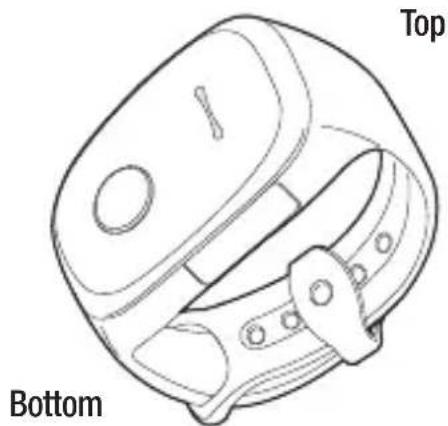
1 Place the product on the user's wrist with its speaker facing up and bend the band until you find a position that makes the user comfortable.
2 Find the hole in the band the position of which is most comfortable for the user and carefully insert the fixing pin into the hole so that both the top and bottom of the band can be fixed.
3 Move the band holder and precisely insert it through the fixing pin so that the product can be fixed more tightly.
NOTE:
- Please do not put the product around the user's wrist too tightly or loosely.
- Be careful not to damage the skin or nails when the product is being worn.
- Do not pull or bend the product by force when it does not fit around the wrist.
- If you have trouble taking off the product, do not take it off by force but ask somebody for help. Attempting to remove the product by force may cause injury or damage to the product.
- The band of this product is made of polyurethane and can be faded by light or discolored by absorbing color from other contaminants or matter. If there is discoloration of the product, you can reduce contamination by wiping contaminated areas with a cloth or kitchen towel to which you have applied baking powder dissolved in water.
Turning Product On/Off
Press and hold the Power/Call button for two seconds to turn the power on. A greeting 'Hello' will be heard to indicate device is powered on.
Press and hold the Power/Call button for eight seconds to turn the power off. You will hear "You're making a call" followed by "Goodbye"
Three Different Colors displayed by the Power/Call Button
| Red, orange, yellow | • Flashes when microSIM has SIM PIN enabled (Please disable before use)• Flashes when no network found (MicroSIM card is not inserted) |
| Red | • Flashes when the battery is low• Light intensity gradually changes during charge |
| Orange | • Flashes when no service (MicroSIM card is inserted) |
| Green | • Flashes when the product is functioning normally• Flashes when a call comes in• Flashes when making a call• Changes to green once the battery is fully charged |
| Blue | • Flashes during a call |

NOTE: Check the LED on the Power/Call button to identify whether the product is turned on. If the product is functioning normally, the Power/Call button flashes in green at 10-second intervals.
Establishing Connection | KizON App
- Visit Google Play store on your Android smartphone, search for KizON and download the KizON App.
- Follow the set-up wizard in the KizON app to enter:
• The mobile phone number of the SIM used in the KizON band
- The last 6 digits of the KizON IMEI number e.g. XXXXXX-XX-X12345-6 (found on the rear of the KizON device and on the device box)
- Your smartphone will now be connected to the KizON device.
Note:
- Please keep the registration code you received during the initiation. You will need it to set up the contacts.
- The device you want to connect the KizON app to should be powered by Android OS 4.1 or later.
- You can register up to two guardians for each KizON product. The first and second guardians are given different privileges to use in the KizON app.
- A guardian can register up to five KizON users.
• Guests are people who are not either the first or second registered Guardians
• A guardian can register up to four guests. - Guardians can make calls to and receive calls from KizON users.
- Guests can only make calls to KizON users.
- Guardians can manage calls, search locations, view location history and KizON settings.
- The product uses location information, so you need to agree on the terms of use before you can use this function.
- If the battery power of the product reaches a low-battery status of 20% or less, the product's location and a low battery message for charging the battery is sent to the guardians.
Calling and Hanging Up by Product User
1 Press the Power/Call button once and KizON will play a jingle that indicates the device is switched on.
2 Press the Power/Call button for 1 second or when you hear the prompt 'You're making a call' and then release the Power/Call button. KizON will then make a call to the Primary Guardian.
3 If the Primary Guardian has voicemail enabled on their smartphone then the KizON user will be able to leave a message if the voicemail change to recording mode automatically, but the user cannot leave a voice message via the KizON product if the user is required to press any key to record voicemail message.
4 If the Primary Guardian does not have voicemail enabled and has call divert disabled, then the KizON user's call will be diverted to the second registered Guardian automatically.
5 If the Primary Guardian has set ‘Decline calls’ in the KizON App, then the KizON user’s call will be diverted to the second registered Guardian automatically.
6 To end a call which is made from the user on the KizON device, hold and press the Power/Call button for 1 second.
Note:
- The KizON user cannot call any number except the 2 registered Guardian numbers. The user can only receive calls from a Guest.
- If the KizON user's call is connected to a voicemail, they can leave a message and should then end the call by pressing the Power/Call button for 1 second.
- Selective call can be used to call Guardian 2. Press and release the Power/Call button once then immediately press the Power/Call button, holding for more than 1 second.
- After KizON makes a call to the first or the second guardian and if there is no response from this guardian after 45 seconds, then KizON will disconnect the call and then try to make a call to another registered guardian. This feature works when both of the guardians were registered and both of the guardians turned off the Decline calls option.
Using Product
Installing KizON App on Guardian's Device
To use this product, you must register it in the app of the guardian.
To connect the product to the KizON app, the guardian first needs to install the KizON app on a smartphone with Android OS 4.1 or higher.
NOTE: The messaging and calling functions of the device you want to link must be available.
Installing KizON App
1 Download the KizON app from the Google Play store and install it on the guardian's smartphone.
2 Install the app according to the KizON app installation guide. At this point, correctly enter the product's phone number given by your retailer.
▶ Enter the last six digits of the KizON IMEI. If you have changed the serial number, enter the first six characters of the changed number. This is required when setting a guardian.


NOTE: Change the six-digit registration number in the app for security purposes.
3 If you install the KizON app, you are automatically registered as the first guardian. A guardian who has registered the product after the first guardian is registered as the second guardian.

NOTE:
- This product supports Android 4.1 or higher smartphones of which call/message functions are directly available.
- The KizON app is a free app. If you download the app, network charges may apply.
- To use this product, you must agree to the Terms of Use and Confirmation Note for Use of the Service as specified in the KizON installation guide.
- Because the KizON app is upgraded frequently, it may differ from the description in this guide in places.
-
You can register up to two guardians for each KizON product. The first and second guardians are given different privileges to use in the KizON app.
• A guardian can register up to five KizON users.
• Guests are people who are not either the first or second registered Guardians
• A guardian can register up to four guests. -
Guardians can make calls to and receive calls from KizON users.
- Guests can only make calls to KizON users.
Registering Guest Phone Number
The user can receive calls from four guests per guardian, eight guests in total. Register the phone number of a guest in the guardian's KizON app.
1 Open the KizON app on the guardian's device. Then, select Settings > Allowed contacts.
2 Enter the name and phone number of the guest.

NOTE:
- You can register all available phone numbers of a guest including the numbers of their landline (corded/cordless) and cell phone.
- The user can only receive calls from guests. Making calls to guests is not available.
- You can register and modify guest phone numbers in the KizON app.
- Be sure to enter area codes when registering the numbers of landline phones. The user cannot receive calls from numbers without area codes.
- If a cell phone number has changed, please register the new cell phone number. The user cannot receive calls if the registered number is no longer in use.
Using KizON App
Guardians can freely connect or make calls to KizON products by using the KizON app.
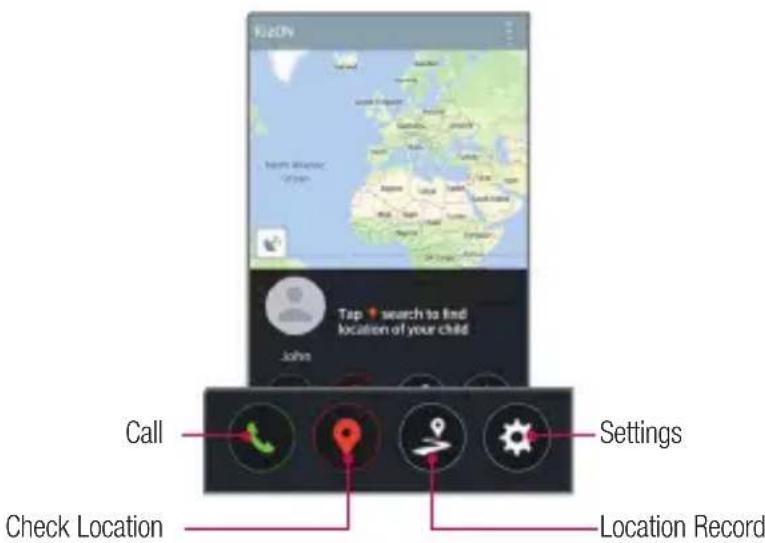
Call: to call the KizON device
Check Location: to check current location of the KizON user
Location Record: to view location history
Settings:
1 Configure KizON device
2 Add 'Guest' numbers to allow one-way calls to KizON device only
3 Enable / Disable Auto-connect calls - If enabled, auto answer calls on KizON if not answered after 10 seconds.
4 To change the KizON's SIM card user should reset device through Settings menu > 'Reset KizON device' before the SIM card is removed. If SIM card is removed without this reset the KizON device cannot communicate with guardians.
NOTE:
• Information is exchanged through SMS messages. Therefore, if you add the user's phone number or words such as KizON to your spam list, the product may not function.
- You will receive a SMS when interacting with the KizON e.g. location search. This is normal and contains encrypted data. You should ignore these text messages but do not add the user's phone number or words such as KizON to your spam list, and the product may not function. You will not receive a SMS when using a LG G3 or LG G3s as a guardian device.
1. Making Calls
Press Call in the KizON app to call the user.
To receive a call, press the Power/Call button on the KizON.
NOTE: If Auto-connect call is enabled, the call is received automatically in 10 seconds even if the user does not press the Power/Call button to receive it.

NOTE:
- If the guardian ends the call, the call with the user of the KizON product is terminated.
- The user of the KizON product cannot terminate the received call.
2. Checking Location
Press 📍 Search in the KizON app to display the current location of the user.
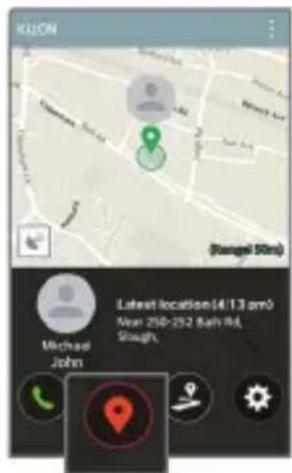
NOTE:
- The guardian can check the location of the user through GPS and Wi-Fi. Therefore, when the user is located in a place where GPS or Wi-Fi is not available, the user cannot be located in the guardian's KizON app.
• This product's Wi-Fi is reception only. (Transmission is not available) - When the guardian runs Check Location, the product emits a sound that indicates that the guardian attempted to locate the user.
- Checking the location of a KizON product through GPS may not succeed depending on the surroundings. In such a case, KizON attempts to locate the user by a method other than GPS. In some cases, a location error of up to several km can occur.
- Location information is provided as a result of checking GPS information via Google. Therefore, a location error within a certain range can occur. In addition, if the user is indoors, locating can be inaccurate and even unavailable.
3. Checking Location Search Logs
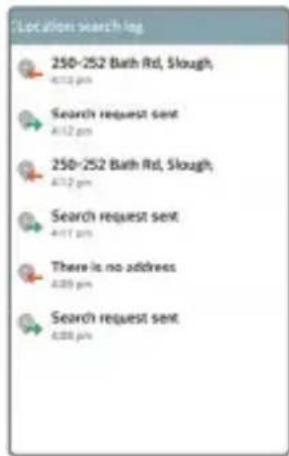
Press Track in the KizON app to show a list of user locations that have been found by the guardian. - Location search log: shows a list of attempted location searches and a list of responses received from the KizON device.
Track Location search log

NOTE:
- The device of the guardian receives a record of location searches as messages. Regularly clear your message box to avoid filling the message box to capacity.
- A message charge applies every time the guardian locates the user because a message is sent/received every time locating takes place. Please check your calling plan beforehand to avoid excessive message charges.
- If there are frequent connections between the guardian and user, we recommend that you check message charges from time to time and check your charge status.
4. Settings
Press Settings in the KizON app to configure various settings for the product such as notification, device, and volume settings.

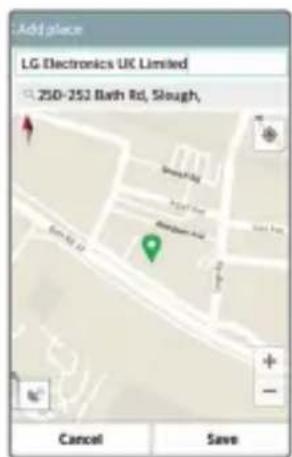
- Places: if the guardian has set locations frequented by the user, the name of the location is displayed when the guardian locates the user. Set locations with familiar names such as My Home, Football Field, Classroom, and Aunt's.
NOTE:
- It may be difficult to identify addresses displayed in location information because they are displayed as house numbers or street names.
-
A location deviation may occur depending on the circumstances at the time of locating.
-
Location reminders: Notifies the guardian of the user's location information at a set time.
- Ringtone on: You can turn on or off the ringtone of the product.
- Decline calls: You can set the product so that the user cannot make calls to the guardian.
- Allowed contacts: You can register and edit guest phone numbers from which calls are allowed to be made to the user.
• Show battery: You can check the battery charge of the product via SMS messages. - Volume: You can increase and decrease the volume of all sounds emitted by the product, such as the ringtone, call tone, and touch tone. (Available only to the first guardian.)
- Touch sound: You can set the sound that is generated when you press the Power/Call button briefly. Check this to turn this on. (Available only to the first guardian.)
- Turn off: Turns off the product. (Available only to the first guardian.)
- Language: Select the language of voice guide of the KizON. (Available only to the first guardian.)
NOTE:
- Whenever the battery life level becomes less than 20% and 10%, a low battery notification message is sent to the guardian.
- If the settings of the KizON device and the guardian's smartphone app have not synced, reboot the KizON device or re-run the app to sync the settings.
- The UI in the app is not deactivated even when the KizON user's product is turned off.
- When the product is not being charged, you can check the battery level by double-clicking the Power/Call button or removing/connecting the USB device through a voice message.
Changing/Deleting Registration Number of KizON Product
Changing Registration Number of KizON Product
1 Open the KizON App. On the Settings screen, select the Menu key or □> Change startup number. You can change the existing registration number to a new registration number.
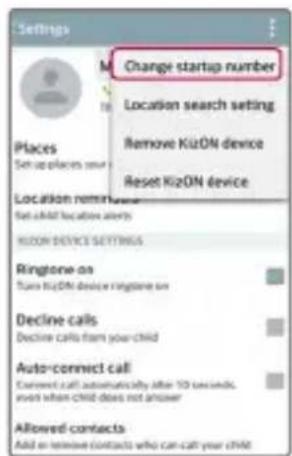
2 Enter the existing registration number first and then change it to a new registration number.
The screens displayed when you initially change your registration number and when you change your registration number at a later time are different. Therefore, please change your registration number according to the guide on the screen.
When Changing Registration Number Initially
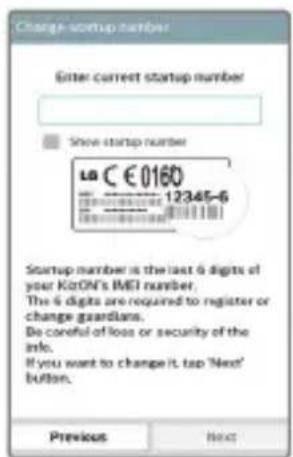
When Changing Registration Number Thereafter

Deleting KizON Product
1 Open the KizON app. On the Settings screen, select the Menu key or □ > Remove KizON device. After reading the disclaimer, select Yes to confirm the delete.

NOTE:
• To delete a KizON device, the KizON device must first be turned on.
- Communications with the KizON device must be good.
- Do not forget the existing registration number before deleting a KizON product because the number is needed when you re-register the product.
- To change guardian priorities, proceed as follows: If the first guardian has deleted the KizON product, the second guardian automatically becomes registered as the first guardian. If the original first guardian re-registers the KizON product, they become registered as the second guardian from that point on.
Registering KizON Products of Multiple Users
A guardian can register the KizON products of up to five users. Press the Menu key or on the first screen in the KizON app to select Add KizON device.

NOTE:
- If you want to add a new KizON product when you have already registered the maximum of five users' KizON products, delete one of the existing KizON devices first and register the new product.
- If you have registered more than two products, swipe the menu area at the bottom of the app screen left and right to view information about each registered product.
Making Call
Press and hold the Power/Call button for 0.8 seconds to make a call.
1 A call is made first to the first guardian registered in the product.
2 If the first guardian is unable to receive the call and has Decline calls enabled, the call is transferred to the second guardian.
3 If the second guardian is also unable to receive the call, the attempted call is automatically terminated.
Ending Call
If the user has made a call to a guardian, the guardian can end the call by pressing the Power/Call button briefly.
NOTE:
- The user cannot end calls made first by guardians or guests.
- The user can terminate a call which is made from the user by pressing the Power/Call button.
- If the first guardian has declined to answer the call or has transferred the call to voicemail, a call is not made to the second guardian.
- The user can receive calls from guests. However, the user cannot make a call to any guest.
- After a call made to a guardian has been transferred to their voicemail, the user can leave a voice message via the KizON product if the voicemail change to recording mode automatically, but the user cannot leave a voice message via the KizON product if the user is required to press any key to record voicemail message.
- On a KizON product, you cannot make emergency calls.
Using the Hard Reset (Factory Reset)
To restore your KizON to its original condition, use a Hard Reset (Factory Reset) to initialize it.
1 Turn the KizON on.
2 Connect the KizON to your computer using the data USB cable.
3 Repeatedly press the Power/Call button five times.
4 You will hear a series of beeps, press the Power/Call button once during these beeps.
5 KizON will blink Red-Orange-Yellow during the Factory Reset.
6 KizOn will power on and sound the greeting 'Hello'.
7 KizON is now reset.
Registering Photo of KizON User
- Press to add a photo of the user.
- To change the name of the user, press the name area.
Viewing Help
Open the KizON App. Then, select the Menu key or to view Help.
Simple solutions to most problems
| If you have the following problems... | Try the following solutions. |
| If the KizON won't turn on... The battery may be empty. Charge the KizON sufficiently. Then, try turning the KizON on. | |
| If the KizON does not respond to the guardian's request... | Check to see if the KizON is turned on.Check to see if the KizON is in a no-service area or in an area with limited service. Also, check to see if your network is in normal status.Check to see if the requested number is registered as the phone number of the child's guardian.Check to see if the request message is for KizON only. |
| If the KizON frequently stops working or experiences critical errors in use... | Turn off the KizON by pressing and holding the Power/Call button for more than eight seconds. Then, turn on the KizON by pressing and holding the Power/Call button again for more than two seconds. |
| If the KizON cannot receive/make calls... | Check to see if the KizON and mobile device are connected with each other.Check to see if the mobile device is connected to the proper network.Check to see if the mobile device has blocked the number to make a call to.Check to see if the mobile device has blocked the number to receive a call from. |
| If the other party cannot hear my voice during a call... | Check to see if the microphone is covered. Also, speak closely into the microphone. |
| If voices echo during a call... Decrease the volume in the KizON app and try calling again. Voices can echo if you are talking with the other party in close proximity. Create some distance between the other party and try calling again. | |
| If the call quality is poor... The call quality may be poor depending on the network status of the mobile device. | |
| If a location error occurs... Call the child to obtain the location when the KizON is indoors, in an area not covered by GPS, or in a place where the Internet is unavailable. | |
| If the settings of the KizON and app are different... | Turn the KizON off and on. The KizON will sync automatically. |
| If the battery life (standby time) has decreased from when the KizON was first bought... | The battery life is shorter if you have left the KizON at a low or high temperature.The battery is a consumable. Its life gradually decreases from the point of purchase. |
| If the KizON rises in temperature... Heat may rise in the KizON if you are on a call over an extended period of time.This is normal and does not affect the performance or life of the KizON device. | |
| If a call disconnects during use... The KizON may be overheated. If a call is excessively long, the call can be terminated to protect the overheated KizON device. Try calling again after allowing the KizON to cool for a certain amount of time. | |
Accessories
These accessories are available for use with the your phone. (Items described below may be optional.)
Travel adaptor

Data cable

natural_image
Illustration of a flexible network cable with two connectors (no text or symbols)Quick Start Guide SIM Tray Opener


NOTE:
• Always use genuine LG accessories.
- Failure to do this may void your warranty.
• Accessories may vary in different regions.
The Ground Truth image contains only two horizontal lines, which are stylistic or background elements (like ruled paper lines). According to Rule 2, such lines must be ignored by the OCR result. Therefore, the corrected OCR text is:
[Empty String]
[Non-Text]
The Ground Truth image contains only two horizontal lines, which are stylistic or background elements (like ruled paper lines). According to Rule 2, such lines must be ignored by the OCR result. Therefore, the corrected OCR text is:
[Empty String]
The Ground Truth image displays a single, solid horizontal line, which is a stylistic or background element (like a rule line on paper). According to Rule 2, such lines must be ignored by the OCR result. The OCR content provided is "", which consists of no characters. Since the OCR output correctly ignores the stylistic line, it complies with Rule 2. Therefore, the OCR result is consistent with the Ground Truth.
(1) AD = BD = 1 ,故 AC = AC + BE + BC
The Ground Truth image contains only two horizontal lines, which are stylistic or background elements (like ruled paper lines). According to Rule 2, such lines must be ignored by the OCR result. Therefore, the corrected OCR text is:
[Empty String]
(No text to output)
(No text to output)
The Ground Truth image contains only two horizontal lines, which are stylistic or background elements (like ruled paper lines). According to Rule 2, such lines must be ignored by the OCR result. Therefore, the corrected OCR text is:
[Empty String]
......
[EMPTY]
[Non-Text]
The Ground Truth image contains only two horizontal lines, which are stylistic or background elements (like ruled paper lines). According to Rule 2, such lines must be ignored by the OCR result. Therefore, the corrected OCR text is:
[Empty String]
......

LG
Life's Good


- 法律通知
- 注意:
- 删除 KizON 產品
- 法律声明
- 备注:
- 删除 KizON 产品
- User Guide
- COMMUNICATIVE MOBILE PHONE. THIS IS NOT A TOY.
- Legal Notice
- Table of contents
- Guidelines for safe and effi cient use ....3
- Customer Information ....10
- Names and Functions of Parts .....11
- Charging the Battery 12
- Wearing the KizON band 13
- Turning Product On/Off ....14
- Establishing Connection | KizON App ......15
- Calling and Hanging Up by Product User .....16
- Using Product ......17
- Simple solutions to most problems ....31
- Accessories....33
- Guidelines for safe and efficient use
- Exposure to radio frequency energy
- WARNING
- Safety Precautions
- If you don't follow these instructions, a serious injury or death may occur.
- Product care and maintenance
- Efficient product operation
- Electronics devices
- Road safety
- Potentially explosive atmospheres
- In aircraft
- Children
- Battery information and care
- HOW TO UPDATE YOUR PRODUCT
- Open Source Software Notice Information
- Customer Information
- Names and Functions of Parts
- Band Overview
- Charging the Battery
- NOTE:
- Wearing the KizON band
- Turning Product On/Off
- Three Different Colors displayed by the Power/Call Button
- Establishing Connection | KizON App
- Calling and Hanging Up by Product User
- Using Product
- Installing KizON App on Guardian's Device
- Installing KizON App
- Registering Guest Phone Number
- Using KizON App
- Settings:
- Making Calls
- Checking Location
- Checking Location Search Logs
- Settings
- Changing/Deleting Registration Number of KizON Product
- Changing Registration Number of KizON Product
- Deleting KizON Product
- Registering KizON Products of Multiple Users
- Making Call
- Ending Call
- Using the Hard Reset (Factory Reset)
- Registering Photo of KizON User
- Viewing Help
- Accessories
Brand : LG
Model : kizON W105T
Category : Smartwatch