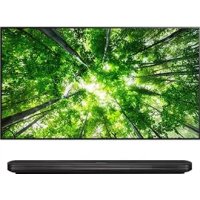
OLED55C7BO - Television LG - Free user manual and instructions
Find the device manual for free OLED55C7BO LG in PDF.



User questions about OLED55C7BO LG
0 question about this device. Answer the ones you know or ask your own.
Ask a new question about this device
Download the instructions for your Television in PDF format for free! Find your manual OLED55C7BO - LG and take your electronic device back in hand. On this page are published all the documents necessary for the use of your device. OLED55C7BO by LG.
USER MANUAL OLED55C7BO LG
RISQUE D'ÉLECTROCUTION NE PAS OUVRIR

ATTENTION : AFIN DE RÉDUIRE LE RISQUE DE DÉCHARGE ÉLECTRIQUE, NE RETIREZ PAS LE COUVERCLE (OU LE PANNEAU ARRIÈRE). AUCUNE PIÈCE POUVANT ÊTRE RÉPARÉE PAR L'UTILISATEUR NE SE TROUVE À L'INTÉRIEUR DE L'APPAREIL. FAITES APPEL À DU PERSONNEL D'ENTRETIEN QUALIFIÉ.
text_image
Diagram illustrating how to remove a device from a screen, with hand gestures and close-ups of the screen.The terms HDMI and HDMI High-Definition Multimedia Interface, and the HDMI Logo are trademarks or registered trademarks of HDMI Licensing LLC in the United States and other countries.

dts-HD®
For DTS patents, see http://patents.dts.com. Manufactured under license from DTS Licensing Limited. DTS, DTS-HD, the Symbol, & DTS or DTS-HD and the Symbol together are registered trademarks of DTS, Inc. © DTS, Inc. All Rights Reserved.

DOLBY AUDIO™

DOLBY VISION™
* Image shown may differ from your TV.
* Image shown on a PC or mobile phone may vary depending on the OS(Operating System).
* App icon positions may vary on the platform, depending upon the software version.
Network Settings
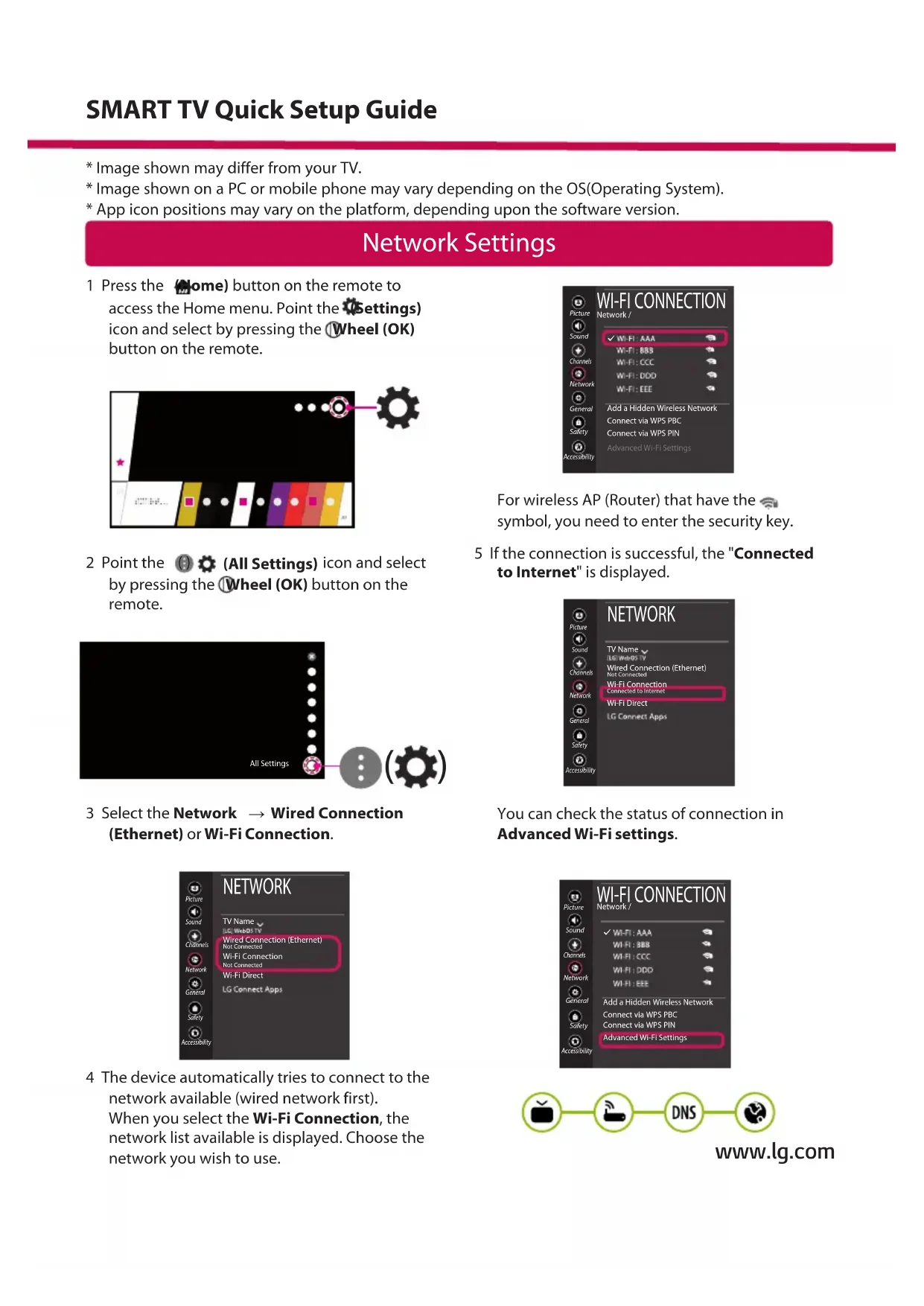
1 Press the (Home) button on the remote to access the Home menu. Point the (Settings) icon and select by pressing the (Wheel (OK)) button on the remote.
text_image
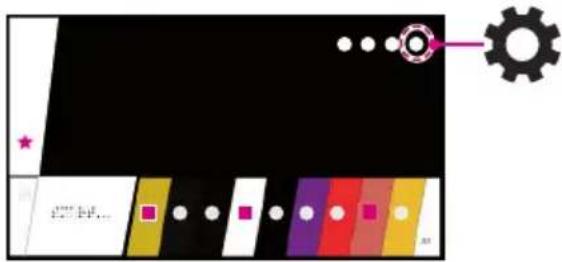
Diagram with color-coded blocks and a gear icon, featuring symbols like stars, dots, and a pink arrow pointing to a circular target.2 Point the Ⓐ (All Settings) icon and select by pressing the ⏰ Wheel (OK) button on the remote.
text_image
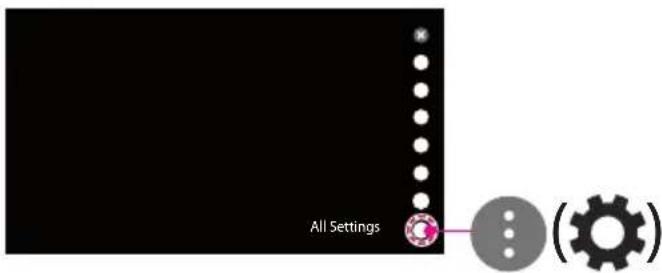
All Settings3 Select the Network → Wired Connection (Ethernet) or Wi-Fi Connection.
text_image
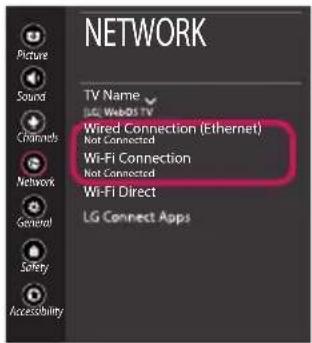
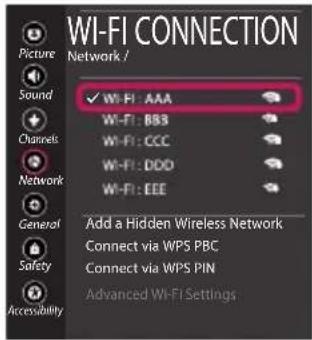
NETWORK Picture Sound Channels Network General Safety Accessibility TV Name LG WebOS TV Wired Connection (Ethernet) Not Connected Wi-Fi Connection Not Connected Wi-Fi Direct LG Connect Apps4 The device automatically tries to connect to the network available (wired network first). When you select the Wi-Fi Connection, the network list available is displayed. Choose the network you wish to use.
text_image
WI-FI CONNECTION Network / ✓ WI-FI: AAA WI-FI: B83 WI-FI: CCC WI-FI: DDD WI-FI: EEE Add a Hidden Wireless Network Connect via WPS PBC Connect via WPS PIN Advanced WI-FI SettingsFor wireless AP (Router) that have the symbol, you need to enter the security key.
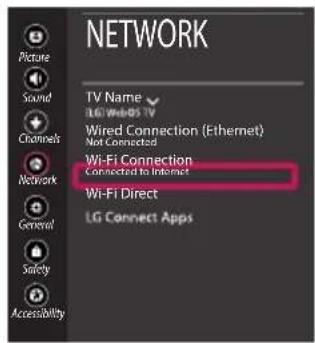
5 If the connection is successful, the "Connected to Internet" is displayed.
text_image
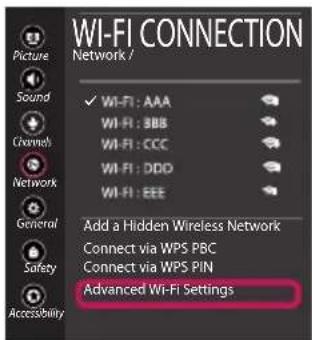
NETWORK TV Name LG WebDS TV Wired Connection (Ethernet) Not Connected Wi-Fi Connection Connected to Internet Wi-Fi Direct LG Connect Apps Picture Sound Channels Network General Safety AccessibilityYou can check the status of connection in Advanced Wi-Fi settings.
text_image
WI-FI CONNECTION Network / ✓ WI-FI: AAA WI-FI: BBB WI-FI: CCC WI-FI: DDD WI-FI: EEE Add a Hidden Wireless Network Connect via WPS PBC Connect via WPS PIN Advanced Wi-Fi Settings
flowchart
graph LR
    A["TV"] --> B["Wireless Router"]
    B --> C["DNS"]
    C --> D["Mobile Phone"]
www.lg.com
Troubleshooting Network Problems
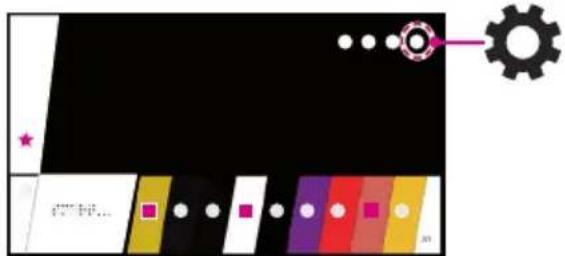
1 Press the 📄Home) button on the remote to access the Home menu. Point the ⏻Settings) icon and select by pressing the ⏻Wheel (OK) button on the remote.
text_image
Color palette interface with black background, white panels, and gear icon, featuring a pink star and red square.2 Point the (A)Settings) icon and select by pressing the Wheel (OK) button on the remote.
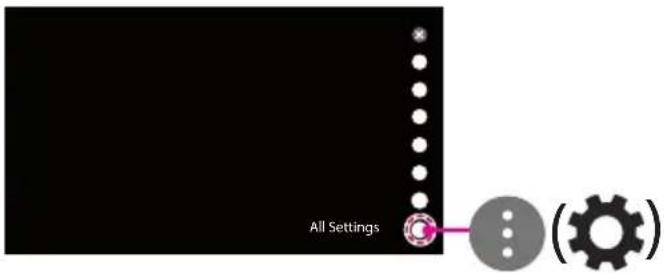
text_image
All Settings3 Select the Network → Wired Connection (Ethernet) or Wi-Fi Connection → Advanced Wi-Fi Settings.
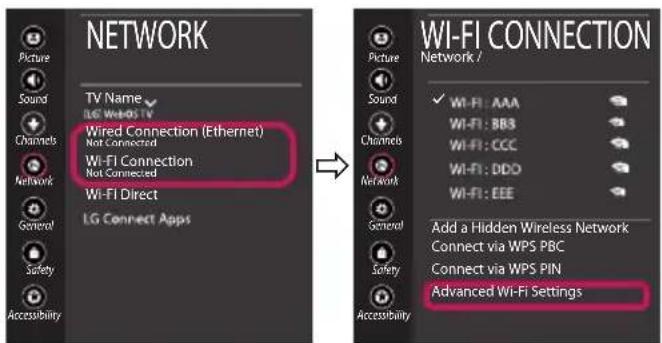
text_image
NETWORK TV Name LEG WINS-IV Wired Connection (Ethernet) Not Connected Wi-FI Connection Not Connected Wi-Fi Direct LG Connect Apps WI-FI CONNECTION Network / Picture Sound Channels Network General Safety Accessibility Add a Hidden Wireless Network Connect via WPS PBC Connect via WPS PIN Advanced Wi-Fi SettingsFollow the instructions below that match to your network status.
Check the TV or the AP (Router).

text_image
Log icons representing TV, wireless device, DNS, and globe symbolsWhen X appears next to TV:
Check the connection status of the TV, AP (Router) and cable modem.
② Power off and power on in the following order; (1st) the cable modem, wait for the cable modem to reset, (2nd) the AP (Router), wait for the AP (Router) to reset and (3rd) the TV.
③ If you are using a static IP, enter the IP directly.
④ Contact internet service provider or AP (Router) manufacturer.
Check the AP (Router) or consult your Internet service provider.

text_image
Diagram showing three connection icons: TV, Wi-Fi device, and globe with 'DNS' label crossed outWhen X appears next to Gateway:
① Unplug the power cord of the AP (Router) or cable modem, wait 5 seconds. Reapply power.
② Initialize (Reset) the AP (Router) or cable modem.
③ Contact Internet service provider or AP (Router) manufacturer.

flowchart
graph LR
    A["TV"] --> B["Wireless Device"]
    B --> C["DNS × 📧"]
When X appears next to DNS:
① Unplug the power cord of the AP (Router) or cable modem, wait 5 seconds. Reapply power.
② After the cable modem or AP (Router) has initialized (Reset), try to reconnect.
③ Check that the MAC address of the TV/AP (Router) is registered with your Internet service provider. (The MAC address displayed on the right pane of the network status window should be registered with your Internet service provider.)
4 Check the AP (Router) manufacturer's website to make sure your router has the latest firmware version installed.
SmartShare PC SW Installing & Setting
1 Install the SmartShare PC SW programme on your PC.
2 Go to .When, I get out your region.
3 Select Support.
4 Select Software & Drivers. Then, select SmartShare.
5 Download the SmartShare PC SW and install it on your PC. You can run the program when installation is complete.

- Smartshare service is only available if TV and other devices are connected via a single AP (Router).
SmartShare Connection to Smartphone

1 Check that Wi-Fi is enabled on your smartphone. To use SmartShare, both devices must on the same local network.
2 Install/run the app for sharing content on your smartphone (It's called LG TV Plus on LG phones).
3 Enable your smartphone to share content files with other devices.
4 Open Device Connector application.
(Home) → Device Connector → Smartphone → CONTENT SHARE.
5 Select the file type you want to play (movie, audio or photo).
6 Select a movie, music or photo file to play on the TV.
7 Play the media file to view and enjoy it on your TV.
Updating the TV Firmware
* If the TV is turned on for the first time after it was shipped from the factory, initialization of the TV may take a few minutes.
1 (home) → ⚙️ (Settings) → ⚠️ (⚙️) (All Settings) → ⚙️ General → About This TV → CHECK FOR UPDATES
2 After checking the version of the software, update it.
If you check the "Allow Automatic Updates", you can update the software automatically.
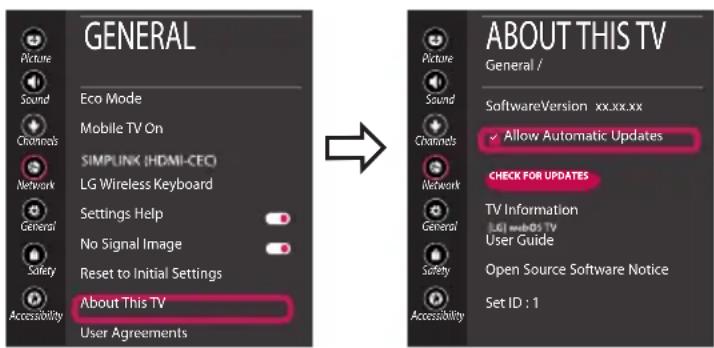
text_image
GENERAL Picture Sound Channels Network General Safety Accessibility Eco Mode Mobile TV On SIMPLINK (HDMI-CEO) LG Wireless Keyboard Settings Help No Signal Image Reset to Initial Settings About This TV User Agreements ABOUT THIS TV General / Picture Sound Channels Network General Safety Accessibility SoftwareVersion xx.xx.xx Allow Automatic Updates CHECK FOR UPDATES TV Information LGI web05 TV User Guide Open Source Software Notice Set ID : 1Wi-Fi Direct Setting
text_image
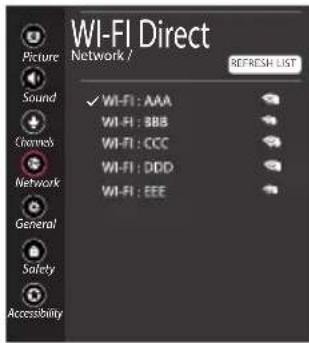
WI-FI Direct Network / REFRESH LIST Picture Sound Channels Network General Safety Accessibility ✓ WI-FI: AAA WI-FI: BBB WI-FI: CCC WI-FI: DDD WI-FI: EEE(Home)→Settings) →(All Settings) →Network→Wi-Fi Direct
If a local network is not available, you can connect a portable device directly to the TV using Wi-Fi Direct.
With SmartShare, you can share files or screens of devices connected to Wi-Fi Direct.
1 When you open Wi-Fi Direct menu, a list of available devices appears.
2 When you are prompted to request connection, select Yes. Wi-Fi Direct is now connected to your TV.
* You can only use devices that support Wi-Fi Direct.
Miracast Setting
Miracast allows a portable device to send video and sound securely to the TV wirelessly.
1 Miracast should be set to "ON" on your portable device.
2 When your TV is detected, select the device on your portable device.
When connection is completed, the device screen appears on the TV screen.
text_image
Diagram with color-coded blocks and a gear icon, featuring symbols like stars, dots, and a pink arrow pointing to a circular element.text_image
Diagram with colored blocks, a gear icon, and a star symbol, likely representing a game or puzzle interface.text_image
Log icons representing TV, wireless router, DNS, and globe symbolstext_image
Logos and icons showing TV, Wi-Fi, and DNS symbols with corresponding logostext_image
WI-FI Direct Réseau / ACTUMISER LA LISTE ✓ WI-FI: AAA WI-FI: BBB WI-FI: CCC WI-FI: DDD WI-FI: EEE Général Securite Accessibilitytext_image
Diagram with colored blocks, dots, and a gear icon, likely representing a UI or layout design.flowchart
graph LR
    A["TV"] --> B["Wireless Device"]
    B --> C["DNS"]
    C --> D["Mobile App Icon"]
text_image
Color palette interface with black background, white panels, and gear icon pointing to a pink circletext_image
Log icons representing TV, wireless device, DNS, and globe symbolstext_image
Logos and icons showing TV, Wi-Fi, and DNS symbols with corresponding logostext_image
Diagram with color-coded blocks and a gear icon, featuring symbols like stars, dots, and a pink arrow pointing to a circular element.text_image
Diagram with colored blocks, a gear icon, and a star symbol, likely representing a game or puzzle layout.text_image
Log icons representing TV, wireless device, DNS, and globe symbolstext_image
Diagram showing three connection icons: TV, Wi-Fi device, and DNS cross symbolsflowchart
graph LR
    A["TV"] --> B["Wireless Device"]
    B --> C["DNS × 📧"]
Type DE9 (D-Sub 9 broches) Type
Command1][Command2][ ][Set ID][ ][Data][Cr]
Transmission [k][k][ ][Set ID][ ][Data][Cr]
Total = ma 00 23 00 00 00 00 01
Total = ma 00 00 00 1E 00 03 22
Ack [a][ ][Set ID][ ][OK][Data 00][Data 01]
[Data 02][Data 03][Data 04][Data 05]
[x][a][ ][Set ID][ ][NG][Data 00][x]
- Pour le Japon
Total = ma 00 00 00 11 00 01 02
Total = ma 00 00 00 1E 00 00 07