ManualGo.com
DigitRadio 380 CD IR - Radio TECHNISAT - Free user manual and instructions
Find the device manual for free DigitRadio 380 CD IR TECHNISAT in PDF.



Download the instructions for your Radio in PDF format for free! Find your manual DigitRadio 380 CD IR - TECHNISAT and take your electronic device back in hand. On this page are published all the documents necessary for the use of your device. DigitRadio 380 CD IR by TECHNISAT.
USER MANUAL DigitRadio 380 CD IR TECHNISAT
11.9 Dynamic Label Plus
Internet radio with DAB+/FM tuner and Bluetooth streaming40 1 Illustrations
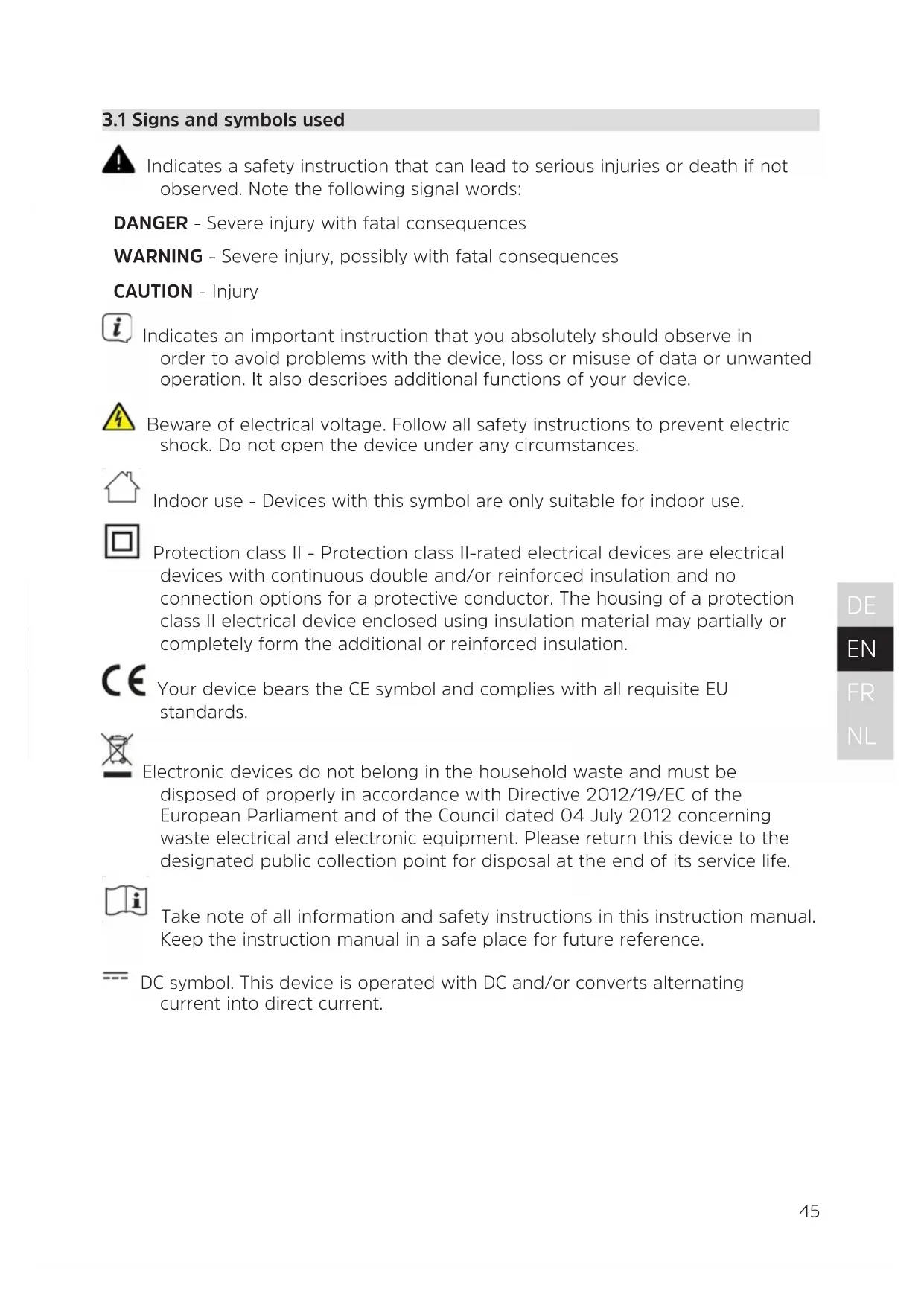
3.1 Signs and symbols used
Indicates a safety instruction that can lead to serious injuries or death if not observed. Note the following signal words: DANGER - Severe injury with fatal consequences WARNING - Severe injury, possibly with fatal consequences CAUTION - Injury Indicates an important instruction that you absolutely should observe in order to avoid problems with the device, loss or misuse of data or unwanted operation. It also describes additional functions of your device. Beware of electrical voltage. Follow all safety instructions to prevent electric shock. Do not open the device under any circumstances. Indoor use - Devices with this symbol are only suitable for indoor use. Protection class II - Protection class II-rated electrical devices are electrical devices with continuous double and/or reinforced insulation and no connection options for a protective conductor. The housing of a protection class II electrical device enclosed using insulation material may partially or completely form the additional or reinforced insulation. Your device bears the CE symbol and complies with all requisite EU standards. Electronic devices do not belong in the household waste and must be disposed of properly in accordance with Directive 2012/19/EC of the European Parliament and of the Council dated 04 July 2012 concerning waste electrical and electronic equipment. Please return this device to the designated public collection point for disposal at the end of its service life. Take note of all information and safety instructions in this instruction manual. Keep the instruction manual in a safe place for future reference. DC symbol. This device is operated with DC and/or converts alternating current into direct current.46
The device is designed to receive radio broadcasts via DAB+, FM and the Internet. Music media can be streamed via a WiFi network connection or Bluetooth. The device has been designed for private use and not for commercial purposes.
3.3 Target group for this instruction manual
The instruction manual is intended for anyone concerned with installing, operating, cleaning or disposing of the device.
3.4 Using the DIGITRADIO 380 CD IR safely
Please observe the following instructions to minimise any safety hazards, to prevent damage to the device, and to help protect the environment. Please read all the safety instructions carefully and retain them for future reference. Always follow all the warnings and instructions in this instruction manual and on the rear of the device. WARNING! Do not open the device under any circumstances. Touching live parts can be fatal! Observe all of the following instructions on the intended use of the device and to prevent device defects and personal injury. - Do not repair the device yourself. Repairs may only be carried out by trained specialist personnel. Contact our customer service department. - The device should only be operated under the intended environmental conditions. - Do not expose the device to dripping or splashing water. If water has penetrated the device, disconnect it from the mains and inform the Service Department - Do not expose the device to heat sources that could heat it up more than it would under normal use. - In the event of an obvious device defect, the production of an odour or smoke, significant malfunctions, or damage to the housing, notify the service department immediately. - The device must only be operated with the mains voltage specified on the type identification plate. Never try to operate the device at a dierent voltage. - If the device shows signs of damage, it must not be put into operation.47
- Do not put the device into operation in the vicinity of bath tubs, showers, swimming pools or running/splashing water. There is a risk of electric shock and/or device defects. - Foreign bodies, e.g. nails, coins, etc. must not be allowed to fall inside the device. Do not touch the connection contacts with metal objects or your fingers. This may cause a short circuit. - This device is not intended to be used by people (including children) with limited physical, sensoryormentalcapacities or lackof experienceand/ or knowledge,unless they are supervised by a person responsible for their safety or they have been instructed by them as to how to use the device. Never allow children to use the device unsupervised. - Keep packaging films and small parts away from children. Risk of suocation! - Modifications to the device are prohibited. - The CD player uses an invisible laser beam. If used incorrectly, this can injure your eyes. Never look directly into the open CD compartment.
- This device has been classified as a CLASS 1 LASER.48 4 Legal notices TechniSat hereby declares that the radio equipment type DIGITRADIO 380 CD IR conforms with directive 2014/53/EU. The full text of the EU conformity declaration is available at the following Internet address: hp://konf.tsat.de/?ID=23124 TechniSat is not liable for damage caused by external influences, wear and tear or improper use, unauthorised repairs, modifications or accidents. Subject to change for amendments and printing errors. Version 01/21. Duplication and reproduction only with the publisher's approval. You can find the current version of the manual in PDF format in the download area of the TechniSat homepage at www.technisat.de. DIGITRADIO 380 CD IR and TechniSat are registered trademarks of: TechniSat Digital GmbH TechniPark Julius-Saxler-Strasse 3 D-54550 Daun/Eifel, Germany www.technisat.de The names of the companies, institutions or brands mentioned are trademarks or registered trademarks of their respective owners. The Spotify Soware is subject to third party licenses found here: hps://www. spotify.com/connect/third-party-licenses. The device may only be operated in enclosed rooms in the 5 GHz WiFi range in the countries listed below. BE CY FI FR HU LV LI LU NL ES SE UK CH DE49
This product is quality-tested and comes with the statutory warranty period of 24 months from the date of purchase. Please keep your receipt as proof of purchase. In the event of warranty claims, please contact the product dealer. Note! Should you experience a problem with this unit, or for queries and information, our Technical Hotline is available: Mon. - Fri. 8:00 am - 6:00 pm at tel.: (0) 3925 9220 1800. Repair orders can also be placed directly online at www.technisat.de/reparatur. If the device needs to be sent to us for any reason, please only use the following address: TechniSat Digital GmbH Service Center Nordstr. 4a 39418 Stassfurt, Germany 5 Seing up the device > Place the device on a firm, secure and horizontal surface. Make sure the area is well ventilated. Note: - Do not place the device on so surfaces such as carpets and blankets, or near to curtains and wall hangings. These could obstruct the ventilation openings. The necessary flow of air could be interrupted as a result. This could potentially lead to fire in the device. - Do not place the device near to sources of heat, such as radiators. Avoid direct sunlight and very dusty environments. - Do not select a location for the device with high air humidity, e.g. a kitchen or sauna, since condensation could damage the device. The device is intended for use in a dry environment and in a moderate climate and must not be exposed to dripping or splashing water.50 - Please note that the device feet could leave coloured marks on some types of furniture surfaces in certain situations. Place a protective layer between your furniture and the device. - Keep the DIGITRADIO 380 CD IR away from devices that emit strong magnetic fields. - Do not place any heavy objects on the device. - Route the mains cable in such a way that nobody can trip over it. Ensure that the mains cable is always easily accessible, so that the device can be quickly disconnected from the power supply! > To ensure connection to the mains, insert the plug fully into the socket. > Use a suitable, easy-to-access mains connection and avoid using multiple socket strips! > In the case of malfunctions or detecting smoke or odour from the housing, remove the plug from the power outlet immediately! > Remove the plug if the device is not going to be used for a prolonged period, e.g. before going away on a long trip. 6 Description of the DIGITRADIO 380 CD IR
Before starting up, please check that everything has been delivered: 1x DIGITRADIO 380 CD IR 1x remote control + baeries 1x Instruction manual
6.2 Special features of the DIGITRADIO 380 CD IR
The DIGITRADIO 380 CD IR is comprised of a DAB+/FM/Internet radio receiver having the following functions: - You can store up to 20 DAB+/FM/Internet radio stations. - The radio can receive the following frequencies: FM 87.5-108 MHz (analogue) and DAB + 174.9-239.2 MHz (digital antenna). - Internet radio via WiFi connection. - Spotify Connect - MP3-CD Player - The device has a time and date display. - Music playback via Bluetooth connection. - Alarm and sleep timer function. - Controlled with the TechniSat CONNECT App.51
6.3 Preparing the DIGITRADIO 380 CD IR for operation
6.3.1 Aligning the antenna
The number and quality of broadcast stations depends on the reception conditions at the location of the radio. Excellent reception can be achieved with the telescopic antenna. > Release the telescopic antenna (14) from its holder, align it and extend it. Precise alignment of the antenna is oen important, especially on the outskirts of a DAB+ reception area. You can quickly find the location of the nearest transmission tower online by visiting “www.dabplus.de”. Start the first scan at a window pointing in the direction of the transmission mast. If the weather conditions are poor, DAB+ reception may be limited. Do not touch the antenna during station playback. This could reduce the reception and lead to sound drop-outs.
6.3.2 Connecting the mains cable
Ensure that the operating voltage matches the local mains voltage before inserting the mains plug into the wall socket. WARNING! Do not touch the mains plug with wet hands; electric shock hazard! CAUTION! Route the mains cable in such a way that nobody can trip over it.
6.3.3 Inserting the baeries into the remote control
> Open the baery compartment on the back of the remote control by sliding it in the direction of the arrow. > Insert the baeries (2 x AAA 1.5 V) in accordance with the polarity indicated in the baery compartment. > Close the baery compartment lid carefully againand ensure that the lid retaining tabs engage in the housing. You will need 2 micro alkaline baeries, 1.5 V, LR03/AAA to operate the remote control. Make sure the polarity is correct when inserting them.52 - Replace baeries that are losing power in good time. - Leaking baeries can cause damage to the remote control. - If the device is not to be used for a prolonged period, remove the baeries from the remote control. - Important instructions for disposal: Baeries may contain toxic substances that are hazardous to the environment. Therefore, it is imperative to dispose of the baeries according to the legal provisions in force. Never dispose of baeries in normal household waste.
6.4 General device functionality
Seings and functions can be carried out both using the buons on the device and with the remote control. The description of the operation in this instruction manual refers to the buons on the remote control.
6.4.1 Switching on the device
> You can use the On/Standby (3) buon on the device or the On/Standby (14) buon on the remote control to switch the device on or back to standby. Aer switching on for the first time, you can launch the set-up wizard (Section 17.8). Here you can set the date and time either viaDAB/FM, Internet or have no update (manual). The device will then aempt to establish a connection to a WiFi network. To do so, select the corresponding WiFi network and, if required, enter the WiFi password using the remote control.
6.4.2 Switching o the device
> You can use the On/Standby (3) buon on the device or On/Standby (14) on the remote control to switch the device on or back to standby. The date and time are shown in the display.
6.4.3 Operating the device with the remote control
With the infrared remote control you can operate the most important device functions from the comfort of your armchair. When operating the device with the remote control, please take into account the following points: > Point the remote control at the front of the device. > Visual contact between the transmier and the receiver must be guaranteed. > If the range of the remote control reduces, replace the baeries. The maximum range is approximately 5 metres from the front of the device.53
> Use the VOL +/- (10, 23) buons on the remote control or VOLUME +/- (10) on the device to set the volume. The set volume is shown on the display.
6.4.5 Activating the mute function
> You can switch o the volume at the touch of a buon using the MUTE buon (13). This mode is indicated in the status bar by a corresponding icon. > Pressing the MUTE buon again switches the volume back on.
6.4.6 Accessing displays
> By repeatedly pressing the INFO (6) buon during the playback of a source, certain extra information can be viewed and scrolled through.
Current source Station name, track, artist, additional info, menu, lists Time Status bar The displays shown can vary depending on the selected function/source. Take note of the instructions on the display. 7 Menu navigation Menu navigation primarily takes place using the MENU,/ and OK buons on the remote control, or the INFO/MENU buons and the TUNING/OK knob on the device. The menu is divided into the respective submenu for the currently selected source and the main menu. Press the MENU buon (on the remote control) or hold down the INFO/MENU buon (on the device) until the submenu for the current source opens up. You can navigate using the / buons on the remote control or by turning the TUNING/OK knob. Press the OK buon on the remote control or the TUNING/OK knob on the device to make a selection.
- highlights the current selection.54 > Press the BACK buon to move back a step. Closing the menu: Press the BACK or MENU buon several times or wait for approx. 15 seconds.
7.1 Selecting the source
> Press the MODE buon as oen as required until the desired source is shown on the display. Alternatively: > Press the MENU key. > Use the or buons to select the entry [main menu] and confirm your selection with OK. > Use the or buons to select the desired source and confirm your selection with OK. 8 Internet Radio and Podcasts The DIGITRADIO 380 CD IR is equipped with an Internet radio receiver. In order to receive Internet radio stations/broadcasts/podcasts you need a WiFi router with Internet access. > Press the MODE buon repeatedly until [Internet Radio] or [Podcast] appears on the display. Alternatively: > Press the MENU buon and then select [Main menu > Internet radio] or [Podcasts]. If you are starting Internet radio for the first time without having configured a WiFi connection, the search wizard appears showing you all the WiFi stations within range. Use the /, VOL+/- (/) and OK buons to select the WiFi network you recognise and enter the password using the displayed keyboard. Then select and press the OK buon. If the password entered is correct, a connection to the network is now established. The signal bars in the status bar of the display indicate whether a connection exists. To cancel the input, select and press the OK buon. If you make a mistake, you can delete the last leer you entered by pressing .55
> Press the MENU buon and select [Station List] or [Podcast List]. Press the OK buon. Under Station List, all Internet radio stations are displayed, sub-divided into dierent categories. > Select a station by category/country/genre and press the OK buon. To obtain additional information on the station currently being played, press the INFO buon several times (Section 6.4.6).
8.2 Adding Internet radio stations to favourites
The favourites memory can store up to 20 stations. Stored stations are retained even in the event of a power cut. > Set the station you want. > Press one of the number keys 1 - 10 on the remote control and hold down until [saved.] appears on the display. > Saving more stations: Repeat the process. Alternatively: > Hold down the PRESET buon, use the / buons to select a favourites location 1 - 20 and press the OK buon.
8.3 Accessing a favourite station
> Briefly press the number key you want 1 - 10. If there is no station saved in the selected programme slot, [Memory slot empty] appears. Alternatively: > Briefly press the PRESET buon, use the / buons to select a favourites location 1 - 20 and press the OK buon.
8.4 Deleting a saved memory slot
> Simply save a new station to the specific memory slot. 9 Spotify Connect Use your smartphone, tablet or computer as a remote control for Spotify. There is more information at spotify.com/connect. The Spotify soware is subject to third-party licence provisions, which you can find here: hp://www.spotify.com/connect/third-party-licenses56 10 Playing music (USB media) You have the option of using the TECHNIRADIO 380 CD IR to play music media from a USB memory source. This requires the USB media source to be connected to the USB port (18). > Press the MODE buon repeatedly until [USB] appears in the display. Alternatively: > Press the MENU buon and then select [Main Menu > USB].
> If a track is being played, the display shows [F01 T001 01:15]. [F01] stands for the currently selected folder (in this case, the first one), [T001] indicates the first track, followed by the playback length of the current track. > If there are several folders containing music on the USB stick, you can change the folder (F) using the F+/F- buons. Play/Pause. Next Track, hold down for Search. Press 2x for the previous track, hold down for Search. Stop playback.
10.2 Repeat function
You can select whether a track, the entire folder/album or all of the tracks are to be repeated. > Press the Repeat buon several times. The selected mode appears on the display using an icon (Repeat Track, Repeat Album, Repeat All). > To switch the function o again, press the Repeat track buon as oen as required until the icon no longer appears. > Press the Shue buon (5) to play the tracks in a random sequence. 11 DAB+ (digital radio) function
DAB+ is a new digital format through which crystal clear sound with no noise can be heard. In contrast to conventional analogue radio stations, DAB+ can be used to broadcast multiple stations on one and the same frequency. This is referred to as an ensemble or multiplex. An ensemble is comprised of the radio station, as well as several service components or data services which are broadcast individually by the radio stations. For further information, please visit e.g. www.dabplus.de or www.dabplus.ch.57
11.2 DAB radio reception
> Press the MODE buon as oen as required until [DAB Radio] appears on the display. Alternatively: > Press the MENU buon and then select [Main Menu > DAB+]. If DAB is being started for the first time, a complete station scan is performed. The station list is then shown (see Section 11.4).
The automatic scan scans all DAB+ band III channels and thereby finds all stations being broadcast within the reception area. Aer the scan is complete, the first station is played back in alphanumeric order. > Press the SCAN buon (20) to carry out a full scan. “Scan” appears on the display. The scan starts and a progress bar appears on the display. > When this is complete, press the or buons and OK to select a station. Alternatively: > Press the MENU buon and use the or buons [Full Scan]. Confirm by pressing OK. If no stations are found, check the antenna and change the installation location if necessary (Section 6.3.1).
Proceed as follows if you want to run a station scan manually: > Select [Menu ] > [Set Manually] and press the OK buon. > Use the or buons to select a station frequency and press the OK buon. If stations are being broadcast on the selected frequency, this will be indicated on the stability bar (see also Section 11.8). If these stations are not currently included in your station list, they will now be stored there.
11.4 Selecting the station
> You can check the stations found on the device. This is done by pressing the buons or . > To select a station press OK.58 > Alternatively, you can press the MENU buon and use or to select > [Station list].
11.5 Saving DAB stations
The favourites memory can store up to 20 stations. Stored stations are retained even in the event of a power cut. > Set the station you want. > Press one of the number keys 1 - 10 on the remote control and hold down until [saved.] appears on the display. > Saving more stations: Repeat the process. Alternatively: > Hold down the PRESET buon, use the / buons to select a favourites location 1 - 20 and press the OK buon.
11.6 Selecting programmed stations
> Briefly press the number key you want 1 - 10. If there is no station saved in the selected programme slot, [Memory slot empty] appears. Alternatively: > Briefly press the PRESET buon, use the / buons to select a favourites location 1 - 20 and press the OK buon.
11.7 Deleting a saved memory slot
> Save a new station to the respective programme slot.
11.8 Signal strength
> Press the INFO buon (6) several times. The signal strength will be displayed. > The bar modulation shows the current level. Stations with a signal strength below the required minimum signal intensity are not transmiing a strong enough signal. If required, align the antenna as described in section 6.3.1. Signal strength Minimum signal strength59
By pressing the INFO buon several times, dierent information can be scrolled through, such as station type, multiplex name, frequency, signal error rate, data bit rate, station format, date.
11.9 Dynamic Label Plus
If supported by the programme provider, the Dynamic Label Plus service also allows, for example, the name of the current programme or the track and artist to be displayed.
The compression rate balances dynamic fluctuations and thereby any volume variations that occur. > Press the MENU buon and select > [Volume Adjustment], to select the desired compression rate. > Select the compression rate using the / buons: DRC high - high compression DRC low - low compression DRC o - compression switched o. > Confirm by pressing OK.
11.11 Deleting inactive stations
> Press the MENU buon and use or to select > [Delete inactive stations]. > Confirm by pressing OK. > Using or , select > [Yes] and confirm by pressing OK.
11.12 Sorting the stations
> Press the MENU buon and then or to select > [Station order]. > Select a sorting type with or and confirm your selection with OK. You can now choose between: Alphanumeric and provider. 12 FM mode
12.1 Switching on the radio mode
> Press the MODE buon as oen as required until [FM-Radio] appears on the display. Alternatively: > Press the MENU buon and then select [Main Menu > FM].60 When you switch on the radio for the first time, the frequency is set to 87.5 MHz. If you have already set or saved a station, the radio plays the last station set. In the case of RDS stations, the station name is displayed. Adjust the antenna to improve reception.
12.2 FM reception with RDS information
RDS is a procedure for broadcasting additional information via FM stations. Broadcasters with RDS might, for example, broadcast their station name or the programme type. This appears on the display. > The device can show the following RDS information: RT (radio text), PS (station name), PTY (programme type).
12.3 Manual station selection
> Press or in FM mode to set the desired station. The display shows the frequency in increments of 0.05 MHz.
12.4 Automatic station selection
> Press SCAN (20) to start the automatic scan. The station frequency runs upwards on the display.
In FM mode, hold down or for approx. 2 seconds to search automatically for the next station with a strong enough signal. If an FM station with sucient signal strength is found, the scan stops and the station is played. If an RDS station is being received, the station name is displayed and, possibly, the radio text. To tune in to weaker stations, please use the manual station selection function. Under Menu > Scan seings you can set whether the scan only finds strong stations (Strong stations only). To do so press the MENU buon and > Scan seings > [Yes]. Confirm the selection with OK. With the [NO] seing, the scan stops automatically at each station. However, these may have interference.
12.5 Seing mono/stereo
> Press the MENU buon and use or to select > [Audio seing].61
> Select [YES] for playback in mono sound only in the event of weak FM reception. > Confirm by pressing OK.
12.6 Saving FM stations
The favourites memory can store up to 20 stations. Stored stations are retained even in the event of a power cut. > Set the station you want. > Press one of the number keys 1 - 10 on the remote control and hold down until [saved.] appears on the display. > Saving more stations: Repeat the process. Alternatively: > Hold down the PRESET buon, use the / buons to select a favourites location 1 - 20 and press the OK buon.
12.7 Selecting programmed stations
> Briefly press the number key you want 1 - 10. If there is no station saved in the selected programme slot, [Memory slot empty] appears. Alternatively: > Briefly press the PRESET buon, use the / buons to select a favourites location 1 - 20 and press the OK buon.
12.8 Deleting a saved memory slot
> Save a new station to the respective programme slot. 13 Bluetooth
13.1 Activating the Bluetooth mode
> Press the MODE buon repeatedly until [Bluetooth Audio] appears on the display. Alternatively: > Press the MENU buon and then select [Main Menu > Bluetooth]. In the status bar on the display, a flashing[BT] indicates the pairing mode. If the DIGITRADIO 380 CD IR has already been paired with another device which is within range, the connection is automatically established.62
> Activate Bluetooth on your music player, e.g. a smartphone or tablet. If you activate Bluetooth on your music player, please consult the corresponding instruction manual for the device which you wish to pair with the DIGITRADIO 380 CD IR. Please note that only 1 device can be connected to the DIGITRADIO 380 CD IR at any one time. Ensure that you do not exceed the maximum Bluetooth range of 10 metres to guarantee excellent playback quality. > Select the list of Bluetooth devices found on your music player. > In the list, search for the item DIGITRADIO 380 CD IR and select it. If the selection requires a PIN, enter "0000" (4 x zero). > If pairing is successful, the [BT] symbol in the DIGITRADIO display stops flashing.
> Select a music track on your music player and play it. > The sound is now played via the DIGITRADIO 380 CD IR. You can use the Play buons on the DIGITRADIO remote control to control the playback on your music player (only with compatible devices). Play/Pause. Next track. Press 2x for previous track, press 1x to play the track from the beginning: Stop playback. Ensure that the volume on your music player is not set too low.63
The device is designed for music CDs that are played with audio data (CD-DA or MP3 for CD-R and CD-RW). MP3 formats must be generated with ISO 9660 Level 1 or Level 2. Multi-session CDs cannot be read. In MP3 mode, the terms "Folder" = Album and "Track" are critical. “Album” corresponds to the folder on the PC, and “Track” to the PC file or a CD-DA track. The device sorts albums or tracks alphabetically by name. If you prefer a dierent order, change the name of the track or album and place a number in front of the name. When burning a CD-R and CD-RW with audio data, various problems can arise which could occasionally compromise smooth playback. The causes of this are faulty soware or hardware seings or the blank disc being used. Should such errors arise, you should contact your CD burner/burner soware manufacturer or search for the relevant information, e.g. on the Internet. If you make audio CDs, observe the legal requirements and do not violate the copyrights of third parties. The device can play CDs with MP3 data and normal audio CDs (.wav). Do not use other file extensions such as *.doc, *.txt, *.pdf etc. when converting audio files to MP3. Given the variety of dierent encoder sowares, it cannot be guaranteed that every MP3 file can be played without a problem. If there are any faulty tracks/files, playback will continue with the next track/ file. It is beer to burn the CD at a low speed and to create the CD as single session and finalise it.
14.2 Discs you can use
The CD player is compatible with CD, CD-R/RW and MP3 CD media. If you are transporting the device, remove the disc from the drive. This prevents damage to the CD player and the disc. The playback quality with MP3 CDs depends on the bit rate seing and the burning soware used.64
> Switch to CD player mode by pressing the MODE buon.
[CD] is shown on the display. > Open the CD tray using the Eject buon (1 or 7 on the device). Then place the CD in the tray with the printed side up and close it again with Eject. > The data on the CD is scanned. The display shows [Loading]. Playback then begins with the first track (audio CD) or the first track in the first folder (MP3 CD). Do not perform any operation until the CD content has been completely read, to ensure that all the required information on the CD has been read. This process can take some time, particularly with MP3 CDs. Please hold the CD by the edge when inserting/removing. > By pressing the Play/Pause buon , you can pause playback (the playing time flashes on the display), or continue playback by pressing it again. > Use the Stop buon to stop playback. The total number of tracks appears on the display. Always stop playing a CD before removing it.
14.4 Picking a track
> Use the Previous Track or Next Track buons to skip to the next or previous track. The display shows the respective folder [F] and track [T] number. > You can use the F+ and F- buons to select the folder on MP3 CDs.
While the track is playing, you can perform a quick search forwards or backwards to find a specific section. > Hold down the Previous Track or Next Track buons to skip forwards or backwards quickly within a track for as long as the buon is held down.
14.6 Repeat function
You can select whether a track, the entire folder/album (only for MP3 CDs) or all of the tracks on the CD are to be repeated. > Press the Repeat buon several times. The selected mode appears on the display using an icon (Repeat Track, Repeat Album, Repeat All, Shue).65
> To switch the function o again, press the Repeat track buon as oen as required until the icon no longer appears. > Press the Shue buon (5) to play the tracks in a random sequence.
14.7 Programming playback
You can programme up to 20 tracks on a CD in any sequence. > Stop any playback in progress by pressing the STOP buon . > Press the PRESET buon on the remote control, or 5+ on the device to access the programming mode. The display now shows [P01] for the first track to be programmed. > Using the / buons, select a track and press the OK buon to accept the storing. > Then [PO2] is displayed for the second track which you can also add as described above. > When programming is complete, press the Playback/Pause buon . To delete programming, either press Stop 2x or open the CD tray using the Eject buon. 15 Audio input You can play sound on an external device via the DIGITRADIO 380 CD IR speaker. > Connect the external device to the AUX-IN port (16, 3.5 mm stereo jack) on the back > Use the MODE buon to select the audio input. [Aux-In] appears on the display. The playback is controlled on the external device. Do not set the volume too low to prevent interference. 16 Other functions
> Press the MENU buon and then select [Main Menu > Sleep]. > You can use the or buons to set the period for Sleep o in 15, 30, 45 or 60 minute intervals, aer which the device switches to standby while in any operating mode.66 Alternatively: > Press the SLEEP buon (18) on the remote control repeatedly. A moon symbol appears in the status bar of the display with the time still available until the DIGITRADIO 380 CD IR switches to standby.
> Press the MENU buon and then select [Main Menu > Alarm]. Alternatively: > Press the Alarm buon (17) to jump straight to alarm configuration.
16.2.1 Seing the alarm time
The alarm function cannot be operated until the correct time has been set. Depending on the configuration, this either happens automatically or will need to be set manually. The time can either be updated manually, via DAB/FM or via the Internet. For more information on this, see Section 17.4. > Select an alarm time memory Alarm 1 or Alarm 2 using the or buons and confirm with OK. > Then go through all the points one aer the other. Confirm each entry with the OK buon. Repeating > You can choose between Daily (every day of the week), Once, Weekdays (Mon - Fri) and Weekends (Sat and Sun). Press the OK buon to apply the seing. Time > Here you can enter the alarm time and date (if required). Using the / buons, first select the hours and press the OK buon to save. Then enter the minutes. Accept this too by pressing the OK buon. If Repeat > [Once] has been selected, you must also enter the date as well as the time. Mode > You then enter the source. The available options are Buzzer, Internet Radio, DAB+, FM, CD and USB. Press the OK buon to accept the seing. Station > If you have selected Internet Radio, DAB or FM, you can then enter whether or not you want to be woken up by the last station listened to or by one from your Favourites list.67
Volume > Use the / buons to select the volume with which you wish to be woken up. Saving > Press the OK buon to save the alarm. The alarm is active as soon as you have set the alarm repeat to Daily, Once, Weekend, or Workdays. The status bar shows an alarm symbol with the corresponding number of the active alarm and the alarm time.
16.2.2 Switching the alarm o aer it has gone o
> Press the On/Standby buon to turn o the alarm. The alarm symbol appears on the display again if the alarm repeat is set to Daily, Weekend or Workdays.
16.2.3 Switching o the alarm
> In the menu select the relevant alarm under > Repeat: O. 17 System seings All seings explained in this section apply equally to all sources. > Open the menu and use the / buons to select > [System Seings]. Press the OK buon to open the system seings.
> Press the MENU buon and then select [System seings] > [Equaliser]. Here you can carry out dierent equaliser seings to adapt the sound to your taste. You can choose from: Normal, Middle, Jazz, Rock, Classic, Pop, and MyEQ. > Use the / buons to select the equaliser seing and press the OK buon to accept the seing.
> In the menu select [System Seings > Equaliser > My EQ seings]. > Select [Bass] to increase/decrease the bass or [Treble] to increase/decrease the treble.68 > Change the value with the or buons and then press OK. This preset can be retrieved at any time in My EQ.
17.2 Audio stream quality
The quality of the audio stream may be adapted to the Internet speed. The higher the quality, the higher the data transfer rate. > Press the MENU buon and then select [System seings] > [Audio stream quality]. > Selecta quality level and press the OK buon to save.
17.3 Internet seings
> Press the MENU buon and then select [System seings] > [Internet seings]. In this menu you will find some seings and information about Internet connection. > Select [Network wizard] to establish a WiFi connection. The network wizard shows you all the WiFi stations within range. Use the / and OK buons to select the WiFi network you recognise and enter the password using the displayed keyboard. Then select and press the OK buon. If the password entered is correct, a connection to the network is now established. The signal bars in the status bar of the display indicate whether a connection exists. To cancel the input, select and press the OK buon. If you make a mistake, you can delete the last leer you entered by pressing .
17.3.1 WPS connection
> Select [WPS] if your router has the WPS function. This establishes a direct connection to the router without having to enter the - WiFi password. Whether the WiFi network has the WPS function is indicated by the [WPS] text in front of the network name. The WPS function can also be activated directly via the menu item [PBC WLAN establishment]. How you activate WPS on your router can be taken from its instruction manual. > Start WPS on your router by pressing the relevant buon. > On the DIGITRADIO 380 CD IR, select [Press WPS Buon]. Take note of the instructions on the display. > If your router only supports the WPS PIN, select [PIN] on the DIGITRADIO 380 CD IR and take note of the PIN shown on the display. You then need to enter the PIN in the router.69
To find out more about the current connection select display seings. Select Manual seing, if you know your network parameters and you would like to configure them manually. Take note of the instructions on the display. Select Delete network profile, to delete connections no longer required. Select Allow WiFi connection in standby mode if the WiFi connection should be retained in standby mode as well. This seing increases power consumption but enables app control via the TechniSat CONNECT app. The menu item [Net Remote PIN] can be used to configure the PIN for the control with the TechniSat CONNECT app. The standard PIN is: 1234. The TechniSat CONNECT app can be loaded free from the usual app stores.
> Press the MENU buon and then select [System Seings] > [Time and Date]. > Select [Time/Date Seing] to set the time and date manually. Use the OK buon to select a value. Change it using the or buons. > Confirm by pressing OK. > Select [Update seings] to determine whether time updates should be automatic via DAB, FM or the Internet, or whether you would like to enter it manually. > To do so, select [DAB update], [FM update], [NETupdate] or [No update]. > Under the [Time format seing] option you can activate 12 or 24 hour format. Confirm your selection with the OK buon. > Under [Set time zone], select the current time zone in your location and, under [Summertime] you determine whether summertime should currently be active. This seing is displayed only if you have previously selected NET update under the update seings. > Under [Standby clock] you can choose between an analogue or digital standby clock display.70
> Press the MENU buon and then select [System seings] > [Language]. > Using or , select one of the available OSD languages and confirm by pressing the OK buon.
If you change the location of the device, e.g. when moving house, it is possible that the saved stations may no longer be received. In this case you can reset the device to factory seings to delete all the saved stations and then launch a new scan. > Press the MENU buon and then select [System seings] > [Factory seings]. > Confirm by pressing OK. > Use or to select > YES and confirm the confirmation prompt by pressing OK. All previously stored stations and seings will now be deleted. Aer reseing, you can start the set-up wizard (Section 17.8).
From time to time soware updates may be provided which can contain enhancements or error fixes. This ensures that the DIGITRADIO 380 CD IR is always up to date. > Press the MENU buon and then select [System Seings]> [Soware Update]. > Select [Auto Update] if the DIGITRADIO 380 CD IR should search for new soware versions periodically. > Select [Check now] if you want to check immediately whether a new soware version is available. If a soware update has been located, follow the instructions on the display. In order to find soware updates and upload them, the DIGITRADIO 380 CD IR must be connected to the Internet. Do not switch o the DIGITRADIO 380 CD IR during the update process!
> Press the MENU buon and then select [System seings] > [Set-up wizard]. When switching on for the first time the set-up wizard starts automatically. > As soon as [Run now] is shown on the display, select [YES].71
If you select [No], the wizard closes and you need to perform the required seings manually. You will be taken through the seings in various steps. > Under [Time format], select the desired display format for the time display (Section 17.4) and press the OK buon. > During the next step you must select via which source the time and date is to be synchronised (for more information refer to Section 17.4). If you have selected [Update from the Net], you must then enter the time zone and summer time/winter time. Depending on the time and date seings, some of the network seings are now performed. > Select whether the WiFi connection should remain active in standby mode as well. Press the OK buon. > Ensure that the device is within the reception range of the desired WiFi network and that you have the access data. In some cases it may be necessary to carry out some seings on the router. In this case, please refer to the corresponding instruction manual. Aer a search for available wireless networks you are shown the result. > Select the desired wireless network and confirm the selection with OK. Select Skip WPS to enter the password. If it is a protected network you will be asked to enter the corresponding access key. > To do this, mark the respective character. > Enter the selected character by pressing the OK buon. Proceed in this way until the complete access key can be seen in the input field. To cancel the input, select and press the OK buon. If you make a mistake, you can delete the last leer you entered by pressing . > Then select and press the OK buon. If the password entered is correct, a connection to the network is now established. > When [Set-up wizard completed] appears on the display, press the OK buon.72
> Press the MENU buon and then select [System seings] > [Info]. > Confirm by pressing OK. > The soware version is shown.
17.10 Display backlight
It is possible to set the display brightness both for operation as well as for the standby mode. > Press the MENU buon and then select [System seings] > [Backlight]. > Select [Operation] or [Standby] to apply the seing for operating mode or standby mode. > You can now set the brightness in three stages from High and Medium to Low. > Activate [Auto-Dim] to dim the display automatically in operating mode aer the set time period. > Confirm the selection with OK.
17.11 Data protection information
> Press the MENU buon and then select [System seings] > [Data protection]. Here you will find a link to the current data protection information relating to your device. > You can return to the menu by pressing the MENU buon. 18 Cleaning To prevent the risk of electric shock, you must not clean the device using a wet cloth or under running water. Remove the mains plug prior to cleaning! You must not use scouring pads, scouring powder, or solvents such as alcohol or petrol. Do not use any of the following substances: salt water, insecticides, solvents containing chlorine or acids (ammonium chloride), scouring agents. Clean the housing using a so, damp cloth. Do not use solvents, spirit, thinners, etc.; you could damage the surface of the device. Only clean the display with a so coon cloth. If required, use a coon cloth with small amounts of non-alkaline, diluted, water-based or alcohol-based soap solution. Rub the surface with the coon cloth gently until it is completely dry.73
19 Troubleshooting If the device does not operate as intended, check the table below for information. Symptom Possible cause/remedy The device cannot be switched on. The device is not being supplied with power. Connect the power cord correctly to the power outlet. No sound can be heard. Increase the volume. The display does not switch on. Disconnect the device from the power supply and then reconnect it. Poor reception via DAB+ / FM. Change the position of the antenna or the DIGITRADIO 380 CD IR. The device cannot be operated. Disconnect the device from the power supply and then reconnect it. WiFi connection not available Start the WiFi wizard again and check that the password has been entered correctly. CD playback drops out or skips. CD contaminated with dirt. Clean the underneath of the CD with a so non-fraying cloth or use a special audio CD cleaning device. Device automatically switches o. Depending on the playback mode, the device will automatically switch to the standby mode if there is no playback, the volume has been turned down and no operation has been undertaken for 15 minutes. Bad Bluetooth connection and drop-outs Do not exceed the maximum range for Bluetooth of 10 m. If the malfunction has not been resolved, even aer performing the checks described, please contact the Technical Hotline.74 20 Technical specifications/manufacturer's instructions Subject to technical changes and errors. Operating types Internet, DAB+, FM, Bluetooth, CD, USB, Spotify. Power supply AC 100–240 V ~50/60 Hz Display 2.4" TFT Frequencies USW: 87.5 - 108 MHz DAB+ Band III 174 - 240 MHz Bluetooth V4.2: 2.402 - 2,480 GHz WiFi: 802.11 a/b/g/n
(EIRP) transmission power Bluetooth: 3.14 dBm WiFi: 9.86 dBm Power consumption in operation max.: 60 W Standby: 0.9 W Standby with network connection: