ManualGo.com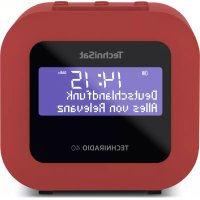
TechniRadio 40 - Radio TECHNISAT - Free user manual and instructions
Find the device manual for free TechniRadio 40 TECHNISAT in PDF.



Download the instructions for your Radio in PDF format for free! Find your manual TechniRadio 40 - TECHNISAT and take your electronic device back in hand. On this page are published all the documents necessary for the use of your device. TechniRadio 40 by TECHNISAT.
USER MANUAL TechniRadio 40 TECHNISAT
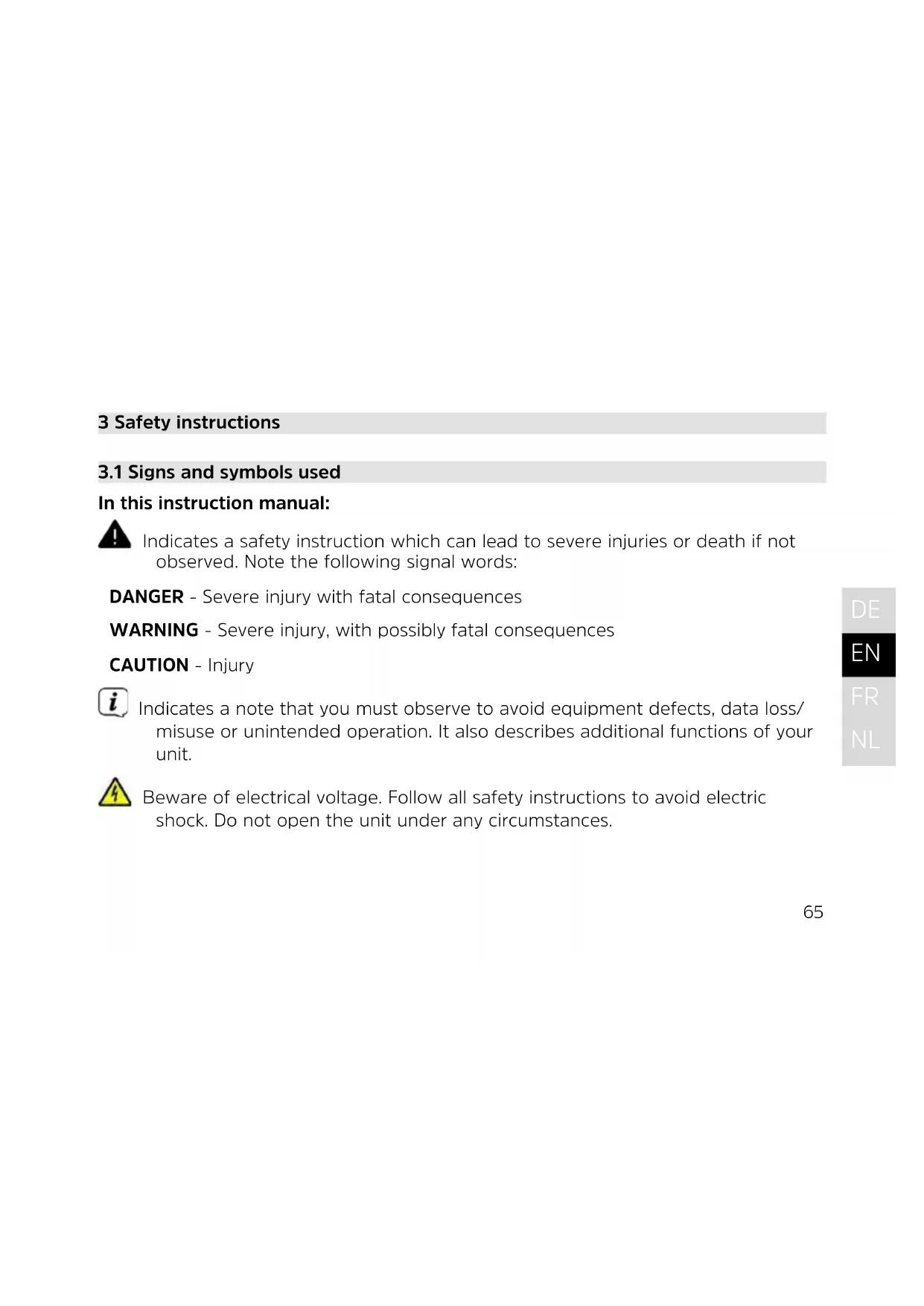
3 Safety instructions
3.1 Signs and symbols used
In this instruction manual: Indicates a safety instruction which can lead to severe injuries or death if not observed. Note the following signal words: DANGER - Severe injury with fatal consequences WARNING - Severe injury, with possibly fatal consequences CAUTION - Injury Indicates a note that you must observe to avoid equipment defects, data loss/ misuse or unintended operation. It also describes additional functions of your unit. Beware of electrical voltage. Follow all safety instructions to avoid electric shock. Do not open the unit under any circumstances.66 On the unit: Indoor use - units with this symbol are only suitable for indoor use. Protection class II - Electrical appliances in protection class II are electrical appliances that have continuous double and/or reinforced insulation and no connection options for a protective conductor. The housing of an insulation- enclosed electrical appliance of protection class II may partially or completely form the additional or reinforced insulation. Your unit bears the CE symbol and complies with all the requisite EU standards. Electronic appliances do not belong in household waste, but must be disposed of properly - in accordance with Directive 2002/96/EG of the European Parliament and Council dated 27 January 2003 on waste electrical and electronic equipment. Please return this unit to the designated public collection point for disposal at the end of its service life.67
The device is designed to receive radio broadcasts via DAB+ and FM. The device has been designed for private use and not for commercial purposes.
3.3 Target group for this instruction manual
The instruction manual is intended for anyone concerned with installing, operating, cleaning or disposing of the device.
3.4 Using the TECHNIRADIO 40 safely
Please take note of the following information to minimise safety risks, to prevent damage to the device, and to make a contribution to environmental protection. Please read all safety instructions carefully and keep them for future reference. Always follow all the warnings and instructions in this instruction manual and on the back of the unit. WARNING! Do not open the unit under any circumstances. Touching live parts endangers life!68 Observe all of the following instructions for the intended use of the unit and to prevent defects and personal injury. - Do not repair the device yourself. Repairs to be carried out only by trained specialist personnel. Contact our customer service department. - The device must only be operated under the stated environmental conditions. - Do not expose the device to dripping or splashing water. If water has penetrated the device, disconnect it from the mains and inform Service - Do not expose the device to heat sources which could heat it up more than normal use will. - If you detect a device defect, odour or smoke, a major malfunction, or damage to the housing, inform Service immediately.69
- The device must only be operated at the mains voltage printed on the power supply unit. Never try to operate the device at any another voltage. - If the device shows signs of damage, it must not be put into operation. - Do not put the device into operation in the vicinity of bath tubs, showers, swimming pools or running/splashing water. There is a risk of electric shock and/or device defects. - Foreign bodies, e.g. nails, coins, etc. must not be allowed to fall inside the device. Do not touch the connection contacts with metal objects or your fingers. This could lead to short-circuits. - This device is not intended to be used by people (including children) with limited physical, sensoryormentalcapacities or lackof experienceand/or knowledge,unless they are supervised by a person responsible for their safety or they have been instructed by them as to how to use the device. Never allow children to use the device unsupervised. - Modifications to the device are prohibited.70 4 Legal notices TechniSat herewith declares that the radio system model TECHNIRADIO 40 corresponds to Directive2014/53/EU. The complete text of the EU Declaration of Conformity is available at the following web address: hp://konf.tsat.de/?ID=22681 TechniSat is not liable for product damage due to external influences, wear and tear or improper handling, unauthorised repair, modifications or accidents. Subject to alterations and printing errors. Version 10/20. Duplication and reproduction only with the publisher's approval. The respective current version of the instructions can be downloaded in PDF format from the download area of the TechniSat Homepage at www.technisat.de.71
TECHNIRADIO 40 and TechniSat are registered trademarks of: TechniSat Digital GmbH TechniPark Julius-Saxler-Strasse 3 D-54550 Daun/Vulkaneifel, Germany Www.technisat.de Names of companies, institutions or brands mentioned are trademarks or registered trademarks of their respective owners.
4.1 Service instructions
This product is quality-tested and provided with the legally-specified warranty period of 24 months from the date of purchase. Please keep your receipt as proof of purchase. In the event of warranty claims, please contact the product dealer.72 Note! For questions and information or if there is a problem with this unit, our Technical Hotline is available: Mon. - Fri. 8:00 am - 6:00 pm at tel.: +49 (0) 3925 9220 1800. Repairs can also be requested directly online at www.technisat.de/reparatur. If you need to return the unit, please use the following address only: TechniSat Digital GmbH Service-Center Nordstr. 4a 39418 Stassfurt, Germany73
5 Seing up the device > Place the device on a firm, secure and horizontal surface. Make sure the area is well ventilated. Note: - Do not place the radio on so surfaces such as carpets and blankets, or near to curtains and wall hangings. These could obstruct the ventilation openings. The necessary flow of air could be interrupted as a result. This could potentially lead to fire in the device. - Do not place the radio near to sources of heat, such as radiators. Avoid direct sunlight and very dusty environments. - Do not select a location for the device with high air humidity, e.g. a kitchen or sauna, since condensation could damage the device. The device is intended for use in a dry environment and in a moderate climate and must not be exposed to dripping or splashing water.74 - Please note that the device feet could leave coloured marks on some types of furniture surfaces in certain situations. Place a protective layer between your furniture and the device. - Keep the TECHNIRADIO 40 away from devices that emit intense magnetic fields. - Do not place any heavy objects on the device. - Route the mains cable in such a way that nobody can trip over it. Ensure that the mains cable or the power supply unit are always easily accessible, so that the device can be quickly disconnected from the power supply! > To ensure a connection to the mains, insert the plug fully into the socket. > Use a suitable, easy-to-access mains connection and avoid using multiple socket strips! > In the event of malfunctions or if you detect smoke or odour coming from the housing, remove the plug from the power outlet immediately! > Remove the plug if the device is not going to be used for a prolonged period, e.g. before going away on a long trip.75
Before start-up, please check whether everything has been delivered: 1 x TECHNIRADIO 40 1 x power supply unit 1 x instruction manual
6.2 Special features of the TECHNIRADIO 40
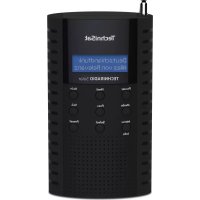
The TECHNIRADIO 40 is comprised of a DAB+/FM receiver with the following functions: - You can store up to 10 DAB+ and 10 FM stations. - The radio can receive the following frequencies: FM 87.5 - 108 MHz (analogue) and DAB+ Band III 174 - 240 MHz (digital antenna). - The device has a time and date display. - Sleep timer and alarm function - External devices can be charged via the USB port (5 V, 1 A).76
The number and quality of the stations to be received depend on the reception conditions at the installation location. Excellent reception can be achieved using the telescopic antenna. > Release the telescopic antenna (1) from its holder, align it and extend it. The exact alignment of the telescopic antenna is oen important, in particular at the fringes of the DAB+ reception area. On the Internet you can quickly find the location of the nearest transmission tower by visiting “www.dabplus.de”. Start the first scan at a window pointing in the direction of the transmission mast. If the weather conditions are poor, DAB+ reception may be limited. Do not touch the telescopic antenna during station playback. This could reduce the reception and lead to sound drop-outs.77
Ensure that the operating voltage of the power supply unit matches the mains voltage before you insert it into the wall socket. WARNING! Do not touch the mains plug with wet hands; electric shock hazard! CAUTION! Route the mains cable in such a way that nobody can trip over it. > Connect the power supply unit to the port marked DC IN (3) on the back of the TECHNIRADIO 40. Then connect the power supply to the mains.78
6.4 General device functionality
6.4.1 Switching on the device
> First prepare the TECHNIRADIO 40 for operation in accordance with the descriptions in Sections 6.3.1 and 6.3.2. > Switch on the TECHNIRADIO 40 by pressing On/Standby/Mode buon (4). Aer switching on for the first time, you need to select the operating language using the Next/Prev. (6, 7) buons, and push the Snooze/Select (10) buon to accept the language. This will then be followed by a full station scan via DAB+. Aer the scan is complete, the first station is played back in alphanumeric order.79
> Keep the On/Standby/Mode buon (4) depressed to switch the device to standby mode. [Standby] appears briefly on the display. The date and time are shown on the display. The display brightness in standby mode can be adjusted as described in Section 11.2.
6.4.3 Selecting the source
> Using the On/Standby/Mode buon (4), it is possible to switch between the DAB+ (digital radio) and FM sources. Briefly press the buon repeatedly to do so.
6.4.4 Seing the volume
> Adjust the volume using the VOL +/- buons (8, 9). The set volume is shown on the display by a bar chart. When the volume is completely turned down (Mute), the device will switch to standby mode aer approx. 15 minutes.80
Depending on the selected function or option, the display will show the following information: source Station name Active alarm /Sleep timer Title name/ Additional info/Menu entries Time Volume
6.4.5.1 Retrieving visual displays
> Press the Menu/Info (5) buon several times. You have the choice of viewing the following information on the display:81
In DAB+ mode: [Running text] (continuous text with additional information sometimes provided by broadcasters), [Titles], [Signal quality], [Channel type], [Ensemble], [Frequency], [Signal error], [Bit rate and Codec] and [Time/ Date]. In FM mode: [Radio text] (where broadcast), [Channel type] (PTY), [Name] and [Time/ Date]. 7 Menu navigation You can access all of the TECHNIRADIO 40 functions and seings via the menu. Menu navigation is carried out using the Menu/Info (5), Next/Prev. (6, 7) and Snooze/ Select (10) buons. The menu is divided into submenus and, depending on the selected source, contains dierent menu items or functions that can be enabled. To open the menu, simply hold down the Menu/Info buon. To change to submenus, first of all push the Next/Prev. buons to display a submenu, then push the Snooze/ Select buon to retrieve the submenu. An asterisk (*) highlights the current selection.82 Closing a menu: Push the Menu/Info buon several times (depending on which submenu you are in) until the current radio channel is displayed again. Seings are not saved until the Snooze/Select buon is pushed. If the Menu/ Info buon is pushed instead, seings are not accepted or saved (the Menu/ Info buon in this case acts as a “Back” buon and you exit the menu). The functions and buons to be pressed are shown in bold in this instruction manual. Displays in [square brackets]. Some text (e.g. menu items, station information) may be too long to show on the display. These will be then shown as running text shortly thereaer.83
DAB+ is a new digital format through which crystal clear sound with no noise can be heard. In contrast to conventional analogue radio stations, DAB+ can be used to broadcast multiple stations on one and the same frequency. This is referred to as an ensemble or multiplex. An ensemble is comprised of the radio station, as well as several service components or data services which are broadcast individually by the radio stations. For further information, etc. please visit www.dabplus.de or www.dabplus.ch.
8.2 DAB+ (digital radio) reception
> Press the On/Standby/Mode buon until [DAB] is shown on the display. If DAB+ is being started for the first time, a full station scan is performed. Aer the scan is complete, the first station is played back in alphanumeric order.84
8.2.1 Performing a full scan
The automatic scan Full Scan scans all DAB+ Band III stations and thereby finds all stations being broadcast within the reception range. Aer the scan is complete, the first station is played back in alphanumeric order. > Open Menu > [Full Scan] and press the Snooze/Select buon.
[Scanning...] appears on the display. During the scan a progress bar and the number of stations found is displayed. If no station is detected, check the telescopic antenna alignment and, if required, change the installation location (Section 6.3.1).85
8.2.2 Selecting the station
> By pressing the Next or Prev. buon, the station list can be called up and you can switch between the available stations. The station is played aer a short time.
8.2.3 Saving DAB+ stations to a favourites memory slot
The favourites memory can store up to 10 stations in the DAB+ range. > First select the desired station (see section 8.2.2). > Open the Menu > [Save Favourite] and press the Snooze/Select buon to save this station to a favourite memory slot. > Then use the Next/Prev. buons to select a favourite memory (1 - 10). Press the Snooze/Select buon to save. > Repeat this process to save additional stations.
8.2.4 Retrieving DAB+ stations from a memory slot
> In order to retrieve a station that you have saved in the FAV memory, open Menu > [Station retrieving] and press the Snooze/Select buon.86 > Use the Next/Prev. buons to select a favourite memory (1 - 10). Press the Snooze/Select buon to play the station. A “P” with the station location number appears on the display on the right next to the station name. If no station is saved in the selected station slot, [(empty)] appears on the display.
8.2.5 Overwriting/deleting a station memory slot
> Simply save a new station in a favourite memory slot as described. When retrieving the factory seings all memory slots are deleted.
8.2.6 Signal strength
> Press the INFO buon repeatedly until the signal strength bar is displayed. > The display shows the signal strength using a bar graph. The mark shows the minimum signal strength.87
Stations with a signal strength below the required minimum signal intensity are not transmiing a strong enough signal. Align the telescopic antenna as described in Section 6.3.1 if required.
This menu item is used to check the reception channels and can be used to align the antenna. Furthermore, stations can be added manually. > Keep the Menu/Info buon depressed and use the Next/Prev. buons to select the > [Manual Seing] item and press the Snooze/Select buon. > Use the Next/Prev. and Snooze/Select buons to select a channel (5A to 13F). The signal intensity will now be shown in the display. If a DAB+ station is being received on a channel, the station ensemble name is displayed. The antenna can now be aligned to the maximum signal intensity. Stations with a signal strength below the required minimum signal intensity are not transmiing a strong enough signal. Align the telescopic antenna as described in Section 6.3.1 if required.88 If there are stations on the set frequency or channel that have not yet been stored in the station list, they will now also be saved.
8.2.8 Volume adjustment (DRC)
The Volume Adjustment menu item is used to set the compression rate, which compensates for dynamic fluctuations and the associated volume variations. > Keep the Menu/Info buon depressed and use the Next/Prev. buons to select the > [Volume Adjustment] item and press the Snooze/Select buon. > Select one of the following options with the Next/Prev. buons: DRC high - high compression DRC low - low compression DRC o - compression switched o. > Confirm the seing with Snooze/Select
8.2.9 Deleting inactive stations
This menu item is for removing old stations and those no longer being received from the station list.89
> Keep the Menu/Info buon depressed and use the Next/Prev. buons to select the > [Delete Inactive Stations] item and press the Snooze/Select buon. This is followed by the [Delete] prompt asking if the inactive stations are to be deleted. > With Next/Prev., select the [Yes] item and confirm by pressing the Snooze/ Select buon. 9 FM mode
9.1 Switching on FM radio mode
> Switch to FM mode by pressing the On/Standby/Mode buon.
[FM] is shown on the display. When you switch on the radio for the first time, the frequency 87.5 MHz is set. If you have already set or saved a station, the radio plays the last station set.90 In the case of RDS stations, the station name appears. Align the telescopic antenna to improve reception (Section 6.3.1).
9.2 FM reception with RDS information
RDS is a procedure for broadcasting additional information via FM stations. Broadcasters with RDS broadcast their station name or the programme type, for example. This is shown on the display. The device can show the RDS information RT (Radio text), PS (Station name), PTY (Channel type).
9.3 Automatic station scan
> Hold down the Next or Prev. buon to search automatically for the next station with sucient signal intensity. If a FM station with sucient signal strength is found, the scan stops and the station is played. If an RDS station is being received, the station name appears and, possibly, the radio text. Please use the manual station scan for seing weaker stations.91
9.4 Manual station scan
> Turn the Next or Prev. buons repeatedly to set the desired stations or frequency. The display shows the frequency in increments of 0.05 MHz.
In this menu item it is possible to set the sensitivity of the scan. > Keep the Menu/Info buon depressed and use the Next/Prev. buons to select the > [Scan Seings] item and press the Snooze/Select buon. > Select whether the scan should only stop for stations with a strong signal [Strong Stations Only] or for all stations (including stations with a weak signal) [All Stations]. With the All Stations seing, the scan stops automatically upon detecting each available station. This can result in weak stations being played with background noise. > Press the Snooze/Select buon to save.92
9.6 Saving UKW stations to a favourites memory slot
The favourites memory can store up to 10 stations in the FM range. > First, select the station you want to save, as described above. > Open the Menu > [Save Favourite] and press the Snooze/Select buon to save this station to a favourite memory slot. > Then use the Next/Prev. buons to select a favourite memory (1...10). Press the Snooze/Select buon to save. > Repeat this process to save additional stations.
9.7 Retrieving FM stations from a memory slot
> In order to retrieve a station that you have saved in the FAV memory, open Menu > [Station retrieving] and press the Snooze/Select buon. > Use the Next/Prev. buons to select a favourite memory (1...10). Press the Snooze/Select buon to play the station. A “P” with the station location number appears on the display on the right next to the station name.93
If no station is saved in the selected station slot, [(empty)] appears on the display.
9.8 Overwriting/deleting a station memory slot
> Simply save a new station in the respective memory slot as described. When retrieving the factory seings all memory slots are deleted.94 10 Other functions
The sleep timer automatically switches the TECHNIRADIO 40 to Standby aer the set time. > Keep the Menu/Info buon depressed and use the Next/Prev. buons to select the > [System] item and press the Snooze/Select buon. > Use the Next/Prev. buons to select the > [Sleep] item and press the Snooze/Select buon. > Use the Next/Prev. buons to select a period aer which the TECHNIRADIO 40 should switch o. You can choose between O, 10, 15, 30, 45 and 60 minutes. > Press the Snooze/Select buon to apply the seing. When the sleep timer is active, an “S” appears on the right of the display, next to station name, showing the time still available.95
The alarm switches on the TECHNIRADIO 40 at the set time.
10.2.1 Seing the alarm
> Keep the Menu/Info buon depressed and use the Next/Prev. buons to select the > [System] item and press the Snooze/Select buon. > Use the Next/Prev. buons to select the > [Alarm] item and press the Snooze/Select buon. The display now shows [Seing Alarm 1] (push VOL +/- to set Alarm 2). If an alarm has already been set, you can switch it [On] and [O] using the Next/ Prev. > Active: buons. If an alarm has not been set or if you want to edit an existing one, press the Snooze/Select buon. > The specific alarm parameters can then be set. Change the values using the Next/Prev. buons and save using the Snooze/ Select buon. You then move on to set the next value.96 Time > First you can enter the alarm time here. Select the hours first using the Next/Prev. buons and press the Snooze/ Select buon to accept them. Then enter the minutes. Again, accept this by pressing the Snooze/Select buon. Duration > Next enter the alarm duration. Use the Next/Prev. buons to select one of the following values 15, 30, 45, 60, 90 and 120 minutes and press the Snooze/ Select buon to accept. Source > Then enter the source. The options BUZZER, DAB and FM are available, which you select using the Next/Prev. buons. Press the Snooze/Select buon to accept the seing. If you have selected DAB or FM, you can then enter whether or not you want to be woken up by the last station listened to or by one from your Favourites list. Press the Snooze/Select buon to go to the next entry.97
Alarm repeat > Here you can select from Daily (every day of the week), Once, Weekdays (Mon - Fri) or Weekends (Sat and Sun). Press the Snooze/Select buon to apply the seing. If Repeat > [Once] has been selected, you must also enter the date as well as the time. Volume > You can then set the alarm volume using the Next/Prev. buons. Press the Snooze/Select buon to accept. Saving > Activate the alarm by selecting Alarm > [On]. Press the Snooze/Select buon to save the alarm. The time must be entered for the alarm to function properly. For more details, see Section 11.1.2. When an alarm is active, an alarm symbol appears on the display.98
10.2.2 Switching o the alarm aer being woken up
> Press the On/Standby/Mode buon to switch the alarm o. Alternatively you can also press any other buon. If you want to activate the snooze function, press the Snooze/Select buon when an alarm is active. The alarm signal is then silenced for 9 minutes and then re-starts. The number of times that you can use the snooze function depends on the set alarm duration. Press the buon several times to extend the time. 11 System seings All seings explained in this section apply equally to all sources. > Open the menu and select using the Next/Prev. > [System]. Press the Snooze/Select buon to open the system seings.99
11.1 Date and time seings
11.1.1 Manually seing the date/time
Depending on the seing for time updates (Section 11.1.2), the date and time might have to be set manually. > In the [System] submenu, select the [Time] item. > Press Snooze/Select. > Use the Next/Prev. buons to select Entry [Seing Time/Date] and press Snooze/Select. > The first digits (hours) of the time flash and can be changed using the Next/ Prev. buons. > Press the Snooze/Select buon to apply the seing. > The next time digits (minutes) then start to flash and can again be changed as described above. > Press the Snooze/Select buon aer seing in order to go to the next seing. > Proceed with the time seing in the same way as described above.100 > Aer all seings have been made and the Snooze/Select buon has been pressed for the last time, [Time Saved] appears on the display.
Here you can specify whether synchronisation is to be carried out automatically via DAB+ or FM, or whether you wish to enter the time manually (Section 11.1.1). > In the [System] submenu, select the [Time] item. > Press Snooze/Select. > Use the Next/Prev. buons to select Entry [Time update] and press Snooze/ Select. > Use the Next/Prev. buons to select the following options: [All Sources] (update via DAB+ and FM) [Update from DAB] (update only via DAB+) [Update from FM] (update only via FM) [No Update] (Time/Date must be entered manually, see Section 11.1.1). > Press the Snooze/Select buon to save the seing.101
In the Set 12 / 24 hrs. submenu you can activate the 12-hour or 24-hour format. > In the [System] submenu, select the [Time] item. > Press Snooze/Select. > Use the Next/Prev. buons to select the [Set 12 / 24 hrs.] item and press Snooze/Select. > Use the Next/Prev. buons to select the following options: [Set 24 hrs.] [Set 12 hrs.] > Press the Snooze/Select buon to save.
11.1.4 Seing the date format
The date display can be configured under Set Date Format. > In the [System] submenu, select the [Time] item. > Press Snooze/Select.102 > Use the Next/Prev. buons to select Entry [Seing Date Format] and press Snooze/Select. > Use the Next/Prev. buons to select the following options: [DD-MM-YYYY] (day, month, year), [MM-DD-YYYY] (month, day, year). > Press the Snooze/Select buon to save.
It is possible to set the display brightness both for operation as well as standby mode. > In the [System] submenu, select the [Backlight] item. > Press Snooze/Select. > Use the Next/Prev. buons to select one of the following options and press the Snooze/Select buon.103
[Operation] regulates brightness in the normal operating status. You can choose from [High], [Medium] and [Low] brightness intensities. Select the brightness level with Next/Prev. and press the Snooze/Select buon to save the seing. [Standby] regulates the brightness in standby mode. You can choose from [High], [Medium] and [Low] brightness intensities. Select a brightness level with Next/Prev. and press the Snooze/Select buon to save the seing. [Auto Dim] automatically dims the display to the Low brightness level (when the option [On] is selected) when the radio is not operating. Here you can set a time period aer which the display is to be dimmed. Press Snooze/Select to save the seing.
> Select the entry [Language] in the [System] sub-menu and press Snooze/ Select. > Using the Next/Prev. buons, select one of the available languages and confirm the selection by pressing the Snooze/Select buon.104
If you change the location of the device, e.g. when moving house, it is possible that the saved stations can no longer be received. In this case you can reset the device to Factory Seings to delete all the saved stations and then launch a new scan. > Select the entry [Factory seings] in the [System] sub-menu and press Snooze/Select. > Use the Next/Prev. buons to select the [Yes] entry to reset to the factory seings and press Snooze/Select. All previously stored stations and seings will now be deleted. The device is now in the same status as when delivered. > The display will show [Restart ...] and the device will start with the language selection [Language].105
Under SW version you can retrieve the currently installed soware version. > Select the entry [SW Info] in the [System] sub-menu and press Snooze/ Select. > The current soware version is displayed. 12 Cleaning To prevent the risk of electric shock, you must not clean the device using a wet cloth or under running water. Prior to cleaning, pull out the mains plug and switch o the device! You must not use scouring pads, scouring powder and solvents such as alcohol or petrol. Do not use any of the following substances: Salt water, insecticides, solvents containing chlorine or acids (ammonium chloride). Clean the housing using a so, damp cloth. Do not use spirit, thinners, etc.; you could damage the surface of the device.106 Only clean the display with a so coon cloth. If required, use a coon cloth with small amounts of non-alkaline, diluted, water-based or alcohol-based soap solution. Gently clean the surface using the coon cloth. 13 Troubleshooting If the device does not operate as intended, check the following table for information. Symptom Possible cause/remedy The device cannot be switched on. The device is not being supplied with power. Connect the power supply unit correctly to the socket and to the device. No sound can be heard. Increase the volume. The display does not switch on. Disconnect the device from the power supply and then reconnect it. Poor reception via DAB+/FM. Fully extend the antenna. Change the position of the antenna or the TECHNIRADIO 40.107
Symptom Possible cause/remedy The device cannot be operated. Disconnect the device from the power supply and then reconnect it. Device automatically switches to standby The auto standby function automatically switches the device to standby aer approx. 15 minutes if there is no playback or if the volume is turned down. If the malfunction has not been resolved, even aer performing the checks described, please contact the Technical Hotline.108 14 Technical specifications / manufacturer's instructions Subject to technical changes and errors. Reception channels DAB/DAB+, FM Power supply, power supply unit DC: 5 V, 1.5 A via supplied external power cable Frequencies FM: 87.5 - 108 MHz DAB/DAB+: Band III 174 - 240 MHz Music output 1.2 W RMS Power consumption In use: 4.5 W In Standby: 0.7 W Consumption minimisation (automatic shutdown aer 15 minutes on standby) If no signal is being played: DAB If the volume is turned down: DAB, FM Environmental conditions In use: 5 ºC - 35 ºC Rel. humidity: 5 - 90 % Dimensions (W x H x D) mm 110 x 110 x 90109