DR 855 - Radio ALBRECHT - Free user manual and instructions
Find the device manual for free DR 855 ALBRECHT in PDF.



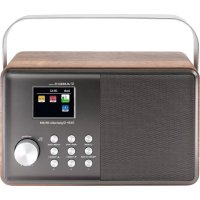
| Product Type | DAB/DAB+ / FM Digital Radio with Bluetooth function |
| Brand | Albrecht |
| Model | DR 855 |
| Display | 2.4 inch TFT color screen (6.10 cm) |
| Dimensions | 250 mm (W) x 150 mm (H) x 80 mm (D) |
| Weight | 750 g |
| Power Supply | AC adapter 100-240 V AC, 50/60 Hz, output 5 V / 2400 mA; built-in rechargeable battery 3.7 V / 4000 mAh (optional) |
| Connectivity | Bluetooth (range approx. 8 m), AUX 3.5 mm input, headphone 3.5 mm output |
| Frequency Ranges | FM: 87.5 – 108.0 MHz (RDS); DAB/DAB+: 174 – 240 MHz (Band III) |
| Speaker | 4 W RMS |
| Preset Memory | 10 favorites per mode (DAB and FM) + 3 direct keys |
| Main Functions | DAB+/FM radio, Bluetooth, Auxiliary mode (AUX IN), dual alarm, sleep timer, equalizer (Normal, Classic, Pop, Jazz, Rock, Flat, Movie, News), automatic and manual scan, DRC (dynamic range compression) |
| Maintenance and Cleaning | Unplug before cleaning; use a soft dry cloth; avoid abrasive products and solvents |
| Safety | Protection against moisture; do not expose to extreme temperatures; only use the supplied adapter; do not open the device (no user-serviceable parts); excessive volume may damage hearing |
| Spare Parts and Repairability | No user-replaceable parts; refer any repairs to qualified technician; 2-year warranty (excluding wear parts like battery, antenna) |
| Operating Temperature | 0°C to 35°C |
| Box Contents | DR855 radio, AC adapter, 3.5 mm audio cable, user guide |
| Menu Languages | English, German, French, Italian |
Frequently Asked Questions - DR 855 ALBRECHT
User questions about DR 855 ALBRECHT
0 question about this device. Answer the ones you know or ask your own.
Ask a new question about this device
Download the instructions for your Radio in PDF format for free! Find your manual DR 855 - ALBRECHT and take your electronic device back in hand. On this page are published all the documents necessary for the use of your device. DR 855 by ALBRECHT.
USER MANUAL DR 855 ALBRECHT
natural_image
Technical line drawing of a mechanical component with a central cylindrical feature and two side ports (no text or symbols)text_image
DAB 11:45 AMtext_image
DAB 11:45 AM 12 M Music D Metro Music Digitaltext_image
Scan Scanning Stations: 17 80%7.2. Senderliste
text_image
FM 11:45 AM 87.50MHz FM Radiotext_image
Aux In 11:45 AM 20/03/2015text_image
BT 11:45 AM 20/03/2015 Disconnected11. Fehlerbehebung
- Safety Warnings 17
- Buttons and Controls.... 18
- Delivery content.... 19
- Getting Started 19
4.1. Built in Rechargeable Battery (optional).... 19
4.2.Antenna 19 - Main Menu.... 20
5.1. Equalizer.... 20
5.2. Backlight 20
5.3. Setting Time/Date 20
5.4. Alarms.... 21
5.5. Sleep Timer 21
5.6. Factory Reset 21
5.7. Info.... 22
5.8. Language.... 22 - Operation Modes 22
- DAB+ Radio Operation.... 22
7.1. Scanning for DAB+ stations 22
7.2. Station List.... 23
7.3. Manual Tune 23
7.4. Prune Invaild 23
7.5.DRC: 23
7.6. Station Order 23
7.7. Preset the DAB+ stations 23
7.8. Recall the preset DAB+ stations 23
7.9. DAB+ information Display 23 - FM Radio Operation 24
8.1. Scanning for FM stations.... 24
8.2.FM station settings 24
8.3. Save FM preset stations.... 24
8.4. Recall the preset DAB+ stations.... 24 - Aux In Operation.... 25
- Bluetooth Operation.... 25
- Troubleshooting 26
- Specifications 27
- Warranty and Recycling Information 27
- CE Declaration of Conformity - Standards and Regulations 28
- Service Address And Technical Hotline (for units sold in Germany) 28
1. Safety Warnings
- Always protect the device against moisture and humidity. Do not put this device in water or other liquids! If you spill any liquid into the device, it can cause serious damage. Switch it off at the mains immediately. Withdraw the mains plug and consult your dealer.
- Using the device in rooms or climates with high humidity and temperatures may cause condensation to form inside the device. Condensation may damage the device.
• Using the device in a dusty condition may cause damages to the interior electronic components, which may lead to malfunctions in the device.
• The device must be placed on a flat stable surface and should not be subjected to vibrations. - To reduce the risk of electric shock, do not remove screws. The device does not contain any user-serviceable parts. Please leave all maintenance work to qualified personnel.
- Only use the power adaptor delivered with the device.
- Avoid extreme degrees of temperature, either hot or cold. Place the device well away from heat sources such as radiators or gas/ electric fires.
• The mains socket must be located near the device and should be easily accessible. - Never touch the plug or the device itself with wet hands. Never pull the power cable when disconnecting the power adaptor from power supply.
- Ensure that the available supply voltage agrees with the required operational voltage of the device before use.
- If the device is not in use for a long period of time (e.g. holidays), disconnect it from the power supply.
- In case of using the headphones, be reminded that excessive sound pressure or volumes from headphones or earphones can lead to damage to the hearing. Always
adjust the volume to a pleasant, not too loud level. If you have adjusted the volume of the headphones to be too high and use that for an extended period, it can damage the listener's hearing.
- Ensure to unplug the device from the mains socket before cleaning.
- Batteries (battery pack or batteries installed) shall not be exposed to excessive heat such as sunshine, fire or the like.
- Remove dead batteries from equipment and all batteries from equipment you know you are not going to use for a long time. Otherwise the batteries may leak and cause damage.
- Never dispose of batteries in fire as this can cause them to explode. Please recycle dead batteries; do not put with the normal household waste.
- Do not use any type of abrasive pad or abrasive cleaning solutions as these may damage the device's surface.
- Before using the device, please familiarize yourself with all of the safety information and instructions for use. When passing this device on to others, please also include all the documents.
2. Buttons and Controls
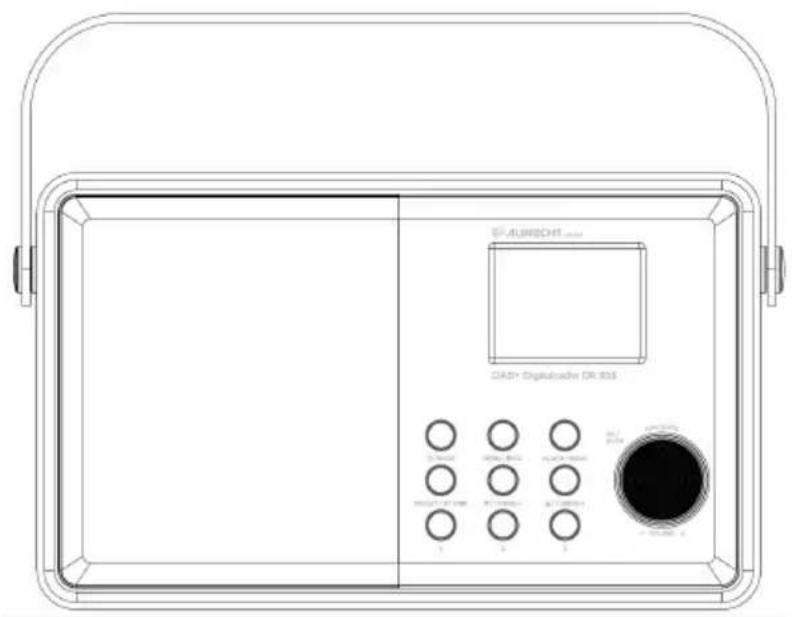
text_image
GAS+ Digital/radar DR 803 ALISRECH 1 2 3 4 5 6 7 8 9 10 11 12 13 14 15 16 17 18 19 20 21 22 23 24 25 26 27 28 29 30 31 32 33 34 35 36 37 38 39 40 41 42 43 44 45 46 47 48 49 50 51 52 53 54 55 56 57 58 59 60 61 62 63 64 65 66 67 68 69 70 71 72 73 74 75 76 77 78 79 80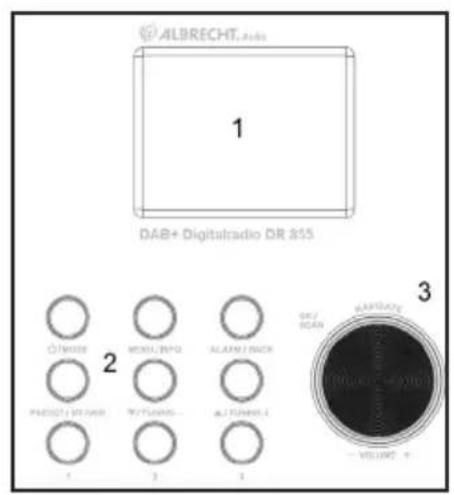
text_image
ALBRECHT.Abs 1 DAB+ Digitalradio DR 855 2 ON/OSS MODI/INPUT ALARM/BACK PREDICT/W/DAIR RUTUMANS... ALTUMANS: 3 OK/ SCAN LAVELANCE VOLUME: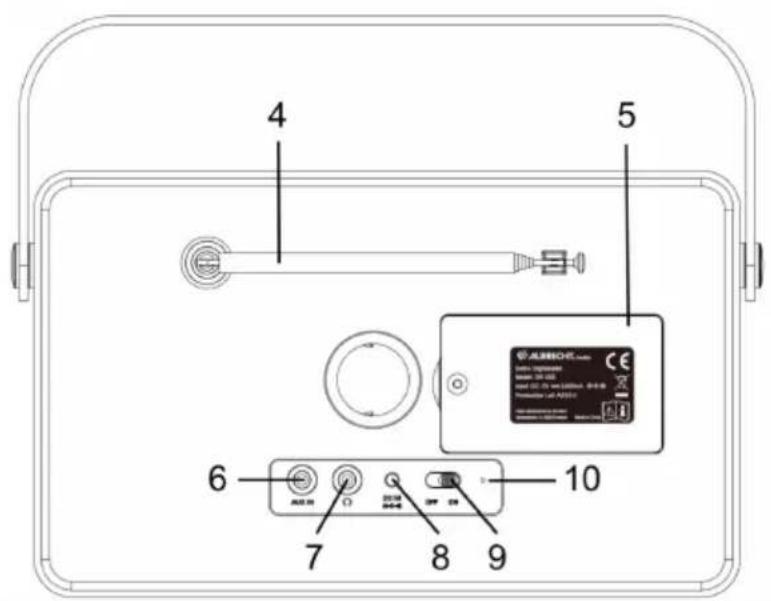
text_image
4 5 6 7 8 9 10 ASHOC
natural_image
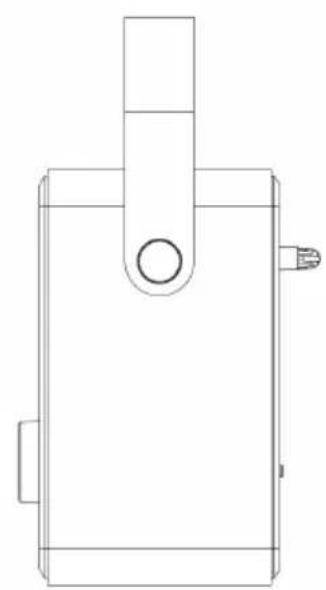
Technical line drawing of a mechanical component with a central cylindrical feature and two protruding ports (no text or symbols)No. Description
Functions
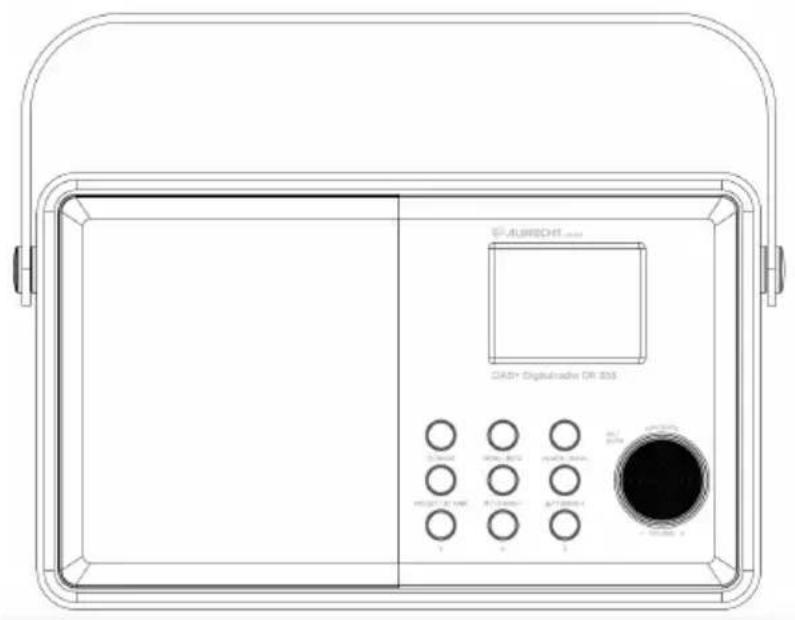
1 2.4" TFT Screen Display
2 Buttons Basic control of operation
3 Control Knob Volume and NAVIGATE control
4 Antenna Reception of DAB+/FM signal
5 Battery compartment Compartment for (optional) rechargeable battery
6 AUX In 3.5mm socket for AUX IN
7 Earphone out 3.5mm socket for earphones connection
8 DC IN Power supply
9 On/Off button Switch power on/off
10 LED light Indicate battery charging status
3. Delivery content
The packaging contains the following items:
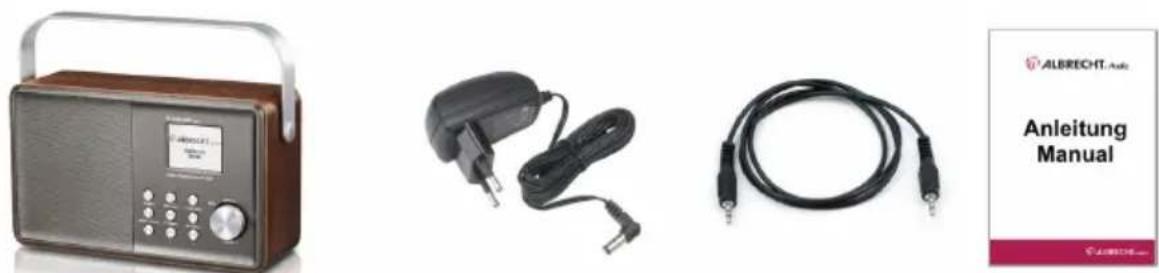
Albrecht DR855 DAB+ Radio
Power adaptor
3.5mm audio cable
User Manual
Connect the DC cable of the power adaptor to the DC IN socket at the back of the device and plug the power adaptor to the mains socket. Slide the ON/OFF button to „ON“ to switch on the device.
During standby mode, press and hold STANDBY/MODE button to turn the device to operation mode. If it is the first time to enter DAB mode, the device will automatically scan the DAB/DAB+ stations.
Rotate the -VOLUME+ control to increase or decrease the volume during playing.
At any operation mode, press BACK button to go to the previous screen until back to its playing mode.
4.1. Built in Rechargeable Battery (optional)
The LED near the ON/OFF switch is to indicate the charging status of the built in battery. When the device is ON or the battery is fully charged, the LED light is green. If battery is under charging, the LED light is red.
The icon on the top right corner of the display shows the level of the battery power. The icon is shown when the battery power is low.
4.2. Antenna
The antenna has already been installed on the device. To get good reception for DAB/FM broadcasting, always extend the antenna to its full length.
5. Main Menu
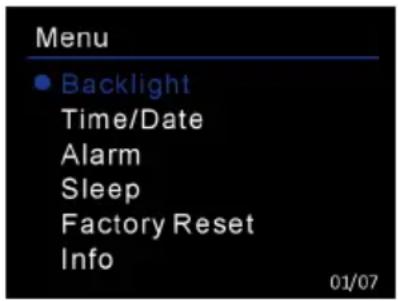
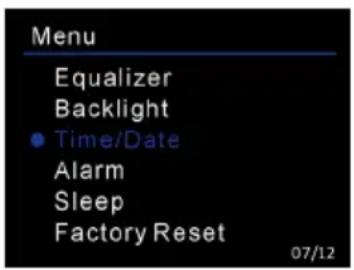
At any operation mode, press and hold the MENU/INFO button to enter the main menu. Rotate the NAVIGATE control to select the submenu and then press OK to confirm.
5.1. Equalizer
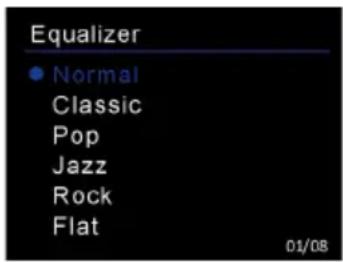
Choose Equalizer from the main menu. You can choose between the following presets: Normal, Classic, Pop, Jazz, Rock, Flat, Movie or News.
text_image
Equalizer • Normal Classic Pop Jazz Rock Flat 01/085.2. Backlight
text_image
Menu • Backlight Time/Date Alarm Sleep Factory Reset Info 01/07Select the illumination Level of the backlight (High/Medium/Low) and the duration of Timeout (On/10/20/30/45/60/90/120/180 sec). By setting a time for the Timeout, the display will automatically dim down if no operation is done during the selected period of time.
5.3. Setting Time/Date
text_image
Menu Equalizer Backlight • Time/Date Alarm Sleep Factory Reset 07/12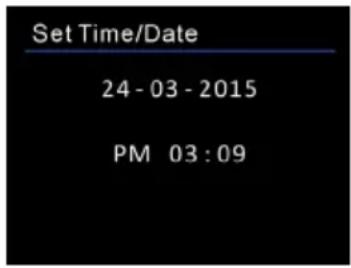
text_image
Set Time/Date 24 - 03 - 2015 PM 03 : 09Set Time/Date: The digits of the day will be flashing first waiting for the setting. Rotate the NAVIGATE control to adjust the day and press OK to confirm.
Repeat this operation to set the month, year and time.
Set Format: Change the display of time to 12-hour mode or 24-hour mode.
Auto update: Select to update time and date from DAB or FM.
The device will automatically be updated to the current time when receiving signal from a DAB station or FM station with RDS. No Upate is also optional for selection.
5.4. Alarms
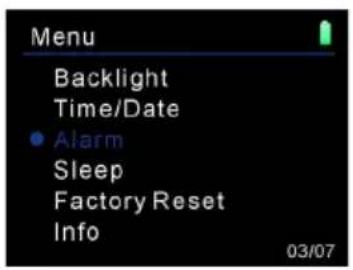
There are two alarms Alarm 1 and Alarm 2 available for individual setting.
text_image
Menu Backlight Time/Date • Alarm Sleep Factory Reset Info 03/07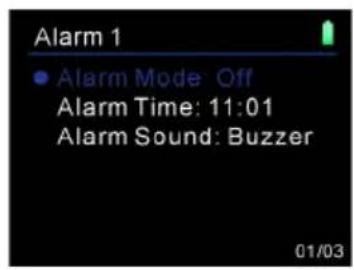
text_image
Alarm 1 • Alarm Mode Off Alarm Time: 11:01 Alarm Sound: Buzzer 01/03Alarm Mode: Select how often the alarm should be repeated. You can select between Daily/Once/Weekend/Weekday or turn OFF the alarm.
Alarm Time: Select a time at which the alarm should sound.
Alarm Sound: Select the alarm sound source (Buzzer/DAB/FM).
Alarm Volume : Select the volume at which the alarm should sound.
When the alarm is set and saved, a clock icon will appear at the bottom right of the display. The clock icon is also displayed on the screen in standby mode.
When alarm is ON, press and hold STANDBY/MODE button to stop the alarm. Or press the NAVIGATE control to enter snooze mode. The radio will alarm again after 5 minutes, a count down will appear on the display.
Alternatively turn the NAVIGATE control to change the snooze time to 5/10/15/30 minutes.
5.5. Sleep Timer
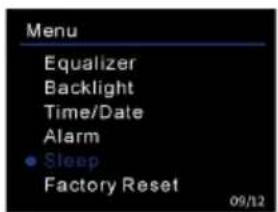
Select Sleep from the main menu to set a time after which the radio will switch to Standby mode automatically. This function is very helpful to listen to some radio before falling asleep.
Select the time (15/30/45/60/75/90/105/120 minutes) after which the radio should go to Standby mode. Select Off to deactivate the sleep timer.
text_image
Menu Equalizer Backlight Time/Date Alarm Sleep Factory Reset 09/12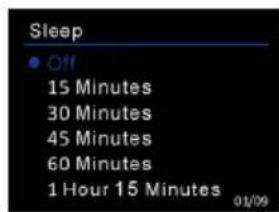
text_image
Sleep • Off 15 Minutes 30 Minutes 45 Minutes 60 Minutes 1 Hour 15 Minutes 01/095.6. Factory Reset
To reset the radio to the factory settings, select Factory Reset from the main menu. You have to confirm your selection with Yes/No for security reasons.
Attention: All your personal settings (alarm, favorites, etc.) will be deleted by this operation!
5.7. Info
Show the version of firmware of the system.
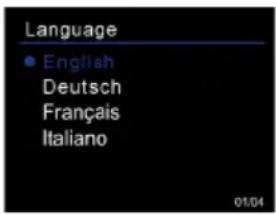
5.8. Language
text_image
Language • English Deutsch Français Italiano 01/04Rotate the NAVIGATE control to select desired language (English/ Deutsch/ Francais/ Italiano) and press OK to confirm.
6. Operation Modes
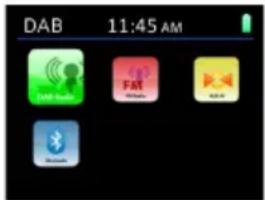
Press STANDBY/MODE button to go to the modes menu. You can select between the different operation modes (DAB, FM, AUX IN or Bluetooth).here.
text_image
DAB 11:45 AM7. DAB+ Radio Operation
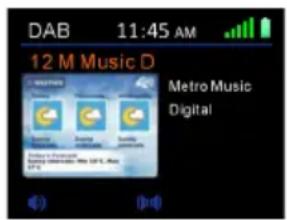
For best-possible reception, ensure that the DAB/FM Antenna is extended to its full length and adjusted perfectly. The icon on the top right corner of the display shows the strength of the DAB/DAB+ signal detected by the device.
text_image
DAB 11:45 AM 12 M Music D SECTED Metro Music Digital7.1. Scanning for DAB+ stations
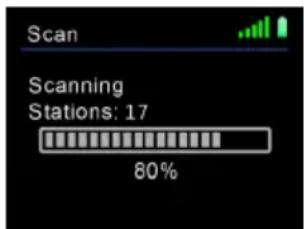
Select SCAN from the main menu to perform a full scan of all stations. Alternatively, you can hold down the knob for a long time. All available stations will be shown in the Station List after scanning.
text_image
Scan Scanning Stations: 17 80%7.2. Station List
Select Station List from the main menu to view the list of available DAB+ stations.
Alternatively you can press ▲/TUNING+ oder ▼/TUNING- to go to the station list directly.
7.3. Manual Tune
As well as the normal method of scanning described above, you can also tune manually to a particular channel/frequency. To manually tune, select MENU > Manual Tune, choose a particular channel/frequency and press OK to confirm
7.4. Prune Invaild
Use this function to remove stations from the station list that are not available anymore.
7.5. DRC:
If you are listening to music with a high dynamic range in a noisy environment, you may wish to compress the audio dynamic range. This makes quiet sounds louder, and loud sounds quieter. Rotate NAVIGATE control to select DRC (high/low/off) and press OK to confirm.
7.6. Station Order
The stations can be sorted by Alphanumeric, Ensemble or Valid order.
7.7. Preset the DAB+ stations
While listening to a DAB+ station, press and hold the MENU/INFO button to go to the main menu, then select Preset Store to save your station in the favorites. Select an empty slot or overwrite an existing favorite. You can save up to 10 favorites in DAB mode.
The Albrecht DR855 also offers 3 direct favorite buttons on the frontside of the radio to recall your most favorite stations quickly. Press and hold one of the 3 buttons for a few seconds to save the current DAB+ station to that button.
7.8. Recall the preset DAB+ stations
Press and hold the MENU/INFO button to go to the main menu, then select Preset Recall to recall the desired station.
The radio also offers 3 direct favorite buttons on the frontside of the radio to recall your most favorite stations quickly. Short press one of the 3 buttons to recall the saved station.
7.9. DAB+ information Display
During radio playback, press the MENU/INFO button repeatedly several times to toggle between the various DAB+ Information of the station (e.g., frequency, bitrate, signal strength, etc.).
If a logo or album cover is shown by the current station, you can press the OK knob to enlarge the logo to full screen. Press the button again to return to the playback screen.
8. FM Radio Operation
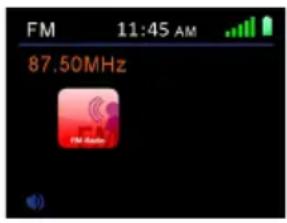
For best-possible reception, ensure that the DAB/FM Antenna is extended to its full length and adjusted perfectly. The icon on the top right corner of the display shows the strength of the FM signal detected by the device.
text_image
FM 11:45 AM 87.50MHz FM Player8.1. Scanning for FM stations
Use the ▲/TUNING+ oder ▼/TUNING- buttons to change the FM frequency by 0.05MHz per step. Alternatively press the OK/SCAN knob to automatically search for the next available FM station.
8.2. FM station settings
In FM mode, there are two options in the system menu.
Scan setting: set to receive the strong signal stations only. If the radio scans and receives many poor signal stations, set to Yes to get the strong signal stations only.
Audio setting: set to receive the FM signal in mono or stereo.
8.3. Save FM preset stations
While listening to a FM station, press and hold the MENU/INFO button to go to the main menu, then select Preset Store to save your station in the favorites. Select an empty slot or overwrite an existing favorite. You can save up to 10 favorites in FM mode.
The Albrecht DR855 also offers 3 direct favorite buttons on the frontside of the radio to recall your most favorite stations quickly. Press and hold one of the 3 buttons for a few seconds to save the current FM station to that button.
8.4. Recall the preset DAB+ stations
Press and hold the MENU/INFO button to go to the main menu, then select Preset Recall to recall the desired station.
The radio also offers 3 direct favorite buttons on the frontside of the radio to recall your most favorite stations quickly. Short press one of the 3 buttons to recall the saved station.
9. Aux In Operation
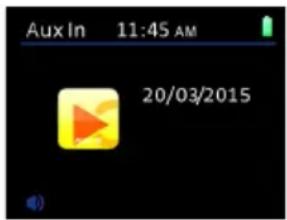
In AUX IN mode, you can play audio files from an external source such as your smartphone, MP3 player, etc. To play audio file in AUX IN mode, follow these steps:
- Turn the volume low on both the DR 855 and the audio source device (if adjustable there)
- Connect the external audio source to the 3.5mm AUX IN socket at the back of the device using the included audio cable
- Press the STANDBY/MODE button and select AUX IN from the main menu.
text_image
Aux In 11:45 AM 20/03/201510. Bluetooth Operation
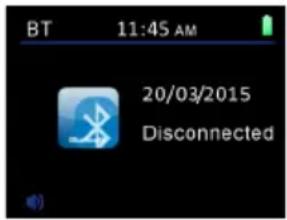
When you select the Bluetooth mode, the device is entering into pairing stage. Turn on your smartphone/tablet/other Bluetooth devices to search for the device. The Bluetooth pairing name of the device is "ALBRECHT DR 855". If pairing is successful, the screen will show "Connected" and is ready to start playing music from your device.
Once the radio has been paired to a Bluetooth device, it will automatically reconnect to it in the future.
Note : The device signal range in Bluetooth mode is about 8 meters.
text_image
BT 11:45 AM 20/03/2015 Disconnected11. Troubleshooting
| Error Remedy | |
| The device does not switch on or turns off suddenly. | 1. Check if the power adaptor is connected properly.2. The device may malfunction when used in areas with strong radio interference. The device will work properly again once interference ceases.3. The normal function of the product may be disturbed by strong Electro-Magnetic Interference. If so, simply reset the product to resume normal operation by following the procedures specified on instruction manual. If failure persists, try to use the product in other location. |
| No Power 1. Ensure that the power adaptor is plugged to the mains socket securely.2. Ensure that the battery has been charged. If battery power is low, charge the device by connecting the power adaptor. | |
| No Sound or lower sound 1. Turn up the volume as it may be muted.2. For AUX IN mode, check if the audio cable is connected properly and the volume of the audio source is set high enough. | |
| No signal or hiss in DAB/FM mode. 1. Check the antenna if properly installed or move the antenna to other position. Try to adjust the length of antenna.2. Move the device to other location. | |
| Cannot connect with the device via Bluetooth. | 1. The device is connected with other Bluetooth-enabled device. Disconnect that device and then try again. |
| Alarm doesn't work. 1. Switch on the alarm.2. The volume may not be properly set, refer to the solutions of “No sound or lower sound”.3. The source of alarm was set to a station without signal. Change the source of alarm or refer to “No signal or hiss in DAB/FM mode”. | |
12. Specifications
| Model number DR 855 | |
| Description DAB/DAB+/FM Radio with Bluetooth | |
| Display 2.4" TFT Color display | |
| FM 87.5 – 108.0 MHz, RDS supported | |
| DAB/DAB+ 174 – 240 MHz (Band III) | |
| Power adaptor Input : AC 100-240V, 50/60 Hz | |
| Output: 5V 2400mA | |
| Connections DC IN (power supply) | |
| AUX IN (3.5mm socket) | |
| EARPHONE (3.5mm socket) | |
| Rechargeable battery (Optional) 3,7V 4000mAh | |
| Speaker 4W RMS | |
| Operating temperature 0°C - 35°C | |
| Dimensions 250mm(L) x 150mm(H) x 80mm(D) | |
| Weight 750g | |
13. Warranty and Recycling Information
We are legally obliged to include disposal and warranty information as well as EU declaration of conformity with the use instructions in different countries for every unit. Please find this information on the following pages.
2-Year Warranty From Date Of Purchase
The manufacturer/retailer guarantees this product for two years from date of purchase. This warranty includes all malfunctions caused by defective components or incorrect functions within the warranty period excluding wear and tear, such as exhausted batteries, scratches on the display, defective casing, broken antenna and defects due to external effects such as corrosion, over voltage through improper external power supply or the use of unsuitable accessories. Defects due to unintended use are also excluded from the warranty.
Please contact your local dealer for warranty claims. The dealer will repair or exchange the product or forward it to an authorized service center.
You can also contact our service partner directly. Please include your proof of purchase with the product and describe the malfunction as clearly as possible.
WEEE and Recycling
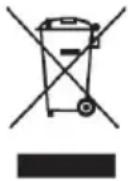
The European law does not allow any more the disposal of old or defective electric or electronic devices with the household waste. Return your product to a municipal collection point for recycling to dispose of it. This system is financed by the industry and ensures environmentally responsible disposal and the recycling of valuable raw materials.
Notes for battery disposal
The battery used with this product contains chemicals that are harmful to the environment. To preserve our environment, dispose of used battery according to your local laws or regulations. Do not dispose of battery with normal household waste.
For more information, please contact the local authority or your retailer where you purchased the product.
14. CE Declaration of Conformity - Standards and Regulations

Hereby, Alan Electronics GmbH declares that the radio equipment type DR855 is in compliance with Directive 2014/53/EU. The full text of the EU declaration of conformity is available at the following internet address: www.service.alan-electronics.de/CE-Papiere
15. Service Address And Technical Hotline (for units sold in Germany)
Contact our service hotline by phone +49 6103 / 9481 - 66
or e-mail to service@alan-electronics.de
Printing errors reserved.
Information in this user manual are subject to change without prior notice.
2. Identification of Parts and Controls
text_image
GAS+ Digitalrader OR 835 ALBISCHI Control buttons Control buttons Control buttons Control buttons Control buttons Control buttons Control buttons Control buttons Control buttons Control buttons Control buttons Control buttons Control buttons Control buttons Control buttons Control buttons Control buttons Control buttons Control buttons Control buttons Control buttons Control buttons Control buttons Control buttons Control buttons Control buttons Control buttons Control buttons Control buttons Control buttons Control buttons Control buttons Control buttons Control buttons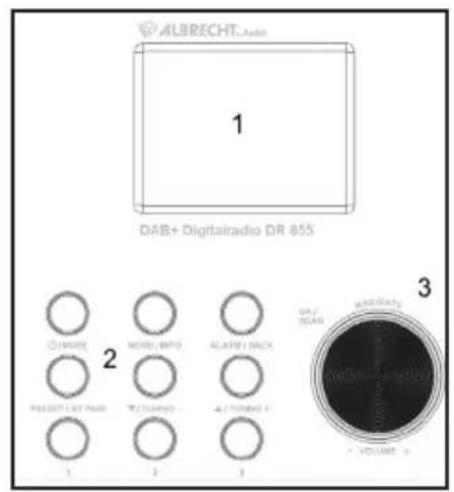
text_image
ALBRECHT Audio 1 DAB+ Digitalradio DR 855 2 3 O'MODE MOUNTED ACADEL BACK PRESPECTED PAIR RICHMOND - ALL TURSD 1 2 3 GTY/VEAN VOLUME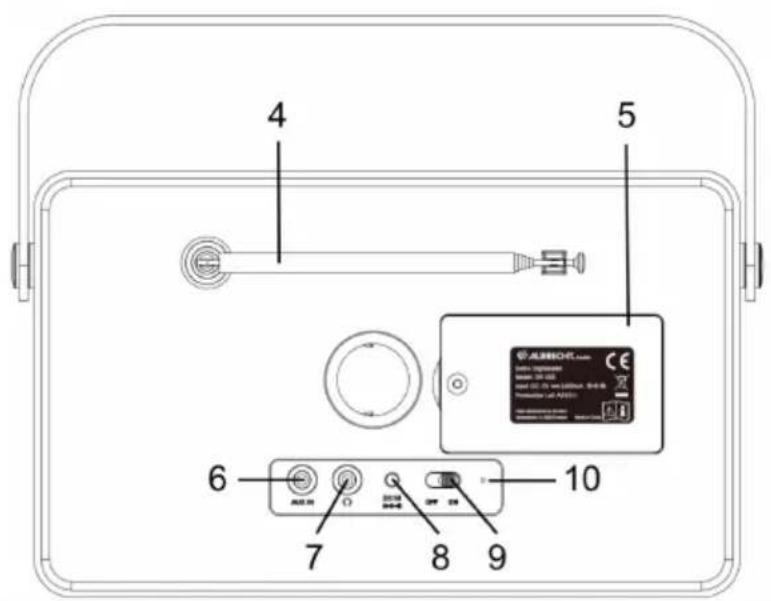
text_image
4 5 6 7 8 9 10 ASHOC