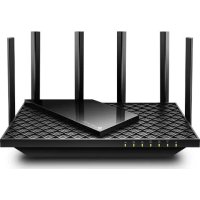
USER MANUAL Archer AXE75 TP-LINK
Quick Installation Guide
Wireless Router

For technical support, the user guide and more information, please visit https://www.tp-link.com/support.
2024 TP-Link 7106511841 REV2.2 Image may differ from your actual product.
CONTENTS
01 / Deutsch 05 / English 09 / Español 13 / Ελληνικά 17 / Français 21 / Italiano 25 / Português 29 / Suomi 33 / Nederlands 37 / Svenska 41 / Norsk 45 / Dansk
Deutsch
Hardware installation
Connect the Hardware
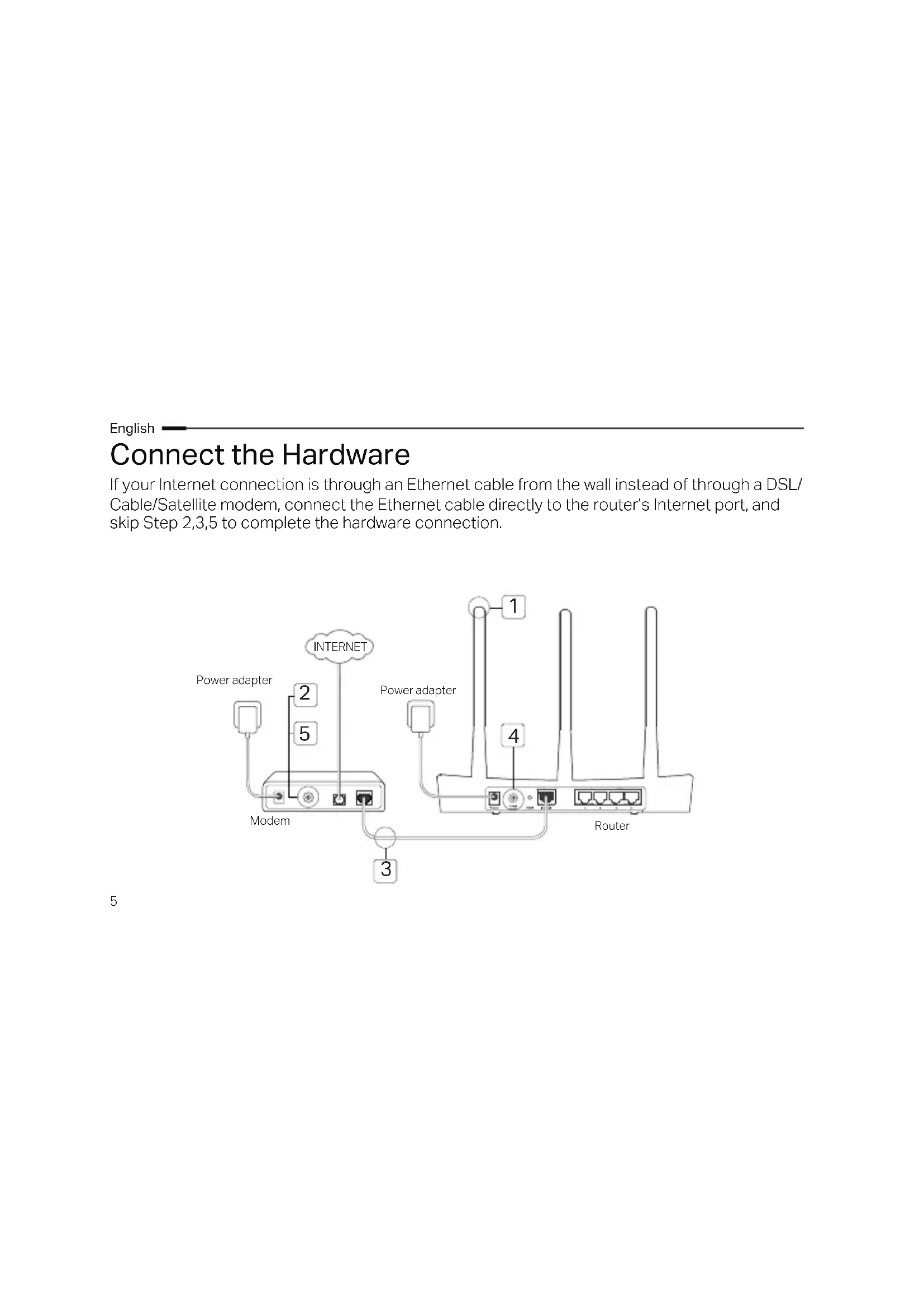
If your Internet connection is through an Ethernet cable from the wall instead of through a DSL/Cable/Satellite modem, connect the Ethernet cable directly to the router's Internet port, and skip Steps 2, 3, and 5 to complete the hardware connection.
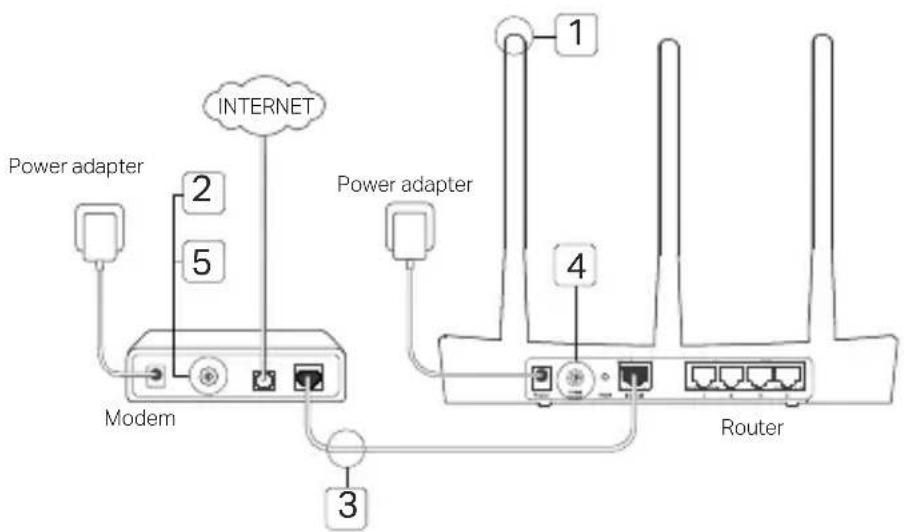
1. Install the antennas. If the antennas are already fixed, move to the next step. 2. Turn off the modem, and remove the backup battery if it has one. 3. Connect the modem to the Internet (or WAN) port on your router with an Ethernet cable. 4. Turn on the router, and wait for it to start. 5. Turn on the modem.
1. Connect your computer to the router (Wired or Wireless).
Wired: Turn off the Wi-Fi on your computer and connect your computer to the router's LAN (1/2/3/4) port using an Ethernet cable.
Wireless:
Connect your computer to the router wirelessly. The SSID and Wireless Password are on the router's label.
2 Enter http://tplinkwifi.net or http://192.168.0.1 in the address bar of a web browser. Create a password for future login attempts, or use admin for both username and password for some routers. Note: If the login window does not appear, please refer to FAQ > Q1. 3 Go to Quick Setup page, and follow the step-by-step instructions to complete the initial configuration.

Enjoy!
Now your wired and wireless devices can connect to the internet!
Note: If you have changed the SSID and wireless password during the configuration, use the new SSID and wireless password to join the wireless network.
English
Tether App
The TP-Link Tether app provides a simple, intuitive way to access and manage your router. You can block unwelcome devices, set up Parental Controls, configure your wireless settings and more.
Scan the QR code to download the TP-Link Tether app from the Apple App Store or Google Play.
FAQ (Frequently Asked Questions)
Q1. What can I do if the login window does not appear?
- If the computer is set to a static or fixed IP address, change the setting to obtain an IP address automatically.
- Verify that http://tplinkwifi.net or http://192.168.0.1 is correctly entered in the web browser. Alternatively, enter http://192.168.1.1 in the web browser.
- Use another web browser and try again.
- Reboot your router and try again.
- Disable and enable the network adapter in use again.
Q2. What can I do if I cannot access the internet?
- Check if the Internet is working properly by connecting a computer directly to the modem via an Ethernet cable. If it is not, contact your Internet Service Provider.
7
English
- Open a web browser, enter http://tplinkwifi.net or http://192.168.0.1 and run the Quick Setup again.
- Reboot your router and try again.
- For cable modem users, reboot the modem first. If the problem still exists, log into the Web Management page of the router to clone MAC address.
Q3. How do I restore the router to its factory default settings?
- With the router powered on, press and hold the Reset button on the router until all the LEDs turn on momentarily.
- Log in to the web management page of the router to restore the router to factory settings.
Q4. What can I do if I forgot my web management password?
Refer to FAQ >Q3 to reset the router, and then create a password for future login attempts, or use admin for both username and password for some routers.
Q5. What can I do if I forgot my wireless network password?
- If you have not changed the default Wireless Password, it can be found on the product label of the router.
- Log in to the web management page of the router to retrieve or reset your wireless password.
Note: To learn more about the router, please go to the website https://www.tp-link.com to download the user guide of your router.
- Keep the device away from water, fire, humidity or hot environments.
- Do not attempt to disassemble, repair, or modify the device. If you need service, please contact us.
- Do not use damaged charger or USB cable to charge the device.
- Do not use any other chargers than those recommended.
- Do not use the device where wireless devices are not allowed.
- Adapter shall be installed near the equipment and shall be easily accessible.
Please read and follow the above safety information when operating the device. We cannot guarantee that no accidents or damage will occur due to improper use of the device. Please use this product with care and operate at your own risk.
For TP-Link Branded Products Only.
For the information about warranty period, policy and procedures, please visit https://www.tp-link.com/en/support THIS WARRANTY GIVES YOU SPECIFIC LEGAL RIGHTS, AND YOU MAY HAVE OTHER RIGHTS THAT VARY FROM STATE TO STATE (OR BY COUNTRY OR PROVINCE).
TO THE EXTENT ALLOWED BY LOCAL LAW, THIS WARRANTY AND THE REMEDIES SET FORTH ARE EXCLUSIVE AND IN LIEU OF ALL OTHER WARRANTYES, REMEDIES AND CONDITIONS.
TP-Link warrants the TP-Link branded hardware product contained in the original packaging against defects in materials and workmanship when used normally in according with TP-Link's guidelines for some period which depends on the local service from the date of original retail purchase by the end-user purchaser.
TP-Link hereby declares that the device is in compliance with the essential requirements and other relevant provisions of directives 2014/53/EU, 2009/125/EC, 2011/65/EU and (EU)2015/863.
The original EU declaration of conformity may be found at https://www.tp-link.com/en/support/ce/.