MarkNet X2000 - Print Server LEXMARK - Free user manual and instructions
Find the device manual for free MarkNet X2000 LEXMARK in PDF.



| Product Type | External Print Server |
| Brand | Lexmark |
| Model | MarkNet X2000 |
| Network Compatibility | Ethernet and Token-Ring |
| Printer Ports | 1 or 2 parallel ports (depending on model), 1 serial port (3-port model) |
| IP Configuration | DHCP (automatic) or manual via CD utility or Web interface |
| Supported Operating Systems | Windows 95/98/Me/NT 4.0/2000/XP, Mac OS 8.6-9.x, Mac OS X, UNIX/Linux (Sun Solaris, Red Hat), NetWare (NDPS and queue) |
| Printing Methods | Direct IP printing, shared printing (point and print, point to point) |
| Power | External power adapter (power cord provided) |
| Safety Instructions | Connection to a grounded outlet, maintenance by a professional, use of specific Lexmark parts |
| Dimensions (approximate) | Approximately 20 x 15 x 5 cm |
| Weight (approximate) | Approximately 500 g |
| Repairability | Contact a professional for any repairs not described in the guide |
Frequently Asked Questions - MarkNet X2000 LEXMARK
User questions about MarkNet X2000 LEXMARK
0 question about this device. Answer the ones you know or ask your own.
Ask a new question about this device
Download the instructions for your Print Server in PDF format for free! Find your manual MarkNet X2000 - LEXMARK and take your electronic device back in hand. On this page are published all the documents necessary for the use of your device. MarkNet X2000 by LEXMARK.
USER MANUAL MarkNet X2000 LEXMARK
Edition: November 2001
The following paragraph does not apply to any country where such provisions are inconsistent with local law:
LEXMARK INTERNATIONAL, INC., PROVIDES THIS PUBLICATION "AS IS" WITHOUT WARRANTY OF ANY KIND, EITHER EXPRESS OR IMPLIED, INCLUDING, BUT NOT LIMITED TO, THE IMPLIED WARRANTIES OF MERCHANTABILITY OR FITNESS FOR A PARTICULAR PURPOSE. Some states do not allow disclaimer of express or implied warranties in certain transactions; therefore, this statement may not apply to you.
This publication could include technical inaccuracies or typographical errors. Changes are periodically made to the information herein; these changes will be incorporated in later editions. Improvements or changes in the products or the programs described may be made at any time.
Comments about this publication may be addressed to Lexmark International, Inc., Department F95/035-3, 740 West New Circle Road, Lexington, Kentucky 40550, U.S.A. In the United Kingdom and Eire, send to Lexmark International Ltd., Marketing and Services Department, Westhorpe House, Westhorpe, Marlow Bucks SL7 3RQ. Lexmark may use or distribute any of the information you supply in any way it believes appropriate without incurring any obligation to you. You can purchase additional copies of publications related to this product by calling 1-800-553-9727. In the United Kingdom and Eire, call 0628-481500. In other countries, contact your point of purchase.
References in this publication to products, programs, or services do not imply that the manufacturer intends to make these available in all countries in which it operates. Any reference to a product, program, or service is not intended to state or imply that only that product, program, or service may be used. Any functionally equivalent product, program, or service that does not infringe any existing intellectual property right may be used instead. Evaluation and verification of operation in conjunction with other products, programs, or services, except those expressly designated by the manufacturer, are the user's responsibility.
Lexmark, Lexmark with diamond design, and MarkNet are trademarks of Lexmark International, Inc., registered in the United States and/or other countries. PostScript ^® is a registered trademark of Adobe Systems Incorporated.
Other trademarks are the property of their respective owners.
© Copyright 2001 Lexmark International, Inc.
All rights reserved.
UNITED STATES GOVERNMENT RESTRICTED RIGHTS
This software and documentation are provided with RESTRICTED RIGHTS. Use, duplication or disclosure by the Government is subject to restrictions as set forth in subparagraph (c)(1)(ii) of the Rights in Technical Data and Computer Software clause at DFARS 252.227-7013 and in applicable FAR provisions: Lexmark International, Inc., Lexington, KY 40550.
MarkNet X2000 Series External Print Servers
Quick Reference
Step 1: Connect the hardware .....2
Step 2: Assign an IP address.....5
Step 3: Print a network setup page .....5
Step 4: Configure the network printer.....6
Electronic emissions notices....9
Safety notices ....11
Setup information
Step 1: Connect the hardware
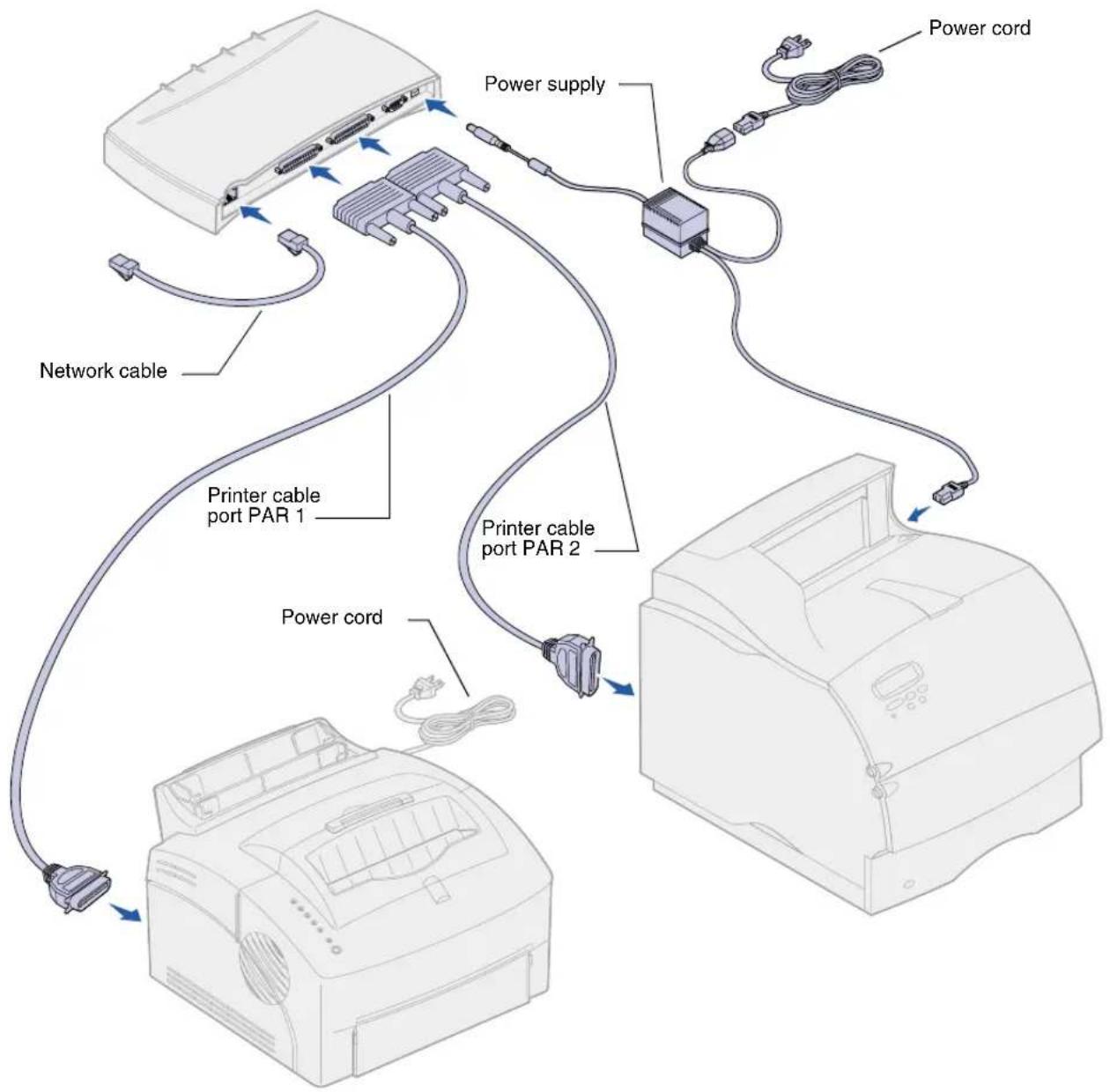
Note: The three-port model (shown in the illustration) has two parallel ports and one serial port. The one-port models are parallel only.
For information about using the serial port, refer to the online documentation on the drivers CD that shipped with your print server.
MarkNet™ External Print Servers support Ethernet or Token-Ring networks.
1 Turn off and unplug your printers.
2 Connect the network and printer cables. If you are connecting only one parallel printer, use port PAR 1 on the print server.
3 Connect the print server power supply.
4 Plug all the power cords into properly grounded electrical outlets. The print server turns on automatically.
5 Turn on the printers.
6 Press and release Menu and Test simultaneously to reset the print server. The Menu and Test buttons are located on top of the print server.
flowchart
graph TD
    A["Printer cable port PAR 1"] --> B["Power cord"]
    C["Power supply"] --> D["Printer cable port PAR 2"]
    E["Network cable"] --> A
    F["Power cord"] --> G["Printer cable port PAR 3"]
    H["Power cord"] --> I["Printer cable port PAR 4"]
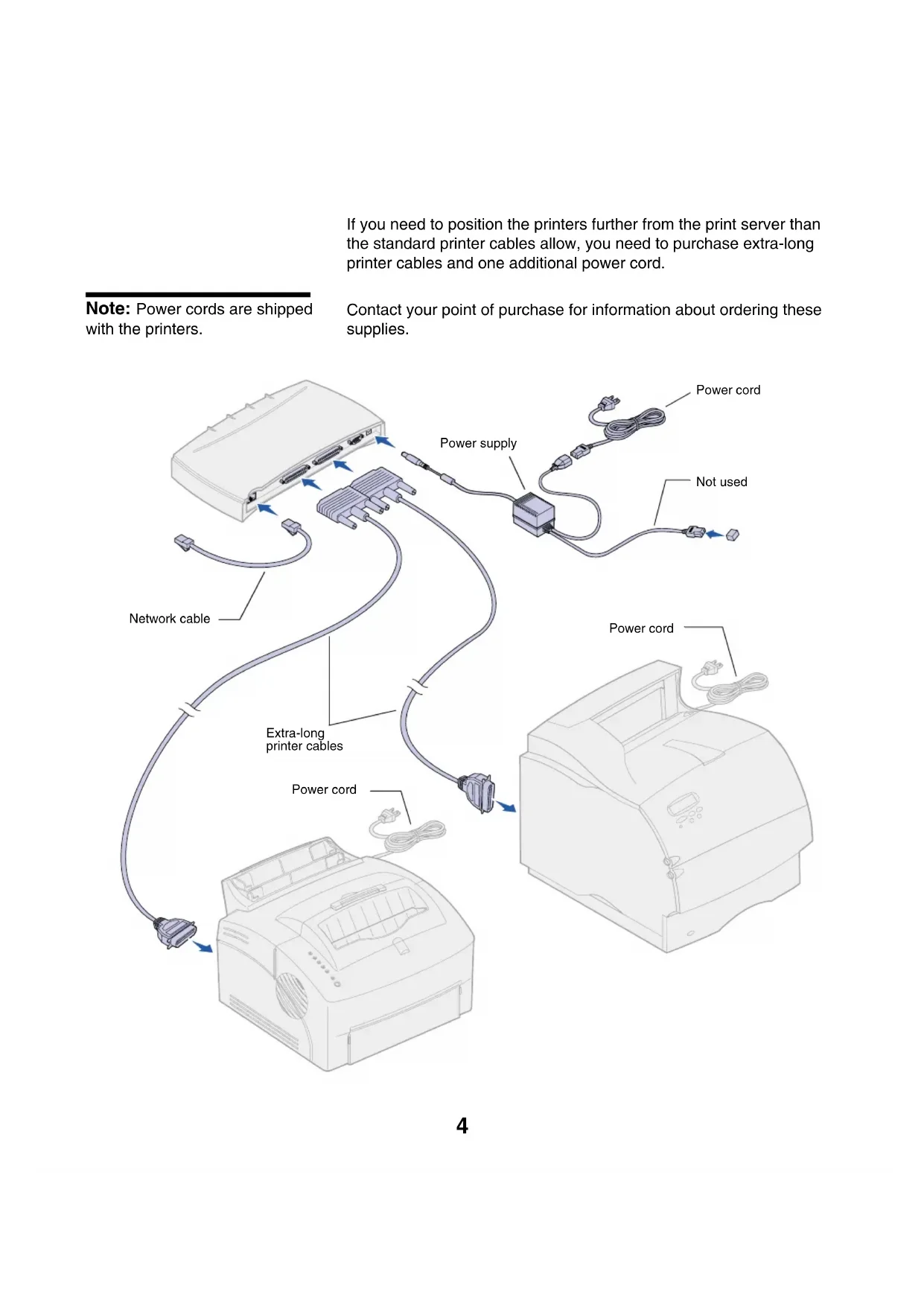
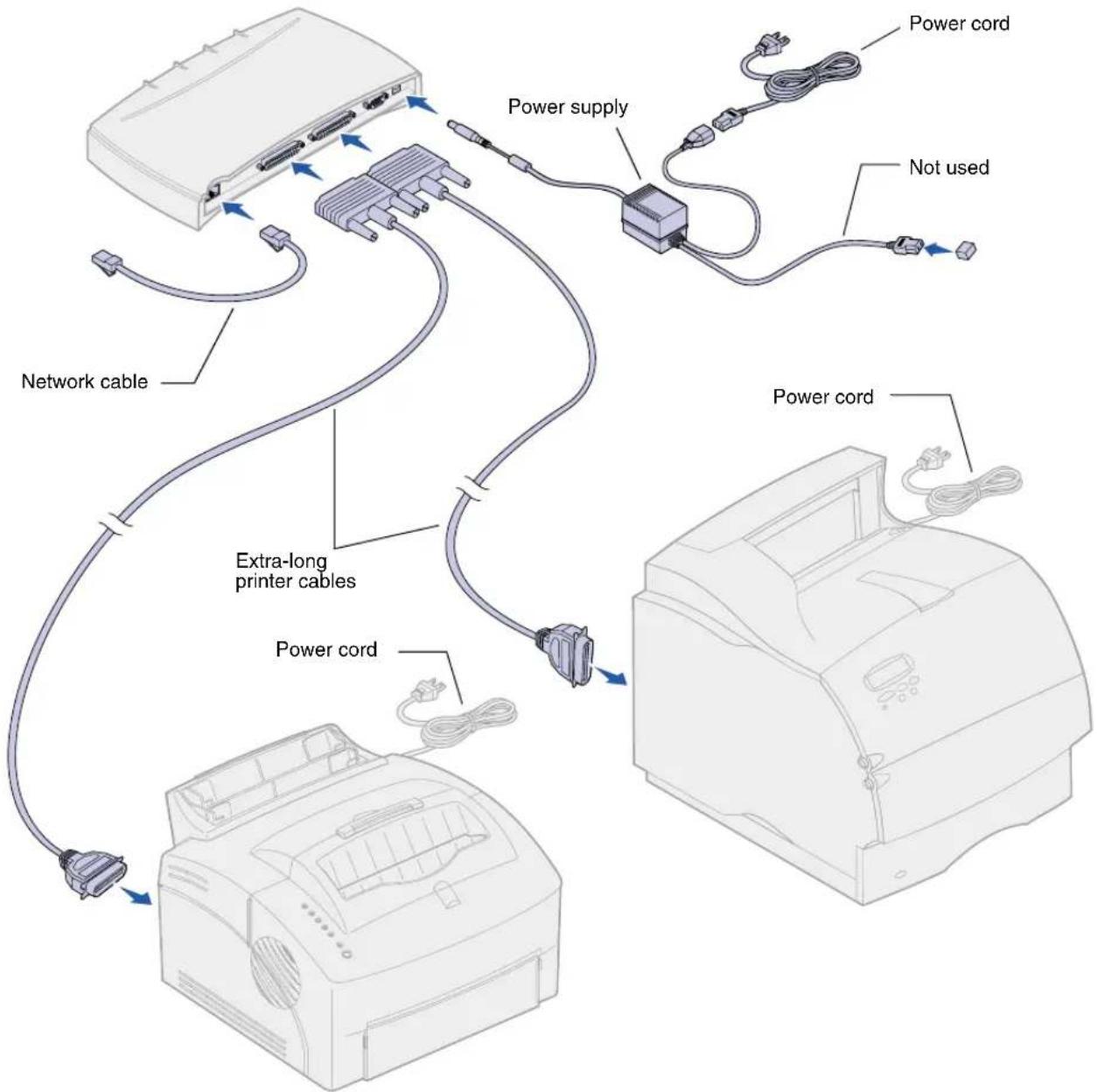
If you need to position the printers further from the print server than the standard printer cables allow, you need to purchase extra-long printer cables and one additional power cord.
Note: Power cords are shipped with the printers.
Contact your point of purchase for information about ordering these supplies.
Step 2: Assign an IP address
You must assign an IP address, netmask, and gateway to the print server in order for other network devices to find the attached printers.
If your network is using DHCP, address values are automatically assigned. To verify the address assignment, print a network setup page and make sure the IP address, netmask, and gateway appear as non zero. Follow the instructions in “Step 3: Print a network setup page” to view this information.
Note: Information about other ways to set an IP address is also on the drivers CD.
If your network is not using DHCP, you must manually assign an IP address. One of the easiest ways is to use the Print Server Setup Utility on the drivers CD. Click What's on this CD and look for Print Server Setup Utility to find information about installing and using the utility.
Step 3: Print a network setup page
Press Test to print a network setup page. The page prints on the printer connected to port PAR 1 on the print server.
Check under the TCP/IP heading to verify your IP address, netmask, and gateway settings are non zero.
After the network setup page prints, the printer returns to a Ready state.
Step 4: Configure the network printer
After you have assigned and verified the TCP/IP settings, you are ready to configure the printers attached to the print server and set up your network clients to print to them.
Windows In Windows environments, your network printers can be configured for direct printing or for shared printing.
Supported printing methods
- Direct IP printing—when you want to print directly to a printer on your network
- Shared printing (point and print, and peer-to-peer)—when you need to centrally manage network printers
Detailed information about using each of these printing methods is on the drivers CD. Click View Documentation and look for information about network printer installation.
Supported network printer ports
- Microsoft IP port (Windows NT 4.0, Windows 2000 and Windows XP)
- Lexmark network port (Windows 95/98/Me, Windows NT 4.0, Windows 2000 and Windows XP)
Note: Using a custom printer driver and a custom network port provides enhanced functionality, such as printer status alerts.
Supported printer drivers
- Windows system printer drivers
- Lexmark custom printer drivers
System drivers are built into Windows operating systems. Custom drivers are available on the drivers CD.
Updated system and custom drivers are available on Lexmark's Web site at www.lexmark.com.
Creating ports and installing drivers
Read the detailed instructions on the drivers CD. Click View Documentation and look for information about network printer installation for your specific Windows environment.
If you choose to install without using the instructions on the drivers CD, you need a basic understanding of network printing on TCP/IP networks, installing printer drivers, and the process involved in creating new network ports.
Macintosh Your printer connects automatically to AppleTalk networks and becomes readily visible to other network clients.
Note: A PostScript Printer Description (PPD) file provides detailed information about the capabilities of a printer to UNIX or Macintosh drivers or applications.
For Mac OS 8.6–9.x, you must create a printer object (icon) on the desktop of each network client using the LaserWriter 8 printer driver and the custom printer PPD file. For Mac OS X, select Add Printer and create a queue in the print center using the PostScript Printer Module and the custom printer PPD file.
Information about creating the printer object on your AppleTalk clients is on the drivers CD that shipped with your printer.
A PPD installer is in the downloadable Web package available on Lexmark's Web site at www.lexmark.com.
Depending upon which version of the drivers CD shipped with your printer, you may also find this software on the drivers CD. Launch the PPD installer and follow the instructions to install the PPDs.
UNIX/Linux Your printer supports many UNIX and Linux platforms, such as Sun Solaris and Red Hat.
Note: The Sun Solaris package is located both on the drivers CD and on Lexmark's Web site at www.lexmark.com.
Lexmark provides a printer driver package for each supported UNIX and Linux platform. The package contains all the necessary drivers and PPDs. The User's Guide in each package gives detailed instructions for installing and using Lexmark printers in UNIX and Linux environments.
You can download these printer driver packages from Lexmark's Web site at www.lexmark.com. Depending upon which version of the drivers CD shipped with your printer, you may also find the driver package you need on the CD.
NetWare Your printer works with both Novell Distributed Print Services (NDPS) and regular queue-based NetWare environments.
NDPS
If you have an NDPS environment, we recommend you install the Lexmark NDPS IP Gateway. The gateway tightly integrates your printers with NDPS so you can easily monitor, control, and print to them.
You can get the gateway, snap-ins, support files, and a white paper with installation instructions from Lexmark's Web site at www.lexmark.com/networking/ndps.html.
Other information about installing network printers in NetWare environments is on the drivers CD that shipped with your printer. Click View Documentation and look for information about network printer installation.
Non-NDPS (queue-based)
For the latest information about Lexmark support for non-NDPS environments, click View Documentation on the drivers CD and look for information about network printer installation.
Electronic emissions notices
Federal Communications Commission (FCC) Compliance Information Statement
The MarkNet external print server has been tested and found to comply with the limits for a Class A digital device, pursuant to Part 15 of the FCC Rules. Operation is subject to the following two conditions: (1) this device may not cause harmful interference, and (2) this device must accept any interference received, including interference that may cause undesired operation.
The FCC Class A limits are designed to provide reasonable protection against harmful interference when the equipment is operated in a commercial environment. This equipment generates, uses, and can radiate radio frequency energy and, if not installed and used in accordance with the instruction manual, may cause harmful interference to radio communications. Operation of this equipment in a residential area is likely to cause harmful interference, in which case the user will be required to correct the interference at his own expense.
The manufacturer is not responsible for any radio or television interference caused by using other than recommended cables or by unauthorized changes or modifications to this equipment. Unauthorized changes or modifications could void the user's authority to operate this equipment.
Industry Canada Compliance Statement
This Class A digital apparatus meets all requirements of the Canadian Interference-Causing Equipment Regulations.
European Community (EC) Directives Conformity
This product is in conformity with the protection requirements of EC Council directives 89/336/EEC and 73/23/EEC on the approximation and harmonization of the laws of the Member States relating to electromagnetic compatibility and safety of electrical equipment designed for use within certain voltage limits.
A declaration of conformity with the requirements of the Directive has been signed by the Director of Manufacturing and Technical Support, Lexmark International, S.A., Boigny, France.
This product satisfies the Class A limits of EN 55022 and safety requirements of EN 60950.
Warning This is a Class A product. In a domestic environment, this product may cause radio interference, in which case the user may be required to take adequate measures.
Japanese VCCI Notice
The United Kingdom Telecommunications Act 1984
This apparatus is approved under the approval number NS/G/1234/J/100003 for the indirect connections to the public telecommunications systems in the United Kingdom.
Safety information
- If your product is NOT marked with this symbol ☐, it MUST be connected to an electrical outlet that is properly grounded.
- The power supply must be connected to an electrical outlet that is near the product and easily accessible.
• Refer service or repairs, other than those described in the operating instructions, to a professional service person.
- This product is designed, tested, and approved to meet strict global safety standards with the use of specific Lexmark components. The safety features of some parts may not always be obvious. Lexmark is not responsible for the use of other replacement parts.
© Copyright 2001 Lexmark International, Inc.
© Copyright 2001 Lexmark International, Inc.
© Copyright 2001 Lexmark International, Inc.
© Copyright 2001 Lexmark International, Inc.
Industry Canada Compliance Statement
This Class A digital apparatus meets all requirements of the Canadian Interference-Causing Equipment Regulations.
The United Kingdom Telecommunications Act 1984
This apparatus is approved under the approval number NS/G/1234/J/100003 for the indirect connections to the public telecommunications systems in the United Kingdom.
© Copyright 2001 Lexmark International, Inc.
This Class A digital apparatus meets all requirements of the Canadian Interference-Causing Equipment Regulations.
This apparatus is approved under the approval number NS/G/1234/J/100003 for the indirect connections to the public telecommunications systems in the United Kingdom.
Avisos de seguridad
This is a placeholder for the inside back cover.
LEXMARK™
P/N 10P0060
E.C. 1P0001A
Lexmark, Lexmark with diamond design, and MarkNet are trademarks of Lexmark International, Inc., registered in the United States and/or other countries.
© 2001 Lexmark International, Inc.
740 West New Circle Road
Lexington, Kentucky 40550