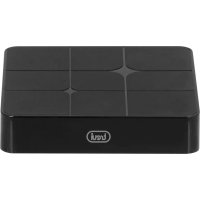
IP 360 S8 - Smart Home Trevi - Free user manual and instructions
Find the device manual for free IP 360 S8 Trevi in PDF.


| Product type | Android TV Box Media Player |
| Brand | Trevi |
| Model | IP 360 S8 |
| Dimensions (approx.) | 10 x 10 x 2 cm |
| Weight (approx.) | 200 g |
| Power supply | 5V DC power adapter (included) |
| Power consumption | Low (standby and operation) |
| Operating system | Android (version not specified) |
| Video outputs | HDMI, AV composite (CVBS, 480i/576i) |
| Audio output | Via HDMI or AV (stereo L/R) |
| Wired connectivity | Ethernet RJ45 10/100 Mb |
| Wireless connectivity | Wi-Fi, Bluetooth, Miracast, AirPlay, DLNA |
| USB ports | USB (for flash drives, hard drives, mouse, keyboard) |
| Card reader | Micro SD |
| Remote control | Wireless mouse (Air Mouse) with gyroscope, AAA batteries (not included) |
| Microphone function | Voice control (Google Assistant) |
| Main functions | Media playback, Internet browsing, screen sharing (Miracast/AirPlay), Bluetooth, DLNA Media Center |
| Maintenance and cleaning | Clean with a dry cloth, avoid moisture and chemicals |
| Safety | Do not expose to water or excessive heat; use only the supplied adapter |
| Spare parts and repairability | No user-serviceable parts; contact an authorized Trevi service center |
| General information | Manual available in multiple languages; product subject to selective waste collection |
Frequently Asked Questions - IP 360 S8 Trevi
User questions about IP 360 S8 Trevi
0 question about this device. Answer the ones you know or ask your own.
Ask a new question about this device
Download the instructions for your Smart Home in PDF format for free! Find your manual IP 360 S8 - Trevi and take your electronic device back in hand. On this page are published all the documents necessary for the use of your device. IP 360 S8 by Trevi.
USER MANUAL IP 360 S8 Trevi
CPU AMLOGIC S905W, Quad Core, ARM Cortex A53
FREQUENZA PROCESSORE 2GHz, 64bit
RAM 2GB DDR3
MEMORIA INTERNA 16GB
SISTEMA OPERativo Android 7.1
POTENZA DI TRASMISSIONE BLUETOOTH ....1mW
POTENZA MAX DI TRASM. BLUETOOTH....0,8mW
BANDA DI TRASMISSIONE BLUETOOTH.2,4GHz
WIFI STANDARD .802.11 b/g/n (2,4GHz)
FREQUENZE 2412-2472MHz (802.11b/g/n HT20)
2422-2462MHz (802.11n HT40)
RF OUTPUT POWER (EIRP) 11.78 dBm
MODULAZIONE DSSS; OFDM
CONNETTIVITA' AIR MOUSE WIRELESS .........2,4GHz RF wireless
SENSORE 6 asi Giroscopio
INTERFACCIA. USB(x2), Slot Micro SD Card, RJ45, HDMI
ALIMENTAZIONE 5V 2A
DIMENSIONI. 92x92x17mm
PESO 106gr
IMPORTANT SAFETY INSTRUCTIONS
- To reduce the risk of electric shock, do not remove the cover or back. There are no user-serviceable parts inside. Refer servicing to qualified personnel.
- To prevent fire or electric shock hazard, do not expose the unit to rain or moisture.
- Keep the product away from direct sunlight and heat source such as radiators or stoves.
- Do not block the ventilation openings. Slots and openings on the unit are provided for ventilation. The openings should never be blocked by placing your product on a cushion, sofa or other similar surface.
- Do not place the product on unstable cart, stand, tripod, bracket or table. The unit may fall, resulting in possible damage or injury.
- Unplug the power from the outlet when the unit is not in use.
- Attention should be drawn to the environmental aspects of battery disposal.
- WARNING: The battery shall not be exposed to excessive heat such as sunshine, fire or the like.
- WARNING: Only use attachments/accessories specified provided by the manufacturer, the product is supplied by adapter, the AC adapter is used as disconnect device, the disconnect device shall remain readily operable.
- All trademarks and copyrights are the property of their respective rights holders.
- The appliance must not be exposed to dripping or splashing water. No objects filled with liquid, such as vases, must be placed on the appliance.
- If liquids penetrate inside the appliance, immediately disconnect the plug from the socket or remove the battery and take the appliance to the nearest authorized TREVI service center.
- No naked flame sources, such as lighted candles, must be placed on the appliance.
- Please read and keep this Instructions.
The symbol indicates that dangerous voltages constituting a risk of electric shock are present within this unit
The symbol indicates that there are important operating and maintenance instructions in the literature accompanying this unit.

CAUTION:
When the apparatus was in electrostatic circumstance, it may be malfunction and need to reset by user.
CONNECTIONS AND REMOTE CONTROL
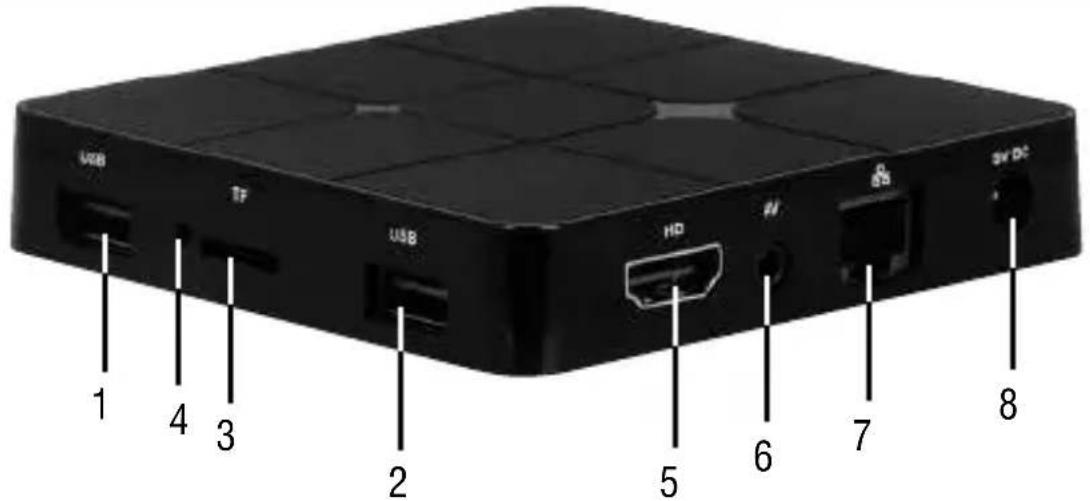
1.2. USB Sockets: To connect external USB devices such as memory sticks, Hard External disk, wireless mouse, wireless keyboards, etc....
3. Slot for Micro SD Card.
4. Reset.
5. HDMI: Video output for connection to HDTV.
6. AV Output: Composite video signal output (CVBS). cable not included.
7. LAN RJ45 Ethernet: 10/100Mbps Ethernet interface for connection to the local network.
8. Power socket DC IN 5V: Connect the supplied power adapter.
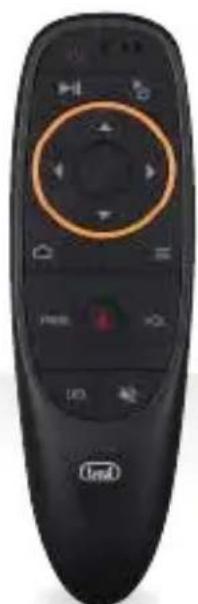
AIR MOUSE WIRELESS
- BUTTON: Power ON/Stand-by key.
- BUTTON: Play/Pause.
- KEYS: Move highlight.
- BUTTON: Return to previous step/Main (Home) page
- PAGE BUTTON: To move in the page.
- TASTO : Voice ON/OFF
- DEL BUTTON: Key to delete typed characters.
- BUTTON: Mute.
- VOL BUTTON: Increase/decrease Volume.
- BUTTON: To open the sub-menu folder in certain applications/functions.
- OK BUTTON: to confirm and Activate the highlighted menu item.
- MOUSE BUTTON: To enable moving fast by arrow (using the navigation keys), press again to enable the displacement step.
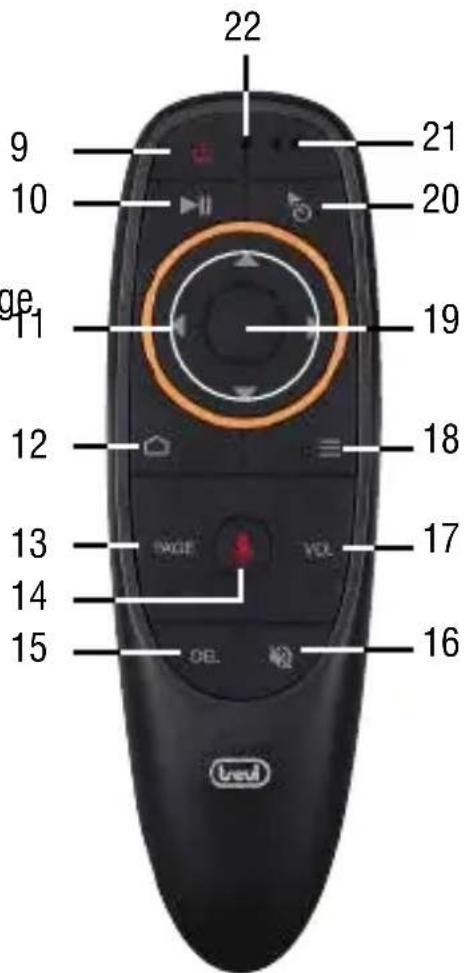
21. MICROPHONE
22. LED INDICATOR
Installing the Batteries
Remove the battery cover from the Remote Control and put 2xAAA size batteries inside the compartment. The diagram inside the Battery Compartment shows the correct way to install the batteries.
Air mouse wireless is an input device with integrated gyroscope and acceleration and gravity sensor, thus allowing control of the cursor by means of movement and rotation of the wrist. Its use is simple and intuitive and makes navigation, selection and digitization convenient and quick.
Before using the supplied remote control carefully follow the following steps:
- Remove the remote control from the box and open the battery compartment located in its lower part;
- Insert 2 "AAA" size batteries respecting the polarity indications on the cabinet and close the battery compartment;
- Remove the transceiver and connect it to a USB socket on the unit (see image below);
- At this point you can turn on the unit and start using your remote control by simply moving the wrist of your hand.
Air Mouse has 3 levels of cursor speed:
From Slow to fast:
Press and hold the "ok" (19) and "Volume +" (17) keys, the LED indicator (22) will flash 3 times and then remain fixed to confirm that the setting has been made.
From Fast to slow:
Press and hold the "ok" (19) and "Volume -" (17) buttons, the LED indicator (22) will flash 3 times and then remain fixed to confirm that the setting has been made.
Sensor calibration
Sensor calibration takes place automatically.
The changes in voltage and temperature can affect the movement of the cursor, in this case, rest the mouse on a table for a few minutes, then press any key to reactivate it.
Voice command
Using the Browser, select the microphone icon on the search band, put your mouth near the microphone (21) and speak.
If you want to use the Google assistant, select the "Assistant" icon, put your mouth near the microphone (21) and speak.
CONNECTIONS
Installation
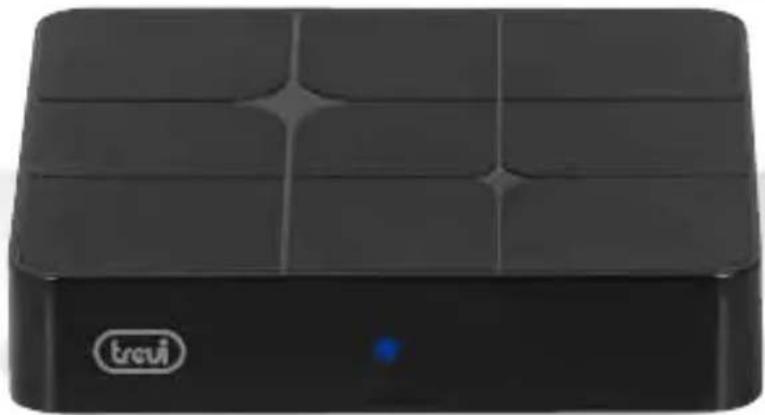
- To turn on the device, connect the power adapter supplied to the power socket DC (8) of the IP 360 S8 and the other end to the wall outlet:
- Connect one end of the HDMI cable to socket (5), connect the other end to the HDMI socket of your TV;
- Turn on the TV and press power button (9) on the remote control;
- Wait a few seconds for the device loads the operating system.
WARNING: The unit is factory set with video output on HDMI, if you want to use the composite AV output (cable not included), first connect the unit to a TV via HDMI and then from the menu Apps"/“Droid Setting"/"Display"/"Screen resolution", select the video resolution to 480 or 576.
Shutdown:
- To completely switch off the device press and hold for a few seconds the power button (9) on the remote control, select Shutdown with the navigation keys (11) and press OK (19) to confirm. Wait a few seconds the Blue Led on the front panel becomes Red.
Regulation framework:
At first power you need to set some parameters such as language, the connection to the network and regulation of the framework.
Adjust the image according to your TV; to adjust the picture, select "Apps"/"Droid Setting"/"Display"/"Screen position". Select "Zoom out" to tighten, select "Zoom in" to enlarge.
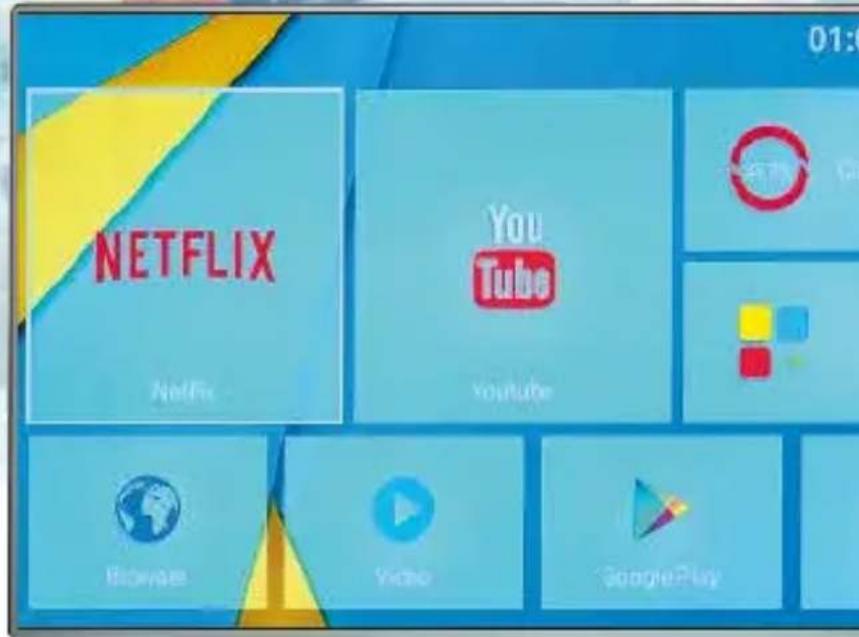
HOME PAGE
HOME menu
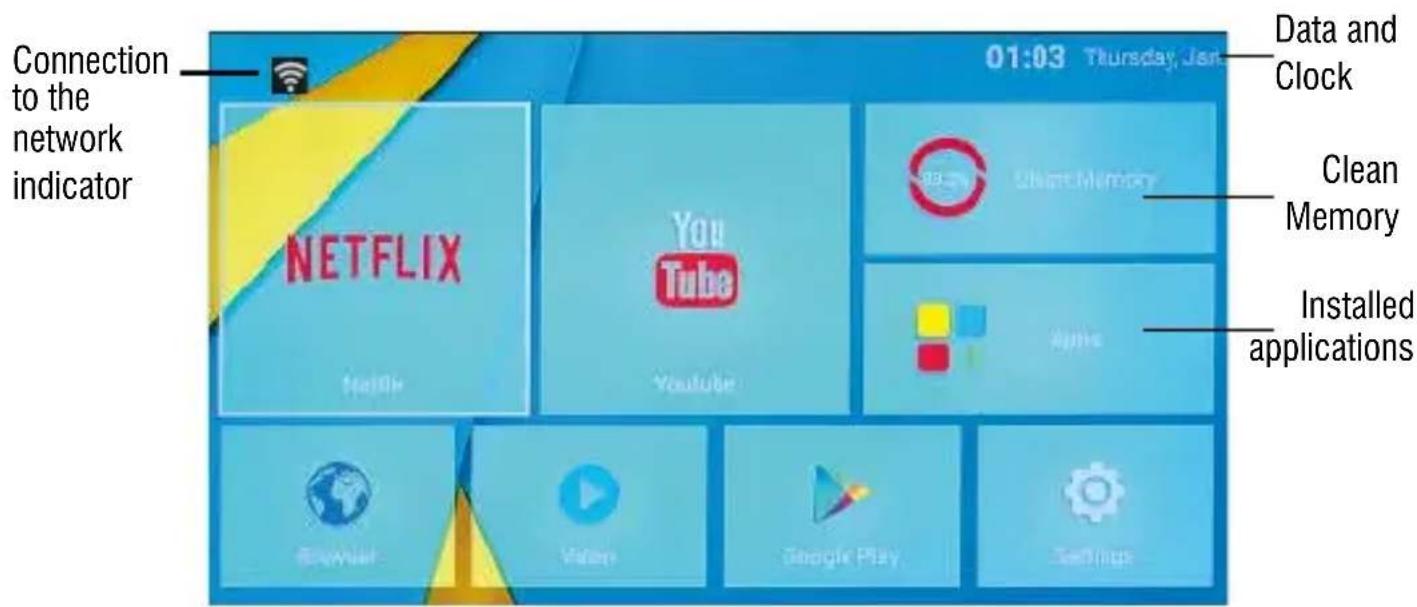
Note: The user can select the applications with the navigation keys (11) and open them with the OK (19) button.
CONNECTION TO NETWORKS
Wireless & networks
To access the Internet, first of all, you must setting a network that can use a Wi-Fi Access Point (AP) or a wired cable via LAN socket. Choosing it accesses settings Wireless and Ethernet.
Connection via LAN socket:
- Connect the LAN cable coming from your modem router, the LAN socket (7) unit;
- Select the "Setting"- "Network";
- Select Ethernet and wait for the message "Connected" appears under the item "internet connection".
Search and connect to a Wi-Fi network:
To make a connection of this type must be in a Wi-Fi zone.
- Select "Setting"- "Network".
Enabling/disabling Wi-Fi:
- Select "Wi-Fi", the unit will automatically activate a search of available Wifi networks and will show on the TV;
- Select your favorite network and confirm with OK (19), if protected, enter the password using the virtual keyboard;
- Click the Enter key on your keyboard and wait until you see the message "Connected successfully";
- To disable the network: select the network connection and then the command "Delete network".
FUNCTIONS
This device is equipped with features like BLUETOOTH, MIRACAST, AIRPLAY and MEDIA CENTER for sending and receiving files without the use of cables.
BLUETOOTH:
IP 360 S8 is equipped with a Bluetooth system for transmitting/receiving files between the device and other devices with this feature.
Bluetooth Activation:
- From the main page click "Apps" - "Settings" and select the "Bluetooth" function. Turn Bluetooth bringing ON (turn green) the switch in the upper right.
- To turn off the Bluetooth connection, bring the command to OFF (becomes colored Grey).
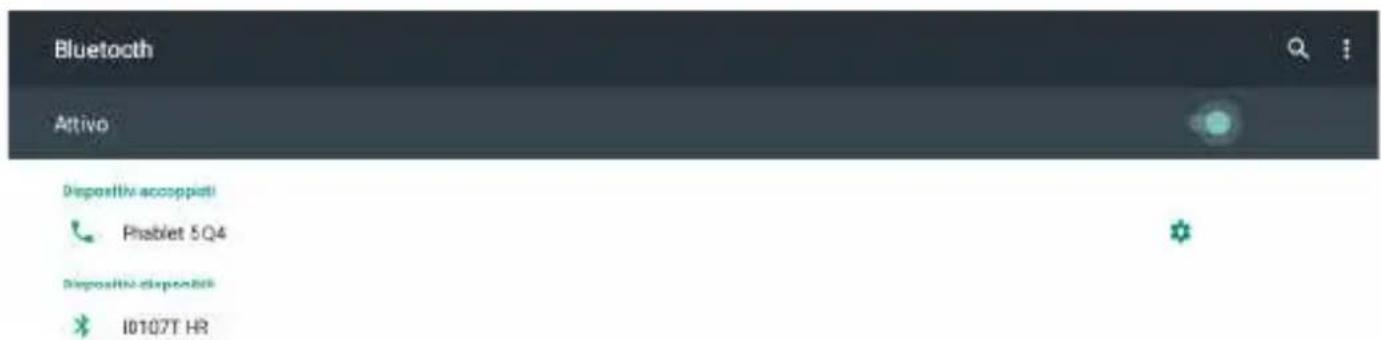
Search devices:
- Once activated Bluetooth, the device will automatically start a search of available devices. If you want to perform a new search, select command "Refresh" after you press the Menu button (18) on the remote control.
- You will see a list of all devices available.
Pairing with devices:
- From the list displayed select the device to be coupled. After connection under the name of the device will display "Connected".
- If a PIN is required, this should be indicated in analyzer which you're trying to pair, if not try "0000" or "1234".
- After mating is possible to transmit/receive files between IP 360 S8 and other devices.
MIRACAST:
Miracast is a new standard for transmission of multimedia files (photos, video and music) without cable, which allows the user to connect via Wi-Fi Direct technology an Android device to the TV last generation. With Miracast your device will be closely connected to the TV screen and will need to keep the display on the smartphone or tablet to view its screen directly on TV.
CAUTION: TO OPERATE PROPERLY, SMARTPHONE OR TABLET MUST HAVE AS SYSTEM REQUIREMENTS OS ANDROID 4.2.2 OR HIGHER WITH WIRELESS DISPLAY SUPPORT.
Miracast Activation:
- Connect the IP 360 S8 and the external device (smartphone or tablet) to the same Wi-Fi network.
- On your external device (smartphone or tablet), activate the function Miracast or "Wireless Display" or "Mirroring Display"(refer to the instructions manual of your device for the correct name and the activation procedure).
- On IP 360 S8, from the main page click "Apps" and select the icon Miracast. The unit will search for devices.
-
On external device (Smartphone or Tablet) appear Trevi IP 360 S8, select it.
-
The TV will show a confirmation screen, select OK and wait a few seconds for the connection. Now all the images on External device will appear on the TV.
Disabling Miracast:
- On the external device (smartphone or tablet) select "Trevi IP 360 S8" and select "Disconnect".
MEDIA CENTER:
This function allows you to view directly on your TV files on other devices (such as PC or console) connected by DLNA network or AIRPLAY (for Apple devices).
Note: The connected devices must be turned on in order to choose and view files using IP 360 S8.
- From the main page select "Apps" icon and select open the following screen:

"Media Center" icon, you will
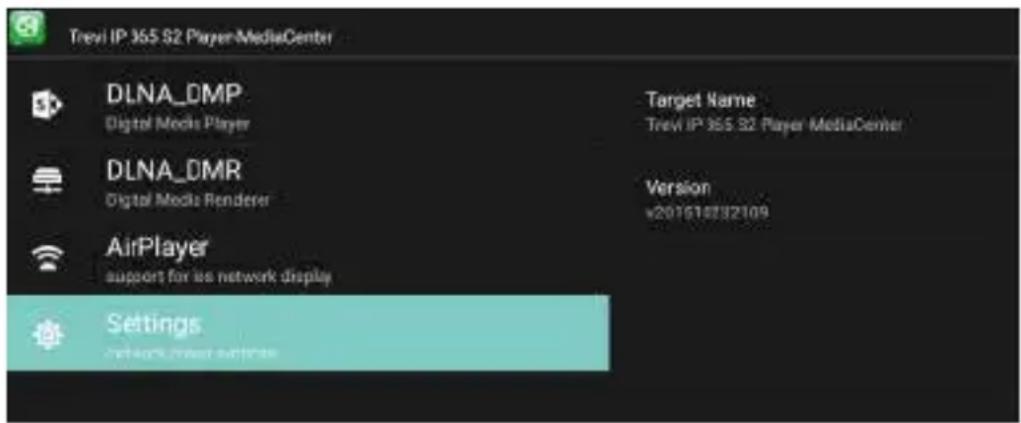
- Selecting DLNA_DMP (Digital Media Player) will display the list of devices networked, just select the one you want to display the file that contains and play them on TV.
- Selecting DLNA_DMR (Digital Media Rendered) you can set the DMR.
- Select AirPlayer if you have Apple devices. AirPlayer is an Apple's application dedicated users. With AirPlayer you can play the image and videos of your apple device directly on TV.
Note: The AirPlay function can be precluded due to continuous iOS software updates).
SETTING
The "Settings" menu allows you to configure or change the settings of your Android device.
- From main page select "Apps" and "Setting".
To return to the previous page or to cancel a command, press remote control.

Quit (12) on the
PRECAUTION FOR CORRECT DISPOSAL OF THE PRODUCT
Precautions for correct disposal of the product.
Thesymbolshownonthequipmentindicatesthatwastemustbedisposedofin
"separate collection" and so the product must not be disposed of together with urban waste. The user must take the product to special "separate waste collection centres" provided by local government, or deliver it to the retailer against the purchase of a new product. Separate collection of waste and subsequent treatment, recycling and disposal operations promotes the production of equipment with recycled materials and limits negative effects on the environment and on health caused by improper handling of waste.
Illegal disposal of the product leads to the enforcement of administrative penalties.
TREVI pursues a policy of continuous research and development, the product may show different characteristics from those described.
TECHICAL SPECIFICATION
CPU AMLOGIC S905W, Quad Core, ARM Cortex A53
CPU FREQUENCY 2GHz, 64bit
RAM 2GB DDR3
MEMORY 16GB
OPERATIV SYSTEM Android 7.1
POWER TRANSMITION BLUETOOTH 1mW
MAX POWER TRANSMITION BLUETOOTH ....0,8mW
RF OUTPUT POWER (EIRP) 11.78 dBm
MODULATION DSSS; OFDM
TRANSMISSION METHOD: 2,4GHz RF wireless
SENSORS 6 axis Gyroscope
INTERFACE USB(x2), Slot Micro SD Card, RJ45, HDMI
POWER. 5V -2A
DIMENSIONS 92x92x17mm
WEIGHT 106gr
CONSIGNES DE SECURITE'IMPORTANTES
Installation/Allumage:
CPU AMLOGIC S905W, Quad Core, ARM Cortex A53
CPU FREQUENCY. 2GHz, 64bit
RAM 2GB DDR3
MEMOIRE 16GB
OPERATIV SYSTEM Android 7.1
PUISSANCE TRANSMITION BLUETOOTH.....1mW
PUISSANCE MAX TRANSM. BLUETOOTH.....0,8mW
DIMENSIONS 92x92x17mm
POIDS. 106g
CPU AMLOGIC S905W, Quad Core, ARM Cortex A53
CPU FREQUENZ 2GHz, 64bit
RAM 2GB DDR3
ERINNERUNG 16GB
OPERATIV SYSTEM Android 7.1
POWER TRANSMITION BLUETOOTH 1mW
MAX POWER TRANSMITION BLUETOOTH ....... 0,8mW
MODULATION .DSSS; OFDM
AIR MOUSE WIRELESS CONNECTIVITY.2,4GHz RF wireless
SENSOREN 6-Achsen-Gyroskop
INTERFACE USB(x2), Slot Micro SD Card, RJ45, HDMI
POWER. 5V -2A
MASSE 92x92x17mm
WEIGHT 106g
CPU. AMLOGIC S905W, Quad Core, ARM Cortex A53
Simplified EU Declaration Of Conformity
Hereby TREVI S.p.a declares that equipment model IP 360 S8
is in compliance with Directive 2014/53/EU.
The full text of the EU declaration of conformity is available at the following internet
address: https://www.trevi.it/dms/zidi/TREVI/DOCIP360S8.pdf

IP 360 58
TV MULTIBOX
- IMPORTANT SAFETY INSTRUCTIONS
- CAUTION:
- CONNECTIONS AND REMOTE CONTROL
- AIR MOUSE WIRELESS
- MICROPHONE
- LED INDICATOR
- Installing the Batteries
- From Slow to fast:
- From Fast to slow:
- Sensor calibration
- Voice command
- CONNECTIONS
- Installation
- Shutdown:
- Regulation framework:
- HOME PAGE
- HOME menu
- CONNECTION TO NETWORKS
- Wireless & networks
- Connection via LAN socket:
- Search and connect to a Wi-Fi network:
- Enabling/disabling Wi-Fi:
- FUNCTIONS
- BLUETOOTH:
- Bluetooth Activation:
- Search devices:
- Pairing with devices:
- MIRACAST:
- Miracast Activation:
- Disabling Miracast:
- MEDIA CENTER:
- SETTING
- PRECAUTION FOR CORRECT DISPOSAL OF THE PRODUCT
- Precautions for correct disposal of the product.
- TECHICAL SPECIFICATION
- CONSIGNES DE SECURITE'IMPORTANTES
- Installation/Allumage:
- Simplified EU Declaration Of Conformity
- IP 360 58
- TV MULTIBOX
Brand : Trevi
Model : IP 360 S8
Category : Smart Home