USER MANUAL P760 LG
Inhaltsverzeichnis
via Over-the-Air (OTA)....131
LG Electronics Inc. EU Representative, Krijgsman 1, 1186 DM Amstelveen, The Netherlands
HINWEIS
Erste Schritte
Benutzerhandbuch
Akku
HINWEIS:
Sommaire
Appareil photo ....71
LG Electronics Inc. EU Representative, Krijgsman 1, 1186 DM Amstelveen, The Netherlands
Mise en route
REMARQUE
REMARQUE
1 Touche Applications > FileShare

gratuites, Applications tendance.
REMARQUE :
Sommario
Social network ......63
LG Electronics Inc. EU Representative, Krijgsman 1, 1186 DM Amstelveen, The Netherlands
NOTA
Quindi premere > Bluetooth.
Guida per
l'utente
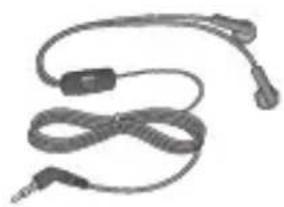
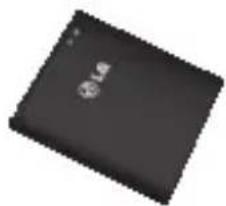
Batteria
NOTA:
Vsebina
Smernice za varno in učinkovito uporabo ....6
Spoznavanje telefona .....14
Predstavitev telefona ......21
Prvi koraki 25
Namestitev kartice USIM in baterije .....25
Polnjenje telefona 26
Vstavljanje kartice microSD 28
Odstranitev kartice microSD......29
Formatiranje kartice microSD .....29
Preklapljanje med aplikacijami in
zapiranje aplikacij ....30
Osnovni zaslon 31
Program On-Screen Phone .....93
PROGRAMSKA OPREMA LG ......93
Nastavitve 96
LG Electronics Inc. EU Representative, Krijgsman 1, 1186 DM Amstelveen, The Netherlands

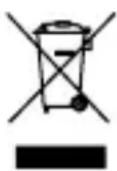
Odstranjevanje stare naprave
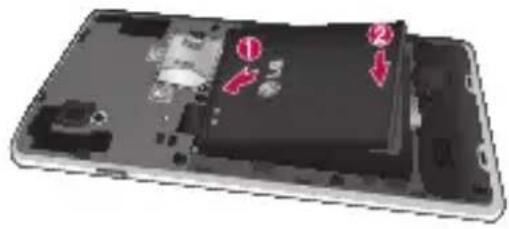
3 Vstavite baterijo in pri tem poravnajte zlate stike telefona in baterije 1 Baterijo nato pritisnite navzdol, da se zaskoči 2
Prvi koraki
Polnjenje telefona
OPOMBA
S prvim polnjenjem baterijo popolnoma napolnite, da zagotovite njeno optimalno življenjsko dobo.
OPOMBA
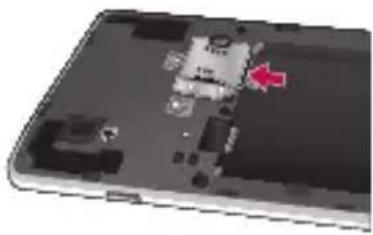
Odstranitev kartice microSD
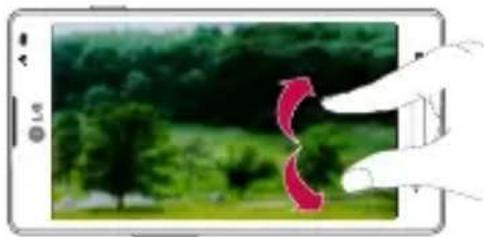
Razmaknite (povečava)
OPOMBA
Način fotoaparata – pritisnite to ikono navzdol, će želite preklopiti na način za video.
Zajemi – omogoča fotografiranje.
Galerija – omogoča dostop do shranjenih fotografij in videoposnetkov v načinu fotoaparata. Samo tapnite in na zaslonu se prikaže galerija.
Način fotoaparata – pritisnite to ikono navzgor, će želite preklopiti na način fotoaparata.
Program On-Screen Phone
PROGRAMSKA OPREMA LG
Zapre program On-Screen Phone.
Funkcije programa On-Screen Phone
Program On-Screen Phone
MIŠKA/SLEDILNA PLOŠČICA
Hitrost kazalca – prilagodite hitrost kazalca.
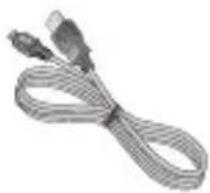
Podatkovni kabel
Povežite telefon
LG-P760 z
računalnikom.
Baterija
OPOMBA:
This guide helps you get started using your phone.
If you need more information, please visit www.lg.com.
- Some of the contents of this manual may not apply to your phone. This depends on your phone's software and your service provider.
- This handset is not recommended for the visually impaired because of its touch screen keyboard.
- Copyright ©2012 LG Electronics, Inc. All rights reserved. LG and the LG logo are registered trademarks of LG Group and its related entities. All other trademarks are the property of their respective owners.
- Google™, Maps™, Gmail™, YouTube™, Google Talk™ and Play Store™ are trademarks of Google, Inc.
Table of Contents
Guidelines for safe and efficient use ....6
Getting to know your phone .....14
Your Phone ....21
Getting Started ....25
Installing the USIM card and battery .....25
Charging your phone 26
Inserting a microSD card .....27
Removing the microSD card .....28
Formatting the microSD card .....29
Switching between and exiting applications ....29
Your Home screen ....31
Touch screen tips ....31
Proximity sensors ....32
Lock your phone ....32
Setting Swipe, Face Unlock, Pattern, PIN, Password to unlock your phone .....33
Quick Switch to Silent Mode ....33
QuickMemo 34
QuickTranslator 35
Home 35
Customizing your Home screen ....36
Customizing Apps Icons on Home screen ....37
Getting back to a recently used application ....37
Notifications panel ....38
Viewing the Status Bar ....38
On-screen Keyboard 40
Entering text 42
123 Mode ....43
Entering accented letters .....43
Google Account Set-up ....44
Creating your Google account .....44
Signing into your Google account .....44
Connecting to Networks and Devices 46
Wi-Fi 46
Bluetooth ® 47
Data Tethering 48
Mobile Hotspots 49
Wi-Fi Direct 50
FileShare 50
Calls 51
Making a call ....51
Calling your contacts ....51
Answering and rejecting a call ....51
Adjusting the in-call volume .....52
Making a second call ....52
Ending a Call 52
Ending a Call from the Status Bar .....53
Viewing your call logs ....53
Call settings ....53
Searching for a contact ....54
Adding a new contact ....54
Favourite Contacts ....54
Messaging/E-mail 55
Messaging....55
Social Networking ......60
Adding an account to your phone .....60
Adding a social networking widget on the home screen ....60
Viewing and updating your status .....61
Syncing accounts on your phone .....61
Removing accounts on your phone .....61
Camera 62
Getting to know the viewfinder .....62
Taking a photo 63
Once you've taken the photo ....63
Using the advanced settings .....63
Viewing your saved photos ....65
Setting a photo as wallpaper ......66
Video Camera 67
Getting to know the viewfinder .....67
Recording a video 68
After recording a video 68
Using the advanced settings .....68
Watching your saved videos ......69
Adjusting the volume when viewing a video 69
Gallery 70
Sending a video 70
Using an image 71
Viewing a slideshow ....71
View photo details 71
Transferring files using USB Media sync (MTP) 71
Music Player 72
How to save music/video files to the phone ....72
How to play video files on the phone ....72
Playing a song 72
Working with Playlists ....73
To remove a song from a playlist .....73
To rename or delete a playlist .....73
Using SmartShare 74
Table of Contents
Google Applications .....77
About Google applications .....77
Google Maps TM .....77
Searching For Locations and Places .....77
Getting Directions 78
Clear Map 79
Latitude 79
Local 80
Play Store™ 80
Gmail™ 81
TalkTM 82
Utilities 84
Setting the alarm 84
Using the calculator 84
Adding an event to your calendar ......84
Downloads 85
File Manager 85
FM Radio 85
LG Tag+ 85
News 86
Polaris Office 86
LG SmartWorld 88
Task Manager 89
Video Player 89
Voice recorder 89
YouTube 90
The Web 91
Browser....91
Using options ......91
On-Screen Phone 93
LG SOFTWARE 93
Settings 95
Wireless & networks .....95
Wi-Fi 95
Bluetooth....96
Data usage 98
Call 98
More....98
Device 101
Sound 101
Display 102
Home screen 102
Lock screen 103
Storage 104
Power saver 104
Apps 105
PERSONAL 105
Accounts & sync 105
Location services ....105
Security 106
Language & input 106
Backup & reset 107
SYSTEM 107
Date & Time 107
Accessibility 107
Connectivity 107
Developer options ......108
About phone 108
Software Update ......109
Phone Software Update ....109
LG Mobile Phone Software update via
Over-the-Air (OTA) 109
Copyrights and trademarks .....111
DivX Mobile DIVX HD 111
Accessories ......112
Troubleshooting .....113
Guidelines for safe and efficient use
Please read these simple guidelines. Not following these guidelines may be dangerous or illegal.
Exposure to radio frequency energy
Radio wave exposure and Specific Absorption Rate (SAR) information. This mobile phone model LG-P760 has been designed to comply with applicable safety requirements for exposure to radio waves. These requirements are based on scientific guidelines that include safety margins designed to ensure the safety of all persons, regardless of age and health.
- The radio wave exposure guidelines employ a unit of measurement known as the Specific Absorption Rate, or SAR. Tests for SAR are conducted using standardised methods with the phone transmitting at its highest certified power level in all used frequency bands.
-
While there may be differences between the SAR levels of various LG phone models, they are all designed to meet the relevant guidelines for exposure to radio waves.
-
The SAR limit recommended by the International Commission on Non-Ionizing Radiation Protection (ICNIRP) is 2 W/kg averaged over 10g of tissue.
- The highest SAR value for this model phone tested by DASY4 for use at the ear is 0.395 W/kg (10 g) and when worn on the body is 0.494 W/kg (10 g).
- This device meets RF exposure guidelines when used either in the normal use position against the ear or when positioned at least 1.5 cm away from the body. When a carry case, belt clip or holder is used for body-worn operation, it should not contain metal and should position the product at least 1.5 cm away from your body. In order to transmit data files or messages, this device requires a quality connection to the network. In some cases, transmission of data files or messages may be delayed until such a connection is available. Ensure the above separation distance instructions are followed until the transmission is completed.
Product care and maintenance

WARNING
Only use batteries, chargers and accessories approved for use with this particular phone model. The use of any other types may invalidate any approval or warranty applying to the phone, and may be dangerous.
Guidelines for safe and efficient use
- Do not tap the screen with a sharp object as it may damage the phone.
- Do not expose the phone to liquid or moisture.
- Use the accessories like earphones cautiously. Do not touch the antenna unnecessarily.
- Do not use, touch or attempt to remove or fix broken, chipped or cracked glass. Damage to the glass display due to abuse or misuse is not covered under the warranty.
- Your phone is an electronic device that generates heat during normal operation. Extremely prolonged, direct skin contact in the absence of adequate ventilation may result in discomfort or minor burns. Therefore, use care when handling your phone during or immediately after operation.
- If your phone gets wet, immediately unplug it to dry off completely. Do not attempt to accelerate the drying process with an external heating source, such as an oven, microwave or hair dryer.
- The liquid in your wet phone, changes the color of the product label inside your phone. Damage to your device
as a result of exposure to liquid is not covered under your warranty.
Efficient phone operation
Electronics devices
All mobile phones may get interference, which could affect performance.
- Do not use your mobile phone near medical equipment without requesting permission. Avoid placing the phone over pacemakers, for example, in your breast pocket.
- Some hearing aids might be disturbed by mobile phones.
- Minor interference may affect TVs, radios, PCs, etc.
Road safety
Check the laws and regulations on the use of mobile phones in the area when you drive.
Avoid damage to your hearing

To prevent possible hearing damage, do not listen at high volume levels for long periods.
Damage to your hearing can occur if you are exposed to loud sound for long periods of time. We therefore recommend that you do not turn the handset on or off when close to your ear. We also recommend that music and call volumes are set to a reasonable level.
- When using headphones, turn the volume down if you cannot hear the people speaking near you, or if the person sitting next to you can hear what you are listening to.
NOTE: Excessive sound pressure from earphones and headphones can cause hearing loss.
Glass Parts
Some parts of your mobile device are made of glass. This glass could break if your mobile device is dropped on a hard surface or receives a substantial impact. If the glass breaks, do not touch or attempt to remove. Stop using your mobile device until the glass is replaced by an authorised service provider.
Blasting area
Do not use the phone where blasting is in progress. Observe restrictions, and follow any regulations or rules.
Guidelines for safe and efficient use
Potentially explosive atmospheres
- Do not use the phone at a refuelling point.
- Do not use near fuel or chemicals.
- Do not transport or store flammable gas, liquid, or explosives in the same compartment of your vehicle as your mobile phone and accessories.
In aircraft
Wireless devices can cause interference in aircraft.
- Turn your mobile phone off before boarding any aircraft.
- Do not use it on the ground without permission from the crew.
Children
Keep the phone in a safe place out of the reach of small children. It contains small parts which may cause a choking hazard if detached.
Emergency calls
Emergency calls may not be available under all mobile networks. Therefore, you should never depend solely on the phone for emergency calls. Check with your local service provider.
- You do not need to completely discharge the battery before recharging. Unlike other battery systems, there is no memory effect that could compromise the battery's performance.
- Use only LG batteries and chargers. LG chargers are designed to maximise the battery life.
- Do not disassemble or short-circuit the battery pack.
- Keep the metal contacts of the battery pack clean.
-
Replace the battery when it no longer provides acceptable performance. The battery pack may be recharged hundreds of times until it needs replacing.
-
Recharge the battery if it has not been used for a long time to maximise usability.
- Do not expose the battery charger to direct sunlight or use it in high humidity, such as in the bathroom.
- Do not leave the battery in hot or cold places as this may deteriorate the battery performance.
- There is risk of explosion if the battery is replaced by an incorrect type.
- Dispose of used batteries according to the manufacturer's instructions. Please recycle when possible. Do not dispose as household waste.
- If you need to replace the battery, take it to the nearest authorised LG Electronics service point or dealer for assistance.
- Always unplug the charger from the wall socket after the phone is fully charged to save unnecessary power consumption of the charger.
- Actual battery life will depend on network configuration, product settings, usage patterns, battery and environmental conditions.
- Make sure that no sharp-edged items such as animal's teeth or nails, come into contact with the battery. This could cause a fire.
Technical Data
Hereby, LG Electronics declares that this LG-P760 product is in compliance with the essential requirements and other relevant provisions of Directive 1999/5/EC. A copy of the Declaration of Conformity can be found at http://www.lg.com/global/support/cedoc/RetrieveProductCeDOC.jsp
Ambient temperatures
Max: +50°C (discharging), +45°C (charging)
Min: -10°C
Notice: Open Source Software
To obtain the corresponding source code under GPL, LGPL, MPL and other open source licences, please visit http://opensource.lge.com/
All referred licence terms, disclaimers and notices are available for download with the source code.
LG Electronics Inc. EU Representative, Krijgsman 1, 1186 DM Amstelveen, The Netherlands

Disposal of your old appliance
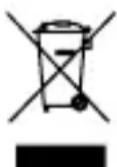
1 When this crossed-out wheeled bin symbol is attached to a product it means 'the product is covered by the European Directive 2002/96/EC.
2 All electrical and electronic products should be disposed of separately from the municipal waste stream via designated collection facilities appointed by the government or the local authorities.
3 The correct disposal of your old appliance will help prevent potential negative consequences for the environment and human health.
4 For more detailed information about disposal of your old appliance, please contact your city office, waste disposal service or the shop where you purchased the product.
Disposal of waste batteries/accumulators
1 When this crossed-out wheeled bin symbol is attached to batteries/ accumulators of your product it means they are covered by the European Directive 2006/66/EC.
2 This symbol may be combined with chemical symbols for mercury (Hg), cadmium (Cd) or lead (Pb) if the battery Contains more than 0.0005% of mercury, 0.002% of cadmium or 0.004% of lead.
3 All batteries/accumulators should be disposed separately from the municipal waste stream via designated collection facilities appointed by the government or the local authorities.
4 The correct disposal of your old batteries/accumulators will help to prevent potential negative consequences for the environment, animal and human health.
5 For more detailed information about disposal of your old batteries/ accumulators, please contact your city office, waste disposal service or the shop where you purchased the product.
Getting to know your phone
Before you start using the phone, please read this!
Please check to see if any problems you have encountered with your phone are described in this section before taking the phone in for service or calling a service representative.
1. Phone Memory
In order to make more memory available, you will have to manage your applications and delete some data, such as applications or messages.
Managing Applications
1 From the Home screen, tap the Menu Key and tap App settings.
2 When the list of applications appears, scroll and tap the application you want to disable.
3 Tap Uninstall and then tap OK to confirm that you want to uninstall the desired application.
2. Optimizing Battery Life
You can extend your battery's life between charges by turning off features that you don't need to run constantly in the background. You can also monitor how applications and system resources consume battery power.
To extend the life of your battery
- Turn off radio communications that you aren't using, such as Wi-Fi, Bluetooth, or GPS.
- Lower screen brightness and set a shorter screen timeout.
- Turn off automatic syncing for Gmail™, Calendar, Contacts, and other applications.
- Some applications you have downloaded may cause your battery power to be reduced.
- While using downloaded applications, check the battery charged level.
To view the battery charge level
1 From the Home screen, tap the Menu Key and tap System settings > About phone > Battery.
2 The battery status (charging or not charging) and level are displayed on the top menu of the screen.
To monitor and control what uses the battery
1 From the Home screen, tap the Menu Key and tap System settings > Power Saver > Battery use.
2 The bottom of the screen displays battery usage time. Either how long since last connected to a power source, or if connected to a power source, how long you were last running on battery power. The screen also lists applications or services using battery power from greatest amount to least.
3. Installing an Open Source Operating System
Installing an open source operating system on your phone and not using the operating system provided by the manufacturer can cause your phone to malfunction.
Warning
- If you install and use an OS other than the one provided by the manufacturer, your phone is no longer covered by the warranty.
- To protect your phone and personal data, download applications only from trusted sources, such as Play Store. If some applications are not properly installed on your phone, your phone may not work properly-or serious errors may occur. You will need to uninstall those applications and all of its data and settings from the phone.
4. Using the Swipe, Face Unlock, Pattern, PIN, or Password
Set the Face unlock, or an unlock Pattern, PIN, or Password to secure your phone. To set the screen lock, follow the process below.
From the Home screen, tap the Menu Key ≡ , tap System settings > Lock screen > Select screen lock and select among
Getting to know your phone
None, Swipe, Face Unlock, Pattern, PIN or Password.
NOTE
In case that you would have trouble with Face Unlock, you can unlock the screen with the unlock pattern and/or PIN as a backup.
Warning
Take precautions when using an Unlock Pattern, PIN, or Password. It is very important that you remember the screen unlock information you set. You are allowed 5 attempts to enter your screen unlock information. If you used up all 5 opportunities, you will have to wait 30 seconds to attempt unlocking the phone again.
When you can't recall your Unlock Pattern, PIN, or Password:
If you logged into a Google account on the phone and failed to use the correct pattern 5 times, tap Forgot pattern? You will be required to sign in with your Google account and prompted to create a new unlock pattern.
If you have set a backup PIN, you can unlock the screen with keying in the backup PIN.
If you haven't created a Google account on the phone or you forgot your PIN or Password, you need to perform a hard reset. Or, you can unlock the phone with the Backup pin.
5. Using Hard Reset (Factory Reset)
If your phone needs to be restored to its original condition, use a Hard Reset to initialize your phone.
1 Turn the power off.
2 Press and hold the following keys at the same time for 10 seconds: Power/Lock Key + Down Volume Key + Home Key.
3 The phone will turn on and perform a factory reset immediately.
Warning
If you perform a Hard Reset, all user applications and user data will be deleted. Please remember to back up any important data before performing a Hard Reset.
6. Using Safe Mode
To recover your phone when malfunctioning.
1 Turn off your phone and reboot. When you see the booting animation press and hold the Down Volume Key 📁. Your main screen will then be displayed with the words "Safe mode" in lower left corner.
2 From the Home screen, tap the Menu Key and tap App settings.
3 Tap one of the available tabs at the top of the screen and select the application you wish to uninstall.
4 Tap Uninstall and OK to confirm.
5 After uninstalling the application, turn off and reboot your phone.
7. Using a microSD Card
Pictures, Music and Video files, can be saved to external memory. Before saving these files to external memory, you need to insert a microSD card. If you have not inserted a microSD card, you will not be able to save these items on external memory.
Warning
Do not remove the microSD card without unmounting it first. Otherwise, it may damage the microSD card as well as your phone, and the data stored on the microSD card may be corrupted. To remove the microSD card safely, from the Home screen, tap the Menu Key ≡ and tap System settings > Storage > Unmount SD card > OK.
Getting to know your phone
8. Connecting your phone to a computer via USB
1 Use the USB cable that was provided with your phone to connect the phone to an USB port on your computer. You'll receive a notification that the USB is connected and can see USB connection mode popup.
2 Tap Media sync (MTP) to confirm that you want to transfer files between your phone's microSD card and the computer.
When the phone is connected as USB storage, you receive a notification. Your phone's microSD card is installed as a drive on your computer. You can now copy files to and from the microSD card.
9. Opening and switching applications
Multitasking is easy with Android because you can keep more than one application running at the same time. There's no need to quit an application before opening another. Use and switch between several open applications. Android manages each application, stopping and starting them as needed to ensure that idle applications don't consume resources unnecessarily.
To stop applications:
1 Touch Apps Key > Settings > Apps > Running tab.
2 Scroll to the desired application and touch Stop to stop it.
TIP
To return to a recent application, press and hold the Home Key ____.
The screen then displays a list of applications you have recently used.
10. Installing PC Software(LG PC Suite)
“LG PC Suite” PC Application is a program that helps you connect your device to a PC via an USB cable and Wi-Fi. Once connected, you can use the functions of your device from your PC.
With your “LG PC Suite” PC Application, You Can...
- Manage and play your media contents (music, movie, pictures) on your PC.
- Send multimedia contents to your device.
- Synchronises data (schedules, contacts, bookmarks) in your device and PC.
- Backup the applications in your device.
- Update the software in your device.
- Backup and restore the device.
- Play multimedia content in your PC from another device.
NOTE
You can use the Help menu from the application to find out how to use your "LG PC Suite" PC application.
Installing "LG PC Suite" PC Application
“LG PC Suite” PC application can be downloaded from the LG website.
1 Go to www.lg.com and select a country of your choice.
2 Go to Support > MOBILE SUPPORT > LG Mobile Phones > Select the Model (LG-P760) or Go to Support > Mobile Phone Support > Select the Model (LG-P760).
3 Click PC Sync from MANUALS & DOWNLOAD, and click DOWNLOAD to download "LG PC Suite" PC software or Click PC Sync from Downloads, and click WINDOW PC Sync Download to download "LG PC Suite" PC software.
System Requirements for "LG PC Suite" PC software
- OS: Windows XP 32 bit(Service pack 2), Windows Vista 32 bit/64 bit, Windows 7 32 bit/64 bit
• CPU: 1GHz or higher processor
• Memory: 512MB or higher RAM
- Graphic card: 1024 x 768 resolution, 32 bit color or higher
- HDD: 100 MB or more free hard disk space (More free hard disk space may
Getting to know your phone
be needed depending on the volume of data stored.)
- Required software: LG integrated drivers.
NOTE
LG Integrated USB Driver
LG integrated USB driver is required to connect an LG device and PC and installed automatically when you install "LG PC Suite" PC software.
11. Unlock screen when using data connection
Your screen will go dark if untouched for a period of time when using a data connection. To turn on your LCD screen, press the Power/Lock Key
12. Hold the phone straight up
Please hold the mobile phone straight up as a regular phone.
While making/receiving calls or sending/receiving data, try to avoid holding the lower part of the phone where the antenna
is located. It may affect call quality.
13. When the screen freezes
If the phone does not respond to user input or the screen freezes:
Remove the battery, reinsert it, then turn the phone on.
OR
Press and hold the Power/Lock key for 10 seconds to turn it off. If it still does not work, please contact the service centre.
14. Do not connect your phone when you power on/off your PC
Make sure to disconnect your phone from the PC when powering your PC on or off as it might result in PC errors.
Your Phone
To turn on the phone, press and hold the Power/Lock Key for 3 seconds.
To turn off the phone, press the Power/Lock Key for 3 seconds and tap Power off and OK to confirm.
Front view
Earpiece
Front-Facing Camera Lens
- Use to take a picture of yourself or to video chat on supported applications.
Quick Keys
- Phone Key
- Contacts Key
- Messaging Key
- Applications Key
Back Key
- Returns to the previous screen.
- Closes pop-up menus and dialog boxes.
Home Key
- Returns to the Home screen from any screen.
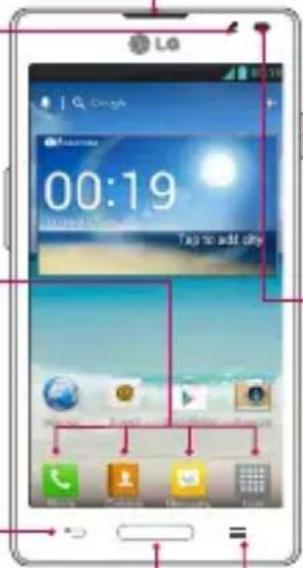
Power/Lock Key
- Powers your phone on/off by pressing and holding the key.
- Turns your screen on and off and locks it.
Proximity Sensors
- Senses proximity toward other objects, such as your head during a call, so that you do not accidentally activate unwanted features.
- Displays available options for the current screen.
Your Phone
NOTE: Proximity sensor
When receiving and making calls, the proximity sensor automatically turns the backlight off and locks the touch screen by sensing when the phone is near your ear. This extends battery life and prevents you from unintentionally activating the touch screen during calls.
Warning
Placing a heavy object on the phone or sitting on it can damage its LCD and touch screen functionalities. Do not cover the LCD's proximity sensor with a protective film. This can cause the sensor to malfunction.
TIPS
- Tap the Menu Key ≡ whenever you open an application to check what options are available.
- If your phone has errors when you use it or you cannot turn it on, remove the battery, install it again and turn it on after 5 seconds.
Side view
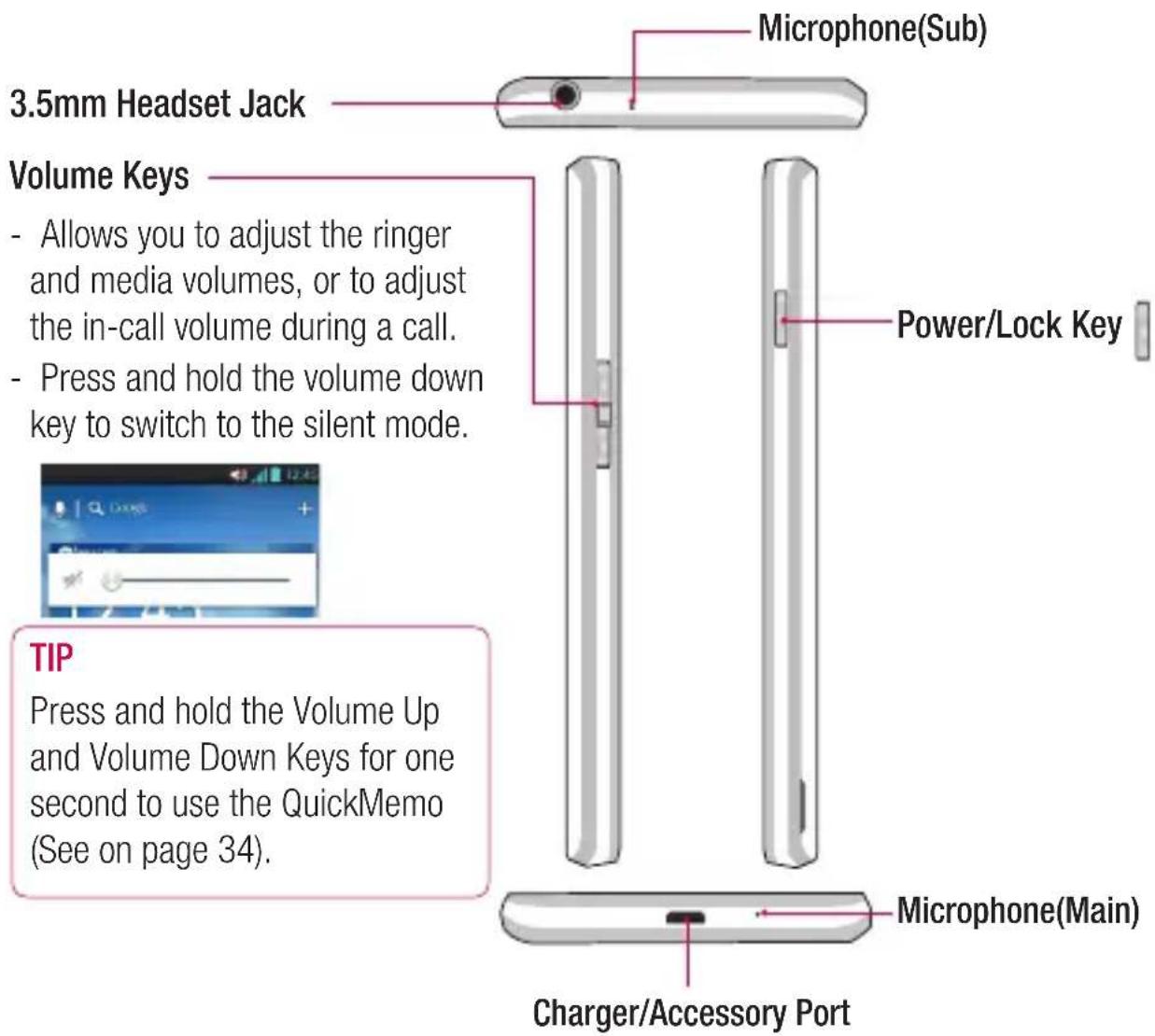
Your Phone
Rear view
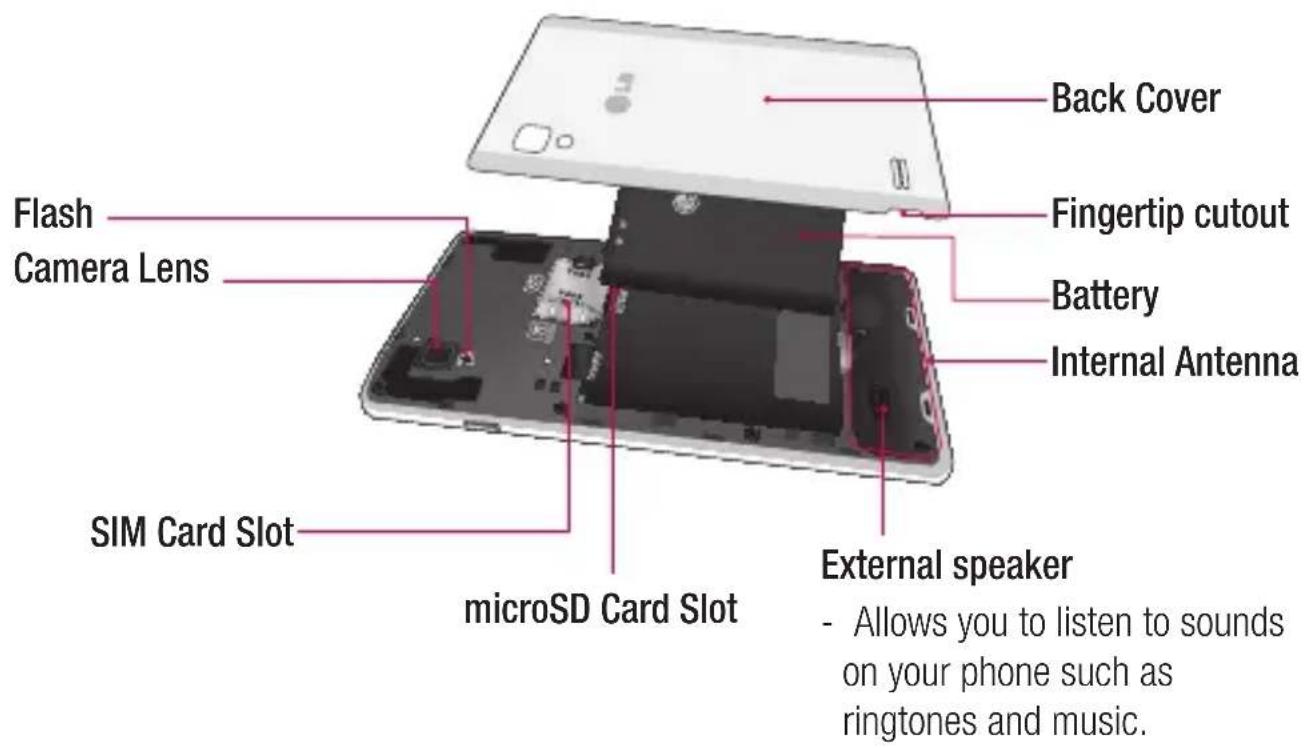
Getting Started
Installing the USIM card and battery
Before you can start exploring your new phone, you'll need to set it up. To insert the USIM card and battery:
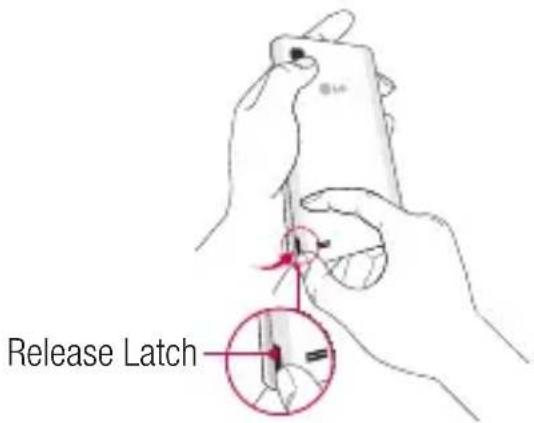
1 Hold the phone on your hand firmly. With the other hand, lift the back cover using the fingertip cutout located on the bottom of the cover and remove it.
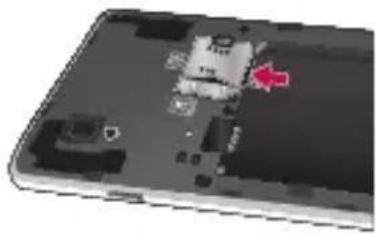
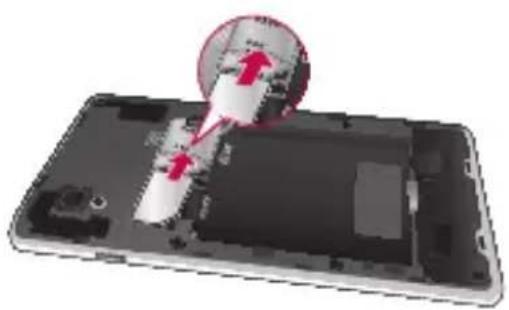
2 Slide the USIM card into the USIM card slot. Make sure the gold contact area on the card is facing downwards.
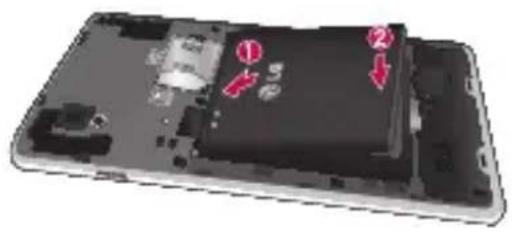
3 Insert the battery into place by aligning the gold contacts on the phone and the battery ① and press the battery down until it clicks into place ②
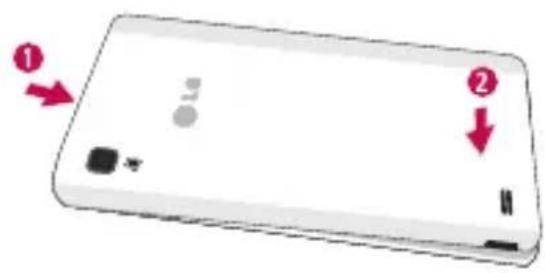
4 Align the battery cover over the battery compartment and press it down until it clicks into place?
Getting Started
Charging your phone
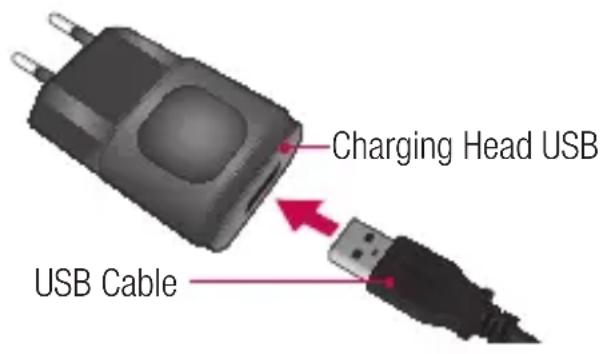
A rechargeable Li-ion battery is used to power your phone. A wall charger, which is included with your phone, is used to charge the battery. Ask your local LG dealer for further details regarding approved batteries and chargers.
Before first time use of your phone, make sure the battery is fully charged.
An uncharged battery will fully recharge after 4 hours.
NOTE
Make sure the battery is installed before connecting the wall charger. If the battery is not installed and the wall charger is connected, the phone will not operate properly due to prolonged power cycling. Also, removing the battery with the wall charger connected may damage the device. Please unplug wall charger before removing battery.
Warning!
If the touch screen does not function while the phone's in the process of charging, this may be due to an unstable power supply. As a result, disconnect the USB cable from the device or unplug the USB power adapter from the power outlet.
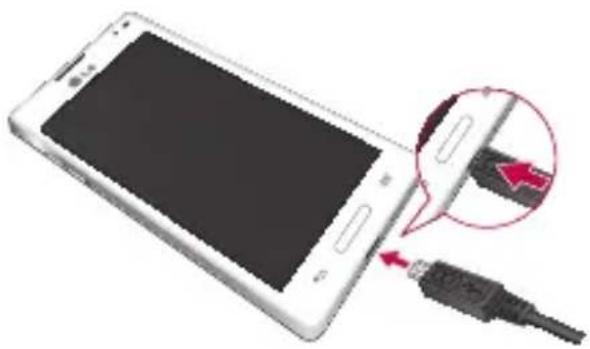
1 Connect the cables wall adapter and USB cable.
2 Plug the USB cable (as shown below) into the phone's Charger/Accessory Port. Make sure the USB symbol on the charging cable is facing upwards.
NOTE
The battery must be fully charged initially to improve battery lifetime.
NOTE
Your phone has an Internal Antenna(See on page 24). Be careful not to scratch or damage this rear area, as that will cause loss of performance. When charging your phone with a fully discharged battery, the keypad LED will briefly flash indicating charging is occurring in a mode designed to prevent battery damage. The blinking will stop and normal charging will commence once a sufficient minimum charge has been established.
Inserting a microSD card
Insert a microSD TM card to use the camera and other multimedia features. Multimedia contents can be saved in the microSD card.
NOTE
This device supports up to a 32GB microSD card.
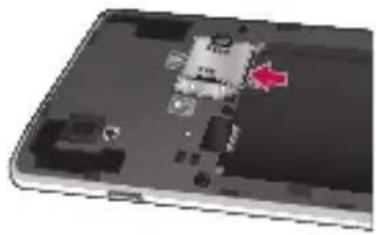
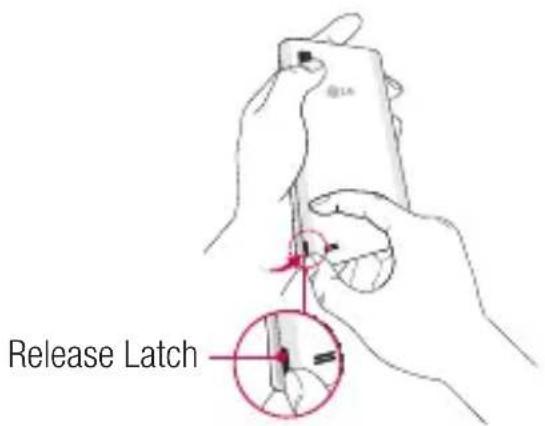
1 Turn the phone off before inserting or removing the microSD card. Remove the back cover.
Getting Started
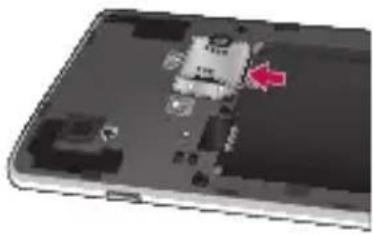
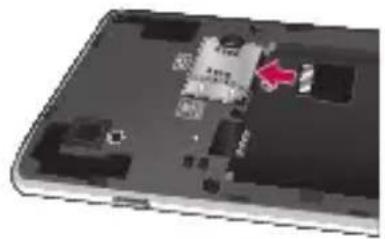
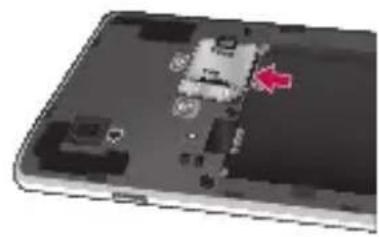
2 Then insert the microSD card into the slot. Make sure the gold contact area is facing upwards.
Removing the microSD card
To safely remove the microSD card from your phone, first you need to unmount it.
1 From the Home screen, tap the Menu Key ≡ and tap System settings > Storage > Unmount SD card > OK.
2 Remove the battery cover and battery, then gently pull the microSD card from the slot.
Warning
Do not remove the microSD card without unmounting it first. Otherwise, it may damage the microSD card as well as your phone, and the data stored on the microSD card may be corrupted.
Warning
All files stored on your microSD card are deleted when you format the card.
1 From the Home screen, tap the Menu Key and tap System settings > Storage.
2 Tap Erase SD card and Erase SD card button.
3 If you set an unlock pattern, enter it and tap Erase everything. The card will then be formatted and ready to use.
NOTE
If there is content on your microSD card, the folder structure may be different after formatting since all the files will have been deleted.
Switching between and exiting applications
Multi-tasking is easy with Android because open applications keep running even when you open another application. There is no need to quit an application before opening another. Use and switch among several open applications. Android manages each application, stopping and starting them as needed, to ensure that idle applications don't consume battery power unnecessarily.
Getting Started
Switching between applications
- Touch and hold the Home Key. A list of recently used applications will be displayed. Then tap the application you want to access.
To stop/exit an application
1 From the Home screen, tap the Menu Key and tap App settings > Running.
2 Tap the desired application and tap Stop to exit.
Your Home screen
Touch screen tips
With the touch of your finger, you can access available applications, make menu selections, and access data saved to your phone. The following terms are used for describing the different available actions using the touchscreen:
Tap - A single finger tap selects items, links, shortcuts and letters on the on-screen keyboard.
Touch and hold - Touch and hold an item on the screen by touching it and not lifting your finger until an action occurs. For example, to open a contact's available options, touch and hold the contact in the Contacts list until the context menu opens.
Drag - Touch and hold an item for a moment and then, without lifting your finger, move your finger on the screen until you reach the target position. You can drag items on the Home screen to reposition them.
Swipe or slide - To swipe or slide, quickly move your finger across the surface of the screen, without pausing when you first touch it (so you don't drag an item instead). For example, you can slide the screen up or down to scroll through a list, or browse through the different Home screens by swiping from left to right (and vice versa).
Double-tap - Double-tap to zoom on a Web page or a map. For example, quickly double-tap a section of a Web page to adjust that section to fit the width of the screen. You can also double-tap to zoom in and out when taking a picture (using the Camera), and when using Maps.
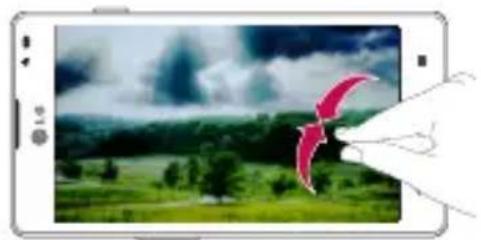
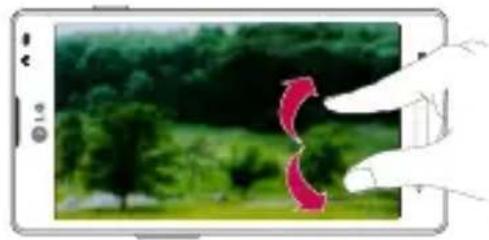
Pinch-to-Zoom - Use your index finger and thumb in a pinch or spread motion to zoom in or out when using the browser, Maps, or browsing pictures. You can also double-tap to zoom in and out when taking a picture (using the Camera).
Your Home screen
Pull in (Zoom Out)
Push (Zoom In)
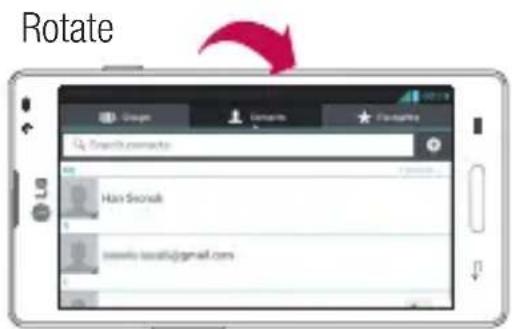
Rotate the screen -From many applications and menus, the orientation of the screen adjusts to the device's physical orientation.
NOTE
- To select an item, tap the centre of the icon.
- Do not to press too hard; the touch screen is sensitive enough to pick up a light, firm touch.
- Use the tip of your finger to tap the option you want. Be careful not to tap any other keys or icons.
Proximity sensors
When receiving and making calls, this sensor automatically turns the backlight off and locks the touch keypad by sensing when the phone is near your ear. This extends battery life and prevents the touch keypad from activating unintentionally during calls.
Lock your phone
When you are not using the LG-P760 press the Power/Lock Key to lock your phone. This helps prevent accidental presses and saves battery power.
Also, if you do not use the phone for a while, the Home screen or other screen you are viewing, is automatically replaced
with the lock screen after about 2 minutes of inactivity to conserve the battery and prevent pocket dialling.
To wake up your phone, press the Power/ Lock Key. The lock screen will appear. Slide the lock screen up. The last screen you were working on opens.
NOTE
- The automatic screen timeout can be configured manually in Settings.
- If there are any programs running when you lock the phone, they may still be running in lock mode. It is recommended that you exit all programs before entering the lock mode to avoid unnecessary charges (e.g., phone call, web access and data communications).
Setting Swipe, Face Unlock, Pattern, PIN, Password to unlock your phone
You can slide the screen without entering any information, utilize facial recognition, draw your own unlock Pattern or enter a PIN or Password to add more security to your device. To set Swipe, Face Unlock, Pattern, PIN, or Password, from the Home screen tap the Menu Key = > System settings > Lock screen > Select screen lock. Then choose from Swipe, Face unlock, Pattern, PIN, or Password and enter the desired information.
Caution
You are allowed 5 attempts to enter your screen unlock information. If you used up all 5 opportunities, you will have to wait 30 seconds to attempt unlocking the phone again.
Quick Switch to Silent Mode
To quickly set your phone to silent mode, press and hold the Volume Down Key until you see "on the screen.
Your Home screen
QuickMemo
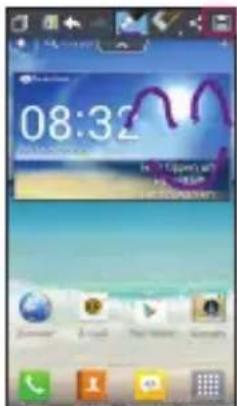
Use QuickMemo to practically and efficiently create memos during a call, with a saved picture or on the current phone screen.
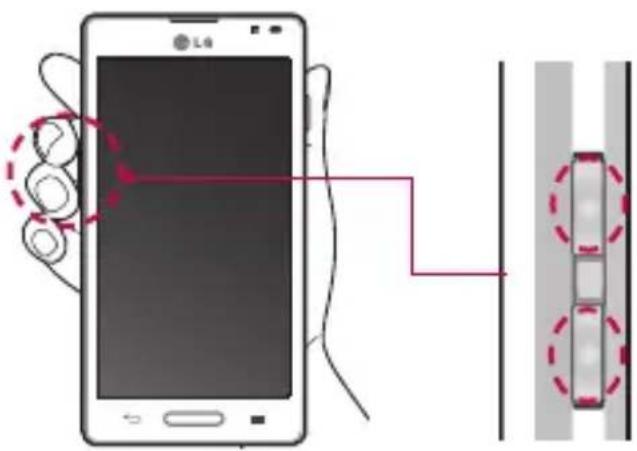
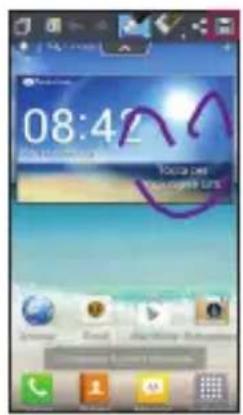
1 Push and hold in the Volume Up and Volume Down buttons for one second to use the QuickMemo (See on page 23).
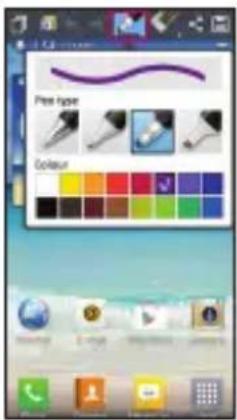
2 Select the desired menu option from Pen type, Color, Eraser, and create a memo.
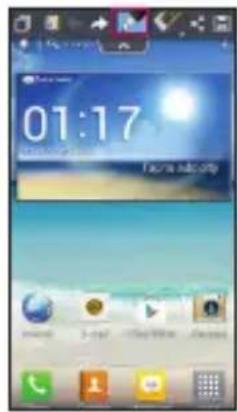
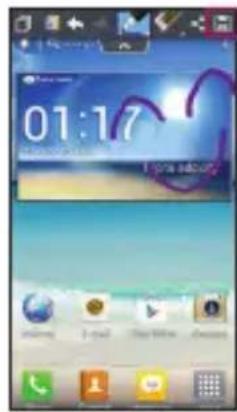
3 Touch to save the memo with the current screen.
NOTE
Please use a fingertip while using the QuickMemo. Do not use your fingernail.
Using the QuickMemo options
While using the QuickMemo, you can easily use the QuickMenu options.

- Touch the icon to keep the current memo on the screen and use the phone as usual. Touch icon again to turn off overlay mode.

- Select if you want to use the
background screen or not.


- Undo or Redo.

- Select the pen type and the colour.
- Erase the memo that you created.
- Send or share the current QuickMemo to/with others.
- Save the memo with the current screen.

Viewing the saved QuickMemo
Goto Gallery and select the QuickMemo album. (See page 70)
QuickTranslator
Instant offline/online translation between many languages. Just point the camera to translate. You can buy additional dictionaries for offline translation from Google Play Store.
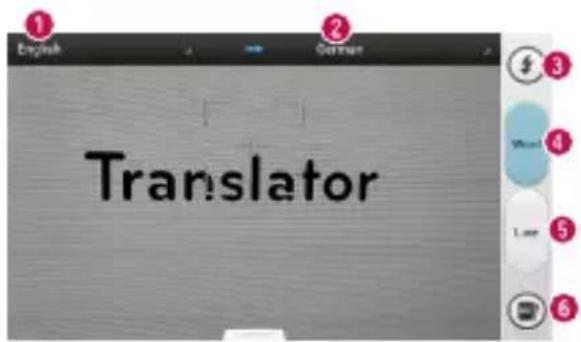
Home language
② Destination language
3 Flash
4 Translation of each word
⑤ Translation of sentence
6 View a word saved in a phone
NOTE
There might be a difference in the rate of recognition related to the size, font, color, brightness, angle of the letters that needs to be translated.
Home
Simply swipe your finger to the left or right to view the different panels.
You can also customize each panel with folders and widgets, which are shortcuts to your favourite applications.
NOTE
On the Home screen, you can view quick keys at the bottom of the screen. The quick keys provide easy, one-tap access to the functions you use the most.
Your Home screen
Customizing your Home screen
You can customize your Home screen by adding quick access elements, such as shortcuts, widgets, folders to it, or changing the wallpaper.
- Apps: Add shortcuts to applications on the Home screen.
- Downloads Add shortcuts to downloaded applications on the Home screen.
- Widgets: Add dynamically updating widgets to your Home screen to allow quick access to applications without opening the full application.
- Wallpapers Change the Home screen wallpaper.
1 Select a location (Home screen panels) to add an item by swiping the Home screen from left to right or vice versa.
2 Tap the (on the top right of the screen) and click an item. Or, touch and hold an empty part of the Home screen.
3 Tap the type of item you want to add on
the screen: Apps, Downloads, Widgets, or Wallpapers.
4 Tap an available apps, downloads, or widget.
5 You will see a new icon on the Home screen. To place it on a different panel, touch and hold it to drag it to the desired location on the desired panel and release your finger from the screen.
TIP
To add a preloaded application or an application you have downloaded from Play Store to the Home screen, simply touch and hold the icon you want in the Applications Screen to add to the Home screen.
NOTE
If there is no available space on a particular Home screen panel, you must delete or remove an item before you can add another item. In this case, you have the option of switching to another Home screen panel.
To delete an application icon from the Home screen, touch and hold the shortcut icon you want to delete and drag to the
Remove icon at the top of the screen.
You cannot delete the preloaded applications. (Only their icons can be deleted from the screen).
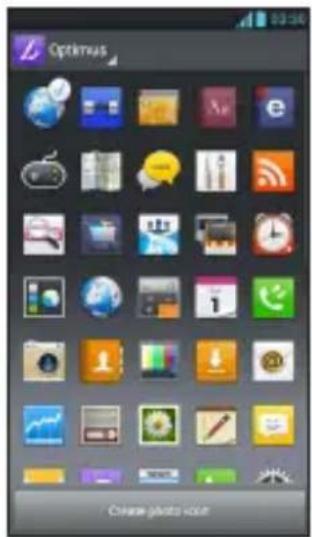
Customizing Apps Icons on Home screen
You can customize each application icon.
1 Editing icon appears when you take off your finger after touch & hold an app icon for a while.
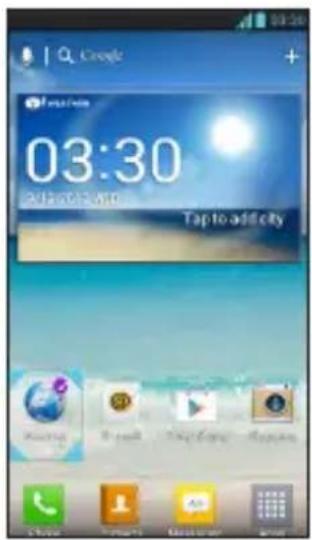
2 Tap the app again and select a desired icon design. Or tap Create photo icon to take a new picture or select a picture from the Gallery.
Getting back to a recently used application
1 Touch and hold the Home Key. The screen will display the icons of applications that you have used recently.
2 Tap an icon to open its application or tap the Back Key to return to the current application.
Your Home screen
Notifications panel
Notification icons on the Status Bar report the arrival of new messages, calendar events, alarms, as well as ongoing events, such as when you are on a call. You can view and edit a list of all recent notifications. The Notifications Panel runs across the top of your screen.
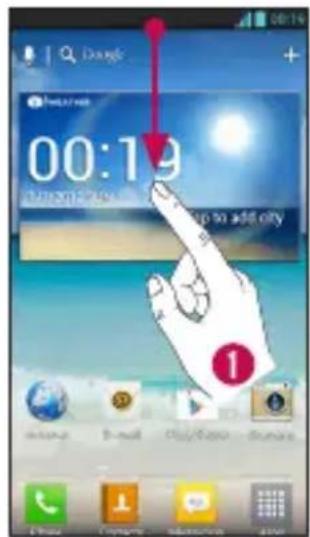
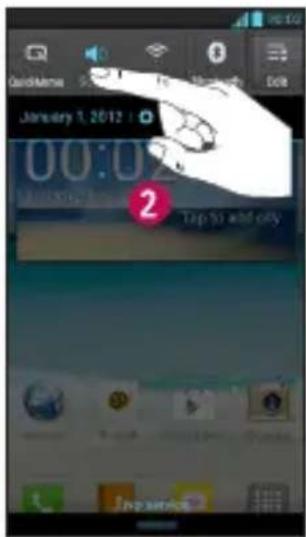
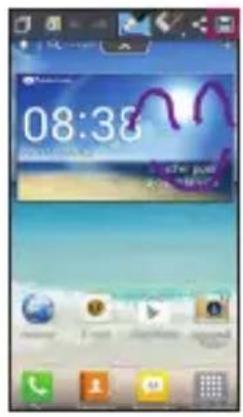
1 Touch the Status Bar to show the Notifications tab, then drag the tab to the bottom of the screen to open the Notifications Panel.
2 Touch the notification area to start the associated application.
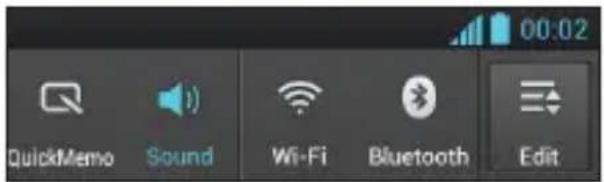
Touch and hold the Status Bar and slide it down with your finger to open the Notifications Panel. From here, you can check and quickly turn on and off Sound mode, QuickMemo, Wi-Fi, Bluetooth, and any other options you add.
Viewing the Status Bar
The Status Bar uses different icons to display phone information, such as signal strength, new messages, battery life, and active Bluetooth and data connections.
Below is a table explaining the meaning of icons you are likely to see in the Status Bar.
[Status Bar]
| Icon Description |
| No SIM card inserted |
| No network signal available |
| Airplane mode is on |
| Connected to a Wi-Fi network |
| Wired headset connected |
| Call in progress |
| Call on hold |
| Speakerphone is on |
| Phone microphone is muted |
| Missed call |
| Bluetooth is on |
| Connected to a Bluetooth device |
| Alarm is set |
| New voicemail available |
| Icon Description |
 | Ringer is silenced |
 | Vibrate mode is on |
 | Battery fully charged |
 | Battery is charging |
 | Phone is connected to PC via USB cable |
| [X582] | Downloading data |
| [S2Y0] | Uploading data |
 | GPS is on |
 | Receiving location data from GPS |
| [A4CK] | On-Screen Phone connected |
| [K030] | 3 more notifications not displayed |
 | Data is synchronizing |
 | Download finished |
| [4XS2] | New email available |
 | New Gmail available |
Your Home screen
| Icon Description |
 | New Google Talk message available |
 | New text/multimedia message available |
 | Song is playing |
 | Upcoming event |
 | USB tethering is active. |
 | Portable Wi-Fi hotspot is active |
 | Data in and out |
 | SmartShare On |
 | SmartShare music playing |
On-screen Keyboard
You can enter text using the on-screen keyboard. The on-screen keyboard displays automatically on the screen when you need to enter text. To manually display the keyboard, simply tap a text field where you want to enter text.
There are two types of keypads that you can use: Google voice typing and LG keyboard.
To select the keyboard:
1 Tap the Menu Key = > System settings > Language & input > Default (Under KEYBOARD & INPUT METHODS)
2 Select the default keyboard between Google voice typing and LG Keyboard.
LG keyboard - QWERTY - Letters Entry
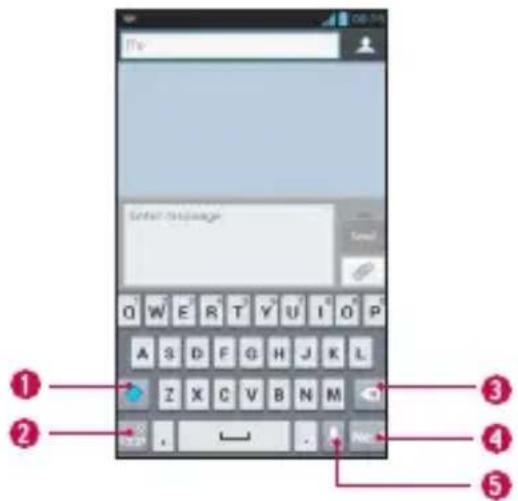
Shift Key - Tap once to capitalize the next letter you type. Double-tap for all caps.
2 Number and Symbols/ Settings Key
- Tap to change input to number and symbol entry. Touch and hold to set various LG keyboard settings.
③ Delete Key - Tap to delete characters to the left of the cursor.
4 Next Key - Tap to move the cursor to the next field.
5 Voice to Text Key- Tap to use the voice input function.
LG keyboard - QWERTY - Numbers and Symbols Entry
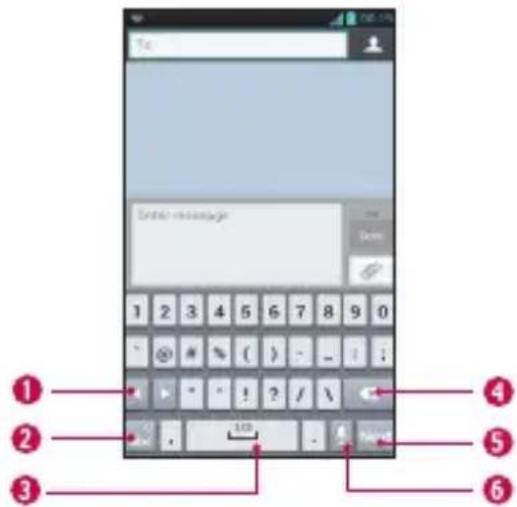
Key - Tap to use the additional symbols, the keyboard will display the symbols respectively.
② Letters/ Settings Key - Tap to change input to letters entry. Touch and hold to set various LG keyboard settings.
③ Space Key- Tap to enter space.
4 Delete Key - Tap to delete characters to the left of the cursor.
⑤ Next Key- Tap to move the cursor to the next field.
6 Voice to Text Key- Tap to use the voice input function.
Your Home screen
LG keyboard – Phone keypad
To switch to the phone keypad on LG keyboard, touch and hold Tap Input language & type > touch for setting, then tap Phone keyboard. The Phone keyboard allows you to enter letters by tapping the key labelled with the desired letters, similar to how you would on a traditional 12 key phone. You may have to tap a key up to four times to type the desired letter or number.
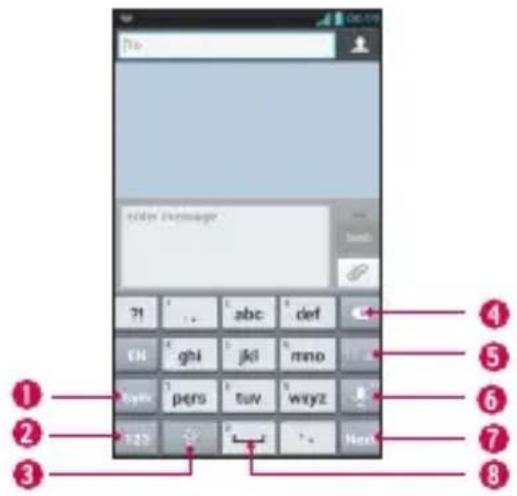
① Symbol Key - Tap to change input to symbol.
② Number Key - Tap to change input to number.
3Shift Key - Tap once to capitalize the next letter you type. Double-tap for all caps.
4 Delete Key - Tap to delete characters to the left of the cursor.
⑤T9 Key - Tap to turn on the T9 entry mode.
6 Voice to Text/ Settings Key- Tap to use the voice input function. Touch and hold to set various LG keyboard settings.
⑦Next Key - Tap to move the cursor to the next field.
8 Space Key - Tap to enter space.
Entering text
Shift Key - Tap once to capitalize the next letter you type. Double-tap for all caps. The coloured circle on the button tells you if uppercase is locked on or if it is just on for one character.
123 Number and Symbols/ Settings Key
- Tap to change to 123 Mode and enter numbers and symbols. Touch and hold to set various LG keyboard settings.

Enter Key- Adds another line when entering text.

Delete Key- Deletes any text you have entered.
To enter a space, tap
123 Mode
This mode allows you to enter numbers in a text message (a telephone number, for example) more quickly. Tap the keys corresponding to the required digits before manually switching back to the appropriate text entry mode by tapping the key.
Entering accented letters
The on-screen keyboard allows you to enter special characters (e.g., “á”).
From Phone Keypad (LG Keyboard)
Tap the key that corresponds to the desired character repeatedly until you see the special character you want.
From Qwerty keyboard
To input the accent, press and hold the desired key (press the “a” key for example). After the accented character appears, slide your finger over it and lift it off it to enter it.
Google Account Set-up
The first time you open a Google application on your phone, you will be required to sign in with your existing Google account. If you do not have a Google account, you will be prompted to create one.
Creating your Google account
1 From the Home screen, tap Apps Key
2 Tap Gmail > Next to start the Gmail™ setup wizard.
3 Tap a text field to open the keyboard and enter your name and tap Next.
4 Enter your username and tap Next. Your phone will communicate with Google servers and check for username availability.
5 Enter and re-enter your password. Then follow the instructions and enter the required and optional information about the account. Wait while the server creates your account.
Signing into your Google account
1 Enter your email address and password, then tap Sign in (If accessing Gmail for the first time, tap Existing prior to this step).
2 Enter your username and password and tap Sign in.
3 After signing in, you can use Gmail™ and take advantages of Google services on your phone.
4 Once you have set up your Google account, your phone will be automatically synchronized with your Google account on the web depending on your synchronization settings.
After signing in, your phone will sync with your Google services, such as Gmail ™ , Contacts, Google Calendar, and Picasa ™ photo albums. You can also use Google Maps ™ , download applications from Play Store ™ , back up your settings to Google servers, and take advantage of other Google services on your phone.
IMPORTANT
- Some applications, such as Calendar, work only with the first Google Account you add. If you plan to use more than one Google Account with your phone, be sure to sign into the one you want to use with such applications first. When you sign in, your Contacts, Gmail messages, Calendar events, and other information from these applications and services on the web are synchronized with your phone. If you don’t sign into a Google Account during setup, you will be prompted to sign in or to create a Google Account the first time you start an application that requires one, such as Gmail or Play Store™.
- If you have an enterprise account through your company or other organization, your IT department may have special instructions on how to sign into that account.
Connecting to Networks and Devices
Wi-Fi
To use Wi-Fi on your phone, you need access to a wireless access point, or "hotspot." Some access points are open and you can simply connect to them. Others are hidden or implement other security features, so you must configure your phone in order to connect to them.
Turn on Wi-Fi
From the Home Screen, Touch and hold the Status Bar And slide it down with your finger, open and tap to turn Wi-Fi on. OR
Tap the Menu Key ≡ and tap System settings > Wi-Fi .
To connect to a Wi-Fi Network
1 From the Home screen, tap the Menu Key ≡ and tap System settings > Wi-Fi.
2 Tap Wi-Fi to turn it on and begin scanning for available Wi-Fi networks.
- A list of available Wi-Fi networks will be displayed. Secured networks are indicated by a lock icon.
3 Tap a network to connect to it.
- If the network is secured, you are prompted to enter a password or other credentials. (Ask your network administrator for details).
4 The Status Bar at the top of your screen will display an icon that indicates your Wi-Fi status.
TIP
If you are not in range of a Wi-Fi network and use a network connection, additional data charges may apply. See Service Plan for details and restrictions.
TIP
Turn off Wi-Fi when you're not using it to extend the life of your battery.
NOTE
This device supports WEP, WPA/WPA2-PSK, WPA PSK, WPA2 Only PSK and 802.1x EAP. (Some EAP methods are not supported.) If your Wi-Fi service provider or network administrator sets encryption for network security, enter the key in the pop-up window. If encryption is not set, this pop-up window will not be shown. You can obtain the key from your Wi-Fi service provider or network administrator.
Bluetooth®
Using Bluetooth
1 From the Home screen, tap the Menu Key and tap System settings > Bluetooth to turn on the Bluetooth setting.
2 Tap Bluetooth icon > Search for devices.
3 Tap the name of the device you wish to pair with and connect.
TIP
Please consult documentation included with Bluetooth device for information on pairing mode and passcode (typically 0 0 0 0 – four zeroes).
How to send data from your phone via Bluetooth
You can send data via Bluetooth by running a corresponding application, not from Bluetooth menu.
* Sending pictures: Open the Gallery application and tap a picture. Then tap the share icon at the top
Bluetooth Check if Bluetooth is turned on and tap Search for devices. Then tap the device you want to send data to from the list.
* Exporting contacts: Open the Contacts application. Tap the contact you want to share, tap theMenu Key = and tap Share > Bluetooth. Check if Bluetooth is turned on and tap Search for devices. Then tap the device you want to send data to from the list.
Connecting to Networks and Devices
* Sending multi-selected contacts: Open the Contacts application. To select more than one contact, tap the Menu Key = and tap Share. Tap the contacts you want to send or tap Select all Attach. Then tap Bluetooth. Check if Bluetooth is turned on and tap Search for devices. Then tap the device you want to send data to from the list.
* Connecting to FTP (Only if the FTP server is supported on your handset): From the Home screen, tap the Menu Key ≡ and tap System settings > Bluetooth. Make sure Bluetooth is turned on. Tap make phone visible. Then search for other devices. Find the service you want and connect to the FTP server.
TIP
Your phone is loaded with Bluetooth 3.0 and certified by Bluetooth SIG. It is compatible with other Bluetooth SIG certified devices.
- If you want to search for this phone from other devices, from the Home screen, tap the Menu Key ≡ and tap System settings > Bluetooth.
Make sure Bluetooth is turned on. Tap Make phone visible to other Bluetooth devices for 120 seconds.
- Supported profiles are HFP/HSP, A2DP, AVRCP, OPP, FTP(Server), HID and PBAP.
Data Tethering
You can use your phone to provide a data connection to a computer by activating data tethering and connecting the phone and computer with a USB cable.
To tether your phone with your computer using the USB
1 Connect your phone to your computer with a USB cable.
2 You can see USB connection mode popup and tap USB tethering and OK to confirm then tap USB tethering.
3 A blue check mark will appear, indicating that the function is activated.
NOTE
- Data Tethering requires an appropriate DataPro data plan. Devices connected by tethering use data from your DataPro plan. Plans are not unlimited and significant charges may be incurred if the included data allowance is exceeded. Performance may vary depending on the number of devices connected and other factors.
- You cannot access your phone's microSD card on your computer when using USB tethering.
- From the Home screen, tap the Menu Key = and tap System settings > More > Portable Wi-Fi hotspot. Check to turn on.
Mobile Hotspots
You can also use your phone to provide a mobile broadband connection for up to 8 other devices. Create a hotspot and share your connection.
To create a portable hotspot, tap theMenu Key ≡ > System settings > Portable Wi-Fi hotspot > Configure Wi-Fi hotspot Set a password upon first use.
NOTE
Performance may vary depending on the number of devices connected and other factors. If you do not use a password, other unauthorized devices be able to use your Mobile Hotspot connection.
Connecting to Networks and Devices
Wi-Fi Direct
Learn to use the WLAN Direct feature to connect two devices via a WLAN without requiring an access point.
Connect your device to another WLAN device
1 System settings > More > Wi-Fi Direct.
2 Press Search.
3 Select a device and then select Connect. When the owner of the other device accepts the connection, pairing is complete.
4 To deactivate the WLAN Direct feature, select Disconnect Wi-Fi Direct.
FileShare
Fileshare in file sharing application which is provided auto connection based on Wi-Fi Direct. Choose the types of content you would like to share. Choose from Pictures, Videos, Music and Document.
Send data
1 Apps Key > FileShare .
2 Select one of images, videos, music or documents category to send.

3 Finish sending files by tapping the button to send selected files to scanned devices.
Use Menu Key = to use more of its functions.
Receive data
When prompted, selectOK to confirm that you are willing to receive data.
Calls
Making a call
1 Tap to open the keypad.
2 Enter the number on the keypad. To delete a digit, tap the Clear icon
3 Tap the Call icon to make a call.
4 To end a call, tap the End icon.
TIP
To enter “+” to make international calls, touch and hold 0+.
1 From the Home screen, tap the Apps Key and then tap Contacts to open your contacts.
2 Scroll through the contact list or tap the Search contacts box and enter the first letter(s) of the contact you want to call.
3 In the list that is displayed, tap the contact you want to call.
4 In the Contact Info screen, tap the phone number you wish to call.
Answering and rejecting a call
When the screen is locked
When your phone rings, swipe the Answer icon in any direction to answer the incoming call.
Swipe the Decline icon in any direction to reject an incoming call. Swipe the Quick msg icon in any direction if you want to send a message to the caller. If the caller is unknown, the Quick msg icon is not available.
When the screen is unlocked
When your phone rings, tap the Answer icon 📋 Trap Decline icon to reject an incoming call.
Tap the Quick msg Key if you want to send a message to the caller. If the caller is unknown, the Quick msg Key is not available.
Calls
Adjusting the in-call volume
To adjust the in-call volume during a call, use the volume up and down keys on the left side of the phone.
Making a second call
1 During your initial call, tap the Menu Key and select Add call.
2 Dial the number or search your contacts.
3 Tap the Call icon 📞 to connect the call.
4 Both calls will be displayed on the call screen. Your initial call will be put on hold.
5 Tap the Call entry on the screen to toggle between active calls or tap Merge call to merge the calls.
6 To end active calls, tap the End icon ☐ If there is no active call, it will end the call on Hold.
Ending a Call
Tap the 🔺 key to end a call.
NOTE
To redial recent numbers, touch at the end of the call or find the number within the Logs list, touch the entry and touch Call.
If you end the current call screen and return to the Home screen, you will be notified that you are still on an active call by the green phone icon within the Status Bar.
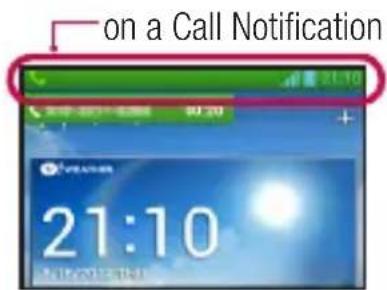
Ending a Call from the Status Bar
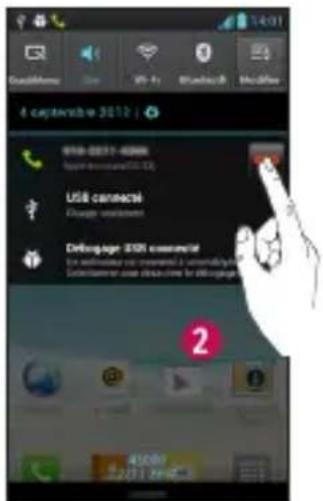
1 Tap the Status Bar to show the Notifications tab, then drag the tab to the bottom of the screen to open the Notifications Panel (1).
2 Tap End to end the currently active call (2).
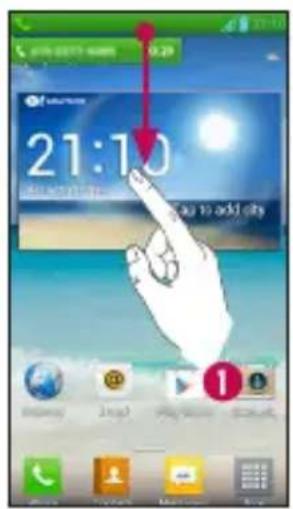
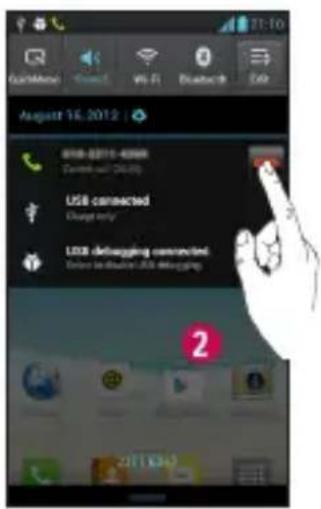
Viewing your call logs
From the Home screen, tap theCall icon and the Call log tab.
View a complete list of all dialed, received, and missed voice calls.
TIP
Tap any single call log entry to view the date, time, and duration of the call.
TIP
Tap the Menu Key ,= then tap Delete all to delete all the recorded items.
Call settings
You can configure phone call settings, such as call forwarding, and other special features offered by your carrier.
1 From the Home screen, tap the Menu Key and tap System settings.
2 Tap Call.
3 Set any of the available options.
You can add contacts on your phone and synchronize them with the contacts in your Google Account or other accounts that support syncing contacts.
1 From the Home screen, tap Apps Key and then tap Contacts to open your contacts.
2 Tap the Search contacts and enter the contact name using the keypad.
1 Tap Phone key and enter the new contact's number. Tap the Menu Key = , tap Add to contacts and then Create new contact.
2 If you want to add a picture to the new contact, tap . Choose from Take photo or Select from Gallery. Then browse for an image and select it.
3 Tap Phone to enter more specific name information.
4 Enter the details about your contact.
5 Tap Save to save the contact entry.
You can classify frequently called contacts as favourites.
1 From the Home screen, tap Apps Key and then tap Contacts to open your contacts.
2 Tap a contact to view its details.
3 Tap the star to the right of the contact's name. The star turns gold and the contact is added to your favourites.
1 From the Home screen, tap Apps Key and then tap Contacts to open your contacts.
2 Tap the Groups tab and tap favourites.
3 Tap a contact to view its details.
4 Tap the gold star to the right of the contact's name. The star turns grey and the contact is removed from your favourites.
Messaging/E-mail
Messaging
Your phone combines SMS and MMS into one intuitive, easy-to-use menu.
Threaded box
Messages (SMS and MMS) exchanged with another party can be displayed in chronological order so that you can conveniently see an overview of your conversations.
Sending a message
1 Tap the icon on the Home screen, then tap icon on the top right to create a new message.
2 Enter a contact name or phone number in the To field. As you enter the contact name, matching contacts appear. You can tap a suggested recipient. You can also add multiple contacts.
3 Tap the text field to start entering your message.
4 Tap the Menu Key to open the options menu. Choose from Discard, Add subject, Insert smiley and All messages.
5 Tap Send to send your message.
6 The message screen opens, with your
message after the recipients name/number. Responses appear on the screen. As you view and send additional messages, a message thread is created.
Warning
The 160-character limit may vary from country to country depending on how the SMS is coded and the language used in the message.
Warning
If an image, video, or audio file is added to an SMS message, it will be automatically converted into an MMS message and your service plan will be decremented accordingly.
NOTE
When you get an SMS message during a call, there will be an audible notification.
Messaging/E-mail
Using smiles
Liven up your messages using smiles. When writing a new message, tap the Menu Key → then tap Insert smiley.
Changing your message settings
Your phone's message settings are predefined, so you can send messages immediately. You can change the settings based on your preferences.
From the Home screen, tap Messaging > Menu Key = > Settings.
E-mail
You can use the E-mail application to read E-mail from providers other than Gmail. The E-mail application supports the following account types: POP3, IMAP and Microsoft Exchange ActiveSync® (for Enterprise users).
To open the E-mail application
From the Home screen, taps Key > E-mail @.
The first time you open the E-mail application, a setup wizard opens to help you add an E-mail account.
Microsoft Exchange E-mail Account
E-mail address – Enter the account email address.
User name—Enter the account username.
Password – Enter the account password.
Domain – Enter the account domain (optional)
Server address—Enter the server address
Use SSL—Choose whether or not to use
SSL for Microsoft Exchange.
Other (POP3, IMAP) E-mail Account
E-mail address – Enter the account email address.
Password – Enter the account password.
User name – Enter the account username.
Incoming Server Settings
POP3 / IMAP4 – Select protocol type, either POP3 or IMAP4.
Incoming server – Enter the incoming email server address.
Secure type – TLS/SSL/Off.
Port number – Normally each account's default number will be displayed.
Advanced Server Settings (Outgoing)
Outgoing server – Enter the outgoing email server address.
SMTP secure type – TLS/SSL/Off.
SMTP Port number – Normally each account's default number will be displayed.
Tap the Next button to connect the server.
Setup Completed page will appear. You will need to enter "name" for account display and My name. Then, tapDone.
The account will now appear in the list of accounts in your E-mail folder.
The Accounts Screen
The Accounts screen lists your Combined Inbox and each of your email accounts.

TapApps Key

E-mail

The
Account list appears.
TIP
To make a shortcut to the Inbox of an account: In the accounts list, touch and hold an email account, tapAdd to homescreen.
You can tap an account to view its Inbox. The default account from which you send email is indicated with a checkmark.
Messaging/E-mail
To open your Combined Inbox
If you have configured email to send and receive email from more than one account, you can view all messages sent to all accounts in your Combined Inbox.
▶ TapE-mail > Combined Inbox (on the Accounts screen).
Messages in the Combined Inboxare colour coded on the left, by account, using the same colours used for your accounts in the Accounts screen.
When a new email arrives in the inbox, there will be sound and vibration notification. Tap the email notification to end it.
Composing and Sending E-mail
1 In the E-mail application, tap Compose.
2 Enter an address for the message's intended recipient. As you enter text, matching addresses will be offered from your contacts.
3 Tap the Cc/Bcc field to copy or blind copy to other contacts/email addresses.
4 Enter the text of the message.
5 Tap Attach to attach the file you want to send with your message.
6 Tap Send.
Touch a message in the Drafts folder to resume working on it. Your message will also be saved as a draft if you touch the Back key before sending it.
If you are not connected to a network, for example if you're working in airplane mode, the messages you send are stored in your Outbox folder until you're connected to a network. If it contains any pending messages, the Outbox will be displayed on the Accounts screen.
NOTE
The messages sent using an Exchange account will not be stored on the phone; they will be stored on the Exchange server itself. If you want to see your sent messages in the Sent folder (or with the Sent label), you may need to open the Sent folder/label and select Refresh from the options menu.
Working with Account Folders
Each account has Inbox, Outbox, Sent, Drafts, Trash and Junk folders. Depending on the features your account service provider supports, you may have additional folders.
Adding and Editing E-mail Accounts
To add an email account
1 Tap Apps Key > E-mail @.
2 Select Microsoft Exchange or Other.
If an email account is already set up, the wizard is not activated automatically.
In this case, tap the Menu Key = > Add account.
To change account settings
1 Open the Accounts screen.
2 Tap the Menu Key = > Settings.
To delete an email account
1 Open the Accounts screen.
2 Touch and hold the account you want to delete.
3 Tap Delete account in the menu that opens and tap OK in the dialogue box to confirm.
Social Networking
With your phone, you can enjoy social networking and manage your micro-blog in on-line communities. You can update your current status, upload photos, and view your friends' status updates in real-time. You can add your Facebook, Twitter accounts to your phone. If you don't have an account, you can visit their sites to set one up.
NOTE
Additional costs may be incurred when connecting and using online services. Check your data charges with your network provider.
Adding an account to your phone
1 From the Home screen, tap the Menu Key ≥ System settings > Account & sync.
2 Tap ADD ACCOUNT.
3 Tap any social networking service you want to use.
4 Enter your email address and password that you set up for your social networking account, then tap Log in.
If you add a social networking widget on your Home screen, the widget will show your status when your phone receives updates from the network.
You can also access the social community directly by tapping the widget.
1 Touch and hold an empty spot on the Home screen.
NOTE
If there is no available space on a particular Home screen panel, you won't be able to add any widget; you must delete or remove an item before you can add another item. In this case, you have the option of switching to another Home screen panel.
2 Tap the Widgets tab and scroll to the right until you see Social+.
3 Tap Social+ to add it to the Home screen panel.
Viewing and updating your status
1 Go to the Home screen panel where the Social+ widget is. You can see the current status of social applications you set.
2 You can select each social application you'd like to view. Tap the arrow (for example, on the upper left corner of the widget) and tap the social application you'd like to display.
3 Tap "What are you doing?" field to update your status with comments or upload pictures.
- Check all the social applications you'd like to update. It will simultaneously update all.
4 After entering comments with attachment (if any), tap Post.
TIP
You can use information about friends only in your social network(s) or sync all data to Contacts.
Syncing accounts on your phone
You can sync information from your social networking accounts with your Contacts and other functions on your phone, if applicable.
1 From the Home screen, tap the Menu Key ≧ System settings > Accounts & sync. Choose the account you want to synchronize and enter the necessary information.
2 Check Update data to sync.
3 Tap the account to sync.
4 Check sync options such as Sync Contacts.
“ ” indicates that synchronization has been enabled.
Removing accounts on your phone
1 From the Home screen, tap the Menu Key ≥ System settings > Accounts & sync.
2 Tap the account(s) you want to delete, then tap Delete account (twice).
Camera
To open the Camera application, tapApps Key > Camera
Getting to know the viewfinder
- Brightness – This defines and controls the amount of sunlight entering the lens. Slide the brightness indicator along the bar, towards “-” for a lower brightness image, or towards “+” for a higher brightness image.
- Cheese shutter – Say Cheese when you get ready to take a photo.
Camera Switch - Allows you to switch between the front-facing and back-facing cameras.
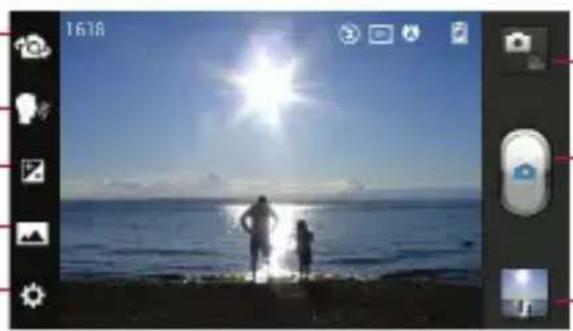
Camera mode – Touch this icon down to switch to video mode.
Capture – Allows you to take a photo.
Gallery – This enables you to access your saved photos and videos within the camera mode. Simply tap and your Gallery will appear on the screen.
-Settings – Tap this icon to open the settings menu. See using the advanced settings on page 63.
Shot mode – Choose from Normal, Panorama or Continuous shot
Taking a photo
1 Open the Camera application.
2 Hold the phone, point the lens towards the subject you want to photograph.
3 Touch the screen and a focus box will appear in the viewfinder screen.
4 When the focus box turns green, the camera has focused on your subject.
5 Click on the to capture the image.
NOTE
A shading issue may occur when you take a picture indoors, due to the characteristics of the camera. (Shading means a colour difference between the centre and sides.)
Once you've taken the photo
Your captured photo will appear on the screen if Auto review is set to On.
Share
Tap to share the picture via various methods such as Bluetooth, E-mail, Gmail, Google+, Memo, Messaging, Picasa, Social+, or any other
downloaded applications that is supported.
NOTE
Additional charges may apply when MMS messages are sent while roaming.
Set as
Tap to use the image a Contact photo, Home screen wallpaper, Lock screen wallpaper.

Tap to delete the image.

Tap to take another photo immediately. Your current photo will be saved.

Tap to view the Gallery of your saved photos.
Using the advanced settings
In the viewfinder, tap to open the advanced options.
You can change the camera settings by scrolling the list. After selecting the option, tap the Back key .
Flash – Turn Off / On / Auto.
Camera
Focus – Tap to select the focus mode.
- Auto : Allows the camera to focus automatically. (The camera continuously focuses on the objects in the photo)
- Face tracking: The camera detects and focuses on human faces automatically.
Image size – Tap to set the size (in pixels) of the picture you take. Select a pixel value from the following options:
5M(2592X1944), 3M(2048X1536), W3M(2592X1458), 1M(1280x960), W1M(1280X720).
Scene mode – Select the colour and light settings appropriate for the current environment.
- Normal : Automatically adjusts according to the environment.
- Portrait: It's good to capture people.
- Landscape: It's good to capture natural scenery such as trees, flowers and sky.
- Sunset : It's good to capture the sunset scenery.
ISO - Control the camera's sensitivity to light. Choose from Auto, 400, 200 and 100.
White balance – The white balance ensures any the white areas in your picture are realistic. To enable your camera to
adjust the white balance correctly, you may need to determine the light conditions.
Choose from Auto, Incandescent, Sunny, Fluorescent and Cloudy.
Colour effect— Choose a colour tone for your new photo.
Timer – The self-timer allows you to set a delay after the shutter is pressed. Select Off, 3 sec, 5 sec or 10 sec. This is ideal if you want to be included in a photo.
Geotagging – Activate to use your phone's location-based services. Take pictures wherever you are and tag them with the location. If you upload tagged pictures to a blog that supports geotagging, you can see the pictures displayed on a map.
NOTE
This function is only available when GPS is active.
NOTE
This function uses wireless networks. You need to checkmark Use wireless networks.
From the Home screen, tap the
Menu Key ≡ > System settings >
Location services. Check Google's
location service

Shutter sound – Select one of the four shutter sounds.
Auto review – If you set Auto review on, it will display the picture that was just taken automatically.
Storage – Choose from SD card, Internal memory.
Reset – Restore all camera default settings.
Camera help guide – Touch whenever you want to know how some function operates. This provides you with a quick guide.
NOTE
- When you exit the camera, some settings will return to their defaults. Check the camera settings before you take your next photo.
- The settings menu is superimposed over the viewfinder, so when you change elements of the image colour or quality, you will see a preview of the image change behind the settings menu.
Viewing your saved photos
You can access your saved photos from within the camera mode. Just tap the Gallery button and your Gallery will be displayed.
TIP
Flick left or right to view other photos or videos.
Tap a photo to display other options menus.

Tap to see a Smart Share list of your images (Connecting to other devices show the photos).

Tap to take a new photo.
Camera

- Tap to share the photo via various methods such as Bluetooth, or Messaging.

- Tap to delete the photo.
Menu Key ≡ - Tap to access Set image as, Move, Rename, Rotate left, Rotate right, Crop, Edit, Slideshow, or Details.
Setting a photo as wallpaper
1 Tap the photo you want to set as wallpaper to open it.
2 Tap the screen to open the options menu.
3 Tap Menu Key ≡ > Set image as > Home screen wallpaper.
4 Crop the image as desired and tap OK.
Video Camera
Getting to know the viewfinder
Brightness— This defines and controls the amount of sunlight entering the lens. Slide the brightness indicator along the bar, towards “-” for a lower brightness video, or towards “+” for a higher brightness video.
Zoom – Zoom in or zoom out.
Camera Switch- Allows you to switch between the front-facing and back-facing cameras.
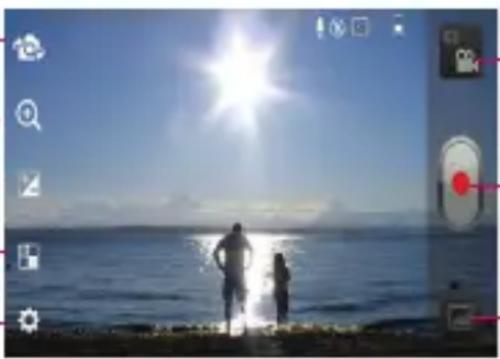
Camera mode – Touch this icon up to switch to camera mode.
Start recording— Allows you to start recording.
Gallery – This enables you to access your saved photos and videos from within the video camera mode. Simply tap and your Gallery will appear on the screen.
Settings— Tap this icon to open the settings menu. Sets using the advanced settings on page 68.
Live effect— Live effect provides various visual effects when taking a video.
Video Camera
Recording a video
1 From the Home screen, tap Camera and tap the Camera mode button to change to Video mode. The capture icon will change to
2 The video camera's viewfinder will appear on the screen.
3 Holding the phone horizontally, point the lens towards the subject of the video.
4 Tap the Record icon once to start recording.
5 A timer showing the length of the video is displayed at the top left corner of the screen.
TIP

Tap to capture image during
rding a video.
6 Tap the Stop icon 📋 on the screen to stop recording.
After recording a video
A still image representing your video will appear on the screen if Auto review is set to On.
Play
Tap to play the video.
Share
Tap to share the picture via various methods such as Bluetooth, E-mail, Gmail, Google+, Messaging, YouTube, or any other downloaded applications that is supported.
NOTE
Additional charges may apply when MMS messages are downloaded while roaming.

Tap to delete the video you just recorded. TapOK to confirm it. The viewfinder will reappear.

Tap to record another video right away. Your current video will be saved.

Tap to view the Gallery of your saved videos.
Using the advanced settings
Using the viewfinder, tap to open the advanced options.
Adjust the video camera settings by scrolling the list. After selecting the option, tap the Back key .
Flash – Allows you turn on the flash when recording video in a dark place.
Video size – Tap to set the size (in pixels) of the video you record. Select the video size from Full HD(1920x1080), HD(1280x720), TV(720x480), VGA(640x480), MMS(QVGA-320x240) and MMS(QCIF-176x144).
White balance – The white balance ensures any the white areas in your video are realistic. To enable your camera to adjust the white balance correctly, you may need to determine the light conditions. Choose from Auto, Incandescent, Sunny, Fluorescent and Cloudy.
Colour effect – Choose a colour tone to use for your new video.
Geotagging—Activate to use your phone's location-based services. Take videos wherever you are and tag them with the location. If you upload tagged videos to a blog that supports Tag location, you can see the videos displayed on a map.
Audio recording – Choose off to record a video without sound.
Auto review – If you turn Auto review on, Tap Play on the top left corner of the screen if you wish to watch the video you recorded.
Storage – Choose from SD card, Internal memory.
Reset – Restore all video camera default settings.
Video help guide – Touch whenever you want to know how some function operates. This provides you with a quick guide.
Watching your saved videos
1 In the viewfinder, tap
2 Your Gallery will appear on the screen.
3 Tap a video to play it automatically.
Adjusting the volume when viewing a video
To adjust the volume of a video while it is playing, use the Volume Keys on the left side of the phone.
You can store multimedia files to a microSD card to have easy access to all your image and video files.
Gallery
Tap Apps Key > Gallery
View mode
When you open the Gallery, your photos will be presented in Folder view. Once you open a folder, your photos will be in Grid view. When you tap a photo from Grid view, it will be displayed in Full view.
Calendar View
In Folder view, tap Albums to view Albums, Locations, Timestamp
Tap a photo and tap the Menu Key ≡ to see the following available options: Set image as, Move, Rename, Rotate left, Rotate right, Crop, Edit, Slideshow, Details.
Sending a photo
1 To send a photo, touch the photo you want.
2 Tap and choose from any of the available applications.
3 When you choose E-mail, Gmail or Messaging, your photo will be attached to a message, which you can then write and send normally.
TIP
If you have a social networking account set up on your phone, you can share your photo with that social networking community.
Sending a video
1 To send a video, touch and hold the video you want.
2 Tap Share and choose from any of the available applications.
3 When you choose E-mail, Gmail or Messaging your video will be attached to a message, which you can then write and send normally.
Using an image
Choose images to use as wallpaper or identify callers.
1 Touch a photo then tap Menu Key ≡ > Set image as.
2 Choose from Contact photo, Home screen wallpaper and Lock screen wallpaper.
Viewing a slideshow
To view a slideshow of your photos, open the Gallery and tap a photo. Once the photo is displayed, tap the screen to see the menu. TapMenu Key = > Slideshow to begin the slideshow of all your photos.
View photo details
You can view a photo's detailed information, such as the name, date, time, size, and type.
While viewing a photo, tap Menu Key = > Details.
To transfer files using a USB device:
1 Connect the phone to a PC using a USB cable.
2 You can see USB connection mode popup. (From the Home screen, tap the Menu Key and tap System settings > Connectivity > USB connection type > Media sync (MTP).
3 Tap Media sync to confirm.
4 You can view the phone content on your PC and transfer the files.
NOTE
If you don't want to see USB connection mode popup, uncheck Don't ask again on USB connection mode popup or turn off ask on connection. (Menu Key and tap System settings > Connectivity settings > Ask on connection).
Music Player
Your phone has a music player that lets you play all your favourite tracks. To access the music player from the Home screen, tap Apps Key and tap Music Player.
How to save music/video files to the phone
Connect your phone to the PC using the USB cable
You'll receive a notification that the USB is connected and can see USB connection mode popup. Tap Media sync (MTP) to confirm. Then open the folder you wish to view from your computer.
Save music or video files from the PC to the phone's removable storage
- You may copy or move files from the PC to the phone's removable storage using a card reader.
- If there is a video file with a subtitle file (.smi file with the same name as the video file), place them in the same folder
to display the subtitle automatically when playing the video file.
- When downloading music or video files, copyright must be secured. Please note that a corrupted file or file with a wrong extension may cause damage to the phone.
How to play video files on the phone
Playing video files
Locate the file you want in the Gallery and tap it to play it.
Playing a song
1 From the Home screen, tap Apps Key and tap Music Player.
2 Tap the Songs tab.
3 Tap the song you want to play.
4 Tap to pause the song.
5 Tap to skip to the next song.
6 Tap to go back to the beginning of the song. Tap twice to go back to the previous song.
To change the volume while listening to music, press the up and down Volume Keys on the left side of the phone.
To display the options for a song, touch and hold any song in the list. You will see the following options: Play, Add to playlist, Set as ringtone, Delete, Share, Search and Details.
Working with Playlists
You can create playlists to organize your music files into sets of songs, which you can play in the order you set or in a shuffle.
To create a playlist
1 When viewing the library long tap any song.
2 Tap Add to playlist.
3 Tap New playlist.
4 Enter a name for the playlist, then tap Save. The new playlist is added to the Playlists library.
You can also add the song that is playing in the Playback screen as the first song in a playlist by pressing the Menu Key = , then tapping Add to playlist or tapping
Save as playlist to save all the songs in an album that you're playing as a playlist.
To remove a song from a playlist
1 Open a playlist.
2 Touch and hold the song you want to remove, then tap Remove from playlist or when viewing the currently playing playlist, tap the Menu Key, then tap Remove from playlist to remove all the songs from the current playlist.
To rename or delete a playlist
1 Open the Playlist library.
2 Touch and hold the playlist to display the menu, then tap Delete or Rename.
NOTE
Music file copyrights may be protected by international treaties and national copyright laws. Therefore, it may be necessary to obtain permission or a licence to reproduce or copy music. In some countries, national laws prohibit private copying of copyrighted material. Before downloading or copying the file, please check the national laws of the relevant country concerning the use of such material.
Using SmartShare
SmartShare uses DLNA (Digital Living Network Alliance) technology to share digital content through a wireless network. Both devices must be DLNA certified to support this feature.
To turn SmartShare on and allow sharing contents
1 Touch the Apps Key > SmartShare

2 Touch the Menu Key ≡ > Settings.
3 Touch Discoverable to allow your device to be detected by other devices.
- TouchAlways accept requestif you would like to automatically accept sharing requests from other devices.
- TouchReceive files if you would like to allow the other devices to upload media files to my phone.
4 Under the My shared contents section, touch to checkmark the types of content you would like to share. Choose from Photos, Videos, and Music.
5 SmartShare is now activated and ready to share contents.
To control your renderer devices
Let your renderer device (e.g., TV) play multimedia contents from your remote content library (e.g., PC).
NOTE
Make sure that the DLNA functionality of your devices is properly configured (e.g., TV and PC).
1 Touch the Apps Key > SmartShare

2 Touch the To button and select the device from the renderer device list.
3 Touch the From button and select the device of the remote content library.
4 You can browse the content library.
5 Touch and hold a content thumbnail and flick them to the top area with your finger or touch the Menu Key ≧ Play.
To share contents from your phone to your renderer device (e.g. TV)
NOTE
Make sure that your renderer device is properly configured.
1 While watching your photos or videos using the Gallery application, touch tab // on the Title area.
2 Select the device from renderer lists to play the files.
NOTE
Follow the similar steps to use the Video Player to share contents.
: Need to be connected network.
: Select the device on network.
: Currently, the content is being shared through SmartShare.
NOTICE
Check that your device is connected with your home network using Wi-Fi connection to use this application. Some DLNA enabled devices (e.g. TV) support only the DMP feature of DLNA and will not appear in the renderer device list. Your device might not be able to play some contents.
To download contents from the remote content library
1 Touch the Apps Key > SmartShare

2 Touch the From button and select the device of the remote content library.
3 You can browse the content library.
4 Touch and hold a content thumbnail and then touch Download.
NOTE
A few types of contents are not supported.
To upload contents from the remote content library
NOTE
Make sure that the microSD card is correctly mounted and the Receive files option in the Settings menu is checked.
1 Touch the Apps Key > SmartShare

2 Touch the From button and select My phone.
3 You can browse the local content library.
4 Touch and hold a content thumbnail and then touch Upload.
5 Select the device of the remote content library to be uploaded.
NOTICE
Some DLNA enabled devices do not support the DMS upload functionality and will not upload files. A few types of contents are not supported.
Google Applications
About Google applications
Google applications, including mobile versions of Gmail, Google Talk, Google Calendar, and Google Maps, are loaded on your phone.
1 To set up a Google account, tap any Google application, enter your user name and password and sign in.
2 After signing in, your contacts, email, and calendar in your Google account will automatically synchronize with your phone.
Google Maps™
To open Google Maps and view your location
1 From the Home screen, tap Apps Key and tap Maps.

2 Tap the My location icon on the map.
The map centers on a blue dot that indicates your location. A blue circle around the dot indicates that your actual location is within the circle.
▶ Touch and hold a location on the map. A balloon with the address and a thumbnail from Street View (if available) opens over the location.
▶ Tap the balloon to access additional options.
To view map, satellite, or traffic layers
Tap the Layers icon on the map and select a layer option. You can choose from Traffic, Satellite, Terrain, Latitude and others.
Searching For Locations and Places
You can search for a location and view it on a map. You can also search for places on the map that you're viewing.
Google Applications
To search for a location
1 While viewing a map, tap at the bottom of the screen. You can also touch and hold the Menu Key
2 In the search box, enter the place you're looking for. You can enter an address, a city, or a type of business or establishment. For example, "theater in New York".
3 Tap the Search icon
Markers with letter labels indicate search matches on the map.
NOTE
Location information might be inaccurate if GPS and Wi-Fi is turned off. Please make sure that GPS and Wi-Fi is turned on.
Getting Directions
To get directions
1 While viewing a map, tap
2 Enter a starting point in the top text box and your destination in the bottom text box. To reverse directions, tap the Menu Key and tap Reverse Start & End.
3 Tap the icon for car, public transit, bicycling, or walking directions.
4 Tap Get directions. The directions to your destination appear in a list.
To view turn-by-turn directions in a list
You can view each turn in your route as a list of written directions.
When viewing a list of directions, tap the Navigation icon to view turn-by-turn directions in Navigation View.
To search for locations along your route
You can search for businesses, points of interest, and other features along your route. When you search while navigating, your results include locations along your route, rather than locations that are near your current location.
▶ Touch and hold the Menu Key ≡ and search for locations of interest. The results are displayed as markers along your route; the first result is labeled. You can tap a label for more information about the marker.
When you're finished, tap the Navigation icon to return to Navigation View.
Clear Map
Clear any information, such as routes and search results, from the map.
To clear a map
While viewing a map, tap the Menu Key = and tap Clear Map.
Latitude
Finding Your Friends with Google Latitude™
Google Latitude lets you and your friends view each others' locations on maps and get directions to your friends' locations using Google Latitude. Your location is not shared automatically. It is by invitation only. You must join Latitude and then invite your friends to view your location or accept invitations from your friends.
To join Latitude
▶ While viewing a map, tap and tap Join Latitude.
The first time you join Latitude, you're prompted to accept or reject the Google privacy policy. After you've
joined Latitude, the Join Latitude option changes to Latitude.
To open Latitude
After you join Latitude, you can open it to find your friends and view their updates.
▶ While viewing a map, tap and tap Join Latitude.
To invite friends to share their locations
After you join Latitude, you can start sharing your location with your friends. Only friends whom you have explicitly invited or accepted can see your location.
1 Open Latitude and tap
2 Tap Select from Contacts or Add via email address in the menu that opens.
3 Tap Add friends at the bottom of the screen. If your friends already use Latitude, they receive an email request and a notification on Latitude. If they have not yet joined Latitude, they receive an email inviting them to sign in to Latitude with their Google Account.
Google Applications
Local
To find Local
Tap the Local icon while in Google Maps to find different venues, such as gas stations, coffee shops, bars, restaurants, etc.
Once you select a category, you will see a list of closest matches, including their distance, compass bearing, description and even user reviews. You can customize your own location search categories, and even add the Local icon to your Home screen.
Tip
While viewing a map, tap the Menu Key ≡ for the following options: Clear map, Search, Directions, Layers, Settings and Help.
Play Store™
Play Store™ lets you browse through and download thousands of fun and useful applications and games. You can check other users' comment regarding an application or you can post your own comments. If you install applications and games from Play Store™, they appear in the phone's menu below the preloaded applications, and you can find them by scrolling down with your finger. You can open downloaded applications from the Play Store by tapping the Menu Key = > My apps.
To download applications and games
1 From the Play Store home page, tap a category near the top of the screen.
2 Scroll to view subcategories and tap the one you want to explore.
3 Tap an application to open its details screen, or further sort the subcategory by tapping Top paid, Top free, Top Grossing, Top New paid, Top New Free, Trending.
4 Tap the application you desire to install. The descriptions and the prices of the application will be displayed.
5 Tap the price button at the top right of the screen for paid applications. For free applications, tap the FREE button. The applications will then be downloaded and installed.
NOTE
To purchase a paid app, you'll need to set up a payment method with Google Checkout™. You have the option to use a credit card or charge to your carrier bill.
NOTE
When you want to exit a game or application, use the Home or Back Key, which will return you to the Home screen. Or select Menu (or Options) within the game or application and select Exit. (Exit option may vary by game/application). Ending applications that continue to run in the background (after going back to the Home screen) will help conserve battery life and reduce unwanted data usage.
Gmail™
Gmail TM can be configured when you first set up your phone. Depending on your synchronization settings, Gmail TM on your phone is automatically synchronized with your Gmail TM account on the web. The inbox conversations list is your default Gmail TM view.
Tap the Menu Key ,≡ then tap ⬇ to send or receive new email and to synchronize your email with your Gmail™ account on the web. Tap theMenu Key ≡ for the following additional options:
Label settings, Settings, Help, and Send feedback.
Compose ☐ - Allows you to compose a new message.
Search 🔒 - Allows you to search your account.
Labels - Allows you to view the account's labels.
Refresh ☉ - Allows you to refresh the account to view new activity.
Google Applications
Talk™
Google Talk™ is Google's instant messaging program. It lets you communicate with other people who also use Google Talk™.
The following options are available.
Add friend 📄 Send invitations to chat.
Search 🔒 It searches for contacts to chat with or any chat records that contain the word(s) you entered.
Tap the Menu Key ≡ for the following available options:
Display options – Allows you to change the way your contacts are displayed.
Sign out – Sign out from chat.
Settings— Allows you to adjust various settings.
Help – Allows you to view help topics about Talk.
Send feedback – Allows you to send feedback about Talk to Google.
Changing Google Talk Settings
You can configure Google Talk to send you a notification of each message that you receive in a chat and also to sound a ringtone or vibrate the phone.
You can also configure Google Talk to sign you in automatically when you turn on your phone, and you can set whether the mobile indicator is displayed next to your name in other people's Friends lists.
1 From the Friends list, tap the Menu Key ≡, then tap Settings.
2 Tap the desired account. Then tap Invitation notifications to receive a notification in the Status Bar when a new chat message arrives.
3 Tap IM notifications and Video chat notifications to receive notifications in the Status Bar when you receive new chats.
4 Tap Notification ringtone and Video chat ringtone to choose a ringtone that will ring to notify you of a new chat.
5 Tap Vibrate in the Chat notifications and Voice & Video Chat sections to choose the vibration setting when you receive a notification of a new chat.
To show or hide the mobile indicator to friends
1 From the Friends list, tap the Menu Key ≡, then tap Settings.
2 Checkmark or uncheck Mobile indicator. If Mobile indicator is checkmarked, your friends see an outline of an Android™ next to your name in their Friends list when you are signed into Google Talk on an Android phone.
To set Google Talk to change your status
1 From the Friends list, tap the Menu Key ≡, then tap Settings.
2 Checkmark or uncheckmark Away when screen off.
When Away when screen off is checkmarked, your status will automatically be changed to Away when the screen is turned off.
Utilities
Setting the alarm
1 From the Home screen, tap Apps Key and tap Alarm/Clock.
2 To add a new alarm, tap the at the bottom left and set the alarm time.
3 Set any other desired options and tap Save.
4 Tap the Menu Key = to delete all alarms or adjust the alarm settings.
Using the calculator
1 From the Home screen, tap Apps Key and tap Calculator
2 Tap the number keys to enter numbers.
3 For simple calculations, tap the function you want (+, -, x, or ÷), followed by =.
4 For more complex calculations, tap the Menu Key, tap the Advanced panel, then choose an option.
Adding an event to your calendar
NOTE
You must create a Google account to use Calendar.
1 From the Home screen, tap Apps Key and tap Calendar .1
2 To view an event, tap the date. The events occurring on that date are displayed below the Calendar in Month view. Tap the event to view its details. If you want to add an event, tap at the top right corner of the Calendar.
3 Tap the Phone field and enter the event name. Check the date and enter the start and end time you want your event to begin and finish.
4 Tap the Location field to enter the location.
5 To add a note to your event, tap the Description field and enter the details.
6 To repeat the event, set Repetition, and set Reminders, if necessary.
7 Tap Save to save the event in the calendar. A coloured square in the calendar will mark all days that have saved events. An alarm will sound at the event start time if you set it.
Changing your calendar view
1 From the Home screen, tap Apps Key and tap Calendar
2 At the top left of the Calendar, tape which shows the Day, Week, Agenda or Month.
Downloads
Allows fast access to tabs containing a list of your recent internet and other downloaded files.
1 From the Home screen, tap Apps Key → Downloads
2 Touch an available file category tab (Internet downloads or Other downloads) then select the needed file. Polaris Office can also open compatible format documents.
File Manager
Enables you to manage in one location your sounds, images, videos, bluetooth files, Android files, and other memory card data. This application enables you to open associated file types if already on your phone such as MP4.
• From the Home screen, tap Apps Key

FM Radio
Your LG-P760 has a built-in FM Radio so you can tune in to your favourite stations and listen on the go.
NOTE
You need to use your headset to listen to the radio. Insert them into the headset jack.
LG Tag+
What is LG Tag+
LG Tag+ allows easy saving and loading to NFC(Near Field Communication) tag, which can be customized to suit certain environments.
Using Tag+ writing
1 From the Home screen, tap Apps Key → LG Tag+

2 Select the desired mode (In my Car/Office/Library) and tap Write on NFC tag.
3 Touch the back of your device to a tag, then launching application and changing settings can be set.
Utilities
Using Tag+ reading
When touching the set tag, mode will be activated right away.
News
Learn to view top news and other news articles.
1 From the Home screen, tap Apps Key → News
2 Scroll left to a news topic at the top of the screen.
3 Select an article to open it.
TIP!
To add news topics, press Menu Key
= → Settings → Topics.
Polaris Office
With Polaris Office, you can view, create and edit document files on your device. The loaded files can be from microSD cards of your device, or from downloaded email attachments. The Polaris Office application supports the following file formats: txt, doc, docx, xls, xlsx, ppt, pptx, pdf.
1 From the Home screen, tap Apps Key > Polaris Office
2 Register your name and email address on the User Registration page. If you want to skip the registration process, tap Cancel.
3 Tap My Files for folders and documents on your microSD card.
4 Tap the Menu Key ≡ > New File to start a new document.
5 Tap a document type.
6 Enter contents in the document using the tools at the bottom of the screen and the on-screen keyboard.
7 When you're done working on the document, tap the Menu Key ≥ Save > Save (or Save as to enter a new document name) to save.
8 Tap the Back Key to exit.
View and edit a document on your device
1 From the Home screen, tap Apps Key > Polaris Office
2 Tap My Files for folders and documents on your microSD card.
3 Move to the folder that contains the file that you want to open if it is not in the root directory.
4 Tap the document that you want to view or edit.
NOTE
You can also open an attachment in an email by tapping the attachment in the message.
5 The document opens for you to view. If you want to edit it, Tap the Menu Key then select Edit Mode.
▶ To move between pages or pan through the document, scroll in the corresponding direction.
To change the zoom level, tap the Menu Key ≡ > View > Zoom, then tap the zoom level you want or simply pinch-to zoom to achieve the zoom level you want.
▶ Use the toolbar at the bottom of the screen to edit the document (Word, Excel, or PowerPoint file).
Tap theMenu Key ≡ for additional menu options such as Save, Read mode, View, Insert, Format, Customize toolbar, Brightness,and Settings.
6 When you're finished editing, tap Save. Then, tap the Back Key to exit.
The Polaris Office application has a toolbar that appears automatically when you create a document.
1 To display the toolbar in an existing document, Tap the Menu Key then select Edit Mode.
2 Tap a toolbar icon and the corresponding tool options will be displayed in a pop-up balloon for you to tap and use.
3 To hide the tool options pop-up balloon, tap the toolbar icon again. Left and right arrows on the toolbar indicate that you can scroll horizontally for more icons. The tools in the toolbar vary depending on the document type.
Utilities
Manage documents online
1 From the Home screen, tap Apps Key > Polaris Office
2 Tap Add account > Box.net for access to your online account.
3 Enter your Email account and password to access your account then tap Add.
4 View and manage your documents on the server as desired.
LG SmartWorld
LG SmartWorld offers an assortment of exciting content - games, applications, wallpaper and ringtones - giving LG phone users the chance to enjoy richer “Mobile Life” experiences.
How to Get to LG SmartWorld from Your Phone
1 From the Home screen, tap Apps Key > LG SmartWorld
2 Tap Sign in and enter ID/PW for LG SmartWorld. If you have not yet signed up, tap Register and get a LG SmartWorld membership.
3 Download the content you want.
NOTE: What if there is no icon?
1 Using a mobile Web browser, access LG SmartWorld (www.lgworld.com) and select your country.
2 Download LG SmartWorld App.
3 Execute and install the downloaded file.
4 Access LG SmartWorld by tapping the icon.
How to use LG SmartWorld
- Participate in monthly LG SmartWorld promotions.
- Search Content.
- Find contents by category(e.g. Games, Education, Entertainment etc).
- List of downloaded/to-be updated contents.
- Try the easy “Menu” buttons to find what you’re looking for fast.
Apps for you – Recommended content based on your previous choices.
Settings – Set Profile and Display.
Sign in – Set your ID and Password.
- Try other useful functions as well. (Content Detail screen)
NOTE
LG SmartWorld may not be available in all carriers or countries.
Task Manager
You can manage your programs with Task Manager.
1 You are allowed to see the currently using applications by tapping on the Running tab. The applications with high consumption of resource will have descriptions in red. Tap stop icon to terminate the applications.
2 You are allowed to see the installed applications by tapping on the Installed tab.
3 You are allowed to see the capacity of System memory and SD card by tapping the Storage tab.
4 You can place the Task Manager widget on the homescreen.
Video Player
The built-in Video Player application plays videos directly from files on your SD card. This application is able to playback DivX videos.
1 From the Home screen, tap Apps Key → Video Player . A list of sorted videos on the SD card will be shown in the Video list.
2 Tap a video file to begin watching.
Voice recorder
Use the voice recorder to record voice memos or other audio files.
Recording a sound or voice
1 From the Home screen, tap Apps Key and tap Voice Recorder.
2 Tap to begin recording.
3 Tap to pause recording.
4 Tap to end recording.

NOTE
Tap is to access your voice recordings. You can listen to the saved recordings.
Utilities
Sending the voice recording
1 Once you have finished recording, you can send the audio clip. Tap Share
2 Choose from Bluetooth, E-mail, Gmail, Memo and Messaging. When you select E-mail, Gmail or Messaging the voice recording will be added to a message that you can write and send normally.
YouTube
YouTube is an online public communications website that allows users to upload and have available for the public their videos for viewing. Users can share videos and view them in MPEG-4 format.
1 From the Home screen, tap Apps Key → YouTube
2 Tap Accept if you accept the Terms and Conditions, or tap Exit.
3 When the screen loads you can start searching and viewing posted videos.
4 Press → Settings → General settings → High quality on mobile if you prefer a higher quality output.
The Web
Browser
The Browser gives you a fast, full-colour world of games, music, news, sports, entertainment, and much more, right on your mobile phone.
NOTE
Additional charges apply when connecting to these services and downloading content. Check data charges with your network provider.
The icons bar on the screen below makes it easier to use the browser.
The browser that allows you to look at webpages similarly to how you would on a computer.
Back – Moves to the previous web page.
Forward- Used in conjunction with the Back Key. This allows you to go back and forth between web pages without opening multiple windows.
Zoom - Use to zoom in and out. To utilize this feature, touch and hold the Zoom icon and tilt the phone up to zoom in or down to zoom out.
+ New tab- Opens a new tab.
Bookmarks Allows you to view, add, edit, and delete your bookmarks.
Using options
Tap the Menu Key = to view the following options:
Refresh - Alows you to reload the current web page.
Save to bookmarks - Allows you to bookmark the current web page.
Go to Homepage - Allows you to open the home page.
Share page - Allows you send the web address (URL) of the web page to others.
Find on page - Allows you to search for text on the web page.
Request desktop site - Allows you to change the current mobile page to a desktop page.
Save for offline reading - Allows you to save the current page for offline reading.
Brightness - Allows you to adjust the brightness.
The Web
Settings - Opens the Browser settings.
Exit - Allows you to exit the browser.
TIP
To return to the previous web page, tap
the Back key

On-Screen Phone
LG SOFTWARE
On-Screen Phone allows you to view your mobile phone screen from a PC via a USB or Wi-Fi. You can also control your mobile phone from your PC, using the mouse or keyboard.
On-Screen Phone 3.0 icons

Launches LG Home Panorama or changes the On-Screen Phone preferences.

Connects your mobile phone to your PC, or disconnects it.

Minimizes the On-Screen Phone window.

Maximizes the On-Screen Phone window.

Exits the On-Screen Phone program.
On-Screen Phone features
- Real-time transfer and control: displays and controls your mobile phone screen when connected to your PC.
- Mouse control: allows you to control your mobile phone by using the mouse to click and drag on your PC screen.
- Text input with keyboard: allows you to
compose a text message or note using your computer keyboard.
- File transfer (mobile phone to PC): sends a file from your mobile phone (e.g. Gallery, Video Player, Music and Polaris Office) to your PC. Simply right-click on the file and drag it to send it to your PC.
- File transfer (PC to mobile phone): sends files from your PC to your mobile phone. Just select the files you wish to transfer and drag and drop them into the On-Screen Phone window. The sent files are stored in the OSP folder.
- LG Home Panorama: shows all of the work spaces of LG Home. You can easily organize icons or widgets and run an application by double-clicking the shortcut.
NOTE
Please make sure that LG Home is the default launcher. Some widgets may not work properly on the LG Home Panorama.
- Real-time event notifications: prompts a pop-up to inform you of any incoming calls or text messages, as well as alarm and event notifications.
On-Screen Phone
How to install On-Screen Phone on your PC
Visit LG.com (http://www.lg.com). Locate the search box in the upper right corner and enter the model number. From the SUPPORT list, select your model. Scroll down and select the OSP tab and click on DOWNLOAD. When prompted, selecRun to install On-Screen Phone on your PC.
How to connect your mobile phone to your PC
On-Screen Phone 3.0 provides USB and Wi-Fi connection. Please follow the instruction on Connection Wizard of OSP program.
NOTE
Please make sure that On-Screen Phone check box in System settings > Connectivity > On-Screen Phone > On-Screen Phone is selected. Please make sure that the battery may run out more quickly due to the current consumption if On-Screen Phone is connected via Wi-Fi.
When you connect your mobile phone to your PC via Mobile Hotspot and access to the Internet on the PC, additional data charges may be incurred depending on your DataPro data plan.
Access to the Internet using Wi-Fi networks may not work well depending on the network's traffic. When you enlarge the On-Screen Phone window, the display on the screen might become slow.
To check the phone-to-PC connection
Once the devices have been connected, drag down the Status Bar at the top of the Home screen to check the On-Screen Phone connection status.
To disconnect your phone from your PC
Click 📄 the top left of the On-Screen Phone window. Alternatively, drag down the Status Bar at the top of the Home screen and select On-Screen Phone connected > Disconnect On-Screen Phone Tap Disconnect in the disconnect dialog.
Settings
The Settings application contains most of the tools for customizing and configuring your phone. All of the settings in the Settings application are described in this section.
To open the Settings application
- From the Home screen, tap the Apps Key > Settings.
- From the Home screen, tap the Menu Key ≥ System settings.
WIRELESS & NETWORKS
This menu allows you to manage Wi-Fi and Bluetooth connections, portable hotspot and data tethering, airplane mode and VPN connections.
Wi-Fi
To use Wi-Fi on your phone, you need access to a wireless access point, or "hotspot." Some access points are open and you can simply connect to them. Others are hidden or implement other security features, so you must configure your phone in order to connect to them.
Turn on Wi-Fi
From the Home Screen, open the Notifications panel and tap to turn Wi-Fi on. A blue colored icon indicates that Wi-Fi is on.
OR
Tap the Menu Key and tap System settings > Wi-Fi. Then drag to the right.
To connect to a Wi-Fi Network
Turn off Wi-Fi when you're not using it to extend the life of your battery.
1 From the Home screen, tap the Menu Key and tap System settings > Wi-Fi.
2 Drag to the right to turn it on and begin scanning for available Wi-Fi networks.
- A list of available Wi-Fi networks will be displayed. Secured networks are indicated by a lock icon.
3 Tap a network to connect to it.
- If the network is secured, you are prompted to enter a password or other credentials. (Ask your network administrator for details).
Settings
4 The Status Bar at the top of your screen will display an icon that indicates your Wi-Fi status.
TIP
If you are not in range of a Wi-Fi network and use a network connection. Additional data charges may apply.
NOTE
This device supports WEP, WPA/WPA2-PSK and 802.1x EAP. (Some EAP methods are not supported.) If your Wi-Fi service provider or network administrator sets encryption for network security, enter the key in the pop-up window. If encryption is not set, this pop-up window will not be shown. You can obtain the key from your Wi-Fi service provider or network administrator.
Bluetooth
Using Bluetooth
1 From the WIRELESS & NETWORKS section, tap Bluetooth, then drag to the right to turn on the Bluetooth functionality.
2 Tap Search for devices at the bottom of the screen.
3 Tap the name of the device you wish to pair with, and then tap Pair to pair and connect.
TIP
Please consult documentation included with Bluetooth device for information on pairing mode and passcode (typically 0 0 0 0 – four zeroes).
How to send data from your phone via Bluetooth
You can send data via Bluetooth by running a corresponding application, not from Bluetooth menu.
* Sending pictures: Open the Gallery application and tap a picture. Then tap
Bluetooth. Check if Bluetooth is ed on and tap Search for devices.
Then tap the device you want to send data to from the list.

* Sending contacts: Open the Contacts application. Tap the contact you want to share, then tap the Menu Key >
Share > Bluetooth. Check if Bluetooth is turned on and tap Search for devices.
Then tap the device you want to send data to from the list.
* Sending multi-selected contacts: Open the Contacts application. To select more than one contact, tap the Menu Key
Share. Tap the contacts you want to send or tap Select all at the top left corner of the screen. Tap Attach >
Bluetooth. Check if Bluetooth is turned on and tap Search for devices. Then tap the device you want to send data to from the list.
* Connecting to FTP (Only the FTP server is supported on this handset):
From the Home screen, tap the Menu
Key ≥ System settings >
Bluetooth. Make sure Bluetooth is turned on. Tap Make phone visible to make the device visible to other Bluetooth devices. Then search for other devices. Find the service you want and connect to the FTP server.
TIP
The supported Bluetooth version is Bluetooth 3.0 and certified by Bluetooth SIG. It is compatible with other Bluetooth SIG certified devices.
- If you want to search for this phone from other devices, from the Home screen, tap the Menu Key ≧ System settings >Bluetooth. Make sure Bluetooth is turned on. Tap Make phone visible to make the device visible to other Bluetooth devices. Being visible for 2 minutes is set by default.
Settings
- To change the visibility time length, tap the Menu Key > Visibility timeout.
Choose from 2 minutes, 5 minutes, 1 hour, or Never time out.
- Supported profiles are HFP/HSP, A2DP, AVRCP, OPP, FTP(Server) and PBAP, HID.
Data usage
You can check the current data usage, set to enable/disable mobile data, or set the mobile data limit.
Mobile data - Slide the button to the right to enable mobile data.
Limit mobile data usage - Checkmark to set mobile data limit.
Call
You can configure phone call settings such as call forwarding and other special features offered by your carrier.
More...
Airplane mode
Airplane mode allows you to quickly turn off all wireless connections.
1 From the Wireless & networks screen, tap More then turn Airplane mode on in the checkbox.(a blue checkmark will appear).
2 Tap again to turn it off.
OR
1 Press and hold the Power/Lock Key and tap Airplane.
2 Press and hold the Power/Lock Key and tap Airplane again to turn it off.
Wi-Fi Direct
Tick the check box to make Wi-Fi Direct active. Set Wi-Fi Direct device name and scan for other devices.
Portable Wi-Fi hotspot
You can also use your phone to provide a mobile broadband connection for up to 8 other devices. Create a hotspot and share your connection.
To create a portable hotspot, from the Home screen tap the Menu Key ➞
System settings. From the WIRELESS & NETWORKS section, tap More > Portable Wi-Fi hotspot. Then tap Portable Wi-Fi hotspot once more to activate the feature. A checkmark indicates that the feature is active. Tap Configure Wi-Fi hotspot to change the SSID, security type, and password.
NOTE
Mobile Hotspots requires an appropriate DataPro data plan. Devices connected to your Mobile Hotspot use data from your DataPro plan. Plans are not unlimited and significant charges may be incurred if the included data allowance is exceeded. Performance may vary depending on the number of devices connected and other factors. If you do not use a password, others will be able to use your Mobile Hotspot connection.
Data Tethering
You can use your phone to provide a data connection to a computer by activating data tethering and connecting them with a USB cable.
To tether your phone with your computer using the USB
1 Connect your phone to your computer with a USB cable.
2 The USB connection type prompt is displayed. Tap USB tethering to confirm.
NOTE
- Data Tethering requires an appropriate DataPro data plan. Devices connected by tethering use data from your DataPro plan. Plans are not unlimited and significant charges may be incurred if the included data allowance is exceeded. Performance may vary depending on the number of devices connected and other factors.
- You cannot access your phone's microSD card on your computer when using USB tethering.
Settings
NFC
Your LG-P760 is NFC-enabled mobile phone. NFC (Near Field Communication) is a wireless connectivity technology that enables two-way communication between electronic devices. It operates over a distance of a few centimeters. You can share your contents with a NFC tag or another device via simple touch with your device. If you touch a NFC tag with your device, it will display the tag contents on your device.
NOTE
Be careful not to scratch or damage the inside of the battery cover as this is the NFC antenna.
To switch NFC on or off - From the home screen, touch and slide the notification drawer down with your finger, then select the NFC icon to turn it on.
NOTE
When the Airplane mode is activated, NFC application can be used.
Using NFC - To use NFC, make sure your device is switched on and activate the NFC setting, if disabled.
Android Beam
You can beam a web page or other content from your screen to another device by bringing the devices together (typically back to back).
NOTE
Make sure both devices are unlocked, support Near Field Communication (NFC), and have both NFC and Android Beam ™ turned on.
VPN
Displays the list of Virtual Private Networks (VPNs) that you've previously configured. Allows you to add different types of VPN.
Mobile networks
Set options for data roaming, network mode & operators, access point names (APNs) and so on.
NOTE
You must set a lock screen PIN or password before you can use credential storage.
DEVICE
Sound
Adjust sound, notification default settings and vibrate mode. You can also manage audible and Haptic feedback.
Sound profile - Allows you to set the sound profile to Sound, Vibrate only, or Silent.
Volumes - Adjust the phone's volume settings to suit your needs and your environment.
RINGTONE & NOTIFICATIONS
Phone ringtone - Select the ringtone for incoming calls.
Notification sound - Select the ringtone for notifications such as new messages receipt or calendar events.
Ringtone with vibration - Checkmark for vibration feedback for calls and notifications.
Quiet time - Slide the button to set times to turn off all sounds except alarm and media.
Dial pad touch tones - Select whether to hear tones when you use the dialpad.
Touch sounds - Select whether to hear sound when you tap buttons, icons, and other onscreen items.
Screen lock sounds - Select whether to hear sound when the screen is locked or unlocked.
Vibrate on touch – Select whether to vibrate when touching buttons and keys.
Settings
Display
Brightness – Adjust the brightness of the screen.
Auto-rotate screen – Set to switch orientation automatically when you rotate the phone.
Screen timeout – Set the time delay before the screen automatically turns off.
Font type - Select the desired font type.
Font size - Select the desired font size.
Front key light – Tap to set the Front key light options.
Turn on front key light: Checkmark this to set the front keys (Menu Key, Home Key, Back Key) are turned on, when you use the device.
Front key light duration: Select how long the front keys remain backlit while the screen is turned on.
Home screen
Animation - Set whether you want to enjoy animated transitions for all supported effects (including when navigating from screen to screen) or to use the phone without any optional animation effects (this setting does not control animation in all applications).
Screen swipe effect - Allows you to select the type of effect to display when you swipe from one Home screen canvas to the next.
Wallpaper - Allows you to set the wallpaper.
Scroll wallpaper - Checkmark to allow the wallpaper to scroll with the screen instead of having it as a static image.
Scroll screens circularly - Checkmark to show the first screen after last screen when scrolling.
Home backup & restore - Select to backup and restore app/widget configurations and the theme.
Lock screen
SCREEN
Select screen lock - Select the desired option to secure your phone from the below.
None - No lock screen.
Swipe - Swipe any part of the screen to unlock screen.
Face Unlock - Unlocks the screen through facial recognition. Follow the prompts. You are asked to select Pattern and/or PIN as a backup.
Pattern - Opens a set of screens that guide you through drawing a screen unlock pattern. It's recommended that you enter backup PIN as well in case that you might lost the pattern. Then, you can set the wallpaper on the lock screen, whether to show the owner information, the lock timer, vibrate on touch, or whether to make the pattern visible.
PIN - Enter a numeric PIN to unlock screen.
Password - Enter a password to unlock screen.
Wallpaper - Select the wallpaper to display for your lock screen.
Clocks & shortcuts - Customize clocks and shortcuts on the lock screen.
Owner info - Display the owner info on the lock screen.
LOCK TIME
Lock timer - While your phone is at sleep mode, your phone will be locked after the time you set here has elapsed. But, if None is selected at Select screen lock menu, your phone will not be locked.
Regardless of Lock timer setting, your phone will be locked immediately when Power button is pressed. But, if None is selected at Select screen lock menu, your phone will not be locked.
Settings
Storage
INTERNAL STORAGE
You can monitor the used and available space on the system memory.
Total space - Lists the total amount of space on any microSD card installed in your phone. It is divided by the type of files stored.
SD CARD
You can monitor the used and available space on your microSD card.
Unmount SD card - Tap this to unmount the microSD card from your phone you can safely remove it from your device.
Erase SD card - Permanently erases everything on the microSD card and prepares it for use with your phone.
Power saver
Turn Power saver on - Select the level you want to turn on the Power saver.
Power saver tips - Touch to access some tips for Power saver.
POWER SAVING ITEMS - Select to turn off features when battery is low.
Auto-sync - Turn off Auto-sync.
Wi-Fi - Turn off Wi-Fi if data is not in use.
Bluetooth - Turn off Bluetooth if not connected.
Vibrate on touch - Turn off touch feedback.
Brightness - Adjust the brightness.
Screen timeout - Adjust screen timeout of screen.
Front key light - Adjust Front key light timeout.
BATTERY INFORMATION - View the amount of power consumed by your device.
Apps
You use the Applications settings menu to view details about the applications installed on your phone, manage their data, force them to stop, and to set whether you want to permit installation of applications that you obtain from websites and email. Tap the Downloaded, On SD card, Running or All tabs to view information about your installed apps.
PERSONAL
Accounts & sync
Use the Accounts & sync settings menu to add, remove, and manage your GoogleTM and other supported accounts. You also use these settings to control how and whether all applications send, receive, and sync data on their own schedules and whether all applications can synchronize user data automatically. GmailTM, Calendar, and other applications may also have their own settings to control how they synchronize data; see the sections on those applications for details. Slide right to enable adding account or sync. Touch ADD ACCOUNT to add new account.
Location services
Use the Location services menu to set your preferences for using and sharing your location when you search for information and use location-based applications, such as Maps.
Google's location service - Checkmark to use information from Wi-Fi and mobile networks to determine your approximate location, used while searching in Google Maps and other applications. When you checkmark this option, you're asked whether you consent to sharing your location anonymously with Google's location service.
GPS satellites - Checkmark to enable your phone's standalone global positioning system (GPS) satellite receiver to pinpoint your location to within an accuracy as close as several meters ("street level"). Actual GPS accuracy depends on a clear view of the sky and other factors.
Settings
Location & Google search - Let Google use your location to improve search results and other services.
Security
Use the Security settings to configure how to help secure your phone and its data.
SIM CARD LOCK
Set up SIM card lock - Opens a screen to set if you want to require a PIN to use or, if set, allows you to change the PIN.
PASSWORDS
Password typing visible - Checkmark to briefly show each character of passwords as you enter them so that you can see what you enter.
PHONE ADMINISTRATION
Phone administrators - Add or remove device administrators.
Unknown sources - Allow installation of non-Play Store applications.
CREDENTIAL STORAGE
Trusted credentials - Checkmark to allow applications to access your phone's encrypted store of secure certificates and related passwords and other credentials. You use credential storage to establish some kinds of VPN and Wi-Fi connections. If you have not set a password for the secure credential storage, this setting is dimmed.
Install from storage - Touch to install a secure certificate from a microSD card.
Clear credentials - Deletes all secure certificates and related credentials and erases the secure storage's own password, after prompting you to confirm that you want to do this.
Select the language for the text on your phone and for configuring the on-screen keyboard, including words that you've added to its dictionary.
Language - Choose a language to use on your phone.
Personal dictionary - Allows you to view, edit, and add words to your personal dictionary.
Default - Shows the default keyboard type. Checkmark the keyboard you want to use from Google voice typing, LG Keyboard. And tap to configure each keyboard's settings.
SPEECH
Voice Search - Touch to configure the Voice Search settings.
Text-to speech output - Touch to set the preferred engine or general settings for text-to-speech output.
MOUSE/TRACKPAD
Pointer speed - Adjust the pointer speed.
Backup & reset
BACKUP & RESTORE
Back up my data - Back up app data, Wi-Fi passwords, and other settings to Google servers.
Backup account - Displays the accounts that are currently being backed up.
Automatic restore - When reinstalling an app, restore backed up settings and data.
PERSONAL DATA
Factory data reset - Erases all data on the phone.
SYSTEM
Date & Time
Set your preferences for how the date and time is displayed.
Accessibility
Use the Accessibility settings to configure any accessibility plug-ins you have installed on your phone.
NOTE
Requires additional plug-ins to become selectable.
Connectivity
USB CONNECTION
USB connection type - Opens a dialog box to choose the default connection mode when connecting your phone to a PC via USB. Choose from Charge only, Media sync (MTP), USB tethering, LG software, or Camera (PTP).
Settings
Ask on connection - Checkmark to have the phone ask you to choose which USB connection mode it should connect with to a PC.
Help - Touch to get information on the different types of USB connections.
Developer options
USB debugging- Checkmark to set Debug mode when USB is connected.
Development device ID - Displays the development device ID.
Stay awake- If activated, the screen will never sleep while charging.
Allow mock locations- Checkmark to allow mock locations.
HDCP check
Desktop backup password- Allows you to set a desktop backup password.
USER INTERFACE
Enable strict mode - Checkmark to flash the screen when apps operate for a long time on the main thread.
Show touch data - Checkmark to make touch data visible on the screen.
Show touches - Checkmark to show visual feedback when the screen is touched.
Show screen updates - Checkmark to flash areas of the screen when they update.
Show CPU usage - Checkmark to display a screen overlay showing current CPU usage.
Force GPU rendering - Checkmark to use 2D hardware acceleration in applications.
Window animation scale - Select to set the window animation scale.
Transition animation scale - Select to set transition animation scale.
APPS
Don't keep activities - Checkmark to quit every activity as soon as the user leaves it.
Background process limit - Set the preferred Background process limit.
Show all ANRs - Checkmark to show App Not Responding dialog for background apps.
About phone
View legal information, check phone status and software versions, and perform the software update.
Software Update
Phone Software Update
This feature allows you to update the firmware of your phone to the latest version conveniently from the internet without the need to visit a service center.
For more information on how to use this function, please visit: http://www.lg.com
As the mobile phone firmware update requires the user's full attention for the duration of the update process, please make sure to check all instructions and notes that appear at each step before proceeding. Please note that removing the USB cable or battery during the upgrade may seriously damage your mobile phone.
LG Mobile Phone Software update via Over-the-Air (OTA)
This feature allows you to update the firmware of your phone to the newer version conveniently via OTA without connecting the USB data cable. This feature is only available if and when LG makes the newer version of the firmware available for your device.
First, you can check the software version on your mobile phone:
Tap the Menu Key = > System settings > About phone You can check the software version at the bottom of the list.
To perform the phone software update, tap the Menu Key ≡ > System settings > About phone > Software update > Check now for update.
NOTE
LG reserves the right to firmware updates available only for selected models at its own discretion and does not guarantee the availability of the newer version of the firmware for all handset models.
Software Update
NOTE
Your personal data—including information about your Google account and any other accounts, your system/application data and settings, any downloaded applications and your DRM licence —might be lost in the process of updating your phone's software. Therefore, LG recommends that you back up your personal data before updating your phone's software. LG does not take responsibility for any loss of personal data.
Copyrights and trademarks
DivX Mobile HD DivX
ABOUT DIVX VIDEO: DivX® is a digital video format created by DivX, LLC, a subsidiary of Rovi Corporation. This is an official DivX Certified® device that plays DivX video. Visit divx.com for more information and software tools to convert your files into DivX videos.
ABOUT DIVX VIDEO-ON-DEMAND: This DivX Certified® device must be registered in order to play purchased DivX Video-on-Demand (VOD) movies. To obtain your registration code, locate the DivX VOD section in your device setup menu. Go to vod.divx.com for more information on how to complete your registration.
DivX Certified ® to play DivX ® video up to HD 720p, including premium content.
DivX ® , DivX Certified ® and associated logos are trademarks of Rovi Corporation or its subsidiaries and are used under license.
Accessories
These accessories are available for use with the LG-P760(Items described below may be optional.)
Travel adaptor Data cable
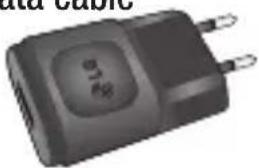
Connect your LG-P760 and PC.
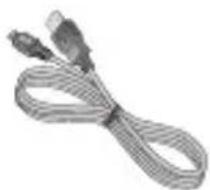
User Guide
Learn more about your LG-P760.
Stereo headset
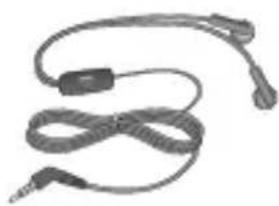
Battery
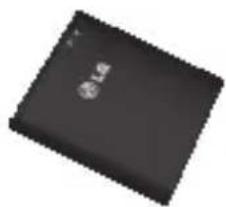
NOTE:
- Always use genuine LG accessories. Failure to do this may invalidate your warranty.
- Accessories may vary in different regions.
Troubleshooting
This chapter lists some problems you might encounter while using your phone. Some problems require you to call your service provider, but most are easy to fix yourself.
| Message Possible causes Possible corrective measures |
| SIM error | There is no SIM card in the phone or it is inserted incorrectly. | Make sure that the SIM card is correctly inserted. |
| No network connection/Losing network | Signal is weak or you are outside the carrier network. Operator applied new services. | Move towards a window or into an open area. Check the network operator coverage map. Check whether the SIM card is more than 6~12 months old. If so, change your SIM at your network provider's nearest branch. Contact your service provider. |
| Codes do not match | To change a security code, you will need to confirm the new code by re-entering it. The two codes you have entered do not match. | If you forget the code, contact your service provider. |
| Any application cannot be set | Not supported by service provider or registration required. | Contact your service provider. |
| Calls not available | Dialing error New SIM card inserted. Pre-paid charge limit reached. | New network not authorised. Check for new restrictions. Contact service provider or reset limit with PIN2. |
Troubleshooting
| Message Possible causes Possible corrective measures |
| Phone cannot be switched on | On/Off key pressed too briefly.Battery is not charged.Battery contacts are dirty. | Press the On/Off key down for at least two seconds.Charge battery. Check charging indicator on the display.Clean the battery contacts. |
| Charging error | Battery is not charged.Outside temperature is too hot or cold.Contact problemNo voltageCharger defectiveWrong chargerBattery defective | Charge battery.Make sure phone is charging at a normal temperature.Check the charger and connection to the phone.Check the battery contacts and clean them if necessary.Plug the charger into a different socket.If the charger does not warm up, replace it.Only use original LG accessories.Replace battery. |
| Number not permitted | The Fixed dialling number function is on. | Check the Settings menu and turn the function off. |
| Impossible to receive / send SMS & picture | Memory full Delete some messages from the phone. |
| Files not opening | Unsupported file format | Check the file formats that can be supported. |
| SD card not working | FAT16, FAT32 file system supported | Check SD card file system via card reader, or format SD card using the phone. |
| The screen does not turn on when I receive a call. | Proximity sensor problem | If you use any protection tape or case, check to see if it has covered the area around the proximity sensor. Make sure that the area around the proximity sensor is clean. |
| No sound Vibration mode | Check the settings status of the sound menu to make sure you are not in vibrate or silent mode. |
| Hang up or freeze | Intermittent software problem | Remove the battery, insert it again and switch on the phone.Try to perform a software update via the website. |
| Phone locked and does not function. | Restarting the phone | 1. Turn the phone off.2. Remove the battery cover.3. Install the battery.4. Close the cover.5. Turn the phone on again. |
Wi-Fi (WLAN)
This equipment may be operated in all European countries. The 5150 - 5350 MHz band is restricted to indoor use only.
Allgemeine Anfragen
* Make sure the number is correct before making a call.