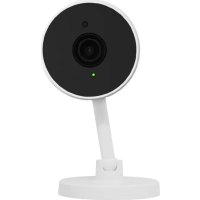
Cammy - Smart Home LOGICOM - Free user manual and instructions
Find the device manual for free Cammy LOGICOM in PDF.


User questions about Cammy LOGICOM
0 question about this device. Answer the ones you know or ask your own.
Ask a new question about this device
Download the instructions for your Smart Home in PDF format for free! Find your manual Cammy - LOGICOM and take your electronic device back in hand. On this page are published all the documents necessary for the use of your device. Cammy by LOGICOM.
USER MANUAL Cammy LOGICOM
CARACTERISTIQUES DU PRODUIT
Made in PRC © 2019 Logicom SA.
Logicom Home | User Manual
Model name: Cammy
Wi-Fi Smart Camera
READ BEFORE USE
Thank you for buying a Logicom Home product. Please note that this user manual comes with your product and that you must read it entirely before use. Please note that you'll also be able to find an up-to-date PDF version of this manual online on our website: www_logiccom-europe.
com
A more comprehensive guide to use Tuya's app is also available on this website.
PRODUCT OVERVIEW
Logicom Home's Cammy is a smart infrared camera that can be controlled wirelessly over WiFi thanks to the Tuya Automation cloud system. This way, users can see what happens day and night in their home from their phone or tablet effortlessly wherever they are. Users can also hear the surroundings of the camera and talk through the camera. An embedded movement detection is also available for added security. Users can finally save the video recording locally
(on phone or on a micro SD card) or in the cloud (with a subscription). Lastly, Users can see the video from Cammy on a big screen using Google Chromecast or Amazon Echo Show.
PRODUCT FEATURES
Your new companion is full of useful features and is compatible with almost all smart assistants (Google Chromecast; Amazon Echo Show).
Here’s a list of your product’s features :
- Encrypted wireless Wi-Fi communication
- Bidirectional Audio (microphone & speaker)
- Save your recording locally or in the cloud
- Nocturnal vision
- Automatical Over The Air Firmware update
PACKAGE CONTENT

1x Connected Camera Cammy (R4958)
1x French/English manual
1x Adaptor (Model:KA25-0501000EU; 5V
1A; Shenzhen Keyu Power Supply Technology Co., Ltd.; 2~3F, No. 13, Lane3, Yuquan East Road the 2nd Industrial park, Yulv Guangming District 518000 Shenzhen, CHINA)
1x USB Cable
1x 3M mounting pad
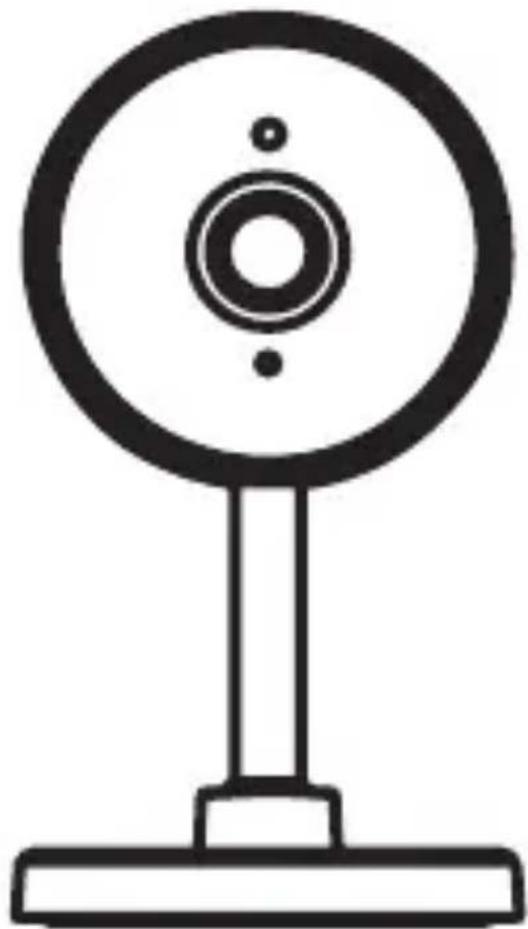
PRODUCT DESCRIPTION
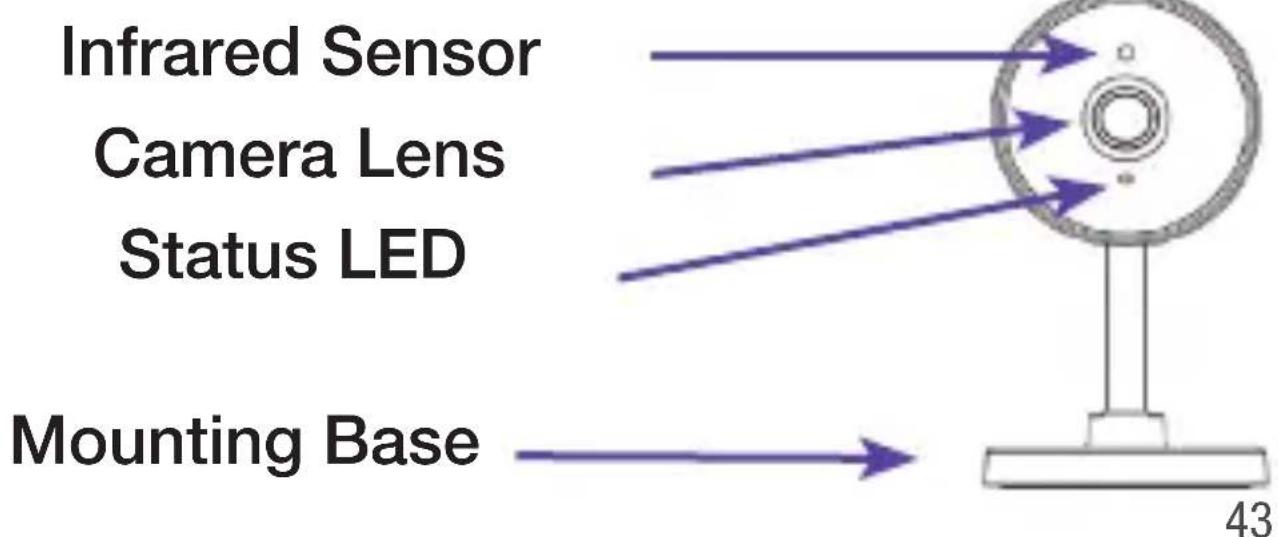
PRECAUTIONS FOR USE AND SAFETY INSTRUCTIONS
- Always respect usage conditions indicated in this manual.
- The product must strictly be used indoors.
- Cammy does not contain any part that requires customer manipulation. Never open the product and never try to unmount some internal elements or try to modify some parts in any way. If product shows signs of dysfunction, take it immediately out of the socket and have it checked by a qualified specialist.
- Do not use Cammy if it is broken, damaged (outside shell or any other part) or if it makes abnormal noise.
- Do no put any object, even light, over Cammy.
- Do not leave Cammy close to any heat source, like heaters or warm elements.
- Do not let Cammy under the rain and do not use it near a water source or humid environment. Do not put any container nearby
(like vases, bottle or glass) that contains liquid that could infiltrate through the bulb's apertures. If any liquid leaks into the product, take it immediately out of the socket and have it checked by a qualified specialist.

- Only use the required voltage for this product which is indicated on the product and in this manual.
- Do not try to remove Cammy from the socket with humid or wet hands.
- Do not connect Cammy to an electrical dimmer.
- Verify regularly that the camera is in good condition. Only use a smooth cloth to clean your product when cold.
- When not in use, keep Cammy in a dry and fresh area.
- After a long period of non-use, always check your product's integrity and clean the product before powering it.
-
This product is not a toy and must not be handled by children.
-
When the product is powered, please always stay keep a distance of 20cm minimum from the device (radiofrequencies exposure).
- Do not step on the adaptor's cable and put it somewhere it can be easily reachable.
INSTALLATION AND CONFIGURATION
Turning the product On and Off
To turn ON Cammy, you need to plug it to the supplied adaptor.
Cammy will keep the previous setting when powered on, otherwise it will blink in red (configuration mode).
Resetting the product
To reset the product to the factory settings, you need to press the RESET button (in the back of the camera) for several seconds until the LED turns red and starts blinking. The blinking red
LED tell you it's ready to be reconfigured.

App download and account creation
Your Logicom Home smart product uses Tuya to let you remotely control it.
In order to use it, you have to use the Tuya software. This manual will only cover the Tuya's smartphone application. For other platforms, please go on Tuya's website (https://en.Tuya.com/) for more information.

To install the app on your phone, scan the QR code below (Android and iOS).
You can also search on your device’s application
store “TuyaSmart” to download and install the app.
Once installed, start the APP and register an account with your email address or your mobile number and then log in APP with the registered account to start your connected home experience.
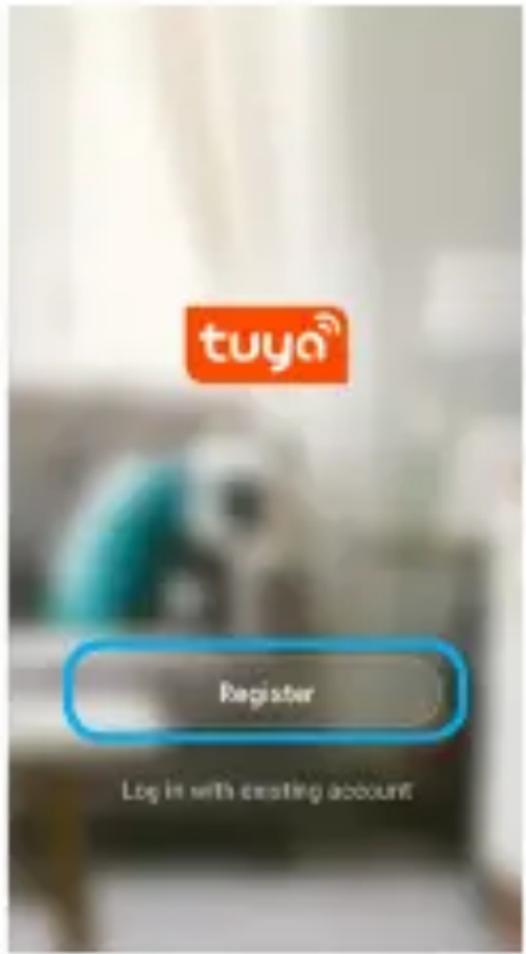
Note: The Tuya app visuals might be subject to change.
Add your device to your home
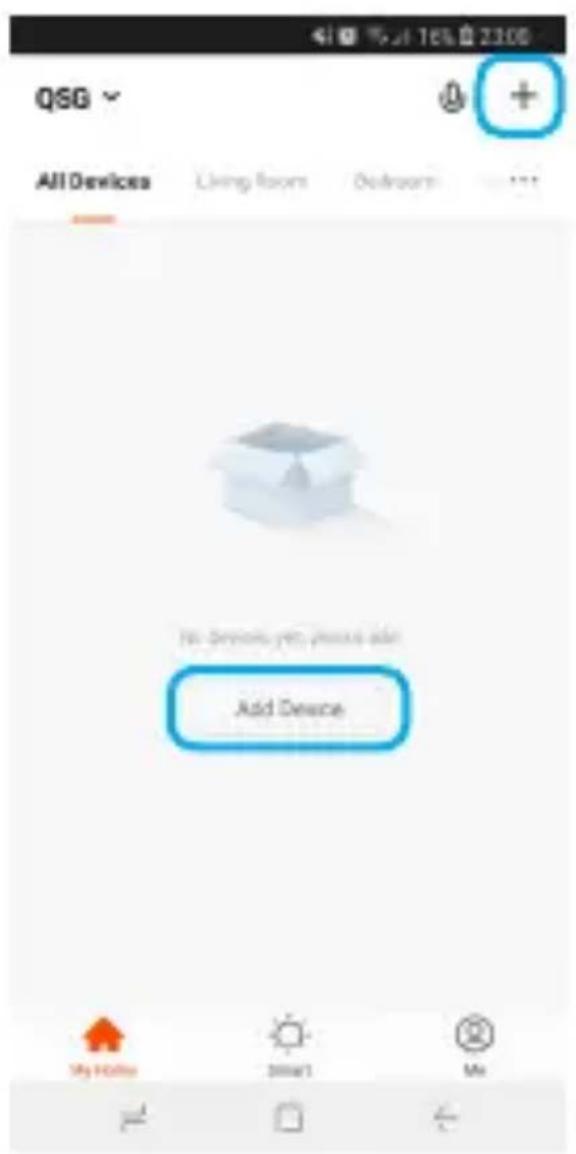
To add your device to your home, please click on the « Add device » or the « + » icon in the top-right of the screen.
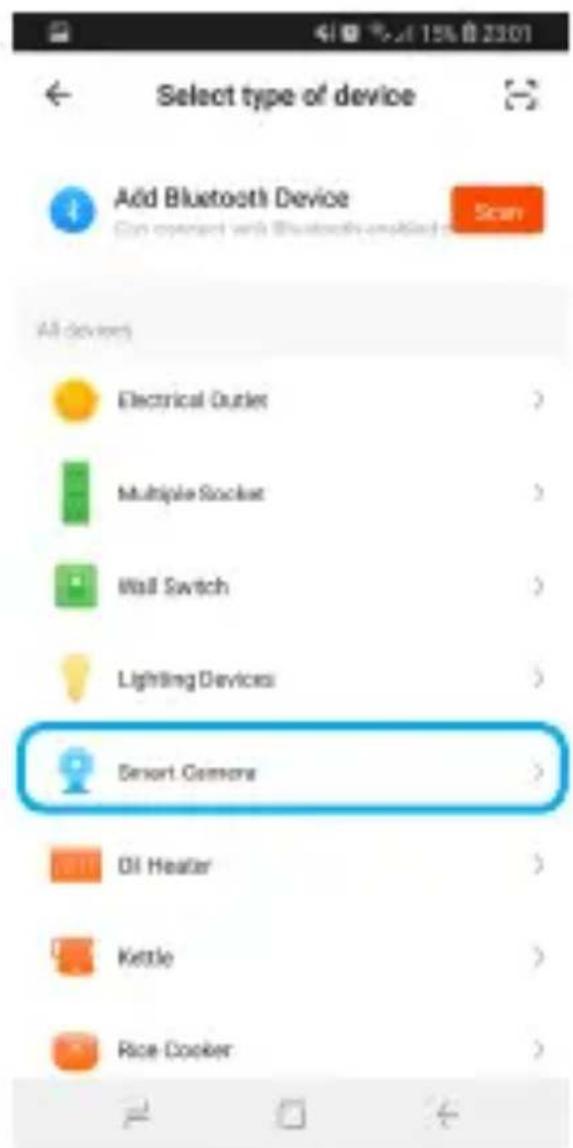
Select the device type "Smart Camera".

Connection to Cammy
After selecting the «Smart Camera» in the list of devices compatible with Tuya system, input the password of the designated Wi-Fi network to include the device to Cloud and make it remotely controllable from Tuya's cloud.
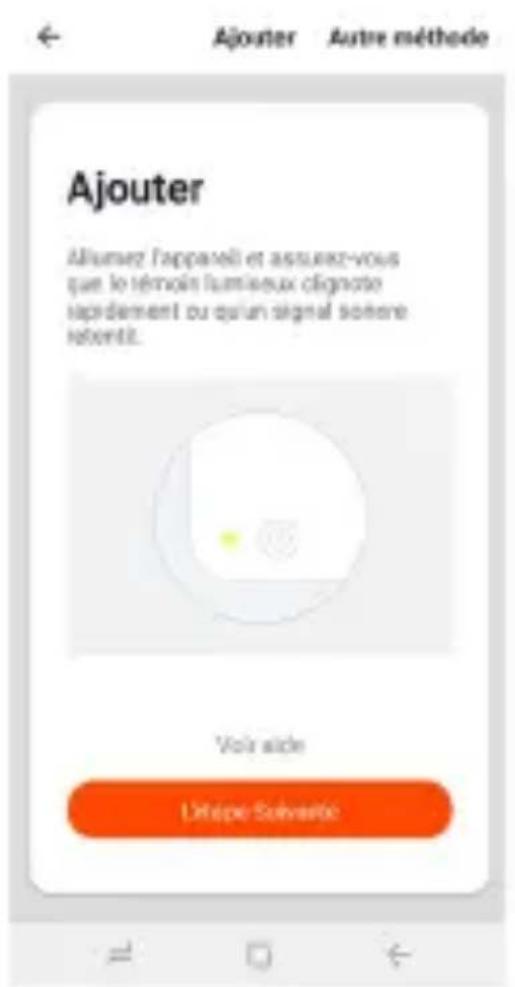
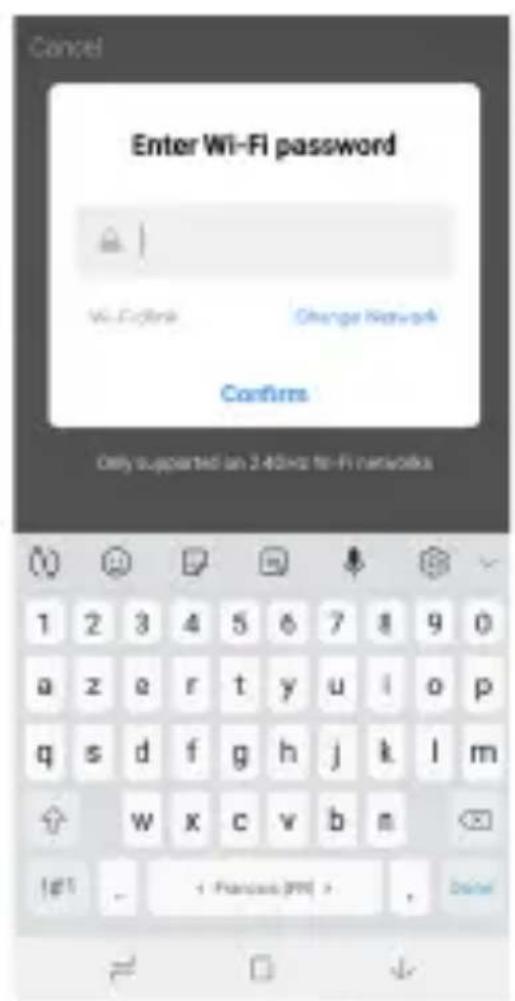
Then, it will be requested that you scan a QrCode from the phone’s screen. To do so, you need to put the device toward Cammy’s lens at a distance of about 20cm . When Cammy recognize the QrCode, it will make a bip sound and you will be able to progress through the synchronization.

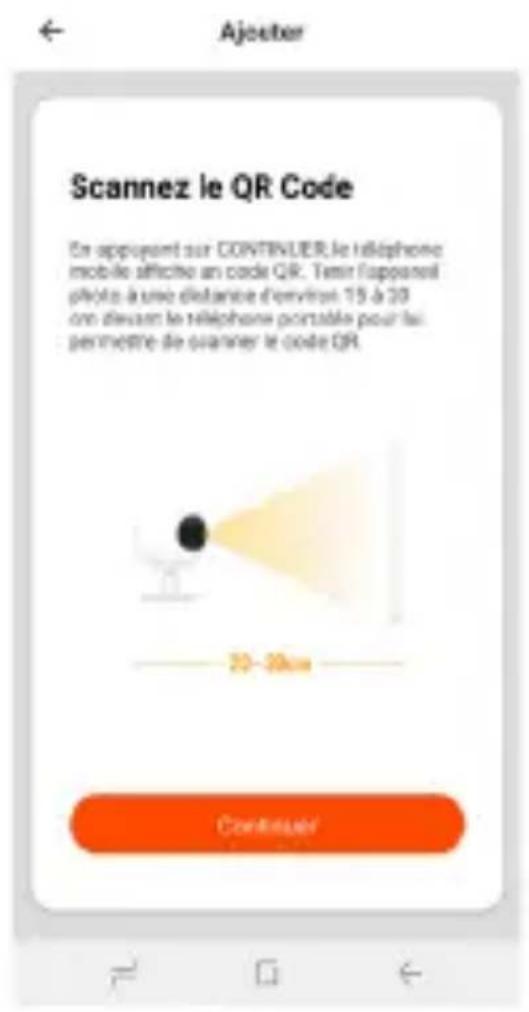
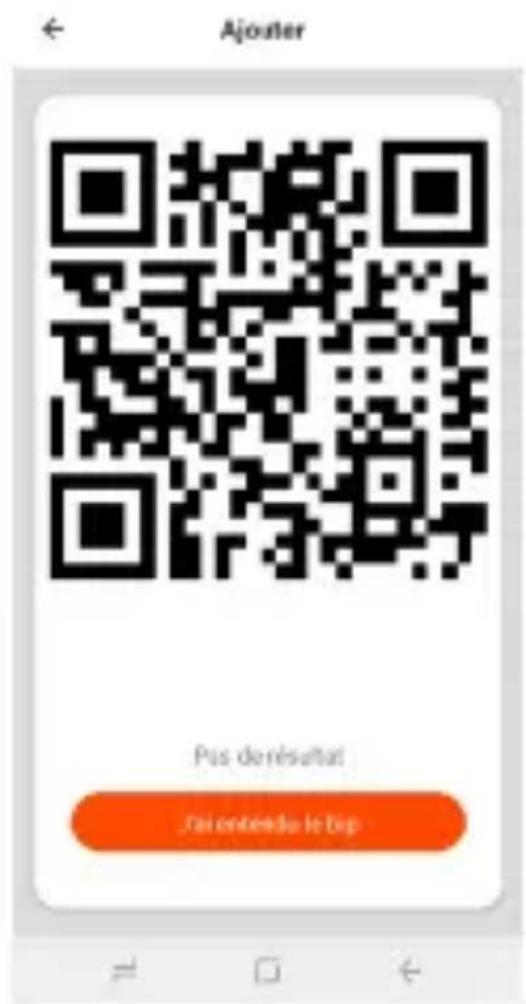
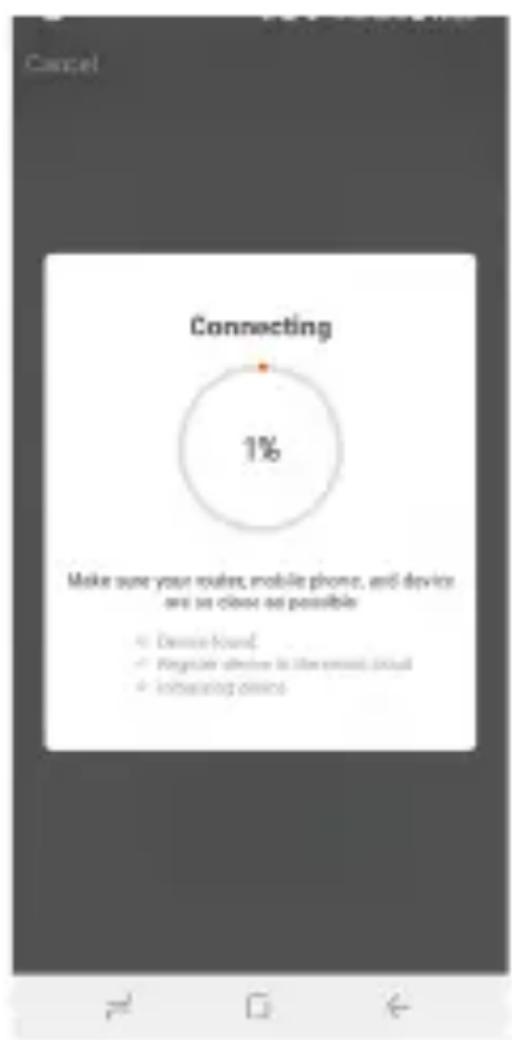
Complete pairing of the product takes about 30 seconds. A wheel will be displayed to show you the current state of pairing (please wait for it to reach 100% ).
Cammy's LED will turn green.
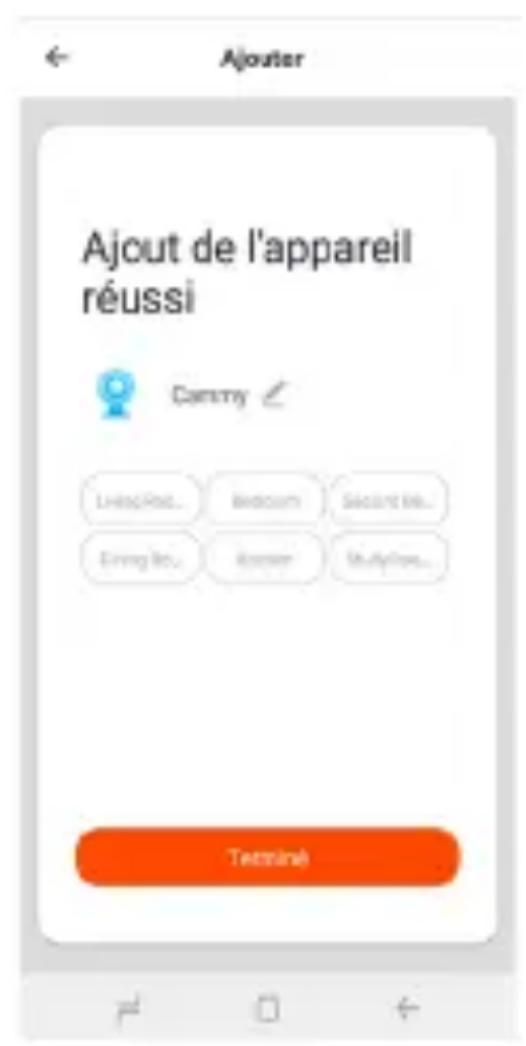
After successful pairing, Tuya will ask you to change the name of the device (useful to identify quickly your product and mandatory if you plan on using voice-control systems) and also to choose a room for the device (Tuya offers some default rooms, but more can be added if needed). Rooms are the Tuya's equivalent to a real room; meaning you will be able to control all Tuya's products within a room at the same time (especially when voice-controlling your products).

Once pairing is finished, rename the device and set it to a room.
Controlling the product remotely
Once paired and added to a room, you'll be able to find your product in the default screen of Tuya app:
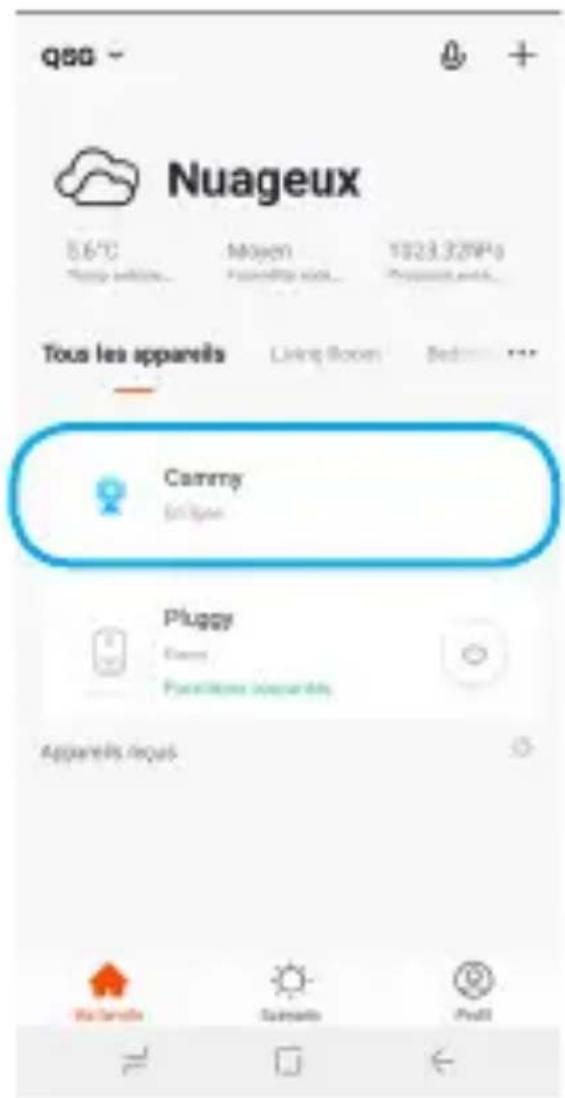
You can now tap on the product to open the control interface :

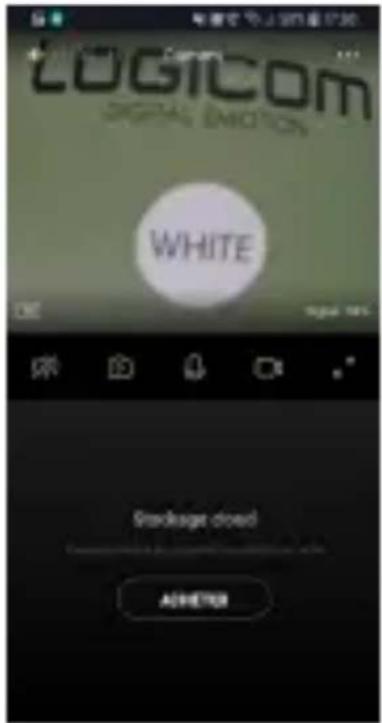
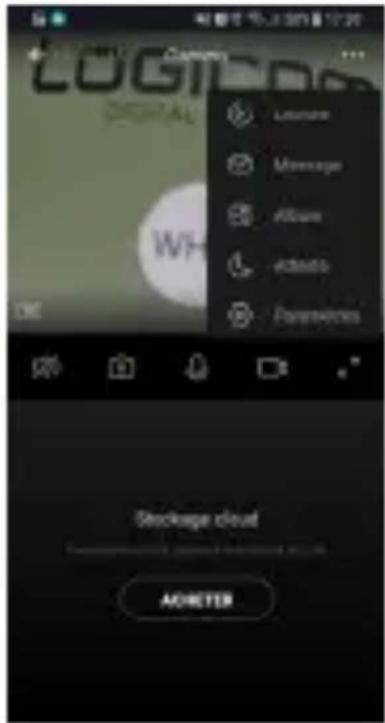
Main Screen Actions Menu Private Mode
Full screen display
In order to turn Cammy OFF, go to the action menu and select the Private Mode (moon icon). You'll be taken back to Cammy main screen. To wake up the camera, redo this again or tap on the Cammy's screen.
Tap on the zoom icon to display a bigger, full-screen sized image.
Tap on the camera icon to take a picture (saved on your device).
Tap on the video camera icon to record videos (saved on your device).
You can talk through the camera by pressing the «microphone» icon. Keep it pressed as long as you are talking.
Finally, to hear Cammy's surroundings, press the speaker icon.
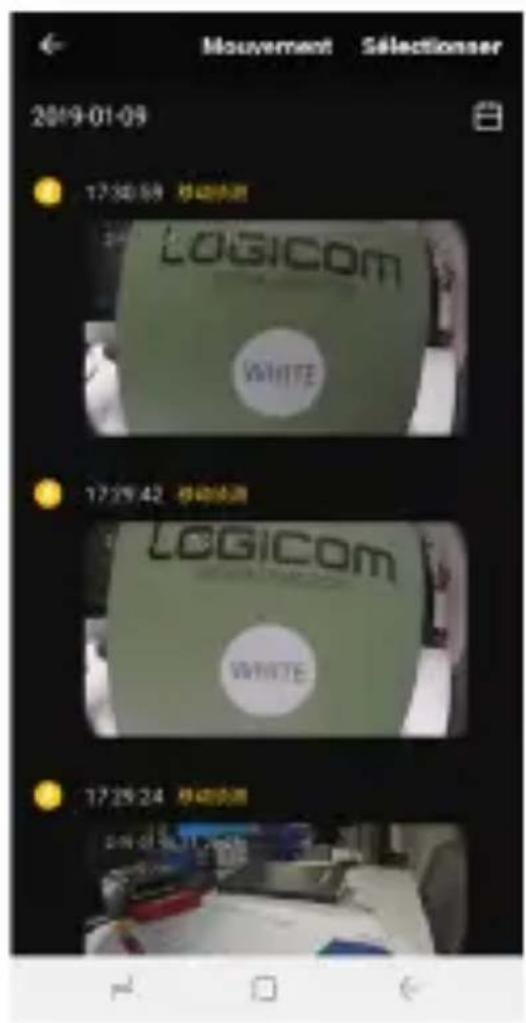
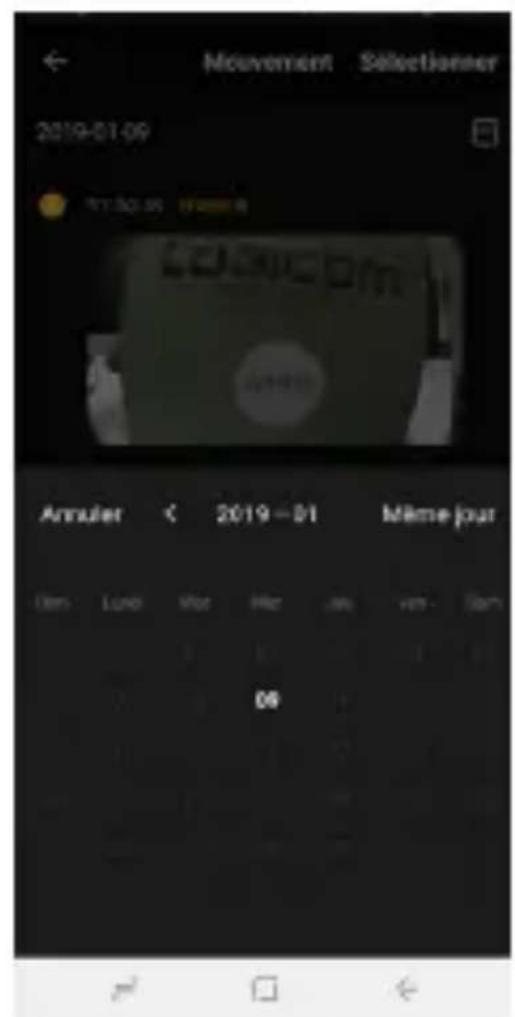
You can also see previous recordings (locally) by selecting «Album» in the action menu. You can
also see selected recordings by date in order to retrieve a past event.

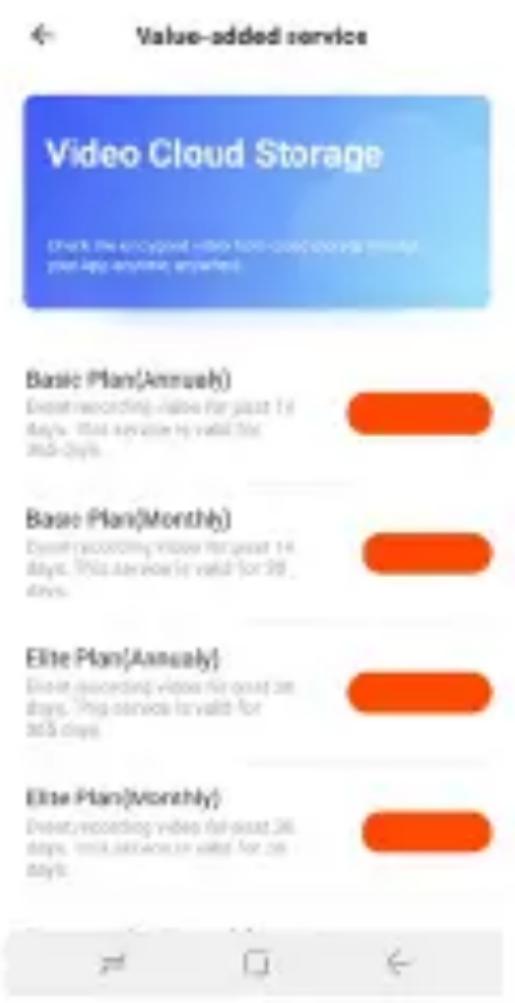
Your Cammy can also store the video online (requires a subscription). This way, when Cammy sees an event (such as a motion detection), Cammy will send the video to the cloud.
To benefit from this feature, tap on the «buy» icon on the main screen and follow instructions.
There are a lot of offers to choose from, which depends on the type of recording (if available), the period of capture and the time of online availability.
You can also modify the motion detection settings from the Cammy's settings screen.
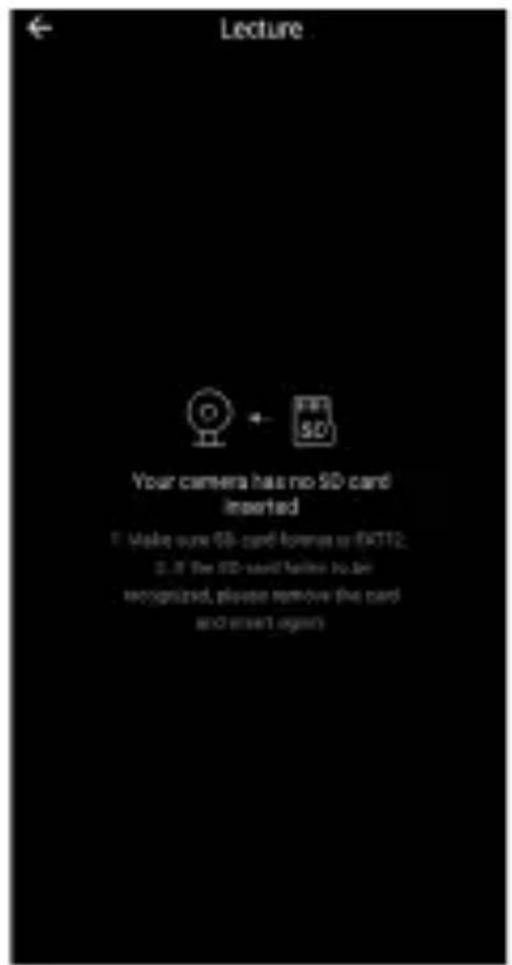
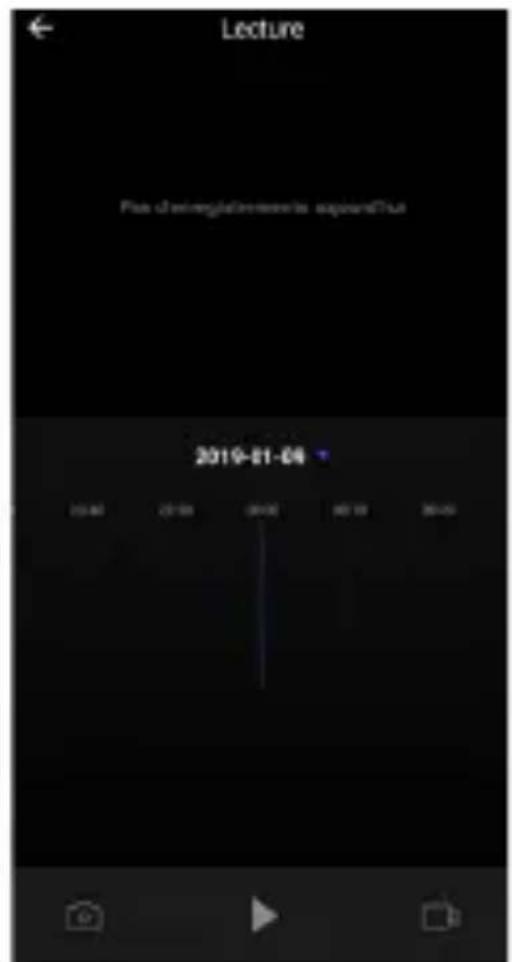
When you want to replay a previous recording stored in your Cammy, go to the «Playback» screen:

NOTE:
- This product is intended for indoor use only.
CONNECTION TO SMART SYSTEMS
AMAZON ALEXA / AMAZON ECHOSHOW
Introduction
Before using Amazon Alexa to control your smart devices, please make sure that the following conditions are met:
Wi-Fi Network
- An Echo, such as Echo Show, or any Echo device with a screen
- A valid Amazon Alexa account
- Amazon Alexa app installed and configured on your phone
- TuyaSmart app installed and configured on your phone
- At least one device under your TuyaSmart Connect account
Link TuyaSmart account to Alexa
To use Alexa's voice-control features, please pair your Tuya account to your Amazon Alexa account, to do so, please proceed as follow :
1) Tap «Skills» in the hamburger menu (menu that's hidden at the left of the screen)
2) Search «TuyaSmart»
3) Select «TuyaSmart» and tap «ENABLE» to download, install and activate the Skill
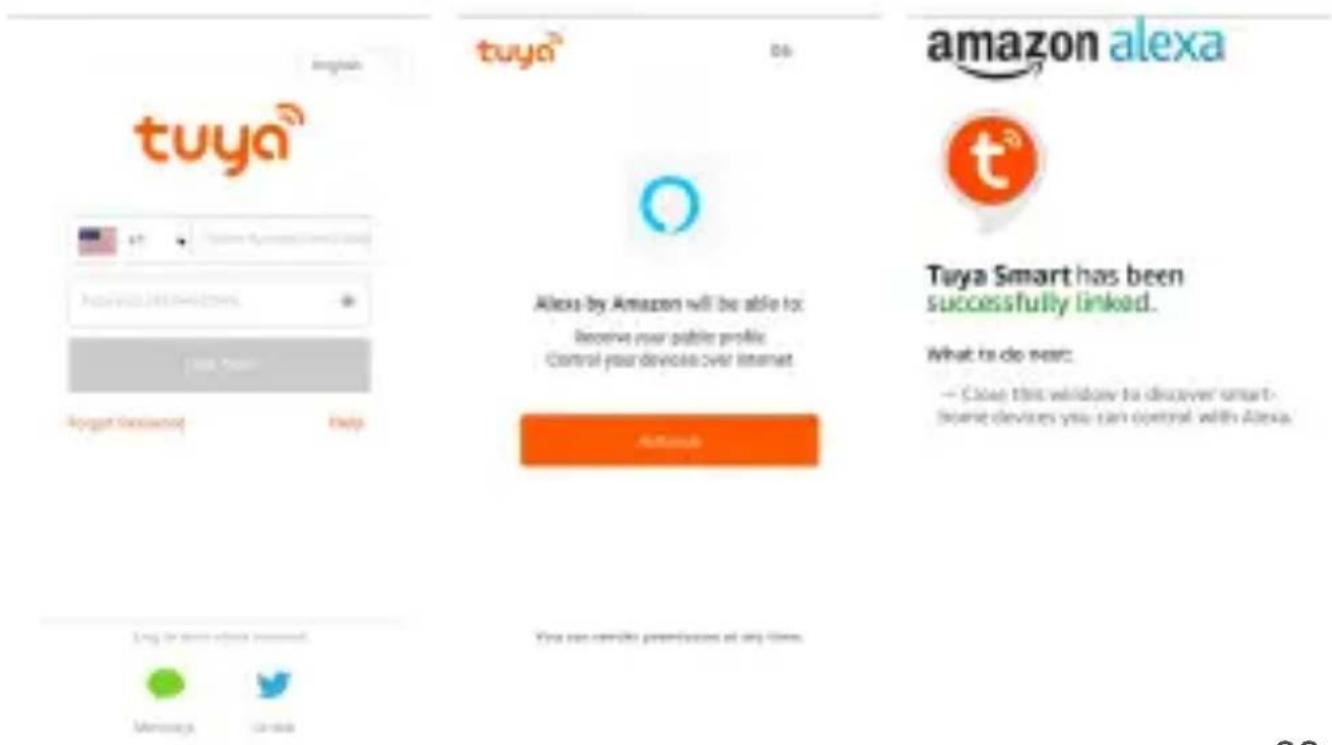
4) You will be re-directed to the Tuya account login page. Type in your TuyaSmart account and password, don't forget to select your country from the drop-down list.
5) Tap «Link Now» to link your TuyaSmart account. The country/region, the account, and the password must match exactly the same with the TuyaSmart account.
6) Close the window when "Alexa has been successfully linked with TuyaSmart" notice is prompted out.

Control your smart device
You are now a few steps away from controlling your device with your voice.
Now, your Echo Show needs to discover your smart devices within your Tuya account. It will do it automatically.
Please note that after the first account link, Amazon Alexa will discover devices which have already been added in your Tuya account.
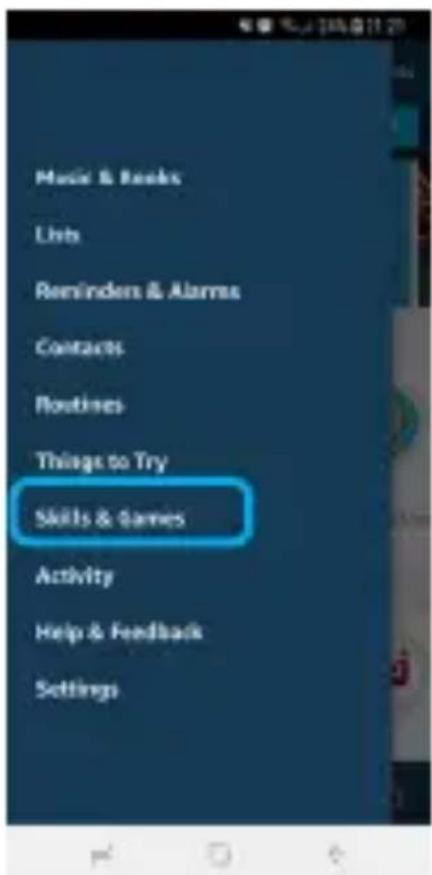
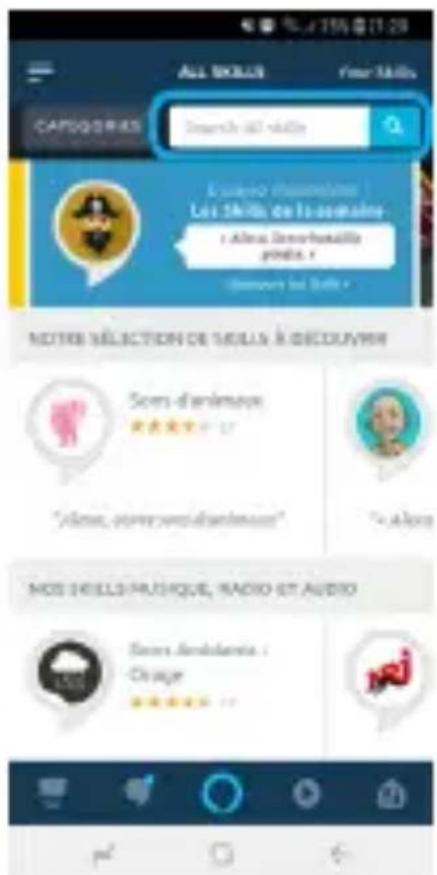
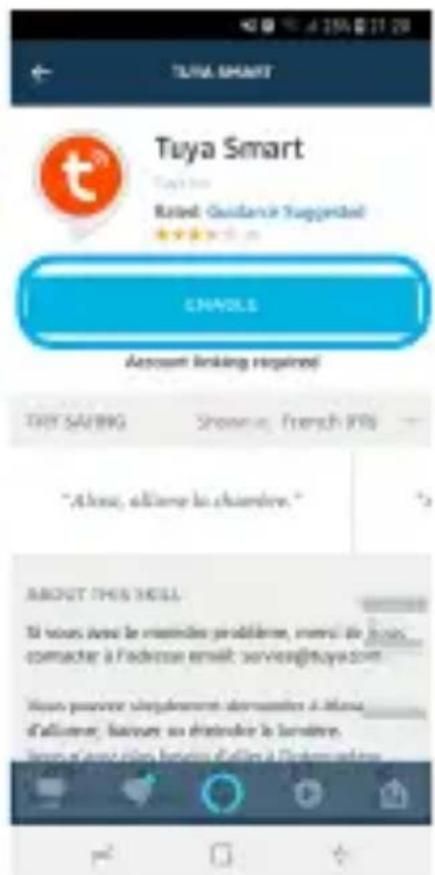
Discovered devices will be shown in the list.

NOTE:
- If the Echo Show cannot find the devices added in TuyaSmart APP, please disable the TuyaSmart skill first and go through the TuyaSmart skill “ENABLE”, log to your Tuya account again and device discovery will be performed again to make Echo Show voice control work.
Available commands
You can now control your smart devices through Echo Show.
Here below is an example of how to voice control the device renamed "John" with Echo Show:
=> Alexa, show "John"
=> Alexa, hide "John" camera
GOOGLE ASSISTANT / GOOGLE CHROMECAST

Introduction
Before using Google Home to control your devices, make sure the following conditions are met:
Wi-Fi Network
- A Google Home device, such as Google Home or Google Home Mini already configured and paired to your Google account
- A Google Chromecast already configured, powered on and connected to a screen
- A Google account
- Google Home app installed and configured on your phone
- TuyaSmart app installed and configured on your phone
- At least one device under your TuyaSmart Connect account
Link TuyaSmart account in Home Control
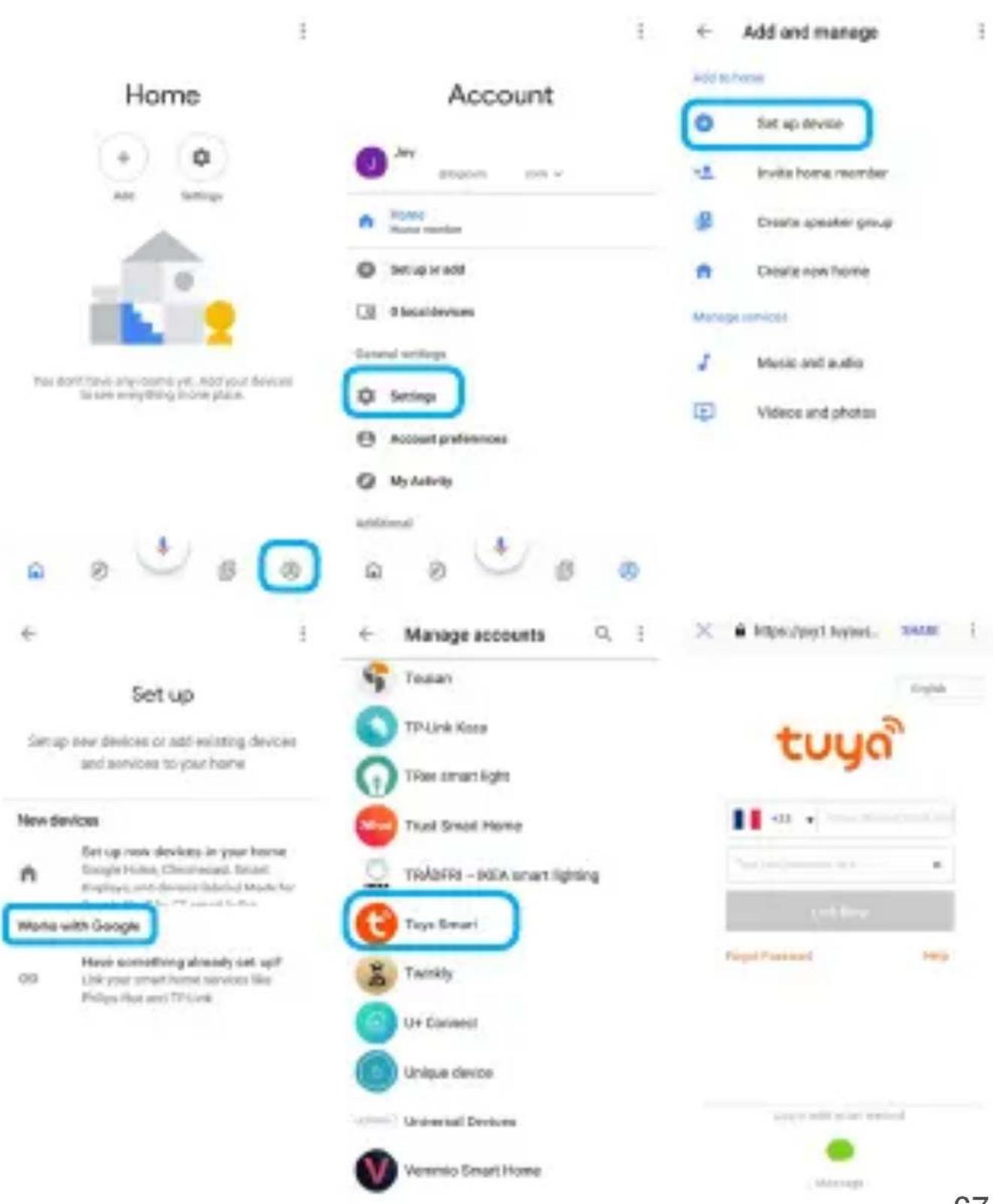
Like with Amazon, Google Home also needs to be linked to your Tuya account in order to let you control your Logicom Home products with the voice. To do so :
1) Tap on the «Account» icon in the right corner at the bottom of the homepage
2) Tap the «+» button to «Set up or add», then again «Set up device» and just below «Works with Google»
3) Find «TuyaSmart» in the list
4) In the new window, log-in to your TuyaSmart then tap «Link Now»
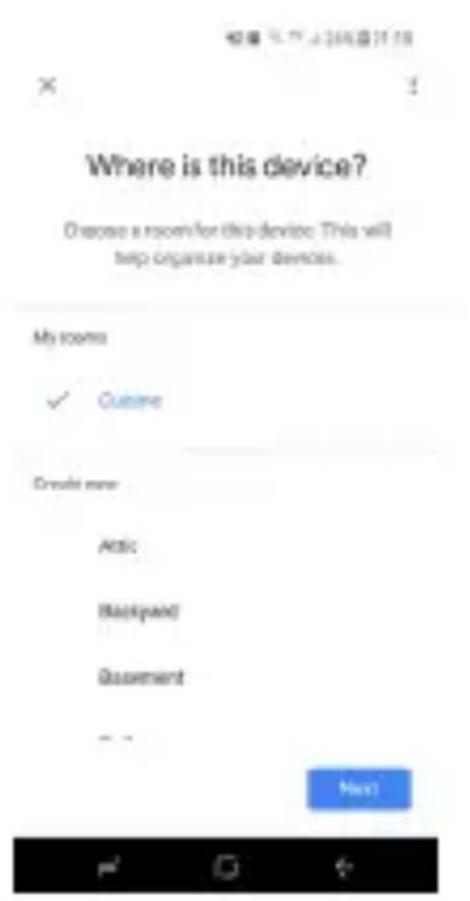
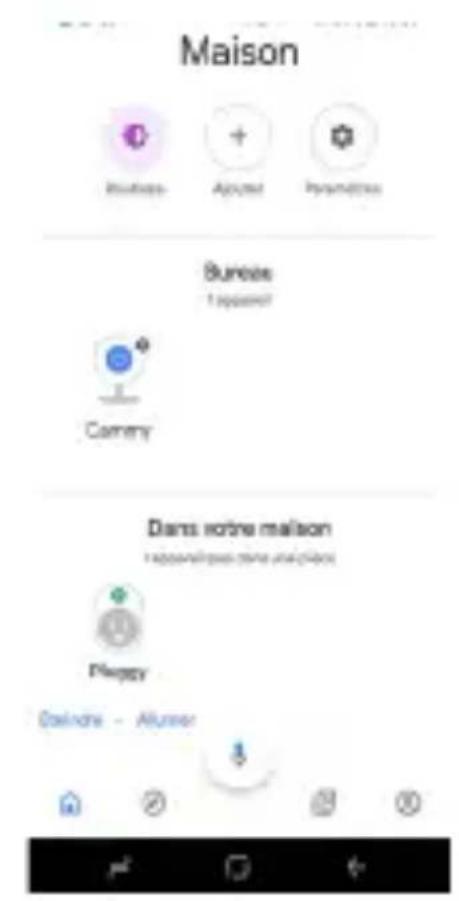
5) After you assign rooms for devices, your devices will be listed in the Home Control page. You can now proceed with voice command.
Control your smart device
You can now control your smart devices through Google Home. Here below is an example of how to voice control the device renamed “John” in the room « Bedroom » with Google Chromecast called «TV»:
=> Ok Google, play «John» on «TV»
=> Ok Google, show «Bedroom» on «TV»
=> Ok Google, stop «John»
EN
SPECIFICATIONS
Please find below the specifications of your product:
| Model Name Logicom Home Cammy | |
| Constructor Reference Cammy | |
| Power supply AC 110-240V,50HZ/60HZ | |
| Nominal input voltage 200-240V | |
| Standby power loss <=1W | |
| Rated current 0.026A | |
| Wireless transmitting and receiving frequency (Wi-Fi) | 2.412GHz - 2.472GHz |
| Network protocol supported | 802.11 b/g/n |
| Encryption type WPA/WPA2 | |
| Transmitting power e.i.r.p. at 20cm | 19.51 dBm |
| Field of view 140° | |
ENVIRONMENTAL RESTRICTIONS
Use your product only under the following environmental restrictions:
| Model Name Logicom Home Cammy | |
| Working temperature and storage | 32°F to 95°F |
| Relative humidity 8% to 80%RH | |
SIGNAGE

Please find below all explanations regarding the symbols / logos:

- Conformity to European directives (CE)
- Green point, indicates adherence to a system of contribution to waste recycling
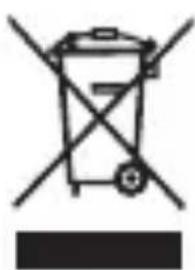
- Conformity to Waste Electrical and Electronic Equipment (WEEE ou W3E) Directive 2012/19/EU product recycling guideline
- Product compliant with the IEC 60417
- 5957 ; indoors use only
DATA PROTECTION
Tuya Smart App. complies with the General Data Protection Regulation (GDPR). More information on https://auth.Tuya.com/legal/.
TRADEMARKS
All brands and commercial brands are the sole properties of their owners.
Google, Google Home, Google Chromecast and Google logo are trademarks of Google LLC.
Amazon, Amazon Echo Show, Amazon Alexa and all associated logos are trademarks of Amazon.com, Inc. or its subsidiaries.
IFTTT and IFTTT logo are trademarks of IFTTT Inc.
Tuya, Tuya Smart, Tuya Smart logo are trademarks of Tuya Inc.
All – screenshots – of applications – are – not
contractual and may need to be modified without prior notice, by their owners named hereafter: Tuya, Google, Amazon.

SIMPLIFIED UE DECLARATION OF CONFORMITY
We, LOGICOM SA - 55 rue de Lisbonne - 75008 PARIS, hereby declare that the 'WiFi smart camera' electrical radio equipment type product Cammy (R4958) is in compliance with Directive 2014/53/UE.
The full text of the EU declaration of conformity is available at the following internet address:
https://www(logicom-europe.com/ce-doc
WARRANTY SCOPE
If you encounter any problems, a contact form and complete FAQ are available on our website:
www(logicom-europe.com
If none of these platforms does solve your problem, contact your retailer.
The LOGICOM supplier warranty is valid for normal use of the device as defined in the instructions. This warranty excludes damage caused by external circumstances.
Specifically, the warranty does not apply if the device is damaged as a result of a bump or drop, an operating error, a connection that does not comply with these instructions, lightning, a surge, or inadequate protection against heat, humidity, or freezing temperatures.
The warranty is applicable only in metropolitan France.
- The warranty does not cover user manuals or applications, settings, content or data of any kind.
- The warranty does not cover normal usury of the product.
-
The warranty does not cover damage to the product due to misuse, including in particular those caused by objects, a pressure drop.
-
The warranty does not cover defects caused to the product with another product connected or used with an accessory or software not provided by LOGICOM.
- The warranty does not cover the product or its accessories if it has been disassembled or modified in any way.
- The warranty does not cover any unidentifiable product by serial number or batch number. If its elements have been removed, altered or defaced, the warranty does not apply.
- The warranty does not cover damage done to the product caused by exposure to moisture, extreme heat or cold conditions, corrosion, oxidation, with any liquid whatsoever.
The legal warranty for hidden defects applies in compliance with Articles 1641 et seq. of the French Civil Code.
Made in PRC © 2018 Logicom SA.