NVGS180EP - Camcorder PANASONIC - Free user manual and instructions
Find the device manual for free NVGS180EP PANASONIC in PDF.


User questions about NVGS180EP PANASONIC
0 question about this device. Answer the ones you know or ask your own.
Ask a new question about this device
Download the instructions for your Camcorder in PDF format for free! Find your manual NVGS180EP - PANASONIC and take your electronic device back in hand. On this page are published all the documents necessary for the use of your device. NVGS180EP by PANASONIC.
USER MANUAL NVGS180EP PANASONIC
Model No. NV-GS180EP
Information for your safety
As this equipment gets hot during use, operate it in a well-ventilated place; do not install this equipment in a confined space such as a bookcase or similar unit.
To reduce the risk of fire, electric shock or product damage, do not expose this equipment to rain, moisture, dripping or splashing and ensure that no objects filled with liquids, such as vases, shall be placed on the equipment.
AC Adaptor
The rating plate is on the underside of the AC Adaptor.
Carefully read the Operating Instructions and use the Movie Camera correctly.
- Injury or material damage resulting from any kind of use that is not in accordance with the operating procedures explained in these Operating Instructions are the sole responsibility of the user.
Try out the Movie Camera.
Be sure to try out the Movie Camera before recording your first important event and check that it records properly and functions correctly.
The manufacturer is not liable for loss of recorded contents.
The manufacturer shall in no event be liable for the loss of recordings due to malfunction or defect of this Movie Camera, its accessories or cassettes.
Carefully observe copyright laws.
Recording of pre-recorded tapes or discs or other published or broadcast material for purposes other than your own private use may infringe copyright laws. Even for the purpose of private use, recording of certain material may be restricted.
-
The Movie Camera uses copyright-protected technologies and is protected by the patented technologies and intellectual properties of Japan and the U.S. To use these copyright-protected technologies, authorization of the Macrovision Company is required. It is prohibited to disassemble or modify the Movie Camera.
-
Windows is a trademark or registered trademark of Microsoft Corporation U.S.A.
- SD Logo is a trademark.
- All other company and product names in the operating instructions are trademarks or registered trademarks of their respective corporations.
Files recorded on SD Memory Card
It may not be possible to play back the files on this Movie Camera recorded on and created by other equipment or vice versa. For this reason, check the compatibility of the equipment in advance.
- Keep the Memory Card out of reach of children to prevent swallowing.
Pages for reference
Pages for reference are indicated by dashes either side of a number, for example: -00-
The menu operation flow is indicated by >> in the description.
Warning
Do not remove the cover (or back); there are no user serviceable parts inside.
Refer servicing to qualified service personnel.
EMC Electric and magnetic compatibility
This symbol (CE) is located on the rating plate.
Use only the recommended accessories.
- Do not use any other AV cables and USB cables except the supplied one.
- When you use the cable which are sold separately, please make sure to use the one whose length is less than 3 metres.
Information on Disposal for Users of Waste Electrical & Electronic Equipment (private households)

This symbol on the products and/or accompanying documents means that used electrical and electronic products should not be mixed with general household waste.
For proper treatment, recovery and recycling, please take these products to designated collection points, where they will be accepted on a free of charge basis.
Alternatively, in some countries you may be able to return your products to your local retailer upon the purchase of an equivalent new product.
Disposing of this product correctly will help to save valuable resources and prevent any potential negative effects on human health and the environment which could otherwise arise from inappropriate waste handling.
Please contact your local authority for further details of your nearest designated collection point.
Penalties may be applicable for incorrect disposal of this waste, in accordance with national legislation.
For business users in the European Union
If you wish to discard electrical and electronic equipment, please contact your dealer or supplier for further information.
Information on Disposal in other Countries outside the European Union
This symbol is only valid in the European Union.
If you wish to discard this product, please contact your local authorities or dealer and ask for the correct method of disposal.
Contents
Information for your safety 2
Before using
Accessories 5
Optional. 5
Parts identification and handling. 5
Fitting the lens cap. 7
The grip belt. 8
Using the LCD monitor. 8
Using the viewfinder. 8
Power supply 9
Charging time and recordable time 10
Inserting/removing a cassette 10
Inserting/removing a card 11
Turning the camera on. 12
Selecting a mode 12
How to use the joystick 13
Switching the language 14
Using the menu screen 14
Setting date and time 15
Adjusting LCD monitor/viewfinder 16
Using the remote control. 17
Record mode
Check before recording. 19
Recording on a tape. 20
Recording still pictures on a card while recording image onto a tape. 20
Check the recording. 21
Blank search function. 21
Recording still pictures onto a card (Photoshot) 21
Zoom in/out function 23
Recording yourself 23
Quick start 24
Backlight compensation function 24
Night view functions 25
Soft skin mode 25
Tele-macro function 26
Fade in/fade out function 26
Wind noise reduction function 27
Self-timer recording 27
Recording images for wide-screen TVs 27
Image stabilizer function 28
Continuous Photoshot 28
Recording in various situations (Scene mode) 29
Recording in natural colours (White balance) 30
Manual focus adjustment 31
Manual shutter speed/aperture adjustment ...... 31
Playback mode
Playing back tape. 33
Slow-motion playback/frame-by-frame playback 33
Variable-speed search function. 34
Playback on TV 35
Playing back card 35
Deleting files recorded on a card 36
Formatting a card. 37
Protecting files on a card. 37
Writing the printing data on a card (DPOF setting) 37
Edit mode
Recording from a tape onto a card. 38
Copying onto a DVD recorder or a VCR (Dubbing) 38
Using the DV Cable for Recording (Digital Dubbing) 39
Audio dubbing 40
Printing pictures by directly connecting to the printer (PictBridge) 41
Menu
Menu list. 42
Menu related to taking pictures 44
Menu related to playback 45
Other menus 45
Others
Indications 46
Warning/alarm indications 47
Functions cannot be used simultaneously 48
Before requesting repair (Problems and solutions) 49
Cautions for Use 53
Explanation of terms 56
Specifications
Specifications 58
Before using
Accessories
The followings are the accessories supplied with this product.
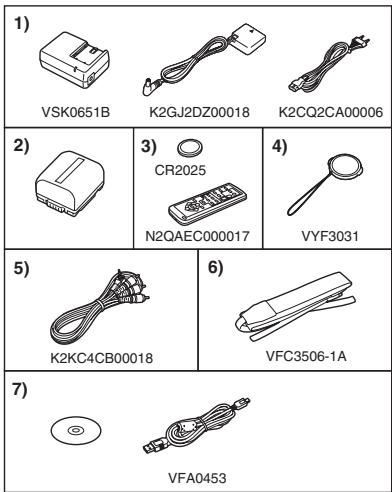
1) AC adaptor, DC input lead, AC mains lead -9-
2) Battery pack -9.
3) Remote control, button-type battery -17-
4) Lens cap -7-
5) AV cable -38-
6) Shoulder strap -7-
7) USB cable and CD-ROM -41-
Optional
1) AC adaptor (VW-AD11E)
2) Battery pack (lithium/CGR-DU06/640mAh)
3) Battery pack (lithium/CGA-DU07/680mAh)
4) Battery pack (lithium/CGA-DU12/1150mAh)
5) Battery pack (lithium/CGA-DU14/1360mAh)
6) Battery pack (lithium/CGA-DU21/2040mAh)
7) Wide conversion lens (VW-LW3707M3E)
8) Tele conversion lens (VW-LT3714ME)
9) Filter kit (VW-LF37WE)
10) Video DC light (VW-LDC10E)
11) Light bulb for video DC light (VZ-LL10E)
12) Stereo microphone (VW-VMS2E)
13) Tripod (VW-CT45E)
14) DV cable (VW-CD1E)
15) Jacket pouch (VW-SJ05E)
- Some optional accessories may not be available in some countries.
Parts identification and handling
Camera
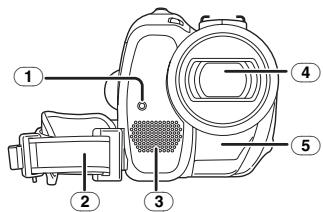
① Recording lamp -44
Grip belt -8-
3 Microphone (built-in, stereo) -23-, -27-
4 Lens
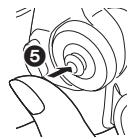
⑤ White balance sensor -30- Remote control sensor -18-
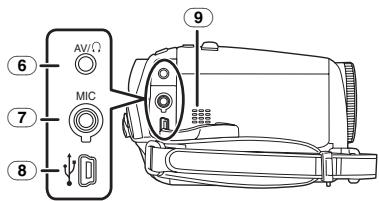
Audio-video output terminal [AV] -38-
- Use the supplied AV cable or headphones only, otherwise audio may not be played back normally.
Headphone terminal [O]
⑦ Microphone terminal [MIC]
- A compatible plug-in powered microphone can be used as an external microphone.
- When the movie camera is connected with AC Adaptor, sometimes noise may be heard depending on microphone type. In that case, please switch to battery for power supply and noise will stop.
USB terminal [ψ] -41-
9 Speaker -33-
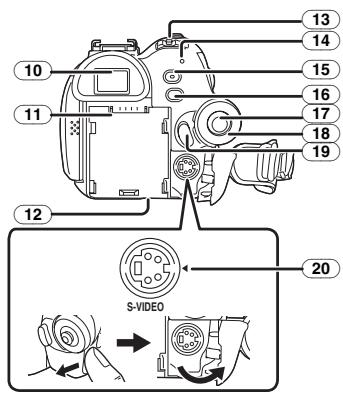
Viewfinder-8,-56-
Due to limitations in LCD production technology, there may be some tiny bright or dark spots on the Viewfinder screen. However, this is not a malfunction and does not affect the recorded picture.
11 Battery holder
12 Battery release lever [BATT] -9.
13 Power switch [OFF/ON] -12
(14) Status indicator -12
15 Quick start recording button [QUICK START] -24- Quick start recording lamp -24-
16 Menu button [MENU] -14-
17 Joystick-13
18 Mode dial-12
19 Recording start/stop button -20-
20 S-Video output terminal [S-VIDEO] -35
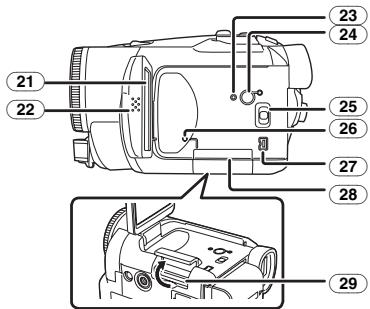
② 1 LCD monitor-8-,56-
Due to limitations in LCD production technology, there may be some tiny bright or dark spots on the LCD monitor screen. However, this is not a malfunction and does not affect the recorded picture.
22 LCD monitor open part [OPEN] -8.
23 Reset button [RESET] -47-
24 Power LCD button [POWER LCD] -16- Power LCD lamp -16-
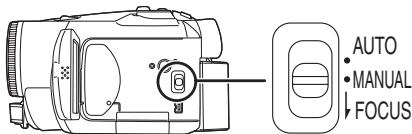
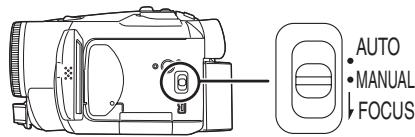
25 Mode select switch [AUTO/MANUAL/FOCUS] -19-, -29-, -31-
26 Card access lamp-12
27 DV terminal [DV] -39
28 Card slot cover-11
29 Card slot-11
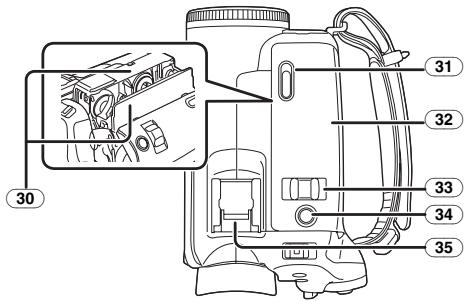
30 Cassette holder -10
31 Cassette eject lever [OPEN/EJECT] -10.
32 Cassette cover-10
33 Zoom lever [W/T] -23- Volume lever [-VOL+] -33-
34 Photoshot button [PHOTO SHOT] -20.
35 Accessory shoe
- Accessories, such as a stereo microphone (VW-VMS2E; optional), are attached here.
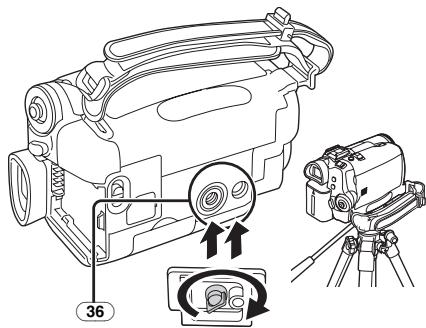
36 Tripod receptacle
This is a hole for attaching the camera to optional tripod/VW-CT45E. (Please carefully read the operating instructions for how to attach the tripod to the camera.)
- You cannot open the card slot cover when the tripod is used. Insert the card first and then attach the tripod.
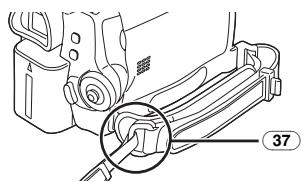
37 Shoulder strap fixture
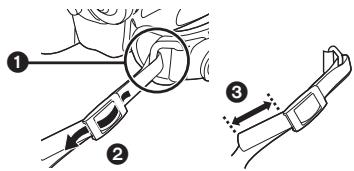
- Put the strap through the fixture 1 and through the stopper 2 so it will not come off. Extend part 3 by at least 2 cm.
Fit the other end of the belt similarly.
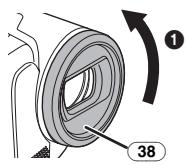
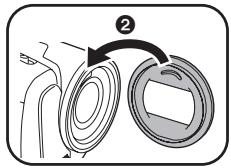
38 Lens hood
In order to remove the lens hood, rotate it counterclockwise 1. In order to fit it, put into slot 2, and then rotate it clockwise.
- Fit the MC protector or the ND filter of the Filter Kit (VW-LF37WE; optional) in front of the lens hood. Do not fit the other accessories on the hood. (Except for the lens cap)
- When fitting the tele conversion lens (VW-LT3714ME; optional) or the wide conversion lens (VW-LW3707M3E; optional), first remove the lens hood.
- When 2 lens accessories, such as the ND filter and tele conversion lens, are fitted and the [W/T] lever is pressed toward the [W] side, the 4 corners of an image will be darkened. (Vignetting)
Fitting the lens cap
Fit the lens cap to protect the surface of the lens. If you do not use the movie camera when the MC protector or the ND filter of the Filter Kit (VW-LF37WE; optional) is attached to the front of the lens hood, attach the lens cap to protect the surface of the lens.
1 Run the end of the lens cap cord through the hole in the grip belt attachment part and run the lens cap through the lens cap cord.
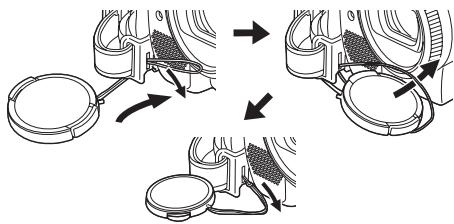
- The lens cap removed can be hung on the lens cap fixture.
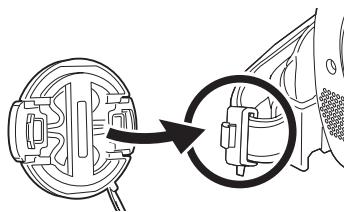
- To fit or remove the lens cap, hold both sides of the lens cap with the tips of your first 2 fingers.
The grip belt
Adjust the belt length so it fits your hand.
1 Adjust the belt length and the pad position.
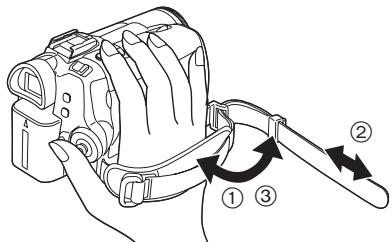
① Flip the belt.
② Adjust the length.
③ Fix the belt.
Using the LCD monitor
You can record the image while viewing it on the LCD monitor opened.
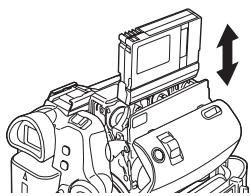
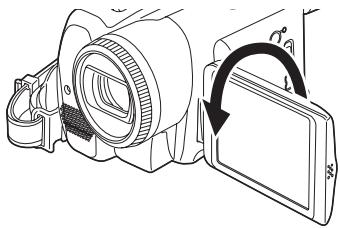
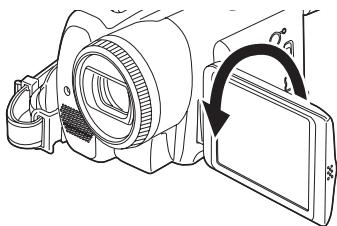
1 Put a finger on the LCD monitor open part and pull the LCD monitor out in the direction of the arrow.
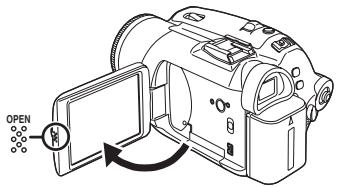
The viewfinder will go off.
It can open up to 90^
2 Adjust the angle of the LCD monitor as you prefer.
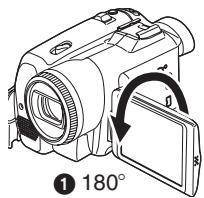
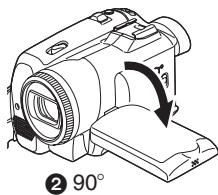
It can rotate up to 180^ towards the lens or 90^ towards the viewfinder.
- The brightness and colour level of the LCD monitor can be adjusted from the menu.
- If it is forcibly opened or rotated, the camera may be damaged or fail.
- Check that the card slot cover is closed.
- When the LCD monitor is rotated by 180^ towards the lens (when recording yourself), the LCD monitor and the viewfinder will be simultaneously activated.
Using the viewfinder
Extending the viewfinder
1 Pull out the viewfinder. Extend it by pinching the extension knob and pulling.
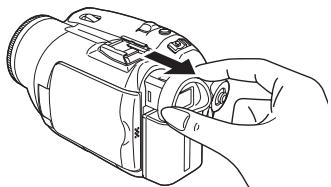
Adjusting the field of view
1 Adjust the focus by sliding the eyepiece corrector knob.
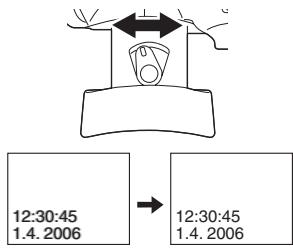
- You can adjust the brightness of the viewfinder from the menu.
Power supply
Charging the battery
When this product is purchased, the battery is not charged. Charge the battery before using this product.
- Battery charging time (-10-)
- We recommend using Panasonic batteries.
- If you use other batteries, we cannot guarantee the quality of this product.
- If the DC input lead is connected to the AC adaptor, then the battery will not get charged. Remove the DC input lead from the AC adaptor.
1 Connect the AC mains lead to the AC adaptor and the AC mains socket.
2 Put the battery on the battery mount by aligning the mark, and then securely plug it in.
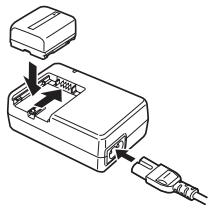
Charging lamp
Lights up: Charging
Goes off: Charging completed
Flashing: The battery is over discharged (discharged excessively). In a while, the lamp will light up and normal charging will start.
When the battery temperature is excessively high or low, the [CHARGE] lamp flashes and the charging time will be longer than normal.
Connecting to the AC outlet
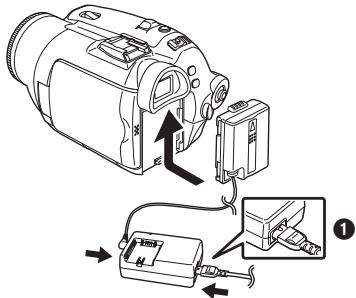
1 Connect the AC mains lead to the AC adaptor and the AC mains socket.
2 Connect the DC input lead to the AC adaptor.
3 Connect the DC input lead to this product.
- The output plug of the AC mains lead is not completely connected to the AC adaptor socket. As shown in ①, there is a gap.
- Do not use the AC mains lead for other equipment since the AC mains lead is exclusively designed for the movie camera. Or do not use the AC mains lead of other equipment for the movie camera.
Fitting the battery
Push the battery against the battery holder and slide it until it clicks.
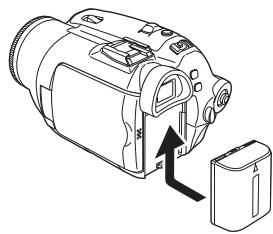
Removing the battery
While sliding the [BATT] lever, slide the battery (or the DC input lead) to remove it.
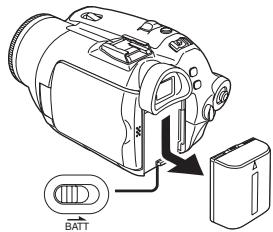
- Hold the battery with your hand so it does not fall.
Charging time and recordable time
The times shown in the table below show the times at a temperature of 25^ and a humidity of 60% . This is just a guide. If the temperature is higher or lower than the specified value, the charging time will become longer.
| Supplied battery/ CGR-DU06 (7.2 V/ 640 mAh) | A | 1 h 40 min |
| B | 1 h 15 min (1 h 10 min) | |
| C | 40 min (35 min) | |
| CGA-DU12 (7.2 V/ 1150 mAh) | A | 2 h 25 min |
| B | 2 h 15 min (2 h 5 min) | |
| C | 1 h 10 min (1 h 5 min) | |
| CGA-DU14 (7.2 V/ 1360 mAh) | A | 2 h 45 min |
| B | 2 h 40 min (2 h 30 min) | |
| C | 1 h 20 min (1 h 15 min) | |
| CGA-DU21 (7.2 V/ 2040 mAh) | A | 3 h 55 min |
| B | 4 h (3 h 45 min) | |
| C | 2 h (1 h 55 min) | |
| CGA-DU07 (7.2 V/ 680 mAh) | A | 1 h 30 min |
| B | 1 h 20 min (1 h 15 min) | |
| C | 40 min (40 min) |
Charging time
Maximum continuously recordable time
Intermittent recordable time
(The intermittent recordable time refers to recordable time when the recording and stopping operations are repeated.)
1h10min indicates 1 hour 10 minutes.
The battery CGR-DU06 is supplied.
- The times shown in the table are rough estimates. The times indicate the recordable times when the viewfinder is used. The times in parentheses indicate the recordable times when the LCD monitor is used.
- We recommend the Battery Pack CGA-DU12, CGA-DU14 and CGA-DU21 for long time recording (2 hours or more for continuous recording, 1 hour or more for intermittent recording).
The recordable time will become shorter in the following cases:
- When you use both the viewfinder and the LCD monitor simultaneously while rotating the LCD monitor frontward to record yourself, using the 0 lux night view function, etc.
-
When you use this camera with the LCD monitor lit up by pressing the [POWER LCD] button.
-
The batteries heat up after use or charging. The main unit of the movie camera being used will also heat up. This is normal.
- Along with the reduction of the battery capacity, the display will change: (\boxed{\text{串串串串串串串串串串串串串串串串串串串串串串串串串串串串串串串串串串串串串串串串串串串串串串串串串串串串串串串串串串串串串串串串串串串串串串串串串串串串串串串串串串串串串串串串串串串串串串串串串串串串
Inserting/removing a cassette
1 Slide the [OPEN/EJECT] lever and open the cassette cover.
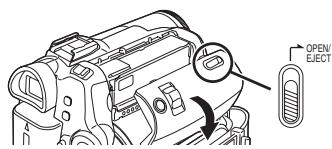
- When the cover is fully opened, the cassette holder will come out.
2 After the cassette holder is opened, insert/ remove the cassette.
- When inserting a cassette, orient it as shown in the figure, and then securely insert it as far as it goes.
- When removing, pull it straight out.
3 Push the [PUSH] mark ① in order to close the cassette holder.
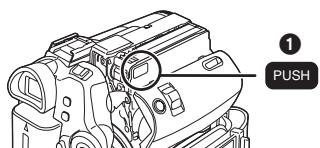
4 Only after the cassette holder is completely housed, close the cassette cover.
After using, make sure to rewind the cassette completely, remove it, and put it in a case. Store the case in an upright position. (-55-)
- When condensation is formed on the lens or the main unit of the movie camera, even if no condensation alarm is indicated, condensation may have formed on the heads or the cassette tape. Do not open the cassette cover. (-53-)
When the cassette holder does not come out
- Close the cassette cover completely, and then open it again completely.
- Check if the battery has run down.
■ When the cassette holder cannot be housed
- Set the [OFF/ON] switch to [OFF], then to [ON] again.
- Check if the battery has run down.
Inserting/removing the cassette
- When the cassette holder is in action, do not touch anything except the [PUSH] mark.
- When inserting a previously recorded cassette, use the blank search function to find the position where you want to continue recording. If you overwrite-record on a previously recorded cassette, be sure to find the position where you continue recording.
- Close the cassette cover tightly.
- When closing the cassette cover, do not get anything, such as a cable, caught in the cover.
Accidental erasure prevention
If the accidental erasure prevention slider 1 of a cassette is opened (slide in the direction of the [SAVE] arrow), the cassette cannot be recorded. When recording, close the accidental erasure prevention slider of the cassette (slide in the direction of the [REC] arrow).
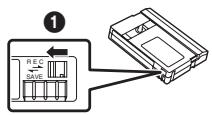
Inserting/removing a card
Before inserting/removing a card, be sure to turn the power off.
- If the card is inserted or removed with the power turned on, this camera may malfunction or the data recorded on the card may be lost.
1 Open the LCD monitor and then open the card slot cover.
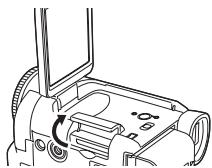
2 Insert/remove the card into/from the card slot.
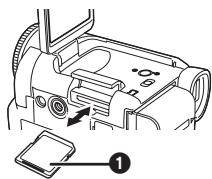
- When inserting a card, face the label side 1 towards you and push it straight in with one stroke as far as it goes.
- When removing the card, open the card slot cover and press the centre of the card and then pull it straight out.
3 Securely close the card slot cover.
Concerning the card
- Do not touch the terminals on the back of the card.
- Do not format the card with another movie camera or any personal computer. This operation may make the card unusable.
- Electrical noise, static electricity, or failure of the movie camera or the card may damage or erase the data stored on the card. We recommend saving important data on a personal computer by using a USB cable, PC card adaptor or USB reader/writer.
Card access lamp
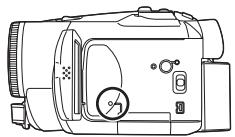
-
When the camera accesses the card (reading, recording, playback, erasing, etc.), the access lamp lights up.
-
If the following operations are performed when the access lamp is lit, then the card or the recorded data may be damaged or the camera may malfunction.
-
Opening the card slot cover and inserting or removing the card.
- Operating the [OFF/ON] switch or the mode dial.
SD Memory Card
- The memory capacity indicated on the SD Memory Card label corresponds to the total amount of capacity to protect and manage the copyright and the capacity available as conventional memory for a movie camera, personal computer or other equipment.
Concerning the write protection switch on the SD Memory Card
- The SD Memory Card has a write protection switch on it. If the switch is moved to [LOCK], you cannot write to the card, erase the data on it, or format it. If it is moved back, you can.
Turning the camera on
When the camera is turned on with the lens cap fitted, the automatic white balance adjustment may not function properly. Please turn the camera on after removing the lens cap.
How to turn on the power
1 While pressing the button 1, set the [OFF/ON] switch to [ON].
The status indicator lights up.
![PANASONIC NVGS180EP - While pressing the button 1, set the [OFF/ON] switch to [ON]. - 1](/content/2019/09/53934/images/14fe97a9f211df6651c3d84ca1e6fb97a22505c63a6baa3ad12fa30a110cfe6e.jpg)
How to turn off the power
1 While pressing the button ①, set the [OFF/ON] switch to [OFF].
The status indicator goes off.
![PANASONIC NVGS180EP - While pressing the button ①, set the [OFF/ON] switch to [OFF]. - 1](/content/2019/09/53934/images/cb94a5bfe8f38c8ec4a8a75a8a91f8080b70932020128a91ad411689bdb008da.jpg)
Selecting a mode
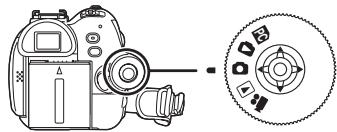
Rotate the mode dial to select the desired mode.
1 Rotate the mode dial.
- Set your desired mode to 1.
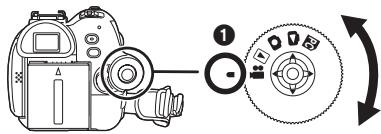
: Tape recording mode
Use this when you record the image on a tape. (Also, you can simultaneously record still pictures on a card while recording images on a tape.)
▶: Tape playback mode
Use this to play back a tape.
Card recording mode
Use this to record still pictures on a card.
: Picture playback mode
Use this to play back the still pictures recorded on a card.
PC:PCmode
Use this to view or edit the images recorded on a card on your personal computer.
(Refer to the operating instructions for PC connection.)
How to use the joystick
Basic joystick operations
Operations on the menu screen and selection of files to be played back on the multi-image display
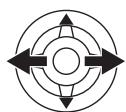
Move the joystick up, down, left, or right to select an item or file, and then push in the centre to set it.
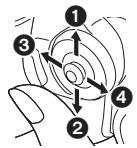
| 1 | Select by moving up. |
| 2 | Select by moving down. |
| 3 | Select by moving left. |
| 4 | Select by moving right. |
| 5 | Determine by pushing the centre. |
Joystick and screen display
Push the centre of the joystick, and icons will be displayed on the screen. Each push switches the display as follows depending on the mode. (In the Tape playback mode or the Picture playback mode, the icons will be automatically displayed on the screen.)
1) Tape recording mode ([AUTO/MANUAL/FOCUS] switch is set to [AUTO])
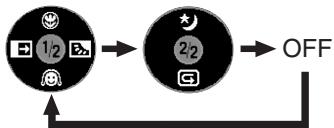
| ▲ | Tele-macro | -26- |
| ▼ | Soft skin mode | -25- |
| ▲ | Fade | -26- |
| ▲ | Backlight compensation | -24- |
| ▲ | Night view/0 Lux night view | -25- |
| ▼ | Recording check | -21- |
2) Tape recording mode ([AUTO/MANUAL/FOCUS] switch is set to [MANUAL])
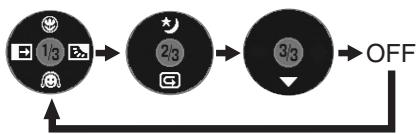
| ▼ | ▼ | White balance Shutter speed Iris or gain value | -30- |
| ▲ | + | Select/Adjust | -30- |
| ▲ | — | Select/Adjust | -30- |
3) Tape playback mode
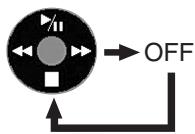
| ▲ | ▼II | Playback/pause | -33- |
| ▼ | ■ | Stop | -33- |
| ▲ | ← | Rewind (review playback) | -33- |
| ▲ | → | Fast forward (cue playback) | -33- |
4) Card recording mode ([AUTO/MANUAL/FOCUS] switch is set to [AUTO])
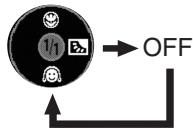
| ▲ | Tele-macro | -26- |
| ▼ | Soft skin mode | -25- |
| ► | Backlight compensation | -24- |
5) Card recording mode ([AUTO/MANUAL/FOCUS] switch is set to [MANUAL])
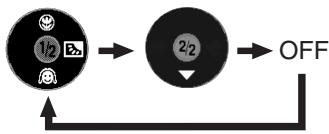
| ▼ | ▼ | White balanceShutter speedIris or gain value | -30- |
| ▲ | + | Select/Adjust | -30- |
| ▲ | — | Select/Adjust | -30- |
6) Picture playback mode
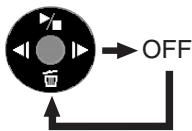
| ▲ | ▼ | Playback/stop | -35- |
| ▼ | ∅ | Erase | -36- |
| ▲ | ← | Playback previous picture | -35- |
| ▲ | ▶ | Playback next picture | -35- |
Switching the language
You can switch the language on the screen display or the menu screen.
1 Set [LANGUAGE] >> select the desired language.
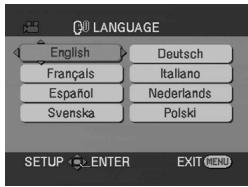
Using the menu screen
For each individual menu, please refer to -42-.
1 Press the [MENU] button.
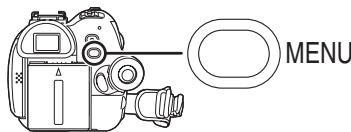
- The menu corresponding to the mode selected by the mode dial is displayed.
- Do not switch the mode dial when the menu is displayed.
2 Move the joystick up or down in order to select the top menu.
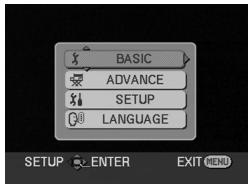
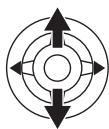
3 Move the joystick right or press it to set the selection.
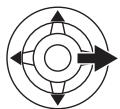

4 Move the joystick up or down in order to select the sub-menu.
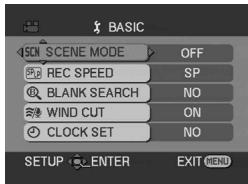
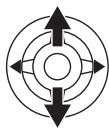
5 Move the joystick right or press it to set the selection.
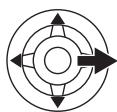

6 Move the joystick up or down in order to select the item to be set.
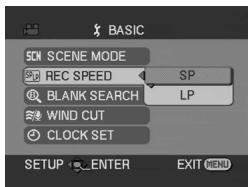

7 Press the joystick to determine the setting.

To exit the menu screen
Press the [MENU] button.
To get back to the previous screen
Move the joystick left.
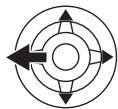
About the menu setting
- The menu screen does not appear during recording. And you cannot record when the menu screen appears.
Operating with remote control
The menu screen transition is the same as when the buttons on the main unit are used.
1 Press the [MENU] button.
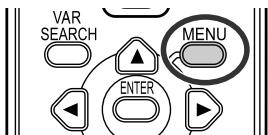
2 Select a menu item.
- Use the direction buttons (, , , ) and [ENTER] button in place of the joystick on the main unit.
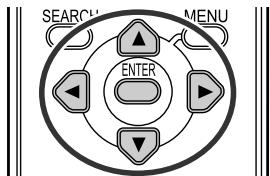
3 Press the [MENU] button to exit the menu screen.
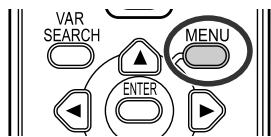
Setting date and time
If the screen shows the incorrect date/time, then adjust it.
- Set to Tape Recording Mode or Card Recording Mode.
1 Set [BASIC] >> [CLOCK SET] >> [YES].
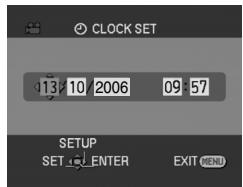
2 Move the joystick left or right in order to select the item to be set. Then move the joystick up or down to set the desired value.
The year will change as follows:
2000, 2001, ..., 2089, 2000, ...
The 24-hour clock is used.
3 Press the joystick to determine the setting.
The clock function starts at [00] seconds.
About date/time
The date and time function are driven by a built-in lithium battery.
Make sure to check the time before recording because the built-in clock is not very accurate.
Recharging the built-in lithium battery
- If [ ] or [-] is indicated when the camera is turned on, then the built-in lithium battery runs down. Connect the AC adaptor to the camera or place the battery on the camera, and the built-in lithium battery will be recharged. Leave the camera as is for approx. 24 hours, and the battery will drive the date and time for approx. 6 months. (Even if the [OFF/ON] switch is set to [OFF], the battery is still being recharged.)
Adjusting LCD monitor/viewfinder
Adjusting the brightness and colour level
1 Set [SETUP] >> [LCD SET] or [EVF SET] >> [YES].
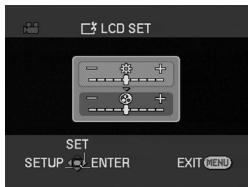
2 Move the joystick up or down in order to select the item to be adjusted. [LCD SET]
: Brightness of the LCD monitor
: Colour level of the LCD monitor [EVF SET]
EVF: Brightness of the viewfinder
3 Move the joystick left or right to move the bar indication representing the brightness.
4 Press the [MENU] button or the joystick to complete the settings.
In order to adjust the brightness of the viewfinder, close the LCD monitor, and the viewfinder will be activated.
- When the LCD monitor is rotated by 180^ towards the lens, the brightness of the LCD monitor cannot be adjusted.
These settings will not affect the images actually recorded.
In order to increase the brightness of the entire LCD monitor
1 Press the [POWER LCD] button.
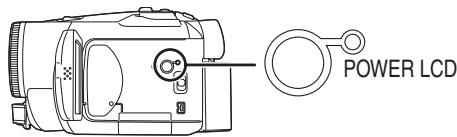
- The [POWER LCD] lamp lights up.
-
If the [POWER LCD] button is pressed, the entire LCD monitor will become approx. twice as bright as the normal.
-
Press this button again, and the lamp will go off and the brightness will revert back to the original brightness.
- This will not affect the images to be recorded.
- If you turn on the camera when the AC adaptor is used, the [POWER LCD] function will automatically be activated.
Changing the picture quality on the LCD monitor
1 Set [SETUP] >> [LCD AI] >> [DYNAMIC] or [NORMAL].
[DYNAMIC]: The image on the LCD monitor becomes clear and vivid. Optimum contrast and brightness are set depending on the scenes recorded. Clear and brilliant images are presented. (The effect will vary depending on the images recorded.)
[NORMAL]: Switches to the standard picture quality.
- The effect will vary depending on the scene recorded.
The picture quality on the viewfinder will not be affected. - This function is automatically set to [DYNAMIC] when the brightness of the LCD monitor is increased (when the [POWER LCD] lamp lights up) and cannot be set to [NORMAL] independently.
- This will not affect the images to be recorded.
- When the LCD monitor is rotated by 180^ towards the lens, the picture quality of the LCD monitor is temporarily adjusted as if the [LCD AI] is set to [NORMAL].
Using the remote control
Remote control
Using the remote control supplied will enable controlling almost all the functions of this camera to be controlled.
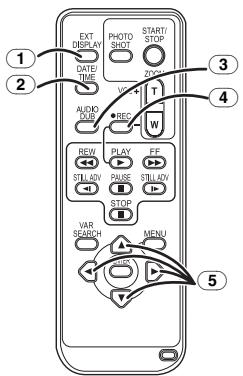
① On-screen display button [EXT DISPLAY] -35-
② Date/time button [DATE/TIME] -42-
③ Audio dubbing button [AUDIO DUB] -40
4 Record button [REC] (not available)
⑤ Direction buttons [▲, ▲, ▷, ▼] -15-
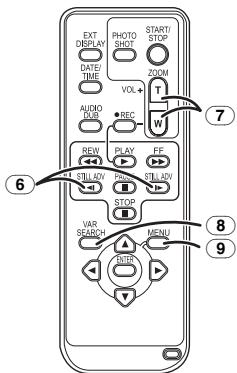
6 Slow/frame-by-frame forward button [←,▶] (←: reverse,▶: forward) -33-
⑦ Zoom/volume button [ZOOM/VOL] *
Search button [VAR SEARCH] -34
9 Menu button [MENU] -15-
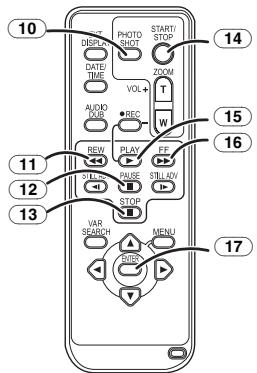
10 Photoshot button [PHOTO SHOT] *
11 Rewind/review button [▲]
12 Pause button [I]
13 Stop button [ ]
14 Recording start/stop button [START/STOP] *
15 Playback button [PLAY]
16 Fast forward/cue button [▶▶]
17 Enter button [ENTER] -15-
- means that these buttons function in the same manner as the corresponding buttons on the movie camera.
Install a button-type battery
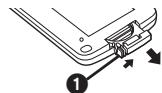
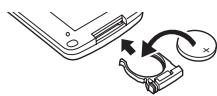
Install the button-type battery supplied in the remote control before using it.
1 While pressing the stopper ①, pull out the battery holder.
2 Set the button-type battery with its (+) mark facing upward and get the battery holder back in place.
Caution
Danger of explosion if battery is incorrectly replaced. Replace only with the same or equivalent type recommended by the equipment manufacturer. Discard used batteries according to manufacturer's instructions.
Warning
Risk of fire, explosion and burns. Do not recharge, disassemble, heat above 100^ or incinerate. Keep the Button-Type battery out of the reach of children. Never put Button-Type battery in mouth. If swallowed call your doctor.
Remote control usable range
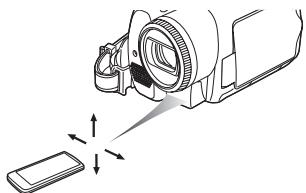
- The distance between the remote control and the camera: Within approx. 5 m Angle: Approx. 10^ up and 15^ down, left, and right
Selecting the remote control mode
If 2 cameras are used simultaneously, set the mode for one pair of movie camera and remote control to [VCR1] and that of the other pair to [VCR2]. This will prevent interference between the 2 pairs. (The default setting is [VCR1]. When the button-type battery is replaced, the setting will revert to the default [VCR1].)
1 Setting on the camera:
Set [SETUP] >> [REMOTE] >> [VCR1] or [VCR2].
2 Setting on the remote control:
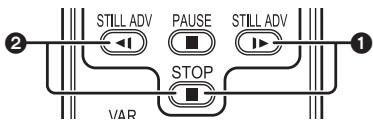
[VCR1]:
Press [▶] and [■] simultaneously. 1
[VCR2]:
Press [←] and [■] simultaneously. 2
Concerning the button-type battery
- When the button-type battery runs down, replace it with a new battery (part number: CR2025). The battery is normally expected to last about 1 year, but it depends on operation frequency.
- Keep the button-type battery out of the reach of children.
- If the remote control mode of the camera and that of the remote control do not match with each other, "REMOTE" will appear. When the remote control is operated for the first time after the camera is turned on, "CHECK REMOTE MODE" (-47-) will appear and operation is impossible. Set the same remote control mode.
- The remote control is intended for indoor operation. Outdoors or under strong light, the movie camera may not operate properly even within the usable ranges.
- Within a 1 metre range, you can operate the remote control from beside the remote control sensor (LCD monitor side) of the movie camera.
Record mode
Check before recording
Check the following by trying recording before important events such as weddings in order to verify that the image recording and audio recording work properly and that you know how to use the movie camera.
Basic camera holding
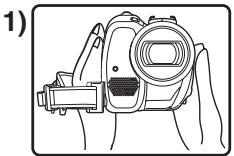
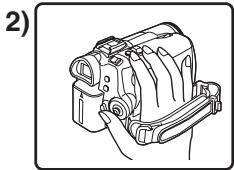
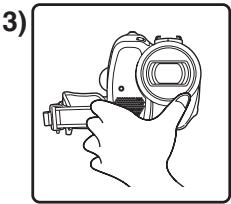
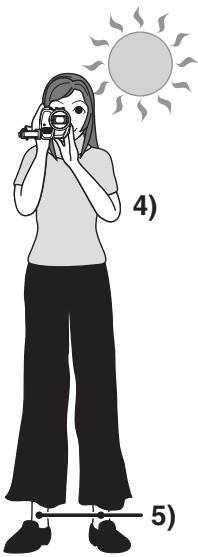
1) Hold the camera with both hands.
2) Run your hand through the grip belt.
3) Do not cover the microphones or sensors with your hands.
4) Keep your arms near your body.
5) Slightly open your legs.
- When you are in the open air, record pictures with the sunlight as far in the background as possible. If the subject is backlit, it will become dark in the recording.
Check points
- Remove the lens cap. (-7-)
(When the camera is turned on with the lens cap fitted, the automatic white balance adjustment may not function properly. Please turn the camera on after removing the lens cap.)
Grip belt adjustment (-8-) - Power supply (-9-)
- Insert a cassette/card (-10-, -11-)
- Setting date/time (-15-)
- Adjustment of LCD monitor/viewfinder (-16-)
-Getting the remote control ready (-17-) - Setting SP/LP mode (-19-)
About auto mode
-
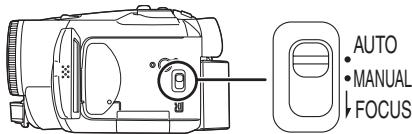
Set the [AUTO/MANUAL/FOCUS] switch to [AUTO], and colour balance (white balance) and focusing will be adjusted automatically.
-
Auto white balance: -57
- Auto focusing: -57-
-
Colour balance and focus may not be adjusted depending on light sources or scenes. If so, manually adjust the white balance and focus.
-
Scene mode setting (-29-)
- White balance setting (-30-)
- Shutter speed setting (-31-)
- Iris/gain value setting (-31-)
Focus setting (-31-)
Recording mode
You can switch the tape recording mode.
- Set to Tape Recording Mode.
1 Set [BASIC] >> [REC SPEED] >> [SP] or [LP].
If the LP mode is selected, the recording time will be 1.5 times the SP mode, but some functions will be disabled.
- We recommend using the SP mode for important recording.
- In order to fully exhibit the performances of the LP mode, we recommend using Panasonic cassettes marked LP mode.
It is not possible to dub audio onto image recorded in the LP mode. (-40-) -
In the LP mode, the picture quality will not be degraded in comparison with the SP mode, but mosaic noise may appear on the playback image or some functions may be disabled.
-
Playback on other digital video equipment or on digital video equipment without the LP mode.
- Playback of the image on other digital video equipment recorded in the LP mode.
- Slow/frame-by-frame playback.
Recording on a tape
Remove the lens cap. (-7-)
(When the camera is turned on with the lens cap fitted, the automatic white balance adjustment may not function properly. Please turn the camera on after removing the lens cap.)
- Set to Tape Recording Mode.
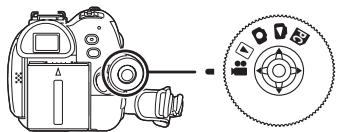
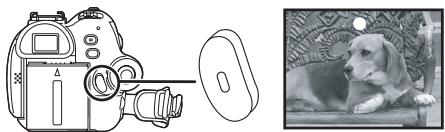
1 Press the recording start/stop button to start recording.
2 Press the recording start/stop button again to pause recording.
-For the recording time on a tape, refer to -10-.
- Carry out a recording check (-21-) to verify that the image is recorded properly.
In order to find the unrecorded section, carry out the blank search (-2I-).
On-screen display in the tape recording mode
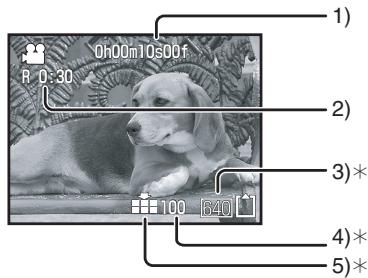
*These indications are displayed only when the card is inserted.
1) Recording time elapse
2) Remaining tape indication
3) Still picture size
4) Number of recordable still pictures (When no picture can be recorded, this indication will flash in red.)
5) Quality of still pictures
Concerning the remaining tape time indication on the screen
- The remaining tape time is indicated in minutes. (When it reaches less than 3 minutes, the indication starts flashing.)
- During a 15 seconds or shorter recording, the remaining tape time indication may not be displayed or the remaining tape time may not be displayed correctly.
- In some cases, the remaining tape time indication may display remaining tape time that is 2 to 3 minutes shorter than the actual remaining tape time.
Recording still pictures on a card while recording image onto a tape
You can record still pictures while recording image onto a tape.
- Set to Tape Recording Mode.
1 Press the [PHOTO SHOT] button fully while recording image onto a tape.
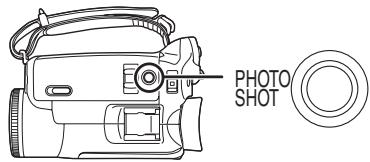
- For the number of still pictures to be recorded on a card, refer to -59-.
- When recording pictures onto a card, the recording start/stop button is disabled.
- You can select a picture quality for still pictures to be recorded. (-22-)
The sizes of pictures to be recorded are [640]. - In order to record still pictures with higher quality, we recommend using the card recording mode.
- If the wide mode is used, you cannot record images onto the card.
- The [PHOTO SHOT] button does not work if it is pressed halfway.
Check the recording
The last image recorded is played back for 2 to 3 seconds. After checking, the camera will be set to a recording pause.
- Set to Tape Recording Mode.
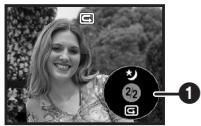
1 Press the joystick during the recording pause until the icon 1 appears.
2 Move the joystick down to select the recording check icon [].

Blank search function
Searches for the last part of the image recorded (unused part of the tape).
- Set to Tape Recording Mode.
1 Set [BASIC] >> [BLANK SEARCH] >> [YES].
Stopping blank search midway through
Move the joystick down to select the [ ] icon.

- If the cassette tape has no blank part, then the camera will stop at the end of the tape.
- The camera stops at a point approx. 1 second before the end of the last image recorded. When you start recording at that point, the image can be recorded seamlessly from the last image.
Recording still pictures onto a card (Photoshot)
- Set to Card Recording Mode.
1 Press the [PHOTO SHOT] button halfway in order to adjust focusing. (For auto focusing only)
- The iris/gain value is fixed and this camera focuses on the subject automatically.
![PANASONIC NVGS180EP - Press the [PHOTO SHOT] button halfway in order to adjust focusing. (For auto focusing only) - 1](/content/2019/09/53934/images/c565d169b76c07942afaa3d771449a708eab4fbac70f79b3313b876bce1a1ac5.jpg)
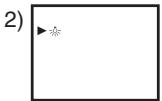
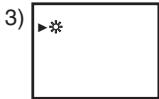
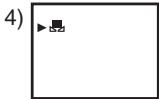
1 Shutter chance mark
(The white lamp flashes.):
Focusing
(The green lamp lights up.):
When in focus
No mark: When focusing is unsuccessful
- The shutter chance mark is indicated as follows when the [PHOTO SHOT] button is not pressed halfway. Please use it as a guide for recording.
(The green lamp lights up.):
When in focus and a good picture can be recorded
(White lamp lights up.):
Almost in focus
Focus area
2 Press the [PHOTO SHOT] button fully.
To record still pictures clearly
- When zooming in on the subject with a magnification of 4 × to 10 × or higher, it is difficult to reduce the slight shaking from holding the movie camera by hand. We recommend decreasing the zoom magnification and approaching the subject when recording.
- When recording still pictures, hold the movie camera firmly with your hands and keep your arms stationary at your side so as not to shake the movie camera.
- You can record stable pictures without shaking by using a tripod and the remote control.
For the number of still pictures to be recorded on a card, refer to -59-.
The sound cannot be recorded.
While data are recorded on a card, do not operate the mode dial.
- When the access lamp is lit, do not insert or remove a card.
- Another product may degrade or not play back data recorded on this camera.
- If set [PICT. QUALITY] >> [_, mosaic-pattern noise may appear on a playback image depending on the picture content.
- When the [PICTURE SIZE] is set to other than [640], the mega pixel recording mode is set.
- When the picture size setting is other than [640], the scene around the subject can be recorded wider than that in [640].
On-screen display in the card recording mode
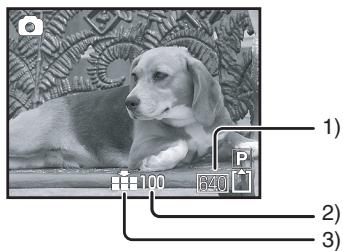
1) Still picture size
2) Number of recordable still pictures (When no pictures can be recorded, the red light will flash.)
3) Quality of still pictures
Progressive Photoshot
You can record still pictures with higher picture quality and frames. (You cannot switch the progressive function off/on.)
- In the tape recording mode, the progressive function may be disabled depending on the other functions used. (-48-)
Select the size of still pictures to be recorded on a card
1 Set [BASIC] >> [PICTURE SIZE] >> select the desired picture size.
[1760]: 1760 × 1320
[1280]: 1280 × 960
[640]: 640 × 480
Select the picture quality for photoshot images
1 Set [BASIC] >> [PICT. QUALITY] >> select the desired picture quality.
[ ]: High picture quality
[ ]: Normal picture quality
- You can also change the picture quality on [ADVANCE] >> [PICT. QUALITY] in the tape recording mode.
■ Recording with a shutter operation effect
You can add a shutter operation simulating sound.
1 Set [ADVANCE] >> [SHTR EFFECT] >> [ON].
About the shutter chance mark
- The shutter chance mark does not appear in manual focus mode.
- When the subject is not easily focused, focus on the subject manually.
- You can record still pictures on the card even if the shutter chance mark does not appear, but pictures may be recorded without being focused.
-
The shutter chance mark does not appear or becomes difficult to be displayed in the following cases.
-
When the zoom magnification is high.
- When the movie camera is shaken.
- When the subject is moving.
- When the subject stands against the light source.
- When close subjects and far subjects are included in the same scene.
- When the scene is dark.
- When there is a bright part in the scene.
- When the scene is filled with only horizontal lines.
- When the scene lacks contrast.
Concerning the focusing area
- When there is a contrasting object ahead or behind the subject in the focus area, the subject may not be focused. If so, move the contrasting object out of the focus area.
Zoom in/out function
You can zoom in up to 10× optically.
- Set to Tape/Card Recording Mode.
1 Wide-angle recording (zoom out): Push the [W/T] lever towards [W]. Close-up recording (zoom in): Push the [W/T] lever towards [T].
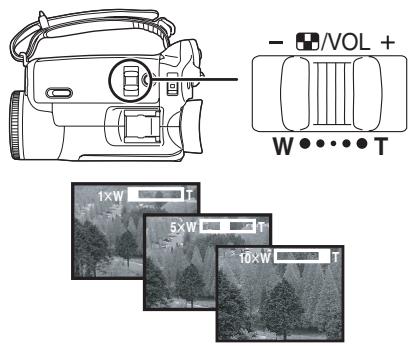
- When zooming in and taking a picture while holding the movie camera by hand, we recommend using the image stabilizer function.
- When you are zooming on a faraway subject, a sharper focus is achieved if the recording subject is 1.2 metres or further from the movie camera.
- When the zoom speed is high, the subject may not be focused easily.
- When the zoom magnification is 1 × , the movie camera can focus on a subject approx. 4 cm distant from the lens.
Digital zoom function
If the zoom magnification exceeds 10 times, then the digital zoom function will be activated. The digital zoom function allows you to select a magnification from 20 × to 500 × .
1 Set [ADVANCE] >> [D.ZOOM] >> [20×] or [500×].
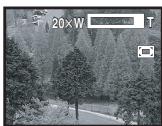
[OFF]: Optical zoom only (Up to 10×
[20x]: Up to 20x
- The larger the digital zoom magnification, the more the image quality is degraded.
- When the Card Recording mode is used, the digital zoom function cannot be used.
To use the zoom microphone function
Interlocked with the zooming operation, the microphone will collect sounds clearly far away with the tele-shot or those in the vicinity with the wide-angle shot.
- Set to Tape Recording Mode.
1 Set [ADVANCE] >> [ZOOM MIC] >> [ON].
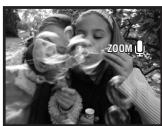
About the variable speed zoom function
- When pushing the [W/T] lever as far as it will go, you can zoom from 1 × to 10 × in 2.1 second at the maximum.
- The zoom speed varies according to the amount of movement of the [W/T] lever.
- The variable speed zoom function cannot be used with the remote control.
Recording yourself
You can record yourself while viewing the LCD monitor. You can record persons in front of the camera while presenting them the image. The image is horizontally flipped as if you see a mirror image. (The image to be recorded is the same as that recording.)
1 Rotate the LCD monitor towards the lens side.
- When the LCD monitor is opened, the viewfinder will be automatically turned off. If the LCD monitor is rotated towards the lens side though, then the viewfinder will be activated.
- When the LCD monitor is rotated towards the lens side, the icon will not be displayed even if you push the centre of the joystick.
Quick start
This camera will be put into standby in approx. 1.7 seconds after the power is turned on.
-
Please note in Quick Start Mode approximately half the pause recording power is being consumed. Using Quick Start Mode will reduce the battery recording/playback time.
-
This is only activated in the following cases.
-
A tape or a card is inserted, while the Tape Recording Mode is set.
- A card is inserted, while the Card Recording Mode is set.
1 Press the [QUICK START] button.
![PANASONIC NVGS180EP - Press the [QUICK START] button. - 1](/content/2019/09/53934/images/38b8d4e84aaf85827d4f05c764e9d5e4b91122b391e6b81208519b86040fc3b0.jpg)
- The quick start recording lamp lights up. (Press the button again to cancel it.)
2 Set the [OFF/ON] switch to [OFF].
![PANASONIC NVGS180EP - Set the [OFF/ON] switch to [OFF]. - 1](/content/2019/09/53934/images/4b641e7d40c1f28e63607a31348d60985466f358eb236bfd443ad289f82252d5.jpg)
The quick start is now ready.
3 Set the [OFF/ON] switch to [ON].
- This camera will be put into a recording pause in approx. 1.7 seconds after it is turned on.
To cancel the quick start when the power is [OFF]
Press and hold the [QUICK START] button for approx. 2 seconds. The lamp will go off and the camera will be completely turned off.
-
If the standby continues for approx. 30 minutes, then the lamp will go off and the camera will be completely turned off.
-
When you rotate the mode dial or remove the battery, the quick start recording lamp is turned off and the quick start mode is cancelled. If the movie camera is turned on and the Tape/Card Recording Mode is set though, the lamp turns on and the quick start mode is restored.
-
When the camera is quick-started with the white balance on automatic, it may take some time until the white balance is adjusted if the scene being recorded has a light source different from the scene last recorded. (When the colour night view function is used, however, the white balance of the scene last recorded is retained.)
- The zoom magnification may differ from when it is in the quick start standby mode and when the recording starts.
Backlight compensation function
This protects a backlit subject from being darkened.
- Set to Tape/Card Recording Mode.
1 Press the joystick until the icon 1 appears.
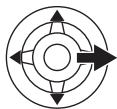
2 Move the joystick right to select the backlight compensation icon [E].
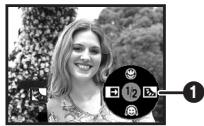
The image on the screen will become brighter.
To return to normal recording
Select the [E] icon again.
- If you operate the [OFF/ON] switch or the mode dial, the backlight compensation is cancelled.
Night view functions
This function allows you to record colour subjects in dark locations to stand out against the background.
Attach the camera to a tripod, and you can record images free from vibration.
- Only manual focusing can be used.
- Recorded scene is seen as if frames were missed.
Colour night view function
You can record dark locations brightly in colour.
0 Lux night view function
You can record completely dark locations with the light of the LCD monitor.
- Set to Tape Recording Mode.
1 Press the joystick until the icon ① appears.
2 Move the joystick up to select the night view icon [].

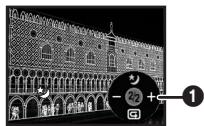
Each upward press switches the modes. OFF Colour night view function 0 Lux night view function OFF
3 (In the case of 0 lux night view function) Rotate the LCD monitor towards the lens side.
- When the LCD monitor is reversed, the Power LCD Lamp turns on and the screen is lit in white.
- Record the subject while viewing it on the viewfinder.
The light of the LCD monitor reaches approx. 1.2 m or less.
To cancel the colour night view function
Select the night view icon until the night view indication disappear.
- If set in a bright place, the screen may become whitish for a while.
- The night view function makes the signal charging time of CCD up to approximately 25 × longer than usual, so that dark scenes invisible to the naked eye can be recorded brightly. For this reason, bright dots that are usually invisible may be seen, but this is not a malfunction.
The night view function is cancelled when you operate the power switch or the mode dial.
Soft skin mode
This allows the skin colour to be recorded in a softer tone. This is more effective if you record the bust image of a person.
- Set to Tape/Card Recording Mode.
1 Press the joystick until the icon 1 appears.
2 Move the joystick down to select the soft skin icon [O].

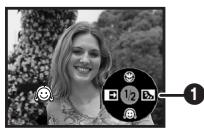
To cancel the soft skin mode
Select the [ ] icon again.
- If the background or anything else in the scene has colours similar to the skin colour, they will also be smoothed.
- If the brightness is insufficient, the effect may not be clear.
Tele-macro function
By focusing only on the subject and blurring the background, the image can be impressive. This camera can focus on the subject at a distance of approx. 40 cm.
- Set to Tape/Card Recording Mode.
1 Press the joystick until the icon ① appears.
2 Move the joystick up to select the tele-macro icon [ ]

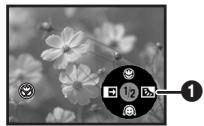
- If the magnification is 10 × or less, then it is automatically set to 10 × .
To cancel the tele-macro function Select the [ 念 ] icon again.
- If a sharper focus cannot be achieved, adjust the focus manually.
-
In the following cases, the tele-macro function is cancelled.
-
The zoom magnification becomes lower than 10 × .
- The [OFF/ON] switch or the mode dial is operated.
Fade in/fade out function
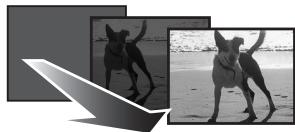
Fade in
The image and audio gradually appear.
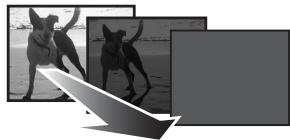
Fade out
The image and audio gradually disappear.
- Set to Tape Recording Mode.
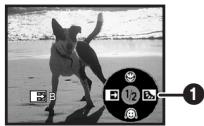
1 Press the joystick until the icon ① appears.
2 Move the joystick left to select the fade icon [E].
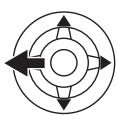
3 Press the recording start/stop button. Start recording. (fade in)
When you start recording, the image/audios disappeared completely and the image/audogravually appears.
Pause recording. (fade out)
The image/audio gradually disappears. After the image/audocompletely disappears, recording stops.
To cancel fading
Select the [ ] icon again.
To select the colour for fade in/out
The colour which appears in fading pictures can be selected.
1 Set [SETUP] >> [FADE COLOUR] >> [WHITE] or [BLACK].
While the fade in/fade out function is selected, it takes several seconds to display the image when you start recording images. Besides, it also takes several seconds to pause recording.
Wind noise reduction function
This reduces the wind noise coming into the microphone when recording.
- Set to Tape Recording Mode.
1 Set [BASIC] >> [WIND CUT] >> [ON].

To cancel the wind noise reduction function
Set [BASIC] >> [WIND CUT] >> [OFF].
- Reduces the wind noise depending on the wind strength. (If this function is activated in strong winds, the stereo effect may be reduced. When the wind weakens, the stereo effect will be restored.)
Self-timer recording
You can record still pictures on a card using the timer.
- Set to Card Recording Mode.
1 Set [BASIC] >> [SELF TIMER] >> [YES].
2 Press the [PHOTO SHOT] button.
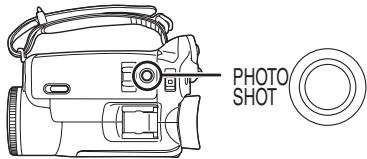
After the recording lamp and the [ ] indication flashes for approx. 10 seconds, recording will start. After recording, the self-timer will be cancelled.
- You cannot press the [PHOTO SHOT] button half way. Focusing will be carried out with reference to the focusing frame.
To stop the timer midway through
Press the [MENU] button.
- By operating the [OFF/ON] switch or mode dial, the self-timer standby mode is cancelled.
- If the continuous photoshot recording is set, the maximum recordable pictures are recorded.
Recording images for wide-screen TVs
This allows you to record images compatible with wide-screen TVs.
Wide Function
Images are recorded with a 16:9 aspect ratio.
Cinema Function
Images are recorded with a black belt appearing along the top and bottom of the screen so that they look like theatre movies.
- Set to Tape Recording Mode.
1 Wide Function
Set [ADVANCE] >> [ASPECT] >> [16:9].
Cinema Function
Set [ADVANCE] >> [CINEMA] >> [ON].
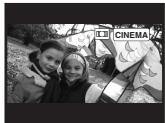
To cancel the Wide/Cinema function Wide Function
Set [ADVANCE] >> [ASPECT] >> [4:3].
Cinema Function
Set [ADVANCE] >> [CINEMA] >> [OFF].
- When the Wide Function is activated, the display such as the menu screen or the operation icon is expanded horizontally.
- Images played back vary depending on the TV connected. Please refer to the operating instructions for your TV.
- This function does not widen the recording range.
- When images are played back on a TV screen, the date/time indication may be erased in some cases.
Depending on the TV, the picture quality may deteriorate. - When a cinema picture is imported into a personal computer, the imported picture may not be displayed correctly, depending on the software in used.
- If you use a TV with an aspect ratio of 4:3, we do not recommend using the wide mode. (Images are vertically stretched.)
- If the wide function is set when the Image stabilizer function is used, the image stabilizer function will be cancelled.
Image stabilizer function
Reduces the image shaking due to hand movement when recording.
- Set to Tape Recording Mode.
1 Set [ADVANCE] >> [SIS] >> [ON].
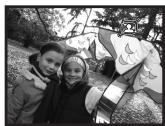
To cancel the image stabilizer function Set [ADVANCE] >> [SIS] >> [OFF].
- When a tripod is used, we recommend that you turn the image stabilizer off.
- Under fluorescent lighting, image brightness may change or colours may not look natural.
- If the image stabilizer is set when the wide function is used, the wide function will be cancelled.
- When the night view function is used, the image stabilizer function does not work. If so, the [ ] indication flashes.
-
In the following cases, the image stabilizer function may not work effectively.
-
When the digital zoom is used
- When a conversion lens is used
- When recording is done in an extremely dark place
- When the camera is shaken greatly
- When you record a moving subject while tracking it
Continuous Photoshot
Records still pictures continuously at a certain interval.
- Set to Card Recording Mode.
1 Set [BASIC] >> [PICTURE SIZE] >> [640].
2 Set [ADVANCE] >> [BURST MODE] >> [ON].
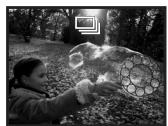
3 Press and hold the [PHOTO SHOT] button.
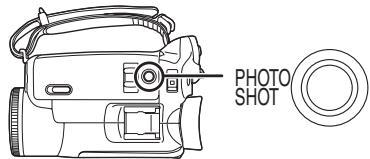
To stop continuous photosh o midway through
Release the [PHOTO SHOT] button.
- The camera records up to 10 still pictures at intervals of 0.5 seconds. If the shutter speed is manually set to 1/25, then the still pictures can be recorded at intervals of 0.7 seconds.
One more still picture may be recorded after you release the [PHOTO SHOT] button. - If set [SELF TIMER] >> [YES], the movie camera records the maximum number of pictures recordable.
- Intervals between recording pictures may become longer depending on the card. We recommend using a Panasonic SD Memory Card.
- When using the card formatted by other equipment or a card that was recorded and erased repeatedly, the intervals between recording pictures may become longer. If so, back up your important data on a PC, and format your card with this movie camera.
Recording in various situations (Scene mode)
When you record images in different situations, this mode automatically sets optimum shutter speeds and apertures.
- Set to Tape/Card Recording Mode.
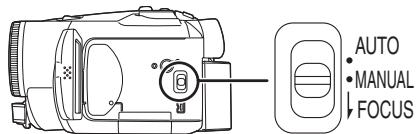
1 Set the [AUTO/MANUAL/FOCUS] switch to [MANUAL].
2 Set [BASIC] >> [SCENE MODE] >> select the desired mode.
1)
2)

3)
4)
5)
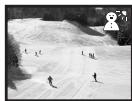
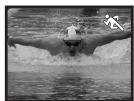
1) [Sports mode
- To record sports scenes or scenes where there are quick motions
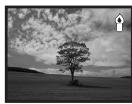
2) [ ] Portrait mode
To make persons stand out against the background
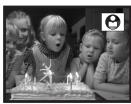
3) [ ] Low light mode
To record dark scenes so they are brighter
4) [S] Spotlight mode
To record subjects spotlit in a party or theatre
5) [g] Surf & snow mode
- To record images at dazzling places such as ski slopes and beaches
To cancel the scene mode function
Set [BASIC] >> [SCENE MODE] >> [OFF] or set the [AUTO/MANUAL/FOCUS] switch to [AUTO].
Sports mode
- For slow-motion playback or playback pause of recorded pictures, this mode presents free of camera shakes.
- During normal playback, the image movement may not look smooth.
- Avoid recording under fluorescent light, mercury light or sodium light because the colour and brightness of the playback image may change.
- If you record a subject illuminated with strong light or a highly reflective subject, vertical lines of light may appear.
- If the brightness is insufficient, the sports mode does not function. The [ ] indication flashes.
- If this mode is used indoors, the screen may flicker.
Portrait mode
- If this mode is used indoors, the screen may flicker. If so, change the scene mode setting to [OFF].
Low light mode
- Extremely dark scenes may not be able to be recorded finely.
Spotlight mode
- If the recording subject is extremely bright, the recorded image may become whitish and the periphery of the recorded image extremely dark.
Surf & snow mode
- If the recording subject is extremely bright, the recorded image may become whitish.
Recording in natural colours (White balance)
The automatic white balance function may not reproduce natural colours depending on the scenes or lighting conditions. If so, you can adjust the white balance manually.
- Set to Tape/Card Recording Mode.
1 Set the [AUTO/MANUAL/FOCUS] switch to [MANUAL].
2 Move the joystick down until the white balance indication appears. ([AWB] etc.)

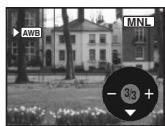
3 Move the joystick left or right in order to select the white balance mode.
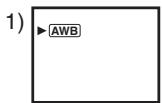
1) Auto white balance adjustment [AWB]
2) Indoor mode (for recording under incandescent lamps) [O]
3) Outdoor mode [ ]
4) Manual adjustment mode [ ]
To restore to the automatic adjustment
Move the joystick left or right until the [AWB] indication appears. Or, set the [AUTO/MANUAL/FOCUS] switch to [AUTO].
- When the camera is turned on with the lens cap fitted, the automatic white balance adjustment may not function properly. Please turn the camera on after removing the lens cap.
- When setting both the white balance and the iris/gain, set the white balance first.
- Whenever recording conditions change, re-set the white balance for correct adjustment.
To set the white balance manually
Select [ ] in Step 3. Then, while viewing a white subject on the entire screen, move the joystick up to select the [ ] indication.
■ About flashing of the [ ] indication When the manual adjustment mode is selected
- Flashing indicates that the white balance previously adjusted is stored. This setting is stored until the white balance is adjusted again.
When white balance cannot be set in the manual adjustment mode
- White balance may not be adjusted properly in the manual adjustment mode in dark places. If so, use the auto white balance mode.
During setting in the manual adjustment mode
- When the setting is completed, it will keep lit.
About the white balance sensor
The white balance sensor detects the type of light source during recording.
- Do not cover the white balance sensor during recording, or it may not function properly.
About the black balance adjustment
This is one of the 3CCD system functions that automatically adjusts the black when the white balance is set in the manual adjustment mode. When the black balance is adjusted, the screen will temporarily be black.
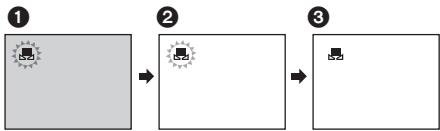
1 Black balance adjustment (Flashes.)
White balance adjustment (Flashes.)
Adjustment completed (Lights up.)
Manual focus adjustment
If auto focusing is difficult due to the conditions, then manual focusing is available.
- Set to Tape/Card Recording Mode.
1 Set the [AUTO/MANUAL/FOCUS] switch to [MANUAL].
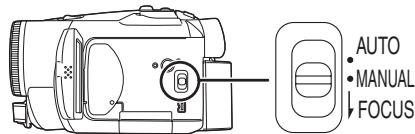
2 Set the [AUTO/MANUAL/FOCUS] switch to [FOCUS].
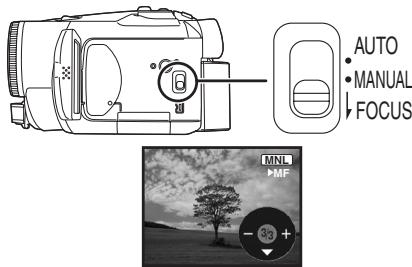
- The MNL and the manual focus indication [MF] will be displayed.
3 Move the joystick left or right in order to adjust the focus.
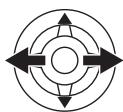
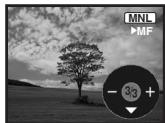
- When focused with a wide angle, the subject may not be in focus when zoomed in. First, zoom in on the subject, and then focus on it.
To restore to the automatic adjustment
Set the [AUTO/MANUAL/FOCUS] switch to [AUTO] or [FOCUS].
Manual shutter speed/aperture adjustment
Shutter Speed
Adjust it when recording fast-moving subjects. Aperture
Adjust it when the screen is too bright or too dark.
- Set to Tape/Card Recording Mode.
1 Set the [AUTO/MANUAL/FOCUS] switch to [MANUAL].
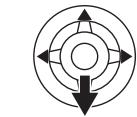
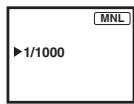
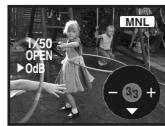
2 Move the joystick down until the shutter speed indication or aperture value indication appears.
1)
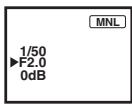
2)
1) Shutter speed
2) (Aperture) Iris/gain value
3 Move the joystick left or right in order to adjust the shutter speed or aperture.
To restore to automatic adjustment Set the [AUTO/MANUAL/FOCUS] switch to [AUTO].
Manual shutter speed adjustment
- Avoid recording under fluorescent light, mercury light or sodium light because the colour and brightness of the playback image may change.
- If you increase the shutter speed manually, the sensitivity lowers and accordingly the gain value increases automatically, which may increase the noises on the screen.
- You may see vertical lines of light in the playback image of a brightly shining subject or highly reflective subject, but this is not a malfunction.
- During normal playback, image movement may not look smooth.
- When recording in the extremely bright place, the colour of the screen may change or flickers. If so adjust the shutter speed manually to 1/50 or 1/100.
Manual iris/gain adjustment
- If the value does not become "OPEN", you cannot adjust the gain value.
- If the gain value is increased, the noise on the screen increases.
- Depending on the zoom magnification, there are iris values that are not displayed.
Shutter speed range
1/50 to 1/8000 seconds: Tape Recording Mode
1/25 to 1/500 seconds: Card Recording Mode
The shutter speed closer to 1/8000 is faster.
Iris/gain value range
CLOSE (Closed), F16, ..., F2.0,
OPEN (Opened) 0dB, ..., 18dB
Value closer to [CLOSE] darken the image.
Value closer to [18dB] brighten the image.
Values with dB are gain values.
Playback mode
Playing back tape
- Set to Tape Playback Mode.
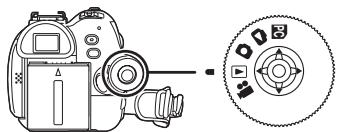
1 Operate with joystick.

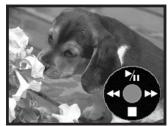
//II:Playback/Pause
Rewind/Review playback (Reverts to playback with the /icon.)
Fast forward/Cue playback (Reverts to playback with the /icon.)
: Stop
- During cue/review playback, fast-moving images may show noise as a mosaic.
- Before and after cue/review playback, the screen may become blue for a moment or images may be disturbed.
To adjust volume
Adjust the speaker or headphone volume for playback.
1 Move the [- 串 / VOL +] lever to adjust the volume.
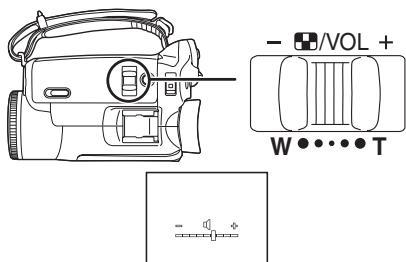
Towards [+] : increases the volume
Towards [-] : decreases the volume
(Nearer the bar to [+] , larger the volume.)
-
On the remote control, press the [T] button to increase the volume or the [W] button to decrease it.
-
When the adjustment is completed, the volume indication will disappear.
- If you do not hear the sound, check the settings of [SETUP] >> [12bit AUDIO].
Repeat playback
When the tape end is reached, the tape will be rewound and played back again.
1 Set [ADVANCE] >> [REPEAT PLAY] >> [ON].
The [ ] indication appears. (In order to cancel the repeat playback mode, set [REPEAT PLAY] >> [OFF] or set [OFF/ON] switch to [OFF].)
- When you set [USB FUNCTION] >> [WEBCAM] and then connect the USB connection cable, the repeat playback mode is cancelled.
Settings on the audio
- If you cannot listen to the desired audio when playing back a tape, check the settings in [SETUP] >> [12bit AUDIO].
- When you record or dub the audio in [12bit] and set [SETUP] >> [12bit AUDIO] >> [MIX], the audio will be played back in stereo sound regardless of the settings in [AUDIO OUT].
Slow-motion playback/ frame-by-frame playback
- Set to Tape Playback Mode. (Slow-motion playback can only be performed by using the remote control.)
Slow-motion playback
If the image is recorded in the SP mode, then it will be played back at a speed approx.1/5 the normal speed.
If the image is recorded in the LP mode, then it will be played back at a speed approx.1/3 the normal speed.
1 Press the [←] button or the [▶] button on the remote control.
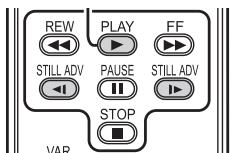
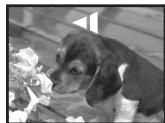
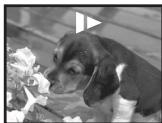
- If the slow-motion playback continues for approx. 10 minutes or more, then the playback will automatically stop. (10 minutes of slow-motion playback is equivalent to approx. 2 minutes in the SP mode or approx. 3 minutes in the LP mode.)
Frame-by-frame playback
1 During playback, press the [I] button on the remote control.
2 Press the [←] button or the [▶] button on the remote control.
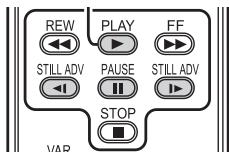
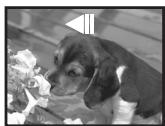
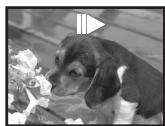
- Pushing the [- 串 ] / VOL +] lever towards [T] (normal direction) or towards [W] (reversed direction) of this camera during playback pause also turns into the frame-by-frame playback. If you keep pushing the lever, then the images will continuously be played back frame by frame.
To return to normal playback
Press the [PLAY ] button on the remote control.
Slow-motion playback
- In the reversed slow-motion playback, the time code indication may be unstable.
Frame-by-frame playback
- Press and hold the [<] or the [▶] button in the playback pause, and then the images will continuously be played back frame by frame.
Variable-speed search function
The speed of cue/review playback can be varied. (This operation is only available when using the remote control.)
- Set to Tape Playback Mode and play back a tape.
1 Press the [VAR SEARCH] button on the remote control.
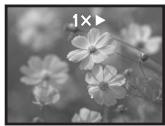
2 Press the [ ] or [ ] button to vary the speed.
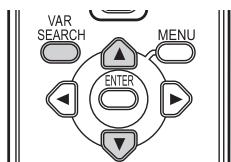
- The speeds for cue/review playback are 1 / 5 × (SP mode slow-motion playback only), 1 / 3 × (LP mode slow-motion playback only), 2 × , 5 × , 10 × , 20 × .
To return to normal playback
Press the [VAR SEARCH] button or [PLAY ] button on the remote control.
Images may be shown in a mosaic-like pattern.
The sound is muted during search.
- This function is cancelled when the operation icon is displayed.
Playback on TV
Images recorded by this camera can be played back on a TV.
- Insert a recorded tape into this camera.
1 Connect the movie camera and a TV.
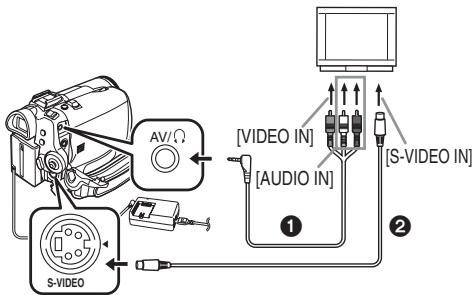
- Connect the movie camera and a TV by using the AV cable ①.
- If the TV has an S-Video terminal, then also connect an S-Video cable (optional). It allows you to enjoy more beautiful images.
2 Turn on this camera and set the mode dial to the Tape Playback Mode.
3 Select the input channel on the TV.
4 Move the joystick up to select the [▶/III] icon to start playback.
The image and audio are output on the TV.
5 Move the joystick down to select the [■] icon to stop playback.
- Whenever plugging in the S-Video cable, plug in the AV cable, too.
- Use the AC adaptor to free you from worrying about the battery running down.
If the image or audio from this camera is not output on the TV
- Check that the plugs are inserted as far as they go.
- Check the connected terminal.
- If the image does not appear on the TV even if [BASIC] >> [AV JACK] >> [OUT/]. are set, then set to [OUT]. (-45-)
- Check the TV's input setting (input switch). (For more information, please read the operating instructions for the TV.)
To display the on-screen information on the TV
The information displayed on the LCD monitor or the viewfinder (operation icon, time code and mode indication, etc.), date and time can be displayed on the TV.
1 Press the [EXT DISPLAY] button on the remote control.
![PANASONIC NVGS180EP - Press the [EXT DISPLAY] button on the remote control. - 1](/content/2019/09/53934/images/438903036b1edaed931f980d1132e08284e8dc3c088e147fc40d37220728cba5.jpg)
- Press the button again to erase the OSD information.
Playing back card
- Set to Picture Playback Mode.
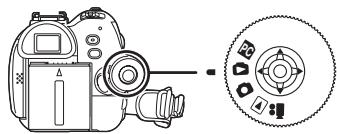
1 Operate with joystick.
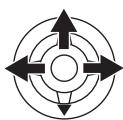
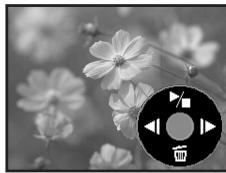
Plays back the previous picture.
Plays back the next picture.
▶/■: Slide show (Plays back the still pictures on the card in order) start/stop
While the data on a card are played back, do not operate the mode dial.
- When the access lamp is lit, do not insert or remove a card.
- It takes time to display the file depending on the number of pixels of the file.
- If you attempt to play back file recorded in a different format or file data is defective, the whole display becomes bluish and the "UNPLAYABLE CARD" indication may appear as warning.
- When playing back a file recorded on other equipment, the date and time display is different from when it was recorded.
- When playing back a picture recorded on other equipment, its size and that of this movie camera may appear differently.
To display multiple playback files
Multiple files on the card (6 files on 1 screen) are displayed.
1 Move the [- 串 ] / VOL +] lever to switch the images.
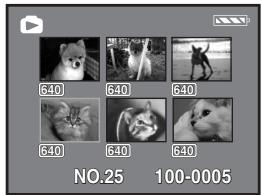
Towards [+] :
Full-screen display
(Displays 1 image.)
Towards [-] :
Multi-screen display
(Displays 6 files on 1 screen.)
In the multi-screen display,
- Move the joystick to select a file (The selected file will be encircled by a yellow frame) and press to determine it. The selected file is full-screen displayed.
- If there are 7 files or more, then move the joystick. The next, or previous multi-screen will be displayed.
About the compatibility of still pictures
- The movie camera is compliant with the unified standard DCF (Design rule for Camera File system) established by JEITA (Japan Electronics and Information Technology Industries Association).
- The file format supported by this movie camera is JPEG. (Not all JPEG formatted files will be played back.)
- If an out-of-specs file is played back, the folder/file name may not be displayed.
- The movie camera may degrade or not play back data recorded or created on another product and another product may degrade or not play back data recorded on the movie camera.
Deleting files recorded on a card
The deleted files cannot be restored.
- Set to Picture Playback Mode.
1 Move the joystick left or right to select a file to delete.
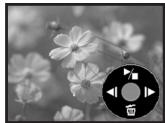
- You can select a file in the multi-screen display. After selecting the file, press the joystick and display the operation icon.
2 Move the joystick down to select [血].

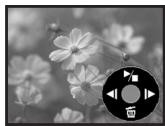
3 Move the joystick up or down in order to select [DELETE 1 FILE] and then press it.
4 When the confirming message appears, select [YES] and press the joystick.
- In order to stop deletion, select [NO].
To delete all files
1 Move the joystick down to select [血].

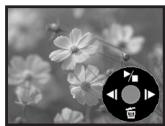
2 Move the joystick up or down in order to select [ALL FILES] and then press it.
3 When the confirming message appears, select [YES] and press the joystick.
- In case of [ALL FILES], the deletion may take time if there are many files on the card.
- When "CARD FULL" is shown during recording, switch to the Picture Playback Mode and then delete unnecessary files.
- If there are not any file to delete, insert a new card.
- If files conforming to DCF standard are deleted, all the data related to the files will be deleted.
- Deleting still picture files recorded on a card by other equipment
- A still picture file (other than JPEG) that cannot be played back on the movie camera may be erased.
Formatting a card
Please be aware that if a card is formatted, then all the data recorded on the card will be erased. Store important data on a personal computer, etc.
- Set to Picture Playback Mode.
1 Set [ADVANCE] >> [CARD FORMAT] >> [YES].
2 When the confirmation message appears, select [YES] and press the joystick in order to format the card.
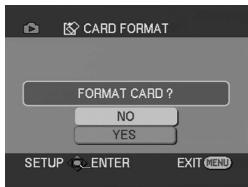
In order to stop formatting, select [NO].
- Normally, it is not necessary to format the card. If a message appears even though you insert and remove the card several times, format it.
- If the SD Memory Card is formatted on other equipment, the time spent for recording may become longer. If the SD Memory Card is formatted on a PC, it cannot be used on the Movie Camera. Format the SD Memory Card on the Movie Camera, in this case.
- The Movie Camera supports SD Memory Cards formatted in FAT12 system and FAT16 system based on SD Memory Card Specifications.
Protecting files on a card
Files recorded on a card can be locked so that they may not be deleted by mistake. (Even if the files are locked, they will be deleted if the card is formatted.)
- Set to Picture Playback Mode.
1 Set [BASIC] >> [PROTECT] >> [YES].
2 Move the joystick to select a file to be locked, and then press it.
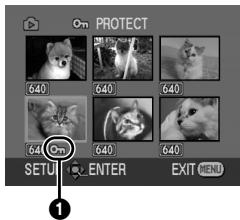
- [Om] Indication ① appears and the selected file is locked. Press the joystick again, and the lock will be cancelled.
- 2 or more files can be locked in succession.
To complete the settings
Press the [MENU] button.
Writing the printing data on a card (DPOF setting)
You can write the data of pictures to be printed, number of copies, and other information (DPOF data) onto the card.
- Set to Picture Playback Mode.
1 Set [ADVANCE] >> [DPOF SET] >> [SET].
2 Move the joystick to select a file to be set, and then press it.
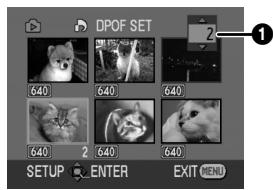
The number of prints 1 set to be in DPOF is displayed.
3 Move the joystick up or down in order to select the number of prints, and then press it.
- You can select from 0 to 999. (Selected number of pictures can be printed as you set the number of prints with the printer supporting DPOF.)
- 2 or more files can be set in succession.
To complete the settings
Press the [MENU] button.
- DPOF setting made on another camera may not be recognised by this camera. Please perform the DPOF settings on your movie camera.
To set so that all pictures are not printed
Select [CANCEL ALL] in Step 1.
What is DPOF?
DPOF stands for Digital Print Order Format. This enables the printing information to be added to the pictures on the card so that it can be used on a system supporting DPOF.
Edit mode
Recording from a tape onto a card
Still pictures can be recorded on a memory card from scenes that have already been recorded on a cassette.
- Set to Tape Playback Mode.
- Insert a tape which already has recorded contents and a card.
1 Start playback.

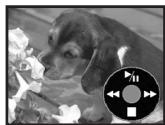
2 Pause at the scene you wish to record, and press the [PHOTO SHOT] button.
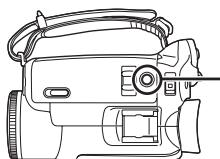

- Audio will not be recorded.
- The size of still pictures recorded on a card becomes [640]. (This is not mega pixel still picture recording.)
- If you press the [PHOTO SHOT] button without pausing, blurred pictures may be recorded.
- For pictures with an aspect ratio of 16:9, "CANNOT RECORD (WIDE MODE)" is shown, indicating that still pictures cannot be recorded.
- DV input and wide images recorded on a tape cannot be recorded on a card.
Copying onto a DVD recorder or a VCR (Dubbing)
Pictures recorded by the movie camera can be stored on a DVD-RAM or other such media. Refer to the instructions for the recorder.
- Place a recorded cassette in the movie camera, and an unrecorded DVD-RAM or cassette in the DVD recorder or VCR.
1 Connect the movie camera and the recorder.
Connecting with the AV cable
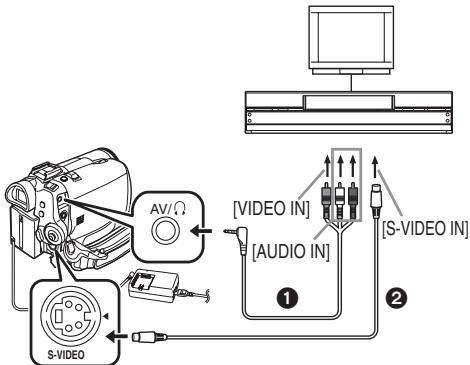
- Connect the movie camera and the recorder by using the AV cable ①.
- If the recorder has an S-Video terminal, then also connect an S-Video cable (optional). It allows you to copy clearer image.
Connecting with the optional DV cable (Only for equipment with a DV terminal)
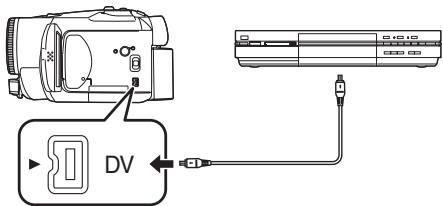
2 Turn on the movie camera and set to Tape Playback Mode.
3 Select the input channel on the TV set and recorder.
4 Move the joystick up to select the [▶/■] icon to start playback.
The image and sound are reproduced.
5 Start recording.
6 Stop recording.
7 Move the joystick down to select the [■] icon to stop playback.
- For more information, refer to the operating instructions for your TV set and recorder.
- When you do not need functional indications or date and time indications, press the [EXT DISPLAY] button on the remote control for no indication. (When you connect the movie camera and a recorder with the DV cable, these indications may not appear.)
When neither image nor sound from the movie camera is output to the TV set
- Check that the plugs are inserted as far as they go.
- Check the connected terminal.
- When no image is presented on the TV even if set [BASIC] >> [AV JACK] >> [OUT/Q], set to [OUT]. (-45-)
Using the DV Cable for Recording (Digital Dubbing)
By connecting other digital video equipment with DV terminal and the movie camera by using the DV cable VW-CD1E (optional) 1, high-image-quality dubbing can be done in digital format.
This model cannot be used as a Recorder.
- Set to Tape Playback Mode. (Player/ recorder)
1 Connect the movie camera and digital video equipment with the DV cable.
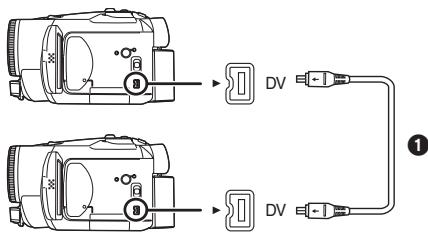
2 Start playback. (Player)
3 Start recording. (Recorder)
4 Stop playback. (Player)
- Do not plug or unplug the DV cable during dubbing, or the dubbing may not be completed properly.
- Even if you use a device equipped with DV terminals such as IEEE1394, you may not be able to perform digital dubbing in some cases. For more information, see the instructions for equipment connected.
- Regardless of the menu settings on the recorder, digital dubbing is carried out in the same mode as the [AUDIO REC] mode of the playback tape.
- The images on the recorder monitor may be disturbed, but it does not affect the recorded images.
Audio dubbing
You can add music or narration to the recorded cassette.
- Set to Tape Playback Mode.
1 Insert an external microphone securely into the [MIC] terminal as far as it will go.
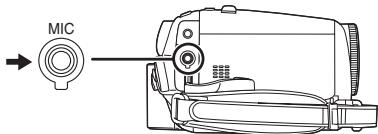
2 Find a scene that you want to add sound to, and press the [II] button on the remote control.
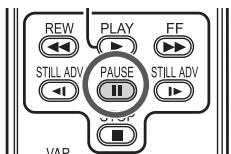
3 Press the [AUDIO DUB] button on the remote control to make audio dubbing ready.
4 Press the [II] button on the remote control to start audio dubbing.
- Talk into the microphone.
5 Press the [I] button on the remote control to stop audio dubbing.
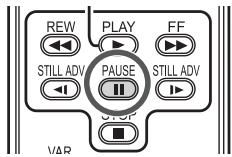
- If a tape has a non-recorded portion when the tape is dubbed, images and sounds may be disturbed when this portion of the tape is played back.
Before recording with audio dubbing
-
Set to Tape Recording Mode.
-
When you want to preserve the original sound taken during recording, set [SETUP] >> [AUDIO REC] >> [12bit] to take pictures. (When set [16bit], the sounds taken during recording are erased after recording with audio dubbing.)
-
Set [BASIC] >> [REC SPEED] >> [SP] to take pictures.
To play back the sound recorded with audio dubbing
You can switch between the sound recorded with audio dubbing and the original sound.
Set [SETUP] >> [12bit AUDIO] >> [ST2] or [MIX].
[ST1]: It only plays back the original sound.
[ST2]: It only plays back the sound added by audio dubbing.
[MIX]: It simultaneously plays back the original sound and the sound added with audio dubbing.
To dub audio while listening to a pre-recorded sound
- When pausing the audio dubbing, set the [12bit AUDIO] on the [SETUP] Sub-Menu to [ST2] and you can check the pre-recorded sound.
Printing pictures by directly connecting to the printer (PictBridge)
To print pictures by directly connecting the movie camera to the printer, use a printer compatible with PictBridge. (Read the operating instructions for the printer.)
- Insert a card and set to Picture Playback Mode.
1 Connect the movie camera and the printer with the supplied USB cable.
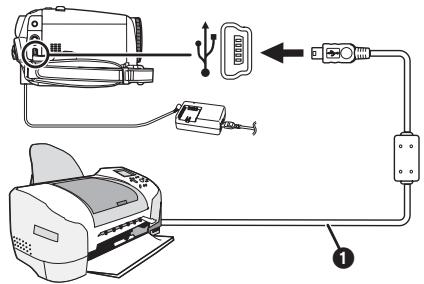
USB cable
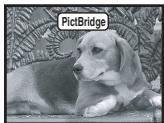
- The [PictBridge] indication appears on the screen of the movie camera. (When the printer is being recognized, the [PictBridge] indication blinks.)
- When no card is inserted in the movie camera, the [PictBridge] indication does not appear. (You cannot print any pictures.)
- When the movie camera and the printer are not connected properly, the [PictBridge] indication keeps blinking. (It will blink for over approx. 1 minute.) Connect the cable or check the printer.
- We recommend using the AC adaptor as the power supply.
- When images are displayed in multi-screen, they cannot be printed.
2 Select [SINGLE PRINT] or [DPOF PRINT].
- If there is no file with a DPOF setting, you cannot select [DPOF PRINT].
- When you select [DPOF PRINT] for printing, set the number of prints in DPOF setting.
- When [DPOF PRINT] is selected, print after you determine the paper size.
3 Move the joystick left and right to select a desired picture, and then press it.
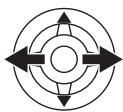

4 Select the desired number of prints.
- You can set up to 9 prints.
5 Select the setting for date printing. - If the printer is not capable of date printing, this setting is unavailable.
6 Select the paper size.
[STANDARD]: Size specific to the printer
[4 \times 5 \text{INCH}]
[5×7 INCH]
[4×6 INCH]
[A4]
- You cannot set paper sizes not supported on the printer.
7 Set [PRINT] >> [YES] to start printing.
When you stop printing halfway
Move the joystick down.
-
Avoid the following operations during printing. These operations disable proper printing.
-
Connecting the USB cable
- Removing the card
- Switching the mode dial
-
Turning off the power
-
Check the settings for the paper size, quality of print, etc. on the printer.
- You cannot print pictures that cannot be played on the movie camera.
- When the movie camera and the printer are connected in the Tape Recording/Playback Mode, the [WEB] or the [WEB] Indication may appear on the LCD monitor. However, pictures cannot be printed.
Menu
Menu list
Menu figures and illustrations are provided for easy-to-understand explanations, and so they are different from the actual menu indications.
[TAPE RECORDING MENU]
![PANASONIC NVGS180EP - [TAPE RECORDING MENU] - 1](/content/2019/09/53934/images/208c27795f536a106e754449ea7fcdc30a381f877346615b58030127f0c4e1bf.jpg)
1) [BASIC]
[SCENE MODE] -29
[REC SPEED] -19
[BLANK SEARCH] -21-
[WIND CUT] -27-
[CLOCK SET] -15-
2) [ADVANCE]
[PICT. QUALITY] -22-
[SIS] -28-
[ASPECT] -27-
[CINEMA] -27-
[USB FUNCTION] (Refer to the operating instructions for PC connection.)
[D.ZOOM] -23-
[ZOOM MIC] -23-
[DATE/TIME] -44-
[INITIAL SET] -45-
3) [SETUP]
[FADE COLOUR] -26-
[AUDIO REC] -44
[REC LAMP] -44
[DISPLAY] -44
[REMOTE] -18-
[BEEP SOUND] -44
[LCD AI] -16-
[LCD SET] -16-
[EVF SET] -16-
[DEMO MODE] -45-
[AV JACK] -45
[POWER SAVE] -44
4) [LANGUAGE] -14.
[TAPE PLAYBACK MENU]
![PANASONIC NVGS180EP - [TAPE PLAYBACK MENU] - 1](/content/2019/09/53934/images/2a38b7f1f8474cab077432a0ebe8a77a28580254e0593d7fe0a4a449b5ebe41a.jpg)
1) [BASIC]
[DATE/TIME] -44-
[AV JACK] -45
[USB FUNCTION] (Refer to the operating instructions for PC connection.)
2) [ADVANCE]
[REC DATA] -45
[PICT. QUALITY] -22-
[REPEAT PLAY] -33-
3) [SETUP]
[12bit AUDIO] -40
[AUDIO OUT] -45-
[DISPLAY] -44
[REMOTE] -18-
[LCD AI] -16-
[LCD SET] -16-
[EVF SET] -16-
[POWER SAVE] -44
4) [LANGUAGE] -14
[CARD RECORDING MENU]
![PANASONIC NVGS180EP - [CARD RECORDING MENU] - 1](/content/2019/09/53934/images/ceb433288c59373d4914ca138fa3f43a6f91918cd908b15db5d91726fd59cf9c.jpg)
1) [BASIC]
[SCENE MODE] -29
[PICT. QUALITY] -22-
[PICTURE SIZE] -22-
[SELF TIMER] -27
[CLOCK SET] -15-
2) [ADVANCE]
[BURST MODE] -28-
[SHTR EFFECT] -22
[DATE/TIME] -44
[INITIAL SET] -45-
3) [SETUP]
[REC LAMP] -44
[DISPLAY] -44
[REMOTE] -18-
[BEEP SOUND] -44
[LCD AI] -16-
[LCD SET] -16-
[EVF SET] -16-
[POWER SAVE] -44
4) [LANGUAGE] -14.
Menu related to taking pictures
[DATE/TIME]
This switches between date and time indications.
The movie camera automatically records the date and time of picture taking on the tape.
- You can also show or change the date/time indication by repeatedly pressing the [DATE/ TIME] button on the remote control.
[AUDIO REC]
Switches the audio (PCM audio) recording systems.
[12bit]: Records audio in "12 bit 32 kHz 4 tracks". (The original audio signals can be kept after the other audio signals are dubbed.)
[16bit]: Records audio in "16 bit 48 kHz 2 tracks". Audio can be recorded in higher quality. (If audio signals are dubbed, then the original audio signals will be erased.)
[REC LAMP]
Set to [ON] and this turns the recording lamp on during recording, which indicates that recording is underway. Set to [OFF] and this does not turn on the lamp even when recording is underway.
[DISPLAY]
Set to [ON] and the display mode can be switched to all functions. Set to [OFF] and it can be switched to minimum display.
[BEEP SOUND]
Set to [ON] and confirmation/alarm beeps are issued as follows.
1 Beep
- When you start recording
- When you turn on the power
2 Beeps
- When you pause recording
2 Beeps for 4 times - When a cassette with its erasure prevention tab set to [SAVE] is inserted, condensation occurs, and at other times. Check the sentence displayed on the screen.
[POWER SAVE]
[OFF]:
When about 5 minutes passed without any operation, the standby mode automatically will be set. In the standby mode, [blinks and it takes time more than usual to start recording after you press the recording start/stop button.
[5 MINUTES]:
When about 5 minutes passed without any operation, the movie camera automatically turns off to protect the tape or to prevent the battery from running down. When you use the movie camera, turn it on again.
-
In the following cases, the power may not turn off even when set [POWER SAVE] >> [5 MINUTES].
-
When connecting to the AC outlet (When using the AC adapter)
- When connecting the USB cable or the DV cable to a personal computer or other equipment
- When the PC mode
Menu related to playback
[AV JACK]
This switches among the output settings of the AV/headphone terminal.
[OUT/Q]: Automatically switches between AV and headphone output.
[OUT]: Use this setting when image or sound is not output normally to the TV in [OUT/].
- When using the headphone, set to [SETUP] or [BASIC] >> [AV JACK] >> [OUT/Q]. If set to [OUT], you may hear noises on the right.
[REC DATA]
Set to [ON] and the settings (shutter speed, iris/gain values, and white balance settings (-30-), etc.) used during the recordings are displayed during playback.
- When the [AUTO/MANUAL/FOCUS] switch is set to [AUTO], the indication [AUTO] will appear.
- When there is no data, [- - ] appears on the display.
- If the camera data of the movie camera are played back on other equipment, the settings information is sometimes not displayed normally.
[AUDIO OUT]
This switches the sound to be played back.
[STEREO]: Stereo sound (main sound and sub sound)
[L]: Left channel sound (main sound)
[R]: Right channel sound (sub sound)
Other menus
[INITIAL SET]
When there is a menu that cannot be selected depending on a combination of functions, set to [YES] for changing the menu settings back to the initial shipping condition.
(Language setting cannot be back to the initial shipping condition.)
[DEMO MODE]
If you set to [DEMO MODE] >> [ON] without inserting a cassette and a card, the movie camera is automatically set to the demonstration mode for introducing its functions. If any button is pressed or operated, the demonstration mode is cancelled. If no operations take place for approx. 10 minutes, the demonstration mode automatically starts. To terminate the demonstration mode, insert a cassette or a card, or set to [DEMO MODE] >> [OFF]. For normal use, set this function to [OFF].
Others
Indications
Various functions and the movie camera status are shown on the screen.
Basic indications
Remaining battery power
0h00m00s00f: Time code
15:30:45: Date/Time indication
Recording indications
R0:45: Remaining tape time
- Remaining tape time is indicated in minutes. (When it reaches less than 3 minutes, the indication starts flashing.)
SP: Standard Play mode
(Recording speed mode) -19.
LP: Long Play mode
(Recording speed mode) -19.
: Recording -20-
II (Green): Recording pause -20-
II (Green flash):
Standby mode
II (Red): Fade out
: Recording check -2I-
Cinema mode -27-
16:9
Wide mode -27-
Digital zoom -23-
AUTO: Automatic mode -19-
MNL: Manual mode -29-
MF: Manual focus -31-
5×: Zoom magnification indication -23-
Backlight mode -24
Image stabilizer -28
1/500: Shutter speed -31-
F2.4: F number -31-
6dB: Gain value -31-
Soft skin mode -25- Tele macro -26-
Fw: Fade (White) -26-
Sports mode (Scene mode) -29
: Portrait mode (Scene mode) -29-
Low light mode (Scene mode) -29-
3: Spotlight mode (Scene mode) -29-
Surf & snow mode (Scene mode) -29-
AWB: Auto white balance -30-
-0: Indoor mode (recording under incandescent lamp) -30-
Outdoor mode-30
White balance adjustment mode -30-
WEB: WEBCAMERA mode (recording) -41-
Playback indications
▶: Playback -33-
Pause-33
Fast-forward/Cue playback -33-
Rewind/Review playback -33-
Slow motion playback -33-
11>/<11: Frame-by-frame playback -33-
2× Variable-speed search -34-
Repeat playback -33-
WEB: WEBCAMERA mode (playback) -41-
A.DUB Audio dubbing -40-
A.DUBII: Audio dubbing pause -40-
Blank search -21-
12bit, 16bit: Audio recording mode -44
Volume adjustment -33
Card
P: Progressive photoshot mode -22-
(White): Shutter chance mark -21-
(Green): Shutter chance mark -21-
: Continuous photoshot recording -28-
Self-Timer recording -27-
[ White]: Photoshot mode
[Green]: While the card is being read
(Red): While photoshot recording is activated
(Red): Using the card that cannot be recognized
Photoshot picture quality -22-
0: Remaining number of photoshot pictures (When the remaining number of photoshot pictures reaches 0, the red indication flashes.)
▶: Slide show playback -35-
PictBridge: PictBridge mode -41-
100-0001: Folder/File display
No.00: File number
1: Number of DPOF Setting -37-
On: Lock setting -37-
[640]: [640×480] Image size
[1280: [1280×960] Image size
[1760: [1760×1320] Image size
- For images not recorded with this movie camera, the size display is determined as follows according to the number of horizontal pixels.
QXGA: 2048 or more
UXGA: 1600 or more, less than 2048
SXGA: 1280 or more, less than 1600
XGA: 1024 or more, less than 1280
SVGA: 800 or more, less than 1024
640 or more, less than 800 (The size is not displayed at under 640 pixels.)
Warning/alarm indications
If any one of the following indications lights up or flashes, please check the movie camera.
Confirmatory indications
A cassette with the accidental erasure prevention slider placed in the [SAVE] position is inserted. No cassette is inserted.
[-]/:
The built-in battery is low. -15
The warning/alarm indication appears when you record yourself. Turn the LCD monitor towards the viewfinder and check the warning/alarm indication.
包:No card is inserted.
REMOTE:
An incorrect remote control mode has been selected. -18-
END:
The tape came to the end during recording.
: The video heads are dirty. -53-
Textual indications
DEW DETECT/ EJECT TAPE:
Condensation has occurred. Take out the cassette and wait for a while. It takes some time until the cassette holder opens, but this is not a malfunction. -53-
LOW BATTERY:
The battery is low. Recharge it. -9-
NO TAPE:
No tape is inserted. -10-
TAPE END:
The tape came to the end during recording.
CHECKRECTAB:
You are attempting to record pictures on a tape with the accidental erasure prevention slider placed in the [SAVE] position.
You are attempting audio dubbing or digital dubbing on a tape with the accidental erasure prevention slider placed in the
[SAVE] position.
CHECK REMOTE MODE:
An incorrect remote control mode has been selected. This is only displayed at the first operation of the remote control after powering-on. -18-
WRONG TAPE FORMAT:
You are attempting to play back a tape section that has been recorded with a different TV system. This cassette is incompatible.
UNPLAYABLE CARD:
You are attempting to play back data not compatible with this movie camera.
UNABLE TO A.DUB (LP RECORDED):
Audio dubbing cannot be performed because the original recording was in LP mode.
UNABLE TO A.DUB:
You are attempting to perform audio dubbing on a non-recorded tape.
COPY PROTECTED:
Images cannot be recorded correctly because the medium is protected by a copy guard.
CARD ERROR:
This card is not compatible with this movie camera.
You are attempting to format a failed card. It displays, when you attempt to insert the incompatible card to Card Slot.
NO CARD:
No card is inserted.
CARD FULL:
Card does not have sufficient memory remaining.
Select Picture Playback Mode and delete unnecessary files.
NO DATA:
There are not any recorded files on the card.
CHANGE ASPECT TO 4:3:
You are attempting to record pictures with an aspect ratio of 16:9 by pressing the [PHOTO SHOT] button.
FILE LOCKED:
You are attempting to erase protected files.
CARD LOCKED:
The write protection switch on the SD
Memory Card is set to [LOCK].
NEED HEAD CLEANING:
The video heads are dirty. -53
PUSH THE RESET SWITCH:
An irregularity in the equipment has been detected. Press the [RESET] button (-6-).
This may solve the problem.
CHANGE MODE TO USE USB:
The USB cable is connected to the movie camera in Card Recording Mode.
DISCONNECT USB CABLE:
You are attempting to turn the mode dial in PC mode with the USB cable connected to the movie camera. You are attempting to record pictures on a tape/card with the USB cable connected to the movie camera.
NO INK IN PRINTER:
There is no ink. Check the connected printer.
NO PAPER IN PRINTER:
There is no paper. Check the connected printer.
PRINTER ERROR:
Check the connected printer.
PC DOES NOT SUPPORT USB2.0:
The movie camera is connected to a personal computer that does not support USB 2.0.
CAN NOT USE USB:
You are connecting the USB cable with the DV cable connected.
CHANGE TO MANUAL MODE:
You are attempting to select the item on the [SCENE MODE] when the [AUTO/MANUAL/FOCUS] switch is set to [AUTO].
CAN NOT OPERATE (MOTION DV MODE):
You are attempting to change [D.ZOOM] setting during MotionDV Mode.
REVERSE THE LCD MONITOR:
At the time of 0 Lux night view mode, when LCD monitor is not reversed, it displays. When the LCD monitor is rotated by 180^ towards the lens, the brightness of the LCD monitor cannot be adjusted.
Functions cannot be used simultaneously
Some functions in the movie camera are disabled or cannot be selected due to its specifications. The table below shows examples of functions restricted by conditions.
| Functions | Conditions which disable the functions |
| ·Progressive | ·When recording onto a tape and a card simultaneously ·When digital zoom (10× or higher) is used ·When the shutter speed is 1/750 or faster in Tape Recording Mode ·When the gain value is increased in Tape Recording Mode ·When the colour night view function is used ·When the portrait mode of the scene mode is used in Tape Recording Mode ·When the wide mode is used |
| ·Digital zoom ·Wide mode ·Fade | ·When the Card Recording mode is used |
| ·Image stabilizer | ·When the Card Recording mode is used ·When the colour night view function is used |
| ·Backlight compensation | ·When the iris/gain is set ·When the colour night view function is used |
| ·Soft skin ·Tele-macro ·Recording check | ·While recording to a tape |
| ·Colour Night View | ·While recording to a tape ·When the Card Recording mode is used |
| ·Continuous Photograph | ·When [PICTURE SIZE] is set to other than [640] |
| ·Zoom microphone ·Wind noise reduction | ·An external microphone is used |
| • Scene mode | • When setting the [AUTO/ MANUAL/FOCUS] switch to [AUTO] • When the colour night view function is used |
| • Change of white balance | • When digital zoom (10× or higher) is used • When the colour night view function is used • When a menu is displayed |
| • Adjusting the shutter speed, iris/gain | • When the colour night view function is used • When the scene mode is used |
| • Variable-speed search | • During repeat playback |
| • Deleting files | • When the write protect switch on the card is set to [LOCK] • When the file is protected |
| • Formatting | • When the write protect switch on the card is set to [LOCK] |
| • Audio dubbing | • The section of a tape recorded in LP mode • The blank section of a tape |
Before requesting repair (Problems and solutions)
Power/Body
1: The movie camera power cannot be turned on.
- Is the battery fully charged? Use a fully charged battery.
- The battery protection circuit may have operated. Attach the battery to the AC adaptor for 5 to 10 seconds. If the movie camera still cannot be used, the battery is faulty.
2: The movie camera power is turned off automatically.
- If you set [POWER SAVE] to [5 MINUTES] and do not operate the movie camera for about 5 continuous minutes, the power is automatically turned off for tape protection and power conservation. To resume recording, turn the [OFF/ON] switch to [OFF]. Then turn it to [ON] again. (-44-)
3: The movie camera power does not stay on long enough.
- Is the battery low? If the remaining battery power indication is flashing or the message "LOW BATTERY" is displayed, the battery has run down. Charge the battery or attach a fully charged battery. (-9-)
- Has condensation occurred? When you carry the movie camera from a cold place into a warm place, condensation may occur inside it. If so, the power is turned off automatically, disabling all operations except for taking cassettes out. Wait until the condensation indication disappears. (-53-)
4: Battery runs down quickly.
Is the battery fully charged? Charge it with the AC adaptor. (-9-)
- Are you using the battery in an extremely cold place? The battery is affected by ambient temperature. In cold places, the operating time of the battery becomes shorter.
- Has the battery worn out? The battery has a limited life. If the operating time is still too short even after the battery is fully charged, depending on the usage, the battery has worn out and can no longer be used.
5: The movie camera cannot be operated though powered up.
The movie camera does not operate normally.
- Remove the cassette and then press the [RESET] button. (-52-) If normal conditions are not restored yet, turn off the power. Then, about 1 minute later, turn on the power again. (Conducting the above operation when the access lamp is on may destroy the data on the card.)
6: The cassette cannot be removed.
- Does the status indicator comes on when opening the cassette cover? (-12-) Make sure that the battery and the AC adaptor are properly connected. (-9-)
- Is the battery in use discharged? Charge the battery and remove the cassette.
- Close the cassette cover completely, and fully open it again. (-10-)
7: No operation other than cassette removal can be performed.
- Has condensation occurred? Wait until the condensation indication disappears. (-53-)
8: The remote control does not function.
- Has the button-type battery of the remote control run out? Replace it with a new button-type battery. (-17-)
- Is the setting on the remote control correct? If the setting on the remote control is not in agreement with the [REMOTE] setting on the movie camera, the remote control does not operate. (-18-)
Recording
1: Recording does not start although power is supplied to the movie camera and the cassette is correctly inserted.
- Is the accidental erasure prevention slider on the cassette open? If it is open (set to [SAVE]), recording cannot be performed. (-11-)
Is the tape wound to the end? Insert a new cassette.
Is the recording mode set? When in the playback mode, recording cannot be performed. (-19-) - Has condensation occurred? No operation other than cassette removal can be performed when condensation occurs. Wait until the condensation indication disappears. (-53-)
Is the cassette cover open? If the cover is open, the movie camera may not operate normally. Close the cassette cover. (-10-)
2: The screen has changed suddenly.
- Has the demonstration started? In the Tape Recording mode, if you set [DEMO MODE] >> [ON] without inserting a cassette and a card, the demonstration starts. For normal use, set this function to [OFF]. (-45-)
3: A cassette cannot be inserted.
- Has condensation occurred? Wait until the condensation indication disappears.
4: Auto focus function does not work.
- Is manual focus mode selected? If auto focus mode is selected, focus is automatically adjusted.
- There are some recording subjects and surroundings for which the auto focus does not operate correctly. (-57-) If so, use the manual focus mode to adjust the focus. (-31-)
- Is the colour night view function set? When the colour night view function is working, focusing shifts into the manual mode.
Indications
1: A sentence is displayed in red or yellow in the screen centre.
- Read the contents and respond to them. (-47-)
2: The time code becomes inaccurate.
- The time code indication counter may not be constant in the reversed slow-motion playback, but this is not a malfunction.
3: The remaining tape time indication disappears.
- The remaining tape time indication may disappear temporarily during frame-by-frame playback or other operation. If you continue ordinary recording or playback, the indication is restored.
4: The remaining tape time Indication does not match the actual remaining tape time.
- If scenes of less than 15 seconds are continuously recorded, the remaining tape time cannot be correctly displayed.
- In some cases, the remaining tape time indication may show remaining tape time that is 2 to 3 minutes shorter than the actual remaining tape time.
5: A function indication such as mode indication, remaining tape time indication, or time code indication is not shown.
- If you set [SETUP] >> [DISPLAY] >> [OFF], indications other than the tape running condition, warning, and date indications disappear.
Playback (Sound)
1: Sound is not played back from the built-in speaker of the movie camera or the headphones.
Is the volume too low? During playback, push the [- 串 ] / VOL +] lever to display the volume indication and adjust it. (-33-)
2: Different sounds are reproduced at the same time.
- Have you set [SETUP] >> [12bit AUDIO] >> [MIX]? If you set [AUDIO REC] >> [12bit] and dub audio to a recorded tape, you can hear the sound on recording and the sound dubbed at a later time. To hear the sounds separately, set to [ST1] or [ST2]. (-40-)
- Have you set [SETUP] >> [AUDIO OUT] >> [STEREO] and reproduced a picture containing the main sound and sub sound? Set to [L] to hear main sound, and set to [R] to hear the sub sound. (-45-)
3: Audio dubbing cannot be performed.
- Is the accidental erasure prevention slider on the cassette open? If it is open (set to [SAVE]), audio dubbing cannot be performed. (-11-)
- Are you attempting to edit a tape portion that was recorded in LP mode? LP mode does not allow audio dubbing. (-19-)
4: The original sound was erased when audio dubbing was performed.
-
If you perform audio dubbing on a recording made in [16bit] mode, the original sound will be erased. If you wish to preserve the original sound, be sure to select [12bit] mode when recording.
5: Sounds cannot be played back. -
Although a cassette with no audio dubbing is being played, have you set [SETUP] >> [12bit AUDIO] >> [ST2]? To play back a cassette with no audio dubbing, set [12bit AUDIO] >> [ST1]. (-40-)
- Is the variable speed search function working? Press the [VAR SEARCH] button on the remote control to cancel the variable speed search function. (-34-)
6: Noise is heard from the right headphone.
- Have you set [BASIC] >> [AV JACK] >> [OUT]? When you use the headphones, set to [OUT/Ω].
Playback (Pictures)
1: Mosaic-pattern noise appears on images during cue or review playback.
- This phenomenon is characteristic of digital video systems. It is not a malfunction.
2: Horizontal stripes appear on images during cue and review playback.
Horizontal stripes may appear depending on the scene, but this is not a malfunction.
3: Although the movie camera is correctly connected to a TV, playback images cannot be seen.
- Have you selected video input on the TV? Please read the operating instructions of your TV and select the channel that matches the input terminals used for the connection.
4: Playback picture is not clear.
- Are the heads of the movie camera dirty? If the heads are dirty, playback image cannot be clear. Clean the heads by using the head cleaner for digital video (optional). (-53-)
- If the terminal for the AV cable is soiled, noises may appear on the screen. Wipe the soil off the terminal with a soft cloth, and then connect the cable to the AV terminal.
- Is a picture containing a copyright protection signal (copy guard) being recorded? When a protected picture is played back by the movie camera, mosaic-like patterns appear on the picture.
Card
1: Recorded pictures are not clear.
- Have you set [BASIC] >> [PICT. QUALITY] >> [?]? If recording is done with it set to [], pictures with fine details may include a mosaic-like pattern. Set [PICT. QUALITY] >> []. (-22-)
2: A file recorded on a card cannot be deleted.
Is the file locked? Locked files cannot be deleted. (-37-) - For the SD Memory Card, if its write protect switch is set to [LOCK], then deletion is disabled. (-12-)
3: Photoshot playback images do not look normal.
- The picture may be damaged. In order to prevent the loss of image data, backing up on a cassette or a personal computer is recommended.
4: Even if a card is formatted, it cannot be used.
Either the movie camera or the card may be damaged. Please consult a dealer.
5: During playback, [UNPLAYABLE CARD] is displayed.
- The image was either recorded in a different format, or data is damaged.
Others
1: The indication disappears, the screen is frozen, or no operation can be performed.
- Turn off the power to the movie camera. If the power cannot be turned off, press the [RESET] button, or detach the battery or AC adaptor and then reattach it. After that, turn on the power again. If normal operation is still not restored, detach the power connected, and consult the dealer who you purchased the movie camera from.
2: "PUSH THE RESET SWITCH" is displayed.
- An irregularity in the movie camera has been automatically detected. Remove the cassette or the card for data protection and then press the [RESET] button with the boss A. To press the [RESET] button, remove the lens cap from the grip belt attachment part and use the projecting part on the lens cap. The movie camera will be activated.
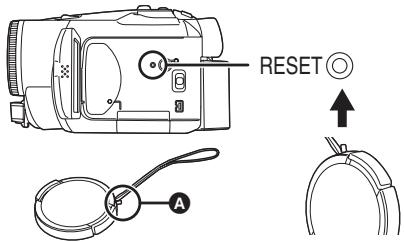
- If you do not press the [RESET] button, the power to the movie camera is turned off automatically about 1 minute later.
- Even after you press the [RESET] button, the indication may still appear repeatedly. If so, the movie camera needs repair. Detach the power connected, and consult the dealer who you purchased the movie camera from. Do not attempt to repair the appliance by yourself.
3: Even if connected by the USB cable, the movie camera is not recognized by the PC. - Is the USB driver installed? For information, refer to the operating instructions for PC connection (separate volume).
4: When the USB cable is disconnected, an error message will appear on PC. - To disconnect the USB cable safely, double-click the [ ] icon in the task tray and follow the instructions on the screen.
5: The movie camera malfunctions on editing, dubbing from digital video equipment, or using "MotionDV STUDIO 5.3E LE for DV".
-
If a tape is recorded in multiple modes such as SP and LP (recording mode), 12bit and 16bit (sound recording mode), normal and wide, recorded and unrecorded parts, the movie camera may malfunction at a point where the mode switches. When you edit, do not record in multiple modes.
6: The warning/alarm indication [!!] appears when the camera is operated in the WEB camera mode. -
Did you press the menu button or the recording start/stop button? You cannot use the menu or record onto the tape/card in the WEB camera mode.
Is the setting for the remote control correct? - Did you attempt to play a tape without inserting it? Insert a tape.
- Did you attempt to play a tape with copyright protection (copy guard)? Pictures of the tape with copyright protection (copy guard) cannot be displayed on the PC. (The audio of the tape can be played.)
- Is the video stream driver installed? For details, refer to the operating instructions for PC connection.
Cautions for Use
About condensation
If you turn the movie camera on when condensation occurs on the head or the tape, condensation Indication [[] (yellow or red) is displayed on the viewfinder or the LCD monitor and the messages [DEW DETECT] or [EJECT TAPE] (only when the tape is inserted) appear. If so, follow the procedure below.
in yellow:
Dews are slightly adhering on the head or the tape.
in red:
Dews are adhering on the head or the tape.
1 Remove the tape if it is inserted.
- It takes about 20 seconds to open the cassette holder. This is not a malfunction.
2 Leave the movie camera with the cassette cover closed to cool or warm it to the ambient temperature.
When [] in yellow
- You cannot use the Tape Recording/Playback Mode. Leave the movie camera for about 30 minutes.
However, you can use the Card Recording Mode or Picture Playback Mode when a cassette is not inserted.
When [ ] in red
- The status indicator blinks for about 1 minute and then the movie camera automatically turns off. Leave it for about 2 to 3 hours.
3 Turn the movie camera on again, set it to the Tape Recording/Playback Mode and then check if the condensation indication disappears.
Especially in cold areas, moisture may be frozen. If so, it may take more time before the condensation indication disappears.
Watch for condensation even before the condensation Indication is displayed.
- The condensation indication may not appear depending on circumstances. When condensation occurs on the lens or the movie camera, it may also occur on the head and the tape. Do not open the cassette cover.
When the lens is fogged:
Set the [OFF/ON] switch to [OFF] and leave the movie camera in this condition for about 1 hour. When the lens temperature becomes close to the ambient temperature, the fogging disappears naturally.
About dirty heads
If video heads (the parts that closely contact with the tape) become dirty, normal recording and playback are not properly performed. Clean the heads with the digital video head cleaner.
-
Insert the head cleaner into the movie camera, set it to the Tape Playback Mode, and play it back for about 10 seconds. (If you do not stop the playback, it automatically stops about 15 seconds later.)
-
We recommend cleaning the heads periodically. If the heads become dirty, "NEED HEAD CLEANING" appears during recording. During playback, moreover, the following symptoms appear.
-
Mosaic-like noise appears partially or the sound is interrupted.
- Black or blue mosaic-like horizontal stripes appear.
When normal playback cannot be performed even after the head cleaning
One possible cause is that normal recording could not be performed because the heads were dirty at the time of recording. Clean the heads, and perform recording and playback again. If normal playback can be performed, the heads are clean. Before an important recording, be sure to conduct a test recording to make sure that normal recording can be performed.
- If the heads become dirty soon after cleaning, the problem may be attributable to the tape. If so, try another cassette.
- During playback, the picture or sound may be interrupted momentarily, but this is not a malfunction of the movie camera. (One possible cause is that the playback is interrupted by dirt or dust that momentarily adheres to the heads.)
About the movie camera
- When the movie camera is used for a long time, the camera body becomes warm, but this is not a malfunction.
Keep the movie camera away from magnetized equipment such as a cellular phones, microwave ovens, TVs, and video game equipment.
- If you use the movie camera on or near a TV, images or sounds may be disturbed due to electromagnetic wave radiation.
-
Recordings on the tape may be damaged, or images may be distorted, by strong magnetic fields created by speakers or large motors.
-
Electromagnetic wave radiation generated by digital circuits including microprocessor may adversely affect the movie camera, causing the disturbance of images and sounds.
- If the movie camera is affected by such equipment and does not function properly, turn off the movie camera power and detach the battery or AC adaptor. Then, connect the battery or AC adaptor again and turn on the movie camera power.
Do not use your movie camera near radio transmitters or high-voltage cables.
- If you record pictures near radio transmitters or high-voltage cables, recorded images or sounds may be adversely affected.
Do not spray insecticides or volatile chemicals onto the movie camera.
- If the movie camera is sprayed with such chemicals, the camera body may become deformed and the surface finish may peel off.
- Do not keep rubber or plastic products in contact with the movie camera for a long time.
When you use your movie camera in a sandy or dusty place such as on a beach, do not let sand or fine dust get into the body and terminals of the movie camera. Also, protect the movie camera from getting wet.
- Sand or dust may damage the movie camera or cassette. (Care should be taken when inserting and removing a cassette.)
- If sea water splashes onto the movie camera, wet a soft cloth with tap water, wring it well, and use it to wipe the camera body carefully. Then, wipe it again thoroughly with a soft dry cloth.
While carrying the movie camera, do not drop or bump it.
- A strong impact on the movie camera may break its housing, causing it to malfunction.
Do not use benzine, paint thinner or alcohol for cleaning the movie camera.
- Before cleaning, detach the battery or pull out the AC mains lead from the AC mains socket.
- The camera body may be discoloured and the surface finish may peel off.
- Wipe the movie camera with a soft dry cloth to remove dust and fingerprints. To remove stubborn stains, wring well a cloth that is soaked in a neutral detergent diluted with water and wipe the movie camera with it. Afterwards, wipe it with a dry cloth.
- When you use a chemical dust cloth, follow the instructions.
Do not use this movie camera for surveillance purposes or other business use.
- If you use the movie camera for a long time, the internal temperature increases and, consequently, this may cause malfunction.
This movie camera is not intended for business use.
About the battery
The battery used in the movie camera is a rechargeable lithium ion battery. This battery is susceptible to temperature and humidity, and the effect of temperature increases with increasing or decreasing temperature. In the low temperature range, the fully charged indication may not appear, or the low battery indication may appear about 5 minutes after the start of use. At high temperature, moreover, the protection function may work, disabling use of the movie camera.
Be sure to detach the battery after use
- If the battery is left attached to the movie camera, a minute amount of current is consumed even when the movie camera power is [OFF]. If the battery is left attached to the movie camera for a long time, over-discharge takes place. The battery may become unusable after it is charged.
Prepare spare batteries when going out for recording.
- Prepare batteries appropriate to 3 to 4 times the period during you want to record pictures in. In cold places such as a ski resort, the period during which you can record pictures is shortened.
- When you travel, do not forget to bring an AC adaptor so that you can recharge the batteries at your destination.
If you drop the battery accidentally, check to see if the terminals are deformed.
- Attaching a deformed battery to the movie camera or AC adaptor may damage the movie camera or AC adaptor.
After use, be sure to take the cassette out and detach the battery from the movie camera or pull out the AC mains lead from AC mains socket.
- The battery should be stored in a cool place free from humidity, with as constant temperature as possible. (Recommended temperature: 15^ C to 25^ C , Recommended humidity: 40 % to 60 % )
- Extremely high temperatures or low temperatures will shorten the life of the battery.
-
If the battery is kept in a high-temperature, high-humidity, or oily-smoky places, the terminals may rust and cause malfunctions.
-
To store the battery for a long period of time, we recommend you charge it once every year and store it again after you have completely used up the charged capacity.
- Dust and other matter attached to the battery terminals should be removed.
Do not throw old battery into fire.
Heating a battery or throwing it into a fire may result in an explosion.
- If the operating time is very short even after the battery has been recharged, the battery has worn out. Please purchase a new battery.
About the AC adaptor
- If the battery is warm, charging requires more time than normal.
- If the temperature of the battery is extremely high or extremely low, the [CHARGE] lamp may continue flashing, and the battery may not be charged. After the battery temperature has decreased or increased sufficiently, recharging starts automatically. So, wait for a while. If the lamp still continues flashing even after the recharging, the battery or AC adaptor may be faulty. If so, please contact a dealer.
- If you use the AC adaptor near a radio, radio reception may be disturbed. Keep the AC adaptor 1 metre or more away from radio.
- When using the AC adaptor, it may generate whirring sounds. However, this is normal.
- After use, be sure to pull out the AC mains lead from the AC mains socket. (If they are left connected, a minute amount of current is consumed.)
Always keep the electrodes of the AC adaptor and battery clean.
About the cassette
Never place the cassette in a high temperature place.
- The tape may be damaged, producing mosaic-like noise at the time of playback.
When storing the cassette after use, be sure to rewind the tape to the beginning and take it out.
- If the cassette is left for more than 6 months (depending on the storage condition) in the movie camera or stopped midway, the tape may sag and be damaged.
-
Once every 6 months, wind the tape to the end and then rewind it to the beginning. If the cassette is left for 1 year or longer without winding or rewinding, the tape may be deformed by expansion or shrinkage attributable to temperature and humidity. The wound tape may stick to itself.
-
Dust, direct sunlight (ultraviolet rays), and humidity may damage the tape. Such usage may cause damage to the movie camera and the heads.
- After use, be sure to rewind the tape to the beginning, put the cassette in the case to protect it from dust, and store it upright.
Keep the cassette away from strong magnetism.
- Apparatuses using magnets such as magnetic necklaces and toys have magnetic force that is stronger than expected, and they may erase the contents of a recording or may increase noise.
About the card
When inserting or removing the card, always set the [OFF/ON] switch to [OFF].
When the access lamp is illuminated (during access to the card), do not open the card slot cover to pull out the card, turn off the power, or cause any vibrations or impacts.
Do not leave the card in places where there is high temperature or direct sunlight, or where electromagnetic waves or static electricity are easily generated. Moreover, do not fold or drop the card, and do not strongly vibrate it.
- The card may break or the contents of the card may be destroyed or erased.
After use, be sure to remove the card from the movie camera for storage.
- After use, or when storing or carrying the card, put it in the storage case.
- Do not allow dust, water, or foreign substances to adhere to the terminals on the back of the card. Moreover, do not touch the terminals with your hand.
Folder structure of the card
The folder structure of the card formatted by the movie camera will be displayed on the PC as the illustration below.
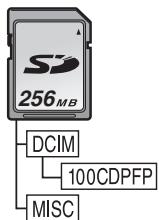
- Up to 999 pictures can be recorded on 100CDPFP folder etc.
- Files with the DPOF settings can be recorded on MISC folder.
LCD monitor/viewfinder
LCD monitor
- When the LCD monitor gets dirty, wipe it with a dry soft cloth.
- In a place with drastic temperature changes, condensation may form on the LCD monitor. Wipe it with soft dry cloth.
- If your movie camera is extremely cold, the LCD monitor is slightly darker than usual immediately after you turn the power on. However, as the internal temperature increases, it goes back to normal brightness.
Extremely high precision technology is employed to produce the LCD monitor screen featuring a total of approximately 113,000 pixels. The result is more than 99.99% effective pixels with a mere 0.01% of the pixels inactive or always lit. However, this is not a malfunction and does not affect the recorded picture.
Viewfinder
Extremely high precision technology is employed to produce the viewfinder screen featuring a total of approximately 113,000 pixels. The result is more than 99.99% effective pixels with a mere 0.01% of the pixels inactive or always lit. However, this is not a malfunction and does not affect the recorded picture.
Periodical check-ups
- To maintain the highest image quality, we recommend replacing worn parts such as heads after approx. 1000 hours of use. (This, however, depends on operating conditions including temperature, humidity and dust.)
Explanation of terms
Automatic white balance
White balance adjustment recognizes the colour of light and adjusts so the white colour will become a pure white. The movie camera determines the hue of light that comes through the lens and white balance sensor, thereby judging the recording condition, and selects the closest hue setting. This is called automatic white balance adjustment. However, since the movie camera only stores white colour information under several light sources, automatic white balance adjustment does not function normally under the other light sources.
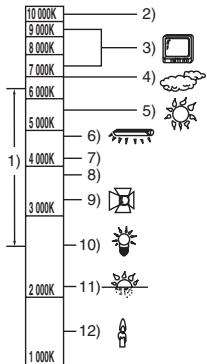
Outside of the effective range of automatic white balance adjustment, the image will become reddish or bluish. Even within the effective range of automatic white balance adjustment, the automatic white balance adjustment may not function properly if there is more than one light source. For light outside the functional auto white balance adjustment range, use the manual white balance adjustment mode.
1) The effective range of automatic white balance adjustment on this movie camera
2) Blue sky
3) TV screen
4) Cloudy sky (rain)
5) Sunlight
6) White fluorescent lamp
7) 2 hours after sunrise or before sunset
8) 1 hour after sunrise or before sunset
9) Halogen light bulb
10) Incandescent light bulb
11) Sunrise or sunset
12) Candlelight
White balance
The image recorded by the movie camera may become bluish or reddish under the influence of light sources. To avoid such phenomena, adjust the white balance.
White balance adjustment determines the white colour under different light sources. By recognizing which is the white colour under sunlight and which is the white colour under a fluorescent lamp, the movie camera can adjust the balance among the other colours.
Since white colour is the reference of all colours (light), the movie camera can record pictures in a natural hue if it can recognize the reference white colour.
Auto focus
Auto focus automatically moves the focusing lens forward and backward inside the movie camera to bring the subject into focus.
Auto focus has the following characteristics.
- Adjusts so that the vertical lines of a subject are seen more clearly.
- Attempts to bring an object with higher contrast into focus.
Focuses on the screen centre only.
Due to these characteristics, auto focus does not work correctly in the following situations. Record pictures in the manual focus mode.
Recording a subject with one end located closer to the movie camera and the other end farther away from it
- As auto focus adjusts at the centre of an image, it may be impossible to focus on a subject that is located in both the foreground and background.
Recording a subject behind dirty or dusty glass
- The subject behind the glass will not be focused because the focus is on the dirty glass.
Recording a subject that is surrounded by objects with glossy surfaces or by highly reflective objects
- The recording subject may become blurry because the movie camera focuses on the objects with glossy surfaces or on highly reflective objects.
Recording a subject in dark surroundings
The movie camera cannot focus correctly because the light information that comes through the lens decreases considerably.
Recording a fast-moving subject
- As the focus lens-inside moves mechanically, it cannot keep up with a fast-moving subject.
Recording a subject with little contrast
- A subject with little contrast, such as a white wall, may become blurry because the movie camera achieves focus based upon the vertical lines of an image.
Specifications
Specifications
Digital Video Camera
Information for your safety
Power source:
DC 7.9/7.2 V
Power consumption:
Recording
3.6 W (When using viewfinder)
3.9 W (When using LCD monitor)
Recording format:
Mini DV (Consumer-use digital video SD format)
Tape used:
6.35 mm digital video tape
Recording/playback time:
SP: 80 min; LP: 120 min (with DVM80)
Video
Recording system:
Digital component
Television system:
CCIR: 625 lines, 50 fields PAL colour signal
Audio
Recording system:
PCM digital recording
16 bit (48 kHz/2 ch), 12 bit (32 kHz/4 ch)
Image sensor:
1/6-inch 3CCD image sensor
(Effective pixels: moving picture/400 K×3, still
picture/530 K×3, Total: 800 K×3)
Lens:
Auto Iris, F1.8 to F2.8
Focal length; 2.45mm to 24.5mm
Macro (Full range AF)
Filter diameter:
37 mm
Zoom:
10:1 Power zoom
Monitor:
2.5-inch LCD
Viewfinder:
Colour electronic viewfinder
Microphone:
Stereo (with a zoom function)
Speaker:
1 round speaker 20mm
Standard illumination:
1,400lx
Minimum required illumination:
1 lx (Colour Night View Mode)
Video output level:
1.0 Vp-p, 75 Ω
S-Video output level:
Y Output: 1.0Vp - p 75Ω
C Output: 0.3 Vp-p, 75 Ω
Audio output level (Line):
316mV,600Ω
Mic input:
Mic sensitivity -50dB (0 dB=1 V/Pa, 1 kHz)
(Stereo mini jack)
USB:
d reader/writer function, USB 2.0 compliant
(Hi-Speed)
No copyright protection support
PictBridge-compliant
Digital interface:
DV output terminal (IEEE1394, 4-pin)
Dimensions:
Approx. 71 mm (W) × 73 mm (H) × 123 mm (D)
(excluding the projection part)
Mass:
Approx. 410g
(without supplied battery and DV cassette)
Approx. 480g
(with supplied battery and DV cassette)
Operating temperature:
0^ C to 40^ C
Operating humidity:
10% to 80%
Card memory functions
Recording media:
SD Memory Card (8 MB/16 MB/32 MB/64 MB/
128 MB/256 MB/512 MB/1 GB/2 GB (Maximum))
Please confirm the latest information on the following website.
http://panasonic.co.jp/pavc/global/cs
(This Site is English only.)
Still picture recording file format:
JPEG (Design rule for Camera File system, based
on Exif 2.2 standard), DPOF corresponding
Still picture size:
Mega pixel recording:
1760× 1320
1280× 960
VGA recording: 640 × 480
WEB camera
Compression:
Motion JPEG
Image size:
320× 240 pixels (QVGA)
Frame rate:
Approx. 6 fps
AC adaptor
VSK0651
Information for your safety
Power source:
AC 110 V to 240 V, 50/60 Hz
Power consumption:
19 W
DC output:
DC 7.9 V, 1.4 A (Movie camera operation)
DC 8.4 V, 0.65 A (Battery charging)
Dimensions:
61 mm (W) × 32 mm (H) × 91 mm (D)
Mass:
Approx. 110g
Weight and dimensions are approximate values.
Specifications may change without prior notice.
Maximum number of still pictures recordable on an SD Memory Card (optional)
| PICTURE SIZE | [640] | [1280] | [1760] | |||
| PICT. QUALITY | ||||||
| 8 MB | 45 | 95 | 9 | 15 | 4 | 7 |
| 16 MB | 100 | 200 | 21 | 35 | 11 | 18 |
| 32 MB | 220 | 440 | 47 | 76 | 24 | 40 |
| 64 MB | 440 | 880 | 98 | 158 | 52 | 84 |
| 128 MB | 880 | 1760 | 187 | 302 | 100 | 161 |
| 256 MB | 1760 | 3520 | 390 | 628 | 208 | 335 |
| 512 MB | 3520 | 7040 | 774 | 1246 | 414 | 666 |
| 1 GB | 7040 | 14080 | 1550 | 2495 | 831 | 1334 |
| 2 GB | 14080 | 28160 | 3160 | 5030 | 1680 | 2700 |
The numbers shown in the table are approximations.
These figures vary depending on the subject being photographed.
TASMA NIESTANDARDOWA (INNY FORMAT):