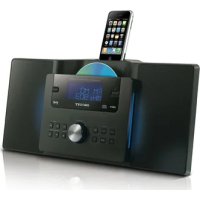
Melody - Hi-fi system SCOTT - Free user manual and instructions
Find the device manual for free Melody SCOTT in PDF.



| Product Type | Hi-fi system with CD player, FM radio, iPod/iPhone dock, USB port |
| Dimensions (H x W x D) | 200 x 435 x 155 mm |
| Weight | 2.8 kg |
| Power Supply | AC Adapter 110-240 V AC ~ 50/60 Hz, output DC 12 V / 2 A |
| Power Consumption | 24 W (standby < 1 W) |
| Output Power | 10 W RMS (2 x 5 W) |
| Speakers | 2 × 2.5", 8 ohms |
| FM Radio | Range 87.5 - 108 MHz, wire antenna, 10 presets |
| CD Player | CD, CD-R/RW, MP3, WMA (12 cm discs only) |
| USB Port | USB 2.0, compatible up to 16 GB, FAT/FAT32 formats |
| iPod/iPhone Dock | Charging and playback, adapters included |
| Auxiliary Input | AUX IN 3.5 mm jack |
| Audio Functions | Equalizer (POP, JAZZ, CLASSIC, ROCK, FLAT), SRS WOW 3D |
| Backup Batteries | 2 AAA/LR03 batteries (not included) for time |
| Remote Control | Supplied with battery |
| Maintenance | Clean with a slightly damp soft cloth; no solvents. Clean discs from center outward. |
| Safety | Class 1 laser product; do not open the housing; risk of electric shock; use only in temperate climate. |
| Repairability | No user-serviceable parts. Refer to qualified technician. |
| Box Contents | Unit, remote control with battery, AC adapter, manual, iPhone adapters (×2) |
Frequently Asked Questions - Melody SCOTT
User questions about Melody SCOTT
0 question about this device. Answer the ones you know or ask your own.
Ask a new question about this device
Download the instructions for your Hi-fi system in PDF format for free! Find your manual Melody - SCOTT and take your electronic device back in hand. On this page are published all the documents necessary for the use of your device. Melody by SCOTT.
USER MANUAL Melody SCOTT
CD/MP3/USB/FM AUDIO SYSTEM WITH iPod/iPhone DOCKING STATION
Instruction Manual
CE
WARNING
CLASS 1 LASER PRODUCT
CLASS 1 LASER PRODUCT APPARELALASER DE CLASSES 1 PRODUCTO LASER DE CLASE 1
CAUTION INVISIBLE LASER RADIATION WHEN OPEN AND INTERLOCKS DEFEATED AVOID EXPOSURE TO BEAM

This product contains a low power laser device.
Warning: Do not touch the lens.
PRECAUTIONS
Follow the instructions below to ensure the product is used safely and correctly.
LOCATION
. Do not use the unit in places which are extremely hot, cold, dusty, or humid.
. Place the unit on a flat, level surface.
. Do not restrict the airflow around the unit by placing it in a place with poor ventilation, covering it with a cloth, or placing it on a carpet.
. Do not place the unit close to heat sources.
. Use the unit only in moderate climates.
. Do not expose the unit to rain or splash with water
. Do not place objects filled with liquids such as vases on the unit.
SAFETY
. When connecting and disconnecting the AC power cord, take hold of the plug and not the cord. Pulling the cord may damage it and may be dangerous.
. The mains plug is used as the disconnect device. The plug must be easily accessible.
. When you are not going to use the unit for a long period of time, disconnect the AC power cord from the AC mains outlet.
AC VOLTAGE
. Before use, check that the rated voltage of your unit matches your local voltage.
CONDENSATION
. When there is condensation inside the unit, it may not function normally .
. Unplug the unit for 1 to 2 hours before turning the power back on, or gradually heat the room up and dry the unit before use.
. Ensure a space of at least 5cm around the apparatus to enable sufficient ventilation.
. Do not cover the ventilation openings.
BATTERIES
. Pay attention to the environmental aspects of battery disposal.
The lightning flash with an arrowhead symbol within a triangle is a warning sign alerting the user to the presence of dangerous voltage inside the unit.
CAUTION
RISK OF ELECTRIC SHOCK DO NOT OPEN
ATTENTION : To reduce the risk of electric shock, do not remove the cover. There are no user serviceable parts inside the unit. Refer all servicing to qualified personnel.

The exclamation mark within a triangle is a warning sign alerting the user to the presence of important instructions accompanying the product.
TABLE OF CONTENTS
WARNING 1
PRECAUTIONS 1
TABLE OF CONTENTS 2
BOX CONTENTS 2
DESCRIPTION OF THE UNIT
POWER SUPPLY 3
BASIC OPERATION 4
USING THE RADIO 5
CD/MP3/WMA MODE 5
PLAYING AN iPod/iPhone AND CHARGING THE INTERNAL iPod/iPhone BATTERY 6
AUX IN FUNCTION 7
MAINTENANCE 7
TROUBLESHOOTING GUIDE 8
TECHNICAL SPECIFICATIONS 8
BOX CONTENTS
Unit1.
AC adapter2.
Remote control with battery3.
Instruction manual4.
iPhone adapters (2x)5.
DESCRIPTION OF THE UNIT
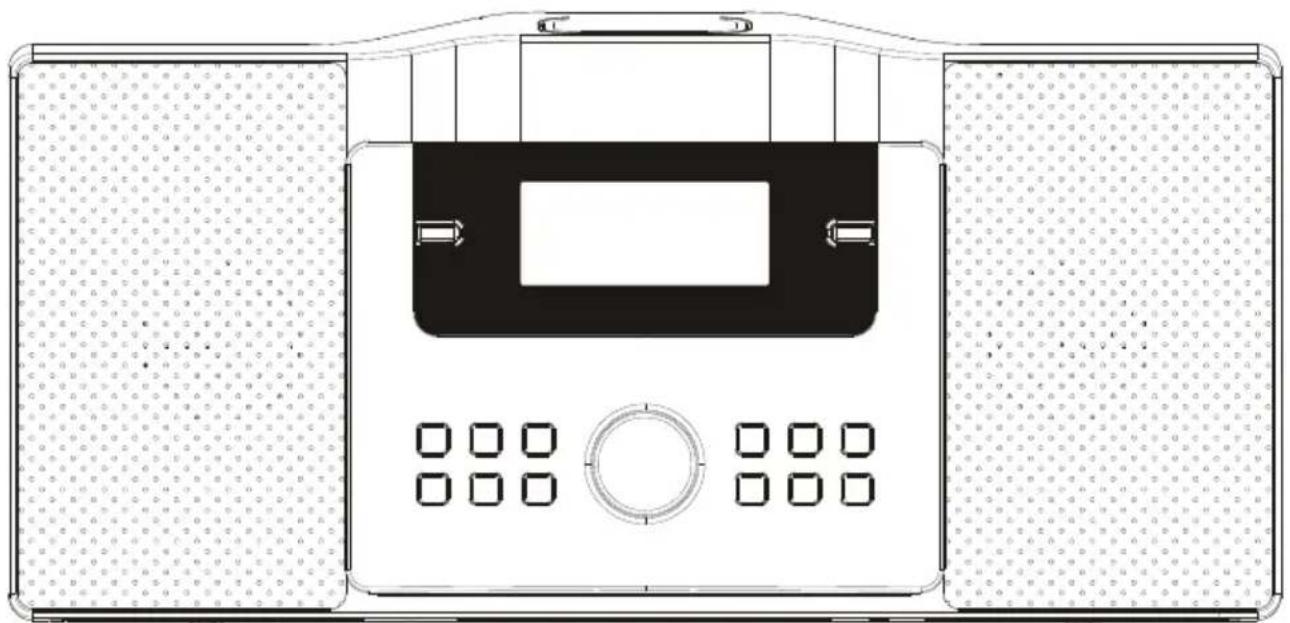
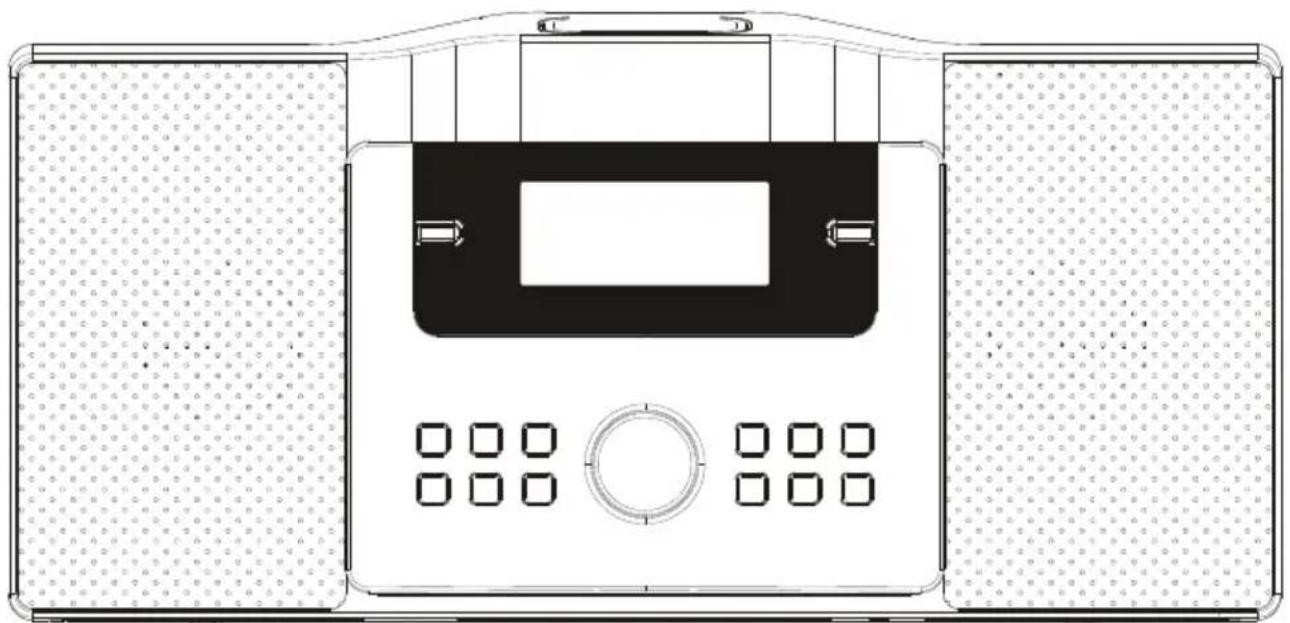
Unit
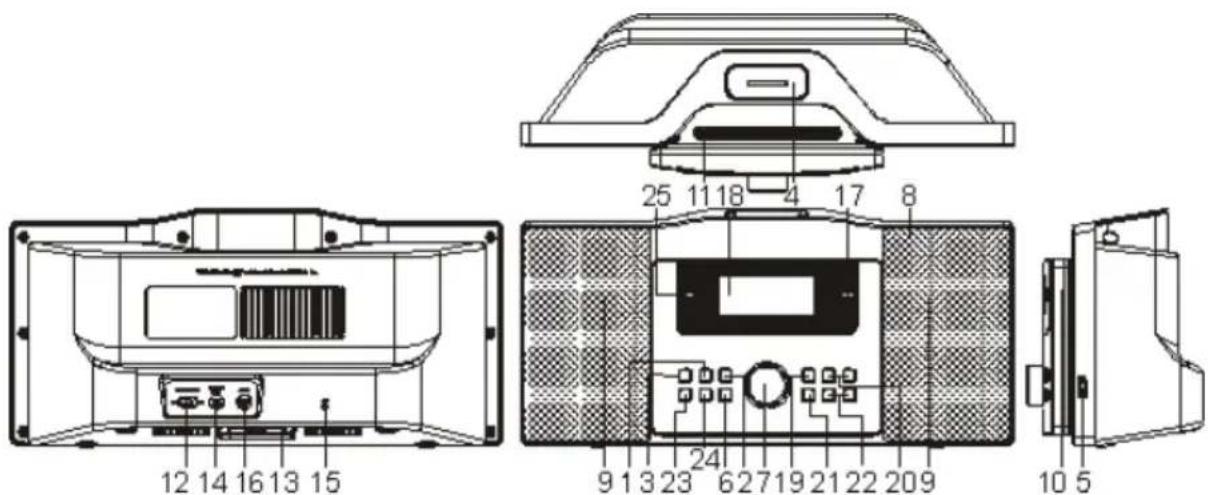
REPEAT/SHUFFLE1. button
MEM/PROG 2. (Memory/Program) button SOURCE button3.
- Docking station for iPod/iPhone
- USB port
- EQ button
- VOLUME+/- button
- Infrared remote control sensor
- Speakers (2x) Illumination10.
- CD slot
- ILLUMINATION ON/OFF switch
-
Clock back-up battery compartment
-
DC IN 12V jack
- FM antenna
- AUX IN jack
- ON/STANDBY) button
- LCD display
- (PLAY/PAUSE) button
- (REW/FWD)/TUNE +/- buttons
- TIME (STOP) button
- FOLDER/MEMORY / button
- DIM (Dimmer) button
- SRS WOW button
- (Eject) button
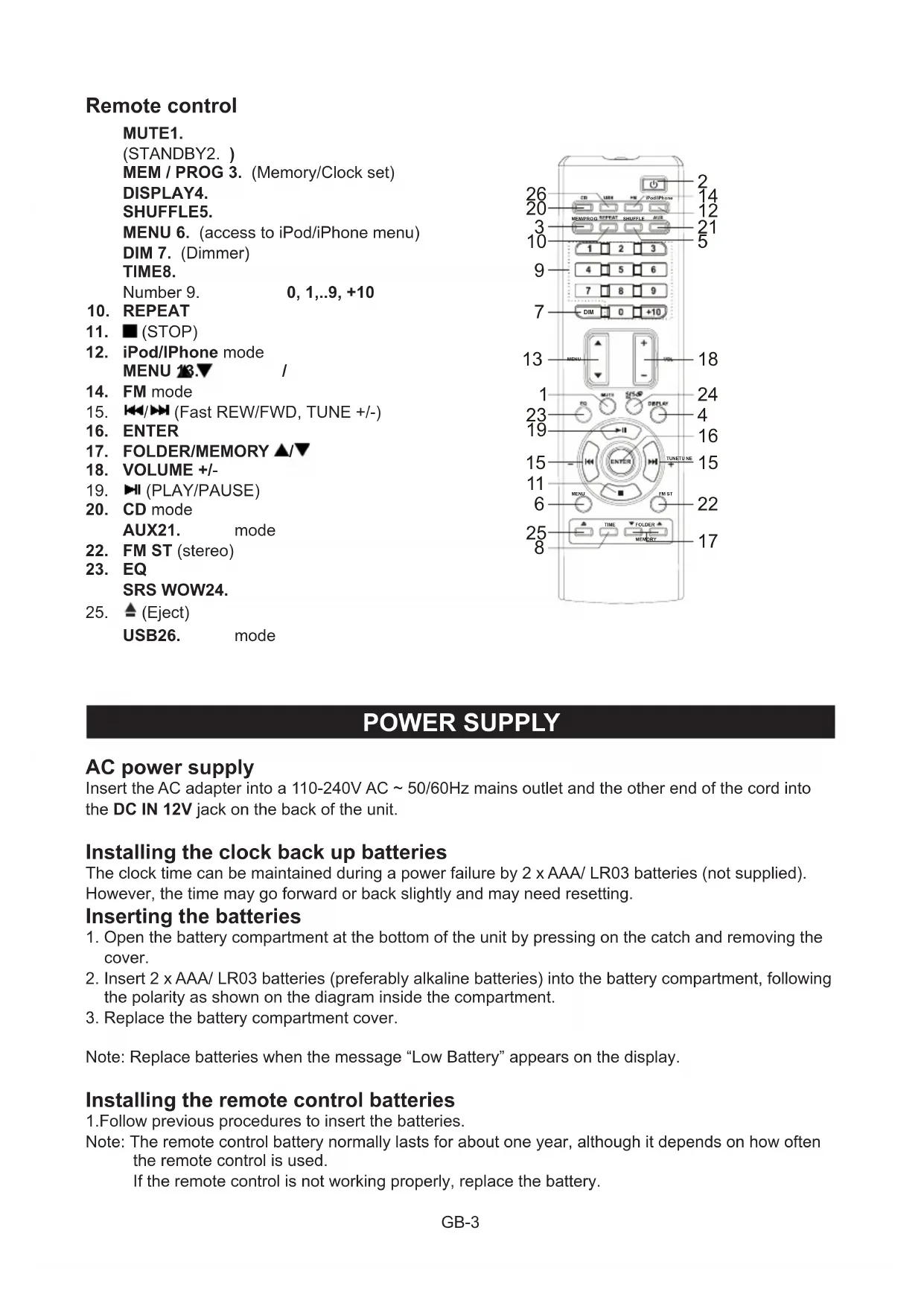
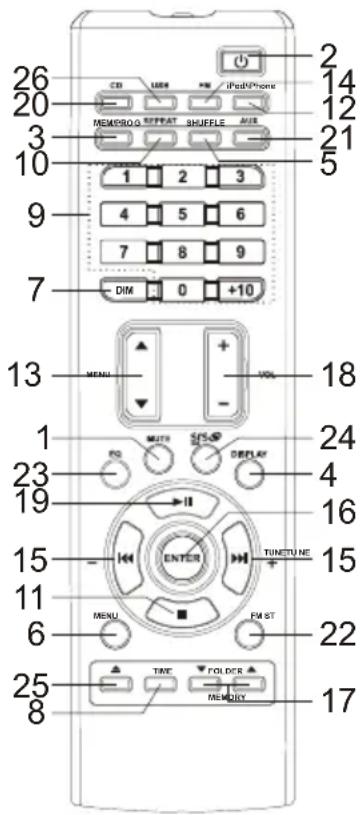
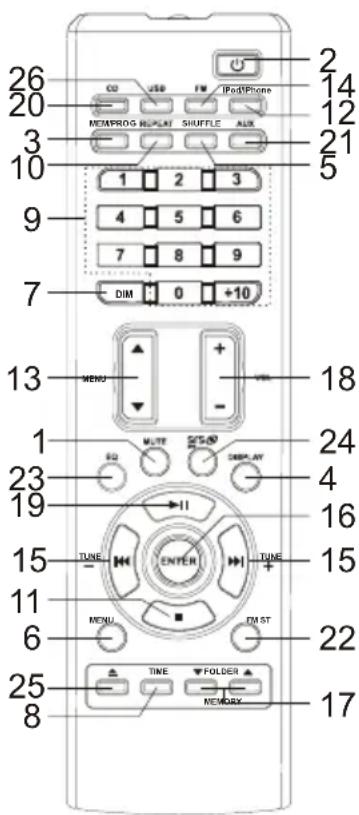
Remote control
MUTE1.
(STANDBY2.)
MEM / PROG 3. (Memory/Clock set)
DISPLAY4.
SHUFFLE5.
MENU6. (access to iPod/iPhone menu)
DIM 7. (Dimmer)
TIME8.
Number 9. 0,1..9, +10
-
REPEAT
-
(STOP)
-
iPod/Phone mode
MENU 13.
-
FM mode
-
(Fast REW/FWD, TUNE +/-)
-
ENTER
-
FOLDER/MEMORY ▲/
-
VOLUME +/-
-
(PLAY/PAUSE)
-
CD mode
AUX21. mode
-
FM ST (ster
-
EQ
SRS WOW24.
- (Eject)
USB26. mode
POWER SUPPLY
AC power supply
Insert the AC adapter into a 110-240V AC 50/60Hz mains outlet and the other end of the cord into the DC IN 12V jack on the back of the unit.
Installing the clock back up batteries
The clock time can be maintained during a power failure by 2 × AAA/ LR03 batteries (not supplied).
However, the time may go forward or back slightly and may need resetting.
Inserting the batteries
- Open the battery compartment at the bottom of the unit by pressing on the catch and removing the cover.
- Insert 2 x AAA/ LR03 batteries (preferably alkaline batteries) into the battery compartment, following the polarity as shown on the diagram inside the compartment.
- Replace the battery compartment cover.
Note: Replace batteries when the message "Low Battery" appears on the display.
Installing the remote control batteries
- Follow previous procedures to insert the batteries.
Note: The remote control battery normally lasts for about one year, although it depends on how often the remote control is used.
If the remote control is not working properly, replace the battery.
Precautions when using batteries
- Replace only with the same or equivalent type.
- Do not mix different types of battery together (e.g. alkaline, rechargeable and standard (carbon zinc) or old batteries with fresh ones.
- Exhausted batteries must be removed to prevent possible leakage.
- Dispos of batteries properly in accordance with the environmental regulations in force.
BASIC OPERATION
ON/ Standby
When it is connected to a power supply (refer to "POWER SUPPLY"), the unit goes to standby mode and the clock time is displayed. Press the button to turn on the unit and press it again to go back to standby mode.
Setting the clock
- In standby mode, press the TIME button and use the / buttons to select 24Hr or 12Hr display format. Press the TIME button to confirm and set the clock.
- Use the 制 buttons to set the hour, and press the TIME button to confirm.
- Repeat step (2) above to set the minutes.
Selecting a source
When the unit is switched on, press the SOURCE button repeatedly on the unit or the corresponding mode button on the remote control to select one of the following sources: "CD", "TUNER", "AUX IN", "iPod" or "USB".
VOLUME control
Use the VOLUME + / - buttons to adjust the volume level.
MUTE
Press the MUTE button on the remote control to turn off the sound. "MUTE" will flash on the display. Press it again or use the VOLUME +/- buttons to resume the sound.
EQ function
Press the EQ button repeatedly to select a music mode: POP (EQ1), JAZZ (EQ2), CLASSIC (EQ3), ROCK (EQ4), FLAT.
SRS WOW
Press the button to enable or disable the SRS WOW function. When the function is enabled "SRS WOW" is displayed.

WOW
is a trademark of SRS Labs, Inc. WOW technology is incorporated under license from SRS
Labs, Inc. WOW® significantly improves the playback quality of audio, delivering a dynamic 3D entertainment experience with deep, rich bass.
Note: EQ and SRS WOW cannot be enabled together, i.e. when one function is enabled, the other will be disabled.
Time display
When the unit is switched on, press the DISPLAY button on the remote control to display the clock time for one second.
Set the ILLUMINATION ON/OFF switch on the back of the unit to turn the side panel illumination on/off.
DIMMER
Press the DIM button to adjust the brightness of the LCD backlight and the side panel illumination.
USING THE RADIO
Listening to the radio
- When the unit is switched on, press the SOURCE button on the unit or the FM button on the remote control to select "TUNER" mode.
- Hold down the button to start searching up / down. For manual search, you can briefly press these buttons repeatedly to adjust the frequency step by step.
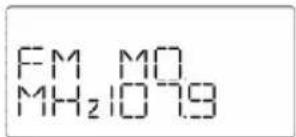
FM Stereo/Mono
If the unit is receiving a station with a weak signal and poor sound quality, press the FM ST button to select mono mode.
For optimum reception
In FM mode, extend and position the FM antenna to achieve optimum reception.
Preset radio stations
You can store up to 10 FM stations.
- Use the buttons to search for a station. Press the MEM/PROG button to store that station. "MEMORY" and a preset number will flash.
- Press the FOLDER/MEMORY button to select the desired preset number for the station.
- Press the MEM/PROG button again to confirm the setting.
- Repeat steps 1 to 3 to store other stations.
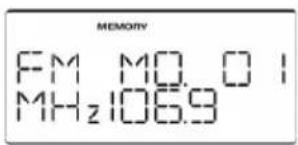
Listening to a preset station
When listening to the radio, press the FOLDER/MEMORY button or the number button on the remote control to select a preset radio station.
Note: Press "1" and then "0" for the 10th preset station.
CD/MP3/WMA MODE
Start playback
- When the unit is switched on, press the SOURCE button on the unit or the CD, USB button on the remote control to select "CD or USB" mode.
- In CD mode, insert a 12cm CD or CD-R/RW with the printed side facing to front into the CD slot. Press the button to eject the CD. To use USB mode, insert a USB device or into USB port.
- The unit will read the files and then display the total number of tracks and folders (for MP3/WMA files only). The unit will start playback from the first track. During playback, the current track number and folder number (for MP3/WMA files only) are displayed a short moment alternately in cycle.
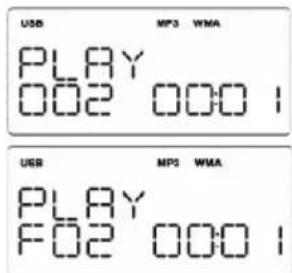
Pause playback
Press the button to pause playback. Press the button again to resume playback.
Stop playback
Press the button to stop playback. Then press the button to start playback from the first track.
Search functions
Skip to next/ previous track
- Press the button to skip to the next track.
- Press the button to skip to the previous track.
- Press the +10 button on the remote control to skip 10 tracks forward from the first track.
- Press the number buttons (1,2...0) to select a track. For double digit, for example "12", press the "1" and then "2".
Skip to the next/previous folder (for MP3/WMA files only)
Press the FOLDER/MEMORY button to skip to next/previous folder.
Fast forward/backward
During playback, hold down the or button to go fast backwards or forwards. Release the button once you reach the required section. Normal playback will resume from that point.
ID3 display (for MP3/ WMA files only)
The names of the song/ artist/ album will appear if ID3 tag information is available.
REPEAT/RANDOM playback
Press the REPEAT button on the remote control or REPEAT/SHUFFLE button on the unit repeatedly to select playback mode: repeat the current track ("") is displayed), repeat all of the tracks ("AL" is displayed), repeat the folder (For MP3/WMA files only - "AL" is displayed), random playback (only with REPEAT/SHUFFLE button on the unit) or cancel the repeat function. Press the SHUFFLE button on the remote control to play the files in random order. The symbol → is displayed.
PROGRAM playback
This function allows you to program up to 64 tracks for CD and MP3/WMA files to be played in the desired order.
Note: Programming can only be performed when playback is stopped.
Programming CD tracks
- In STOP mode, press the MEM/PROG button. The track number "T000" will flash.
- Use the buttons to select a track number.
- Press the MEM/PROG button to confirm.
- Repeat steps 2 and 3 to program other tracks.
- To play the program, press the button.
- In STOP mode, press the MEM/PROG button to go back to the program mode and then press the button to play the program.
- To clear the program, press the MEM/PROG button in STOP mode to display the program and then press the button, remove the CD or go to standby mode.
Note:
For programming MP3/WMA files, press the MEM/PROG button to select a folder by using the button before following the steps illustrated in the procedure above.
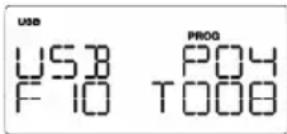
PLAYING AN iPod/iPhone AND CHARGING THE INTERNAL iPod/iPhone BATTERY
Installing an adapter on the iPod/iPhone docking station
- Use the iPod adapter supplied with your iPod or iPhone adapter supplied with this unit (marking on the back of the iPhone adapter: "12" for iPhone, "15" for iPhone 3G and iPhone 3GS).
-
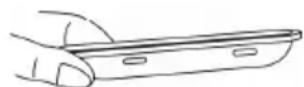
Place the adapter on the docking station at the top of the unit with the two tabs facing forwards.
-
To remove the adapter, press the back of the adapter and pull it up.
Note: Ensure that the iPod/iPhone adapter is correctly installed on the docking station.
Listening to your iPod/iPhone
- With the iPod/iPhone adapter installed, gently dock the iPod/iPhone (without the protective cover) in the docking station.
- When the unit is switched on, it automatically switches to iPod/iPhone mode. You can also press the iPod/iPhone button to select iPod/iPhone mode.
- Then press the button to start playback. Press it again to pause playback. Press it again to resume normal playback.
- Press the bons repeatedly to skip to the previous or next track.
- Hold down these buttons to move fast forward or back.
- Press the MENU button to access the iPod menu. Use the MENU ▲/▼ and ENTER buttons on the remote control to navigate through the iPod/iPhone's menu. Use the ENTER button to confirm your selections.
- Alternatively, you can use the controls on your iPod.
Note:
The iPod/iPhone's internal battery charges until it is fully charged.
Adjust the volume using the volume control button on the unit.
- To prevent sound distortion during iPod/iPhone playback on this unit, the EQ function in your iPod/iPhone must be set to "Off".
The unit is not designed for playing and charging an iPod shuffle, but it is possible to connect the iPod's headphones jack to the AUX IN jack on the unit.
AUX IN FUNCTION
This unit has an AUX IN jack which allows you to connect an external audio device such as an MP3 player or earlier iPod model.
- Connect a 3.5mm stereo connection cable (not supplied) to the AUX IN jack at the back of the unit and the line out/headphones jack on your external audio device.
- When the unit is switched on, press the SOURCE button on the unit or the AUX button on the remote control to select "AUX IN" mode.
- Operate your external audio device as usual to select and play music.
- Adjust the volume controls on both your external audio device and this unit to the desired volume level.
Note: In AUX mode, this unit cannot display any music information (e.g. track number) for your external audio device.
MAINTENANCE
Care and maintenance
To clean the casing, unplug the unit and wipe off dust and stains with a soft, damp cloth. Do not use benzene, thinner or similar chemicals to clean the casing.
Cleaning CDs
If the music skips or does not play, the disc may need cleaning. In that case, before playback, wipe the disc from the center out with a clean cloth. After use, store the disc in its case.
If at any time in the future you want to dispose of this product, please note that electrical products should not be disposed of with household waste. Find out where your nearest recycling centre is. Consult your local authority or retailer for more details. (Waste Electrical and Electronic Equipment Directive)
TROUBLESHOOTING GUIDE
| Problems Recommendations | |
| 1. The player or display is not working properly. | 1.1 Press the button to go to standby mode and press it again to turn the unit back on. 1.2 Reset the unit by unplugging the AC power cord for few seconds, then plugging it back in. |
| 2. No sound, poor sound. | 2.1 Check the cable connections. 2.2 Use the SOURCE or corresponding mode button to select the correct mode. |
| 3. The disc does not play. 3.1 Reinsert the disc. 3.2 Ensure that the disc is clean and in good condition. 3.3 Only CD and CD-R/RW discs can be played. 3.4 Clean the disc | |
| 4. USB disk is not read 4.1 Some external hard disks may not be supported. Hard disks that have built-in power supply should be favored. 4.2 Check with the USB disk file system and format it with FAT or FAT32. 4.3 Due to different formats, some models of USB storage devices or MP3 players may not be read. | |
| 5. Noise or distorted sound in radio mode. | 5.1 FM mode: Extend and position the FM antenna to achieve the best reception. |
| 6. No sound, poor sound in iPod/iPhone mode. | 6.1 Use correct iPod/iPhone adapter. 6.2 The EQ function in your iPod/iPhone must be set to “Off”. 6.3 Your iPod/iPhone model is not supported by the unit. Connect your iPod/iPhone to the docking station via the AUX IN jack. |
TECHNICAL SPECIFICATIONS
CD: compatible discs/files 12 cm only, CD, CD-R/RW, MP3 and WMA
Radio: Frequency range FM: 87.5 - 108 MHz
Antenna FM: wire antenna
USB port type 2.0
Maximum capacity 16 GB
General
Output power 10 W (2 x 5 W) r.m.s.
Output current delivered by
AC adaptor 12 V 2A
Power consumption 24 W
Standby power consumption 1 W
Speakers 2 × 2.5" , 8 Ohms
AC adapter Input: AC 110-240V~50/60Hz
Output: DC 12V
Clock back-up DC 3V (2 x 1.5V): 2 x AAA/LR03 batteries
Dimensions 200 (H) x 435 (W) x 155 (D) mm
Weight 2.8 Kg
Note: Due to continuing improvements, the technical specifications are subject to change without notice.
STATION D'ACCUEIL POUR iPod/iPhoneCD/MP3/WMA/USB, RADIO FM
PRODUIT LASER DE CLASSE 1
DISPLAY 4. (affichage)
Dockingstation fur iPod/iPhone4. Port USB5.
Taste EQ (Equalizer)6.
USB26. (modality USB)
ALIMENTAZIONE
Consumo in standby 1 W
Altoparlanti 2 × 2,5 " 8 Ohm
KLASSE 1 LASERPRODUCT
| KLASSE 1 LASER-PRODUCT | WAARSCHUWING GEVAAR VOOR BLOOTSTELLING AAN ONZICHTBARE LASERSTRALING WANNEER MEN HET TOESTEL OPENT EN DE VEILIGHE- IDSVERGRENDELING DEFECT IS. VERMIJD ELKE RECHTSTREEKSE BLOOTS- TELLING AAN DE LASERSTRAAL | |
| Dit product bevat een laagvermogen laser. | ||

- CD/MP3/USB/FM AUDIO SYSTEM WITH IPOD/IPHONE DOCKING STATION
- WARNING
- CLASS 1 LASER PRODUCT
- PRECAUTIONS
- LOCATION
- SAFETY
- AC VOLTAGE
- CONDENSATION
- BATTERIES
- CAUTION
- RISK OF ELECTRIC SHOCK DO NOT OPEN
- TABLE OF CONTENTS
- BOX CONTENTS
- DESCRIPTION OF THE UNIT
- UNIT
- REMOTE CONTROL
- POWER SUPPLY
- AC POWER SUPPLY
- INSTALLING THE CLOCK BACK UP BATTERIES
- INSERTING THE BATTERIES
- INSTALLING THE REMOTE CONTROL BATTERIES
- PRECAUTIONS WHEN USING BATTERIES
- BASIC OPERATION
- ON/ STANDBY
- SETTING THE CLOCK
- SELECTING A SOURCE
- VOLUME CONTROL
- MUTE
- EQ FUNCTION
- SRS WOW
- TIME DISPLAY
- DIMMER
- USING THE RADIO
- LISTENING TO THE RADIO
- FM STEREO/MONO
- FOR OPTIMUM RECEPTION
- PRESET RADIO STATIONS
- LISTENING TO A PRESET STATION
- CD/MP3/WMA MODE
- START PLAYBACK
- PAUSE PLAYBACK
- STOP PLAYBACK
- SEARCH FUNCTIONS
- SKIP TO THE NEXT/PREVIOUS FOLDER (FOR MP3/WMA FILES ONLY)
- FAST FORWARD/BACKWARD
- ID3 DISPLAY (FOR MP3/ WMA FILES ONLY)
- REPEAT/RANDOM PLAYBACK
- PROGRAM PLAYBACK
- PROGRAMMING CD TRACKS
- PLAYING AN IPOD/IPHONE AND CHARGING THE INTERNAL IPOD/IPHONE BATTERY
- INSTALLING AN ADAPTER ON THE IPOD/IPHONE DOCKING STATION
- LISTENING TO YOUR IPOD/IPHONE
- NOTE
- AUX IN FUNCTION
- MAINTENANCE
- CARE AND MAINTENANCE
- CLEANING CDS
- TROUBLESHOOTING GUIDE
- TECHNICAL SPECIFICATIONS
- GENERAL
- STATION D'ACCUEIL POUR IPOD/IPHONECD/MP3/WMA/USB, RADIO FM
- PRODUIT LASER DE CLASSE 1
- ALIMENTAZIONE
- KLASSE 1 LASERPRODUCT
Brand : SCOTT
Model : Melody
Category : Hi-fi system