ShredSafe AU740XA - Shredder AURORA - Free user manual and instructions
Find the device manual for free ShredSafe AU740XA AURORA in PDF.


User questions about ShredSafe AU740XA AURORA
0 question about this device. Answer the ones you know or ask your own.
Ask a new question about this device
Download the instructions for your Shredder in PDF format for free! Find your manual ShredSafe AU740XA - AURORA and take your electronic device back in hand. On this page are published all the documents necessary for the use of your device. ShredSafe AU740XA by AURORA.
USER MANUAL ShredSafe AU740XA AURORA
Shredder User Manual
For more information, please visit us at:
www.auroracorp.com
AU740XA
30740
Model No.
Modèle No.
Modelo No.
Please read these operating instructions before using the unit.
Read instructions before use.

Do not spray or keep any aerosol products in or around the shredder.

Avoid touching the document feed opening with hands.

Keep loose clothing or jewelry away from the paper entry slot.

Product is not intended for use by children (product is not a toy).

Avoid getting hair near the paper entry slot.

Do not insert foreign objects into the paper entry slot.
- Always turn the shredder off and unplug the power cord from the AC outlet when not in use, before cleaning it, moving it, or emptying the waste basket.
RISK OF FIRE. Never use any petroleum based or flammable oils or lubricants in or around the machine as some oils can combust causing serious injury. - NEVER dispose of flammable chemicals or materials that have come into contact with flammable chemicals (for example, nail polish, acetone and gasoline) in the shredder basket.
- Never shred large paper clips, window or insulated envelopes, continuous forms, newsprint, bound pages (in example: notepads, checkbooks, magazines, etc...), transparencies, laminated documents, cardboard, any items with adhesives, hard materials or plastic (except Credit Cards).
- A socket-outlet should be near the equipment and be easily accessible.
- Never let the wastebasket become full. This will lead to shredded material being pulled back up into the shredder and cause jams.
- Never place the shredder near water or any heat source.
- Do not use the shredder if the power cord is damaged in any way.
- Do not attempt to service this product yourself as doing so may expose you to sharp cutting blades and/or electricity and will void the manufacturers warranty.
- Never try to clean or clear the shredder blade.
- Never shred beyond the specified sheet capacity. This may result in extensive damage to the machine.
Paper Shredder
Operating Instructions
Installation
Operation
Maintenance
Troubleshooting
Service Center
Limited Warranty
Sheet Capacity 7 Sheets of 20 lb. bond paper
3/16 in. x 1/27/32 in. pieces Paper Shredd Size 0.5 cm x 4.7 cm pieces
Paper Entry Width 8.7 in/220 mm
Credit Card Capacity 1 at a time
Duty Cycle 3 min. on / 30 min. off
Voltage 120V~60Hz/1.8A
* ONE FOLDED SHEET OF PAPER EQUATES TO 2 SHEETS OF PAPER
Heavier paper, humidity or other than rated voltage may reduce shredding capacity.
INSTALLATION
- This model includes a built-in safety interlock mechanism, which requires the shredder to be correctly mounted on to the included wastebasket. Located on the back center of the shredder, next to the power cord, there is a curved flap-like shape that must FIT OVER THE OUTSIDE matching ridge of the wastebasket. (FIGURE 1) THE SHREDDER WILL NOT OPERATE UNLESS IT IS PROPERLY MOUNTED AS PICTURED.
- A socket-outlet should be near the equipment and be easily accessible.
- Connect the power cord to any standard 120 volt AC outlet.
NOTE:
It is not designed to operate with any other wastebaskets. An activation switch located on the head unit automatically shuts off the shredder when it is lifted or removed. The supplied wastebasket activates this switch, which allows the shredder to be operable. Lining the wastebasket with a plastic bag will interfere and may keep the shredder from functioning.
Caution:
Crosscut shredders have very sharp exposed blades on the underside.
Use care when mounting the shredder on the wastebasket.
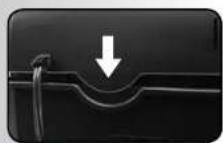
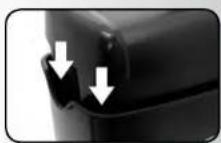
FIGURE 1
IGLISH5 ENGLISH
OPERATION
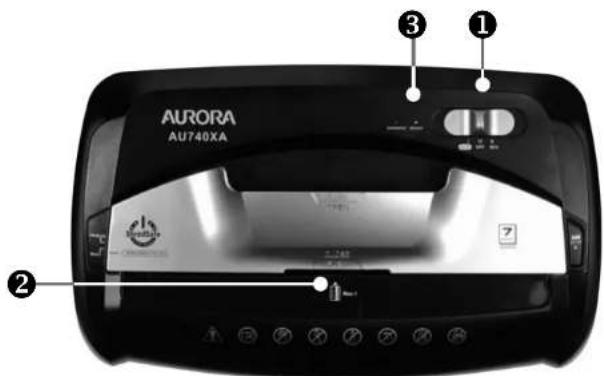

Control Switch
Using the switch located on the unit, select one of the following settings by sliding the switch either left or right. (FIGURE 2)
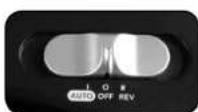
FIGURE 2
I AUTO/ON:
This setting allows the shredder to be automatically started by inserting paper into the feed slot. Always feed the paper in as straight as possible. When the paper has passed through, the shredder will automatically stop.
READY: The green LED light indicates the shredder in "On" and ready for use.
O OFF:
This setting turns off all features of the shredder. For safety reasons, we recommend that you leave the shredder in the "Off" position whenever the shredder is unattended or not in use.
R REV (REVERSE):
In the unlikely event of a paper jam, the reverse setting can be used to help clear the cutters of paper that did not pass through. Never attempt to clear a jam by using the reverse function until you have emptied the wastebasket.
CONTINUED NEXT PAGE
OPERATION

JAM BOOSTER:
The forward setting can also be used to help clear the cutters in the event of a paper jam.
This allows to manually activate the shredder into cutting mode.
2 Paper / Credit Card Entry:

Shredd safe™ technology is an added safety feature incorporated in this particular model. It is a new technology where the shredder is able to detect forced entry and automatically cuts the power off, preventing further shredding.
To begin shredding, locate the control switch on the unit and select the "Auto" mode. The Green LED light indicates the shredder is "On" and ready to use. Press the designated "PUSH OPEN" area on the handle of the cover to open and expose the paper feed slot (FIGURE 3). The cover will click into a preset position where the "SHREDDER STATUS" line must align with the "READY" setting.
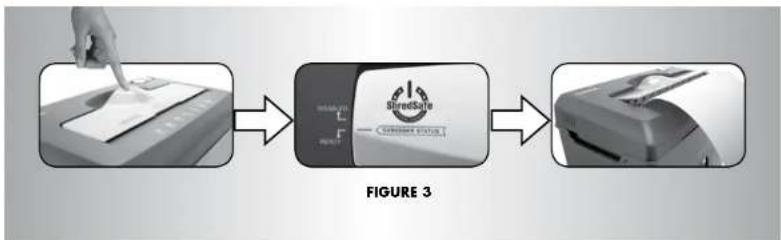
■ READY:
The shredder is currently on STANDBY and ready to operate when paper is inserted.
With the feed slot now exposed, you can shred sheets of paper or 1 credit card per pass.
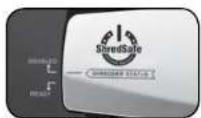
FIGURE 4
■ DISABLED:
The safety feature has been activated. All power to the SHREDDER IS CURRENTLY SHUT OFF AND WILL NOT OPERATE until the cover is returned to the "READY" setting. The cover has been opened beyond the safe position (FIGURE 4).
CONTINUED NEXT PAGE
6
Glish7 ENGLISH
OPERATION
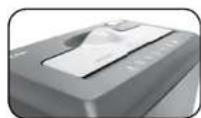
FIGURE 5
■ AFTER USE:
When shredding is completed, you can press the designated "PUSH CLOSE" area on the cover to tilt shut the paper feed slot (FIGURE 5). It is recommended to have the paper feed slot closed when shredder is not in use to prevent any objects from accidentally getting into the feed slot.
■ NOTE:
Always turn off and unplug the shredder when not in use.
This shredder will shred staples and small paper clips. It is recommended that you remove paper clips whenever possible to extend the lifespan of your shredder.
- Only shred credit cards by feeding them vertically into the middle of the entry, releasing when shred ding begins. Never feed more than one credit card at a time.
LED Status Indicators:
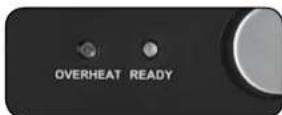
Overheat/Ready (Power On)
Ready (Power On):
The Green LED light indicates the shredder is "On" and ready to operate when paper is inserted.
Overheg:
The Red LED light indicates the shredder has shred continuously beyond the maximum running time and overheating, the unit will automatically shut off. If this happens, switch the shredder Off for 30 minutes or longer before resuming normal operation.
MAINTENANCE
TROUBLESHOOTING
Warning: Failure to properly maintain your shredder will void the warranty.
Oil the shredder blades every month with basic vegetable, cooking oil or shredder oil. Follow oiling procedure below (FIGURE 6). It helps to keep the shredder blades operating well over many years of use.
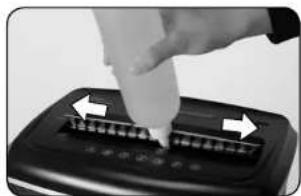
FIGURE 6
Oiling procedure:
- Turn off shredder.
- Apply shredder oil across paper entry.
- Turn shredder in reverse mode for 3~5 seconds.
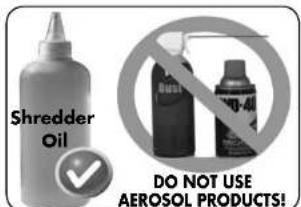
Caution:
- Do not spray or keep any aerosol products in or around shredder.
DO NOT USE CANNED AIR ON SHREDDER.
■ CLEANING:
- ALWAYS UNPLUG THE SHREDDER BEFORE CLEANING!
- Only clean the shredder by carefully wiping the unit with a dry soft cloth or towel.
- Do not clean or immerse shredder in water. Having the unit wet may result in damage or malfunction to the electrical components. If the shredder happens to get wet, be sure to completely dry the unit immediately with a cloth or towel.
- Never use anything flammable to clean the shredder. This may result in serious injury or damage to the product.
If there is a problem with your shredder, check below for the symptoms and steps to resolve. If you continue to have problems, contact customer support at our Service Center 1-800-327-8508. DO NOT ATTEMPT TO REPAIR BY OPENING THE SHREDDER HEAD. This will completely void the product warranty.
The shredder does not work at all.
1) Make sure the unit is plugged in and that the outlet is in good working order.
2) Overheating with extended use: In the event that the shredder has shred continuously beyond the maximum running time and overheated, the unit will automatically shut off. If this happens, switch the shredder Off for 30 minutes or longer before resuming normal operation.
3) Make sure the shredder head is correctly seated onto the included wastebasket, with all the words and icons facing towards you. The head unit is particularly designed to work only with the integrated
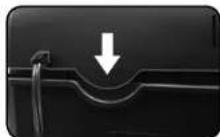
FIGURE 7
wastebasket. Aurora shredders are equipped with a safety interlocking mechanism, which prevents the shredder from working when the head unit is lifted, removed, or accidentally knocked over. On the back center edge of the shredder head, next to the power cord, is a "curved flap-like shape" that MUST FIT OVER THE OUTSIDE of the wastebasket. The shredder will not function unless the head unit is properly mounted as pictured. (FIGURE 7)
4) Be sure NOT to open the cover beyond the preset position, otherwise the ShreddSale™ feature will be activated and the shredder will be inoperable. The "SHREDDER STATUS" indication line must align with the "READY" setting.
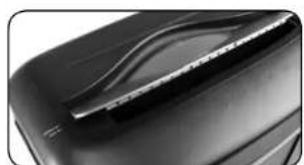
Cover over tilt
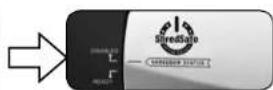
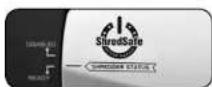
Disabled position
5) If using a plastic bag to line the wastebasket, please remove it. This may cause the shredder not to operate properly.
6) The activation sensor of the shredder is located near the center of the feed slot. Be sure to feed directly into the center area to activate the machine (especially applies to smaller pieces of paper or credit cards).
CONTINUED NEXT PAGE
TROUBLESHOOTING
SERVICE CENTER
The shredder runs in "Rev (Reverse)" mode but not in "Auto (On)" mode.
1) While in "Auto" mode, the motor will not start running until paper is inserted into the feed slot. Set the unit to "Auto" and insert paper to shred. The sensor that activates the shredder in Auto mode is located directly in the center of the slot. If the paper you are inserting is narrow, it may not be activating the optical sensor. It is also possible that the feed slot has become blocked with paper. Insert an index card or any rigid sheet of cardstock (old greeting card or folded file folder), directly in the center of the feed slot, while applying force to help push the jammed paper through. This will usually clear any paper blockage.
How to clear a paper jam in the shredder.
1) Switch the shredder over into Reverse (REV) mode. While in Reverse, the shredder will back up and loosen the jammed paper. If required, you may need to tug and remove several sheets to effectively clear the machine. When jammed paper is loosened or removed, switch back to the Auto-On mode to continue shredding. Repeat steps if needed.
2) With stubborn situations where the reverse function does not help, you may loosen the jammed paper with shredder oil (cooking oil is acceptable, nothing aerosol). Start by drizzling oil into the feed slot where the paper is jammed. Let it soak for about 30 minutes to completely saturate. Return the shredder back to Auto-On mode. If required, an index card or a rigid sheet of cardstock (old greeting card or folded file folder) can be fed into the shredder to help push the jammed paper through.
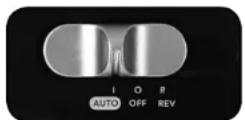
Power switch in auto position
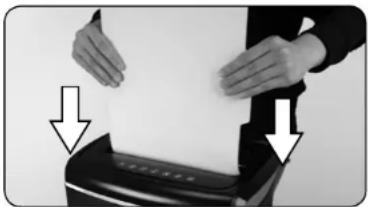
Use thick paper stock or greeting card to push the jam through
The shredder is constantly running while in "Auto (On)" mode.
1) It is possible that the activation sensor, which starts the shredder, has become blocked with paper. Insert an index card or any rigid sheet of cardstock (old greeting card or folded file folder), directly in the center of the feed slot, while applying force to help push the jammed paper through. This will usually clear any paper blocking the activation sensor and feed entry.
2) The activation sensor is being triggered by dust, debris, or oil. A cotton swab may be used to clean the sensor. DO NOT USE CANNED AIR. The activation sensor of the shredder is located around the center of the feed entry.
If you have any questions in regards to the operation of this shredder or in need of a spare part, please contact our service center at:
Aurora Corp. of America
Telephone: 1-800-327-8508 (U.S.A. only) or 1-310-793-5650 (International)
Business hours: Monday to Friday 8:00 am - 5:00 pm PST (Pacific Standard Time)
Email: info@auroracorp.com
Or for more information, please visit our website at http://www.auroracorp.com
LIMITED PRODUCT WARRANTY
Aurora warrants the cutting cylinders of the machine against defects of workmanship and material for a period of 3 years from the original purchase date to the original consumer. Aurora warrants all other parts of the machine against defects of workmanship and material for a period of 1 year from the original purchase date to the original consumer.
Should there be a defect or malfunction of this product, Aurora will repair or replace the product free of charge. Customer is responsible for all shipping charges to return the defective product to Aurora. A copy of the proof of purchase showing original purchase date is required. This warranty is void if the product has been subject to damage, unreasonable use, improper service, or other causes not arising from defects in original material or workmanship. This warranty is void if factory seal is broken or removed from the product. This warranty does not include adjustments, parts or repairs required by circumstances beyond the control of Aurora.
There are no expressed warranties other than those stated herein.
Any expressed or implied warranties, including but not limited to merchantability and fitness for a particular purpose are limited to the above warranty period. Aurora shall not be liable for any incidental or consequential cost, expenses or damages resulting from any failure defect or malfunction of this product.
Some states do not allow the exclusion of limitations of implied warranties or consequential damages, therefore, the above limitations may not apply to you.
This warranty grants you specific legal rights, and you may also have other rights that vary from state to state.
Before returning any product, please call our Service Center for specific return instructions.
Aurora Corp. of America: 1-800-327-8508 USA ONLY
1-310-793-5650 INTERNATIONAL • info@auroracorp.com
Aurora Corp. of America
Using the switch located on the unit, select one of the following settings by sliding the switch either left or right. (FIGURE 2)
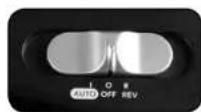
FIGURE 2
- Pré (sous tension):
Aurora Corp. of America
Telephone: 1-800-327-8508 (É.-U uniquement) ou 1-310-793-5650 (International)
For more information, please visit us at: www.auroracorp.com