Element EA101EQG - Receiver ELAC - Free user manual and instructions
Find the device manual for free Element EA101EQG ELAC in PDF.



| Product Type | Integrated Amplifier (Receiver) |
| Brand | ELAC |
| Model | Element EA101EQG |
| Output Power | 2 x 80 Watts (8 ohms, 1% THD) or 80 W continuous per channel (4 ohms, 1% THD) |
| Amplification | BASH™ Tracking (modulated switching power supply + class AB) |
| Number of Audio Inputs | 7 (2 analog RCA, 2 optical, 1 coaxial, 1 asynchronous USB, 1 Bluetooth) |
| Asynchronous USB Input | Up to 192 kHz / 24 bits |
| Bluetooth | A2DP (audio streaming) and BLE (app) |
| Speaker Outputs | 2 x 5-way binding posts |
| Subwoofer Output | 1 x line level (RCA) |
| Headphone Output | 6.35 mm (1/4 inch) jack |
| Audio Decoder | Dolby Digital 2.1 |
| DSP | Auto Blend (sub/sat), Auto EQ (room correction) |
| Display | OEL (Organic Electro-Luminescence) - adjustable brightness |
| Control | Front panel, infrared remote, mobile app (iOS/Android) |
| Power Supply | Mains (cords included) |
| Care and Cleaning | Dry cloth only. Do not use liquids or aerosols. |
| Safety Instructions | Do not expose to water or humidity. Unplug during thunderstorms. Repairs by qualified personnel only. |
| Included Accessories | Infrared remote, 2 AAA batteries, power cord, user manual |
Frequently Asked Questions - Element EA101EQG ELAC
User questions about Element EA101EQG ELAC
0 question about this device. Answer the ones you know or ask your own.
Ask a new question about this device
Download the instructions for your Receiver in PDF format for free! Find your manual Element EA101EQG - ELAC and take your electronic device back in hand. On this page are published all the documents necessary for the use of your device. Element EA101EQG by ELAC.
USER MANUAL Element EA101EQG ELAC
Integrated amp with DSP
OPERATING INSTRUCTIONS
ELAC The life of sound.
Important Safety Instructions
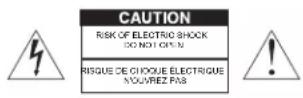
CAUTION: To reduce the risk of electric shock, do not remove cover (or back).
No user-serviceable parts inside. Refer servicing to qualified service personnel.
- Explanation of Graphical Symbols

The lightning flash with arrowhead symbol, within an equilateral triangle, is intended to alert you to the presence of uninsulated "dangerous voltage" within the product's enclosure that may be of sufficient magnitude to constitute a risk of electric shock to persons.

The exclamation point within an equilateral triangle is intended to alert you to the presence of important operating and maintenance [servicing] instructions in the literature accompanying the product.
APPLICABLE FOR USA, CANADA OR WHERE APPROVED FOR USAGE
CAUTION: TO PREVENT ELECTRIC SHOCK, MATCH WIDE BLADE PLUG TO WIDE SLOT, INSERT FULLY.
ATTENTION: POUR EVITER LES CHOCS ELECTRIQUES, INTRODUIRE LA LAME LA PLUS LARGE DE LA FICHE DANS LA BORNE CORRESPONDANTE DE LA PRESE ET POUSSER JUSQU AU FOND.
- Read these instructions.
- Keep these instructions.
- Heed all warnings.
- Follow all instructions.
- Do not use this apparatus near water.
- Clean only with a dry cloth.
- Do not block any ventilation openings. Install in accordance with the manufacturer's instructions.
- Do not install near any heat sources such as radiators, heat registers, stoves, or other apparatus (including amplifiers) that produce heat.
- Do not defeat the safety purpose of the polarized or grounding-type plug. A polarized plug has two blades with one wider than the other. A grounding-type plug has two blades and a third grounding prong. The wide blade or the third prong are provided for your safety. If the provided plug does not fit into your outlet, consult an electrician for replacement of the obsolete outlet.
- Protect the power cord from being walked on or pinched particularly at plugs, convenience receptacles, and the point where they exit from the apparatus.
- Only use attachments/accessories specified by the manufacturer.
- Use only with the cart, stand, tripod, bracket, or table specified by the manufacturer, or sold with the apparatus. When a cart is used, use caution when moving the cart/apparatus combination to avoid injury from tip-over.
PORTABLE CART WARNING

- Unplug this apparatus during lightning storms or when unused for long periods of time.
- Refer all servicing to qualified service personnel. Servicing is required when the apparatus has been damaged in any way, such as power-supply cord or plug is damaged, liquid has been spilled or objects have fallen into the apparatus, the apparatus has been exposed to rain or moisture, does not operate normally, or has been dropped.
- The apparatus shall not be exposed to dripping or splashing and that no objects filled with liquids, such as vases, shall be placed on the apparatus.
- CAUTION: Servicing instructions are for use by qualified service personnel only. To reduce the risk of electric shock, do not perform any servicing other than that contained in the operating instructions unless you are qualified to do so.
- WARNING: To reduce the risk of fire or electric shock, do not expose this apparatus to rain or moisture.
Table of Contents
Important Safety Instructions 2
Table of Contents 3
Introduction 4
EA101EQ-G Features 5
Front Panel Features
Power. 6
IR Sensor 6
Front Panel Display. 6
Source 6
6
Volume Control 6
Rear Panel Features 7
AC Mains. 7
Line In 1. 7
Line In 2. 7
Sub Out 7
Coax In. 7
Speaker Out. 7
Reset 8
Service 8
USB 8
Optical In 1 .8
Optical In 2 . 8
IR Remote Features. 9
Power. 9
Volume/Transport 9
Input Select. 9
Bluetooth 9
Installation 10
Amplifier Location 10
Typical System 10
Connections 11
Speaker Connections 11
Other Connections 11
IR Remote/Flont Panel Control 12
ON/OFF 12
Volume/Mute 12
Source Select. 12
Bluetooth 13
Bluetooth Pairing ELAC USB Amplifier 13
Bluetooth Pairing EA101EQ-G Control 13
EA101EQ-G App 14
Master Volume 14
Offset Volume. 14
Setup 15
Input Names 15
Bass/Treble 16
Screen Brightness 16
Speaker Balance. 17
Remote Learning 18
About 19
Warranty 20
Congratulations and thank you for purchasing the ELAC EA101EQ-G Integrated Amplifier!
Since the time we started in 1926, ELAC has always striven to achieve the very best!
While a handful of separates and integrated units offered great sound, none delivered the performance, flexibility and value essential for a product to carry the ELAC name. So where none existed before, our engineers started with a clean-sheet and simple design brief: build the most powerful, versatile, easy-to-use integrated amplifiers imaginable; do it without compromising sound, reliability and a great user experience; and price it so fairly that it becomes a hands-down choice even when compared against units at many times the price.
The BASH® Amplification System
At its heart is a brand new BASH Tracking Amplifier delivering up to 160 Watts. This new amplifier uses a modulated switched mode power supply allied to a conventional class AB amplifier. Switching at more than 400,000 times per second, the supply tracks the incoming audio signal to ensure that the Class AB amplifier gets only the voltage necessary (with a little headroom) to cope with today's dynamic movie and music content, thus maximizing the efficiency and potential of the amplifier.
App-rich Control Flexibility
ELAC's free iOS and Android app allows users to fully control and set up their system. The app includes innovative features not found on any other products in this class—anywhere.
Input Rename
Easily rename each input to match your source. The revised name will appear in the app and on the integrated amplifier's front panel display.
Auto Blend and Auto EQ
Through the use of the free iOS and Android app the user first selects a high-pass filter, then using the smartphones microphone, measures the near-field response of both the main speakers and subwoofer. Our proprietary algorithm then adjusts the low pass filter to obtain optimal blending between the subwoofer and main speakers. Auto EQ minimizes the effects of the rooms acoustics allowing you to hear the sound the designer intended.
Please read and follow the instructions in this guide to assist in proper installation, connection and use of your ELAC EA101EQ-G Integrated Amplifier.
WHAT'S INCLUDED
1 - EA101EQ-G Integrated Amplifier
1 - IR Remote Control
2-AAA Batteries
1-EA101EQ-G Operating Instructions
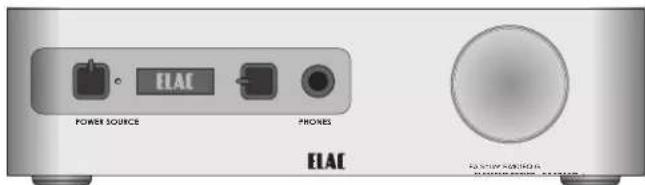
EA101EQ-G FEATURES
Basic Description
Seven Source, 80 Watt-per-channel Integrated Amplifier
Amplifier
2 x 80 Watts; BASH Tracking Amplifier
80W Continuous x 2 Channels @ 4Ω with 1% THD
Please visit our website for full amplifier details and performance specifications
Audio Inputs
2x Stereo Analog Line Level Audio Inputs
2 x Digital Optical Audio Inputs (up to 192kHz 24-bit)
1 x Digital Coaxial Audio Input (up to 192kHz 24-bit)
1 x USB Input (up to 192kHz 24-bit asynchronous)
Bluetooth® A2DP with aptX for playback from most phones and tablets
Due to differences in optical transmitters and optical cable quality/length, 192kHz is not guaranteed
* An aptX source device is required to take advantage of the aptX codec
Speaker Connections
2 x 5-way Binding Posts
Subwoofer Output
1 x Analog Line Level with AutoEQ
Headphone Output
1 x Stereo 1/4" Headphone Jack
Control
Android or iOS Setup/Control App
IR Remote Control
Bluetooth® 4.0 Low Energy
Audio Decoders
Dolby Digital 2.1 Decoding
DSP
Auto Blend (subwoofer to main speaker configuration)
AutoEQ (automatic room correction)
Front Panel Display
OEL (Organic Electro-Luminescence)
Front Panel Features
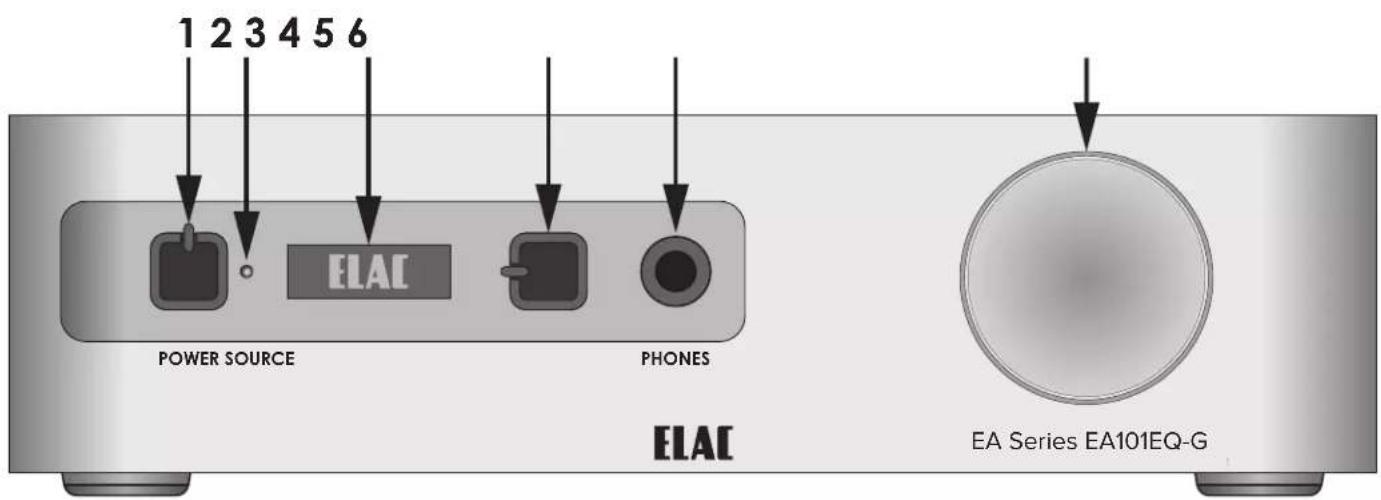
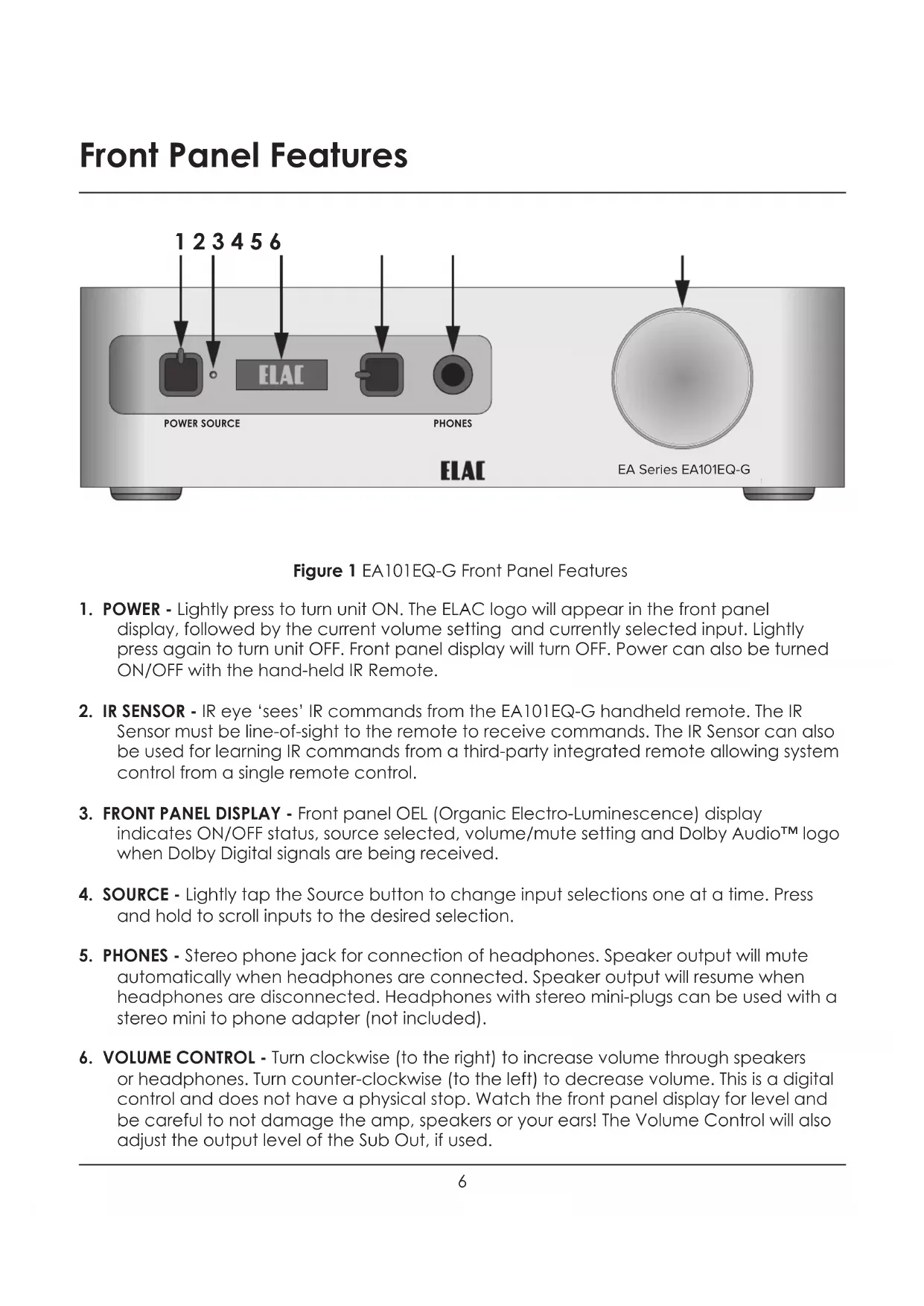
Figure 1 EA101EQ-G Front Panel Features
- POWER - Lightly press to turn unit ON. The ELAC logo will appear in the front panel display, followed by the current volume setting and currently selected input. Lightly press again to turn unit OFF. Front panel display will turn OFF. Power can also be turned ON/OFF with the hand-held IR Remote.
- IR SENSOR - IR eye 'sees' IR commands from the EA101EQ-G handheld remote. The IR Sensor must be line-of-sight to the remote to receive commands. The IR Sensor can also be used for learning IR commands from a third-party integrated remote allowing system control from a single remote control.
- FRONT PANEL DISPLAY - Front panel OEL (Organic Electro-Luminescence) display indicates ON/OFF status, source selected, volume/mute setting and Dolby Audio™ logo when Dolby Digital signals are being received.
- SOURCE - Lightly tap the Source button to change input selections one at a time. Press and hold to scroll inputs to the desired selection.
- PHONES - Stereo phone jack for connection of headphones. Speaker output will mute automatically when headphones are connected. Speaker output will resume when headphones are disconnected. Headphones with stereo mini-plugs can be used with a stereo mini to phone adapter (not included).
- VOLUME CONTROL - Turn clockwise (to the right) to increase volume through speakers or headphones. Turn counter-clockwise (to the left) to decrease volume. This is a digital control and does not have a physical stop. Watch the front panel display for level and be careful to not damage the amp, speakers or your ears! The Volume Control will also adjust the output level of the Sub Out, if used.
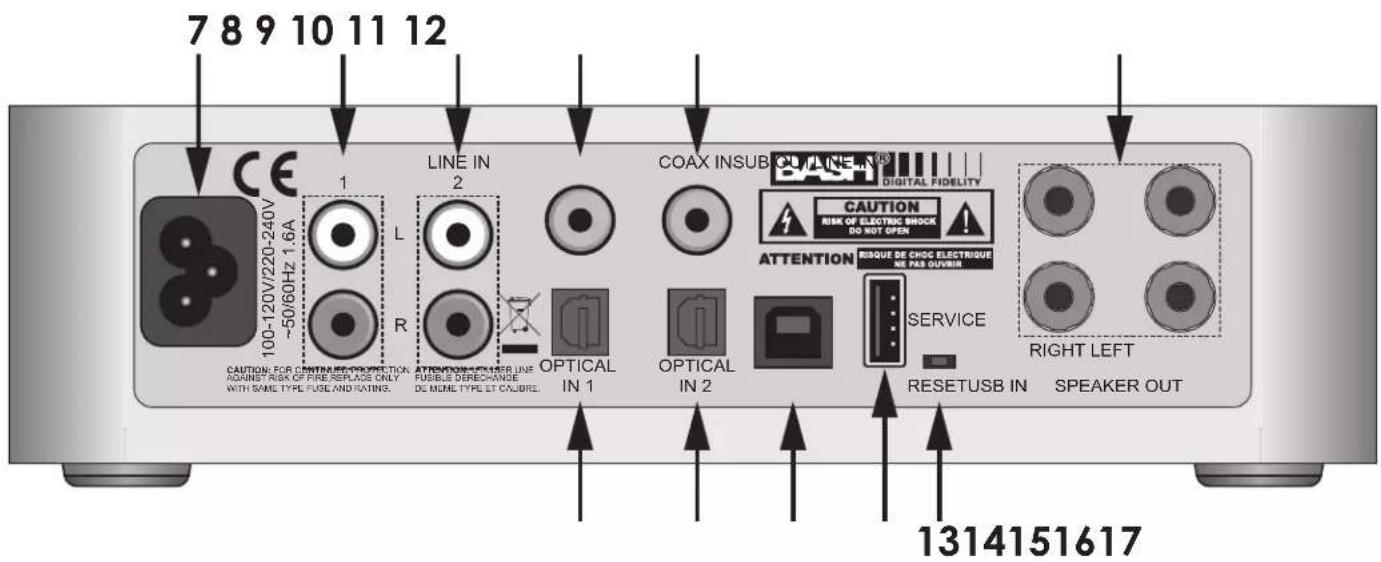
Figure 2 EA101EQ-G Rear Panel Features
- AC MAINS - After all other connections have been made and confirmed, using the included power cord, connect the AC Mains on the EA101EQ-G to an unswitched AC outlet.
- LINE IN 1 - Using a quality stereo RCA to RCA cable, connect the L&R outputs on a stereo audio source to the Line IN 1 L&R inputs on the EA101EQ-G. This input can be selected by pressing Ana 1 on the remote or by tapping the front panel Source button.
- LINE IN 2 - Using a quality stereo RCA to RCA cable, connect the L&R outputs on a stereo audio source to the Line IN 2 L&R inputs on the EA101EQ-G. This input can be selected by pressing Ana 2 on the remote or by tapping the front panel Source button.
- SUB OUT - Using a quality RCA to RCA cable, connect the SUB OUT on the EA101EQ-G to the SUB IN on a powered subwoofer or sub amp. Once the initial sub settings have been made, the Volume Control will adjust both Speaker and Sub Out levels as a master control.
- COAX IN - Using a quality digital coaxial audio cable, connect the Coaxial OUT on a source component to the Coax IN on the EA101EQ-G. The Dolby logo will appear in the front panel display when Dolby Digital signals are present. This input can be selected by pressing Coax on the remote or by tapping the front panel Source button.
- SPEAKER OUT - Using 16AWG (min) speaker wire, connect the Right and Left Speaker terminals on the EA101EQ-G to the appropriate speaker terminals on left and right speakers. Before connecting the speaker wires, twist the ends of the speaker wire so there are no strays that can cause shorts. See section: Connections/Speaker Connections for additional information.
Rear Panel Features (cont)
-
RESET - Using a small, blunt object, with the power ON, press and hold the recessed switch for 5 seconds to restore factory default settings. The Reset switch is also used when updating firmware. See: Service, below.
-
SERVICE - USB Type A terminal used for updating firmware. To upgrade firmware:
a) Download the firmware update from elac.com to a computer.
b) Copy the firmware to the root directory of a thumb drive and insert the thumb drive into the rear of the unit.
c) Unplug the power, hold down the Reset button while plugging the power back in and the firmware update process begins (Update status is indicated on the front panel display.)
- USB ASYNCHRONOUS INPUT - Using a USB Type B to USB A cable, connect the USB IN port on the EA101EQ-G to the USB port on an appropriately featured computer, music server or streaming audio device. This input can be selected by pressing USB on the remote or by tapping the front panel Source button.
- OPTICAL IN 2 - Using a quality digital optical audio cable, connect the Optical OUT on a source component to the Optical IN 2 on the EA101EQ-G. The Dolby logo will appear in the front panel display when Dolby Digital signals are present. This input can be selected by pressing Opt 2 on the remote or by tapping the front panel Source button.
-
OPTICAL IN 1 - Using a quality digital optical audio cable, connect the Optical OUT on a source component to the Optical IN 1 on the EA101EQ-G. The Dolby logo will appear in the front panel display when Dolby Digital signals are present. This input can be selected by pressing Opt 1 on the remote or by tapping the front panel Source button.
-
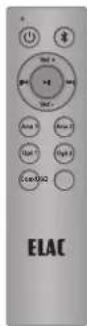
POWER - Press to turn unit ON. The ELAC logo will appear in the front panel display, followed by the current volume setting and currently selected input. Press again to turn unit OFF. Front panel display will turn OFF. Power can also be turned ON/OFF with the front panel Power button
2. VOLUME/TRANSPORT -
Volume - The Volume controls will adjust the volume to the speakers, subwoofer, (if used) or headphones, (if connected). Press Vol+ to increase volume. Press Vol - to decrease volume.
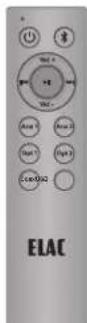
Transport - The Transport buttons will control play/pause, previous track and next track on a compatible Android or iOS device that is paired to the EA101EQ-G. Press once to Play a selected track. Press again to Pause a selected track. Press to select the previous track. Press to select the next track.
- INPUT SELECT - Press these buttons to select audio source devices connected to the EA101EQ-G rear panel inputs.
Ana 1 - Press to select the device connected to Line IN 1.
Ana 2 - Press to select the device connected to Line IN 2.
Opt 1 - Press to select the device connected to Optical IN 1.
Opt 2 - Press to select the device connected to Optical IN 2.
Coax - Press to select the device connected to Coax IN.
USB - Press to select the device connected to USB IN.
- (BLUETOOTH) - Press this button for various Bluetooth functions. See section: Bluetooth for additional information.
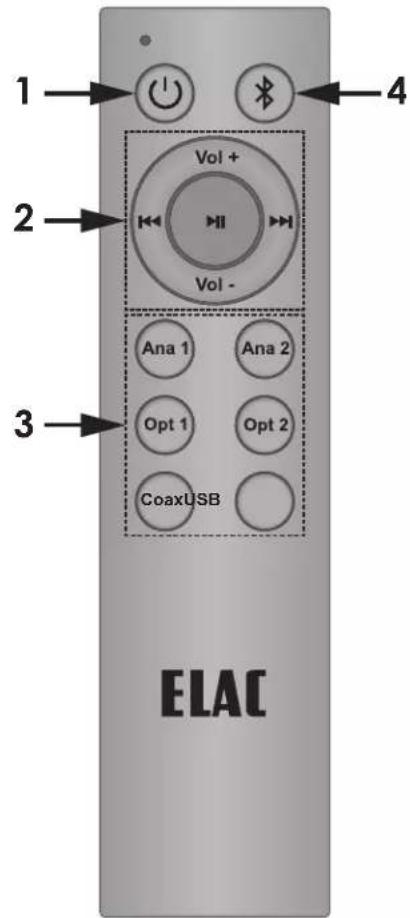
Figure 3
EA101EQ-G IR Remote Features
Amplifier Location
Before making any connections, be sure to locate the EA101EQ-G on a stable, flat surface such as a shelf or table top. Provide enough space around the amplifier for the free flow of air, and do no block any of the vents on the bottom, sides or top, particularly if the amp is going to be located in a cabinet or closet. Leave enough space around the amp for the wires that are connected to the amp and other devices and do not allow the wires to block the vents or the free flow of air around the amp. Do not expose the amp to direct sunlight.

Figure 4 Typical EA101EQ-G System
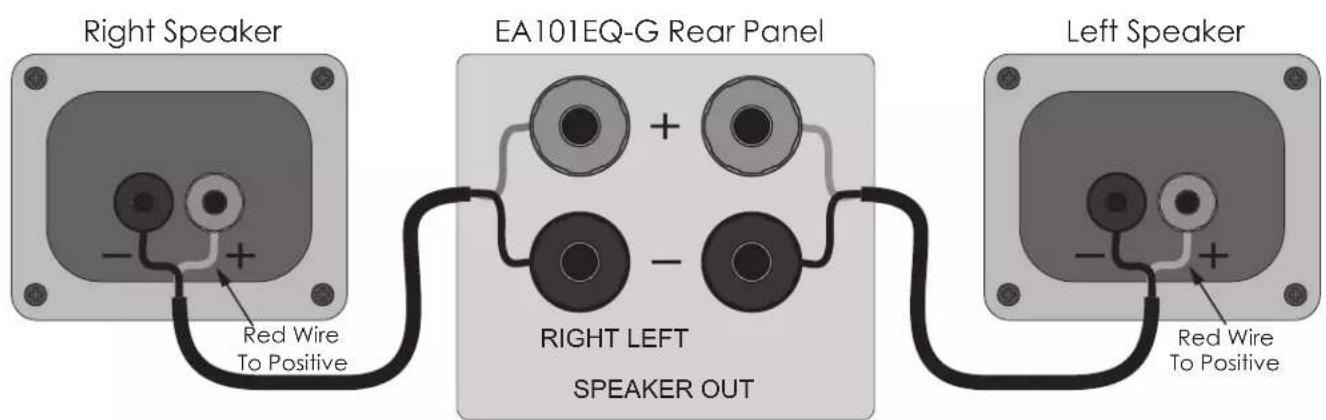
Figure 5 EA101EQ-G Speaker Connections
Speaker Connections
- Use 16AWG (min) 2-conductor stranded speaker wire for speaker connections.
- Strip approximately 1/2 to 3/4 of an inch off the ends and twist the strands together so there are no loose ends that can cause shorts.
- On the amplifier rear panel, turn the clear ends of the Speaker Terminals counterclockwise so there is enough room between the post and the clear end to feed the stripped wire through the post hole without damaging the strands.
- Confirm polarity. (Red wire to +)
- Turn the clear ends clockwise to tighten the post and secure the wire.
- Repeat for left and right speakers, + and -.
- Confirm connection and polarity.
- Connect the speaker wires to the appropriate + and - terminals on the speakers.
- Confirm connection, polarity and position.
NOTE: If the Speaker Out senses a short, the amplifier will enter protect mode and 'Protect' will appear in the front panel display. In protect mode, the audio amp will be shut down, but the logic and control will remain on. Source select and volume changes will be shown in the display, but there will be no output from the amp and 'Protect' will again be shown in the display after changes are made.
To reset the amp, power cycle the amp (unplug the amplifier from the wall jack for 5 seconds and then plug it back in). If the amp does not return to normal operation, please contact ELAC at 714.252.8843 or at service@elac.us.
Other Connections
For information on connecting audio devices to the EA101EQ-G, see section: Rear Panel Features.
For information regarding Bluetooth audio streaming, see section: Bluetooth.
IR Remote/Front Panel Control
IR REMOTE/FRONT PANEL CONTROLS
The EA101EQ-G can be controlled via the included IR Remote, front panel controls or EA101EQ-G app. The front panel and remote would typically be used for amp control. The app has unique features that can be used for fine tuning amp performance based upon the specific sources, speakers and room conditions. This section covers front panel and IR Remote control. See section: EA101EQ-G App for information on the use of the app for setup and fine tuning.
ON/OFF
On the IR Remote, Press the button to turn the amp ON. Press again to turn the amp OFF. On the front panel, Press the Power button to turn the amp ON. Press again to turn the amp OFF. When the amp is turned ON, the front panel display will show the ELAC logo followed by the volume level, current source. If the source is outputting a Dolby Digital signal, the Dolby AudioTM Logo will appear. When the amp is turned OFF the display will turn off.
VOLUME/MUTE
On the IR Remote, Press the button to increase volume. Press the button to decrease volume. Press the button to mute audio output. Press the button again to un-mute audio output. On the front panel, turn the Volume knob clockwise (right) to increase volume. Turn the Volume knob counterclockwise (left) to decrease volume. There is no front panel mute control.
When adjusting volume, the volume level will appear in the front panel display.
NOTE: If a subwoofer is connected, the volume/mute controls will affect speaker and sub volume/mute. If headphones are connected, output to the speakers/sub will be cut and the volume/mute controls will affect headphone volume/mute.
SOURCE SELECT
On the IR Remote, press the Ana 1, Ana 2, Opt 1, Opt 2, Coax or USB buttons to select a specific source. On the front panel, tap the Source button to change source selection one at a time. Press and Hold to scroll through available sources to the desired selection.
NOTE: For a Bluetooth source, see section: Bluetooth for additional information.
BLUETOOTH
The EA101EQ-G has two connections for Bluetooth. One is for Bluetooth Audio Streaming, (playing music from a phone or tablet via Bluetooth through the EA101EQ-G). The other is for use with the EA101EQ-G App.
Minimum Bluetooth Requirements:
Bluetooth Version: v4.0 or better to run the EA101EQ-G App
Bluetooth Profiles: A2DP for Bluetooth Audio Streaming and AVRCP for IR control of a paired phone or tablet
BLUETOOTH PAIRING (BLUETOOTH AUDIO STREAMING)
- Confirm that Bluetooth is ON on the phone or tablet to be used by going to Settings and then Bluetooth in the device menu.
- On the EA101EQ-G IR Remote, press the button to switch the amp to the Bluetooth input. Next, press and hold the button to start the pairing process. 'BT Pair' will appear in the front panel display.
- Under Available Devices, look for: ELAC USB Amplifier. This is the connection for Bluetooth Audio Streaming. Tap it. It should pair to the EA101EQ-G.
- To test, press the button on the IR Remote to select the Bluetooth input on the amp. Play some music on the paired phone or tablet. It should play through the amp. If not, repeat Steps 1-3 to confirm the ELAC USB Amplifier Bluetooth connection.
Appropriately featured smartphones, tablets and other devices can be paired to the EA101EQ-G Amp via Bluetooth for Bluetooth Audio Streaming. The EA101EQ-G IR Remote can be used to control transport functions, (play/pause, previous/next track) on appropriately featured phones and tablets for additional control flexibility. See Section: IR Remote Features for additional information.
BLUETOOTH PAIRING (EA101EQ-G App)
The EA101EQ-G App is a setup app that can run on either Android or iOS devices. The Android version can be downloaded from Play Store. The iOS version can be downloaded from App Store.
- With the app downloaded and installed, confirm that Bluetooth is ON on the phone or tablet to be used by going to Settings and then Bluetooth in the device menu.
- Launch the EA101EQ-G App. A black ELAC Screen will appear with an instruction to select a device from the list. Tap EA101EQ-G Control and the app will sync to the amp. Typically, once the app has been synchronized to the amp from a phone or tablet, unless the app gets uninstalled, the app will automatically sync to the EA101EQ-G amp if the amp is in range and the app has not been turned off. If the app gets tuned off and gets relaunched on a previously paired phone or tablet, the app will automatically sync when launched.
- To confirm that the app is synchronized to the amp, tap the Analog 1, Analog 2, Coax, etc labels at the top of the Master Volume screen. If the source shown on the amp front panel display changes with the source selected from the app, the app is synchronized.
IMPORTANT NOTE: Bluetooth can be simultaneously connected to two devices, but only one can play at a given time. If one stops playing, the other can then play. If one device is connected another can be paired without disconnecting the connected device. If two devices are connected a new device cannot be paired without disconnecting one of the connected devices.
EA101EQ-G APP
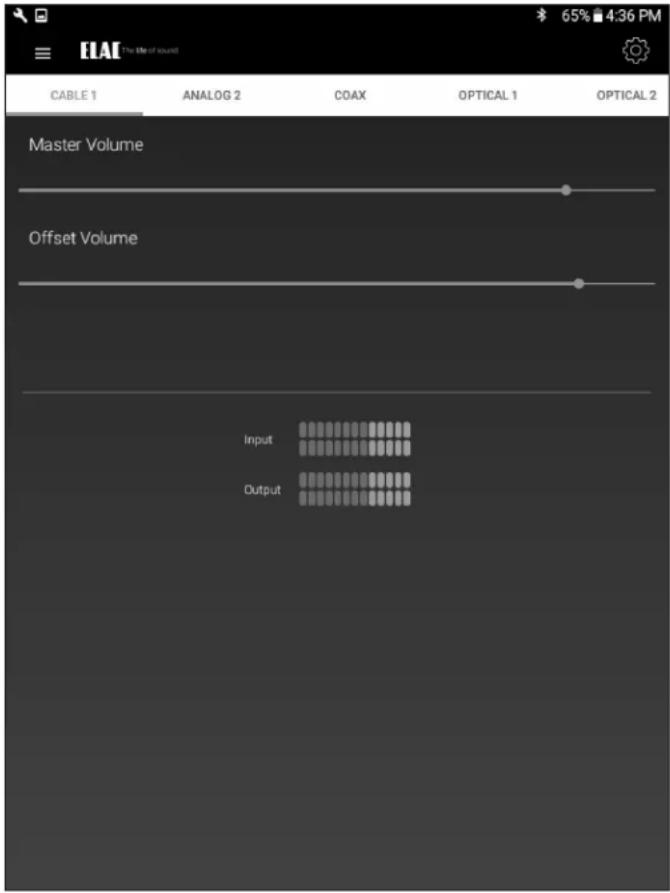
The EA101EQ-G App is a two-way setup app that connects to the amp via Bluetooth Low Energy. App setup features include: source select, master volume, offset (individual source) volume, source naming, bass/treble, sub volume, balance, Auto Blend, IR Remote learning and screen brightness. The app will open to the Master Volume screen when launched.
MASTER VOLUME
The Master Volume slider sets the amplifier output volume. It affects the output to the speakers and sub (if used) and headphones if connected.
When adjusting master volume, the volume level will appear in a bubble on the app screen and on the front panel display. If the volume is adjusted with the IR remote or front panel volume control, the app master volume will adjust automatically in real time.
OFFSET VOLUME
The Offset Volume slider sets the output of each connected source relative to the other sources. This allows adjusting the source levels so when switching from one source to another, one won't be very loud and another very soft. When adjusting Offset level be sure to use program material that is equal in intensity, volume and dynamics so the settings are made to the relative output of the sources and not the program material itself. Setting the Offset on one source to soft solo harp music and another to pounding electronic dance music will not result in proper settings. The app provides two digital meters to
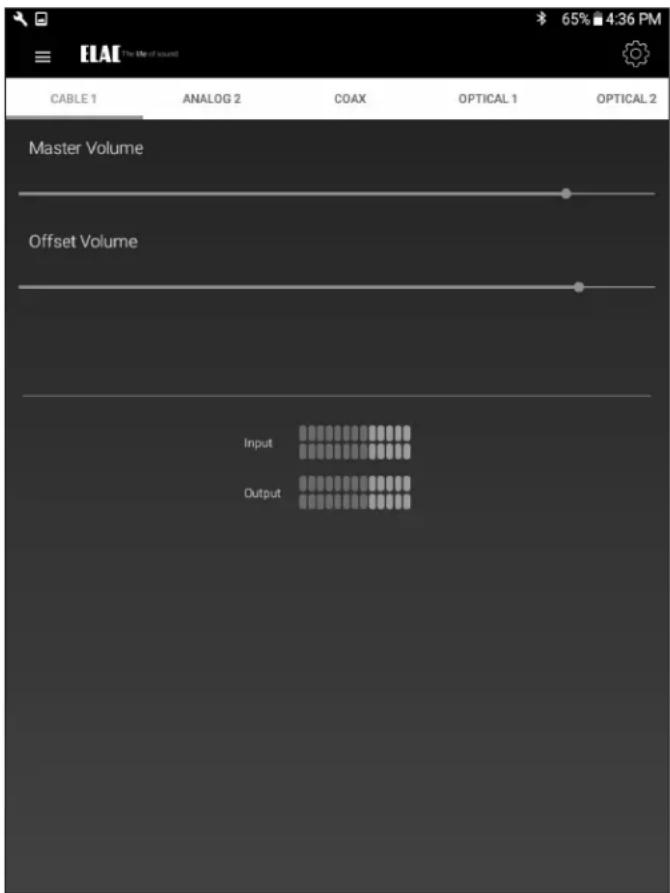
Figure 6 EA101EQ-G App - Master Volume
indicate the relative input and output level of each source. Green is good. Amber is OK, but not too much, and Red is bad. The ideal settings have the Output levels set so that no source is in the red and maybe just flickering the amber cell. Also try to set the individual outputs so that no source can get so loud that it can damage the amp, speakers or your ears, even if the amp gets turned all the way up! The Offset levels can only be adjusted using the app...so keep the app away from the kids and friends!
- Before setting the Offsets, turn the Master Volume down a bit just in case a particular source comes on louder than expected.
- With all connected sources playing consistent program material, tap through all inputs at the top of the app screen to get a feel for which input are louder and softer.
- Adjust the Offset for each source until the output from the speakers, or headphones is consistent across all sources. The settings will be automatically stored in the amp.
SETUP
The settings for Input Names, Bass/Treble, Sub Level, Screen Brightness and Speaker Balance can all be accessed by tapping the Settings Gear in the top right corner of the app when in the Source select/Volume screen. (Figure 6)
Tap the gear. The Settings Menu will appear.
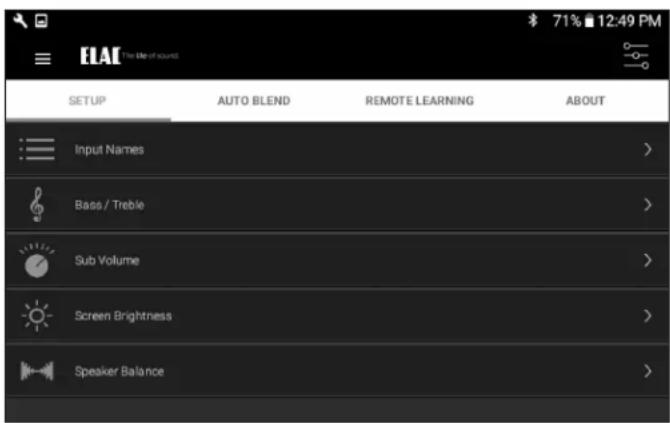
Figure 7 EA101EQ-G App - Setup Menu
INPUT NAMES
Each of the inputs can be renamed to indicate the actual connected source...i.e. Optical 1 can be changed to TV or Blu-ray. USB can be changed to Computer or Server. The maximum number of characters is 9.
- In the settings menu tap Input Names.
- Tap to the right of a NAME in the list. Repeatedly tap the backspace key to delete the default name. OR...Drag/ select a name in the list.
- The device keyboard will appear. Type the new name...Cable, Blu-ray, Internet, Server, etc.
- Tap next to change other names and repeat Steps 2-4.
- When finished tap the slider icon at the top right to return to the source/volume screen or select another setting in the menu bar. To return to the Setup menu tap the back button on the phone or tablet.
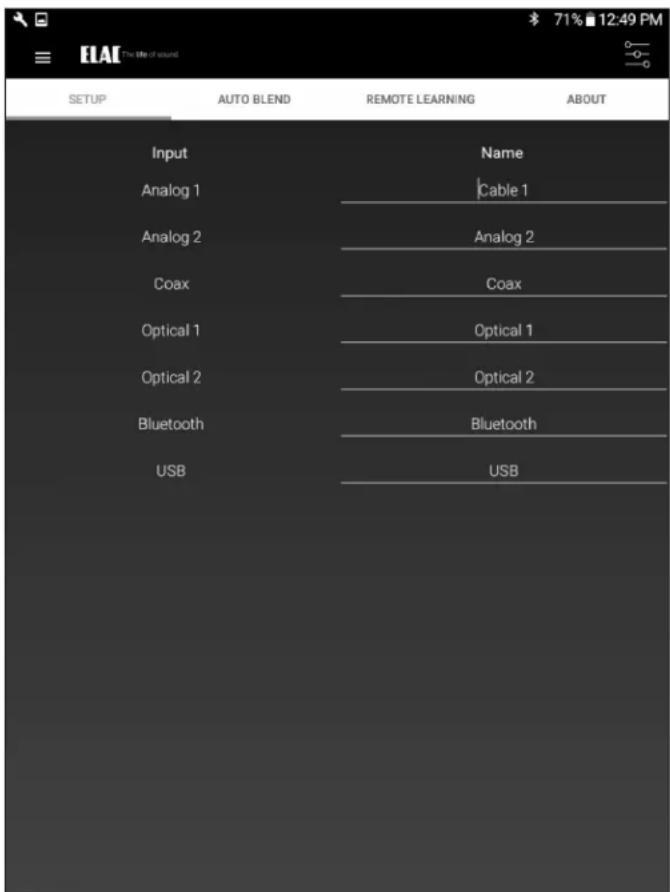
Figure 8 EA101EQ-G App - Name Inputs
BASS/TREBLE
The Bass/Treble section adjusts the tone controls for the AE101EQ-G master output. Each control can be adjusted + / - 12dB
- In the Settings Menu tap Bass/Treble.
- With a fingertip, slide the blue dot on the Bass slider to adjust bass to desired level. A bubble will appear to indicate level setting.
- With a fingertip, slide the blue dot on the Treble slider to adjust treble to desired level. A bubble will appear to indicate level setting.
- Settings will be automatically stored in the amp.
- To return to the Setup Menu tap the back button on the phone or tablet.
- When finished tap the slider icon at the top right to return to the source/volume screen.
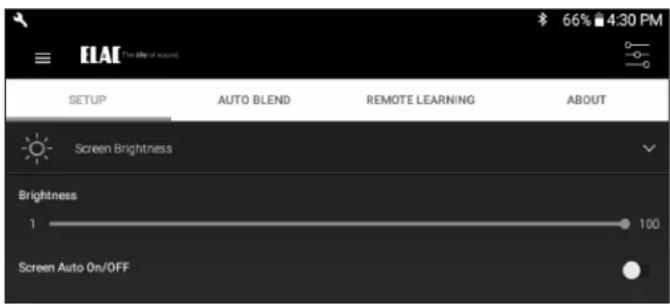
SCREEN BRIGHTNESS
Screen Brightness adjusts the intensity of the EA101EQ-G front panel display.
RANGE: 1-100.
The Screen Auto ON/OFF sets the front panel display to stay on or turn off after making changes to power, source, volume, etc.
- In the settings menu tap Brightness.
- With a fingertip, slide the blue dot on the Brightness slider to adjust the front panel display intensity to desired level. A bubble will appear to indicate level setting.
- To change the Screen Auto ON/OFF
Setting, slide the switch to the left (white) to have the display remain on while the amp is powered ON. Slide the switch to the right (blue) to have the display turn off after making changes to power, source, volume, etc while the amp is powered ON.
- Settings will be automatically stored in the amp.
- To return to the Setup Menu tap the back button on the phone or tablet.
- When finished tap the slider icon at the top right to return to the source/volume screen.
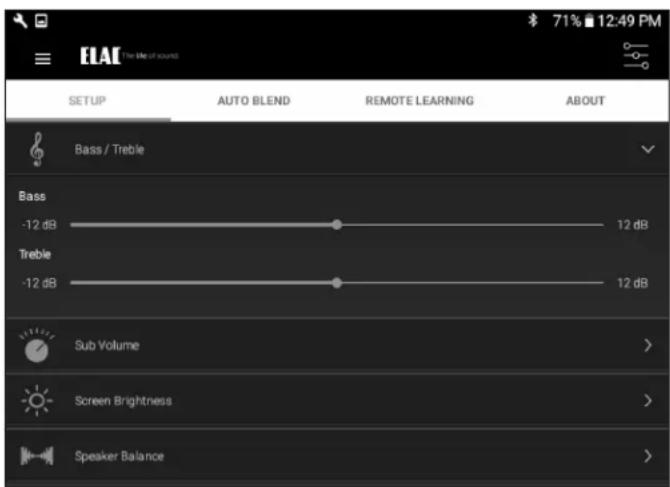
Figure 9 EA101EQ-G App - Bass/Treble
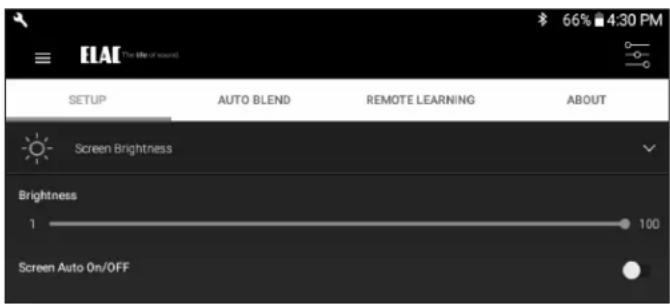
Figure 10 EA101EQ-G App - Screen Brightness
SPEAKER BALANCE
Speaker Balance adjusts the relative volume of the left and right speakers. Use this control to adjust the stereo sound from the speakers if they are unevenly placed relative to the listening position. Each control can be adjusted +/-100 with 0 being center.
- In the settings menu tap Balance.
- With a fingertip, slide the blue dot on the Speaker Balance slider to adjust balance to the desired position. A bubble will appear to indicate the setting.
- Setting will be automatically stored in the amp.
- To return to the Setup Menu tap the back button on the phone or tablet.
- When finished tap the slider icon at the top right to return to the source/volume screen.
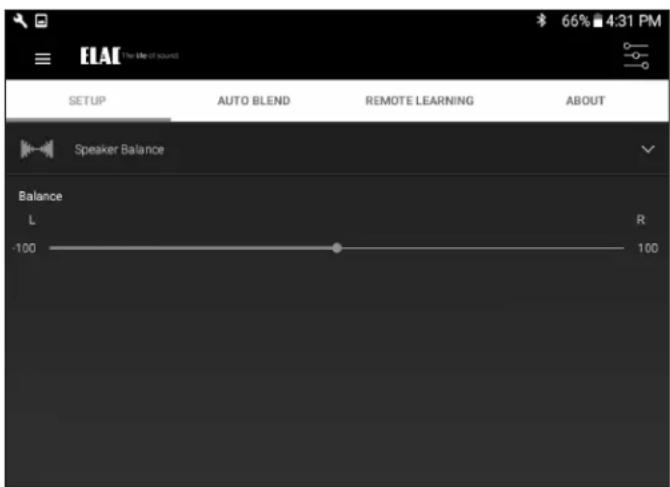
Figure 11 EA101EQ-G App - Balance
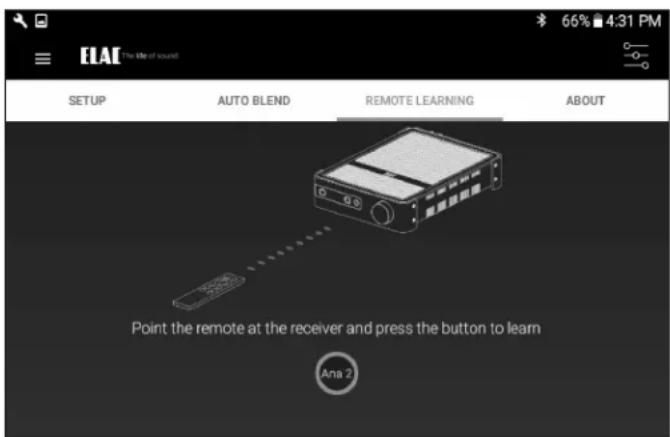
REMOTE LEARNING
The Remote Learning section allows the EA101EQ-G to learn IR commands from other remote controls. This can simplify user control by teaching the amp commands from another remote such as a TV remote so that remote can be used to control the TV, EA101EQ-G and other devices if capable.
When learning commands, be sure to use commands that will make sense when controlling the amp. Use volume up/down commands for volume. Use source select commands for source select functions. Use transport functions for play/pause/previous/ next.
NOTE: The Play/Pause button is also a mute button except when used in Bluetooth mode where it is a pause/play command for a synchronized Bluetooth device. So...a mute command will mute/unmute the speakers for all sources except Bluetooth where it will pause/play the synchronized device.
- In the source/Master Volume screen, tap the Setup Gear in the upper right corner. From the Setup Menu, tap Remote Learning. The Remote Learning - Select screen will appear.
- In the 'Select' screen tap a button to be replaced with a new IR command. Follow the cues on the amp front panel display. 'Scanning' will appear on the display.
- Press the button on the remote to be learned until the amp display indicates: 'Captured'. The Display will indicate 'OK' if the code was learned.
- When 'Again' appears on the front panel display, press the SAME BUTTON on the remote to be learned until the amp again indicates: 'Captured'.
- The amp will return to it's previous operating mode.
- Press the button on the learned remote to test the command to be sure the command has been learned and is affecting the proper function.
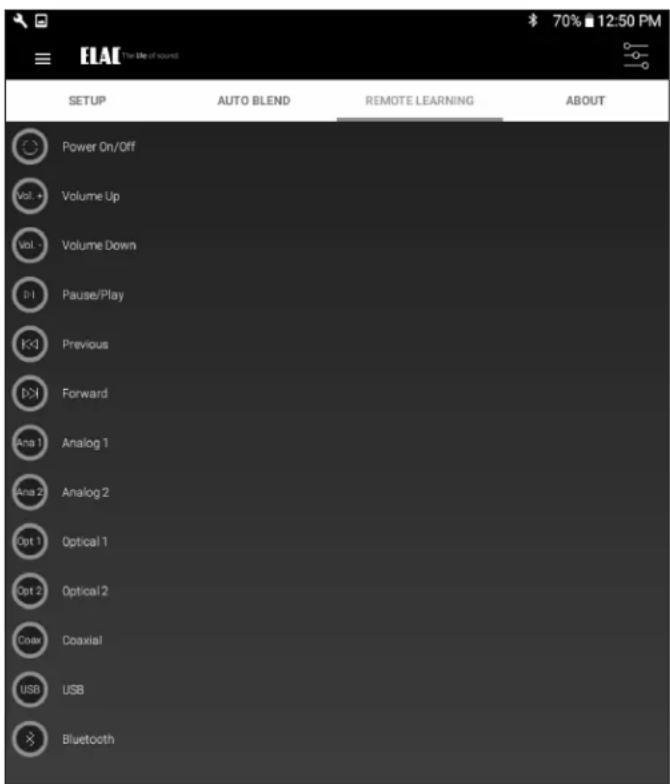
Figure 12 EA101EQ-G App - Remote Learning - Select
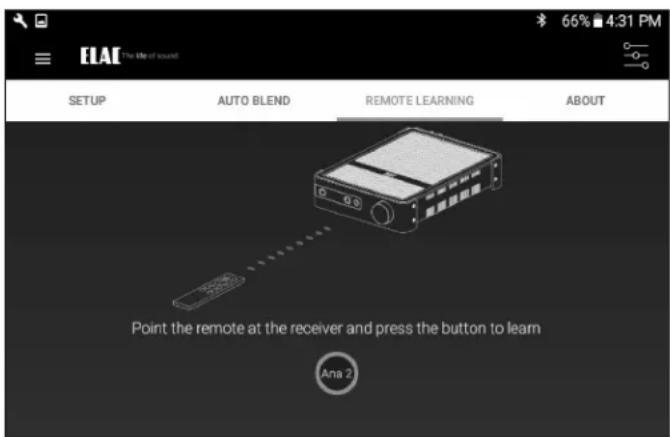
Figure 13 EA101EQ-G App - Remote Learning - Learn
- Repeat Steps 2-6 for all commands to be learned.
- For additional Setup Modes, tap an item from the Menu Bar at the top of the screen.
- When finished tap the slider icon at the top right to return to the source/volume screen.
ABOUT
The About screen indicates important information about the device to which the app is synchronized (EA101EQ-G). This can be useful for service purposes to determine whether the device has most current firmware to provide best performance and latest features. To confirm firmware version:
- With the EA101EQ-G app synchronized to the amp, select About from the Setup Menu Bar.
Periodically visit http://elac.com/firmware to check for firmware updates to assure your amp has all current feature and performance updates.
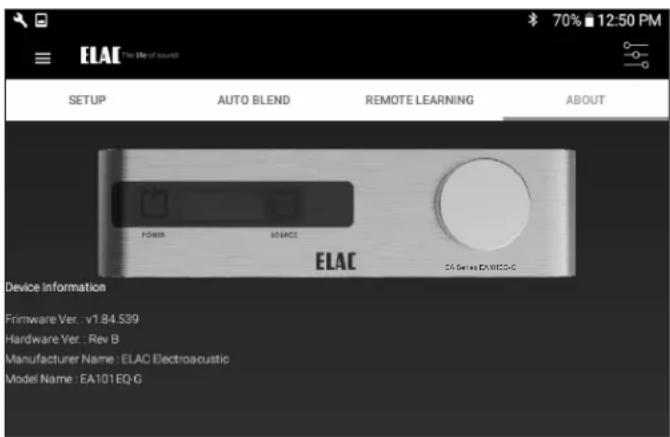
Figure 14 EA101EQ-G App - About
ELAC Americas LLC.
North America Limited Liability Warranty
Amplifiers
ELAC Americas LLC. Warrants to the original purchaser that this product be free from defects and or workmanship for a period of 1 (One) year from the original date of purchase. During this time period, repair or replacement of parts will be free of charge to the original owner (see limitations below). Shipping to and return from the repair center will be the responsibility of the original purchaser.
Limitations
Warranty begins on the date of original purchase from an authorized ELAC Americas LLC dealer.
- Product is warranted only if used in home applications. Commercial use of this product is not warranted
Product has bee modified or altered in any way will not be warranted.
Product that has been abused or subjected to faulty equipment will not be warranted.
- Products with defaced or removed serial numbers will not be warranted.
If Service is Required
In the event that service is required, please contact ELAC America at 714.252.8843 or at service@elac.us to arrange for service or replacement. You will be responsible to provide proof of purchase (Copy or original sales receipt). Shipping to and from our repair center will be the responsibility of the original purchaser.
Warranty Outside of North America
This warranty applies to products purchased in the United States and Canada. For Warranty information claims outside of North America, please contact the local dealer/distributor in th country of purchase.
TRADEMARK INFORMATION
The Bluetooth® word mark and logos are registered trademarks owned by the Bluetooth SIG, Inc. and any use of such marks by ELAC Americas is under license.
Dolby, Dolby Audio and the double-D symbol are Trademarks of Dolby Laboratories.
App Store is a service mark of Apple Inc., registered in the U.S. and other countries.
Google Play and the Google Play logo are trademarks of Google Inc.
All other Trademarks and logos are property of their respective companies.
ELAC
The life of sound.
ELAC Americas LLC. • 11145 Knott Ave. Suites E & F • Cypress, CA 90603 • USA
714.252.8843 • elac.com
ELAC Electroacoustic GmbH • Fraunhoferstraße 16 • 24118 Kiel • Germany +49 (431) 64 77 4-0 • elac.com
ELAC
ELAC The life of sound.
PORTABLE CART WARNING

OLED (organic light emitting diode)
EA101EQ-G App - Master Volume
dassieur.
EA101EQ-G App - Screen Brightness
EA101EQ-G App - Remote Learning - Anlernen
ELAC The life of sound.