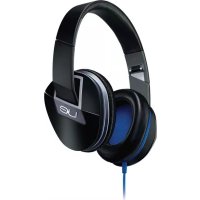
6000 - Headphones ULTIMATE EARS - Free user manual and instructions
Find the device manual for free 6000 ULTIMATE EARS in PDF.


| Product Type | Active noise cancelling headphones |
| Brand | Ultimate Ears |
| Model | 6000 (UE 6000) |
| Dimensions (folded) | Approx. 18 x 15 x 8 cm |
| Weight | Approx. 210 g (with batteries) |
| Power supply | 2 AAA alkaline batteries (pre-installed) |
| Battery life | Up to 30 hours (active noise cancellation on) |
| Connectivity | Wired via removable 3.5 mm audio cable with remote |
| Key features | Active noise cancellation, call/multimedia controls, built-in microphone, audio sharing (with splitter) |
| Compatibility | Smartphones, tablets, computers (Windows, Mac) with 3.5 mm jack |
| Included accessories | Audio cable with remote, splitter, carrying case, 2 AAA batteries |
| Adjustment | Adjustable headband and padded ear cups with memory foam |
| Indicators | Charge level indicator light (green/red) |
| Care and cleaning | Clean with a soft, dry cloth. Do not use liquid or abrasive products |
| Storage | Folds for easy storage in the provided case |
| Warranty | 2 years (depending on country) |
Frequently Asked Questions - 6000 ULTIMATE EARS
User questions about 6000 ULTIMATE EARS
0 question about this device. Answer the ones you know or ask your own.
Ask a new question about this device
Download the instructions for your Headphones in PDF format for free! Find your manual 6000 - ULTIMATE EARS and take your electronic device back in hand. On this page are published all the documents necessary for the use of your device. 6000 by ULTIMATE EARS.
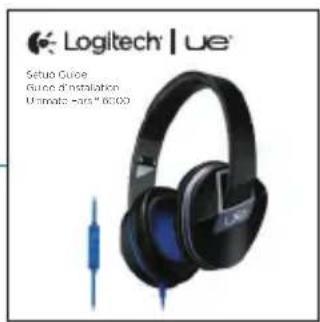
USER MANUAL 6000 ULTIMATE EARS
- Headphones
- Detachable audio cable with in-line remote
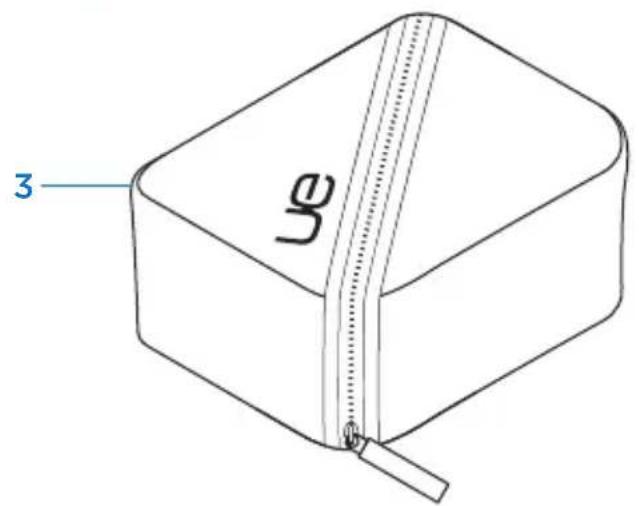
- Travel case
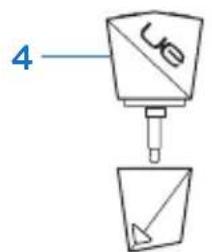
- Sharing splitter
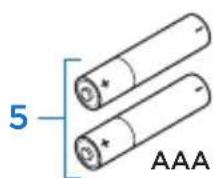
5.2 AAA alkaline batteries (pre-installed) - Documentation

6
UE6000
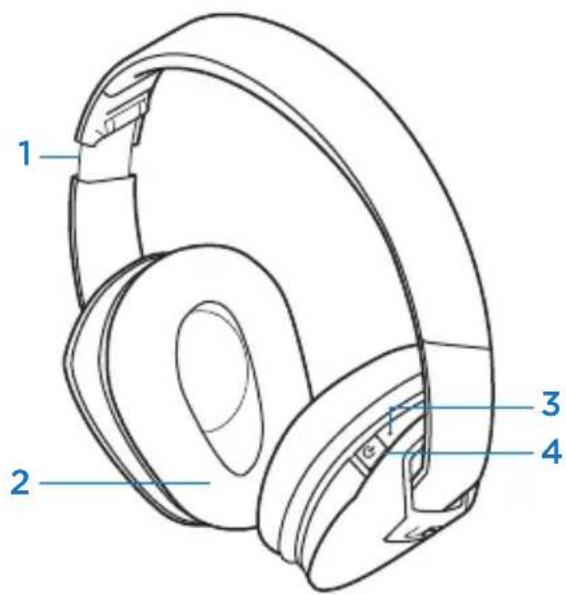
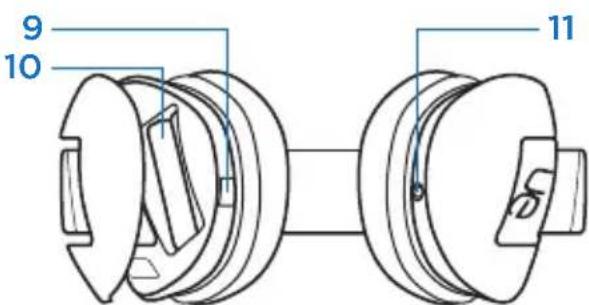
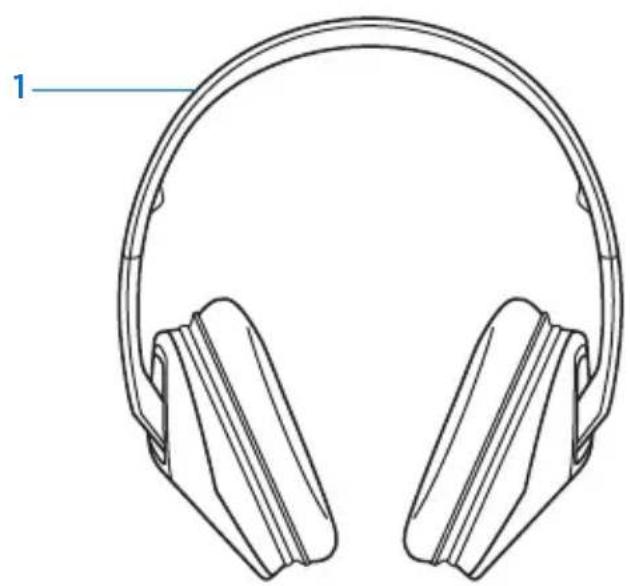
Know your product
- Adjustable headband
- Memory foam cushions
- Battery LED
- On/Off slider
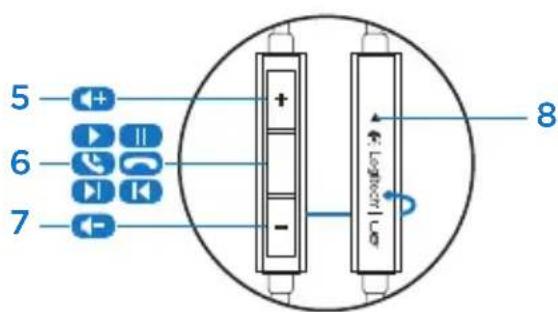
- Volume up
-
Media/calling controls
-
One click: Play/pause (audio) Call answer/hang up (phone)
- Double click: Next track (audio)
- Triple click: Previous track (audio)
- One click, then click and hold: Fast forward (audio)
- Two clicks, then click and hold: Rewind (audio)
-
Click and hold: Activate/deactivate voice dial
-
Volume down
- Microphone
-
Battery door release (Press button to open battery door.)
-
Battery compartment
- 3.5 mm input
1 Function varies by phone. Activates Siri on iPhone 4S.
UE6000
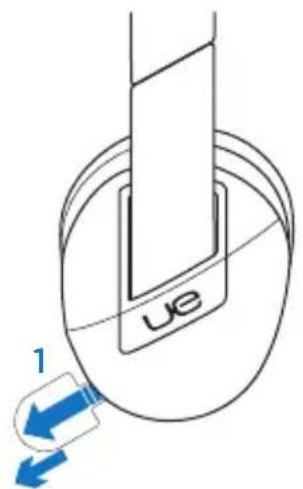
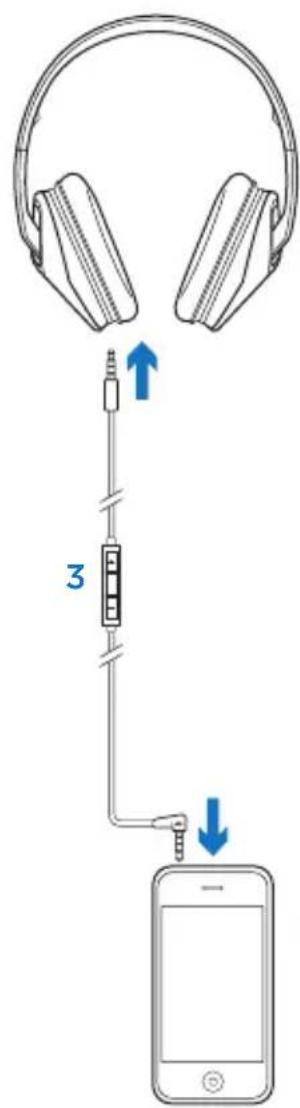
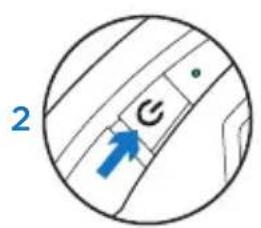
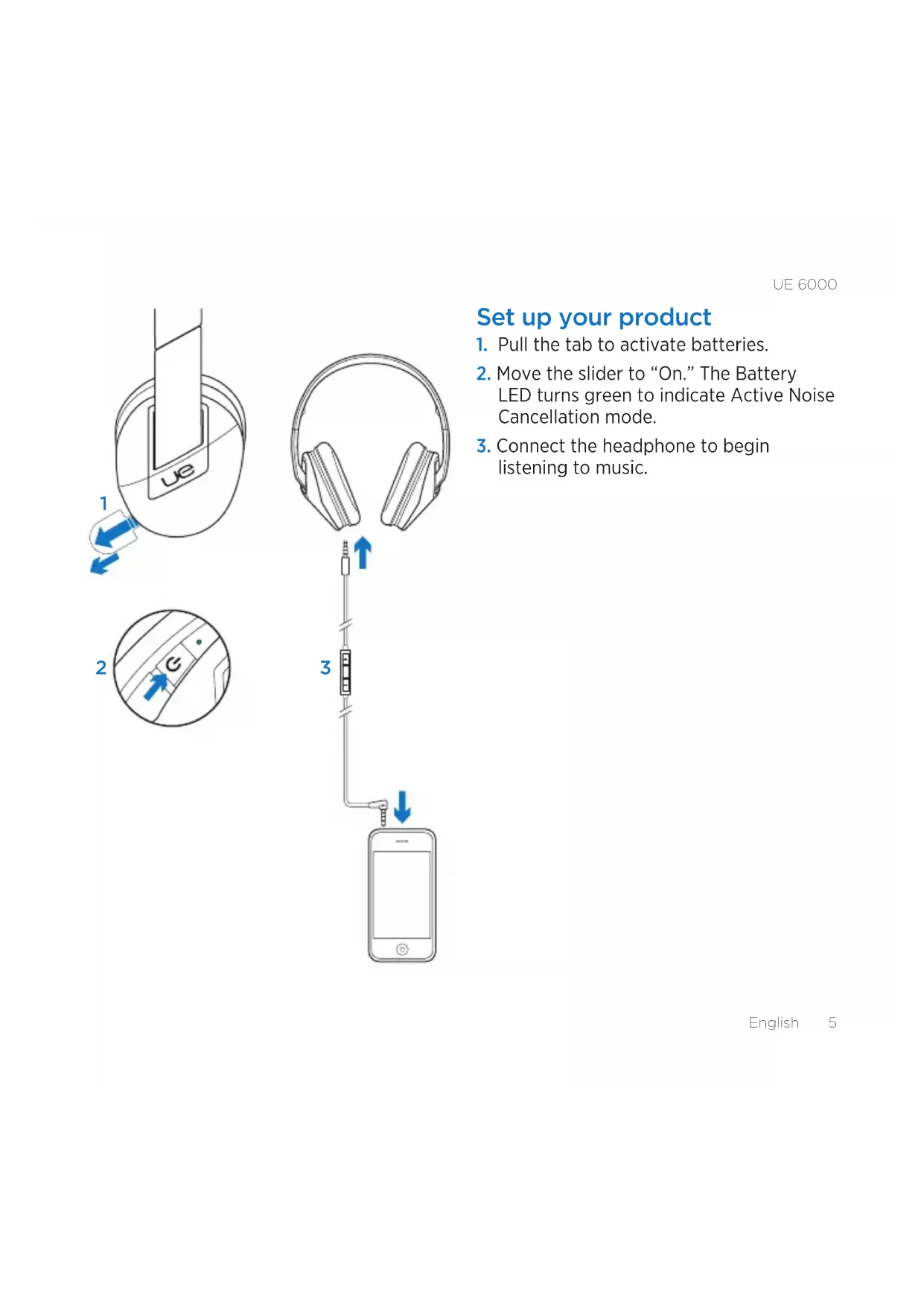
Set up your product
- Pull the tab to activate batteries.
- Move the slider to "On." The Battery LED turns green to indicate Active Noise Cancellation mode.
- Connect the headphone to begin listening to music.
UE6000
Product features
Answering a call
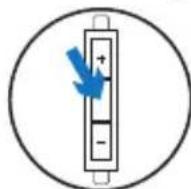
- On your phone, the music fades and a ring tone sounds.
- You can pick the call up on your phone or press the center button.
To hang up, press the center button.
Sharing your music
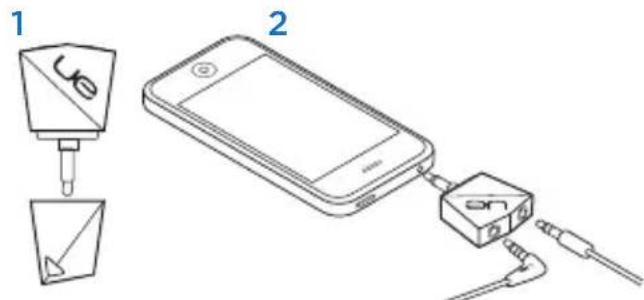
- Remove the cap.
- Plug in the sharing splitter and connect. Listen to music together.
Active Noise Cancellation Battery LED
- No light: headphone off
- Green: Power on; batteries good
- Red: Low power; change the batteries
If the power runs out, Active Noise Cancellation ends and music stops. Move the slider to the "Off" position to keep listening to music (without Active Noise Cancelling and equalization). Replace batteries for optimal performance.
Storage
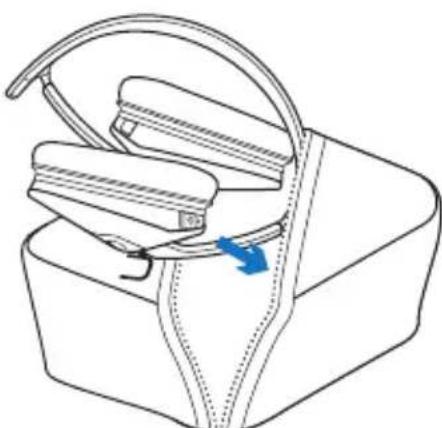
The headphone folds easily for storage.
Visit Product Central
There's more information and support online for your product. Take a moment to visit Product Central to learn more about your new Ultimate Ears headphone.
Browse online articles for setup help, usage tips, or information about additional features.
Connect with other users in our Community Forums to get advice, ask questions, and share solutions.
At Product Central, you'll find a wide selection of content:
- Tutorials
Troubleshooting
Support community - Software downloads
Online documentation
Warranty information - Spare parts (when available)
Go to www.logitech.com/support/ue6000
UE6000
Troubleshooting
No sound or faint sound
- Check the cable connection. Make sure the straight connector is connected to the headphone and the angled connector is connected to your device.
Try increasing the volume for the headphone and your media application. - Restart your media application.
If the Battery LED is red, replace the 2 AAA alkaline batteries.
Headphones not working with a computer
- Specify audio settings for your operating system:
Windows® (Control Panel)
Voice playback and recording:
Computer's soundcard
Sound playback: Computer's speakers
Mac® OS X (Preferences)
Sound input: Internal microphone
Sound output: Internal speakers
Refer to your operating system documentation. For more information, go to www.logitech.com/support/ue6000.
What do you think?
Please take a minute to tell us.
Thank you for purchasing our product.
www.logitech.com/ithink
UE6000
Contenu
www.logitech.com/ithink
www.logitech.com/support/ue6000
UE6000

Canada +1866-934-5644
United States +1 646-454-3200
Logitech ue
POWER TO THE MUSIC
www.logitechUE.com
© 2012 Logitech. All rights reserved. Logitech, the Logitech logo, and other Logitech marks are owned by Logitech and may be registered. Apple, Mac, and the Mac logo are trademarks of Apple Inc., registered in the U.S. and other countries. Microsoft, Windows, and the Windows logo are trademarks of the Microsoft group of companies. All other trademarks are the property of their respective owners. Logitech assumes no responsibility for any errors that may appear in this manual. Information contained herein is subject to change without notice.



- UE6000
- KNOW YOUR PRODUCT
- SET UP YOUR PRODUCT
- PRODUCT FEATURES
- ANSWERING A CALL
- SHARING YOUR MUSIC
- ACTIVE NOISE CANCELLATION BATTERY LED
- STORAGE
- VISIT PRODUCT CENTRAL
- TROUBLESHOOTING
- NO SOUND OR FAINT SOUND
- HEADPHONES NOT WORKING WITH A COMPUTER
- WHAT DO YOU THINK
- CONTENU
- WWW.LOGITECH.COM/SUPPORT/UE6000
- LOGITECH UE
- POWER TO THE MUSIC
Brand : ULTIMATE EARS
Model : 6000
Category : Headphones