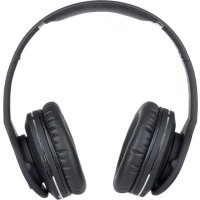
Fathom 178709 - Headphones MANHATTAN - Free user manual and instructions
Find the device manual for free Fathom 178709 MANHATTAN in PDF.


| Product Type | Bluetooth Wireless Stereo Headset |
| Brand | Manhattan |
| Model | Fathom 178709 |
| Wireless Technology | Bluetooth (with NFC) |
| Wireless Range | Up to 10 meters |
| NFC | Yes, inductive area (K) |
| Wired connectivity | 3.5mm jack connector (cable included) |
| Power supply | Built-in lithium-ion battery |
| Charging type | Micro-USB |
| Charging time | Approximately 3 hours |
| Estimated battery life (playback) | Approximately 8 hours |
| Bluetooth profiles | HFP, HSP, A2DP, AVRCP |
| Multipoint pairing | Up to 2 devices simultaneously |
| Controls | Multifunction button, prev./next, play/pause, volume wheel |
| Microphone | Built-in for calls |
| LED indicator | Red (charging/low battery), blue (connected), red/blue flashing (pairing) |
| Estimated weight | Approximately 180 g |
| Compatibility | Smartphones, tablets, Bluetooth computers |
| Care | Clean with a soft, dry cloth |
| Safety | Do not expose to water; keep battery at 15-25°C |
| Included accessories | Micro-USB cable, 3.5mm audio cable, manual |
| Warranty | Manufacturer's standard (details at manhattan-products.com) |
Frequently Asked Questions - Fathom 178709 MANHATTAN
User questions about Fathom 178709 MANHATTAN
0 question about this device. Answer the ones you know or ask your own.
Ask a new question about this device
Download the instructions for your Headphones in PDF format for free! Find your manual Fathom 178709 - MANHATTAN and take your electronic device back in hand. On this page are published all the documents necessary for the use of your device. Fathom 178709 by MANHATTAN.
USER MANUAL Fathom 178709 MANHATTAN
Fathom Wireless Headphones User Manual
MODELS 178709 & 178716

natural_image
Black and white photo of a pair of black outdoor headphones with orange ear cover (no text or symbols visible)Model 178709
manhattan® Life just got easier.™
manhattan-products.com
Important: Read before use. • Importante: Leer antes de usar.
WARRANTY INFORMATION
English: For warranty information, go to
manhattan-products.com/warranty
Disposal of Electric and Electronic Equipment (applicable in the European Union and other European countries with separate collection systems)
English: This symbol on the product or its packaging indicates that this product shall not be treated as household waste. Instead, it should be taken to an applicable collection point for the recycling of electrical and electronic equipment. By ensuring this product is disposed of correctly, you will help prevent potential negative consequences to the environment and human health, which could otherwise be caused by inappropriate waste handling of this product. If your equipment contains easily removable batteries or accumulators, dispose of these separately according to your local requirements. The recycling of materials will help to conserve natural resources. For details about recycling this product, contact your local city office, your household waste disposal service or the shop where you purchased this product. Outside the EU: To discard this product, contact your local authorities and ask for the correct manner of disposal.
This equipment has been tested and found to comply with the limits for a Class B digital device, pursuant to Part 15 of Federal Communications Commission (FCC) Rules. These limits are designed to provide reasonable protection against harmful interference in a residential installation. This equipment generates, uses and can radiate radio frequency energy, and if not installed and used in accordance with the instructions may cause harmful interference to radio communications. However, there is no guarantee that interference will not occur in a particular installation. If this equipment does cause harmful interference to radio or television reception, which can be determined by turning the equipment off and on, the user is encouraged to try to correct the interference by one or more of the following measures: reorient or relocate the receiving antenna; increase the separation between the equipment and the receiver; connect the equipment to an outlet on a circuit different from the receiver; or consult the dealer or an experienced radio/TV technician.
CE / R&TTE
English: This device complies with the requirements of R&TTE Directive 1999/5/EC. The Declaration of Conformity for this product is available at:
manhattan-products.com

FATHOM WIRELESS HEADPHONES
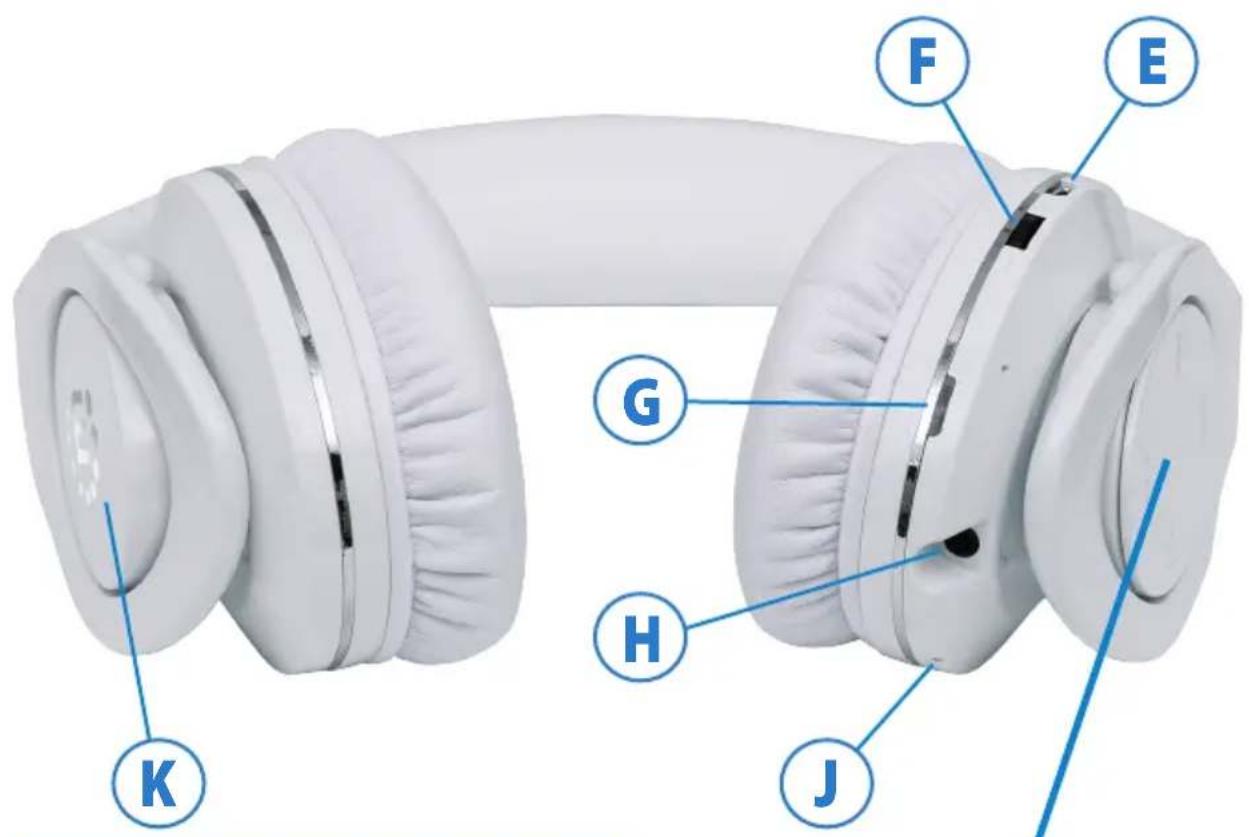
A Multifunction button
B Previous song / track listing
C Next song / track listing
D Play/Pause
E Micro USB charging port
F Volume +/- dial
G LED
H Line In jack (3.5mm audio)
J Built-in microphone
K Near field communication (NFC) button
natural_image
White headband with black plastic strap, shown against a plain white background (no text or symbols visible)
Initial Setup
Connecting
You can connect the headphones two ways to enjoy audio:
- Create a wireless connection to a mobile device or computer that features Bluetooth wireless technology (see Bluetooth Pairing below); or
- Use the included 3.5mm stereo cable to connect (H) to an audio source (which doesn't require charging the battery first). Note: The buttons — Multifunction (A), Previous (B), Next (C), Play/Pause (D) — and volume dial (F) work only during Bluetooth wireless operation.
Built-in battery charging
Prior to initial use as wireless headphones, the built-in battery needs to be charged. A full charge can take up to 3 hours, but you can listen to music or make phone calls while charging.
1 Use the included USB-to-micro USB cable to connect the headphones (E) to a powered computer or other charging device.
2 The LED (G) lights red while charging and turns off when the charge is complete. Note: The LED
| LED Indications | |
| Mode Description | Mode Description |
| Standby Flashes blueLow battery Flashes redIncoming call Flashes blue rapidlyCharging Lights red | Powering on Flashes bluePowering off Flashes redPairing Alternately flashes red and blue |
flashes red to indicate low voltage. Recharge the battery as soon as you can. For details, see About the Battery below.
Bluetooth Pairing & Wireless Operation
This product utilizes the latest in Bluetooth wireless technology; wireless performance may vary from device to device. If using this product with a Mac or PC, ensure that your Bluetooth driver is up to date. If it isn't, visit your computer manufacturer's website for details and updates.
1 Press the Multifunction button (A) for about 5 seconds, until the LED (G) alternately flashes red and blue. Note: Pressing the Multifunction button for just 3 seconds will put the headphones in Standby mode (the LED lights red, then flashes blue only).
2 With the LED (G) alternately flashing red and blue, activate your device's Bluetooth function and search for Bluetooth devices. Refer as needed to the manual of your phone, tablet, computer, etc. regarding the Bluetooth operation of your source device.
3 Once the device finds "manhattanFATHOM," an on-screen prompt will ask if you're ready for pairing. Click or press OK or Confirm to continue. Note: If the device prompts you to enter a PIN, enter 0000 and click or press Yes or Confirm to continue.
- After a successful connection is made, the LED (G) will flash blue and the headset will beep. If the pairing has failed and the LED is still alternately flashing red and blue, the pairing procedure needs to be re-initiated on your source device.
Pairing with more than one device at a time (Multipairing)
These headphones can connect with two types of devices: those using a Hands-Free or Headset Profile (HFP or HSP), such as smartphones; and those using an Advanced Audio Distribution or Audio/Video Remote Control Profile (A2DP or AVRCP), such as laptops. To pair the headphones with a phone and any other Bluetooth-enabled devices, pair with the other devices first, then turn them off before pairing with the phone last. When the other devices are turned on again, they will connect with the headphones automatically.
- Once multiple devices have been paired, the headphones will remember each one unless they are deleted from a device's Bluetooth profile.
- If the headphones are paired with a phone that supports both types of profiles (HFP and A2DP, for example), simultaneous connections may be made that won't allow other devices to be connected.
Reconnecting to a Bluetooth-enabled device
Every time the headphones are turned on, they'll automatically connect to the last connected device.
- If the headphones are in Standby mode but not connected to any HFP devices, briefly press the Multifunction button (A) twice to connect to the last connected HFP device.
- If the headphones are in Standby mode but not connected to any A2DP devices, briefly press the Next button (C) once to connect to the last connected A2DP device.
Near Field Communication (NFC) Operation
Make sure that your mobile phone has the NFC function and the headphones aren't low on power. Specific NFC procedures can vary among phones: Refer to your phone manual as needed for details.
- To automatically turn the headphones on or off, hold the phone (with the NFC function activated) within a centimeter of the inductive area (K) of the headphones for 3 seconds.
- To automatically enable the headphones' Bluetooth function, hold the phone (with the NFC function activated) within a centimeter of the inductive area (K) of the headset for 5 seconds.
About the Battery
- A new battery attains its optimal level of performance (its ability to fully power the headphones) only after two or three complete charge and discharge cycles. The battery can be charged and discharged hundreds of times, but it will eventually wear out.
- When not charging the battery, disconnect the headphones from any power source. Do not leave a fully charged battery connected to a charging circuit since overcharging may shorten battery life.
- If a fully charged battery is left unused, it will fully discharge over a period of time. These headphones will automatically turn off if no devices are connected during wireless operation.
- Leaving the headphones exposed to extremes in temperature for any length of time, such as in a parked car during summer or winter, will reduce the battery life and capacity. Ideally, the battery temperature should be maintained at 15-25°C (59-77°F).
- As with any batteries, do not dispose of the headphones in a fire or anywhere it could be expected to catch fire, as the built-in battery could explode.
Operating Tips
If you're unable to connect the headphones to a device:
- Make sure that the headphones are fully charged, switched on, paired with the device and indicating a successful connection.
Make sure the device's Bluetooth function is activated.
- Check that the distance between the headphones and the device is no more than 10 m / 33 ft., and that there are no obstructions such as walls or other active wireless items between two devices that could interfere with the signal.
- Bluetooth music devices or Bluetooth / Bluetooth stereo transmitter music devices must support Bluetooth A2DP and Bluetooth AVRCP.
- If the headphones are paired to more than one device at the same time, they will only connect to the device with the strongest signal.
- Not all phones feature the function that allows the headphones to be switched from music to phone calls.
Quick Reference Guide
Operation Steps
Power on / Standby Press the Multifunction button about 3 seconds. The LED lights red, then flashes blue.
Power off Press the Multifunction button about 3 seconds. The LED turns red with an audio confirmation.
Pairing Press the Multifunction button about 5 seconds (until the LED alternately flashes red and blue).
Answer/End a call Briefly press the Multifunction button.
Reject a call Press the Multifunction button for about 2 seconds (until you hear a beep), then release.
Last number redial In Standby mode, press the Multifunction button twice.
Operation Steps
Play/Pause Briefly press
▶ to play or pause music.
Increase/Decrease volume During a call or while listening to music, rotate the Volume dial up or down to increase or decrease the volume. A beep indicates the maximum or minimum level.
Previous Briefly press
◀◀ to play the previous song in a playlist.
Next
Briefly press ▶▶ to play the next song in a playlist.
Voice transfer During a call, press the Multifunction button for about 2 seconds (until you hear a beep). The beep indicates you've switched between music and phone call modes.
Microphone mute Briefly press the Multifunction button twice to switch the Mute function on or off.
Ersteinrichtung
Verbindung
All trademarks and trade names are the property of their respective owners. For specifications, go to manhattan-products.com.
- Fathom Wireless Headphones User Manual
- WARRANTY INFORMATION
- manhattan-products.com/warranty
- CE / R&TTE
- manhattan-products.com
- Initial Setup
- Connecting
- Built-in battery charging
- Bluetooth Pairing & Wireless Operation
- Pairing with more than one device at a time (Multipairing)
- Reconnecting to a Bluetooth-enabled device
- Near Field Communication (NFC) Operation
- About the Battery
- Operating Tips
- Quick Reference Guide
- Operation Steps
- Ersteinrichtung
- Verbindung
Brand : MANHATTAN
Model : Fathom 178709
Category : Headphones