PDP4360HD - TV PIONEER - Free user manual and instructions
Find the device manual for free PDP4360HD PIONEER in PDF.



| Product type | Plasma TV |
| Brand | Pioneer |
| Model | PDP-4360HD (PDP-436PU) |
| Screen size | 43 inches (109 cm) diagonal |
| Resolution | 1024 x 768 pixels |
| Dimensions (W x H x D) | 1076 x 632 x 92 mm |
| Weight (plasma display) | 25.8 kg |
| Power supply | 120 V AC, 60 Hz, 296 W (standby 0.2 W) |
| Audio amplifier | 13 W + 13 W (1 kHz, 10%, 8 Ω) |
| Audio technologies | SRS FOCUS, TruBass |
| Digital tuner | ATSC (8VSB/64QAM/256QAM/QPSK) |
| Analog tuner | NTSC (VHF 2-13, UHF 14-69, cable 1-135) |
| Video inputs | HDMI (x2), Component (x3), S-Video (x3), Composite video (x3), PC (RGB) |
| Outputs | Composite video, audio L/R, digital optical, subwoofer |
| Connectivity | i.LINK (S400 x2), G-LINK, RS-232C (service) |
| CableCARD slot | Yes (Point of Deployment) |
| TV Guide | TV Guide On Screen™ (interactive) |
| Picture functions | PureCinema, Color Temp., CTI, noise reduction |
| Screen protection | Automatic brightness reduction on still images, energy saving modes |
| Cleaning | Soft dry cloth (cotton or flannel); do not use chemical products |
| Operating temperature | 0 °C to 40 °C, humidity < 85% |
| Safety | Automatic shutdown in case of overheating; do not block ventilation slots |
| Repairability | No user-serviceable parts; refer to qualified personnel |
Frequently Asked Questions - PDP4360HD PIONEER
User questions about PDP4360HD PIONEER
0 question about this device. Answer the ones you know or ask your own.
Ask a new question about this device
Download the instructions for your TV in PDF format for free! Find your manual PDP4360HD - PIONEER and take your electronic device back in hand. On this page are published all the documents necessary for the use of your device. PDP4360HD by PIONEER.
USER MANUAL PDP4360HD PIONEER
PLASMA DISPLAY SYSTEM SYSTEME D'ÉCRAN PLASMA SISTEMA DE PANTALLA DE PLASMA
PDP-5060HD PDP-4360HD
Register Your Product at www.pioneerelectronics.com (US) www.pioneerelectronics.ca (Canada)
The lightning flash with arrowhead symbol, within an equilateral triangle, is intended to alert the user to the presence of uninsulated "dangerous voltage" within the product's enclosure that may be of sufficient magnitude to constitute a risk of electric shock to persons.
CAUTION
RISK OF ELECTRIC SHOCK
DO NOT OPEN
CAUTION:
TO PREVENT THE RISK OF ELECTRIC SHOCK, DO NOT REMOVE COVER (OR BACK), NO USER-SERVICEABLE PARTS INSIDE. REFER SERVICING TO QUALIFIED SERVICE PERSONNEL.

The exclamation point within an equilateral triangle is intended to alert the user to the presence of important operating and maintenance (servicing) instructions in the literature accompanying the appliance.
IMPORTANT SAFETY INSTRUCTIONS
1) Read these instructions.
2) Keep these instructions.
3) Heed all warnings.
4) Follow all instructions.
5) Do not use this apparatus near water.
6) Clean only with dry cloth.
7) Do not block any ventilation openings. Install in accordance with the manufacturer's instructions.
8) Do not install near any heat sources such as radiators, heat registers, stoves, or other apparatus (including amplifiers) that produce heat.
9) Do not defeat the safety purpose of the polarized or grounding-type plug. A polarized plug has two blades with one wider than the other. A grounding type plug has two blades and a third grounding prong. The wide blade or the third prong are provided for your safety. If the provided plug does not fit into your outlet, consult an electrician for replacement of the obsolete outlet.
10) Protect the power cord from being walked on or pinched particularly at plugs, convenience receptacles, and the point where they exit from the apparatus.
11) Only use attachments/accessories specified by the manufacturer.
12) Use only with the cart, stand, tripod, bracket, or table specified by the manufacturer, or sold with the apparatus. When a cart is used, use caution when moving the cart/apparatus combination to avoid injury from tip-over.

13) Unplug this apparatus during lightning storms or when unused for long periods of time.
14) Refer all servicing to qualified service personnel. Servicing is required when the apparatus has been damaged in any way, such as power-supply cord or plug is damaged, liquid has been spilled or objects have fallen into the apparatus, the apparatus has been exposed to rain or moisture, does not operate normally, or has been dropped.
NOTE TO CATV SYSTEM INSTALLER
THIS REMINDER IS PROVIDED TO CALL THE CATV SYSTEM INSTALLER'S ATTENTION TO ARTICLE 820-40 OF THE NEC THAT PROVIDES GUIDELINES FOR PROPER GROUNDING AND, IN PARTICULAR, SPECIFIES THAT THE CABLE GROUND SHALL BE CONNECTED TO THE GROUNDING SYSTEM OF THE BUILDING, AS CLOSE TO THE POINT OF CABLE ENTRY AS PRACTICAL. D1-4-2-8 En
D1-4-2-8 En
This digital television is capable of receiving analog basic, digital basic and digital premium cable television programming by direct connection to a cable system providing such programming. A security card provided by your cable operator is required to view encrypted digital programming. Certain advanced and interactive digital cable services such as video-on-demand, a cable operator's enhanced program guide and data-enhanced television services may require the use of a set-top box. For more information call your local cable operator.
WARNING: THE APPARATUS IS NOT WATERPROOFS, TO PREVENT FIRE OR SHOCK HAZARD,DO NOT EXPOSE THIS APPLIANCE TO RAIN OR MOISTURE AND DO NOT PUT ANY WATER SOURCE NEAR THIS APPARATUS, SUCH AS VASE, FLOWER POT,COSMETICS CONTAINER AND MEDICINE BOTTLE ETC.
WARNING: Handling the cord on this product or cords associated with accessories sold with the product will expose you to lead, a chemical known to the State of California and other governmental entities to cause cancer and birth defects or other reproductive harm. Wash hands after handling.
Information to User
Alteration or modifications carried out without appropriate authorization may invalidate the user's right to operate the equipment.
[For Canadian model]
This Class B digital apparatus complies with Canadian ICES-003.
FEDERAL COMMUNICATIONS COMMISSION DECLARATION OF CONFORMITY
This device complies with part 15 of the FCC Rules. Operation is subject to the following two conditions: (1) This device may not cause harmful interference, and (2) this device must accept any interference received, including interference that may cause undesired operation.
Product Name: Plasma Display System
(Plasma Display)
(Media Receiver)
Model Number: PDP-5060HD PDP-4360HD
(PDP-506PU) (PDP-436PU)
(PDP-R06U) (PDP-R06U)
Product Category: Class B Personal Computers & Peripherals
Responsible Party Name: PIONEER ELECTRONICS SERVICE, INC.
Address: 1925 E. DOMINGUEZ ST. LONG BEACH, CA 90801-1760, U.S.A.
Phone: 310-952-2915
For Business Customer URL
http://www.PioneerUSA.com
WARNING: Be sure to plug this equipment into a grounding-type AC outlet.
NOTE: This equipment has been tested and found to comply with the limits for a Class B digital device, pursuant to Part 15 of the FCC Rules. These limits are designed to provide reasonable protection against harmful interference in a residential installation.
This equipment generates, uses, and can radiate radio frequency energy and, if not installed and used in accordance with the instructions, may cause harmful interference to radio communications. However, there is no guarantee that interference will not occur in a particular installation. If this equipment does cause harmful interference to radio or television reception, which can be determined by turning the equipment off and on, the user is encouraged to try to correct the interference by one or more of the following measures:
- Reorient or relocate the receiving antenna.
- Increase the separation between the equipment and receiver.
- Connect the equipment into an outlet on a circuit different from that to which the receiver is connected.
- Consult the dealer or an experienced radio/TV technician for help. D8-10-1-2 En
CAUTION: This product satisfies FCC regulations when shielded cables and connectors are used to connect the unit to other equipment. To prevent electromagnetic interference with electric appliances such as radios and televisions, use shielded cables and connectors for connections. D8-10-3a_En
IMPORTANT NOTICE - THE SERIAL NUMBER FOR THIS EQUIPMENT IS LOCATED IN THE REAR.
PLEASE WRITE THIS SERIAL NUMBER ON YOUR ENCLOSED WARRANTY CARD AND
KEEP IN A SECURE AREA. THIS IS FOR YOUR SECURITY. D1-4-2-6-1 En
Contents
Thank you for buying this Pioneer product.
Please read through these operating instructions so you will know how to operate your model properly. After you have finished reading the instructions, put them away in a safe place for future reference.
In some countries or regions, the shape of the power plug and power outlet may sometimes differ from that shown in the explanatory drawings. However the method of connecting and operating the unit is the same.
01 Important User Guidance Information
02 Safety Precautions
03 Supplied Accessories
Identifying the main units 12
Plasma Display 12
Media Receiver 12
04 Part Names
Plasma Display 13
Media Receiver 14
Remote control unit 16
05 Preparation
Installing the Plasma Display 17
Installing the Media Receiver 17
Preventing the Plasma Display from Falling Over 18
Connecting the system cable 19
Cable connections for watching digital and/or conventional TV channels 20
Connecting VHF/UHF antennas and a Cable 20
Connecting a Cable box 20
Inserting the CableCARDTM 21
Switching between antenna A and B ....21
Preparing the remote control unit 22 Inserting batteries 22
Cautions regarding batteries 22
Allowed operation range of the remote control unit 22 Cautions regarding the remote control unit .22
Connecting the power cord 23
Routing cables 24
06 Basic Operations
Turning on the power (Standby) 25
Turning off the power (Standby) 25
Watching TV channels 26
Selecting the antenna 26
Changing channels 26
Changing the volume and sound 27
Changing the language 27
SettingMTS/SAPmode 28
Viewing a channel banner 29
Using the POD service 29
Using the multiscreen functions 29
Splitting the screen 29
Freezing images 30
07 TV Guide On Screen™ System Setup
About the TV Guide On Screen
system 31
Setting up the TV Guide On Screen
system 31
08 Menu Setup
Menu Configuration 37
AV mode menus 37
PC mode menus 37
Menu operations 37
09 Tuner Setup
Setting up TV channels 38
Using Auto Channel Preset 38
Setting up TV channels manually 38
Checking signal strength 38
Checking the CableCARDTM ID 38
Parental Control 39
Changing the password 39
Clearing the password 40
Activating the Parental Control 40
Setting the voluntary movie rating system (MPAA) 40
Setting the TV ratings 40
Setting the TV Parental Guidelines (TV Guidelines) 41
Blocking Not Rated TV programs 41
Canadian rating systems 41
Setting Canadian English ratings 42
Setting Canadian French ratings 42
Temporarily deactivating the Parental Control 43
Setting your favorite channels 43
Setting up closed captions 43
Activating the closed caption 44
Contents
Selecting the type of conventional closed captions 44
Selecting digital closed captions 44
Selecting digital closed caption parameters 44
Clock Setting 45
10 TV Guide On Screen™ System Operation
Using the TV Guide On Screen system 46
Screen components 46 TV Guide On ScreenTM icons 46 TV Guide On ScreenTM navigation 47
The Listings screen 47
Recording programs 48
Setting program reminders 50
Searching for programs 51
Searching by category 51
Searching by keyword 52
Alphabetical search 53
The search Episode Options menu .... 54
Scheduling recordings and reminders ... 54
The Schedule Options menu 55
Changing setup options 55
Changing the System Settings 55
Changing the Channel Display settings 56
Changing the Default Options 57
11 Adjustments and Settings
Sleep Timer 58
AV Selection 58
Basic picture adjustments 59
Advanced picture adjustments 60
Using PureCinema 60
Using Color Temp 60
Using CTI 60
Eliminating noise from images 61
Sound adjustments 61
FOCUS 62
Front Surround 62
Power Control 62
Energy Save 62
No Signal off (AV mode only) 62
No Operation off (AV mode only) 63
Power Management (PC mode only) 63
Image position adjustment (AV mode only) 63
Automatic image position and clock adjustments (PC mode only) 63
Manual image position and clock adjustments (PC mode only) 64
Selecting a screen size manually 64
Selecting a screen size automatically 65 Selecting a screen size for received 4:3 aspect ratio signals 65
Changing the brightness at both sides of the screen (Side Mask) 66
Language setting 66
12Enjoying through External Equipment
About External Equipment 67
Watching a DVD image 67
Connecting a DVD player 67
Displaying a DVD image 67
Watching a VCR image 67
Connecting a VCR 67
Displaying a VCR image 67
Using HDMI Input 68
Connecting HDMI equipment 68
Enjoying a game console or watching camcorder images 69
Connecting a game console or camcorder 69
Displaying an image of the game console or camcorder 69
Recording digital TV programs using a VCR 69
Avoiding unwanted feedback 69
Connecting a recorder 70
Connecting other audio equipment 70 Connecting an AV receiver 70
Watching a D-VHS image 71
What is i.LINK? 71
Which i.LINK devices are connectable? 71
What can be recorded through i.LINK? 71
Connecting D-VHS recorders 71
When connecting a single D-VHS recorder 71
When connecting two D-VHS recorders 71
Displaying a D-VHS image 72 Useful and important notification 72
Setting up for controlling a D-VHS recorder 73
Contents
Editing the i.LINK Setup 73
Operating the control panel screen ....74
Watching an image from a personal
computer 74
Connecting a personal computer 74
Displaying an image from a personal
computer 74
Computer compatibility chart 75
G-LINK™ connection 76
Connecting control cords 77
About SR+ 77
13 Useful Remote Control Features
Learning function of the remote control
unit 78
Using the learning function 78
Presetting manufacturer codes 78
Manufacture codes 79
Using the remote control unit to control
other devices 80
Receiver control buttons .80
Cable control buttons 81
SAT control buttons 82
VCR control buttons .83
DVD/DVR control buttons .84
14 Appendix
Troubleshooting 85
Specifications 94
In order to obtain maximum enjoyment from this Pioneer PureVision PDP-5060HD/PDP-4360HD Plasma Display System, please first read this information carefully.
With the Pioneer PureVision PDP-5060HD/PDP-4360HD, you can be assured of a high quality Plasma Display System with long-life and high reliability. To achieve images of exceptional quality, this Pioneer Plasma Display System incorporates state-of-the-art design and construction, as well as very precise and highly advanced technology.
The Pioneer PureVision PDP-5060HD/PDP-4360HD incorporates the latest in color filter technology - Direct Color Filter. This improves the color / picture reproduction of these models as compared to previous models. It also eliminates the need for a physical glass panel to be placed in front of the plasma panel, which furthers Pioneer's continued goal of reducing environmental waste in consumer electronics, now during the manufacturing process and in the future during the recycling process.
Over the course of its lifetime, the luminosity of the Pioneer PDP-5060HD/PDP-4360HD Plasma Display System will diminish very slowly, such as with all phosphor-based screens (for example, a traditional tube-type television). To enjoy beautiful and bright images on your Pioneer Plasma Display System for many years to come, please carefully read and follow the usage guidelines below.
Usage guidelines
All phosphor-based screens (including conventional tube-type televisions) can be affected by displaying static images for a prolonged period. Plasma Display Systems are no exception to this rule. After-image and permanent effects on the screen can be avoided by taking some basic precautions. By following the recommendations listed below, you can ensure longer and satisfactory results from your plasma:
- Whenever possible, avoid frequently displaying the same image or virtually still moving pictures (e.g. closed-captioned images or video game images which have static portions).
- Avoid viewing the On Screen Display for extended periods, from a DVD player, VCR, and all other components.
- Do not leave the same picture freeze-framed or paused continuously over a long period of time, when using the still picture mode from a TV, VCR, DVD player or any other component.
Images which have both very bright areas and very dark areas side by side should not be displayed for a prolonged period of time. - When playing a game, the "GAME" mode setting within "AV Selection" is strongly recommended. However, please limit its use to less than 2 hours at a time.
After playing a game, or displaying a PC image or any still image, it is best to view a normal moving picture in the "WIDE" or "FULL" screen setting for over 3 times longer than the previous still/moving image.
After using the Plasma Display System, always switch the display to "STANDBY" mode.
Installation guidelines
The Pioneer PureVision PDP-5060HD/PDP-4360HD Plasma Display System incorporates a very thin design. To ensure safety, please take the proper measures to mount or install the Plasma Display, in order to prevent the unit from tipping over in the event of vibration or accidental movement.
This product should be installed by using only parts and accessories designed by PIONEER. Use of accessories other than the PIONEER stand or installation bracket may result in instability, and could cause injury. For custom installation, please consult the dealer where the unit was purchased. To ensure correct installation, experienced and qualified experts must install the unit. PIONEER will not be held responsible for accident or damage caused by the use of parts and accessories manufactured by other companies.
To avoid malfunction and overheating when installing, make sure that the vents on the main unit are not blocked. To ensure proper heat emission:
- Distance the unit slightly from other equipment, walls, etc. For the minimum space required around the unit, see page 17.
- Do not fit the unit inside narrow spaces where ventilation is poor.
- Do not cover with a cloth, etc.
- Clean the vents on the sides and rear of the unit to remove dust build-up by using a vacuum cleaner set to its lowest suction setting.
- Do not place the product on a carpet or blanket.
- Do not leave the product tilted over except in the case of vertical installation of the Media Receiver.
- Do not invert the product.
Using the unit without proper ventilation may cause the internal temperature to rise, and could result in possible malfunction. When the surrounding or internal temperature exceeds a certain degree, the display will automatically power off in order to cool the internal electronics and prevent a hazardous occurrence.
Malfunction can be caused by many factors: inappropriate installation site, improper assembly/installation/mounting, improper operation of or modifications made to this product. However, PIONEER cannot be held responsible for accidents or malfunction caused by the above.
NOTE
The following are typical effects and characteristics of a phosphor-based matrix display and as such, are not covered by the manufacturer's limited warranties:
- Permanent residual images upon the phosphors of the panel.
The existence of a minute number of inactive light cells. - Panel generated sounds, examples: Fan motor noise, and electrical circuit humming / glass panel buzzing

CAUTION
PIONEER bears no responsibility for any damage arising from incorrect use of the product by you or other people, malfunctions when in use, other product related problems, and use of the product except in cases where the company must be liable.
Plasma Display protection function
When still images (such as photos and computer images) stay on the screen for an extended period of time, the screen will be slightly dimmed. This is because the protection function of the Plasma Display automatically adjusts the brightness to protect the screen when detecting still images; so this does not designate malfunction. The screen is dimmed when a still image is detected for about three minutes.
Information of pixel defect
Plasma screens display information using pixels. Pioneer plasma display panels contain a very large number of pixels. (Depending on the panel size; over 2.3 million pixels in case of a 43 inch display, over 2.9 million pixels in case of a 50 inch display, over 3.1 million pixels in case of a 61 inch display). All Pioneer display panels are manufactured using a very high level of ultra-precision technology and undergo individual quality control.
In rare cases, some pixels can be permanently switched off, or on, resulting in either a black or colored pixel permanently fixed on the screen.
This effect is common to all plasma displays because it is a consequence of the technology.
If the defective pixels are visible at a normal viewing distance of between 2.5 and 3.5 meters (8.2 and 11.5 feet) while viewing a normal broadcast (i.e. not a test card, still image or single color display) please contact the supplying dealer.
If, however, they can only be seen close up or during single color displays then this is considered normal for this technology.
Infrared rays
The Plasma Display releases infrared rays because of its characteristics. Depending on how the Plasma Display is in use, the remote controls of nearby equipment may be adversely affected or wireless headphones using infrared rays are interfered with by noise. If this is the case, place that equipment at a location where its remote control sensor is not affected.
Radio interference
While this product meets the required specifications, it emits a small amount of noise. If you place such equipment as an AM radio, personal computer, and VCR close to this product, that equipment may be interfered. If this happens, place that equipment far enough from this product.
Plasma Display driving sound
The screen of the Plasma Display is composed of extremely fine pixels and these pixels emit light according to received video signals. This principle may cause you to hear a buzz or electrical hum coming from the Plasma Display.
Also note that the rotation speed of the cooling fan motor increases when the ambient temperature of the Media Receiver becomes high. You may hear the sound of the fan motor at that time.
Do not attach such items as labels and tape to the product.
- This may result in the discoloration or scratch of the cabinet.
When not using the product for a long period of time
- If you do not use the product for a long period of time, the functions of the product may be adversely affected. Switch on and run the product occasionally.
Condensation
- Condensation may take place on the surface or inside of the product when the product is rapidly moved from a cold place to a warm place or just after a heater is switched on on a winter morning, for example. When condensation takes place, do not switch on the product until condensation disappears. Using the product with condensation may result in malfunction.
Cleaning the surface of the screen and the glossy surface of the front cabinet
- When cleaning the surface of the screen or the glossy surface of the front cabinet, gently wipe it with a dry soft cloth; the supplied cleaning cloth or other similar cloths (e.g., cotton and flannel). If you use a dusty or hard cloth or if you rub the screen hard, the surface of the product will be scratched.
- If you clean the surface of the screen with a wet cloth, water droplets on the surface may enter into the product, resulting in malfunction.
Cleaning the cabinet
- When cleaning the cabinet of this product, gently wipe it with a clean soft cloth (e.g., cotton and flannel). If you use a dusty or hard cloth or if you rub the cabinet hard, the surface of the cabinet will be scratched.
- The cabinet of this product is mostly composed of plastic. Do not use chemicals such as benzene or thinner to clean the cabinet. Using these chemicals may result in quality deterioration or coating removal.
- Do not expose the product to volatile gas or fluid such as pesticide. Do not bring the product in contact with rubber or vinyl products for a long period of time. The effect of plasticizer in the plastic may result in quality deterioration or coating removal.
- If you clean the surface of the cabinet with a wet cloth, water droplets on the surface may enter into the product, resulting in malfunction.
Handles at the rear of the Plasma Display
- Do not remove the handles from the rear of the Plasma Display.
- When moving the Plasma Display, ask another person for help and use the handles attached to the rear of the Plasma Display. Do not move the Plasma Display by holding only a single handle. Use the handles as shown.
- Do not use the handles to hang the product when installing or carrying the product, for example. Do not use the handles for the purpose of preventing the product from tilting over.
About the menu window size following video format switch
The video program that you watch may be high definition (HD) or standard definition (SD). This Plasma Display is designed to scale to each type of definition properly. If the video program's definition type changes while a menu window is displayed on the screen (for example: HD SD or SD HD), the menu size may temporarily shrink or enlarge until the scaling is completed. This may happen, for example, when you switch between television and an external digital video recorder (D-VHS), or when your recorded program switches between different definition types, while the on-screen menu is being shown.
If this happens, the menu will return to its normal size after two to three seconds. This action is normal, and does not indicate a problem with your Plasma Display system.

CAUTION
Panel sticking and after-image lag
- Displaying the same images such as still images for a long time may cause after-image lagging. This may occur in the following two cases.
1 After-image lagging due to remaining electric load
When image patterns with very high peak luminance are displayed more than 1 minute, after-image lagging may occur due to the remaining electric load. The after-images remaining on the screen will disappear when moving images are displayed. The time for the after-images to disappear depends on the luminance of the still images and the time they had been displayed.
2 After-image (lag image) due to burning
Avoid displaying the same image on the Plasma Display continuously over a long period of time. If the same image is displayed continuously for several hours, or for shorter periods of time over several days, a permanent after-image may remain on the screen due to burning of the fluorescent materials. Such images may become less noticeable if moving images are later displayed, but they will not disappear completely.
- The Energy save function can be set to help prevent damage from screen burning (see page 62).
About operations through i.LINK
PIONEER shall not always assure normal video/audio recording or playback when a D-VHS device is operated through i.LINK.

CAUTION
DO NOT PLACE THIS PRODUCT ON AN UNSTABLE CART, STAND,TRIPOD,BRACKET,OR TABLE. THE PRODUCT MAY FALL,CAUSING SERIOUS PERSONAL INJURY AND SERIOUS DAMAGE TO THE PRODUCT. USE ONLY WITH A CART, STAND,TRIPOD,BRACKET,OR TABLE RECOMMENDED BY THE MANUFACTURER,OR SOLD WITH THE PRODUCT. FOLLOW THE MANUFACTURER'S INSTRUCTIONS WHEN INSTALLING THE PRODUCT AND USE MOUNTING ACCESSORIES RECOMMENDED BY THE MANUFACTURER. A PRODUCT AND CART COMBINATION SHOULD BE MOVED WITH THE CARE,QUICK STOPPS,EXCESSIVE FORCE,AND UNEVEN SURFACES MAY CAUSE THE PRODUCT AND CART COMBINATION TO OVERTURN.

Electricity is used to perform many useful functions, but it can also cause personal injuries and property damage if improperly handled. This product has been engineered and manufactured with the highest priority on safety. However, improper use can result in electric shock and/or fire. In order to prevent potential danger, please observe the following instructions when installing, operating and cleaning the product. To ensure your safety and prolong the service life of your product, please read the following precautions carefully before using the product.
1. Read instructions—All operating instructions must be read and understood before the product is operated.
2. Keep this manual in a safe place—These safety and operating instructions must be kept in a safe place for future reference.
3. Observe warnings—All warnings on the product and in the instructions must be observed closely.
4. Follow instructions—All operating instructions must be followed.
5. Cleaning—Unplug the power cord from the AC outlet before cleaning the product. To clean the product, use the supplied cleaning cloth or other soft cloth (e.g., cotton, flannel). Do not use liquid cleaners or aerosol cleaners.
6. Attachments—Do not use attachments not recommended by the manufacturer. Use of inadequate attachments can result in accidents.
7. Water and moisture—Do not use the product near water, such as bathtub, washbasin, kitchen sink and laundry tub, swimming pool and in a wet basement.
8. Stand—Do not place the product on an unstable cart, stand, tripod or table. Placing the product on an unstable base can cause the product to fall, resulting in serious personal injuries as well as damage to the product. Use only a cart, stand, tripod, bracket or table recommended by the manufacturer or sold with the product. When mounting the product on a wall, be sure to follow the manufacturer's instructions. Use only the mounting hardware recommended by the manufacturer.
9. When relocating the product placed on a cart, it must be moved with utmost care. Sudden stops, excessive force and uneven floor surface can cause the product to fall from the cart.

- Ventilation—The vents and other openings in the cabinet are designed for ventilation. Do not cover or block these vents and openings since insufficient ventilation can cause overheating and/or shorten the life of the product. Do not place the product on a bed, sofa, rug or other similar surface, since they can block ventilation openings. This product is not designed for built-in installation; do not place the product in an enclosed place such as a bookcase or rack, unless proper ventilation is provided or the manufacturer's instructions are followed.
- Power source—This product must operate on a power source specified on the specification label. If you are not sure of the type of power supply used in your home, consult your dealer or local power company.
-
Power cord protection—The power cords must be routed properly to prevent people from stepping on them or objects from resting on them. Check the cords at the plugs and product.
-
The plasma Display used in this product is made of glass. Therefore, it can break when the product is dropped or applied with impact. Be careful not to be injured by broken glass pieces in case the plasma Display breaks.
- Overloading—Do not overload AC outlets or extension cords. Overloading can cause fire or electric shock.
- Entering of objects and liquids—Never insert an object into the product through vents or openings. High voltage flows in the product, and inserting an object can cause electric shock and/or short internal parts. For the same reason, do not spill water or liquid on the product.
- Servicing—Do not attempt to service the product yourself. Removing covers can expose you to high voltage and other dangerous conditions. Request a qualified service person to perform servicing.
- Repair—If any of the following conditions occurs, unplug the power cord from the AC outlet, and request a qualified service person to perform repairs.
a. When the power cord or plug is damaged.
b. When a liquid was spilled on the product or when objects have fallen into the product.
c. When the product has been exposed to rain or water.
d. When the product does not operate properly as described in the operating instructions. Do not touch the controls other than those described in the operating instructions. Improper adjustment of controls not described in the instructions can cause damage, which often requires extensive adjustment work by a qualified technician.
e. When the product has been dropped or damaged.
f. When the product displays an abnormal condition. Any noticeable abnormality in the product indicates that the product needs servicing. - Replacement parts—In case the product needs replacement parts, make sure that the service person uses replacement parts specified by the manufacturer, or those with the same characteristics and performance as the original parts. Use of unauthorized parts can result in fire, electric shock and/or other danger.
- Safety checks—Upon completion of service or repair work, request the service technician to perform safety checks to ensure that the product is in proper operating condition.
- Wall or ceiling mounting—When mounting the product on a wall or ceiling, be sure to install the product according to the method recommended by the manufacturer.
- Heat sources—Keep the product away from heat sources such as radiators, heaters, stoves and other heat-generating products (including amplifiers).
- Unplug the power cord from the AC outlet before installing the speakers.
- Never expose the screen of the Plasma Display to a strong impact, for example, by hitting it. The screen may be broken, resulting in fire or personal injury.
- Do not expose the Plasma Display to direct sunlight for a long period of time. The optical characteristics of the front protection panel changes, resulting in discoloration or warp.
- The Plasma Display weighs about 31.8kg (70.1 lbs.) for the PDP-506PU and about 25.8kg (56.9 lbs.) for the PDP-436PU. Because it has small depth and is unstable, unpack, carry, and install the product with one more person at least and use the handles.
Installation Precautions
Observe the following precautions when installing with any items such as the optional stand.
When using the optional stand, brackets, or equivalent items
- Ask your dealer to perform the installation.
- Be sure to use the supplied bolts.
- For details, see the instruction manual that comes with the optional stand (or equivalent items).
When using other items
- Consult your dealer.
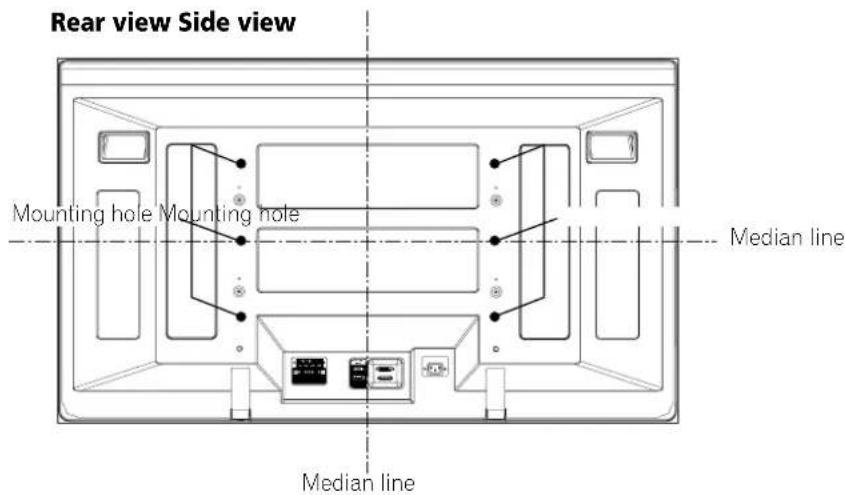
The following six mounting holes can be used for the installation:

CAUTION
- Be sure to use four or more mounting holes symmetrical to the vertical and horizontal median lines.
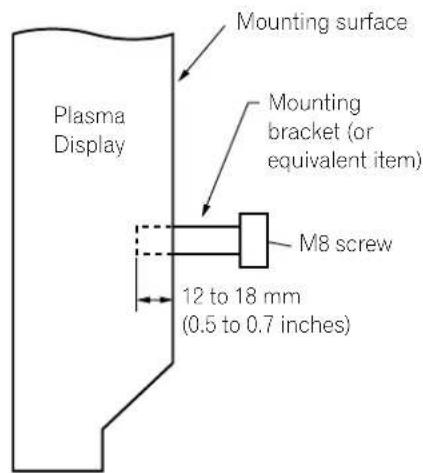
- Use M8 screws, which go 12 to 18 mm (0.5 to 0.7 inches) in depth from the mounting surface of the Plasma Display. See the side view above.
- Be careful not to block the ventilation opening at the rear of the Plasma Display.
- Be sure to install the Plasma Display on a flat surface because it contains glass.
The screw holes other than the above are to be used only for the specified products. Never use them for mounting non-specified products. - Do not mount or remove the Plasma Display to or from the stand, with speakers attached.

NOTE
- It is strongly recommended to use the optional PIONEER mounting products.
PIONEER shall not be liable for any personal injury or product damage that results from the use of mounting items other than the optional PIONEER products.
Identifying the main units
Use the following table to check that you have received the correct Media Receiver and Plasma Receiver models.
| Model Name of the Entire Plasma Display System | Model Name of the Main Unit | |
| Media Receiver Plasma Display | ||
| PDP-5060HD | PDP-R06U | PDP-506PU |
| PDP-4360HD PDP-436PU | ||
The speakers are available as options.
Plasma Display
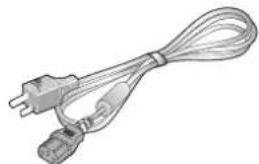
Power cord (2 m/6.6 feet)
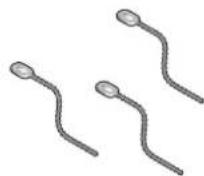
Bead band × 3

Cleaning cloth
Warranty card
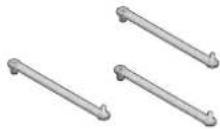
Speed clamp × 3
Media Receiver
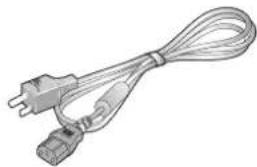
Power cord (2 m/6.6 feet)

AA size battery × 2 (Alkaline battery)
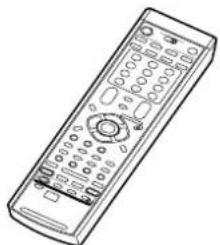
Remote control unit
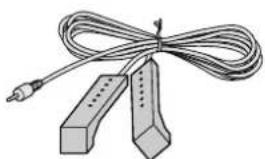

System cable (3 m/9.8 feet)

Operating instructionsG-LINK cable (3 m/9.8 feet)

NOTE
- Always use the power cord supplied with the Plasma Display and the one supplied with the Media Receiver for each respective unit.
Plasma Display
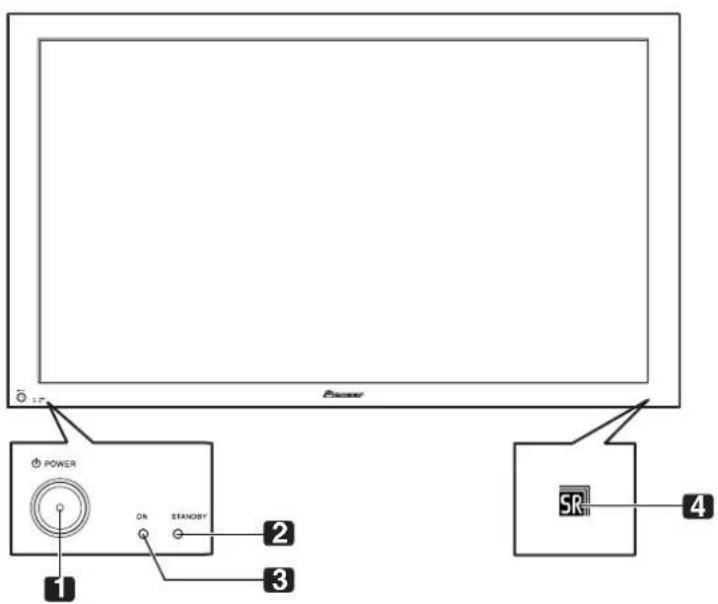
Front view
1 POWER button
2 STANDBY indicator Lights red when the unit is in standby mode. (page 25)
3 POWER ON indicator Lights blue when the Plasma Display is operating. (page 25)
4 Remote control sensor
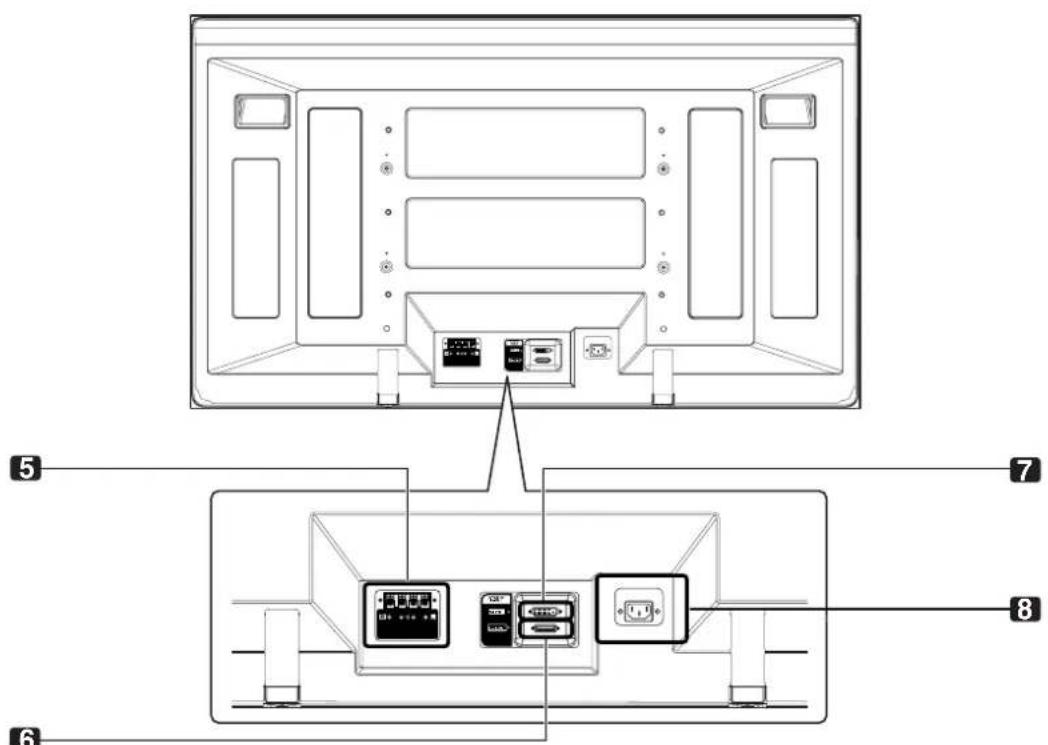
Rear view
5 SPEAKER (R/L) terminals
6 SYSTEM CABLE terminal (BLACK)
7 SYSTEM CABLE terminal (WHITE)
8 AC IN terminal
Media Receiver
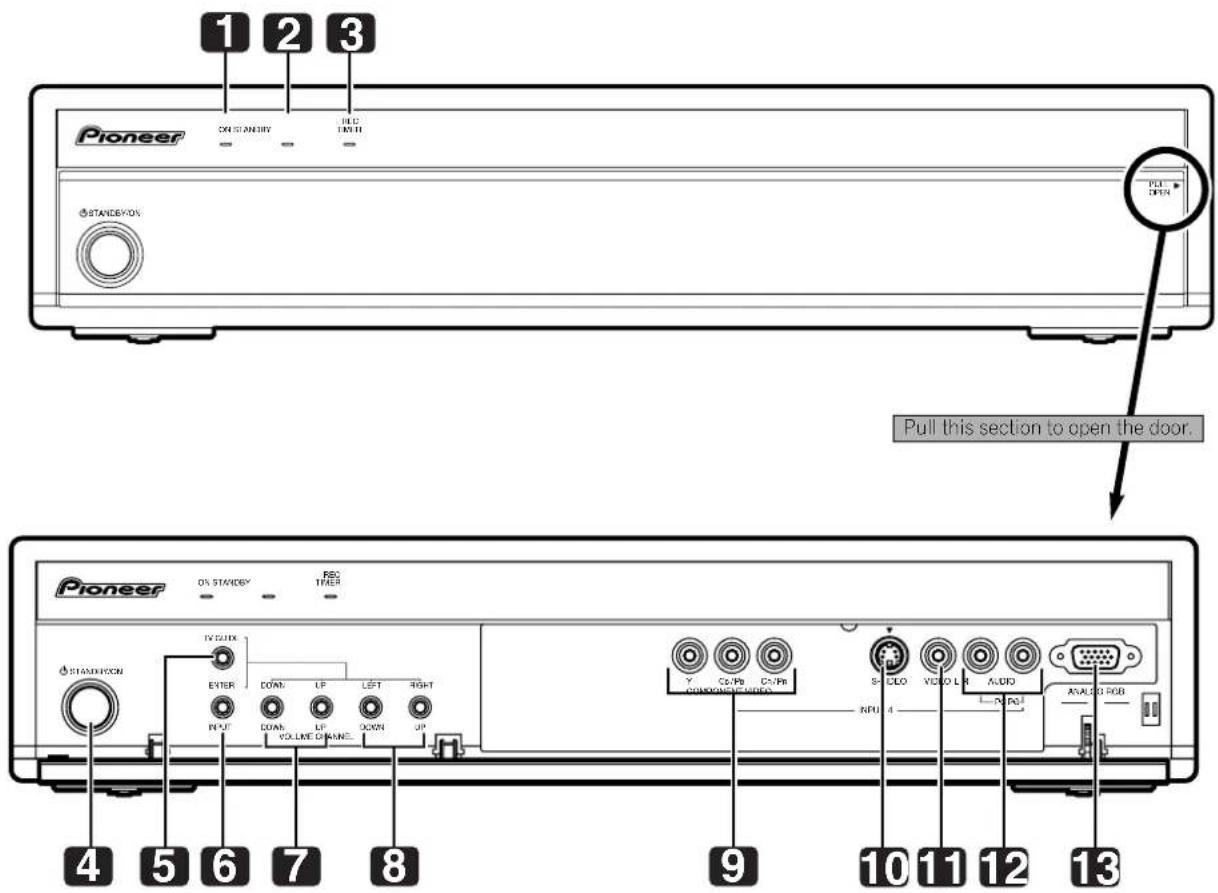
Front view
1 POWER ON indicator
2 STANDBY indicator
3REC TIMER indicator
4 STANDBY/ON button
5 TV GUIDE button*
6 IN button(ENTER button)
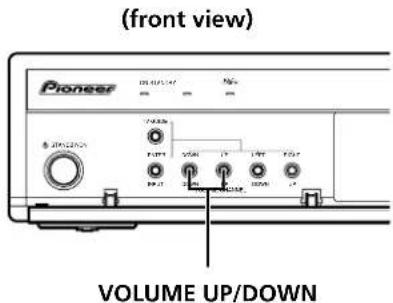
7 VOLUME UP/DOWN buttons (UP/DOWN buttons)
8 CHANNEL UP/DOWN buttons (LEFT/ RIGHT buttons*)
9 INPUT 4 terminals (COMPONENTVIDEO:Y, C_B / P_B C_R / P_R
10 INPUT 4 terminal (S-VIDEO)
11 INPUT 4 terminal (VIDEO)
12 INPUT 4/PC terminals (AUDIO)
13 PC INPUT terminal (ANALOG RGB)
The buttons with asterisks (*) can operate the TV Guide On Screen system.
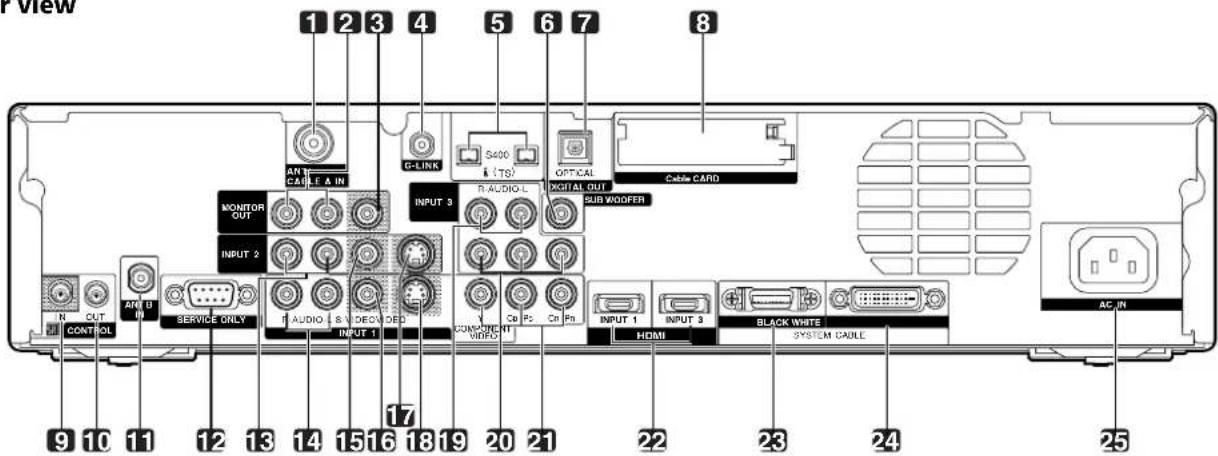
Rear view
1 ANT/CABLE A IN terminal
2 MONITOR OUT terminals (AUDIO)
3 MONITOR OUT terminal (VIDEO)
4 G-LINK terminal
5 i.LINK terminals
6 SUB WOOFER terminal
7 DIGITAL OUT terminal (OPTICAL)
8 CableCARD™ slot
9 CONTROL IN terminal
10 CONTROL OUT terminal
11 ANT B IN terminal
12 RS-232C terminal (used for factory setup)
13 INPUT 2 terminals (AUDIO)
14 INPUT 1 terminals (AUDIO)
15 INPUT 2 terminal (VIDEO)
16 INPUT 1 terminal (VIDEO)
17 INPUT 2 terminal (S-VIDEO)
18 INPUT 1 terminal (S-VIDEO)
19 INPUT 3 terminals (AUDIO)
20 INPUT 3 terminals (COMPONENTVIDEO:Y,CB/PB,CR/PR)
21 INPUT 1 terminals (COMPONENTVIDEO:Y,CB/PB,CR/PR)
22 HDMI terminals (INPUT1/INPUT3)
23 SYSTEM CABLE terminal (BLACK)
24 SYSTEM CABLE terminal (WHITE)
25 AC IN terminal
Remote control unit
This section describes the functions of the buttons available when the mode switch has been set to TV. For the buttons for controlling other equipment, see "Using the remote control unit to control other devices" starting from page 80.
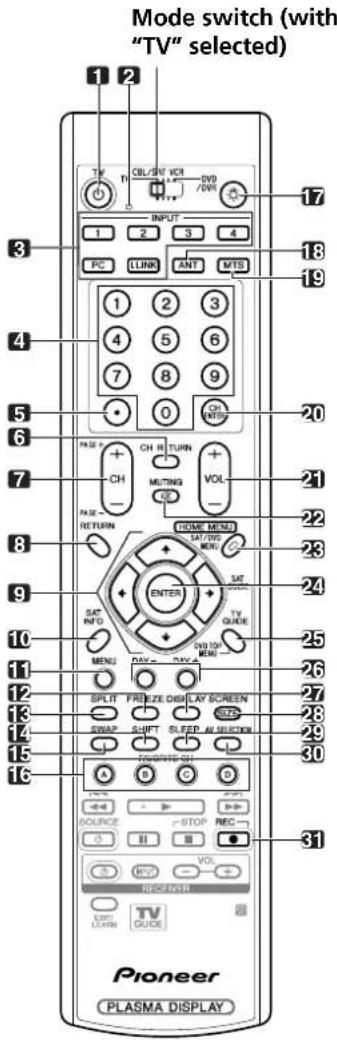
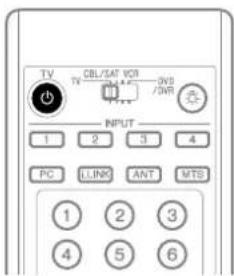
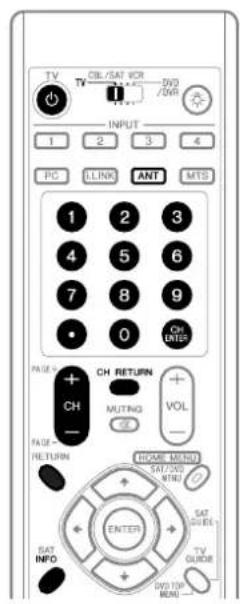
1 TV: Turns on the power to the Plasma Display or places it into standby mode.
2 Transmission confirmation LED
3 I N :Selutstn input source of the Plasma Display. (INPUT 1, INPUT 2, INPUT 3, INPUT 4, PC, i.LINK)
40 -Seets the channel.
5 - (Entors dt.
6 CH RETURN : Returns to the previous channel. This button is disabled while the TV Guide On Screen™ system is displayed.
7 CH + / - : Selects the channel. PAGE + / - (for the TV Guide On Screen system): Scrolts the program listing screen vertically.
8 RETURN: Returns to the previous menu screen.
9 一 / 一 / Selects a desired item on the menu screen.
10 INFO: Displays a channel banner when a TV program is being watched. When the TV Guide On Screen™ system is in operation, displays information about the currently highlighted channel (if available).
11 MENU: Displays a panel menu in the TV Guide On Screen system.
12 FREEZE: Freezes a frame from a moving image. Press again to cancel the function.
13 SPLIT: Switches the screen mode among 2-screen, picture-in-picture, and single-screen.
14 SHIFT:Moves the location of the small screen when in the picture-in-picture mode.
15 SWAP: Switches between the two screens when in the 2-screen or picture-in-picture mode.
16 FAVORITE CH (A, B, C, D): Selects any of the four preset channels. See page 43 for details to set the FAVORITE CH. While watching, you can toggle the set channels by pressing A, B, C and D.
17: When pressed, all buttons on the remote control unit will light. The lighting will turn off if no operations are performed within about 5 seconds. This button is used for performing operations in dark places.
18 ANT: Selects the antenna (A, B). See pages 20 and 21 for details.
19 MTS: Selects the MTS/SAP.
20 CH ENTER:Executes a channel number.
21 VOL + / - : Sets the volume.
22 MUTING: Mutes the sound.
23 HOME MENU: Displays the Home Menu screen.
24 ENTER:Executes a command.
25 TV GUIDE: Displays the TV Guide On Screen system.
26 DAY +/:-: Jumps to the next or previous day of program listings in the TV Guide On Screen™ Listing service.
27 DISPLAY : Displays the channel information.
28 SCREEN SIZE: Selects the screen size.
29 SLEEP: Sets the sleep timer.
30 AV SELECTION: Selects audio and video settings. (AV mode: STANDARD, DYNAMIC, MOVIE, GAME, USER. PC mode: STANDARD, USER.)
31 (REC): When using the TV Guide On Screen System, starts recording with a connected VCR or D-VHS recorder.

NOTE
- When using the remote control unit, point it at the Plasma Display.
See pages 78 to 84 for operating buttons not listed on this page.
Installing the Plasma Display
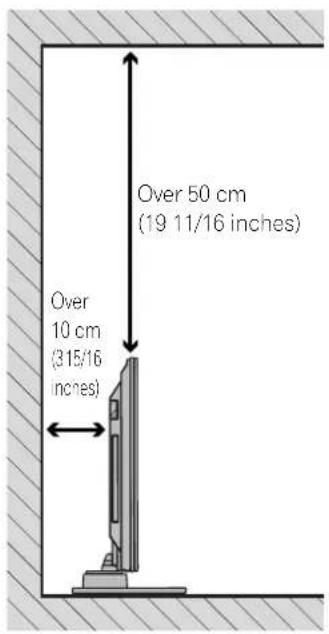
Location
- Avoid direct sunlight. Maintain adequate ventilation.
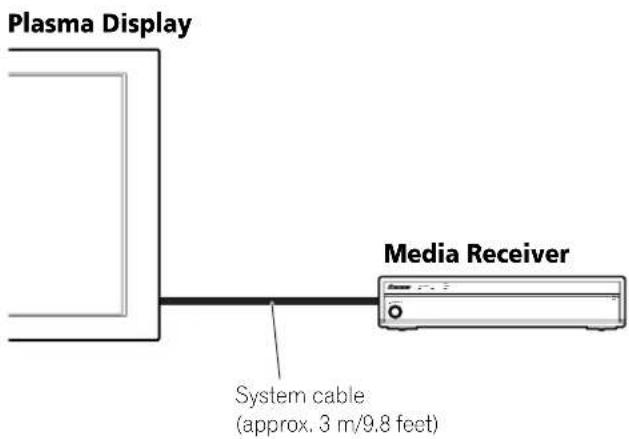
The length of the system cable used to connect the Plasma Display and the Media Receiver is about 3 m (9.8 feet).
Because the Plasma Display is heavy, be sure to have someone help you when moving it.

CAUTION
- If you place anything on the top of the Media Receiver, it will not receive enough ventilation and will not operate properly.

NOTE
- Allow enough space around the upper and back parts when installing to ensure adequate ventilation of the rear of the unit.
Using the optional PIONEER stand
For details on installation, refer to the instruction manual supplied with the stand.

CAUTION
- This product can be used only with the optional PDK-TS10 and PDK-FS06 stand. Using other stands can result in instability, possibly causing injury.
Using the optional PIONEER speakers
For details on installation, refer to the instruction manual supplied with the speaker.

CAUTION
Operating Environment
Operating environment temperature and humidity: +0^ to +40^ (+32^ to +104^) less than 85% RH (cooling vents not blocked) Do not install this unit in a poorly ventilated area, or in locations exposed to high humidity or direct sunlight (or strong artificial light)
Installing the Media Receiver

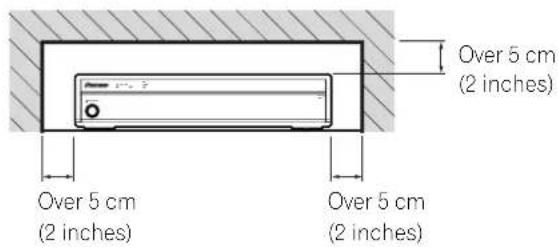
CAUTION
- Do not place a VCR or any other device on the top of the Media Receiver.
- When installing, allow enough space on the sides and above the Media Receiver.
- Do not block the side ventilation opening or the rear exhaust opening of the Media Receiver.
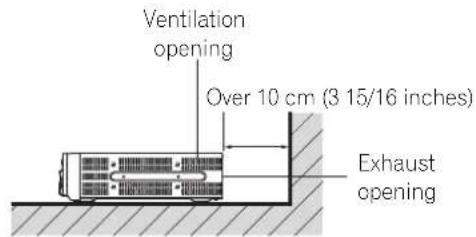

CAUTION
Placing the Media Receiver in the vertical position can result in product damage and malfunction.

Preventing the Plasma Display from Falling Over
After installing the stand, be sure to take special care to ensure that the Plasma Display will not fall over.
Stabilizing on a table or floor
Stabilize the Plasma Display as shown in the diagram using screws that are available on the market.

NOTE
To stabilize the Plasma Display on a table or on the floor, use screws that have a nominal diameter of 6mm (1/4 inch) and that are at least 20mm (13/16 inch) long.
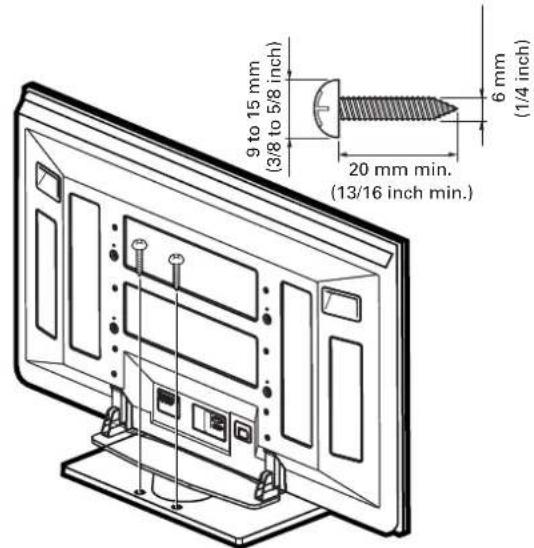

CAUTION
A table or an area of the floor with adequate strength should always be used to support the Plasma Display. Failure to do so could result in personal injury and physical damage.
When installing the Plasma Display, please take the necessary safety measures to prevent it from falling or overturning in case of emergencies, such as earthquakes, or of accidents.
If you do not take these precautions, the Plasma Display could fall down and cause injury.
The screws, hooks, chains and other fittings that you use to secure the Plasma Display to prevent it from overturning will vary according to the composition and thickness of the surface to which it will be attached.
Select the appropriate screws, hooks, chains, and other fittings after first inspecting the surface carefully to determine its thickness and composition and after consulting a professional installer if necessary.
Using a wall for stabilization
- Attach fall-prevention bolts (hooks) to the Plasma Display.
-
Use strong cords or chains to stabilize it appropriately and firmly to a wall, pillar, or other sturdy element.
-
Perform this work in the same way on the left and right sides.

NOTE
Use hooks, ropes, chains, and fittings that are available on the market.
Recommended hook: Nominal diameter 8 mm (3/8 inch)
Length 12 to 15 mm( 1/2to5/8inch)
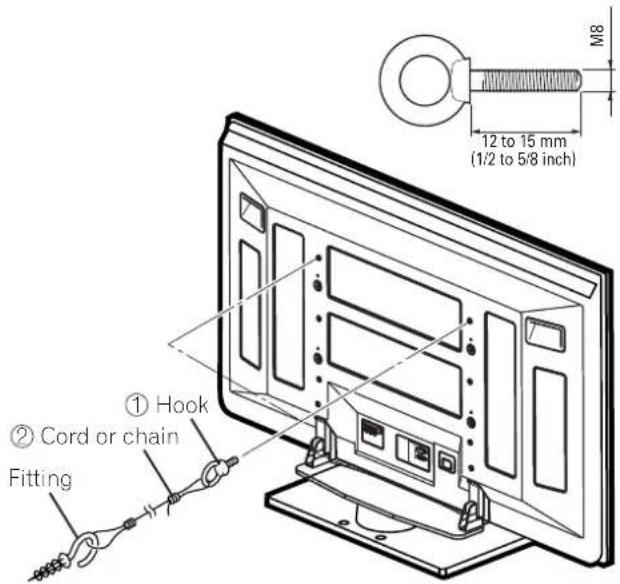
Connecting the system cable
Connecting the system cable to the Plasma Display Plasma Display (rear view)
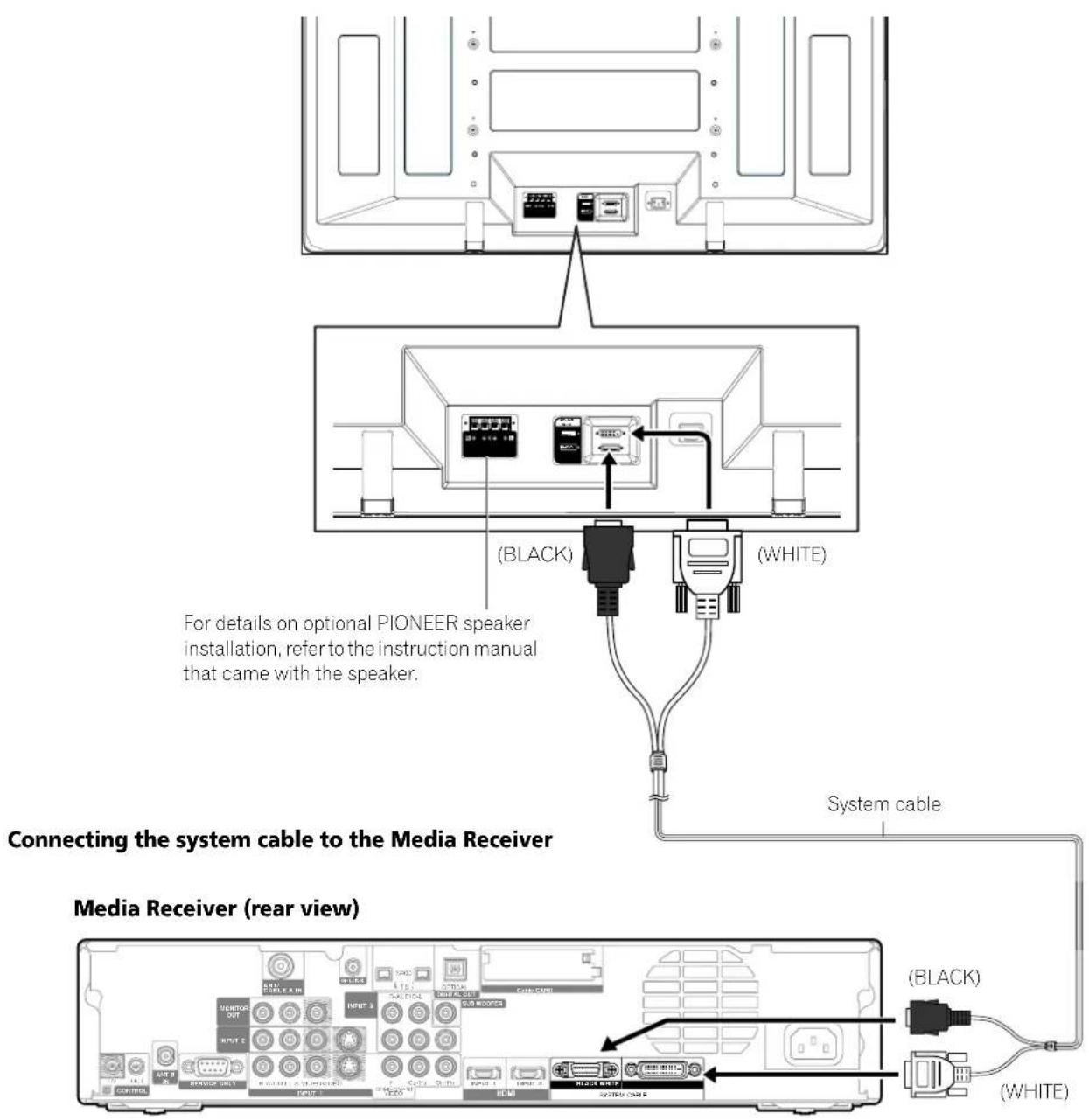
Cable connections for watching digital and/or conventional TV channels
This system is equipped with two terminals for inputting TV broadcasting signals: ANT/CABLE A IN and ANT B IN. The ANT/CABLE A IN terminal accepts both digital and conventional TV broadcasting signals while the ANT B IN terminal accepts only conventional TV broadcasting signals. When using cable TV to watch digital and/or conventional TV channels, connect to the ANT/CABLE A IN terminal as shown. In addition, you may connect an antenna to the ANT B IN terminal as shown; use an outdoor antenna to enjoy clearer pictures. If your outdoor antenna uses a 75-ohm coaxial cable with an F-type connector, plug it into the antenna terminal at the rear of the Media Receiver.
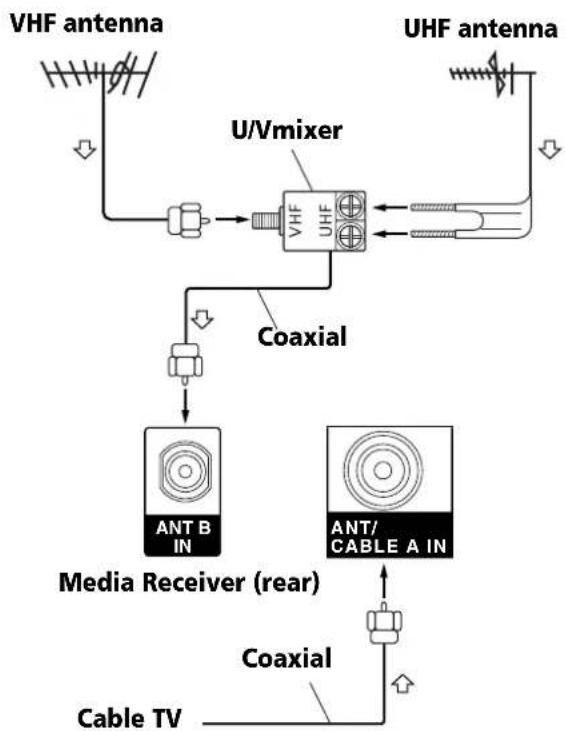
Connecting VHF/UHF antennas and a Cable

NOTE
- Be sure to connect coaxial cables as shown above. Signal reception may fail if not properly connected.
- In order to watch cable TV channels, be sure to connect the cable to the ANT/CABLE A IN terminal.
The ANT/CABLE A IN and ANT B IN terminals must not receive the same signals. For example, do not connect a cable from a cable TV to both the ANT/CABLE A IN and ANT B IN terminals. Similarly, do not connect a cable from an antenna to both the ANT/CABLE A IN and ANT B IN terminals.
Connecting a Cable box
Use the INPUT1 terminals to connect a Cable box.
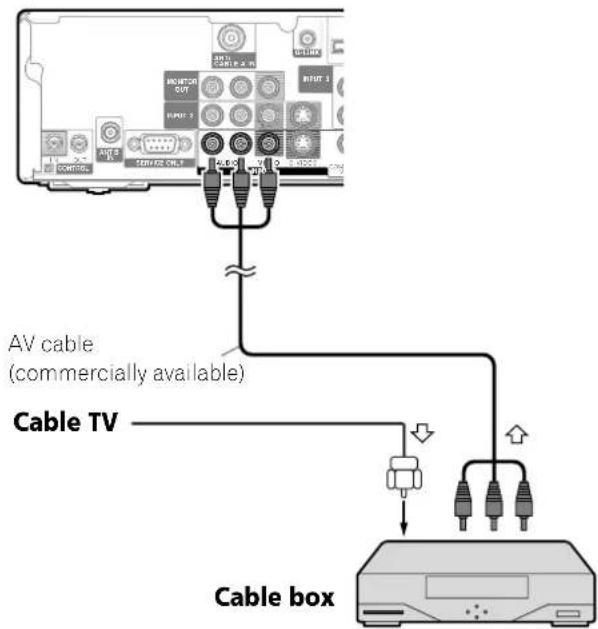
Media Receiver (rear)

NOTE
- You can also connect to the INPUT 1 S-VIDEO terminal instead of the INPUT 1 VIDEO terminal; use a commercially available S-Video cable.
- If using a Cable box that supports digital TV channels and has an RF output terminal, you can connect that terminal to the ANT/CABLE A IN terminal using a commercially available coaxial cable.
- When connecting a Cable box to the INPUT 1 terminal, be careful not to loop the cable.
Inserting the CableCARD™
The Media Receiver is equipped with a slot for inserting a CableCARD™. When you are watching digital and/or High Definition TV channels over cable, the card allows you to use the POD service provided by the cable TV company; the POD stands for Point of Deployment. This service presents various types of useful information, using HTML text.
1 Confirm that the ANT/CABLE A IN terminal has been connected with the coaxial cable from the Cable Converter. See page 20.
2 Hold the tab of the slot cover on the rear of the Media Receiver, and remove the cover while releasing the tab's latch.
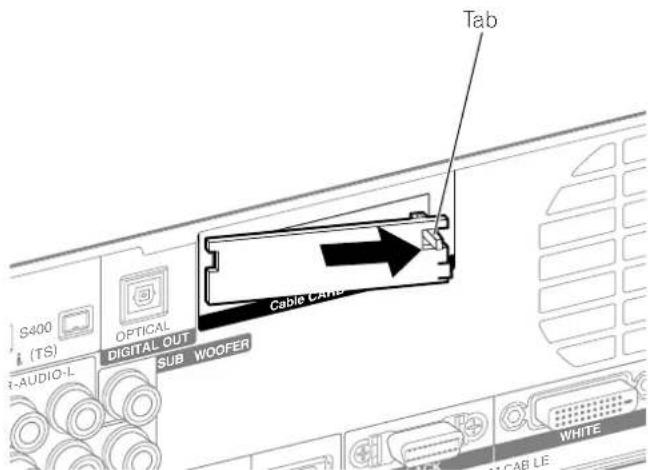
3 Insert the specified CableCARD into the Cable CARD slot as far as it goes.
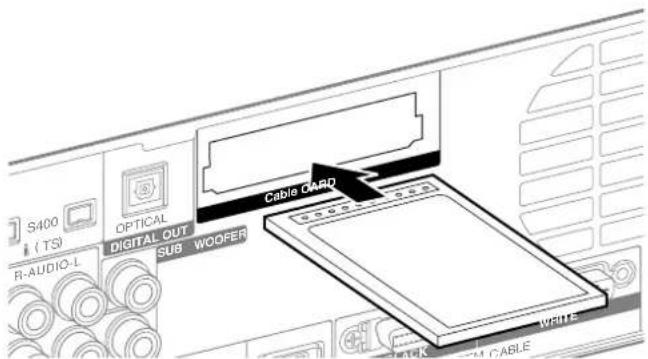

NOTE
- Be sure to insert only the specified CableCARD™.
- Do not insert a PC card.
- When you use a CableCARD™, you need not execute Auto Channel Preset; the CableCARD™ automatically generates a cable channel list.
Switching between antenna A and B
To watch broadcasts via the two antennas, you can select it by pressing ANT on the remote control unit.
While watching a broadcast, press ANT to view the image received from the other antenna.
- Pressing ANT while watching in the 2-screen mode (TV image and video image) with TV selected will display the TV image of the other antenna.
- Pressing ANT while watching in the 2-screen mode with two TV images displayed will not have any effect.
Preparing the remote control unit
Inserting batteries
1 Open the battery cover.
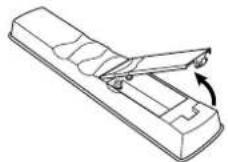
2 Load the supplied two AA size batteries while inserting their respective negative polarity (-) ends first.
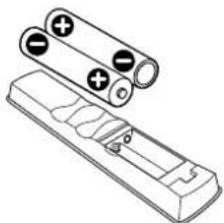
- The battery polarities must correspond with the (+) and (-) indicators in the battery compartment.
3 Close the battery cover.
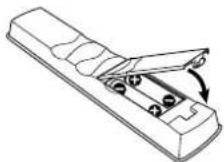
Cautions regarding batteries
- The remote control unit cannot operate the system if the batteries in the unit are weak. When this happens, replace the batteries with new ones.
- When you replace the batteries, use alkaline ones. Do not use manganese batteries.
- Do not mix batteries of different types. Different types of batteries have different characteristics.
- Do not mix old and new batteries. Mixing old and new batteries can shorten the life of new batteries or cause chemical leakage in old batteries.
- Do not leave dead batteries in the remote control unit; chemical leakage will occur. If you find any chemical leakage, wipe thoroughly with a cloth.
- The batteries supplied with this product may have a shorter life expectancy due to storage conditions.
- If you will not use the remote control unit for an extended period of time, remove the batteries from it.

CAUTION
- WHEN DISPOSING OF USED BATTERIES, BE SURE TO COMPLY WITH GOVERNMENT REGULATIONS AND ENVIRONMENTAL PROTECTION GUIDELINES THAT APPLY IN YOUR COUNTRY OR AREA.
Allowed operation range of the remote control unit
Operate the remote control unit while pointing it toward the remote control sensor located at the bottom right of the front panel of the Plasma Display. The distance from the remote control sensor must be within 7 m (23 feet) and the angle relative to the sensor must be within 30 degrees in the right or left direction.
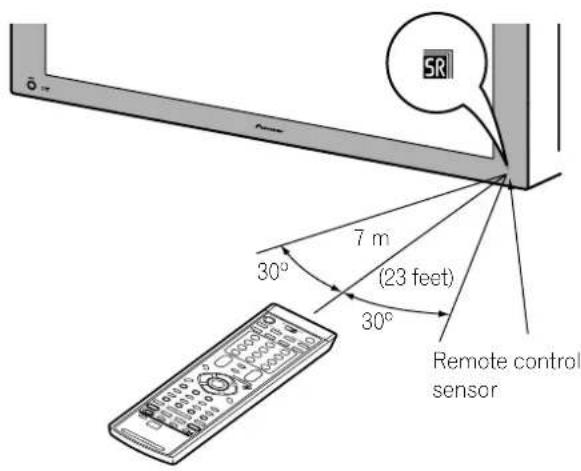
Cautions regarding the remote control unit
- Do not expose the remote control unit to shock, liquid, or high humidity.
- Do not place the remote control unit under direct sunlight; the unit may deform.
- The remote control unit may not work properly if the remote sensor window of the Plasma Display is under direct sunlight or strong lighting. In such case, change the angle of the lighting or Plasma Display, or operate the remote control unit closer to the remote sensor window.
- When any obstacle exists between the remote control unit and the remote control sensor, the remote control unit may not function.
- As the batteries become weak, the remote control unit can function within a shorter distance from the remote control sensor. Replace the batteries with new ones if necessary.
- The Plasma Display emits very weak infrared rays from its screen. If you place such equipment operated through infrared remote control as a VCR nearby, that equipment may not receive commands from its remote control unit properly or entirely. If this is the case, place that equipment at a location far enough from the Plasma Display.
- Depending on the installation environment, infrared rays from the Plasma Display may not allow this system to properly receive commands from the remote control unit or may shorten allowable distances between the remote control unit and the remote control sensor. The strength of infrared rays emitted from the screen differs, depending on images displayed on the screen.
Connecting the power cord
Connect the power cord after all component connections have been completed.
Plasma Display (rear view)
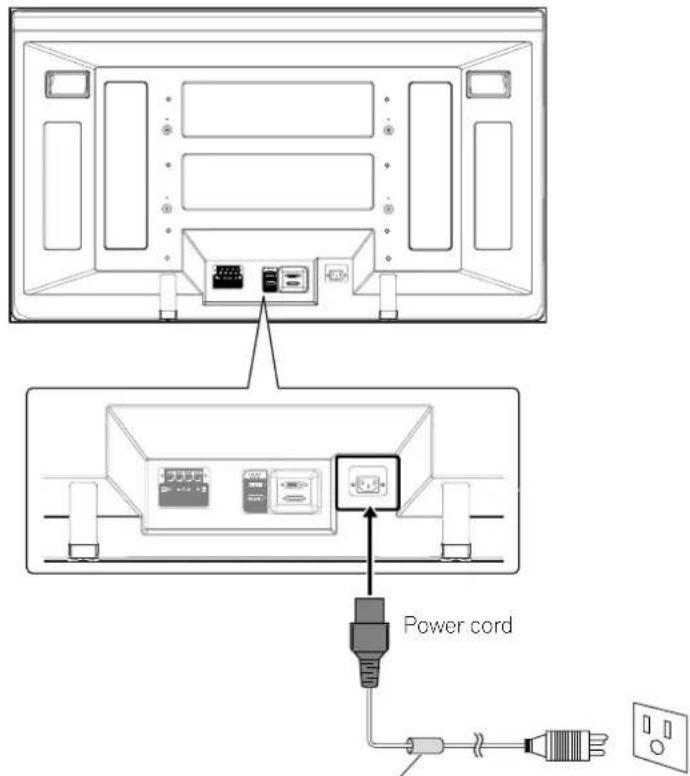
Noise filter
Partially eliminates noise caused by the power source.
Media Receiver (rear view)
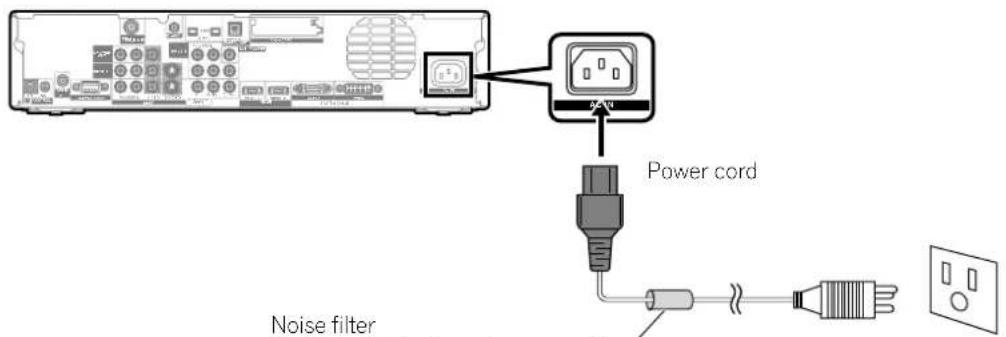
Noise filter
Partially eliminates noise caused by
the power source.

CAUTION
- Use only the supplied power cord.
- Be sure to use the specified power supply voltage; neglecting this can result in fire or electric shock.
- For the Plasma Display System, a three-core power cord with a ground terminal is used for efficient protection. Always connect the power cord to a three-pronged outlet and make sure that the cord is properly grounded.

NOTE
Always turn off the power of the Plasma Display and Media Receiver when connecting or disconnecting power cords.
- Disconnect the power cord from the power outlet when the Plasma Display System is not going to be used for a long period of time.
Routing cables
Speed clamps and bead bands are supplied for bunching cables. Once properly bunched, follow the steps below to route the cables.
When the speakers are installed on the sides (rear view)
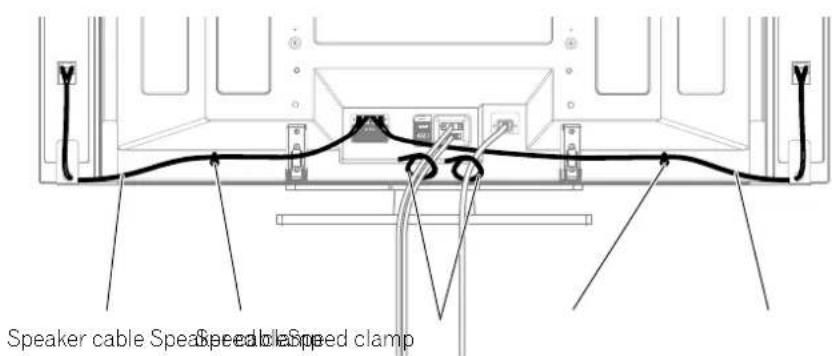
Cable binder (supplied with the stand)*
Attaching speed clamps to the main unit
Attach the speed clamps using the 2 holes marked with
below, depending on your routing system.
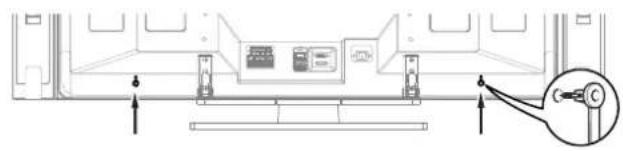
Attaching and removing speed clamps
Insert [1] into an appropriate hole on the rear of the Plasma Display and snap [2] into the back of [1] to lock the clamp.
Speed clamps are designed to be difficult to undo once in place. Please attach them carefully.
Use pliers to twist the clamp 90^ , pulling outward. The clamp may deteriorate over time and become damaged if removed.

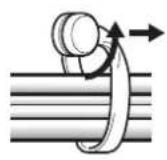

NOTE
- Use the supplied bead bands as necessary.
*Cable binder
Using the cable binders supplied with the stand, put the speaker and system cables together so that the cables are invisible from the front. At that time be careful not to apply any force to the connection sections of the cables.
Turning on the power (Standby)
1 Press on the Plasma Display if the STANDBY indicator is off.
The STANDBY indicator on the Plasma Display lights up red.
2 Confirm that the STANDBY indicators light up red, and then press TV on the remote control unit or STANDBY/ON on the Media Receiver to turn the system on.
The POWER ON indicators on the Plasma Display and Media Receiver light up blue.

NOTE
- In this manual, "system" means the Plasma Display Panel and Media Receiver.
Turning off the power (Standby)
1 Press TV on the remote control unit or STANDBY/ON on the Media Receiver.
The system enters the standby mode and the image on the screen disappears.
- Both STANDBY indicators light up red.
This will allow the system to automatically receive digital TV program information while in the standby mode.

NOTE
- If you are not going to use this system for a long period of time, press POWER on the Plasma Display and remove both power cord from the power outlet.
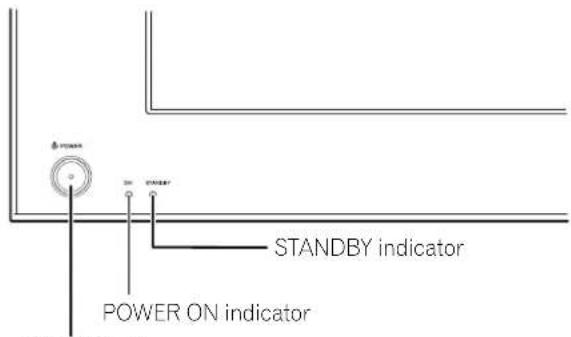
Plasma Display
POWER button
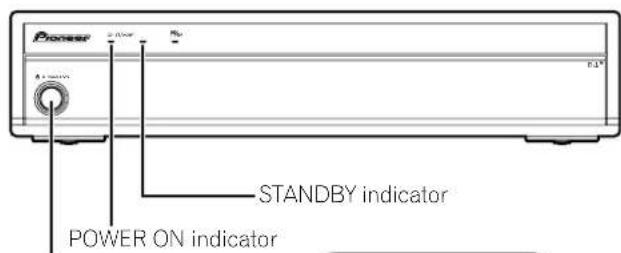
Media Receiver
STANDBY/ON button
Plasma Display/Media Receiver status indicators
The table below shows the operational status of the Plasma Display System. You can check the current status of the system with the indicators on the Plasma Display and Media Receiver.
| Indicator Status System Status | ||||
| Plasma Display Media Receiver | ||||
| POWER ON STANDBY POWER | ON STANDBY | |||
| ● | ● | ● | ● | The power cords of both the Plasma Display and the Media Receiver have been disconnected. Or, the power cord of the Plasma Display has been connected but the POWER button of the Plasma Display is off. |
| ● | ● | ● | ● | Power to the system is on. |
| ● | ● | ● | ● | The system is in the standby mode. |
| ● | ● Flashing | ● | ● | The power cord of the Media Receiver has been disconnected. |
| ● | ● | ● | ● Flashing | Power to the Plasma Display is off. Or the power cord of the Plasma Display has been disconnected. |
For other than the above, see "Troubleshooting" on page 85.
Watching TV channels
Unless you set up TV channels that you can watch under the current conditions, you cannot tune in those channels. For the procedure, see "Setting up TV channels" on page 38.

NOTE
- When watching a digital TV program, you may see emergency alert messages scrolling at the top of the screen. Those messages are broadcasted by TV stations as necessary when in emergency situations.
Selecting the antenna
After confirming that the Mode switch on the remote control unit has been set to "TV", press ANT on the remote control unit to select antenna A or B.
- Make this selection depending on the connections to the antenna input terminals on the Media Receiver (page 20).
Changing channels
To increase the channel number, press CH + on the remote control unit. To decrease the channel number, press CH -
- CHANNEL UP/DOWN on the Media Receiver operates the same as CH +/- on the remote control unit.
- Press CH RETURN to switch the currently tuned channel to the previously tuned channel.
Press CH RETURN again to restore the currently tuned channel.
Using 0 - 9 and (dot) on the remote control unit
Select channels directly by pressing buttons 0 to 9. To select subchannels, also use the . (dot) button.
EXAMPLE
To select channel 5 (1-digit channel), press 5.
To select channel 25 (2-digit channel), press 2 then 5.
To select channel 125 (3-digit channel), press 1, 2, then 5.
To select subchannel 10.01, press 1, 0, (dot), 0, then 1.
To select subchannel 10.001 (for cable TV), press 1, 0, (dot), 0, 0, then 1.

NOTE
After entering a channel or subchannel number, you may press CH ENTER to tune in the channel more quickly.
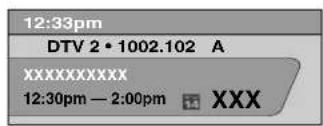
Each time you change a channel, a channel banner appears that shows information about the currently selected channel. To clear the channel banner, press INFO.
- If you do not setup the TV Guide On Screen system, the channel banner may not display certain types of program information.
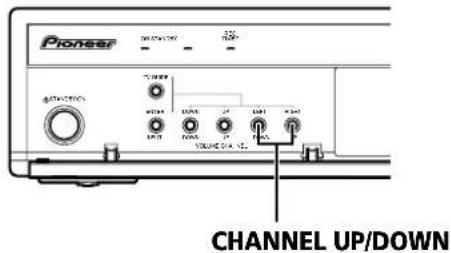
Media Receiver (front view)
Channel banner
Changing the volume and sound
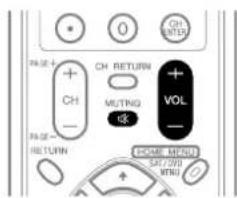
To increase the volume, press VOL + on the remote control unit. To decrease the volume, press VOL -
VOLUME UP/DOWN on the Media Receiver operates the same as VOL + / - on the remote control unit.
To mute the sound output, press MUTING. " It appears on the screen. To quit muting, press MUTING again. Pressing VOL + also quits muting.
Media Receiver

Volume adjustment display

Muting display
Changing the language
If you have selected a digital TV program that provides multi-language services, you can switch among the languages by pressing MTS on the remote control unit.
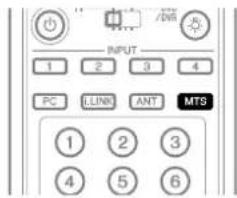
Each time you press MTS, the language switches.

NOTE
- Switchable languages differ depending on the current broadcast.
If the language selected through language setting is available when the channel or program is changed, you will hear that language. - If you are watching a digital TV program without sound or language information, "N/A" appears on the screen. With a language other than English, French, and Spanish are selected, "Others" will appear.
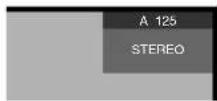
Setting MTS/SAP mode
When watching conventional TV programs, you may enjoy stereo sound and/or Secondary Audio Programs (SAP), using the Multi-channel Television Sound (MTS) function.
- Stereo broadcasts
You can enjoy, for example, sports, shows, and concerts in dynamic stereo sound.
SAP broadcasts
MAIN sound: The normal program soundtrack (either in mono or stereo).
SAP sound: Listen to second language, supplementary commentary and other information. (SAP is mono sound.)

NOTE
- Conventional TV channels in this manual designate TV channels that are received through the conventional VHF/UHF frequencies or conventional cable TV channels.
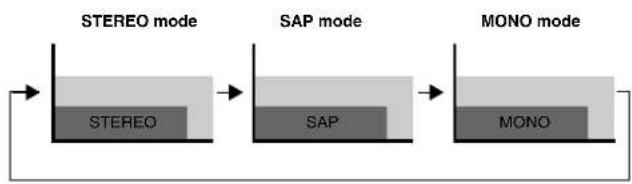
- When stereo sound is difficult to hear, you may manually switch to the MONO mode to obtain clearer sound.
- Once the MONO mode is selected, the Plasma Display System sound remains mono even if the system receives a stereo broadcast. You must reselect the STEREO mode if you want to hear stereo sound again.
- Selecting MTS while the input source is INPUT 1 to 4 or PC does not change the type of sound. In this case, sound is determined by the video source.
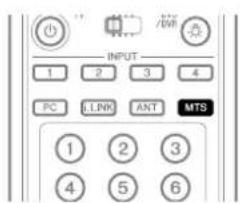
Each time you press MTS, MTS toggles as shown below.

NOTE
- The MTS button is disabled while the TV Guide On Screen™ system is displayed.
In each of the MTS/SAP modes selected, the display changes depend on broadcast signals being received.
When receiving STEREO sound signals
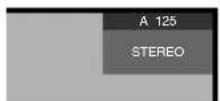
In STEREO mode
In SAP mode
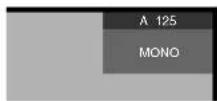
In MONO mode
When receiving MONO + SAP sound signals
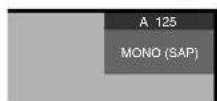
In STEREO mode
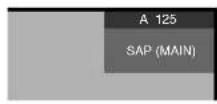
In SAP mode
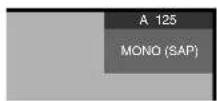
In MONO mode
When receiving STEREO + SAP sound signals
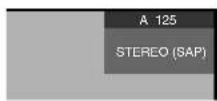
In STEREO mode
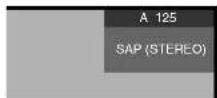
In SAP mode
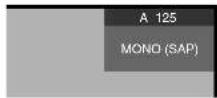
In MONO mode
When receiving MONO sound signals
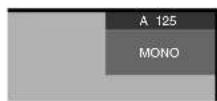
In STEREO mode
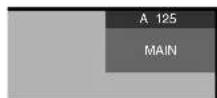
In SAP mode
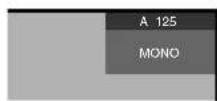
In MONO mode
Viewing a channel banner
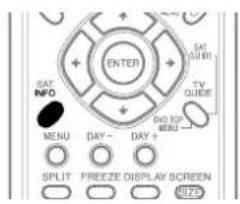
While watching a TV program, pressing INFO causes the following banner to appear. Pressing INFO again causes the banner to disappear.
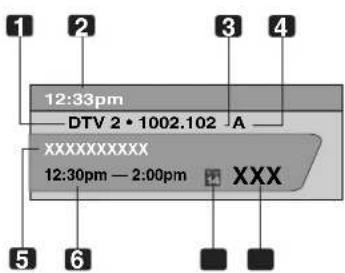
1 Station name
2 Current time
3 Channel number
4 Input (Ant. A or Ant. B)
5 Program title
6 Program time schedule
7 TV rating icon
8 Channel logo

NOTE
The above information is not displayed if not included in broadcast signals.
- If you do not setup the TV Guide On Screen™ system, the channel banner may not display certain types of program information.
Using the POD service
If you have watched digital and/or High Definition TV channels over cable, you can use the POD service provided by the cable TV company. This service presents various types of useful information, using HTML text.
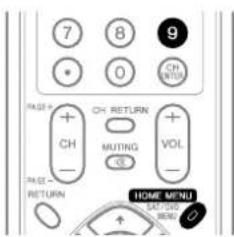
Press HOME MENU, 9, 9, then 9 to view the POD display.
Using the multiscreen functions
Splitting the screen
Use the following procedure to select the 2-screen or picture-in-picture mode.
2-screen
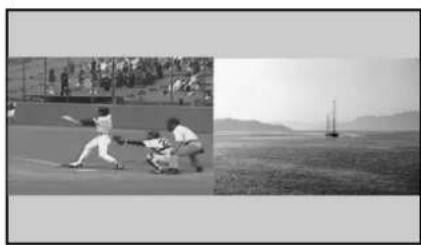
Picture-in-picture

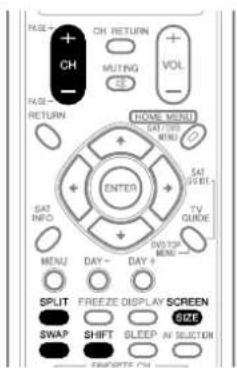
1 Press SPLIT to select the display mode.
Each time you press SPLIT, the display mode is switched among 2-screen, picture-in-picture, and single-screen.
- In 2-screen or picture-in-picture mode, press SWAP to switch the position of the 2 screens shown. Left screen is the active screen which will be indicated by "The user is allowed to operate picture and sound.
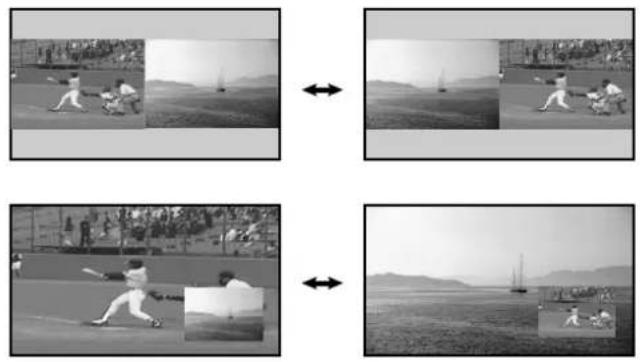
- In 2-screen mode, press SCREEN SIZE to change the size of the left screen.
- In picture-in-picture mode, press SHIFT to move the position of the small screen in anti-clockwise.
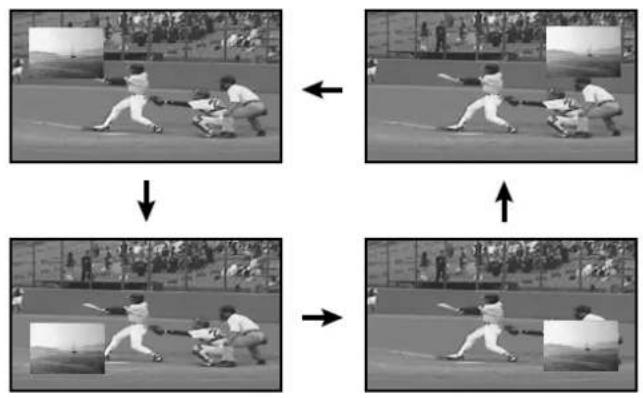
2 To select the desired input source, press the appropriate input source button.
- If watching TV programs, press CH +/- to change the channel.

NOTE
- The SPLIT button is disabled while the TV Guide On Screen™ system is displayed.
- The multiscreen function cannot display images from the same input source or two external input sources at the same time. If you make such an attempt, a warning message appears.
- When you press HOME MENU, the single-screen mode is restored and the corresponding menu is displayed.
- When the two screens show the same analog broadcasting coming through antenna A and B, the picture quality may differ between the two screens.
Freezing images
Use the following procedure to capture and freeze one frame from a moving image that you are watching.
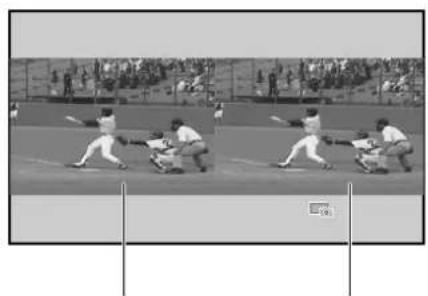
Moving image Still image
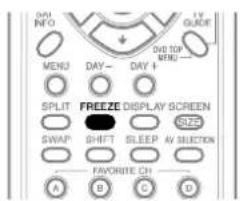
1 Press FREEZE.
- A still image appears on the right screen while a moving image is shown on the left screen.
2 Press FREEZE again to cancel the function.

NOTE
- With the screen split, any image cannot be frozen.
- When you try to use this function when it is not available, a warning message appears.
- Image FREEZE is canceled automatically if you do not perform any operation for five minutes.
About the TV Guide On Screen™ system
The TV Guide On Screen™ system is a free, interactive on-screen television program guide. The system offers program listings, searching by keyword, timer recording, reminders and more. The TV Guide On Screen™ system is a convenient way to find out what's on right now or during the coming week, by channel or by genre. It also allows you to automatically set your viewing and recording selections quickly and easily.
Before you can start using the TV Guide On Screen™ system, you'll need to set it up.
Legal Notices
In the United States, TV GUIDE and other related marks are registered marks of Gemstar-TV Guide International, Inc. and/or one of its affiliates. In Canada, TV GUIDE is a registered mark of Transcontinental, Inc. and is used under license by Gemstar-TV Guide International, Inc.

NOTE
The TV Guide On Screen™ interactive program guide provides listings for cable-ready, cable box, and digital cable services as well as over-the-air broadcast. It does not provide listings for satellite services.
Depending on the current settings and selected items, the order of the setup screens may differ from the one given in this manual. Follow the instructions shown on the screens.
Setting up the TV Guide On ScreenTM system
When the Plasma Display System is powered on for the very first time, you are automatically taken through the setup process. Immediately thereafter the TV Guide On Screen™ setup process begins, starting with the Welcome Screen. Setup may be accessed from the initial Setup reminder screens, or by pressing TV GUIDE for a device in which TV Guide On Screen™ has not yet been setup.

NOTE
Once you set up the TV Guide On Screen™ system it may take up to 24 hours to begin to receive TV program listings. Receipt of all eight days of listings may take up to one week (see Screen 14).
- If you connect a cable box through the TV Guide On Screen™ system you should leave the cable box On and the TV Off in order to receive updated TV program listings (see Screen 23).
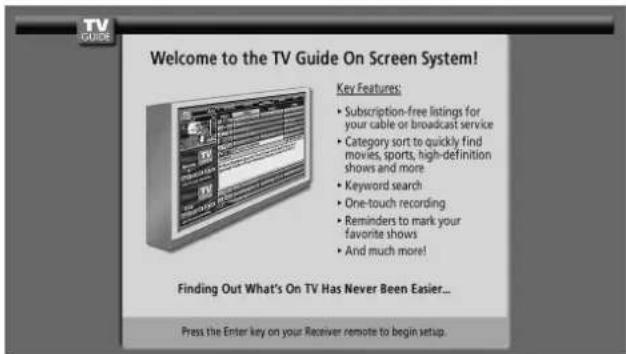
Welcome Screen
Initial TV set up leads you to the Welcome screen.
Or press TV GUIDE to begin setup.
- The Welcome Screen lists features in the Guide.
- Press ENTER to display Screen 1 (shown on page 32).
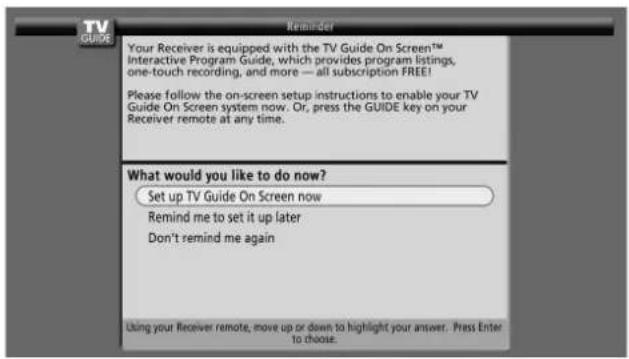
Reminder Screen
If you previously skipped Guide setup, you see the Reminder Screen when you power on your TV.
To make a selection, press Atoghligh to an option, and press ENTER.
"Set up TV Guide On Screen now" displays Screen 1.
"Remind me to set it up later" returns you to watching TV.
- "Don't remind me again" returns you to watching TV and stops the reminder screen from appearing upon power on.

NOTE
If you decide not to set up the Guide now, this reminder screen will appear each time you power on the TV (except if you selected "Don't remind me again").
System Setup Screens

NOTE
- Once you start the setup procedure, you cannot return to the previous screens. If you realize you entered incorrect information, continue with setup. The last screen of the procedure gives you the opportunity to correct any mistakes before you exit setup.
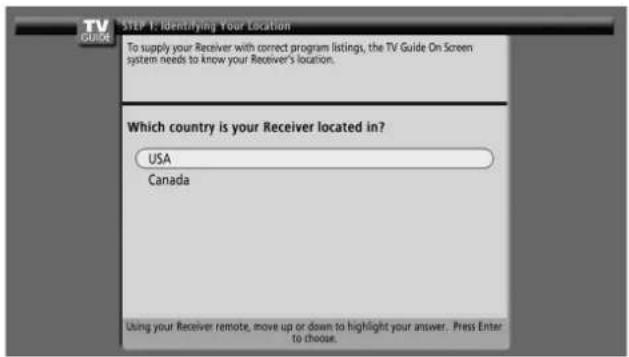
Screen 1: Country
This screen asks you the location of your TV.
Press ato highlight a country.
- Press ENTER to display Screen 2.
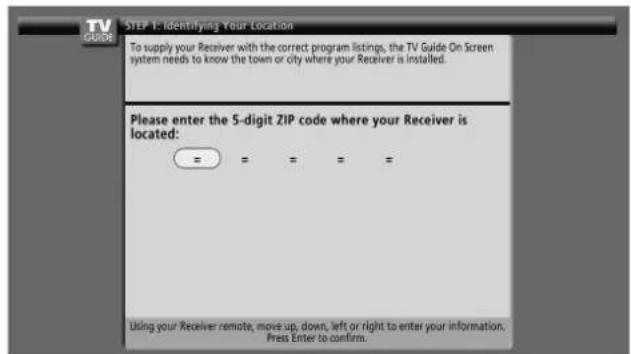
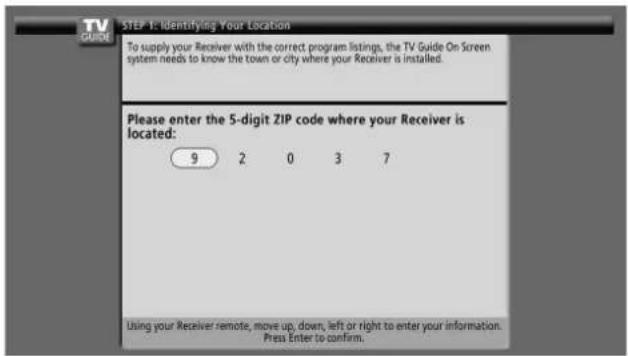
Screen 2: Enter ZIP or Postal Code
If you selected USA in Screen 1, you see the ZIP Code screen.
- You input numbers by either
-
pressing the number keys or
-
pressing to display a number, and then / to move to another field.
-
Press ENTER to display Screen 3.
- If you selected Canada in Screen 1, you see the Postal Code screen.
- You input numbers by either pressing the number keys or pressing a to display a number and then / to no to another field.
- Press ENTER to display Screen 3.
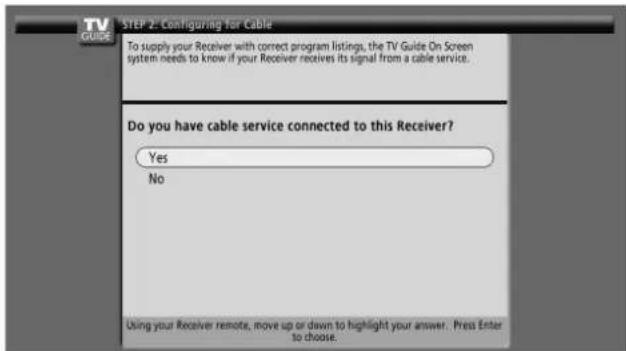
Screen 3: Do you have Cable?
If you select "Yes", you see Screen 4.
If you select "No", you see Screen 12.
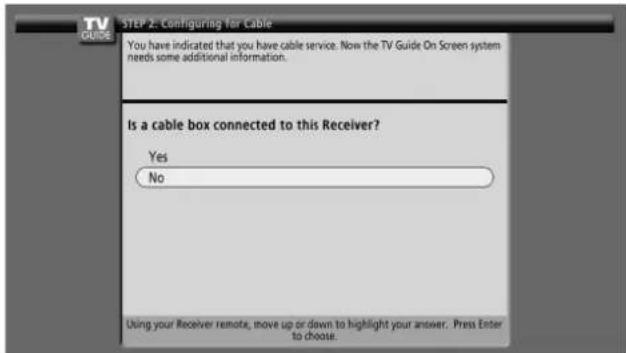
Screen 4: Do you have a Cable Box?
- If you select "Yes", you see Screen 5.
If you select "No", you see Screen 12.
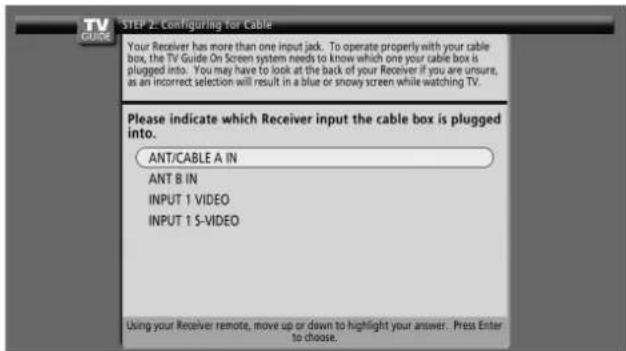
Screen 5: Which TV Guide input is the cable box plugged into?
If you select Cable, you see Screen 6.
If you make any other choice, you see Screen 7.
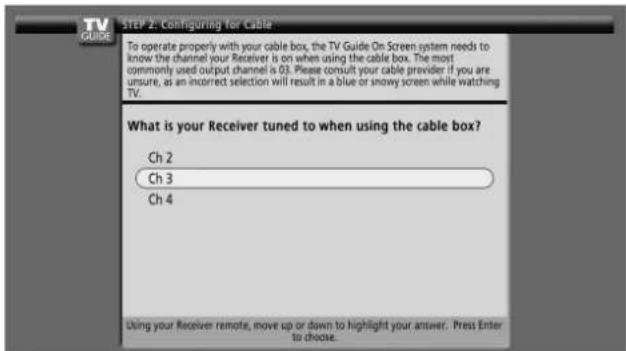
Screen 6: Cable Box Output Channel
- Select the channel used for the cable box.
- Press ENTER to display Screen 7.
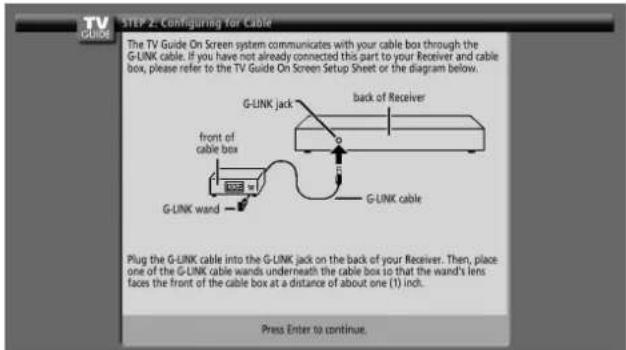
Screen 7: Cable Box Configuration Diagram
- The diagram shows the correct way to install the G-LINK cable from the back of the device to the cable box. Make sure the G-LINK cable is properly installed.
- Press ENTER to display Screen 8.
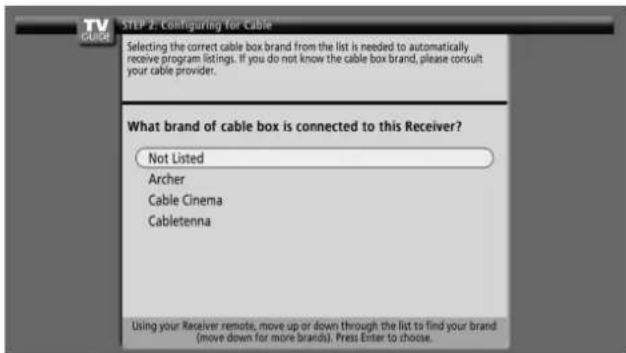
Screen 8: Cable Box Brand Name
Press to select a cable box brand.
- Press ENTER to display Screen 9.
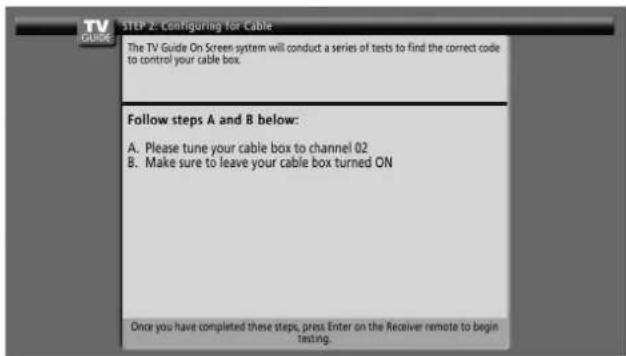
Screen 9: Cable Box Preparation
- Follow the on-screen instructions, and press ENTER to display Screen 10.
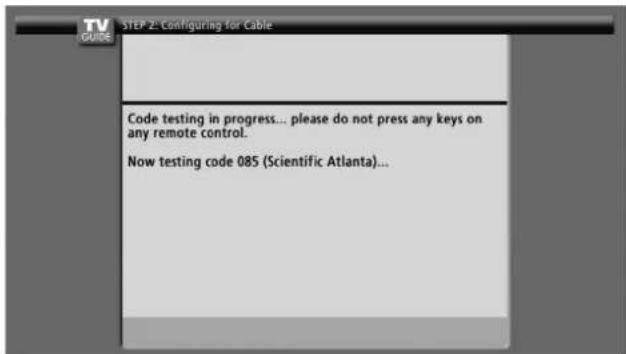
Screen 10: Cable Box Code Testing
- When testing is done, Screen 11 displays automatically.
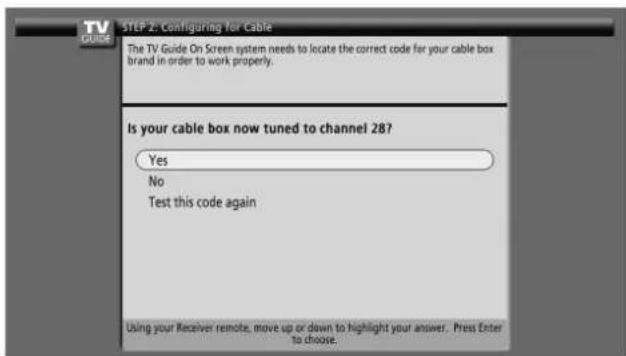
Screen 11: Cable Box Tuned to Channel 28?
If you select "Yes", you see Screen 12.
- If you select "No", a different code is tested in Screen 10.

NOTE
Many Cable Boxes require testing more than one code.
If you select "Test this code again", the same code is tested again in Screen 10.
Screen 12: Do you have an antenna connected?
If you select "Yes", you see Screen 13.


NOTE
If you selected "No" in Screen 3 then you must select "Yes" in this screen to receive a channel lineup and listings.
If you select "No", you see Screen 13.
If you select "Yes", depending on your setup configuration, you may see an additional screen. After that screen, you see Screen 13.
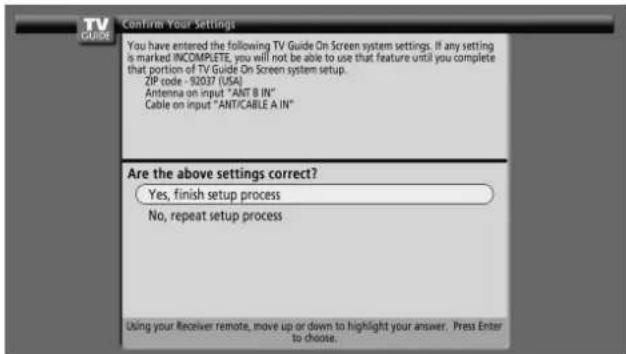
Screen 13: Are the settings correct?
If you select "Yes", you see Screen 14.
If you select "No", you see Screen 1.
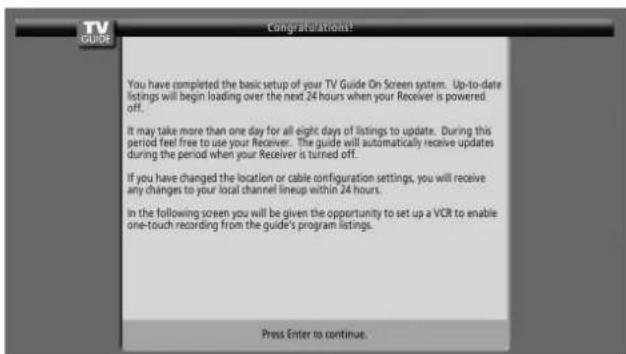
Screen 14: Congratulations
- Press ENTER to display Screen 15.
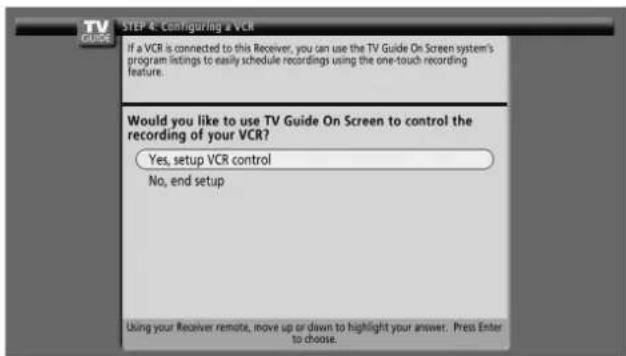
Screen 15: Is a VCR Connected?
If you select "Yes", you see Screen 16.
- If you select "No", you see Screen 21.
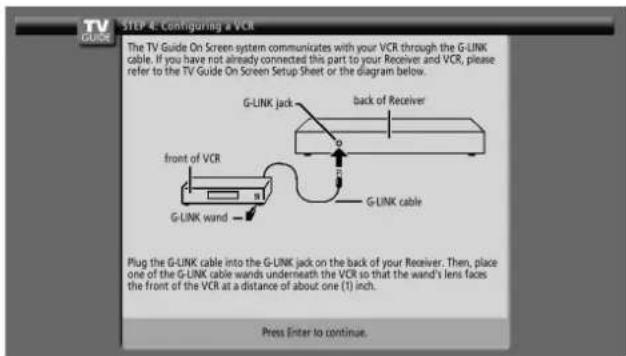
Screen 16: VCR Configuration Diagram
- This screen shows the correct way to install the G-LINK cable from the back of the device to the recording device. Make sure the G-LINK cable is properly installed.
- Press ENTER, and you see Screen 17.
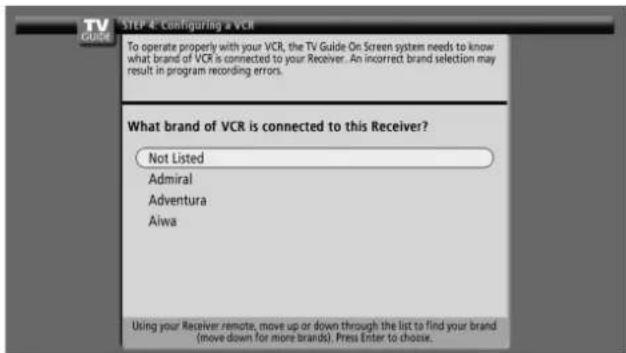
Screen 17: VCR Brand Name
- Press to select the brand of the recording device.
- Press ENTER, and you see Screen 18.
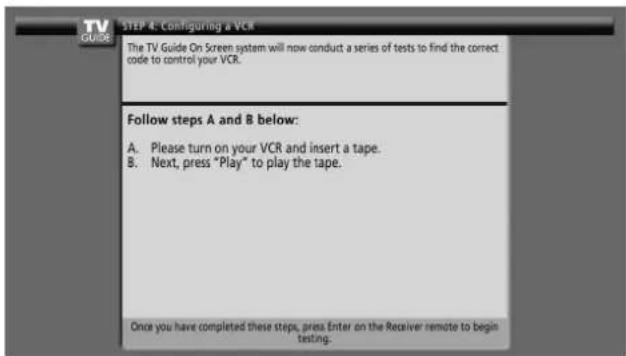
Screen 18: VCR Preparation
- Follow the on-screen instructions, and press ENTER to display Screen 19.
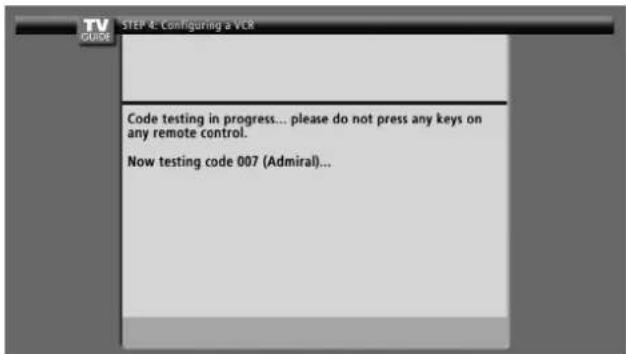
Screen 19: VCR Code Testing
- When testing is done, Screen 20 displays automatically.
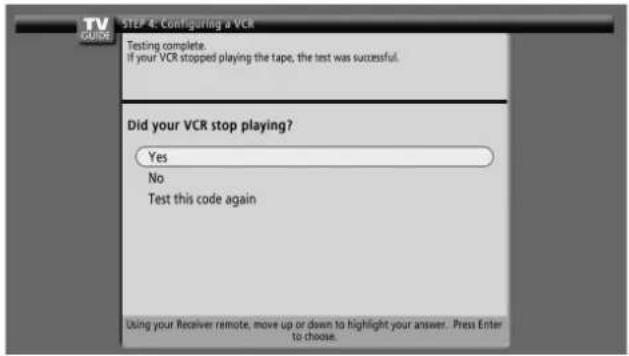
Screen 20: Did your VCR stop playing?
If you select "Yes", you see Screen 21.
If you select "No", a different code is tested in Screen 19.

NOTE
Many VCRs require testing more than one code.
If you select "Test this code again", the same code is tested again in Screen 19.
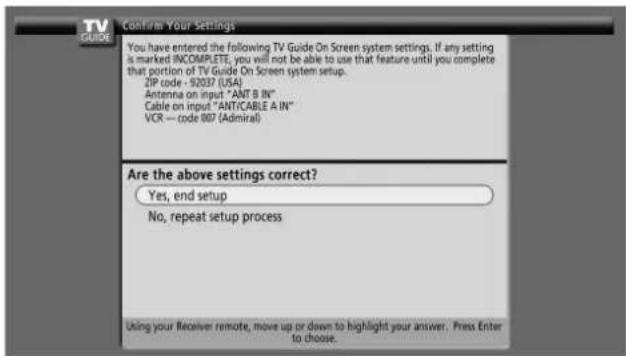
Screen 21: Confirming Your Settings
Verify the Setup information is correct.
- If it is, select "Yes, end setup", and you see Screen 22.
- If it is not, select "No, repeat setup process", and you see Screen 1.
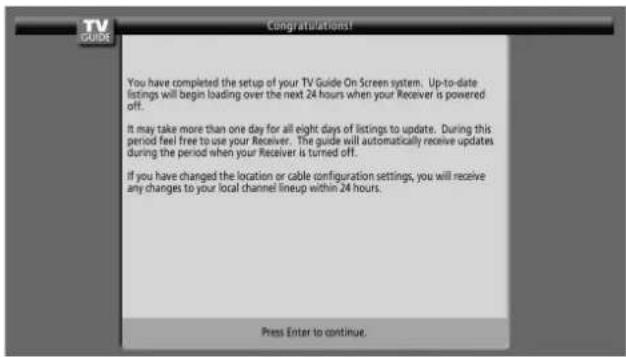
Screen 22: Congratulations
- You have successfully completed Setup!
- Press ENTER and you see Screen 23.
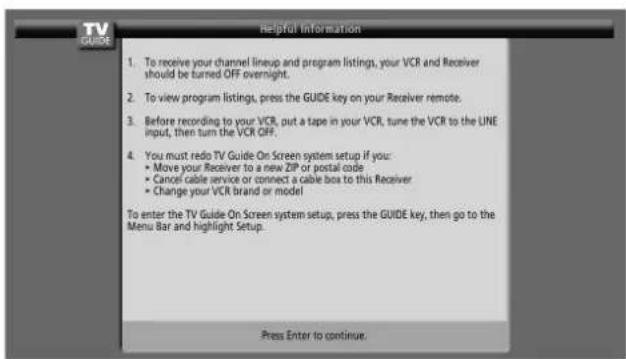
Screen 23: Helpful Information
This screen tells you valuable information on using your Guide.
- Press ENTER to watch TV.
Menu Configuration
AV mode menus
| Home Menu Item Page | ||
| Picture AV Selection 58 | ||
| Contrast 59 | ||
| Brightness 59 | ||
| Color 59 | ||
| Tint 59 | ||
| Sharpness 59 | ||
| Pro Adjust 59 | ||
| Reset 59 | ||
| Sound | Treble | 61 |
| Bass | 61 | |
| Balance | 61 | |
| Reset 61 | ||
| FOCUS 62 | ||
| Front Surround | 62 |
| Power Control | Energy Save | 62 |
| No Signal off | 62 | |
| No Operation off | 63 |
| Sleep Timer | —— | 58 |
| Option | Position | 63 |
| Auto Size | 65 | |
| 4:3 Mode | 65 | |
| Side Mask 66 | ||
| HDMI Input | 68, 69 | |
| Monitor Out | 69, 70 | |
| Digital Audio Out | 71 | |
| Language | 66 |
| Tuner Setup | Parental Control | 39 – 43 |
| Favorsites 43 | ||
| Channel Setup | 38 | |
| Closed Captions | 43 – 45 | |
| i.LINK Setup | 73 – 74 | |
| Clock 45 |
PC mode menus
| Home Menu Item Page | ||
| Picture AV Selection 58 | ||
| Contrast 59 | ||
| Brightness 59 | ||
| Red | 59 | |
| Green | 59 | |
| Blue | 59 | |
| Reset 59 | ||
| Sound | Treble | 61 |
| Bass | 61 | |
| Balance | 61 | |
| Reset 61 | ||
| FOCUS 62 | ||
| Front Surround | 62 |
| Power Control | Energy Save | 62 |
| Power Management | 63 |
| Sleep Timer | —— | 58 |
| Option | Auto Setup | 63 |
| Manual Setup | 64 |
Menu operations
The following describes the typical procedure for setting up the menus. For the actual procedures, see the appropriate pages that describe individual functions.
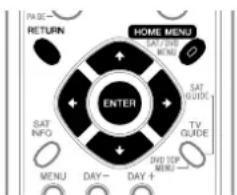
1 Press HOME MENU.
2 Press / to select a menu item, and then press ENTER.
3 Repeat step 2 until you access the desired submenu item.
The number of menu layers differs depending on the menu items.
- If you select "Tuner Setup", a menu bar appears at the bottom of the screen. To select a submenu item on the bar, press instead of /.
4 Press / select an option (or parameter), and then press ENTER.
- For some menu items, press ↑ instead of /.
5 Press HOME MENU to exit the menu.
NOTE
- You can return to the upper menu levels by pressing RETURN.
Setting up TV channels
This section describes how to search and set up TV channels that you can watch under the current conditions. Unless you set up TV channels using Auto Channel Preset, you may not be able to tune in those channels.
Using Auto Channel Preset
Auto Channel Preset automatically searches and sets up TV channels.
1 Press HOME MENU.
2 Select "Tuner Setup". (↑/↓ then ENTER)
3 Select "Channel Setup". ( / then ENTER)
4 Select "Ant. A" or "Ant. B". (▲▼ then ENTER)
5 Select "Auto Channel Preset". (↑/↓ then ENTER)
6 Select "Air" or "Cable". (▲/▼ then ENTER)
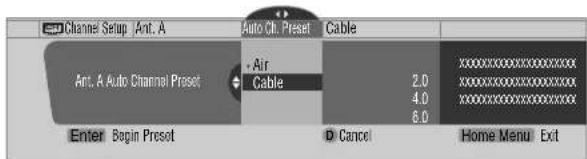
- Channel search automatically starts.
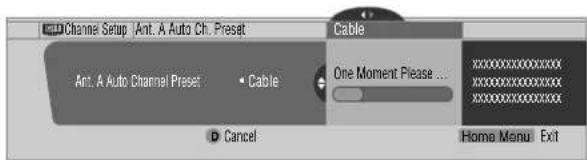
To quit Auto Channel Preset halfway, press D.
7 After Auto Channel Preset has been finished, press HOME MENU to exit the menu.

NOTE
- When using the Cable Converter, you may need to manually add Cable Converter output channels.
- When an inserted CableCARD is functioning, you cannot execute Auto Channel Preset.
Setting up TV channels manually
This section describes how to manually set up TV channels that have not been set up by Auto Channel Preset.
1 Press HOME MENU.
2 Select "Tuner Setup". ( / then ENTER)
3 Select "Channel Setup". (←/→ then ENTER)
4 Select "Ant. A" or "Ant. B". (▲▼ then ENTER)
5 Select "Add Channel". ( / then ENTER)
6 Select a channel number to be added. (/ then ENTER) You can also use buttons 0-9 to enter a channel number.
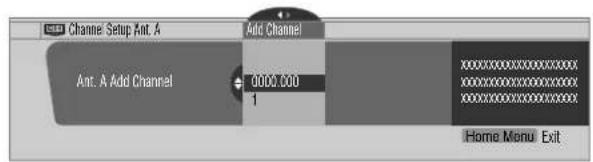
- After ENTER has been pressed, a confirmation screen appears.
7 Press A to complete the setup process.
8 Press HOME MENU to exit the menu.
Checking signal strength
When you have selected antenna A, you can check the current channel's signal strength. You may use this function when receiving a channel through a VHF/UHF antenna.
1 Press HOME MENU.
2 Select "Tuner Setup". (↑/↓ then ENTER)
3 Select "Channel Setup". ( / then ENTER)
4 Select "Ant. A". (▲▼ then ENTER)
5 Select "Signal Strength". (/ then ENTER)
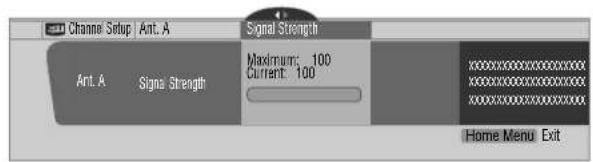
- Adjust the direction of the antenna so that the current signal strength reaches as close to the maximum signal strength as possible.
6 Press HOME MENU to exit the menu.

NOTE
This function is available only when receiving digital broadcasting signals over air.
- When you use the TV Guide On Screen system with a cable service, select "Cable" for "Auto Channel Preset".
- Executing more than one scan for cables will result in broadcasting reception failures.
- When you have connected the RF output terminal of a set-top box to the ANT/CABLE A IN or ANT B IN terminal, select "Cable" for "Auto Channel Preset" to scan for the IN terminal.
Checking the CableCARD™ ID
The Media Receiver has a slot for a CableCARD™ that is used for managing your information by the cable TV company. You will locate the CableCARD™ slot on the rear of the Media Receiver. The following procedure allows you to check your CableCARD™ ID and the Host ID.
1 Press HOME MENU.
2 Select "Tuner Setup". (↑/↓ then ENTER)
3 Select "Channel Setup". ( / then ENTER)
4 Select "POD ID".(/)
The Host ID and CableCARD ID appear.
5 Press HOME MENU to exit the menu.
Parental Control
With the Parental Control, parents can prevent their children from watching inappropriate TV programs, VCR or DVD contents. When an attempt is made to watch a program (or content) blocked by parents, the Plasma Display shows nothing but a message. The Parental Control functions for both conventional and digital TV channels.
In the U.S. three rating systems have been provided: the TV ratings, TV Parental Guidelines, and movie ratings. Movie ratings are provided by the Motion Picture Association of America (MPAA) and are used for original movies not edited for television.
For the rating system in Canada, see pages 41 and 42.

NOTE
In the U.S. TV Parental Guideline Rating System, programs with a rating of "None" may be blocked on this product. Examples of programs with a "None" rating include:
Emergency Bulletins (such as EAS messages, weather warning and others)
Locally originated programming
- News
Political
Public Service Announcements
Religious
Sports
- Weather
Voluntary movie rating system (MPAA)
| Rating Description | |
| Age-Base | N/A Not applicable for MPAA ratings |
| G General audiences. All ages admitted. | |
| PG Parental guidance suggested. Some material may not be suitable for children. | |
| PG-13 Parents strongly cautioned. Some material may be inappropriate for children under 13. | |
| R Restricted. Under 17 requires accompanying parent or adult guardian (age varies in some jurisdictions). | |
| NC-17 No one 17 and under admitted. | |
| NR Not rated. |

NOTE
The voluntary movie rating system only uses an age-based rating.
TV ratings
| Rating Description | |
| Age-Base | TV-Y All children |
| TV-Y7 Children 7 and above | |
| TV-G General audiences | |
| TV-PG Parental guidance suggested | |
| TV-14 Parents strongly cautioned | |
| TV-MA Mature audiences only | |

NOTE
- The system also allows you to select "None", which blocks programs with a rating of "None". For the examples of such programs, see "NOTE" on the left column on this page.
Changing the password
Using a password prevents other persons from changing Parental Control settings. A default password (1234) has been set before shipment. Use the following procedure to change the password.
1 Press HOME MENU.
2 Select "Tuner Setup". (↑/↓ then ENTER)
3 Select "Parental Control". ( / then ENTER)
4 Select "Password". ( / then ENTER)
5 Select "Change Password". ( / then ENTER)
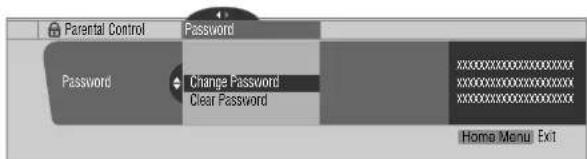
6 Enter the current 4-digit password, using buttons 0-9.
7 Enter a 4-digit password to be newly set, using buttons 0-9.
8 Enter the same password that you have entered in step 7. A confirmation screen appears.
9 Press A.
10 Press HOME MENU to exit the menu.

NOTE
- Take note of the newly set password and keep it handy.
Clearing the password
Use the following procedure to clear the password.
1 Press HOME MENU
2 Select "Tuner Setup". ( / then ENTER)
3 Select "Parental Control". (←/→ then ENTER)
4 Select "Password". (↑/↓ then ENTER)
5 Select "Clear Password". (+/− then ENTER)
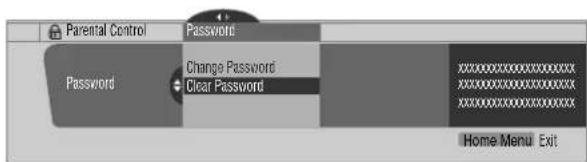
6 Enter the current 4-digit password, using buttons 0-9.
- A confirmation screen appears.
7 Press A.
8 Press HOME MENU to exit the menu.

NOTE
The above procedure will reset the password to the factory default (1234).
Activating the Parental Control
1 Press HOME MENU
2 Select "Tuner Setup", / then ENTER)
3 Select "Parental Control". ( / then ENTER)
4 Select "Status". (▲/▼ then ENTER)
5 Select "On". (▲/▼ then ENTER)
The password entry screen appears. Enter your 4-digit password using buttons 0-9.
6 Press HOME MENU to exit the menu.
Setting the voluntary movie rating system (MPAA)
1 Press HOME MENU
2 Select "Tuner Setup". ( / then ENTER)
3 Select "Parental Control". (←/→ then ENTER)
4 Select "MPAA Ratings". (▲/▼ then ENTER)
5 Select the desired rating and change the setting. (一 + then ENTER)
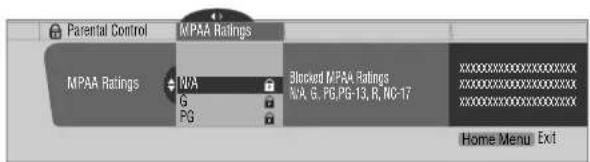
The password entry screen appears. Enter your 4-digit password using buttons 0-9.
Each time you press ENTER, the setting is switched.
- A lock icon appears beside the blocked rating.
- All the ratings have been unblocked before shipment.
6 Press HOME MENU to exit the menu.

NOTE
- Blocking a rating causes more severe ratings to be automatically blocked as well. Likewise, unblocking a rating causes less severe ratings to be automatically unblocked.
Setting the TV ratings
1 Press HOME MENU.
2 Select "Tuner Setup". (↑/▼ then ENTER)
3 Select "Parental Control". (←/→ then ENTER)
4 Select "TV Ratings".(↑/↓ then ENTER)
5 Select the desired rating and change the setting. (一 + then ENTER)
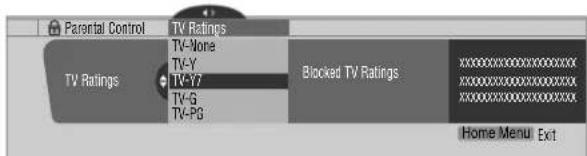
- The password entry screen appears. Enter your 4-digit password using buttons 0 - 9.
Each time you press ENTER, the setting is switched. - A lock icon appears beside the blocked rating.
- All the ratings have been unblocked before shipment.
6 Press HOME MENU to exit the menu.

NOTE
- Blocking a rating causes more severe ratings to be automatically blocked as well. Likewise, unblocking a rating causes less severe ratings to be automatically unblocked.
We suggest you write down your password so you don't forget it.
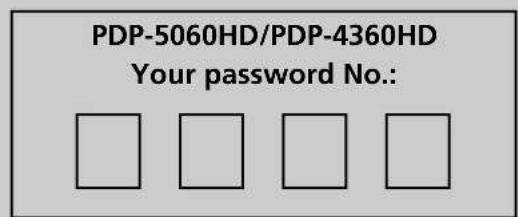
If you forget the password
When the message "Enter your Password" is displayed in step 6 under "Clearing the password", press the ENTER button on the remote control unit and hold it down for 3 seconds or longer. The password reverts to "1234".
Setting the TV Parental Guidelines (TV Guidelines)
1 Press HOME MENU
2 Select "Tuner Setup". ( / then ENTER)
3 Select "Parental Control". ( / then ENTER)
4 Select "TV Parental Guidelines". (↑/▼ then ENTER)
5 Select the desired rating and change the setting. (一 then ENTER)
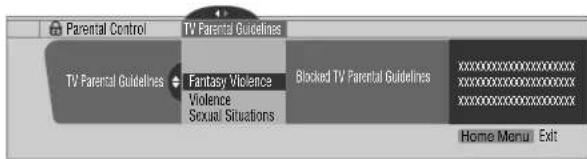
- The password entry screen appears. Enter your 4-digit password using buttons 0 - 9.
Each time you press ENTER, the setting is switched. - A lock icon appears beside the blocked rating.
- All the ratings have been unblocked before shipment.
6 Press HOME MENU to exit the menu.
Blocking Not Rated TV programs
Use the following procedure to block TV programs whose rating information is unavailable.
1 Press HOME MENU
2 Select "Tuner Setup". (/ then ENTER)
3 Select "Parental Control". ( / then ENTER)
4 Select "Unavailable Ratings". ( / then ENTER)
5 Select "Block" or "Don't Block". (↑/↓ then ENTER)
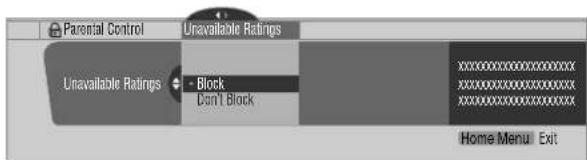
- The password entry screen appears. Enter your 4-digit password using buttons 0 - 9.
The factory default is "Don't Block".
6 Press HOME MENU to exit the menu.
Canadian rating systems
In Canada you can choose the Canadian English ratings or the Canadian French ratings. These ratings are based on the Canadian Radio-Television and Telecommunications Commission (CRTC) policy.
Canadian English ratings
| Rating Description | |
| Age-Base | E Exempt: Includes news, sports, documentaries and other information programming; talk shows, music videos, and variety programming. |
| C Children: Intended for younger children under the age of 8 years. Pays careful attention to themes that could threaten their sense of security and well-being. | |
| C8+ Children over 8 years old: Contains no portrayal of violence as the preferred, acceptable, or only way to resolve conflict; nor encourages children to imitate dangerous acts which they may see on the screen. | |
| G General: Considered acceptable for all age groups. Appropriate viewing for the entire family, contains very little violence, physical, verbal or emotional. | |
| PG Parental Guidance: Intended for a general audience, but may not be suitable for younger children (under the age of 8) because it could contain controversial themes or issues. | |
| 14+ Over 14 Years: Could contain themes where violence is one of the dominant elements of the storyline, but it must be integral to the development of plot or character. Language usage could be profane and rudly present within the context of the theme. | |
| 18+ Adults: Intended for viewers 18 years and older and might contain depictions of violence, which while related to the development of plot, character or themes, are intended for adult viewing. Could contain graphic language and portrayals of sex and nudity. |
Canadian French ratings
| Rating Description | |
| Age-Base | E Exempt programming. |
| G General: All ages and children, contains minimal direct violence, but may be integrated into the plot in a humorous or unrealistic manner. | |
| 8ans+ General but inadvisable for young children: May be viewed by a wide public audience, but could contain scenes disturbing to children under eight who cannot distinguish between imaginary and real situations. Recommended for viewing with parent. | |
| 13ans+ Over 13 years: Could contain scenes of frequent violent scenes and therefore recommended for viewing with parent. | |
| 16ans+ Over 16 years: Could contain frequent violent scenes and intense violence. | |
| 18ans+ Over 18 years: Only for adult viewing. Could contain frequent violent scenes and extreme violence. | |
Setting Canadian English ratings
1 Press HOME MENU.
2 Select "Tuner Setup". (↑/↓ then ENTER)
3 Select "Parental Control". (←/→ then ENTER)
4 Select "Canadian English Ratings". (+/− then ENTER)
5 Select the desired rating and change the setting. (一 + then ENTER)
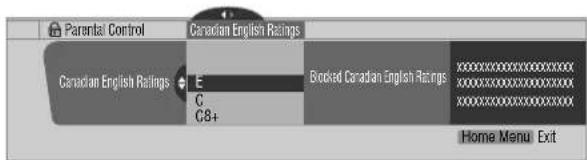
The password entry screen appears. Enter your 4-digit password using buttons 0-9.
Each time you press ENTER, the setting is switched.
- A lock icon appears beside the blocked rating.
- All the ratings have been unblocked before shipment.
6 Press HOME MENU to exit the menu.

NOTE
- Blocking a rating causes more severe ratings to be automatically blocked as well. Likewise, unblocking a rating causes less severe ratings to be automatically unblocked.
Setting Canadian French ratings
1 Press HOME MENU.
2 Select "Tuner Setup". ( / then ENTER)
3 Select "Parental Control". ( / then ENTER)
4 Select "Canadian French Ratings". (↑/↓ then ENTER)
5 Select the desired rating and change the setting. (一 + then ENTER)
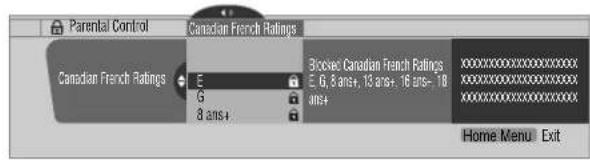
The password entry screen appears. Enter your 4-digit password using buttons 0-9.
Each time you press ENTER, the setting is switched.
- A lock icon appears beside the blocked rating.
- All the ratings have been unblocked before shipment.
6 Press HOME MENU to exit the menu.

NOTE
- Blocking a rating causes more severe ratings to be automatically blocked as well. Likewise, unblocking a rating causes less severe ratings to be automatically unblocked.
Temporarily deactivating the Parental Control
When the Parental Control is working and censors a blocked TV program (or content), the Plasma Display shows nothing but a message.
The method for temporarily deactivating the Parental Control differs, depending on the currently selected input source.
Antenna A, antenna B, or i.LINK:
The following screen appears. Press ENTER.
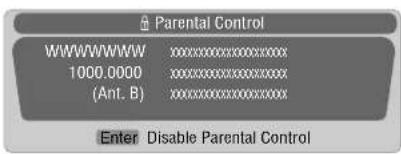
Enter your 4-digit password.
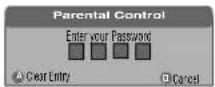
The password entry screen stays only for one minute. After the screen disappears, pressing ENTER causes it to appear again.
Input 1-4:
Enter your 4-digit password. You need not press ENTER first; pressing ENTER causes the password entry screen to disappear.
Please Input Your Password.

The above password entry screen will also be shown during 2-screen mode, picture-in-picture, and while freezing an image.
- The password entry screen stays only for one minute. After the screen disappears, pressing ENTER causes it to appear again.
Setting your favorite channels
Set up to 10 TV channels to each of the four color buttons on the remote control unit (40 channels in total). You can then quickly select from only your favorite channels.
1 Press HOME MENU.
2 Select "Tuner Setup". ( / then ENTER)
3 Select "Favorites". (←/→ then ENTER)
4 Select a color button (A, B, C, D). (▲/▼ then ENTER)
5 Select a TV channel to be registered. (↑/↓ then ENTER)
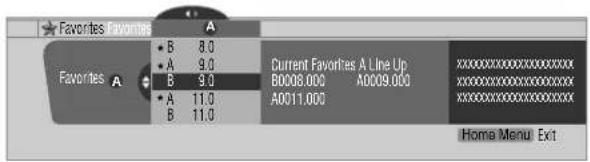
- A star appears beside the favorite channels currently selected.
- To register another TV channel under the same color button, repeat step 5. To register another TV channel under a different color button, repeat steps 4 and 5.
6 Press HOME MENU to exit the menu.
Setting up closed captions
Your Plasma Display System is equipped with an internal closed caption decoder. Closed caption allows you to view conversations, narration, and sound effects in TV programs and home videos as subtitles on your Plasma Display screen. You may enjoy digital closed captions when watching digital TV programs. Digital closed captions allow you to change parameters such as fonts and colors.
Not all programs and videos offer closed caption. Please look for the "ccmbol to ensure that captions will be shown.
Activating the closed caption
1 Press HOME MENU.
2 Select "Tuner Setup". (↑/↓ then ENTER)
3 Select "Closed Captions". ( / then ENTER)
4 Select "Status". ( / then ENTER)
5 Select "On" or "On If Mute". (↑/↓ then ENTER)
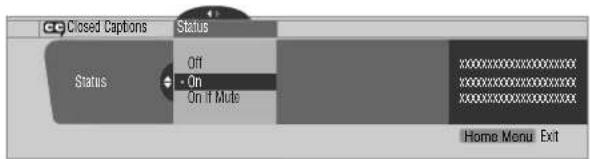
Item Description
Off Does not show closed captions. (factory default)
On Always shows closed captions.
On If Mute Shows closed captions only while sound is being muted.
6 Press HOME MENU to exit the menu.
Selecting the type of conventional closed captions
Select the type of conventional closed captions that you will watch after tuning to a conventional TV channel. This selection also becomes effective when a selected digital TV program provides only conventional closed captions.
- "CC1", "CC2", "CC3", or "CC4" displays subtitles of TV dramas and news programs while allowing a full view of the picture.
- "Text1", "Text2", "Text3", or "Text4" superimposes on the picture other information (e.g. TV guide, weather) that is independent of the TV program in progress.
1 Press HOME MENU.
2 Select "Tuner Setup". (↑/↓ then ENTER)
3 Select "Closed Captions". ( / then ENTER)
4 Select "Analog Settings". ( / then ENTER)
5 Select the desired closed caption. ( / then ENTER)
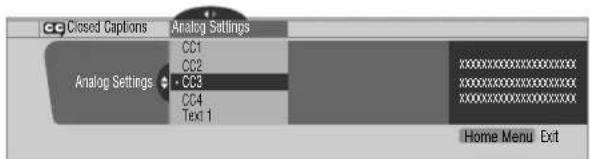
The factory default is "CC1".
6 Press HOME MENU to exit the menu.
Selecting digital closed captions
Use the following procedure to select digital closed captions: Service 1 to 6.
1 Press HOME MENU.
2 Select "Tuner Setup". (/ then ENTER)
3 Select "Closed Captions". ( / then ENTER)
4 Select "Digital Settings". ( / then ENTER)
5 Select "Digital Service".(↑/ then ENTER)
6 Select the desired closed caption. ( / then ENTER)
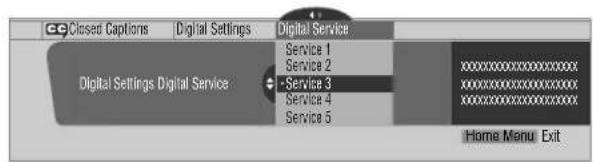
The factory default is "Service 1".
7 Press HOME MENU to exit the menu.

NOTE
The Primary Caption Service is usually offered for Service 1, and the Secondary Language Service is usually offered for Service 2 if these services are available.
Selecting digital closed caption parameters
Use the following procedure to change such parameters of digital closed captions as font size, font type, foreground and background colors.
1 Press HOME MENU.
2 Select "Tuner Setup". ( / then ENTER)
3 Select "Closed Captions". ( / then ENTER)
4 Select "Digital Settings". ( / then ENTER)
5 Select "Font Size", "Font", or any other item. (▲/▼ then ENTER)
6 Select the desired parameter. ( / ) then ENTER
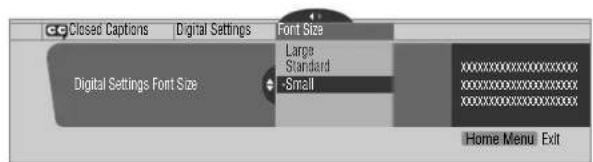
7 Repeat steps 5 and 6 as necessary. (, )
8 Press HOME MENU to exit the menu.
The following table shows the parameters selectable for each item.
Item Selection
| Font Size Auto/ Large/ Standard/ Small | |
| \( Font^1 \) | \( Auto/ Font 1/ Font 2/ Font 3/ Font 4/ Font 5/ Font 6/ Font 7 \) |
| Font Color | \( Auto/ Black/ White/ Red/ Green/ Blue/ Yellow/ Magenta/ Cyan \) |
| Font Opacity | \( Auto/ Solid/ Transparent/ Translucent/ Flashing \) |
| Background Color | \( Auto/ Black/ White/ Red/ Green/ Blue/ Yellow/ Magenta/ Cyan \) |
| Background Opacity | \( Auto/ Solid/ Transparent/ Translucent \) |
1 Font 1 (monospaced with serirs)/ Font 2 (proportionally spaced with serirs)/ Font 3 (monospaced without serirs)/ Font 4 (proportionally spaced without seri/ Font 5 (casual font)/ Font 6 (cursive font)/ Font 7 (small capillars font)
With "Auto" selected, parameters specified by the provider are used; if not specified by the provider, the bolded default parameters are used. If you select parameters other than "Auto", the selected parameters are used regardless of the provider's specifications.
Clock Setting
With "Auto Set" selected for Clock Setting, the system acquires and sets time information automatically. You can also manually set the correct time. If you disconnect the power cord from the power outlet or power blackout occurs, the set time is cleared.
1 Press HOME MENU
2 Select "Tuner Setup". ( / then ENTER)
3 Select "Clock". ( / then ENTER)
4 Select "Time Zone". (▲/▼ then ENTER)
5 Select a time zone for your area. (▲/▼ then ENTER)
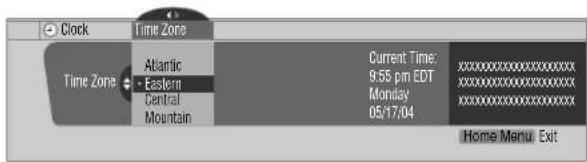
6 Select "D.S.T." (←, ↑/↓, then ENTER)
7 Select "Applies" or "Does Not Apply". (↑/↓ then ENTER)
Make this selection, depending on whether summer time is employed in your area.
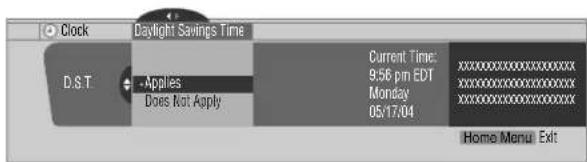
8 Select "Auto/Manual Set". ( , / then ENTER)
9 Select "Auto Set" or "Manual Set". (▲/▼ then ENTER)
10 If you select "Auto Set", select an antenna (A or B) and a channel number using and ENTER.
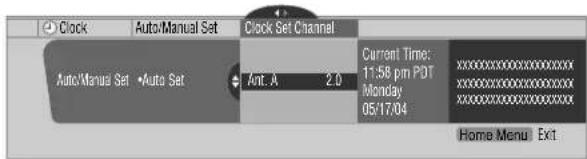
The date and time will be automatically corrected using data from the selected channel.
If you select "Manual Set", manually set the date and time u s ★ ★ ★ / , / a n d ENTER.
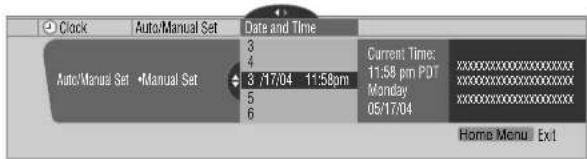
11 Press HOME MENU to exit the menu.
NOTE
- If you setup the TV Guide On Screen™ system, the Plasma Display System acquires clock information through the TV Guide On Screen™ system; in this situation you cannot set up the clock using the menu. If you select a parameter for the Clock menu and press ENTER, the menu screen disappears and a dialog box appears instead; press A to clear the dialog box.
Using the TV Guide On Screen™ system
Before you can start using the TV Guide On Screen system, you'll need to set it up. If you haven't already done this, please turn to "TV Guide On Screen System Setup" on page 31 before proceeding.
In order to record TV programs with a VCR or D-VHS recorder, you need to correctly connect the equipment to the Media Receiver. For the connections with a VCR, see page 70. For the connections with a D-VHS recorder, see page 71.
Legal Notices
In the United States, TV GUIDE and other related marks are registered marks of Gemstar-TV Guide International, Inc. and/or one of its affiliates. In Canada, TV GUIDE is a registered mark of Transcontinental, Inc. and is used under license by Gemstar-TV Guide International, Inc.

NOTE
The TV Guide On Screen interactive program guide provides listings for cable-ready, cable box, and digital cable services as well as over-the-air broadcast. It does not provide listings for satellite services.
Once you set up the TV Guide On Screen system it may take up to 24 hours to begin to receive TV program listings. Receipt of all eight days of listings may take up to one week.
Screen components
Many of the screens have common elements to make using the system easier.
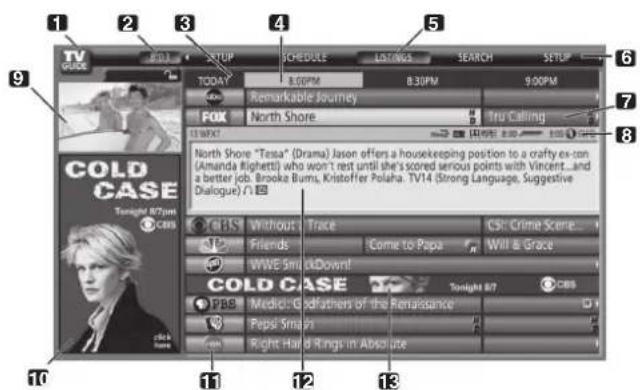
1 TV GUIDE logo
2 C I o c k -Shows the current time.
3 Time slot - Half-hour time slots are displayed horizontally.
4 T i m e t a b - Indicates the currently selected
5 Current service label -Indicates the currently selected service.
6 Service bar - Gives access to the various services of the Guide.
7 T i l e - Shows the title of the TV program.
8 Info Bar - Shows various icons to convey information or show the status of an item.
9 Video window - Allows you to continue watching the current program while using the Guide.
10 Panel ads and panel menu entry - Space for show or product advertising (and the panel menu).
11 Channel logo
12 Info Box - Shows information about the highlighted item.
13 Channel ads - Space for show advertising.
TV Guide On ScreenTM icons
Various icons are used to convey information or show the status of an item. You will locate these icons on the Info Bar, inside the Info Box, or beside program titles.

Info icon - Additional information is available; press NFO button to display.

Gress Bar - Shows the elapsed time of the program.

HDTV - Indicates that a program is a high-definition, 125-cast.

The program is new (not a repeat).

- The program is broadcast in stereo.

CC- The program is broadcast with closed captioning.

TV Rating - Indicates the age rating for the program.

ord Once-One-time only recording

ord Daily - Records the same channel at the timey Monday through Friday (manual recording only).

ord Regularly - Records the same program any day s on the same channel at the same time.

ord Weekly - Records a program every week at the e time/day.

Record Suspend - The program is set to record, but is suspended because of a conflict with another recording or to tune reminder. The recording resumes when the flict is cleared.

ord Off - The program remains in the SCHEDULE but will not be recorded until the frequency is changed he of the above.

nind Once-One-time only reminder

nind Daily - Reminds for the same channel and time. y Monday through Friday (manual reminder only).

Mind Regularly - Reminds the same program any time itAirs on the same channel at the same time.

Mind Weekly - Reminds every week at the same day/day.

Inn Suspend - A reminder is set for the program, it is suspended because of a conflict with another auto reminder or recording. The reminder resumes when the conflict is cleared.

mind Off - The program remains in the SCHEDULE but will not remind until the frequency is changed to one at the above.
TV Guide On Screen™ navigation
The table below shows a summary of the remote buttons you'll use to navigate the TV Guide On Screen™ system.
Key What it does
| TV GUIDE Press to display the TV Guide On ScreenTM system (also use to exit). | |
| ↑/↓/←/→ | Use to navigate screens (highlight an item). |
| ENTER | Press to confirm a selection or execute an action. Can also be used to display the panel menu when a forthcoming program is highlighted. |
| MENU Press to display a panel menu. | |
| INFO Press to cycle through the available information for the current program or screen. | |
| ●REC | Press to set the highlighted program to record. |
| Number buttons Use for numeric entry. | |
| PAGE +/- | Press to select the previous/next page of information (where applicable). |
| DAY +/- | Press to jump to the next/previous day of program listings (if applicable). |
You can also use the TV GUIDE,ENTER,UP/DOWN,and LEFT/ RIGHT buttons on the Media Receiver. The UP/DOWN and LEFT/RIGHT buttons operate the same as the / buttons on the remote control unit.
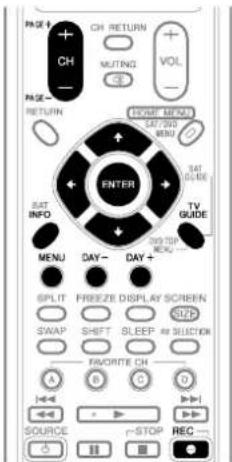
The Listings screen
You can consider the Listings screen as the "home" screen of the TV Guide On Screen system. This is the screen you see when you press TV GUIDE.
From the Listings screen you can:
View eight days of program listings.
- Display information about individual programs.
- Select a program to start watching.
- Set a program to remind.
- Set a program to record.
See a thumbnail display of any channel in the video window.
- Access panel and channel ads.
1 Press TV GUIDE to display the Listings screen.
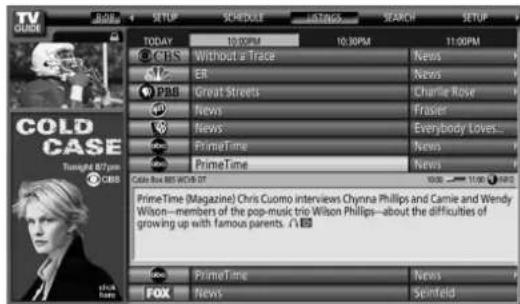
- With "LISTINGS" highlighted in the Service bar at the top of the screen, press INFO to display (and then close) Help information.
- Press TV GUIDE anytime to exit.
2 P r e s // tonavigatethe L
- With a currently showing program highlighted, press ENTER to start watching.
- Move right for later time slots.
- Press PAGE+/- to display listings for the previous/next day.
- Press INFO to display additional information (if available) about the currently selected show.
3 To set the highlighted program to record, press REC.
Pressing REC just once will set the program to record. Press REC repeatedly to change the frequency of the recording:
- Since - Just records the highlighted program.
Regularly-Records the same program any day it airs on the same channel at the same time. -
Weekly - Records the same program at the same time 1/ day every week.
-
No record icon - Don't set a recording.
1 The program will still be recorded if it starts any time up to the midway point of the originally scheduled program. For example, up to 9:15 for a 9:00 to 9:30 program.
Note that setting a program to record in this way will result in a recording using all the default options.
If you want to set a recording using settings other than the default, use the panel menu, as described next.

NOTE
- When TV Guide On Screen™ is not being displayed, you can record a program simply by pressing the REC button on the remote. Press the REC button to record the program once. Recording begins immediately. If the program is listed in the TV Guide On Screen™, recording ends at the end of the program. If the program is not listed in the TV Guide On Screen™, recording continues for 30 minutes.
- When TV Guide On Screen™ is not displayed, pressing the REC button more than once does nothing.
Recording programs
The simplest way to record a program is to highlight the program you want to record and press REC (as described above), but if you want to set the recording options to anything other than the default, the place to do it is the Recording Options panel menu. Here you can adjust the start and end times, the destination of the recording, the recording quality and so on.
1 From LISTINGS, SCHEDULE, or SEARCH, highlight the program you want to record.
2 Press MENU to display the Episode Options panel menu.
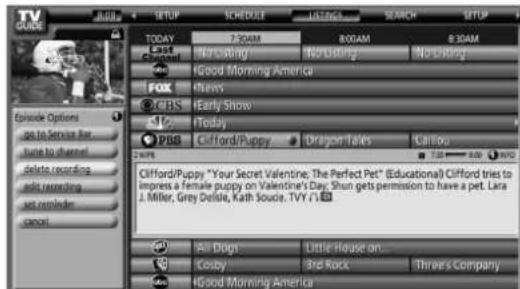
3 Highlight "set recording" and press ENTER.
4 Set the recording options:
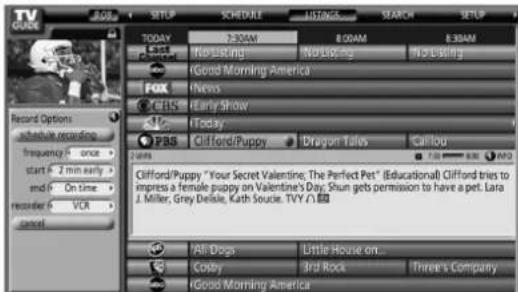
Press highlight a field; press / change the setting.
- frequency - select whether the program will be recorded just Once, Regularly (at the same time on the same channel), or Weekly (every week at the same time/day). There's also an Off option which puts the program in the recording schedule but doesn't record it (you can set it to record later).
- start - set the start time of the recording to On time, or up to 120 minutes before or after the scheduled time.
end - set the end time of the recording to On time, or up to 120 minutes before or after the scheduled time. - recorder - select a recorder to be used for recording.
- quality - set the recording mode (for i.LINK connectable devices only).
5 Once all the settings have been made, press ENTER to highlight "schedule recording", then press ENTER again.

- The recording is now set (and will appear in SCHEDULE) and the appropriate icon appears on the show tile.
- If you want to cancel the recording, highlight cancel and press ENTER.
If there is a time conflict with previously scheduled recording or auto-tune reminder when you preset recording, you will be alerted to this. You can select to record the conflicting program, or cancel the recording. The following screens appear depending on whether it will override a scheduled recording or reminder.
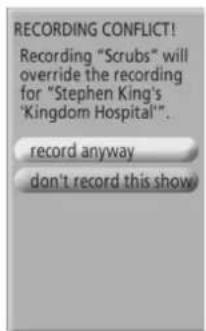
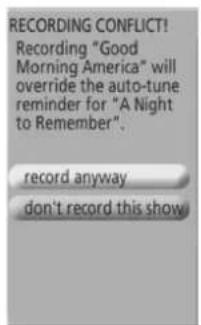
When the recording is about to start
The TV Guide On Screen™ system alerts you when a scheduled recording is about to start and gives you the chance to cancel the recording if you no longer need it.
When you see the on-screen alert, select either:
- "change channel, start recording"; or
- "don't change channel; cancel recording".

Depending on the situation, the following screens will appear.
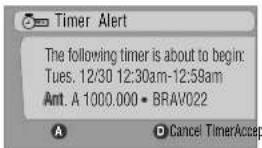
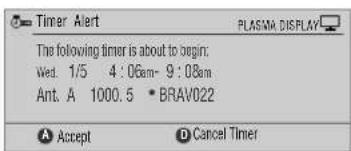
Press A to start recording as scheduled or D to cancel recording.
While recording is in progress
If you attempt to change the channel while recording is in progress, the following screen appears.
Select either:
- "don't change; keep recording" or
- "change; stop recording".

Depending on the situation, the following screens will appear. In this case, the reminder will remain on-screen for 15 seconds before it automatically disappears.
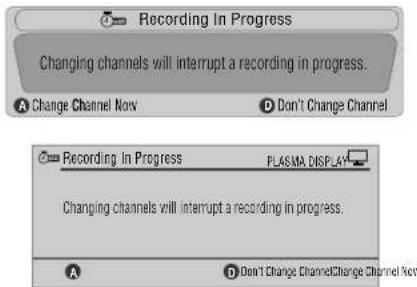
Press A to change the channel and quit recording; or press D not to change the channel and to continue recording.
Setting program reminders
By setting a program reminder you can have the TV alert you when a program is about to start on another channel. You can set reminders for individual episodes of a program, or every time a program air.
1 From LISTINGS, SCHEDULE, or SEARCH, highlight the program for which you want to set a reminder.
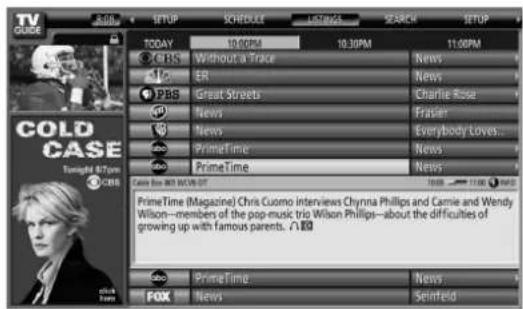
2 Press MENU to display the Episode Options panel menu.
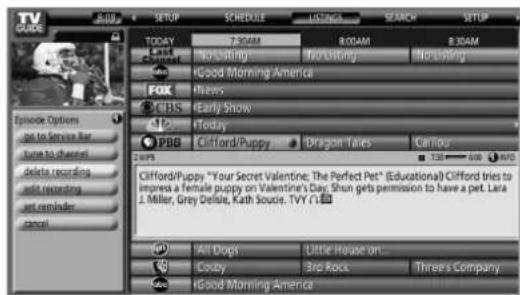
3 Highlight "set reminder" and press ENTER.
4 Set the reminder options:
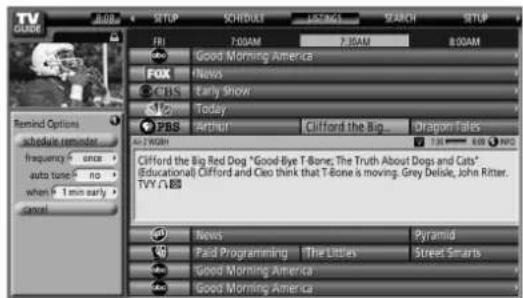
Press highlight a field; press / change the setting.
- frequency - select whether to be reminded just Once, Regularly (at the same time on the same channel), or Weekly (every week at the same time/day). There's also an Off option which puts the program in the reminder schedule but no reminder is given (you can set it to remind later).
- auto tune - choose whether the TV should automatically change channels when a reminder is due, or not.
- when - set when the reminder is displayed (before, on time, or after a program has started).
5 Once all the settings have been made, press ENTER to highlight "schedule reminder", then press ENTER again.
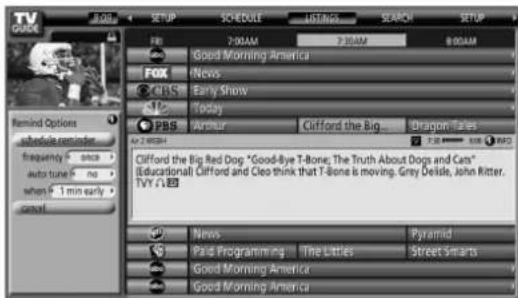
The reminder is now set (and will appear in SCHEDULE) and the appropriate icon appears on the show tile.
If there is a time conflict with previously scheduled auto-tune reminder or recording when you preset a reminder, you will be alerted to this too. You can select to set a reminder for the conflicting program, or cancel the reminder. The following screens appear depending on whether it will override a scheduled reminder or recording.
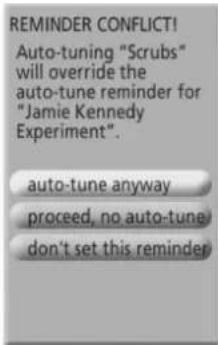
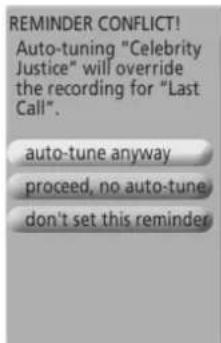
When scheduled reminder is about to progress (auto-tune is OFF)
Depending on the settings you made, your program reminder will appear on your TV screen around the time the program is scheduled to start. This happens when you have selected "NO" for the auto tune. The reminder will remain on-screen for three minutes before it automatically disappears.
Press ENTER to tune to the highlighted program in the reminder, or highlight "hide reminders" to dismiss the reminder.

If more than one reminder is set for the same time, select the program you want by pressing
Depending on the situation, the following screens will appear. In this case, the reminder will remain on-screen for 15 seconds before it automatically disappears.
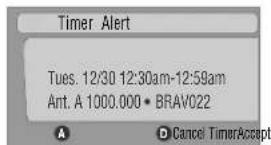
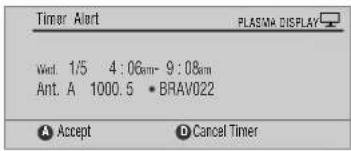
Press A to leave the reminder effective, or D to dismiss the reminder.
When scheduled reminder is about to progress (auto-tune is ON)
If the "auto-tune" setting was set to "yes" in the Remind Options, one of the following screens appears, depending on the situation.
The screen will remain for 15 seconds before it automatically disappears.
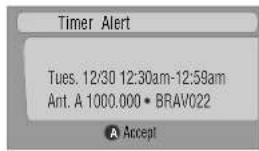
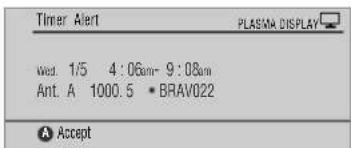
Press A to make the Timer Alert screen disappear.
Searching for programs
The Search screen lets you search for programs alphabetically, by category or by keyword. You can also search for HDTV programs.
Searching by category
Here you can search for programs by category, and then by a further sub-category if you want.
1 Select "SEARCH" from the Service bar at the top of the screen.
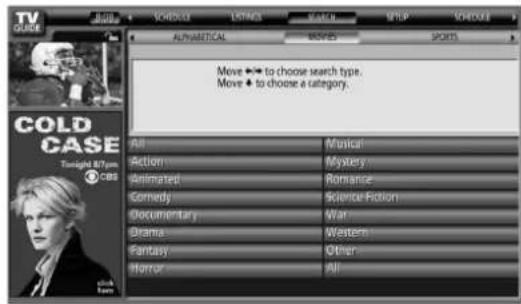
2 Press to move to the search category bar, then press / to select a search category.
Available categories may include:
Movies
Sports
Children
Educational
- News
Variety
- Series
HDTV
3 Press to move to the search sub-categories and select the sub-category you want.
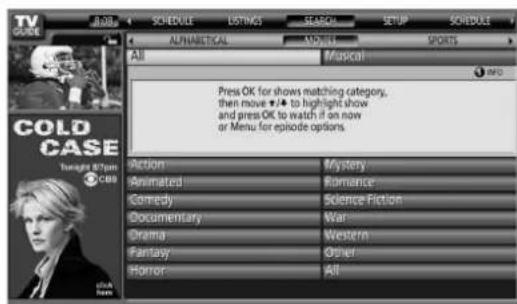
The sub-categories available depend on the category you chose in the last step.
4 Press ENTER to display a listing of upcoming programs that match the categories you chose.
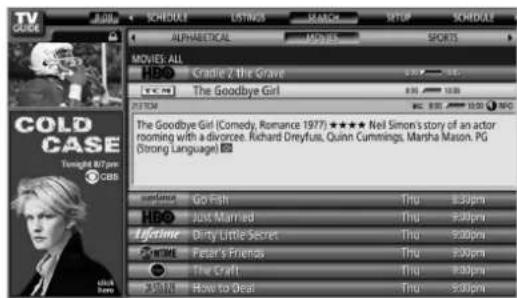
5 Highlight a program listing and press MENU to display the Episode Options panel menu.
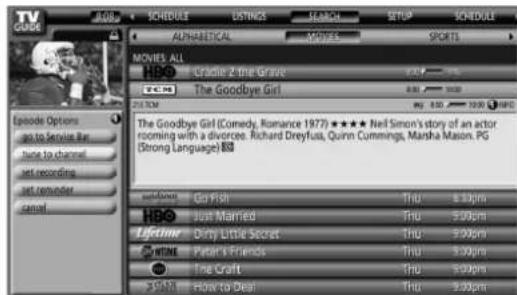
- If the program listing is a program now being broadcast you can press ENTER to start watching it immediately.
Searching by keyword
Here you search for shows based on keywords you enter. The keywords you create are stored so you can use them again in the future.
1 Select "SEARCH" from the Service bar at the top of the screen.
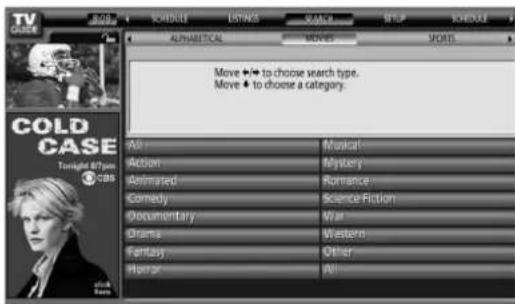
2 Press to move to the search category bar, then press / to select "KEYWORD".
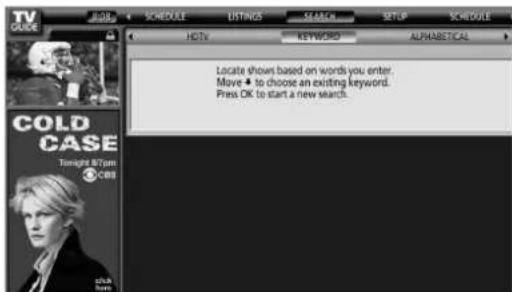
If you already entered any keywords, they are displayed. Just select one if you want to search for it again.
- To edit or delete one of the displayed keywords, highlight it and then press MENU. From the panel menu you can choose "edit search" or "delete search".
3 Press ENTER to display the Keyword Search menu.
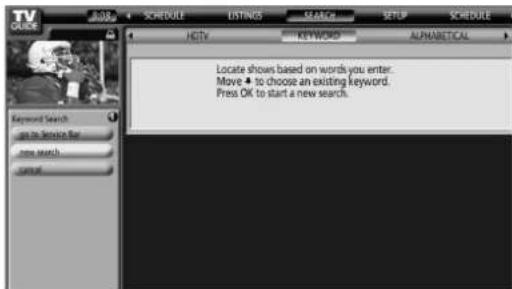
TV Guide On Screen™ System Operation
4 Select "new search".
5 If you want to change the category, move up and select the category you want.
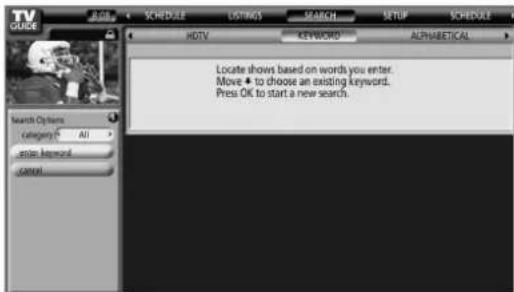
To search using only the keyword, leave the category set to "All".
- If you select a category ("HDTV", for example) then you'll only see programs in that category that also match the keyword.
6 Highlight "enter keyword" and press ENTER.
7 Input the keyword for the search.

- H i g h l i g h t c l a c t e i pressing ENTER to input them.
The keyword you input is stored so that you can use it again whenever you need it.
8 Select "DONE" to start the search.
9 Highlight a program listing, then press MENU to display the Episode Options panel menu.
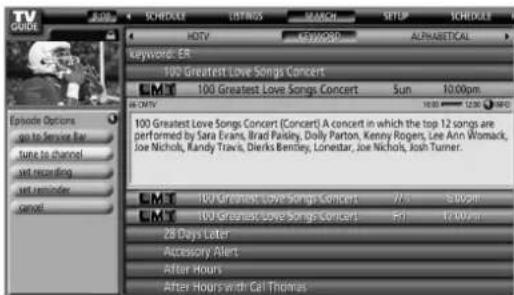
- If the program listing is a program now being broadcast you can press ENTER to start watching it immediately.
Alphabetical search
This search is designed to display all programs that start with a particular letter.
1 Select "SEARCH" from the Service bar at the top of the screen.
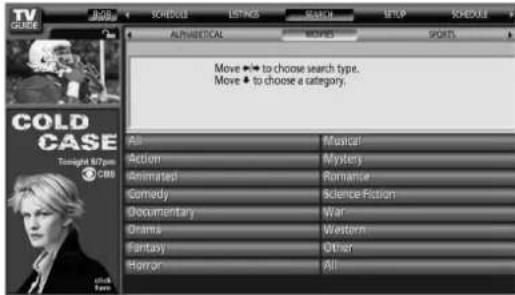
2 Press to move to the search category bar, then press to select "ALPHABETICAL".
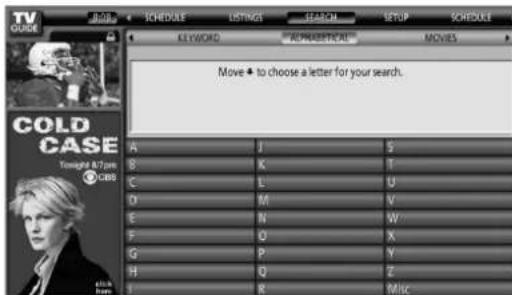
3 Press ENTER.
4 Select a letter, then press ENTER to display all programs starting with that letter.
5 bypressing/7then 5Highlight a program listing and press MENU to display the Episode Options panel menu.
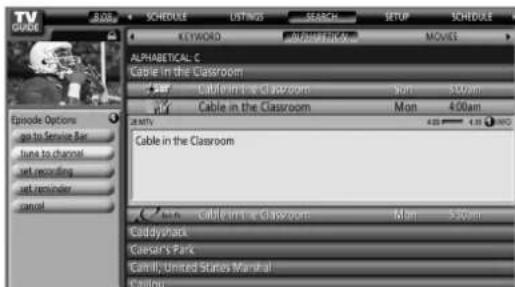
- If the program listing is a program now being broadcast you can press ENTER to start watching it immediately.
The search Episode Options menu
From the Episode Options menu you can select:
- go to Service bar - closes the panel menu and returns to the Service bar at the top of the screen.
- tune to channel / watch now - exits the TV Guide On Screen™ guide and tunes to the channel.
- set recording - goes to the Record Options menu.
- set reminder - goes to the Remind Options menu.
- cancel - closes the panel menu and returns to the highlighted program listing.
Navigation and search tips
- The buttons move the highlight between options in the panel menu. Use the number buttons to input information.
- If a highlighted field has arrows on either side, press cycle through the options.
- Press ENTER on any option to highlight the default command (e.g., Done), then press ENTER again to execute and close the panel menu.
- Select Cancel and press ENTER to close the panel menu and return to the previous screen, or press MENU to cancel any changes and close the menu.
Scheduling recordings and reminders
From the Schedule area you can review, edit or delete recordings and reminders.
1 Select "SCHEDULE" from the Service bar at the top of the screen.
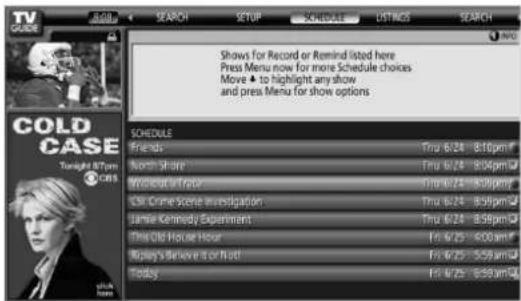
A list of programs that have record or remind events scheduled appears. The icons on the right side indicate the status of the events.
- once only recording
-aily Records the same channel at the time every Monday through Friday (manual recording only)
Regularly - Records the same program any day it airson the same channel at the same time.
Weekly recording (every week at the same time/day)
Record Supend - The program is set to record, but is suspended because of a conflict with another recording or auto tune reminder. The recording resumes when the conflict is cleared.
Off: The program remains in the SCHEDULE list, but will not be recorded until the frequency is changed to one of the above. - ice only reminder
- Daily Reminds for the same channel and time every Monday through Friday (manual reminder only)
Regularly - Reminds the same program any day it airs on the same channel at the same time?
Weekly reminder (every week at the same time/day) - Remind Supend - A reminder is set for the program, but is suspended because of a conflict with another auto tune reminder or recording. The reminder resumes when the conflict is cleared.
The program remains in the SCHEDULE list, but will not remind until the frequency is changed to one of the above.
1 The program will still be recorded if it starts any time up to the midway point of the originally scheduled program. For example, up to 9:15 for a 9:00 to 9:30 program.
2 The reminder will still appear if the program starts any time up to the midway point of the original schedule. For example, up to 9:15 for a 9:00 to 9:30 program.
2 Highlight a program in the list and press MENU to display the Schedule Options panel menu.
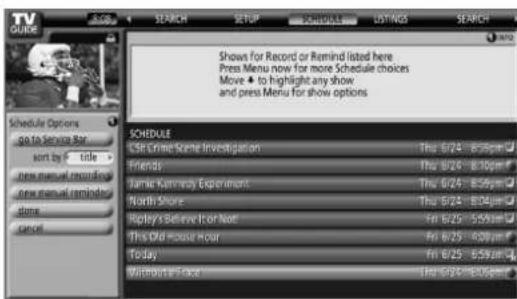
- When you highlight a program in the list you'll see information related to that program appear in the Info Box.
The Schedule Options menu
The Schedule Options menu is accessible by pressing MENU when either "SCHEDULE" is highlighted in the Service bar, or a program is highlighted.
When "SCHEDULE" is highlighted in the service bar:
- go to Service Bar - closes the panel menu and returns to the Service bar at the top of the screen.
sort by - select a sort order for the program listings. - new manual recording - select and then fill in all the necessary fields to set the recording. Select "schedule recording" when you're done to save and exit, or select "cancel" to exit without saving.
- new manual reminder - select and then fill in all the necessary fields to set the reminder. Select "schedule reminder" when you're done to save and exit, or select "cancel" to exit without saving.
done-closes the panel menu and returns to the Service bar at the top of the screen. - cancel - closes the panel menu without saving any changes and returns to the Service bar at the top of the screen.
When a program is highlighted:
- go to Service Bar - closes the panel menu and returns to the Service bar at the top of the screen.
watch now - start watching the selected program (this option is "tune to channel" for a program that isn't showing now). - cancel - closes the panel menu and returns to the highlighted program listing.
For recording:
- set recording - set the program to record (opens the Record Options menu).
- delete recording - remove the recording from the schedule (requires confirmation).
- edit recording - edit the recording settings (opens the Record Options menu).
For reminder:
- set reminder - set the program to remind (opens the Remind Options menu).
- delete reminder - remove the reminder from the schedule (requires confirmation).
edit reminder - edit the reminder settings (opens the Remind Options menu).
Changing setup options
You can change TV Guide On Screen settings from the Setup menu. Setup options are divided into three categories: System Settings, Channel Display, and Default Options.
1 Select "SETUP" from the Service bar at the top of the screen.
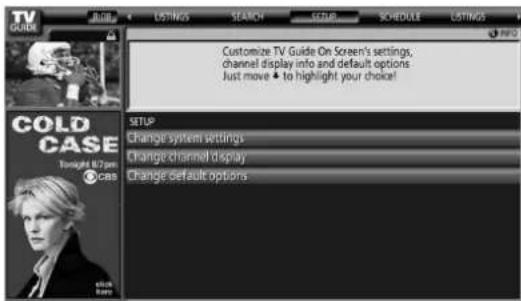
2 Press to select one of the setup areas.
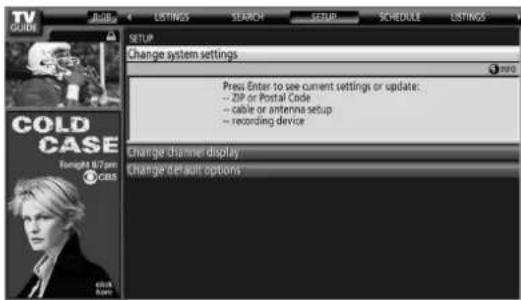
As you highlight an option you can see the settings you can adjust in that area:
- System Settings - ZIP/postal code, cable setup, etc.
- Channel Display - Channel position, tuning channel, display on/off, etc.
- Default Options - General, recording and reminder defaults
Changing the System Settings
The System Settings include your ZIP/postal code and your cable TV setup.
1 Highlight the "Change System Settings" item.
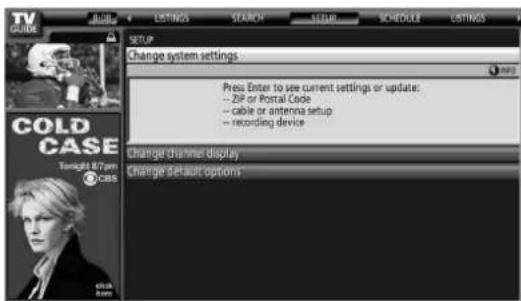
2 Press ENTER to display the current settings and the options to change them.
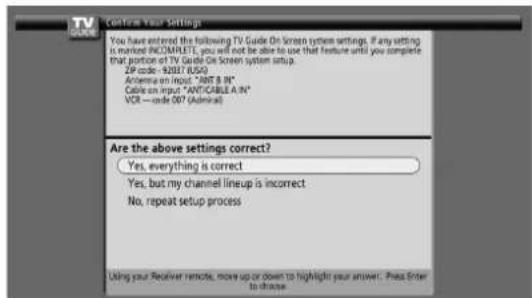
3 Select one of the options, then follow the on-screen instructions.
- Yes, everything is correct: displays a helpful information screen. Press ENTER to quit the TV Guide On Screen".
- Yes, but my channel lineup is incorrect: displays a screen from which you may choose the correct channel lineup. Press ENTER to display the Channel Editor screen.
- No, repeat setup process: displays screen 1 shown on page 32.
Changing the Channel Display settings
From the Channel Display settings you can set/change:
- the display setting to always display (On), never display (Off), or display only when channel information is available (Auto Hide).
the tuned channel number.
the channel position in the channel listing.
1 Highlight the "Change Channel Display" item.
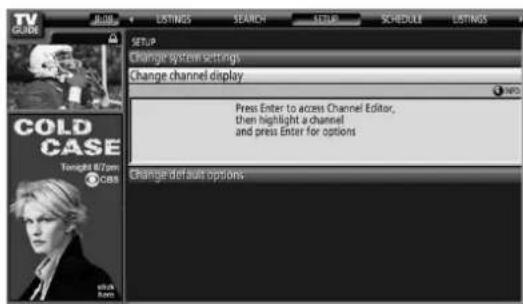
2 Press ENTER to display the channel editor.
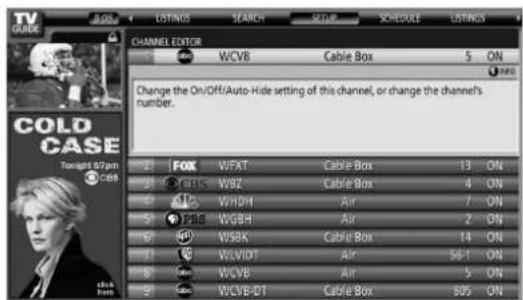
3 Press / to highlight a channel then press ENTER to go to the Grid Options menu.
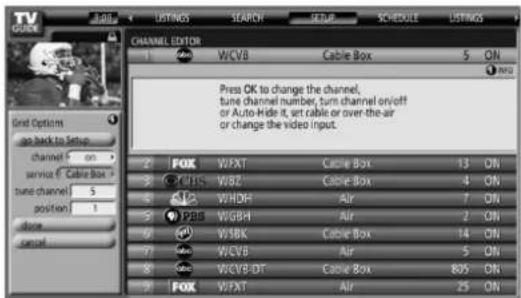
From the Grid Options menu you can set:
- channel - On (display in channel list), Off (don't display) or Auto Hide (hide when no program information is available)
- service - the type of service that the channel operates on (cable, etc.)
- tune channel - the channel number that the channel listing is tuned to
- position - place that the channel appears in the channel list
4 When you've made all the settings you want for the channel, highlight "done" then press ENTER.
- To cancel without saving any of the changes you made, select "cancel".
Changing the Default Options
This is the place to change the default settings for recordings, reminders and other general settings.
1 Select the "Change Default Options" item.
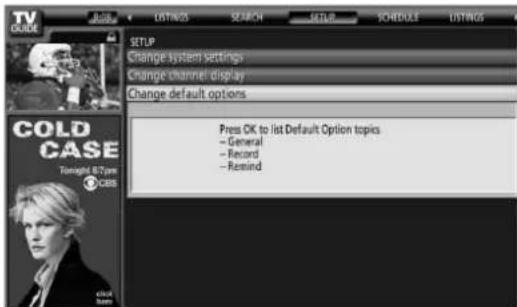
2 Select one of the three default option categories. A different panel menu appears for each option:
General default options
- box size - the initial size of the Info Box (no, small, large, last used)
- box cycle - the cycle behavior of the Info Box (no only, small only, large only, no & small, no & large, small & large, all)
- auto guide - Display TV Guide On Screen™ guide automatically when you switch on the TV (On, Off)
Record defaults
- start - when to start a recording (up to 120 minutes earlier or later than the program start time, or On time)
- end - when to end a recording (up to 120 minutes earlier or later than the program end time, or On time)
- recorder - selects a recorder to be used for recording.
- quality - recording quality (for i.LINK connectable devices only)
Remind defaults
- auto tune - automatically tunes to the correct channel when a reminder becomes due (Yes or No)
- when - when to display the reminder (15 minutes early to 15 minutes late, or On time)
3 When you've made all the settings you want, highlight "done" then press ENTER.
To cancel without saving any of the changes you made, select "cancel".
Sleep Timer
When the selected time elapses, the Sleep Timer automatically places the system into the standby mode.
Press SLEEP to select the desired time.
The timer starts counting.
Each time you press SLEEP, the selection is switched as below:
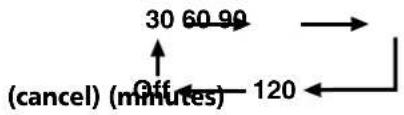
The factory default is "Off".

NOTE
- To cancel the Sleep Timer, select "Off" by pressing SLEEP.
- Five minutes before the selected time elapses, the remaining time appears every minute.
You can also use the menu to set the Sleep Timer.
1 Press HOME MENU.
2 Select "Sleep Timer".(↑/then ENTER)
3 Select the desired time. (↑/↓ then ENTER)
4 Press HOME MENU to exit the menu.
AV Selection
Select from the five viewing options, depending on the current environment (e.g., room brightness), the type of the current TV program, or the type of images input from external equipment.
1 Press AV SELECTION.
The current AV Selection mode appears.
2 Press AV SELECTION again before the displayed mode disappears.
- For AV source, the mode is switched in this order; STANDARD, DYNAMIC, MOVIE, GAME, then USER.
- For PC source, the mode is switched between STANDARD and USER.
You can also use the menu to change the options.
1 Press HOME MENU.
2 Select "Picture". (/ then ENTER)
3 Select "AV Selection". ( / then ENTER)
4 Select the desired option. ( / then ENTER)
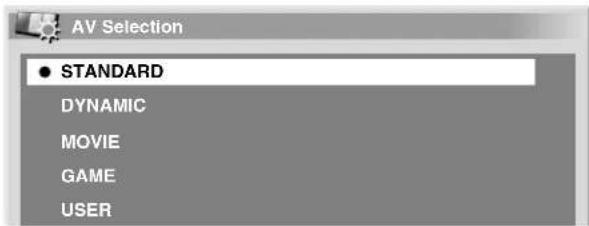
For AV source
Item Description
STANDARD For a highly defined image in a normally bright room This selection is shared by the external input and TV input sources.
DYNAMIC For a very sharp image with maximum contrast This mode does not allow manual image quality adjustment. This selection is shared by the external input and TV input sources.
MOVIE For movies This selection is shared by the external input and TV input sources.
GAME Lowers image brightness for easier viewing. This selection is shared by the external input and TV input sources.
USER Allows you to customize settings as desired. You can set the mode for each input source.
For PC source
Item Description
STANDARD For a highly defined image in a normally bright room (factory default)
USER Allows you to customize settings as desired. You can set the mode for each input source.
5 Press HOME MENU to exit the menu.

NOTE
- You can also press AV SELECTION on the remote control unit to switch the viewing option.
- If you have selected "DYNAMIC", you cannot select "Contrast", "Brightness", "Color", "Tint", "Sharpness", "Pro Adjust" and "Reset"; these menu items are dimmed.
Basic picture adjustments
Adjust the picture to your preference for the chosen AV Selection option (except DYNAMIC).
1 Press HOME MENU
2 Select "Picture". ( / then ENTER)
3 Select an item to be adjusted. ( / then ENTER)
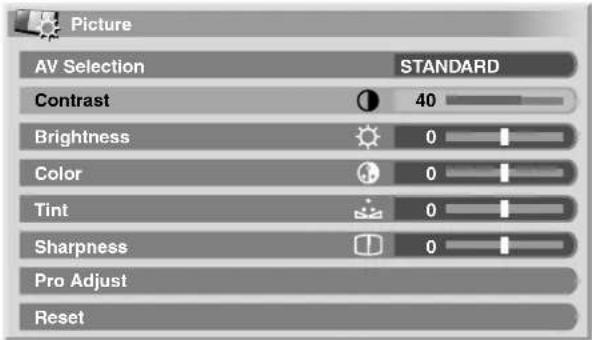
4 Select the desired level. ()

- When an adjustment screen is displayed, you can also change the item to be adjusted, by pressing
5 Press HOME MENU to exit the menu.
For AV source
| Item | ← button button | → |
| Contrast For less contrast For more contrast | ||
| Brightness For less brightness For more brightness | ||
| Color | For less color intensity | For more color intensity |
| Tint Skin tones become purplish | Skin tones become greenish | |
| Sharpness For less sharpness For more sharpness | ||
For PC source
| Item | ← button button | → |
| Contrast For less contrast For more contrast | ||
| Brightness For less brightness For more brightness | ||
| Red For weaker red | For stronger red | |
| Green | For weaker green | For stronger green |
| Blue | For weaker blue | For stronger blue |
For PC source, the following screen appears:
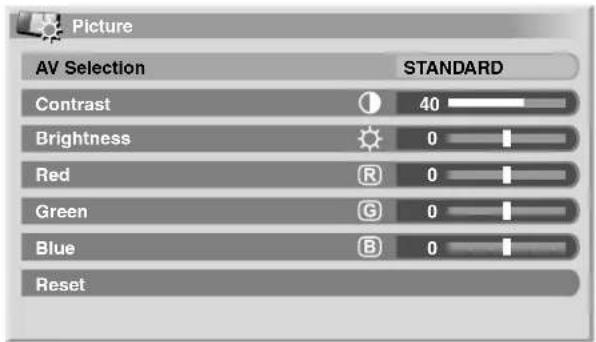
NOTE
To perform advanced picture adjustments, select "Pro Adjust" in step 3 and then press ENTER. For the subsequent procedures see "Advanced picture adjustments" on page 60.
To restore the factory defaults for all items, press to select "Reset" in step 3, and then press ENTER. A confirmation screen appears. Press to select "Yes", and then press ENTER.
Advanced picture adjustments
The Plasma Display System provides various advanced functions for optimizing the picture quality. For details on these functions, see the tables.
Using PureCinema
1 Press HOME MENU.
2 Select "Picture". (+/− then ENTER)
3 Select "Pro Adjust". (+/− then ENTER)
4 Select "PureCinema". (+/− then ENTER)
5 Select the desired parameter. (一 / then ENTER)
- For the selectable parameters, see the table.
PureCinema
Automatically detects a film-based source (originally encoded at 24 frames/second), analyzes it, then recreates each still film frame for high-definition picture quality.
Selections Off Deactivates the PureCinema.
Standard Produces smooth and vivid moving images (film specific) by automatically detecting recorded image information when displaying DVD or high-definition images (e.g., movies) having 24 frames per second.
ADV Produces smooth and quality moving images (as shown on theatre screens) by converting to 72 Hz when displaying DVD images (e.g., movies) having 24 frames per second.

NOTE
- "Standard" is not selectable when 480p or 720p@60Hz signals are input.
Using Color Temp
1 Press HOME MENU.
2 Select "Picture". ( / then ENTER)
3 Select "Pro Adjust". ( / then ENTER)
4 Select "Color Detail". (↑/↓ then ENTER)
5 Select "Color Temp". ( / then ENTER)
6 Select the desired parameter. ( / then ENTER)
Color Temp
Adjusts the color temperature, resulting in a better white balance.
Selections High White with bluish tone
Mid Natural tone
Low White with reddish tone
7 Press HOME MENU to exit the menu.
Using CTI
1 Press HOME MENU.
2 Select "Picture". ( / then ENTER)
3 Select "Pro Adjust". (/ then ENTER)
4 Select "Color Detail". (▲/▼ then ENTER)
5 Select "CTI". (▲/▼ then ENTER)
6 Select the desired parameter. ( / then ENTER)
CTI
Provides images with clearer color contours. The CTI stands for Color Transient Improvement.
Selections Off Deactivates the CTI.
On Activates the CTI.
7 Press HOME MENU to exit the menu.
Eliminating noise from images
1 Press HOME MENU.
2 Select "Picture". ( / then ENTER)
3 Select "Pro Adjust".(▲/▼ then ENTER)
4 Select "NR". (↑/↓ then ENTER)
5 Select an item to be adjusted. ( / then ENTER) You can select "DNR" or "MPEG NR".
6 Select the desired parameter. ( / then ENTER)
DNR
Eliminates video noise for clean, crisp images. DNR stands for Digital Noise Reduction.
Selections Off Deactivates the DNR.
High Enhanced DNR
Mid Standard DNR
Low Moderate DNR
MPEG NR
Eliminates mosquito noise from video images when a DVD is played, resulting in noise-free images.
Selections Off Deactivates the MPEG NR.
High Enhanced MPEG NR
Mid Standard MPEG NR
Low Moderate MPEG NR
7 Press HOME MENU to exit the menu.
Sound adjustments
Adjust the sound to your preference for the chosen AV Selection option. See page 58.
1 Press HOME MENU.
2 Select "Sound". (↑/↓ then ENTER)
3 Select an item to be adjusted. ()
4 Select the desired level. ()
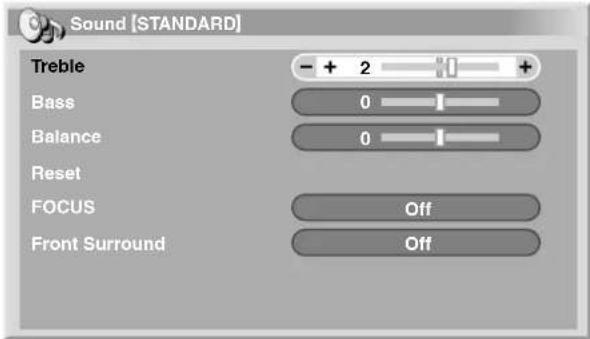
| Item | ← button button → |
| Treble | For weaker treble For stronger treble |
| Bass For weaker bass For stronger bass | |
| Balance | Decreases audio from the right speaker. Decreases audio from the left speaker. |
5 Press HOME MENU to exit the menu.
NOTE
To restore the factory defaults for all the items, press select "Reset" in step 3, and then press ENTER. A confirmation screen appears. Press select "Yes", and then press ENTER.
FOCUS
This shifts the sound-source direction (sound image) upward and produces clear sound contours.
1 Press HOME MENU.
2 Select "Sound". (/theENTER)
3 Select "FOCUS".(/)
4 Select the desired parameter. ()
Item Description
Off Deactivates the FOCUS.
(factory default)
On Activates the FOCUS.
5 Press HOME MENU to exit the menu.
Front Surround
This provides three-dimensional sound effects and/or deep, rich bass.
1 Press HOME MENU.
2 Select "Sound".(/ ENTER)
3 Select "Front Surround".(/)
4 Select the desired parameter. ()
Item Description
Off Deactivates both the SRS and TruBass.
SRS Reproduces highly effective three-dimensional sound.
TruBass Provides deep, rich bass using a new technology. (factory default)
TruBass + SRS Provides both TruBass and SRS effects.
5 Press HOME MENU to exit the menu.

NOTE
- SRS designates a status where the FOCUS is on and TruBass + SRS has been selected for Front Surround.
SRS602 demark of SRS Labs, Inc. - WOW technology is incorporated under license from SRS Labs, Inc.
Power Control
Power Control provides convenient functions for saving power.
Energy Save
You may use one of the three Energy Save modes to save power consumption.
1 Press HOME MENU.
2 Select "Power Control". (↑/↓ then ENTER)
3 Select "Energy Save". (↑/↓ then ENTER)
4 Select "Save1", "Save2", or "Picture Off". (▲/▼ then ENTER)
Item Description
| Standard | Does not decrease picture brightness. |
| Save1 | Slightly lowers power consumption while slightly suppressing the brightness drop level. |
| Save2 | Decreases the picture brightness and lowers power consumption. |
| Picture Off | Deactivates the screen to save power. To restore the screen display, press any button other than VOL +/- and MUTING. This setting is not memorized by the system. |
5 Press HOME MENU to exit the menu.

NOTE
- You can also select this function using the Home menu when the input source is a PC.
No Signal off (AV mode only)
The system will be automatically placed into the standby mode if no signal is received for 15 minutes.
1 Press HOME MENU.
2 Select "Power Control". (▲/▼ then ENTER)
3 Select "No Signal off". ( / then ENTER)
4 Select "Enable". ( / then ENTER)
Item
Description
Disable Does not place the system into the standby mode. (factory default)
Enable Places the system into the standby mode if no signal is received for 15 minutes.
5 Press HOME MENU to exit the menu.

NOTE
- Five minutes before the system is placed into the standby mode, a message appears every minute.
- The system may not be placed into the standby mode when noise signals are present at the Media Receiver after a TV program finishes.
No Operation off (AV mode only)
The system will be automatically placed into the standby mode when no operation is performed for three hours.
1 Press HOME MENU
2 Select "Power Control". (↑/↓ then ENTER)
3 Select "No Operation off". (▲/▼ then ENTER)
4 Select "Enable". ( / then ENTER)
Item Description
Disable Does not place the system into the standby mode. (factory default)
Enable Places the system into the standby mode if no operation is performed for three hours.
5 Press HOME MENU to exit the menu.

NOTE
- Five minutes before the system is placed into the standby mode, a message appears every minute.
Power Management (PC mode only)
The system will be automatically placed into the standby mode when no signal is received from the personal computer.
1 Press HOME MENU.
2 Select "Power Control". (↑/↓ then ENTER)
3 Select "Power Management". (↑/↓ then ENTER)
4 Select "Mode1" or "Mode2". ( / then ENTER)
Item Description
Off No power management (factory default)
Mode1 · Places the system into the standby mode when no signal is received from the personal computer for eight minutes.
Even when you start using the computer and a signal is received again, the system stays off.
The system is switched on again by pressing STANDBY/ON on the Media Receiver or TV on the remote control unit.
Mode2 - Places the system into the standby mode when no signal is received for eight seconds.
- When you start using the computer and a signal is received again, the system is switched on.
The system is switched on again by pressing STANDBY/ON on the Media Receiver or TV on the remote control unit.
5 Press HOME MENU to exit the menu.
Image position adjustment (AV mode only)
Adjusts the horizontal and vertical positions of images on the Plasma Display.
1 Press HOME MENU.
2 Select "Option". ( / then ENTER)
3 Select "Position". (↑/↓ then ENTER)
4 Select "H/V Position Adjust". (↑/↓ then ENTER)
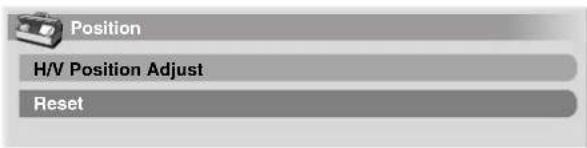
5 Adjust the vertical position ( / ) or horizontal position ( / ) .
6 Press HOME MENU to exit the menu.
NOTE
To restore the factory defaults for all the items, press to select "Reset" in step 4, and then press ENTER. A confirmation screen appears. Press to select "Yes", and then press ENTER.
- Adjustments are stored separately for each input source.
Automatic image position and clock adjustments (PC mode only)
Use Auto Setup to automatically adjust positions and clock of images coming from a personal computer.
1 Press HOME MENU.
2 Select "Option". ( / then ENTER)
3 Select "Auto Setup". ( / then ENTER)
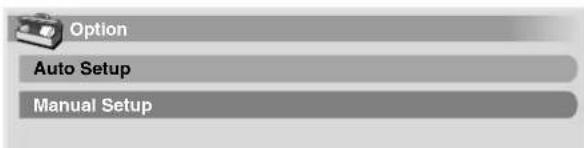
- Auto Setup starts.
4 Press HOME MENU to exit the menu.
NOTE
- When Auto Setup is finished, "Auto Setup completed," appears.
- Even when "Auto Setup completed," appears, Auto Setup may have failed, depending on conditions.
- Auto Setup may fail with a PC image composed of similar patterns or monochrome. If not successful, change the PC image and try again.
- Be sure to connect the computer to the Media Receiver and switch it on before starting Auto Setup.
Manual image position and clock adjustments (PC mode only)
Usually you can easily adjust the positions and clock of images using Auto Setup. Use Manual Setup to optimize the positions and clock of images when necessary.
1 Press HOME MENU.
2 Select "Option". ( / then ENTER)
3 Select "Manual Setup".(↑/▼ then ENTER)
4 Select an item to be adjusted. (▲/▼ then ENTER)
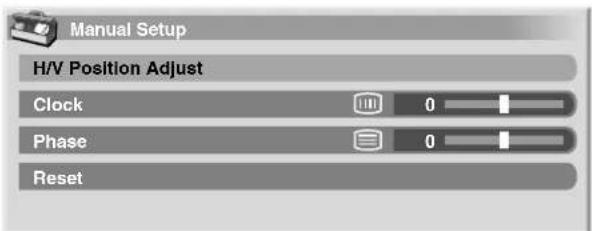
5 Perform adjustment. (一 + 一)
- With "Clock" or "Phase" selected, you can change the parameter using .
6 Press HOME MENU to exit the menu.

NOTE
To restore the factory defaults for all the items, press select "Reset" in step 4, and then press ENTER. A confirmation screen appears. Press select "Yes", and then press ENTER.
Selecting a screen size manually
In single-screen mode, press SCREEN SIZE to change the size of the screen from among the selectable options for the type of video signals currently received.
The selectable screen sizes differ depending on the types of input signals.
AV mode
| Item Description | |
| 4:3 | For 4:3 "standard" pictures. A side bar appears on each side. |
| FULL For 16:9 squeezed pictures. | |
| ZOOM | For 16:9 letterbox pictures. Bars may appear on the top and bottom on some programs. |
| CINEMA | For 14:9 letterbox pictures. Bars may appear on the top and bottom on some programs. |
| WIDE In this mode pictures are progressively stretched toward each side of the screen. | |
PC mode except for XGA signals
| Item Description | |
| 4:3 | Fills the screen without altering the input signal aspect ratio. |
| FULL Full 16:9 screen display | |
| Dot by Dot Matches input signal with same number of screen pixels. | |
PC mode for XGA signals
(Ex. 1024 × 768 input with PDP-5060HD)
Item Description
4:3Matches input signal with the same number of screen pixels. Optimized for 1024× 768 display
FULL1 Full 16:9 screen display Optimized for 1024× 768 display
FULL2 For wide signal display Use when displaying 1280× 768 signal resolution.

NOTE
- In 2-screen mode, press SCREEN SIZE to change the size of the left screen.
The PC mode above is for the PDP-5060HD. For the PDP4360HD the number of panel pixels is different, so signal processing and actual viewing conditions will vary slightly. - While watching High Definition TV broadcasting, pressing SCREEN SIZE switches among FULL, ZOOM, WIDE, and 4:3.
- If you watch High Definition TV broadcasting with WIDE selected, part of the screen (e.g., images, graphic interface) may not appear on the display. If this is the case, select FULL.
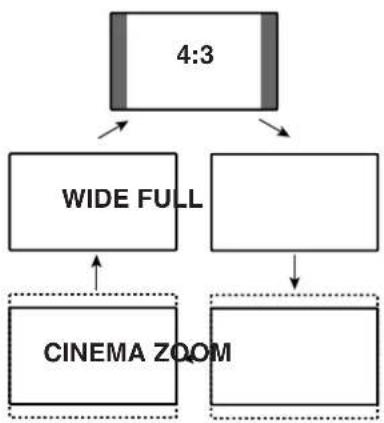
AV mode
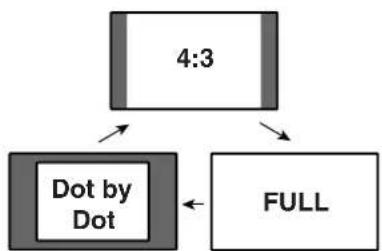
PC mode except for XGA signals
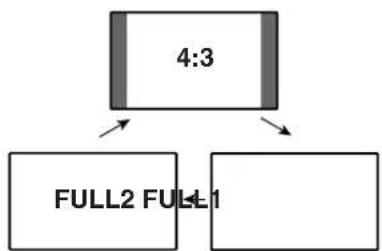
PC mode for XGA signals
Selecting a screen size automatically
The Plasma Display automatically selects an appropriate screen size when video signals are received from a connected HDMI equipment (see page 68). To activate this function, use the following procedure.
1 Press HOME MENU.
2 Select "Option". ( / then ENTER)
3 Select "Auto Size". ( / then ENTER)
4 Select "On". (↑/↓ then ENTER)
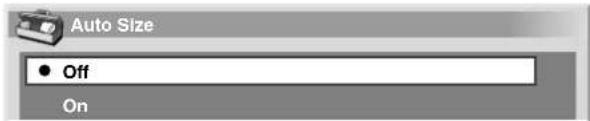
Item Description
Off Deactivates the Auto Size function. (factory default)
On Activates the Auto Size Function.
5 Press HOME MENU to exit the menu.
NOTE
- Manually select an appropriate screen size if an image does not automatically switch to a correct screen format.
- When the video signal contains no aspect ratio information, the function will not work even with "On" selected.
Selecting a screen size for received 4:3 aspect ratio signals
Specify whether the Plasma Display should choose the 4:3 mode or WIDE mode when 4:3 aspect ratio signals are received with the Auto Size function activated.
1 Press HOME MENU.
2 Select "Option". ( / then ENTER)
3 Select "4:3 Mode". (↓/↓ then ENTER)
4 Select "WIDE" or "4:3". (↑/↓ then ENTER)
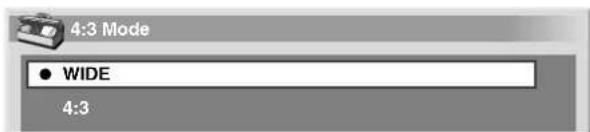
Item Description
WIDE (factory default)
Wide image without side masks
4:3 Keeps the 4:3 aspect ratio and presents side masks.
4:3WIDE
5 Press HOME MENU to exit the menu.
Changing the brightness at both sides of the screen (Side Mask)
With the 4:3 screen size selected for the AV mode, you can change the brightness of the gray side masks that appear at both sides of the screen.
1 Press HOME MENU.
2 Select "Option". ( / then ENTER)
3 Select "Side Mask". (▲/▼ then ENTER)
4 Select the desired parameter. ( / then ENTER)
Item Description
Fixed Always sets the same brightness for the gray side (factory default) masks.
Auto Adjusts the brightness of the gray side masks according to the brightness of images.
5 Press HOME MENU to exit the menu.
Language setting
You can select a language to be used for on-screen display such as menus from among three languages: English, French, and Spanish.
1 Press HOME MENU.
2 Select "Option". ( / then ENTER)
3 Select "Language". (/ then ENTER)
4 Select a language. ()
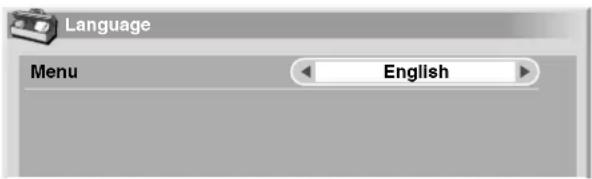
5 Press HOME MENU to exit the menu.
About External Equipment
You can connect many types of external equipment to your Plasma Display System, like a DVD player, VCR, personal computer, game console, and camcorder.
To view images coming from external equipment, select the input source using the INPUT buttons on the remote control or the INPUT button on the Media Receiver.

CAUTION
- To protect all equipment, always unplug the Media Receiver from the power outlet before connecting to a DVD player, VCR, personal computer, game console, camcorder, or other external equipment.

NOTE
Refer to the relevant instruction manual (DVD player, personal computer, etc.) carefully before making connections.
Watching a DVD image
Connecting a DVD player
Use the INPUT 1 terminals when connecting a DVD player and other audiovisual equipment.
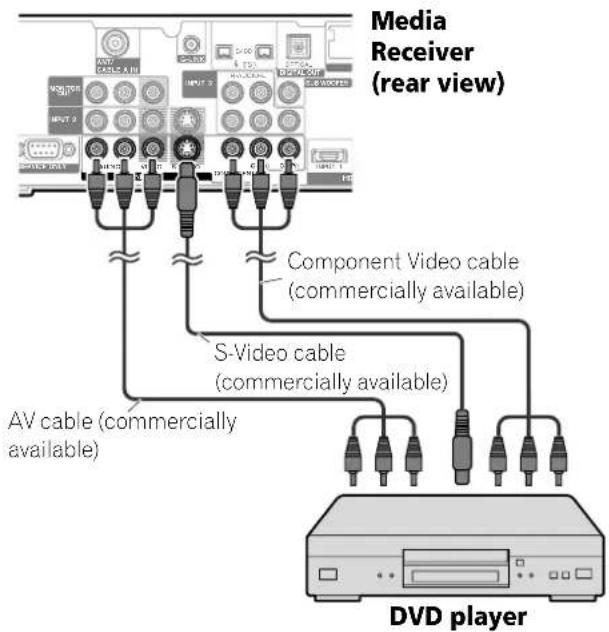
Displaying a DVD image
To watch a DVD image, press INPUT 1 on the remote control unit or press INPUT on the Media Receiver to select INPUT1.

Refer to your DVD player instruction manual for the signal type.
The INPUT 1 terminals are checked whether they are connected in the following order; 1) Component Video, 2) SVideo,3) Video. Use the desired connection for viewing.
- Connect external equipment to only terminals that are to be actually used.
Watching a VCR image
Connecting a VCR
Use the INPUT 2 terminals when connecting a VCR and other audiovisual equipment.
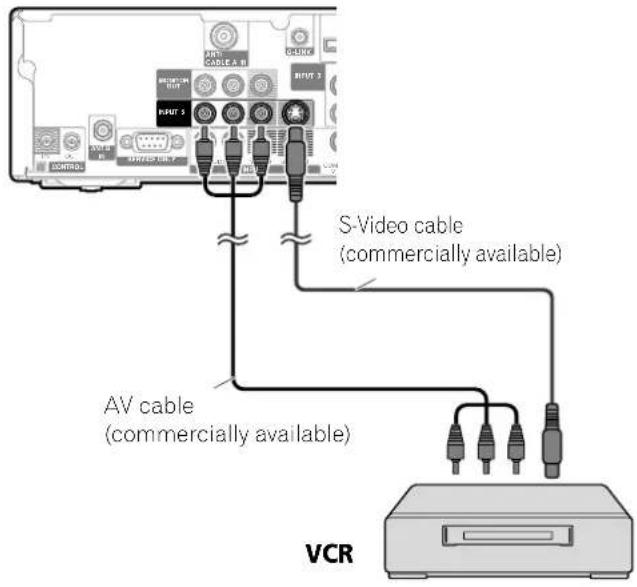
Media Receiver (rear view)
Displaying a VCR image
To watch a VCR image, press INPUT 2 on the remote control unit or press INPUT on the Media Receiver to select INPUT2.

- The INPUT 2 terminals are checked whether they are connected in the following order: 1) S-Video, 2) Video. Use the desired connection for viewing.
Using HDMI Input
The INPUT 1 and INPUT 3 terminals include HDMI terminals to which digital video and audio signals can be input. To use the HDMI terminal, activate the terminal and specify the types of video and audio signals to be received from the connected equipment. For the types of these signals, see the operation manual that came with the connected equipment.
Before starting the menu, press INPUT 1 (or INPUT 3) on the remote control unit or press INPUT on the Media Receiver to select INPUT 1 (or INPUT 3). For INPUT 3, HDMI has been selected as the factory default.
Input signal correlation table
1920*1080i@59.94/60Hz
720*480p@59.94/60Hz
1280*720p@59.94/60Hz
720(1440)*480i@59.94/60Hz
For audio, the system supports the following:
- Linear PCM (STEREO 2ch)
- Sampling frequency: 32kHz,44.1kHz,48kHz

NOTE
PC signals are not supported.
Connecting HDMI equipment
Media Receiver (rear view)
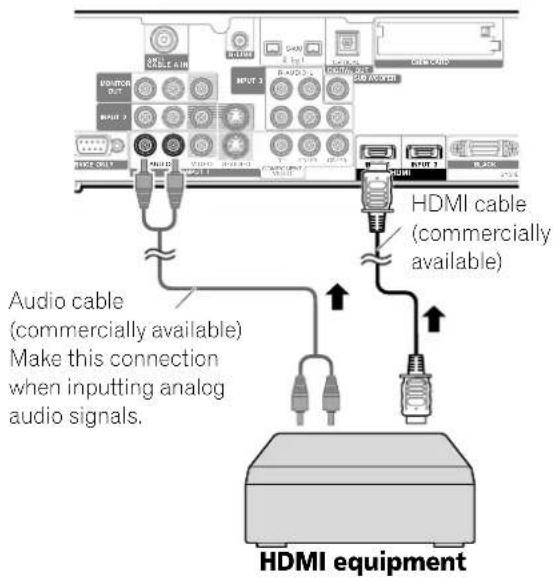
To activate the HDMI terminal:
1 Press HOME MENU.
2 Select "Option". ( / then ENTER)
3 Select "HDMI Input". (▲/▼ then ENTER)
4 Select "Setting". ( / then ENTER)
5 Select "Enable". ( / then ENTER)
Item Description
Disable Deactivates the HDMI terminal. (factory default)
Enable Activates the HDMI terminal.
6 Press HOME MENU to exit the menu.
To specify the type of digital video signals:
1 Press HOME MENU.
2 Select "Option". ( / then ENTER)
3 Select "HDMI Input". (↑/↓ then ENTER)
4 Select "Video".(↑/ then ENTER)
5 Select the type of digital video signals. (/ then ENTER)
If you select "Auto", an attempt will be made to identify the type of digital video signals when digital video signals are received.
Item Description
Auto Automatically identifies input digital video signals. (factory default)
Color-1 Digital Component Video signals (4:2:2) locked
Color-2 Digital Component Video signals (4:4:4) locked
Color-3 Digital RGB signals locked
6 Press HOME MENU to exit the menu.

NOTE
- If you select a parameter other than "Auto", make such a setting that results in natural color.
- If no image appears, specify another digital video signal type.
- For the digital video signal types to be specified, check the operation manual that came with the connected equipment.
To specify the type of audio signals:
1 Press HOME MENU.
2 Select "Option". ( / then ENTER)
3 Select "HDMI Input". (↑/↓ then ENTER)
4 Select "Audio".(↑/ then ENTER)
5 Select the type of audio signals. ( / ) then ENTER
- If you select "Auto", an attempt will be made to identify the type of audio signals when audio signals are received.
Item Description
Auto Automatically identifies input audio signals. (factory default)
Digital Accepts digital audio signals.
Analog Accepts analog audio signals.
6 Press HOME MENU to exit the menu.

NOTE
If no sound is output, specify another audio signal type.
- For the audio signal types to be specified, check the operation manual that came with the connected equipment.
- Depending on the equipment to be connected, you also need to connect analog audio cables.
Enjoying a game console or watching camcorder images
Connecting a game console or camcorder
Use the INPUT 4 terminals to connect a game console, camcorder and other audiovisual equipment.
Media Receiver (front view)


NOTE
The INPUT 4 terminals are checked whether they are connected in the following order; 1) Component Video, 2) SVideo,3) Video. Use the desired connection for viewing.
- Connect external equipment to only terminals that are to be actually used.
Displaying an image of the game console or camcorder
To watch an image coming from the game console or camcorder, press INPUT 4 on the remote control unit or press INPUT on the Media Receiver to select INPUT4.
Recording digital TV programs using a VCR
If you connect recording equipment such as a VCR to the MONITOR OUT terminals on the rear of the Media Receiver, you can record, for example, digital TV programs using the recording equipment.
You can also record digital TV programs more easily by using the TV Guide On Screen system. Connect the supplied GLINK cable to the G-LINK terminal on the rear of the Media Receiver and then position the G-LINK cable's wand so that its light emitting section faces the remote control sensor on the recording equipment. For more information, see page 76.
Avoiding unwanted feedback
You can prevent unwanted feedback from adversely affecting the quality of images. Specify the output terminal whose output is to be inhibited.
1 Press HOME MENU.
2 Select "Option". ( / then ENTER)
3 Select "Monitor Out". (↑/↓ then ENTER)
4 Select "INPUT1 Prohibit", "INPUT2 Prohibit", "INPUT3 Prohibit", or "INPUT4 Prohibit". (▲▼ ENTER)
5 Press HOME MENU to exit the menu.
Connecting a recorder
Media Receiver (rear view)
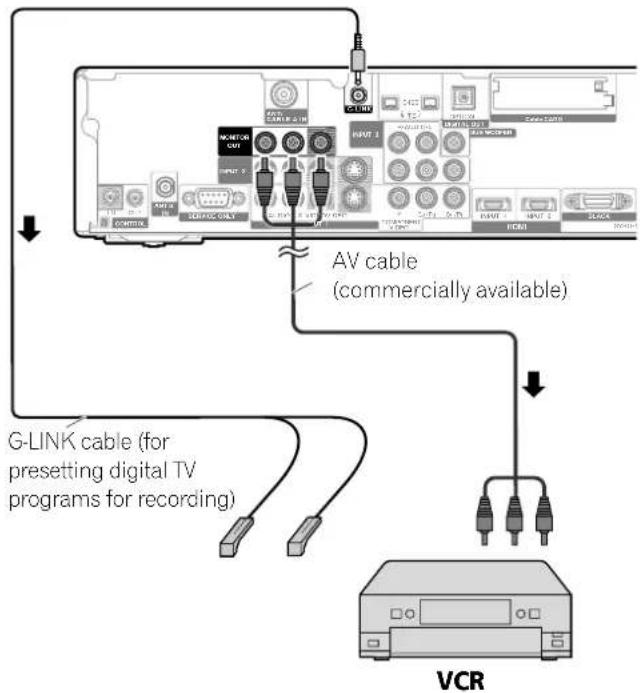

NOTE
- About the MONITOR OUT terminals
The MONITOR OUT terminals cannot output the following signals:
1 Video signals input from the COMPONENTVIDEO terminal
2 Video signals from a personal computer
3 Digital video and audio signals from the HDMI terminals - When watching images played back on a VCR connected to the MONITOR OUT terminals, select an input source (e.g., TV channel reception) on the recording equipment other than external input sources. Selecting an external input source may result in distorted images or noise.
Make sure to place the VCR into the standby status when presetting TV programs for recording with the TV Guide On Screen system.
If degraded picture quality is observed while viewing copy-protected VOD movies connect the Media Receiver directly to other TV sets. Do not connect through a VCR. - Use only one wand on the G-LINK cable to control the recorder.
Connecting other audio equipment
The digital audio output terminal (optical) on this system can output Dolby Digital signals. Using an optical digital cable, connect an AV receiver to the digital audio output terminal (optical) on the rear of the Media Receiver. This allows audio such as digital TV broadcasting to be played in high quality.
If your AV receiver does not have a digital audio input terminal (optical), connect the MONITOR OUT terminals (AUDIO) on the rear of the Media Receiver to the audio input terminals on the AV receiver.

NOTE
- When using the digital audio output terminal (optical), you need to make settings depending on your AV receiver. For more information, see the instruction manual that came with the AV receiver.
Connecting an AV receiver
Media Receiver (rear view)
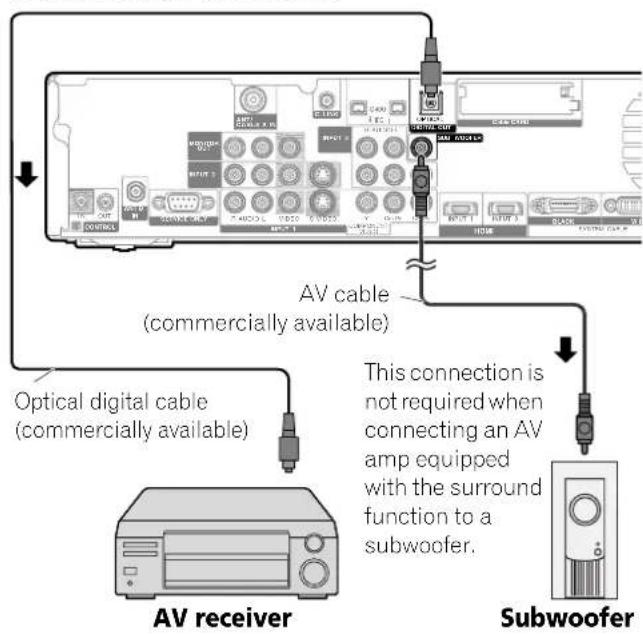

NOTE
- For details, refer to the operation manual for the audio equipment to be connected.
- Audio signals synchronizing with currently displayed images are always output to the MONITOR OUT terminals.
The audio accompanying the images shown on the display are always output to the SUBWOOFER OUTPUT terminal. - When signals are input from the HDMI terminals, no digital or analog signals are output from the DIGITAL OUT terminal.
Switching the optical audio signal type
Set up for the DIGITAL AUDIO output terminal (OPTICAL), depending on your AV receiver.
1 Press HOME MENU
2 Select "Option".(▲/▼ then ENTER)
3 Select "Digital Audio Out". (▲/▼ then ENTER)
4 Select "Dolby Digital" or "PCM". (↑/↓ then ENTER)
Item Description
PCM Always outputs in the PCM format regardless of the (factory default) types of signals.
Dolby Digital For Dolby Digital encoded signals, outputs in the Dolby Digital format. For PCM encoded signals, outputs in the PCM format.
5 Press HOME MENU to exit the menu.
Watching a D-VHS image
What is i.LINK?
i.LINK is a digital serial interface for handling digital video, digital audio, and other data in two directions. i.LINK is Sony's term for the IEEE 1394 data transport bus. Digital AV equipment compatible with i.LINK can be connected using a single i.LINK cable. The i.LINK interface allows this PDP system to control one of up to two connected i.LINK-compatible devices that the system can identify.
Which i.LINK devices are connectable?
For i.LINK devices, this system supports only D-VHS recorders which deal with the MPEG-TS format. The i.LINK terminals on this system cannot be connected with other equipment such as DVD recorders, digital video cameras, personal computers, and PC peripheral devices because of differences in the specifications.
What can be recorded through i.LINK?
With D-VHS recorders connected to this system through i.LINK, you can record only digital TV programs. You cannot record conventional TV channels nor contents coming from external input sources and personal computers.
Connecting D-VHS recorders
Use the i.LINK terminals when connecting D-VHS recorders.
When connecting a single D-VHS recorder Media Receiver (rear view)
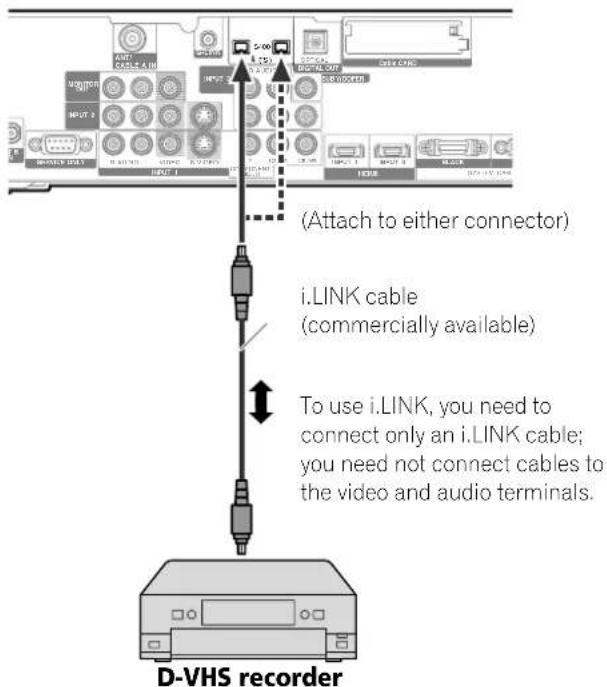
When connecting two D-VHS recorders
You can connect two D-VHS recorders directly to the i.LINK terminals on the rear of the Media Receiver.
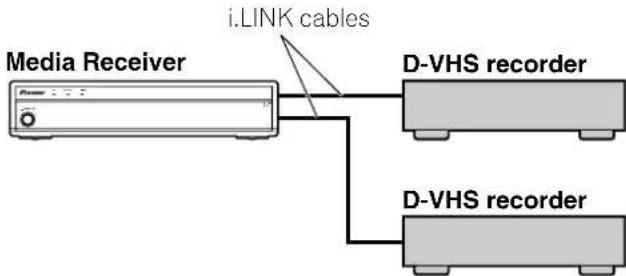
Using i.LINK cables you can also connect up to two D-VHS recorders in a daisy chain.
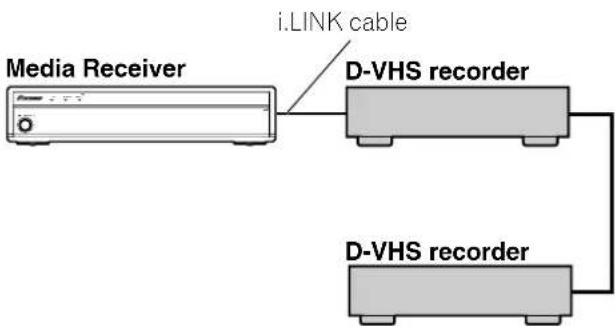
Precautions about i.LINK connections
- Use S400 i.LINK cables that have 4-pin plugs and are shorter than 3.5m (11.48 feet).
- Some i.LINK devices cannot relay data when their power is off.
- Do not make the following loop connections:
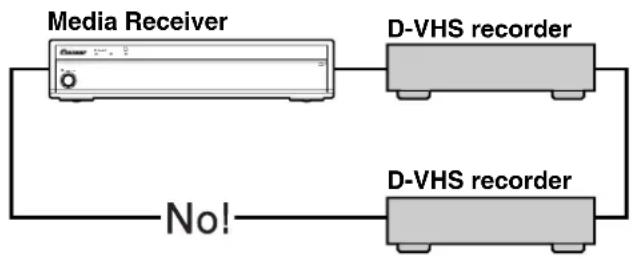

Displaying a D-VHS image
To watch a D-VHS image, press i.LINK on the remote control unit or press INPUT on the Media Receiver to select i.LINK.
Useful and important notification
Useful information
D-VHS recorders connected through i.LINK can play back digital TV programs recorded using this system.
D-VHS recorders connected through i.LINK can record only digital TV programs. Using i.LINK, those recorders cannot record conventional TV channels nor contents coming from external input sources.
- This system can be simultaneously connected with up to two D-VHS recorders that support i.LINK. You can control one of these D-VHS recorders (basic functions only).
- Some D-VHS recorders connected through iLINK may not allow this system to control them through the control panel screen, or to display images and output sound.
- To record digital TV programs using connected D-VHS recorders, use D-VHS tape. You cannot use VHS tape nor S-VHS tape.
- Some D-VHS recorders connected though i.LINK may not allow this system to play back images and sound recorded on VHS tape, S-VHS tape, or (if with analog signals) D-VHS tape. If this is the case, connect the analog output terminals on the D-VHS recorder to INPUT 1, 2, 3, or 4 terminals on this system. See page 67.
- This system supports the Digital Transmission Content Protection (DTCP) technology. DTCP is a copy protection technology that presents data coding and device authentication.
- i.LINK may not allow copy-restricted video, audio, and other data to be copied from one i.LINK device to another. It also may not allow video, audio, and other data to be transferred with equipment that does not support the DTCP.
- Connection with a personal computer or its peripheral device can result in malfunction.
- Some TV programs may not allow D-VHS recorders to record or play back properly.
Precautions
- While one D-VHS recorder connected through i.LINK is recording or playing back, do not switch on or off the other connected D-VHS recorder that is not in use. Do not connect or disconnect the i.LINK cable from that D-VHS recorder. Doing so can result in image and sound interruption.
- Some D-VHS recorders that support i.LINK cannot relay data when their power is off. Check the instruction manual that came with your D-VHS recorder.
Setting up for controlling a D-VHS recorder
You can operate the connected D-VHS recorder from the Plasma Display that shows the control panel screen. After making the connections, use the menu to specify the model of the D-VHS recorder to be operated. If you have 2 or more D-VHS recorders connected to the Media Receiver, you can operate a single device at a time.
1 Press HOME MENU
2 Select "Tuner Setup". ( / then ENTER)
3 Select "i.LINK Setup". ( / then ENTER)
4 Select the D-VHS recorder model to be operated. (/↑ then ENTER)
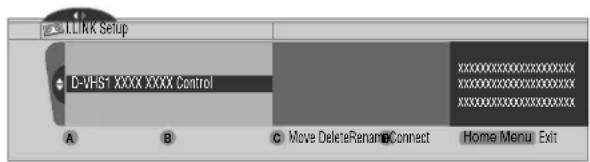
5 Press A to select "Connect".
6 Press HOME MENU to exit the menu.

NOTE
- The following information appears at the right end of the i.LINK list to indicate the connection status of the D-VHS recorders:
Control: Data connection with the D-VHS recorder has been established and the recorder is ready for control.
Link: The D-VHS recorder has been physically connected, and can be controlled if it is selected for control.
Currently not physically connected
- When connected to any device other than a D-VHS, the device is not listed in the i.LINK List.
Editing the i.LINK Setup
The i.LINK list shows all devices connected through i.LINK interfaces. In this list, you can change the name or order of devices or delete device information.
1 Press HOME MENU.
2 Select "Tuner Setup". ( / then ENTER)
3 Select "i.LINK Setup". (←/→ then ENTER)
4 Select the desired device. (/)
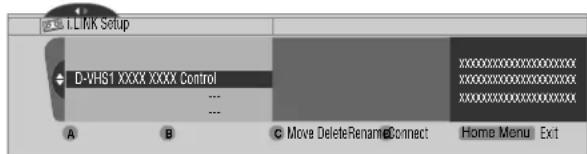
The following procedure differs depending on what you want to perform.
To change the name of a device:
5 Press B to select "Rename".
6 Enter up to 7 characters using / , / , and ENTER.
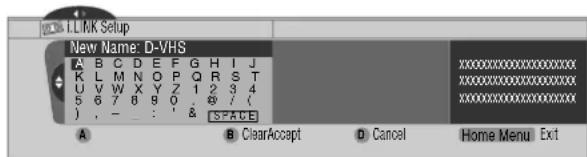
7 Press A.
8 Press HOME MENU to exit the menu.
To change the order of devices:
5 Press C to select "Move".
6 Select the new desired position. ( / then ENTER)
- The selected device is moved to the selected position.
7 Press HOME MENU to exit the menu.
To delete information about a device:
5 Press D to select "Delete".
A confirmation message appears.
- A warning message appears if the selected device has been preset for recording or while it is in use. If this is the case, you cannot delete the device that you have selected.
6 Press A to execute the deletion.
7 Press HOME MENU to exit the menu.
Operating the control panel screen
The control panel screen appears when you press i.LINK. It disappears when you press i.LINK again. To select a button on the control panel screen, press / , then press ENTER on the remote control.
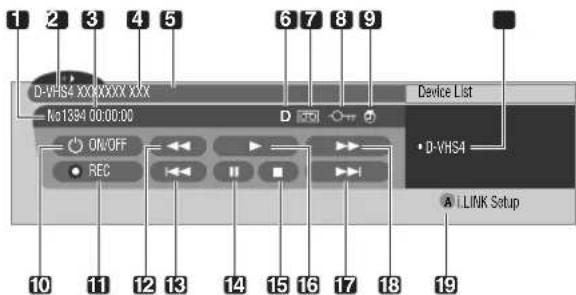
1 Shows the current status of the D-VHS recorder.
2 Shows the name of the currently selected device.
3 Shows counter time output by the D-VHS recorder.
4 Shows the manufacturer name of the D-VHS recorder to be operated.
5 Shows the model name of the D-VHS recorder to be operated.
6 Shows the type of inserted video tape; D for D-VHS, S for S-VHS, and no display for VHS.
7 Appears when any tape has been inserted.
8 Appears when the inserted tape has been write protected. The inserted tape cannot be used for recording when this indicator appears.
9 Appears when the D-VHS recorder has been preset for recording and is in the standby mode.
10 Switches the D-VHS recorder on and off.
11 Starts recording.
12 Rewinds the tape.
13 Rewinds to the start of the current program.
14 Pauses the tape.
15 Stops the current tape motion.
16 Starts playing back.
17 Forwards to the start of the next program.
18 Forwards the tape.
19 Exits the control panel screen and displays the i.LINK Setup menu.
20 Allows you to change the D-VHS recorder to be operated if two or more recorders are connected. After pressing this button, press select the desired model from the list, and then press ENTER.

NOTE
- If no i.LINK device has been connected, "No i.LINK devices are connected." appears. If this is the case, connect i.LINK devices.
If none of the connected equipment has been supported for control, you cannot execute control. - If you have set up to use the TV Guide On Screen™, pressing the REC button on the control panel will continuously record programs for 6 hours unless STOP button is pressed.
Watching an image from a personal computer
Connecting a personal computer
Use the PC terminals to connect a personal computer.

NOTE
The PC input terminals are DDC2B-compatible.
- Plug & Play may not correctly function, depending on the personal computer in use.
Media Receiver (front view)
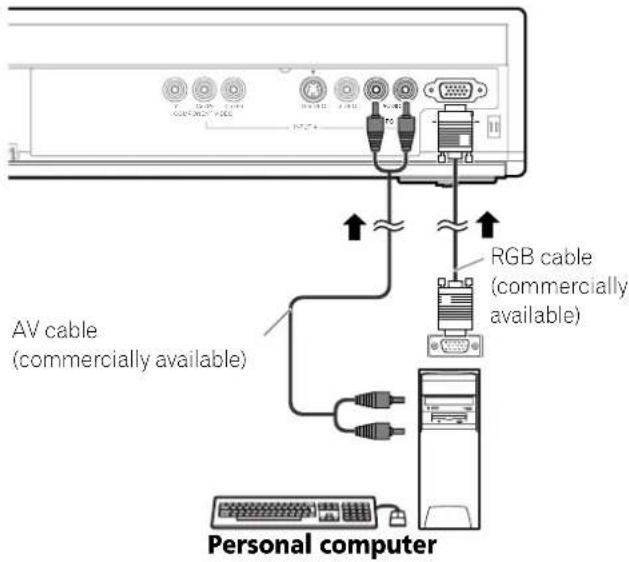
Displaying an image from a personal computer
When connected to a personal computer, the input signal type is automatically identified. If the personal computer image does not come in clearly, you may need to use Auto Setup. See page 63.
To watch an image coming from the personal computer, press PC on the remote control unit or press INPUT on the Media Receiver to select "PC".

NOTE
The PC terminals cannot be used for audio-visual equipment.
The INPUT 4 AUDIO terminals are shared between the INPUT 4 and PC input sources. When audio signals are input to these terminals, the same signal type is selected no matter whether you select INPUT 4 or PC.
Signal names for 15-pin mini D-sub connector
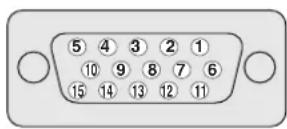
(front view)
Pin No. Signal name
| 1 R |
| 2 G |
| 3 B |
| 4 Not connected |
| 5 Not connected |
| 6 GND (ground) |
| 7 GND (ground) |
| 8 GND (ground) |
| 9 15V |
| 10 GND (ground) |
| 11 Not connected |
| 12 SDA |
| 13 HD |
| 14 VD |
| 15 SCL |
Computer compatibility chart
| Resolution Frequency Remarks | |
| 720×400 70 Hz | |
| 640×480 60 Hz | 72 Hz |
| 75 Hz | |
| 800×600 56 Hz | 60 Hz |
| 72 Hz | |
| 75 Hz | |
| 1024×768 60 Hz | 70 Hz |
| 75 Hz | |
| 1280×768 56 Hz | 60 Hz |
| 70 Hz | |

NOTE
- A Macintosh adaptor may be required for use with some Macintosh computers.
G-LINK™ connection
You need to make this connection, so that the TV Guide On Screen™ system works with your cable box to receive program listings or to enable the system's recording features with your VCR.

NOTE
- In order to use your cable box or VCR with the TV Guide On Screen™ system, you have to correctly set up for the TV Guide On Screen™ system. See "TV Guide On Screen™ System Setup" on page 31.
Make sure to position the G-LINK cable's wand so that its light emitting section faces the remote control sensor on the cable box or VCR. - Make sure to place the VCR into the standby status when presetting TV programs for recording with the TV Guide On Screen™ system.
- Be careful not to leave the cable looped when making the connection.
- If degraded picture quality is observed while viewing copy-protected VOD movies connect the Media Receiver directly to other TV sets. Do not connect through a VCR.
- Use only one wand on the G-LINK cable to control one device.
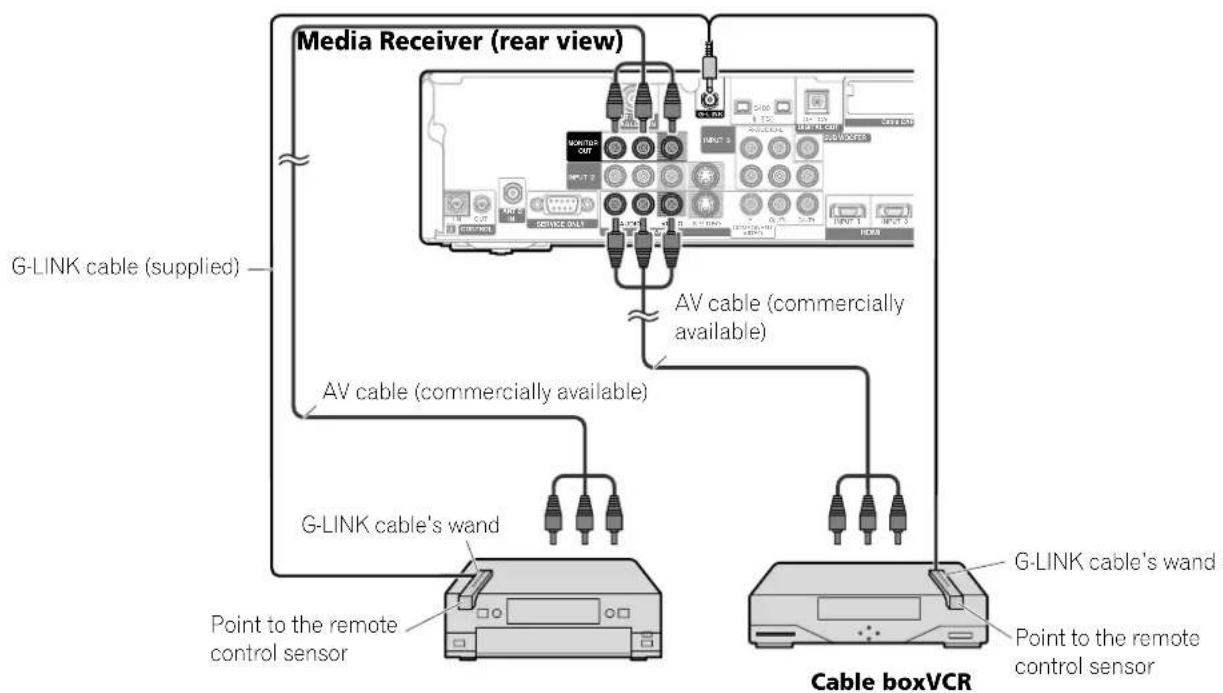
When connecting both the cable box and VCR
Connecting control cords
Connect control cords between the Media Receiver and other PIONEER equipment having the sgo. You can then operate the connected equipment by sending commands from its remote control unit to the remote control sensor on the Plasma Display.
After the CONTROL IN terminals have been connected, the remote control sensors on the connected equipment do not accept commands from the remote control units. Face the remote control units to the remote control sensor on the Plasma Display when operating the connected equipment.

NOTE
Make sure that the power is turned off when making connections.
- Complete all component connections before making control cord connections.
About SR+
The CONTROL OUT terminal on the rear of the Media Receiver supports SR + which allows linked operations with a PIONEER AV receiver. SR + presents functions such as the input switch linkage operation function and the DSP surround mode display function. For more information, see the instruction manual that came with the PIONEER AV receiver supporting SR + .

NOTE
- When the connected equipment is being operated using SR+ , the volume on the Plasma Display System is temporarily reduced.
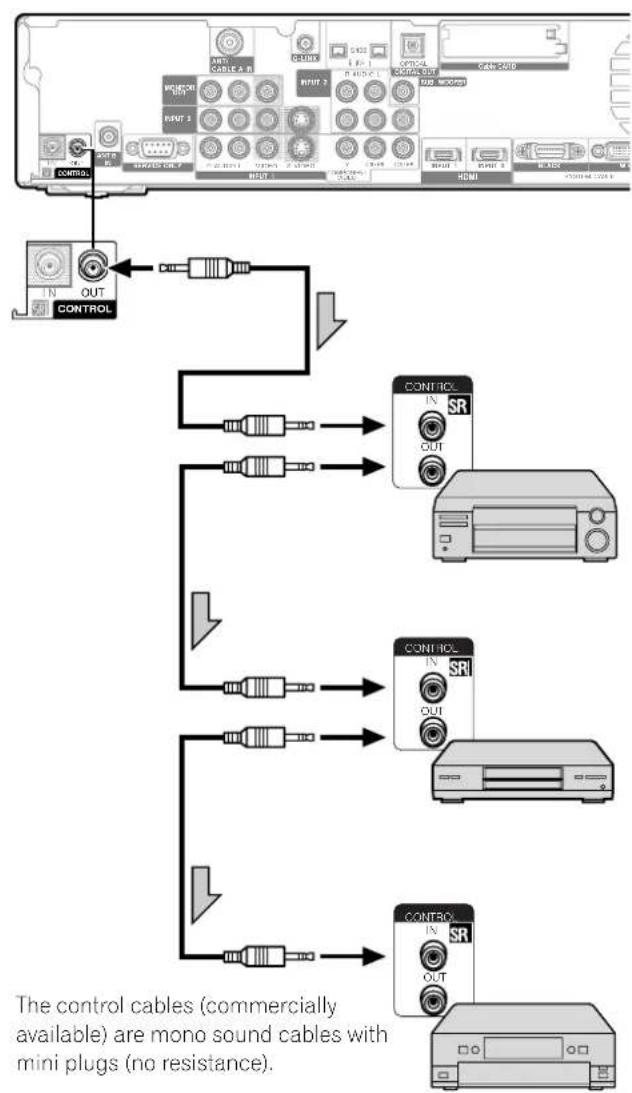
Media Receiver (rear view)
Learning function of the remote control unit
You can operate the connected AV products (AV Receiver, Cable Box, SAT tuner, VCR, DVD, DVD recorder, LD) using the learning function of your remote control unit. This remote control unit has a function that can memorize each remote control code.
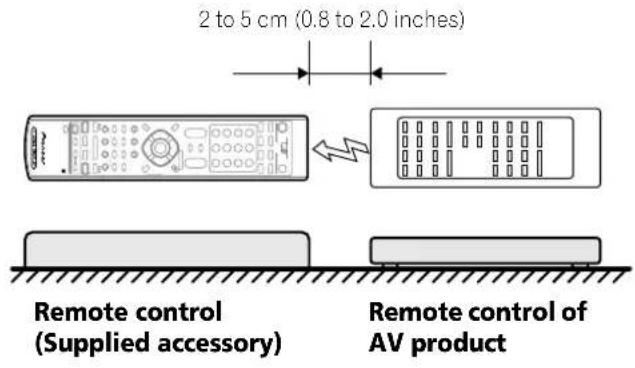
Using the learning function
1 Slide the Mode switch to match the device whose remote control signal you want to be learned.
2 Press EDIT/LEARN and 2 at the same time.
The LED flashes.
3 Press a button to be learned.
The LED lights up.
- For the functions that can be learned, see pages 80 to 84.
- When learning is finished, the LED starts flashing again.
4 Press EDIT/LEARN again to exit the Learn mode.

NOTE
To exit the Learn mode before it is complete, press EDIT/ LEARN again.
- If the Mode switch selection is changed when in the Learn mode, the Learn mode is canceled.
- If no operation is performed for more than one minute, the Learn mode is canceled.
- It takes about 2 seconds to finish code transmission. Do not interrupt it halfway. Wait until the LED flashes again.
- You can reset all learned codes to the factory defaults. When not in the Learn mode, press and hold TV and then press FAVORITE A (blue) and FAVORITE D (yellow) at the same time.
Presetting manufacturer codes
1 Slide the Mode switch to match the device to which you want to preset the remote control signal.
2 Press EDIT/LEARN and 1 at the same time.
The LED flashes.
3 Press 0-9 to enter the manufacturer code. See page 79.
- Preset mode is finished once the LED no longer lights up.

NOTE
To exit the Edit mode before it is complete, press EDIT/LEARN again.
- If the Mode switch selection is changed when in the Edit mode, the Edit mode is canceled.
If no operation is performed for more than one minute, the Edit mode is canceled.
- When you enter a code not listed, the LED flashes quickly.
If the table on page 79 does not include your device's manufacturer or the remote control does not work, you can make the memory learn its signal by the Learn mode.
The initial mode is "000" (PIONEER).
Manufacture codes
Using the remote control unit to control other devices
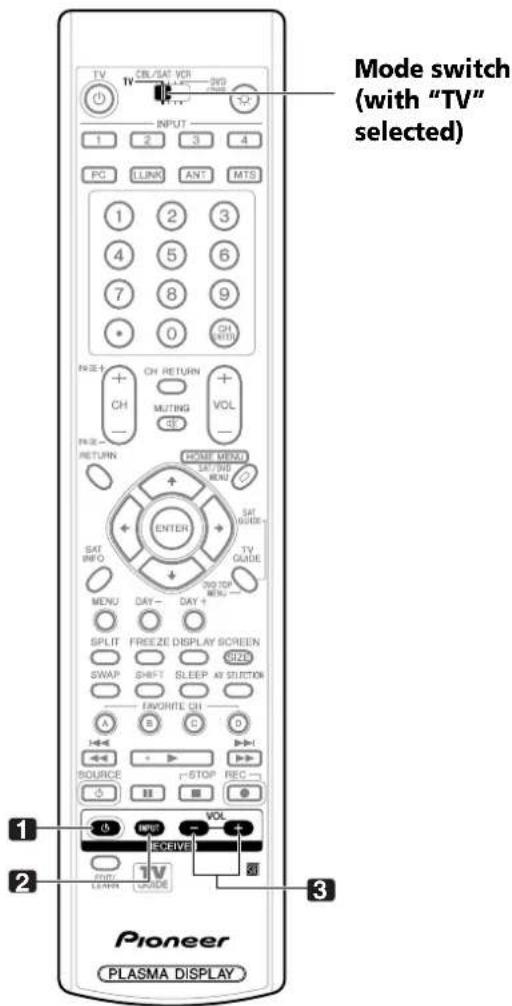
Receiver control buttons
When a Pioneer receiver is connected to the display, the receiver can be operated using buttons 1 to 3.
When a non-Pioneer receiver is connected to the display, the signals for 1 to 3 must first be learned before operating. See page 78.
1 RECEIVER (STANDBY/ON)
Turns the receiver power on and off.
2 RECEIVER INPUT
Selects the input source connected to the receiver.
3 RECEIVER VOL +/-
Adjusts the receiver volume level. Press VOL + to increase the volume and VOL - to decrease it.

NOTE
- The colorhighlighted buttons on the remote control can learn the control signal from another device's remote control.
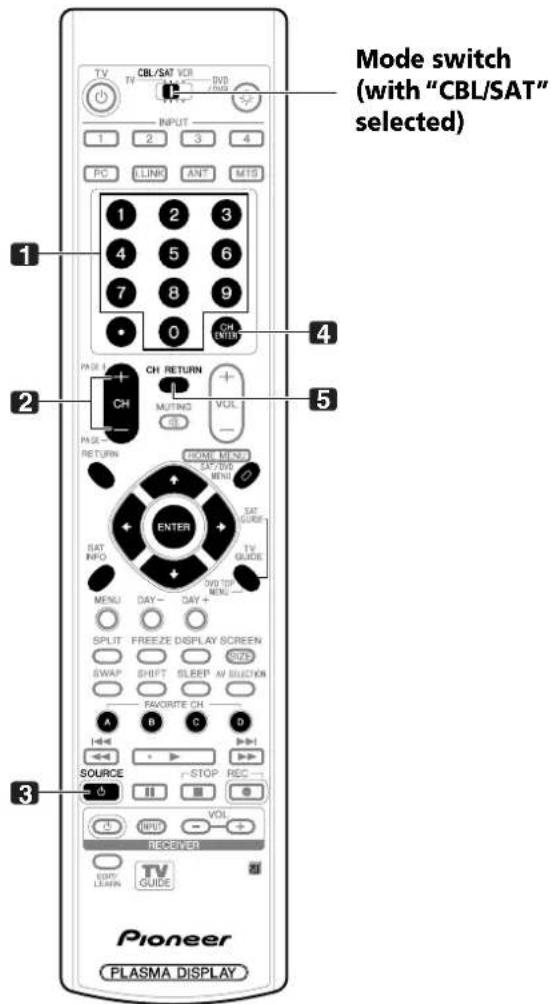
Cable control buttons
When the Mode switch is set to CBL/SAT, the cable converter connected to the display can be operated using 1 to 5.
Cable converters made by other manufacturers and not preset can also be operated using the remote control unit if 1 to 5 have learned the functions. See page 78.
10-9
Press a button (or buttons) that corresponds to the channel that you want to watch.
2CH+/-
Selects a higher or lower channel.
3 S O U R C E
Turns the cable converter power on and off.
4 CHENTER
Enters the selected channel with the direct channel selection buttons.
5 CH RETURN *
Switches between the current channel and the channel you were watching immediately before.
- Some manufacturers do not preset CH ENTER and CH RETURN. Set up these buttons with the learning function if necessary.
NOTE
CABLE and SAT cannot be selected at the same time.
- The colorhighlighted buttons on the remote control can learn the control signal from another device's remote control.
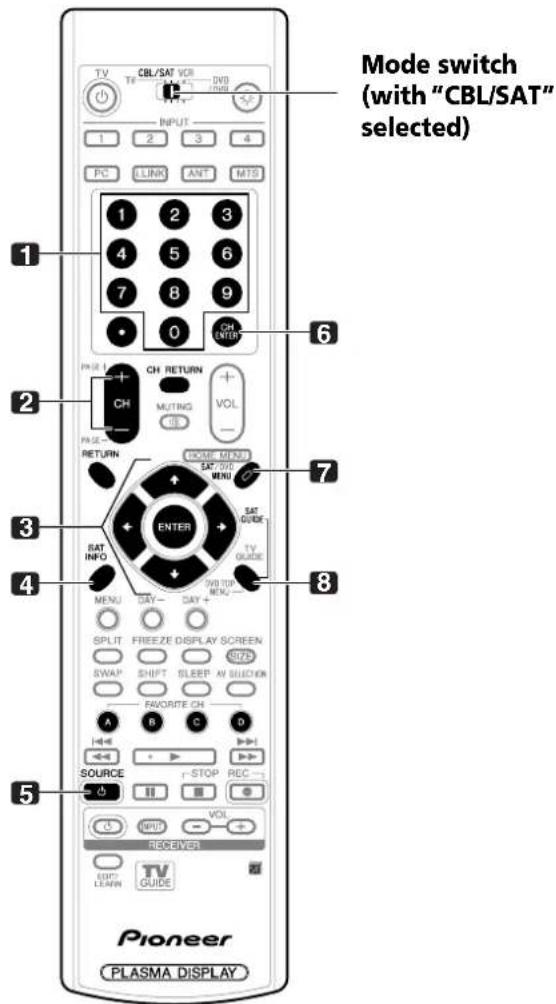
SAT control buttons
When the SAT function has been preset by the learning function of the remote control, the remote control unit buttons will function as shown below.
- When the Mode switch is set to CBL/SAT, satellite broadcast tuners made by other manufacturers and not preset can also be operated with the remote control unit if 1 to 8 have learned the functions. See page 78.
10-9
Press a button (or buttons) that corresponds to the channel that you wish to watch.
2CH+/-
Selects a higher or lower channel.
3EN T4E+R 1/1
ENTER:Activates the selected function.
喜 : Selects items on the SAT GUIDE screen or SAT MENU screen.
4 S A T I N F O
Displays information on satellite broadcasting.
- Set up this button with the learning function if necessary.
5 SOURCE
Turns the Satellite broadcast tuner power on and off.
6 CHENTER
Enters the selected channel with the direct channel selection buttons.
- Set up this button with the learning function if necessary.
7 S A T M E N U
Displays the satellite broadcasting menu screen.
8 SAT GUIDE
Displays the satellite broadcasting guide screen.

NOTE
CABLE and SAT cannot be selected at the same time.
- The colorhighlighted buttons on the remote control can learn the control signal from another device's remote control.
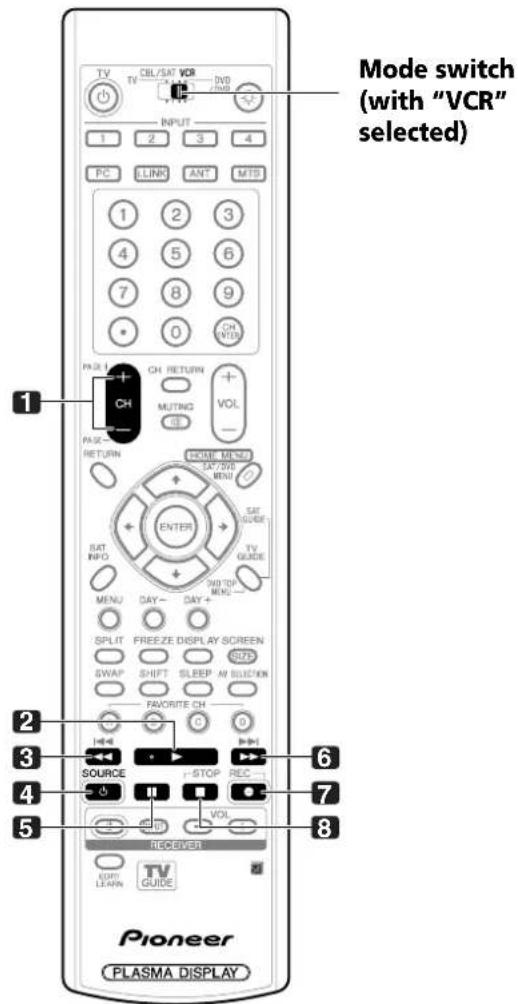
VCR control buttons
When the VCR is preset by the learning function of the remote control, the remote control unit buttons will function as follows when the Mode switch of the remote control unit is set to VCR.
- Press the input selector button INPUT 1-4 that matches the input terminal number to which the VCR is connected, then the VCR can be operated using 1 to 8.
- VCRs made by other manufacturers and not preset can also be operated using the remote control unit if 1 to 8 have learned the functions. See page 78.
1 CH + / - Selects the channel on the VCR.
2 (PLAY) Selects playback.
3 (REW) Rewinds the tape and allows picture search.
4 S O U R C E TURNS the power of the VCR on and off.
511 (PAUSE/STILL) Pauses playback and displays still pictures.
6 (FF) Rapidly advances the tape and allows picture search.
7 (REC) Starts recording.
8 (STOP) Stops tape transport.
NOTE
The colorhighlighted buttons on the remote control can learn the control signal from another device's remote control.
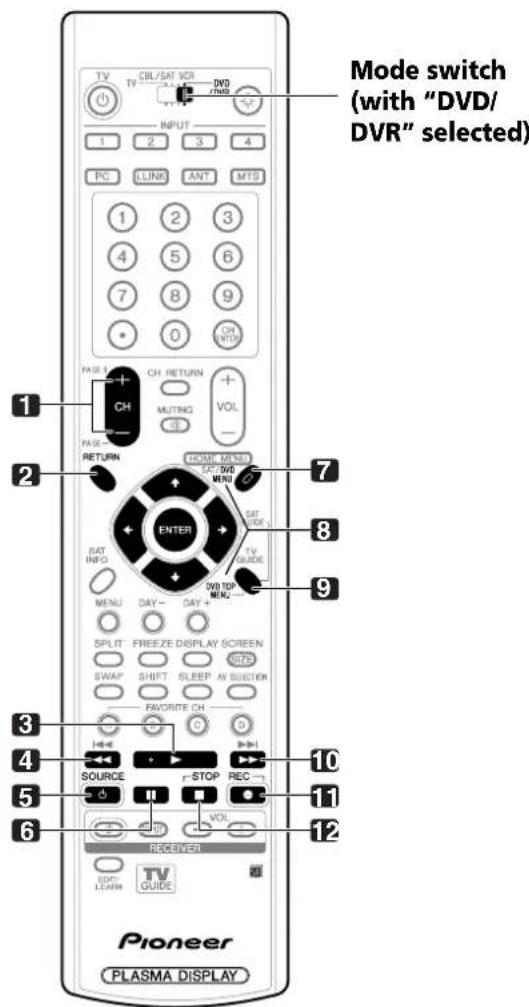
DVD/DVR control buttons
When the DVD/DVR is preset by the learning function of the remote control, the remote control unit buttons will function as follows when the Mode switch of the remote control unit is set to DVD/DVR.
- When the input selector button having the same number as the input terminal connected to a DVD player or DVD recorder is pressed, these players can be operated using 1 to 12.
DVD players or DVD recorders made by other manufacturers and not preset can also be operated using the remote control unit if 1 to 12 have learned the functions. See page 78.
1 CH + / - (DVD recorder only)
Changes the channel of the tuner built into the DVD recorder.
2 RETURN
When the DVD menu is displayed, restores the immediately previous screen.
3▶(PLAY)
Selects playback.
4 (SCAN)/CHAPTER SEARCH)
Continue pressing to go backward.
Pressing quickly once takes you to the start of the chapter currently playing. Each time you press it, you move back to the start of the previous chapter.
5 SOURCE
Turns the power of the DVD player or DVD recorder on and off.
6 II (PAUSE/STILL)
Pauses playback and displays still pictures.
7 DVD MENU (DVD, DVD recorder)
Displays the DVD menu.
8 ENT+E→/ / / (DVD, DVD re
ENTERactivates the selected function.
4/4/4: Selects items on the DVD MENU screen.
9 DVD TOP MENU (DVD, DVD recorder)
Displays the DVD top menu.
10 (SCAN)/CHAPTER SEARCH
Continue pressing for fast forward.
Pressing quickly once takes you to the start of the next chapter. Each time you press it, you move ahead to the start of the next chapter.
11 (REC) (DVD recorder only)
Starts recording.
12 (STOP)
Stops playback.
With some DVD players or DVD recorders, press twice to open the disc tray.
11, 12 STOP REC (DVD recorder only)
Press and hold , and then press to stop recording. This operation applies to only Pioneer DVD recorders.

NOTE
- A DVD player and a DVD recorder cannot be selected at the same time.
The colorhighlighted buttons on the remote control can learn the control signal from another device's remote control. - For some LD players, the buttons on the remote control unit function as above. For the supported LD players, see the DVD/DVR column on page 79.
Troubleshooting
| Problem Possible Solution | |
| • No power. | • Make sure the Plasma Display and the Media Receiver are connected correctly. (See page 19.) • Is the power cord disconnected? (See page 23.) • Has the main power been turned on? (See page 25.) • Check if you pressed TV Ⓞ on the remote control unit. (See page 25.) If the indicator on the system lights up red, press TV Ⓞ. |
| • Blue and red rectangles appear on the screen alternately. | • Check if the system cable has become disconnected or loose? (See page 19.) |
| • The system cannot be operated. | • External influences such as lightning, static electricity, etc., may cause improper operation. In this case, operate the system after first turning the power of the Plasma Display and the Media Receiver, or unplugging the power cord and re-plugging it in after 1 or 2 minutes. |
| • Remote control unit does not operate. | • Is the Mode switch set correctly? Slide it to the TV position. (See page 16.) • Are batteries inserted with connect polarity (+,-)? (See page 22.) • Are batteries worn out? (Replace with new batteries.) (See page 22.) • Operate the remote control unit while pointing it toward the remote control sensor on the Plasma Display. (See page 22.) • Are you using it under strong or fluorescent lighting? • Is a fluorescent light illuminating the remote control sensor? |
| • No image and audio is presented. | • Check if the input source for video or PC has been unintentionally selected although you want to watch a TV channel. (See page 26.) • Check if you have activated the Parental Control function. (See page 39.) Enter a password to temporarily cancel the Parental Control function. (See page 43.) • Check the cable connection with the antenna. (See page 20.) • Check the cable connection with the other equipment. (See pages 67 to 77.) |
| • No picture. • Is connection to other components correct? (See pages 67 to 75.) • Is a non-compatible PC signal being input? (See page 75.) • Is picture adjustment correct? (See page 59.) | |
| • Audio is output but no image is presented. | • Check if you have selected "Picture Off" for Energy Save. With this option selected, the screen is deactivated; only audio is output. To restore the screen display, press any button other than VOL +/- and MUTING. (See page 62.) |
| • Images are presented but no audio is output. | • Check if you have selected the minimum volume. (See page 27.) • Check if you have muted sound. (See page 27.) • When using a video or PC input source, check that the audio terminals are also connected. (See pages 67 to 71 and 74.) |
| • Sound is reversed between the right and left. • Sound is output from only a single speaker. | • Check if the speaker cable connections have been reversed between the right and left or if the speaker cable from either speaker has been disconnected. (See pages 13 and 19.) • Has the balance been correctly adjusted? (See page 61.) |
| • Picture is cut off. • Is the image position correct? (See page 63.) • Has the correct screen size been selected? (See page 65.) | |
| • Strange color, light color, dark or color misalignment. | • Adjust the picture tone. (See page 59.) • Is the room too bright? The picture may look dark in a room that is too bright. |
| • Power is suddenly turned off. • Is the sleep timer set? (See page 58.) • Check the power control setting. (See page 62.) • The system's internal temperature has increased. Clean the vents, or remove any blocking objects. (See page 17.) | |
| • Panel sounds / noises | • Panel generated sounds, examples: Fan motor noise, Electrical Circuit Humming / Glass Panel buzzing are normal operation of a phosphor-based matrix display. |
If the following error codes appear on the screen, check the corresponding items in the table.
| Code Message | Check | |
| SD04 | Powering off. Internal temperature too high. Check temperature around PDP. | Check if the ambient temperature of the Plasma Display is high. |
| SD05 | Powering off. Internal protection circuits activated, Is there a short in speaker cable? | Check the speaker cable connections between the Plasma Display and the speakers. |
| SD11 | Powering off. Internal temperature too high. Check temperature around media receiver. | Check if the ambient temperature of the Media Receiver is high. |
This product in part uses "OpenSSL" software.
To the extent the OpensSL software is being used, the following notification applies:
Copyright (c) 1998-2004 The OpenSSL Project. All rights reserved.
Redistribution and use in source and binary forms, with or without modification, are permitted provided that the following conditions are met:
- Redistributions of source code must retain the above copyright notice, this list of conditions and the following disclaimer.
- Redistributions in binary form must reproduce the above copyright notice, this list of conditions and the following disclaimer in the documentation and/or other materials provided with the distribution.
- All advertising materials mentioning features or use of this software must display the following acknowledgment: "This product includes software developed by the OpensSL Project for use in the OpensSL Toolkit. (http://www.openssl.org/)
- The names "OpenSSL Toolkit" and "OpenSSL Project" must not be used to endorse or promote products derived from this software without prior written permission. For written permission, please contact openssI-core@openssI.org.
- Products derived from this software may not be called "OpenSSL" nor may "OpenSSL" appear in their names without prior written permission of the OpenSSL Project.
- Redistributions of any form whatsoever must retain the following acknowledgment: "This product includes software developed by the OpenssL Project for use in the OpenssL Toolkit (http://www.openss1.org/)
THIS SOFTWARE IS PROVIDED BY THE OpenSSL PROJECT "AS IS" AND ANY EXPRESSED OR IMPLIED WARRANTY, INCLUDING, BUT NOT LIMITED TO, THE IMPLIED WARRANTY OF MERCHANTABILITY AND FITNESS FOR A PARTICULAR PURPOSE ARE DISCLAIMED. IN NO EVENT SHALL THE OpenSSL PROJECT OR ITS CONTRIBUTORS BE LIABLE FOR ANY DIRECT, INDIRECT, INCIDENTIAL, SPECIAL, EXEMPLARY, OR CONSEQUENTIAL DAMAGES (INCLUDING, BUT NOT LIMITED TO, PROCUREMENT OF SUBSTITUTE GOODS OR SERVICES; LOSS OF USE, DATA, OR PROFITS; OR BUSINESS INTERRUPTION) HOWEVER CAUSED AND ON ANY THEORY OF LIABILITY, WHETHER IN CONTRACT, STRICT LIABILITY, OR TORT (INCLUDING NEGLIGENCE OR OTHERWISE) ASING IN ANY WAY OUT OF THE USE OF THIS SOFTWARE, EVEN IF ADVISED OF THE POSSIBILITY OF SUCH DAMAGE.
This product includes cryptographic software written by Eric Young (eay@cryptsoft.com). This product includes software written by Tim Hudson (tjh@cryptsoft.com).
Original SSLeay License
Copyright (C) 1995-1998 Eric Young (eay@cryptsoft.com)
All rights reserved.
This package is an SSL implementation written by Eric Young (eay@cryptsoft.com). The implementation was written so as to conform with Netscapes SSL.
This library is free for commercial and non-commercial use as long as the following conditions are adhered to. The following conditions apply to all code found in this distribution, be it the RC4, RSA, Ihash, DES, etc., code; not just the SSL code. The SSL documentation included with this distribution is covered by the same copyright terms except that the holder is Tim Hudson (tjh@cryptsoft.com).
Copyright remains Eric Young's, and as such any Copyright notices in the code are not to be removed. If this package is used in a product, Eric Young should be given attribution as the author of the parts of the library used. This can be in the form of a textual message at program startup or in documentation (online or textual) provided with the package.
Redistribution and use in source and binary forms, with or without modification, are permitted provided that the following conditions are met:
- Redistributions of source code must retain the copyright notice, this list of conditions and the following disclaimer.
- Redistributions in binary form must reproduce the above copyright notice, this list of conditions and the following disclaimer in the documentation and/or other materials provided with the distribution.
- All advertising materials mentioning features or use of this software must display the following acknowledgement: "This product includes cryptographic software written by Eric Young (eay@cryptsoft.com)" The word 'cryptographic' can be left out if the routines from the library being used are not cryptographic related :-).
- If you include any Windows specific code (or a derivative thereof) from the apps directory (application code) you must include an acknowledgement: "This product includes software written by Tim Hudson (tjh@cryptsoft.com)"
THIS SOFTWARE IS PROVIDED BY ERIC YOUNG "AS IS" AND ANY EXPRESS OR IMPLIED WARRANTY, INCLUDING, BUT NOT LIMITED TO, THE IMPLIED WARRANTY OF MERCHANTABILITY AND FITNESS FOR A PARTICULAR PURPOSE ARE DISCLAIMED. IN NO EVENT SHALL THE AUTHOR OR COLNTRIBUTORS BE LIABLE FOR ANY DIRECT, INDIRECT, INCIDENTAL, SPECIAL, EXEMPLARY, OR CONSEQUENTIAL DAMAGES (INCLUDING, BUT NOT LIMITED TO, PROCEDURE OF SUBSTITUTE GOODS OR SERVICES; LOSS OF USE, DATA, OR PROFITS; OR BUSINESS INTERRUPTION) HOWEVER CAUSED AND ON ANY THEORY OF LIABILITY, WHETHER IN CONTRACT, STRICT LIABILITY, OR TORT (INCLUDING NEGLIGENCE OR OTHERWISE)ARISING IN ANY WAY OUT OF THE USE OF THIS SOFTWARE, EVEN IF ADVISED OF THE POSSIBILITY OF SUCH DAMAGE.
The licence and distribution terms for any publically available version or derivative of this code cannot be changed. i.e. this code cannot simply be copied and put under another distribution licence [including the GNU Public Licence.]
Linux Source Notice
The Pioneer Plasma Television integrated with the Media Receiver in part is powered by utilizes the Linux operation system. The machine readable copy of the corresponding source code is available for the cost of distribution. To obtain a copy, please visit http://www.pioneerelectronics.com/ for more information.
GNU General Public License
Version 2, June 1991
Copyright (C) 1989, 1991 Free Software Foundation, Inc.
59 Temple Place - Suite 330, Boston, MA 02111-1307, USA
Everyone is permitted to copy and distribute verbatim copies of this license document, but changing it is not allowed.
Preamble
The licenses for most software are designed to take away your freedom to share and change it. By contrast, the GNU General Public License is intended to guarantee your freedom to share and change free software to make sure the software is free for all its users. This General Public License applies to most of the Free Software Foundation's software and to any other program whose authors commit to using it. (Some other Free Software Foundation software is covered by the GNU Library General Public License instead.) You can apply it to your programs, too.
When we speak of free software, we are referring to freedom, not price. Our General Public Licenses are designed to make sure that you have the freedom to distribute copies of free software (and charge for this service if you wish), that you receive source code or can get it if you want it, that you can change the software or use pieces of it in new free programs; and that you know you can do these things.
To protect your rights, we need to make restrictions that forbid anyone to deny you these rights or to ask you to surrender the rights. These restrictions translate to certain responsibilities for you if you distribute copies of the software, or if you modify it.
For example, if you distribute copies of such a program, whether gratis or for a fee, you must give the recipients all the rights that you have. You must make sure that they, too, receive or can get the source code. And you must show them these terms so they know their rights.
We protect your rights with two steps: (1) copyright the software, and (2) offer you this license which gives you legal permission to copy, distribute and/or modify the software.
Also, for each author's protection and ours, we want to make certain that everyone understands that there is no warranty for this free software. If the software is modified by someone else and passed on, we want its recipients to know that what they have is not the original, so that any problems introduced by others will not reflect on the original authors' reputations.
Finally, any free program is threatened constantly by software patents. We wish to avoid the danger that redistributors of a free program will individually obtain patent licenses, in effect making the program proprietary. To prevent this, we have made it clear that any patent must be licensed for everyone's free use or not licensed at all.
The precise terms and conditions for copying, distribution and modification follow.
GNU General Public License
TERMS AND CONDITIONS FOR COPYING, DISTRIBUTION AND MODIFICATION
- This License applies to any program or other work which contains a notice placed by the copyright holder saying it may be distributed under the terms of this General Public License. The "Program", below, refers to any such program or work, and a "work based on the Program" means either the Program or any derivative work under copyright law: that is to say, a work containing the Program or a portion of it, either verbatim or with modifications and/or translated into another language. (Hereinafter, translation is included without limitation in the term "modification".) Each licensee is addressed as "you".
Activities other than copying, distribution and modification are not covered by this License; they are outside its scope. The act of running the Program is not restricted, and the output from the Program is covered only if its contents constitute a work based on the Program (independent of having been made by running the Program). Whether that is true depends on what the Program does.
- You may copy and distribute verbatim copies of the Program's source code as you receive it, in any medium, provided that you conspicuously and appropriately publish on each copy an appropriate copyright notice and disclaimer of warranty; keep intact all the notices that refer to this License and to the absence of any warranty; and give any other recipients of the Program a copy of this License along with the Program.
You may charge a fee for the physical act of transferring a copy, and you may at your option offer warranty protection in exchange for a fee.
- You may modify your copy or copies of the Program or any portion of it, thus forming a work based on the Program, and copy and distribute such modifications or work under the terms of Section 1 above, provided that you also meet all of these conditions:
a) You must cause the modified files to carry prominent notices stating that you changed the files and the date of any change.
b) You must cause any work that you distribute or publish, that in whole or in part contains or is derived from the Program or any part thereof, to be licensed as a whole at no charge to all third parties under the terms of this License.
c) If the modified program normally reads commands interactively when run, you must cause it, when started running for such interactive use in the most ordinary way, to print or display an announcement including an appropriate copyright notice and a notice that there is no warranty (or else, saying that you provide a warranty) and that users may redistribute the program under these conditions, and telling the user how to view a copy of this License.
(Exception: if the Program itself is interactive but does not normally print such an announcement, your work based on the Program is not required to print an announcement.)
These requirements apply to the modified work as a whole. If identifiable sections of that work are not derived from the Program, and can be reasonably considered independent and separate works in themselves, then this License, and its terms, do not apply to those sections when you distribute them as separate works. But when you distribute the same sections as part of a whole which is a work based on the Program, the distribution of the whole must be on the terms of this License, whose permissions for other licensees extend to the entire whole, and thus to each and every part regardless of who wrote it.
Thus, it is not the intent of this section to claim rights or contest your rights to work written entirely by you; rather, the intent is to exercise the right to control the distribution of derivative or collective works based on the Program.
In addition, mere aggregation of another work not based on the Program with the Program (or with a work based on the Program) on a volume of a storage or distribution medium does not bring the other work under the scope of this License.
- You may copy and distribute the Program (or a work based on it, under Section 2) in object code or executable form under the terms of Sections 1 and 2 above provided that you also do one of the following:
a) Accompany it with the complete corresponding machine-readable source code, which must be distributed under the terms of Sections 1 and 2 above on a medium customarily used for software interchange; or,
b) Accompany it with a written offer, valid for at least three years, to give any third party, for a charge no more than your cost of physically performing source distribution, a complete machine-readable copy of the corresponding source code, to be distributed under the terms of Sections 1 and 2 above on a medium customarily used for software interchange; or,
c) Accompany it with the information you received as to the offer to distribute corresponding source code. (This alternative is allowed only for noncommercial distribution and only if you received the program in object code or executable form with such an offer, in accord with Subsection b above.)
The source code for a work means the preferred form of the work for making modifications to it. For an executable work, complete source code means all the source code for all modules it contains, plus any associated interface definition files, plus the scripts used to control compilation and installation of the executable. However, as a special exception, the source code distributed need not include anything that is normally distributed (in either source or binary form) with the major components (compiler, kernel, and so on) of the operating system on which the executable runs, unless that component itself accompanies the executable.
If distribution of executable or object code is made by offering access to copy from a designated place, then offering equivalent access to copy the source code from the same place counts as distribution of the source code, even though third parties are not compelled to copy the source along with the object code.
- You may not copy, modify, sublicense, or distribute the Program except as expressly provided under this License. Any attempt otherwise to copy, modify, sublicense or distribute the Program is void, and will automatically terminate your rights under this License.
However, parties who have received copies, or rights, from you under this License will not have their licenses terminated so long as such parties remain in full compliance.
- You are not required to accept this License, since you have not signed it. However, nothing else grants you permission to modify or distribute the Program or its derivative works. These actions are prohibited by law if you do not accept this License. Therefore, by modifying or distributing the Program (or any work based on the Program), you indicate your acceptance of this License to do so, and all its terms and conditions for copying, distributing or modifying the Program or works based on it.
- Each time you redistribute the Program (or any work based on the Program), the recipient automatically receives a license from the original licensor to copy, distribute or modify the Program subject to these terms and conditions. You may not impose any further restrictions on the recipients' exercise of the rights granted herein. You are not responsible for enforcing compliance by third parties to this License.
- If, as a consequence of a court judgment or allegation of patent infringement or for any other reason (not limited to patent issues), conditions are imposed on you (whether by court order, agreement or otherwise) that contradict the conditions of this License, they do not excuse you from the conditions of this License. If you cannot distribute so as to satisfy simultaneously your obligations under this License and any other pertinent obligations, then as a consequence you may not distribute the Program at all. For example, if a patent license would not permit royalty-free redistribution of the Program by all those who receive copies directly or indirectly through you, then the only way you could satisfy both it and this License would be to refrain entirely from distribution of the Program.
If any portion of this section is held invalid or unenforceable under any particular circumstance, the balance of the section is intended to apply and the section as a whole is intended to apply in other circumstances.
It is not the purpose of this section to induce you to infringe any patents or other property right claims or to contest validity of any such claims; this section has the sole purpose of protecting the integrity of the free software distribution system, which is implemented by public license practices. Many people have made generous contributions to the wide range of software distributed through that system in reliance on consistent application of that system; it is up to the author/donor to decide if he or she is willing to distribute software through any other system and a licensee cannot impose that choice.
This section is intended to make thoroughly clear what is believed to be a consequence of the rest of this License.
- If the distribution and/or use of the Program is restricted in certain countries either by patents or by copyrighted interfaces, the original copyright holder who places the Program under this License may add an explicit geographical distribution limitation excluding those countries, so that distribution is permitted only in or among countries not thus excluded. In such case, this License incorporates the limitation as if written in the body of this License.
Appendix
- The Free Software Foundation may publish revised and/or new versions of the General Public License from time to time. Such new versions will be similar in spirit to the present version, but may differ in detail to address new problems or concerns. Each version is given a distinguishing version number. If the Program specifies a version number of this License which applies to it and "any later version", you have the option of following the terms and conditions either of that version or of any later version published by the Free Software Foundation. If the Program does not specify a version number of this License, you may choose any version ever published by the Free Software Foundation.
- If you wish to incorporate parts of the Program into other free programs whose distribution conditions are different, write to the author to ask for permission. For software which is copyrighted by the Free Software Foundation, write to the Free Software Foundation; we sometimes make exceptions for this. Our decision will be guided by the two goals of preserving the free status of all derivatives of our free software and of promoting the sharing and reuse of software generally.
NO WARRANTY
- BECAUSE THE PROGRAM IS LICENSED FREE OF CHARGE, THERE IS NO WARRANTY FOR THE PROGRAM, TO THE EXTENT PERMITTED BY APPLICABLE LAW. EXCEPT WHEN OTHERWISE STATED IN WRITING THE COPYRIGHT HOLDERS AND/OR OTHER PARTIES PROVIDE THE PROGRAM "AS IS" WITHOUT WARRANTY OF ANY KIND, EITHER EXPRESSED OR IMPLIED, INCLUDING, BUT NOT LIMITED TO, THE IMPLIED WARRANTYES OF MERCHANTABILITY AND FITNESS FOR A PARTICULAR PURPOSE. THE ENTIRE RISK AS TO THE QUALITY AND PERFORMANCE OF THE PROGRAM IS WITH YOU. SHOULD THE PROGRAM PROVE DEFECTIVE, YOU ASSUME THE COST OF ALL NECESSARY SERVICING, REPAIR OR CORRECTION.
- IN NO EVENT UNLESS REQUIRED BY APPLICABLE LAW OR AGREED TO IN WRITING WILL ANY COPYRIGHT HOLDER, OR ANY OTHER PARTY WHO MAY MODIFY AND/OR REDISTRIBUTE THE PROGRAM AS PERMITTED ABOVE, BE LIABLE TO YOU FOR DAMAGES, INCLUDING ANY GENERAL, SPECIAL, INCIDENTAL OR CONSEQUENTIAL DAMAGES ASING OUT OF THE USE OR INABILITY TO USE THE PROGRAM (INCLUDING BUT NOT LIMITED TO LOSS OF DATA OR DATA BEING RENDERED INACCURATE OR LOSSES SUSTAINED BY YOU OR THIRD PARTIES OR A FAILURE OF THE PROGRAM TO OPERATE WITH ANY OTHER PROGRAMS), EVEN IF SUCH HOLDER OR OTHER PARTY HAS BEEN ADVISED OF THE POSSIBILITY OF SUCH DAMAGES.
END OF TERMS AND CONDITIONS
How to Apply These Terms to Your New Programs
If you develop a new program, and you want it to be of the greatest possible use to the public, the best way to achieve this is to make it free software which everyone can redistribute and change under these terms.
To do so, attach the following notices to the program. It is safest to attach them to the start of each source file to most effectively convey the exclusion of warranty; and each file should have at least the "copyright" line and a pointer to where the full notice is found.
Copyright (C) yyyy name of author
This program is free software; you can redistribute it and/or modify it under the terms of the GNU General Public License as published by the Free Software Foundation; either version 2 of the License, or (at your option) any later version.
This program is distributed in the hope that it will be useful, but WITHOUT ANY WARRANTY; without even the implied warranty of MERCHANTABILITY or FITNESS FOR A PARTICULAR PURPOSE. See the GNU General Public License for more details.
You should have received a copy of the GNU General Public License along with this program; if not, write to the Free Software Foundation, Inc., 59 Temple Place - Suite 330, Boston, MA 02111-1307, USA.
Also add information on how to contact you by electronic and paper mail.
If the program is interactive, make it output a short notice like this when it starts in an interactive mode:
Gnomovision version 69, Copyright (C) year name of author
Gnomovision comes with ABSOLUTELY NO WARRANTY; for details type 'show w'. This is free software, and you are welcome to redistribute it under certain conditions; type 'show c' for details.
The hypothetical commands 'show w' and 'show c' should show the appropriate parts of the General Public License. Of course, the commands you use may be called something other than 'show w' and 'show c'; they could even be mouse-clicks or menu items-whatever suits your program.
You should also get your employer (if you work as a programmer) or your school, if any, to sign a "copyright disclaimer" for the program, if necessary. Here is a sample; alter the names:
Yoyodyne, Inc., hereby disclaims all copyright interest in the program 'Gnomovision' (which makes passes at compilers) written by James Hacker.
signature of Ty Coon, 1 April 1989
Ty Coon, President of Vice
This General Public License does not permit incorporating your program into proprietary programs. If your program is a subroutine library, you may consider it more useful to permit linking proprietary applications with the library. If this is what you want to do, use the GNU Lesser General Public License instead of this License.
GNU Lesser General Public License
Version 2.1, February 1999
Copyright (C) 1991, 1999 Free Software Foundation, Inc.
59 Temple Place, Suite 330, Boston, MA 02111-1307, USA
Everyone is permitted to copy and distribute verbatim copies of this license document, but changing it is not allowed.
[This is the first released version of the Lesser GPL. It also counts as the successor of the GNU Library Public License, version 2, hence the version number 2.1.]
Preamble
The licenses for most software are designed to take away your freedom to share and change it. By contrast, the GNU General Public Licenses are intended to guarantee your freedom to share and change free software-to make sure the software is free for all its users. This license, the Lesser General Public License, applies to some specially designated software packages-typically libraries of the Free Software Foundation and other authors who decide to use it. You can use it too, but we suggest you first think carefully about whether this license or the ordinary General Public License is the better strategy to use in any particular case, based on the explanations below.
When we speak of free software, we are referring to freedom of use, not price. Our General Public Licenses are designed to make sure that you have the freedom to distribute copies of free software (and charge for this service if you wish); that you receive source code or can get it if you want it; that you can change the software and use pieces of it in new free programs; and that you are informed that you can do these things.
To protect your rights, we need to make restrictions that forbid distributors to deny you these rights or to ask you to surrender these rights. These restrictions translate to certain responsibilities for you if you distribute copies of the library or if you modify it.
For example, if you distribute copies of the library, whether gratis or for a fee, you must give the recipients all the rights that we gave you. You must make sure that they, too, receive or can get the source code. If you link other code with the library, you must provide complete object files to the recipients, so that they can relink them with the library after making changes to the library and recompiling it. And you must show them these terms so they know their rights.
We protect your rights with a two-step method: (1) we copyright the library, and (2) we offer you this license, which gives you legal permission to copy, distribute and/or modify the library.
To protect each distributor, we want to make it very clear that there is no warranty for the free library. Also, if the library is modified by someone else and passed on, the recipients should know that what they have is not the original version, so that the original author's reputation will not be affected by problems that might be introduced by others.
Finally, software patents pose a constant threat to the existence of any free program. We wish to make sure that a company cannot effectively restrict the users of a free program by obtaining a restrictive license from a patent holder.
Therefore, we insist that any patent license obtained for a version of the library must be consistent with the full freedom of use specified in this license.
Most GNU software, including some libraries, is covered by the ordinary GNU General Public License. This license, the GNU Lesser General Public License, applies to certain designated libraries, and is quite different from the ordinary General Public License. We use this license for certain libraries in order to permit linking those libraries into non-free programs.
When a program is linked with a library, whether statically or using a shared library, the combination of the two is legally speaking a combined work, a derivative of the original library. The ordinary General Public License therefore permits such linking only if the entire combination fits its criteria of freedom. The Lesser General Public License permits more lax criteria for linking other code with the library.
We call this license the "Lesser" General Public License because it does Less to protect the user's freedom than the ordinary General Public License. It also provides other free software developers Less of an advantage over competing non-free programs. These disadvantages are the reason we use the ordinary General Public License for many libraries. However, the Lesser license provides advantages in certain special circumstances.
For example, on rare occasions, there may be a special need to encourage the widest possible use of a certain library, so that it becomes a de-facto standard. To achieve this, non-free programs must be allowed to use the library.
A more frequent case is that a free library does the same job as widely used non-free libraries. In this case, there is little to gain by limiting the free library to free software only, so we use the Lesser General Public License.
In other cases, permission to use a particular library in non-free programs enables a greater number of people to use a large body of free software. For example, permission to use the GNU C Library in non-free programs enables many more people to use the whole GNU operating system, as well as its variant, the GNU/Linux operating system.
Although the Lesser General Public License is Less protective of the users' freedom, it does ensure that the user of a program that is linked with the Library has the freedom and the wherewithal to run that program using a modified version of the Library.
The precise terms and conditions for copying, distribution and modification follow. Pay close attention to the difference between a "work based on the library" and a "work that uses the library". The former contains code derived from the library, whereas the latter must be combined with the library in order to run.
GNU Lesser General Public License
TERMS AND CONDITIONS FOR COPYING, DISTRIBUTION AND MODIFICATION
- This License Agreement applies to any software library or other program which contains a notice placed by the copyright holder or other authorized party saying it may be distributed under the terms of this Lesser General Public License (also called "this License"). Each licensee is addressed as "you".
A "library" means a collection of software functions and/or data prepared so as to be conveniently linked with application programs (which use some of those functions and data) to form executables.
The "Library", below, refers to any such software library or work which has been distributed under these terms. A "work based on the Library" means either the Library or any derivative work under copyright law that is to say, a work containing the Library or a portion of it, either verbatim or with modifications and/or translated straightforwardly into another language. (Hereinafter, translation is included without limitation in the term "modification".)
"Source code" for a work means the preferred form of the work for making modifications to it. For a library, complete source code means all the source code for all modules it contains, plus any associated interface definition files, plus the scripts used to control compilation and installation of the library.
Activities other than copying, distribution and modification are not covered by this License; they are outside its scope. The act of running a program using the Library is not restricted, and output from such a program is covered only if its contents constitute a work based on the Library (independent of the use of the Library in a tool for writing it). Whether that is true depends on what the Library does and what the program that uses the Library does.
- You may copy and distribute verbatim copies of the Library's complete source code as you receive it, in any medium, provided that you conspicuously and appropriately publish on each copy an appropriate copyright notice and disclaimer of warranty; keep intact all the notices that refer to this License and to the absence of any warranty; and distribute a copy of this License along with the Library.
You may charge a fee for the physical act of transferring a copy, and you may at your option offer warranty protection in exchange for a fee.
- You may modify your copy or copies of the Library or any portion of it, thus forming a work based on the Library, and copy and distribute such modifications or work under the terms of Section 1 above, provided that you also meet all of these conditions:
a) The modified work must itself be a software library.
b) You must cause the files modified to carry prominent notices stating that you changed the files and the date of any change.
c) You must cause the whole of the work to be licensed at no charge to all third parties under the terms of this License.
d) If a facility in the modified Library refers to a function or a table of data to be supplied by an application program that uses the facility, other than as an argument passed when the facility is invoked, then you must make a good faith effort to ensure that, in the event an application does not supply such function or table, the facility still operates, and performs whatever part of its purpose remains meaningful.
(For example, a function in a library to compute square roots has a purpose that is entirely well-defined independent of the application. Therefore, Subsection 2d requires that any application-supplied function or table used by this function must be optional: if the application does not supply it, the square root function must still compute square roots.) These requirements apply to the modified work as a whole. If identifiable sections of that work are not derived from the Library, and can be reasonably considered independent and separate works in themselves, then this License, and its terms, do not apply to those sections when you distribute them as separate works. But when you distribute the same sections as part of a whole which is a work based on the Library, the distribution of the whole must be on the terms of this License, whose permissions for other licensees extend to the entire whole, and thus to each and every part regardless of who wrote it.
Thus, it is not the intent of this section to claim rights or contest your rights to work written entirely by you; rather, the intent is to exercise the right to control the distribution of derivative or collective works based on the Library.
In addition, mere aggregation of another work not based on the Library with the Library (or with a work based on the Library) on a volume of a storage or distribution medium does not bring the other work under the scope of this License.
- You may opt to apply the terms of the ordinary GNU General Public License instead of this License to a given copy of the Library. To do this, you must alter all the notices that refer to this License, so that they refer to the ordinary GNU General Public License, version 2, instead of to this License. (If a newer version than version 2 of the ordinary GNU General Public License has appeared, then you can specify that version instead if you wish.) Do not make any other change in these notices.
Once this change is made in a given copy, it is irreversible for that copy, so the ordinary GNU General Public License applies to all subsequent copies and derivative works made from that copy. This option is useful when you wish to copy part of the code of the Library into a program that is not a library. - You may copy and distribute the Library (or a portion or derivative of it, under Section 2) in object code or executable form under the terms of Sections 1 and 2 above provided that you accompany it with the complete corresponding machine-readable source code, which must be distributed under the terms of Sections 1 and 2 above on a medium customarily used for software interchange.
If distribution of object code is made by offering access to copy from a designated place, then offering equivalent access to copy the source code from the same place satisfies the requirement to distribute the source code, even though third parties are not compelled to copy the source along with the object code. - A program that contains no derivative of any portion of the Library, but is designed to work with the Library by being compiled or linked with it, is called a "work that uses the Library". Such a work, in isolation, is not a derivative work of the Library, and therefore falls outside the scope of this License. However, linking a "work that uses the Library" with the Library creates an executable that is a derivative of the Library (because it contains portions of the Library), rather than a "work that uses the library". The executable is therefore covered by this License. Section 6 states terms for distribution of such executables.
When a "work that uses the Library" uses material from a header file that is part of the Library, the object code for the work may be a derivative work of the Library even though the source code is not. Whether this is true is especially significant if the work can be linked without the Library, or if the work is itself a library. The threshold for this to be true is not precisely defined by law. If such an object file uses only numerical parameters, data structure layouts and accessors, and small macros and small inline functions (ten lines or less in length), then the use of the object file is unrestricted, regardless of whether it is legally a derivative work. (Executables containing this object code plus portions of the Library will still fall under Section 6.)
Otherwis, if the work is a derivative of the Library you may distribute the object code for the work under the terms of Section 6. Any executables containing that work also fall under Section 6, whether or not they are linked directly with the Library itself.
- As an exception to the Sections above, you may also combine or link a "work that uses the Library" with the Library to produce a work containing portions of the Library, and distribute that work under terms of your choice, provided that the terms permit modification of the work for the customer's own use and reverse engineering for debugging such modifications.
You must give prominent notice with each copy of the work that the Library is used in it and that the Library and its use are covered by this License. You must supply a copy of this License. If the work during execution displays copyright notices, you must include the copyright notice for the Library among them, as well as a reference directing the user to the copy of this License.
Also, you must do one of these things:
a) Accompany the work with the complete corresponding machine-readable source code for the Library including whatever changes were used in the work (which must be distributed under Sections 1 and 2 above); and, if the work is an executable linked with the Library, with the complete machine-readable "work that uses the Library", as object code and/or source code, so that the user can modify the Library and then relink to produce a modified executable containing the modified Library. (It is understood that the user who changes the contents of definitions files in the Library will not necessarily be able to recompile the application to use the modified definitions.)
b) Use a suitable shared library mechanism for linking with the Library. A suitable mechanism is one that (1) uses at run time a copy of the library already present on the user's computer system, rather than copying library functions into the executable, and (2) will operate properly with a modified version of the library, if the user installs one, as long as the modified version is interface-compatible with the version that the work was made with.
c) Accompany the work with a written offer, valid for at least three years, to give the same user the materials specified in Subsection 6a, above, for a charge no more than the cost of performing this distribution.
d) If distribution of the work is made by offering access to copy from a designated place, offer equivalent access to copy the above specified materials from the same place.
e) Verify that the user has already received a copy of these materials or that you have already sent this user a copy.
For an executable, the required form of the "work that uses the Library" must include any data and utility programs needed for reproducing the executable from it. However, as a special exception, the materials to be distributed need not include anything that is normally distributed (in either source or binary form) with the major components (compiler, kernel, and so on) of the operating system on which the executable runs, unless that component itself accompanies the executable.
It may happen that this requirement contradicts the license restrictions of other proprietary libraries that do not normally accompany the operating system. Such a contradiction means you cannot use both them and the Library together in an executable that you distribute.
- You may place library facilities that are a work based on the Library side-by-side in a single library together with other library facilities not covered by this License, and distribute such a combined library, provided that the separate distribution of the work based on the Library and of the other library facilities is otherwise permitted, and provided that you do these two things:
a) Accompany the combined library with a copy of the same work based on the Library, uncombined with any other library facilities. This must be distributed under the terms of the Sections above.
b) Give prominent notice with the combined library of the fact that part of it is a work based on the Library, and explaining where to find the accompanying uncombined form of the same work.
- You may not copy, modify, sublicense, link with, or distribute the Library except as expressly provided under this License. Any attempt otherwise to copy, modify, sublicense, link with, or distribute the Library is void, and will automatically terminate your rights under this License. However, parties who have received copies, or rights, from you under this License will not have their licenses terminated so long as such parties remain in full compliance.
- You are not required to accept this License, since you have not signed it. However, nothing else grants you permission to modify or distribute the Library or its derivative works. These actions are prohibited by law if you do not accept this License. Therefore, by modifying or distributing the Library (or any work based on the Library), you indicate your acceptance of this License to do so, and all its terms and conditions for copying, distributing or modifying the Library or works based on it.
- Each time you redistribute the Library (or any work based on the Library), the recipient automatically receives a license from the original licensor to copy, distribute, link with or modify the Library subject to these terms and conditions. You may not impose any further restrictions on the recipients' exercise of the rights granted herein. You are not responsible for enforcing compliance by third parties with this License.
- If, as a consequence of a court judgment or allegation of patent infringement or for any other reason (not limited to patent issues), conditions are imposed on you (whether by court order, agreement or otherwise) that contradict the conditions of this License, they do not excuse you from the conditions of this License. If you cannot distribute so as to satisfy simultaneously your obligations under this License and any other pertinent obligations, then as a consequence you may not distribute the Library at all.
For example, if a patent license would not permit royalty-free redistribution of the Library by all those who receive copies directly or indirectly through you, then the only way you could satisfy both it and this License would be to refrain entirely from distribution of the Library.
Appendix
If any portion of this section is held invalid or unenforceable under any particular circumstance, the balance of the section is intended to apply, and the section as a whole is intended to apply in other circumstances.
It is not the purpose of this section to induce you to infringe any patents or other property right claims or to contest validity of any such claims; this section has the sole purpose of protecting the integrity of the free software distribution system which is implemented by public license practices. Many people have made generous contributions to the wide range of software distributed through that system in reliance on consistent application of that system; it is up to the author/donor to decide if he or she is willing to distribute software through any other system and a licensee cannot impose that choice.
This section is intended to make thoroughly clear what is believed to be a consequence of the rest of this License.
- If the distribution and/or use of the Library is restricted in certain countries either by patents or by copyrighted interfaces, the original copyright holder who places the Library under this License may add an explicit geographical distribution limitation excluding those countries, so that distribution is permitted only in or among countries not thus excluded. In such case, this License incorporates the limitation as if written in the body of this License.
- The Free Software Foundation may publish revised and/or new versions of the Lesser General Public License from time to time. Such new versions will be similar in spirit to the present version, but may differ in detail to address new problems or concerns. Each version is given a distinguishing version number. If the Library specifies a version number of this License which applies to it and "any later version", you have the option of following the terms and conditions either of that version or of any later version published by the Free Software Foundation. If the Library does not specify a license version number, you may choose any version ever published by the Free Software Foundation.
- If you wish to incorporate parts of the Library into other free programs whose distribution conditions are incompatible with these, write to the author to ask for permission. For software which is copyrighted by the Free Software Foundation, write to the Free Software Foundation; we sometimes make exceptions for this. Our decision will be guided by the two goals of preserving the free status of all derivatives of our free software and of promoting the sharing and reuse of software generally.
NO WARRANTY
- BECAUSE THE LIBRARY IS LICENSED FREE OF CHARGE, THERE IS NO WARRANTY FOR THE LIBRARY, TO THE EXTENT PERMITTED BY APPLICABLE LAW, EXCEPT WHEN OTHERWISE STATED IN WRITING THE COPYRIGHT HOLDERS AND/OR OTHER PARTIES PROVIDE THE LIBRARY "AS IS" WITHOUT WARRANTY OF ANY KIND, Either EXPRESSED OR IMPLIED, INCLUDING, BUT NOT LIMITED TO, THE IMPLIED WARRANTYES OF MERCHANTABILITY AND FITNESS FOR A PARTICULAR PURPOSE, THE ENTIRE RISK AS TO THE QUALITY AND PERFORMANCE OF THE LIBRARY IS WITH YOU, SHOULD THE LIBRARY PROVE DEFECTIVE, YOU ASSUME THE COST OF ALL NECESSARY SERVICING, REPAIR OR CORRECTION.
- IN NO EVENT UNLESS REQUIRED BY APPLICABLE LAW OR AGREED TO IN WRITING WILL ANY COPYRIGHT HOLDER, OR ANY OTHER PARTY WHO MAY MODIFY AND/OR REDISTRIBUTE THE LIBRARY AS PERMITTED ABOVE, BE LIABLE TO YOU FOR DAMAGES, INCLUDING ANY GENERAL, SPECIAL, INCIDENTAL OR CONSEQUENTIAL DAMAGES ARISING OUT OF THE USE OR INABILITY TO USE THE LIBRARY (INCLUDING BUT NOT LIMITED TO LOSS OF DATA OR DATA BEING RENDERED IN ACCURATE OR LOSSES SUSTAINED BY YOU OR THIRD PARTIES OR A FAILURE OF THE LIBRARY TO OPERATE WITH ANY OTHER SOFTWARE), EVEN IF SUCH HOLDER OR OTHER PARTY HAS BEEN ADVISED OF THE POSSIBILITY OF SUCH DAMAGES.
END OF TERMS AND CONDITIONS
How to Apply These Terms to Your New Libraries
If you develop a new library, and you want it to be of the greatest possible use to the public, we recommend making it free software that everyone can redistribute and change. You can do so by permitting redistribution under these terms (or, alternatively, under the terms of the ordinary General Public License).
To apply these terms, attach the following notices to the library. It is safest to attach them to the start of each source file to most effectively convey the exclusion of warranty; and each file should have at least the "copyright" line and a pointer to where the full notice is found.
Copyright (C) year name of author
This library is free software; you can redistribute it and/or modify it under the terms of the GNU Lesser General Public License as published by the Free Software Foundation; either version 2.1 of the License, or (at your option) any later version.
This library is distributed in the hope that it will be useful, but WITHOUT ANY WARRANTY; without even the implied warranty of MERCHANTABILITY or FITNESS FOR A PARTICULAR PURPOSE. See the GNU Lesser General Public License for more details.
You should have received a copy of the GNU Lesser General Public License along with this library; if not, write to the Free Software Foundation, Inc., 59 Temple Place, Suite 330, Boston, MA 02111-1307, USA
Also add information on how to contact you by electronic and paper mail.
You should also get your employer (if you work as a programmer) or your school, if any, to sign a "copyright disclaimer" for the library, if necessary. Here is a sample; alter the names:
Yoyodyne, Inc., hereby disclaims all copyright interest in the library 'Frob' (a library for tweaking knobs) written by James Random Hacker.
signature of Ty Coon, 1 April 1990
Ty Coon, President of Vice
That's all there is to it!
Specifications
| Item | 50"Plasma Display, Model: PDP-506PU | 43" Plasma Display, Model: PDP-436PU |
| Number of Pixels 1280 × 768 pixels | 1024 × 768 pixels | |
| Audio Amplifier | 13 W + 13 W (1 kHz, 10 %, 8 Ω) | 13 W + 13 W (1 kHz, 10 %, 8 Ω) |
| Surround System SRS/FOCUS/TruBass SRS/FOCUS/TruBass | ||
| Power Requirement 120 V AC, 60 Hz, 355 W (0.2 W Standby) 120 V AC, 60 Hz, 296 W (0.2 W Standby) | ||
| Dimensions 1224 (W) × 717 (H) × 92 (D) mm(48 3/16 (W) × 28 1/4 (H) × 3 5/8 (D) inches) | 1076 (W) × 632 (H) × 92 (D) mm(42 3/8 (W) × 24 29/32 (H) × 3 5/8 (D) inches) | |
| Weight 31.8 kg (70.1 lbs.) | 25.8 kg (56.9 lbs.) | |
| Item | Media Receiver, Model: PDP-R06U | |
| Reception System (Digital) | ATSC Digital TV system | |
| Circuit type | 8VSB/64QAM/256QAM/QPSK demodulation | |
| Tuner | VHF/UHF | VHF Ch. 2-13 UHF Ch. 14-69 |
| CATV | Ch. 2-135 | |
| Audio format | Dolby Digital | |
| Reception System (Analog) | American TV standard NTSC system | |
| Circuit type | Video signal detection PLL full synchronous detection, PLL digital synthesizer system | |
| Tuner | VHF/UHF | VHF Ch. 2-13 UHF Ch. 14-69 |
| CATV | ANT/CABLE A IN Ch. 1-135 ANT B IN Ch. 1-125 | |
| Audio multiplex BTSC system | ||
| Terminals | Rear | ANT/CABLE A IN |
| ANT B IN | ||
| i.LINK (TS) S400 (2) | ||
| INPUT 1 COMPONENT VIDEO in, S-VIDEO in, VIDEO in, AUDIO in, HDMI in* | ||
| INPUT 2 S-VIDEO in,VIDEO in, AUDIO in | ||
| INPUT 3 COMPONENT VIDEO in, AUDIO in, HDMI in* | ||
| MONITOR OUT | ||
| Digital Audio Output | ||
| G-LINK | ||
| CONTROL IN | ||
| CONTROL OUT | ||
| SUB WOOFER OUTPUT | ||
| Cable CARD | ||
| Front | INPUT 4 | |
| PC Analog RGB in, AUDIO in | ||
| On-screen display languages | English/French/Spanish | |
| Power Requirement 120 V AC, 60 Hz, 35 W (26 W Standby) | ||
| Dimensions | 420 (W) × 90 (H) × 299 (D) mm(16 9/16 (W) × 3 9/16 (H) × 11 13/16 (D) inches) | |
| Weight | 4.5 kg (9.9 lbs.) | |
* This conforms to HDMI1.1 and HDCP1.1. HDMI (High Definition Multimedia Interface) is a digital interface that handles both video and audio using a single cable. HDCP (High-bandwidth Digital Content Protection) is a technology used to protect copyrighted digital contents that use the Digital Visual Interface (DVI).
- Design and specifications are subject to change without notice.
Appendix
Trademarks
In the United States, TV GUIDE and other related marks are registered marks of Gemstar-TV Guide International, Inc. and/or one of its affiliates. In Canada, TV GUIDE is a registered mark of Transcontinental, Inc. and is used under license by Gemstar-TV Guide International, Inc.
FOCUS, WOW, SRS and () symbol are trademarks of SRS Labs, Inc. FOCUS and WOW technologies are incorporated under license from SRS Labs, Inc.
Manufactured under license from Dolby Laboratories. "Dolby" and the double-D symbol are trademarks of Dolby Laboratories.
HMI, the HDMI logo and High-Definition Multimedia Interface are trademarks or registered trademarks of HDMI Licensing LLC.
This product includes FontAvenue® fonts licensed by NEC Corporation. FontAvenue is a registered trademark of NEC Corporation.
- i.LINK" and the "i.LINK" logo are trademarks.
- DDC is a registered trademark of Video Electronics Standards Association.
- CableCARD is a trademark of Cable Television Laboratories, Inc.
The names of the companies or institutions are trademarks or registered trademarks of the respective companies or institutions.
License
The TV Guide On Screen system is manufactured under license from Gemstar-TV Guide International, Inc. and/or one of its affiliates.
Patent
The TV Guide On Screen system is protected by one or more of the following issued United States patents 6,498,895, 6,418,556, 6,331,877; 6,239,794; 6,154,203; 5,940,073; 4,908,713; 4,751,578; 4,706,121.
Copyright protection
This product incorporates copyright protection technology that is protected by U.S. patents and other intellectual property rights. Use of this copyright protection technology must be authorized by Macrovision Corporation, and is intended for home and other limited consumer uses only unless otherwise authorized by Macrovision. Reverse engineering or disassembly is prohibited.
Published by Pioneer Corporation.
Copyright © 2005 Pioneer Corporation.
All rights reserved.
IMPORTANT
(PDP-R06U) (PDP-R06U)
Précautions relatives aux piles 22
Précautions relatives aux piles
- "change channel; start recording", soit
- "don't change channel; cancel recording".

- "don't change; keep recording", soit
- "change; stop recording".

REMARKER CONFLICT! Auto-tuning "Celebrity Justice" will override the recording for "Last Call".
auto-tune anyway proceed, no auto-tune don't set this reminder
Précautions relatives aux raccordements i.LINK
Commande la lecture.
3 (REW)
Commande la lecture.
4 (SCAN)/CHAPTER SEARCH)
Code Message Verification
(PDP-R06U) (PDP-R06U)
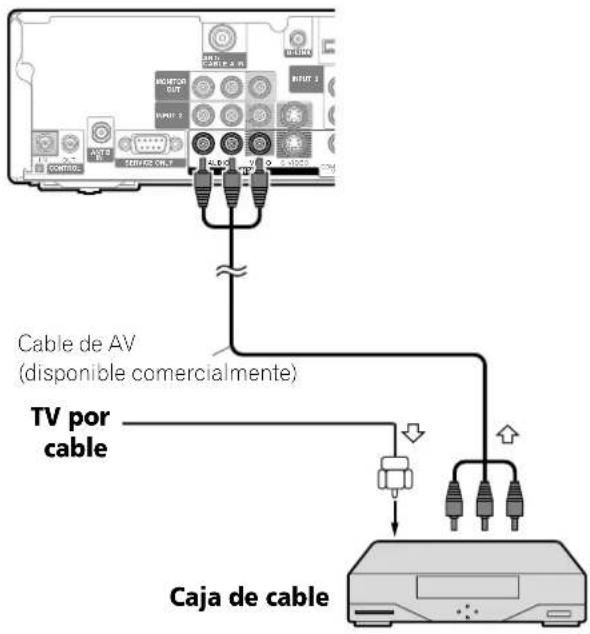
Media Receiver (parte trasera)

NOTA
Media Receiver (vista trasera)
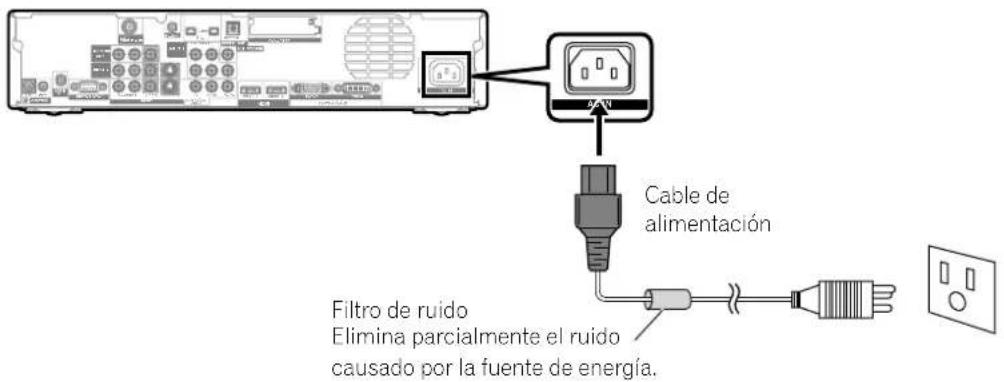

PRECAUCION
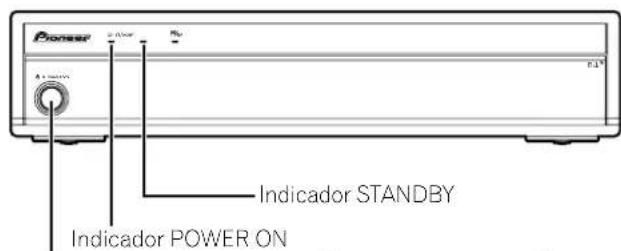
Media Receiver
Boton STANDBY/ON
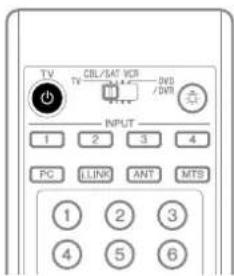
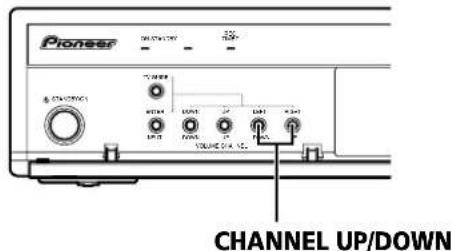
Media Receiver (vista frontal)
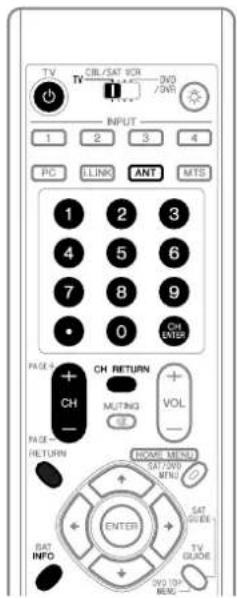
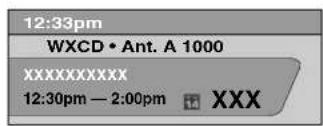
Rótulo de canal
- "change channel, start recording", o
- "don't change channel; cancel recording".

- "don't change; keep recording" o
- "change; stop recording".


- PLASMA DISPLAY SYSTEM SYSTEME D'ÉCRAN PLASMA SISTEMA DE PANTALLA DE PLASMA
- PDP-5060HD PDP-4360HD
- CAUTION
- RISK OF ELECTRIC SHOCK
- DO NOT OPEN
- IMPORTANT SAFETY INSTRUCTIONS
- NOTE TO CATV SYSTEM INSTALLER
- Information to User
- [For Canadian model]
- FEDERAL COMMUNICATIONS COMMISSION DECLARATION OF CONFORMITY
- Contents
- Thank you for buying this Pioneer product.
- Important User Guidance Information
- Safety Precautions
- Supplied Accessories
- Part Names
- Preparation
- Basic Operations
- TV Guide On Screen™ System Setup
- Menu Setup
- Tuner Setup
- TV Guide On Screen™ System Operation
- Adjustments and Settings
- 12Enjoying through External Equipment
- Useful Remote Control Features
- Appendix
- Usage guidelines
- Installation guidelines
- NOTE
- Plasma Display protection function
- Information of pixel defect
- Infrared rays
- Radio interference
- Plasma Display driving sound
- Do not attach such items as labels and tape to the product.
- When not using the product for a long period of time
- Condensation
- Cleaning the surface of the screen and the glossy surface of the front cabinet
- Cleaning the cabinet
- Handles at the rear of the Plasma Display
- About the menu window size following video format switch
- Panel sticking and after-image lag
- After-image lagging due to remaining electric load
- After-image (lag image) due to burning
- About operations through i.LINK
- Installation Precautions
- When using the optional stand, brackets, or equivalent items
- When using other items
- Identifying the main units
- Plasma Display
- Media Receiver
- Remote control unit
- Installing the Plasma Display
- Location
- Using the optional PIONEER stand
- Using the optional PIONEER speakers
- Operating Environment
- Installing the Media Receiver
- Preventing the Plasma Display from Falling Over
- Stabilizing on a table or floor
- Using a wall for stabilization
- Connecting the system cable
- Cable connections for watching digital and/or conventional TV channels
- Connecting a Cable box
- Inserting the CableCARD™
- Switching between antenna A and B
- Preparing the remote control unit
- Inserting batteries
- Cautions regarding batteries
- Allowed operation range of the remote control unit
- Cautions regarding the remote control unit
- Connecting the power cord
- Plasma Display (rear view)
- Media Receiver (rear view)
- Routing cables
- Attaching speed clamps to the main unit
- Attaching and removing speed clamps
- Turning on the power (Standby)
- Turning off the power (Standby)
- Plasma Display/Media Receiver status indicators
- Watching TV channels
- Selecting the antenna
- Changing channels
- Using 0 - 9 and (dot) on the remote control unit
- EXAMPLE
- Changing the volume and sound
- Changing the language
- Setting MTS/SAP mode
- - Stereo broadcasts
- SAP broadcasts
- When receiving STEREO sound signals
- When receiving MONO + SAP sound signals
- When receiving STEREO + SAP sound signals
- When receiving MONO sound signals
- Viewing a channel banner
- Using the POD service
- Using the multiscreen functions
- Splitting the screen
- Freezing images
- Press FREEZE.
- About the TV Guide On Screen™ system
- Legal Notices
- Setting up the TV Guide On ScreenTM system
- Welcome Screen
- Reminder Screen
- System Setup Screens
- Screen 1: Country
- Screen 2: Enter ZIP or Postal Code
- Screen 3: Do you have Cable?
- Screen 4: Do you have a Cable Box?
- Screen 5: Which TV Guide input is the cable box plugged into?
- Screen 6: Cable Box Output Channel
- Screen 7: Cable Box Configuration Diagram
- Screen 8: Cable Box Brand Name
- Screen 9: Cable Box Preparation
- Screen 10: Cable Box Code Testing
- Screen 11: Cable Box Tuned to Channel 28?
- Screen 12: Do you have an antenna connected?
- Screen 13: Are the settings correct?
- Screen 14: Congratulations
- Screen 15: Is a VCR Connected?
- Screen 16: VCR Configuration Diagram
- Screen 17: VCR Brand Name
- Screen 18: VCR Preparation
- Screen 19: VCR Code Testing
- Screen 21: Confirming Your Settings
- Screen 22: Congratulations
- Screen 23: Helpful Information
- Menu Configuration
- Menu operations
- Setting up TV channels
- Using Auto Channel Preset
- Press HOME MENU.
- Setting up TV channels manually
- Checking signal strength
- Checking the CableCARD™ ID
- Parental Control
- Voluntary movie rating system (MPAA)
- TV ratings
- Changing the password
- Clearing the password
- Activating the Parental Control
- Setting the voluntary movie rating system (MPAA)
- Setting the TV ratings
- If you forget the password
- Setting the TV Parental Guidelines (TV Guidelines)
- Blocking Not Rated TV programs
- Canadian rating systems
- Canadian English ratings
- Canadian French ratings
- Setting Canadian English ratings
- Setting Canadian French ratings
- Temporarily deactivating the Parental Control
- Antenna A, antenna B, or i.LINK:
- Input 1-4:
- Setting your favorite channels
- Setting up closed captions
- Activating the closed caption
- Item Description
- Selecting the type of conventional closed captions
- Selecting digital closed captions
- Selecting digital closed caption parameters
- Clock Setting
- Press HOME MENU
- Using the TV Guide On Screen™ system
- Screen components
- TV GUIDE logo
- Channel logo
- TV Guide On ScreenTM icons
- TV Guide On Screen™ navigation
- The Listings screen
- Recording programs
- When the recording is about to start
- While recording is in progress
- Setting program reminders
- When scheduled reminder is about to progress (auto-tune is OFF)
- When scheduled reminder is about to progress (auto-tune is ON)
- Searching for programs
- Searching by category
- Searching by keyword
- TV Guide On Screen™ System Operation
- Alphabetical search
- The search Episode Options menu
- Navigation and search tips
- Scheduling recordings and reminders
- The Schedule Options menu
- When "SCHEDULE" is highlighted in the service bar:
- When a program is highlighted:
- For recording:
- For reminder:
- Changing setup options
- Changing the System Settings
- Changing the Channel Display settings
- Changing the Default Options
- General default options
- Record defaults
- Remind defaults
- Sleep Timer
- AV Selection
- For AV source
- For PC source
- Basic picture adjustments
- Advanced picture adjustments
- Using PureCinema
- PureCinema
- Using Color Temp
- Color Temp
- Using CTI
- CTI
- Eliminating noise from images
- DNR
- MPEG NR
- Sound adjustments
- FOCUS
- Front Surround
- Power Control
- Energy Save
- No Signal off (AV mode only)
- Item
- Description
- No Operation off (AV mode only)
- Power Management (PC mode only)
- Image position adjustment (AV mode only)
- Automatic image position and clock adjustments (PC mode only)
- Manual image position and clock adjustments (PC mode only)
- Selecting a screen size manually
- AV mode
- PC mode except for XGA signals
- PC mode for XGA signals
- Selecting a screen size automatically
- Selecting a screen size for received 4:3 aspect ratio signals
- Changing the brightness at both sides of the screen (Side Mask)
- Language setting
- About External Equipment
- Watching a DVD image
- Connecting a DVD player
- Displaying a DVD image
- Watching a VCR image
- Connecting a VCR
- Displaying a VCR image
- Using HDMI Input
- Input signal correlation table
- Connecting HDMI equipment
- To activate the HDMI terminal:
- To specify the type of digital video signals:
- To specify the type of audio signals:
- Enjoying a game console or watching camcorder images
- Connecting a game console or camcorder
- Media Receiver (front view)
- Displaying an image of the game console or camcorder
- Recording digital TV programs using a VCR
- Avoiding unwanted feedback
- Connecting a recorder
- Connecting other audio equipment
- Connecting an AV receiver
- Switching the optical audio signal type
- Watching a D-VHS image
- What is i.LINK?
- Which i.LINK devices are connectable?
- What can be recorded through i.LINK?
- Connecting D-VHS recorders
- When connecting a single D-VHS recorder Media Receiver (rear view)
- When connecting two D-VHS recorders
- Precautions about i.LINK connections
- Displaying a D-VHS image
- Useful and important notification
- Useful information
- Precautions
- Setting up for controlling a D-VHS recorder
- Editing the i.LINK Setup
- To change the name of a device:
- To change the order of devices:
- To delete information about a device:
- Operating the control panel screen
- Watching an image from a personal computer
- Connecting a personal computer
- Displaying an image from a personal computer
- G-LINK™ connection
- Connecting control cords
- About SR+
- Learning function of the remote control unit
- Using the learning function
- Presetting manufacturer codes
- Using the remote control unit to control other devices
- Receiver control buttons
- RECEIVER (STANDBY/ON)
- RECEIVER INPUT
- RECEIVER VOL +/-
- Cable control buttons
- 10-9
- 2CH+/-
- S O U R C E
- CHENTER
- CH RETURN *
- SAT control buttons
- 3EN T4E+R 1/1
- S A T I N F O
- SOURCE
- CHENTER
- S A T M E N U
- SAT GUIDE
- VCR control buttons
- DVD/DVR control buttons
- This product in part uses "OpenSSL" software.
- To the extent the OpensSL software is being used, the following notification applies:
- Original SSLeay License
- Linux Source Notice
- GNU General Public License
- Preamble
- Appendix
- NO WARRANTY
- How to Apply These Terms to Your New Programs
- GNU Lesser General Public License
- How to Apply These Terms to Your New Libraries
- Trademarks
- License
- Patent
- Copyright protection
- IMPORTANT
- Précautions relatives aux piles
- Précautions relatives aux raccordements i.LINK
- (REW)
- (SCAN)/CHAPTER SEARCH)
- NOTA
- Media Receiver (vista trasera)
- PRECAUCION
Brand : PIONEER
Model : PDP4360HD
Category : TV