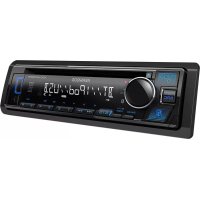
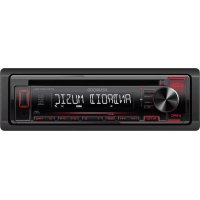
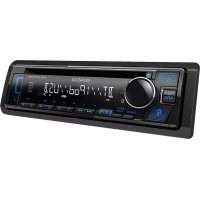
Clean the faceplate with a soft dry cloth; avoid solvents or alcohol
Reset
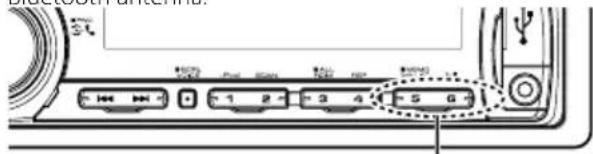
Reset button located on the faceplate
Malfunction indicators
Error messages (PROTECT, ERROR 05, etc.) for diagnostics
Operating temperature
Not specified, avoid excessive heat
Frequently Asked Questions - KDCBT645U KENWOOD
How to exit demonstration mode?
When the screen shows CANCEL DEMO and PRESS VOLUME KNOB (about 15 seconds), turn the [VOL] knob to select YES then press the knob to confirm. You can also disable demo mode in the DEMO MODE menu (page 62).
How to reset the device to factory settings?
Remove the faceplate by pressing the eject button, then use a pen or paperclip to press the reset button located on the front. Then reattach the faceplate. All custom settings will be erased.
Why is there no sound?
Check that the volume is not zero, the source is correctly selected (CD, USB, etc.) and the speakers are properly connected. Make sure SUBWOOFER SET is set to ON if you are using a subwoofer. If the PROTECT message flashes, there is a short circuit on the speaker wires.
How to connect a phone via Bluetooth?
Enable Bluetooth on your phone and search for devices. Select KENWOOD BT CD/R-3P1 or KCA-BT200. Enter the PIN code 0000 (changeable). Once paired, the phone automatically connects for hands-free calls.
What to do if the CD is not read or skips?
Clean the CD with a soft cloth from the center outward. Check that it is not scratched or dirty. If the error ERROR 05 or ERROR 77 appears, reinsert the disc or reset the device. Unfinalized CD-RWs are not read.
How to adjust the equalizer?
Press the [VOL] knob for 1 second to enter the FUNCTION menu. Select AUDIO CONTROL then SYSTEM Q to choose a preset (Natural, Rock, Pop, etc.) or manually adjust BASS LEVEL, MID LEVEL and TRE LEVEL.
Can I use an iPod with this device?
Yes, connect your iPod via the front USB port or via the optional KCA-iP101 cable. The iPod is recognized automatically and you can browse your playlists, artists, albums and tracks from the car stereo.
How to make a hands-free call?
Make sure your phone is connected via Bluetooth. Press the [VOL] knob to enter Bluetooth mode. Use the [Q] button to choose a dialing method (phonebook, call log, direct entry). Select the contact or dial the number, then press the knob to call.
Why is the volume low during a call?
Adjust the microphone settings in the Bluetooth menu: MIC GAIN (increase your voice volume), NR LEVEL (noise reduction) and EC LEVEL (echo cancellation). You can also increase the general volume with the [VOL] knob during the conversation.
How to update the firmware?
Download the latest firmware version from the Kenwood website (http://www.kenwood.com/cs/ce/). Copy the file to a USB drive or CD. Select the source STANDBY, enter FUNCTION then INITIAL SET and choose F/W UP. Follow the on-screen instructions.
User questions about KDCBT645U KENWOOD
4 questions about this device. Answer the ones you know or ask your own.
Ask a new question about this device
What does the asterisk (*) next to the Bluetooth device name on the KDCBT645U mean?
Frequently Asked Questions -06/21/2026
Response Notice-Facile
The asterisk (*) that appears next to the name of a Bluetooth device on the KDCBT645U screen indicates that this Bluetooth device is currently active and busy.
On the Bluetooth device selection screen, you can see different symbols that indicate the status of each device:
(*) - The device is active and in use
(-) - The device is in standby mode
No symbol - The device is not selected
This helps you quickly identify which Bluetooth device is currently in use on your KDCBT645U car radio, especially when you have multiple paired devices (up to 5 devices maximum).
Respond (be the first)
What should I do if the KDCBT645U does not appear in the Bluetooth device list on my phone?
Frequently Asked Questions -06/21/2026
Response Notice-Facile
If your phone does not detect the KDCBT645U during a Bluetooth search, several troubleshooting steps may resolve the issue. Start by ensuring that the device is powered on by pressing the [SRC] button, then enable Bluetooth on your phone.
Next, initiate a search for available Bluetooth devices on your phone. The device should appear under one of these two names: KENWOOD BT CD/R-3P1 or KCA-BT200. The KDCBT645U is constantly in discoverable mode, so no special activation is needed on its part to be visible.
Once you find the device in the list, select it on your phone and enter the default PIN code: 0000. This code can be customized in the settings of the KDCBT645U (menu SETTINGS > DETAILED SET > PIN CODE EDIT) if you wish to change it later.
Important: the KDCBT645U can remember up to 5 Bluetooth devices. If you already have 5 paired phones and want to add a new one, you must first delete an old pairing via the menu SETTINGS > DETAILED SET > DEVICE DELETE.
If the KDCBT645U remains invisible despite these checks, reduce the distance (less than 10 meters) between the device and your phone, then turn both devices off and back on. As a last resort, try the special registration mode from the menu SETTINGS > DETAILED SET > S-DVC SELECT, which allows you to register devices that do not normally pair.
Once the pairing is successful and confirmed on your phone, a
Respond (be the first)
How to activate Bluetooth audio streaming (A2DP) on the KDCBT645U?
Frequently Asked Questions -06/21/2026
Response Notice-Facile
Bluetooth audio streaming is automatically enabled when pairing your phone. There is no specific button to activate it on the device itself.
Here is the procedure:
Pair your phone: Enable Bluetooth on your phone and search for the KDCBT645U in the available devices, then confirm the pairing.
Select the Bluetooth source: Once paired, press the [SRC] (source) button on the car radio to switch to the Bluetooth source. The audio will activate automatically.
Check the settings on your phone: Ensure that the Audio Media (or A2DP depending on your phone) option is enabled in the Bluetooth settings for the KDCBT645U.
The KDCBT645U supports up to 5 registered Bluetooth devices and also offers hands-free functions with an integrated microphone for calls.
Respond (be the first)
Why is the Bluetooth of the KDCBT645U connected but the audio still comes from the phone?
Frequently Asked Questions -06/21/2026
Response Notice-Facile
When your phone is paired with the KDCBT645U, the audio should normally play through the unit via Bluetooth. If the music continues to come from the phone, there are generally two points to check:
On your phone
Go to Bluetooth settings and look for the KDCBT645U in your connected devices
Ensure that the "Media audio" or "A2DP" option is enabled for this unit
If available, set the KDCBT645U as the default audio device
On the KDCBT645U
The unit automatically selects Bluetooth audio when the phone connects. However, you can also use the [SRC] button to manually change the audio source. Press [SRC] to cycle through the sources: TUNER → USB/iPod → CD → AUX → STANDBY. Bluetooth audio should be available during the cycle.
If the problem persists
Disconnect and re-pair the KDCBT645U with your phone
Restart both devices
Make sure you are actually playing music (some phones only switch the audio if playback is active)
Respond (be the first)
Download the instructions for your CD Player in PDF format for free! Find your manual KDCBT645U -
KENWOOD and take your electronic device back in hand. On this page are published all the documents necessary for the use of your device. KDCBT645U by KENWOOD.
USER MANUAL KDCBT645U KENWOOD
Take the time to read through this instruction manual.
Familiarity with installation and operation procedures will help you obtain the best performance from your new CD-receiver.
For your records
Record the serial number, found on the back of the unit, in the spaces designated on the warranty card, and in the space provided below. Refer to the model and serial numbers whenever you call upon your Kenwood dealer for information or service on the product. Model KDC-BT645U/KDC-HD545U Serial number
US Residents Only
Register Online
Register your Kenwood product at www.Kenwoodusa.com
B64-4534-00/00 (KW/K0)
Contents
Before Use 3
Component names and functions 4
General operation 5
Before Using
Common Operation
Function Setting Operation
Music Disc/Audio File/iPod Operation 6
Basic Operation
Play function
All Random
Music Search
Music Search for iPod
Alphabet Search
My Playlist for iPod
Audio File/ iPod Setting
iPod Control by Hand Mode
Direct Music Search
Basic Operation of Disc Changer (Optional Accessory)
Direct Disc Search
Tuner Operation 10
Basic Operation
Station Preset Memory
Tuner Setting
Direct Access Tuning
HD Radio™ Tuner Operation 12
Basic Operation
Station Preset Memory
HD Radio™ Setting
Direct Access Tuning
iTunes Tagging
Operation of Hands-Free Phoning 14
Connecting a Bluetooth Device
Making a Call
Calling a Number in the Phone Book
Calling a Number in the Call Log
Dial a Number
Make a Voice Dialing Call
Registering to the Preset Dial Number (Preset Memory)
Speed Dialing (Preset Dial)
Receiving a Call
During a Call
Call Waiting
Other Functions
Display of Phone Number Type (Category)
Audio Adjustments 17
Audio Control
Display Settings 18
Display Selection
Text Scroll
Display Setting
Auxiliary Input Display Setting
Other Functions 20
Clock Adjustment
Demonstration Mode Setting
Initial Setting
Removing the Faceplate
How to Reset Your Unit
Muting Volume Upon Reception of Phone Call
Bluetooth Setup 22
Bluetooth Setup
Registering Bluetooth Device (Pairing)
Deleting a Registered Bluetooth Device
Registering PIN Code
Displaying the Firmware Version
Downloading the Phone Book
Selecting the Bluetooth Device You Wish to Connect
Downloading the SMS
SMS (Short Message Service)
Adding a Voice Dialing Command
Setting a Voice Command for Category
Satellite Radio Tuner Control (Optional Accessory) 28
Basic Operation
Preset Memory
Satellite Radio Setting
Category and Channel Search
Channel Scan
Direct Access Tuning
Basic Operations of Remote Control 30
Appendix 32
Accessories/ Installation Procedure 35
Connecting Wires to Terminals 36
Installation/Removing the Unit 37
Troubleshooting Guide 38
Specifications 42
Before Use
WARNING
To prevent injury or fire, take the following precautions:
To prevent a short circuit, never put or leave any metallic objects (such as coins or metal tools) inside the unit.
Before using this unit for the first time
This unit is initially set on the Demonstration mode. When using this unit for the first time, cancel the Demonstration mode. Refer to (page 5).
Cleaning the Unit
If the faceplate of this unit is stained, wipe it with a dry soft cloth such as a silicon cloth. If the faceplate is stained badly, wipe the stain off with a cloth moistened with neutral cleaner, then wipe it again with a clean soft dry cloth.
Applying spray cleaner directly to the unit may affect its mechanical parts. Wiping the faceplate with a hard cloth or using a volatile liquid such as thinner or alcohol may scratch the surface or erases characters.
About the Terminals of the Unit and Faceplate
To prevent deterioration, do not touch the terminals of the unit and faceplate with your fingers.
If the terminals on the unit or faceplate get dirty, wipe them with a clean soft dry cloth.
Lens Fogging
When you turn on the car heater in cold weather, dew or condensation may form on the lens in the CD player of the unit. Called lens fogging, this condensation on the lens may not allow CDs to play. In such a situation, remove the disc and wait for the condensation to evaporate. If the unit still does not operate normally after a while, consult your Kenwood dealer.
Notes
If you experience problems during installation, consult your Kenwood dealer.
When you purchase optional accessories, check with your Kenwood dealer to make sure that they work with your model and in your area.
The characters which can be displayed by this unit are A-Z 0-9 @ " ' % & * + = , . / \ < > [ ] ( ) ;; ^ - {} |
The illustrations of the display and the panel appearing in this manual are examples used to explain more clearly how the controls are used. Therefore, what appears on the display in the illustrations may differ from what appears on the display on the actual equipment, and some of the illustrations on the display may be inapplicable.
HandlingCDs
Do not touch the recording surface of the CD.
Do not stick tape etc. on the CD, or use a CD with tape stuck on it.
Do not use disc type accessories.
Clean from the center of the disc and move outward.
When removing CDs from this unit, pull them out horizontally.
If the CD center hole or outside rim has burrs, use the CD only after removing the burrs with a ballpoint pen etc.
CDs that cannot be used
CDs that are not round cannot be used.
CDs with coloring on the recording surface or CDs that are dirty cannot be used.
This unit can only play the CDs with
This unit may not correctly play discs which do not have the mark.
You cannot play a CD-R or CD-RW that has not been finalized. (For the finalization process refer to your CD-R/CD-RW writing software, and your CD-R/CD-RW recorder instruction manual.)
3 inch CD cannot be used. Attempt to insert using an adapter can cause malfunction.
Component names and functions
1 Release button
The faceplate of the unit can be detached and taken with you, helping to deter theft. Refer to (page 21).
[SRC] button
To turn on this unit and select the Source. To turn off this unit (press the button at least 1 second).
3 Disc slot
When inserted a disc (label side up), the source is switched automatically and a song starts playing.
4 Display window
5 [▲] button
To eject the disc.
To select the remove mode, and remove the USB device or an iPod (press the button at least 2 seconds or more).
6 USB Terminal
When connecting, open up the USB terminal lid. A USB device or an iPod can be connected.
7 Auxiliary Input Terminal
Portable audio device can be connected with the mini-plug (3.5 mm).
Use the mini-plug cable which is stereo type and does not have any resistance.
[1] - [6] button
To recall the memorized station.
Switches the play mode between music discs, audio files, and iPod.
9 [VOICE] button (KDC-BT645U)
To make a voice dialing call.
To change text scroll.(press the button at least 1 second)
[DISP] button (KDC-HD545U)
To change display item.
To change text scroll.(press the button at least 1 second)
10 [←] / [▶] button
To select a station, song and setting items.
11 Microphone (KDC-BT645U)
The microphone for the hands free phone is built in. When your voice cannot be recognized due to the low microphone volume, noises or echo in the vehicle. Adjust the microphone settings by "MIC GAIN", "NR LEVEL" and "EC LEVEL" of (page 22).
[12] [VOL] knob
To adjust volume. Enters function setting mode and setting item (turn and press the knob). Refer to (page 5) for details.
[13] [BAND] button
To select the receiving band, the folder for audio file.
14 [ ] button
To return to previous item.
15 [Q] button
To enter the music search mode.
To enter the iTunes Tagging mode.
To enter the dialing mode.
General operation
Before Using
Exit of the Demonstration Mode
Turn off the demonstration mode when you use it for the first time after installation.
1 Press the [VOL] knob to quit the demonstration mode when the messages "CANCEL DEMO" and "PRESS", "VOLUME KNOB" are displayed (approx. 15 seconds).
2 Turn the [VOL] knob to select "YES" and press the [VOL] knob.
The demonstration can be set or cancel using (page 20).
Common Operation
Power and source select
Turns the power ON by pressing the [SRC] button.
Pressing [SRC] button each time switches between sources.
Tuner ("TUNER" or "HD RADIO") USB or iPod ("USB" or "iPod") CD ("CD") Auxiliary input ("AUX") Standby ("STANDBY")
Keeping pressing the [SRC] button at least 1 second turns the power OFF.
When connection of the iPod is recognized, the source display changes from "USB" to "iPod".
The source "CD" and "iPod" can be selected when each source is ready to play.
When an optional accessory is connected, the source name for each device appears.
Volume
Turning the [VOL] knob adjusts the sound volume.
Function Setting Operation
The basic operating procedure for using this function is described below. The individual function items are covered in the operating procedures.
1 Select the source
Press the [SRC] button.
Function items vary from source to source. For a list of the function items. Refer to (Page 34).
2 Enter Function Setting mode
KDC-BT645U: Press the [VOL] knob for at least 1 second.
KDC-HD545U: Press the [VOL] knob.
"FUNCTION" is displayed.
3 Select your desired function item
Turn the [VOL] knob and press it when the desired item is displayed.
Repeat the operation until your desired function item is selected.
Press the button to return to the previous item.
Example:
In this manual, the above selection is indicated as Select "AUDIO CONTROL" > "DETAILED SET" > "LPF SUBWOOFER".
4 Make a setting
Turn the [VOL] knob to select a setting value, and then press the [VOL] knob.
5 Exit Function Setting mode
Press the [4] button for at least 1 second.
Music Disc/Audio File/iPod Operation
Basic Operation
Playing Disc
Insert a disc into the disc slot (label side up).
When inserted, the source is switched
automatically and a song starts playing.
When a disc is inserted, the "IN" indicator lights up.
Playing USB device or iPod
Connect a USB device or iPod to the USB terminal.
When connected, the source is switched
automatically and a song starts playing.
Pause and play
Press the [6] button to pause or resume playback (track or file).
Folder select
Press the [BAND] button switches a folder.
The iPod can be operated only when a category has been selected in the search mode.
Song select
Press the [I<or [▶] button selects a song (track or file).
Fast reverses or forwards the music while pressing the [I] or [B] button.
(No sound is output while playing audio file.)
Ejecting Disc
Press the [▲] button ejects a disc.
You can eject the disc for 10 minutes after switching off the engine.
Removing USB device or iPod
Press the [▲] button for at least 2 seconds can be entered to the USB Remove mode ("USB REMOVE" is displayed) and the USB device, iPod can be removed safely.
Selecting CD, USB or iPod source
Press the [SRC] button.
Select the "CD"/"USB" or "iPod" display.
Play function
Scan play
Press the [2] button.
Successively plays the intro of the music in the disc or folder.
When Scan Play is turned on, "TRACK SCAN"/"FILE SCAN" is displayed.
Pressing this button again plays songs in the normal mode starting with the song being played now.
The Scan play operation cannot be performed while iPod is playing.
Random play
Press the [3] button.
Randomly plays the music in the disc or folder.
When Random Play is turned on, "DISC RANDOM"/ "FOLDER RANDOM" is displayed.
Press this button again cancels the Random play.
Repeat play
Press the [4] button.
Switches between Track Repeat ("TRACK REPEAT") and OFF ("REPEAT OFF") when pressed while playing a CD.
Switches between File Repeat ("FILE REPEAT"), Folder Repeat ("FOLDER REPEAT"), and OFF ("REPEAT OFF") when pressed while playing an audio file.
All Random
All songs in iPod are played at random.
Press the [3] button for at least 1 second.
Pressing the button toggles the setting between All random play on ("ALL RANDOM") and off ("RANDOM OFF"). Press this button again cancels the Random play.
The time required to turn on the all random function may become longer depending on the number of songs in iPod.
Turning on the all random function changes the iPod browse item to "SONGS". This browse item will not be changed even if the all random function is turned off.
If the browse item is changed to search for music while the all random function is on, the all random function is turned off and the songs in the browse item are played at random.
Function of Audio file/ CD source
Music Search
Selecting the music you want to listen to from the device or media being played now.
1 Enter Music Search mode Press the [Q button.
"SEARCH" is displayed.
Displays the current Audio file name.
2 Search for music
Audio file
Operation type Operation
Move between folders/files
Turn the [VOL] knob.
Skip Search* Press the [
or [▶] button.
Select of folder/file Press the
[VOL] knob.
Return to previous folder Press the [
] button.
Return to root folder Press the
[BAND] button.
"or" beside the displayed folder name indicates that this folder is preceded or followed by another folder.
CD source
Operation type Operation
Move between track Turn the [VOL] knob.
Select of track Press the [VOL] knob.
Return to first track Press the [BAND] button before selecting a track.
Cancelling the Music Search mode Press the [4] button for at least 1 second.
Skip Search: The number of songs to be skipped is determined by the ratio of the total number of songs in the list which is selected. Set the ratio with "SKIP SEARCH" of
This operation is effective only for the files registered in the database created with KENWOOD Music Editor.
Function of iPod
Music Search for iPod
Searching for the song (in iPod) you want to play.
1 Enter Music Search mode Press the [Q button.
"SEARCH" is displayed.
2 Search for music
Operation type Operation
Move between items
Turn the [VOL] knob.
Skip Search
Press the [▲] or [▶] button.
Select an item
Press the [VOL] knob.
Return to previous item
Press the [→] button.
Return to Top menu
Press the [BAND] button.
Search by Alphabet
Press the [Q] button. Refer to <Alphabet Search> (page 8).
Cancelling the Music Search mode
Press the [4] button for at least 1 second.
Skip Search: The number of songs to be skipped is determined by the ratio of the total number of songs in the list which is selected. Set the ratio with "SKIP SEARCH" of
If no characters included in a song name can be displayed, the browse item name and digits are displayed.
Items
Display
Playlists
"PLIST***”
Artists
"ART***”
Albums
"ALB***”
Songs
"PRGM***”
Items
Display
Podcasts
“PDCT***”
Genres
“GEN***”
Composers “COM***”
Function of iPod
AlphabetSearch
You can select a song by alphabet. This function searches songs whose name contain the specified character(s) in the list of the selected browse item (artist, album, etc.).
1 Enter Music Search mode
Press the [Q] button.
"SEARCH" is displayed.
2 Enter Alphabet Search mode Press the [q button.
"SEARCH < - - - > " is displayed.
3 Select the character to be searched for
Operation type Operation
Select the characters Turn the [VOL] knob.
Move the cursor to the enter character position
Press the [←] or [▶] button.
You can enter up to 3 characters.
4 Determine the selected character Press the [VOL] knob.
Start search. When the search is completed, the music search mode is selected again at the selected character position.
Cancelling the Alphabet Search mode
Press the [ button for at least 1 second.
The time of Alphabet search may become long depending on the number of songs or number of playlists in iPod.
To search for a character other than A to Z and 0 to 9, enter "*" at the first character position. In this case, you cannot enter any character at the second and third character positions.
If the first character string begins with an article "a", "an", or "the" in the alphabet search mode, it is searched for in defiance of the article.
Function of iPod
My Playlist for iPod
Allows you to register your favorite songs in the Playlist of this unit. You can register up to 10 songs in the Playlist.
Registering Songs in the Playlist
1 Play the song you want to register Press the [BAND], [ ] , and [ ] button.
You can select the song to play by referring to (page 7).
2 Register the song
Press the [5] button for at least 2 seconds.
"STORED (Registration number)" is displayed. You can register up to 10 songs.
Make a Playlist from the songs stored in one iPod. If you attempt to register a song stored in a different iPod, "NO INFO" appears and then "MPLIST DELETE" appears. To delete the Playlist, turn the [VOL] knob to select "YES" and then press the [VOL] knob.
The song displayed in the Music Search mode can be registered in the same manner. For how to use the music search function, refer to (page 7).
If you attempt to register the eleventh song, "MEMORY FULL" appears and you cannot register it accordingly. To register the song, delete an unnecessary song.
Do not register Podcasts. Songs you do not want to register may be registered, or playback may not be carried out correctly.
Playing the Song in the Playlist
1 Display the Playlist Press the [5] button.
"MY PLAYLIST" is displayed.
2 Play the song in the Playlist Turn the [VOL] knob to select the song you want to play, and then press the [VOL] knob.
Turning the power OFF stops playing the song in the Playlist.
If a song does not end with at least 1 second of silence, the ending part of the song may not play out.
Deleting a Song from the Playlist
1 Turn the [VOL] knob to display the song you want to delete, and then press the [VOL] knob for at least 2 seconds.
2 Turn the [VOL] knob to select "ONE" or "ALL", and then press the [VOL] knob.
Selecting "DELETE ALL" deletes all songs.
3 Turn the [VOL] knob to select "YES", and then press the [VOL] knob.
"COMPLETE" is displayed.
You can also delete all songs from the Playlist by selecting "MPLIST DELETE" described in
Audio File/ iPod Setting
You can select following setting items.
1 Enter Function Setting mode
KDC-BT645U: Press the [VOL] knob for at least 1 second.
KDC-HD545U: Press the [VOL] knob.
"FUNCTION" is displayed.
2 Select the function item
Turn the [VOL] knob and press it when the desired item is displayed.
Select " SETTINGS" > Function item.
Function item Selectable setting/item
"SKIP SEARCH"
The number of songs to be skipped is determined by the ratio of the total number of songs in the list which is selected. (iPod and KENWOOD Music Editor File only) 0.5%/1%/5%/10%
"MPLIST DELETE"
iates the saved My Playlist. <My Playlist for iPod>(page 8) (iPod only) NO/YES
(Factory setting: Underlined)
3 Make a setting
Turn the [VOL] knob and press it when the desired item is displayed.
When select "MPLIST DELETE":
Turn the [VOL] knob to select "YES", and then press the [VOL] knob.
Deletes the saved My Playlist.
4 Exit Function Setting mode
Press the [ button for at least 1 second.
Function of iPod
iPod Control by Hand Mode
Allowing you to operate iPod with the control on the iPod.
Press the [1] button.
Pressing the button toggles the setting between iPod control by hand mode on ("HANDS ON") and off ("HANDS OFF").
In the iPod Control by hand mode, iPod cannot be operated using this unit.
This mode is not compatible with music information display. The display will show "iPod MODE".
iPod can be operated when it conforms to the iPod control function.
Function of remote control
Direct Music Search
Searching the music by entering the track number.
1 Enter Direct Music Search mode Press the [DIRECT] button.
2 Enter the music number Press the number buttons.
3 Search the music Press the [or] button.
Cancelling Direct Music Search
Press the [ button.
Direct Music Search cannot be performed during playing of iPod, "Music Editor" media, Random play, or scan play.
Basic Operation of Disc Changer (Optional Accessory)
Selecting CD changer source
Press the [SRC] button.
Select the "CD CHANGER" display.
Music Search
Press the [I > ] button.
Disc Search
Press the [BAND] button.
Function of disc change with remote control
Direct Disc Search
Searching the disc by entering the disc number.
1 Enter Direct Disc Search mode Press the [DIRECT] button.
2 Enter the disc number Press the number buttons.
3 Search the disc Press the [FM + ] or [AM-] button.
Cancelling Direct Disc Search Press the [ button.
Direct Disc Search cannot be performed during playing of Random play or scan play.
Input "0" to select disc 10.
Basic Operation
Selecting Tuner source
Press the [SRC] button.
Select the "TUNER" display.
Selecting the Receiving Band
Press the [BAND] button.
Each time you press the button, the receiving band alternates between the FM1, FM2, FM3 and AM.
Selecting the Receiving station
Press the [I<or [▶] button.
During reception of stereo stations the "ST" indicator lights up.
Selecting the preset channel
Press the [1] - [6] button.
Station Preset Memory
Putting a station in the memory.
1 Select the frequency to put in the memory Press the [I<or [b] button.
2 Select the number to put in the memory Press the [1] - [6] button for at least 2 seconds.
Up to 6 stations with a different band (FM/AM) and another Satellite Radio Tuner can be memorized to the [1] - [6] button according to the setting of "PRESET TYPE" of (page 20).
TunerSetting
You can select following Tuner Setting items.
1 Select the TUNER source
Press the [SRC] button.
Select the "TUNER" display.
2 Enter Function Setting mode
Press the [VOL] knob for at least 1 second.
"FUNCTION" is displayed.
3 Select the function item
Turn the [VOL] knob and press it when the desired item is displayed.
Select " SETTINGS" > Function item.
Function item
Selectable setting/item
"SEEK MODE"
Selects the tuning mode of the radio.AUTO1: Automatic search for a station.AUTO2: Search in order of the stations in the Preset memory.MANUAL: Normal manual tuning control.
"AUTO MEMORY"*
Putting stations with good reception in the memory automatically.NO/YES
"MONO SET"
You can reduce the noise when stereo broadcasts are received as monaural. (FM band only)OFF/ON
(Factory setting: Underlined)
4 Make a setting
Turn the [VOL] knob and press it when the desired item is displayed.
When select "AUTO MEMORY":
Turn the [VOL] knob to select "YES", and then press the [VOL] knob.
When 6 stations that can be received are put in the memory, auto memory entry closes.
5 Exit Function Setting mode
Press the [ button for at least 1 second.
This setting can be made when "TYPE NORMAL" is selected for the "PRESET TYPE" of (page 20).
Function of remote control DirectAccessTuning
Tuning in a desired radio station by entering the frequency.
1 Enter Direct Access Tuning mode Press the [DIRECT] button.
"-- -- " is displayed.
2 Enter the frequency Press the number buttons.
Example:
Desired frequency Press button
92.1 MHz (FM) [9], [2], [1]
810 kHz (AM) [8], [1], [0]
3 Tune in to the entered frequency Press the [I
Cancelling Direct Access Tuning Press the [ button.

- You can enter the FM band frequency in steps of a minimum of 0.1 MHz.

Basic Operation
Selecting HD Radio source
Press the [SRC] button.
Select the "HD RADIO" display.
Selecting the Receiving Band
Press the [BAND] button.
Each time you press the button, the receiving band alternates between the FM1, FM2, FM3 and AM.
Selecting the Receiving station
Press the [IStation Preset Memory
Putting a station in the memory.
1 Select the frequency to put in the memory Press the [I<or [b] button.
2 Select the number to put in the memory Press the [1] - [6] button for at least 2 seconds.
Up to 6 stations with a different band (FM/AM) and another Satellite Radio Tuner can be memorized to the [1] - [6] button according to the setting of "PRESET TYPE" of (page 20).
HDRadio™ Setting
You can select following HD Radio Setting items.
1 Select the HD Radio source Press the [SRC] button.
Select the "HD RADIO" display.
2 Enter Function Setting mode
KDC-BT645U: Press the [VOL] knob for at least 1 second.
KDC-HD545U: Press the [VOL] knob.
"FUNCTION" is displayed.
3 Select the function item Turn the [VOL] knob and press it when the desired item is displayed.
Select " SETTINGS" > Function item.
Function item
Selectable setting/item
"SEEK MODE"
Selects the tuning mode of the radio.AUT01: Automatic search for a station.AUT02: Search in order of the stations in the Preset memory.MANUAL: Normal manual tuning control.
"AUTO MEMORY"*
Putting stations with good reception in the memory automatically.NO/YES
"RECEIVE MODE"
Sets the receive mode of the HD Radio receiver.AUT0: Automatically tunes to analog broadcast when there is no digital broadcast.DIGITAL: Digital broadcasts only.ANALOG: Analog broadcasts only.
"TAG MEMORY"
Displays the tag memory usage of HD Radio receiver. Up to 50 tags can be registered to this unit.00/50
"TAGGING"
Turns ON / OFF the tag memory function of HD Radio receiver.OFF/ON
(Factory setting: Underlined)
4 Make a setting
Turn the [VOL] knob and press it when the desired item is displayed.
When select "AUTO MEMORY":
Turn the [VOL] knob to select "YES", and then press the [VOL] knob.
When 6 stations that can be received are put in the memory, auto memory entry closes.
5 Exit Function Setting mode
Press the [ button for at least 1 second.
This setting can be made when "TYPE NORMAL" is selected for the "PRESET TYPE" of (page 20).
Function of remote control
DirectAccessTuning
Tuning in a desired radio station by entering the frequency.
1 Enter Direct Access Tuning mode Press the [DIRECT] button.
"-- -- " is displayed.
2 Select Tuning item
Press the [DIRECT] button.
Pressing the [DIRECT] button each time switches the tuning items as follows.
Items Display
Frequency"--—"
Channel "HD—"
Cancelling Direct Access Tuning —
3 Enter the frequency or Channel
Press the number buttons.
Example of frequency input:
Desired frequency Press button
92.1 MHz (FM) [9], [2], [1]
810 kHz (AM)
[8], [1], [0]
4 Tune in to the entered frequency
Press the [I<or [▶] button.
You can enter the FM band frequency in steps of a minimum of 0.1 MHz.
iTunes Tagging
Using an iTunes Tagging enabled HD Radio receiver you can tag your music. When you hear a song you enjoy on your local HD Radio station, you only have to press the [Q] button. The song's information will then be saved on this unit. Up to 50 TAGs (song's information) can be registered to this unit. When iPod is connected, the TAG information registered to this unit is transferred to the connected iPod. The saved songs will then show up in a playlist called "Tagged" in iTunes the every next time you sync your iPod to your computer. So then you just need to click and then easily buy and download the song you were tagging directly from the Apple iTunes Music Store.
1 Enter HD Radio tagging mode
Press the [Q] button.
[TAG] will be indicated on the display when song information can be registered.
Turn "ON" the "TAGGING" of (page 12) when using this function.
The memory usage can be checked by selecting "TAG MEMORY" of (page 12).
Connecting a Bluetooth Device
Before use the Bluetooth device, you need to connect Bluetooth device to this unit. The following 3 steps procedure is necessary.
Step 1. Pairing (Registering from Bluetooth devices)
To make your Bluetooth device (cell-phone) usable with this unit, you need to register it (pairing).
1 Turn on this unit.
Press the [SRC] button.
2 Start registering this unit by operating the Bluetooth device
By operating the Bluetooth device, register the hands-free unit (pairing). Select "KENWOOD BT CD/R-3P1"/"KCA-BT200" from the list of connected units.
3 Enter a PIN code
Input the PIN code ("0000") in the Bluetooth device.
Check that registration is complete on the Bluetooth device. PIN code is set to "0000" as the default. You can change this code. Refer to (page 24).
4 By operating the Bluetooth device, start hands-free connection.
Step 2. Connection
If you have registered 2 or more cell-phones, you need to select one of them. For more details, see (page 25).
When a cell-phone is connected, the "BT" indicator lights up.
Step 3. Hands-free phoning
You can do hand-free phoning when the connection is made.
When registering from this unit. Refer to (page 23).
For details on the Bluetooth cell-phone with the hand-sfree function, see (page 33).
Making a Call
You can select following dialing method.
1 Enter Bluetooth mode
KDC-BT645U: Press the [VOL] knob.
KDC-HD545U: Press the [VOL] knob for at least 1 second.
"BT MODE" is displayed.
2 Enter dialing method mode
Press the [Q] button.
"PHONE BOOK" is displayed.
3 Select a dialing method
Turn the [VOL] knob and press it when the desired item is displayed.
Display Overview
"PHONE BOOK" Selecting the initial to be searched or name for the phone book.
"OUT-CALL" Calling a number in the outgoing call list.
"IN-CALL" Calling a number in the incoming call list.
"MISSED CALLS" Calling a number in the missed calls list.
"NUMBER DIAL" Making a call by entering phone number.
Operation method of each mode is described below.
4 Exit the dialing method mode
Press the [ ] button for at least 1 second.
Disconnecting a Call
Press the [SRC] button.
Calling a Number in the Phone Book
1 Select the Phone Book mode
For how to select dialing method, refer to (page 14).
Select the "PHONE BOOK" display.
2 Select the initial to be searched for
Operation type
Operation
Move to the next character.
Turn the [VOL] knob.
Move to the next row.
Press the [BAND] button.
Determine the selected initial.
Press the [VOL] knob.
3 Select the name
Operation type Operation
Move to the next phone number.
Turn the [VOL] knob.
Move to the next name. Press
the [ ] or [ ] button.
4 Make a call
Press the [VOL] knob.
To use the Phone Book, it must be downloaded to this unit in advance. Refer to (page 24).
During search, a non-accent character such as "u" is searched for instead of an accent character such as "ü".
Calling a Number in the Call Log
1 Select the call log mode
For how to select dialing method, refer to (page 14). Select the "OUT-CALL" (outgoing call), "IN-CALL" (incoming call), or "MISSED CALLS" (missed call) display.
2 Select a name or phone number Turn the [VOL] knob.
3 Make a call
Press the [VOL] knob.
The outgoing call list and the incoming call list, and the missed call list are the lists of calls originated from and received at this unit. They are not the ones stored in the cell-phone memory.
Dial a Number
1 Select the number dial mode
For how to select dialing method, refer to (page 14).
Select the "NUMBER DIAL" display.
2 Enter a phone number
Operation type Operation
Select the numbers. Turn the [VOL] knob.
Move to the next digit. Press the [ ] button.
Delete the last digit. Press the [ ] button.
Press the number ([1] - [0]), #([FM]), *([AM]), or +([▶▶]) button on the remote controller.
3 Make a call
Press the [VOL] knob.
Press the [OK] button on the remote controller.
You can input max 25 digits.
Make a Voice Dialing Call
1 Enter voice recognition mode
KDC-BT645U: Press the [VOICE] button.
KDC-HD545U:
Press the [VOL] knob for at least 1 second, and then press the [BAND] button.
"V-RECG READY" is displayed.
2 Press the [VOL] knob.
"PB NAME" is displayed.
When a beep is heard, say the name within 2 seconds.
3 "PN TYPE" is displayed.
When a beep is heard, say the category name within 2 seconds.
4 Make a call
Press the [VOL] knob.
Move to the next phone number Turn the [VOL] knob.
If your voice cannot be recognized, a message is displayed. Pressing the [VOL] knob allows you to retry voice input. (page 39)
- Both the name and category require registration of a voice tag. (page 26)
Audio sound is not output during voice recognition.
Registering to the Preset Dial Number (Preset Memory)
1 Enter the phone number you wish to register
Enter the phone number with reference to the following:
Dial a number/ Calling a number in the call log/ Calling a number in the Phone Book
2 Select the number to put in the memory
Press the [1] - [6] button for at least 2 seconds.
Speed Dialing (Preset Dial)
1 Select the number you want to recall from the memory
Press the [1] - [6] button.
2 Make a call
Press the [VOL] knob.
You need to register the preset dial number.
Receiving a Call
Answering a Phone Call
Press the [VOL] knob.
The following operations disconnect the line:
Insert a CD.
Connect a USB device.
The name of the calling party is displayed if it has already been registered in the Phone Book.
Rejecting an Incoming Call
Press the [SRC] button.
During a Call
Disconnecting a Call
Press the [SRC] button.
Switching to the Private Mode
Press the [6] button.
Switches between Private talk ("PRIVATE TALK") and Hands-free talk each time this button is pressed.
Depending on the type of your cell-phone, switching to the private talk mode may select the source that was used before commencing the hands-free connection. If this happens, the source cannot be switched back to the hands-free talk mode by operating this unit. Operate your cell-phone to return to the hands-free talk mode.
Adjusting the Voice Volume during a Call Turn the [VOL] knob.
Call Waiting
Answering Another Incoming Call with the
Current Call Suspended
1 Press the [VOL] knob.
2 Turn the [VOL] knob and press it when the desired item is displayed.
Select "ANSWER".
Answering another Incoming Call after
Terminating the Current Call
Press the [SRC] button.
Continuing the Current Call
1 Press the [VOL] knob.
2 Turn the [VOL] knob and press it when the desired item is displayed.
Select "REJECT".
Answering the Waiting Call after Terminating the Current Call
Press the [SRC] button.
Switching between the Current Call and Waiting Call
Press the [VOL] knob.
Each pressing of this knob switches the calling party.
Other Functions
Clearing the Disconnection Message
Press the [VOL] knob.
"HF DISCONCT" disappears.
Switching between Display Modes
KDC-BT645U: Press the [ ] button.
KDC-HD545U: Press the [DISP] button.
Pressing this button each time switches between name and telephone number.
Display of Phone Number Type (Category)
The category items in the Phone Book are displayed as follows.
Display Information
“GE” General
“HM” Home
“OF”
Office
“MO”
Mobile
“OT”
Other
Audio Adjustments
AudioControl
You can adjust following Audio Control items.
1 Select the source
Press the [SRC] button.
Select the "TUNER"/"HD RADIO"/"USB" or "iPod"/"CD"/"AUX" display.
2 Enter Function Setting mode
KDC-BT645U: Press the [VOL] knob for at least 1 second.
KDC-HD545U: Press the [VOL] knob.
"FUNCTION" is displayed.
3 Select the function item
Turn the [VOL] knob and press it when the desired item is displayed.
Select "AUDIO CONTROL" > Function item or select "AUDIO CONTROL" > "DETAILED SET" > Function item.
Function item Selectable setting/item
"SUBWOOFER SET"
Turns on/off the subwoofer output. OFF/ON
"BASS BOOST"
Selects bass boost setting mode. OFF/LV1/LV2 (The indicator turns on according to the setting.)
"SYSTEM Q"
Switches between the following preset equalizer curves. "EQ" indicator is lights when System Q is set to an EQ mode other than "NATURAL". NATURAL/USER/ROCK/POPS/EASY/TOP40/JAZZ/GAME For USER: The ranges selected lastly for Bass level, Middle level, and Treble level are recalled automatically.
"BASS LEVEL"
You can set bass level for each source. -8 — 0 — +8
"MID LEVEL"
You can set middle level for each source. -8 — 0 — +8
"TRE LEVEL"
You can set treble level for each source. -8 — 0 — +8
"SUB-W LEVEL" You can set subwoofer level. -15 — 0 — +15
"DETAILED SET" Move to detailed item
"LPF SUBWOOFER"
Selects cut off frequency of subwoofer output. 85/120/160/THROUGH (OFF) Hz
"SUB-W PHASE"
Selects the phase of subwoofer output.
REVERSE (180°)/NORMAL (0°)
"SUPreme SET"
Turns on/off the supreme function.
OFF/ON
"VOLUME OFFSET"
Sets each source's volume as a difference from the basic volume. -8 — 0 (AUX: -8 — 0 — +8)
(Factory setting: Underlined)
4 Make a setting
Turn the [VOL] knob and press it when the desired item is displayed.
5 Exit Function Setting mode
Press the [4] button for at least 1 second.
SUPREME:
Technology to extrapolate and supplement with proprietary algorithm, the high-frequency range that is cut off when encoding at low bit rate (less than 128Kbps, Sampling frequency is 44.1kHz).
Supplementing is optimized by compression format (MP3, WMA and AAC) and processed according to bit rate. The effect is negligible with music that is encoded at high bit rate, variable bit rate or has minimal high frequency range.
Display Settings
DisplaySelection
Changing displayed information on each source following.
In Tuner source
Information Display
Frequency
“FREQUENCY”
Clock “CLOCK”
In HD Radio source for KDC-HD545U or KDC-BT645U with KTC-HR300
Information Display
Station name“STATION NAME”
Title & Artist“TITLE/ARTIST”
Album & Artist name“ALBUM/ARTIST”
Frequency“FREQUENCY”
Clock“CLOCK”
In Audio file/iPod source
Information Display
Music title & Artist name “TITLE/ARTIST”
Album & Artist name “ALBUM/ARTIST”
Folder name “FOLDER NAME”
File name “FILE NAME”
Play time & Music number “P-TIME”
Clock “CLOCK”
In CD & External disc source
Information Display
Disc title“DISC TITLE”
Track title“TRACK TITLE”
Play time & Track number“P-TIME”
Clock“CLOCK”
In Standby/ Auxiliary input source
Information Display
Source name“SOURCE NAME”
Clock“CLOCK”
In SIRIUS/ SAT source (Optional)
Information Display
Channel Name
"CHANNEL NAME"
Artist,Composer & Song
"ARTIST/SONG"
Category Name
"C CATEGORY NAME"
Channel Number
"CH NUMBER"
Clock "CLOCK"
In XM source (Optional)
Information Display
Channel Name
"CHANNEL NAME"
Name & Title
"NAME/TITLE"
Category
"CATEGORIES"
Channel Number
"CH NUMBER"
Clock "CLOCK"
KDC-BT645U:
1 Enter Function Setting mode
Press the [VOL] knob for at least 1 second.
"FUNCTION" is displayed.
2 Enter Display Select mode
Turn the [VOL] knob and press it when the desired item is displayed.
Select "DISP SELECT".
3 Select the text
Turn the [VOL] knob and press it when the desired item is displayed.
4 Exit Function Setting mode
Press the [ ] button for at least 1 second.
KDC-HD545U:
1 Select the text
Press the [DISP] button.
When you select the clock display, the display setting of each source will be changed to the clock display.
If the selected display item does not have any information, alternative information is displayed.
When selecting "FOLDER NAME" while playing with iPod, names will be displayed depending on currently selected browsing items.
If the iPod Control by Hand Mode is set to on while playing the iPod, "iPod MODE" is displayed.
If all characters cannot be displayed while playing with iPod, the file number in the list is displayed.
Information Display
Music title "TITLE***"
Folder name "FOLDER***"
File name "FILE***"
Text Scroll
Scrolling the displayed File name, Song title, etc.
KDC-BT645U: Press the [VOICE] button for at least 1 second.
KDC-HD545U: Press the [DISP] button for at least 1 second.
DisplaySetting
You can select following Display Setting items.
1 Enter Function Setting mode
KDC-BT645U: Press the [VOL] knob for at least 1 second.
KDC-HD545U: Press the [VOL] knob.
"FUNCTION" is displayed.
2 Select the function item
Turn the [VOL] knob and press it when the desired item is displayed. Select " SETTINGS" > "DISPLAY" > Function item.
Function item Selectable setting/item
“DIMMER SET”
Adjusts the brightness of the display according to the surrounding illumination.
OFF/ON
“TEXT SCROLL”
Scrolling the displayed File name, Song title, etc.
Selecting AUTO scrolls them automatically.
AUTO/MANUAL
“BT DVC STATUS”* Yo
u can display the connection status, signal strength, and battery level of cell-phone.
HF-CON: Connection status for cell-phone.
BATT: Battery level of cell-phone.
SIGNAL: Signal strength of cell-phone.
• Data are not displayed if information cannot be obtained from the cell-phone.
• Since the number of steps of this unit is different from that of the cell-phone, the statuses displayed on this unit may discord from those displayed on the cell-phone.
AD-CON**: Connection status for BT Audio.
*KDC-BT645U/KDC-HD545U with KCA-BT200 (Optional Accessory)
**KDC-HD545U with KCA-BT200 (Optional Accessory) only (Factory setting: Underlined)
3 Make a setting
Turn the [VOL] knob and press it when the desired item is displayed.
4 Exit Function Setting mode
Press the [ button for at least 1 second.
Auxiliary Input Display Setting
Selecting the display when changing to Auxiliary input source.
1 Select the AUX source
Press the [SRC] button.
Select the "AUX"/"AUX EXT" display.
2 Enter Function Setting mode
KDC-BT645U: Press the [VOL] knob for at least 1 second.
KDC-HD545U: Press the [VOL] knob.
"FUNCTION" is displayed.
3 Enter Auxiliary input display setting mode. Turn the [VOL] knob and press it when the desired item is displayed.
Select " SETTINGS" > "AUX NAME SET".
The presently selected Auxiliary input display is displayed.
4 Select the Auxiliary input display
Turn the [VOL] knob and press it when the desired item is displayed.
"AUX"/"DVD"/"PORTABLE"/"GAME"/"VIDEO"/"TV"
5 Exit Function Setting mode
Press the [ button for at least 1 second.
The Auxiliary input display can be set only when the built-in auxiliary input or the auxiliary input of optional KCA-S220A is used. On the KCA-S220A, "AUX EXT" is displayed by default.
Other Functions
ClockAdjustment
1 Turn on this unit.
Press the [SRC] button.
2 Enter Function Setting mode
KDC-BT645U: Press the [VOL] knob for at least 1 second.
KDC-HD545U: Press the [VOL] knob.
"FUNCTION" is displayed.
3 Enter Clock adjustment mode
Turn the [VOL] knob and press it when the desired item is displayed.
Select " SETTINGS" > "CLOCK" > "CLOCK ADJUST".
The hour display blinks
4 Adjusting Clock
Turn the [VOL] knob to set the hours and press it when to finish the hour adjusting.
The minute display blinks.
Turn the [VOL] knob to set the minutes and press it when to finish the minute adjusting.
5 Exit Function Setting mode
Press the [ button for at least 1 second.
Demonstration Mode Setting
Turning the demonstration mode ON/OFF.
1 Enter Function Setting mode
KDC-BT645U: Press the [VOL] knob for at least 1 second.
KDC-HD545U: Press the [VOL] knob.
"FUNCTION" is displayed.
2 Select Demonstration mode
Turn the [VOL] knob and press it when the desired item is displayed.
Select "DEMO MODE".
3 Set the Demonstration mode
Turn the [VOL] knob and press it when the desired item is displayed.
Select "ON" or "OFF".
4 Exit Function Setting mode
Press the [4] button for at least 1 second.
InitialSetting
You can select following Initial Setting items.
1 Select the Standby source
Press the [SRC] button.
Select the "STANDBY" display.
2 Enter Function Setting mode
KDC-BT645U: Press the [VOL] knob for at least 1 second.
KDC-HD545U: Press the [VOL] knob.
"FUNCTION" is displayed.
3 Select the function item
Turn the [VOL] knob and press it when the desired item is displayed.
Select "INITIAL SET" > Function item.
Function item
Selectable setting/item
"PRESET TYPE"
TYPE NORMAL:
1 station can be assigned to 1 preset button in each of 4 bands (FM1, FM2, FM3, and AM), i.e., a total of 24 stations (6 stations x 4 bands) can be preset.
TYPE MIX:
A total of 6 stations can be assigned to a total of 6 preset buttons regardless of band (FM1, FM2, FM3, and AM) and another Satellite Radio Tuner. You can recall a preset station without switching between bands.
"KEY BEEP"
Setting the operation check sound (beep sound) on/off.
OFF/ON
"BUILT-IN AUX"
When this is set to ON, AUX source can be selected.
ON1: Outputs the sound of external unit connected to the AUX terminal when switched to AUX source.
ON2: Activates the attenuator function when turning on the power with AUX source selected. Cancel the attenuator function by turning the volume knob clockwise when listening to the audio of the external equipment.
OFF: Enables the selection of AUX source. Set to OFF when not using the AUX terminal.
"CD READ"
Sets the method for reading CD.
1: Automatically distinguishes between audio file disc and music CD when playing disc.
2: Forces playing as music CD.
"SP SELECT" Fine-tuning so that the System Q value is optimal when setting the speaker type as follows;
SP OFF: OFF
SP 5/4: For 5 & 4 in. speaker
SP 6*9/6: For 6 & 6x9 in. speaker
SP OEM: For the OEM speaker
"F/W UP"
Display the firmware version and update the firmware.
MEDIA USB: Select a USB device.
MEDIA CD: Select CD.
For how to update the firmware, access our web site.
http://www.kenwood.com/cs/ce/
(Factory setting: Underlined)
4 Make a setting
Turn the [VOL] knob and press it when the desired item is displayed.
5 Exit Function Setting mode
Press the [ button for at least 1 second.
Removing the Faceplate
The faceplate of the unit can be detached and taken with you, helping to deter theft.
Detach the faceplate
Press the Release button.
Reattaching the Faceplate
Refer to the following diagram when reattaching the faceplate.
A
After pressing the Release button, detach the faceplate immediately. If the faceplate is left attached, it can fall due to vibration and so on.
The faceplate is a precision piece of equipment and can be damaged by shocks or jolts.
Keep the faceplate in its faceplate case while detached.
Do not place the faceplate (and the faceplate case) in areas exposed to direct sunlight, excessive heat or humidity. Also avoid places with too much dust or the possibility of water splashing.
How to Reset Your Unit
If the unit fails to operate properly, press the Reset button. The unit returns to factory settings when the Reset button is pressed.
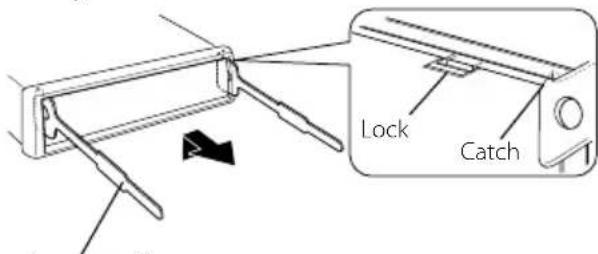
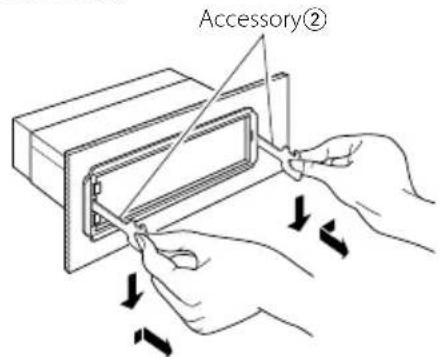
1 Release the faceplate lock so that it can be removed.
Refer to (page 21).
2 Press the Reset button and reattaching the faceplate.
Function of KDC-HD545U
Muting Volume Upon Reception of Phone Call
The audio system automatically mutes when a call comes in.
When a call comes in
"CALL" is displayed.
The audio system pauses.
Listening to the audio during a call
Press the [SRC] button.
The "CALL" display disappears and the audio system comes back ON.
When the call ends
Hang up the phone.
The "CALL" display disappears and the audio system comes back ON.
To use the TEL Mute feature, you need to hook up the MUTE wire to your telephone using a commercial telephone accessory. Refer to (page 36).
Bluetooth Setup
BluetoothSetup
You can select following Bluetooth Setup items.
1 Enter Bluetooth mode
KDC-BT645U: Press the [VOL] knob.
KDC-HD545U: Press the [VOL] knob for at least 1 second.
"BT MODE" is displayed.
2 Enter Function Setting mode
KDC-BT645U: Press the [VOL] knob for at least 1 second.
KDC-HD545U: Press the [VOL] knob.
"FUNCTION" is displayed.
3 Select the function item
Turn the [VOL] knob and it when the desired item is displayed.
Select " SETTINGS" > Function item or select " SETTINGS" > "DETAILED SET" > Function item.
Function item Selectable setting/item
"PHONE SELECT" Selects a cell-phone or Bluetooth audio player* connection. Refer to <Selecting the Bluetooth Device You Wish to Connect> (page 25).
"AUDIO SELECT"*
Download a short message. Refer to <Downloading the SMS> (page 25).
"SMS DOWNLOAD" Display he received short message. Refer to <SMS (Short Message Service)> (page 26).
"SMS INBOX" Display voice for voice recognition and voice to select the Phone number category in Phone book. Refer to <Adding a Voice Dialing Command> (page 26) and <Setting a Voice Command for Category> (page 27).
"DETAILED SET" Move to detailed item.
"DEVICE REGISTER" Registers a Bluetooth device (pairing).
"S-DVC SELECT" Refer to <Registering Bluetooth Device> (page 23).
"DEVICE DELETE" Cancel registration of the Bluetooth device. Refer to <Deleting a Registered Bluetooth Device> (page 23).
"PIN CODE EDIT" Specify the PIN code required when registering this unit using the Bluetooth device. Refer to <Registering PIN Code> (page 24).
"AUTO ANSWER"
his function automatically answers (responds to) a call after lapse of the preset time interval for automatic answer. OFF: Does not answer the phone call automatically. 0: Automatically answers the phone call at once. 1-8-99: Automatically answers the phone call after lapse of 1-99 seconds.
"BT SP SELECT"
You can specify the audio output speakers. Select the speaker which is further from the microphone in order to prevent howling or echoes. SP FRONT: Outputs audio from the front-left and front-right speakers. SP ALL: Outputs audio from the all speakers.
"CALL BEEP"
You can output a beep from the speaker when a call comes in. ON: Beep is heard. OFF: Beep is canceled
"BT F/W UPDATE"
Display the firmware version and update the firmware. Refer to <Displaying the Firmware Version> (page 24).
"MIC GAIN"*
Adjust the sensitivity of the built-in microphone for a telephone call. Adjust the voice of caller. Setting to "+" increases the voice volume. -3-0-+3
"NR LEVEL"*
Reduce the noises generated by surrounding environment without changing the built-in microphone volume. Adjust the voice of caller when it is not clear. Setting to "+" increases the noise reduction. -3-0-+3
"EC LEVEL"*
Adjust the level of echo cancellation. Setting to "+" increases the echo cancel reduction. -2-0-+2
*KDC-BT645U only
**KDC-HD545U with KCA-BT200 (Optional Accessory) only (Factory setting: Underlined)
4 Make a setting
Turn the [VOL] knob and press it when the desired item is displayed.
5 Exit Function Setting mode
Press the [ ] button for at least 1 second.
Registering Bluetooth Device (Pairing)
To make your Bluetooth device (cell-phone) usable with this unit, you need to register it (pairing). You can register up to 5 Bluetooth devices to this unit.
2 Enter Bluetooth device registration mode Press the [VOL] knob.
Search for the Bluetooth device.
When search is completed, "FINISHED" is displayed.
3 Select the Bluetooth device
Turn the [VOL] knob and press it when the desired Bluetooth device name is displayed.
4 Input the PIN code
Operation type Operation
Select the numbers. Turn the [VOL] knob.
Move to the next digit. Press the [▶] button.
Delete the last digit. Press the [←] button.
5 Transmit the PIN code Press the [VOL] knob.
If "PAIRING OK" is displayed, registration is completed. If the error message appears even though the PIN code is correct, try Registering Special Bluetooth device.
6 Return to the device list Press the [VOL] knob.
7 Exit Function Setting mode Press the [ button for at least 1 second.
This unit allows up to 8 digits to be input for a PIN code. If a PIN code cannot be input from this unit, it can be input from the Bluetooth device.
If there are 5 or more Bluetooth devices registered, you cannot register a new Bluetooth device.
Registering Special Bluetooth device
Allow registration of a special device that cannot be registered normally (pairing).
2 Enter Bluetooth Firmware update mode Press the [VOL] knob.
The firmware version appears.
3 Exit Function Setting mode
Press the [ button for at least 1 second.
For how to update the firmware, access our web site. http://www.kenwood.com/cs/ce/bt/
Downloading the Phone Book
Download the phone book data from the cellphone to this unit so that you can use the Phone Book of this unit.
To download automatically
If the cell-phone supports a phone book synchronization function, the phone book is downloaded automatically after Bluetooth connection.
Setting on the cell-phone may be required.
If no phone book data is found in the unit even after the compete display, your cell-phone may not support automatic download of phone book data. In this case, try downloading manually.
To download from the cell-phone manually
1 By operating the cell-phone, end the hands-free connection.
2 By operating the cell-phone, send the phone book data to this unit
By operating the cell-phone, download the phone book data to this unit.
During downloading:
"DOWNSLOADING" is displayed.
After completion of downloading:
"COMPLETE" is displayed.
3 By operating the cell-phone, start the hands-free connection.
Up to 1000 person phone numbers can be registered for each registered cell-phone.
Up to 25 digits can be registered for each phone number along with up to 50^ * characters representing a name.
(^*50) : Number of alphabetic alphabetical characters.
Fewer characters can be input depending on the type of characters.)
To cancel downloading of the phone book data, operate the cell-phone.
Selecting the Bluetooth Device You Wish to Connect
When 2 or more Bluetooth devices have already been registered, you need to select the Bluetooth device you wish to use.
1 Select Bluetooth device selection mode
For how to select setup item, refer to (page 22).
Cell-phone:
Select " SETTINGS" > "PHONE SELECT".
Audio player: KDC-HD545U with KCA-BT200 (Optional) only
Select " SETTINGS" > "AUDIO SELECT".
2 Enter Bluetooth device selection mode Press the [VOL] knob.
"(name)" is displayed.
3 Select the Bluetooth device
Turn the [VOL] knob.
4 Set up the Bluetooth device Press the [VOL] knob.
**(name') or -(name)' is displayed.
*": The selected Bluetooth device is busy.
"-": The selected Bluetooth device is on standby.
" " (blank): The Bluetooth device is deselected.
5 Exit Function Setting mode
Press the [ button for at least 1 second.
If a cell-phone is already selected, deselect it, and then select a different one.
Downloading the SMS
Download the short message (SMS) arrived at the cell-phone so that it can be read on this unit.
1 Select SMS download mode
For how to select setup item, refer to (page 22).
Select " SETTINGS" > "SMS DOWNLOAD".
2 Enter SMS download mode
Press the [VOL] knob.
"DOWNLOADING" is displayed.
When the downloading finishes, "COMPLETE" is displayed.
3 Exit Function Setting mode
Press the [ button for at least 1 second.
The cell-phone must be able to transmit the SMS using Bluetooth. Setting on the cell-phone may be required. If the cell-phone does not support SMS function, the SMS download item in Function Control mode is not displayed.
When the SMS is downloaded from the cell-phone, the unopened messages in the cell-phone are opened.
SMS (Short Message Service)
The SMS arrived at the cell-phone is displayed on the receiver.
A newly arrived message is displayed.
To prevent car accidents, the driver should not read the SMS while driving.
When a new message arrives
"SMS RECEIVED" is displayed.
The display disappears with any operations.
Displaying the SMS
1 Select SMS Inbox mode
For how to select setup item, refer to (page 22).
Select > "SETTINGS"> "SMS INBOX".
2 Enter SMS Inbox mode
Press the [VOL] knob.
A message list appears.
3 Select a message
Turn the [VOL] knob.
KDC-BT645U: [O button
KDC-HD545U: [DISP] button
Each pushing of the button switches between telephone number or name and message reception date.
4 Display the text
Press the [VOL] knob.
Turning the [VOL] knob scrolls the message.
Pressing the [VOL] knob again returns to the message list screen.
5 Exit Function Setting mode
Press the [ button for at least 1 second.
The unopened message is displayed at the beginning of the list. Other messages are displayed in the order of reception.
The SMS that has arrived when the cell-phone is not linked with Bluetooth cannot be displayed. Download the SMS.
The short message cannot be displayed during downloading the SMS.
Unread messages are prefixed with an asterisk (^*)
Adding a Voice Dialing Command
Add a voice tag to the phone book for voice dialing. You can register up to 35 voice tags.
1 Select Phone book name edit mode
For how to select setup item, refer to (page 22).
Select " SETTINGS" > "VOICE TAG".
2 Enter Voice Tag edit mode
Press the [VOL] knob.
3 Enter Phone book name edit mode
Turn the [VOL] knob to select "PB NAME EDIT", and then press the [VOL] knob.
4 Search for the name to register
Select the name to register with reference to 3 in (page 14). If a voice tag has already been registered for a name, "*" is displayed before the name.
5 Select a mode
Turn the [VOL] knob.
Display Operation
"PB NAME REG" Register a voice tag.
"PB NAME CHK"* Play a voice tag.
"PB NAME DEL"* Delete a voice tag.
"RETURN" Return to step 3.
Displayed only when a name for which a voice tag has been registered is selected.
Select "PB NAME REG" (Register)
6 Register a voice tag (first)
Press the [VOL] knob.
"ENTER1" is displayed.
When a beep is heard, say a voice tag within 2 seconds.
7 Confirm the voice tag (second)
Press the [VOL] knob.
"ENTER 2" is displayed.
When a beep is heard, say the same voice tag as that you said in step 5 within 2 seconds.
"COMPLETE" is displayed.
8 End registration
Press the [VOL] knob.
Return to step 3. You can register another voice tag continuously.
If your voice cannot be recognized, a message is displayed. Pressing the [VOL] knob allows you to retry voice input. (page 39)
Select "PB NAME CHK" (Play)
6 Press the [VOL] knob.
Play the registered voice and return to step 3.
Select "PB NAME DEL" (Delete)
6 Delete a voice tag
Press the [VOL] knob.
Exit Phone book name edit mode
Press the [ button for at least 1 second.
Audio sound is not output during voice tag registration.
Setting a Voice Command for Category
Add a voice tag to the phone number category (type) for voice calling.
1 Select Phone Number type edit mode
For how to select setup item, refer to (page 22).
Select " SETTINGS" > "VOICE TAG".
2 Enter Voice Tag edit mode Press the [VOL] knob.
3 Enter Phone Number type edit mode Turn the [VOL] knob to select "PN TYPE EDIT", and then press the [VOL] knob.
4 Select the category (type) you wish to set. Turn the [VOL] knob and press it when the desired category name is displayed.
"GENERAL"/"HOME"/"OFFICE"/"MOBILE"/"OTHER"
5 Select a mode Turn the [VOL] kn
Display Operation
"PN TYPE REG" Register a voice tag.
"PN TYPE CHK"* Play a voice tag.
"PN TYPE DEL"* Delete a voice tag.
"RETURN" Return to step 3.
Displayed only when a name for which a voice tag has been registered is selected.
KDC-HD54SU with KCA-BT200 (Optional Accessory) only.
6 Register the category (type) by performing steps 6 to 8 of select "PB NAME REG" (Register) in (page 26).
7 Exit Function Setting mode Press the [ ] button for at least 1 second.
Set the voice tag for all the 5 categories. If the voice tag is not registered for all the categories, the Phone book may not be recalled by voice command.
Satellite Radio Tuner Control (Optional Accessory)
Basic Operation
Selecting Satellite Radio source Press the [SRC] button.
Select the "SAT"/"SIRIUS"/"XM" display.
You need to register to the service provider to receive the service by Satellite Radio. Consult the service provider if "CALL ... TO SUBSCRIBE" appears.
The radio may take a little time to start receiving after you select the Satellite Radio source.
If the signal reception fails, "ACQUIRING SIGNAL"/"NO SIGNAL" appears.
Selecting the Preset Band Press the [BAND] button.
Each time you press the button, the receiving band alternates between the SR1, SR2, SR3 and SR4.
Selecting the channel
Press the [I<or [▶] button.
Selecting the preset channel
Press the [1] - [6] button.
Preset Memory
Putting the channel in the memory.
1 Select the frequency to put in the memory Press the [or] button.
2 Select the number to put in the memory Press the [1] - [6] button for at least 2 seconds.
Only the channel number is stored. Category information is not stored.
Satellite Radio Setting
You can select following Satellite Radio Setting items.
1 Select the Satellite Radio source Press the [SRC] button.
Select the "SAT"/"SIRIUS"/"XM" display.
2 Enter Function Setting mode
KDC-BT645U: Press the [VOL] knob for at least 1 second.
KDC-HD545U: Press the [VOL] knob.
"FUNCTION" is displayed.
3 Select the function item
Turn the [VOL] knob and press it when the desired item is displayed.
Select " SETTINGS" > Function item.
Function item
Selectable setting/item
"SEEK MODE"
Selects the tuning mode of the radio.CHANNEL: Normal manual seeking control.PRESET: Search in order of the channels in thePreset memory
"ESN WATCH" Display the Electronic Serial Number of satellite radio. ESN=
(Factory setting: Underlined)
4 Make a setting
Turn the [VOL] knob and press it when the desired item is displayed.
5 Exit Function Setting mode
Press the [ button for at least 1 second.
Category and Channel Search
Selecting the channel and category you want to receive.
1 Enter Category and Channel Search mode Press the [Q button.
2 Select the Category Press the [VOL] knob
3 Select the Channel Turn the [VOL] knob and press it when the desired item is displayed.
Cancelling Category and Channel Search mode
Press the [ button for at least 1 second.
Channel Scan
Every receivable Channel is checked for 10 seconds.
1 Enter Channel Scan mode Press the [Q] button for at least 1 second.
2 Release it when the channel you want to listen to is received Press the [Q button.
Function of remote control
DirectAccessTuning
Entering the channel and tuning.
1 Enter Direct Access Tuning mode Press the [DIRECT] button.
2 Enter the channel Press the number buttons.
3 Tune in to the entered channel Press the [丨 丨 ] or [ 丨 ] button.
Cancelling Direct Access Tuning Press the [ button.
If you make no button operation for 10 seconds, the Direct Access Tuning mode is automatically canceled.
If you cannot receive any signal in the input Channel due to bad conditions on radio wave or other such problems, "ACQUIRING SIGNAL"/"NO SIGNAL" appears.
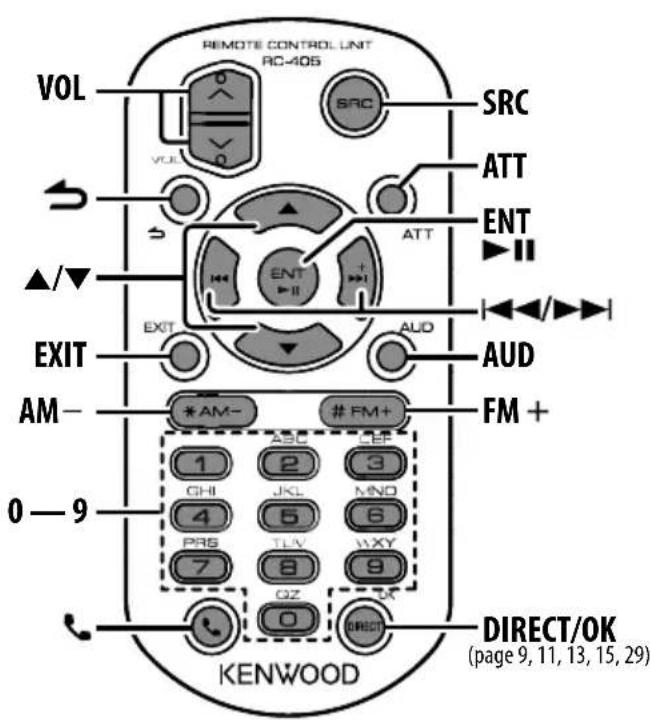
General Control
Volume control [VOL] button
Source select [SRC] button
Volume reduce [ATT] button
"ATT" indicator is blinks when the attenuator function is on. When the button is pressed again, the volume returns to the previous level.
Enter Audio Control mode [AUD] button
Refer to
Return to previous item [] button
Exit from mode [EXIT] button
Selection of item [▲]/[▼] button
Determination [ENT] button
In Tuner/HD Radio Source
Band select [FM+]/[AM-] button
Station select [I<4]/[▶▶] button
Recall preset stations [1]—[6] button
In iPod/CD/Audio file Source
Music select [I<4]/[▶▶] button
Folder/Disc select [FM+]/[AM-] button
Pause/Play [▶II] button
Enter Music search mode [▲]/[▼] button
Movement between folders/files in Music search mode [▲]/[▼] button
Return to previous folder [ ] button
Hands-Free Phone Control
Making a call
Enter Bluetooth mode [] button
Enter the dialing method selection mode [▲]/[▼] button
Select a dialing method [ENT] button
Number dial input
Operation type Operation
Input a digit. [0] - [9] buttons
Input "+" . [▶▶i] button
Input "#".[FM+] button
Input "*".[AM-] button
Clear the entered phone number.
[!←] button
Make a call [OK] button
Receiving a call
Answer the call [R]hutton
Switch between the private talk mode and the hands-free talk mode [▶II] button
Call waiting
Answer another incoming call with the current call suspended [ ] button
Answer another incoming call after terminating the current call [SRC] button
Continue the current call [1] button
During a call
End the call [SRC] button
Adjust the voice volume [VOL] button
Preset band select [FM] button
Channel select [14]按钮
Recall preset channels [1]—[6] button
Preparing the remote control unit
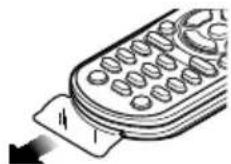
Pull the battery sheet out from the remote control unit to the direction of the arrow.
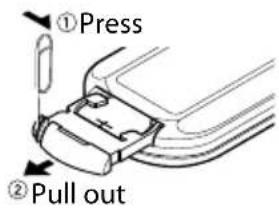
Changing the battery of the remote control unit
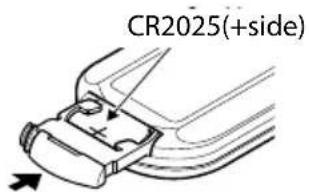
Use a commercially available button battery (CR2025).
1 Insert something narrow like a paperclip into the hole and pull out the battery tray.
2 Insert the battery with the + and - poles aligned properly, following the illustration inside the case.
CAUTION
Do not set the remote control in hot places such as on the dashboard.
Lithium battery.
Danger of explosion if the battery is incorrectly replaced.
Replace only with the same or equivalent type.
The battery pack or batteries shall not be exposed to excessive heat such sunshine, fire or the like.
Keep battery out of reach of children and in original package until ready to use. Dispose of used batteries promptly. If swallowed contact physician immediately.
Appendix
About Audio file
Playable Audio file
AAC-LC (.m4a), MP3 (.mp3), WMA (.wma)
Playable disc media
CD-R/RW/ROM
Playable disc file format
ISO 9660 Level 1/2, Joliet, Romeo, Long file name.
Playable USB device
USB mass storage class
Playable USB device file system
FAT16. FAT32
Although the audio files are complied with the standards listed above, the play maybe impossible depending on the types or conditions of media or device.
Playing order of the Audio file
In the example of folder/file tree shown below, the files are played in the order from ① to ⑩.
An online manual about audio files is put on the site, www.kenwood.com/cs/ce/audiofile/. On this online manual, detailed information and notes which are not written in this manual are provided. Make sure to read through the online manual as well.
About USB device
In this manual, the word "USB device" is used for flash memories and digital audio players which have USB terminals.
When the USB device is connected to this unit, it can be charged up provided that this unit is powered.
Install the USB device in the place where it will not prevent you from driving your vehicle properly.
You cannot connect a USB device via a USB hub and Multi Card Reader.
Take backups of the audio files used with this unit. The files can be erased depending on the operating conditions of the USB device. We shall have no compensation for any damage arising out of erasure of the stored data.
No USB device comes with this unit. You need to purchase a commercially available USB device.
When connecting the USB device, usage of the CA-U1EX (option) is recommended.
Normal playback is not guaranteed when a cable other than the USB compatible cable is used.
Connecting a cable whose total length is longer than 5m can result in abnormal playback.
iPod touch (1st generation) - iPod touch (2nd generation) Works with
iPhone iPhone 3G iPhone 3GS
iPhone 4GB 8G
iPhone 3G 8GB 16GB
iPhone 3GS 16GB 32GB
Update iPod/iPhone software to the latest version.
Type of control available varies depending on the type of connected iPod. See www.kenwood.com/ cs/ce/ipod for further details.
The word "iPod" appearing in this manual indicates the iPod or the iPhone connected with the iPod connection cable*. A KCA-iP101 is required (optional accessory).
Not supported model KCA-iP500.
Refer to the web site for connectable iPod and iPod connection cable.
www.kenwood.com/cs/ce/ipod/
If you start playback after connecting the iPod, the music that has been played by the iPod is played first. In this case, "RESUMING" is displayed without displaying a folder name, etc. Changing the browse item will display a correct title, etc.
You cannot operate iPod if "KENWOOD" or "√" displayed on iPod.
About the Cell-Phone
This unit conforms to the following Bluetooth specifications:
Version Bluetooth Standard Ver. 2.0
Profile HFP (Hands Free Profile)
OPP (Object Push Profile)
PBAP (Phone book Access Profile)
SYNC (Synchronization Profile)
For the cell-phones verified for compatibility, access the following URL:
http://www.kenwood.com/cs/ce/bt/
The units supporting the Bluetooth function have been certified for conformity with the Bluetooth Standard following the procedure prescribed by Bluetooth SIG. However, it may be impossible for such units to communicate with your cell-phone depending on its type.
HFP is a profile used to make a hands-free call.
OPP is a profile used to transfer data such as a phone book between units.
For operating KDC-HD545U with KCA-BT200 (Optional)
Plugging a KCA-BT200 into the KDC-HD545U will enable BT audio.
Selecting Bluetooth Audio source
Press the [SRC] button.
Select the "BT AUDIO EXT" display.
Pause and play
Press the [6] button.
Music Search
Press the [<] or [▶] button.
All or some of the operations above cannot be performed if the Bluetooth audio player is not ready for remote control.
Switching between Bluetooth audio sources does not start or stop playback automatically. Perform the operation for starting or stopping playback.
Some audio players cannot be controlled remotely or reconnected after Bluetooth disconnection. Operate the main unit of the audio player to connect Bluetooth.
Set the Type Switch on KCA-BT200 as follows: 1: OFF, 2: OFF, 3: OFF
About HD Radio Reception (KDC-BT645U: Optional)
When you connect an HD Radio tuner, Tuner features of the unit are disabled and changed to HD Radio tuner features. With the HD Radio tuner, you can use the similar functions of Tuner features.
About Satellite Radio tuner (Optional)
This unit supports Satellite Radio tuners which are released by SIRIUS and XM.
Refer to the instruction manual of Satellite radio tuner.
About "KENWOOD Music Editor"
This unit supports the PC application "KENWOOD Music Editor Lite ver1.0" or later.
When you use the audio file with database information added by the "KENWOOD Music Editor Lite ver1.0", you can search a file by title, album or artist name using the (page 7).
In the Instruction manual, the term "Music Editor media" is used to mean the device that contains audio files with database information added with KENWOOD Music Editor.
"KENWOOD Music Editor Lite ver1.0" is available from the following web site: www.kenwood.com/cs/ce/
For further information on "KENWOOD Music Editor Lite ver1.0", refer to the site above or the application help.
Appendix
Function Item List In Standby
1st hierarchy 2nd hierarchy 3rd hierarchy Page
"DISP SELECT"*
18
" SETTINGS"
"CLOCK"
" CLOCK ADJUST"
"20
"DISPLAY" "DIMMER SET"
19
"TEXT SCROLL"
"BT DVC STATUS"***
"INITIAL SET" "PRESET TYPE"
20
"KEY BEEP"
"BUILT-IN AUX"
"CD READ"
"SP SELECT"
"F/W UP"
"DEMO MODE"
20
In CD/ Audio file source
1st hierarchy 2nd hierarchy 3rd hierarchy Page
"AUDIO CONTROL" "S"
UBWOOFER SET"
17
"BASS BOOST"
"SYSTEM Q"
"BASS LEVEL"
"MID LEVEL"
"TRE LEVEL"
"BALANCE"
"FADER"
"SUB-W LEVEL"
"DETAILED SET" "LPF"
SUBWOOFER"
"SUB-W PHASE"
"SUPreme SET"
"VOLUME OFFSET"
"DISP SELECT"*
18
" SETTINGS"
"CLOCK"
"CLOCK"
20
"DISPLAY" (See in standby)
19
"DEMO MODE"
20
In USB/iPod source
1st hierarchy 2nd hierarchy 3rd hierarchy Page
"AUDIO CONTROL" (See in CD/Audio file source)
17
"DISP SELECT"*
18
" SETTINGS" "SKIP SEARCH"
9
"MPLIST DELETE"
"CLOCK"
"CLOCK
ADJUST"
"DISPLAY" (See in standby)
19
"DEMO MODE"
20
In Tuner source
1st hierarchy 2nd hierarchy 3rd hierarchy Page
"AUDIO CONTROL" (See in CD/Audio file source)
17
"DISP SELECT"*
18
"SETTINGS" "SEEKMODE"
10
"AUTO MEMORY"
"MONO SET"
"CLOCK"
"CLOCK
ADJOIST"
"DISPLAY" (See in standby)
19
"DEMO MODE"
20
In HD Radio source
1st hierarchy 2nd hierarchy 3rd hierarchy Page
"AUDIO CONTROL" (See in CD/Audio file source)
17
"DISP SELECT"*
18
" SETTINGS" "SEEK MODE"
12
"AUTO MEMORY"
"RECEIVE MODE"
"TAG MEMORY"
"TAGGING"
"CLOCK"
"CLOCK
ADJUST"
"DISPLAY" (See in standby)
19
"DEMO MODE"
20
In Hands-Free BT mode
1st hierarchy 2nd hierarchy 3rd hierarchy Page
"DISP SELECT"*
18
" SETTINGS" "PHONE SELECT"
22
"AUDIO SELECT"*
"SMS DOWNLOAD"
"SMS INBOX"
"VOICE TAG"
"DETAILED SET"
"DEVICE REGIST"
"S-DVC SELECT"
"DEVICE DELETE"
"PIN CODE EDIT"
"AUTO ANSWER"
"BT SP SELECT"
"CALL BEEP"
"BT F/W UPDATE"
"MIC GAIN"*
"NR LEVEL"*
"EC LEVEL"*
"CLOCK"
"CLOCK
ADJUST
"DISPLAY" (See in standby)
19
"DEMO MODE"
20
In AUX source
1st hierarchy 2nd hierarchy 3rd hierarchy Page
"AUDIO CONTROL" (See in CD/Audio file source)
17
"DISP SELECT"*
18
" SETTINGS" "AUX NAME SET"
19
"CLOCK"
"CLOCK
ADJUST"
"DISPLAY" (See in standby)
19
"DEMO MODE"
20
*KDC-BT645U only
**KDC-HD545U with KCA-BT200 (Optional Accessory)
***KDC-BT645U/KDC-HD545U with KCA-BT200 (Optional Accessory)
Accessories/ Installation Procedure
Accessories
Installation Procedure
To prevent a short circuit, remove the key from the ignition and disconnect the battery.
Make the proper input and output wire connections for each unit.
Connect the speaker wires of the wiring harness.
Connect the wiring harness wires in the following order: ground, battery, ignition.
Connect the wiring harness connector to the unit.
Install the unit in your car.
Reconnect the battery.
Press the reset button.
WARNING
If you connect the ignition wire (red) and the battery wire (yellow) to the car chassis (ground), you may cause a short circuit, that in turn may start a fire. Always connect those wires to the power source running through the fuse box.
#
Mounting and wiring this product requires skills and experience. For safety's sake, leave the mounting and wiring work to professionals.
Make sure to ground the unit to a negative 12V DC power supply.
Do not install the unit in a spot exposed to direct sunlight or excessive heat or humidity. Also avoid places with too much dust or the possibility of water splashing.
Do not use your own screws. Use only the screws provided. If you use the wrong screws, you could damage the unit.
If the power is not turned ON ("PROTECT" is displayed), the speaker wire may have a short-circuit or touched the chassis of the vehicle and the protection function may have been activated. Therefore, the speaker wire should be checked.
If your car's ignition does not have an ACC position, connect the ignition wires to a power source that can be turned on and off with the ignition key. If you connect the ignition wire to a power source with a constant voltage supply, as
with battery wires, the battery may die.
If the console has a lid, make sure to install the unit so that the faceplate will not hit the lid when closing and opening.
If the fuse blows, first make sure the wires aren't touching to cause a short circuit, then replace the old fuse with one with the same rating.
Insulate unconnected wires with vinyl tape or other similar material. To prevent a short circuit, do not remove the caps on the ends of the unconnected wires or the terminals.
Connect the speaker wires correctly to the terminals to which they correspond. The unit may be damaged or fail to work if you share the wires or ground them to any metal part in the car.
When only two speakers are being connected to the system, connect the connectors either to both the front output terminals or to both the rear output terminals (do not mix front and rear). For example, if you connect the connector of the left speaker to a front output terminal, do not connect the connector to a rear output terminal.
After the unit is installed, check whether the brake lamps, blinkers, wipers, etc. on the car are working properly.
Mount the unit so that the mounting angle is 30^ or less.
Reception may drop if there are metal objects near the Bluetooth antenna.
Bluetooth antenna unit
For Good Reception
To assure good reception, note the following:
Communicate with the cell-phone within the line-of-sight distance of 10m (30 ft). The communication range becomes shorter depending on the surrounding environment. The communication range also becomes shorter when there is an obstacle between this unit and the cell-phone. The above maximum communication range (10m) is not always assured.
A broadcast station or walkie-talkie located nearby can interfere with communication due to too strong signal.
About CD players/disc changers connected to this unit
If the CD player/disc changer has the "O-N" switch, set it to the "N" position.
The functions you can use and the information that can be displayed may differ depending on the models being connected.
Connecting Wires to Terminals
Installation/Removing the Unit
Non-Japanese Cars
Bend the tabs of the mounting sleeve with a screwdriver or similar utensil and attach it in place.
Make sure that the unit is installed securely in place. If the unit is unstable, it may malfunction (for example, the sound may skip).
Japanese Cars
1 Refer to the section and then remove the hard rubber frame.
2 Align the holes in the unit (two locations on each side) with the vehicle mounting bracket and secure the unit with the accessory screws.
Accessory ③ .for Nissan car Accessory ④ .for Toyota car
CAUTION
Install this unit in the console of your vehicle. Do not touch the metal part of this unit during and shortly after the use of the unit. Metal part such as the heat sink and enclosure become hot.
Removing the Hard Rubber Frame
1 Engage the catch pins on the removal tool and remove the two locks on the upper level. Upper the frame and pull it forward as shown in the figure.
Accessory② Removal tool
2 When the upper level is removed, remove the lower two locations.
The frame can be removed from the bottom side in the same manner.
Removing the Unit
1 Refer to the section and then remove the hard rubber frame.
2 Detach the faceplate.
3 Insert the two removal tools deeply into the slots on each side, as shown.
4 Lower the removal tool toward the bottom, and pull out the unit halfway while pressing towards the inside.
Be careful to avoid injury from the catch pins on the removal tool.
5 Pull the unit all the way out with your hands, being careful not to drop it.
Troubleshooting Guide
Some functions of this unit may be disabled by some settings made on this unit.
Cannot set up the subwoofer.
Cannot set up the low pass filter.
No output from the subwoofer.
"SUBWOOFER SET" of
! Cannot set up the subwoofer phase.
The Low Pass Filter is set to "THROUGH". "LPF SUBWOOFER" of
The number of songs contained in "SONGS" category of this unit is different from that contained in "SONGS" category of iPod.
Podcast files are not counted in this unit as this unit does not support the playback of podcast files.
What might seem to be a malfunction in your unit may just be the result of slight miss operation or miss wiring. Before calling service, first check the following table for possible problems.
General
The operation check sound (beep sound) does not sound.
The preout jack is being used.
The operation check sound cannot be output for the preout jack.
Tuner source
? Radio reception is poor.
The car antenna is not extended. Pull the antenna out all the way.
Disc source
The specified disc does not play, but another one plays instead.
The specified CD is quite dirty. Clean the CD, referring to the CD cleaning of the section onHandling CDs> (page 3).
- The disc is loaded in a different slot from that specified.
- Eject the disc magazine and check the number for the specified disc.
The disc is severely scratched. Try another disc instead.
Audio file source
The sound skips when an Audio file is being played.
The media is scratched or dirty. Clean the media, referring to the CD cleaning of the section on (page 3).
The recording condition is bad. Record the media again or use another media.
Hands-free phoning
The hands-free talk volume is low.
The hands-free talk volume is set at a low level. The hands-free talk volume can be adjusted independently. Adjust it during hands-free talk. "MIC GAIN", "NR LEVEL" and "EC LEVEL" of (page 22).
? No sound is heard from the rear speakers.
You are talking in the hand-free talk mode.
No sound is heard from the rear speakers in the hands-free talk mode.
No beep is heard at reception of an incoming call.
No beep is heard depending on the type of your cell-phone. The "CALL BEEP" of (page 22) is set to ON.
Voice is not recognized.
The vehicle window is open. If the surrounding noise is large, voice cannot be recognized properly. Close the vehicle windows to reduce noise.
Small voice. If voice is too small, it cannot be recognized properly. Speak into the microphone a little more loudly and naturally.
- The person saying the voice tag is not the one who registered the it.
- Only the voice of the person who registered the voice tag can be recognized.
Bluetooth audio source KDC-HD545U with KCA-BT200 (Optional)
The Bluetooth audio player cannot be registered (pairing).
The PIN code is fixed.
When a PIN code is specified in the Instruction Manual for Bluetooth Audio Player, register it with reference to (page 24) to register the Bluetooth audio player. If no PIN code is specified in the Instruction Manual, try "0000".
The sound from the Bluetooth audio player is discontinuous.
The distance between this unit and audio player is too far.
Move the audio player nearer to this unit.
Another Bluetooth device is affecting the Bluetooth communication.
Turn off another Bluetooth device.
Move another Bluetooth device away from this unit.
Another Bluetooth device or profile is used for communication.
The downloading of the Phone book or the SMS disconnects the sound.
The messages shown below display your systems condition.
TOC ERROR: No disc has been loaded in the disc magazine.
The CD is quite dirty. The CD is upside-down. The CD is scratched a lot.
ERROR 05: The disc is unreadable.
ERROR 77: The unit is malfunctioning for some reason.
Press the reset button on the unit. If the "ERROR 77" code does not disappear, consult your nearest service center.
ERROR 99: Something is wrong with the disc magazine.
Or the unit is malfunctioning for some reason.
Check the disc magazine. And then press the reset button on the unit. If the "ERROR 99" code does not disappear, consult your nearest service center.
IN (Blink): The CD player section is not operating properly.
Reinsert the CD. If the CD cannot be ejected or the display continues to flash even when the CD has been properly reinserted, please switch off the power and consult your nearest service center.
PROTECT(Blink):
The speaker wire has a short-circuit or touches the chassis of the vehicle, and then the protection function is activated.
Wire or insulate the speaker cable properly and press the reset button. If the "PROTECT" code does not disappear, consult your nearest service center.
NA FILE: An Audio file is played with a format that this unit can't support.
COPY PRO: A copy-protected file is played.
READ ERROR: The file system of the connected USB device is broken.
Copy the files and folders for the USB device again. If the error message is still displayed, initialize the USB device or use other USB devices.
NO DEVICE: The USB device is selected as a source although no USB device is connected.
Change the source to any source other than USB. Connect an USB device, and change the source to USB again.
N/A DEVICE: An unsupported USB device is connected.
Connection to the iPod has failed.
Check that the connected iPod is an iPod that is supported. See (page 32) for information on supported iPods.
Troubleshooting Guide
NO MUSIC DATA/ERROR 15:
The connected USB device contains no playable audio file.
Media was played that does not have data recorded that the unit can play.
USB ERROR: Some trouble may have occurred to the connected USB device.
Remove the USB device, then cycle the power switch to ON. If the same display is repeated, use another USB device.
iPod ERROR: Connection to the iPod has failed.
Remove the USB device and then reconnect it.
Confirm that the software for the iPod is the latest version.
USBREMOVE(Blink):
The Remove mode has been selected for the USB device/iPod. You can remove the USB device/iPod safely.
NO NUMBER: The calling party does not notify a caller ID.
There is no phone number data.
NO DATA: There is no outgoing call list.
There is no incoming call list.
There is no missed call list.
There is no phone book list.
NO ENTRY: The cell-phone has not been registered (pairing).
HF DISCONCT: The unit cannot communicate with the cell phone.
HF ERROR 07: The memory cannot be accessed.
Turn off the power and on again. If this message still appears, press the reset button on the control unit.
HF ERROR 68: The unit cannot communicate with the cell phone.
Turn off the power and on again. If this message still appears, press the reset button on the control unit.
UNKNOWN: The Bluetooth device cannot be detected.
DEVICE FULL: 5 Bluetooth device have already been registered. No more Bluetooth device cannot be registered.
PIN CODE NG: The PIN code is wrong.
CONNECT NG: The unit cannot be connected to the device.
PAIRING NG: Pairing error.
NO MATCHING: The voice tag is wrong. Voice cannot be recognized because of an unregistered voice tag, etc.
TOO SOFT: Voice is too small and cannot be recognized.
TOO LOUD: Voice is too large to be recognized.
TOO LONG: The word or utterance is too long to be recognized.
NO PHONEBOOK: Data is not contained in the phone book.
NOMESSAGE: No short message in In Box.
NO RECORD: The voice tag is not registered in the phone book.
MEMORY FULL: The number of voice tags reaches the maximum number to be registered in the phone book.
NO ACCESS: The procedure preset with mixed preset memory function cannot be available. The preset content may not be recalled depending on the selected band or source.
NO VOICE: No call.
MEMORY FULL: The tag memory of HD Radio receiver is FULL.
iPod FULL: The iPod memory is FULL.
NOT TAG FNC: iPod which does not support the tag memory is connected.
TAG ERROR: The procedure is not registered to TAG Memory function
N/A CHANNELS: No receivable channel and category.
CAUTION
Use of controls or adjustments or performance of procedures other than those specified herein may result in hazardous radiation exposure. In compliance with Federal Regulations, following are reproductions of labels on, or inside the product relating to laser product safety.
Kenwood Corporation
2967-3, ISHIKAWA-MACHI,
HACHIOJI-SHI
TOKYO, JAPAN
KENWOOD CORP. CERTIFIES THIS EQUIPMENT
CONFORMS TO DHHS REGULATIONS NO.21 CFR
10, CHAPTER 1, SUBCHAPTER J.
Location : Top Panel
FCC WARNING
This equipment may generate or use radio frequency energy. Changes or modifications to this equipment may cause harmful interference unless the modifications are expressly approved in the instruction manual. The user could lose the authority to operate this equipment if an unauthorized change or modification is made.
FCC NOTE
This equipment has been tested and found to comply with the limits for a Class B digital device, pursuant to Part 15 of the FCC Rules. These limits are designed to provide reasonable protection against harmful interference in a residential installation. This equipment may cause harmful interference to radio communications, if it is not installed and used in accordance with the instructions. However, there is no guarantee that interference will not occur in a particular installation. If this equipment does cause harmful interference to radio or television reception, which can be determined by turning the equipment off and on, the user is encouraged to try to correct the interference by one or more of the following measures:
Reorient or relocate the receiving antenna.
Increase the separation between the equipment and receiver.
Connect the equipment into an outlet on a circuit different from that to which the receiver is connected.
Consult the dealer or an experienced radio/TV technician for help.
Contains Transmitter Module
FCC ID: RKXCK5000NVI
Contains Transmitter Module
IC ID: 5119A-CK5000NVIA
IC (Industry Canada) Notice
Operation is subject to the following two conditions:
(1) This device may not cause interference, and
(2) this device must accept any interference, including interference that may cause undesired operation of the device.
The term "IC:" before the certification/registration number only signifies that the Industry Canada technical specification were met.
This product contains a CR Coin Cell Lithium Battery which contains Perchlorate Material - special handling may apply. See
www.dtsc.ca.gov/hazardouswaste/perchlorate
This symbol mark indicates that Kenwood manufactured this product so as to decrease harmful influence on the environment.
HD Radio™ Technology Manufactured Under License From iBiquity Digital Corp. U.S. and Foreign Patents. HD Radio™ and HD Radio Ready logo are proprietary trademarks of iBiquity Digital Corporation.
The "AAC" logo is a trademark of Dolby Laboratories.
The Bluetooth word mark and logos are owned by the Bluetooth SIG, Inc. and any use of such marks by Kenwood Corporation is under license. Other trademarks and trade names are those of their respective owners.
iTunes is a trademark of Apple Inc.
iPod is a trademark of Apple Inc., registered in the U.S. and other countries.
iPhone is a trademark of Apple Inc.
"Made for iPod" means that an electronic accessory has been designed to connect specifically to iPod and has been certified by the developer to meet Apple performance standards.
"Works with iPhone" means that an electronic accessory has been designed to connect specifically to iPhone and has been certified by the developer to meet Apple performance standards.
Apple is not responsible for the operation of this device or its compliance with safety and regulatory standards.
Specifications
FM Tuner Section
Frequency Range (200 kHz Space)
: 87.9 MHz - 107.9 MHz
Usable Sensitivity
: 11.2dBf (1.0 μV/75 Ω; S/N = 26dB) KDC-BT645U
: 9.3dBf (0.8 μV/75 Ω; S/N = 30dB) KDC-HD545U
Quieting Sensitivity
: 19.2dBf (2.5 μV/75 Ω; DIN S/N = 46dB) KDC-BT645U
15.2dBf (1.6 μV/75 Ω: S/N = 50dB) KDC-HD545U
Frequency Response (±3 dB)
:30Hz-15kHz
Signal to Noise Ratio (MONO)
: 63 dB KDC-BT645U
:70dBKDC-HD545U
Stereo Separation (1 kHz)
:40dB
Digital FM Tuner Section (KDC-HD545U)
Frequency Range (200 kHz Space)
: 87.9 MHz - 107.9 MHz
Frequency Response (±3 dB)
:20Hz-20kHz
Signal to Noise Ratio (STEREO)
:70dB
AM Tuner Section
Frequency Range (10 kHz Space)
: 530 kHz - 1700 kHz
Usable Sensitivity (S / N = 20dB)
: 31 dBμ (36 μV) KDC-BT645U
: 28 dBμ (25 μV) KDC-HD545U
Digital AM Tuner Section (KDC-HD545U)
Frequency Range (10 kHz Space)
:530 kHz - 1700 kHz
Frequency Response (±3 dB)
:40Hz-15kHz
Signal to Noise Ratio (STEREO)
:70dB
CD Player Section
Laser diode
:GaAlAs
Digital filter (D/A)
: 8 Times Over Sampling
D/A Converter
: 24 Bit
Spindle Speed
: 500 - 200 rpm (CLV)
Wow & Flutter
: Below Measurable Limit
Frequency Response (± 1 dB)
: 20 Hz - 20 kHz
Total Harmonic Distortion (1 kHz)
:0.01%
Signal to Noise Ratio (1 kHz)
:105dB
Dynamic Range
:93dB
MP3 Decode
: Compliant with MPEG-1/2 Audio Layer-3
WMA Decode
: Compliant with Windows Media Audio
AAC Decode
: AAC-LC".m4a" files
USB Interface
USB Standard
: USB1.1/2.0 (Full Speed)
File System
:FAT16/32
MP3 Decode
: Compliant with MPEG-1/2 Audio Layer-3
WMA Decode
: Compliant with Windows Media Audio
AAC Decode
: AAC-LC".m4a" files
Maximum Supply Current
:500mA
Bluetooth Section (KDC-BT645U)
Version
: Bluetooth Ver. 2.0 Certified
Frequency Range
: 2.402 - 2.480 GHz
Output Power
: +4dBm (MAX), 0dBm (AVE) Power Class 2
Maximum Communication Range
: Line of sight approx.10m (32.8 ft)
Profile
: HFP (Hands Free Profile)
: HSP (Headset Profile)
: SPP (Serial Port Profile)
: PBAP (Phone book Access Profile)
: OPP (Object Push Profile)
:SYNC (Synchronization Profile)
iPod touch (1st generation) - iPod touch (2nd generation) Works with
iPhone iPhone 3G iPhone 3GS
iPhone 4GB 8GB 16GB
iPhone 3G 8GB 16GB
iPhone 3GS 16GB 32GB
"SETTINGS" "SEEK MODE"
52
"AUTO MEMORY"
"MONO SET"
"CLOCK"
"CLOCK
ADJUST"
"DISPLAY" (voir "En veille")
61
"DEMO MODE"
62
En source radio HD
1ère hiéarchie 2ème hiéarchie 3ème hiéarchie Page
"AUDIO CONTROL" (voir "En source CD / Fichier audio")
59
"DISP SELECT"*
60
" SETTINGS" "SEEK MODE"
54
"AUTO MEMORY"
"RECEIVE MODE"
"TAG MEMORY"
"TAGGING"
"CLOCK"
"CLOCK ADJUST"
"DISPLAY" (voir "En veille")
61
"DEMO MODE"
62
En mode Bluetooth mains libres
1ere hierarchie 2
e hierarchie 3
e hierarchie Page
"DISP SELECT"*
60
" SETTINGS" "PHONE SELECT"
64
"AUDIO SELECT"*
"SMS DOWNLOAD"
"SMS INBOX"
"VOICE TAG"
"DETAILED SET"
"DEVICE REGIST"
"S-DVC SELECT"
"DEVICE DELETE"
"PIN CODE EDIT"
"AUTO ANSWER"
"BT SP SELECT"
"CALL BEEP"
"BT F/W UPDATE"
"MIC GAIN"*
"NR LEVEL"*
"EC LEVEL"*
"CLOCK"
"CLOCK
ADJUST"
"DISPLAY" (voir "En veille")
61
"DEMO MODE"
62
En source AUX
1ère hierarchie 2
e hierarchie 3
e hierarchie Page
"AUDIO CONTROL" (voir "En source CD/Fichier audio")
59
"DISP SELECT"*
60
" SETTINGS" "AUX NAME" SET"
61
"CLOCK"
"CLOCK"
ADJUST"
"DISPLAY" (voir "En veille")
61
"DEMO MODE"
62
*KDC-BT645U uniquement
Contient un module émetteur
FCC ID: RKXCK5000NVA
Contient un module émetteur
IC ID: 5119A-CK5000NVA
HD Radio™ Technology Manufactured Under License From iBiquity Digital Corp. U.S. and Foreign Patents. HD Radio™ and HD Radio Ready logo are proprietary trademarks of iBiquity Digital Corporation.
The "AAC" logo is a trademark of Dolby Laboratories.
The Bluetooth word mark and logos are owned by the Bluetooth SIG, Inc. and any use of such marks by Kenwood Corporation is under license. Other trademarks and trade names are those of their respective owners.
iTunes is a trademark of Apple Inc.
iPod is a trademark of Apple Inc., registered in the U.S. and other countries.
iPhone is a trademark of Apple Inc.
"Made for iPod" means that an electronic accessory has been designed to connect specifically to iPod and has been certified by the developer to meet Apple performance standards.
"Works with iPhone" means that an electronic accessory has been designed to connect specifically to iPhone and has been certified by the developer to meet Apple performance standards.
Apple is not responsible for the operation of this device or its compliance with safety and regulatory standards.
iPod touch (1st generation) - iPod touch (2nd generation) Works with
iPhone -iPhone 3G -iPhone 3GS
iPhone 4GB 8GB 16GB
iPhone 3G 8GB 16GB
iPhone 3GS 16GB 32GB
PBAP (Phone book Access Profile)
SYNC (Synchronization Profile)
Para vericar la compatibilidad de lostelefonos moviles,acceda a la?singulare URL:
http://www.kenwood.com/cs/ce/bt/
HD Radio™ Technology Manufactured Under License From iBiquity Digital Corp. U.S. and Foreign Patents. HD Radio™ and HD Radio Ready logo are proprietary trademarks of iBiquity Digital Corporation.
The "AAC" logo is a trademark of Dolby Laboratories.
The Bluetooth word mark and logos are owned by the Bluetooth SIG, Inc. and any use of such marks by Kenwood Corporation is under license. Other trademarks and trade names are those of their respective owners.
iTunes is a trademark of Apple Inc.
iPod is a trademark of Apple Inc., registered in the U.S. and other countries.
iPhone is a trademark of Apple Inc.
"Made for iPod" means that an electronic accessory has been designed to connect specifically to iPod and has been certified by the developer to meet Apple performance standards.
"Works with iPhone" means that an electronic accessory has been designed to connect specifically to iPhone and has been certified by the developer to meet Apple performance standards.
Apple is not responsible for the operation of this device or its compliance with safety and regulatory standards.
Especifi caciones
: 11,2dBf (1,0 μV/75 Ω; S/N = 26dB) KDC-BT645U
:9,3dBf (0,8 V/75Ω: S/N = 30dB) KDC-HD545U
:19,2dBf (2.5 V/75 Ω; DIN S/N = 46dB) KDC-BT645U
: 15,2dBf (1,6 μV/75 Ω: S/N = 50dB) KDC-HD545U
Other manuals KENWOOD
Discover other manuals and user guides for the brand KENWOOD
💬 Hi! I'm your manual assistant.I know your KENWOOD KDCBT645U.
How can I help you? (use, settings, error codes, maintenance, explaining a step from the manual, etc.)💡 Examples :
• How do I use it ?
• Error code E3 ?
• How do I clean it ?





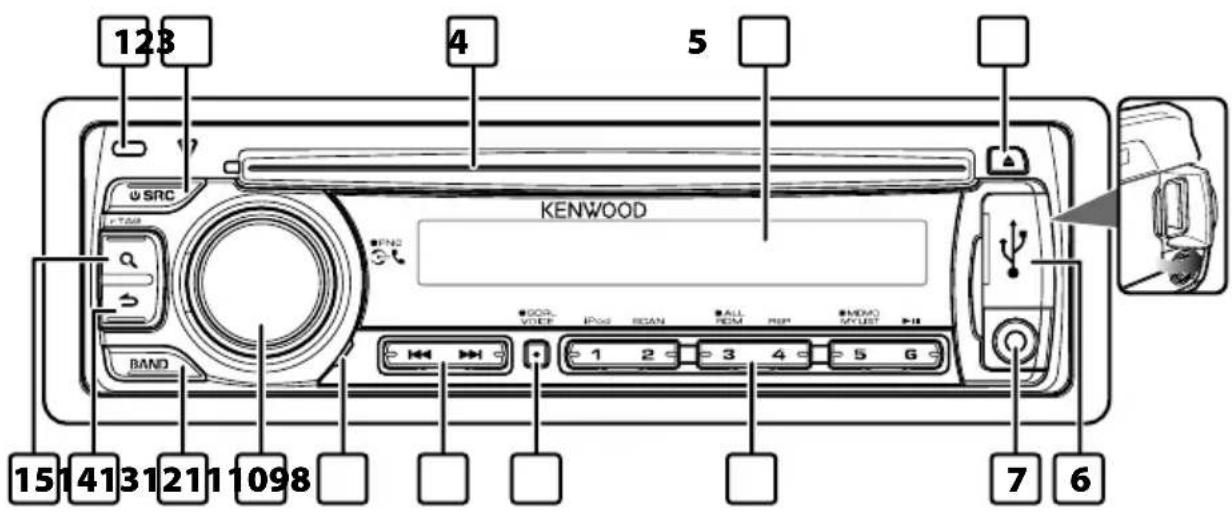


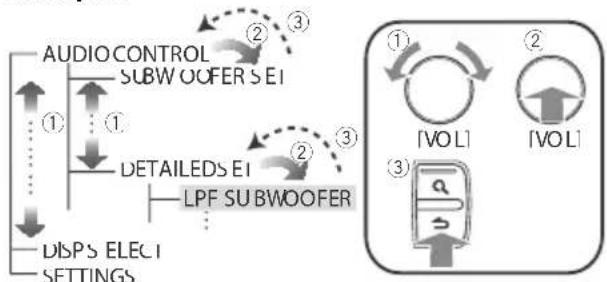
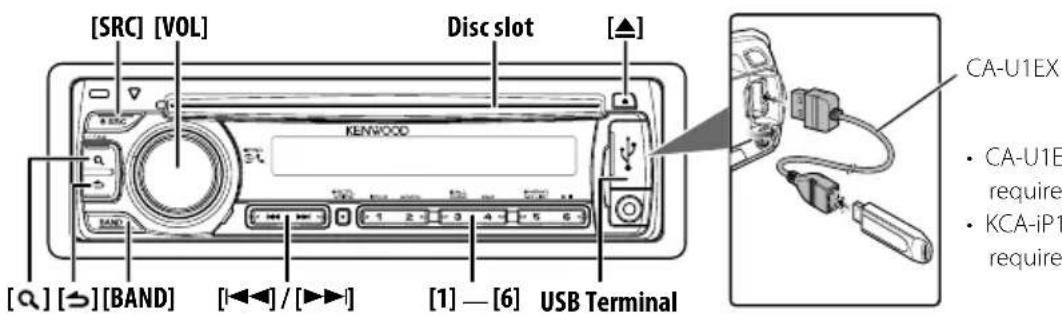

![KENWOOD KDCBT645U - Press the [3] button for at least 1 second. - 1](/content/2026/03/527894/images/f43534e8da04b13e9a17f4a35e96adedf4ffafc70bdf9301170a5823bc2e3c1f.jpg)
![KENWOOD KDCBT645U - Cancelling the Music Search mode Press the [4] button for at least 1 second. - 1](/content/2026/03/527894/images/355d26224e12d695d5311815f78e71f77d75ef967fbf93ac7d0fba8e5e33e9b2.jpg)


![KENWOOD KDCBT645U - Press the [1] button. - 1](/content/2026/03/527894/images/7a558bbd652b619412832b73f61375deb767ecdf398446bde1b6581a628681e4.jpg)


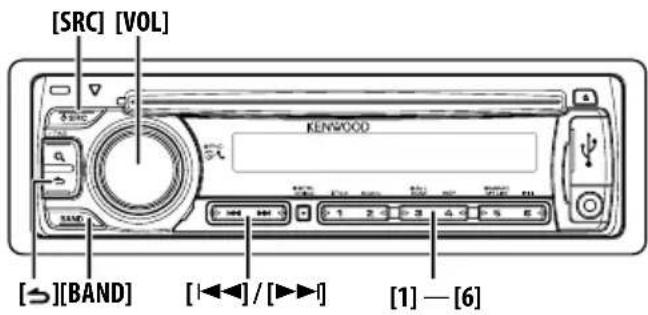


![KENWOOD KDCBT645U - Press the [Q] button. - 1](/content/2026/03/527894/images/0fd0c28cb3eb50c959cff7fccca1b040c451f68e48c80407a422aebde7433eba.jpg)
![KENWOOD KDCBT645U - Press the [Q] button. - 2](/content/2026/03/527894/images/56e3300962be4e48fb73d020b6845ebb62f10be60d35b4a8b6ee07c98471033b.jpg)


![KENWOOD KDCBT645U - Move to the next phone number Turn the [VOL] knob. - 1](/content/2026/03/527894/images/99e4f691c8ce63772730a3eb4eb9a344fa932264c2de46dffda84db4c0af5339.jpg)


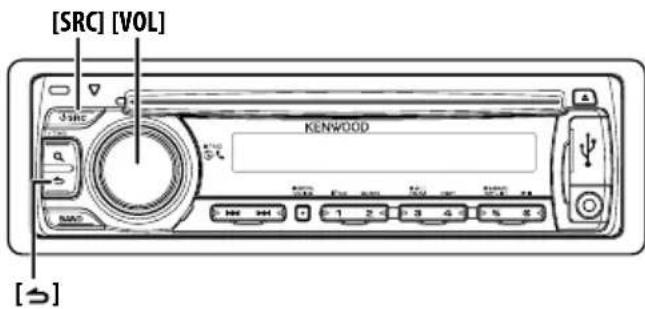

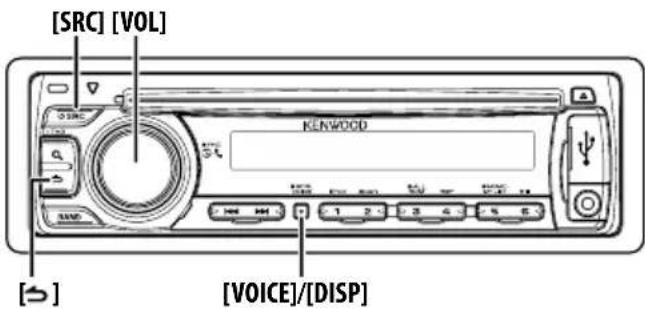


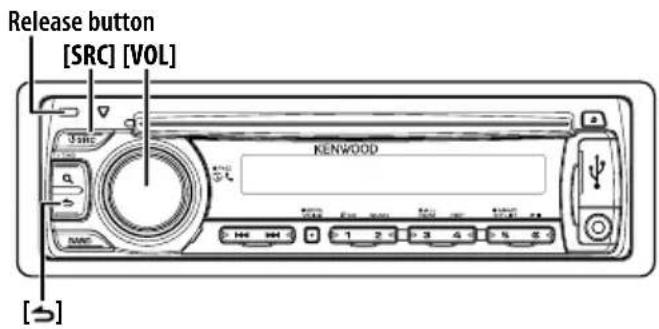
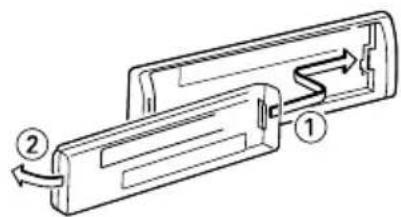
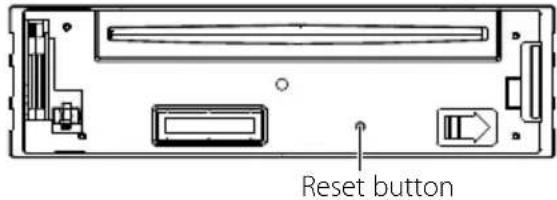

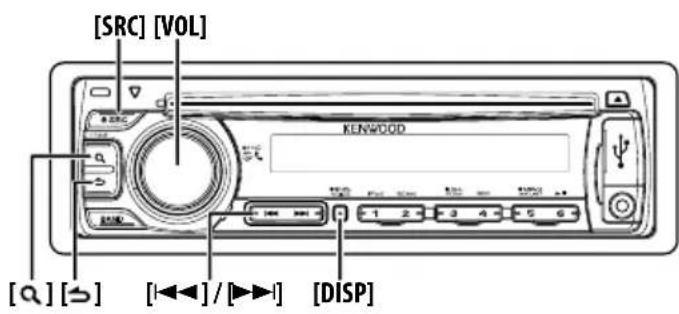


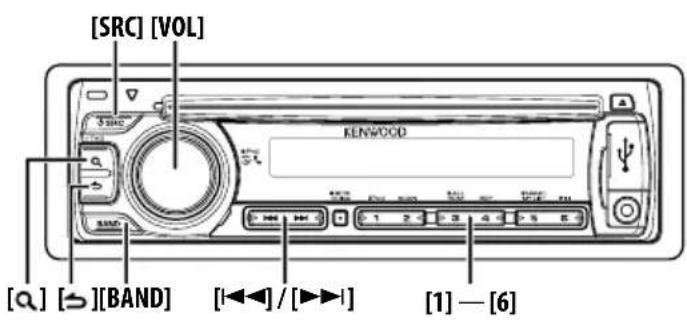
![KENWOOD KDCBT645U - Selecting Satellite Radio source Press the [SRC] button. - 1](/content/2026/03/527894/images/b98c24da8ab490f67d753f7d10221fa80dab20c09021e95fc5d03d7c0344518b.jpg)