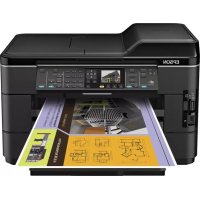
WorkForce WF7520 - Printer EPSON - Free user manual and instructions
Find the device manual for free WorkForce WF7520 EPSON in PDF.


User questions about WorkForce WF7520 EPSON
0 question about this device. Answer the ones you know or ask your own.
Ask a new question about this device
Download the instructions for your Printer in PDF format for free! Find your manual WorkForce WF7520 - EPSON and take your electronic device back in hand. On this page are published all the documents necessary for the use of your device. WorkForce WF7520 by EPSON.
USER MANUAL WorkForce WF7520 EPSON
WorkForce® WF-7510/WF-7520
natural_image
Exterior view of a Epsoni printer with paper feed and print graphics (no readable text or symbols)Quick Guide
Your WorkForce WF-7510/WF-7520 2
Using Special Papers 4
Placing Originals for Copying, Scanning, or Faxing. 7
Copying a Document 9
Printing From a Memory Card 11
Printing From Your Computer....13
Faxing a Document. 17
Maintaining Your Product 22
Scanning a Document or Photo 27
Solving Problems 30
Notices 35
Guide rapide
Votre WorkForce WF-7510/WF-7520 44
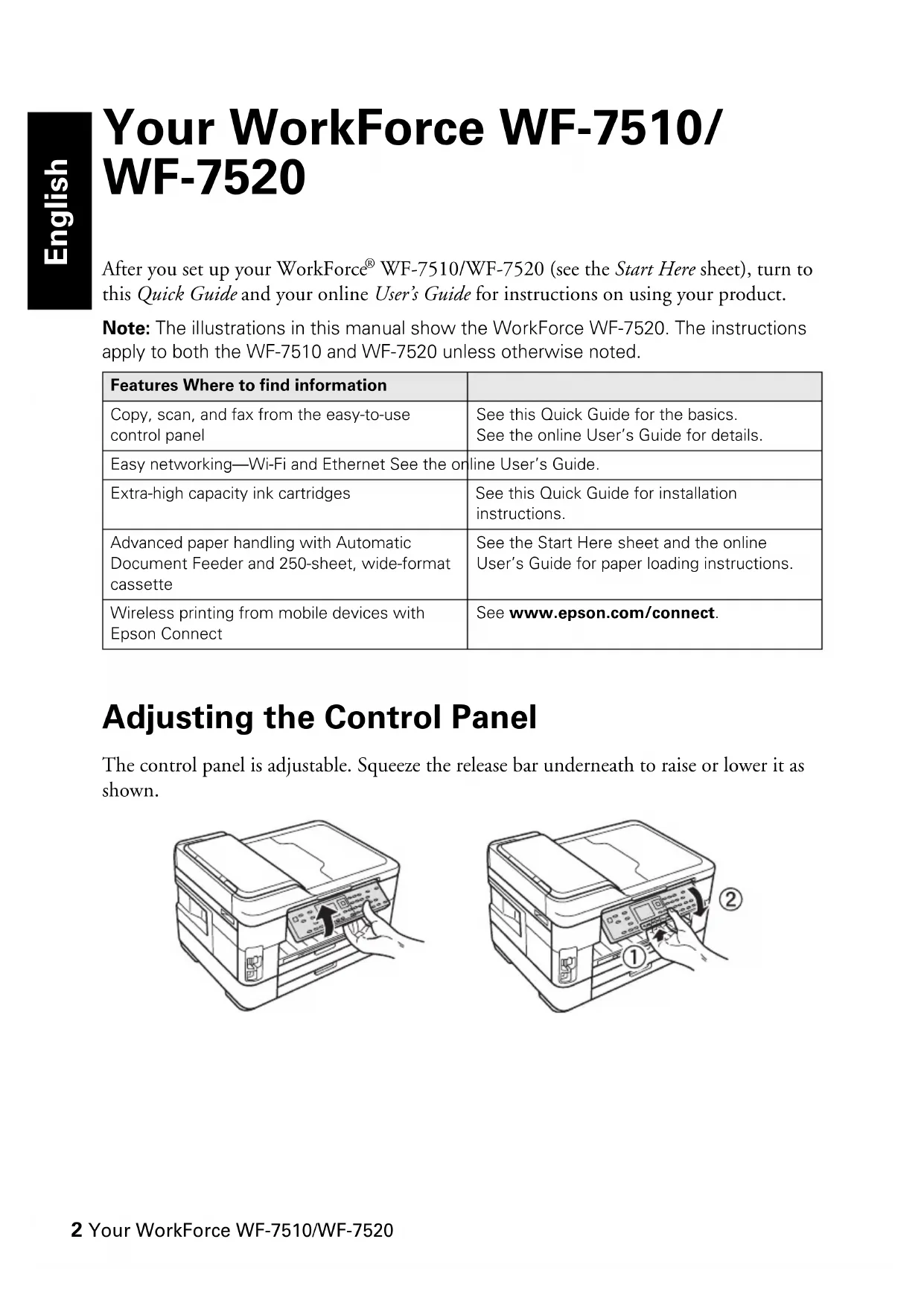
After you set up your WorkForce® WF-7510/WF-7520 (see the Start Here sheet), turn to this Quick Guide and your online User's Guide for instructions on using your product.
Note: The illustrations in this manual show the WorkForce WF-7520. The instructions apply to both the WF-7510 and WF-7520 unless otherwise noted.
| Features Where to find information | |
| Copy, scan, and fax from the easy-to-use control panel | See this Quick Guide for the basics.See the online User's Guide for details. |
| Easy networking—Wi-Fi and Ethernet See the on | line User's Guide. |
| Extra-high capacity ink cartridges | See this Quick Guide for installation instructions. |
| Advanced paper handling with Automatic Document Feeder and 250-sheet, wide-format cassette | See the Start Here sheet and the online User's Guide for paper loading instructions. |
| Wireless printing from mobile devices with Epson Connect | See www.epson.com/connect. |
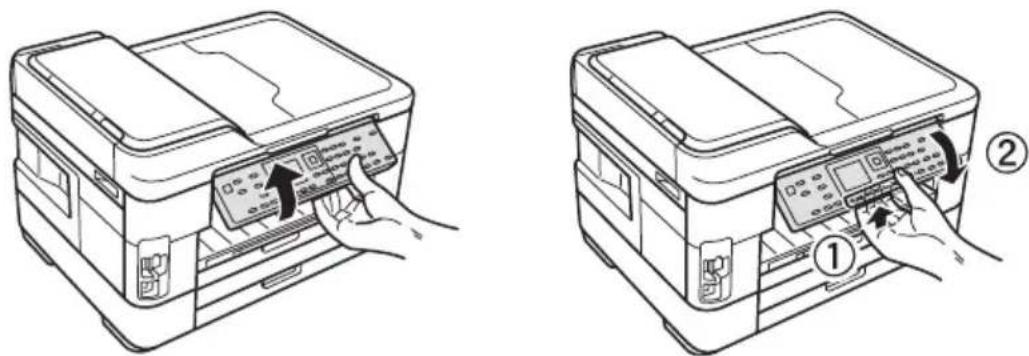
Adjusting the Control Panel
The control panel is adjustable. Squeeze the release bar underneath to raise or lower it as shown.
text_image
Diagram showing two-step printer operation: one with hand pressing the print, the other with hand pressing the next to a digital display.Using the Control Panel
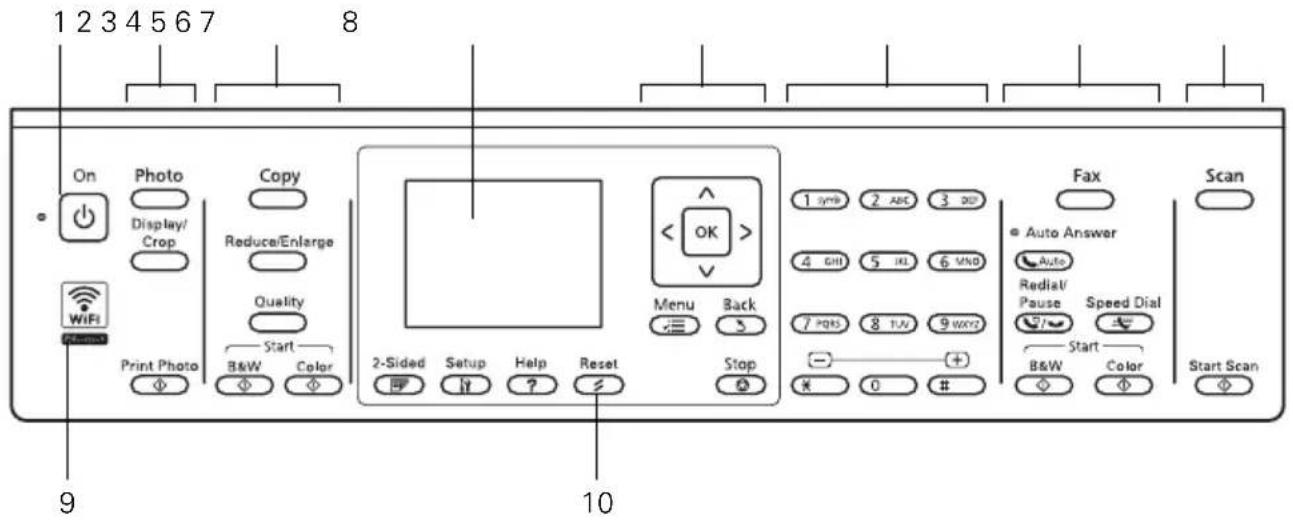
The control panel makes it easy to use all the features of your product. To save energy, the screen goes dark after several minutes of inactivity. Press any button to wake it up.
text_image
1 2 3 4 5 6 7 8 On Photo Copy Display/ Crop Reduce/Enlarge Quality Start Print Photo B&W Color 9 10 Menu Back 2-Sided Setup Help Reset Stop 1 sync 2 ABC 3 NS 4 OFF 5 IN 6 VND 7 PGS 8 IUV 9 WWZ - + * 0 # Fax Auto Answer Auto Redial/ Pause Speed Dial Start B&W Color Scan Start ScanTip: To turn off the "beep" heard when you press a button on the screen, press Setup, select Printer Setup, select Sound, and select Off. If you turn off the sound, the dialing sound made when you transmit a fax is also turned off.
| Number | Description |
| 1 Turns product on/off | |
| 2 Press | Photo to access the Print Photos menu |
| 3 Press | Copy to access your product's Copy mode |
| 4 View menus and status on the LCD Screen | |
| 5 Use the arrow keys and OK button to navigate menus | |
| 6 Enter numbers, letters, and symbols | |
| 7 Press | Fax to access your product's Fax mode |
| 8 Press | Scan to access your product's Scan mode |
| 9 Shows wireless network status | |
| 10 Resets | the active menu selection to its default value |
Using Special Papers
Epson offers a wide array of high quality papers, making it easy to maximize the impact of your photos, presentations, and creative projects.
You can purchase genuine Epson ink and paper at Epson Supplies Central® at www.epson.com/ink3 (U.S. sales) or www.epson.ca (Canadian sales). You can also purchase supplies from an Epson authorized reseller. To find the nearest one, call 800-GO-EPSON (800-463-7766).
Note: Media availability varies by country.
| Paper name Size | Part number | Sheet count | |
| Epson Bright White Paper Letter (8.5 × 216 × 279 mm) | 11 inches[216 × 279 mm] | S041586 500 | |
| Epson Brochure & Flyer Paper Matte Double-sided | Letter (8.5 × 11 inches[216 × 279 mm]) | S042384 150 | |
| Epson Premium Presentation Paper Matte | 8 × 10 inches (203 × 254 mm) | S041467 | 50 |
| Letter (8.5 × 11 inches[216 × 279 mm]) | S041257S042180 | 50100 | |
| A3+ (13 × 19 inches[330 × 483 mm]) | S041263 50 | ||
| A3 (11.7 × 16.5 inches[297 × 420 mm]) | S041260 | 50 | |
| 11 × 14 inches(279.5 × 355.6 mm) | S041468 | 50 | |
| Epson Premium Presentation Paper Matte Double-sided | Letter (8.5 × 11 inches[216 × 279 mm]) | S041568 50 | |
| Epson Presentation Paper Matte | Letter (8.5 × 11 inches[216 × 279 mm]) | S041062 100 | |
| Legal (8.5 × 14 inches[216 × 356 mm]) | S041067 100 | ||
| A3+ (13 × 19 inches[330 × 483 mm]) | S041069 100 | ||
| 11 × 17 inches(279 × 432 mm) | S041070 100 | ||
| Epson Ultra Premium Photo Paper Glossy | 4 × 6 inches (102 × 152 mm) | S042181 | 60 |
| S042174 | 100 | ||
| 5 × 7 inches (127 × 178 mm) | S041945 | 20 | |
| 8 × 10 inches (203 × 254 mm) | S041946 | 20 | |
| Letter (8.5 × 11 inches [216 × 279 mm]) | S042182 | 25 | |
| S042175 | 50 | ||
| 11 × 14 inches (279.5 ×355.6 mm) | S041466 20 | ||
| 11 × 17 inches (279 × 432 mm) | S041290 20 | ||
| A3 (11.7 × 16.5 inches [297 × 420 mm]) | S041288 20 | ||
| A3+ (13 × 19 inches [330 × 483 mm]) | S041289 20 | ||
| Epson Premium Photo Paper Semi-gloss | 4 × 6 inches (102 × 152 mm) | S041982 | 40 |
| Letter (8.5 × 11 inches [216 × 279 mm]) | S041331 20 | ||
| A3+ (13 × 19 inches [330 × 483 mm]) | S041327 | 20 | |
| Epson Premium Photo Paper Glossy | 4 × 6 inches (102 × 152 mm) | S041808 | 40 |
| S041727 | 100 | ||
| 5 × 7 inches (127 × 178 mm) | S041464 | 20 | |
| 8 × 10 inches (203 × 254 mm) | S041465 | 20 | |
| Letter (8.5 × 11 inches [216 × 279 mm]) | S042183 | 25 | |
| S041667 | 50 | ||
| 11 × 17 inches (279 × 432 mm) | S041290 | 20 | |
| A3+ (13 × 19 inches [330 × 483 mm]) | S0441289 20 | ||
| Epson Photo Paper Glossy | 4 × 6 inches (102 × 152 mm) | S041809 | 50 |
| S042038 | 100 | ||
| Letter (8.5 × 11 inches [216 × 279 mm]) | S041141 | 20 | |
| S041649 | 50 | ||
| S041271 | 100 | ||
| Epson Photo Quality Self-adhesive Sheets | A4 (8.3 × 11.7 inches [210 × 297 mm]) | S041106 10 | |
| Epson Iron-on Cool Peel Transfer paper | Letter (8.5 × 11 inches [216 × 279 mm]) | S041153 10 |
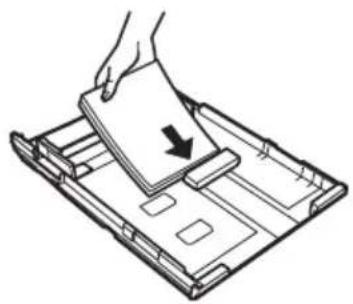
For detailed paper loading instructions, see the Start Here sheet or online User's Guide.
For best results:
■ Fan paper before loading.
■ Load paper printable side down; it is usually whiter or brighter.
■ Always load paper short edge first and make sure the edge guides are against the paper.
natural_image
Illustration of a hand pressing down on a device tray with a paper clip (no text or symbols)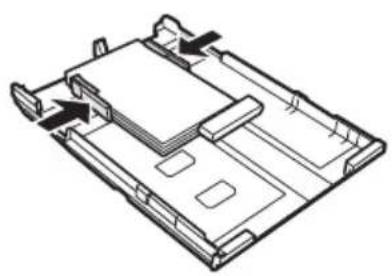
natural_image
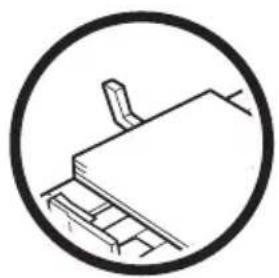
Isometric line drawing of a mechanical or electronic component with no visible text, numbers, or symbols.■ Make sure the paper is loaded against the edge guide and not sticking out from the end of the cassette. The paper may slide forward slightly as you insert the cassette. This is normal.
natural_image
Simple line drawing of a ladder and lever inside a circle (no text or symbols)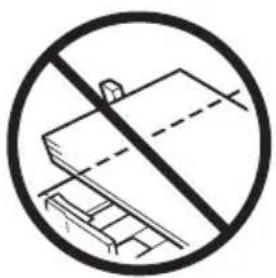
natural_image
Prohibition sign showing a ladder and a roof structure without any text or symbols■ Do not use paper with binder holes.
Placing Originals for Copying, Scanning, or Faxing
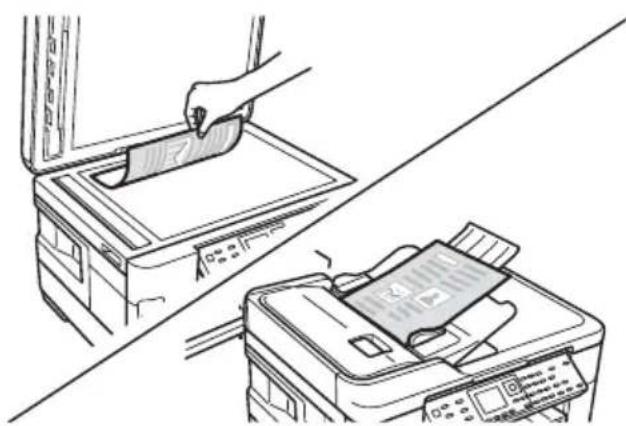
Before you copy, scan, or fax, place your documents on the scanner glass or in the Automatic Document Feeder (ADF). Place photos on the scanner glass only.
Using the Scanner Glass
You can place a photo or a document up to A3 on the scanner glass.
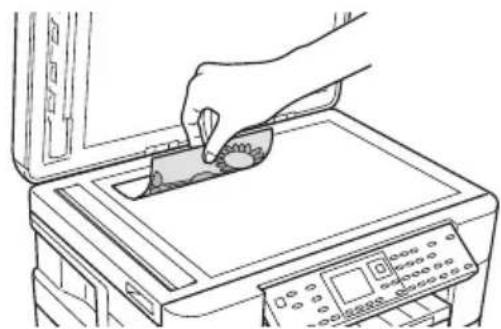
- Open the document cover.
- Place your original facedown on the scanner glass, with the top against the back left corner.
- Close the cover gently to keep your original in place.
natural_image
Line drawing of a hand using a power tool to clean or brush the printer onto a machine (no text or symbols visible)Using the Automatic Document Feeder
You can place up to 30 letter- to A3-size sheets (11.69 × 16.54 inches) in the ADF. For double-sided scanning, use letter- or A4-size paper only.
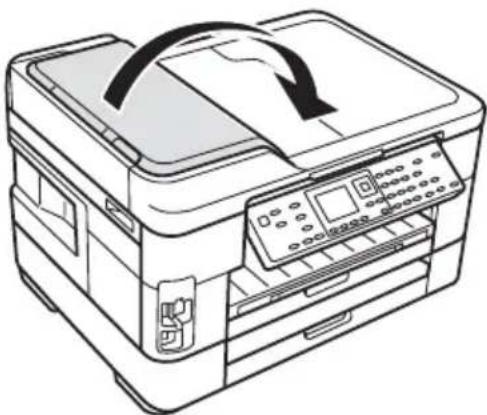
- Open the ADF paper support, and then move the edge guide outward.
natural_image
Line drawing of a printer with a paper airplane being inserted (no text or symbols)
natural_image
Line drawing of a printer with a close-up inset showing a printer's internal structure (no text or symbols)-
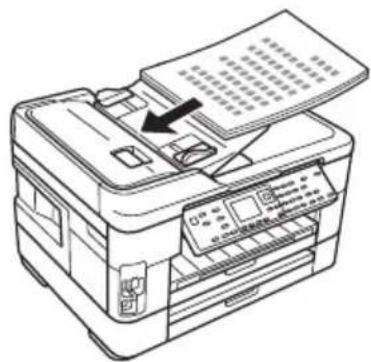
Fan the originals, then tap them on a flat surface to even the edges.
-
Insert the originals faceup, top edge first. The ADF icon appears on the screen.
natural_image
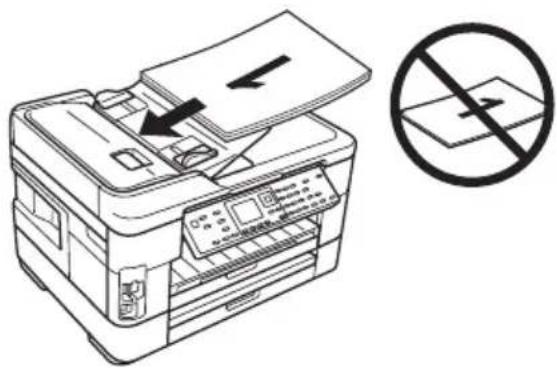
Line drawing of a printer with an open paper sheet and a black arrow indicating the print direction (no text or symbols present)Note: If you're using the 2-up Copy layout, make sure the originals are loaded as shown below.
natural_image
Line drawing of an open printer with a paper sheet being inserted, accompanied by a prohibition symbol (no text or labels present)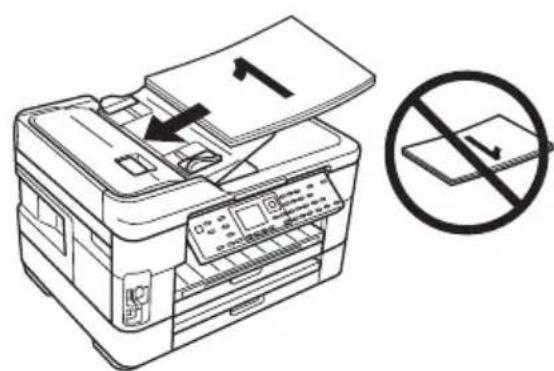
text_image
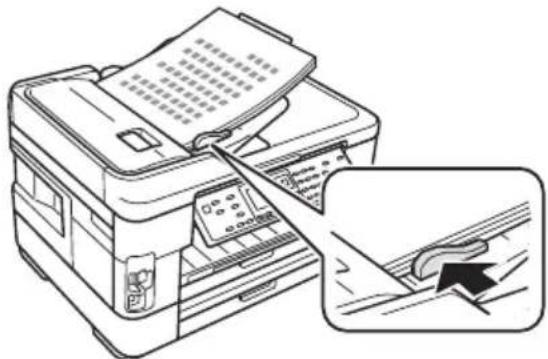
Diagram showing printer printing process with numbered paper and no-dominant document, indicating no printing or disassembly.- Slide the edge guide against the originals, but not too tight.
natural_image
Line drawing of a printer with paper and scroll, showing a close-up of the printer's handle (no text or symbols present)Copying a Document
Follow the steps in this section to copy black-and-white or color documents.
Note: You can use the Copy/Restore Photos option to copy photos onto 4 × 6-inch (102 × 152 mm) and 5 × 7-inch (127 × 178 mm) Epson photo paper (various types available) for instant photo reprints. See the online User's Guide for details.
You can copy documents onto plain paper, Epson Bright White Paper, or Epson Presentation Paper Matte. If you use the Automatic Document Feeder (ADF), you can copy up to 30 sheets at a time.
- Load paper in the sheet feeder (see page 6).
- Place your original document on the scanner glass, or load your documents in the ADF (see page 7).
natural_image
Line drawing showing a printer being placed on top of a paper airplane, with no visible text or symbols.-
Press the Copy button.
-
Press ▲ or ▼ or use the numeric keypad to select the number of copies you want (up to 99).
-
Press ◀ or ▶ to change the copy density (lightness or darkness).
-
To copy your original(s) onto a different size paper, press the Reduce/Enlarge button and select one of the preset options or a custom paper size.
-
To change the print quality, press the Quality button and choose Draft, Best or Standard Quality.
-
To change other print settings, press ≡ Menu, then select Paper and Copy Settings.
■ To make double-sided copies (WorkForce WF-7520 only), select 2-Sided Copying. Then select the desired option and press OK.
■ To reduce your originals so that pages print side-by-side, two per sheet, select 2-up Copy as the Layout setting. This is for use only with single-sided originals; be sure to load them as shown on page 8.
■ You can also change the paper type, paper size, and other print settings. Press ▲ or ▼ to select the setting, then press OK. Press ▲ or ▼ to select an option, then press OK.
Note: Not all Paper Type, Paper Size, Layout, and Quality settings may be available depending on the options you choose. See the online User's Guide for details.
- After you finish selecting settings, press ≡ Menu to exit the settings menu.
- Press the B&W or Color ◇ Start button to begin copying. To cancel copying, press ▽ Stop.
Note: When printing two-sided, if ink on the front of the paper smears, select a longer Dry Time in the Paper and Copy Settings menu (WorkForce WF-7520 only).
Printing From a Memory Card
Your product lets you print photos directly from your digital camera's memory card; just insert it into the memory card slot and you're ready to print.
See the online User's Guide for a list of compatible memory cards and instructions on copying memory card files between your product and a computer, and printing photos directly from your camera.
Inserting the Card
-
Make sure your printer is turned on.
-
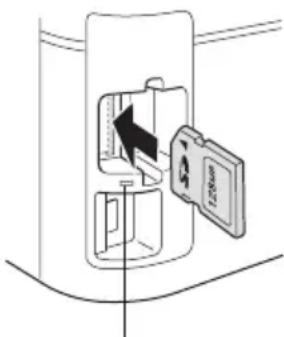
Insert your card as shown.
Note: Do not force the card into the slot; it won't go in all the way.
The memory card access light flashes, then stays lit. Now you can view your photos on the LCD screen and print them (see page 12).
text_image
Diagram showing a device with a labeled card and directional arrow indicating movement or processMemory card access light
Removing the Card
After you finish printing your photos, follow these steps to remove the card:
- Make sure the memory card access light is not flashing.
Caution: Do not remove the card or turn off your printer while the memory card access light is flashing; you may lose data on the card.
- If the product is connected to your computer with a USB cable, do one of the following before removing the memory card or turning off the printer:
■ Windows ®: Right-click the name of your card (removable disk) in My Computer or Windows Explorer, and select Eject.
■ Mac OS ^ X: Drag the removable disk icon from your desktop into the trash, then remove the card.
- Pull the card straight out of its slot.
Printing Photos From the LCD Screen
You can select individual photos for printing as you view them on the LCD screen.
- Load several sheets of Epson photo paper (various types available; see page 4).
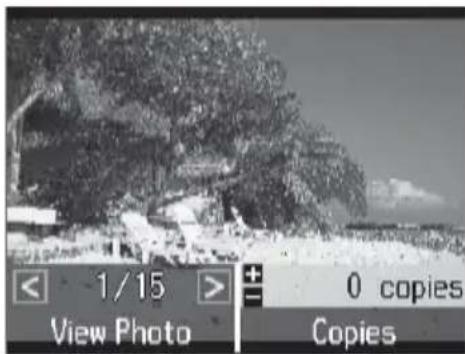
- Press the Photo button, then select View and Print Photos. You see this screen:
text_image
< 1/15 > View Photo + 0 copies Copies-
Press ◀ or ▶ to scroll through your photos and display one that you want to print. Note: To crop the photo, press the Display/Crop button. Press + or – to frame the image; use the arrow buttons to move the frame. Press OK twice when done.
-
Press ▲ or ▼ to select the number of copies you want of that photo.
-
Repeat steps 3 and 4 to select more photos.
-
Press the ≡ Menu button, then select Print Settings.
-
Select the Paper Size and Paper Type of the paper you've loaded.
-
If desired, press the 5 Back button and select Photo Adjustments to turn on red-eye reduction or other photo-enhancing features.
-
When you're done selecting settings, press the ≡ Menu button.
-
When you're ready to print, press ◇ Print Photo. To cancel printing, press ⊗ Stop.
Printing From Your Computer
This section describes the basic steps for printing from a Windows or Mac® computer. For detailed instructions on printing, see the online User's Guide.
Printing in Windows
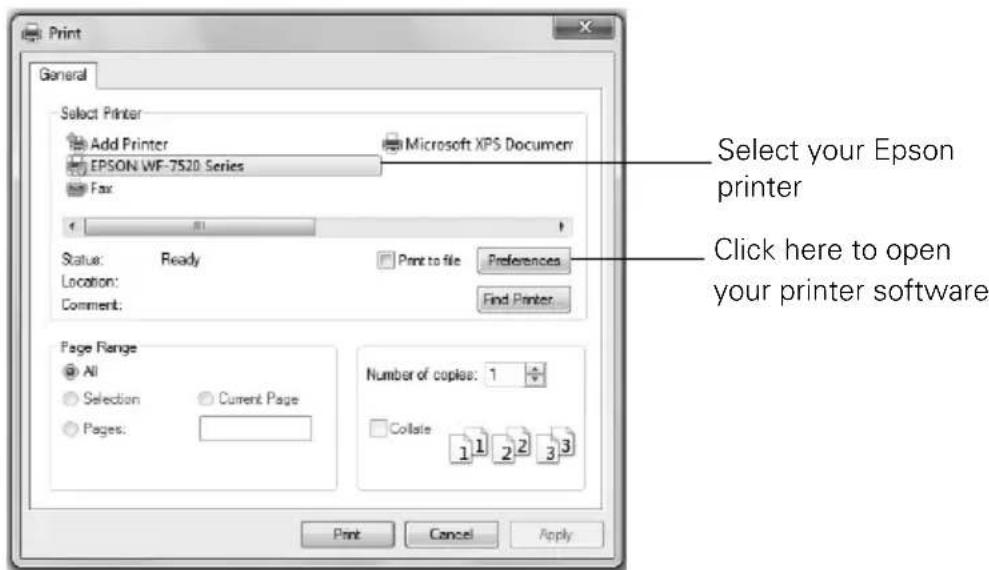
- Select the print command in your application.
text_image
Print General Select Printer Add Printer EPSON WF-7520 Series Microsoft XPS Documen Fax Status: Ready Location: Comment: Print to file Preferences Find Printer Page Range All Selection Current Page Pages: Number of copies: 1 Collate 1 2 3 Print Cancel Apply Select your Epson printer Click here to open your printer software- Make sure your Epson printer is selected, then click the Preferences or Properties button.
(If you see a Setup, Printer, or Options button, click it. Then click Preferences or Properties on the next screen.)
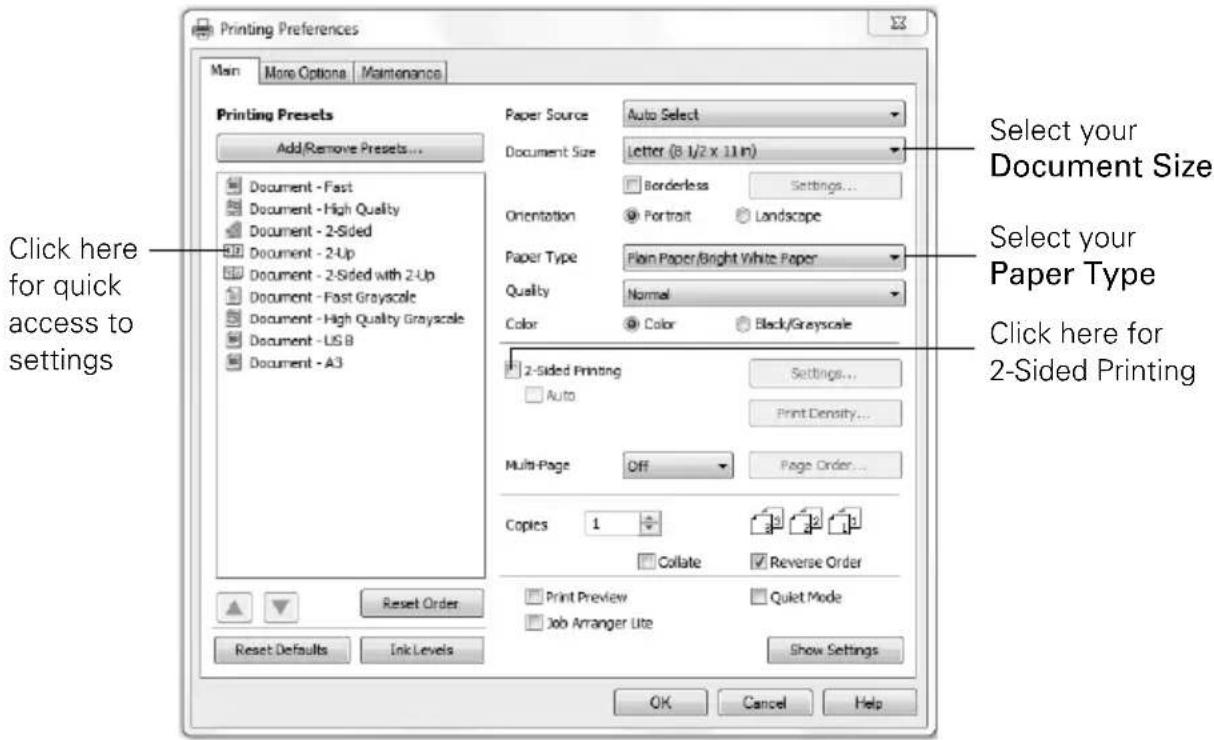
- On the Main tab, select the basic print settings. Make sure you choose the correct Paper Type setting for the paper you are using (see page 15 for details).
text_image
Printing Preferences Main More Options Maintenance Printing Presets Add/Remove Presets... Document - Fast Document - High Quality Document - 2-Sided Document - 2-Up Document - 2-Sided with 2-Up Document - Fast Grayscale Document - High Quality Grayscale Document - US B Document - A3 Paper Source Auto Select Document Size Letter (8.1/2 x 11 in) Orientation Portrait Landscape Paper Type Plain Paper/Bright White Paper Quality Normal Color Color Black/Grayscale 2-Sided Printing Settings... Auto Print Density... Multi-Page Off Page Order... Copies 1 Collate Reverse Order Print Preview Quiet Mode Job Arranger Lite Show Settings Reset Order Reset Defaults Ink Levels OK Cancel Help Select your Document Size Select your Paper Type Click here for 2-Sided PrintingNote: For quick access to the most common settings, select one of the Printing Presets on the left side of the screen. You can delete these presets or create your own by clicking the Add/Remove Presets button.
- For more printing options, click the More Options tab.
Note: For more information about print settings, click Help or see your online User's Guide.
-
Click OK to save your settings.
-
Click OK or Print to start printing.
Printing With a Mac
Follow the steps below to print from Mac OS X 10.5 to 10.6. If you're printing from Mac OS X 10.4, see your online User's Guide for instructions.
-
Open a photo or document in an application.
-
Open the File menu and select Print.
-
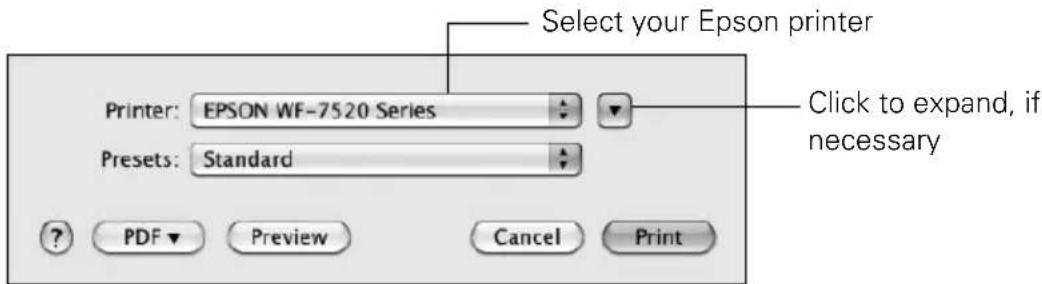
Select your Epson printer as the Printer setting.
text_image
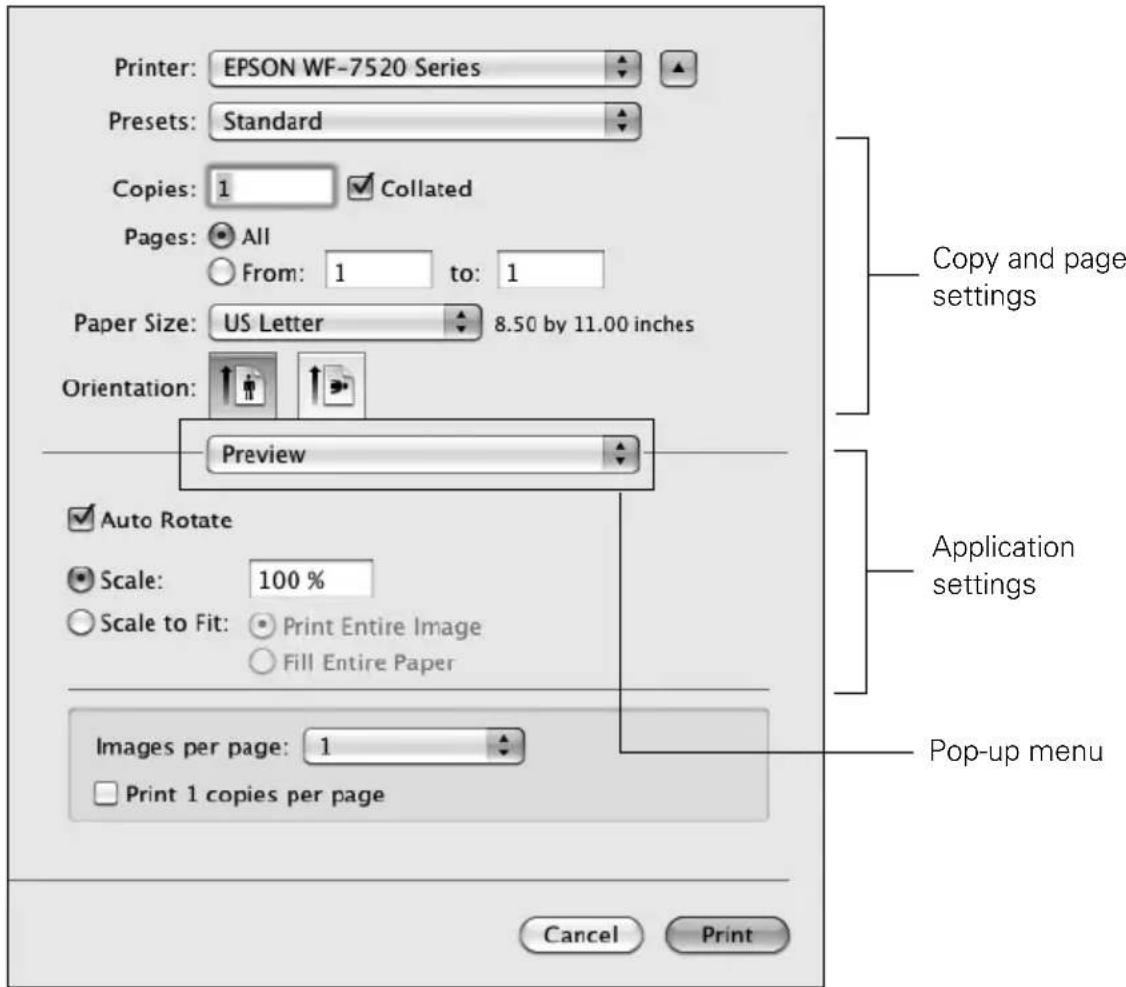
Select your Epson printer Printer: EPSON WF-7520 Series Presets: Standard ? PDF Preview Cancel Print Click to expand, if necessary- Select basic copy and page settings. For borderless printing, choose a Paper Size setting with a Borderless option by clicking on a paper size and selecting the borderless option.
Note: If the setting you want isn't shown (for example, Scale), check for it in your application before printing or check for it at the bottom of this window.
text_image
Printer: EPSON WF-7520 Series Presets: Standard Copies: 1 Collated Pages: All From: 1 to: 1 Paper Size: US Letter 8.50 by 11.00 inches Orientation: Preview Auto Rotate Scale: 100 % Scale to Fit: Print Entire Image Fill Entire Paper Images per page: 1 Print 1 copies per page Copy and page settings Application settings Pop-up menu Cancel Print-
Choose Print Settings from the pop-up menu, and select your Media Type, Print Quality and other print settings.
-
Choose any other printing options you may need from the pop-up menu. See the online User's Guide for details.
-
Click Print.
- To monitor your print job, click the printer icon in the Dock.
Selecting the Correct Paper Type
Select the correct Paper Type (Windows) or Media Type (Mac OS X) setting in your printer software so the ink coverage can be adjusted accordingly.
| For this paper/media Select this setting | |
| Plain paperEpson Bright White PaperEpson Presentation Paper MatteEpson Photo Quality Self-adhesive SheetsEpson Iron-on Cool Peel Transfer paper | Plain Paper/Bright White Paper |
| Epson Ultra Premium Photo Paper Glossy Ultra Premium Photo Paper Glossy | Premium Photo Paper Glossy |
| Epson Premium Photo Paper Glossy Premium Photo Paper Glossy | Paper Glossy |
| Epson Photo Paper Glossy Photo Paper Glossy | |
| Epson Premium Photo Paper Semi-gloss Premium Photo Paper Semi-Gloss | Photo Paper Semi-Gloss |
| Epson Premium Presentation Paper Matte | Premium Presentation Paper Matte |
| Epson Brochure & Flyer Paper Matte Double-sided | |
| Envelopes Envelope |
Faxing a Document
Your product lets you send faxes by entering fax numbers, selecting entries from a speed dial or group dial list, or using the one-touch dial buttons. Using the Automatic Document Feeder (ADF), you can fax up to 30 pages at a time.
Note: You can also send or receive a fax from your computer using the Epson FAX Utility. For more information, see the online User's Guide.
Breakdown or repair of this product may cause loss of fax data and settings. Epson is not responsible for backing up or recovering data and settings during or after the warranty period. We recommend that you make your own backup or print out your fax data and settings.
This product allows you to store names, telephone numbers, and fax data in its memory even when the power is turned off. Use the following procedure to erase the memory if you give away or dispose of the product: Select ⌘ Setup > Restore Default Settings > All Settings. This procedure will erase all of your network settings and fax data.
Connecting a Phone or Answering Machine
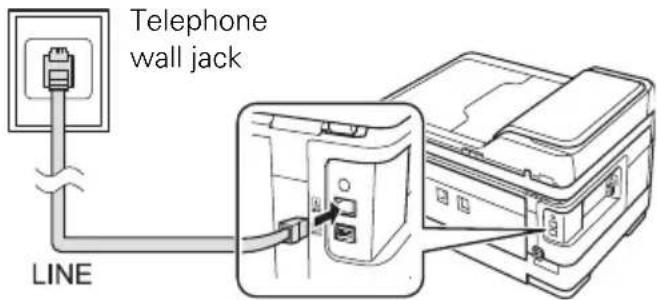
- Connect the phone cable from the wall jack to the LINE port on the back of the product.
Note: If you're connecting the product to a DSL phone line, you must plug a DSL filter into the wall jack or you won't be able to use the fax or telephone equipment. Contact your DSL provider for the necessary filter.
- To use a telephone or answering machine, you need a second phone cable. Connect one end of the cable to the telephone or answering machine, and connect the other end to the EXT. port on the back of the product.
text_image
Telephone wall jack LINE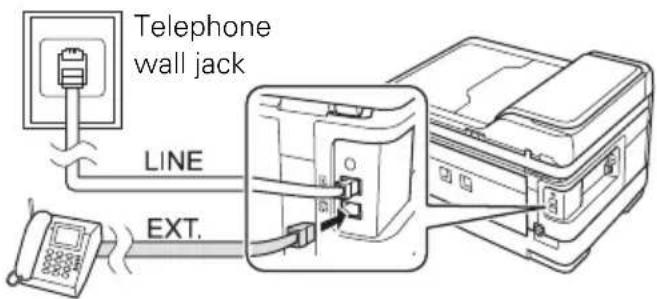
text_image
Telephone wall jack LINE EXT.In Auto Answer mode, if the incoming call is a fax and you pick up the phone or the answering machine answers, the product automatically begins receiving the fax. If the other party is a caller, the phone can be used as normal or a message can be left on the answering machine.
Note: Any phone or answering machine must be connected to the EXT. port for your product to detect an incoming fax call when the phone is picked up. Epson cannot guarantee compatibility with VoIP, cable phone systems, or fiberoptic digital services such as FiOS™.
Setting Up Fax Features
Before sending or receiving faxes, you should create a fax header and select the number of rings before the fax answers.
Note: To select other settings or use the Epson FAX Utility, see the online User's Guide.
Entering Fax Header Information
You should enter your name and phone number in the fax header before sending faxes so that recipients can identify the origin of the fax.
Note: If you leave your product unplugged for a long period of time, the date and time settings may get lost. See the online User's Guide for instructions on resetting them.
Entering Your Sender Name
-
Press the Fax button, then press ≡Menu.
-
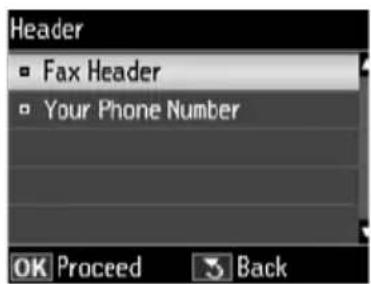
Press ▲ or ▼ to select Header, then press OK.
-
Press OK to select Fax Header.
-
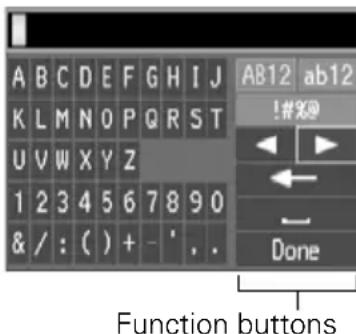
Use the keypad to enter your sender name (see "Using the Keypad to Enter Numbers and Characters" on page 19). You can enter up to 40 digits.
-
When you're done, use the arrow buttons to select Done, then press OK to return to the Header screen.
text_image
Header ▪ Fax Header ▪ Your Phone Number OK Proceed BackEntering Your Phone Number
- From the Header screen, press ▲ or ▼ to select Your Phone Number, then press OK. You see the phone number input screen.
- Use the numeric keypad to enter your phone number (up to 20 digits).
- When you're done, press OK.
- Press ≡ Menu to exit the Fax Menu.
Using the Keypad to Enter Numbers and Characters
When entering phone numbers and text in Fax mode, follow these guidelines:
■ To enter a fax number, use the numeric keypad. Press the # button to insert the + symbol for international phone numbers. Press ▶ to enter a space or ◀ to delete a character.
■ To enter characters, use the ◀, ▶, ▲, or ▼ arrow buttons to highlight a letter on the screen. Press OK to select it.
Use the on-screen function buttons to select uppercase (AB12), lowercase (ab12), symbols (!#%@), or spaces (), or to delete characters ().
When you're finished, highlight Done and press OK.
text_image
A B C D E F G H I J K L M N O P Q R S T U V W X Y Z 1 2 3 4 5 6 7 8 9 0 & / : ( ) + - ', . AB12 ab12 !#%@ ← ← → Done Function buttonsSelecting the Number of Rings to Answer
If you connected an answering machine and it is set to pick up on the fourth ring, you should set the product to pick up on the fifth ring or later:
- Press the Fax button, then press ≡Menu.
- Press ▲ or ▼ to select Communication, then press OK.
- Press ▲ or ▼ to select Rings to Answer, then press OK.
- Press ▲ or ▼ or use the numeric keypad to select the number of rings, then press OK. Select more rings than you use for the answering machine.
- Press ≡ Menu to exit the Fax Menu.
Sending a Fax From the Control Panel
You can send a fax by manually entering a fax number, as described below.
Note: To dial the number using a telephone, by redialing, or by selecting from your speed dial list, see the next section. To send a fax from your computer using the Epson FAX Utility, see your online User's Guide.
- Press the Fax button.
- Place your original(s) for faxing (see page 7).
- Use the numeric keypad to enter the fax number. You can enter up to 64 digits.
- To change fax settings, press ≡ Menu and select settings as necessary.
- Press the B&W or Color ◇ Start button to send your fax.
Note: If the recipient's fax machine prints only in black and white, your fax is automatically sent in black and white even if you select color.
If you are scanning with the ADF, your document is automatically scanned and faxed.
If you place your document on the scanner glass, you can scan additional pages after the first one is sent.
■ If the fax number is busy, you see a redialing message and the product redials after one minute. To redial immediately, press 📋/ 🏱 Redial/Pause.
To cancel faxing, press ☑ Stop at any time.
Other Ways to Dial a Fax Number
Here are some other ways you can dial a fax number:
■ Redial/Pause: Redial the last fax number you used.
■ Speed Dial: Select or type the number of the speed dial entry and press OK. To use a group dial entry, press the Speed Dial button twice.
If you've connected a telephone to the product, dial the number from the phone. Select Send, then press the B&W or Color ◇ Start button.
Note: Don't hang up the phone until you begin transmitting the fax.
If you turn off the product, the following data stored in the product's temporary memory will be lost: received faxes that haven't yet been printed, faxes scheduled to be sent later, and faxes being retransmitted automatically.
Receiving Faxes
Before receiving faxes, make sure you load plain paper and select the correct settings for the paper you've loaded.
-
Press the Fax button.
-
Press ≡ Menu and select Receive Settings.
-
Select Paper Size and make sure the setting matches the size of paper you loaded.
Note: If the incoming fax is larger than the paper you loaded, it is reduced to fit or printed on multiple pages, depending on the Auto Reduction setting you select.
- Press ≡ Menu when done.
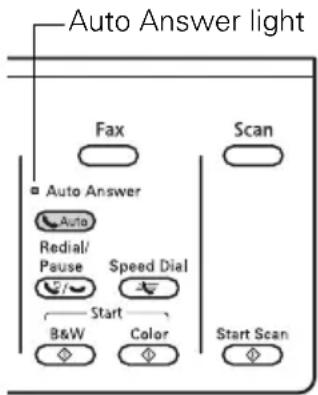
To receive faxes automatically, press the Auto button to turn on the Auto light.
Note: To change the number of rings before the product answers, see page 19.
If you run out of paper during printing, you see an error message. Load more paper and press the B&W or Color ◇ Start button to continue.
To receive faxes manually, turn off the Auto light and follow these steps:
text_image
Auto Answer light Fax Scan Auto Answer Auto Redial/ Pause Speed Dial Start B&W Color Start Scan-
When your telephone rings, lift the phone off the hook.
-
Select Receive, then press the B&W or Color ◇ Start button.
-
After all the pages are received, replace the phone on the hook.
-
Press OK to print the fax.
Maintaining Your Product
Follow the instructions in this chapter to check and clean the print head nozzles, check ink levels, and replace ink cartridges. If you need to align the print head, see the online User's Guide.
Caution: To keep your product looking like new, don't place anything on top of the cover or use it as a writing surface, If you need to clean the cover, use only a soft, non-abrasive microfiber-type cloth.
Checking the Print Head Nozzles
If your printouts are faint or have gaps in them, some of the nozzles in the print head may be clogged or ink may be running low in one or more of the ink cartridges. Follow the steps below to check the print head nozzles.
- Load a few sheets of plain paper.
- Press 🎨 Setup.
- Press ▲ or ▼ to select Maintenance, then press OK.
- Select Nozzle Check, then press OK.
-
Press the Color ◊ Start button.
-
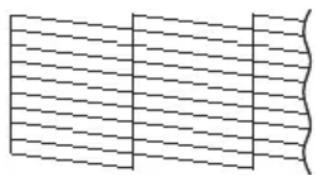
Check the nozzle check pattern that prints to see if there are gaps in the lines.
natural_image
Abstract geometric pattern with horizontal lines and curved boundaries (no text or symbols)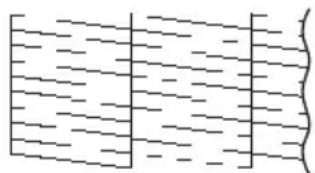
natural_image
Pure diagram of parallel lines with no text, numbers, or symbolsNozzles are clean Nozzles need cleaning
- If there are no gaps, the print head is clean. Select Finish Nozzle Check, and then press 5 Back to continue printing.
If there are gaps or the pattern is faint, select Head Cleaning to clean the print head (see page 23).
Cleaning the Print Head
If print quality has declined and the nozzle check indicates clogged nozzles, you can clean the print head. Print head cleaning uses ink, so clean it only if necessary.
Note: You cannot clean the print head if an ink cartridge is expended, and may not be able to clean it when a cartridge is low. You must replace the cartridge first (see page 25).
- Load a few sheets of letter- or A4-size paper.
- Press 🎨 Setup.
- Press ▲ or ▼ to select Maintenance, then press OK.
- Press ▲ or ▼ to select Head Cleaning, press OK, then press OK again.
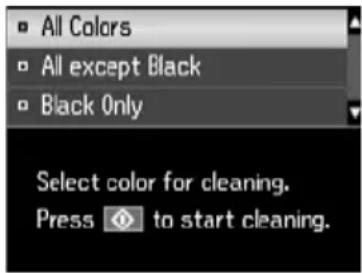
- Choose the colors you want to clean.
Tip: Use the nozzle check pattern to determine which colors need cleaning. You can save ink by cleaning only selected colors.
Cleaning lasts around 2 1/2 minutes. When it's finished, you see a message on the LCD screen.
text_image
All Colors All except Black Black Only Select color for cleaning. Press 🔒 to start cleaning.Caution: Never turn off the product during head cleaning or you may damage it.
- Press 2 to run a nozzle check and confirm that the print head is clean.
Note: If you don't see any improvement after cleaning the print head four times, leave the product on and wait at least six hours to let any dried ink soften. Then try cleaning the print head again. If quality does not improve, one of the ink cartridges may need to be replaced. If that doesn't help, contact Epson as described on page 34.
If you do not use your product often, it is a good idea to print a few pages at least once a month to maintain good print quality.
Checking Ink Levels
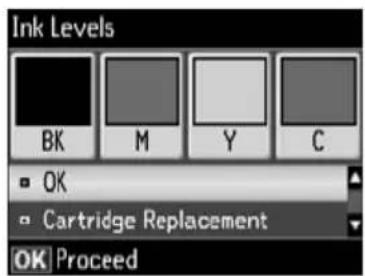
You can check the ink levels anytime right on the LCD screen. To check the ink levels with your Windows or Macintosh software, see the instructions in your online User's Guide.
Note: Printing stops when an ink cartridge is expended. If a color cartridge is expended, you may be able to continue printing temporarily with black ink; see the online User's Guide for more information. If the black cartridge is expended, you must replace it to continue printing.
- Press 📋 Setup.
- Press OK to select Ink Levels.
- The ink cartridge status is displayed. See page 25 to replace a cartridge, if necessary.
- Press ▶ Back to exit.
text_image
Ink Levels BK M Y C OK Cartridge Replacement OK ProceedIn Windows, a window may appear on your computer screen if you try to print when ink is low. This window can optionally display ink offers and other updates from Epson.
Note: To disable checking for ink offers or updates from Epson, see the instructions in your online User's Guide.
Purchasing Epson Ink Cartridges
You can purchase genuine Epson ink and paper at Epson Supplies Central at www.epson.com/ink3 (U.S. sales) or www.epson.ca (Canadian sales). You can also purchase supplies from an Epson authorized reseller. To find the nearest one, call 800-GO-EPSON (800-463-7766).
Use the following list when you order or purchase new ink cartridges:
| Ink color High-capacity | Extra High-capacity | |
| Black 126 127 | ||
| Cyan 126 127 | ||
| Magenta 126 127 | ||
| Yellow 126 127 |
Note: We recommend that you use genuine Epson cartridges and do not refill them. The use of other products may affect your print quality and could result in product damage.
Yields vary considerably based on images printed, print settings, paper type, frequency of use, and temperature. For print quality, a small amount of ink remains in the cartridge after the “replace cartridge” indicator comes on. The product ships with full cartridges and part of the ink from the first cartridges is used for priming the product.
For best printing results, use up a cartridge within six months of opening the package and before the expiration date on the cartridge box.
Store ink cartridges in a cool, dark place. If cartridges have been exposed to cold temperatures, allow them to warm up to room temperature for at least 3 hours before using them.
Replacing Ink Cartridges
Make sure you have a new ink cartridge before you begin.
Caution: Do not open ink cartridge packages until you are ready to install the ink. Cartridges are vacuum packed to maintain reliability.
Leave the expended cartridge installed until you have obtained a replacement, or the ink remaining in the print head nozzles may dry out.
- Turn on the product.
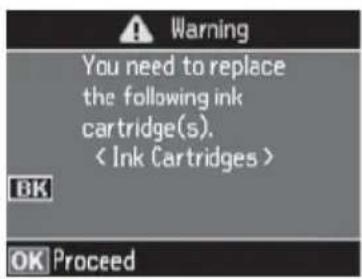
- If an ink cartridge is low or expended, you see a message on the LCD screen indicating which color to replace. Press OK.
If you're replacing a cartridge before you see a message on the LCD screen, press Setup, select Maintenance, then select Ink Cartridge Replacement.
text_image
Warning You need to replace the following ink cartridge(s). < Ink Cartridges > OK OK Proceed- Open the scanner, then open the cartridge cover.
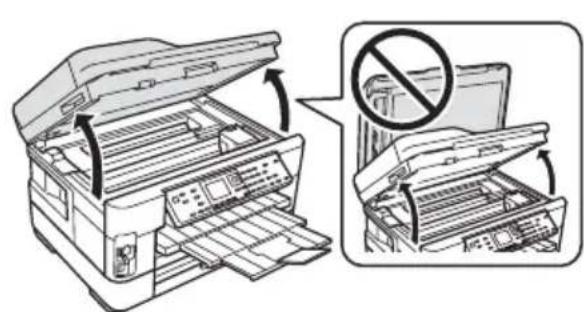
text_image
Diagram showing printer file processing with a no-smoking symbol indicating disassembly or reassembly.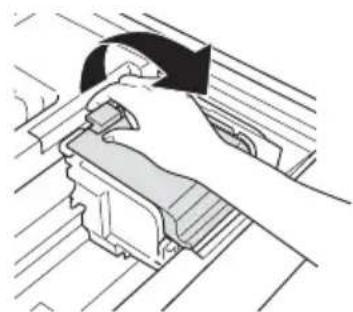
natural_image
Technical line drawing of a mechanical assembly with no visible text or symbols- Squeeze the tab on the cartridge and lift it up. Dispose of it carefully. Do not take the used cartridge apart or try to refill it.
Warning: If ink gets on your hands, wash them thoroughly with soap and water. If ink gets into your eyes, flush them immediately with water. Keep ink cartridges out of the reach of children and don't drink the ink.
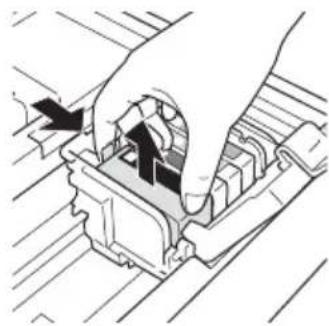
natural_image
Hand inserting a component into a mechanical housing (no text or symbols visible)- Before you open the new cartridge package, shake it gently four or five times. Then remove it from the package.
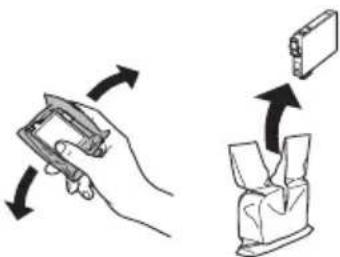
natural_image
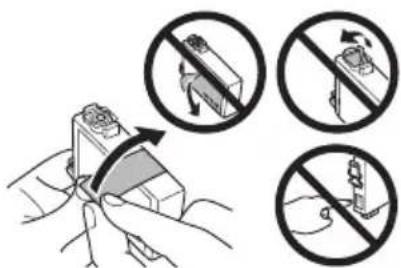
Illustration showing a hand holding a device and a close-up of a device with arrows indicating rotation (no text or symbols)- Remove the yellow tape from the bottom of the ink cartridge.
Caution: Do not remove any other labels or seals, or ink will leak. Do not touch the green chip on the front of the cartridge. This can damage the ink cartridge.
text_image
Illustration showing hand positioning and prohibition symbols for a device, with arrows indicating movement direction.-
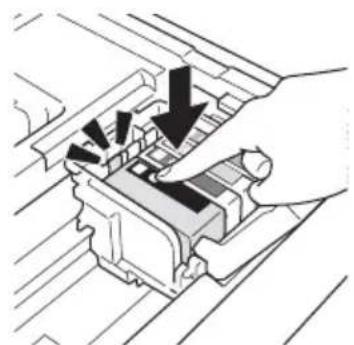
Insert the new ink cartridge into the holder and push it down until it clicks into place.
-
Once you replace all the cartridges that need replacing, close the cartridge cover and push it down until it clicks into place.
natural_image
Diagram of a hand pressing down on a mechanical component with arrows indicating force or movement (no text or symbols present)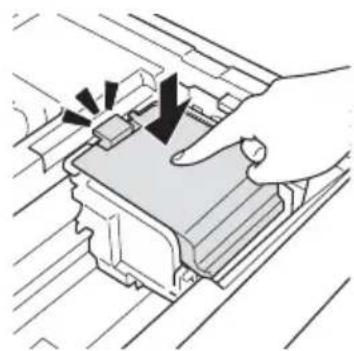
natural_image
Illustration of a hand pressing down on a mechanical component with arrows indicating motion (no text or symbols)- Close the scanner to begin charging the ink. This takes about 2 1/2 minutes. When you see a completion message on the LCD screen, ink charging is finished.
Caution: Never turn off the product while ink is charging or you'll waste ink. If you see an ink replacement message on the LCD screen, press OK and press down all the cartridges securely. Then press OK again. If you remove a low or expended ink cartridge, you cannot reinstall and use the cartridge.
Scanning a Document or Photo
You can use your product to scan original documents and photos and save them on your computer.
Quick Scanning With the Scan Button
Use the Scan button to quickly scan a photo or document and save it on your computer. You can even scan a photo and have it automatically included in an email message.
Note: For Mac OS X 10.6, see "Scanning With Mac OS X 10.6" on page 29.
- Place your original document or photo as shown on page 7.
- Press the Scan button.
- Press ▲ or ▼ to select one of the following options:
■ Scan to Memory Card automatically creates a JPG image or PDF and saves it to an inserted memory card.
■ Scan to PC automatically creates a JPG image and saves it to your computer; ideal for scanning photos.
■ Scan to PC (PDF) automatically creates a PDF file and saves it to your computer; ideal for scanning documents.
- Scan to PC (Email) automatically scans a photo, resizes it, launches your email application, and attaches a JPG image to a new outgoing message. This works with MAPI-type email such as Microsoft® Outlook or Windows Live Mail, but not web-based email such as Gmail.
■ Scan to PC (WSD) lets you manage wireless scanning in Windows 7 or Windows Vista (English only). To use this feature, you must first set up WSD (Web Services for Devices) on the computer you want to scan to.
- If you're scanning to a memory card, select your scan settings and then press ◇ Start Scan to begin scanning.
If you're scanning to your computer, select USB Connection if your product is connected by a USB cable, or select the name of your computer if your product is connected over a network. Press OK to begin scanning.
Once your image is scanned, you see its icon in Windows Explorer or Mac Finder ^® , or as an attachment in your email application.
Scanning With Epson Scan Software
You can scan from any TWAIN-compliant application using Epson Scan. Or you can start Epson Scan directly from your computer and save your image to a file.
Note: For Mac OS X 10.6, see "Scanning With Mac OS X 10.6" on page 29. For detailed scanning instructions, see the online User's Guide.
-
Place your original document or photo as shown on page 7.
-
Do one of the following to start Epson Scan:
■ Windows: Double-click the EPSON Scan icon on your desktop.
■ Mac OS X 10.4 and 10.5: Double-click EPSON Scan in Applications > Epson Software.
■ To scan from an application, start your application. Then open the File menu, choose Import or Acquire, and select your product.
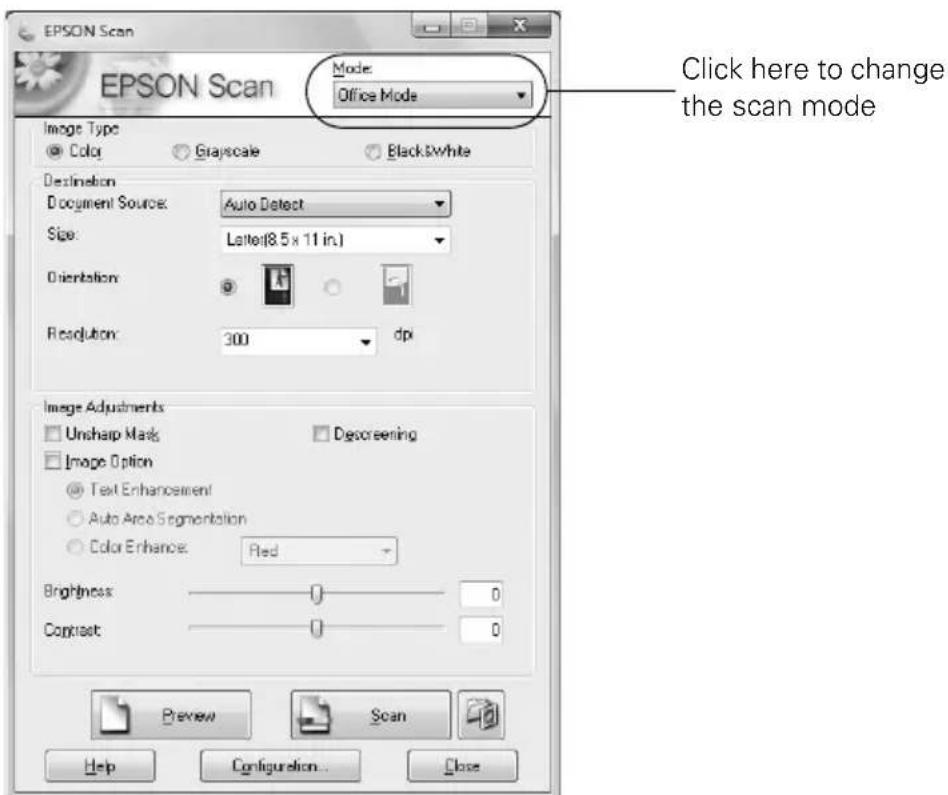
- Epson Scan opens in Office Mode the first time you use it. (You can change the scan mode using the Mode selector in the upper right corner.)
text_image
EPSON Scan EPSON Scan Mode: Office Mode Click here to change the scan mode Image Type Color Grayscale Black&White Destination Document Source: Auto Detect Size: Letter(8.5 x 11 in.) Orientation Resolution: 300 dpi Image Adjustments Unsharp Mask Image Option Text Enhancement Auto Area Segmentation Color Enhance: Red Brightness: 0 0 Contrast: 0 0 Preview Scan Help Configuration... CloseNote: You cannot use Home mode to scan with the Automatic Document Feeder.
- Click Scan. The image is scanned and you see its icon in Windows Explorer or Mac Finder.
Scanning With Mac OS X 10.6
You can scan original documents and photos and save them as files on your computer.
- Open an image editing application such as Image Capture and select your product from the DEVICES or SHARED list, if necessary.
- If you would like to select scan settings, such as Color Restoration and file save settings, click Show Details.
- Click the Scan button to begin scanning. Your image is saved to the folder selected in the Scan To pop-up menu.
Solving Problems
If you have a problem with your Epson product, check the messages on the LCD screen to diagnose the cause. You can also check the basic troubleshooting suggestions below, or in your online User's Guide.
Problems and Solutions
Check the solutions below if you're having trouble using your Epson product.
Network Problems
If you have a poor wireless connection, try moving the product to a different location. Avoid placing it next to a microwave oven, 2.4 GHz cordless phone, or large metal object such as a filing cabinet.
Network setup failed
■ Try moving the product to a different location.
If your wireless router doesn't broadcast its network name (SSID), manually enter your wireless network name. If your wireless router or access point has wireless security enabled, you will also need to know what kind of security it is using.
■ Make sure there aren't any access restrictions (such as MAC address filtering) set on the wireless router. If access restrictions are set, register the product's MAC address on the router. Print a Network Status Sheet (see page 31) to obtain the MAC address. Then see your router's manual for instructions.
If your wireless router has security enabled, make sure you entered the WEP key or WPA passphrase correctly.
■ Remove and reinsert the CD to reinstall your product software.
The product's WiFi light is on but you cannot print
Your router might not be assigning IP addresses automatically using DHCP. If it isn't, you will need to set the product's IP address manually. Make sure it is set correctly for your network.
Cannot scan over the network
■ Epson Scan is not available in Mac OS X 10.6; see page 29 for scanning instructions.
If you cannot scan from the product's control panel, make sure you restarted your computer after installing the product software. Make sure Epson Event Manager is not being blocked by your firewall or security software.
If you are scanning a large document at high resolution, a communication error may occur. If the scan did not complete, lower the resolution.
■ If network communication was interrupted while starting Epson Scan, exit Epson Scan, and restart it after a few seconds. If Epson Scan cannot restart, turn the product off and on, and then try again. Check the Timeout Setting in EPSON Scan Settings. For details, see the Epson Scan Help.
Print a Network Status Sheet
- Press 📋 Setup.
- Press ▲ or ▼ to select Wi-Fi/Network Settings, then press OK.
- Press ▲ or ▼ to select Confirm Wi-Fi/Network Settings, then press OK.
- Press the B&W or Color ◇ Start button to print a network status sheet.
Printing and Copying Problems
■ Make sure the size of paper you loaded matches the paper size selected on the control panel or in your printer software.
Letter-size paper is automatically selected for copying. If your legal-size document is cropped, press Reduce/Enlarge and select Legal->Letter.
■ Position your original against the back left corner of the scanner glass. If the edges are cropped, move your original away from the edges slightly. Place the document flat against the scanner glass.
- Printing stops when an ink cartridge is expended. If a color cartridge is expended, you may be able to continue printing temporarily with black ink; see the online User's Guide for more information. If the black cartridge is expended, you must replace it to continue printing.
Paper Feeding Problems
If paper doesn't feed correctly, remove the paper and fan the sheets, then reload them as shown on page 6. Don't load paper above the tabs on the edge guides.
- Don’t load too many sheets at once. You can load up to 250 sheets of plain paper or 20 sheets of photo paper. Some papers should be loaded one sheet at a time; see your online User’s Guide for information on paper loading limits. Don’t load paper above the tabs on the edge guides.
If paper has jammed, follow the steps on the LCD screen. If necessary, check the following areas:
- Lift the scanner and carefully remove any paper trapped inside.
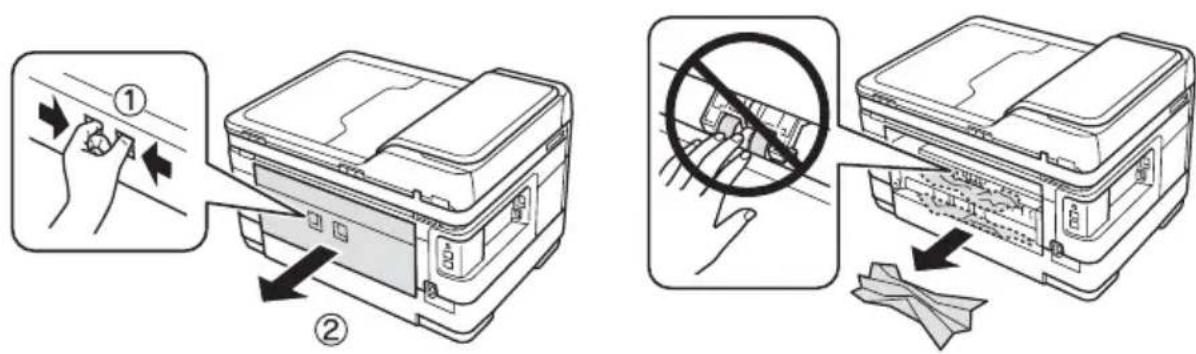
- Remove the back cover of the printer and check for jammed paper. Open the cover on the duplexer to remove any paper, if necessary (WorkForce WF-7520 only).
text_image
Diagram illustrating two steps of a printer or printer setup: adding a handle to a box and removing a cloth, with numbered instructions in Chinese.Caution: Always use two or more people when lifting or moving the product.
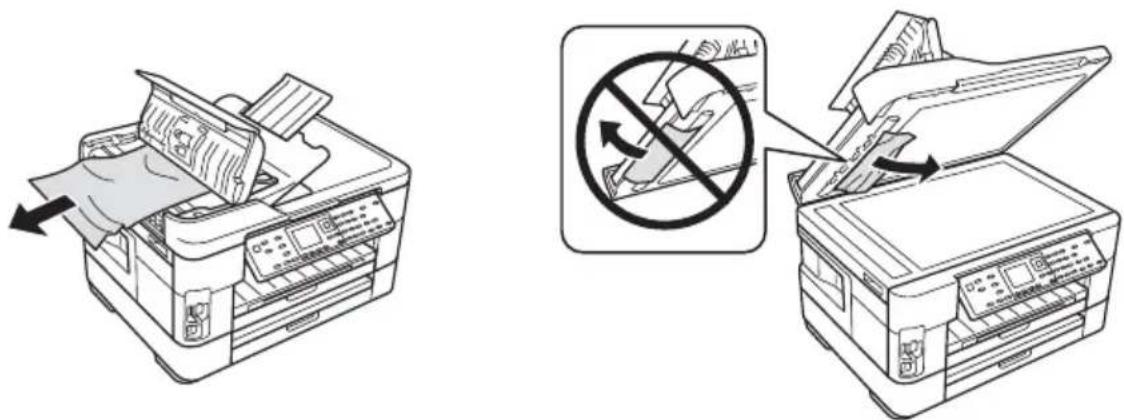
If documents don't feed correctly in the Automatic Document Feeder (ADF), make sure the paper is not bent, folded, or curled. If paper has jammed:
- Open the ADF cover and remove any jammed paper.
Caution: Do not try to remove the paper without opening the ADF cover or you could damage the mechanism.
text_image
Diagram illustrating printer printing process with a stop-and-drop prohibition symbol and directional arrows indicating print movement.- Lift the document cover and remove any paper caught beneath it.
Faxing Problems
■ Make sure the recipient's fax machine is turned on and working.
■ Make sure the LINE port on the product is connected to a telephone wall jack. Verify that the telephone wall jack works by connecting a phone to it.
■ Make sure the Auto Answer light is turned on to receive faxes automatically.
If your phone line includes voice mail answering services, calls or faxes may be inadvertently received by your voice mail service.
If the line has static, press Fax, press ≡Menu, select Communication, and turn off the V.34 and ECM settings.
If the product is connected to a DSL phone line, you must have a DSL filter connected to the phone jack. Contact your DSL provider for the filter.
If you connected a telephone or answering machine, make sure it is connected to the EXT. port. Do not use a phone line splitter.
Print Quality Problems
■ Make sure your paper is loaded printable side down (usually the whiter, brighter, or glossy side).
For the best print quality, use Epson papers (see page 4) and genuine Epson ink cartridges (see page 25).
■ Make sure the type of paper you loaded matches the paper type setting on the control panel or in your printer software (see page 16).
If you notice light or dark bands across your printouts or they are too faint, run a nozzle check (see page 22) to see if the print head needs cleaning.
If you notice jagged vertical lines, you may need to align the print head. See the online User's Guide for instructions.
■ The ink cartridges may be low on ink. Check your cartridge levels (see page 24) and replace cartridges, if necessary (see page 25).
■ Clean the scanner glass with a soft, dry, lint-free cloth (paper towels are not recommended), or use a small amount of glass cleaner on a soft cloth, if necessary. Do not spray glass cleaner directly on the glass.
Where to Get Help
Epson Technical Support
Internet Support
Visit epson.com/support (U.S.) or epson.ca/support (Canada) where you can download drivers, view manuals, get FAQs, or e-mail Epson.
Speak to a Support Representative
Before you call Epson for support, please have the following information ready:
■ Product name (WorkForce WF-7510/WF-7520)
■ Product serial number (located on the label in back and on the underside of the scanner.)
■ Proof of purchase (such as a store receipt) and date of purchase
■ Computer configuration and description of the problem
Then call:
■ U.S.: (562) 276-4382, 6 AM – 8 PM, Pacific Time, Monday through Friday, and 7 AM – 4 PM Saturday
■ Canada: (905) 709-3839, 6 AM – 8 PM, Pacific Time, Monday through Friday
Days and hours of support are subject to change without notice. Toll or long distance charges may apply.
Purchase Supplies and Accessories
You can purchase genuine Epson ink and paper at Epson Supplies Central at www.epson.com/ink3 (U.S. sales) or www.epson.ca (Canadian sales). You can also purchase supplies from an Epson authorized reseller. To find the nearest one, call 800-GO-EPSON (800-463-7766).
Other Software Technical Support
ABBYY ^® FineReader ^®
Phone: (408) 457-9777
www.abbyyusa.com
support@abbyyusa.com
Notices
Important Safety Instructions
Before using your Epson product, read and follow these safety instructions:
■ Be sure to follow all warnings and instructions marked on the product.
■ Use only the type of power source indicated on the product label.
■ Use only the power cord that comes with the product. Use of another cord may cause fires or shock. Do not use the cord with any other equipment. Make sure the power cord meets all relevant local safety standards.
■ Leave enough space in front of the product for the paper to be fully ejected.
■ Place the product near a wall outlet where the plug can be easily unplugged.
If you won't be using the product for a long period, unplug the power cord from the electrical outlet.
■ Always turn off the product using the ⏻ power button, and wait until the ⏻ power light stops flashing before unplugging the product or cutting off power to the electrical outlet.
■ Avoid plugging the product into an outlet on the same circuit as a photocopier or air conditioning system that regularly switches on and off, or on an outlet controlled by a wall switch or timer.
Do not let the power cord become damaged or frayed. Place it to avoid abrasions, cuts, fraying, crimping, and kinking. Do not place objects on top of it and do not allow it to be stepped on or run over. Be careful to keep the cord straight at each end. If damage occurs to the plug, replace the cord or consult a qualified electrician.
If you use an extension cord with the product, make sure the total ampere rating of the devices plugged into the extension cord does not exceed the cord's ampere rating. Also, make sure the total ampere rating of all devices plugged into the wall outlet does not exceed the wall outlet's ampere rating.
When connecting the printer to a computer or other device with a cable, ensure the correct orientation of the connectors. Each connector has only one correct orientation. Inserting a connector in the wrong orientation may damage both devices connected by the cable.
- Place the product on a flat, stable surface that extends beyond its base in all directions. It will not operate properly if it is tilted or at an angle.
■ Avoid placing the product in locations that are subject to rapid changes in heat or humidity, shocks or vibrations, or dust. Do not place the product near a radiator or heating vent or in direct sunlight. Do not place or store the printer outdoors.
- Keep the product away from potential sources of electromagnetic interference, such as loudspeakers or the base units of cordless phones.
- Allow space behind the printer for the cables, and space above the printer so that you can fully raise the document cover.
Leave enough room around the product for sufficient ventilation. Make sure the product is at least 4 inches (10 cm) away from the wall.
■ Do not block or cover openings in the product case or insert objects through the slots.
■ Do not use aerosol products that contain flammable gases inside or around the product. Doing so may cause fire.
■ Do not press too hard on the scanner glass when placing the originals.
■ Do not open the scanner section while the product is copying, printing, scanning, or performing any other functions.
■ Be careful not to trap your fingers when closing the document cover or scanner.
■ Do not touch the flat white cable inside the product.
■ Do not spill liquid on the product. Do not use the product near water. Do not use with wet hands.
■ Unplug the product and refer servicing to qualified service personnel under the following conditions: if the power cord or plug is damaged; if liquid has entered the product; if the product has been dropped or the case damaged; if the product does not operate normally or exhibits a distinct change in performance.
■ Adjust only those controls that are covered by the operating instructions. Except as specifically explained in your documentation, do not attempt to service the product yourself.
■ Never disassemble, modify, or attempt to repair the product by yourself, except as specifically explained in the documentation. Do not adjust controls that are not covered by the operating instructions.
■ When storing or transporting the product, do not tilt it, stand it on its side, or turn it upside down; otherwise ink may leak from the cartridges.
LCD Screen Safety
■ Use only a dry, soft cloth to clean the LCD screen. Do not use liquid or chemical cleansers.
If the LCD screen is damaged, contact Epson. If the liquid crystal solution gets on your hands, wash them thoroughly with soap and water. If the liquid crystal solution gets into your eyes, flush them immediately with water. If discomfort or vision problems remain after a thorough flushing, see a doctor immediately.
Wireless Network Safety
■ Do not use this product inside medical facilities or near medical equipment. Radio waves from the product may adversely affect the operation of medical equipment.
- Keep this product at least 9 inches (22 cm) away from cardiac pacemakers. Radio waves from this product may adversely affect their operation.
■ Do not use this product near automatically controlled devices such as automatic doors or fire alarms. Radio waves from this product may adversely affect these devices.
Memory Card Safety
■ Do not remove a memory card or turn off the printer while the memory card light is flashing.
The methods for using memory cards vary according to card type. Be sure to refer to the documentation packaged with your memory card for details.
- Use only memory cards compatible with the printer. See the online User's Guide for a full list of compatible cards.
Ink Cartridge Safety
- Keep ink cartridges out of the reach of children and do not drink the ink.
■ Be careful when you handle used ink cartridges; there may be ink remaining around the ink supply port. If ink gets on your skin, wash it off with soap and water. If it gets in your eyes, flush them immediately with water. If you still have discomfort or vision problems, see a doctor immediately.
■ Do not put your hand inside the product or touch any cartridges during printing.
■ Do not try to move the print head by hand, or you may damage the product.
■ Before transporting the product, make sure the print head is in the home (far right) position and the ink cartridges are in place.
■ Install a new ink cartridge immediately after removing a used one. Leaving cartridges uninstalled can dry out the print head and may prevent the product from printing.
■ Do not shake ink cartridges after opening their packages, and do not remove the label from the cartridge itself; this can cause leakage.
If you remove an ink cartridge for later use, protect the ink supply area from dirt and dust and store it in the same environment as the product. Note that there is a valve in the ink supply port, making covers or plugs unnecessary, but care is needed to prevent the ink from staining items that the cartridge touches. Do not touch the ink cartridge ink supply port or surrounding area. Do not store cartridges upside down.
Telephone Equipment Safety
When using telephone equipment, you should always follow basic safety precautions to reduce the risk of fire, electric shock, and personal injury, including the following:
■ Avoid using a telephone during an electrical storm. There may be a remote risk of electric shock from lightning.
■ Do not use a telephone to report a gas leak in the vicinity of the leak.
Caution: To reduce the risk of fire, use only a No. 26 AWG or larger telecommunication line cord.
Declaration of Conformity
According to 47CFR, Part 2 and 15 for: Class B Personal Computers and Peripherals; and/or CPU Boards and Power Supplies used with Class B Personal Computers:
We: Epson America, Inc.
Located at: MS 3-13
3840 Kilroy Airport Way
Long Beach, CA 90806
Telephone: (562) 290-5254
Declare under sole responsibility that the product identified herein, complies with 47CFR Part 2 and 15 of the FCC rules as a Class B digital device. Each product marketed is identical to the representative unit tested and found to be compliant with the standards. Records maintained continue to reflect the equipment being produced can be expected to be within the variation accepted, due to quantity production and testing on a statistical basis as required by 47CFR §2.909. Operation is subject to the following two conditions: (1) this device may not cause harmful interference, and (2) this device must accept any interference received, including interference that may cause undesired operation.
Trade Name: Epson
Type of Product: Multifunction printer
Model: C441A/C441B
Marketing Name: WorkForce WF-7510/WorkForce WF-7520
FCC Compliance Statement
For United States Users
This equipment complies with Part 68 of the FCC rules and the requirements adopted by the ACTA. On the back side is a label that contains, among other information, the FCC registration number and the ringer equivalence number (REN) for this equipment. You must, upon request, provide this information to your local telephone company. The information associated with the services the equipment is to be connected are REN: 0.1B, Jack type: RJ-11C.
The REN is useful to determine the quantity of devices that you may connect to your telephone line and still have all of those devices ring when your telephone number is called. In most, but not all areas, the sum of the RENs of all devices connected to one line should not exceed five (5.0). To be certain of the number of devices that you may connect to your line, you may want to contact your local telephone company to determine the maximum REN for your calling area. For products approved after July 23, 2001, the REN for this product is part of the product identifier that has the format US: BKMFA01BC441B. The digits represented by 01 are the REN without a decimal point (e.g., 01 is a REN of 0.1). For earlier products, the REN is separately shown on the label.
This equipment may not be used on coin service provided by the telephone company. Connection to party lines is subject to state tariffs.
Should this equipment cause harm to the telephone network, the telephone company may discontinue your service temporarily. If possible they will notify you in advance that temporary discontinuance of service may be required. But if advanced notice isn't practical, the telephone company will notify you as soon as possible. You will be informed of your right to file a complaint with the FCC. The telephone company may make changes in its facilities, equipment, operations or procedures that could affect the proper functioning of your equipment. If they do, you will be notified in advance to give you an opportunity to maintain uninterrupted telephone service.
This product is not intended to be repaired. If you experience trouble with this equipment, please contact:
Name: Epson America, Inc.
Address: 3840 Kilroy Airport Way, Long Beach, CA 90806 U.S.A.
Telephone: (562) 981-3840
The telephone company may ask that you disconnect this equipment from the network until the problem has been corrected or until you are sure that the equipment is not malfunctioning.
A plug and jack used to connect this equipment to the premises wiring and telephone network must comply with the applicable FCC Part 68 rules and requirements adopted by the ACTA. A compliant telephone cord and modular plug is provided with this product. It is designed to be connected to a compatible modular jack that is also compliant. See installation instructions for details.
The Telephone Consumer Protection Act of 1991 makes it unlawful for any person to use a computer or other electronic device, including fax machines, to send any message unless such message clearly contains in a margin at the top or bottom of each transmitted page or on the first page of the transmission, the date and time it is sent and an identification of the business or other entity, or other individual sending the message and the telephone number of the sending machine or such business, other entity, or individual. In order to program this information into your fax machine, follow the instructions in “Entering Fax Header Information” on page 18.
According to the FCC's electrical safety advisory, we recommend that you may install an AC surge arrestor in the AC outlet to which this equipment is connected. Telephone companies report that electrical surges, typically lightning transients, are very destructive to customer terminal equipment connected to AC power sources and that this is a major nationwide problem.
If your home has specially wired alarm equipment connected to the telephone line, ensure the installation of this equipment Model C441B does not disable your alarm equipment. If you have questions about what will disable alarm equipment, consult your telephone company or a qualified installer.
This equipment has been tested and found to comply with the limits for a Class B digital device, pursuant to Part 15 of the FCC Rules. These limits are designed to provide reasonable protection against harmful interference in a residential installation. This equipment generates, uses, and can radiate radio frequency energy and, if not installed and used in accordance with the instructions, may cause harmful interference to radio or television reception. However, there is no guarantee that interference will not occur in a particular installation. If this equipment does cause interference to radio and television reception, which can be determined by turning the equipment off and on, the user is encouraged to try to correct the interference by one or more of the following measures:
■ Reorient or relocate the receiving antenna.
■ Increase the separation between the equipment and receiver.
■ Connect the equipment into an outlet on a circuit different from that to which the receiver is connected.
■ Consult the dealer or an experienced radio/TV technician for help.
WARNING
The connection of a non-shielded equipment interface cable to this equipment will invalidate the FCC Certification of this device and may cause interference levels which exceed the limits established by the FCC for this equipment. It is the responsibility of the user to obtain and use a shielded equipment interface cable with this device. If this equipment has more than one interface connector, do not leave cables connected to unused interfaces. Changes or modifications not expressly approved by the manufacturer could void the user's authority to operate the equipment.
For Canadian Users
- This product meets the applicable Industry Canada technical specifications.
- The Ringer Equivalence Number is an indication of the maximum number of devices allowed to be connected to a telephone interface. The termination on an interface may consist of any combination of devices subject only to the requirement that the sum of the RENs of all the devices does not exceed five.
This Class B digital apparatus complies with Canadian ICES-003.
Epson America, Inc., Limited Warranty
What Is Covered: Epson America, Inc. ("Epson") warrants to the original retail purchaser that the Epson printer covered by this limited warranty statement, if purchased and operated only in the United States, Canada, or Puerto Rico, will be free from defects in workmanship and materials for a period of one (1) year from the date of original purchase. For warranty service, you must provide proof of the date of original purchase.
What Epson Will Do To Correct Problems: Should your Epson printer prove defective during the warranty period, please call the Epson Connection at (562) 276-4382 (U.S.) or (905) 709-3839 (Canada) for warranty repair instructions and return authorization. An Epson service technician will provide telephone diagnostic service to determine whether the printer requires service. If service is needed, Epson will, at its option, exchange or repair the printer without charge for parts or labor. If Epson authorizes an exchange for the defective unit, Epson will ship a replacement printer to you, freight prepaid, so long as you use an address in the United States, Canada, or Puerto Rico. Shipments to other locations will be made freight collect. You are responsible for securely packaging the defective unit and returning it to Epson within five (5) working days of receipt of the replacement. Epson requires a debit or a credit card number to secure the cost of the replacement printer in the event that you fail to return the defective one. If Epson authorizes repair instead of
exchange, Epson will direct you to send your printer to Epson or its authorized service center, where the printer will be repaired and sent back to you. You are responsible for packing the printer and for all costs to and from the Epson authorized service center. When warranty service involves the exchange of the printer or a part, the item replaced becomes Epson property. The replacement printer or part may be new or refurbished to the Epson standard of quality, and, at Epson's option, may be another model of like kind and quality. Exchange products and parts assume the remaining warranty period of your original product covered by this limited warranty.
What This Warranty Does Not Cover: This warranty covers only normal use in the United States, Canada, or Puerto Rico. Using this product for continuous production or similar high duty purposes is not considered normal use; damage, maintenance or service from such use will not be covered under this warranty. This warranty is not transferable. This warranty does not cover any color change or fading of prints or reimbursement of materials or services required for reprinting. This warranty does not cover damage to the Epson product caused by parts or supplies not manufactured, distributed or certified by Epson. This warranty does not cover ribbons, ink cartridges or third party parts, components, or peripheral devices added to the Epson product after its shipment from Epson, e.g., dealer or user-added boards or components. Epson is not responsible for warranty service should the Epson label or logo or the rating label or serial number be removed or should the product fail to be properly maintained or fail to function properly as a result of misuse, abuse, improper installation, neglect, improper shipping, damage caused by disasters such as fire, flood, and lightning, improper electrical current, software problems, interaction with non-Epson products, or service other than by an Epson Authorized Servicer. If a claimed defect cannot be identified or reproduced, you will be held responsible for the costs incurred.
THE WARRANTY AND REMEDY PROVIDED ABOVE ARE EXCLUSIVE AND IN LIEU OF ALL OTHER EXPRESS OR IMPLIED WARRANTIES INCLUDING, BUT NOT LIMITED TO, THE IMPLIED WARRANTIES OF MERCHANTABILITY, NON-INFRINGEMENT OR FITNESS FOR A PARTICULAR PURPOSE. SOME LAWS DO NOT ALLOW THE EXCLUSION OF IMPLIED WARRANTIES. IF THESE LAWS APPLY, THEN ALL EXPRESS AND IMPLIED WARRANTIES ARE LIMITED TO THE WARRANTY PERIOD IDENTIFIED ABOVE. UNLESS STATED HEREIN, ANY STATEMENTS OR REPRESENTATIONS MADE BY ANY OTHER PERSON OR FIRM ARE VOID. IN NO EVENT SHALL EPSON OR ITS AFFILIATES BE LIABLE FOR ANY SPECIAL, INCIDENTAL OR CONSEQUENTIAL DAMAGES RESULTING FROM THE USE OR INABILITY TO USE THE EPSON PRODUCT, WHETHER RESULTING FROM BREACH OF WARRANTY OR ANY OTHER LEGAL THEORY. IN NO EVENT SHALL EPSON OR ITS AFFILIATES BE LIABLE FOR DAMAGES OF ANY KIND IN EXCESS OF THE ORIGINAL RETAIL PURCHASE PRICE OF THE PRODUCT.
In Canada, warranties include both warranties and conditions.
Some jurisdictions do not allow limitations on how long an implied warranty lasts, and some jurisdictions do not allow the exclusion or limitation of incidental or consequential damages, so the above limitations and exclusions may not apply to you. This warranty gives you specific legal rights and you may have other rights which vary from jurisdiction to jurisdiction.
To find the Epson Authorized Reseller nearest you, visit our website at: http://www.epson.com.
To find the Epson Customer Care Center nearest you, visit http://www.epson.com/support.
You can also write to: Epson America, Inc., P.O. Box 93012, Long Beach, CA 90809-3012
Copyright Notice
All rights reserved. No part of this publication may be reproduced, stored in a retrieval system, or transmitted in any form or by any means, electronic, mechanical, photocopying, recording, or otherwise, without the prior written permission of Seiko Epson Corporation. The information contained herein is designed only for use with this Epson product. Epson is not responsible for any use of this information as applied to other equipment.
Neither Seiko Epson Corporation nor its affiliates shall be liable to the purchaser of this product or third parties for damages, losses, costs, or expenses incurred by purchaser or third parties as a result of: accident, misuse, or abuse of this product or unauthorized modifications, repairs, or alterations to this product, or (excluding the U.S.) failure to strictly comply with Seiko Epson Corporation's operating and maintenance instructions.
Seiko Epson Corporation shall not be liable for any damages or problems arising from the use of any options or any consumable products other than those designated as Original Epson Products or Epson Approved Products by Seiko Epson Corporation.
In addition to software program rights owned by Seiko Epson Corporation, this product also includes open source software. Refer to OSS.pdf on your product software CD-ROM for a list of open source software and software license terms applied to this printer.
Responsible Use of Copyrighted Materials
Epson encourages each user to be responsible and respectful of the copyright laws when using any Epson product. While some countries' laws permit limited copying or reuse of copyrighted material in certain circumstances, those circumstances may not be as broad as some people assume. Contact your legal advisor for any questions regarding copyright law.
Trademarks
Epson and Supplies Central are registered trademarks, and Epson Exceed Your Vision is a registered logomark of Seiko Epson Corporation.
WorkForce is a registered trademark and Epson Connection is a service mark of Epson America, Inc.
General Notice: Other product names used herein are for identification purposes only and may be trademarks of their respective owners. Epson disclaims any and all rights in those marks.
This information is subject to change without notice.
© 2011 Epson America, Inc. 12/11

Votre WorkForce WF-7510/WF-7520
natural_image
Line drawing of a printer with a hand inserting a card into the cover (no text or symbols)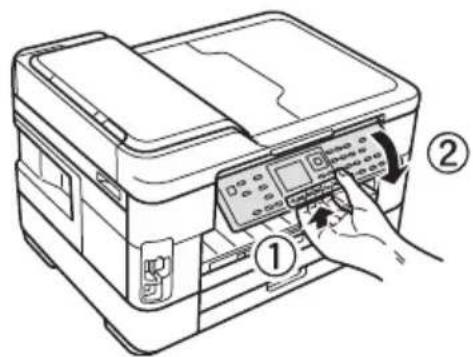
text_image
Diagram of a printer with labeled parts showing hand pressing a print dialog and page number ①natural_image
Illustration of a hand placing a card into a tray with an arrow indicating downward motion (no text or symbols)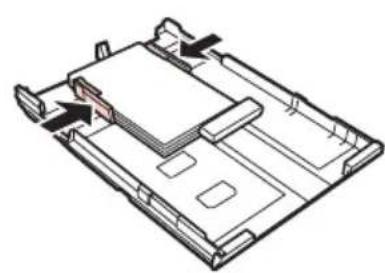
natural_image
Isometric technical diagram of a mechanical or electronic component with no visible text, numbers, or symbols.natural_image
Simple line drawing of a ladder and lever inside a circle (no text or symbols)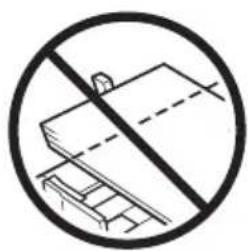
natural_image
Prohibition sign showing a diagonal line intersecting a laptop and keyboard, no text or symbols present.natural_image
Line drawing of a hand using a power tool to clean or print a printer (no text or symbols visible)natural_image
Line drawing of an old printer with a paper airplane being inserted (no text or symbols)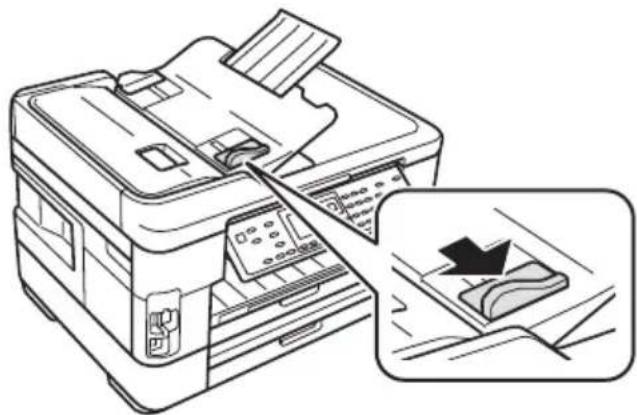
natural_image
Line drawing of a printer with an open lid and a close-up inset showing a printer's internal structure (no text or symbols)natural_image
Line drawing of a printer with an open lid and paper feed, showing internal components (no text or symbols)natural_image
Line drawing of a printer with an open lid and a prohibition symbol (no text or labels)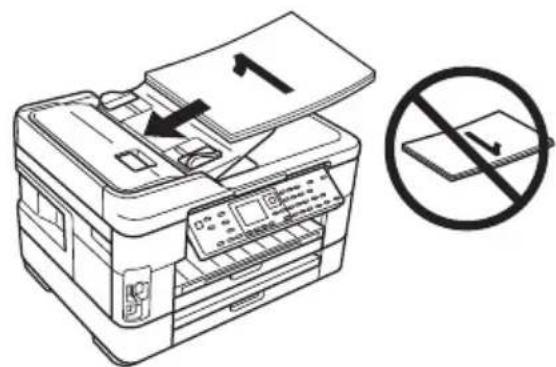
text_image
Diagram showing a printer with a paper feed and a prohibition symbol indicating no printing or discharging.natural_image
Line drawing of a printer with paper and scroll, showing a close-up of the printer's handle (no text or symbols present)Copie d'un document
natural_image
Line drawing showing a hand inserting a card into an open printer, with another printer partially visible (no text or symbols)text_image
Diagram showing a device with an arrow pointing to a labeled card, likely indicating a process or component.text_image
A B C D E F G H I J K L M N O P Q R S T U V W X Y Z 1 2 3 4 5 6 7 8 9 0 & / : ( ) + - ', . AB12 ab12 Symbole Espace FiniBoutons de fonction
natural_image
Abstract geometric pattern with horizontal lines and curved boundaries (no text or symbols)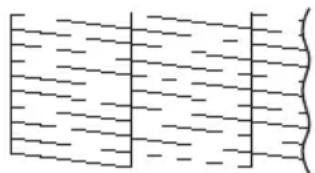
natural_image
Pure diagram of parallel lines with no text, numbers, or symbolsnatural_image
Diagram of an open printer with internal compartments and a magnified inset showing a device with no visible text or symbols.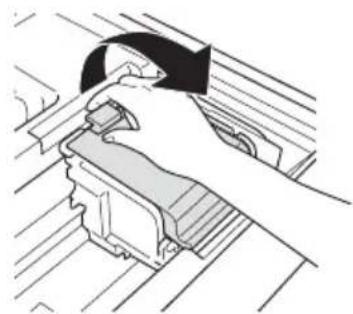
natural_image
Illustration of a hand using a tool to adjust or install a mechanical component (no text or symbols visible)natural_image
Hand operating a mechanical component with arrows indicating motion (no text or symbols)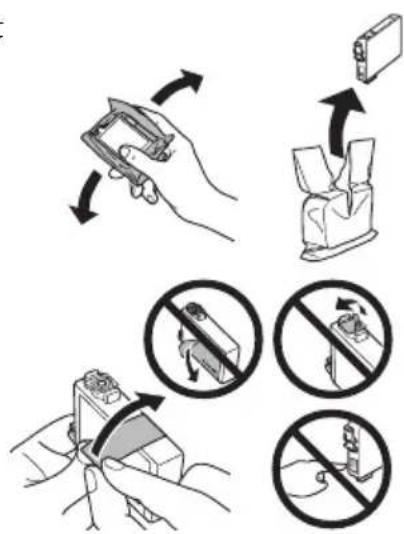
text_image
Diagram illustrating a hand holding a device with multiple directional arrows and prohibition signs, likely for safety or cleaning instructions.natural_image
Mechanical assembly diagram showing a component with arrows indicating motion or force (no text or symbols present)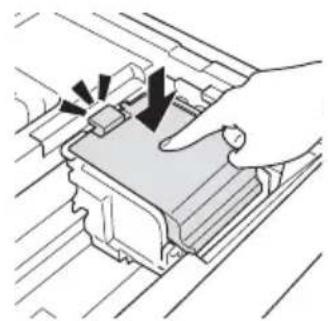
natural_image
Illustration of a hand pressing down on a mechanical component with arrows indicating force or motion (no text or symbols)text_image
Diagram illustrating two steps of printer packaging: first to press down a tray, second to reduce the cover with a stopper.text_image
Diagram illustrating printer printing process with no-handled operation indicated by a crossed-out arrow symbolSoutien technique Epson
Soutien Internet
support@abbyyusa.com
Avis
© 2011 Epson America, Inc. 12/11