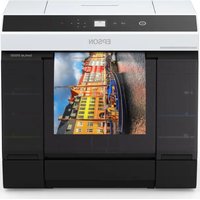
EPSON SureLab SL-D1000 - Printer

SureLab SL-D1000 - Printer EPSON - Free user manual and instructions

Find the device manual for free SureLab SL-D1000 EPSON in PDF.

📄 206 pages English EN Download 💬 AI Question
Notice EPSON SureLab SL-D1000 - page 180
View the manual : Français FR English EN
Pick your language and provide your email: we'll send you a specifically translated version.

User questions about SureLab SL-D1000 EPSON

0 question about this device. Answer the ones you know or ask your own.

Ask a new question about this device

The email remains private: it is only used to notify you if someone responds to your question.

No questions yet. Be the first to ask one.

Download the instructions for your Printer in PDF format for free! Find your manual SureLab SL-D1000 - EPSON and take your electronic device back in hand. On this page are published all the documents necessary for the use of your device. SureLab SL-D1000 by EPSON.

USER MANUAL SureLab SL-D1000 EPSON

Microsoft® and Windows® are registered trademarks of Microsoft Corporation.

Apple, Mac, macOS, OS X, Bonjour, Safari, AirPrint, iPad, iPhone, iPod touch, iBeacon, iTunes and ColorSync are trademarks of Apple Inc., registered in the U.S. and other countries.

Use of the Works with Apple badge means that an accessory has been designed to work specifically with the technology identified in the badge and has been certified by the developer to meet Apple performance standards.

Adobe, Photoshop, Photoshop Elements, Photoshop Lightroom, Acrobat, and Reader are either registered trademarks or trademarks of Adobe in the United States and/or other countries.

Firefox is a trademark of the Mozilla Foundation in the U.S. and other countries.

Chrome ^TM is trademarks of Google Inc.

Mopria® and the Mopria® Logo are registered trademarks and service marks of Mopria Alliance, Inc. in the United States and other countries. Unauthorized use is strictly prohibited.

© 2021 Seiko Epson Corporation.

Table des matières

Table des matières

Supportsprisencharge....1

13SupportsspéciauxEpson....

Boost Software License - Version 1.0 - August

17th, 2003.... 179

Inno Setup License.... 18

7-Zip Command line version. 181

GNU LESSER GENERAL PUBLIC LICENSE

Version 2.1, February 1999.... 181

PDFsharp License....189

HTML-Renderer/LICENSE

CONTRAT DE LICENCE LOGICIELLE DE

L ^7 ÜTILISATEUR FINAL D'EPSON......

Assistance

'Sîtè ^14 Internet del'assistance technique..

Contacter l'assistance Epson....144

( \text{A v a}_{1} \text{n}_{4} \text{t}_{5} \text{ de contacter Epson } \dots\dots\text{

text_image Diagram of a printer with numbered parts highlighting internal components and blue arrows indicating motion or alignment.

EPSON SureLab SL-D1000 - Assistance - 1

natural_image Close-up of a white air conditioner unit with a blue arrow pointing to the interior panel (no text or symbols visible)

EPSON SureLab SL-D1000 - Assistance - 2

text_image Labeled diagram of a printer internal structure showing three numbered components with blue arrows pointing to features.

①Unité d'axe

text_image Diagram of a printer with labeled parts, showing internal structure and component layout
natural_image 3D model of a mechanical assembly with transparent mesh and blue wireframe components, labeled 1, 2, and 3 (no text or symbols on the model itself)
text_image Labeled diagram of a computer control panel with numbered buttons and icons
text_image Ready to print. K LC C M LM Y Settings Done

LC : Light Cyan (Cyan Clair)

M : M a g e n t a

Y: Yellow (Jaune)

https://www.epson.com

text_image Programs and Features Control Panel Home View through updates Turn-Windows Features on or off Organize Download Change 2 USEPCN SL-0100 Series Preview Un installed USEPCN SL-0100 Series Software 20.7.4M Sello Epsom Corp Sello Epsom Corp Sello Epsom Corporation

https://www.epson.com/

natural_image White printer with black handle and blue arrow indicating compression (no text or symbols visible)

Opérations de base

4

natural_image Hand inserting a printer into a paper holder, with a blue arrow indicating the process (no text or symbols visible)

5

natural_image Hand inserting a printer into a paper airplane, with a blue arrow indicating the process (no text or symbols visible)

6

natural_image Exterior view of a white printer with a blue arrow indicating compression or disassembly (no text or symbols visible)
natural_image Illustration of hands holding a cylindrical object with a red prohibition symbol (no text or labels)
natural_image Close-up of a cylindrical mechanical component with blue arrows indicating rotational direction (no text or symbols)

2

natural_image Close-up of a white cylindrical object with blue directional arrows indicating motion or flow (no text or symbols)
natural_image White cylindrical paper roll with a blue arrow indicating rotation around the top edge (no text or symbols)

2

natural_image White cylindrical object with a blue arrow pointing to a circular top, showing internal structure and grid pattern (no text or symbols)

3

flowchart
graph TD
    A["Start: Top part of cylindrical component"] --> B["Step 1: Insert a cylindrical component with blue arrows indicating motion"]
    B --> C["Step 2: Insert a cylindrical component with blue arrows indicating motion"]
    C --> D["Step 3: Insert a cylindrical component with blue arrows indicating motion"]

4

natural_image Close-up of a white cylindrical object with a blue curved arrow indicating rotation or movement, no visible text or symbols.

Opérations de base

natural_image Close-up of a blue and black mechanical component mounted on a white wall (no visible text or symbols)

(no text)
EPSON SureLab SL-D1000 - Opérations de base - 1

natural_image Close-up of a black metal object mounted on a white surface, no visible text or symbols

5

natural_image White cylindrical mechanical component with a blue arrow indicating rotational motion (no text or symbols)

6

natural_image Close-up of a white cylindrical object with a blue curved arrow indicating rotation or change, no visible text or symbols.
natural_image White printer with paper roll being inserted, showing paper movement (no text or symbols visible)

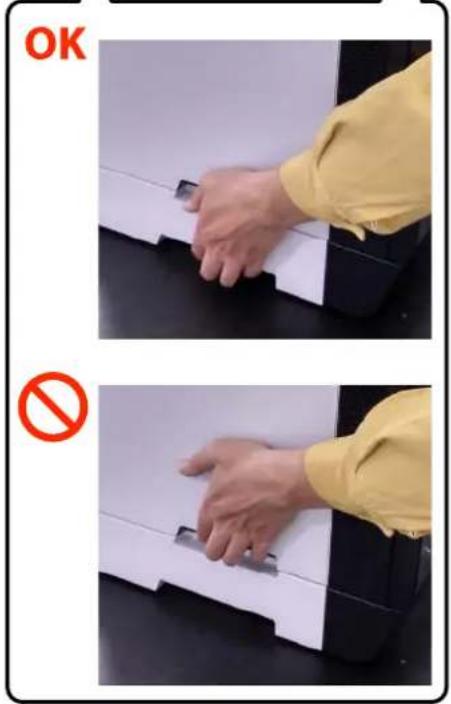
OK
EPSON SureLab SL-D1000 - 6 - 1

(no text)
EPSON SureLab SL-D1000 - 6 - 2

2

natural_image White printer with a blue arrow indicating a paper roll, no visible text or symbols on the device itself.

Opérations de base

3

natural_image Close-up of a printer's paper edge with blue arrows pointing to the paper (no visible text or symbols)
natural_image White and black printer with a blue arrow pointing to the front panel (no visible text or symbols)

5

natural_image Person inserting a printer into a device, showing the paper inside (no text or symbols visible)
text_image Roll Paper Current Settings 000.00 m Photo Gloss(250) - Register - Change OK Done

7

natural_image White and black printer with a blue circular arrow indicating rotation (no text or symbols visible)
text_image Diagram showing a device with labeled components and blue arrows indicating flow or movement, marked as ① and ②.
natural_image Hand pressing down on a white printer with a blue arrow indicating rotation (no text or symbols visible)

Opérations de base

natural_image Two-panel image showing a printer with color scheme and a close-up of the printer's cover (no text or symbols visible)
natural_image White printer with a blue downward arrow overlay, no visible text or symbols on the printer or background
natural_image Close-up of a printer with paper and a printer holder, showing paper spines and a blue arrow indicating orientation (no text or symbols visible)
natural_image Hand inserting a printer into a door panel, with a blue arrow indicating the process (no text or symbols visible)

Opérations de base

natural_image Close-up of a mechanical device with blue arrows pointing to a component, no visible text or symbols
natural_image Interior view of a computer drive bay with a blue arrow pointing to a component (no visible text or symbols)
natural_image Close-up of a printer's front panel with a blue circular arrow pointing to its cover (no text or symbols visible)
natural_image Close-up of a white plastic tray with a blue arrow pointing to it, no visible text or symbols

6 Refermez le bac.

EPSON SureLab SL-D1000 - Opérations de base - 1

natural_image Close-up of a white rectangular object with a blue upward arrow pointing to its surface (no text or symbols visible)

Opérations de base

text_image Cassette Cassette A4 Photo Paper(Glossy) - Register - Change Done
text_image See what's printing Set as default printer Printing preferences Printer properties Create shortcut Remove device Troubleshoot Properties
text_image EPSON SL-DXXXX Series Properties General Sharing Ports Advanced Color Management Secure Optional Settings Design Information Current Printer Information Optional Paper Sources No Options Installed Acquire From Printer Manual Settings Get OK Cancel Stop
text_image EPSON SL-DXXXX Series Properties General Sharing Ports Advanced Color Management Security Optional Settings Version Information ① Current Printer Information Optional Paper Sources Cassette Printer Information Acquire from Printer Get Manual Settings ② OK Cancel Save

EPSON SureLab SL-D1000 - Opérations de base - 1

text_image File Edit Image Layer Type Select Filter 3D View Plugins Window Mode Adjustments Auto Tone Shift+Ctrl+L Auto Contract Alt+Shift+Ctrl+L Auto Color Shift+Ctrl+B Image Size... Alt+Ctrl+1 Image Rotation Crop Trim... Reveal All Duplicate... Apply Image... Calculations... Variables Apply Data Set...

4

text_image Image Size: 10.6M (was 11.5M) Dimensions: 2154 px × 1723 px Fit To: Custom Width: 152 Millimeters Height: 121.6 Millimeters Resolution: 360 Pixels/Inch Resample: Automatic OK Reset

Remarque :

text_image File Edit Image Layer Type Select Filter 3D View Plugins New... Ctrl+N Open... Ctrl+O Browse in Bridge... Alt+Ctrl+O Open As... Alt+Shift+Ctrl+O Open as Smart Object... Open Recent Close Ctrl+W Close All Alt+Ctrl+W Close Others Alt+Ctrl+P Close and Go to Bridge... Shift+Ctrl+W Save Ctrl+S Save As... Shift+Ctrl+S Save a Copy... Alt+Ctrl+S Revert F12 Export Generate Share... Invite... Share on Behance... Search Adobe Stock... Place Embedded... Place Linked... Package... Automate Scripts Import File Info... Alt+Shift+Ctrl+I Version History Print... Ctrl+P Print One Copy Alt+Shift+Ctrl+P Exit Ctrl+Q
text_image Printer Setup Printer: EPSON SL-DXXXX Series Copies: 1 Print Settings... Layout: 2 Color Management Remember to enable the printer's color management in the print settings dialog box. Document Profile: Untagged RGB Color Handling: Printer Manages Colors Printer Profile: Edison SL-D Photo Paper Gloss

7

text_image EPSON SL-D100X Series Printing Preferences Main Page Layout Maintenance Print Settings Media Type SureLab Photo Paper Glass (250) Print Quality Standard Paper Configuration... Color Adjustment Advanced... Paper Source Settings Paper Source Roll Paper Paper Size 152 x 183 mm (6 x 4 in) Borderless Settings... Print Preview Restore Defaults Version OK Cancel Apply
text_image EPSON SL-DX00X Series Printing Preferences Main Page Layout Maintenance Print Settings Media Type SureLab Photo Paper Gloss (250) Print Quality Standard Paper Configuration... Color Adjustment Advanced... Paper Source Settings Paper Source Roll Paper Paper Size 152 x 102 mm (6 x 4 in) Borderless Settings... Print Preview Restore Defaults Version OK Cancel Apply
text_image EPSON SL-DX00X Series Printing Preferences Main Page Layout Maintenance ① ② Double-Sided Printing Auto (Long-edge binding) Settings...
text_image Photoshop Print Settings Inletive Setup Printer: EPSON SL-CNNR Series Color Management Reversible to minimize the printer's size Instrumentation on the print structure using mini Document Profile: Inletated RGB Color Replining: Printer Manage Color Printer Profile: Abnormal Image Rendering Effects: Perceptual Description Noise and Snow Position: Center: Stop Left Scale PDF Size 2.5% Length 30.0% 100% 29.7% 25.9 Scale to FR Media: Print Resolution: 766.4%1 Reset Drop Reset

Remarque :

text_image Adobe Photoshop The image is larger than the paper's printable area; some clipping will occur. Proceed Cancel Don't show again
text_image Screenshot of a software toolbar with icons for printer, monitor, cloud, and speaker
text_image FDXON SL-DXXXX Series Printer Document View Connect ① Set As Default Printer Printing Preferences... ② Update Driver Cancel All Documents Sharing... Use Printer Offline Properties Close Status Owner Pages 1 1
text_image Photoshop File Ed Image Layer Type Select Filter Mode Adjustments Auto Tone Auto Contrast Auto Color Image Size... Image Rotation Crop Trim... Reveal All Duplicate... Apply Image... Calculations... Variables Apply Data Set... Trap... Analysis
text_image Image Size Image Size: 10.6M (was 11.5M) Dimensions: 2154 px x 1723 px Fit To: Custom Width: 152 Millimeters Height: 121.6 Millimeters Resolution: 360 Pixels/Inch Resample: Automatic Cancel OK
text_image Print Settings Printer Setup Printer: EPSON SL-DXXXX Series Copies: 1 Print Settings... Layout: 2 Color Management Remember to enable the printer's color management in the print settings dialog box. Document Profile: Untagged RGB Color Handling: Printer Manages Colors Printer Profile:

7

text_image Printer: SL-DXXXX Series Presets: Default Settings Copies: 1 Pages: All From: 1 to: 1 Paper Size: A4 (Roll Paper) 210 by 297 mm Orientation: Print Settings Page Setup: Roll Paper Media Type: SureLab Photo Paper Gloss (250) Print Quality: Normal Finest Detail Borderless Color Density: -50 50 0 (%) Cancel Print
text_image Printer: SL-DXXXX Series Presets: Default Settings Copies: 1 Pages: All From: 1 to: 1 Paper Size: A4 (Cassette) 210 by 297 mm Oriental: Two-sided Printing Settings Two-sided Printing: Long-Edge binding Increased Ink Drying Time: 0 (sec) When printing a photo or document containing a lot of solid image areas, reduce the density of the ink and increase its drying time. See your documentation for details.
text_image Photoshop Print Settings Printer Setup Printer: EPSON SL-DEUX Series Print Settings: Color Management Describe to create the printer's color management in the print settings drawing task. Document Profile Untagged RGB Color Navigation Printer Manager Colors Printer Profile Paste to Web Normal Printing Rendering Event Perceptual Write Sound Transform Description Position and Size Carrier Top Left Scale Height Width Cancel Done Print
text_image Printer Setup Printer: EPSON SL-DXXXX Series Copies: 1 Print Settings... Layout: Color Management Remember to enable the printer's color management in the print settings dialog box. Document Profile: Untagged RGB Color Handling: Printer Manaces Colors Printer Profile: Pattern Sl-0 Photo Paper Clips Normal Printing Rendering Intent: Perceptual Black Color Compensation Description Position and Size Reset Done Print
text_image Printer Setup Printer: EPSON SL-DXXXX Series Copies: 1 Print Settings... Layout: Color Management Remember to enable the printer's color management in the print settings dialog box. Document Profile: Untagged RGB Color Handling: Printer Manages Colors
text_image EPSON SL-DX00XX Series Printing Preferences Main Page Layout Maintenance Print Settings Media Type SurLab Photo Paper Glass (250) Print Quality Standard Paper Configuration... Color Adjustment Advanced... Paper Source Settings Paper Source Roll Paper
text_image Color Correction Color Management ● Color Controls ○ ICM ○ No Color Adjustment Color Mode sRGB

6

text_image Color Correction Color Management ● Color Controls ○ Solid ○ No Color Adjustment By Mode: RGB 1 Color Adjustment Method ● Color Circle ○ Slide Bar Reset Controls Brightness 0 Contrast 0 Saturation 0 + - + - + - Horizontal 0 Vertical 0 Density 0 2 OK Cancel

Remarque :

text_image Print Settings Printer Setup Printer: EPSON SL-DXXXX Series Copies: 1 Print Settings... Layout: ✓ Color Management Remember to enable the printer's color management in the print settings dialog box. Document Profile: Untagged RGB Color Handling: Printer Manages Colors Printer Profile: Send 16-bit Data Normal Printing Rendering Intent: Perceptual Black Point Compensation ✓ Description Cancel Done Print

2

text_image Print Settings Printer Setup Printer: EPSON SL-DXXXX Series Copies: 1 Print Settings... Layout: ✓ Color Management Remember to enable the printer's color management in the print settings dialog box. Document Profile: Untagged RGB Color Handling: Printer Manages Colors

3

text_image Printer: SL-DXXXX Series Presets: Default Settings Copies: 1 Pages: All From: 1 to: 1 Paper Size: A4 (Cassette) 210 by 297 mm Orienta① Color Matching ColorSync EPSON Color Controls Cancel Print

Remarque :

text_image Printer: SL-DXXXX Series Presets: Default Settings Copies: 1 Pages: All From: 1 to: 1 Paper Size: A4 (Cassetto) 210 by 267 mm Orientation: Color Options Manual Settings Off (No Color Adjust) Advanced Settings:
text_image Color Options Manual Settings Off (No Color Adjustment) Advanced Settings: Brightness 0 Contrast 0 Saturation 0 Cyan 0 Magenta 0 Yellow 0 ② Cancel Print

Remarque :

text_image Printer Setup Printer: EPSON SL-DXXXX Series Copies: 1 Print Settings... Layout: Color Management Remember to disable the printer's color management in the print settings dialog box. Document Profile: Untagged RGB Color Handling: Photoshop Manages Colors Printer Profile: Epson SL-D Photo Paper Gloss Normal Printing Rendering Intent: Perceptual Black Point Compensation Description Position and Size Reset Done Print

Remarque :

text_image Printer Setup Printer: EPSON SL-DXXXX Series Copies: 1 Print Settings... Layout: Color Management Remember to disable the printer's color management in the print settings dialog box. Document Profile: Untagged RGB Color Handling: Photoshop Manages Colors

3

text_image EPSIGN SL-DXXXX Series Printing Preferences Main or Layout Maintenance 1 Print Settings Media Type Print-Lab Photo Paper Glass (DSO) Print Quality ref. Paper Configurations... 2 Color Adjuster Advanced... Paper Source Settings Paper Source: Roll Paper
text_image Color Correction Color Management ○ Color Controls ○ ICM ● No Color Adjustment

Pour Mac

text_image Printer: SL-DXXXX Series Presets: Default Settings Copies: 1 Pages: All From: 1 to: 1 Paper Size: A4 (Cassette) 210 by 297 mm Orientation: Color Options Manual Settings Off (No Color Adjustment)

4

text_image Printer Setup Printer: EPSON SL-DXXX Series Copies: 1 Print Settings... Layout: Color Management Remember to enable the printer's color management in the print settings dialog box. Document Profile: Untagged RGB Color Handling: Printer Manages Colors Printer Profile: Epson SL-D X Photo Paper Gloss Normal Printing Rendering Intent: Perceptual Black Valley Compeptuous Description Position and Size Reset Dong Print
text_image Printer Setup Printer: EPSON SL-DXXXX Series Copies: 1 Print Settings... Layout: Color Management Remember to enable the printer's color management in the print settings dialog box. Document Profile: Untagged RGB Color Handling: Printer Manages Colors
text_image EPSON SL-DX00X Series Printing Preferences Main Page Layout Maintenance Print Settings Media Type SureLab Photo Paper Glass (250) Print Quality Standard Paper Configuration... Color Adjustment Advanced... Paper Source Settings Paper Source Roll Paper
text_image Color Correction Color Management ○ Color Controls ● ICM ○ No Color Adjustment
text_image Print Settings Printer Setup Printer: EPSON SL-DXXXX Series Copies: 1 Print Settings... Layout: ✓ Color Management Remember to enable the printer's color management in the print settings dialog box. Document Profile: Untagged RGB Color Handling: Printer Manages Colors Printer Profile: Send 16-bit Data Normal Printing Rendering Intent: Perceptual Black Point Compensation ✓ Description Cancel Done Print
text_image Print Settings Printer Setup Printer: EPSON SL-DXXXX Series Copies: 1 Print Settings... Layout: Color Management Remember to enable the printer's color management in the print settings dialog box. Document Profile: Untagged RGB Color Handling: Printer Manages Colors
text_image Printer: SL-DXXXX Series Presets: Default Settings Copies: 1 Pages: All From: 1 to: 1 Paper Size: A4 (Cassette) 210 by 297 mm Orientati ① Color Matching ColorSync EPSON Color Controls Profile: Automatic Epson SL-D Photo Paper Gloss DS

EPSON SureLab SL-D1000 - 4 - 1

natural_image Sequence of three photos showing a blue flower in a vase, connected by arrows to a dashed-line box (no text or symbols)

Conserver la taille

text_image EPSON SL-DXXXX Series Printing Preferences Main Type Layout Maintenance Print Settings Media Type SureLab Photo Paper Gloss (250) Print Quality Standard Paper Configuration... Color Adjustment Advanced... Paper Source Settings Paper Source Roll Paper Paper Size 152 x 102 mm (5 x 4 in) Borderless Settings... Print Preview
text_image EPSON SL-DXXXX Series Printing Preferences Main: Page Layout Maintenance Print Settings Media Type: SunLab Photo Paper Glass (250) Print Quality: Standard Paper Configuration... Color Adjustment Advanced... Paper Source Settings Paper Source Roll Paper Paper Size: 100x100mm (fixed) Borderless Settings... Print Preview
text_image Expansion Method of Enlargement ● Auto Expand ○ Retain Size Amount of Enlargement Min Med Std If you see a white line on the edge of the print, move the slider to the right. OK Cancel

Remarque :

text_image Printer: SL-DXXXX Series Presets: Default Settings Copies: 1 Pages: All From: 1 to: 1 Paper Size: 102 x 152 mm (4 x 6 in) (Roll Pap... 102 by 152 mm Orientation:

2

text_image Print settings interface screenshot showing printer selection, paper size, orientation, and color density controls

Remarque :

text_image EPSON SL-DiOOX Series Printing Preferences Main File Layout Maintenance Print Settings Media Type SunLab Photo Paper Glaze (250) Paper Configuration... Color Adjustment Advanced... Paper Source Roll Paper Paper Size 25x 302 mm (6 x 4 in) Borderless Settings... Print Preview

2

text_image User-Defined Paper Size Paper Size User-Defined Paper Size Name 30000000000 Borderless Auto 2-Sided Printing Paper Width 152.4 [94.0 ... 216.0] Paper Height 148.0 [148.0 ... 8000.0] Unit mm Indn Some settings may be unavailable or grayed out, ending on other settings chosen. Save Delete OK Cancel

Remarque :

text_image 152 x 50.8 mm (6 x 2 in) (Roll Paper) 152 x 102 mm (6 x 4 in) (Roll Paper) 152 x 152 mm (6 x 6 in) (Roll Paper) 178 x 254 mm (7 x 10 in) (Manual Feed) 203 x 102 mm (8 x 4 in) (Roll Paper) 203 x 127 mm (8 x 5 in) (Roll Paper) 203 x 254 mm (8 x 10 in) (Roll Paper) 203 x 305 mm (8 x 12 in) (Roll Paper) 210 x 210 mm (8.3 x 8.3 in) (Roll Paper) A4 A5 210 x 148 mm (Roll Paper) Postcard (Manual Feed) Postcard Double (Manual Feed) ① Paper Size Orient: Manage Custom Sizes... ✓ Auto Rotate Scale: 97% Scale to Fit: Print Entire Image Fill Entire Paper Copies per page: 1 Cancel Print
text_image Untitled Paper Size: 209.9 mm 297.04 mm Width Height Non-Printable Area: User Defined 6.35 mm Top 6.35 mm 6.35 mm Left 14.46 mm Right Bottom Duplicate Cancel OK

EPSON SureLab SL-D1000 - Remarque : - 1

text_image XXXXXXX Paper Size: 210 mm 297 mm Width Height Non-Printable Area: User Defined 6 mm Top 6 mm 6 mm Left 14 mm Right Bottom + - Duplicate Cancel OK

Remarque :

text_image EPSON SL-DiOOX Series Printing Preferences Main Type Layout Maintenance Print Settings Media Type SureLab Photo Paper Gloss - DS(225) 系统 Print Quality Standard Paper Configuration... Color Adjustment Advanced... Paper Source Settings Paper Source Cassette Paper Size AS 210 x 148 mm Borderless Settings... Print Preview Restore Defaults Version OK Cancel Apply

3

text_image EPSON SL-DiXX Series Printing Preferences Main Page Layout Maintenance Print Settings Media Type: Solid-line Plastic Paper Close - 06/2019 Print Quality Standard Paper Configuration... Color Adjustment Advanced... Paper Source Settings Paper Source Cassette Paper Size A5 210 x 148 mm Borderless Settings... Print Preview Restore Defaults Version OK Cancel Back

4

text_image EPSON SL-DXXXX Series Printing Preferences Page Layout maintenance 1 10 Projection ● Portrait ○ Landscape Double-Sided Printing Auto (Long-edge binding) Settings... Copies □ Calculate Copies 1 □ Reverse Order Restore Defaults Version: < img src="123457800000000000000000000000000000000000000000000000000000000000000000000000000 OK Cancel Apply

Remarque :

text_image Settings Increase Ink Drying Time 0 60 (sec) OK Cancel

5

text_image Printer: SL-DXXXX Series Presets: Default Settings Copies: 1 Pages: All From: 1 to: 1 Paper Size: A4 (Cassette) 210 by 297 mm Orientation:

3

text_image Printer: SL-DXXXX Series Presets: Default Settings Copies: 1 Pages: All From: 1 to: 1 Paper Size: A4 (Cassette) 210 by 297 mm Orientat Print Settings Page Setup: Cassette Media Type: SureLab Photo Paper Gloss - DS(2... Print Quality: Normal Finest Detail Borderless Color Density: -50 50 0 (%)

4

text_image Two-sided Printing Settings Two-sided Printing: Long-Edge binding Increased Ink Drying Time: 0 0 (sec) +60 When printing a photo or document containing a lot of solid image areas, reduce the density of the ink and increase its drying time. See your documentation for details. Cancel Print

Remarque :

natural_image Two simple line drawings of a tablet device and a smartphone, both without any text or symbols.

Works with Apple AirPrint

Remarque :

https://www.epsonconnect.com/

Remarque :

natural_image Power button icon with white circular outline on dark background (no text or symbols)

2

natural_image Hand inserting a printer into a paper airplane with a blue arrow indicating the motion (no text or symbols visible)
natural_image Hand inserting a device into a paper airplane (no visible text or symbols)

EPSON SureLab SL-D1000 - 2 - 1

EPSON SureLab SL-D1000 - 2 - 2

natural_image Hand inserting a plastic bag into a printer's main panel (no visible text or symbols)

EPSON SureLab SL-D1000 - 2 - 3

5

natural_image Illustration of a hand holding a blue spray bottle with a blue arrow indicating motion, next to a plastic tray (no text or symbols)

6

natural_image Simple line drawing of a blue mechanical component inserted into a rectangular base (no text or symbols)

EPSON SureLab SL-D1000 - 6 - 1

Important :

text_image Diagram showing a device with a switch and a prohibition symbol, indicating no change or disconnection.

Maintenance

EPSON SureLab SL-D1000 - Maintenance - 1

natural_image White printer with digital display and blue arrow pointing to a paper inside (no visible text or symbols)

EPSON SureLab SL-D1000 - Maintenance - 2

natural_image White printer with black cover and blue arrow pointing to a paper edge (no text or symbols visible)

EPSON SureLab SL-D1000 - Maintenance - 3

natural_image Power button icon with white outline on dark background (no text or symbols)

EPSON SureLab SL-D1000 - Maintenance - 4

natural_image Hand placing a printer onto a screen with a blue arrow indicating the motion (no text or symbols visible)

EPSON SureLab SL-D1000 - Maintenance - 5

natural_image Two-step photo showing a printer being inserted into a device, with a hand inserting a button labeled ① and ② (no text or symbols on the device itself)

4

text_image Technical diagram showing a component with a highlighted blue circle labeled '图' (Figure) pointing to a grid-like structure.

5

natural_image Hand inserting a printer into a slot, with a blue arrow indicating the insertion point (no text or symbols visible)

6

natural_image Exterior view of a white and black printer with a blue arrow pointing to a metallic component (no text or symbols visible)

7

natural_image Simple white circular icon with a power button symbol on dark background (no text or numbers)
natural_image Hand inserting a printer into a paper airplane, with a blue arrow indicating the process (no text or symbols visible)

EPSON SureLab SL-D1000 - 7 - 1

EPSON SureLab SL-D1000 - 7 - 2

natural_image Person inserting a printer into a paper holder, with a blue arrow indicating the printer's opening (no text or symbols visible)
natural_image Hand inserting a printer into a paper holder, with a blue arrow indicating the printer's internal structure (no text or symbols visible)

EPSON SureLab SL-D1000 - 7 - 3

EPSON SureLab SL-D1000 - 7 - 4

natural_image Hand inserting a printer into a device, with a blue arrow indicating the process (no text or symbols visible)
natural_image Close-up of a white and black printer with two blue circular annotations highlighting the front panel (no text or symbols present)

Maintenance

natural_image Hand pressing down on a white printer with a blue arrow indicating rotation (no text or symbols visible)
natural_image White printer with paper spool and a blue arrow pointing upward, no visible text or symbols on the device itself.

EPSON SureLab SL-D1000 - Maintenance - 1

natural_image Interior view of a printer with a blue outline highlighting the internal structure, and a close-up of the printer's paper (no visible text or symbols)

EPSON SureLab SL-D1000 - Maintenance - 2

natural_image Diagram showing a printer and internal circuit board with blue outline highlighting a structural section (no text or symbols present)

EPSON SureLab SL-D1000 - Maintenance - 3

natural_image Close-up of a hand pressing a component with a blue circular overlay (no text or symbols visible)

EPSON SureLab SL-D1000 - Maintenance - 4

natural_image Hand inserting a printer into a device with a blue arrow indicating the operation (no text or symbols visible)
natural_image Close-up of a black electronic component with a blue rectangular outline highlighting a grid-like structure (no visible text or symbols)
natural_image Close-up of a black plastic electronic device with blue and yellow components, no visible text or symbols
natural_image Close-up of a mechanical component with a blue arrow indicating a directional change or movement (no text or symbols visible)
natural_image Exterior view of a gray plastic electronic component housing (no visible text or symbols)

B
EPSON SureLab SL-D1000 - Maintenance - 5

natural_image Close-up of a gray electronic device with a central button and mounting base (no visible text or symbols)
natural_image 3D rendering of a mechanical housing or enclosure with internal compartments and mounting brackets (no visible text or symbols)

EPSON SureLab SL-D1000 - Maintenance - 6

natural_image Architectural floor plan view showing room layouts and structural elements (no text or labels visible)
natural_image Hand pressing a plastic component with a red prohibition symbol (no text or labels visible)

EPSON SureLab SL-D1000 - Maintenance - 7

natural_image Hand holding a mechanical component with a red prohibition symbol (no text or labels visible)

Maintenance

natural_image Hand inserting a blue arrow into a white device component (no visible text or symbols)
text_image Diagram showing printer operation steps with numbered instructions for handling a device, including blue circular annotation and blue directional arrows.
natural_image Close-up of a finger pressing a blue component on a mechanical assembly (no visible text or symbols)
natural_image Close-up of hands holding a mechanical component with a blue arrow pointing to a blue component (no text or symbols visible)

Maintenance

EPSON SureLab SL-D1000 - Maintenance - 1

text_image Instructional diagram showing three-step assembly process: adding blue arrows to a component, then adjusting a blue plastic component with a magnified inset.

EPSON SureLab SL-D1000 - Maintenance - 2

text_image Instructional diagram showing a hand pressing a photo frame with blue arrows indicating the process, including 'Photo' and 'Photo' labels.

EPSON SureLab SL-D1000 - Maintenance - 3

natural_image 3D rendering of a white electronic device with a blue arrow pointing to a component (no text or symbols visible)

Maintenance

EPSON SureLab SL-D1000 - Maintenance - 1

natural_image Abstract pattern of horizontal wavy lines with no text or symbols, labeled 'A' at top (no other text or symbols)

EPSON SureLab SL-D1000 - Maintenance - 2

natural_image Abstract pattern of horizontal lines with a central vertical mark, no text or symbols present

EPSON SureLab SL-D1000 - Maintenance - 3

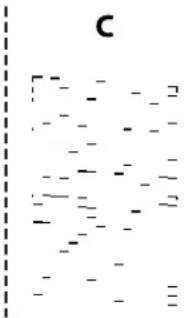
text_image c
text_image Epson SL-01800 Series Maintenance Tool Standing By EPSON SL-01800 Series 10 Hz Print Paper/State Bulk Sendlab Photo Copy Shop Print maintenance Diagnostic Cleaning Normal Saving Hit Forecast Cleaning Normal Power Noise Check Normal Saving Hit Print Check Pattern All Copy Printer History Operation History Date Printer Name Printer settings System Environment Settings Close
text_image Epson SL-D1000 Series Maintenance Tool Standing By EPSON SL-D1000 Series 10 ft Photo Paper(Matze Roll) SureLab Photo Paper Gloss - Printer maintenance Diagnostic Cleaning Normal Saving Ink Execute Forced Cleaning Normal Power Execute Nozzle Check Normal Saving Ink Execute Print Check Pattern Roll Paper Printer history Operation History Date Printer Name Printer settings System Environment Settings Close
text_image Epson SL-D1000 Series Maintenance Tool Printer Name Status Serial number Paper information EPSON SL-D1000 Series Standing By Medium 5 min Off On Auto Photo Paper(Matte Roll) 10 ft SureLab Photo Paper Gloss - DS(190) Printer settings Auto Nozzle Check Settings Paper Settings Apply to all printers Buzzer Medium Set Postcard False Set Alert Sleep Mode Threshold Set Detect Postal Frame 1 60 5 minutes All Sheets Quick Print Mode Set Paper Type Detection On Off On Set Remaining Paper Management Set Heater setting On Off On Auto Set Close
text_image Printer settings Auto Nozzle Check Settings Paper Settings Apply to all printers Buzzer Medium Set Sleep Mode Threshold 60 5 minutes Set Quick Print Mode On Off Set Remaining Paper Management On Off Set Postcard False Set Alert Detect Postal Frame All Sheets Paper Type Detection On Set Heater setting On Auto Set
text_image Printer settings Auto Nozzle Check Settings Paper Settings Apply to all printers Auto Nozzle Check Settings Normal Nozzle Check before printing Auto Periodic Check Off 100 25 Nozzle Compensation High quality Auto Cleaning 1 Action when printing trouble is detected Stop Immediately Set
text_image Printer settings Auto Nozzle Check Settings Paper Settings Paper Source Roll Paper Paper Type Photo Paper(Matte Roll) Print Head Alignment Adjustment Number #1 0 #2 0 Print Set Paper Feed Adjustment Adjustment Number #1 0 #2 0 Print Set
text_image Printer maintenance Diagnostic Cleaning ● Normal ○ Saving Ink Forced Cleaning ● Normal ○ Power Nozzle Check ● Normal ○ Saving Ink ○ Print Check Pattern Roll Paper
text_image Printer maintenance Diagnostic Cleaning ● Normal ○ Saving Ink Execute Forced Cleaning ● Normal ○ Power Execute Nozzle Check ○ Normal ○ Saving Ink Execute ● Print Check Pattern Roll Paper

L'imprimante imprime le motif de vérification.

text_image K LC M Y C LM
text_image Printer maintenance Diagnostic Cleaning ● Normal ○ Saving Ink Execute Forced Cleaning ● Normal ○ Power Execute Nozzle Check ● Normal ○ Saving Ink Execute ○ Print Check Pattern Roll Paper
text_image Printer maintenance Diagnostic Cleaning ● Normal ○ Saving Ink Execute Forced Cleaning ○ Normal ● Power Execute Nozzle Check ● Normal ○ Saving Ink Execute ○ Print Check Pattern Roll Paper
text_image Printer settings Auto Nozzle Check Settings Paper Settings Paper Source Roll Paper Paper Type Photo Paper(Matte Roll) Print Head Alignment Adjustment Number #1 0 #2 0 Print Set
text_image Printer settings Auto Nozzle Check Settings Paper Settings Paper Source Roll Paper Paper Type Photo Paper(Motte Roll) Print Head Alignment Adjustment Number #1 0 #2 0 Print Set
text_image Printer settings Auto Nozzle Check Settings Paper Settings Paper Source Roll Paper Paper Type Photo Paper(Mette Roll) Print Head Alignment Adjustment Number #1 0 #2 0 Print Set
text_image Printer settings Auto Nozzle Check Settings Paper Settings Paper Source Roll Paper Paper Type Photo Paper(Matte Roll) Print Head Alignment Adjustment Number #1 0 #2 0 Print Set
text_image Printer settings Auto Nozzle Check Settings Paper Settings Paper Source Roll Paper Paper Type Photo Paper(Matte Roll) Print Head Alignment Adjustment Number #1 0 #2 0 Print Set Paper Feed Adjustment Adjustment Number #1 0 #2 0 Print Set
text_image Printer settings Auto Nozzle Check Settings Paper Settings Paper Source Roll Paper Paper Type Photo Paper (Matte Roll) Print Head Alignment Adjustment Number #1 0 #2 0 ① Print Set ② Paper Feed Adjustment Adjustment Number #1 0 #2 0 Print Set
text_image SL Printer Maintenance Tool EPSON SL-DXXXX Series Ready Update Printer Window Nozzle Check Diagnostic Clustering Foreset Clustering Print Head Alignment Operation Condition Settings Auto Toggle Check Settings Save Status Sheet SL Paper Type Additional Tool Printer List

Remarque :

text_image SL Printer Maintenance Tool EPSON SL-DXXXX Series Ready Update Printer Window Nozzle Check Diagnostic Cleaning Forced Cleaning Print Head Alignment Operation Condition Settings Auto Nozzle Check Settings Save Status Sheet SL Paper Type Additional Tool Printer List
text_image SL Printer Maintenance Tool EPSON EPSON SL-DXXXX Series Operation Condition Settings 1 Buzzer : Off 2 Sleep Mode Threshold : 10 minutes 3 Enable Quick Print Mode 4 Enable Remaining Paper Management 5 Postcard False Set Alert Detect Postal Frame : First Sheet 6 Enable Paper Type Detection Heater setting : On Printing may be slow. For details, refer to the manual. Cancel Set
text_image SL Printer Maintenance Tool EPSON EPSON SL-DXXXX Series Nozzle Check Check the nozzles for clogging. Connect the printer to the computer and turn on the printer. -Normal Automatically check the nozzles for clogging by printing a nozzle check pattern. -Saving Ink Automatically check the nozzles for clogging without printing a nozzle check pattern. -Print ① Use Check Pattern Visual ② Save Ink Normal Print Nozzle Check Pattern Cancel Execute
text_image SL Printer Maintenance Tool EPSON EPSON SL-DXXXX Series Nozzle Check Check the nozzles for clogging. Connect the printer to the computer and turn on the printer. -Normal Automatically check the nozzles for clogging by printing a nozzle check pattern. -Saving Ink Automatically check the nozzles for clogging without printing a nozzle check pattern. -Print Nozzle Check Pattern Visually check the nozzles for clogging by printing a nozzle check pattern. ① Normal ● Print Nozzle Check Pattern ② Cancel Execute

L'imprimante imprime le motif de vérification.

text_image K LC M Y C LM
text_image SL Printer Maintenance Tool EPSON EPSON SL-DXXXX Series Diagnostic Cleaning Detect clogged nozzles and automatically perform Diagnostic Cleaning. If Diagnostic Cleaning does not clear the clogged nozzles, perform Power Cleaning. -Normal Automatically check the nozzles for clogging by printing a check pattern. If clogged nozzles are found, perform Diagnostic Cleaning. -Saving Ink Automatically check the nozzles for clogging without printing a check pattern. If clogged nozzles are found, perform Diagnostic Cleaning. ① Normal Saving Ink ② Execute Cancel
text_image SL Printer Maintenance Tool EPSON EPSON SL-DXXXX Series Forced Cleaning The print head is cleaned by ejecting ink from the nozzles. Because this function consumes ink, it should only be performed when nozzles are clogged. Select one of the following, and then click [Execute]. ① Normal Power ② Execute Cancel
text_image SL Printer Maintenance Tool EPSON EPSON SL-DXXXX Series AA Print Head Alignment Follow the procedure below to print a gap adjustment pattern. 1. Load the paper you want to adjust, and then select the Paper Source. 2. When printing from the rear paper feed, select the Paper Type. 3. Click [Print]. Paper Source : Roll Paper Paper Type : SureLab Photo Paper Gloss (250) Skip Cancel Print
text_image SL Printer Maintenance Tool EPSON EPSON SL-DXXXX Series Print Head Alignment Select the adjustment number that does not have any vertical lines from the printed adjustment patterns. Select the same adjustment number on the screen, and then click [Set]. #1 0 #2 0 ① ② Cancel Set
text_image SL Printer Maintenance Tool EPSON EPSON SL-DXXXX Series AA Print Head Alignment Follow the procedure below to print a gap adjustment pattern. 1. Load the paper you want to adjust, and then select the Paper Source. 2. When printing from the rear paper feed, select the Paper Type. 3. Click [Print]. Paper Source : Roll Paper Paper Type : SureLab Photo Paper Gloss (250) Skip Cancel Print
text_image SL Printer Maintenance Tool EPSON EPSON SL-DXXXX Series AA Print Head Alignment Follow the procedure below to print a paper feed adjustment pattern. 1. Load the paper you want to adjust, and then select the Paper Source. 2. When printing from the rear paper feed, select the Paper Type. 3. Click [Print]. Paper Source : Roll Paper Paper Type : SureLab Photo Paper Gloss (250) Cancel Print
text_image SL Printer Maintenance Tool EPSON EPSON SL-DXXXX Series Print Head Alignment Select the adjustment values for the two blocks with the least number of gaps or overlapping lines from the printed adjustment pattern. Select the same adjustment values on the screen, and then click [Set]. #1 0 #2 0 ① ② Cancel Set
text_image See what's printing Set as default printer Printing preferences Printer properties Create shortcut Remove device Troubleshoot Properties
text_image EPSON SL-DX00X Series Printing Preferences Main Page Lay Maintenance E:\Status Monitor 3 Monitoring Preferences Speed Progress Print Queue Maintenance Tool Paper Type Additional Tool Language: English (English) Version: OK Cancel Apply
text_image Saves Media Reading Paper Type File ID: 100.1289 Use Media Type Color Density Printer Profile Custom Settings... Set

EPSON SureLab SL-D1000 - Remarque : - 1

text_image Saves Media Reading Paper Type File Media Type: Color Density Printer Profile lossRoll 1 Photo Paper (Glossy) ice lossRoll 2 Photo Paper (Matte) ice lossSheet 3 Photo Paper (Glossy) ice betaSheet 4 Photo Paper (Matte) ice ① ② Custom Settings... Set
text_image SL Printer Maintenance Tool EPSON SL-DXXXX Series Ready Update Printer Windows Netzzle Check Diagnostic Cleaning Forceat Cleaning Print Head Alignment Operation Condition Settings Auto Nzzle Check Settings Save Status Sheet SL Paper Type Additional Tool Printer List
text_image SL Paper Type Additional Tool Update the paper information. Select the Paper Type File you want to set. Select...

5

text_image SL Paper Type Additional Tool Update the paper information. Select the Paper Type File you want to set. ...paper_5C/THPaper_2 Manual_.paper Select... Next

6

text_image SL Paper Type Additional Tool Select the media that you want to use. The maximum that you can specify is 10. PGSS250-en PLSS250-en PGMATT-en PGDS225-en GDS190-en DL225-en PGDL190-en PPGloss-en PPMatt-en Card-en Next Back Next
text_image See what's printing Set as default printer Printing preferences Printer properties Create shortcut Remove device Troubleshoot Properties
text_image EPSON SL-D1000X Series Printing Preferences Men Page Key Maintenance E:\Users Monitor 3 Monitoring Preferences Speed Progress Print Queue Maintenance Tool Paper Type Additional Tool Language English (English) version OK Cancel Supply

4

text_image Saves Media Reading Paper Type File ID: 100.000 Use Media Type Color Density Printer Profile Custom Settings... Media Type Photo Paper(Glossy) Name Color Density 0 Printer Profile Epson_SL PhotoPaperGlossPie Add Set

5

text_image Saves Media Reading Paper Type File ID: 001288 Use Media Type Color Density Printer Profile Custom Settings... Media Type Photo Paper/Glassv1 Name XXXXXXXXXX Color Density 0 Printer Profile Epson_SL-D PhotoPaper/Glassv2 Add Set

Remarque :

text_image Saves Media Reading Paper Type File Use Media Type Color Density Printer Profile XJXXXXXXX 0 Epsen_SL-D PhotoPaperGlossics Custom Settings... Media Type Photo Paper(Glossy) Name XXXXXXXX Color Density Printer Profile Epson_SL-D PhotoPaperGlossics Set Add
text_image Select Your Connection Method License Agreement Select Options Installation Connector Check Functions Finish Connect via wireless network (Wi-Fi) Connect via wired LAN (Ethernet) Connect via USB cable Information- You can connect the Printer and computer via wireless LAN (Wi-Fi) Advanced configuration Cancel Back Next
text_image Mobile phone screenshot showing QR code scanning interface with smartphone screen displaying the same QR code
text_image Use Wi-Fi Direct Model Name: PM-AXXX ▶ Description OK Done
text_image SSID XXXXXXXXXX KEY XXXXXXXXXX
text_image Check Network Connection Check Result: FAIL Error code (R=2) See the Network Status and check if the Network Name (SSID) is the SSID you want to connect. If the SSID is correct, make sure to enter the correct password and try again. If your problems persist, see your documentation for help and networking tips. Checked Items Wireless Network Name (SSID) Check FAIL, Communication Mode Check Unchecked Security Mode Check Unchecked MAC Address Filtering Check Unchecked Security Key/Password Check Unchecked IP Address Check Unchecked Detailed IP Setup Check Unchecked Network Status Printer Name SSIGN Printer Model Series IP Address 169.054.137.8 Subout Mask 255.255.0.0 Default Gateway Network Name (SSID) SystemNet Security None Signal Strength Poor MAC Address F9:D0:27:40:CD:AC

a. Code d'erreur

https://epson.sn — Installation

text_image Screenshot of a software toolbar with icons for printer, audio, and text editing functions

EPSON Status Monitor 3

text_image EPSON Status: Microtek 1; EPSON12: 01000 Series Ready The Next to print Combinability Status Text Light Cover Color Magenta Light Magenta Yellow 5x100% 5x100% 5x100% 5x100% 5x100% 5x100% 5x100% 5x100% 5x100% 5x100% 5x100% 5x100% 5x100% 5x100% 5x100% 5x100% 5x100% 5x124 x 267 mm 4x8 x (212 feet) Print Date 5x
text_image SL Printer Maintenance Tool EPSON SL-DXXXX Series Ready Update Printer Window Nozzle Check Diagnostic Cleaning Forced Cleaning Print Head Alignment Operation Condition Settings Auto Nozzle Check Settings Save Status Sheet SL Paper Type Additional Tool Printer List
natural_image Hand inserting a printer into a device, showing the printer's internal structure and a blue arrow indicating the operation (no text or symbols visible)

EPSON SureLab SL-D1000 - EPSON Status Monitor 3 - 1

natural_image Person inserting a printer into a device, with a blue arrow indicating the next step (no text or symbols visible)
natural_image Hand inserting a printer into a paper airplane, with a blue arrow indicating the process (no text or symbols visible)

Important :

natural_image Product photo of a printer with a circular button and blue arrows indicating rotation (no text or symbols visible)
natural_image White paper printer with a rolled paper or scroll, displayed on a dark surface (no visible text or symbols)

Dépannage

5

natural_image White printer with a blue arrow indicating compression or disassembly (no text or symbols visible)

6

natural_image Close-up of a hand adjusting a mechanical component with a blue circular highlight (no visible text or symbols)

EPSON SureLab SL-D1000 - 6 - 1

natural_image Hand inserting a device into a machine with a blue arrow indicating the process (no text or symbols visible)

7

natural_image Close-up of a mechanical device with a blue arrow pointing to a white sheet, showing internal components (no text or symbols visible)

8

Ouvrez la plaque avant.

natural_image Close-up of a hand pressing a button on a printer rack with a blue circular overlay (no text or symbols visible)

EPSON SureLab SL-D1000 - 8 - 1

natural_image Hand inserting a printer into a device with a blue arrow indicating the process (no text or symbols visible)

9

natural_image Close-up of a printer's internal structure showing paper being inserted into a black plastic holder, with a blue arrow pointing to the paper (no text or symbols visible)

Dépannage

EPSON SureLab SL-D1000 - Dépannage - 1

text_image Diagram of a printer internal structure with numbered components and blue arrows indicating motion or flow direction

EPSON SureLab SL-D1000 - Dépannage - 2

natural_image Hand inserting a device into a white rack, with a blue arrow indicating the motion (no text or symbols visible)

EPSON SureLab SL-D1000 - Dépannage - 3

text_image Instructional diagram showing hand pressing down a printer with blue arrows indicating process steps

EPSON SureLab SL-D1000 - Dépannage - 4

natural_image Close-up of a printer's paper roll with a paperclip and paper filter (no visible text or symbols)

Dépannage

EPSON SureLab SL-D1000 - Dépannage - 1

natural_image Close-up of a printer's front panel showing internal components with a blue arrow pointing to a component (no text or symbols visible)

Important :

natural_image Hand inserting a printer into a paper airplane, with a blue arrow indicating the process (no text or symbols visible)

EPSON SureLab SL-D1000 - Important : - 1

EPSON SureLab SL-D1000 - Important : - 2

natural_image Hand inserting a printer into a paper case, with a blue arrow indicating the process (no text or symbols visible)

EPSON SureLab SL-D1000 - Important : - 3

natural_image Hand inserting a printer into a paper airplane, with a blue arrow indicating the printer's left side (no text or symbols visible)

EPSON SureLab SL-D1000 - Important : - 4

natural_image Product photo showing a printer with a circular button and blue arrows indicating rotation (no text or symbols)
text_image Hand operating a printer with blue directional arrows indicating process steps, labeled ① and ②

Dépannage

natural_image 3D rendering of a white electronic device with a blue arrow pointing to a component (no text or symbols visible)
natural_image Close-up of a printer's internal structure with a blue arrow pointing to a white paper sheet (no text or symbols visible)
text_image Hand operating a printer with blue directional arrows indicating rotation or movement, labeled ① and ②.
natural_image 3D rendering of a white electronic device with a blue arrow pointing to its side panel (no text or symbols visible)
natural_image Hand inserting a device into a white paper holder with a blue arrow indicating rotation (no text or symbols visible)
text_image Instructional diagram showing a printer presser with blue arrows indicating two steps: ① and ②.

3 Retirez le capot de l'imprimante.

natural_image Hand inserting a printer into a white paper airplane, with a blue arrow indicating the printer's left side (no text or symbols visible)
natural_image Diagram showing a printer with scissors and a close-up of its internal structure, no text or symbols present.
natural_image Close-up of a printer's internal structure with a blue arrow pointing to a blank sheet, no visible text or symbols.

Dépannage

EPSON SureLab SL-D1000 - Dépannage - 1

natural_image Interior view of a printer or printer with a blue arrow pointing to a black plastic cover (no visible text or symbols)

EPSON SureLab SL-D1000 - Dépannage - 2

Important :

natural_image Close-up of a mechanical component with textured surfaces and a blue rectangular outline (no visible text or symbols)

EPSON SureLab SL-D1000 - Important : - 1

natural_image Interior view of a printer or printer with a black cover and a small screen, showing no visible text or symbols.

EPSON SureLab SL-D1000 - Important : - 2

natural_image Close-up of a printer's paper roll being cut with scissors, no visible text or symbols

EPSON SureLab SL-D1000 - Important : - 3

Important :

natural_image Hand inserting a printer into a device, showing the printer's internal structure and blue arrow indicating the operation (no text or symbols visible)

EPSON SureLab SL-D1000 - Important : - 1

EPSON SureLab SL-D1000 - Important : - 2

natural_image Hand inserting a printer into a rack, with a blue arrow indicating the process (no text or symbols visible)

Dépannage

6

natural_image Hand inserting a printer into a paper airplane, with a blue arrow indicating the printer's left side (no text or symbols visible)

7

natural_image Close-up of a printer with blue arrows indicating rotation, showing internal components (no text or symbols visible)
natural_image Hand inserting a card into a printer's tray, showing a blue arrow indicating the process (no text or symbols visible)

9

text_image Hand operating a printer with blue directional arrows indicating process steps, labeled ① and ②

10

natural_image 3D rendering of a white electronic device with a blue arrow pointing to a component (no text or symbols visible)

11

natural_image Close-up of a printer's internal structure with a blue arrow pointing to a component (no visible text or symbols)

EPSON SureLab SL-D1000 - 11 - 1

natural_image Interior view of a printer or printer with a blue arrow pointing to a black plastic cover (no visible text or symbols)

EPSON SureLab SL-D1000 - 11 - 2

Important :

natural_image Close-up of a dark, textured surface with vertical grout and small protrusions, enclosed in a blue rectangular border (no text or symbols visible)

EPSON SureLab SL-D1000 - Important : - 1

natural_image Interior view of a printer or printer with a black cover and a digital display (no visible text or symbols)

EPSON SureLab SL-D1000 - Important : - 2

natural_image Hand inserting a printer into a paper airplane, with a blue arrow pointing to the print area (no text or symbols visible)

EPSON SureLab SL-D1000 - Important : - 3

text_image Hand operating a printer with blue directional arrows indicating process flow, labeled ① and ②

Dépannage

5

natural_image 3D rendering of a white electronic device with a blue arrow pointing to its side panel (no text or symbols visible)

6

natural_image Hand inserting a device into a white machine with a blue arrow indicating rotation (no text or symbols visible)

2

text_image Hand inserting a printer into a paper airplane, with numbered arrows indicating process steps

3

natural_image White printer with black plastic sheet being inserted into a rack, showing internal components and a blue arrow pointing to the rack (no text or symbols visible)

4

text_image Hand operating a printer with numbered instructions and blue arrows indicating process flow

Dépannage

5

natural_image 3D rendering of a white electronic device with a blue arrow pointing to its side panel (no text or symbols visible)

6

natural_image Two-panel image showing a white printer and a hand holding a white paper on a table (no text or symbols visible)
natural_image Exterior view of a white and black electronic device casing (no visible text or symbols)

EPSON SureLab SL-D1000 - 6 - 1

text_image OK No

https://www.epson.eu/conformity

https://support.epson.net/zicta/

Espace nécessaire

Boost Software License - Version 1.0 - August 17th, 2003

Permission is hereby granted, free of charge, to any person or organization obtaining a copy of the software and accompanying documentation covered by this license (the "Software") to use, reproduce, display, distribute, execute, and transmit the Software, and to prepare derivative works of the Software, and to permit third-parties to whom the Software is furnished to do so, all subject to the following:

Annexe

The copyright notices in the Software and this entire statement, including the above license grant, this restriction and the following disclaimer, must be included in all copies of the Software, in whole or in part, and all derivative works of the Software, unless such copies or derivative works are solely in the form of machine-executable object code generated by a source language processor.

THE SOFTWARE IS PROVIDED "AS IS", WITHOUT WARRANTY OF ANY KIND, EXPRESS OR IMPLIED, INCLUDING BUT NOT LIMITED TO THE WARRANTIES OF MERCHANTABILITY, FITNESS FOR A PARTICULAR PURPOSE, TITLE AND NON-INFRINGEMENT. IN NO EVENT SHALL THE COPYRIGHT HOLDERS OR ANYONE DISTRIBUTING THE SOFTWARE BE LIABLE FOR ANY DAMAGES OR OTHER LIABILITY, WHETHER IN CONTRACT, TORT OR OTHERWISE, ARISING FROM, OUT OF OR IN CONNECTION WITH THE SOFTWARE OR THE USE OR OTHER DEALINGS IN THE SOFTWARE.

Inno Setup License

Except where otherwise noted, all of the documentation and software included in the Inno Setup package is copyrighted by Jordan Russell.

Copyright (C) 1997-2021 Jordan Russell. All rights reserved.

Portions Copyright (C) 2000-2021 Martijn Laan. All rights reserved.

This software is provided "as-is," without any express or implied warranty. In no event shall the author be held liable for any damages arising from the use of this software.

Permission is granted to anyone to use this software for any purpose, including commercial applications, and to alter and redistribute it, provided that the following conditions are met:

  1. All redistributions of source code files must retain all copyright notices that are currently in place, and this list of conditions without modification.

  2. All redistributions in binary form must retain all occurrences of the above copyright notice and web site addresses that are currently in place (for example, in the About boxes).

  3. The origin of this software must not be misrepresented; you must not claim that you wrote the original software. If you use this software to distribute a product, an acknowledgment in the product documentation would be appreciated but is not required.

  4. Modified versions in source or binary form must be plainly marked as such, and must not be misrepresented as being the original software.

Jordan Russell

jr-2020 AT jrsoftware.org

https://jrsoftware.org/

7-Zip Command line version

License for use and distribution

7-Zip Copyright (C) 1999-2010 Igor Pavlov.

7za.exe is distributed under the GNU LGPL license

Notes:

You can use 7-Zip on any computer, including a computer in a commercial organization. You don't need to register or pay for 7-Zip.

GNU LGPL information

This library is free software; you can redistribute it and/or modify it under the terms of the GNU Lesser General Public License as published by the Free Software Foundation; either version 2.1 of the License, or (at your option) any later version.

This library is distributed in the hope that it will be useful, but WITHOUT ANY WARRANTY; without even the implied warranty of MERCHANTABILITY or FITNESS FOR A PARTICULAR PURPOSE. See the GNU Lesser General Public License for more details.

You can receive a copy of the GNU Lesser General Public License from http://www.gnu.org/

GNU LESSER GENERAL PUBLIC LICENSE Version 2.1, February 1999

Copyright (C) 1991, 1999 Free Software Foundation, Inc.

51 Franklin Street, Fifth Floor, Boston, MA 02110-1301 USA

Everyone is permitted to copy and distribute verbatim copies of this license document, but changing it is not allowed.

[This is the first released version of the Lesser GPL. It also counts as the successor of the GNU Library Public License, version 2, hence the version number 2.1.]

Preamble

The licenses for most software are designed to take away your freedom to share and change it. By contrast, the GNU General Public Licenses are intended to guarantee your freedom to share and change free software--to make sure the software is free for all its users.

Annexe

This license, the Lesser General Public License, applies to some specially designated software packages--typically libraries--of the Free Software Foundation and other authors who decide to use it. You can use it too, but we suggest you first think carefully about whether this license or the ordinary General Public License is the better strategy to use in any particular case, based on the explanations below.

When we speak of free software, we are referring to freedom of use, not price. Our General Public Licenses are designed to make sure that you have the freedom to distribute copies of free software (and charge for this service if you wish); that you receive source code or can get it if you want it; that you can change the software and use pieces of it in new free programs; and that you are informed that you can do these things.

To protect your rights, we need to make restrictions that forbid distributors to deny you these rights or to ask you to surrender these rights. These restrictions translate to certain responsibilities for you if you distribute copies of the library or if you modify it.

For example, if you distribute copies of the library, whether gratis or for a fee, you must give the recipients all the rights that we gave you. You must make sure that they, too, receive or can get the source code. If you link other code with the library, you must provide complete object files to the recipients, so that they can relink them with the library after making changes to the library and recompiling it. And you must show them these terms so they know their rights.

We protect your rights with a two-step method: (1) we copyright the library, and (2) we offer you this license, which gives you legal permission to copy, distribute and/or modify the library.

To protect each distributor, we want to make it very clear that there is no warranty for the free library. Also, if the library is modified by someone else and passed on, the recipients should know that what they have is not the original version, so that the original author's reputation will not be affected by problems that might be introduced by others.

Finally, software patents pose a constant threat to the existence of any free program. We wish to make sure that a company cannot effectively restrict the users of a free program by obtaining a restrictive license from a patent holder. Therefore, we insist that any patent license obtained for a version of the library must be consistent with the full freedom of use specified in this license.

Most GNU software, including some libraries, is covered by the ordinary GNU General Public License. This license, the GNU Lesser General Public License, applies to certain designated libraries, and is quite different from the ordinary General Public License. We use this license for certain libraries in order to permit linking those libraries into non-free programs.

When a program is linked with a library, whether statically or using a shared library, the combination of the two is legally speaking a combined work, a derivative of the original library. The ordinary General Public License therefore permits such linking only if the entire combination fits its criteria of freedom. The Lesser General Public License permits more lax criteria for linking other code with the library.

Annexe

We call this license the "Lesser" General Public License because it does Less to protect the user's freedom than the ordinary General Public License. It also provides other free software developers Less of an advantage over competing non-free programs. These disadvantages are the reason we use the ordinary General Public License for many libraries. However, the Lesser license provides advantages in certain special circumstances.

For example, on rare occasions, there may be a special need to encourage the widest possible use of a certain library, so that it becomes a de-facto standard. To achieve this, non-free programs must be allowed to use the library. A more frequent case is that a free library does the same job as widely used non-free libraries. In this case, there is little to gain by limiting the free library to free software only, so we use the Lesser General Public License.

In other cases, permission to use a particular library in non-free programs enables a greater number of people to use a large body of free software. For example, permission to use the GNU C Library in non-free programs enables many more people to use the whole GNU operating system, as well as its variant, the GNU/Linux operating system.

Although the Lesser General Public License is Less protective of the users' freedom, it does ensure that the user of a program that is linked with the Library has the freedom and the wherewithal to run that program using a modified version of the Library.

The precise terms and conditions for copying, distribution and modification follow. Pay close attention to the difference between a "work based on the library" and a "work that uses the library". The former contains code derived from the library, whereas the latter must be combined with the library in order to run.

TERMS AND CONDITIONS FOR COPYING, DISTRIBUTION AND MODIFICATION

  1. This License Agreement applies to any software library or other program which contains a notice placed by the copyright holder or other authorized party saying it may be distributed under the terms of this Lesser General Public License (also called "this License"). Each licensee is addressed as "you".

A "library" means a collection of software functions and/or data prepared so as to be conveniently linked with application programs (which use some of those functions and data) to form executables.

The "Library", below, refers to any such software library or work which has been distributed under these terms. A "work based on the Library" means either the Library or any derivative work under copyright law: that is to say, a work containing the Library or a portion of it, either verbatim or with modifications and/or translated straightforwardly into another language. (Hereinafter, translation is included without limitation in the term "modification".)

"Source code" for a work means the preferred form of the work for making modifications to it. For a library, complete source code means all the source code for all modules it contains, plus any associated interface definition files, plus the scripts used to control compilation and installation of the library.

Annexe

Activities other than copying, distribution and modification are not covered by this License; they are outside its scope. The act of running a program using the Library is not restricted, and output from such a program is covered only if its contents constitute a work based on the Library (independent of the use of the Library in a tool for writing it). Whether that is true depends on what the Library does and what the program that uses the Library does.

  1. You may copy and distribute verbatim copies of the Library's complete source code as you receive it, in any medium, provided that you conspicuously and appropriately publish on each copy an appropriate copyright notice and disclaimer of warranty; keep intact all the notices that refer to this License and to the absence of any warranty; and distribute a copy of this License along with the Library.

You may charge a fee for the physical act of transferring a copy, and you may at your option offer warranty protection in exchange for a fee.

  1. You may modify your copy or copies of the Library or any portion of it, thus forming a work based on the Library, and copy and distribute such modifications or work under the terms of Section 1 above, provided that you also meet all of these conditions:

a) The modified work must itself be a software library.

b) You must cause the files modified to carry prominent notices stating that you changed the files and the date of any change.

c) You must cause the whole of the work to be licensed at no charge to all third parties under the terms of this License.

d) If a facility in the modified Library refers to a function or a table of data to be supplied by an application program that uses the facility, other than as an argument passed when the facility is invoked, then you must make a good faith effort to ensure that, in the event an application does not supply such function or table, the facility still operates, and performs whatever part of its purpose remains meaningful.

(For example, a function in a library to compute square roots has a purpose that is entirely well-defined independent of the application. Therefore, Subsection 2d requires that any application-supplied function or table used by this function must be optional: if the application does not supply it, the square root function must still compute square roots.)

These requirements apply to the modified work as a whole. If identifiable sections of that work are not derived from the Library, and can be reasonably considered independent and separate works in themselves, then this License, and its terms, do not apply to those sections when you distribute them as separate works. But when you distribute the same sections as part of a whole which is a work based on the Library, the distribution of the whole must be on the terms of this License, whose permissions for other licensees extend to the entire whole, and thus to each and every part regardless of who wrote it.

Annexe

Thus, it is not the intent of this section to claim rights or contest your rights to work written entirely by you; rather, the intent is to exercise the right to control the distribution of derivative or collective works based on the Library.

In addition, mere aggregation of another work not based on the Library with the Library (or with a work based on the Library) on a volume of a storage or distribution medium does not bring the other work under the scope of this License.

  1. You may opt to apply the terms of the ordinary GNU General Public License instead of this License to a given copy of the Library. To do this, you must alter all the notices that refer to this License, so that they refer to the ordinary GNU General Public License, version 2, instead of to this License. (If a newer version than version 2 of the ordinary GNU General Public License has appeared, then you can specify that version instead if you wish.) Do not make any other change in these notices.

Once this change is made in a given copy, it is irreversible for that copy, so the ordinary GNU General Public License applies to all subsequent copies and derivative works made from that copy.

This option is useful when you wish to copy part of the code of the Library into a program that is not a library.

  1. You may copy and distribute the Library (or a portion or derivative of it, under Section 2) in object code or executable form under the terms of Sections 1 and 2 above provided that you accompany it with the complete corresponding machine-readable source code, which must be distributed under the terms of Sections 1 and 2 above on a medium customarily used for software interchange.

If distribution of object code is made by offering access to copy from a designated place, then offering equivalent access to copy the source code from the same place satisfies the requirement to distribute the source code, even though third parties are not compelled to copy the source along with the object code.

  1. A program that contains no derivative of any portion of the Library, but is designed to work with the Library by being compiled or linked with it, is called a "work that uses the Library". Such a work, in isolation, is not a derivative work of the Library, and therefore falls outside the scope of this License.

However, linking a "work that uses the Library" with the Library creates an executable that is a derivative of the Library (because it contains portions of the Library), rather than a "work that uses the library". The executable is therefore covered by this License. Section 6 states terms for distribution of such executables.

When a "work that uses the Library" uses material from a header file that is part of the Library, the object code for the work may be a derivative work of the Library even though the source code is not. Whether this is true is especially significant if the work can be linked without the Library, or if the work is itself a library. The threshold for this to be true is not precisely defined by law.

If such an object file uses only numerical parameters, data structure layouts and accessors, and small macros and small inline functions (ten lines or less in length), then the use of the object file is unrestricted, regardless of whether it is legally a derivative work. (Executables containing this object code plus portions of the Library will still fall under Section 6.)

Annexe

Otherwise, if the work is a derivative of the Library, you may distribute the object code for the work under the terms of Section 6. Any executables containing that work also fall under Section 6, whether or not they are linked directly with the Library itself.

  1. As an exception to the Sections above, you may also combine or link a "work that uses the Library" with the Library to produce a work containing portions of the Library, and distribute that work under terms of your choice, provided that the terms permit modification of the work for the customer's own use and reverse engineering for debugging such modifications.

You must give prominent notice with each copy of the work that the Library is used in it and that the Library and its use are covered by this License. You must supply a copy of this License. If the work during execution displays copyright notices, you must include the copyright notice for the Library among them, as well as a reference directing the user to the copy of this License. Also, you must do one of these things:

a) Accompany the work with the complete corresponding machine-readable source code for the Library including whatever changes were used in the work (which must be distributed under Sections 1 and 2 above); and, if the work is an executable linked with the Library, with the complete machine-readable "work that uses the Library", as object code and/or source code, so that the user can modify the Library and then relink to produce a modified executable containing the modified Library. (It is understood that the user who changes the contents of definitions files in the Library will not necessarily be able to recompile the application to use the modified definitions.)
b) Use a suitable shared library mechanism for linking with the Library. A suitable mechanism is one that (1) uses at run time a copy of the library already present on the user's computer system, rather than copying library functions into the executable, and (2) will operate properly with a modified version of the library, if the user installs one, as long as the modified version is interface-compatible with the version that the work was made with.
c) Accompany the work with a written offer, valid for at least three years, to give the same user the materials specified in Subsection 6a, above, for a charge no more than the cost of performing this distribution.
d) If distribution of the work is made by offering access to copy from a designated place, offer equivalent access to copy the above specified materials from the same place.
e) Verify that the user has already received a copy of these materials or that you have already sent this user a copy.

For an executable, the required form of the "work that uses the Library" must include any data and utility programs needed for reproducing the executable from it. However, as a special exception, the materials to be distributed need not include anything that is normally distributed (in either source or binary form) with the major components (compiler, kernel, and so on) of the operating system on which the executable runs, unless that component itself accompanies the executable.

It may happen that this requirement contradicts the license restrictions of other proprietary libraries that do not normally accompany the operating system. Such a contradiction means you cannot use both them and the Library together in an executable that you distribute.

Annexe

  1. You may place library facilities that are a work based on the Library side-by-side in a single library together with other library facilities not covered by this License, and distribute such a combined library, provided that the separate distribution of the work based on the Library and of the other library facilities is otherwise permitted, and provided that you do these two things:

a) Accompany the combined library with a copy of the same work based on the Library, uncombined with any other library facilities. This must be distributed under the terms of the Sections above.

b) Give prominent notice with the combined library of the fact that part of it is a work based on the Library, and explaining where to find the accompanying uncombined form of the same work.

  1. You may not copy, modify, sublicense, link with, or distribute the Library except as expressly provided under this License. Any attempt otherwise to copy, modify, sublicense, link with, or distribute the Library is void, and will automatically terminate your rights under this License. However, parties who have received copies, or rights, from you under this License will not have their licenses terminated so long as such parties remain in full compliance.

  2. You are not required to accept this License, since you have not signed it. However, nothing else grants you permission to modify or distribute the Library or its derivative works. These actions are prohibited by law if you do not accept this License. Therefore, by modifying or distributing the Library (or any work based on the Library), you indicate your acceptance of this License to do so, and all its terms and conditions for copying, distributing or modifying the Library or works based on it.

  3. Each time you redistribute the Library (or any work based on the Library), the recipient automatically receives a license from the original licensor to copy, distribute, link with or modify the Library subject to these terms and conditions. You may not impose any further restrictions on the recipients' exercise of the rights granted herein. You are not responsible for enforcing compliance by third parties with this License.

  4. If, as a consequence of a court judgment or allegation of patent infringement or for any other reason (not limited to patent issues), conditions are imposed on you (whether by court order, agreement or otherwise) that contradict the conditions of this License, they do not excuse you from the conditions of this License. If you cannot distribute so as to satisfy simultaneously your obligations under this License and any other pertinent obligations, then as a consequence you may not distribute the Library at all. For example, if a patent license would not permit royalty-free redistribution of the Library by all those who receive copies directly or indirectly through you, then the only way you could satisfy both it and this License would be to refrain entirely from distribution of the Library.

If any portion of this section is held invalid or unenforceable under any particular circumstance, the balance of the section is intended to apply, and the section as a whole is intended to apply in other circumstances.

It is not the purpose of this section to induce you to infringe any patents or other property right claims or to contest validity of any such claims; this section has the sole purpose of protecting the integrity of the free software distribution system which is implemented by public license practices. Many people have made generous contributions to the wide range of software distributed through that system in reliance on consistent application of that system; it is up to the author/donor to decide if he or she is willing to distribute software through any other system and a licensee cannot impose that choice.

Annexe

This section is intended to make thoroughly clear what is believed to be a consequence of the rest of this License.

  1. If the distribution and/or use of the Library is restricted in certain countries either by patents or by copyrighted interfaces, the original copyright holder who places the Library under this License may add an explicit geographical distribution limitation excluding those countries, so that distribution is permitted only in or among countries not thus excluded. In such case, this License incorporates the limitation as if written in the body of this License.
  2. The Free Software Foundation may publish revised and/or new versions of the Lesser General Public License from time to time. Such new versions will be similar in spirit to the present version, but may differ in detail to address new problems or concerns.

Each version is given a distinguishing version number. If the Library specifies a version number of this License which applies to it and "any later version", you have the option of following the terms and conditions either of that version or of any later version published by the Free Software Foundation. If the Library does not specify a license version number, you may choose any version ever published by the Free Software Foundation.

  1. If you wish to incorporate parts of the Library into other free programs whose distribution conditions are incompatible with these, write to the author to ask for permission. For software which is copyrighted by the Free Software Foundation, write to the Free Software Foundation; we sometimes make exceptions for this. Our decision will be guided by the two goals of preserving the free status of all derivatives of our free software and of promoting the sharing and reuse of software generally.

NO WARRANTY

  1. BECAUSE THE LIBRARY IS LICENSED FREE OF CHARGE, THERE IS NO WARRANTY FOR THE LIBRARY, TO THE EXTENT PERMITTED BY APPLICABLE LAW. EXCEPT WHEN OTHERWISE STATED IN WRITING THE COPYRIGHT HOLDERS AND/OR OTHER PARTIES PROVIDE THE LIBRARY "AS IS" WITHOUT WARRANTY OF ANY KIND, EITHER EXPRESSED OR IMPLIED, INCLUDING, BUT NOT LIMITED TO, THE IMPLIED WARRANTIES OF MERCHANTABILITY AND FITNESS FOR A PARTICULAR PURPOSE. THE ENTIRE RISK AS TO THE QUALITY AND PERFORMANCE OF THE LIBRARY IS WITH YOU. SHOULD THE LIBRARY PROVE DEFECTIVE, YOU ASSUME THE COST OF ALL NECESSARY SERVICING, REPAIR OR CORRECTION.
  2. IN NO EVENT UNLESS REQUIRED BY APPLICABLE LAW OR AGREED TO IN WRITING WILL ANY COPYRIGHT HOLDER, OR ANY OTHER PARTY WHO MAY MODIFY AND/OR REDISTRIBUTE THE LIBRARY AS PERMITTED ABOVE, BE LIABLE TO YOU FOR DAMAGES, INCLUDING ANY GENERAL, SPECIAL, INCIDENTAL OR CONSEQUENTIAL DAMAGES ARISING OUT OF THE USE OR INABILITY TO USE THE LIBRARY (INCLUDING BUT NOT LIMITED TO LOSS OF DATA OR DATA BEING RENDERED INACCURATE OR LOSSES SUSTAINED BY YOU OR THIRD PARTIES OR A FAILURE OF THE LIBRARY TO OPERATE WITH ANY OTHER SOFTWARE), EVEN IF SUCH HOLDER OR OTHER PARTY HAS BEEN ADVISED OF THE POSSIBILITY OF SUCH DAMAGES.

END OF TERMS AND CONDITIONS

How to Apply These Terms to Your New Libraries

Annexe

If you develop a new library, and you want it to be of the greatest possible use to the public, we recommend making it free software that everyone can redistribute and change. You can do so by permitting redistribution under these terms (or, alternatively, under the terms of the ordinary General Public License).

To apply these terms, attach the following notices to the library. It is safest to attach them to the start of each source file to most effectively convey the exclusion of warranty; and each file should have at least the "copyright" line and a pointer to where the full notice is found.

Copyright (C)

This library is free software; you can redistribute it and/or modify it under the terms of the GNU Lesser General Public License as published by the Free Software Foundation; either version 2.1 of the License, or (at your option) any later version.

This library is distributed in the hope that it will be useful, but WITHOUT ANY WARRANTY; without even the implied warranty of MERCHANTABILITY or FITNESS FOR A PARTICULAR PURPOSE. See the GNU Lesser General Public License for more details.

You should have received a copy of the GNU Lesser General Public License along with this library; if not, write to the Free Software Foundation, Inc., 51 Franklin Street, Fifth Floor, Boston, MA 02110-1301 USA.

Also add information on how to contact you by electronic and paper mail.

You should also get your employer (if you work as a programmer) or your school, if any, to sign a "copyright disclaimer" for the library, if necessary. Here is a sample; alter the names:

Yoyodyne, Inc., hereby disclaims all copyright interest in the library 'Frob' (a library for tweaking knobs) written by James Random Hacker.

, 1 April 1990

Ty Coon, President of Vice

That's all there is to it!

PDFsharp License

PDFsharp is published under the MIT License.

Copyright (c) 2005-2014 empira Software GmbH, Troisdorf (Germany)

Annexe

Permission is hereby granted, free of charge, to any person obtaining a copy of this software and associated documentation files (the "Software"), to deal in the Software without restriction, including without limitation the rights to use, copy, modify, merge, publish, distribute, sublicense, and/or sell copies of the Software, and to permit persons to whom the Software is furnished to do so, subject to the following conditions:

The above copyright notice and this permission notice shall be included in all copies or substantial portions of the Software.

THE SOFTWARE IS PROVIDED "AS IS", WITHOUT WARRANTY OF ANY KIND, EXPRESS OR IMPLIED, INCLUDING BUT NOT LIMITED TO THE WARRANTIES OF MERCHANTABILITY, FITNESS FOR A PARTICULAR PURPOSE AND NONINFRINGEMENT. IN NO EVENT SHALL THE AUTHORS OR COPYRIGHT HOLDERS BE LIABLE FOR ANY CLAIM, DAMAGES OR OTHER LIABILITY, WHETHER IN AN ACTION OF CONTRACT, TORT OR OTHERWISE, ARISING FROM, OUT OF OR IN CONNECTION WITH THE SOFTWARE OR THE USE OR OTHER DEALINGS IN THE SOFTWARE.

PDFsharp is Open Source.

You can copy, modify and integrate the source code of PDFsharp in your application without restrictions at all.

This also applies to commercial products (both open source and closed source).

HTML-Renderer / LICENSE

Copyright (c) 2009, José Manuel Menéndez Poo Copyright (c) 2013, Arthur Teplitzki All rights reserved.

Redistribution and use in source and binary forms, with or without modification, are permitted provided that the following conditions are met:

Redistributions of source code must retain the above copyright notice, this list of conditions and the following disclaimer.

Redistributions in binary form must reproduce the above copyright notice, this list of conditions and the following disclaimer in the documentation and/or other materials provided with the distribution.

Neither the name of the menendezpoo.com, ArthurHub nor the names of its contributors may be used to endorse or promote products derived from this software without specific prior written permission.

THIS SOFTWARE IS PROVIDED BY THE COPYRIGHT HOLDERS AND CONTRIBUTORS "AS IS" AND ANY EXPRESS OR IMPLIED WARRANTIES, INCLUDING, BUT NOT LIMITED TO, THE IMPLIED WARRANTIES OF MERCHANTABILITY AND FITNESS FOR A PARTICULAR PURPOSE ARE DISCLAIMED. IN NO EVENT SHALL THE COPYRIGHT HOLDER OR CONTRIBUTORS BE LIABLE FOR ANY DIRECT, INDIRECT, INCIDENTAL, SPECIAL, EXEMPLARY, OR CONSEQUENTIAL DAMAGES

Annexe

(INCLUDING, BUT NOT LIMITED TO, PROCUREMENT OF SUBSTITUTE GOODS OR SERVICES; LOSS OF USE, DATA, OR PROFITS; OR BUSINESS INTERRUPTION) HOWEVER CAUSED AND ON ANY THEORY OF LIABILITY, WHETHER IN CONTRACT, STRICT LIABILITY, OR TORT (INCLUDING NEGLIGENCE OR OTHERWISE) ARISING IN ANY WAY OUT OF THE USE OF THIS SOFTWARE, EVEN IF ADVISED OF THE POSSIBILITY OF SUCH DAMAGE.

CONTRAT DE LICENCE LOGICIELLE DE L'UTILISATEUR FINAL D'EPSON

AVIS À L'ATTENTION DE L'UTILISATEUR : VEUILLEZ LIRE ATTENTIVEMENT LE PRÉSENT CONTRAT AVANT D'INSTALLER OU D'UTILISER CE PRODUIT. SI VOUS ÊTES ÉTABLI AUX ÉTATS-UNIS, LES SECTIONS 19 À 23 DU PRÉSENT DOCUMENT S'APPLICUENT À VOUS. LA SECTION 22 CONTIENT UNE STIPULATION RELATIVE À L'ARBITRAGE EXÉCUTOIRE QUI LIMITE VOTRE CAPACITÉ À DEMANDER RÉPARATION À UN JUGE OU UN JURY DANS UN TRIBUNAL, ET CONSTITUE UNE RENONCIATION À VOTRE DROIT DE PRENDRE PART À DES ACTIONS DE GROUPE ET À DES RECOURS COLLECTIFS EN ARBITRAGE POUR CERTAINS TYPES DE LITIGES. UNE « CLAUSE DE RETRAIT » FIGURE À LA SECTION 22.7 POUR LES PERSONNES SOUHAITANT ÊTRE EXCLUES DE L'ARBITRAGE ET DE LA RENONCIATION À L'IMMUNITÉ DE RECOURS COLLECTIF.

https://support.epson.net/

https://www.epson.com

(https://www.epson.com.tw)

https://www.epson.com.au

Nouvelle-Zélande

https://www.epson.co.nz

(https://www.epson.com.sg)

Centre de services : 68 Nam Ky Khoi Nghia

Street, Nguyen Thai

Binh Ward, District 1,

Ho Chi Minh City, Vietnam

(https://www.epson.co.id)

□Assistance technique

Centre de services Epson

Jakarta Mangga Dua Mall 3rd floor No. 3A/B

Bandung Lippo Center 8th floor

Surabaya Hitech Mall lt IIB No. 12

Jl. Kusuma Bangsa 116–118

Surabaya

Medan Wisma HSBC 4th floor

JI. Ahmad Yani No. 49

Makassar

Téléphone :

(62) 411-350147/411-350148

https://www.epson.com.hk

(https://www.epson.com.my)

(https://www.epson.com.ph)

Manual assistant
Powered by Anthropic
Waiting for your message
Product information

Brand : EPSON

Model : SureLab SL-D1000

Category : Printer