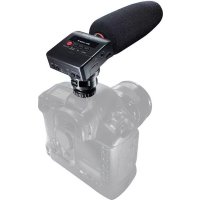
DR10SG - Audio recorder TASCAM - Free user manual and instructions
Find the device manual for free DR10SG TASCAM in PDF.



| Product type | Digital audio recorder |
| Brand | Tascam |
| Model | DR-10SG |
| Microphone | Supercardioid electret condenser shotgun microphone |
| Recording media | microSD cards (64 MB - 2 GB) and microSDHC cards (4 GB - 32 GB) |
| Recording formats | WAV/BWF, linear PCM, 44.1/48 kHz, 16/24 bits |
| Dimensions (W x H x D) | 53 x 168.1 x 70.3 mm |
| Weight | 110 g (with battery), 98 g (without battery) |
| Power supply | 1 AAA battery (alkaline, NiMH or lithium) or USB bus power |
| Battery life (continuous recording) | Approx. 8.5 h (alkaline), 7.5 h (NiMH), 15 h (lithium) |
| Main functions | Dual recording, limiter, low-cut filter (120 Hz), equalizer (4 modes), track increment, locator tone |
| Display | OEL 96 × 16 pixels |
| Headphone output | 3.5 mm stereo mini jack |
| USB port | Micro-B USB 2.0 (mass storage) |
| Noise isolation arm | Included, to reduce mechanical noise |
| Mounting | Accessory shoe (ISO/JIS) or tripod via 1/4 inch threaded socket |
| Frequency response | 50 Hz - 20 kHz |
| Signal-to-noise ratio | 78 dB (A-weighted, mic gain +30 dB) |
| Power consumption | 0.75 W max (USB bus: 0.15 A) |
| Operating temperature range | 0 °C to 40 °C |
| Care and cleaning | Soft dry cloth; avoid chemicals, alcohol, thinners |
| Safety | Do not expose to water, do not block openings, use only with specified accessories |
| Spare parts and repairability | Contact TEAC customer service; repair by qualified technician |
Frequently Asked Questions - DR10SG TASCAM
User questions about DR10SG TASCAM
0 question about this device. Answer the ones you know or ask your own.
Ask a new question about this device
Download the instructions for your Audio recorder in PDF format for free! Find your manual DR10SG - TASCAM and take your electronic device back in hand. On this page are published all the documents necessary for the use of your device. DR10SG by TASCAM.
USER MANUAL DR10SG TASCAM
Linear PCM Recorder for DSLR
D01278200C
OWNER'S MANUAL
ENGLISH
MODE D'EMPLOI
FRANCAIS
MANUAL DEL USUARIO
ESPANOL
BEDIENUNGSANLEITUNG
DEUTSCH
- TASCAM is a trademark of TEAC CORPORATION, registered in the U.S. and other countries.
- microSDHC Logo is a trademark of SD-3C, LLC.

- Other company names, product names and logos in this document are the trademarks or registered trademarks of their respective owners.
テイアツク株式会社
http://tascam.jp/
1834 Gage Road, Montebello, California 90640 USA
TEAC MEXICO, S.A. de C.V.
http://teacmexico.net/
Phone: +52-55-5010-6000
2 Huxley Road, Surrey Research Park, Guildford, GU2 7RE,
United Kingdom
TEAC EUROPE GmbH
http://tascam.eu/
Phone: +49-611-71580
Room 817, Block A, Hailrun Complex, 6021 Shennan Blvd.,
Futian District, Shenzhen 518040, China
Owner's Manual
IMPORTANT SAFETY PRECAUTIONS
DECLARATION OF CONFORMITY
We, TEAC EUROPE GmbH, Bahnstrasse 12, 65205 Wiesbaden-Erbenheim, Germany declare in own responsibility, the TEAC product described in this manual is in compliance with the corresponding technical standards.

IMPORTANT SAFETY INSTRUCTIONS
1 Read these instructions.
2 Keep these instructions.
3 Heed all warnings.
4 Follow all instructions.
5 Do not use this apparatus near water.
6 Clean only with dry cloth.
7 Do not block any ventilation openings. Install in accordance with the manufacturer's instructions.
8 Do not install near any heat sources such as radiators, heat registers, stoves, or other apparatus (including amplifiers) that produce heat.
9 Do not defeat the safety purpose of the polarized or grounding-type plug. A polarized plug has two blades with one wider than the other. A grounding type plug has two blades and a third grounding prong. The wide blade or the third prong are provided for your safety. If the provided plug does not fit into your outlet, consult an electrician for replacement of the obsolete outlet.
10 Protect the power cord from being walked on or pinched particularly at plugs, convenience receptacles, and the point where they exit from the apparatus.
11 Only use attachments/accessories specified by the manufacturer.
12 Use only with the cart, stand, tripod, bracket, or table specified by the manufacturer, or sold with the apparatus. When a cart is used, use caution when moving the cart/apparatus combination to avoid injury from tip-over.

13 Unplug this apparatus during lightning storms or when unused for long periods of time.
14 Refer all servicing to qualified service personnel. Servicing is required when the apparatus has been damaged in any way, such as power-supply cord or plug is damaged, liquid has been spilled or objects have fallen into the apparatus, the apparatus has been exposed to rain or moisture, does not operate normally, or has been dropped.
- The apparatus draws nominal non-operating power from the AC outlet with its POWER or STANDBY/ON switch not in the ON position.
- The mains plug is used as the disconnect device, the disconnect device shall remain readily operable.
- Caution should be taken when using earphones or headphones with the product because excessive sound pressure (volume) from earphones or headphones can cause hearing loss.
If you are experiencing problems with this product, contact TEAC for a service referral. Do not use the product until it has been repaired.
CAUTION
- Do not expose this apparatus to drips or splashes.
- Do not place any objects filled with liquids, such as vases, on the apparatus.
- Do not install this apparatus in a confined space such as a book case or similar unit.
The apparatus should be located close enough to the AC outlet so that you can easily grasp the power cord plug at any time.
If the product uses batteries (including a battery pack or installed batteries), they should not be exposed to sunshine, fire or excessive heat. - CAUTION for products that use replaceable lithium batteries: there is danger of explosion if a battery is replaced with an incorrect type of battery. Replace only with the same or equivalent type.
CAUTIONS ABOUT BATTERIES
This product uses batteries. Misuse of batteries could cause a leak, rupture or other trouble. Always abide by the following precautions when using batteries.
- Never recharge non-rechargeable batteries. The batteries could rupture or leak, causing fire or injury.
- When installing batteries, pay attention to the polarity indications (plus/minus ( / ) orientation), and install them correctly in the battery compartment as indicated. Putting them in backward could make the batteries rupture or leak, causing fire, injury or stains around them.
- When you store or dispose batteries, isolate their terminals with insulation tape or something like that to prevent them from contacting other batteries or metallic objects.
- When throwing used batteries away, follow the disposal instructions indicated on the batteries and the local disposal laws.
- Do not use batteries other than those specified. Do not mix and use new and old batteries or different types of batteries together. The batteries could rupture or leak, causing fire, injury or stains around them.
- Do not carry or store batteries together with small metal objects. The batteries could short, causing leak, rupture or other trouble.
- Do not heat or disassemble batteries. Do not put them in fire or water. Batteries could rupture or leak, causing fire, injury or stains around them.
- If the battery fluid leaks, wipe away any fluid on the battery case before inserting new batteries. If the battery fluid gets in an eye, it could cause loss of eyesight. If fluid does enter an eye, wash it out thoroughly with clean water without rubbing the eye and then consult a doctor immediately. If the fluid gets on a person's body or clothing, it could cause skin injuries or burns. If this should happen, wash it off with clean water and then consult a doctor immediately.
The unit power should be off when you install and replace batteries. - Remove the batteries if you do not plan to use the unit for a long time. Batteries could rupture or leak, causing fire, injury or stains around them. If the battery fluid leaks, wipe away any fluid on the battery compartment before inserting new batteries.
- Do not disassemble a battery. The acid inside the battery could harm skin or clothing.
For European Customers
Disposal of electrical and electronic equipment
(a) All electrical and electronic equipment should be disposed of separately from the municipal waste stream via designated collection facilities appointed by the government or the local authorities.
(b) By disposing of the electrical and electronic equipment correctly, you will help save valuable resources and prevent any potential negative effects on human health and the environment.
(c) Improper disposal of waste equipment can have serious effects on the environment and human health as a result of the presence of hazardous substances in electrical and electronic equipment.
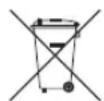
(d) The crossed out wheeled dust bin symbol indicates that electrical and electronic equipment must be collected and disposed of separately from household waste.
(e) The return and collection systems are available to the end users. For more detailed information about disposal of old electrical and electronic equipment, please contact your city office, waste disposal service or the shop where you purchased the equipment.
Disposal of batteries and/or accumulators
(a) Waste batteries and/or accumulators should be disposed of separately from the municipal waste stream via designated collection facilities appointed by the government or the local authorities.
(b) By disposing of waste batteries and/or accumulators correctly, you will help save valuable resources and prevent any potential negative effects on human health and the environment.
(c) Improper disposal of waste batteries and/or accumulators can have serious effects on the environment and human health as a result of the presence of hazardous substances in batteries and/or accumulators.
(d) The crossed out wheeled dust bin symbol indicates that batteries and/or accumulators must be collected and disposed of separately from household waste.
Pb,Hg,Cd
for lead (Pb), mercury (Hg) and/or cadmium (Cd) will be indicated beneath the crossed out wheeled dust bin symbol.
(e) The return and collection systems are available to the end users. For more detailed information about disposal of waste batteries and/or accumulators, please contact your city office, waste disposal service or the shop where you purchased them.
Contents
IMPORTANT SAFETY PRECAUTIONS. 3
IMPORTANT SAFETY INSTRUCTIONS 3
Introduction. 6
Features. 6
Included items 6
Conventions used in this manual. 6
Precautions for placement and use 7
Cleaning the unit. 7
Beware of condensation 7
Using the TEAC Global Site 7
User registration 7
Names and functions of parts 7
Top 7
Rear 8
Left side 9
Right side 9
Bottom. 9
Noise isolation arm 9
Preparation 10
Power sources. 10
Using a AAA battery. 10
Power supply status indicator. 10
Using the cable clip 10
Using the noise isolation arm. 10
Turning the unit on and off 11
Starting up the unit 11
Shutting down 11
Turning off automatically. 11
Installing a microSD card. 11
Handling microSD cards. 11
Precautions when handling microSD cards. 11
Recording durations when using microSD cards. 12
Connecting with a computer 12
Starting and stopping recording 12
Playback and searching backward/forward 13
Checking the remaining recording capacity of the microSD card 13
Making menu settings. 13
Menu structure. 14
Message. 18
Specifications. 18
Ratings. 18
Input/output 18
Audio performance 19
General 19
Dimensional drawings. 20
Introduction
Thank you very much for purchasing this TASCAM product.
Before using this unit, read this Owner's Manual carefully so that you will be able to use it correctly and enjoy working with it for many years. After you have finished reading this manual, please keep it in a safe place for future reference.
You can also download this Owner's Manual from the TEAC Global Site (http://teac-global.com/).
Features
This PCM recorder has a supercardiod shotgun mic for use with DSLR cameras.
- A floating mechanism is incorporated to reduce noise from touching. Mechanical noises that occur during autofocus and blur correction, for example, are minimized.
- In addition to being able to attach a digital camera accessory shoe (compliant with ISO/JIS standards) directly, this unit can also be fixed to tripods and stands using the camera screw on the bottom of the attachment foot.
- microSD and micro SDHC cards are used as recording media.
44.1/48kHz, 16/24-bit, mono/poly linear PCM (WAV or BWF) formats can be used for recording.
- Time track incrementing function allows a recording to be split by creating a new file at regular intervals (about 15 minutes) without interrupting recording.
- Llimiter function automatically reduces parts where the input level is too high to suitable levels.
- Low cut filter is useful for reducing low-frequency noise.
- Dual recording function allows two files to be recorded simultaneously at different levels (only when file type is set to MONO).
- Slate tone functions are convenient for editing.
The equalizer function setting can be selected according to the recording conditions. - Recording with the Poly file format is supported.
The file name format can be set to use a user-defined word or the date. - Playback functions allow recorded files to be checked immediately.
Secondary lithium battery used to save date and time information.
A 3.5mm (1 / 8^ ) headphone jack is built-in.
The 96x16 OEL display has a wide viewing angle and is easy to read. - Micro-B USB 2.0 port.
Included items
This product includes the following items.
Keep the packing materials for transportation in the future.
Please contact TASCAM Customer Support (see back) if any of these items are missing or have been damaged during transportation.
Main unit. X1
Attenuator cable (for camera input)
- Windscreen.
- Noise isolation arm.
Cable clip
Owner's Manual (this document) including warranty
Conventions used in this manual
The following conventions are used in this manual.
- When we refer to buttons, connectors and other parts of this unit and other equipment, we use a bold font like this: MENU button.
- When we show messages, for example, that appear on the unit's display, the typeface looks like this: OH.
The area of the display that is shown in inverse (light on dark) is referred to as the cursor or as being highlighted. - "microSD/microSDHC memory card" is sometimes abbreviated as "microSD card".
Additional information is provided as necessary as tips, notes and cautions.
TIP
These are tips about how to use the unit.
NOTE
These provide additional explanations and describe special cases.
CAUTION
Failure to follow these instructions could result in injury, damage to equipment or lost recording data, for example.
Precautions for placement and use
The operating temperature range of this unit is 0-40°C.
- Do not install this unit in the following types of locations. Doing so could degrade the sound quality and/or cause malfunctions.
Places with significant vibrations Near windows or other places exposed to direct sunlight
Near heaters or other extremely hot places. Extremely cold places
Places with bad ventilation or high humidity Very dusty locations
Places exposed directly to rain or other water
- Do not place this unit on top of a power amplifier or other device that generates heat.
Cleaning the unit
Use a dry soft cloth to wipe the unit clean. Do not wipe with chemical cleaning cloths, thinner, alcohol or other chemical agents. Doing so could damage the surface or cause discoloration.
Beware of condensation
Condensation could occur if the unit is moved from a cold place to a warm place, it is used immediately after a cold room has been heated or it is otherwise exposed to a sudden temperature change. To prevent this, or if this occurs, let the unit sit for one or two hours at the new room temperature before using it.
Using the TEAC Global Site
You can download this Owner's Manual necessary for this unit from the TEAC Global Site (http://teac-global.com/).
- Open the TEAC Global Site (http://teac-global.com/).
- In the TASCAM Downloads section, click the desired language to open the Downloads website page for that language.
NOTE
If the desired language does not appear, click Other Languages.
- Click the product name in the "Search by Model Name" section to open the Downloads page for that product.
- Select and download the Owner's Manual that are needed.
User registration
Customers in the USA, please visit the TASCAM website (http://tascam.com/) to register as a user online.
Names and functions of parts
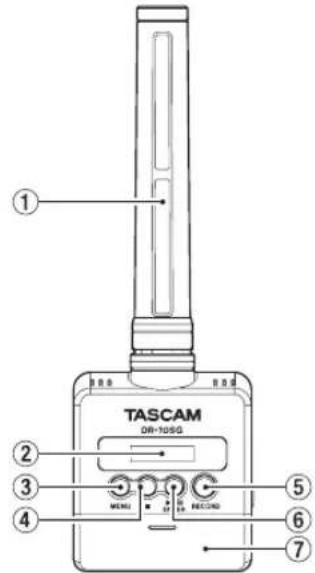
Top
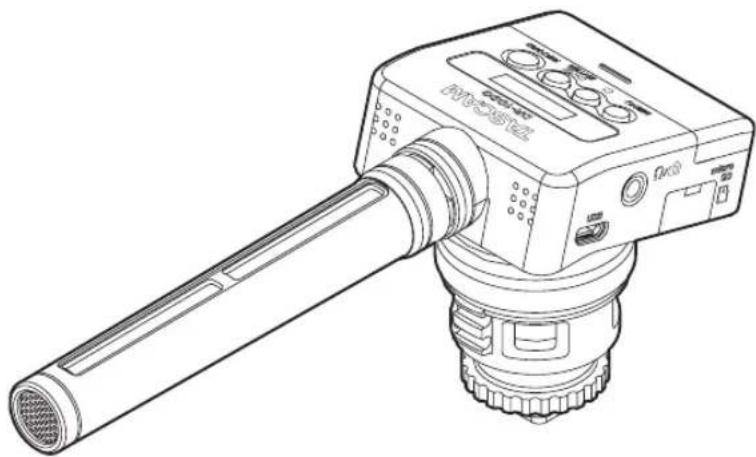
① Shotgun mic
This is a supercardioid mono electret condenser microphone.
② Display
Shows a variety of information.
③ MENU button
- When the Home Screen is open, press the MENU button to open the Menu Screen.
When the Menu Screen is open, press the
TASCAM DR-10SG7
MENU button again to return to the Home Screen.
- When a setting item is shown, press the MENU button to return to the Menu Screen.
4 button Press this button during recording to stop recording. Press this button during playback to pause playback at the current position. Press this button when paused to return to the beginning of the file.
⑤ RECORD button Press this button to start recording.
6 / [ENTER] button When the Home Screen is open, press the / [ENTER] button to start file playback.
Press the [ENTER] button during playback to pause playback.
- When the Menu Screen is open or a setting item is shown, press the /II [ENTER] button to confirm the selected item. Use this also to respond to a confirmation message.
⑦ Battery compartment cover
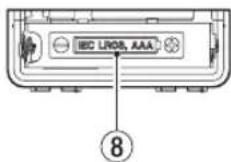
8 Battery compartment Install one AAA battery in this compartment to power the unit.
Rear
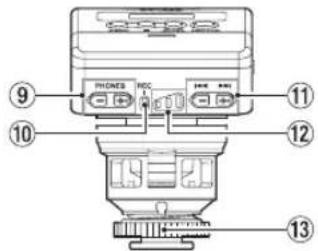
9 PHONES[-1/][+]buttons
Use the + and - buttons to adjust the volume output from the headphones jack. During adjustment, a volume indicator will appear on the display.
![TASCAM DR10SG - PHONES[-1/][+]buttons - 1](/content/2026/03/526790/images/db25d32ba8a4336e7231ec19da2848e0760e1af8639184863f1bca44170dc606.jpg)
CAUTION
Before connecting headphones, lower the volume to the minimum level. Failure to do so might cause sudden loud noises, which could harm your hearing or result in other trouble. Do not apply excessive force to the jack when connecting and using headphones. Be careful, because the application of unintended force, particularly when using a mini jack, could damage the equipment.
10 RECindicator
This indicator will light during recording.
11 1/→ buttons
- Use the / buttons during recording to change the mic gain setting.
During playback or when stopped in the middle of a file, press the button to return to the beginning of the file. - Press when located at the beginning of a file to skip to the beginning of the previous file. Press and hold this button during playback to search backward.
- During playback or when stopped in the middle of a file, press the button to skip to the beginning of the next file. Press and hold this button during playback to search forward.
- When the Menu Screen is open, use the 144 / 14 buttons to select menu items.
- When a setting item is shown, press the and buttons to move the cursor left and right.
- When inputting a file name, use this to select characters.
CAUTION
When 04: AUTO LEVEL is set to ON, the mic gain setting cannot be changed using the 1/ buttons during recording. Pressing these buttons during recording will cause a NO-AUTOLVL ON! pop-up message to appear.
12 Recording level indicators
Use these as guides when adjusting the recording level.
-Unlit: The recording level is too low.
Lit yellow: The recording level is low.
- Lit green: The recording level is good.
Litt red: The recording level is too high.
Locknut for attachment foot
Left side
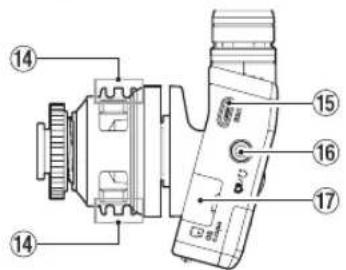
14 Cord holder
USBport
This is a Micro-B USB port. Use a cable that complies with USB standards to connect the unit to a computer.
When connected, the POWER/STORAGE screen appears to allow selection of bus power supply or data transmission by USB with the computer.
CAUTION
The unit should be connected directly to the computer, not through a USB hub.
16/
This is a combined headache/line out jack. Use the included attenuator cable to connect this to a camera input.
17 microSD card slot
Insert and remove microSD cards here. Open the microSD card slot cover on the left side. (See "Installing a microSD card" on page 11.)
Right side
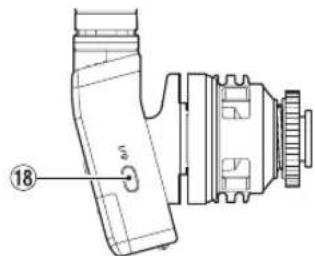
18. 1 button
Press and hold the / button for about one second to turn the unit on/off.
NOTE
A one-second delay in response to this operation occurs in order to prevent accidental operation.
Bottom
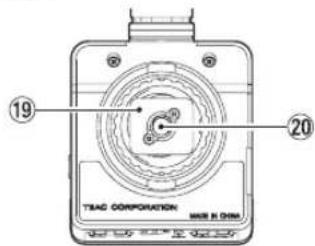
19. Attachment foot
20 Tripod mounting threads (1/4-inch)
Noise isolation arm
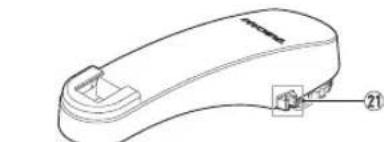
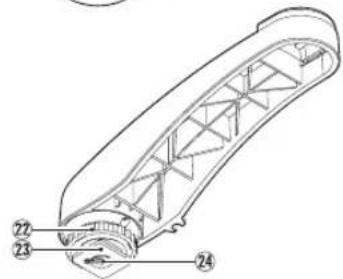
2 Cord holder
22 Locknut for attachment foot
23 Attachment foot
24 Tripod mounting threads (1/4-inch)
CAUTION
- Never lift the connected device by holding this unit or the noise isolation arm. Application of excessive load could damage this unit or the connected device.
- When not in use, disconnect this unit from the connected device and store it. Application of excessive load while connected could damage to this unit or the connected device.
Preparation
Power sources
This unit can operate on one AAA battery or USB bus power using a USB cable.
This unit can use an alkaline, Ni-MH or lithium AAA battery.
Using a AAA battery
Open the battery compartment cover on the back of the unit. Install 1 AAA battery in the compartment with the and marks as shown. Then, close the battery compartment cover.
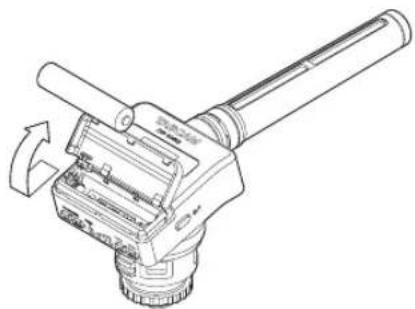
When using a AAA battery, set the type of battery in order to accurately show the amount of power remaining and allow the unit to accurately determine whether power is available for proper operation. (See "Making menu settings" on page 13.)
CAUTION
- AAA manganese dry cell batteries cannot be used with this unit.
10 TASCAM DR-10SG
This unit cannot recharge AAA Ni-MH batteries. Use a commercially-available charger.
Power supply status indicator
When operating on battery power, a battery icon appears at the top right of the display.
The battery icon shows the amount of power remaining in bars.
The battery is almost dead and the power will soon turn off if the icon with no bars and the REC indicator blink.
When operating on USB bus power, the icon appears.
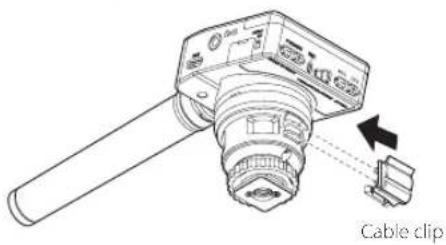
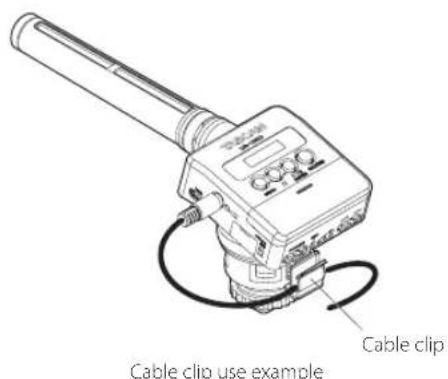
Using the cable clip
Attach the included cable clip to the cord holder on the unit, and place the cable in it.
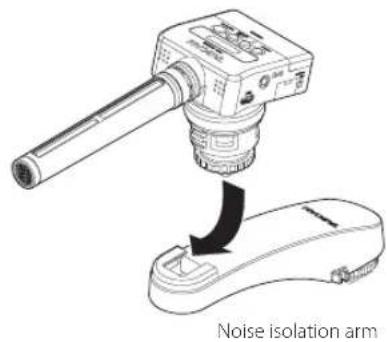
Using the noise isolation arm
By using the included noise isolation arm to attach the mic, you can reduce the recording of camera motor noise from autofocus, automatic image stabilization and other operations.
Turning the unit on and off
CAUTION
Do not wear connected headphones when turning the unit on and off. Loud noises could damage the speakers or harm your hearing.
Starting up the unit
When the unit is off, press the /1 button and hold it for about one second until the DR-1056 startup screen appears and the unit starts.
001 TASCAM
NOTE
If no operation occurs for several minutes, the screenshot will appear as shown below.
TASCAN
Shutting down
When the unit is on, press the /1 button and hold it for about one second until the display becomes unlit and the unit turns off.
CAUTION
Always use the / button to turn the unit off. When the unit is on, do not remove the battery or disconnect the USB cable if using USB bus power. Doing so will cause all recordings, settings and other data to be lost. Lost data and settings cannot be restored.
Turning off automatically
When operating on battery power and the 12:POwER SAVEItem on the Menu Screen is set to AUTO if the unit is stopped and no operation has
occurred for about 10 minutes, the unit will turn itself off automatically.
NOTE
The first time the unit is turned on after purchase, the built-in clock time will not be correct. Use the 17:DATE/TIME item to set the date and time. Moreover, when the unit is turned on for the first time (or when the built-in clock is reset after being left unused without a battery), the Menu Screen 17:DATE/TIME item might appear after the start-up screen to allow the date and time to be set.
For details about how to set it, see the 17:DATE/TIME item in "Menu structure" on page 14.
Installing a microSD card
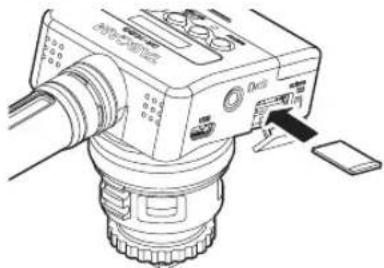
Open the microSD card slot cover on the left side.
- Inserting the SD card
Insert the microSD Card into the slot in the direction of the arrow as shown in the following illustration until it clicks into place.
- Removing the card
Press the microSD card in gently and then release it to allow it to come out.
CAUTION
In order to use a microSD card in this unit, you must format it first. (See "Making menu settings" on page 13.)
After formatting a microSD card, the display will show the following when the unit is turned on.
NOFILE
- If no microSD card has been inserted, the display will show the following when the unit is turned on.
NO CARD
See the following section for information about handling microSD cards. (See "Handling microSD cards" on page 11.)
Handling microSD cards
Precautions when handling microSD cards
This unit uses microSD/microSDHC cards for recording and playback.
It supports microSD cards that are 64 MB-2 GB and microSDHC cards that are 4 GB-32 GB.
A list of microSD cards that have been tested with this unit can be found on the TTEAC Global Site (http://teac-global.com/). microSD/microSDHC cards are delicate media. In order to avoid damaging a card or the card slot, please take the following precautions when handling them.
-
Do not leave them in extremely hot or cold places.
-
Do not leave them in extremely humid places, and do not let them become wet.
- Do not put things on top of them or twist them.
- Do not hit them.
- Do not remove or insert a card during data transmission or other access.
Recording durations when using microSD cards
The table below shows maximum recording times on microSD/microSDHC cards of different capacities.
| microSD/ microSDHC card capacity (hours:minutes) | 24-bit/48kHz WAV recording setting | |
| DUAL REC OFF | DUAL REC ON/ FILE TYPE POLY | |
| 1 GB 2:04 1:02 | ||
| 2 GB 4:08 2:04 | ||
| 4 GB 8:16 4:08 | ||
| 8 GB 16:32 8:16 | ||
The recording times shown above are estimates. They might differ depending on the microSD/ microSDHC card in use.
The recording times shown above are not continuous recording times, but rather they are the total possible recording times for the microSD/microSDHC card.
Connecting with a computer
Connect the unit to a computer using a USB cable as shown in the illustration.
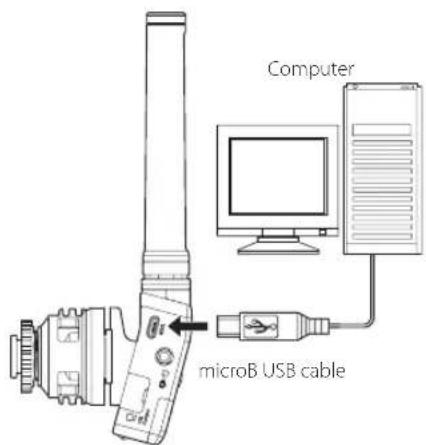
Whether the power is on or off, when connected, the POWER/STORAGE screen appears to allow selection of bus power supply or USB connection with the computer.
Use the and buttons to select (highlight) the POWER/STORAGE option on the display, and press the [ENTER] button to confirm it.
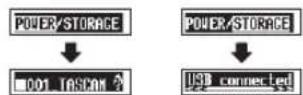
- If POWER is selected, power will be supplied from the USB port and the Home Screen will appear.
- IF STORAGE is selected, USB connected will appear on the display after the unit connects to the computer without any problems.
- If the card has been formatted by the unit, it will be shown on the computer as a USB device named "DR-10SG". Otherwise, the volume label set when the card was formatted will be shown.
Double-click the drive shown to open it and show a list of the recording files so you can retrieve the desired files.
Starting and stopping recording
Starting recording
With the unit is on, press the RECORD button to start recording.
Stopping recording
Press the button to stop recording.
The following information appears on the display when stopped, when recording starts and during recording.
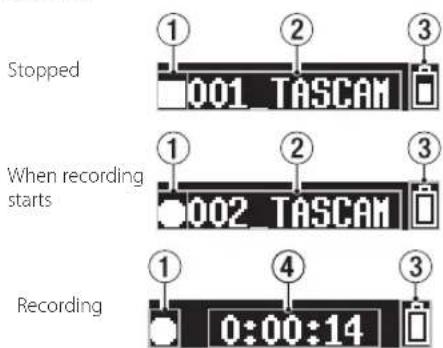
① Recorder operation status
(2) File name
③ Remaining battery charge
4 Elapsed recording time
NOTE
- Without pausing recording, a new file can be created automatically during recording when the file size reaches 2 GB. (Track incrementing)
- Using the REC indicator (green) on the unit as a guide, set the mic gain with the Menu Screen 1:MIC GAINItem (or the 12 / 12 buttons when recording). (See "Menu structure" on page 14.)
- Press the RECORD button during recording to switch between showing the elapsed recording time and the remaining recording capacity of the microSD card.
CAUTION
When 4 AUTO LEVEL is set to ON, the mic gain setting cannot be changed using the 1一 / 一 buttons during recording.
Pressing these buttons during recording will cause a NO-AUTOLVL ON! pop-up message to appear.
Playback and searching backward/forward
The Home Screen shown below appears after the unit starts up.
001_TASCAM
Starting and stopping playback
When the Home Screen is open and playback is stopped, press the /II [ENTER] button to start playback. Press this button again to stop playback.
searching backward and forward
During playback, press and hold the 1 or button to start searching backward or forward. Continue pressing and holding the 1 or button to accelerate the search speed.
Release the 14 or 15 button to resume playback.
The display appears as below when playback starts and during playback.
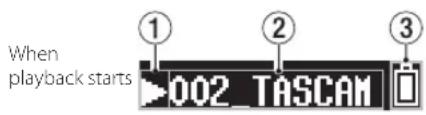
During playback
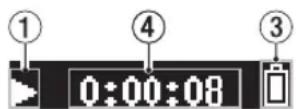
① Record status
② Playback file name
③ Remaining battery charge
④ Elapsed playback time
NOTE
- During playback, press and hold the MENU button to show the remaining time of the playing file.
-0:00:04
- When searching, or will be shown. If the search speed is increased, this will change to or .
0:00:24
- Only files (.wav) in the ROOT directory of the microSD card can be played back. Files put in a
folder created using a computer, for example, cannot be played back.
Checking the remaining recording capacity of the microSD card
When stopped, press and hold the MENU button to show the remaining recording capacity of the microSD card.
Making menu settings
Follow these procedures to change various unit settings.
- When the Home Screen is open, press the MENU button to open the Menu Screen.
2.Use the and buttons to select the menu item to set and press the /11 [ENTER] button to show the setting item. - Use the 1 and 2 buttons to change the setting.
- Press the / II [ENTER] button to confirm the setting and return to the Menu Screen.
- Repeat steps 2 to 4 as necessary to set each item.
- When finished, press the MENU button to return to the Home Screen.
Menu structure
Press the MENU button to open the Menu Screen. This list provides an overview of the various menu items.
CAUTION
During recording, pressing the MENU button will only open the following menu items.
01:MIC GAIN 0 2:E03:LOW CUT04:AUTO LEVEL
| Menu item Summary | Settings (default value underlined) | Explanation | |
| 01:MIC GAIN | Mic gain setting | 08 - 50 (in increments of 1; default: 25) | Use to set the mic input sensitivity. CAUTION If the menu screen 01:MIC GAIN setting is changed, the 04:AUTO LEVELItem setting will be set to OFF if it is ON. When this happens, an AUTO LVL Cancel pop-up message will appear. |
| 02:E Q | EQ setting | NATURAL, STANDARD, INTERVIEW FIELD | Set the equalizer. NATURAL: Close to original sound STANDARD: Regular setting for a shotgun mic INTERVIEW Setting ideal for interviews FIELD: Setting ideal field recordings |
| 03:LOW CUT | Low cut filter | OFF,ON | Turns the mic input low-cut filter on or off. The cutoff frequency is 120 Hz. |
| 04:AUTO LEVEL | Automatic level adjustment | OFF,ON | When the input sound level is too low or too high, the recording volume will be increased or decreased automatically to an appropriate level. |
| 05:LIMITER | Limiter | OFF,ON | This function prevents distortion when signals that are too loud are input suddenly. Turns this function on or off. Distortion of sounds may occur when signals that are very loud are input even if the LIMITER function is activated. In such a case, use the Menu Screen 01:MIC GAIN item to lower the mic input sensitivity, or increase the distance from the sound source. |
| 06:FS SAMPLE | Sampling frequency setting | 44.1kHz, 48kHz | Set the sampling frequency. |
| 07:BIT LENGTH | Quantization bit depth setting | 16bit, 24bit | Set the quantization bit depth. |
| 08:FILE TYPE | Recording file type setting | MONO POLY | Set the recording file type.MONO: Record as mono files.POLY: Record as stereo files (with same data on left and right channels).CAUTIONWhen the 09:DUAL RECsetting is ON, if you set 08:FILE TYPEto POLY, the 09:DUAL RECsetting will be switched to OFF. When this happens, an DUAL REC Cancel pop-up message will appear. |
| 09:DUAL REC | Dual recording | OFF,ON | This recorder can simultaneously record a second recording at a different input level along with the regular recording. For example, you can make an ordinary recording with the input level set as high as possible and simultaneously record at a slightly lower input level (-6 dB) for security. Two recorded files (one with higher input level and one with lower input level) are saved individually.Dual recording file namesDual recording will create two files simultaneously.The name of the second file created by dual recording has "\_D" added to the file name of the ordinary recording.Ordinary recording file name Dual recording file name002 TASCAM.WAU002 TASCAM.D.WAU12①②①②③①:002(basic recording file number)②: TASCAM(according to WORD setting of 13:NAME TYPEItem on Menu Screen)③: D(dual recording file with lower input level (-6 dB) setting)CAUTIONWhen the 08:FILE TYPE setting is POLY, if you set 09:DUAL RECto ON, the 08:FILE TYPE setting will be switched to MONO. When this happens, an FILE TYPE Cancel pop-up message will appear. |
| 10:TONE LEVEL | Slate tone setting | OFF,LOW,HIGH | This adds a slate signal (about one second) when recording starts and stops.You can set the tone level to LOW(-24dB) or HIGH (-12dB). |
| 11:WARN BEEPS | Warning beep setting | OFF,ON | When this is set to ON, a warning sound (beep) will be output from the headphone jack every few seconds under the following circumstances.When the remaining battery charge becomes low (battery icon appears empty).When the remaining space on the microSD card becomes low (less than 10 minutes of remaining recording time)When recording cannot be started (the 999 recorded file limit has been reached, the microSD card has a problem, etc.) |
| 12: POWER SAUE | Automatic power off setting | OFF, AUTO | Sets the automatic power off function to AUTO (on) or OFF. When operating on battery power and this is set to AUTO, if the unit is stopped when no operation has occurred for about 10 minutes, the unit will turn itself off automatically. |
| 13: NAME TYPE | File name type setting | WORD DATE | You can select the format of names given to files recorded by this unit.WORD: the 6 characters set using the Menu Screen 14:FILE NAME item are used for file names.Example: 000_TASCAM. wavyDATE: The date is used as the file name (in yymmdd format).Example: 000_110101. wavy |
| 14:FILE NAME | File name setting | [TRASCAM] | Press the ▲/□ [ENTER] button to move the cursor from left to right one character at a time.When the cursor is at the character on the far right, press the ▲/□ [ENTER] button to confirm the file name and return to the Menu Screen.Use the ▲/□ and ▲/□ buttons to change the character at the cursor position.In addition to the alphabet and numbers, the following characters can be used: ! # $ % & ' ( ) + , - . : = @ [ ] ^ _ ^ ( ) |
| 15: FORMAT SD | Format the microSD card | Sure? YES/NO | Use this to format the microSD card in the unit.YES: Start formatting the card. After formatting completes, the Menu Screen reappears.NO Return to the Menu Screen. |
| 16:BATT TYPE | Battery setting | ALK NiMH, LITH | Use this to set the type of battery used.This setting is used to show the amount of remaining battery charge and determine if the unit has enough power for normal operation.RALK: Alkaline AAA battery LITH: Lithium AAA batteryNiMH: Nickel metal hydride AAA battery |
| 17:DATE/TIME | Internal clock settingYear/month/date/hour/minute | YY-MM-DD HH:MM | YY-MM-DD HH:MM①②③④⑤①: YY (year) ②: MM(month) ③: DD (date) ④: HH (hour) ⑤:MM (minute)Press the ▲/□ [ENTER] button to move the cursor from left to right: ①→②→③→④→⑤.When the cursor is at ⑤ on the far right, press the ▲/□ [ENTER] button to confirm the date and time and return to the Menu Screen.Use the ▲/and ▲/ buttons to change the number at the cursor position. |
| 18:TRACK INC | Timed track incrementation | QEE,OH | Without pausing recording, a new file can be created automatically during recording after about 15 minutes have elapsed. |
| 19:SYS INIT | Restore factory default settings | Sure? YES/NO | Use this to restore the various settings of this unit to their default values (factory settings). YES: Initialize the settings. After initializing completes, the Menu Screen reappears. NO: Return to the Menu Screen. |
| 20:VER INFO | Shows the firmware version | Ux.xx xxxx | This is the firmware version used by the unit. When the version is being shown, press the ▲/□ [ENTER] button to return to the Menu Screen. |
Message
The following is a list of the pop-up messages that might appear on the DR-105G under certain conditions.
| Message Meaning and response | |
| Battery Empty The battery is almost out of power. Replace the batteries. | |
| Card Error | The microSD card could not be recognized properly. Change the microSD card. |
| Card Full | The microSD card has no remaining capacity. Erase unnecessary files or move them to a computer to make open space. |
| File Full | The total number of recording files exceeds the limit of 999. Erase unnecessary files or move them to a computer to make open space. |
| Format Error | The microSD card is not formatted properly or the formatting is broken. Use the DR-10SG to format the microSD card. |
| Invalid Card The card might be abnormal. Change the microSD card. | |
| No Music File There is no file that can be played back on the microSD card. | |
| Non-Supported The file format is not a supported or the file is broken. | |
| Write Timeout | Writing to the microSD card timed out. Change to a card with faster writing, or backup files on the card to a computer and format the card. |
| Player Error | If any of these errors occurs, turn the unit off and restart it. If the power cannot be turned off, remove the battery or disconnect the USB cable if using USB bus power. |
| Write Failed | If these error messages continue to appear frequently, please contact a TEAC Repair Center (see back cover). |
Specifications
Ratings
Recording media
microSD card (64 MB-2 GB)
microSDHC card (4 GB-32 GB)
Recording/playback formats
44.1/48kHz, 16/24-bit
MONO/POLY WAV (BWF format)
Input/output
input
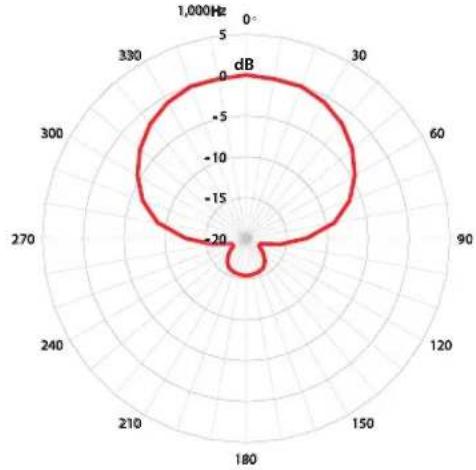
Directional: Supercardioid
Mic gain: 0 to +50 dB (1dB steps)

Connector: 1/8 (3.5mm) stereo mini (dual mono audio output)
An attenuator cable can be connected to attenuate the output level.

Connector type: Micro-B
Format: USB 2.0 HIGH SPEED mass storage class
Audio performance

50Hz-20kHz

78 dB (+30dB MIC gain, A-weighting)
General

1 AAA battery (alkaline, NiMH or lithium)
USB bus power from a computer

0.75 W (maximum)
Current consumption (USB bus power)
0.15 A (maximum)
Battery operation time (continuous operation)
- Using alkaline batteries (EVOLTA)
| Format | Operation time | Note | |
| Recording | WAV, 48kHz, 24-bit | About 8.5 hours | Headphones not connected Limiter: off Dual recording: off File type: mono |
Recording: JEITA recording time
- Using NiMH battery (eneloop)
| Format | Operation time | Note | |
| Recording | WAV, 48kHz, 24-bit | About 7.5 hours | Headphones not connected Limiter: off Dual recording: off File type: mono |
Recording: JEITA recording time
- Using lithium battery (Energizer ULTIMATE LITHIUM)
| Format | Operation time | Note | |
| Recording | WAV, 48kHz, 24-bit | About 15 hours | Headphones not connected Limiter: off Dual recording: off File type: mono |
Recording: JEITA recording time
ate and time data retention
Secondary lithium battery × 1 (built-in)
Dimensions
53 × 168.1 × 70.3 ~mm (width × height × depth, excluding protrusions)
Weight
110 g (including batteries)/98 g (not including batteries)
operating temperature range
0^ - 40^ (32°F-104°F)
Dimensional drawings
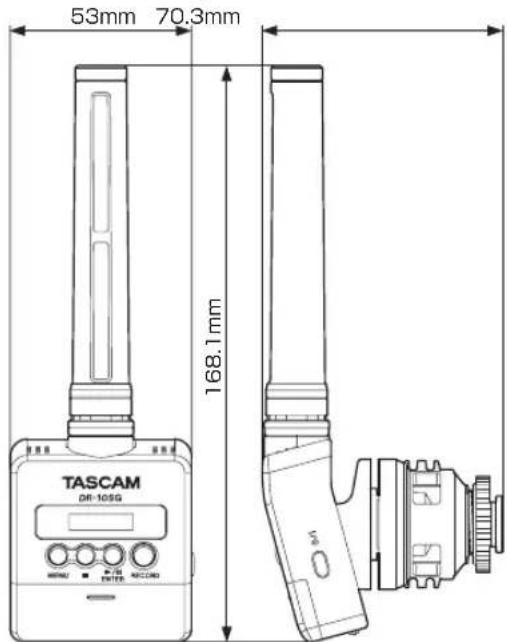
- Illustrations in this manual might differ in part from the actual product.
- Specifications and external appearance might be changed without notification to improve the product.
Mode d'emploi
PRECAUTIONS DE SECURITE IMPORTANTES
DECLARATION DE CONFORMITE
01:MIC GAIN,02:EQ,03:LOW CUT,04:AUTO LEVEL
44,1/48 kHz, 16/24 bits
WAV MONO/POLY (format BWF)
Entrée/sortie
Entree micro
Directivite: supercardioide
44.1/48 kHz, 16/24 bits
MONO/POLY WAV (fornato BWF)
Entradas y開放s
trada de micro
01:MIC GAIN,02:EQ,03:LOW CUT,04:AUTO LEVEL
44,1/48 kHz, 16/24 Bit
Format: USB 2.0 High-Speed, Mass Storage Class
44.1/48kHz, 16/24 bit
MONO/POLY WAV (formato BWF)
Ingresso/uscita
gresso microfono
Tipconnettore:Micro-B
Formato: USB 2.0 HIGH SPEED mass storage class
Prestazioni audio
dispostain frequency
50Hz-20kHz

78 dB (+30dB guadagno MIC, pesato-A)
Generali
Aimentazione
01:MIC GAIN 02:EQ 03:LOW CUT 04:AUTO LEVEL
This warranty gives you specific legal rights and you may also have other rights which vary from state to state. This warranty is only valid within the country the unit was originally purchased.
WHAT IS AND IS NOT COVERED
Except as specified below, this warranty covers all defects in materials and workmanship in this product. The following are not covered by the warranty:
1. Damage to or deterioration of the external cabinet.
2. Damages resulting from accident, misuse, abuse or neglect.
3. Damage resulting from failure to perform basic daily maintenance and/or calibration or otherwise resulting from failure to follow instructions contained in your owner's manual.
4. Damage occurring during shipment of the product. (Claims must be presented to the carrier)
5. Damage resulting from repair or attempted repair by anyone other than TEAC or an authorized TASCAM service station.
6. Damage resulting from causes other than product defects, including lack of technical skill, competence, or experience of the user.
7. Damage to any unit which has been altered or on which the serial number has been defaced, modified or is missing.
WHO MAY ENFORCE THE WARRANTY
This warranty may be enforced only by the original purchaser. This warranty is not valid if the product was purchased through an unauthorized dealer.
LENGTH OF WARRANTY
All parts except heads and disk drives are warranted for one (1) year from the date of original purchase. Heads and disk drives are warranted to ninety (90) days from date of original purchase. Labor is warranted for ninety (90) days from date of original purchase.
WHAT WE WILL PAY FOR
We will pay all labor and material expenses for items covered by the warranty. Payment of shipping charges is discussed in the next section of this warranty.
HOW YOU CAN GET WARRANTY SERVICE
Your unit must be serviced by an authorized TASCAM service station in the United States. (This warranty is not enforceable outside the U.S.) If you are unable to locate an authorized TASCAM service station in your area, please contact us. We either will refer you to an authorized service station or instruct you to return the unit to the factory. Whenever warranty service is required, you must present a copy of the original dated sales receipt from an Authorized TASCAM Dealer.
You must pay any shipping charges if it is necessary to ship the product to service. However, if the necessary repairs are covered by the warranty, we will pay return surface shipping charges to any destination within the United States.
LIMITATION OF IMPLIED WARRANTYIS
Any implied warranties, INCLUDING WARRANTYES OF MERCHANTABILITY AND FITNESS FOR A PARTICULAR PURPOSE, are limited in duration to the length of this warranty.
EXCLUSION OF DAMAGES
TEAC's liability for any defective product is limited to repair or replacement of the product, at TEAC's option. TEAC shall not be liable for:
-
Damages based upon inconvenience, loss of use of the product, loss of time interrupted operation or commercial loss; or
-
Any other damages, whether incidental, consequential or otherwise.
Some states do not allow limitations on how long an implied warranty lasts and/or do not allow the exclusion or limitation of incidental or consequential damages, so the above limitations and exclusions may not apply to you.
To locate an Authorized Service Center in Your Area
CALL 1-800-447-8322
This product is subject to the legal warranty regulations of the country of purchase. In case of a defect or a problem, please contact the dealer where you bought the product.
This warranty gives you specific legal rights, and you may also have other rights that vary by country, state or province.
If you have a warranty claim or request, please contact the dealer where you bought the product.
If you require repair services for your TASCAM equipment, please contact the dealer where the product was purchased from or the TASCAM Distributor in your country. A list of TASCAM Distributors can be found on our website at:
http://teac-global.com/
WARRANTY/保証書
Model/型名
Owner's name/书名前
DR-10SG
Serial No.
Sample
Date of purchase/ 03
Address/乙住所
Dealer's name/販売店
TASCAM
http://teac-global.com/
Dealer's address /住所
Memo/修理×王
- Linear PCM Recorder for DSLR
- テイアツク株式会社
- Owner's Manual
- IMPORTANT SAFETY PRECAUTIONS
- DECLARATION OF CONFORMITY
- IMPORTANT SAFETY INSTRUCTIONS
- CAUTION
- CAUTIONS ABOUT BATTERIES
- For European Customers
- Disposal of electrical and electronic equipment
- Disposal of batteries and/or accumulators
- Contents
- Introduction
- Features
- Included items
- Conventions used in this manual
- TIP
- NOTE
- Precautions for placement and use
- Cleaning the unit
- Beware of condensation
- Using the TEAC Global Site
- If the desired language does not appear, click Other Languages.
- User registration
- Names and functions of parts
- Rear
- PHONES[-1/][+]buttons
- RECindicator
- 1/→ buttons
- Recording level indicators
- Locknut for attachment foot
- Left side
- Cord holder
- USBport
- 16/
- microSD card slot
- Right side
- 1 button
- Bottom
- Attachment foot
- Tripod mounting threads (1/4-inch)
- Noise isolation arm
- Cord holder
- Preparation
- Power sources
- Using a AAA battery
- Power supply status indicator
- Using the cable clip
- Using the noise isolation arm
- Turning the unit on and off
- Starting up the unit
- TASCAM
- TASCAN
- Shutting down
- Turning off automatically
- Installing a microSD card
- NOFILE
- NO CARD
- Handling microSD cards
- Precautions when handling microSD cards
- Recording durations when using microSD cards
- Connecting with a computer
- Starting and stopping recording
- Starting recording
- Stopping recording
- Playback and searching backward/forward
- 001_TASCAM
- Starting and stopping playback
- -0:00:04
- 0:00:24
- Checking the remaining recording capacity of the microSD card
- Making menu settings
- Menu structure
- Message
- Specifications
- Ratings
- Recording media
- Recording/playback formats
- Input/output
- input
- Audio performance
- General
- Current consumption (USB bus power)
- Battery operation time (continuous operation)
- ate and time data retention
- Dimensions
- Weight
- operating temperature range
- Mode d'emploi
- PRECAUTIONS DE SECURITE IMPORTANTES
- DECLARATION DE CONFORMITE
- Entrée/sortie
- Entree micro
- Entradas y開放s
- trada de micro
- Ingresso/uscita
- gresso microfono
- Prestazioni audio
- Generali
- Aimentazione
- WHAT IS AND IS NOT COVERED
- WHO MAY ENFORCE THE WARRANTY
- LENGTH OF WARRANTY
- WHAT WE WILL PAY FOR
- HOW YOU CAN GET WARRANTY SERVICE
- LIMITATION OF IMPLIED WARRANTYIS
- EXCLUSION OF DAMAGES
- To locate an Authorized Service Center in Your Area
- WARRANTY/保証書
- DR-10SG
- Sample
- TASCAM
Brand : TASCAM
Model : DR10SG
Category : Audio recorder