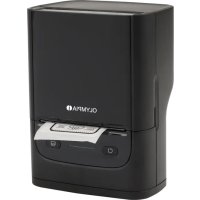
PM220 - Label printer OLYMPIA - Free user manual and instructions
Find the device manual for free PM220 OLYMPIA in PDF.



| Product Type | Portable thermal label printer |
| Brand | Olympia |
| Model | PM220 |
| Printing technology | Direct thermal (no ink ribbon) |
| Print resolution | 203 dpi |
| Compatible roll width | 23 to 54 mm |
| Maximum print width | 48 mm |
| Connections | Bluetooth, USB-C |
| Cutting knife | Manual (integrated) |
| Battery | Li-ion 1200 mAh, rechargeable via USB-C |
| Recommended external power supply | 5 V DC / 1 A (power adapter not included) |
| Dimensions (L x W x H) | 84.2 x 113 x 64.5 mm |
| Weight | 210 g |
| Operating temperature | 5 °C to 40 °C |
| Storage temperature | -20 °C to 55 °C |
| Mobile app | Labelnize (iOS and Android) |
| Package contents | Printer, USB-C cable, label roll, user manual |
| Print head maintenance | Clean with a cotton swab soaked in alcohol (ethanol or IPA) |
| LED indicator | White (on), white flashing (charging), red (lid open/no paper/low battery), blue (Bluetooth connection) |
| Safety | Do not open, do not touch hot print head, integrated blade is dangerous, keep out of reach of children |
Frequently Asked Questions - PM220 OLYMPIA
User questions about PM220 OLYMPIA
0 question about this device. Answer the ones you know or ask your own.
Ask a new question about this device
Download the instructions for your Label printer in PDF format for free! Find your manual PM220 - OLYMPIA and take your electronic device back in hand. On this page are published all the documents necessary for the use of your device. PM220 by OLYMPIA.
USER MANUAL PM220 OLYMPIA
EN Label printer PM220
natural_image
Line drawing of a portable electronic device with front panel and control buttons (no text or symbols)PM220
GO Europe GmbH
Zum Kraftwerk 1
45527 Hattingen
Germany
www.go-europe.com
V 1.0
12/2024
ID: 6302 (schwarz/black/noir)
natural_image
Technical line drawing of a device with open and closed views, showing internal components and a rotation arrow (no text or symbols)natural_image
Line drawing of a device with a paper sheet and directional arrows indicating motion (no text or symbols)Vorlagen drucken
Huizhou Superstar Technology Co., Ltd.
NO.29 Shiwan Road Shiwan Town, Boluo County, Huizhou
Guangdong Province, P.R China
We are delighted that you have chosen this equipment. In the case of a defect, please return the device together with the receipt and original packing material to the point of sale.
Intended use
The label printer is used to print labels. Any other use is considered improper use. Unauthorised modifications or conversions that are not described in these operating instructions are not permitted and will result in damage to this product. Proper installation and observance of and compliance with the instructions in this operating manual are prerequisites for the intended use of the device.
Table of contents
Warranty 17
Intended use....17
Important safety instructions....18
Instructions for use 19
Scope of delivery 20
Product overview 21
Charge battery 21
Download app....21
Establish connection....23
Create label 24
Print templates 26
LED display 27
Cleaning 28
Cleaning the print head 28
Troubleshooting 28
Notes on disposal....29
Technical data. 30
Battery information 30
Technical changes 30
Data protection information 31
Declaration of Conformity. 31
Manufacturer 31
Important safety instructions
Danger! Danger of electric shock! Never open or repair the appliance yourself. Never touch bare contacts with metal objects. Never handle the product with wet hands. Do not operate the product if it is damaged.

Danger! Choking hazard due to small parts, packaging materials and protective film! Keep children away from the product and its packaging.

Danger! Risk of strangulation due to hand strap. Keep children away from the product.

Warning! Risk of injury due to integrated blade. Do not press the cutting button when the lid is open.
Caution! There are various dangers when handling rechargeable batteries. Please note the following information:
- Do not short-circuit the battery and do not open the battery. Overheating, fire hazard or explosion may result.
- Improper handling of rechargeable batteries can endanger your health and the environment. Rechargeable batteries can contain toxic and environmentally harmful heavy metals (e.g. Cd = cadmium, Hg = mercury, Pb = lead).
- Never throw batteries into fire or water and/or subject them to mechanical stress.
- Leaking batteries can damage your device. Use protective gloves when handling damaged or leaking batteries and avoid any contact with skin, eyes and mucous membranes.
- Avoid extreme conditions and temperatures, e.g. from radiators or direct sunlight.
- You are legally obliged to dispose of rechargeable batteries at your dealer or via the collection points provided by the responsible waste disposal organisation.
- Do not touch damaged or leaking batteries.
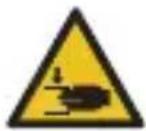
Caution! Risk of jamming when closing the lid!
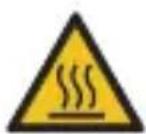
Caution! Risk of burns due to hot print head! Do not touch the print head directly after operation.

Attention! Material damage possible! Use a power supply unit with max. 5 V DC / 1 A for charging.
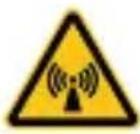
Attention! Attention! Bluetooth can cause interference! Make sure that several Bluetooth devices are not too close to each other.
Attention! Material damage possible! Only use label rolls recommended by the manufacturer.
Attention! Material damage possible! If the product exhibits unusual characteristics such as noise, odour or smoke, disconnect the power supply immediately or switch off the appliance.
Attention! Material damage possible! Do not drop or shake the appliance.
Instructions for use

Please read these operating instructions before using the device. Keep these operating instructions for future reference. Hand over all documents when passing the device on to third parties.
- Protect the device from direct sunlight, naked flames, heat sources, moisture, humidity and dust.
- High ambient temperatures can lead to poor print quality.
- The appliance is not intended for commercial use.
- Only connect the device to a properly installed socket for charging. Observe the information under Technical data.
- Only use accessories that fulfil the requirements under Technical data.
- Do not open the lid during operation.
- Ensure that the appliance is not used unsupervised by children or persons with reduced physical, sensory or mental capabilities.
- Make sure that the label compartment and the print head are free of dirt.
- The appliance is not suitable for continuous operation.
- Do not remove or damage the label on the side of the label roll.
Scope of delivery
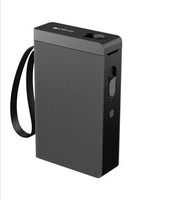
1 Label printer PM220
1 charging cable
1 label roll
1 Operating instructions
Product overview
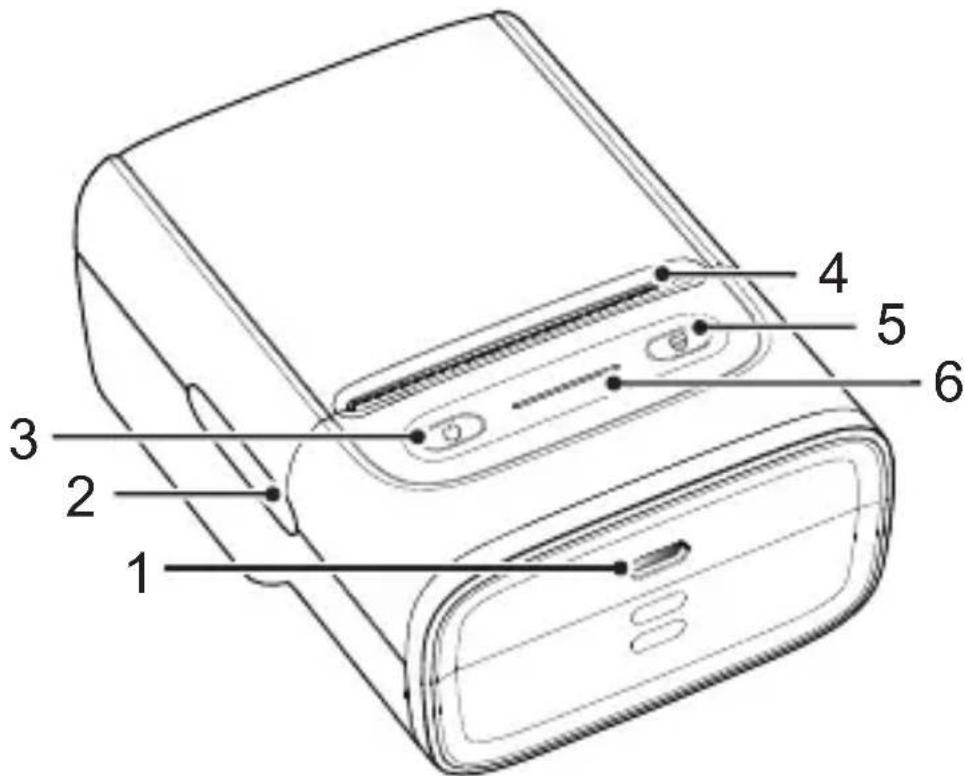
1 USB-C connection 4 Knives
2 Paper tray opener 5 Paper feed button
3 Power button 6 LED display
Charge battery
Charge the device fully before using it for the first time. You can see the battery status in the app.
Download app
Download the "Labelnize" app. Scan the following QR code with your mobile phone. Alternatively, use the Google Play Store for Android devices or the App Store for Apple devices.
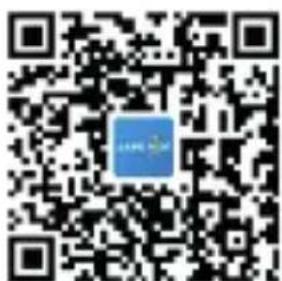
Important: You can use the "Labelnize" app without registering or logging in. Should you nevertheless register or log in, please note the data protection information of the "Labelnize" app.
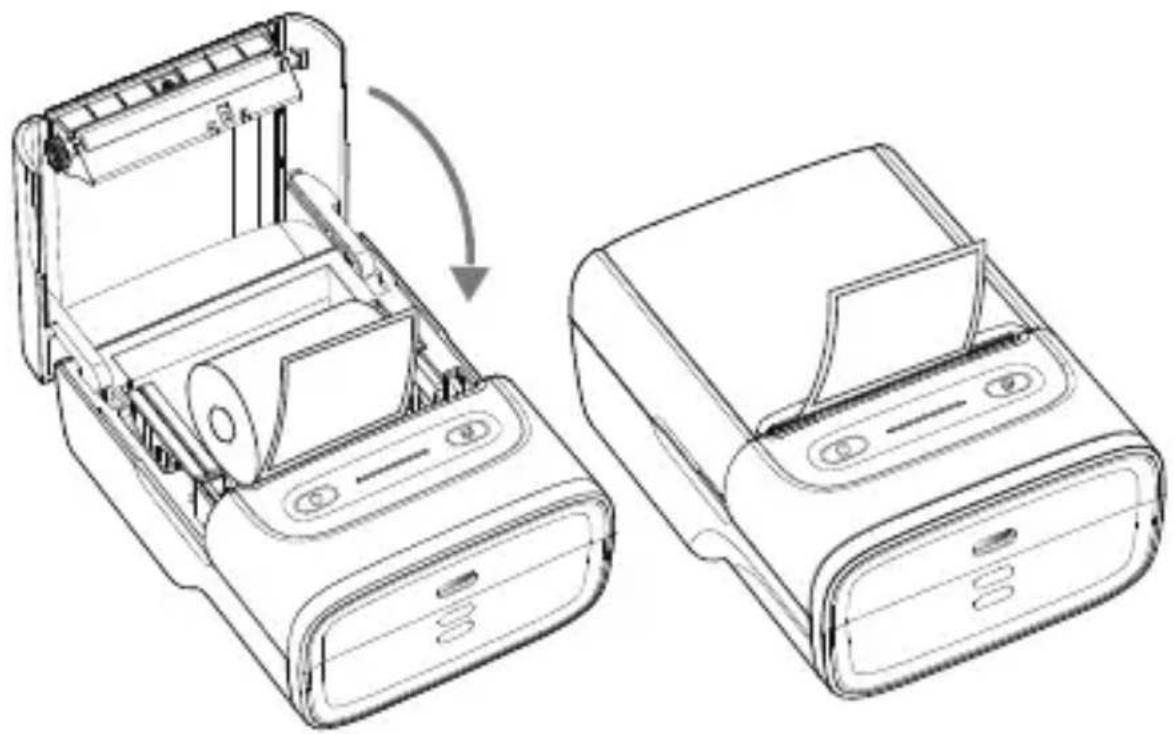
Insert label roll
1 Open the paper tray by pulling the cover up at the notches (2).
2 Place the label roll with the label side facing down into the device. Make sure that there is an overhang of about 0.5 cm.
3 Close the lid. Press and hold the power button (3) to turn on the device.
4 Press and hold the paper feed button (5) to perform a test print.

Note: The printer automatically recognises the format of the inserted label roll.
Note: Only use label rolls recommended by the manufacturer.
natural_image
Technical line drawing of a device with open and closed views, showing internal components and a rotation arrow (no text or symbols)Establish connection
1 Switch on Bluetooth on your mobile phone.
2 Switch on the device.
3 Open the app and establish a connection.
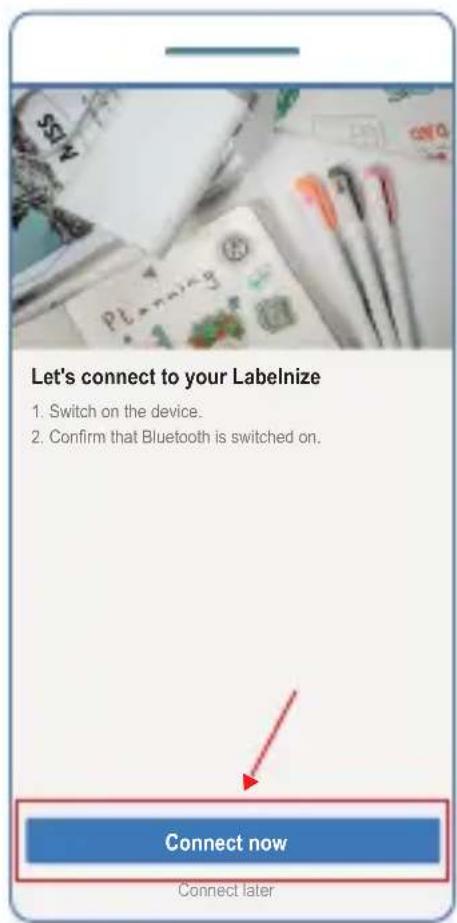
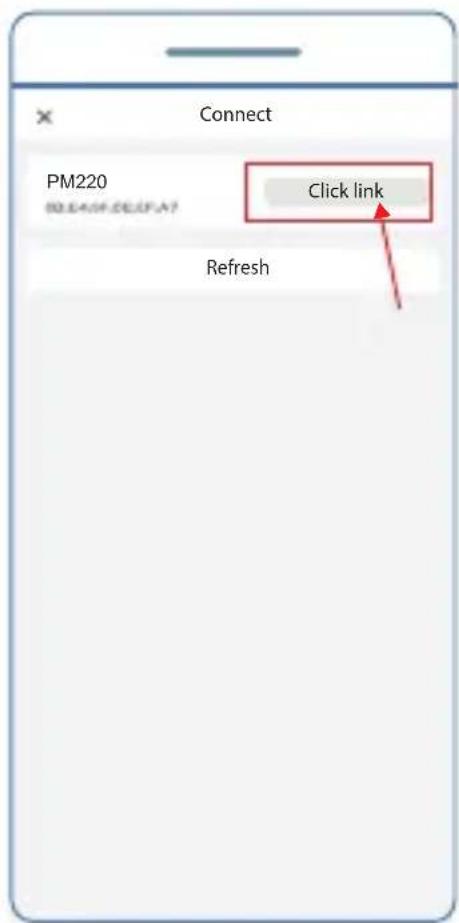
(The images show the iOS version of the app.)
Create label
1 Tap on
2 Tap on


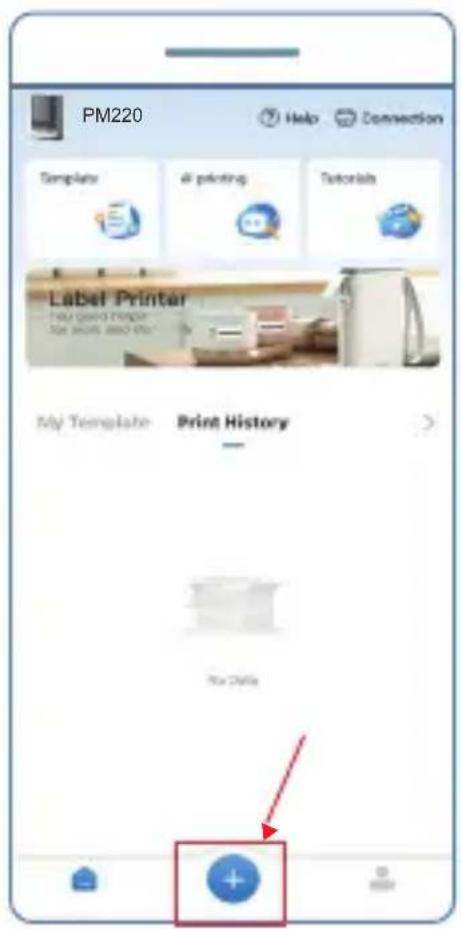
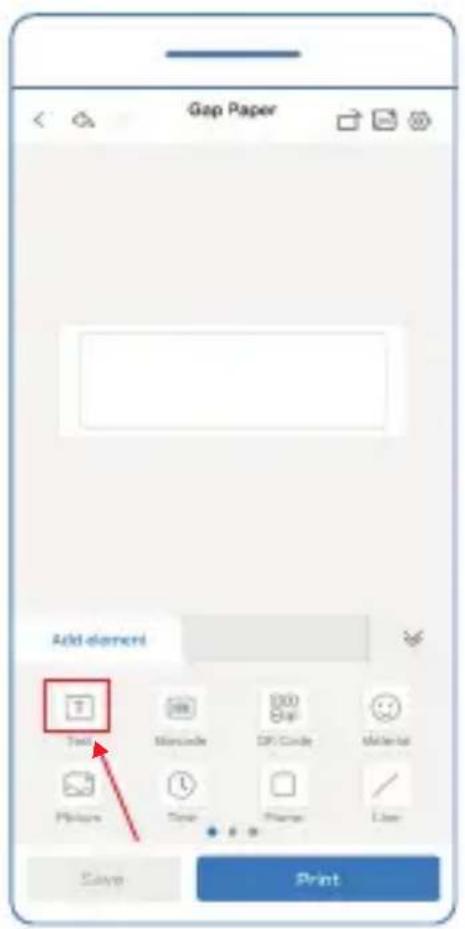
(The images show the iOS version of the app.)
3 Select one or more elements for editing.
4 Select the number of copies and print the label.
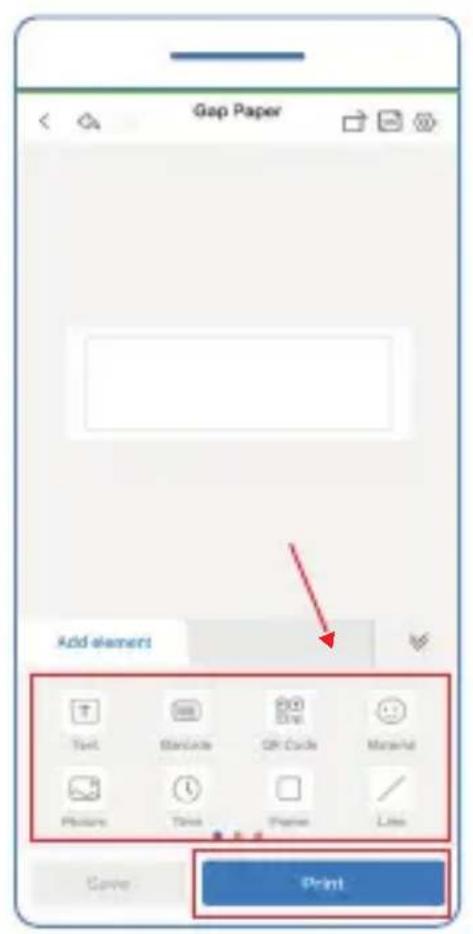
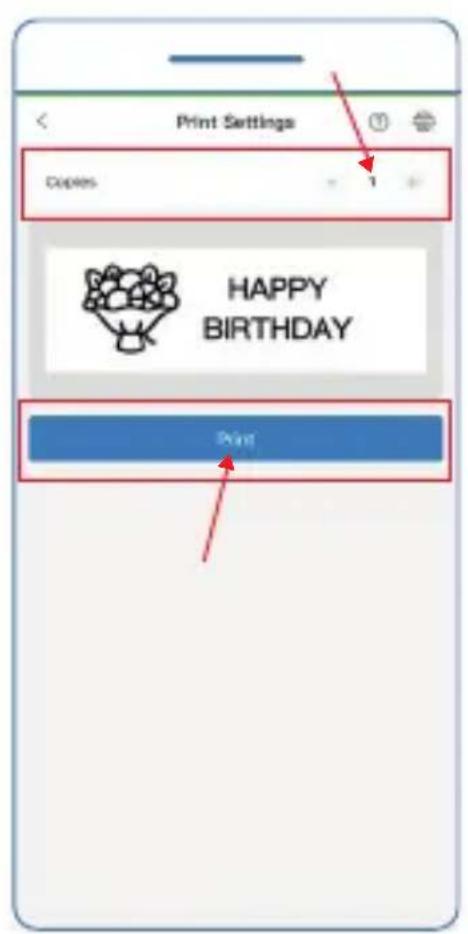
(The images show the iOS version of the app.)
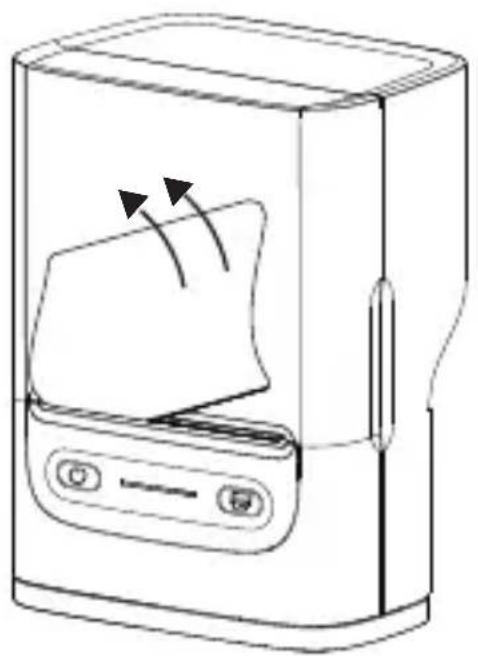
5 After completion, move the paper sideways upwards to cut the label along the integrated cutter.
natural_image
Line drawing of a device with a paper sheet and control buttons, showing motion arrows (no text or symbols)Print templates
1 Select the desired template.
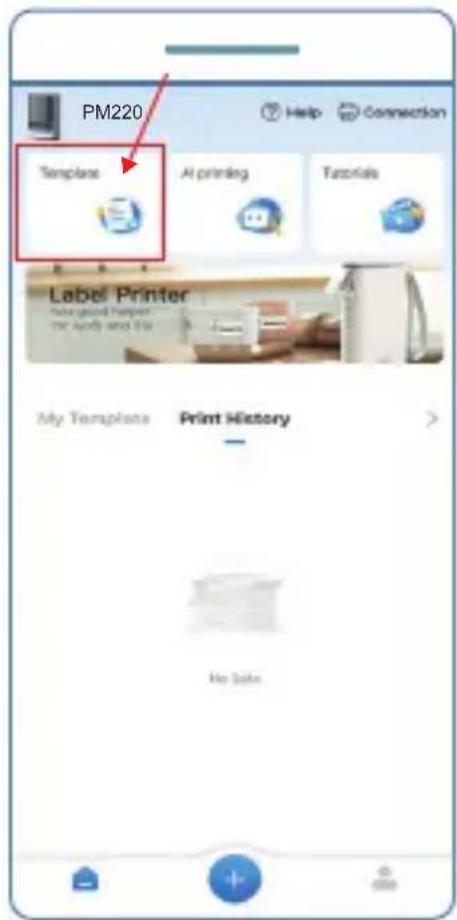
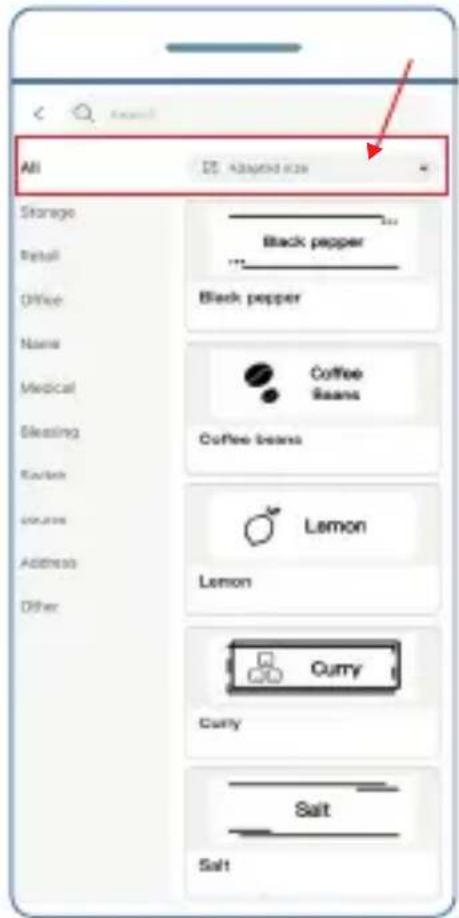
(The images show the iOS version of the app.)
2 Edit the selected template if required.
3 Select the number of copies and print the label.
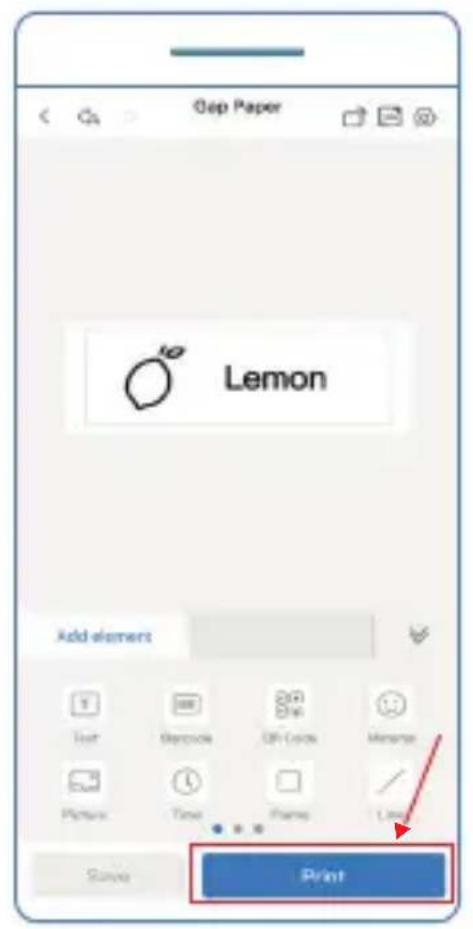
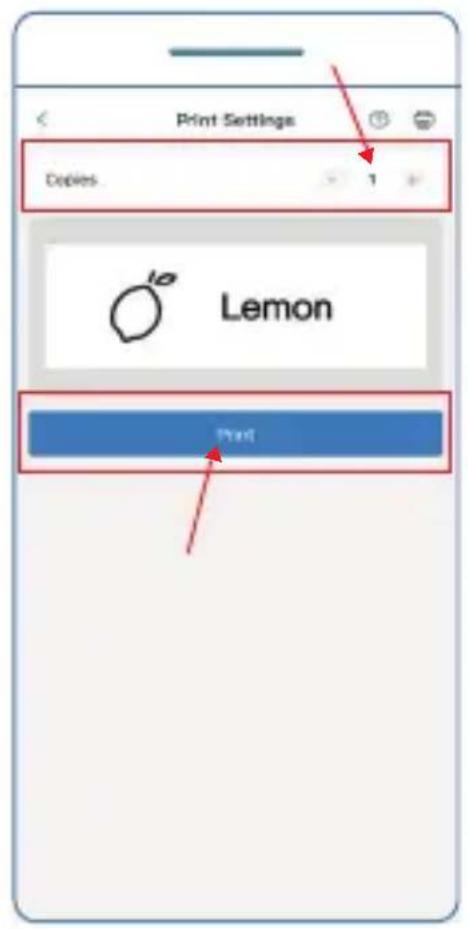
(The images show the iOS version of the app.)
4 After completion, move the paper sideways upwards to cut the label along the integrated knife.
LED display
| Status Meaning | |
| Light off Charging | process completed /Device switched off |
| White shining Device switched on | |
| White flashing Charging process | |
| Glowing red Cover open | |
| Flashing red Low battery / Out of paper | |
| Glowing blue Bluetooth connection successful | |
Cleaning
1 Switch off the device.
2 Clean the outside of the appliance with a soft, dry, lint-free cloth. Do not use any cleaning agents or solvents.
Cleaning the print head
1 Switch off the device.
2 Allow the appliance to cool down.
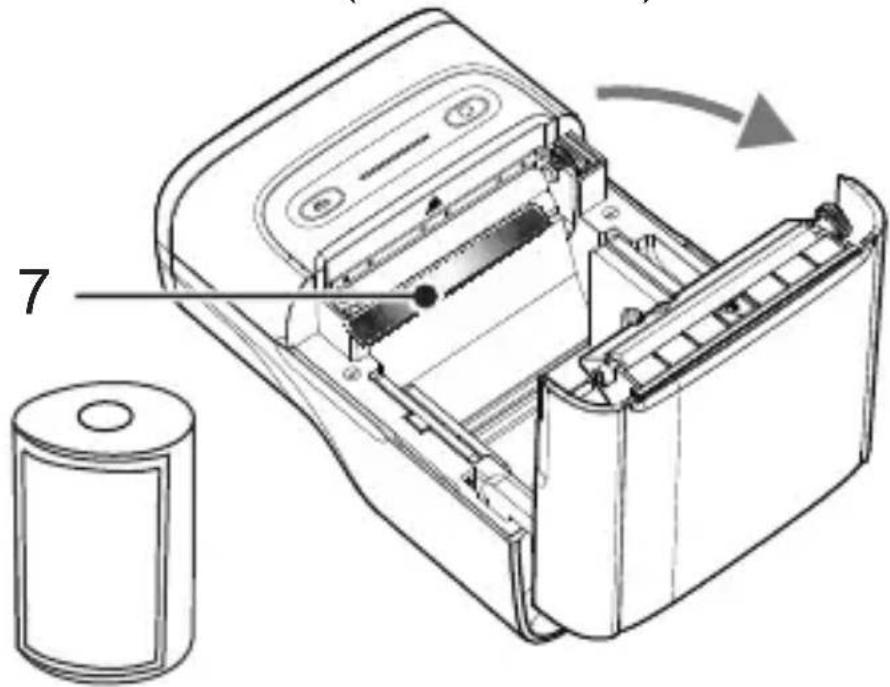
3 Open the lid.
4 Remove the label roll.
5 Clean the print head (7) with a cotton swab moistened with alcohol (ethanol or IPA).
Troubleshooting
| Malfunction Solution | |
| The device does not start | Check whether the device is switched on. |
| Check whether the device is connected to the app. | |
| The labels are not aligned correctly | Press the feed button briefly to recalibrate the label.If necessary, change the label format in the app. |
| The labels are not clearly printed | Check that the print head is clean. Clean the print head if necessary.Only use label rolls recommended by the manufacturer. |
Notes on disposal

Find out about the options for taking back old appliances and used batteries free of charge from your retailer.

The packaging is made from environmentally friendly materials that can be disposed of at local recycling centres. Ask your local authority about the options for correct disposal.
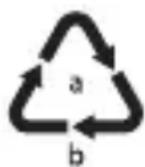
Observe the labelling of the packaging material when separating waste; these are marked with abbreviations (b) and numbers (a) with the following meaning: 1–7: Plastics / 20-22: Paper and cardboard / 80-98: Composite materials.
Faulty or used batteries must be recycled in accordance with Directive 2006/66/EC and its amendments. Return batteries and/or the device to the collection facilities provided.
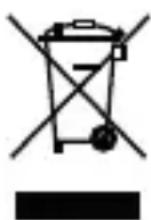
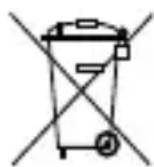
The adjacent symbol means that old electrical and electronic appliances must be disposed of separately from household waste in accordance with legal regulations. Dispose of your appliance at the collection point of your municipal waste disposal organisation.
Technical data
Printing technology Thermal
Resolution 203 dpi
Roll width 23-54 mm
Maximum pressure size 48 mm
Connection Bluetooth, USB
Knives Manual
Battery 1200 mAh
Connection USB-C
Required power supply 5V DC / 1A unit
Operating temperature 5°C - 40°C
Storage temperature -20°C - 55°C
Weight 210 g
Dimensions 84.2 x 113 x 64.5 mm
Battery information
Huizhou Superstar Technology Co., Ltd.
NO.29 Shiwan Road Shiwan Town, Boluo County, Huizhou
Guangdong Province, P.R China
Li-ion battery: 0% Mercury, 0% Cadmium, 7.4 volts, 1200 milliampere-hours
Technical changes
These operating instructions are for information purposes only. Their content is not the subject matter of the contract. All data shown are only nominal values. The equipment and options described may vary depending on the country-specific requirements.
Data protection information
Go Europe GmbH is not the provider of the "Labelnize" app and assumes no responsibility for data protection and the processing of personal data collected or processed via external services or platforms. The provider of the "Labelnize" app is responsible for protecting your personal data. Please read the privacy policy of the relevant provider for information on their data processing practices.
Declaration of Conformity
We, GO Europe GmbH, Zum Kraftwerk 1, 45527 Hattingen, GERMANY, declare under our sole responsibility that the product complies with EU directives: 2014/53/EU and 2011/65/EU. The full text of the EU Declaration of Conformity can be found at the following Internet address or by scanning the QR code.
The CE mark on the device confirms conformity. The declaration of conformity can be found at: http://productip.com/?f=30718b
Manufacturer
GO Europe GmbH
Zum Kraftwerk 1
45527 Hattingen, Germany
www.go-europe.de
service@go-europe.de
FR
Garantie
Modifications techniques 46
natural_image
Technical line drawing of a device with open and closed views, showing internal components and a rotation arrow (no text or symbols)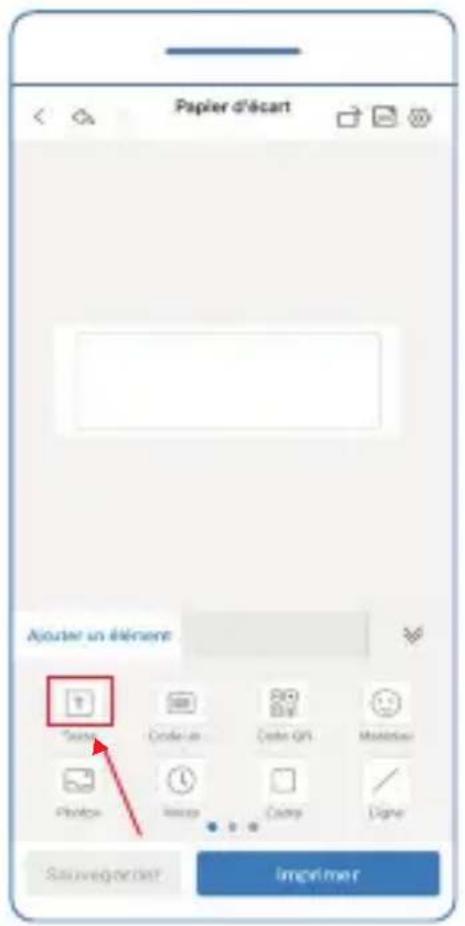
natural_image
Line drawing of a door with a paper inside, showing airflow direction (no text or symbols)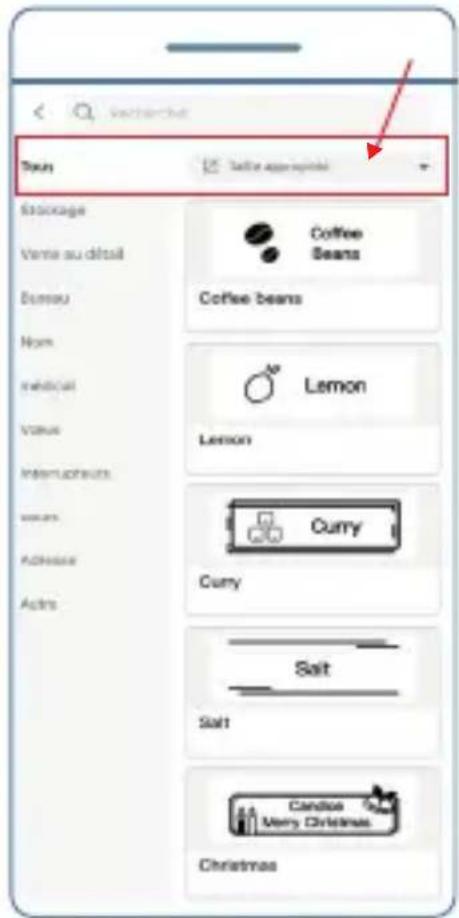
(Les illustrations montrent la version iOS de l'application.)
natural_image
Technical line drawing of an open battery pack with a cylindrical component, showing internal components and a rotation arrow (no text or symbols)Dépannage
Huizhou Superstar Technology Co., Ltd. NO.29 Shiwan Road Shiwan Town, Boluo County, Huizhou / Guangdong Province, P.R China Batterie Li-ion : 0 % Mercure, 0 % Cadmium, 7.4V, 1200mAh
Modifications techniques
- Vorlagen drucken
- Intended use
- Table of contents
- Important safety instructions
- Instructions for use
- Scope of delivery
- Product overview
- Charge battery
- Download app
- Insert label roll
- Establish connection
- Create label
- Print templates
- Select the desired template.
- LED display
- Cleaning
- Cleaning the print head
- Troubleshooting
- Notes on disposal
- Technical data
- Battery information
- Technical changes
- Data protection information
- Declaration of Conformity
- Manufacturer
- FR
- Garantie
- Dépannage
- Modifications techniques
Brand : OLYMPIA
Model : PM220
Category : Label printer