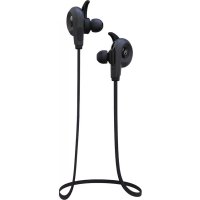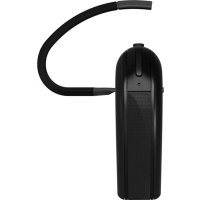
Q3i - Earplug BLUEANT - Free user manual and instructions
Find the device manual for free Q3i BLUEANT in PDF.

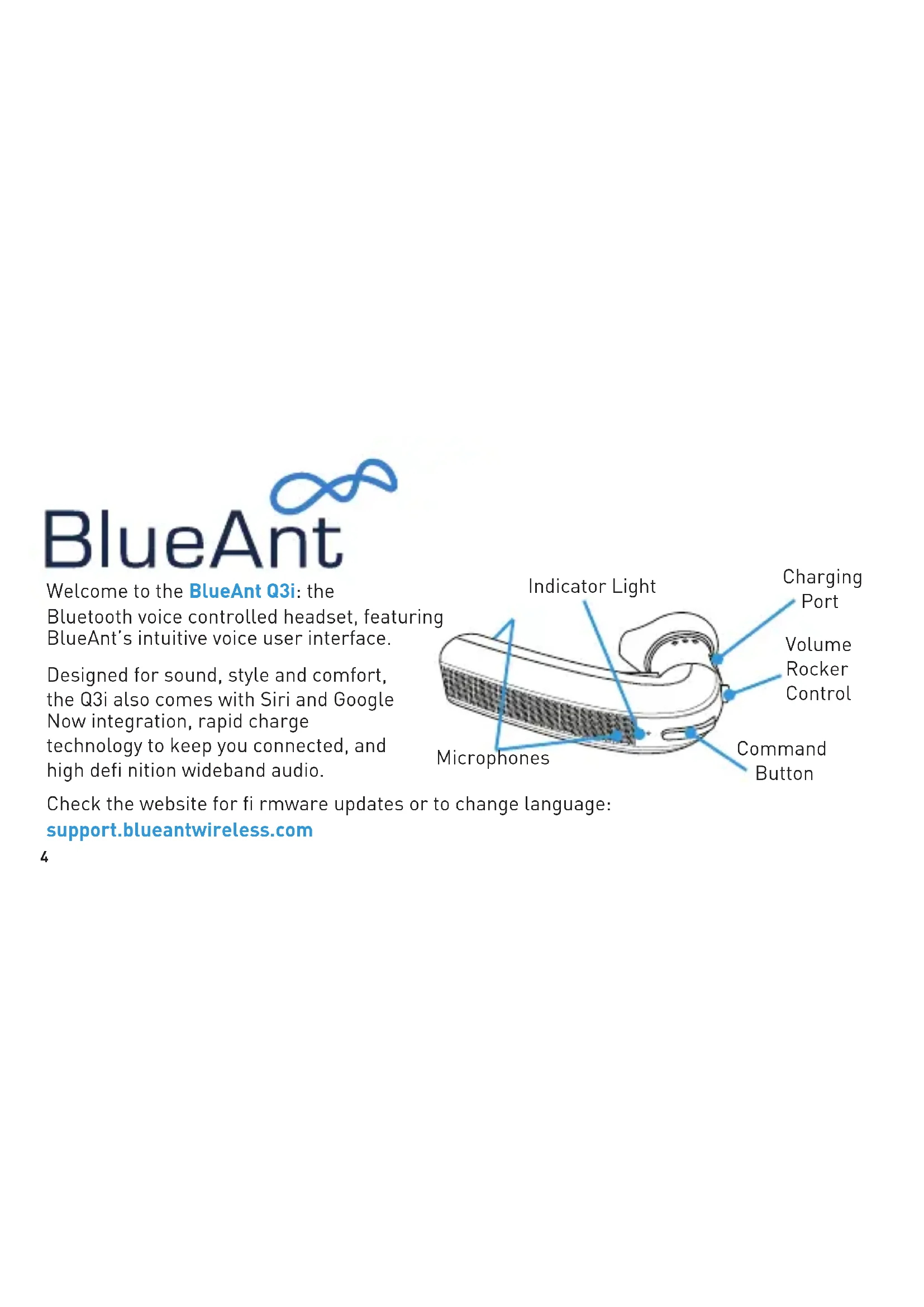


| Product Type | Bluetooth Headset |
| Brand | BlueAnt |
| Model | Q3i |
| Dimensions (estimated) | 4.5 x 1.5 x 1 cm |
| Weight (estimated) | 10 g |
| Talk time (estimated) | 6 hours |
| Standby time (estimated) | 100 hours |
| Battery type | Rechargeable Lithium-ion |
| Fast charging | 50% in 30 minutes, full charge in 2 hours |
| Charging indicator | Red light (charging), white light (charged) |
| Bluetooth version | Not specified (standard Bluetooth compatible) |
| Supported Bluetooth profiles | HSP, HFP, A2DP, AVRCP, PBAP |
| Bluetooth range | Approximately 10 meters |
| Key features | Voice command, multipoint pairing (2 devices), A2DP audio streaming, caller name announcement, Siri/Google Now assistants, orientable volume control, fast charging |
| Charging port type | USB (cable included) |
| Care and cleaning | Wipe with a dry or slightly damp cloth. Do not use detergents. |
| Hearing safety | Maximum volume up to 100 dB. Prolonged use at high volume may damage hearing. |
| Available spare parts | Ear gels of different sizes, USB cable |
| Repairability | Not user-serviceable. Contact BlueAnt support. |
| Warranty | See terms and conditions at warranty.blueantwireless.com |
Frequently Asked Questions - Q3i BLUEANT
User questions about Q3i BLUEANT
0 question about this device. Answer the ones you know or ask your own.
Ask a new question about this device
Download the instructions for your Earplug in PDF format for free! Find your manual Q3i - BLUEANT and take your electronic device back in hand. On this page are published all the documents necessary for the use of your device. Q3i by BLUEANT.
USER MANUAL Q3i BLUEANT
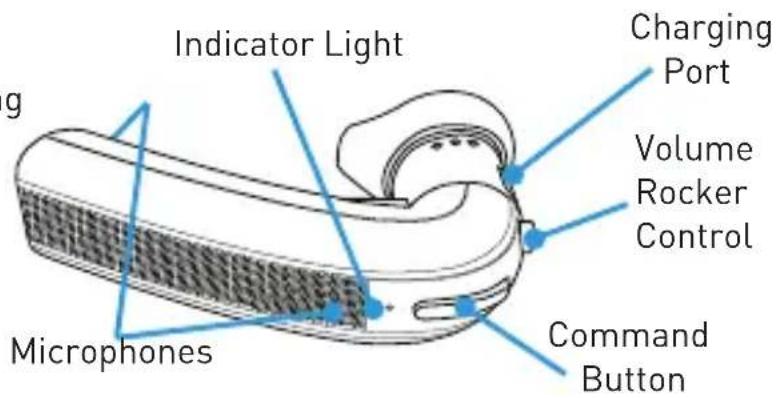
Welcome to the BlueAnt Q3i: the Bluetooth voice controlled headset, featuring BlueAnt's intuitive voice user interface.
Designed for sound, style and comfort, the Q3i also comes with Siri and Google Now integration, rapid charge technology to keep you connected, and high definition wideband audio.
text_image
Indicator Light g Charging Port Volume Rocker Control Microphones Command ButtonCheck the website for fi rmware updates or to change language: support.blueantwireless.com
Charge Your Headset
Your headset has been given an initial partial charge to get you started, but for best results we recommend you fully charge it using the supplied USB cable.
Charge the Q3i whenever it announces that the battery is Very Low. It will switch off automatically if the battery runs out.
Your headset features Rapid Charge technology. It will charge to 50% capacity in just 30 minutes (a full charge takes about 2 hours).
During charging, the indicator light fl ashes red.
When the light goes white, the charge is complete.
The Q3i features an iPhone battery meter so you can check your battery status at a glance.
text_image
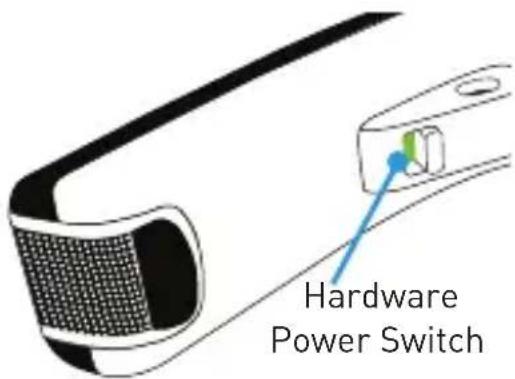
Hardware Power SwitchWearing the Q3i
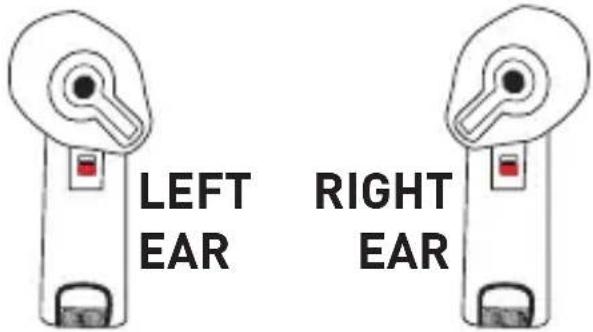
You can wear the Q3i in either ear. For best results:
Rotate the ear gel as shown here.
Make sure that the headset is angled towards your mouth.
Pair Your Headset
text_image
LEFT EAR RIGHT EARTo use the Q3i you need to pair it with your phone.
- Slide the hardware power switch across to turn the Q3i on and then put the Q3i in your ear.
-
If this is the first time you have used the Q3i it will go straight to pairing mode. The voice prompts will start to talk you through the pairing process. For subsequent pairings, click the Command button and wait for the Q3i to ask you to Say A Command. Then say Pair Me.
-
Follow the voice prompts to pair the Q3i with your phone. If requested, the pairing code is 0000 (four zeros).
Note: If your phone prompts you to allow a connection to the Q3i, you must select "YES" or "OK".
On Android devices a message about phonebook access may appear in the notifications area on screen. This is to allow access to your contacts so that the Q3i can announce caller names. You must accept the transfer request. If you miss this step you will need to:
- Delete the Q3i pairing from your phone.
- Power the phone off and back on.
- Reset your Q3i and pair it with your phone again.
This is due to the way the Android PBAP request system works.
Note: Some other phones may also require you to grant phonebook access permission. Select "YES" or "OK" when prompted.
Use Your Voice to Control the Q3i
The Q3i is voice controlled.
Simply:
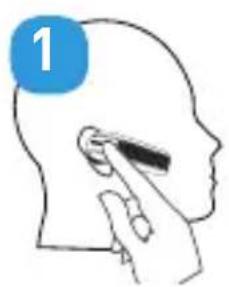
- Click the Command button
- Wait for the Q3i to ask you to Say A Command
- Say the command:
natural_image
Illustration of a human head in profile with a finger pointing to the ear area, labeled with number 1 (no text or symbols on the diagram itself)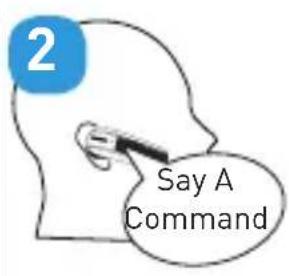
text_image
2 Say A Command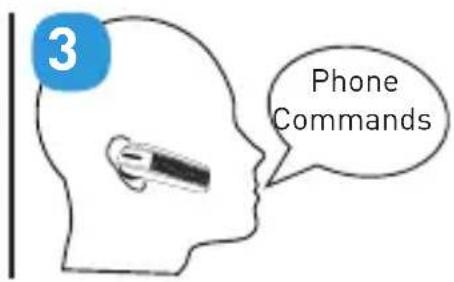
text_image
3 Phone CommandsCommand Description
Am I Connected? The Q3i will check if your phone is connected, and attempt to connect if not.
Call Back Calls back the last incoming call.
Command Description
Check Battery Tells you the battery level on the Q3i.
Pair Me Puts the Q3i into pairing mode. Any connected phone will be disconnected.
Phone Commands Activates your phone's voice dialing feature (if supported).
Depending on your phone model, you may need to record voice tags on the phone to use this feature.
On the iPhone this command activates Siri. On Android devices this command activates Google Now.
Redial Redials the last outgoing call.
What Can I Say? (or click the Tells you the available voice commands.
Command button 3 times)
Making Calls
Voice Dialing
Double click the Command button or use the Phone Commands voice command to activate your phone's voice dialing feature (if available).
Once you have activated this feature, you are using your phone's voice recognition software. Please check your phone manual to find out what commands your phone supports.
On the iPhone this feature activates Siri. There's no need to touch or unlock your iPhone. Note: Siri must be enabled on your phone. Go to Settings > General on your iPhone and check that Siri is set to ON. If you have set a passcode lock you will need to set Siri to ON in the passcode lock menu.
Android users: use this feature to access Google Now (if available). Note: Depending on your handset, you may need to disable the phone password lock to use voice dialing over Bluetooth. Check your phone manual for further information on this feature.
Other Ways To Make Calls
Dial the number on your phone. The audio automatically transfers to the headset.
Use the Redial or Call Back commands.
Taking Calls
When the phone rings, the Q3i will announce the caller's name.* Wait for the prompt to ask you if you want to take the call, and then say Answer or Ignore. Or:
To accept the call click the Command button once.
To reject the call double click the Command button.
* If your phone supports the Bluetooth Phone Book Access Profi le (PBAP). If your phone does not support PBAP, or you receive a call from a number that is not in your phonebook, the Q3i will say "Incoming Call. Answer or Ignore?"
During a call, click the Command button to end the call.
Volume Control
Use the volume rocker:
Push up for volume up. > Push down for volume down.
Note: See the next section for advice if you wear the Q3i in your left ear.
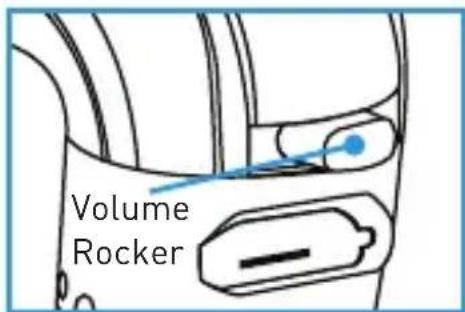
text_image
Volume RockerWearing the Q3i in your Left Ear?
The Q3i volume controls are set by default for users wearing the headset in their right ear.
If you prefer to wear your headset in your left ear, follow these simple steps to swap the volume orientation so that you can still push up for volume up and down for volume down:
-
Put the Q3i in your left ear.
-
Hold down the Command button, and push and hold the volume rocker in the up position. Hold both buttons together for about 3 seconds.
If you want to switch back, put the Q3i back in your right ear and repeat this procedure.
Note: If you reset your headset, it reverts to the default volume control orientation (right ear).
Attach the Ear Gel
Your Q3i comes with small and large ear gels. Gently press the ear gel onto the Q3i then press it firmly to secure it in place. To remove the ear gel gently lift it away from the Q3i.
Using 2 Phones (Multipoint)
Up to 2 devices can connect to the headset at the same time. If either phone rings, you can answer it with the headset.
Use the Pair Me command to put your Q3i back into pairing mode to pair another phone. Any currently connected phone will be disconnected during pairing, so you will need to reconnect afterwards.
Which Phone is Used for Calls?
When you have two phones connected you can always answer an incoming call from either phone. If you initiate a call through the headset (for example by saying Phone Commands) then the call takes place on the primary phone: the one that connected to the headset first.
Call Waiting and Conferencing\*
If you receive an incoming call while you are already on a call the Q3i will play an alert tone.
| To Do This | |
| End the active call and answer the incoming call | Click theCommandbutton |
| Keep the active call, reject the incoming call | Double click theCommandbutton |
To Do This
Put the active call on hold, answer the incoming call
Hold the Command button for about 1 second
Switch between the active and held call Hold the Command button for about 1 second
Conference the active and held call Hold the Command button for about 3 seconds
If you are using multipoint you can also use these controls to switch between calls on both phones.
Note: You can only conference together calls received on the same phone (although you can have conference calls running on both phones at the same time).
* To use these features, your phone and network must support call waiting and call conferencing.
Listening to Audio
The Q3i supports A2DP audio streaming. If your phone supports the A2DP profi le then simply start playing music or any other audio (including turn-by-turn directions from a GPS application on your phone) and it will automatically transfer to the headset.
If the phone rings the audio will mute. You can use your voice to answer or ignore the call. Or:
Click the Command button to accept the call.
Double click the Command button to ignore the call.
The audio will resume when the call ends.
If you want to exit A2DP streaming mode to do something else:
Click the Command button to activate the Q3i's voice control feature. If you do not say one of the Q3i's voice commands within a few seconds the music will resume playing; or
Double click the Command button to activate your phone's voice dialing feature (if available).
Reset the Q3i
If you are having problems with the Q3i, you can reset it and start again.
Resetting the Q3i will clear all the stored pairing settings, reset the volume orientation to the default and put the device back into pairing mode. To reset the Q3i:
- Delete any existing pairing information from your phone and turn the phone off and back on again to clear the phone memory.
- Make sure the Q3i is switched on but not connected to any phones.
- Hold down the Command button and Vol + together for about 5 seconds.
- The Q3i will announce that it has been reset.
- Now use the hardware switch to turn the Q3i off and back on again.
You will now need to pair your phone with the Q3i again.
Reconnecting to the Headset
If you take your phone out of range of the headset for more than 2 minutes, the Q3i will go into “sleep mode” to save battery. When you bring your phone back into range, simply double click the Command button to reconnect.
Alternatively, use the hardware switch to turn the Q3i off whenever you are not using it. The Q3i will automatically attempt to reconnect to your phone when you switch it on. Depending on your phone, this may take a few seconds. Please ensure that Bluetooth is enabled on your phone.
Help and Support
If you are having trouble getting the Q3i to work, please visit support.blueantwireless.com for online help, support, and troubleshooting tips. Please contact us before returning the Q3i to a store and we will help you through any diffi culty you may have.
Terms and Conditions
By using this product, you are agreeing to BlueAnt's terms and conditions, available at warranty.blueantwireless.com.
Please protect your ears. All BlueAnt devices are designed to reach volumes of up to 100 decibels. Prolonged use at high volumes may affect your hearing capacity and may result in noise induced hearing loss (NIHL). Please read the enclosed safety card for information about the safe use of BlueAnt products.
The Bluetooth® word mark and logos are registered trademarks owned by Bluetooth SIG, Inc. and any use of such marks by BlueAnt Wireless is under license. Android is a trademark of Google Inc., Apple, iPhone and Siri are trademarks of Apple Inc., registered in the U.S. and other countries. BlueAnt and other trademarks are trademarks of BlueAnt and other organizations and may not be used without permission. The BlueAnt logo is registered in the U.S. Patent and Trademark Office and globally with the World Intellectual Property Organization under the Madrid protocol.
Important Safety Information
PLEASE READ THIS ENTIRE DOCUMENT CAREFULLY, BECAUSE IT CONTAINS IMPORTANT INFORMATION ABOUT THE SAFE USE OF BLUEANT DEVICES
WARNING - PROTECT YOUR HEARING
BLUEANT DEVICES CAN REACH VOLUMES ABOVE 100 DECIBELS.
PROLONGED USE AT HIGH VOLUMES MAY AFFECT YOUR HEARING
CAPACITY AND MAY RESULT IN NOISE INDUCED HEARING LOSS (NIHL).
TURN OFF THE POWER TO YOUR DEVICE WHEN NOT IN USE.
- Hearing loss may occur if a headset is used at maximum volumes for more than 5 minutes per day, or at medium volumes for more than 1 hour per day.
- Exposure to sound at close range such as via an ear piece in your ear may result in hearing loss, even at low levels.
Do not listen at high volumes. Remember that your ears will adapt to the volume level and if you change to higher levels your ear may feel no discomfort but damage to your hearing may be occurring.
BlueAnt Recommends That You:
- Set the volume control in a low position before putting the headset or headphones on your ears.
- Limit the amount of time you use headsets or headphones at high volume.
- Avoid turning up the volume to block out noisy surroundings.
- Turn the volume down if you cannot hear people speaking near you.
Should you experience any discomfort after using the product, stop using it immediately. If the problem persists seek medical assistance immediately.
CHOKING HAZARD
YOUR BLUEANT DEVICE, ITS PACKAGING, AND PACKAGE CONTENTS MAY CONTAIN PARTS THAT MAY BE A CHOKING HAZARD TO SMALL CHILDREN.
Please ensure that the device and any associated components such as ear gels or chargers are stored safely and that any packaging or unwanted contents are disposed of thoughtfully. Do not place the product on the floor or leave it in a place where young children could access it, or someone could trip over it.
Using Ear Gels
Your BlueAnt headset will come with ear gels or foam tips that are designed to provide a secure fit in your ear while providing high quality audio.
- Ear gels and tips are designed to sit comfortably in your ear and should not be forced into your ear at any time. If you have trouble fi tting the ear gel or foam please refer to the owner's manual for correct insertion and usage information.
• Always make sure that the ear gel or foam is fitted securely to your device before placing it in your ear.
WARNING
NOTE THAT NON-COMPLIANCE, MISUSE OR FORCING THE EAR GEL OR FOAM MAY CAUSE DAMAGE TO YOUR EAR CANAL OR EARDRUM, OR MAY OTHERWISE CAUSE BODILY HARM.
Smart Practices While Driving
Check the laws and regulations on the use of mobile devices and accessories such as your BlueAnt device in the areas where you drive. Always obey them. DO NOT USE MOBILE DEVICES AND ACCESSORIES IN AREAS WHERE THEIR USE IS PROHIBITED. ENSURE THAT YOUR USE COMPLIES WITH ANY RESTRICTIONS.
Your BlueAnt device lets you communicate by voice when wireless service is available and safe conditions allow. When driving a
car, driving is your first responsibility. If you choose to use your Bluetooth device while driving, remember the following tips:
- Get to know your BlueAnt device and its features such as speed dial and redial. These features help you to place your call without taking your attention off the road.
- If you receive an incoming call at an inconvenient time, let your voice mail answer it for you.
- Let the person you are speaking to know you are driving; if necessary, suspend the call in heavy traffic or hazardous weather conditions. Rain, sleet, snow, ice, and heavy traffic can be hazardous.
- Do not take notes or look up phone numbers while driving. Remember that your primary responsibility is driving safely.
- Do not engage in stressful or emotional conversations that may be distracting. Make people you are talking to aware you are driving and suspend conversations that can divert your attention away from the road.
- In the case of fire, traffic accidents, medical or other serious emergencies, dial the local emergency number.
- Call roadside assistance or a special non-emergency wireless assistance number when necessary.
Care and Handling
Your BlueAnt Bluetooth device is a precision engineered instrument. To ensure its ongoing performance, you should look after it as you would any quality consumer electronic product, and use it in accordance with the instructions.
BlueAnt recommends that you take the following precautions.
- Avoid leaving your device in direct sunlight, such as on the dashboard or console of a car or truck. Do not leave your device unattended in your vehicle.
- Do not leave your device, or use your device, in any area where the temperature may exceed 60 degrees Centigrade (140 degrees Fahrenheit), such as inside a closed car on a hot day. Remember that on a hot day the temperature inside a closed car may be signifi cantly higher than the outside air temperature.
- Do not leave your device, or use your device, in any area where the temperature is likely to drop below 0 degrees Centigrade (32 degrees Fahrenheit).
- Do not leave your device, or use your device, in any area exposed to humidity, dust, soot, other foreign objects, smoke, or steam as this may cause your device to malfunction.
- Do not use any household or industrial grade detergents or cleaners to clean your device. If your device becomes dirty or smeared, in most instances a wipe with a dry or slightly damp cloth should be sufficient to clean it.
- Do not leave your Bluetooth device plugged into a wall or car charger for long periods after it is fully charged. BlueAnt does not recommend long periods of continued charging.
- Before charging your BlueAnt device, make sure that the AC outlet, adaptor and cable are not damaged. If you notice any abnormalities, seek advice from a qualified professional.
- Your BlueAnt device is not waterproof and should be removed and placed in a dry area in the event of being exposed to any drizzle, rain or water.
- If traveling internationally, ensure that your BlueAnt wall or car power adapter is approved for use in the country where you plan to use it and that the adapter voltage is suited to the local power supply.
- Should a fault develop with your BlueAnt product, contact BlueAnt for advice on how to proceed. Do not attempt to repair or alter any BlueAnt product yourself.
Approved Accessories
The use of accessories not approved by BlueAnt, including but not limited to batteries, antennas, wall adapters, car chargers, ear gels and foam tips and convertible covers, may cause your BlueAnt device to malfunction or in the case of non-approved electrical accessories may cause the device to exceed RF energy exposure guidelines. Use of non approved accessories will void your device's warranty. For a list of approved BlueAnt accessories, visit our website at: blueantwireless.com
Electromagnetic Interference
Nearly every electronic device is susceptible to electromagnetic interference (EMI) if inadequately shielded, designed, or otherwise configured for electromagnetic compatibility. Similar to a mobile phone, your BlueAnt device is a low power transmitter / receiver and is covered by regulations pertaining to such devices. Turn off your BlueAnt device in any facility where posted notices instruct you to do so. These facilities may include hospitals or health care facilities that may be using equipment that is sensitive to external RF energy.
- When instructed to do so, turn off your BlueAnt device when on board an aircraft. Any use of a mobile device must be in accordance with applicable laws, regulations and airline crew instructions.
- Some Bluetooth devices may interfere with some hearing aids. In the event of such interference, you may want to consult your hearing aid manufacturer or physician to discuss alternatives.
- If you use any other personal medical device, consult the manufacturer of your device to determine if it is adequately shielded from RF energy. Your doctor or physician may be able to assist you in obtaining this information.
- If you are in doubt about whether your BlueAnt device or mobile phone can be safely turned on or used, please consult an authorized person in the location you want to use your BlueAnt device. If no authorized person is available or you remain
uncertain, BlueAnt recommends that you turn off your Bluetooth device and any mobile phones unless they are required in an emergency situation.
PROPOSITION 65 WARNING
THIS PRODUCT CONTAINS CHEMICALS KNOWN TO THE STATE OF CALIFORNIA TO CAUSE CANCER, BIRTH DEFECTS, AND/OR OTHER REPRODUCTIVE HARM.
FCC Notice To Users
15.21: BlueAnt has not expressly approved the user to make any changes or modifications to this device. You are cautioned that if you make any changes or modifications to this device, you can void your authority to operate the equipment. See 47 CFR section 15.21.
15.19(3): This device complies with part 15 of the FCC Rules. Operation is subject to the following two conditions: (1) This device may not cause harmful interference, and (2) this device must accept any interference received, including interference that may cause undesired operation. See 47 CFR section 15.19(3) & (5).
15.105(b): If your mobile device or accessory has a USB connector, or is otherwise considered a computer peripheral device whereby it can be connected to a computer for purposes of transferring data, then it is considered a Class B device
and the following statement applies:
NOTE: This equipment has been tested and found to comply with the limits for a Class B digital device, pursuant to part 15 of the FCC Rules. These limits are designed to provide reasonable protection against harmful interference in a residential installation. This equipment generates, uses and can radiate radio frequency energy and, if not installed and used in accordance with the instructions, may cause harmful interference to radio communications. However, there is no guarantee that interference will not occur in a particular installation. If this equipment does cause harmful interference to radio or television reception, which can be determined by turning the equipment off and on, the user is encouraged to try to correct the interference by one or more of the following measures:
- Reorient or relocate the receiving antenna.
- Increase the separation between the equipment and receiver.
- Connect the equipment to an outlet on a circuit different from that to which the receiver is connected.
- Consult the dealer or an experienced radio/TV technician for help.
See 47 CFR section 15.105(b)
FCC RF Radiation Exposure Statement
This equipment complies with FCC radiation exposure limits set forth for an uncontrolled environment. End users must follow the specific operating instructions for satisfying RF exposure compliance. This transmitter must not be co-located or operating in conjunction with any other antenna or transmitter.
Industry Canada Notice to Users
This Class [B] digital apparatus complies with Canadian ICES-003 and RSS-210. Operation is subject to the following two conditions: (1) This device may not cause interference and (2) This device must accept any interference, including interference that may cause undesired operation of the device. See RSS-GEN 7.1.3. ICES Certification: CAN ICES-3(B)/NMB-3(B)
Radio Frequency (RF) Exposure Information
The radiated output power of the Wireless Device is below the Industry Canada (IC) radio frequency exposure limits. The Wireless Device should be used in such a manner such that the potential for human contact during normal operation is minimized. This device has also been evaluated and shown compliant with the IC RF Exposure limits under portable exposure conditions (antennas are less than 20 cm of a person's body).
European Union Directives Conformance Statement
Hereby, BlueAnt declares that this product is in compliance with:
- The essential requirements and other relevant provisions of Directive 1999/5/EC
• All other relevant EU Directives
Caring for the Environment by Recycling
(Applicable in the European Union and other European countries with separate collection systems)
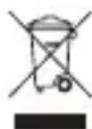
This symbol on a BlueAnt product or its literature indicates that it should not be disposed of with other household waste at the end of its working life. To prevent possible harm to the environment or human health from uncontrolled waste disposal, please separate this from other types of wastes and recycle it responsibly to promote the sustainable reuse of material resources.
Household users should contact either the retailer where they purchased this product, or their local government office, for details of where and how they can take this item for environmentally safe recycling. Business users should contact their supplier and check the terms and conditions of the purchase contract. This product should not be mixed with other commercial waste for disposal.
Recycling Bluetooth Accessories
Do not dispose of Bluetooth accessories, such as chargers or headsets, with your household waste. In some countries or regions, collection systems are set up to handle electrical and electronic waste items, and may prohibit or restrict how such items are disposed of. Check the laws and regulations for your areas to determine how to properly dispose of such items. Contact your regional authorities for more details. If collection systems are not available, please return unwanted accessories to any BlueAnt Approved Service Center for your region.
AUSTRALIAN CONSUMER LAW
Our goods come with guarantees that cannot be excluded under the Australian Consumer Law. You are entitled to a replacement or refund for a major failure and compensation for any other reasonably foreseeable loss or damage. You are also entitled to have the goods repaired or replaced if goods fail to be of acceptable quality and the failure does not amount to a major failure.
For warranty and technical support please visit
www.blueantwireless.com
or call 1300 669 049
BlueAnt Wireless,
1-7 Weston St, Brunswick, Victoria, 3056, Australia
BlueAnt
natural_image
Side profile illustration of a human head with hand near ear, no text or symbols present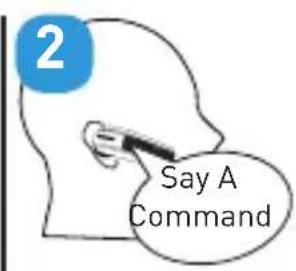
text_image
2 Say A Command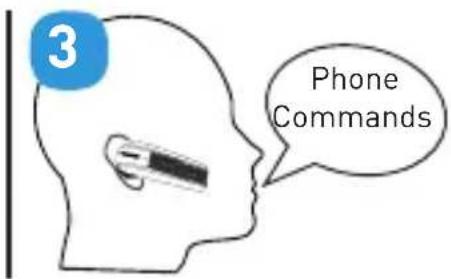
text_image
3 Phone CommandsCommande Description
Commande Description
Commande Description
What Can I Say?
www.blueantwireless.com
AVERTISSEMENT: PROPOSITION 65
CE PRODUIT CONTIENT DES SUBSTANCES CHIMIQUES À L'ÉTAT DE CALIFORNIE POUR CAUSER LE CANCER, MALFORMATIONS CONGÉNITALES, ET / OU D'AUTRES ANOMALIES DE LA REPRODUCTION.
support.blueantwireless.com
Cargue el Auricular
text_image
1 2 Say A Command 3 Phone CommandsComando Descripción
© 2015 BlueAnt Wireless. All Rights Reserved.