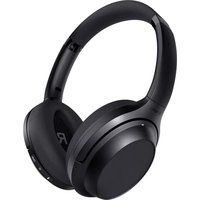
Zone X - Headphones BLUEANT - Free user manual and instructions
Find the device manual for free Zone X BLUEANT in PDF.


| Product Type | Wireless Over-Ear Headphones with Active Noise Cancelling |
| Brand | BlueAnt |
| Model | Zone X |
| Color | Black (as depicted) |
| Connectivity | Bluetooth (version not specified); 3.5mm AUX input; USB-C for charging |
| Active Noise Cancelling Modes | Noise Cancelling (green LED), Advanced Transparency (white LED), Transparency & NC Off (no LED) |
| Controls | Multifunction touchpad on right earcup (tap, swipe, slide, hold); Physical buttons: Power, Bluetooth, ANC |
| Voice Assistant | Touch and hold touchpad to activate device default assistant (Siri/Google) |
| Power Source | Rechargeable lithium-ion battery via USB-C |
| Charging Indicator | Solid RED while charging; Solid GREEN when fully charged |
| Status Indicator | Blue flashing (pairing), slow blue flash (connected), red flash (low battery), solid colors for ANC modes |
| Auto Power Off | After 5 minutes if not connected to Bluetooth or AUX unplugged |
| Instant Awareness Mode | Place palm over right earcup to mute music; release to resume |
| Call Control | Double tap touchpad to answer/end call; touch and hold to reject |
| Included Accessories | Carry case, 3.5mm AUX cable, USB-C cable, Airplane adapter, User manual |
| Warranty | 1 year limited global warranty |
| Safety Information | Hearing protection warning; avoid high volumes; do not charge wet; temperature range 0-50°C (storage) |
| Care Instructions | Clean with dry or slightly damp cloth; avoid detergents |
| Support Contact | Email: care@blueantwireless.com; Phone: 1300 669 049; Website: support.blueantwireless.com |
Frequently Asked Questions - Zone X BLUEANT
User questions about Zone X BLUEANT
0 question about this device. Answer the ones you know or ask your own.
Ask a new question about this device
Download the instructions for your Headphones in PDF format for free! Find your manual Zone X - BLUEANT and take your electronic device back in hand. On this page are published all the documents necessary for the use of your device. Zone X by BLUEANT.
USER MANUAL Zone X BLUEANT
natural_image
Black and white photo of a modern black and white headband with visible brand logo (no text or symbols on the headset body)natural_image
Close-up of a black BlueAnt headphones with visible brand logo and 'R' on the ear (no additional text or symbols)WHAT'S IN THE BOX

natural_image
Technical line drawing of two circular mechanical components with internal channels (no text or symbols)Zone X Headphones

User Manual
Carry Case

natural_image
Pure diagram of a U-shaped connector or cable with no text, numbers, or symbols3.5mm AUX Cable
natural_image
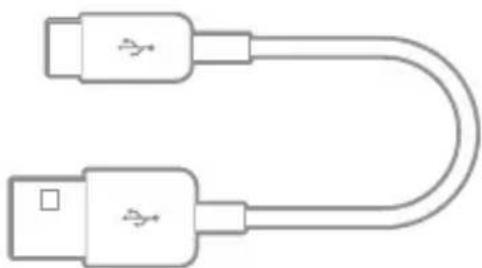
Line drawing of two USB connectors with U-shaped cable (no text or symbols)USB Type-C Cable

natural_image
Simple line drawing of a rectangular electronic component with three ports (no text or symbols)Airplane Adapter
GET TO KNOW YOUR ZONE X | CONTROLS

POWER ON/OFF
Power ON:
Press and HOLD the Power button until the Status Indicator light turns BLUE.
Power OFF:
Press and HOLD the Power button until the Status Indicator light turns OFF.

NOTE: If not connected to a Bluetooth enabled device for 5 minutes, or the AUX cable is unplugged, the Zone X will automatically power off.
BLUETOOTH PAIRING
Power on the device and follow the steps below, to pair the Zone X with your Bluetooth enabled device.
- Press and HOLD the Bluetooth button until Status Indicator flashes red and blue. The voice prompt, 'Bluetooth pairing' will be heard.
To exit Bluetooth pairing mode, press and quickly release the Bluetooth button.

- Open your device's Bluetooth menu.
- Find and select 'BlueAnt Zone X' to pair.

- Once paired, the voice prompt 'Connected' will be heard, and the Status Indicator will flash BLUE every 5 seconds.
ACTIVE NOISE CANCELLING (ANC) MODES
The ANC modes offer 3 different listening experiences. Press the ANC button to cycle through the different modes below.
1. Noise Cancelling (NC) Mode:
Green LED
This mode isolates your listening experience specifically to sound coming through the headphones and helps to block unwanted outside noise.
NC Mode is automatically activated by default, when the headphones are powered on. When NC Mode is active, the Status Indicator turns solid green.
2. Advanced Transparency Mode:
○ White LED
Advanced Transparency allows you to listen to the sounds around you, through the built-in microphones even while using the headphones.

To enter Advanced Transparency, press the ANC button once, and the voice prompt 'Transparency' is heard. The Status Indicator will turn solid WHITE.
Note: Advanced Transparency allows you to hear background noise clearer, such as important announcements and street traffic. However, certain sounds may not be heard well, depending on the environment. Be cautious in places where an inability to hear ambient sound would be dangerous.
3. Advanced Transparency and NC OFF
LED OFF
Press the ANC button once more and the voice prompt, 'Transparency and Noise Cancelling Off' is heard. The Status Indicator will turn off.
To turn NC Mode back on, press the ANC button again.
INSTANT AWARENESS MODE
Place the palm of your hands over the right earcup. The music is muted until you release your palm from the earcup.

The headphones include a multifunction touchpad, located over the right earcup. Use the following gestures to control audio playback and answer calls.
Manual Volume Control
To manually increase or decrease the volume, place your finger at either the top or bottom of the earcup as shown. Then slowly swipe up or down as shown below.

PLAY MUSIC

Play/Pause:
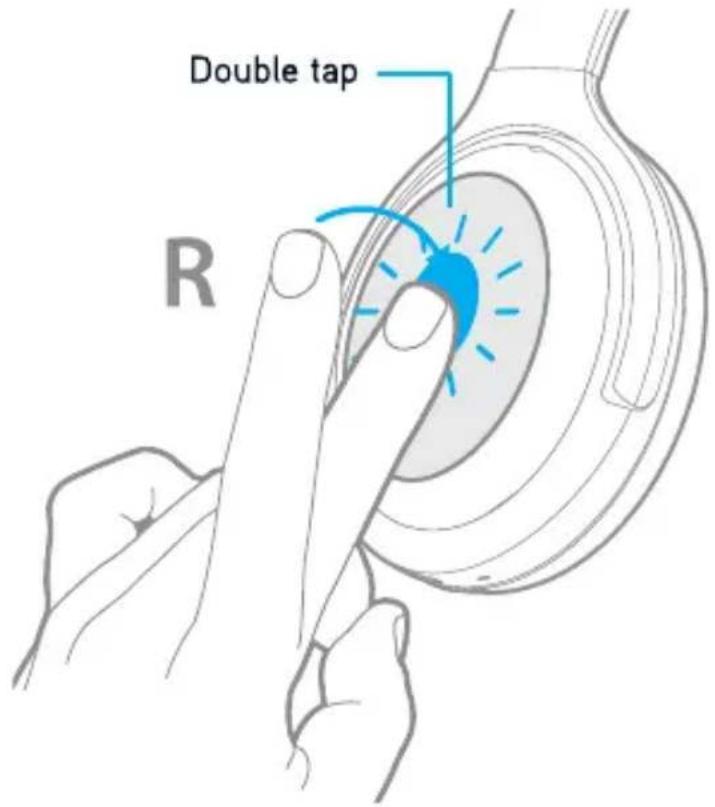
Double tap the centre of the touchpad quickly to play or pause music
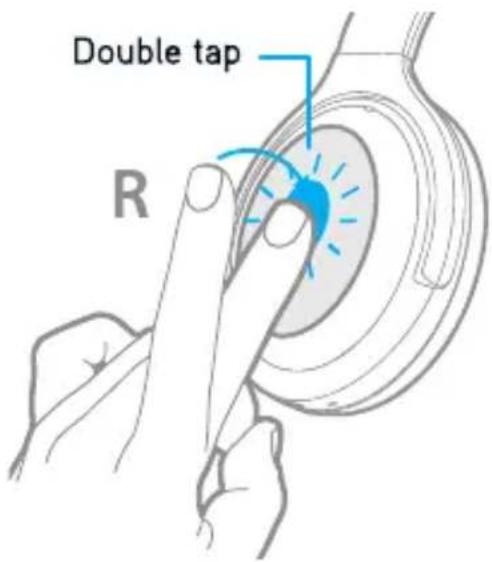

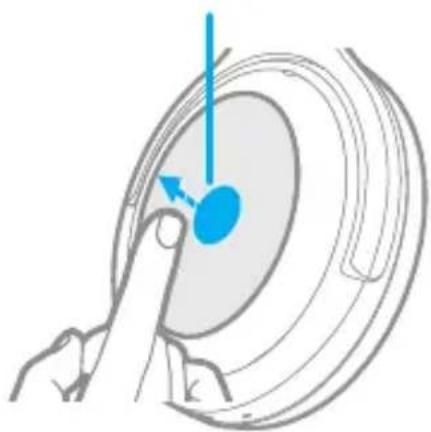
Previous Track: Slide towards back
natural_image
Diagram of a mechanical or anatomical component with a blue arrow indicating direction, no visible text or symbols
Next Track: Slide towards front

CALL CONTROL
Answer an Incoming Call: Double tap quickly to answer the call.
End an ongoing call: Double tap quickly to end an ongoing call.

Rejecting a Call: Touch and Hold during an incoming call to reject a call.
Voice Assistant: Touch and HOLD until the default voice assistant of your device is activated. You can touch and HOLD again to cancel. (Depending on your phone, this may be Siri or Google).

DISCONNECTING
To disconnect from a device, press and HOLD the Bluetooth Pairing Button, until the Status Indicator flashes RED and BLUE. The voice prompt, 'Bluetooth pairing' will be heard. You can now pair the headphones to another device.

Note: This feature is handy to quickly pair the headphones to another Bluetooth enabled device.
CHARGING
Insert the USB Type-C cable into the USB port of the headphones as shown below, and connect the other end to a USB Charger or charging device. The Charge Indicator will turn solid RED while charging and become solid GREEN when fully charged.
While charging, the headphones cannot be powered on or used.

Note: When the battery is low, the Status Indicator flashes RED twice every 5 seconds. The 'Battery very low' voice prompt will be heard.
USING THE AUDIO CABLE
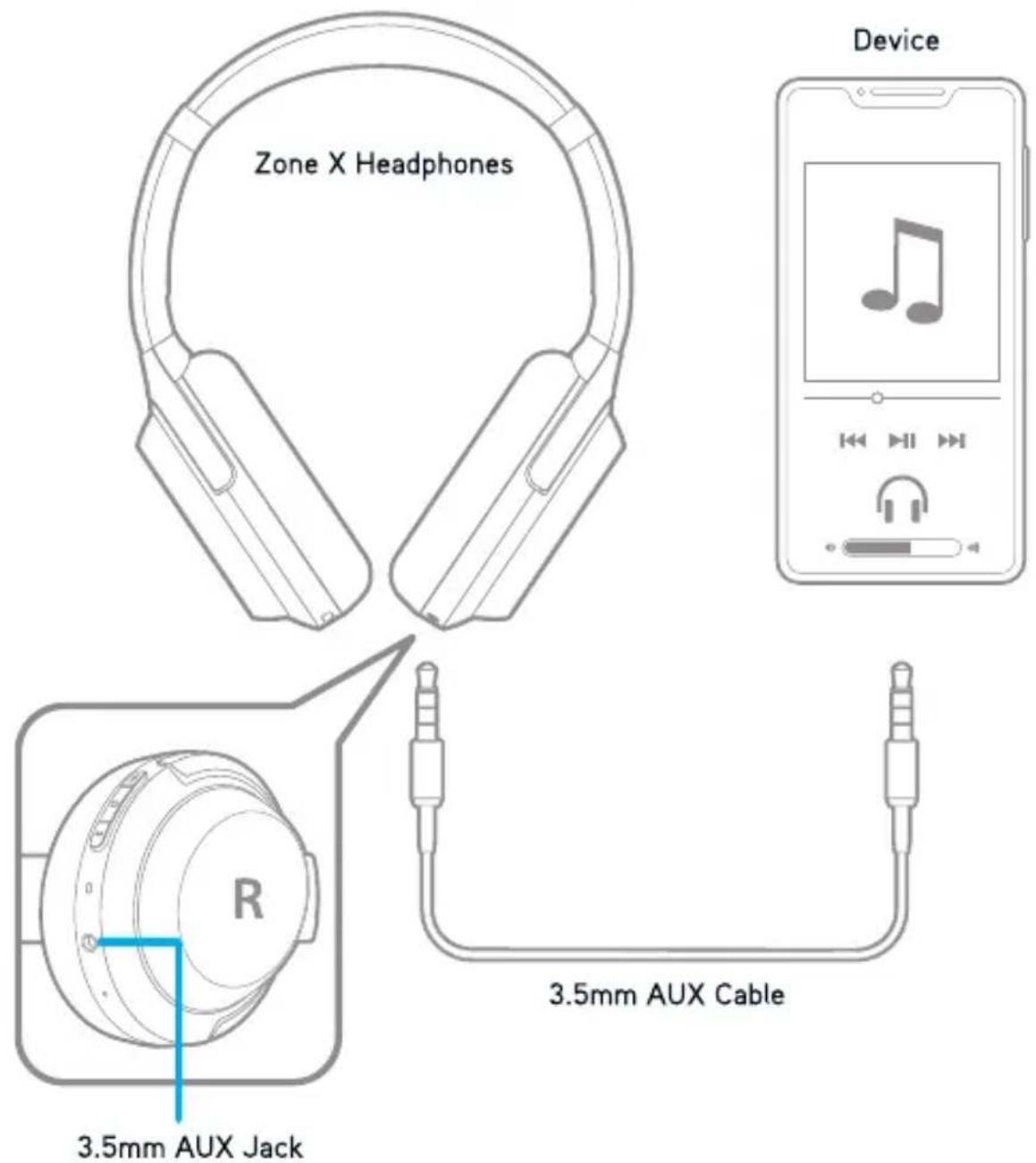
When connecting the 3.5mm AUX cable to the Zone X, the volume and tracks must be controlled from the source device. When you unplug the AUX cable and are not connected via Bluetooth, the headphones will power down.
If you want to use Noise Cancelling or Transparency without Bluetooth, please ensure the AUX cable is plugged in.
LED INDICATORS
The headphones include 2 indicators - the Status and Charge Indicators.
Both LED indicators are explained below

Status Indicator
Bluetooth
| Pairing Mode | Flashes RED and BLUE |
| Connected | Slowly flashes BLUE (every 5 seconds) |
| Not Connected | Quickly flashes BLUE (every second) |
ANC
| Noise Cancelling | Solid GREEN |
| Transparency | Solid WHITE |
| Transparency and Noise Cancelling Off | Off |
Battery
| Low battery | Flashes RED once every 5 seconds |
Charge Indicator
Charging
| Charging | Solid RED |
| Fully Charged | Solid GREEN |
SAFETY INFORMATION AND WARRANTY TERMS
Important Safety Information
PLEASE READ THIS ENTIRE DOCUMENT CAREFULLY, BECAUSE IT CONTAINS IMPORTANT INFORMATION ABOUT THE USE OF BLUEANT DEVICES
WARNING - PROTECT YOUR HEARING
BLUEANT DEVICES CAN REACH VOLUMES ABOVE 100 DECIBELS
ONLY CHARGE WHEN DEVICE IS CLEAN AND DRY
Care and Handling
Your BlueAnt Bluetooth device is a precision engineered instrument. To ensure its ongoing performance, you should look after it as you would any quality consumer electronic product, and use it in accordance with the instructions. BlueAnt recommends that you take the following precautions. Avoid leaving your device in direct sunlight.
- Do not leave your device, or use your device, in any area where the temperature may exceed 50 degrees Centigrade, such as inside a closed car on a hot day. Remember that on a hot day, the temperature inside a closed car may be significantly higher than the outside air temperature.
- Do not leave your device, or use your device, in any area where the temperature is likely to drop below 0 degrees Centigrade (32 degrees Fahrenheit).
- Do not leave your device, or use your device, in any area exposed to humidity, dust, soot, other foreign objects, smoke, or steam as this may cause your device to malfunction.
PROLONGED USE AT HIGH VOLUMES MAY AFFECT YOUR HEARING CAPACITY AND MAY RESULT IN NOISE INDUCED HEARING LOSS (NIHL). TURN OFF THE POWER TO YOUR DEVICE WHEN NOT IN USE.
- Do not use any household or industrial grade detergents or cleaners to clean your device. If your device becomes dirty or smeared, in most instances a wipe with a dry or slightly damp cloth should be sufficient to clean it.
- Do not leave your Bluetooth device plugged into a wall for long periods after it is fully charged. BlueAnt does not recommend long periods of continued charging.
-
Before charging your BlueAnt device, make sure that the AC outlet, adaptor and cable are not damaged. If you notice any abnormalities, seek advice from a qualified professional.
-
If travelling internationally, ensure that your BlueAnt wall or car power adapter is approved for use in the country where you plan to use it and that the adapter voltage is suited to the local power supply.
- Should a fault develop with your BlueAnt product, contact BlueAnt for advice on how to proceed. Do not attempt to repair or alter any BlueAnt product yourself.
Approved Accessories
The use of accessories not approved by BlueAnt, including but not limited to batteries, antennas, wall adapters, car charger, ear gels and foam tips and convertible covers, may cause your BlueAnt device to malfunction or in the case of non approved electrical accessories may cause the device to exceed RF energy exposure guidelines.
Electromagnetic Interference
Nearly every electronic device is susceptible to electromagnetic interference (EMI) if inadequately shielded, electromagnetic configured for electromagnetic compatibility. Similar to a mobile phone, your BlueAnt device is a low power transmitter/receiver and is covered by regulations pertaining to such devices. Turn off your BlueAnt device in any facility where posted notices instruct you to do so. These facilities may include hospitals or health care facilities that may be using equipment that is sensitive to external RF energy.
- When instructed to do so, turn off your BlueAnt device when on board an aircraft. Any use of a mobile device must be in accordance with applicable laws, regulations and airline crew instructions.
- If you use any other personal medical device, consult the manufacturer of your device to determine if it is adequately shielded from RF energy. Your doctor or physician may be able to assist you in obtaining this information.
- If you are in doubt about whether your BlueAnt device can be safely turned on or used, please consult an authorised person in the location you want to use your BlueAnt device. If no authorised person is available or you remain uncertain, BlueAnt recommends that you turn off your Bluetooth device and any mobile phones unless they are required in an emergency situation.
Recycling Bluetooth Accessories
Do not dispose of Bluetooth accessories, such as chargers, speakers, headphones or headsets with your household waste. In some countries or regions, collection systems are set up to handle electrical and electronic waste items, and may prohibit or restrict how such items are disposed of. Check the laws and regulations for your areas to determine how to properly dispose of such items.
BlueAnt Limited Global Warranty
This product is covered by BlueAnt's limited global warranty for one (1) year from the date of purchase by the first consumer purchaser of the product. Please refer to warranty.blueantwireless.com for full terms and conditions.
THANK YOU FOR CHOOSING A BLUEANT PRODUCT
For warranty and technical support, please email care@blueantwireless.com website www.blueantwireless.com or call 1300 669 049
Register your BlueAnt product for warranty and new product updates at register.blueantwireless.com
HELP & SUPPORT
Visit support.blueantwireless.com
Email: care@blueantwireless.com
Call: 1300 669 049
Register your BlueAnt product for warranty and new product updates at: register.blueantwireless.com



You
Tube

www.blueantwireless.com
- WHAT'S IN THE BOX
- GET TO KNOW YOUR ZONE X | CONTROLS
- POWER ON/OFF
- Power ON:
- Power OFF:
- BLUETOOTH PAIRING
- ACTIVE NOISE CANCELLING (ANC) MODES
- Noise Cancelling (NC) Mode:
- Green LED
- Advanced Transparency Mode:
- ○ White LED
- Advanced Transparency and NC OFF
- LED OFF
- INSTANT AWARENESS MODE
- Manual Volume Control
- PLAY MUSIC
- CALL CONTROL
- DISCONNECTING
- CHARGING
- USING THE AUDIO CABLE
- LED INDICATORS
- Status Indicator
- Charge Indicator
- SAFETY INFORMATION AND WARRANTY TERMS
- PLEASE READ THIS ENTIRE DOCUMENT CAREFULLY, BECAUSE IT CONTAINS IMPORTANT INFORMATION ABOUT THE USE OF BLUEANT DEVICES
- Care and Handling
- Approved Accessories
- Electromagnetic Interference
- Recycling Bluetooth Accessories
- BlueAnt Limited Global Warranty
- THANK YOU FOR CHOOSING A BLUEANT PRODUCT
- HELP & SUPPORT
Brand : BLUEANT
Model : Zone X
Category : Headphones