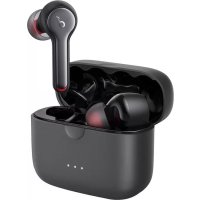
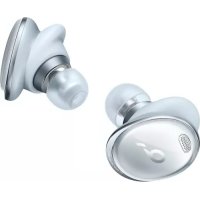
Liberty Air 2 - Earplug soundcore - Free user manual and instructions
Find the device manual for free Liberty Air 2 soundcore in PDF.



| Product Type | Wireless In-Ear Headphones |
| Brand | Soundcore |
| Model | Liberty Air 2 |
| Bluetooth Version | 5.0 |
| Bluetooth Chip | Qualcomm |
| Supported Audio Codecs | SBC, AAC, aptX |
| Frequency Response | 20 Hz - 20 kHz |
| Impedance | 16 Ω |
| Rated Output Power | 5 mW at 1% THD |
| Driver | 6 mm Diamond-Coated Driver |
| Earbud Battery Life | 7 hours |
| Total Battery Life with Case | 28 hours |
| Battery Capacity (Earbuds) | 55 mAh x 2 |
| Battery Capacity (Case) | 500 mAh |
| Earbud Charging Time | 1.5 hours |
| Case Charging Time (USB) | 2 hours |
| Case Charging Time (Wireless) | 3.5 hours |
| Power Input | 5 V, 500 mA (Input) |
| Charging Port | USB-C |
| Wireless Charging | Yes (charger not included) |
| Bluetooth Range | 10 m / 33 ft |
| Touch Controls | Yes (customizable via app) |
| Dedicated App | Soundcore (HearID, EQ, firmware update) |
| Water Resistance | Not specified |
| Care Instructions | Dry completely before charging; use the provided cable |
Frequently Asked Questions - Liberty Air 2 soundcore
User questions about Liberty Air 2 soundcore
0 question about this device. Answer the ones you know or ask your own.
Ask a new question about this device
Download the instructions for your Earplug in PDF format for free! Find your manual Liberty Air 2 - soundcore and take your electronic device back in hand. On this page are published all the documents necessary for the use of your device. Liberty Air 2 by soundcore.
USER MANUAL Liberty Air 2 soundcore
natural_image
Line drawing of a wireless earbuds with a microphone, no text or symbols presentSoundcore Liberty Air 2
USER MANUAL
| English | 01 | Português | 79 |
| Čeština | 07 | Русский | 85 |
| Dansk | 13 | Slovenský Jazyk | 91 |
| Deutsch | 19 | Slovenski Jezik | 97 |
| ελληνικά | 25 | Svenska | 103 |
| Español | 31 | Türkçe | 109 |
| Suomi | 37 | 日本語 | 115 |
| Français | 43 | 한국어 | 121 |
| Magyar | 49 | 简体中文 | 127 |
| Italiano | 55 | 繁體中文 | 133 |
| Nederlands | 61 | Portugues do Brasil | 139 |
| Norsk | 67 | لعربيya | 145 |
| Język polski | 73 | لاز | 151 |
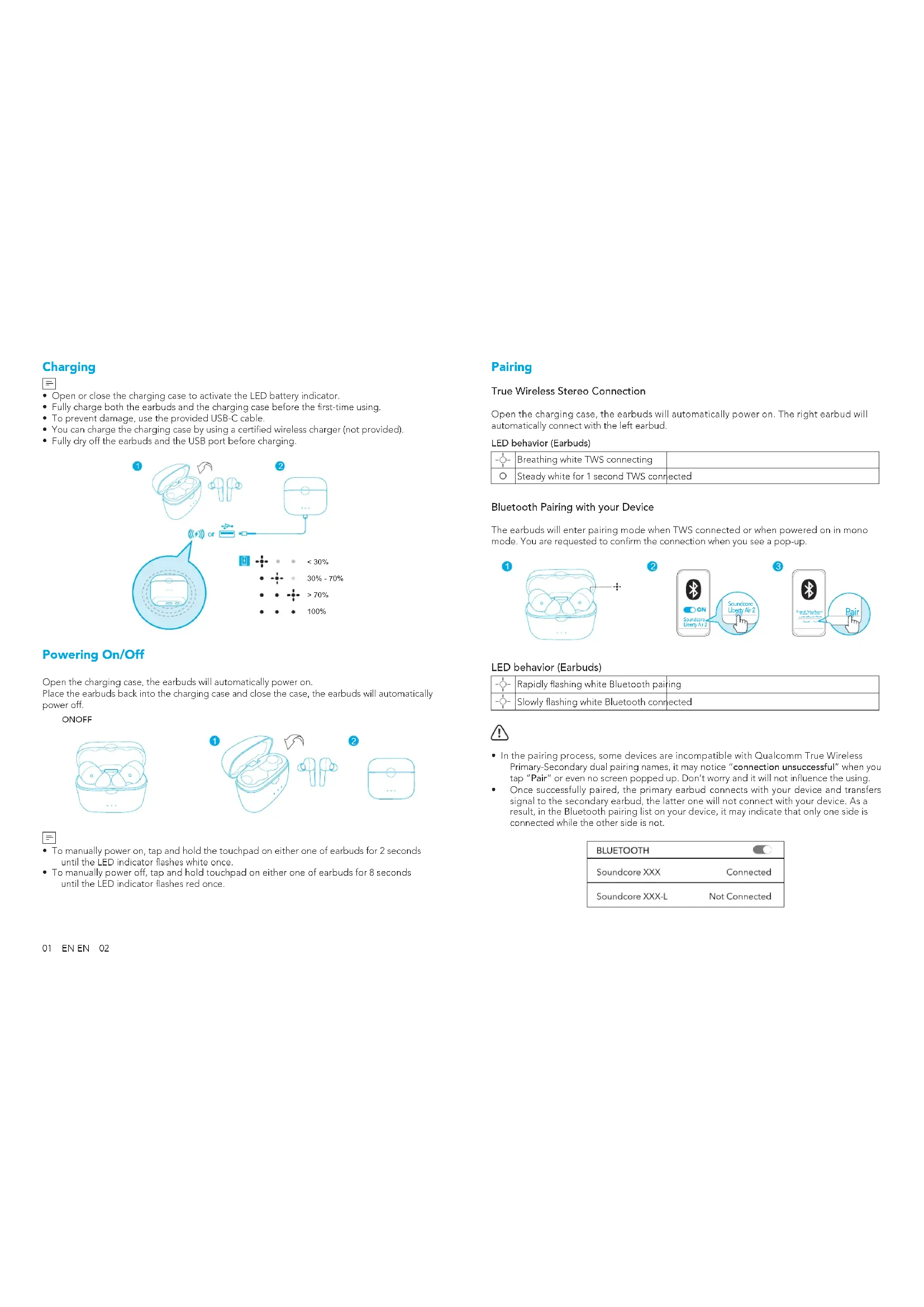
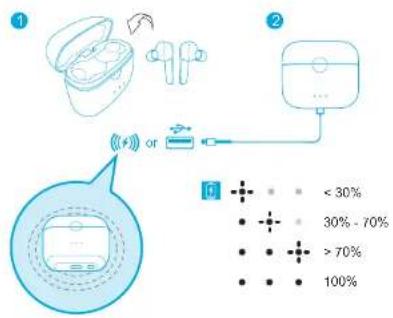
Charging

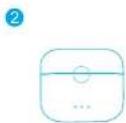
- Open or close the charging case to activate the LED battery indicator.
- Fully charge both the earbuds and the charging case before the first-time using.
• To prevent damage, use the provided USB-C cable. - You can charge the charging case by using a certified wireless charger (not provided).
- Fully dry off the earbuds and the USB port before charging.
Powering On/Off
Open the charging case, the earbuds will automatically power on.
Place the earbuds back into the charging case and close the case, the earbuds will automatically power off.
ONOFF
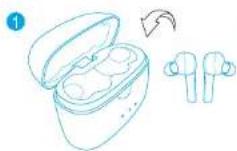
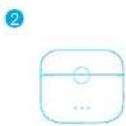

- To manually power on, tap and hold the touchpad on either one of earbuds for 2 seconds until the LED indicator flashes white once.
- To manually power off, tap and hold touchpad on either one of earbuds for 8 seconds until the LED indicator flashes red once.
Pairing
True Wireless Stereo Connection
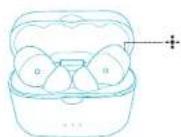
Open the charging case, the earbuds will automatically power on. The right earbud will automatically connect with the left earbud.
LED behavior (Earbuds)
| Breathing white TWS connecting | ||
| ○ | Steady white for 1 second TWS connected | |
Bluetooth Pairing with your Device
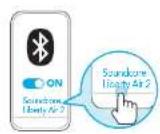
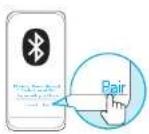
The earbuds will enter pairing mode when TWS connected or when powered on in mono mode. You are requested to confirm the connection when you see a pop-up.
1
2
3
LED behavior (Earbuds)
| Rapidly flashing white Bluetooth pairing | |
| Slowly flashing white Bluetooth connected |

- In the pairing process, some devices are incompatible with Qualcomm True Wireless Primary-Secondary dual pairing names, it may notice "connection unsuccessful" when you tap "Pair" or even no screen popped up. Don't worry and it will not influence the using.
- Once successfully paired, the primary earbud connects with your device and transfers signal to the secondary earbud, the latter one will not connect with your device. As a result, in the Bluetooth pairing list on your device, it may indicate that only one side is connected while the other side is not.
| BLUETOOTH | |
| Soundcore XXX | Connected |
| Soundcore XXX-L | Not Connected |
To pair with another Bluetooth device, place the earbuds back into the charging case and make sure they are being charged, keep the cover open, then press and hold the button on the bottom of the charging case for 3 seconds until the LED indicators on earbuds flash white rapidly.
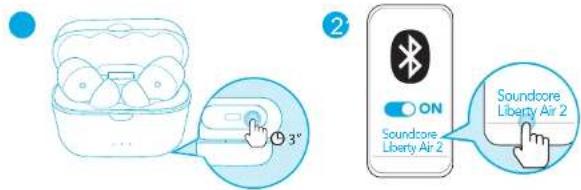

• Each time you power on your Soundcore earphones, it will automatically connect to your last successfully connected device if available within the Bluetooth range.
- Mono mode: When Bluetooth connected, you can use either one of the earbuds only by putting the other one back into the charging case and closing the cover.
Wearing
- Choose the ear tips that fit your ears the best.
- Insert the earbuds into the inner canal of your ears.
- Turn and find the most comfortable position.
Controls
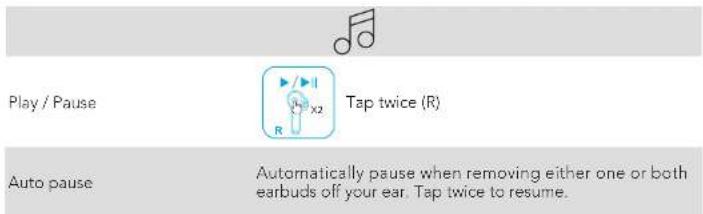
All of the controls in stereo mode can be customized in the Soundcore App.
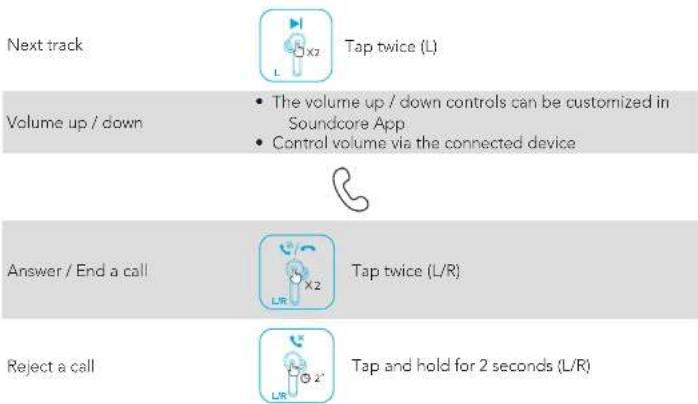
flowchart
graph TD
    A["Next track"] --> B["Tap twice (L)"]
    C["Volume up / down"] --> D["The volume up / down controls can be customized in Soundcore App"]
    C --> E["Control volume via the connected device"]
    F["Answer / End a call"] --> G["Tap twice (L/R)"]
    H["Reject a call"] --> I["Tap and hold for 2 seconds (L/R)"]
Auto Answer a call Take earbuds out of the charging case
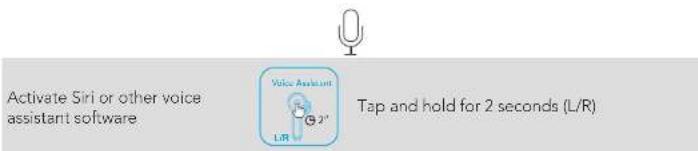
Mono mode (controls in mono mode cannot be customized in the App)
| Play / Pause Tap twice | |
| Answer / End a call | |
| Reject a call Tap and hold for 2 seconds | |
| Activate Siri or other voice assistant software |
Soundcore App

Make sure the earbuds firmware is always up-to-date before using.
Download the Soundcore App for HearID, UI customization, EQ settings, and earbuds firmware update.
• HearID: HearID maps your personal hearing sensitivity at multiple frequencies and analyzes
the results. It tailors the EQ settings and creates a personalized sound profile for you.
- UI customization: In stereo mode, all of the controls can be customized in the App. In mono mode, the controls are fixed.
- EQ settings: There're more than 20 EQ settings you can choose in the App to optimize your experience while enjoying different music genres.
- Earbuds firmware update: The earbuds firmware can be updated in the App. You will be informed once the new version of firmware is detected when you connect the earbuds with the App.

Download the Soundcore App for HeadID, UI customization and EQ settings.
Soundcore


Google Pay and the Google May logo are back-to-end of Google Inc. Apple and the Apple logo are back-to-end of Apple Inc.
Reset
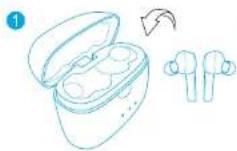
Reset the earbuds if the earbuds cannot connect with each other properly or cannot connect with your device properly.
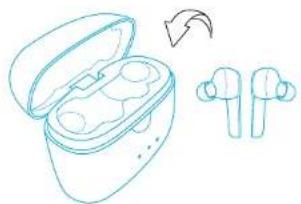
- Place the earbuds into the charging case and make sure they are being charged.
natural_image
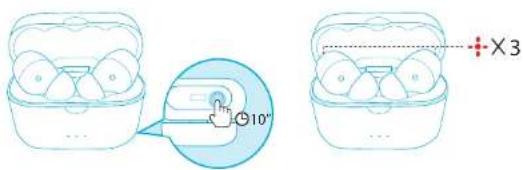
Line drawing of an open wireless earbuds with a hand indicating rotation (no text or symbols)- Keep the charging case open, then press and hold the button on the bottom of the charging case for 10 seconds until the LED indicators on both earbuds flash red 3 times.
→ All the memory data will be cleared.
Specifications

Specifications are subject to change without notice.
| Input 5 V 500 mA | --- |
| Rated output power 5 mW @ 1% THD | |
| Battery capacity 55 mA x 2 (earbuds); 500 mA (charging case) | |
| Charging time | 1.5 hours (for earbuds); 2 hours (for charging case via USB); 3.5 hours (for charging case via wireless charger) |
| Playtime(varies by volume level and content) | 7 hours (Totally 28 hours with the charging case) |
| Driver size 6 mm diamond coated driver x 2 | |
| Frequency response 20 Hz - 20 kHz | |
| Impedance 16 Ω | |
| Bluetooth version V 5.0 | |
| Bluetooth frequency | 2402-2480 MHz |
| Audio codec format | SBC, AAC, aptX |
| Bluetooth range | 10 m / 33 ft |
Qualcomm®aptX™ Technical specifications
Compression ratio: 4:1
Word Depth: Support 16 bit and 24bit
Decoding delay: Sample Rate 48kHz<2ms
Dynamic range: 16bit>92dB, 24bit>120dB
Data rates: 352kbps
Decode mode: Stereo
Qualcomm aptX is a product of Qualcomm Technologies, Inc. and/or its subsidiaries. Qualcomm is a trademark of Qualcomm Incorporated, registered in the United States and other countries, aptX is a trademark of Qualcomm Technologies International Ltd., registered in the United States and other countries.
Nabíjení

Zapnutí/Vypnutí

Download the Soundcore App for HearID, UI customization and EQ settings.
Soundcore
Google Play and the Google Play logo are trademarks of Google Inc.


Apple and the Apple logo are trademarks of Apple Inc.
Resetování
natural_image
Line drawing of an open wireless earbuds with two earbuds and one earbuds, showing a rotation arrow (no text or symbols)Tænde/slukke
Download the Soundcore App for HearID, UI customization and EQ settings.
Soundcore

Google Play and the Google Play logo are trademarks of Google Inc.

Apple and the Apple logo are trademarks of Apple Inc.
Nulstil
natural_image
Line drawing of an open wireless earbuds with a hand indicating rotation (no text or symbols)Ein-/Ausschalten
Download the Soundcore App for HearID.
UI customization and EO settings.
Soundcore


Gung's Hey and the Gung's Hey together with trademarks of Google Inc.
Apple and the Apple logo are trademarks of Apple Inc.
Zurücksetzen
natural_image
Line drawing of an open wireless earbuds with a hand indicating rotation (no text or symbols)Download the Soundcore App for HearID, UI customization and EQ settings.
Soundcore


Google Play and the Google Play logo are trademarks of Google Inc.
Apple and the Apple logo are trademarks of Apple Inc.
Επαναφορά
natural_image
Line drawing of an open wireless earbuds with a curved arrow indicating rotation (no text or symbols)Encendido/Apagado
Download the Soundcore App for HeartD.
UI customization and EO settings.
Soundcore


Google Play and the Google Play logo are trademarks of Google Inc. Apple and the Apple logo are trademarks of Apple Inc.
Restablecer
natural_image
Line drawing of an open wireless earbuds with a hand icon indicating rotation (no text or symbols)Virta päälle/pois
Download the Soundcore App for HearID, UI customization and EQ settings.
Soundcore
Google Play and the Google Play logo are trademarks of Google Inc. Apple and the Apple logo are trademarks of Apple Inc.
Nollaaminen
Download the Sounccore App for HearID, UI customization and EQ settings.
Soundcore


Google Play and the Google Play logo are trademarks of Google Inc.
Apple and the Apple logo are trademarks of Apple Inc.
Réinitialisation
natural_image
Line drawing of an open wireless earbuds with a hand icon indicating rotation (no text or symbols)Download the Soundcore App for HearID, UI customization and EQ settings.
Soundcore


Google Play and the Google Play logo are trademarks of Google Inc.
Apple and the Apple logo are trademarks at Apple Inc.
Visszaállítás
natural_image
Line drawing of an open earbuds with two earbuds and one earbell, showing a rotation arrow (no text or symbols)Download the Soundcore App for HearID, UI customization and EQ settings.
Soundcore


Google Play and the Google Play logo are trademarks of Google Inc.
Apple and the Apple logo are trademarks at Apple Inc.
Reimpostazione
natural_image
Line drawing of an open wireless earbuds with two earphones, one showing a rotation arrow (no text or symbols)In-/uitschakelen
Open de oplaadcase, de oordopjes schakelen automatisch in.
Download the Soundcore App for HeartD, UI customization and EO settings.
Soundcore

Google Play and the Google Play logo are trademarks of Google Inc.

Apple and the Apple logo are trademarks of Apple Inc.
Resetten
natural_image
Line drawing of an wireless earbuds with one open showing internal components, and a separate view of the earbuds (no text or symbols)Slå på/av
True Wireless Stereo-tilkobling
Download the Soundcore App for HearID, UI customization and EQ settings.
Soundcore


Google Play and the Google Play logo are trademarks of Google Inc.
Apple and the Apple logo are trademarks at Apple Inc.
Tilbakestill
natural_image
Line drawing of an open wireless earbuds with two earphones, one showing a rotation arrow (no text or symbols)
Download the Soundcore App for HearID, UI customization and EQ settings.
Soundcore

Google Play and the Google Play logo are trademarks of Google Inc.

Apple and the Apple logo are trademarks of Apple Inc.
Resetowanie
natural_image
Line drawing of an open wireless earbuds with a rotation arrow indicating usage (no text or symbols)Ligar/desligar
Download the Soundcore App for HearID, UI customization and EQ settings.
Soundcore

Google Play and the Google Play logo are trademarks of Google Inc.

Apple and the Apple logo are trademarks of Apple Inc.
Repor
natural_image
Line drawing of an open wireless earbuds with a curved arrow indicating rotation (no text or symbols)Download the Soundcore App for HearID, UI customization and EQ settings.
Soundcore


Google Play and the Google Play logo are trademarks of Google Inc. Apple and the Apple logo are trademarks of Apple Inc.
Сброс
natural_image
Line drawing of an open wireless earbuds with two earbuds and one earbell, showing a rotation arrow (no text or symbols)Zapnutie/vypnutie
Otvorte nabíjacie puzdro, slúchadlá sa automaticky zapnú.
Umiestnite slúchadlá spät do nabíjacieho puzdra a zatvorte ho, slúchadlá sa automaticky vypnú.
ONOFF

Download the Soundcore App for HearID, UI customization and EQ settings.
Soundcore


Gang = Flyp and the Gang = Flyp logo and trademarks of Google Inc. Apple and the Apple logo are trademarks of Apple Inc.
Resetovanie
natural_image
Line drawing of an open wireless earbuds with a hand icon indicating rotation (no text or symbols)Vklop/izklop
Download the Soundcore App for HearID, UI customization and EO settings.
Soundcore


Google Play and the Google Play logo are trademarks of Google Inc.

Apple and the Apple logo are trademarks of Apple Inc.
Ponastavi
natural_image
Line drawing of an open wireless earbuds with a hand icon indicating rotation (no text or symbols)Slå på/stänga av
Download the Soundcore App for HearID, UI customization and EQ settings.
Soundcore


Google Play and the Google Play logo are trademarks of Google Inc.
Apple and the Apple logo are trademarks at Apple Inc.
Återställning
natural_image
Line drawing of an open wireless earbuds with two earbuds and a recycling arrow indicating rotation (no text or symbols)Güç Açma/Kapatma
Download the Soundcore App for HearID, UI customization and EQ settings.
Soundcore


Google Play and the Google Play logo are trademarks of Google Inc.
Apple and the Apple logo are trademarks of Apple Inc.
Sifirlama
natural_image
Line drawing of an open wireless earbuds with two earbuds and a recycling arrow indicating rotation (no text or symbols)電源オン / オフ
Download the Soundcore App for HearID, UI customization and EQ settings.
Soundcore


Google Play and the Google Play logo are trademarks of Google Inc.
Apple and the Apple logo are trademarks of Apple Inc.
リセット
natural_image
Line drawing of an open wireless earbuds with a hand indicating rotation (no text or symbols)전원 켜기/끄기
Download the Soundcore App for HearID, UI customization and EQ settings.


Google Play and the Google Play logo are trademarks of Google Inc. Apple and the Apple logo are trademarks of Apple Inc.
재설정
natural_image
Line drawing of an open wireless earbuds with a hand indicating rotation (no text or symbols)打开 / 关闭电源
打开充电盒,耳机将自动打开电源。
Download the Soundcore App for HearID,
UI customization and EO settings.
Soundcore


Google Play and the Google Play logo and trademarks of Google Inc.
Apple and the Apple logo are trademarks of Apple Inc.
重置
natural_image
Line drawing of an open wireless earbuds with a hand holding a pair of earpieces, showing a curved arrow indicating rotation (no text or symbols)開啟 / 關閉電源
打開充電盒將可自動啟動耳機。
Download the Soundcore App for HearID,
UI customization and EO settings.
Soundcore


Google Play and the Google Play logo are trademarks of Google Inc.
Apple and the Apple logo are trademarks of Apple Inc.
重設
natural_image
Line drawing of an open wireless earbuds with a hand holding a pair of earpieces, showing a curved arrow indicating rotation (no text or symbols)Ligando/desligando
Download the Soundcore App for HearID, UI customization and EQ settings.
Soundcore


Google Play and the Google Play logo are trademarks of Google Inc.
Apple and the Apple logo are trademarks at Apple Inc.
Reiniciar
natural_image
Line drawing of an open wireless earbuds with a hand holding a USB jack (no text or symbols)تشغيل/إيقاف التشغيل
Download the Soundcore App for HeartD, UI customization and EQ settings.
Soundcore


Google Play and the Google Play logo are trademarks of Google Inc.
Apple and the Apple logo are trademarks of Apple Inc.
ereادة تعيين
natural_image
Line drawing of an open wireless earbuds with a hand holding a USB flash drive (no text or symbols)הכלה/הכלה
Download the Soundcore App for HeartD.
UI customization and EQ settings.
Soundcore


Google Play and the Google Play logo are trademarks of Google Inc.
Apple and the Apple logo are trademarks of Apple Inc.
N.GIO
natural_image
Line drawing of an open wireless earbuds with a hand holding a USB flash drive (no text or symbols)
- Charging
- Powering On/Off
- Pairing
- True Wireless Stereo Connection
- LED behavior (Earbuds)
- Bluetooth Pairing with your Device
- Wearing
- Controls
- Soundcore App
- Reset
- Specifications
- Nabíjení
- Zapnutí/Vypnutí
- Resetování
- Tænde/slukke
- Nulstil
- Ein-/Ausschalten
- Zurücksetzen
- Επαναφορά
- Encendido/Apagado
- Soundcore
- Restablecer
- Virta päälle/pois
- Nollaaminen
- Réinitialisation
- Visszaállítás
- Reimpostazione
- In-/uitschakelen
- Resetten
- Slå på/av
- True Wireless Stereo-tilkobling
- Tilbakestill
- Resetowanie
- Ligar/desligar
- Repor
- Сброс
- Zapnutie/vypnutie
- Resetovanie
- Vklop/izklop
- Ponastavi
- Slå på/stänga av
- Återställning
- Güç Açma/Kapatma
- Sifirlama
- 電源オン / オフ
- リセット
- 전원 켜기/끄기
- 재설정
- 打开 / 关闭电源
- 重置
- 開啟 / 關閉電源
- 重設
- Ligando/desligando
- Reiniciar
- ereادة تعيين
- הכלה/הכלה
- N.GIO
Brand : soundcore
Model : Liberty Air 2
Category : Earplug