
Elite USBC Docking Station - Webcam HP - Free user manual and instructions
Find the device manual for free Elite USBC Docking Station HP in PDF.
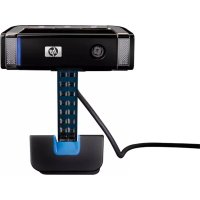


| Product Type | Webcam |
| Model | HP Elite Autofocus Webcam (also known as Elite USBC Docking Station) |
| Connectivity | USB 2.0 |
| Lens | Autofocus lens with privacy shutter |
| Microphone | Built-in integrated microphone |
| Mounting | Adjustable clip for monitor or stand |
| Buttons | Video Record, Snapshot, HP Instant Chat |
| Video Resolution | Up to 640x480 (depending on USB port) |
| Supported Software | ArcSoft WebCam Companion, ArcSoft Magic-i 3, HP Photosmart Essential, ArcSoft Videolmpression |
| Compatible Instant Messaging | AOL AIM, Windows Live Messenger, Yahoo! Messenger, Skype |
| Operating System | Windows XP, Windows Vista |
| Dimensions | Approximately 3.5 x 2.5 x 1.5 inches |
| Weight | Approximately 0.2 lbs |
| Power Source | USB bus-powered |
| Privacy Shutter | Yes, manual slide to cover lens |
| Autofocus | Yes, can be disabled for manual focus |
| Color | Black |
| Warranty | Refer to HP warranty documentation |
| Manufacturer | Hewlett-Packard (HP) |
Frequently Asked Questions - Elite USBC Docking Station HP
User questions about Elite USBC Docking Station HP
0 question about this device. Answer the ones you know or ask your own.
Ask a new question about this device
Download the instructions for your Webcam in PDF format for free! Find your manual Elite USBC Docking Station - HP and take your electronic device back in hand. On this page are published all the documents necessary for the use of your device. Elite USBC Docking Station by HP.
USER MANUAL Elite USBC Docking Station HP
HP Elite Autofocus Webcam User's Guide
HP Elite Autofocus Webcam User's Guide
Copyright © 2007-2008 Hewlett-Packard Development Company, L.P.
The information contained herein is subject to change without notice.
The only warranties for HP products and services are set forth in the express warranty statements accompanying such products and services. Nothing herein should be construed as constituting an additional warranty. HP shall not be liable for technical or editorial errors or omissions contained herein.
Product Registration
Registration is quick, easy and offers: e-mail updates containing notifications about product enhancements, the most recent support alerts, and driver updates specific to the product(s) you own.
For faster help, be sure to register your recently purchased product at https://register.hp.com
Table of Contents
Welcome 9
Overview 9
Using Your HP Webcam 11
Recording a Video 11
Starting a Video Chat 12
Using Your Webcam as a Video Monitor 13
Editing a Video 14
Editing a Video in ArcSoft WebCam Companion 14
Editing a Video in ArcSoft Videolmpression 14
Taking a Picture 15
Editing a Picture 16
Adjusting Settings 17
Adjusting Brightness and Contrast 17
Creating a Personal Profile 18
Adjusting Capture Settings 19
Adjusting Image Properties 19
Adjusting Camera Settings 20
Troubleshooting 21
Welcome
Congratulations on purchasing the HP Elite Autofocus Webcam.
This guide shows you how to use your new webcam to record videos, start video chats, use your webcam as a security cam, take pictures, and adjust the webcam settings.
Overview
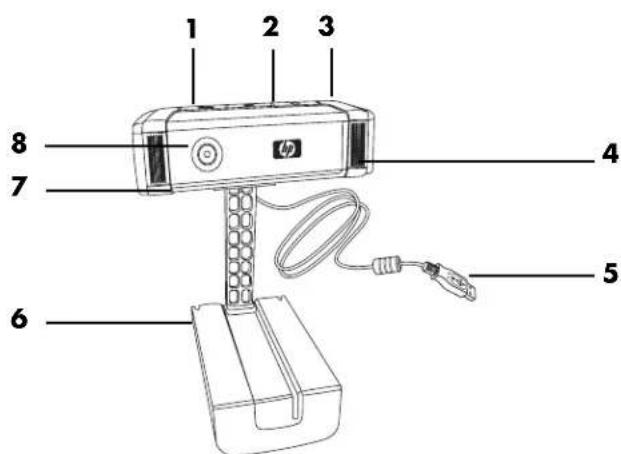
Video Record button 2 HP Instant Chat button 3 Snapshot button 4 Integrated microphone 5 USB connector 6 Adjustable clip 7 Privacy shutter 8 Autofocus lens
Using Your HP Webcam
Recording a Video
1 Press the Record Video button on your webcam to open ArcSoft WebCam Companion™. 2 Press the Record Video button or click Capture to begin recording the video. 3 Press the Record Video button again or click Stop Recording to stop recording the video. 4 Select one of the following buttons:
Send by email: Enables you to send the video as an e-mail attachment. Save to Disk: Enables you to save the video on your computer. Video Impression: Opens the video for editing in ArcSoft VideoImpression®.
To learn more about using ArcSoft WebCam Companion, click the Help menu.

Starting a Video Chat
You can add live video to the most popular instant messaging (IM) applications (ISP connection required):
AOL Instant Messenger (AIM) Windows Live Messenger Yahoo! Messenger ■Skype
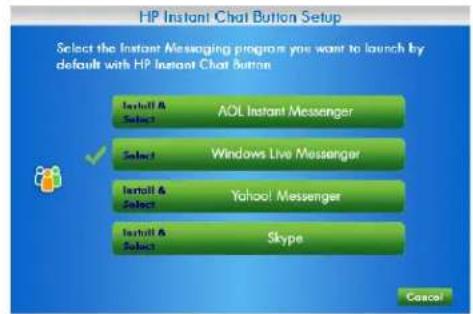
1 Press the HP Instant Chat button on your webcam. 2 Select the instant messaging (IM) application you want to use. 3 If prompted, follow the onscreen instructions to install and set up the IM application. 4 Follow the video chat steps in the IM application's documentation.
NOTE: The HP Instant Chat Button Setup options only appear during initial setup. The next time you press the HP Instant Chat button, the selected IM application opens automatically.
To select a different IM application after you complete initial setup, click Start > All Programs > ArcSoft Magic-i 3 > HP Instant Chat Button Setup.
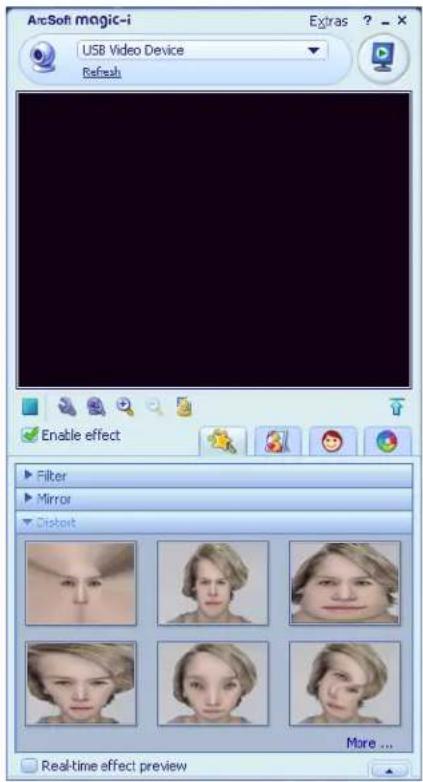
Now you're ready to enhance your video chats with special effects and to broadcast videos from your PC hard drive. To learn more about using ArcSoft Magic-i™ 3, click the Help? icon in the upper-right corner of the Magic-i 3 window.
Using Your Webcam as a Video Monitor
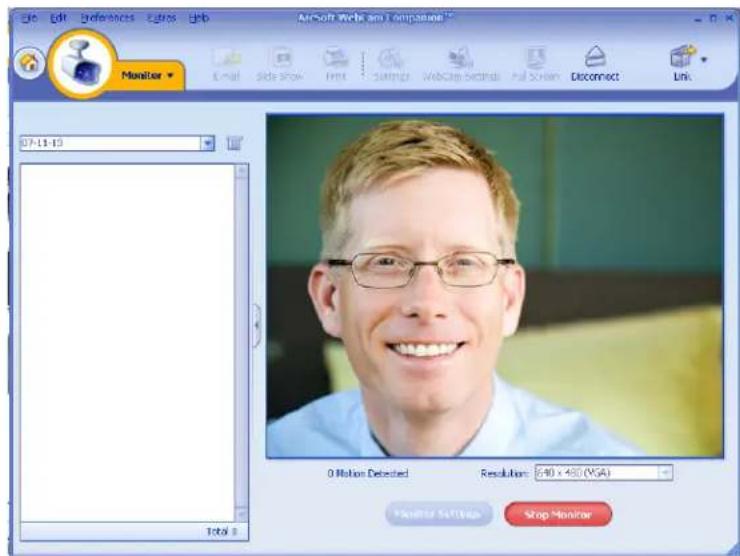
1 Double-click the WebCam Companion icon on the Windows desktop.
2 Click Monitor.

3 Click Start Monitor to begin monitoring. 4 Click Stop Monitor to finish monitoring and save the video to your PC.
If you want to send a video snapshot by e-mail, upload the video to your FTP site, or change the location of your media folder, ArcSoft WebCam Companion can do all that and more. To learn more about using ArcSoft WebCam Companion, click the Help menu.
Editing a Video
You can edit your videos in ArcSoft WebCam Companion or in ArcSoft Videolmpression. For basic editing functions, use ArcSoft WebCam Companion, for advanced editing functions use ArcSoft Videolmpression.
Editing a Video in ArcSoft WebCam Companion
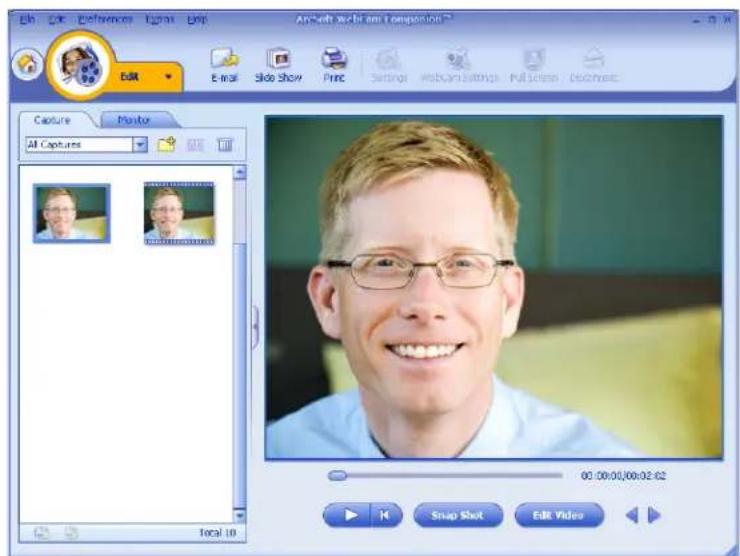
1 Double-click the WebCam Companion icon on the Windows desktop.
2 Click Edit.
3 Highlight the video you want to edit, and then click Edit Video. To learn about specific editing functions, click the Help menu.
Editing a Video in ArcSoft Videolpression
1 Double-click the ArcSoft Videolpression icon on the Windows desktop. 2 Click Open an Existing Project. 3 Select the video you want to edit. To learn about using ArcSoft Videolmpression, click the Help menu.
Taking a Picture
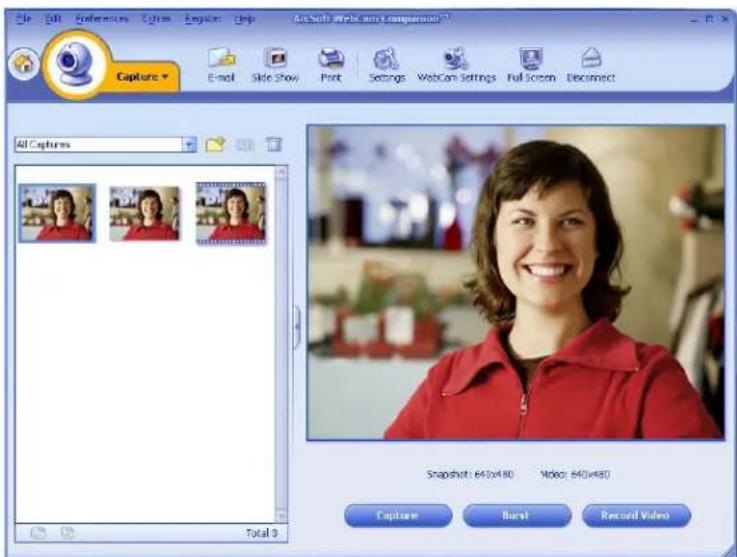
1 Press the Snapshot button on your webcam to open ArcSoft WebCam Companion. 2 Press the Snapshot button again or click Capture to take the picture. To learn more about taking pictures with ArcSoft WebCam Companion, click the Help menu.
Editing a Picture
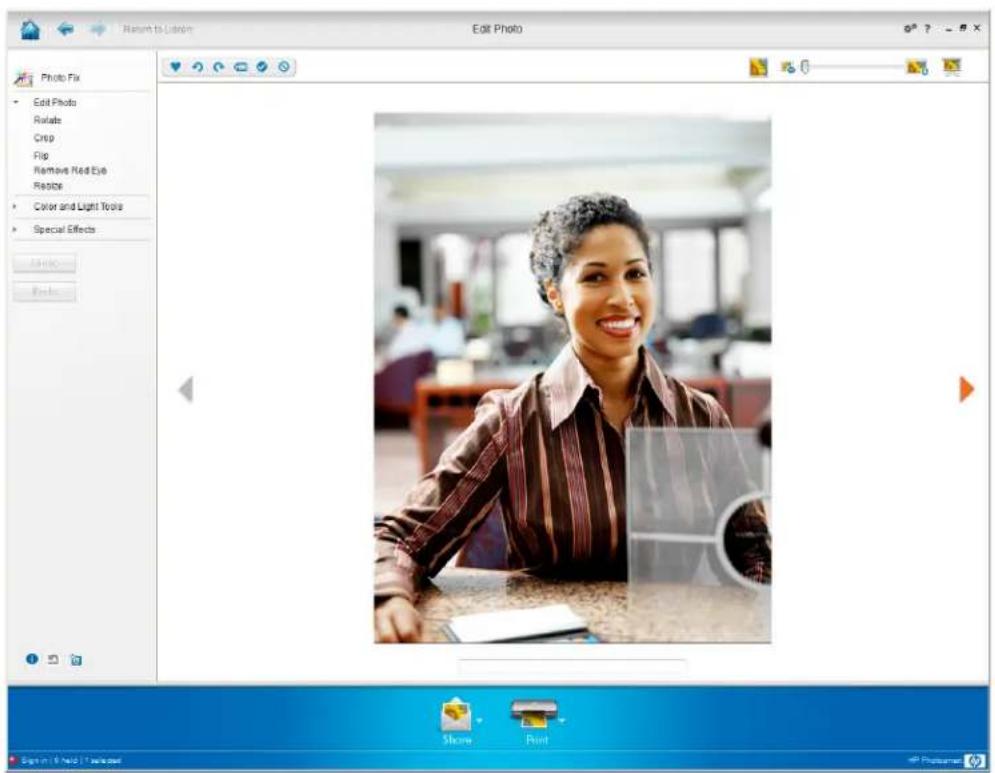
1 Double-click the HP Photosmart Essential icon on the Windows desktop. 2 Click View Library. 3 Right-click the picture you want to edit, and select Edit from the pop-up menu. 4 Select an editing option from the Photo Fix menu on the left side of the screen.
To learn more about editing, printing, and sharing pictures with HP Photosmart Essential, click the Help ? icon in the upper-right corner of the Photosmart Essential window.
Adjusting Settings
This chapter shows you how to adjust settings in ArcSoft Magic-i 3 and ArcSoft WebCam Companion.
Adjusting Brightness and Contrast
1 Double-click the Magic-i 3 icon on the Windows desktop. 2 Click the Generic Settings icon. 3 Remove the check mark from the Auto Enhance box. 4 Drag the sliders to adjust these settings:

5 Click OK.
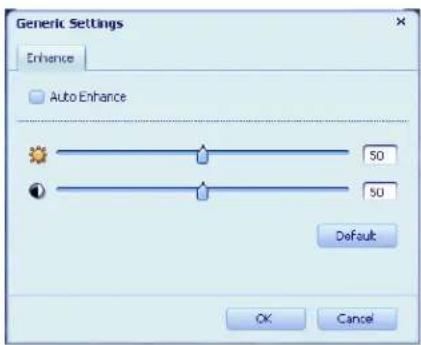
NOTE: To restore all the factory settings, click Default.
Creating a Personal Profile
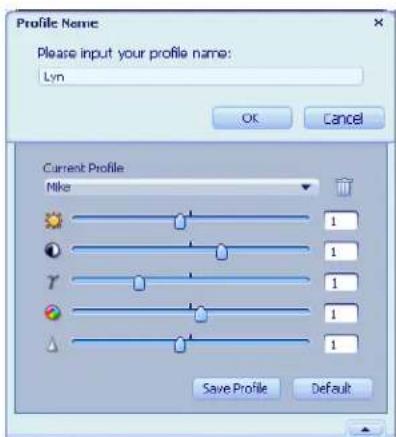
1 Double-click the Magic-i 3 icon on the Windows desktop. 2 Click the Profiles tab. (If this tab is not visible, click the Expand tab to expand the screen.)
3 Drag the sliders to adjust these settings:

Brightness

Contrast

Gamma

Saturation

Sharpness
4 Click Save Profile.
5 Enter a name for the profile.
6 Click OK.
NOTE:
To restore the factory settings, click Default. To apply a previously saved profile, select the profile name from the Current Profile list. To delete a profile, select the profile name from the Current Profile list, and then click the Delete icon.
Adjusting Capture Settings
1 Double-click the WebCam Companion on the Windows desktop.
2 Click the Settings icon.
3 Adjust any of these settings:
Image Format sets the default file format for still image captures.
Image Quality sets the default resolution for still image captures.
Video Format sets the default file format for videos you record.
Video Quality sets the default resolution for videos you record.
Video Quality sets the default resolution for videos you record.
Number of photos in burst sets the number of images captured in burst mode.
With Audio turns the webcam's microphone on and off.
4 Click OK.
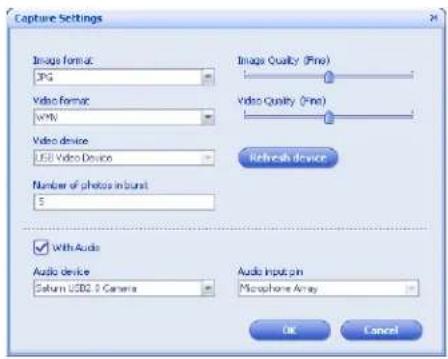
NOTE: To restore all the factory settings, click Refresh device.
Adjusting Image Properties
1 Do one of the following:
Double-click the WebCam Companion icon on the Windows desktop, and then click the WebCam Settings icon.
Double-click the Magic-i 3 icon on the Windows desktop, and then click the Settings icon.
Double-click the Magic-i 3 icon on the Windows desktop, and then click the Settings icon.

3 Drag the sliders to adjust the individual settings.
3 Drag the sliders to adjust the individual settings.
NOTE: To restore the factory settings, click Default.
NOTE: To restore the factory settings, click Default.
1 Do one of the following:
1 Do one of the following:
Double-click the WebCam
Companion icon on the Windows desktop, and then click the WebCam Settings icon.
Double-click the Magic-i 3 icon on the Windows desktop, and then click the Settings icon.
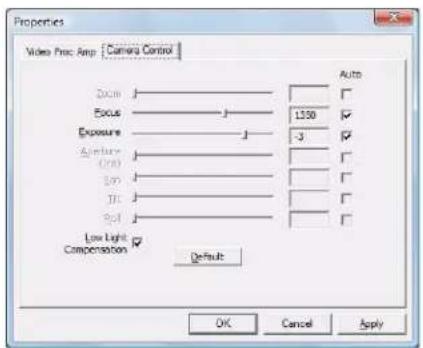
2 Click the Camera Control tab.
3 To manually adjust a setting, remove the check from the check box next to the item you want to change, and then drag the slider for that item to adjust the setting.
4 To manually adjust the brightness of onscreen images, remove the check from the Low Light Compensation check box.
5 Click OK.
NOTE: To restore the factory settings, click Default.
Troubleshooting
Problem Solution
The image is fuzzy. Make sure that you removed the protective film from the webcam lens.
Turn off the autofocus feature and use the software settings to manually adjust the focus. See Adjusting Image Properties and Adjusting Camera Settings for details.
I don't want to use Magic-i 3 Open your IM application and use the preference settings to select a different with my IM application video device. See the documentation for your IM application for details.
I closed Magic-i 3 during a chat, and now my webcam Re-open Magic-i 3 by double-clicking the Magic-i 3 icon on your isn't connected to my IM computer desktop, or select a different video device in your IM application. application See your IM documentation for details.
I want to turn off the autofocus 1 Do one of the following:
Double-click the WebCam Companion icon on the Windows desktop, and then click the WebCam Settings icon. Double-click the Magic-i 3 icon on the Windows desktop, and then click the Settings icon.
2 Click the Camera Control tab. 3 Remove the check from the Focus check box. 4 Drag the Focus slider to manually adjust the focus. 5 Click OK or Apply.
Magic-i 3 closes when I press the Snapshot button
Only one application can use your webcam at a time. If the video stream has disappeared from your IM application, close the IM application and then press
the HP Instant Chat button again to open both Magic-i 3 and your IM application.
| Problem Solution | |
| ArcSoft WebCam Companion closes when I press the HP Instant Chat button | Only one application can use your webcam at a time. To re-open ArcSoft WebCam Companion, press the Snapshot button. |
| The webcam buttons are not working properly | Look in the Windows System Tray for the Button Manager icon. ■ If you don't see the Button Manager icon, then open My Computer, navigate to the Program Files\HP\Button Manager folder, and double-click the BM.EXE file. ■ If you do see the Button Manager icon, then insert the CD that came with your HP webcam and install the following components: ● DirectX (Windows XP only) ●HP Webcam Software and Magic-i 3 |
| I hear an echo or feedback in the speakers | On Windows XP computers (Classic view): 1 Click Start > Control Panel > Sounds and Audio Devices. 2 Click the Audio tab. 3 Under Sound playback, click Volume, and drag the Master Volume slider to adjust the speaker volume. 4 Under Sound recording, click Volume, and drag the Microphone slider to adjust the microphone volume. On Windows Vista computers (Classic view): 1 Click Start > Control Panel > Sound. 2 Click the Playback tab. 3 Select the Speaker you are using and then click Properties. 4 Click the Levels tab and drag the sliders to adjust the output level. 5 Click the Recording tab. 6 Select the Microphone you are using and then click Properties. 7 Click the Levels tab and drag the sliders to adjust the input level. |
| The webcam audio is not synchronized with the webcam video | From the Video Capture screen, select the Resolution list, and set the video resolution to 640x480 to synchronize the video and audio. After synchronizing the audio and video, try increasing the resolution to the next level. If the problem recurs, go back to the previous resolution setting. |
| I unplugged the webcam and it doesn't work when I plug it in again | You need to re-establish the connection with the webcam application. Do one of the following: ■ In Magic-i 3, click Refresh. ■ In ArcSoft WebCam Companion, click Connect. If the camera still doesn't function, close the webcam application, make sure the camera is connected to your computer, and then re-open the webcam application. |
| The webcam's response is slow and the images are jerky | The USB port on your computer does not support your current resolution setting. Do one of the following: ■ Connect your camera to a USB 2.0 port, so you can continue to use your current resolution setting. ■ From the Video Capture screen, select the Resolution list, and set the video resolution to 640x480. |
Still need help? Please refer to the warranty that came with your webcam for support phone numbers and Web site information.


- HP ELITE AUTOFOCUS WEBCAM USER'S GUIDE
- PRODUCT REGISTRATION
- TABLE OF CONTENTS
- WELCOME
- USING YOUR HP WEBCAM
- ADJUSTING SETTINGS
- TROUBLESHOOTING
- OVERVIEW
- RECORDING A VIDEO
- STARTING A VIDEO CHAT
- USING YOUR WEBCAM AS A VIDEO MONITOR
- EDITING A VIDEO
- EDITING A VIDEO IN ARCSOFT WEBCAM COMPANION
- EDITING A VIDEO IN ARCSOFT VIDEOLPRESSION
- TAKING A PICTURE
- EDITING A PICTURE
- ADJUSTING BRIGHTNESS AND CONTRAST
- CREATING A PERSONAL PROFILE
- NOTE
- ADJUSTING CAPTURE SETTINGS
- ADJUSTING IMAGE PROPERTIES
- DO ONE OF THE FOLLOWING
- PROBLEM SOLUTION
Brand : HP
Model : Elite USBC Docking Station
Category : Webcam