ManualGo.com
LaserJet 9000LMFP - Printer HP - Free user manual and instructions
Find the device manual for free LaserJet 9000LMFP HP in PDF.


Download the instructions for your Printer in PDF format for free! Find your manual LaserJet 9000LMFP - HP and take your electronic device back in hand. On this page are published all the documents necessary for the use of your device. LaserJet 9000LMFP by HP.
USER MANUAL LaserJet 9000LMFP HP
PURPOSE. Hewlett-Packard shall not be liable for any direct, indirect, incidental, consequential, or other damage alleged in connection with the furnishing or use of this information. Trademark Credits Microsoft
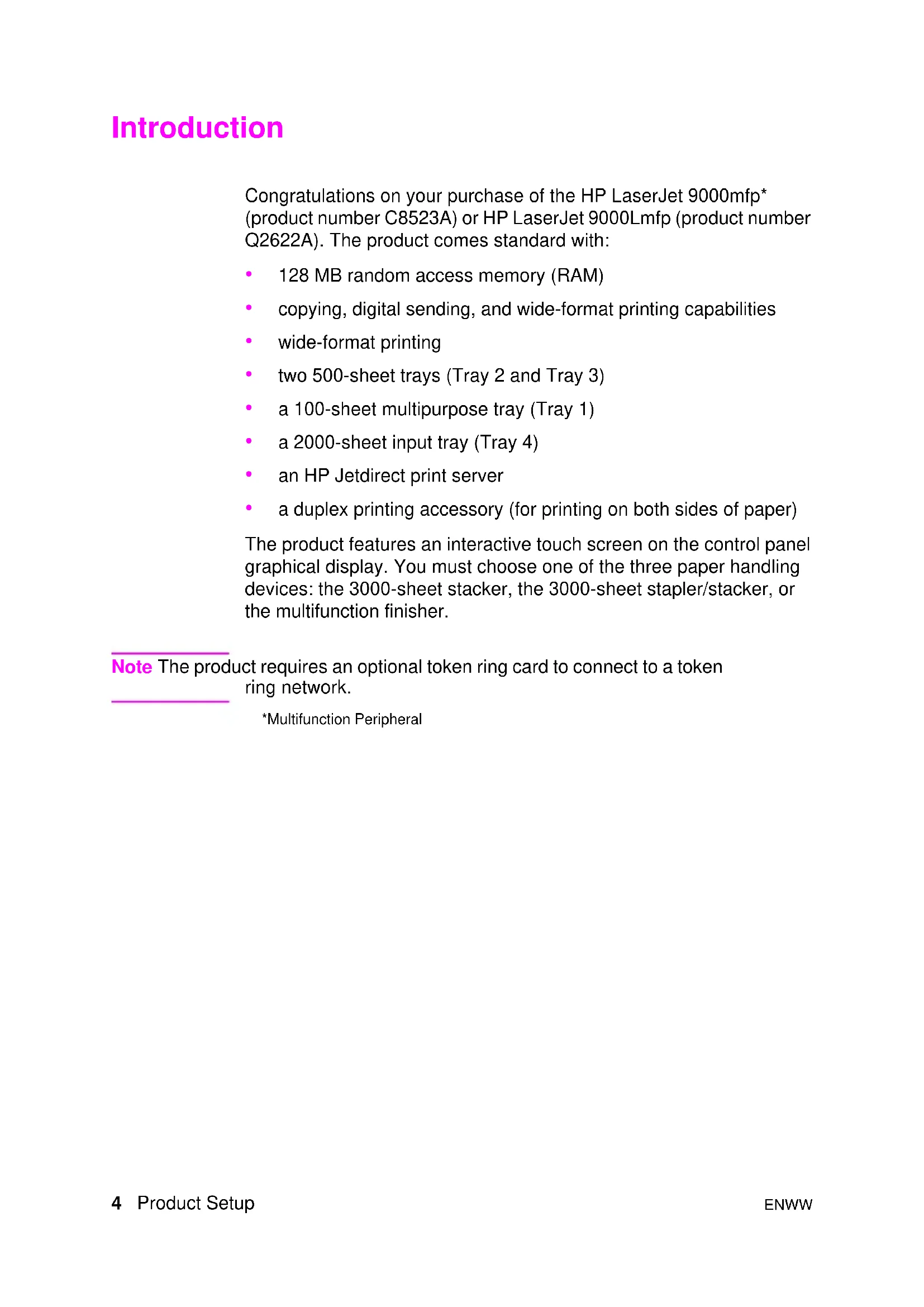
128 MB random access memory (RAM)
copying, digital sending, and wide-format printing capabilities
two 500-sheet trays (Tray 2 and Tray 3)
a duplex printing accessory (for printing on both sides of paper) The product features an interactive touch screen on the control panel graphical display. You must choose one of the three paper handling devices: the 3000-sheet stacker, the 3000-sheet stapler/stacker, or the multifunction finisher. Note The product requires an optional token ring card to connect to a token ring network. *Multifunction PeripheralENWW Where to look for information 5 English Where to look for information Start guide This guide contains information about unpacking and installing your product. Introduce guide This guide contains information about performing basic copying, sending, and printing tasks. Introduce is available on the CD-ROM that came with the product. If you would like a hard copy, use your product to print the introduce guide. Use guide This guide contains detailed information about using and troubleshooting and is available on the World Wide Web at http://www.hp.com/support/lj9000. If you would like a hard copy, use your product to print the use guide.6 Product Setup ENWW Installation checklist This guide will help you set up and install your new product. For proper installation, please complete each section in order. WARNING! To avoid injury, do not attempt to lift the product. The product has been designed to roll on wheels.
Unpack the product steps 1 through 5
Install the product steps 6 through14
Verify product setup step 16ENWW Prepare product location 7 English Step 1 Prepare product location Product size Prepare a location for the product that allows for these physical and environmental requirements: HP LaserJet 9000mfp dimensions (top and side views) 762 mm (30 in)
)8 Product Setup ENWW Location requirements for the product
A level area on the floor.
Space allowance around the product.
A well-ventilated room.
No exposure to direct sunlight or chemicals, including ammonia-based cleaning solutions.
Adequate power supply (15 A, 110 V, or 220 V circuit located near the product). A dedicated 15 A circuit is recommended.
A stable environment—no abrupt temperature or humidity changes.
Relative humidity 20 percent to 80 percent.
Room temperature 10° C to 32.5° C (50° F to 91° F).ENWW Check package contents 9 English Step 2 Check package contents Package contents power cords MFP product control panel overlays print cartridge product software CD-ROM Start guide ADF output high speed copy connect cable standoffs Quick Reference Poster10 Product Setup ENWW Step 3 Remove internal packaging 1 To remove the product from the box, follow the instructions printed on the box. WARNING! This product weighs approximately 143.2 kg (315 lb). HP recommends that the product be rolled on its wheels rather than be lifted. 2 Remove the orange shipping lock from the exterior of the product, and remove any cardboard or styrofoam material that is not orange. 3 Remove the protective film from the control panel graphical display. (See Step 4, “Identify product parts.”) 4 Open the left door and remove the two packing fuser assembly spacers. Orange tape connects fuser assembly spacers to the outside of the left door. Remove the orange tape that runs from the fuser assembly shipping locks to the outside of the door. Close the door after removing the fuser assembly spacers and the tape. 5 Open each tray, remove the orange shipping locks and any other orange packing material, and then close the trays. 6 Remove all orange packing material and any orange tape from the automatic document feeder (ADF) door. 7 Remove all orange packing material and any orange tape from the glass. Note Save all packing material. You might need it to repack the product at another time.ENWW Identify product parts 11 English Step 4 Identify product parts The following illustrations show the location and names of the primary product parts. Product parts (front and back views)
1 ADF output 2 Control panel 3 Front door 4 Power button 5 Tray 2 6 Tray 3 7 Left door 8 Power-cord connector 9 Tray 4 power-cord connector 10 ADF door 11 ADF 12 Tray 1 13 Right door 14 Transfer door 15 Tray 4 16 High speed copy connect connector 17 Parallel connector 18 Foreign interface harness connector (AUX) 19 HP Fast InfraRed Connect (FIR) 20 HP JetLink connector (Accessory) 21 EIO slot 22 HP Jetdirect printer server connector12 Product Setup ENWW Step 5 Position the product 1 Unlock the front wheels of the product, and roll the product to its permanent location. Leave space to walk behind the product. 2 Push the locking tabs on the front wheels to the lock position. Only the front wheels lock. 3 Locate the bag with the standoffs, and then attach them to the product. Note The standoffs ensure that your product cannot be pushed up against the wall.
3ENWW Position the product 13 English 4 Move the scanner carriage shipping lock to the right. 5 Attach the ADF output.
514 Product Setup ENWW Step 6 Install the print cartridge Note If you get toner on your clothing, wipe it off with a dry cloth and wash the clothing in cold water. Hot water sets toner into fabric. 1 Before removing the print cartridge from its packaging, set the print cartridge on a sturdy surface. Gently slide the print cartridge out of the packaging. CAUTION To prevent damage to the print cartridge, use two hands when handling the cartridge. 2 Open the front door of the product. 3 Rotate the green lever downward to the unlock position. 4 Hold the cartridge so that the arrow is on the left side of the cartridge. Position the cartridge as shown, with the arrow on the left side pointing toward the product, and align the cartridge with the printing guides. Slide the cartridge into the product as far as it will go. Note The print cartridge has an internal pull tab. The product automatically removes the pull tab after the print cartridge is installed.
2ENWW Install the print cartridge 15 English 5 Press the button on the green lever, and turn the lever clockwise to the lock position. 6 Close the front door.
616 Product Setup ENWW Step 7 Install accessories Install the accessories that you purchased. Use the installation instructions that are packaged with the paper-handling accessories. See Step 10, “Connect product cables,” for information on connecting the HP Fast InfraRed connect.
Accessories Note See the online use guide for information about ordering accessories. HP Fast InfraRed connect (FIR) 3000-sheet stapler/stacker 3000-sheet stacker Multifunction finisherENWW Load trays 1, 2, 3, and 4 17 English Step 8 Load trays 1, 2, 3, and 4 This section describes how to load A4- or Letter-size paper. For instructions on loading and configuring other sizes and types of media, see the introduce guide that came on the CD-ROM. CAUTION To avoid a jam, never open a tray while the product is printing from that tray. To load Tray 1 Tray 1 is a multipurpose tray that holds up to 100 sheets of standard-size paper or 10 envelopes. The product will pull paper from Tray 1 first (default tray). See the use guide for information about how to change this default. Tray 1 provides a convenient way to print envelopes, transparencies, custom-size paper, or other types of media without having to unload the other trays. 1 Open Tray 1. 2 Load A4- or Letter-size paper with the long edge leading into the product. 3 Adjust the paper guides so that they lightly touch the paper stack, but do not bend the paper. Note Make sure the paper fits under the tabs on the guides and not above the load level indicators.
318 Product Setup ENWW To load Tray 2 and Tray 3 1 Pull Tray 2 open until it stops. 2 Load about 100 sheets of A4- or Letter-size paper with the short edge of the paper leading into the product. Note For single-sided printing of letterhead or preprinted paper, the side to be printed on should be down. For double-sided printing of letterhead or preprinted paper, the first side to be printed on should be up. 3 Adjust the left (Y) paper guide by squeezing the tab on the guide and sliding it to the mark for A4- or Letter-size paper.
1ENWW Load trays 1, 2, 3, and 4 19 English 4 Adjust the front (X) paper guide by squeezing the tab on the guide and sliding it to the mark for A4- or Letter-size paper. 5 Load the remaining paper (up to 500 sheets), if desired. 6 Push the tray in until it stops. 7 Repeat steps 1 through 6 to load Tray 3.
420 Product Setup ENWW To load Tray 4 1 Pull Tray 4 open until it stops. 2 Load about 100 sheets of A4- or Letter-size paper with the short edge of the paper leading into the product. Note For single-sided printing of letterhead or preprinted paper, the side to be printed on should be down. For double-sided printing of letterhead or preprinted paper, the first side to be printed on should be up. 3 Adjust the left (Y) paper guide by squeezing the tab on the guide and sliding it to the mark for A4- or Letter-size paper.
3ENWW Load trays 1, 2, 3, and 4 21 English 4 Adjust the front (X) paper guide by squeezing the tab on the guide and sliding it to the mark for A4- or Letter-size paper. 5 Load the remaining paper (up to 2000 sheets), if desired. 6 Press down on all four corners of the paper stack to ensure the paper rests flat in the tray, without bending. CAUTION Never store paper or other items in the area to the left of the paper guides. Doing so can permanently damage the tray. 7 Push the tray in until it stops.
422 Product Setup ENWW Step 9 Change the control panel overlays The control panel comes either with English overlays installed or with no overlays. If necessary, use the procedure below to change the control panel overlays. 1 Locate the two control panel overlays. 2 Insert a small, flat-bladed screwdriver or other thin, narrow device in the slot at the top edge of one of the overlays. 3 Lift the overlay up and backward to move it away from the product.
1ENWW Change the control panel overlays 23 English 4 Position the new overlay over the control panel. Align the ends of the overlay with the holes on the control panel and slide the overlay in. 5 Snap the overlay firmly onto the control panel. Ensure that the overlay is flat against the control panel. 6 Repeat steps 2 through 5 to change the second overlay.
524 Product Setup ENWW Step 10 Connect product cables The product can connect to a computer using a parallel cable, or to the network using the HP Jetdirect print server. Connection to a token ring network is available through an optional token ring card. Location of interface ports Parallel connector (Parallel) Foreign interface harness (AUX) (optional) HP Fast InfraRed Connect (FIR) (optional) HP Jetdirect print server RJ-45 connector HP JetLink connecto
(Accessory) (for accessories) High speed copy connect connectorENWW Connect product cables 25 English Connecting to Ethernet 10/100Base-TX network Use the RJ-45 connector to connect the product to an Ethernet 10/ 100Base-TX network. HP Jetdirect print servers are available for many different network connections. 1 Locate the power button on the front of the product. Make sure the product is turned off (button out). 2 Connect a twisted-pair network cable to the RJ-45 connector on the HP Jetdirect print server installed in the product. 3 Connect the other end of the cable to the network.
226 Product Setup ENWW Step 11 Connect power cords This section describes how to connect the power cord. HP recommends connecting the power cord to a surge protector. 1 Locate the power button on the front of the product. Make sure the product is turned off (button out). CAUTION Do not connect the product power cord to the power-cord connector on Tray 4. That connector is designed to connect paper output devices such as the multifunction finisher to Tray 4. 2 Connect the power cords to the product power cord connector and to the Tray 4 connector. Then connect the power cords to an adequate AC outlet. Note For best performance, a dedicated 15 A outlet is recommended. 3 Connect the high speed copy connect cable to the copy processor board. Be sure to run the cable under the standoff. 4 Press the power button to turn the product on (button in). After the product warms up, a prompt will appear asking you to configure your control panel display language. (See Step 12, “Configure the control panel display language.”)
2ENWW Connect power cords 27 English 5 Check that the light on the output device is solid green. Also make sure that the light on Tray 4 is solid green. If the light is amber, flashing, or off, see the use guide that can be downloaded from http://www.hp.com/support/lj9000. 528 Product Setup ENWW Step 12 Configure the control panel display language By default, the control panel on the product displays messages in English. If necessary, set the product to display messages and print configuration pages in another supported language. Note When the product is turned on for the first time, you have the option to set the language to display messages in many different languages. To configure the control panel language On the touch screen of the graphical display: 1 Touch Menu. 2 Touch Configure Device. 3 Touch System Setup. 4 Touch Language. 5 Touch your language, and then touch S TART .ENWW Configure digital sending 29 English Step 13 Configure digital sending To configure digital sending, you must know the Internet Protocol (IP) address of the Simple Mail Transfer Protocol (SMTP) server on your network. The product uses the SMTP server IP address to send e- mail messages to other computers. Optionally, you can have access to a Lightweight Directory Access Protocol (LDAP) server. LDAP servers hold e-mail addresses and names, and enable you to associate names (John Smith) with e-mail addresses (jsmith@hp.com). Note If you do not know the IP address of the SMTP or LDAP servers on your network, you will need to ask your network or e-mail administrator for this information. On the touch screen of the graphical display: 1 Touch Menu. 2 Touch Configure Device. 3 Touch Copy/Send. 4 You can touch AutoDiscover to let the product search for the SMTP address, and then go to step 7. Otherwise, proceed to step 5. 5 Locate SMTP Address on the screen, and then touch the first box. 6 Using the numeric keypad, select the first digit of the IP address of the SMTP server. Continue touching each box and selecting the digits until you have entered the entire IP address. 7 Touch OK. Note For additional information about finding the IP addresses of the SMTP and LDAP servers, and for alternate procedures for configuring the product for digital sending, see the user guide.30 Product Setup ENWW Step 14 Print the configuration Print the configuration to make sure the product is operating correctly and that the accessories are installed correctly. On the touch screen of the graphical display: 1 Touch Menu. 2 Touch Information. 3 Touch Print Configuration.ENWW Install software 31 English Step 15 Install software The product comes with software on a CD-ROM. The drivers on this CD-ROM must be installed to take advantage of the product features. If you do not have access to a CD-ROM drive, you can download the software from the Internet at http://www.hp.com/support/lj9000. Depending on the configuration of Windows-driven computers, the installation program for the software automatically checks the computer for Internet access and provides an option to obtain the latest software from the Internet. Note Product installation software for UNIX (HP-UX, Sun Solaris) networks is available for download at http://www.hp.com/support/net_printing.32 Product Setup ENWW Installing Windows printing software This section describes how to install Windows printing software. The software is supported on Windows 95, Windows 98, Windows NT 4.0, Windows 2000, and Windows Me. 1 Close all running programs. 2 Insert the CD-ROM into the CD-ROM drive. Depending on the computer configuration, the installation program may automatically run. If the program does not run automatically: On the Start menu, click Run. Type x:setup (where X is the letter of the CD-ROM drive), and click OK. 3 Follow the instructions on the computer screen.ENWW Install software 33 English Installing Macintosh printing software This section describes how to install Macintosh printing software. 1 Quit all running applications. 2 Insert the CD-ROM into the CD-ROM drive. 3 Double-click the HP LaserJet Installers folder. 4 Choose whether to install the OS 8 and 9 versions or the OS X version. Double-click the appropriate installer. OS 8 and 9 1 Double-click the Installer icon for the desired language and follow the instructions on the screen. 2 Open the Chooser from the Apple menu. 3 Click the LaserWriter 8 icon. If the icon is not there, consult your Mac OS Help for troubleshooting information or contact HP Customer Care (see the introduce guide that came on the CD-ROM). 4 If you are on a network with multiple zones, select the zone in the AppleTalk Zones box where the product is located. If this is unknown, ask your network administrator. 5 Double-click the desired printer. An icon should appear. 6 Close the Chooser by clicking the Go-Away (Close) box in the upper-left corner. OS X 1 Open the Print Center. 2 Select Add Printer. 3 Select the connection type from the list at the top of the window. 4 Select the product from the list of printers and click Add. 5 Close the Print Center by clicking the Go-Away (Close) box in the upper-left corner.34 Product Setup ENWW Step 16 Verify product setup To verify that the product has been set up correctly to copy, send, and print, follow the steps below. To verify copying 1 Place a one-page document face down on the glass. 2 Press S TART
If the document does not copy correctly, check your product installation. For additional information, see the online use guide at http://www.hp.com/support/lj9000. To verify sending 1 Place a one-page document face down on the glass. 2 On the touch screen of the graphical display, touch Send Options. Note If you cannot gain access to Send Options, check your product installation and configuration. For additional information, see the online use guide. 3 Touch From: and then enter your name using the touch screen keyboard. 4 Touch OK. 5 Touch To: and then enter your own e-mail address. 6 Touch OK. 7 Press S TART
The product sends the document to you as an e-mail attachment. If the document does not send correctly, check your product installation and configuration. For additional information, see the online use guide.ENWW Verify product setup 35 English To verify printing 1 Open a program of your choice. Open or create a simple document. 2 Select the HP LaserJet 9000mfp or HP LaserJet 9000Lmfp as your printer. 3 Print the document. If the document prints, printing setup is complete. If the document does not print correctly, check your product installation and configuration. For additional information, see the online use guide.36 Product Setup ENWW Customer support For additional information regarding the product, see the introduce guide on the CD-ROM or the use guide at http://www.hp.com/support/lj9000.ENWW Warranty and regulatory information 37 English Warranty and regulatory information Hewlett-Packard limited warranty statement 1 HP warrants HP hardware, accessories, and supplies against defects in materials and workmanship for the period specified above. If HP receives notice of such defects during the warranty period, HP will, at its option, either repair or replace products which prove to be defective. Replacement products may be either new or like-new. 2 HP warrants that HP software will not fail to execute its programming instructions, for the period specified above, due to defects in material and workmanship when properly installed and used. If HP receives notice of such defects during the warranty period, HP will replace software media which does not execute its programming instructions due to such defects. 3 HP does not warrant that the operation of HP products will be uninterrupted or error free. If HP is unable, within a reasonable time, to repair or replace any product to a condition as warranted, customer will be entitled to a refund of the purchase price upon prompt return of the product. 4 HP products may contain remanufactured parts equivalent to new in performance or may have been subject to incidental use. 5 The warranty period begins on the date of the delivery or on the date of installation if installed by HP. If customer schedules or delays HP installation more than 30 days after delivery, warranty begins on the 31st day from delivery. 6 Warranty does not apply to defects resulting from (a) improper or inadequate maintenance or calibration, (b) software, interfacing, parts or supplies not supplied by HP, (c) unauthorized modification or misuse, (d) operation outside of the published environmental specifications for the product, or (e) improper site preparation or maintenance.
INCIDENTAL, CONSEQUENTIAL (INCLUDING LOST PROFIT
OR DATA), OR OTHER DAMAGE, WHETHER BASED IN CONTRACT, TORT, OR OTHERWISE. 9 FOR CONSUMER TRANSACTIONS IN AUSTRALIA AND NEW ZEALAND; THE WARRANTY TERMS CONTAINED IN THIS
STATEMENT, EXCEPT TO THE EXTENT LAWFULLY
PERMITTED, DO NOT EXCLUDE, RESTRICT OR MODIFY AND ARE IN ADDITION TO THE MANDATORY STATUTORY RIGHTS APPLICABLE TO THE SALE OF THIS PRODUCT TO YOU. Service during and after the warranty period
If product hardware fails during the warranty period, contact an HP-authorized service or support provider.
If product hardware fails after the warranty period, and you have an HP Maintenance Agreement or HP SupportPack, request service as specified in the agreement.
If you do not have an HP Maintenance Agreement or HP SupportPack, contact an HP-authorized service or support provider.ENWW Warranty and regulatory information 39 English Limited warranty for print cartridge life Note The warranty below applies to the print cartridge that came with this product. This HP Print Cartridge is warranted to be free from defects in materials and workmanship for cartridge life (which is indicated by a product control panel cartridge end of life message). HP will, at HP’s option, either replace products which prove to be defective or refund your purchase price. The warranty does not cover cartridges which have been refilled, are emptied, abused, misused, or tampered with in any way. This limited warranty gives you specific legal rights. You may have other rights which vary from state to state, province to province, and country/region to country/region. To the extent allowed by applicable law, in no event shall Hewlett- Packard Company be liable for any incidental, consequential, special, indirect, punitive, or exemplary damages or lost profits from any breach of this warranty or otherwise.40 Product Setup ENWW HP software license terms ATTENTION: USE OF THE SOFTWARE IS SUBJECT TO THE HP SOFTWARE LICENSE TERMS SET FORTH BELOW. USING THE
SOFTWARE INDICATES YOUR ACCEPTANCE OF THESE
LICENSE TERMS. IF YOU DO NOT ACCEPT THESE LICENSE TERMS, YOU MAY RETURN THE SOFTWARE FOR A FULL REFUND. IF THE SOFTWARE IS BUNDLED WITH ANOTHER PRODUCT, YOU MAY RETURN THE ENTIRE UNUSED PRODUCT FOR A FULL REFUND. The following License Terms govern your use of the accompanying Software unless you have a separate signed agreement with HP. License grant HP grants you a license to Use one copy of the Software. “Use” means storing, loading, installing, executing, or displaying the Software. You may not modify the Software or disable any licensing or control features of the Software. If the Software is licensed for “concurrent use”, you may not allow more than the maximum number of authorized users to Use the Software concurrently. Ownership The Software is owned and copyrighted by HP or its third party suppliers. Your license confers no title to, or ownership in, the Software and is not a sale of any rights in the Software. HP’s third party suppliers may protect their rights in the event of any violation of these License Terms. Copies and adaptations You may only make copies or adaptations of the Software for archival purposes or when copying or adaptation is an essential step in the authorized Use of the Software. You must reproduce all copyright notices in the original Software on all copies or adaptations. You may not copy the Software onto any public network. No disassembly or decryption You may not disassemble or decompile the Software unless HP’s prior written consent is obtained. In some jurisdictions, HP’s consent may not be required for limited disassembly or decompilation. Upon request, you will provide HP with reasonably detailed information regarding any disassembly or decompilation. You may not decrypt the Software unless decryption is a necessary part of the operation of the Software.ENWW Warranty and regulatory information 41 English Transfer Your license will automatically terminate upon any transfer of the Software. Upon transfer, you must deliver the Software, including any copies and related documentation, to the transferee. The transferee must accept these License Terms as a condition to the transfer. Termination HP may terminate your license upon notice for failure to comply with any of these License Terms. Upon termination, you must immediately destroy the Software, together with all copies, adaptations, and merged portions in any form. Export requirements You may not export or reexport the Software or any copy or adaptation in violation of any applicable laws or regulations. U.S. government restricted rights The Software and any accompanying documentation have been developed entirely at private expense. They are delivered and licensed as “commercial computer software” as defined in DFARS 252.227-7013 (Oct 1988), DFARS 252.211-7015 (May 1991), or DFARS 252.227-7014 (Jun 1995), as a “commercial item” as defined in FAR 2.101 (a), or as “Restricted computer software” as defined in FAR 52.227-19 (Jun 1987) (or any equivalent agency regulation or contract clause), whichever is applicable. You have only those rights provided for such Software and any accompanying documentation by the applicable FAR or DFARS clause or the HP standard software agreement for the product involved.42 Product Setup ENWW FCC regulations This equipment has been tested and found to comply with the limits for a Class A digital device, pursuant to part 15 of the FCC Rules. These limits are designed to provide reasonable protection against harmful interference when the equipment is operated in a commercial environment. This equipment generates, uses, and can radiate radio frequency energy and, if not installed and used in accordance with the instruction manual, may cause harmful interference to radio communications. Operation of this equipment in a residential area is likely to cause harmful interference in which case the user will be required to correct the interference at his own expense. Modifications not expressly approved by HP could void the user's authority to operate the equipment under FCC rules.ENWW Warranty and regulatory information 43 English Canadian DOC regulations Complies with Canadian EMC Class A requirements. Conforme à la classe A des normes canadiennes de compatibilité électromagnétique CEM. VCCI statement (Japan) VCCI class A product Korean EMI statement Taiwan EMI statement44 Product Setup ENWW Safety information Laser safety The Center for Devices and Radiological Health (CDRH) of the U.S. Food and Drug Administration has implemented regulations for laser products manufactured since August 1, 1976. Compliance is mandatory for products marketed in the United States. This product is certified as a “Class 1” laser product under the U.S. Department of Health and Human Services (DHHS) Radiation Performance Standard according to the Radiation Control for Health and Safety Act of 1968. Since radiation emitted inside this product is completely confined within protective housings and external covers, the laser beam cannot escape during any phase of normal user operation. WARNING! Using controls, making adjustments, or performing procedures other than those specified in this manual may result in exposure to hazardous radiation. Product information sheet The Toner Product Information Sheet can be obtained by calling the U.S. HP FIRST (Fax Information Retrieval Support Technology) at (1) (800) 333-1917. International customers should see the customer support flyer that is included with the product. Laser Statement for Finland Luokan 1 laserlaite Klass 1 Laser Apparat HP LaserJet 9000mfp/HP LaserJet 9000Lmfp laserkirjoitin on käyttäjän kannalta turvallinen luokan 1 laserlaite. Normaalissa käytössä kirjoittimen suojakotelointi estää lasersäteen pääsyn laitteen ulkopuolelle. Laitteen turvallisuusluokka on määritetty standardin EN 60825-1 (1994) mukaisesti. Varoitus! Laitteen käyttäminen muulla kuin käyttöohjeessa mainitulla tavalla saattaa altistaa käyttäjän turvallisuusluokan 1 ylittävälle näkymättömälle lasersäteilylle.ENWW Warranty and regulatory information 45 English Varning! Om apparaten används på annat sätt än i bruksanvisning specificerats, kan användaren utsättas för osynlig laserstrålning, som överskrider gränsen för laserklass 1. HUOLTO HP LaserJet 9000mfp/HP LaserJet 9000Lmfp -kirjoittimen sisällä ei ole käyttäjän huollettavissa olevia kohteita. Laitteen saa avata ja huoltaa ainoastaan sen huoltamiseen koulutettu henkilö. Tällaiseksi huoltotoimenpiteeksi ei katsota väriainekasetin vaihtamista, paperiradan puhdistusta tai muita käyttäjän käsikirjassa lueteltuja, käyttäjän tehtäväksi tarkoitettuja ylläpitotoimia, jotkavoidaan suorittaa ilman erikoistyökaluja. Varo! Mikäli kirjoittimen suojakotelo avataan, olet alttiina näkymättömälle lasersäteilylle laitteen ollessa toiminnassa. Älä katso säteeseen.46 Product Setup ENWW Declaration of Conformity according to ISO/IEC Guide 22 and EN 45014 Manufacturer’s Name: Hewlett-Packard Company Manufacturer’s Address: 11311 Chinden Boulevard Boise, Idaho 83714-1021, USA declares, that the product Product Name: LaserJet 9000 MFP Printer, including Duplexing- and Multi Purpose Paper Input Accessory Model Numbers: C8523A, Q2458A, Q2622A and Q2623A Printer, Including : C8532A, C8568A Product Options: ALL conforms to the following Product Specifications: SAFETY: IEC 60950:1991+A1 +A2 +A3 +A4 / EN60950:1992+A1 +A2 +A3 +A4 +A11 IEC 60825-1:1993 + A1 / EN 60825-1:1994 + A11 (Class 1 Laser/LED Product) GB4943-1995 EMC: CISPR 22:1993 + A1 + A2 / EN 55022:1994 + A1 + A2 Class A
Supplementary Information: The product herewith complies with the requirements of the EMC Directive 89/336/EEC and the Low Voltage Directive 73/23/EEC, and carries the CE-Marking accordingly
1) The product was tested in a typical configuration with Hewlett-Packard Personal Computer Systems.
2) This Device complies with Part 15 of the FCC Rules. Operation is subject to the following two
Conditions: (1) this device may not cause harmful interference, and (2) this device must accept any interference received, including interference that may cause undesired operation *) The product includes LAN (Local Area Network) options. When the interface cable is attached to LAN connectors, the product meets the requirements of EN55022 Class A in which case the following applies: "Warning - This is a class A product. In a domestic environment this product may cause radio interference in which case the user may be required to take adequate measures".
3) The model number may include an additional suffix letter "R".
Boise, Idaho USA 22 August, 2002 For Regulatory Topics Only: Australia Contact: Product Regulations Manager, Hewlett-Packard Australia Ltd., 31-41 Joseph Street, Blackburn, Victoria 3130, Australia. European Contact: Your Local Hewlett-Packard Sales and Service Office or Hewlett-Packard Gmbh, Department HQ-TRE / Standards Europe, Herrenberger Straße 130, D-71034 Bõblingen (FAX: +49-7031-14-3143) USA Contact: Product Regulations Manager, Hewlett-Packard Company, PO Box 15, Mail Stop 160, Boise, Idaho 83707- 0015 (Phone: 208-396-6000)ENWW Declaration of Conformity 47 English Declaration of Conformity according to ISO/IEC Guide 22 and EN 45014 Manufacturer’s Name: Hewlett-Packard Company Manufacturer’s Address: 11311 Chinden Boulevard Boise, Idaho 83714-1021, USA declares, that the product Product Name: 2000-sheet Feeding Paper Input Accessory for the HP LaserJet 9000 Printer Family Model Numbers: C8531A Product Options: ALL conforms to the following Product Specifications:
/ ICES-003, Issue 3 AS / NZS 3548:1995 Supplementary Information: The product herewith complies with the requirements of the EMC Directive 89/336/EEC and the Low Voltage Directive 73/23/EEC, and carries the CE-Marking accordingly.
1) The product was tested in a typical configuration with Hewlett-Packard Personal Computer Systems.
2) This Device complies with Part 15 of the FCC Rules. Operation is subject to the following two
Conditions: (1) this device may not cause harmful interference, and (2) this device must accept any interference received, including interference that may cause undesired operation Hewlett-Packard Company Boise, Idaho USA Apr. 16, 2001 Australia Contact: Product Regulations Manager, Hewlett-Packard Australia Ltd., 31-41 Joseph Street, Blackburn, Victoria 3130, Australia European Contact: Your Local Hewlett-Packard Sales and Service Office or Hewlett-Packard Gmbh, Department HQ- TRE / Standards Europe, Herrenberger Straße110-140, D-71034 Böblingen (FAX: +49-7031-14-3143) USA Contact: Product Regulations Manager, Hewlett-Packard Company, PO Box 15, Mail Stop 160, Boise, Idaho 83707- 0015 (Phone: 208-396-6000)48 Product Setup ENWW Declaration of Conformity according to ISO/IEC Guide 22 and CEN/CENELEC EN 45014 Manufacturer’s Name: Hewlett-Packard Company Manufacturer’s Address: Montemorelos 299, Guadalajara Jalisco, 45060 Mexico declares, that the product Product Name: 3000-sheet Stacker Model Numbers: C8084A Product Options: N/A conforms to the following Product Specifications: SAFETY: IEC 950: 1991+A1+A2+A3+A4 / EN 60950: 1992+A1+A2+A3+A4+A11 IEC 825-1:1993/EN 60825-1:1994 Class 1 (Laser/LED) UL1950, Third edition. EMC: CISPR 22:1997/EN55022:1998 Class A
FCC Title 47 CFR, Part 15 Class A
/ICES-003, Issue 2 AS/NZS 3548:1992/CISPR 22:1993 Class A
Additional Information: The product herewith complies with the requirements of the EMC Directive 89/336/EEC and the Low Voltage Directive 73/23/EEC, and carries the CE-Marking accordingly.
1) The product was tested in a typical configuration with Hewlett-Packard Personal Computer Systems.
2) This Device complies with Part 15 of the FCC Rules. Operation is subject to the following two
Conditions: (1) this device may not cause harmful interference, and (2) this device must accept any interference received, including interference that may cause undesired operation. Hewlett-Packard Company Guadalajara, Jalisco, MEXICO October 16, 2000 Australia Contact: Product Regulations Manager, Hewlett-Packard Australia Ltd., 31-41 Joseph Street, Blackburn, Victoria 3130, Australia European Contact: Your Local Hewlett-Packard Sales and Service Office or Hewlett-Packard Gmbh, Department HQ- TRE / Standards Europe, Herrenberger Straße110-140, D-71034 Böblingen (FAX: +49-7031-14-3143) USA Contact: Product Regulations Manager, Hewlett-Packard Company, PO Box 15, Mail Stop 160, Boise, Idaho 83707- 0015 (Phone: 208-396-6000)ENWW Declaration of Conformity 49 English Declaration of Conformity according to ISO/IEC Guide 22 and CEN/CENELEC EN 45014 Manufacturer’s Name: Hewlett-Packard Company Manufacturer’s Address: Montemorelos 299, Guadalajara Jalisco, 45060 Mexico declares, that the product Product Name: 3000-sheet Stapler/Stacker Model Numbers: C8085A Product Options: N/A conforms to the following Product Specifications: SAFETY: IEC 950:1991+A1+A2+A3+A4 / EN 60950:1992+A1+A2+A3+A4+A11 IEC 825-1:1993/EN60825-1:1994 Class 1 (Laser/LED) UL1950, Third Edition EMC: CISPR 22:1997 / EN 55022:1998 Class B
Additional Information: The product herewith complies with the requirements of the EMC Directive 89/336/EEC and the Low Voltage Directive 73/23/EEC, and carries the CE-Marking accordingly.
1) The product was tested in a typical configuration with Hewlett-Packard Personal Computer Systems.
2) This Device complies with Part 15 of the FCC Rules. Operation is subject to the following two
Conditions: (1) this device may not cause harmful interference, and (2) this device must accept any interference received, including interference that may cause undesired operation. Hewlett-Packard Company Guadalajara, Jalisco, MEXICO October 16, 2000 Australia Contact: Product Regulations Manager, Hewlett-Packard Australia Ltd., 31-41 Joseph Street, Blackburn, Victoria 3130, Australia European Contact: Your Local Hewlett-Packard Sales and Service Office or Hewlett-Packard Gmbh, Department HQ- TRE / Standards Europe, Herrenberger Straße110-140, D-71034 Böblingen (FAX: +49-7031-14-3143) USA Contact: Product Regulations Manager, Hewlett-Packard Company, PO Box 15, Mail Stop 160, Boise, Idaho 83707- 0015 (Phone: 208-396-6000)50 Product Setup ENWW Declaration of Conformity according to ISO/IEC Guide 22 and CEN/CENELEC EN 45014 Manufacturer’s Name: Hewlett-Packard Company Manufacturer’s Address: Montemorelos 299, Guadalajara Jalisco, 45060 Mexico declares, that the product Product Name: HP Multifunction Finisher Model Numbers: C8088A, C8088B Product Options: N/A conforms to the following Product Specifications: SAFETY: IEC 950:1991+A1+A2+A3+A4 / EN 60950:1992+A1+A2+A3+A4+A11 IEC 825-1:1993/EN60825-1:1994 Class 1 (Laser/LED) UL1950, Third Edition EMC: CISPR 22:1997 / EN 55022:1998 Class B
Additional Information: The product herewith complies with the requirements of the EMC Directive 89/336/EEC and the Low Voltage Directive 73/23/EEC, and carries the CE-Marking accordingly.